Week 1: Introduction to Houdini
What is Houdini?
Houdini VFX is a powerful 3D animation, modelling, and visual effects software by SideFX known for its procedural workflow, which allows for the creation of complex visual effects like fire, smoke, water, and destruction simulations. It is a leading industry-standard tool for film, television, and gaming, utilized for everything from dynamic simulations to particle systems, lighting, and rendering.

to begin with we are going to get familiarized with the Houdini interface.
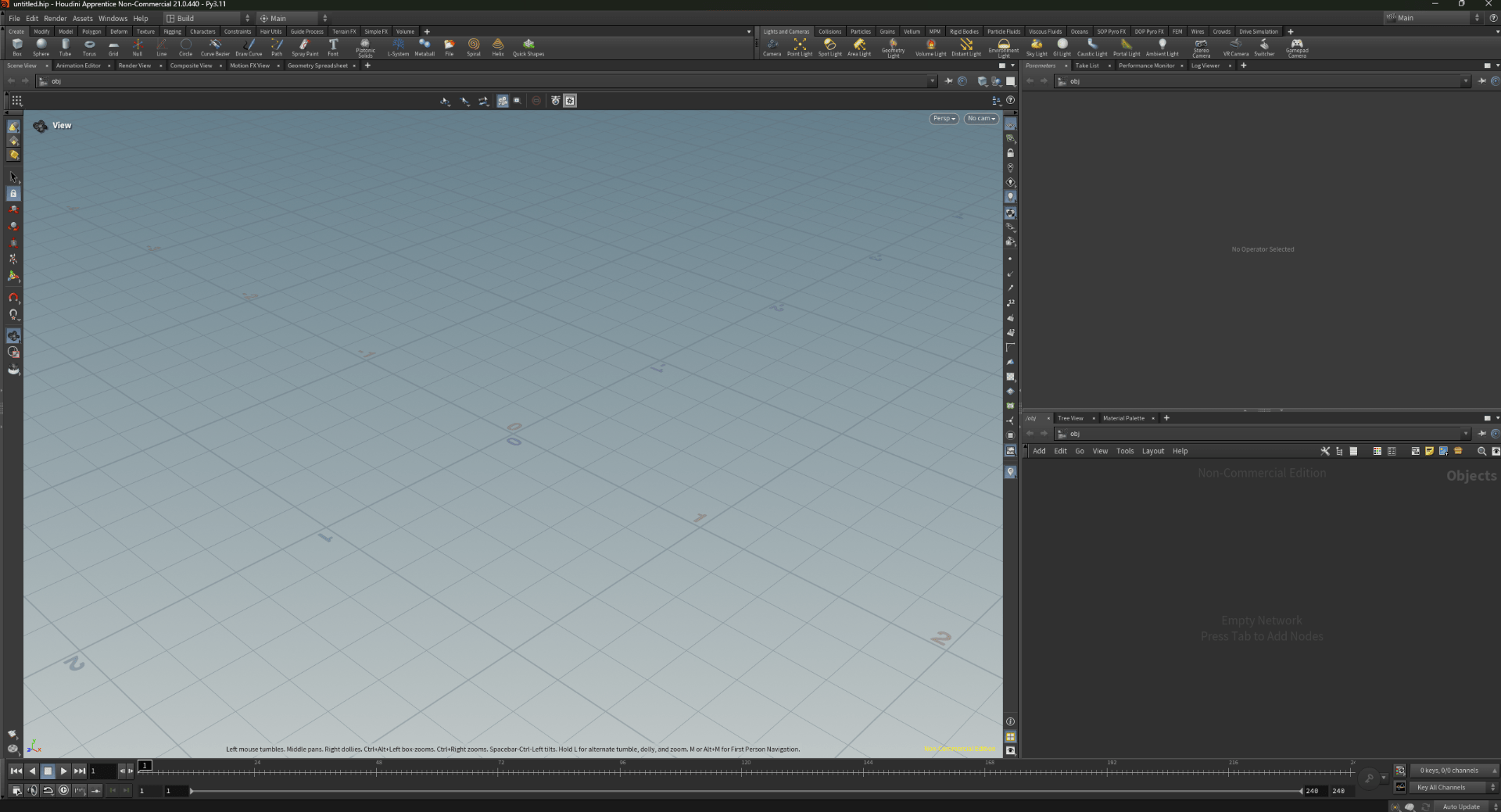
we have the menu at the top.

we have the layouts.
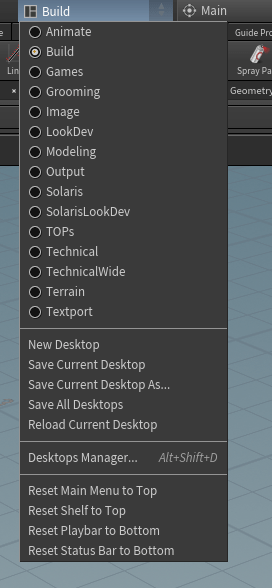
we have shelf tools just like in MAYA.

we find the different views.
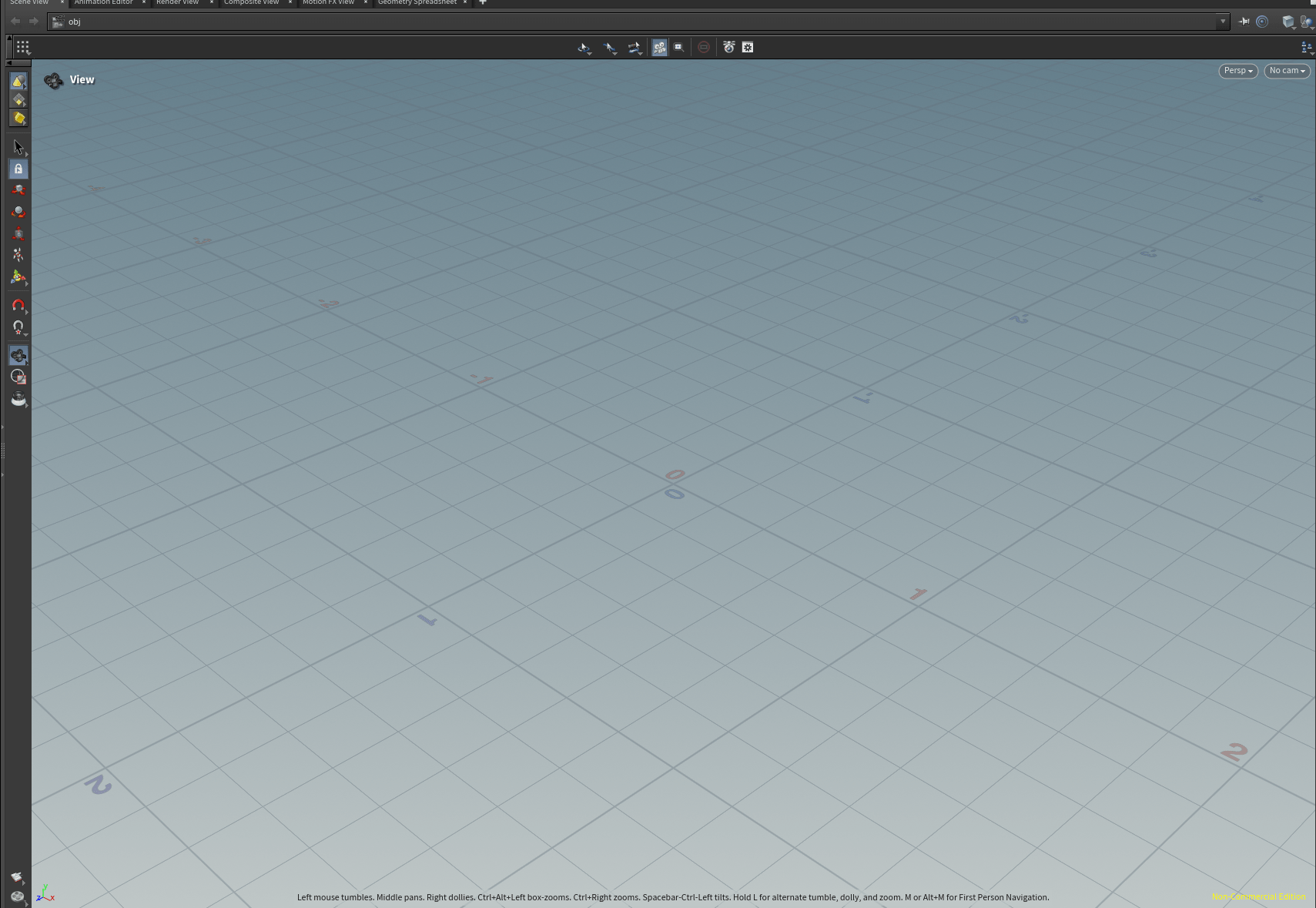 we find the tools bar at the left.

and display options on the right side of the view.

we find the parameter tab.
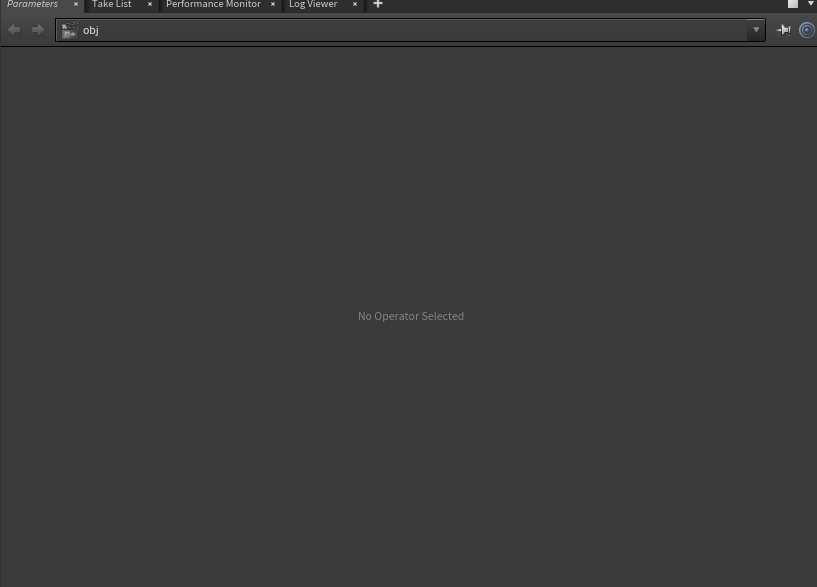
and just below we see the network window where we will see the nodes we create.
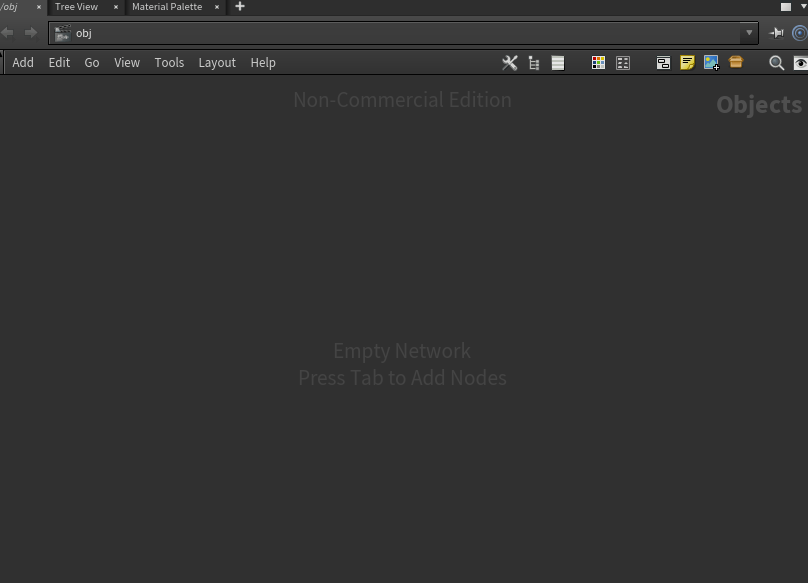
and finally at the bottom we find the time slider.
with all this basic interface knowledge now we can properly navigate trough Houdini with no problem.
Exercise 1
after knowing the interface we are going to warm up doing some work in Houdini.
we are going to create some dominoes.
we start from a new project.
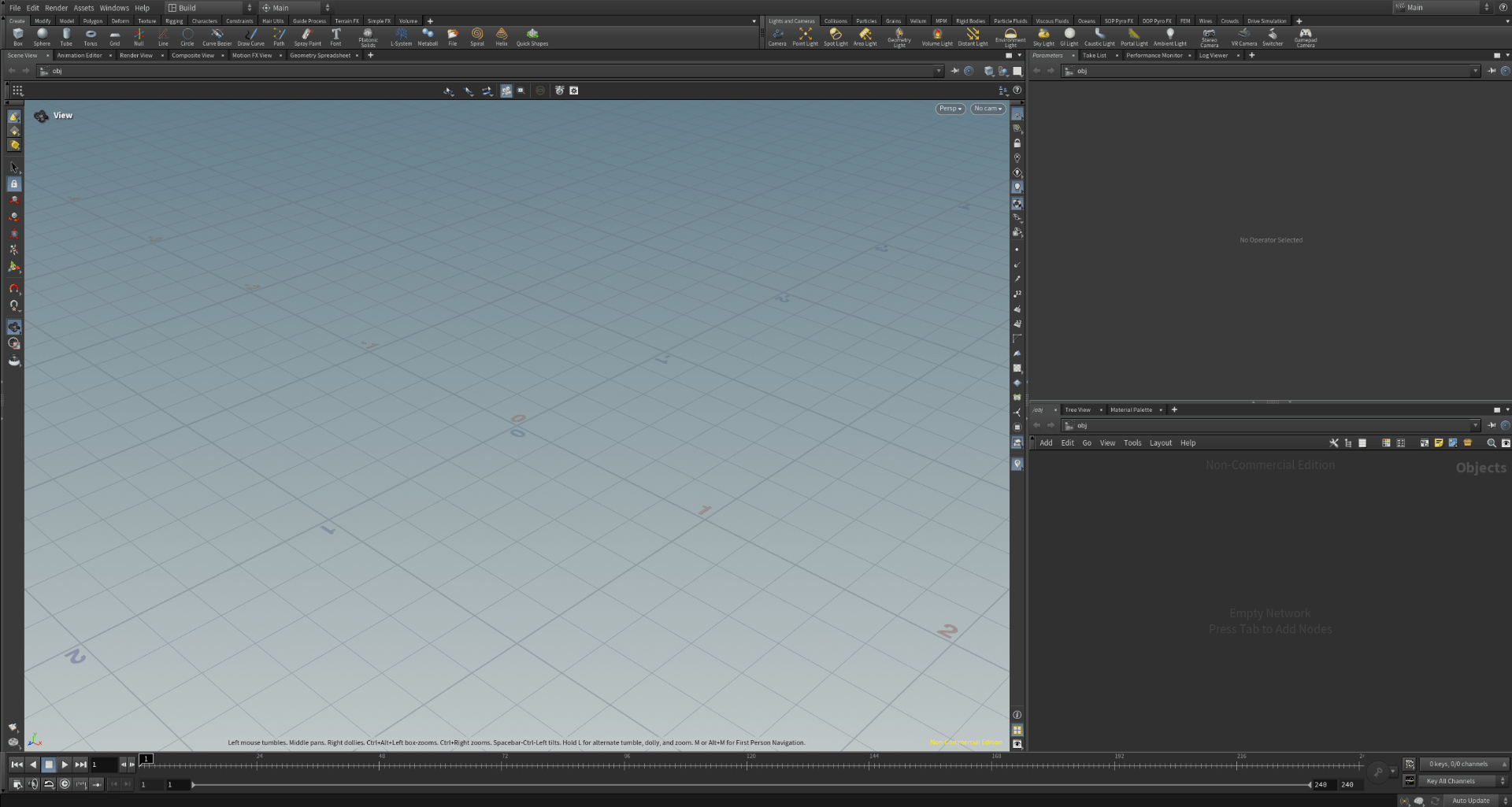
First we create our geometry container.
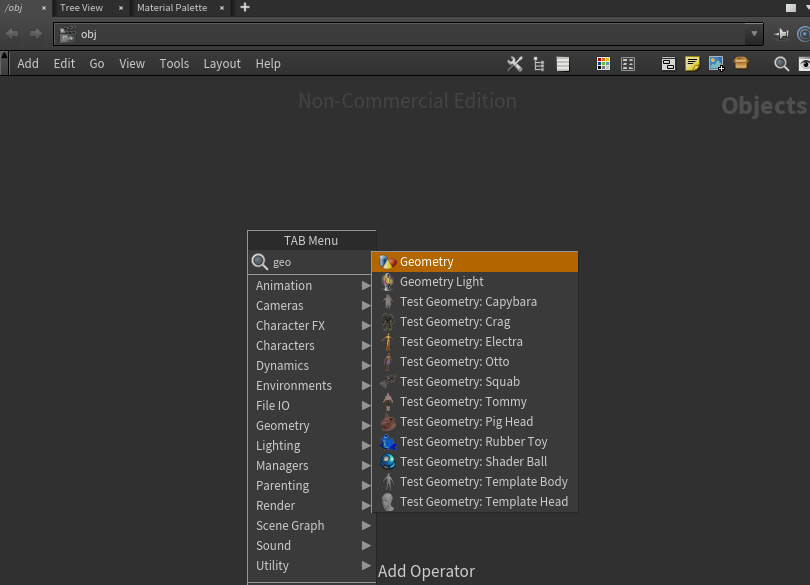
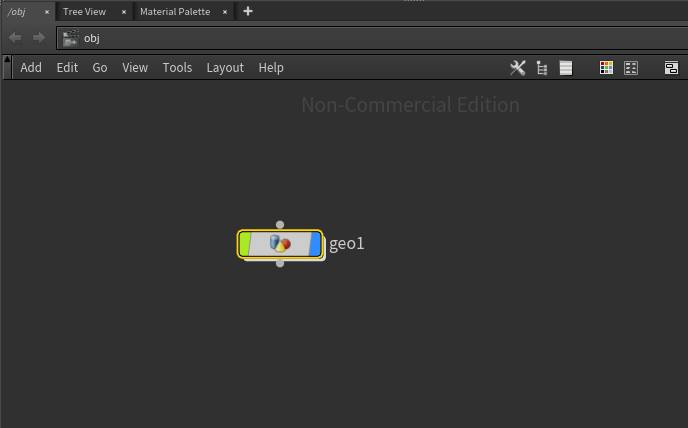
now we will rename it to “dominoes”.
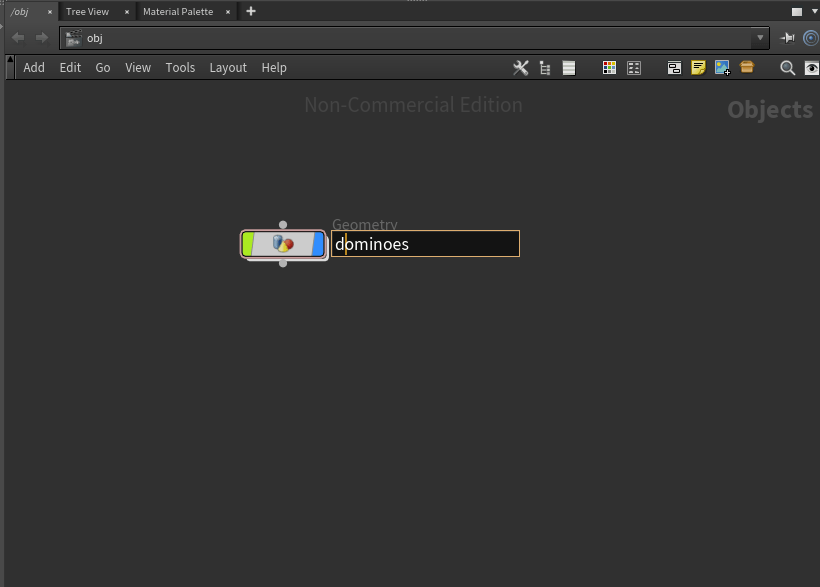
we doble click to enter inside the folder.
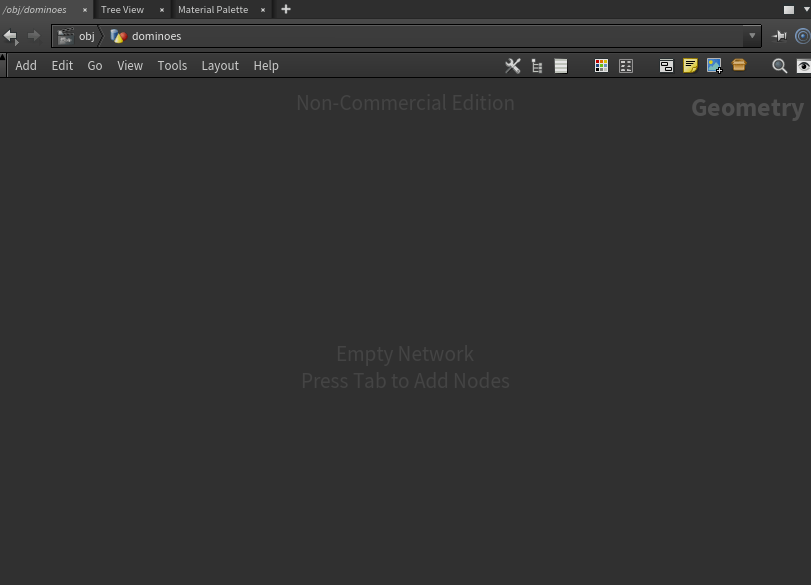
and inside we create a box.
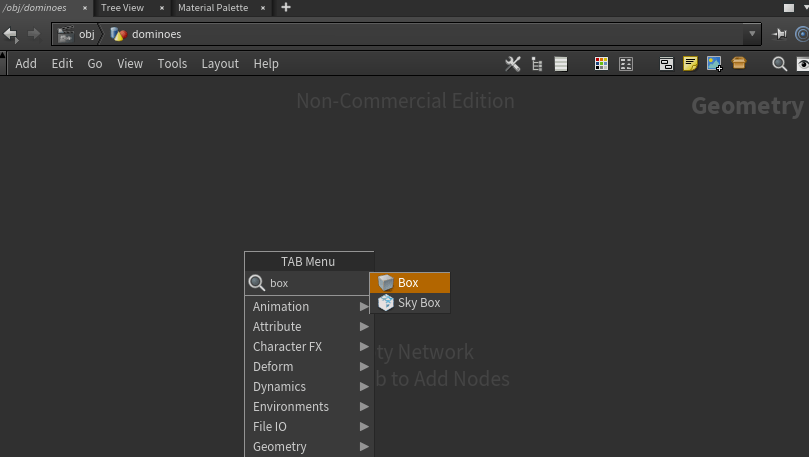
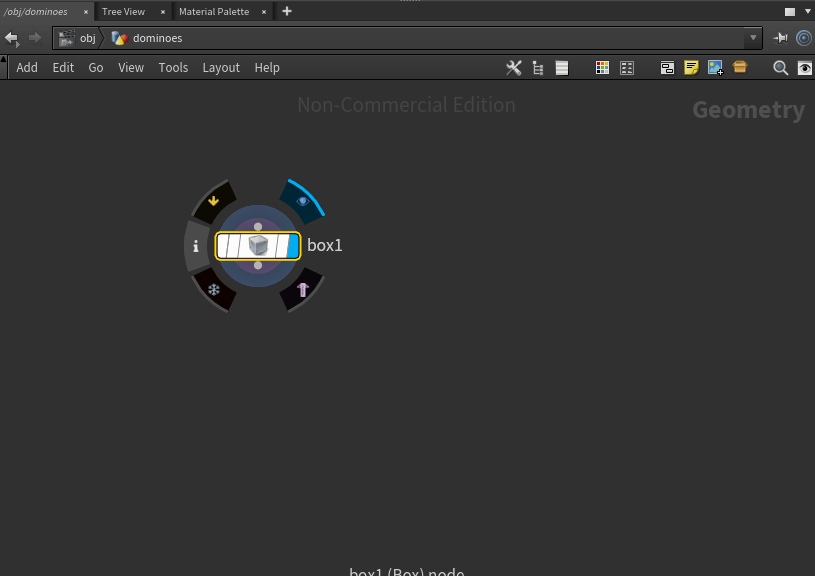
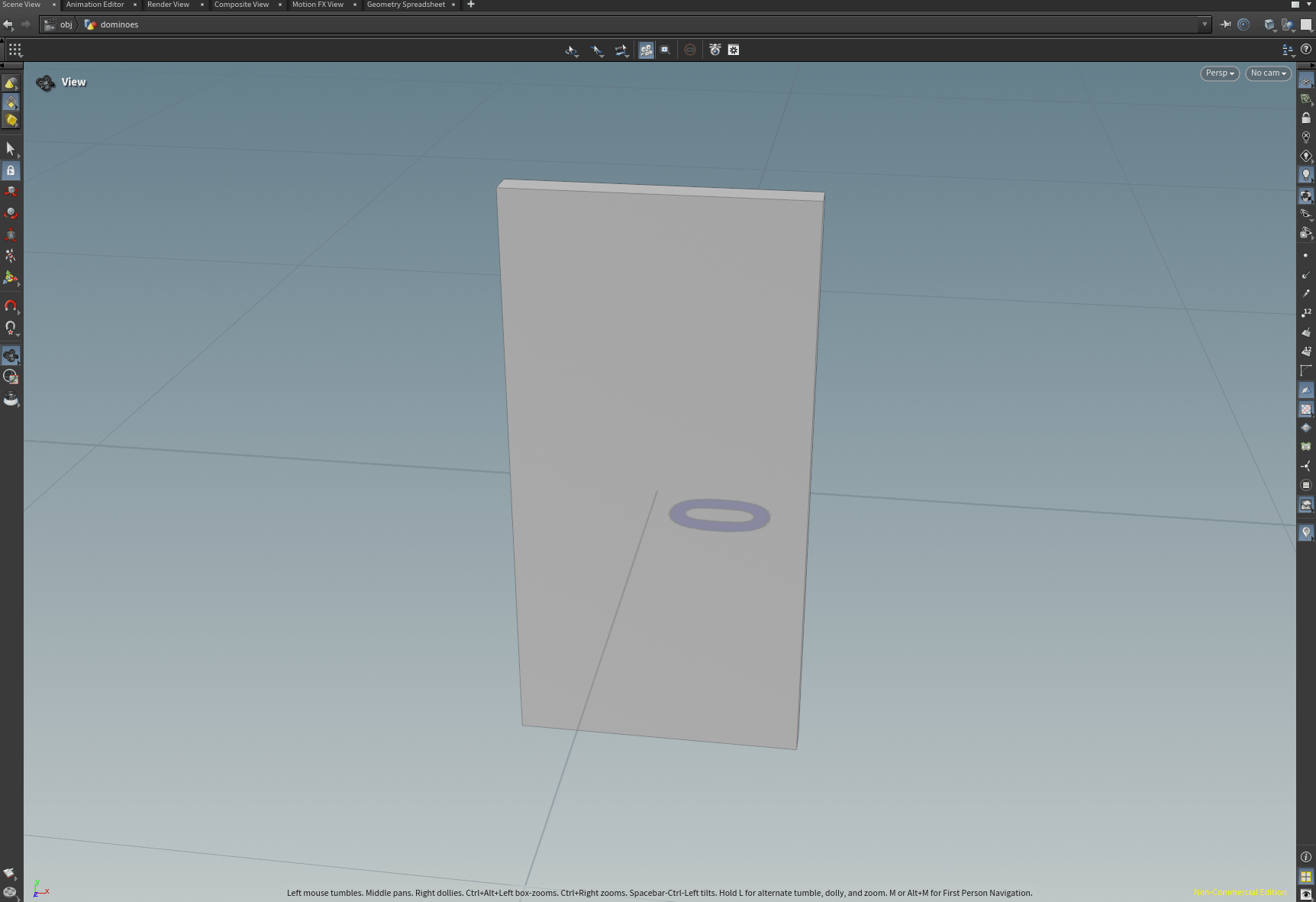
now we change the parameter of our box for it to resemble a dominoes piece.
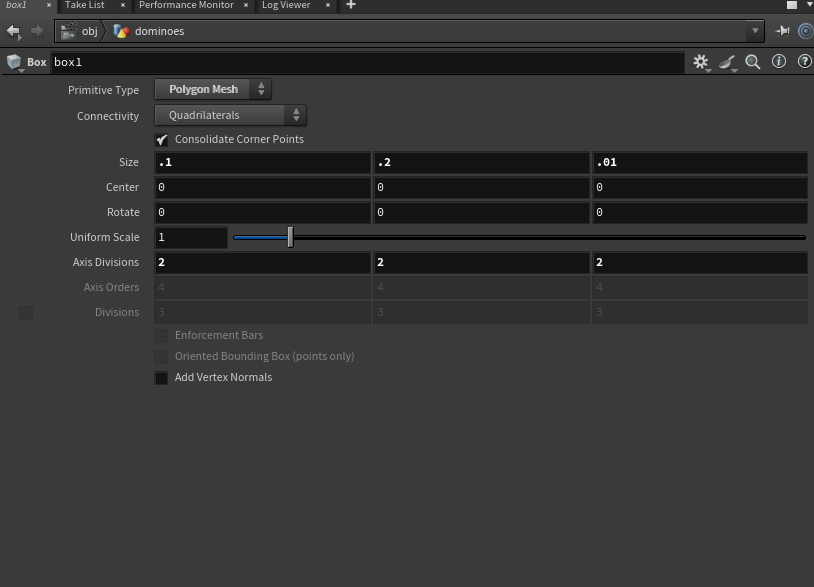
now we are going to add a match size node to the box, so the box sits on the grid.
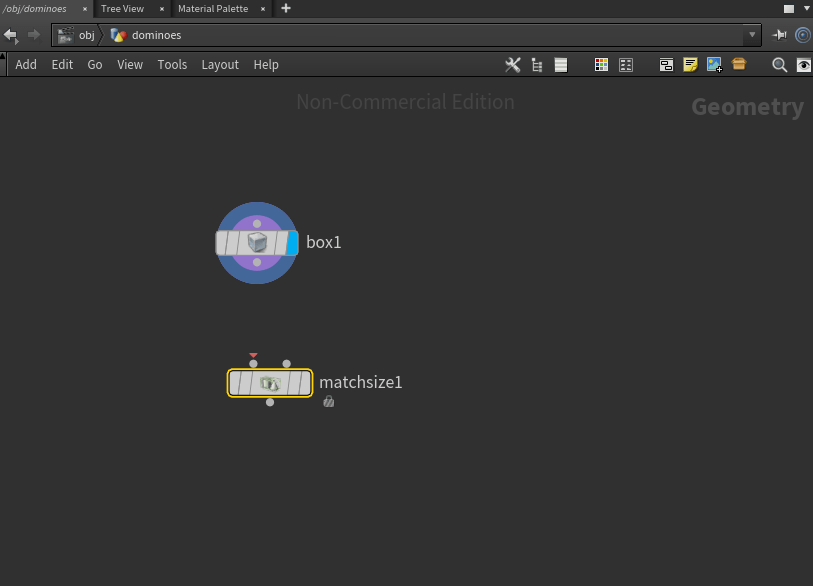
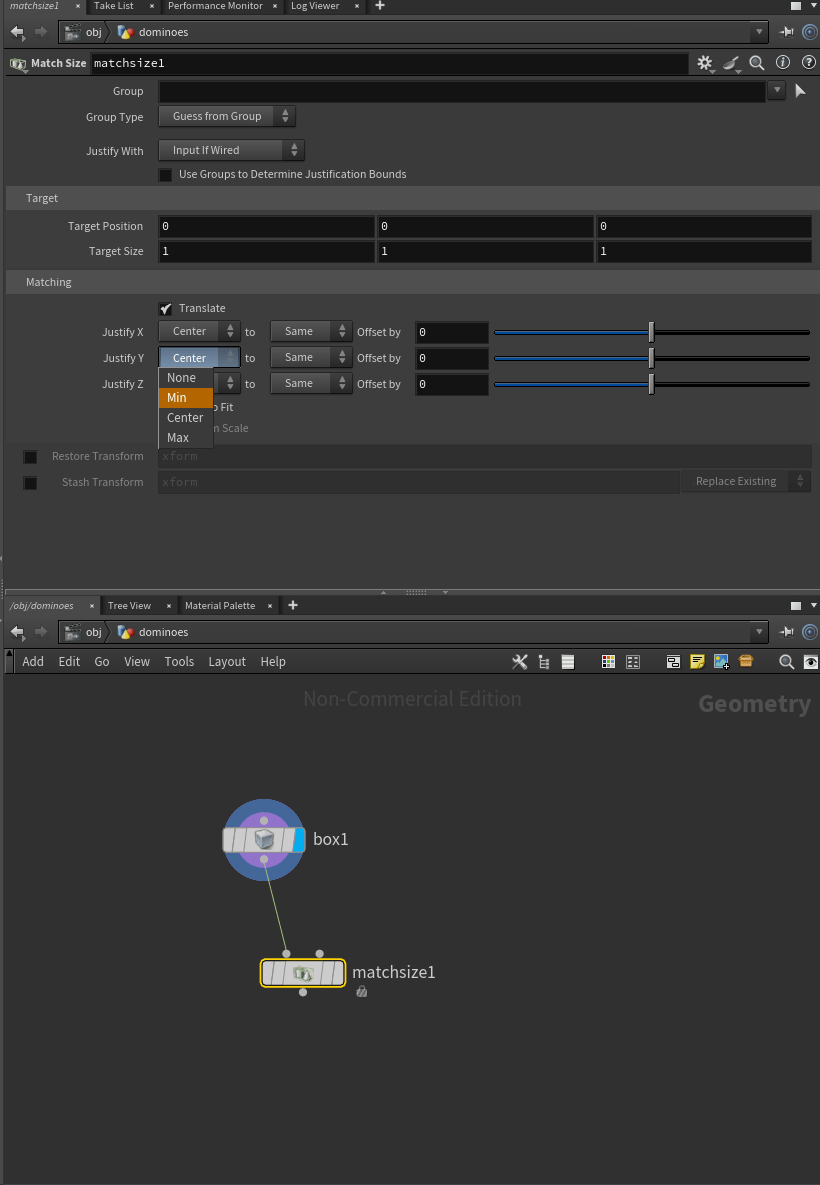
now our domino is sitting on the grid.
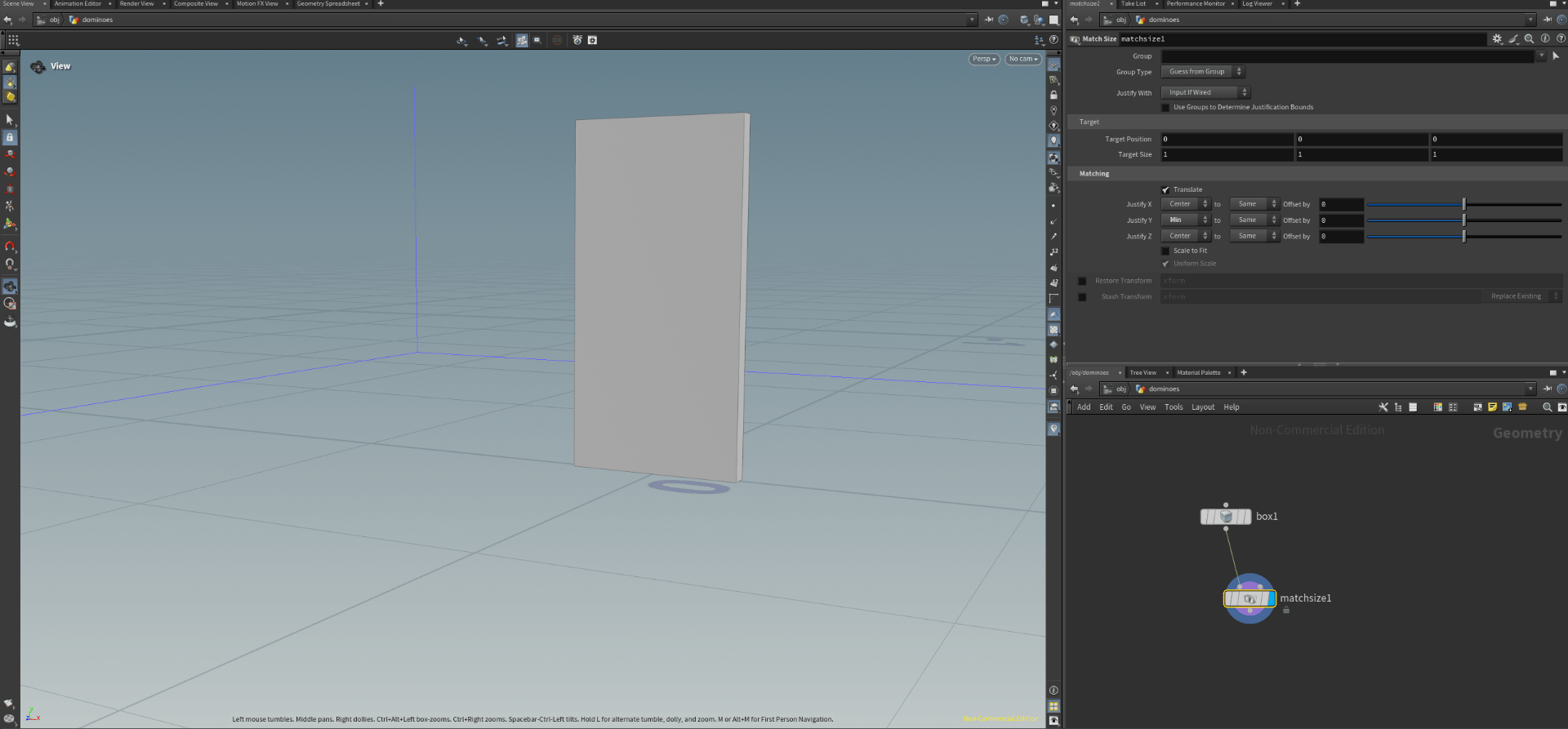
next we are going to ad a bevel node to smooth the edge of the domino.
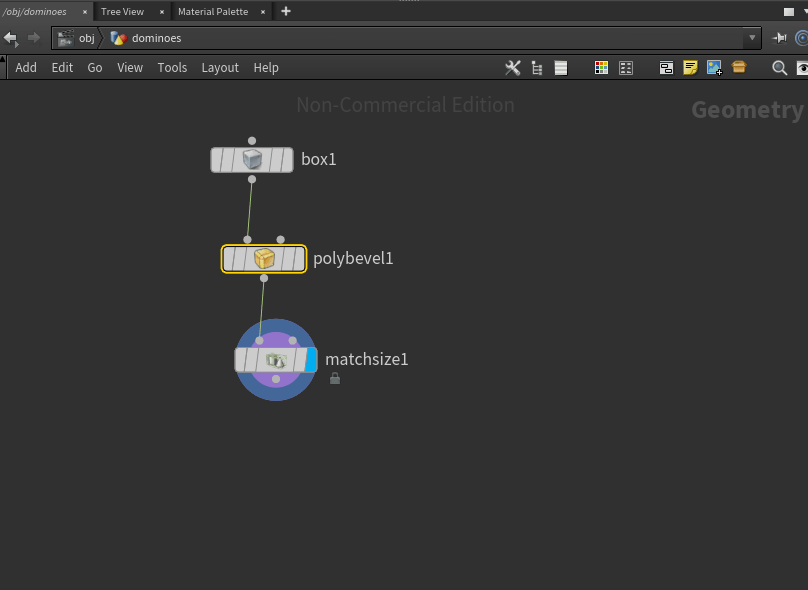
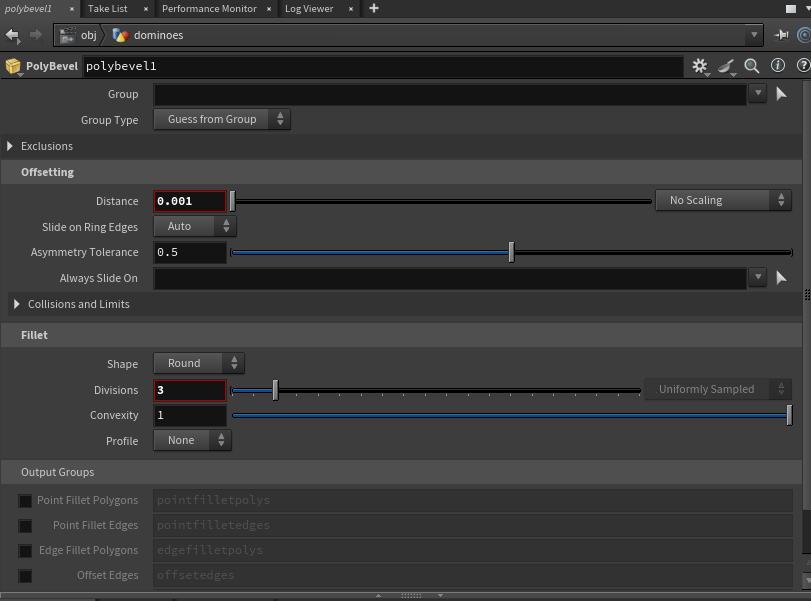
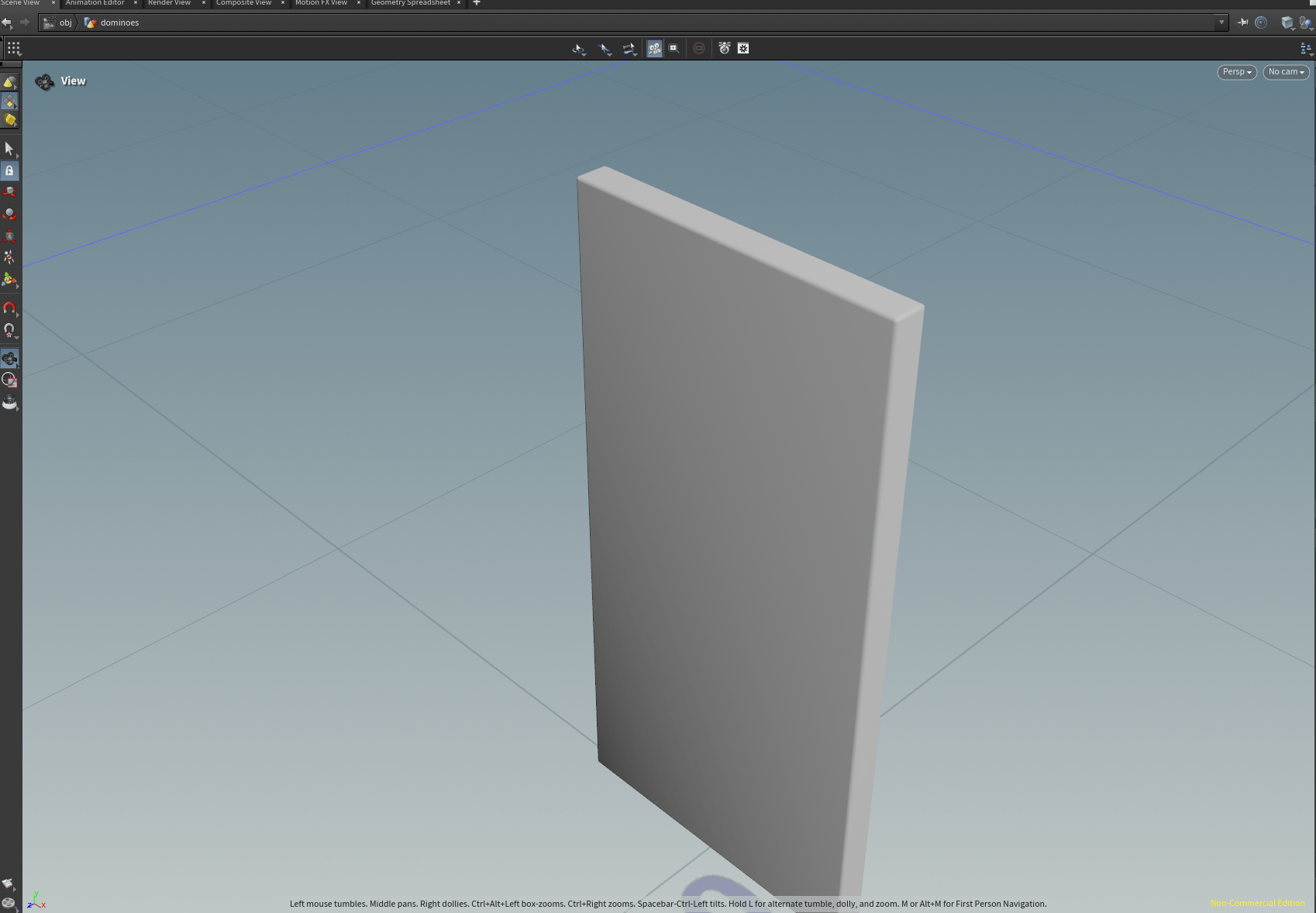
after applying the bevel the corners are smother and more realistic.
nest we are going to unwrap the UV of this model by adding a UV unwrap node.
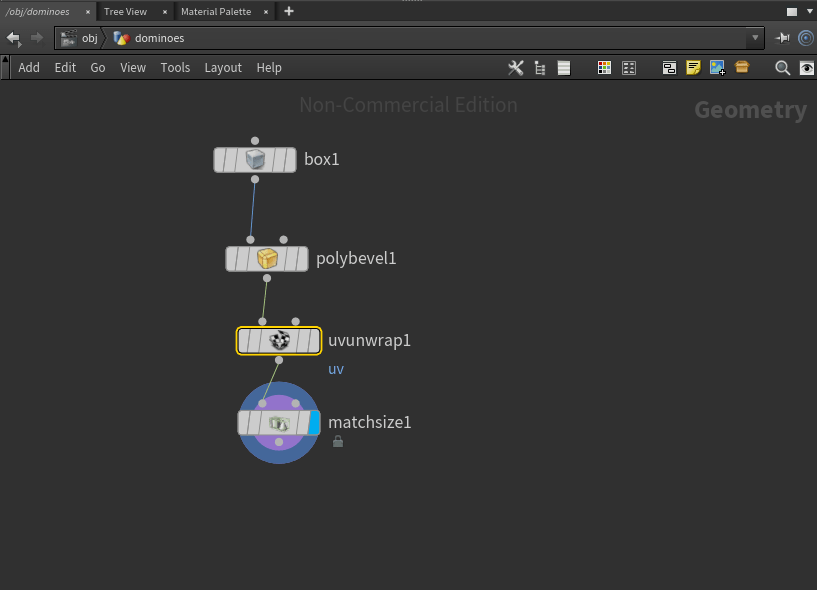
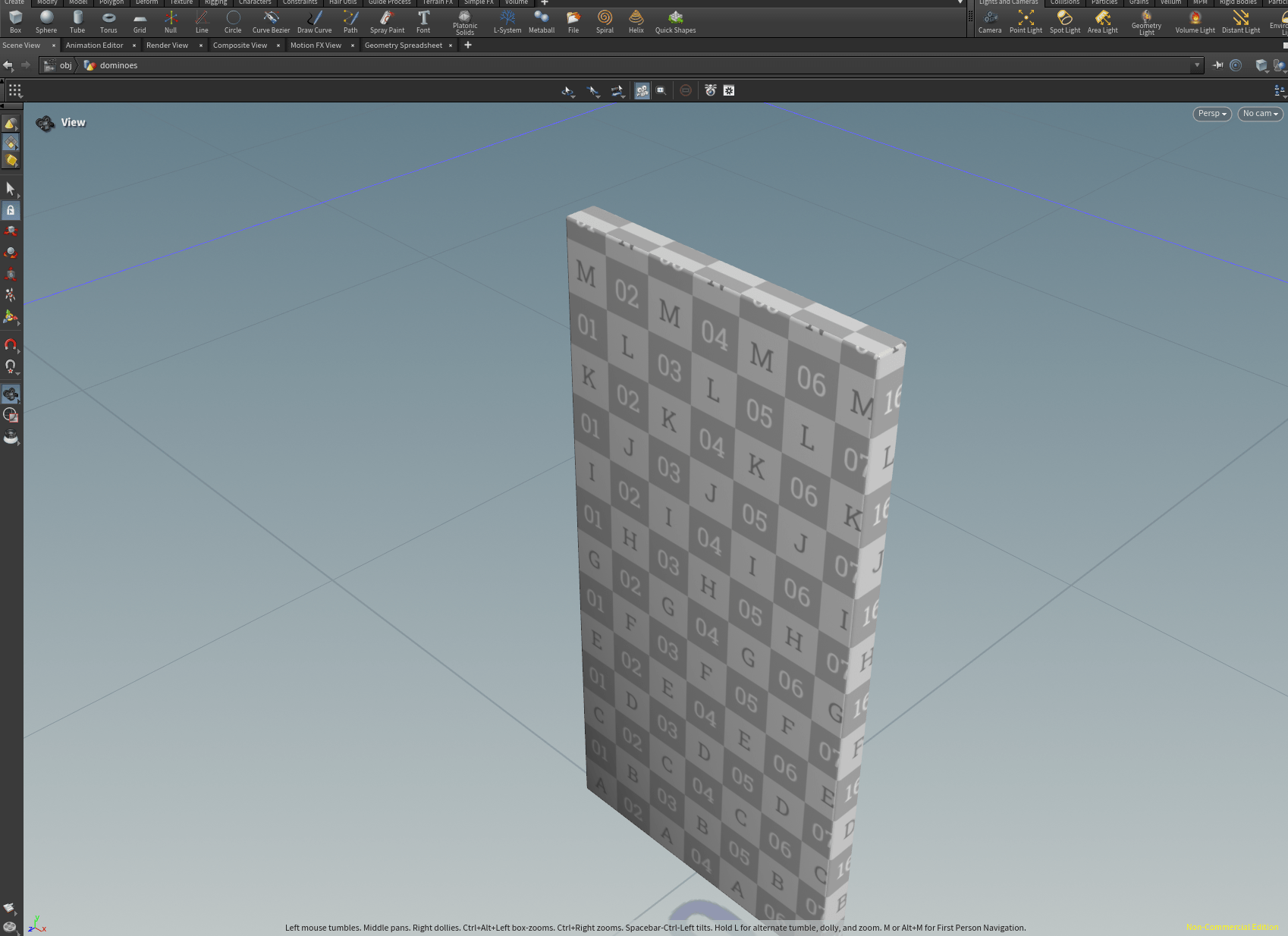
next we add a null node so we can use it as a placeholder to re-link important parts later.
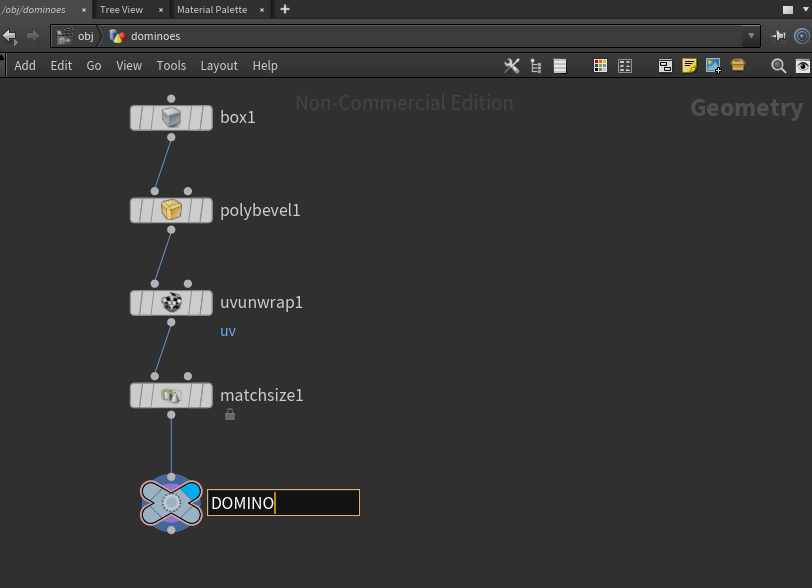
with this we have the model of our dominoes finished. And now we can follow with our dominoes system.
So we will start by adding a curve node.
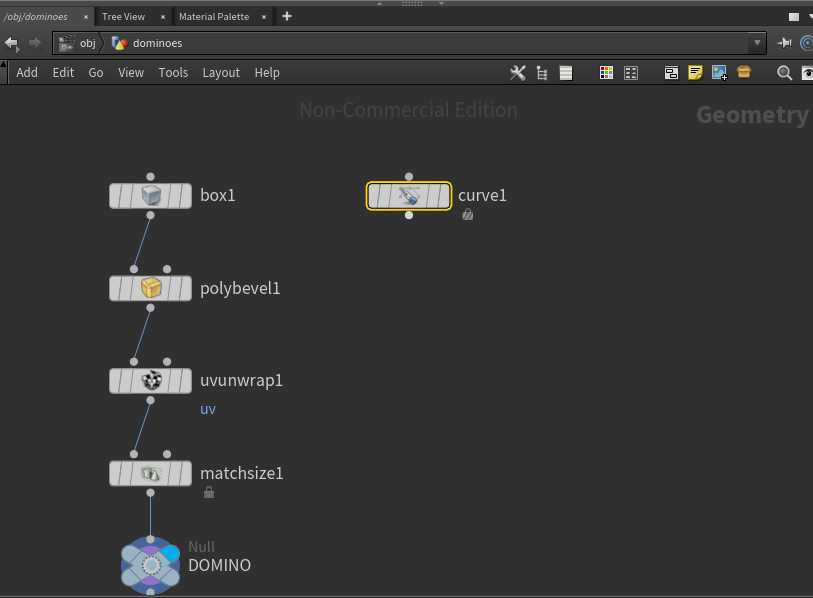
and we are changing the view port view to top.
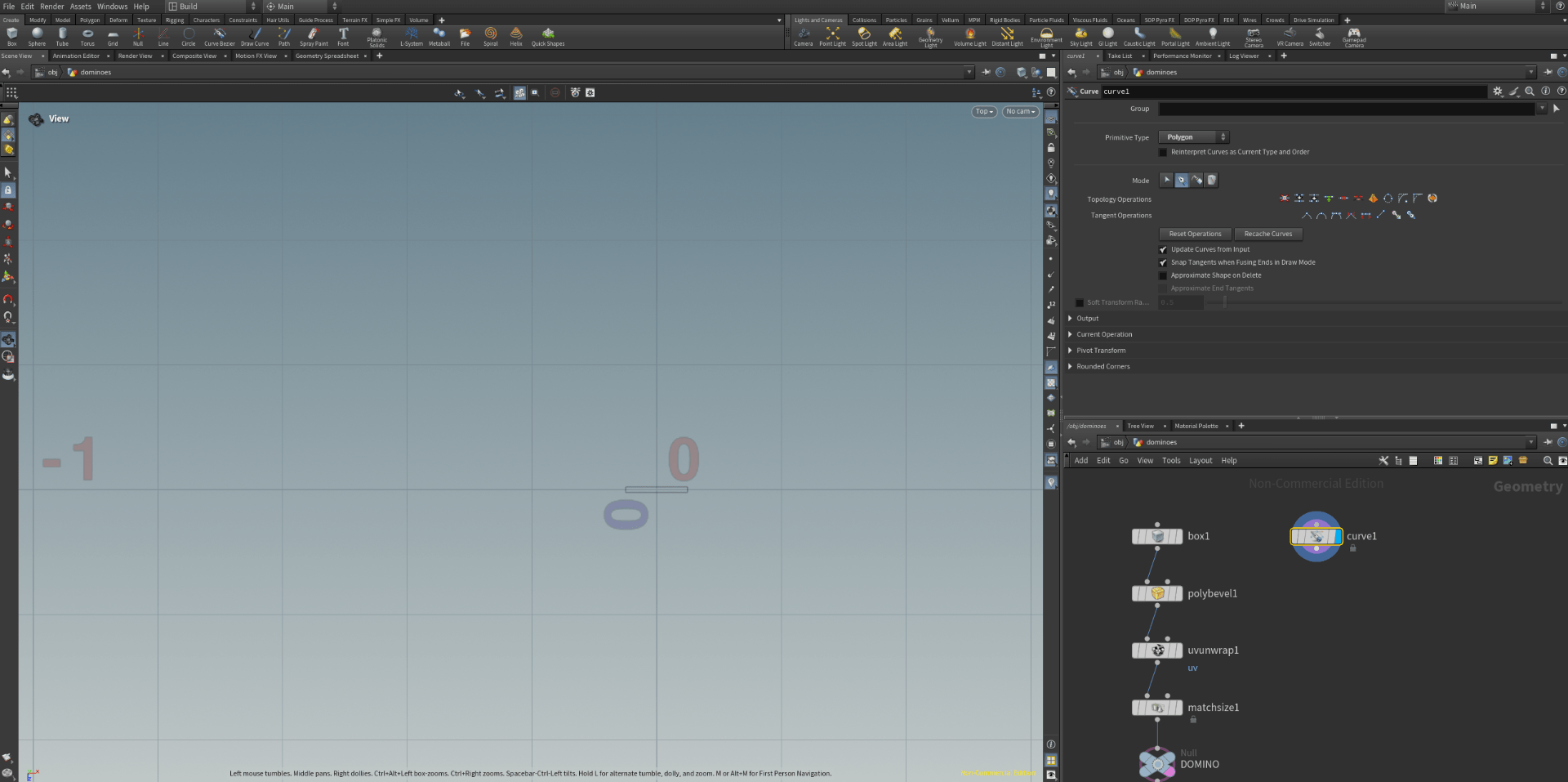
now using the special manipulator we start creating our curve.
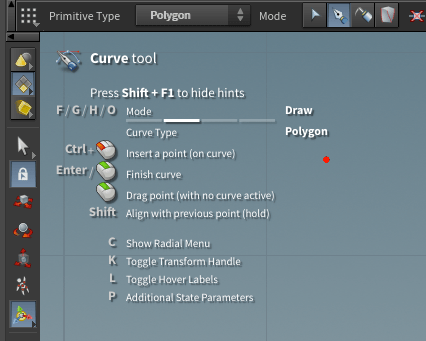
we also change some parameters.
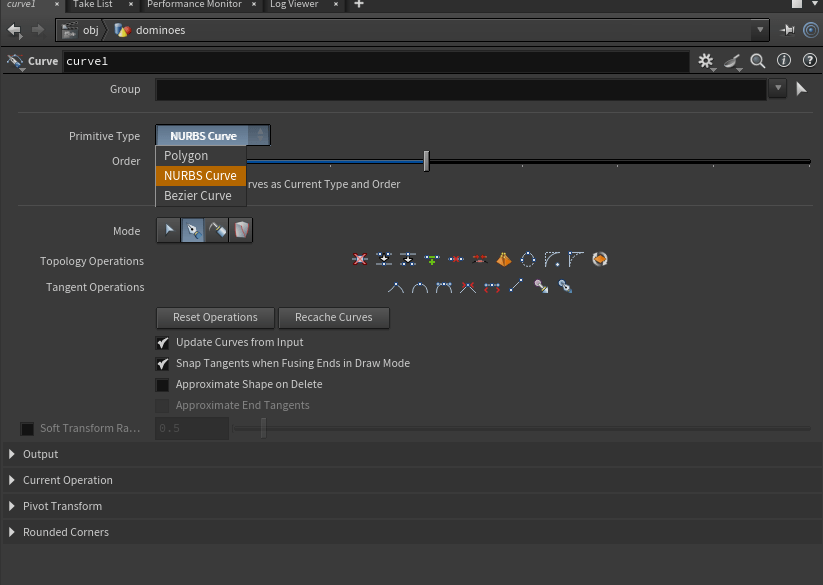
and the we change between modes to create our curve.
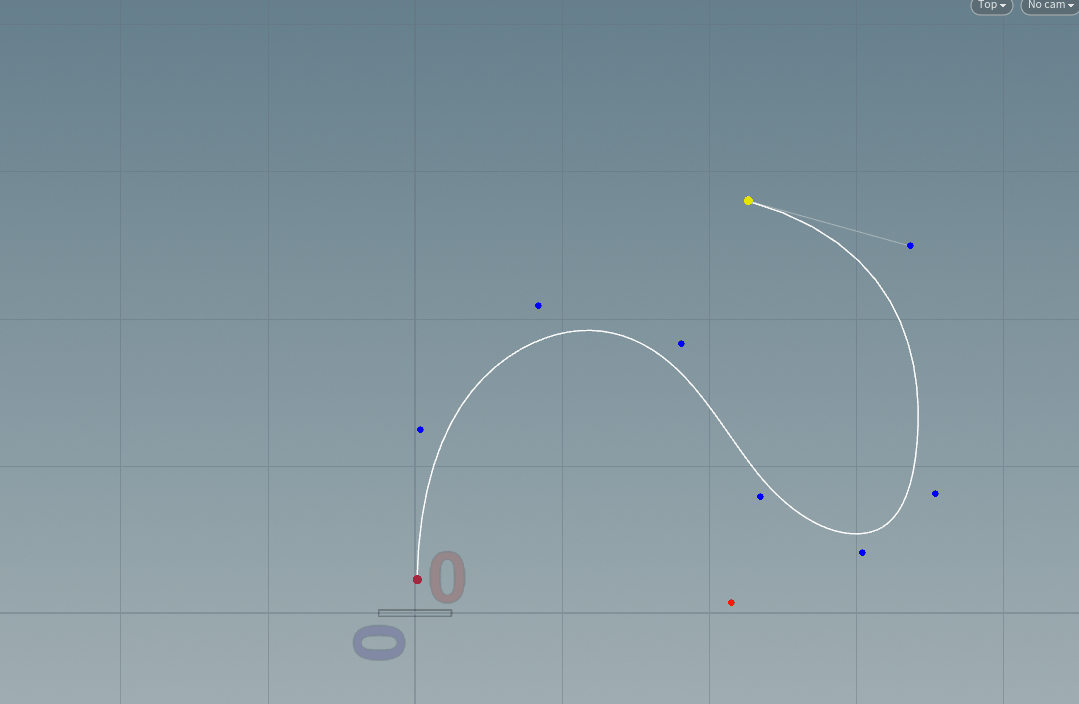
we can change mode again to edit the curve.
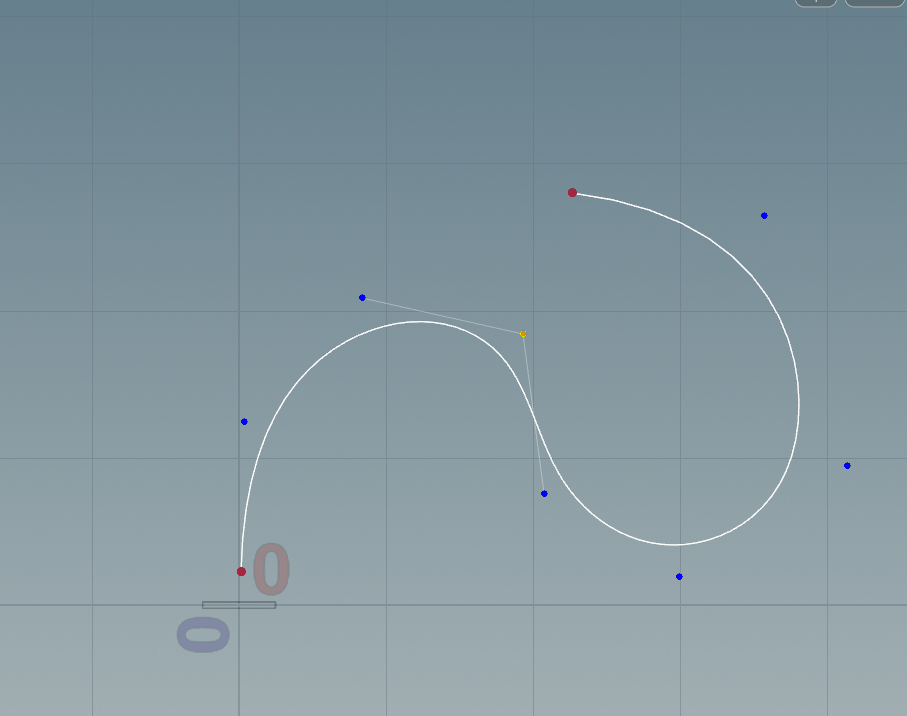
next we change our view to see the curve on a normal perspective.
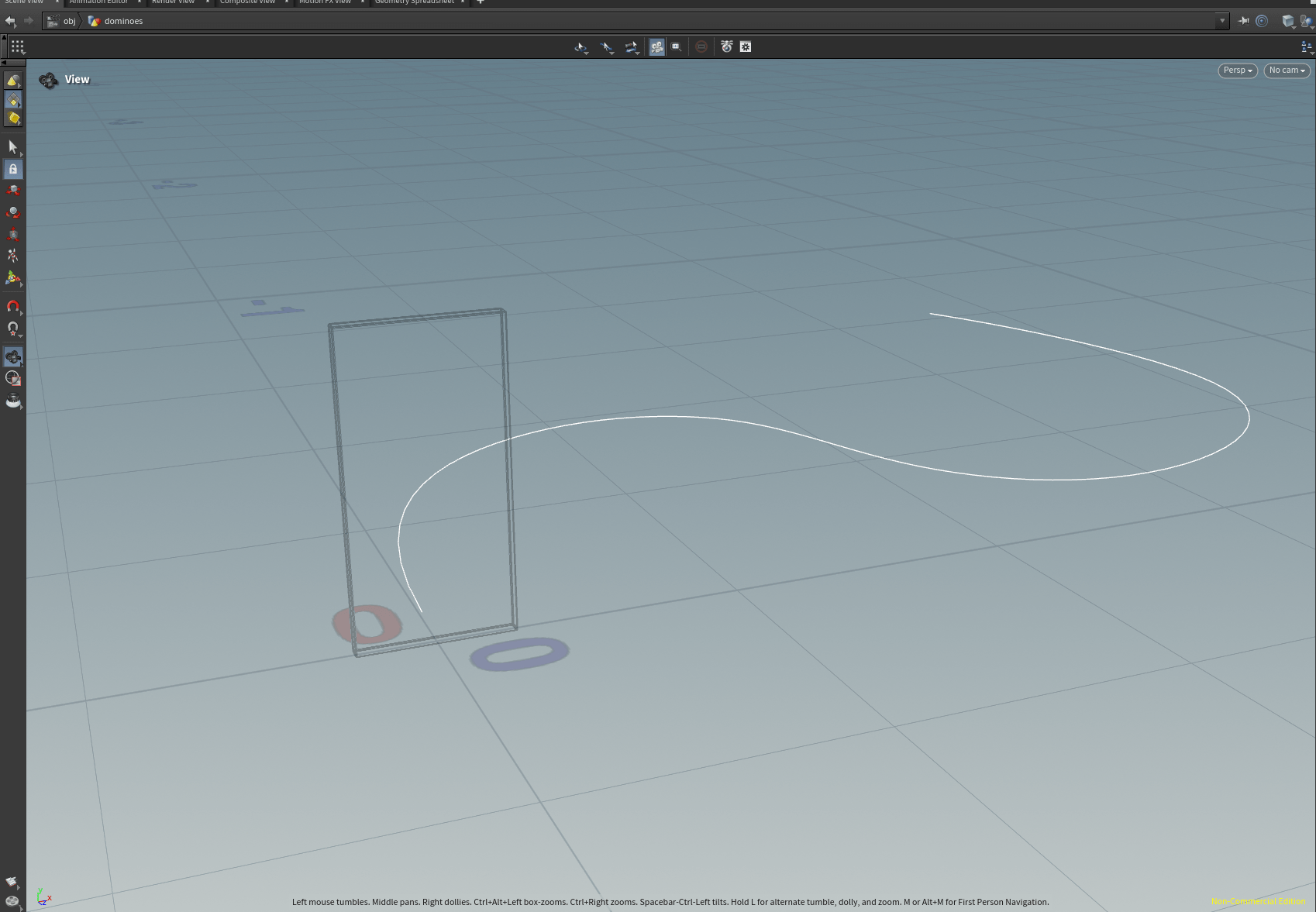
and we a null node to our curve.
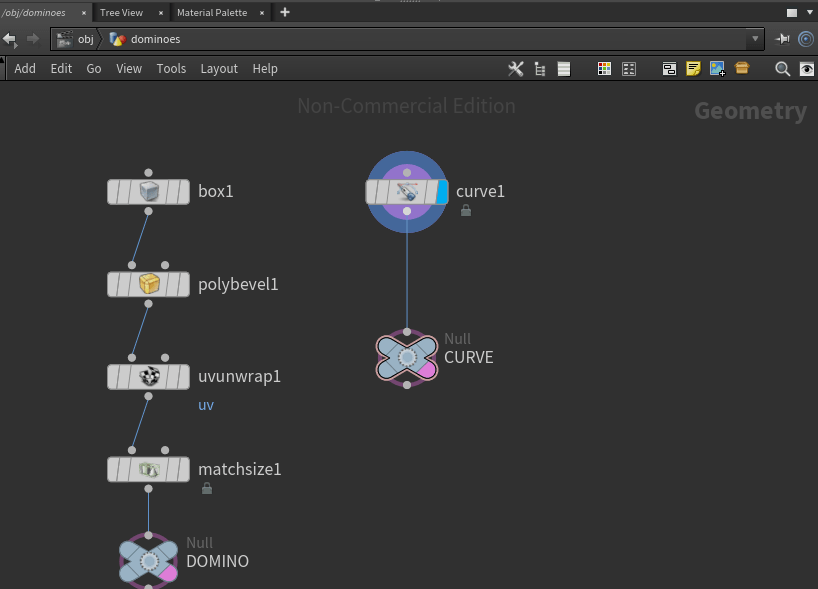
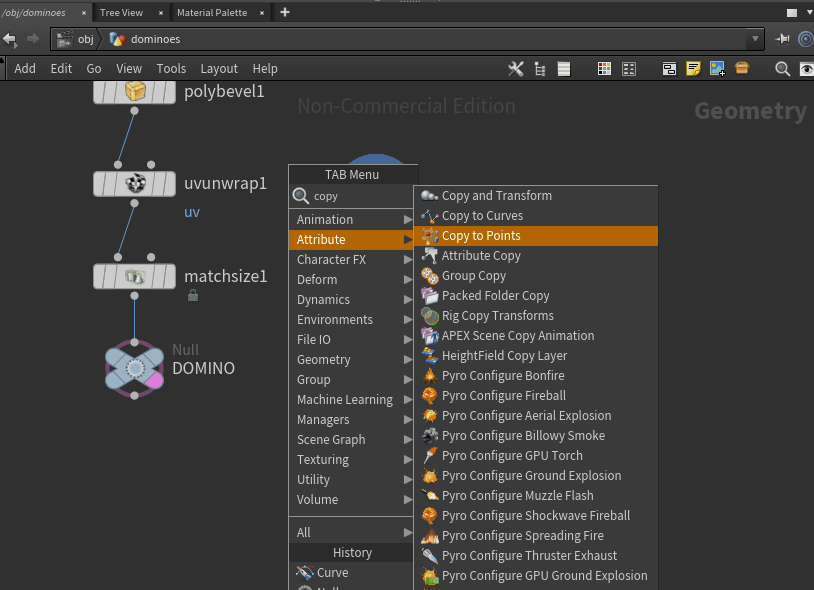
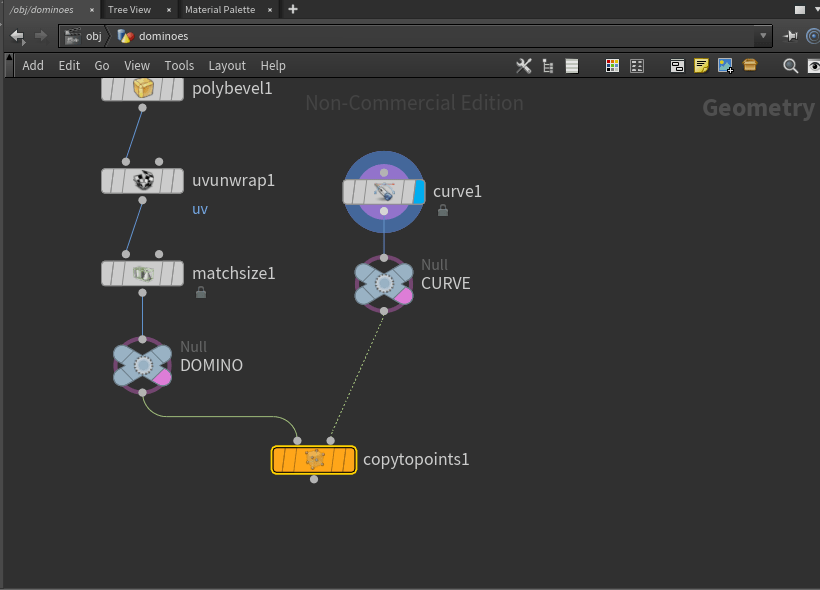
now we will add a copy to point node.
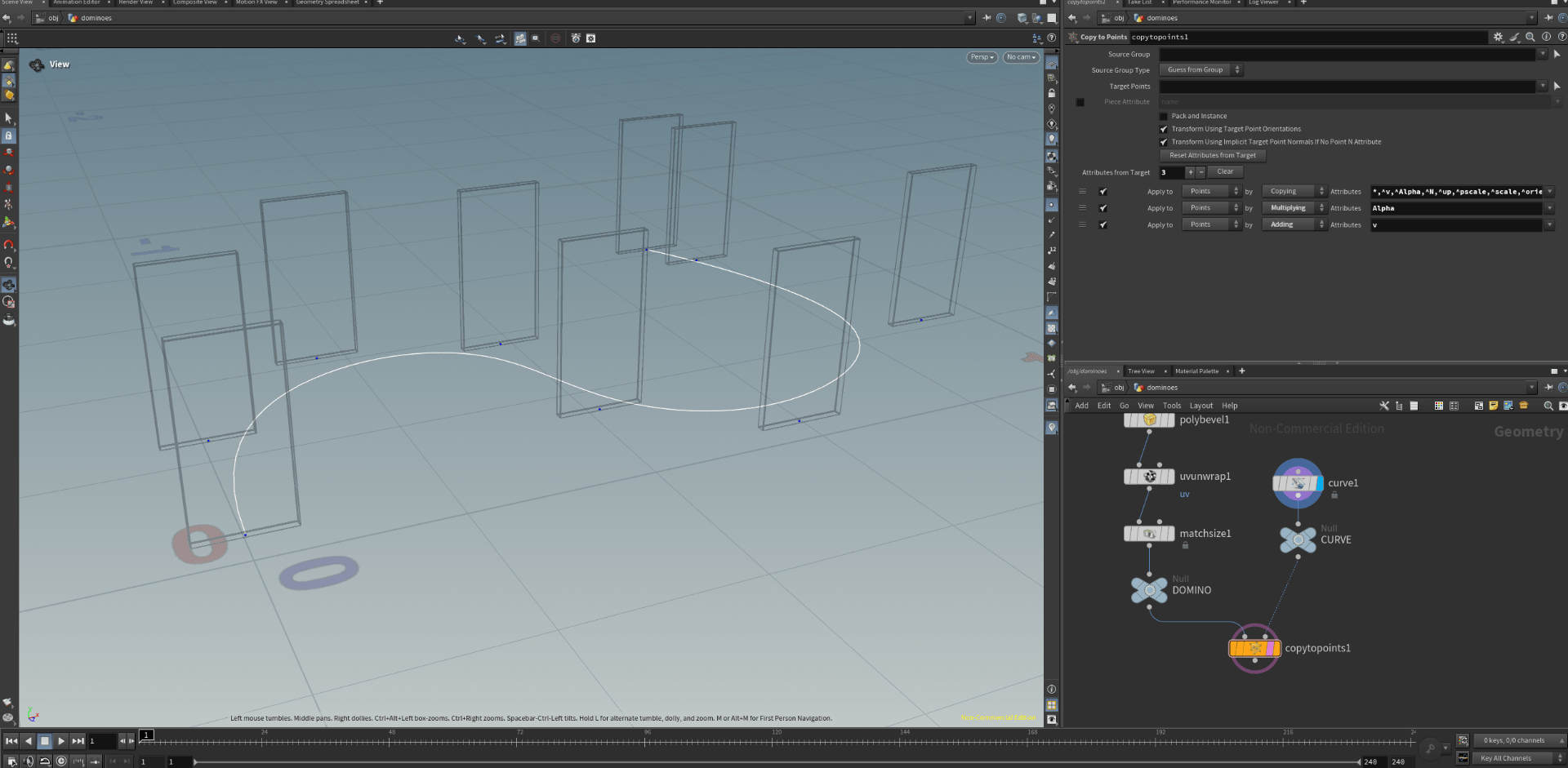
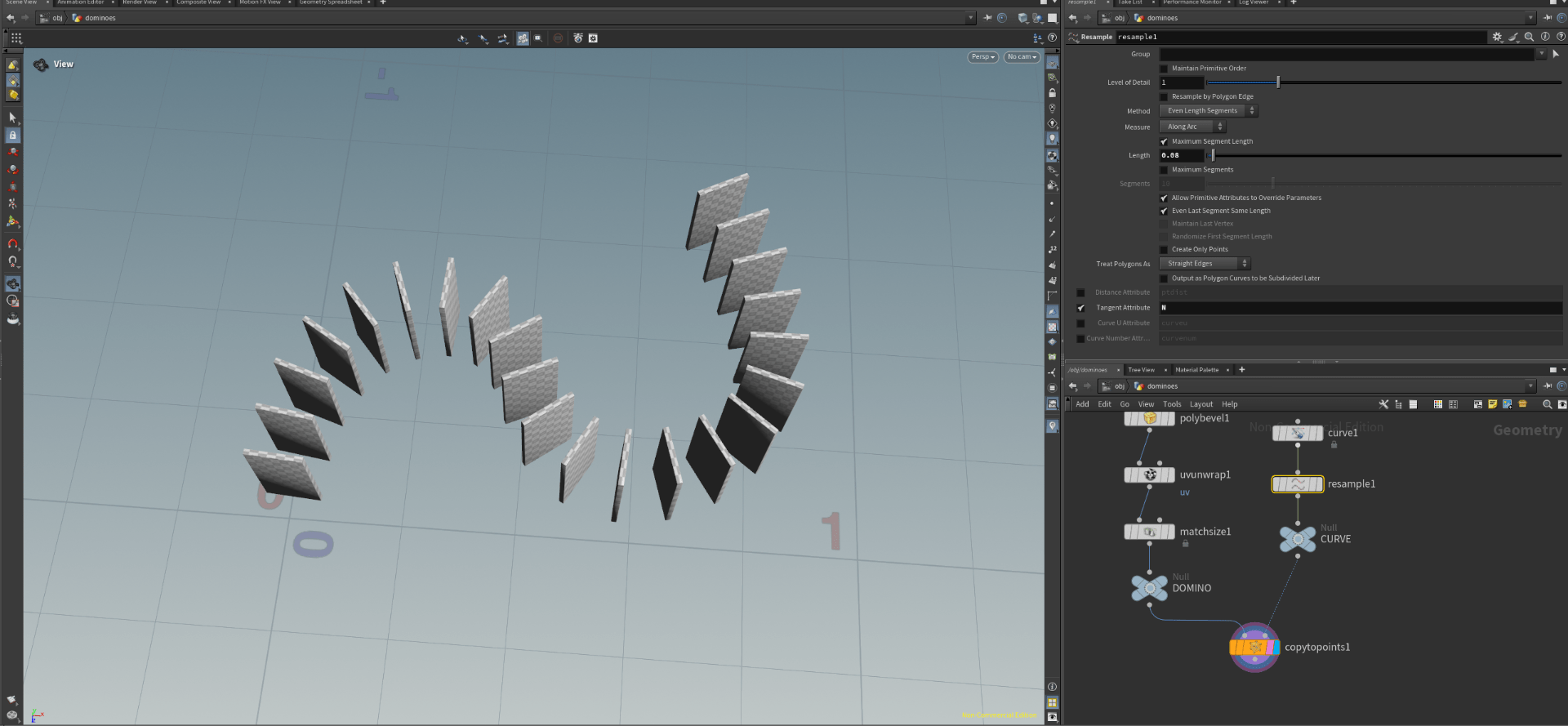
next we add a resample node to the curve.
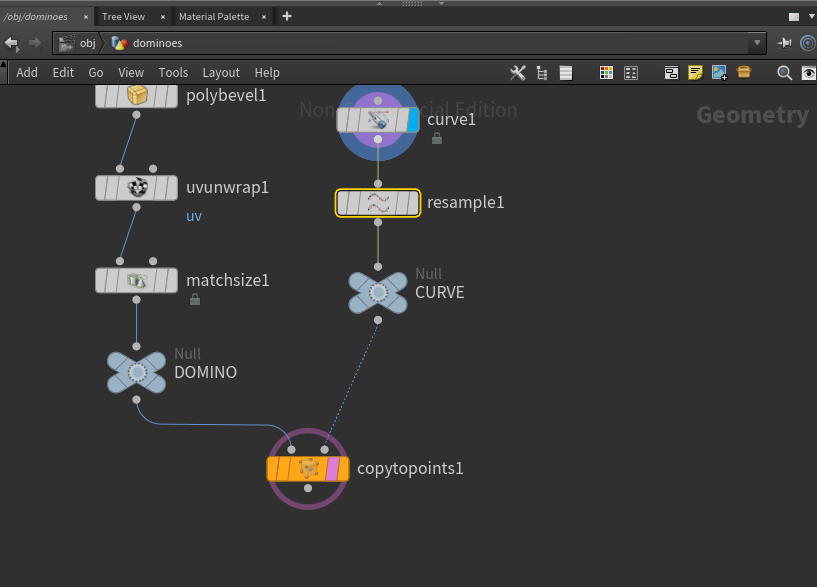
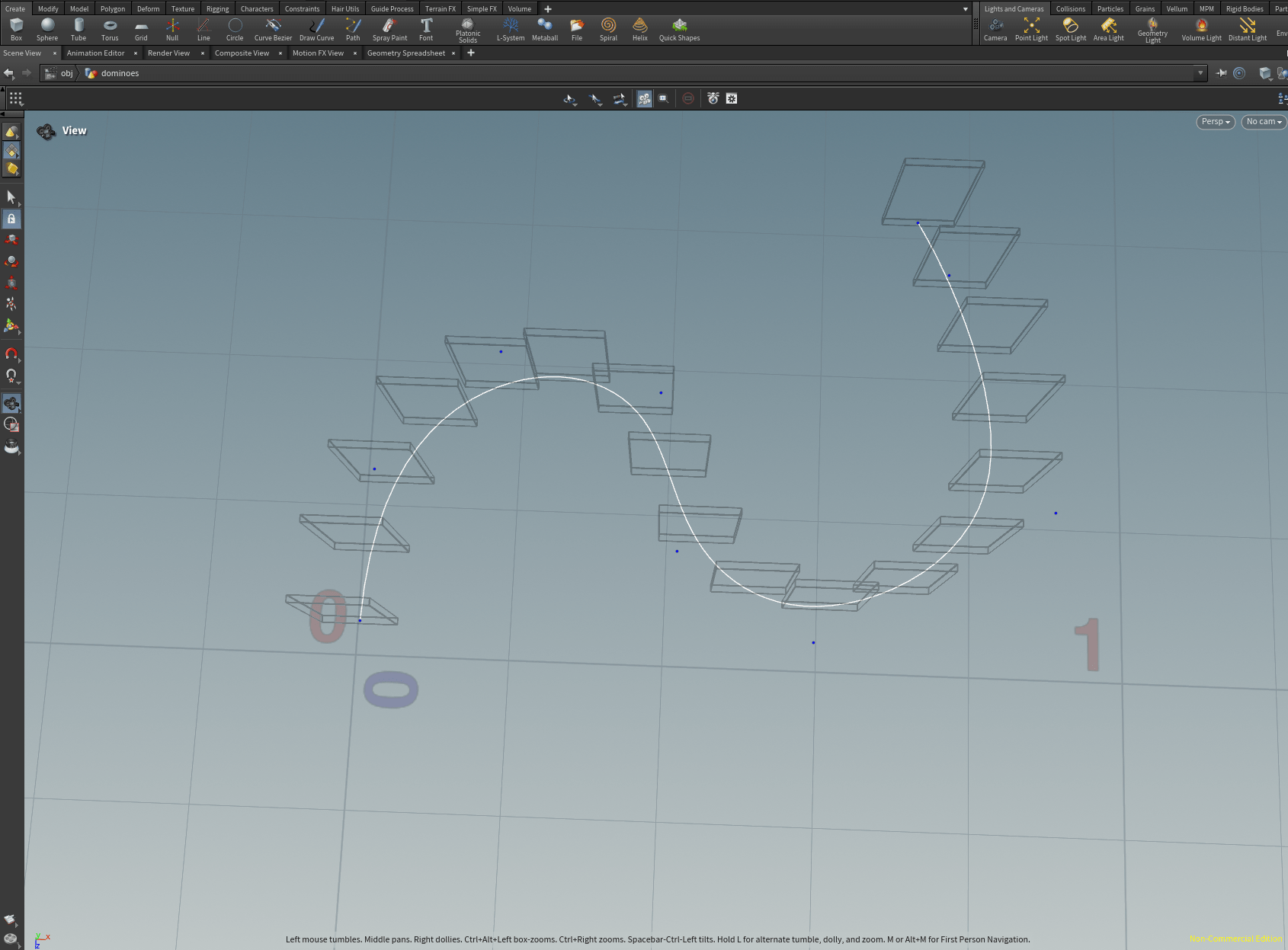
a problem we have is that the dominoes are not facing the curve, so now we are going to fix this problem.
first we are going to activate the tangent into the resample node and change the name to N.
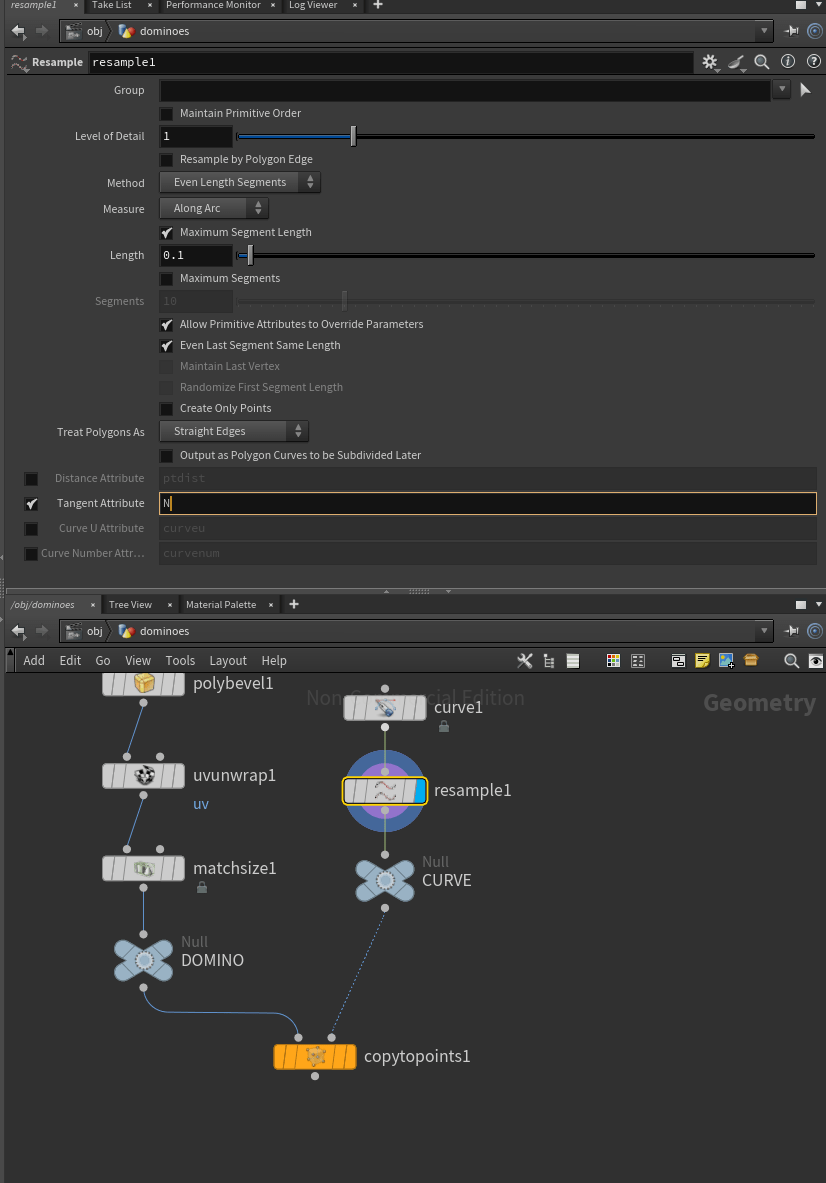
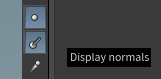
then we will visualize the normals in the view port.
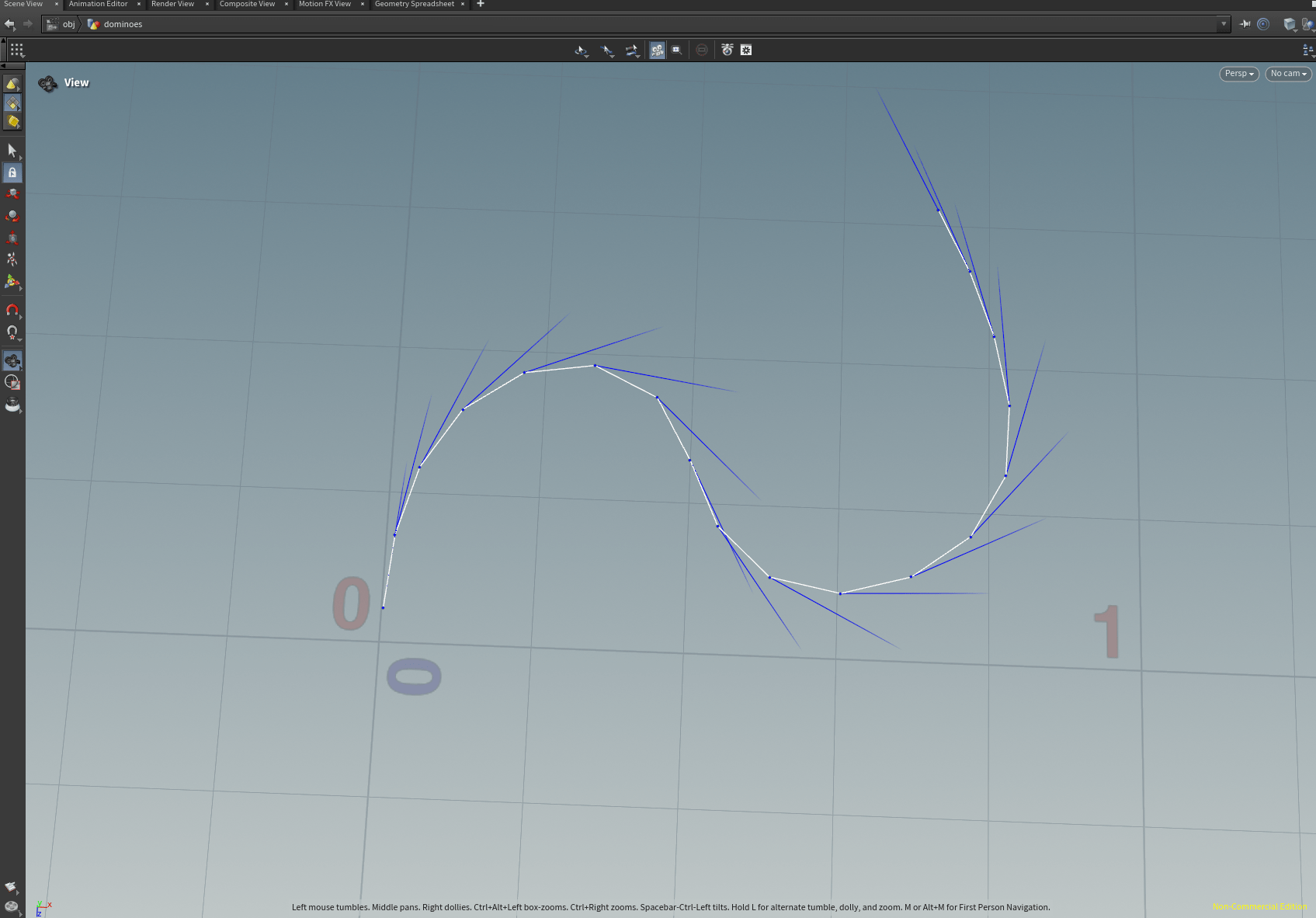
now our dominoes are orientated to our N attribute, so the dominoes follow the curves.
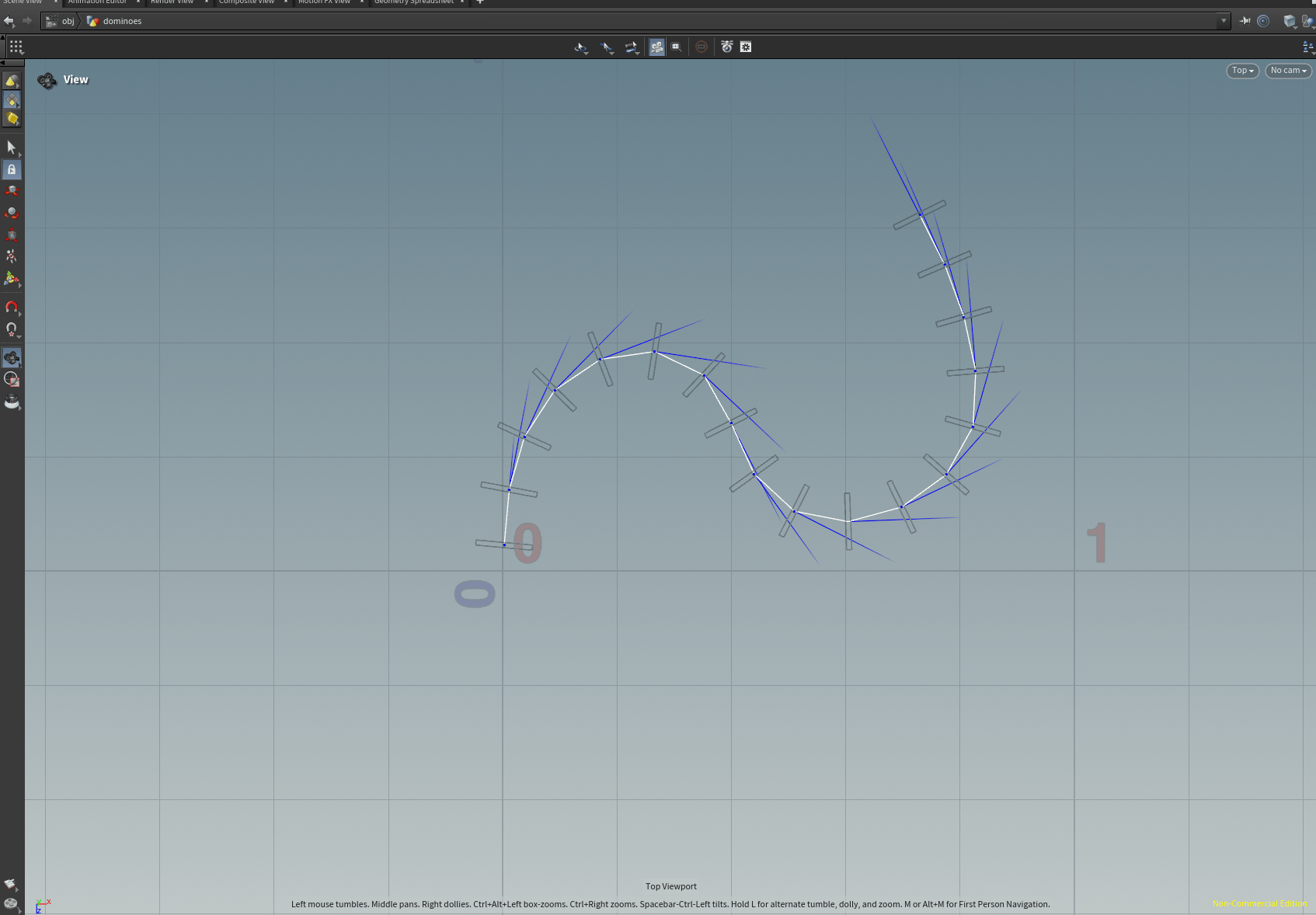
we can change the resample length to change the quantity of dominoes.
now we are going to create a new attribute.
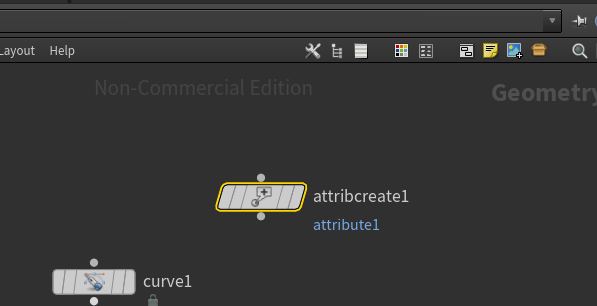
we change the name and value of this node so we can change the size of our dominoes.
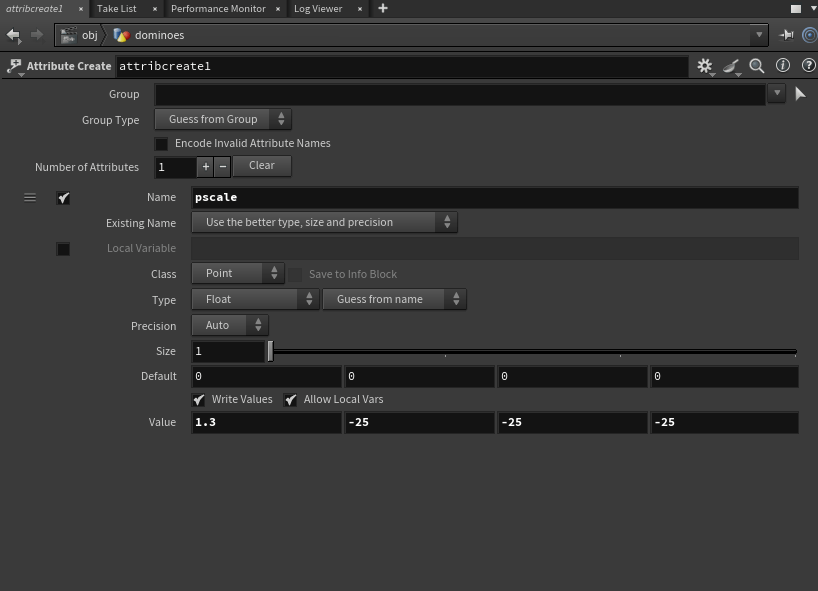
so lets see other ways to change attributes, so we start by deactivating the create attribute node.
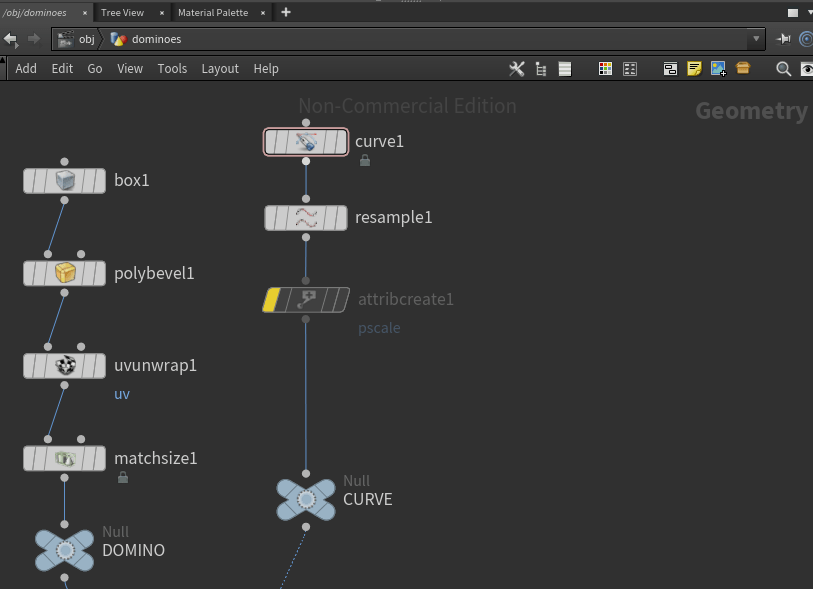
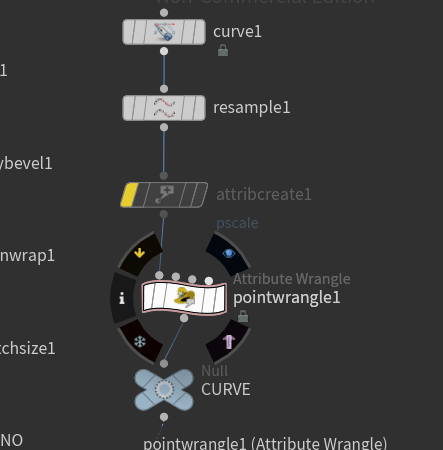
and we are adding a point wrangle node.
so inside the parameters we are going to write this code and press enter.
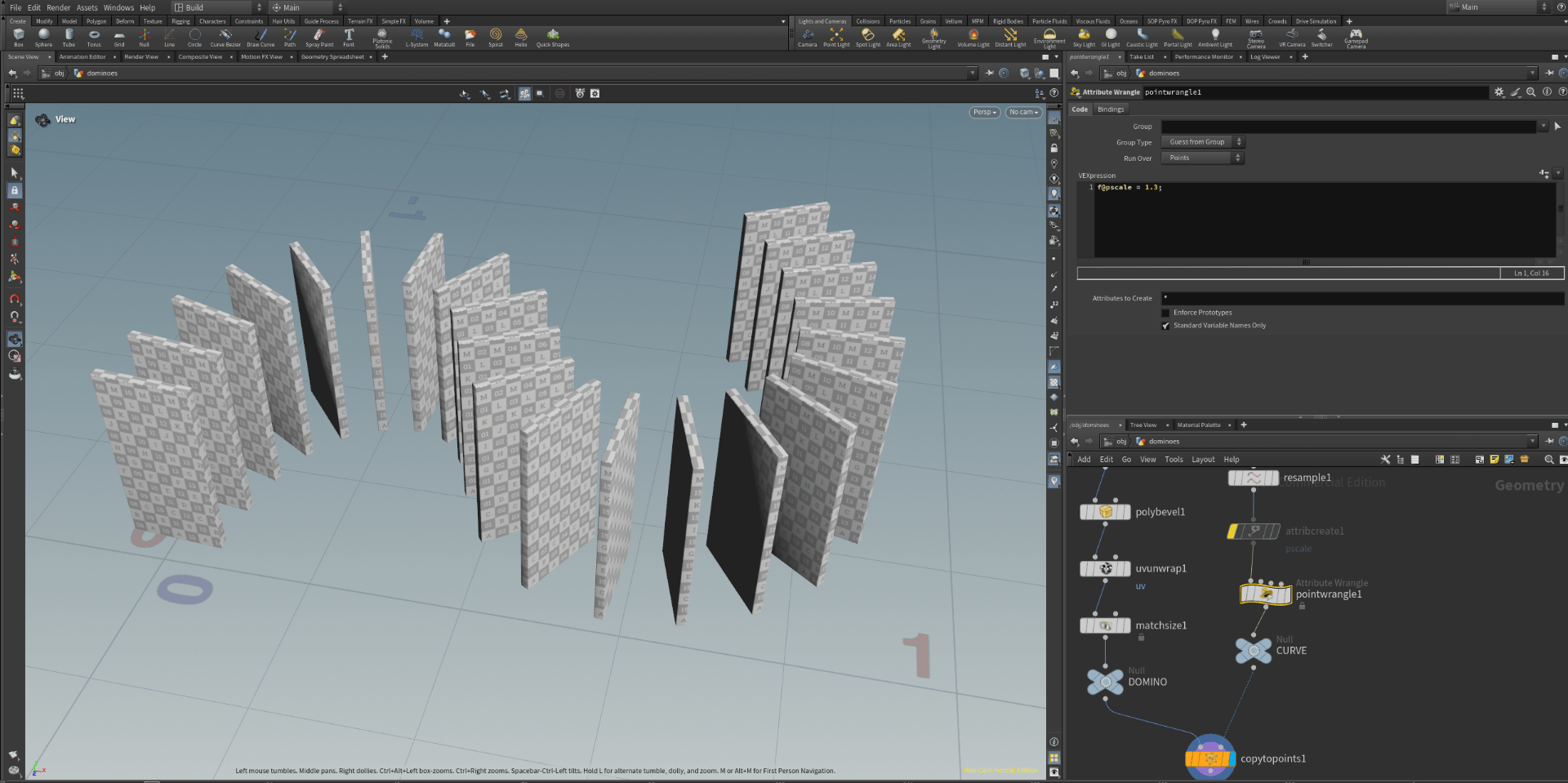
now the scale changes if we change the number on the code.
now there is a third way to create an attribute.
we add an attribadjustfloat node.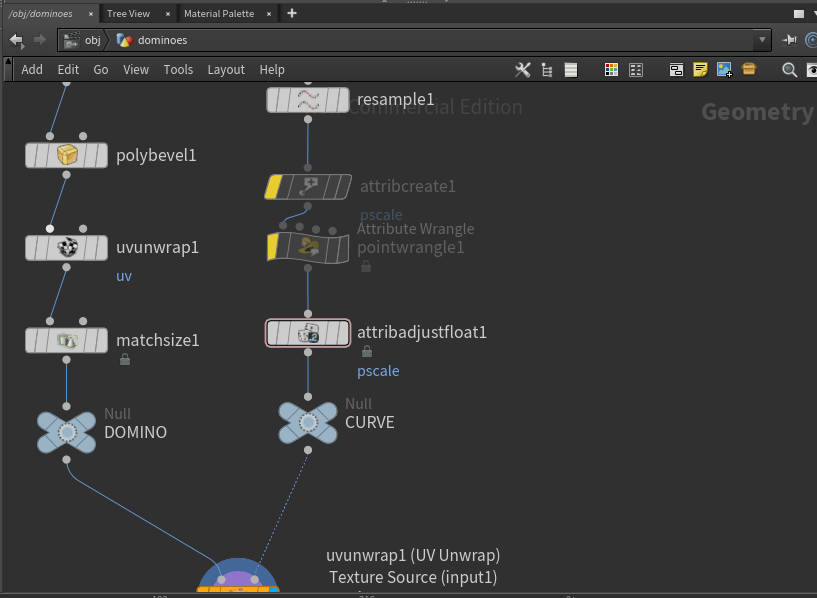
and we change the parameters.
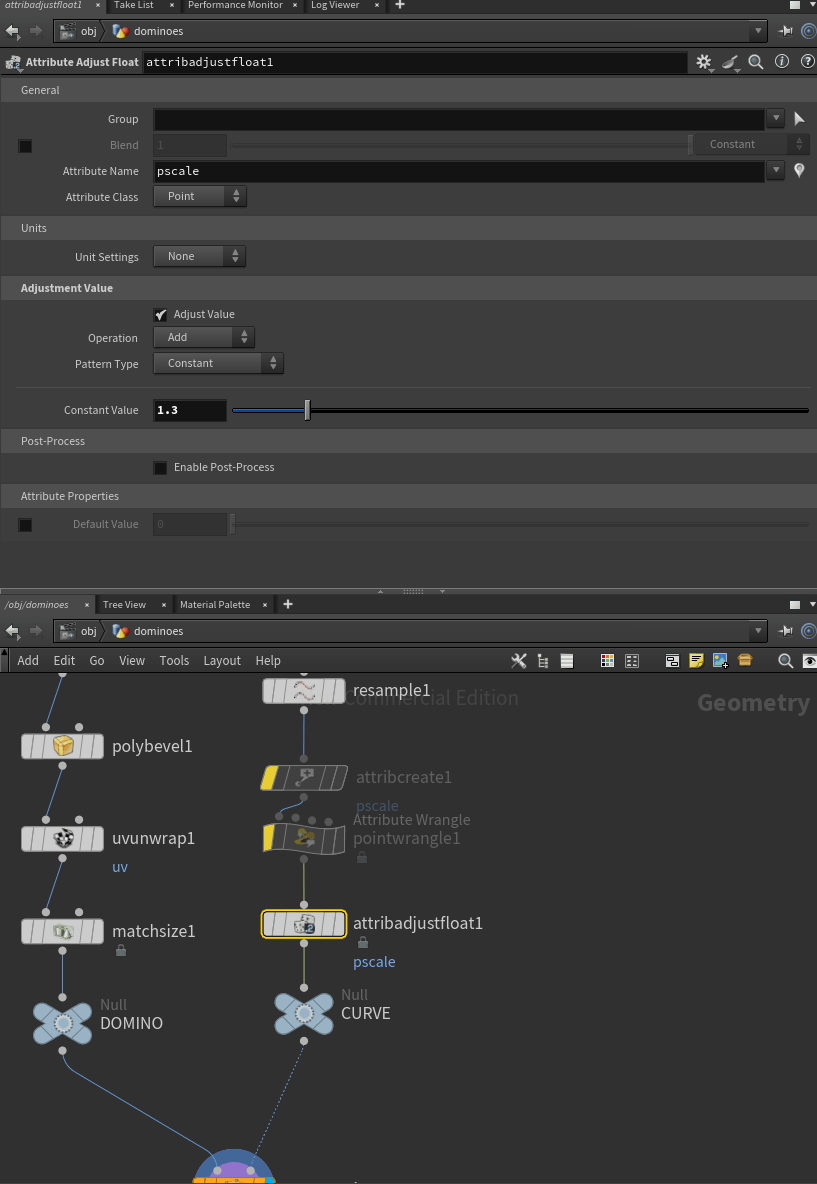
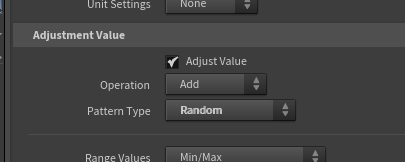
if we change the constant parameter to random we now have different size dominoes.
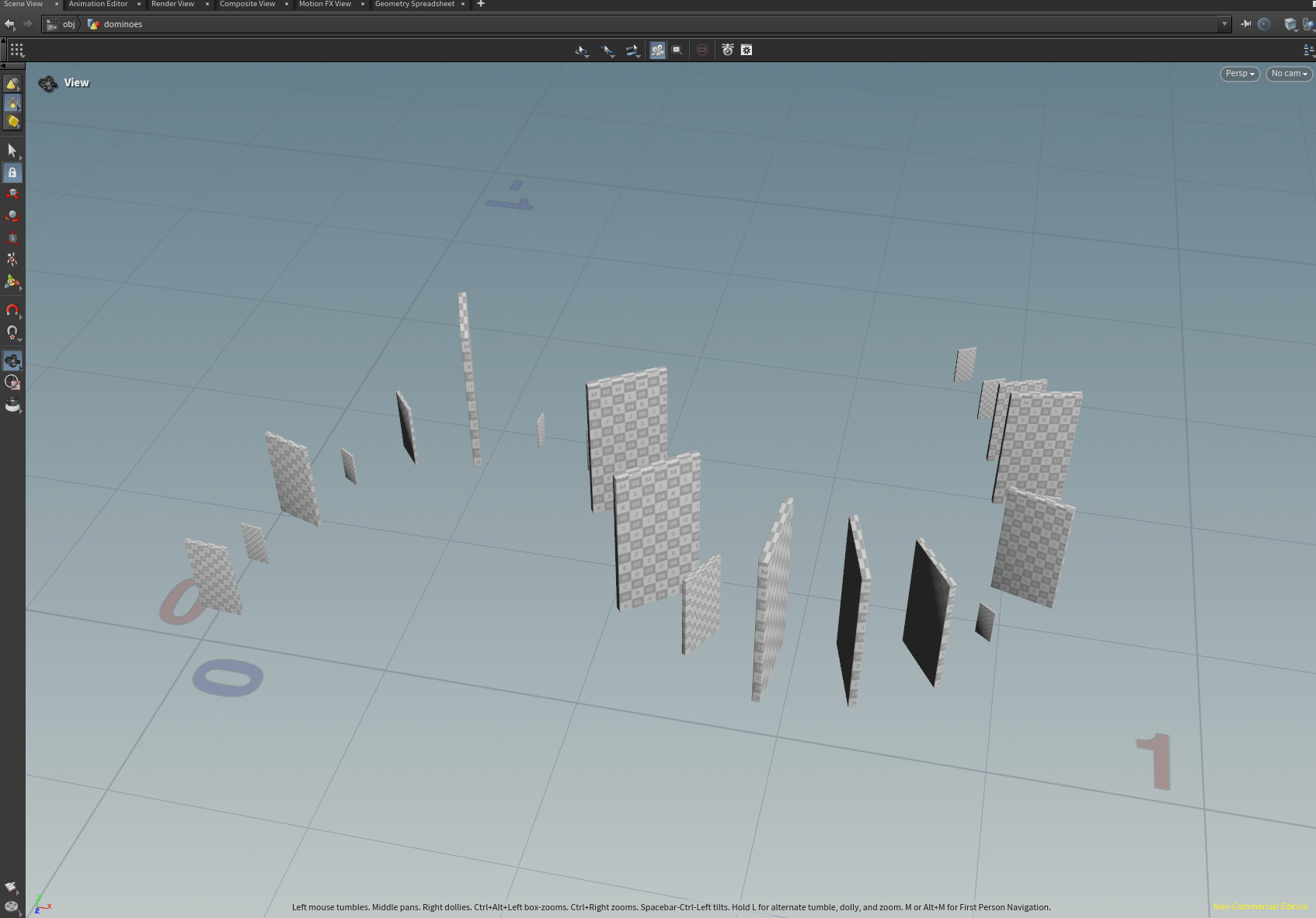
we are also adding random colors to our dominoes using an attribute randomizer node.
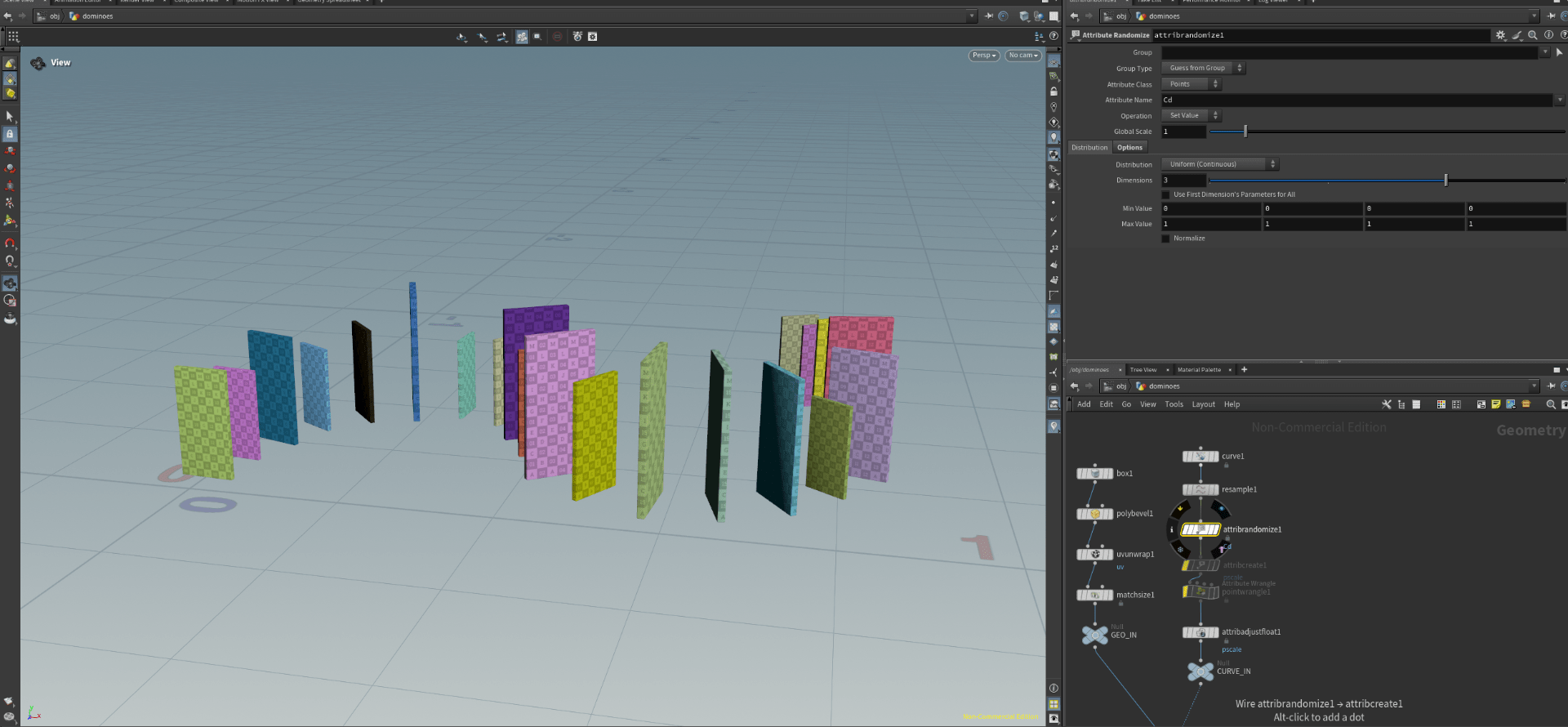
to finish we add a null node.
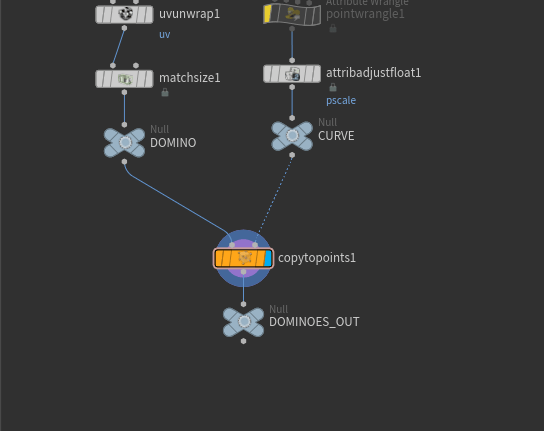
with this our dominoes system is finish and now we are going to make a ball that hits our dominoes.
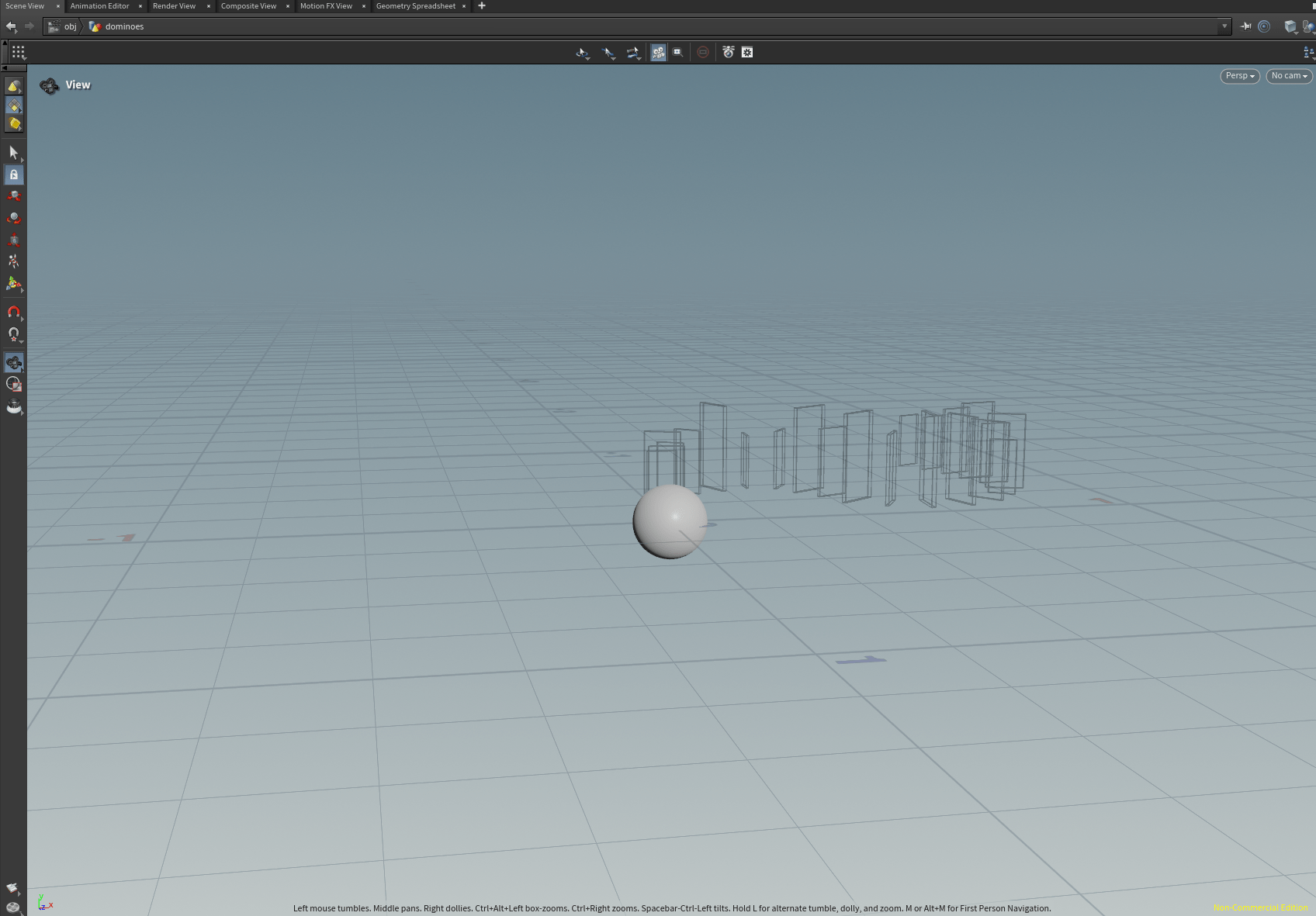
starting by creating an sphere.
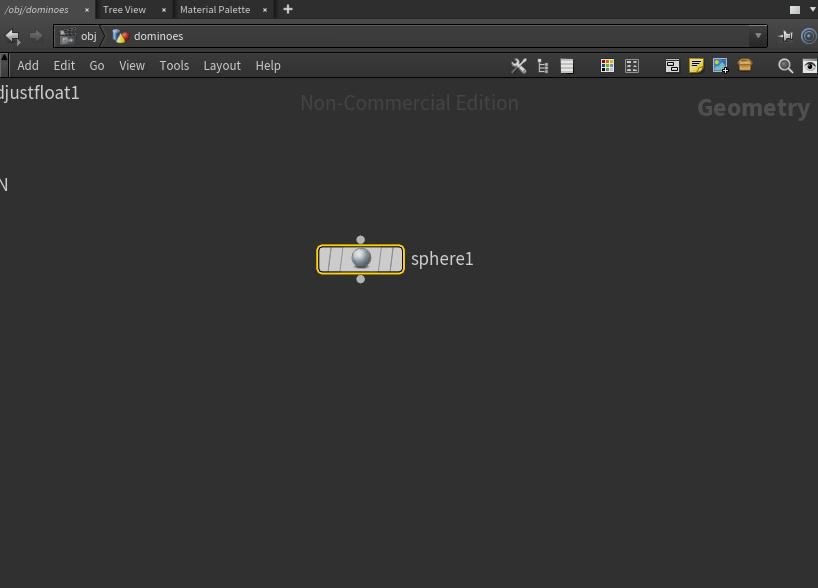
we rescale the sphere to is smaller than our dominoes.
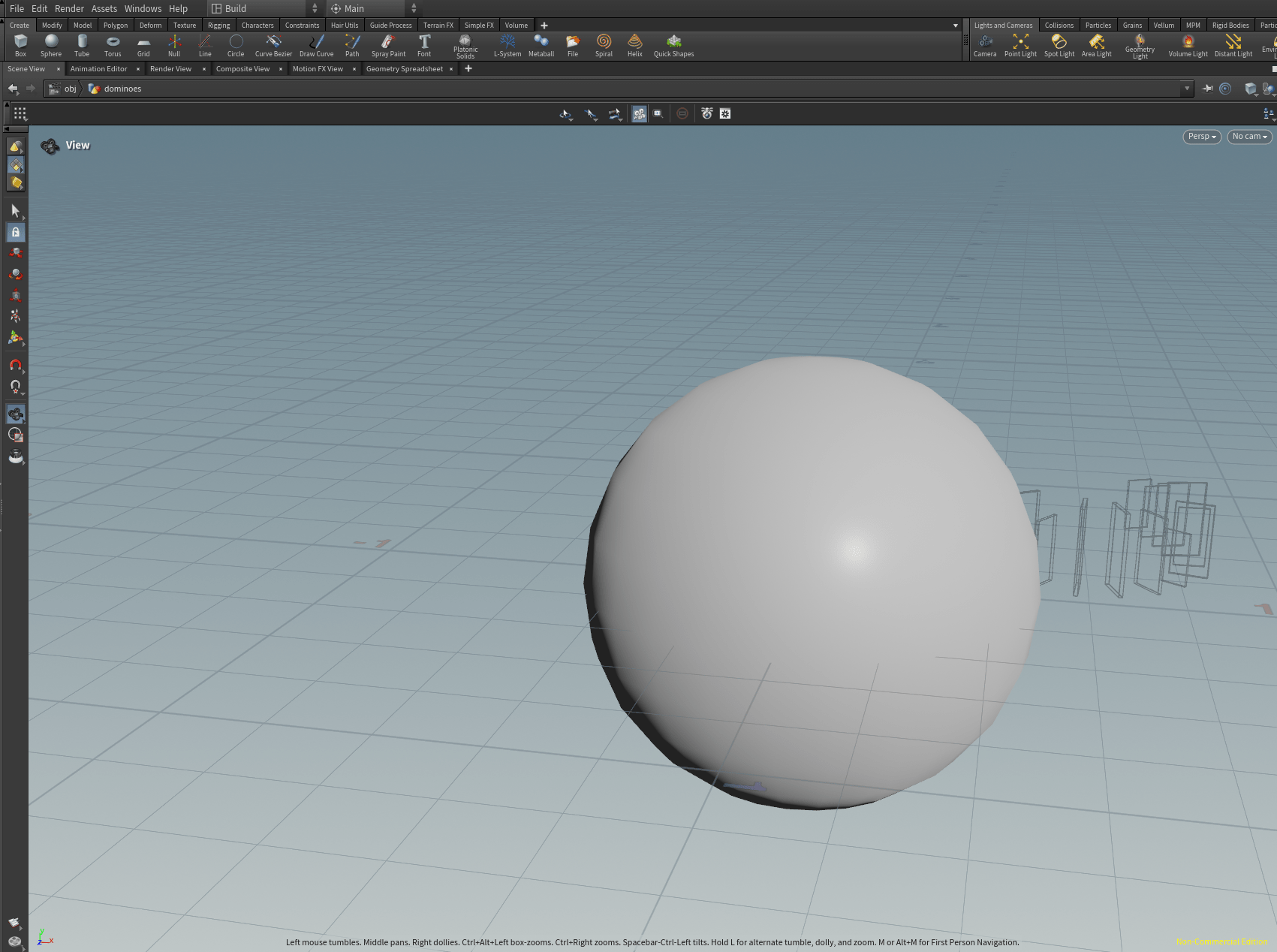
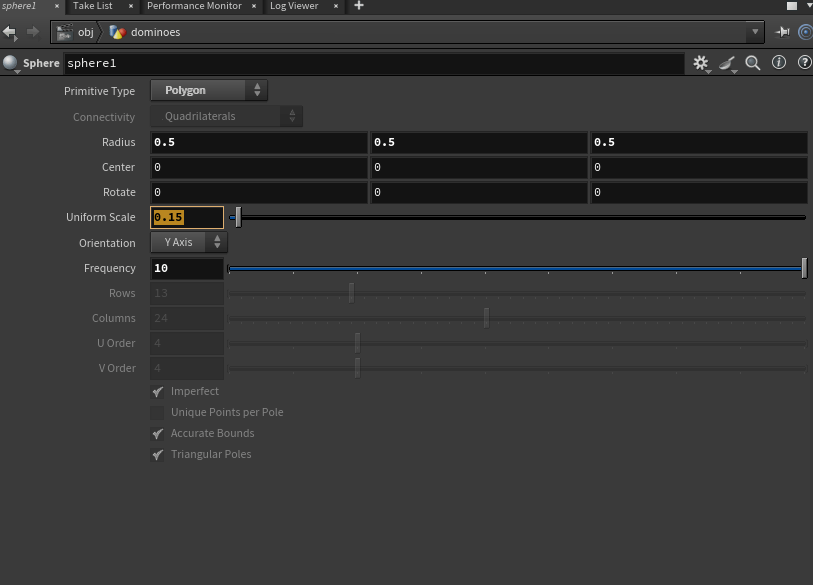
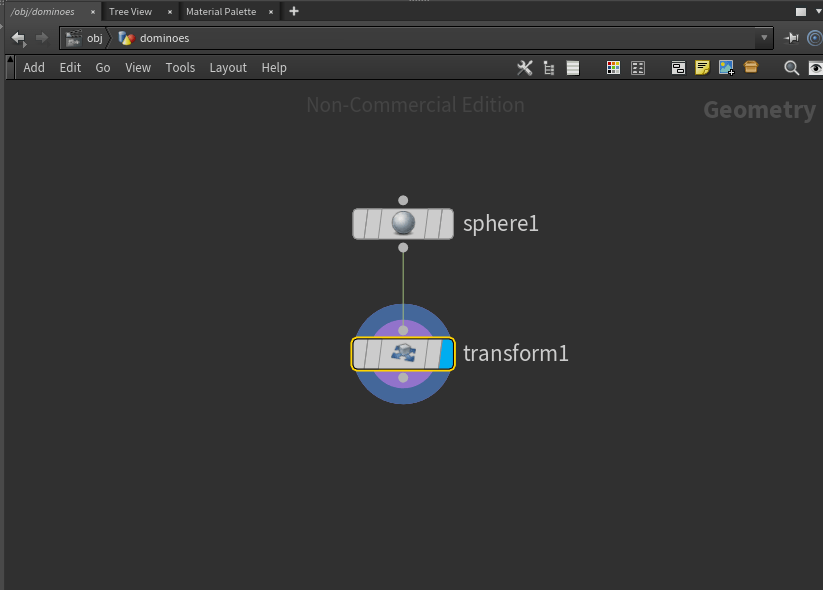
and next we create a transform node.
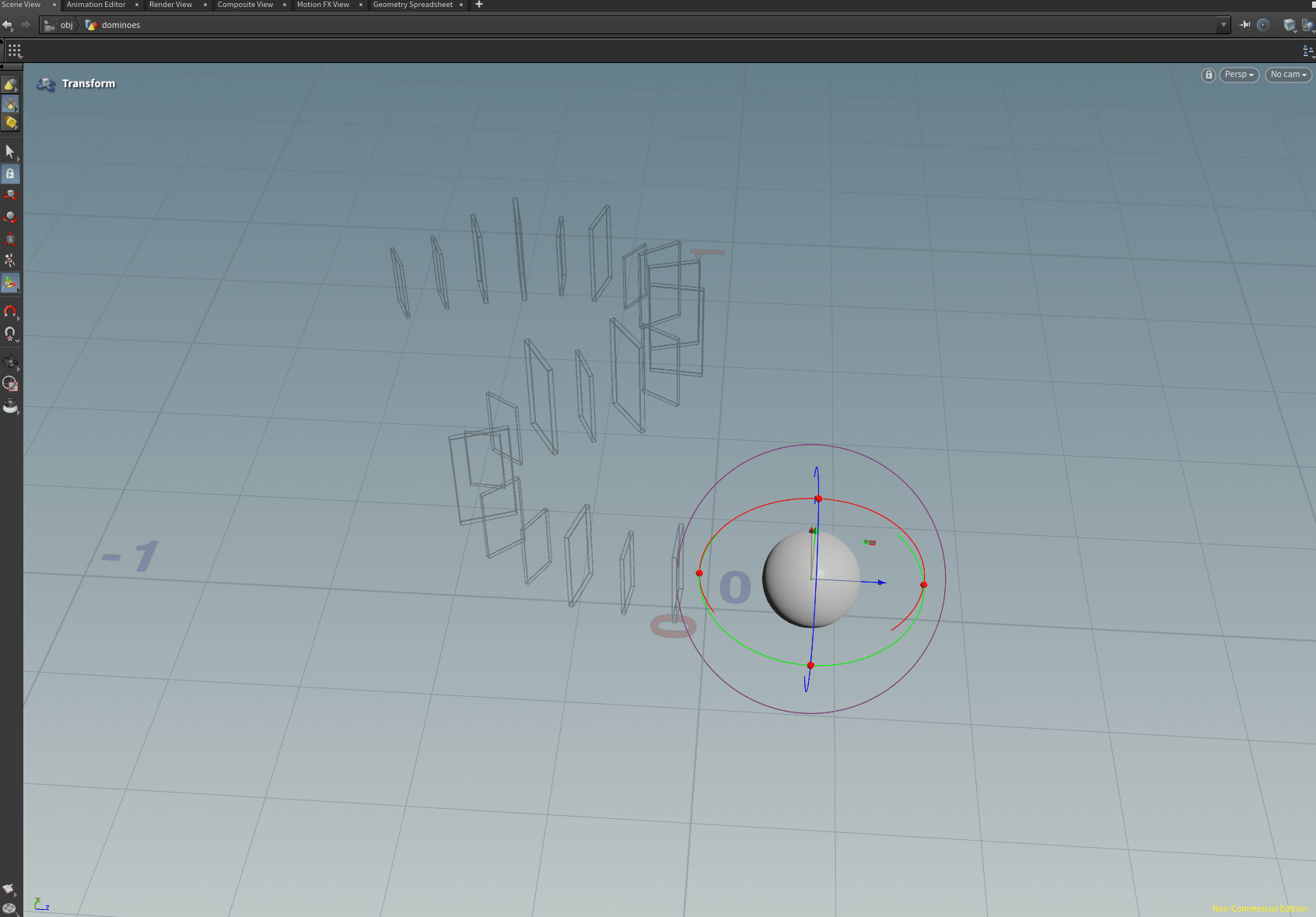
with the transform tool we are moving the ball away from one of the dominoes.
to finish the sphere we put a null node at the bottom.
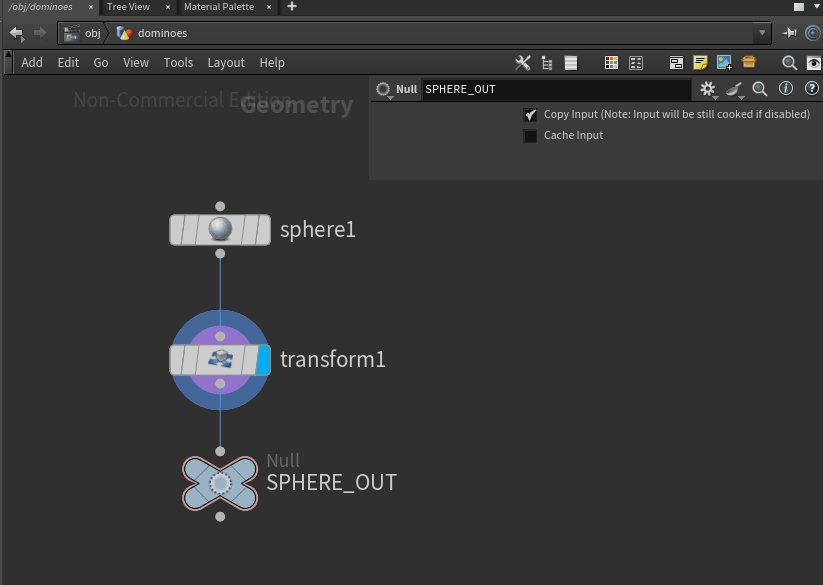
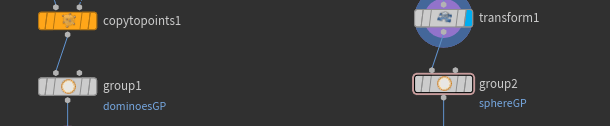
and then we create two groups, one with the dominoes and the other with the sphere.
now we merge the two groups with a merge node.
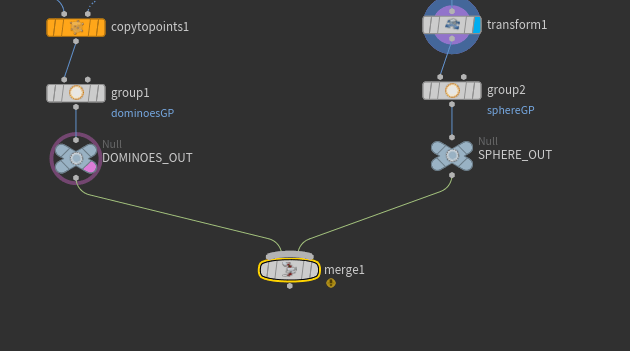
now we have an error because we are missing the color and uv attribute from the sphere. so we are going to add them.
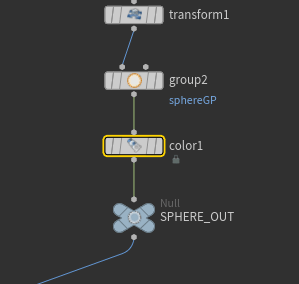
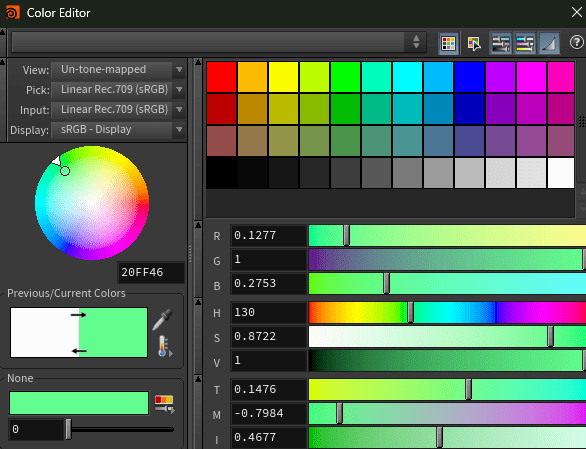
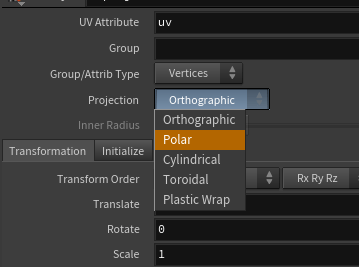
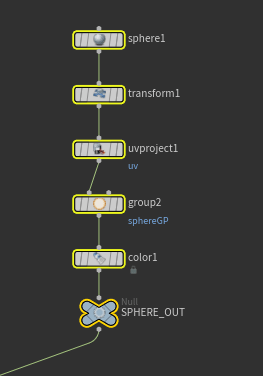
now our sphere has a color and UVs.
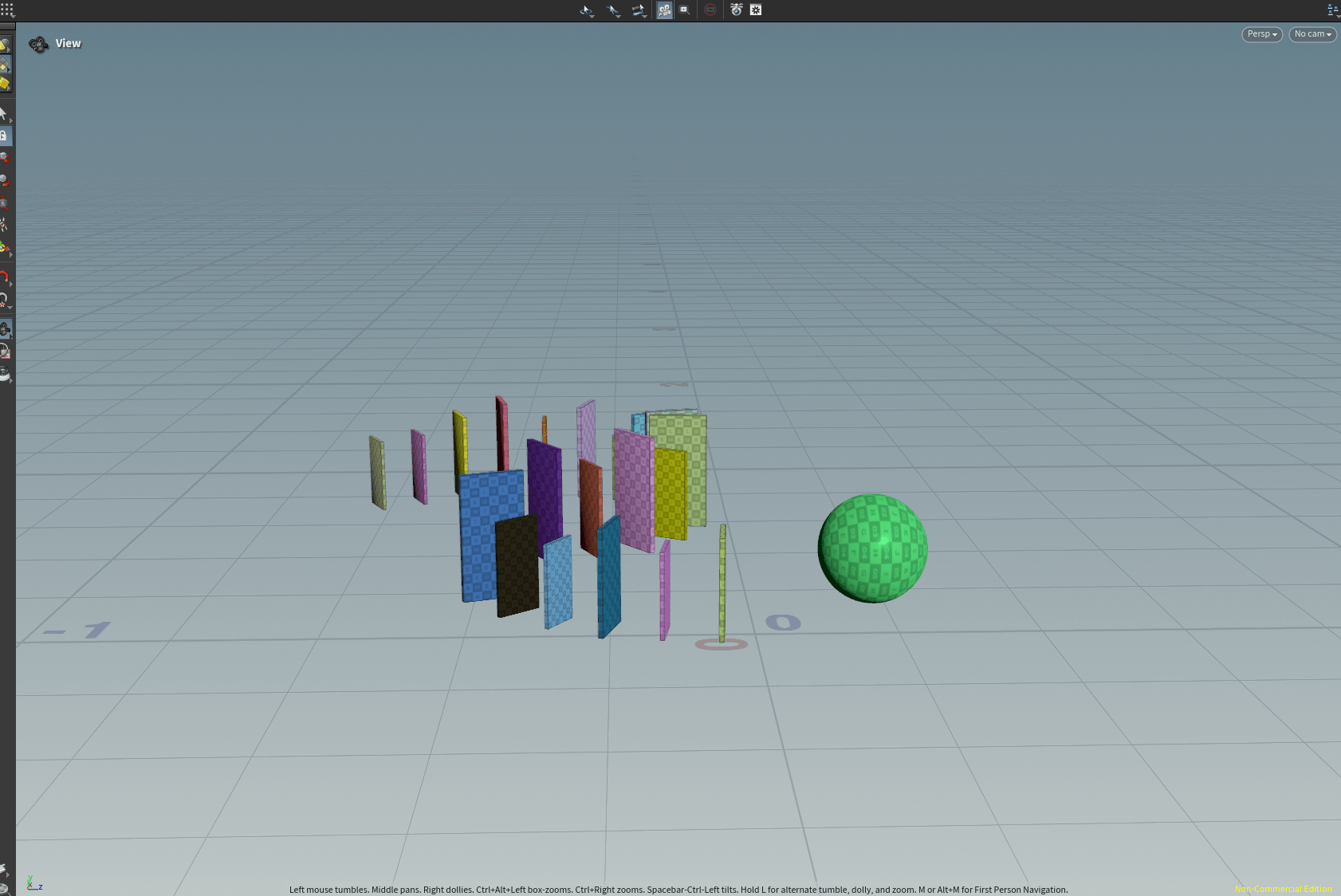
to finish with exercise we are going to simulate these objects colition.
by creating a rbdconfigure node.
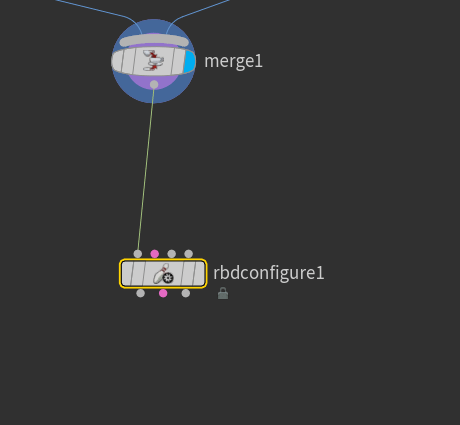
so now we change the attributes and give properties to our objects.
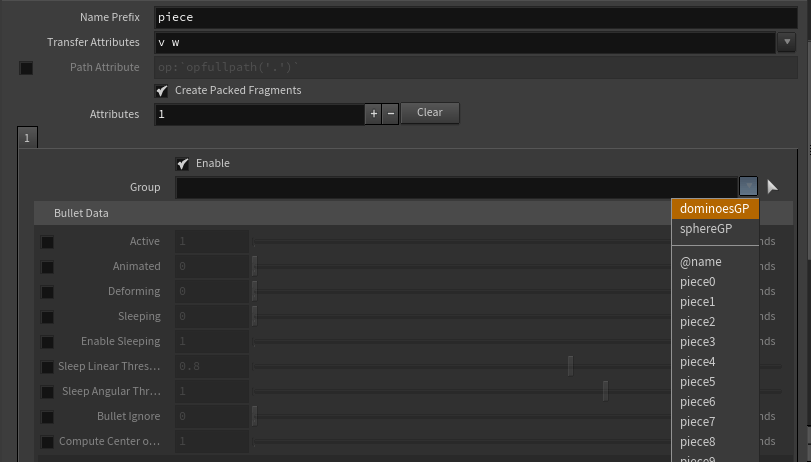
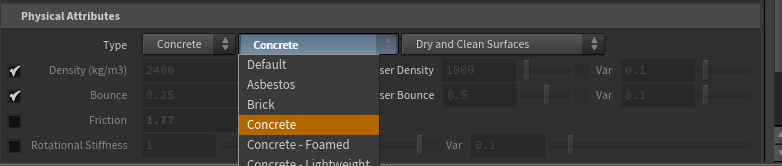

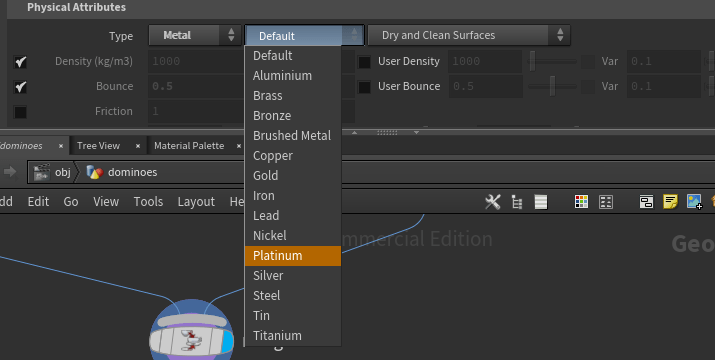
now we add a rbdbulletsolver.node.
if we connect everything, all will drope because we don’t have a ground plane.
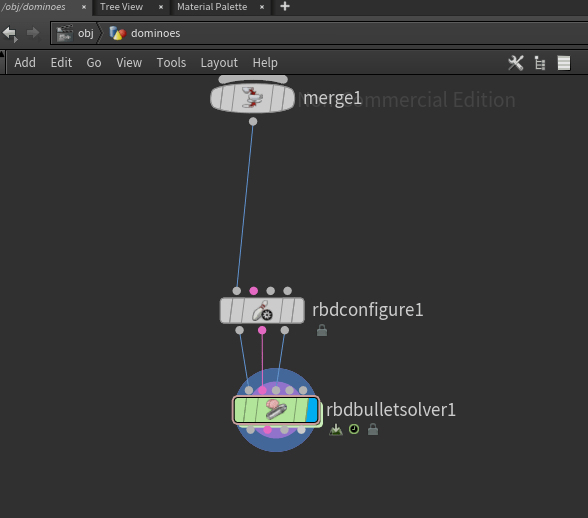
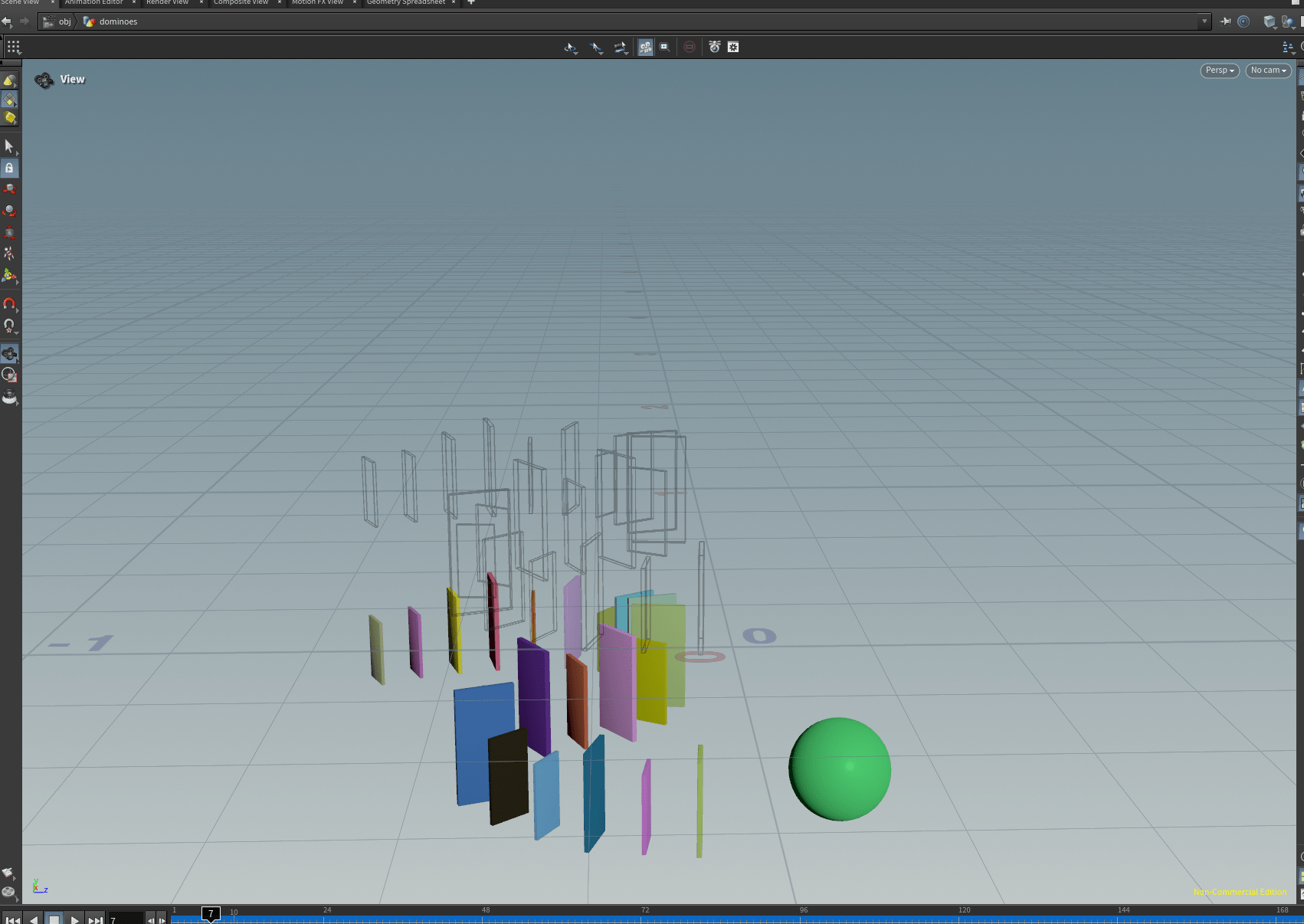
we fix that adding a ground plane in the collision tab inside the solver.
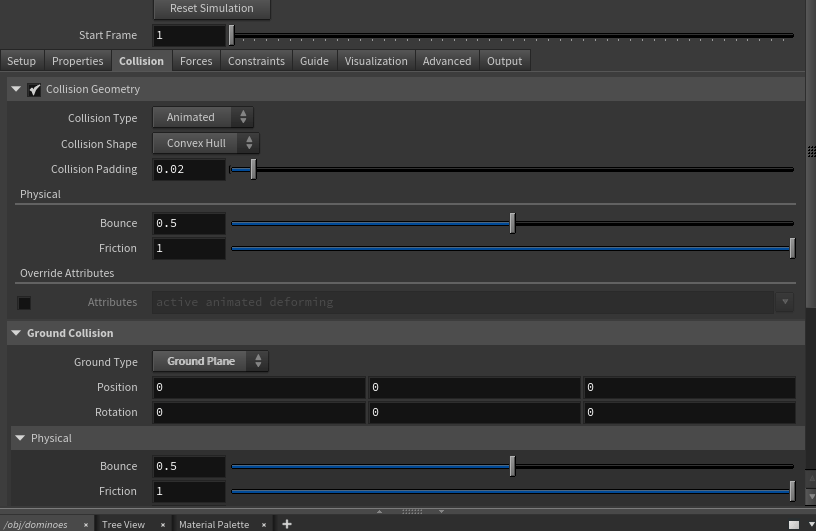
but still they fall over.
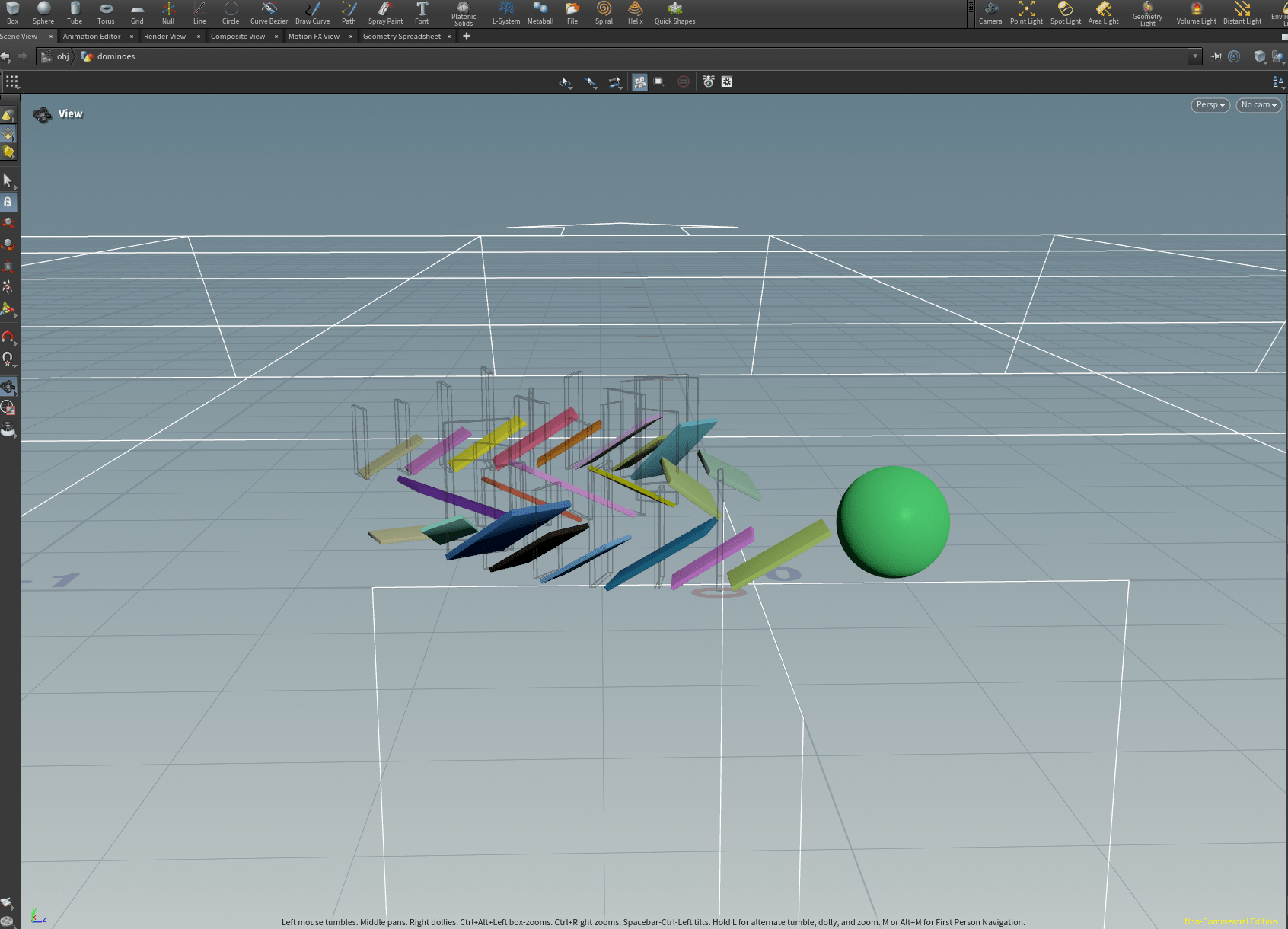
to solve this we are going to change the padding collision on the properties tab.


now it doesn’t fall.
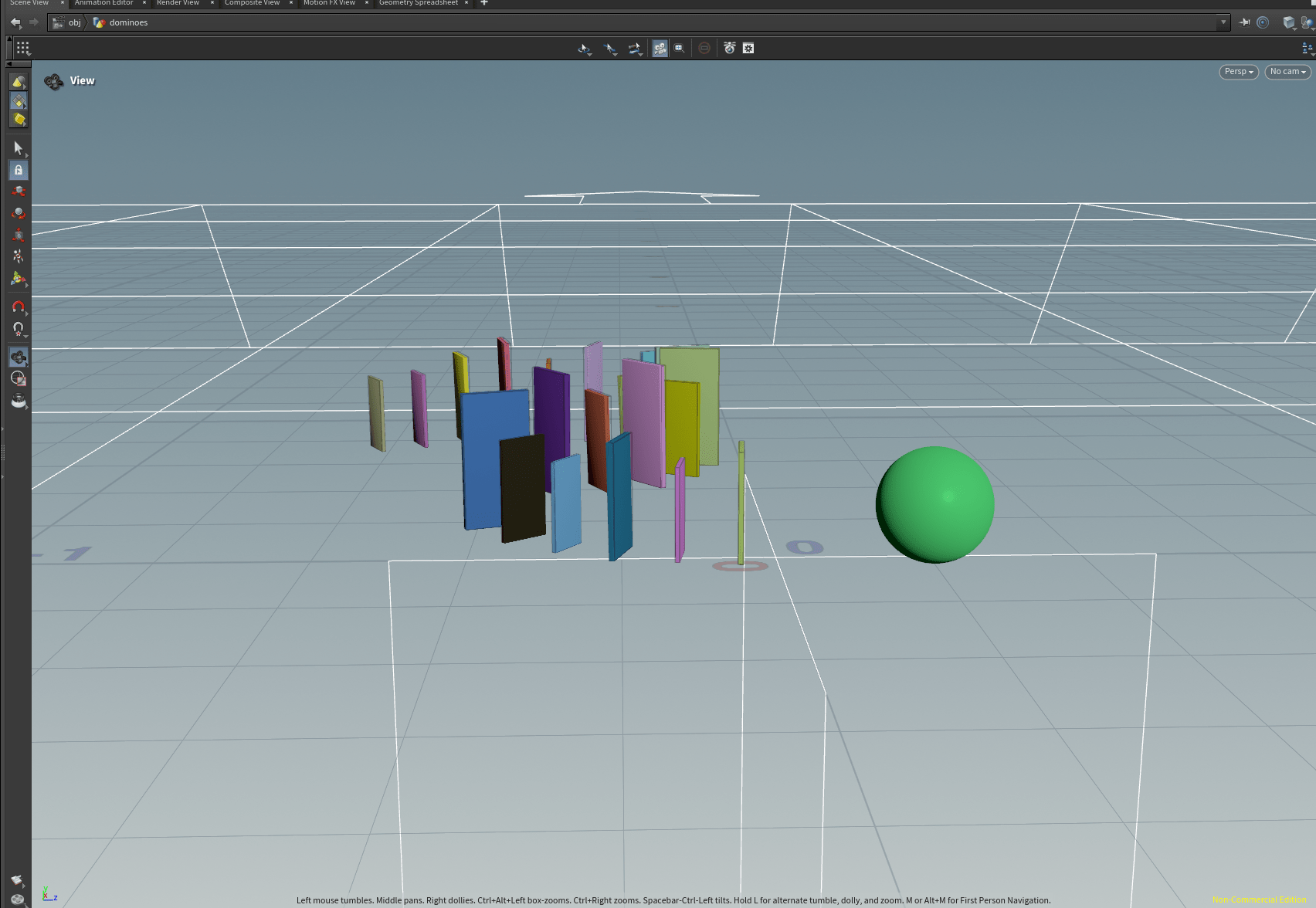
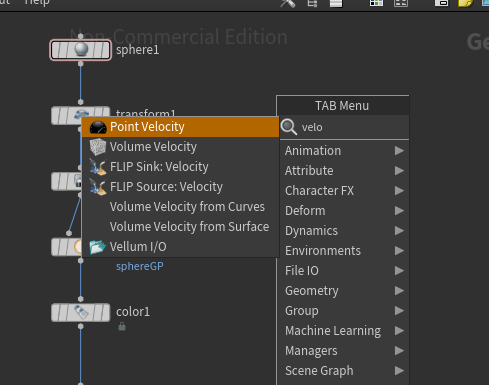
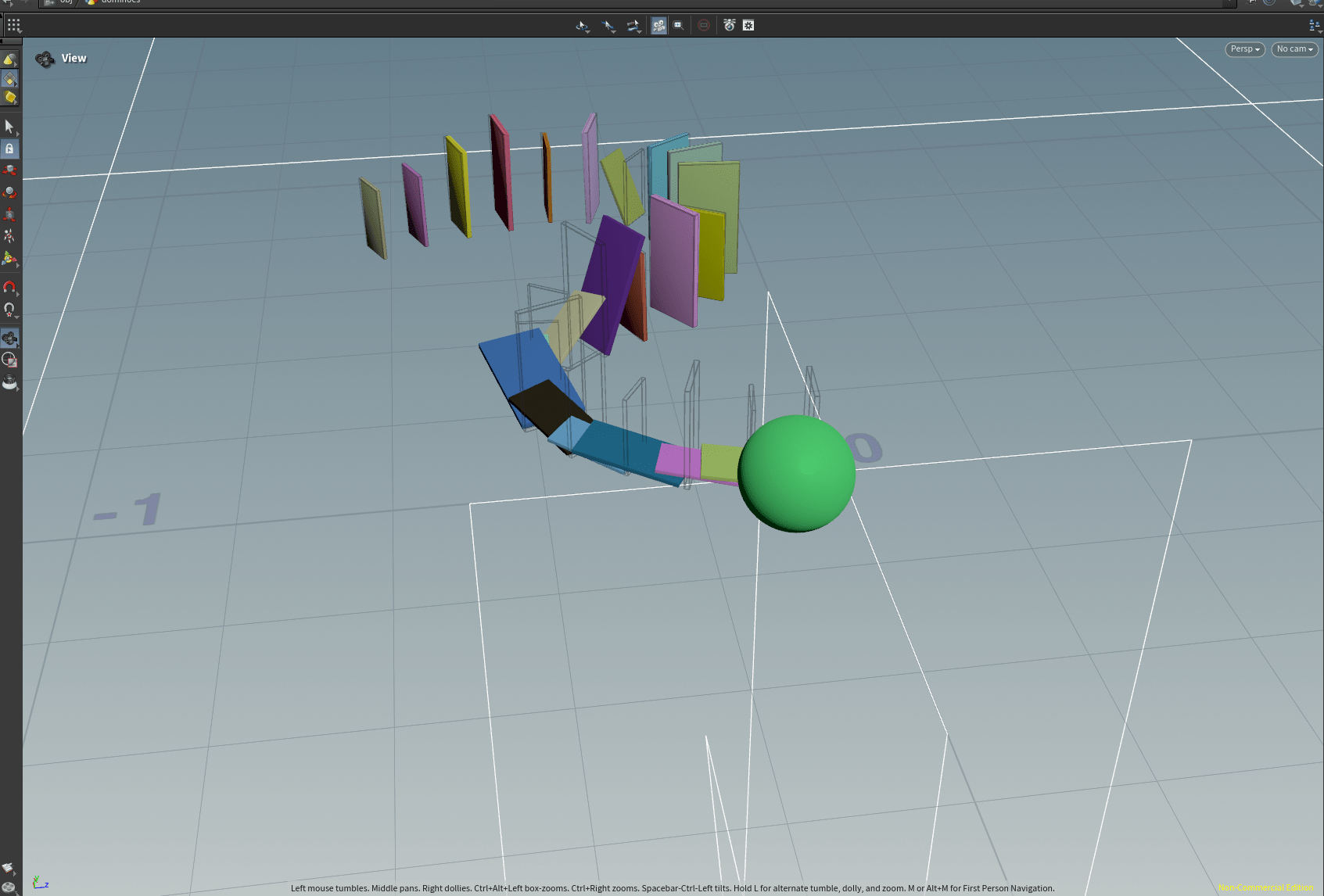
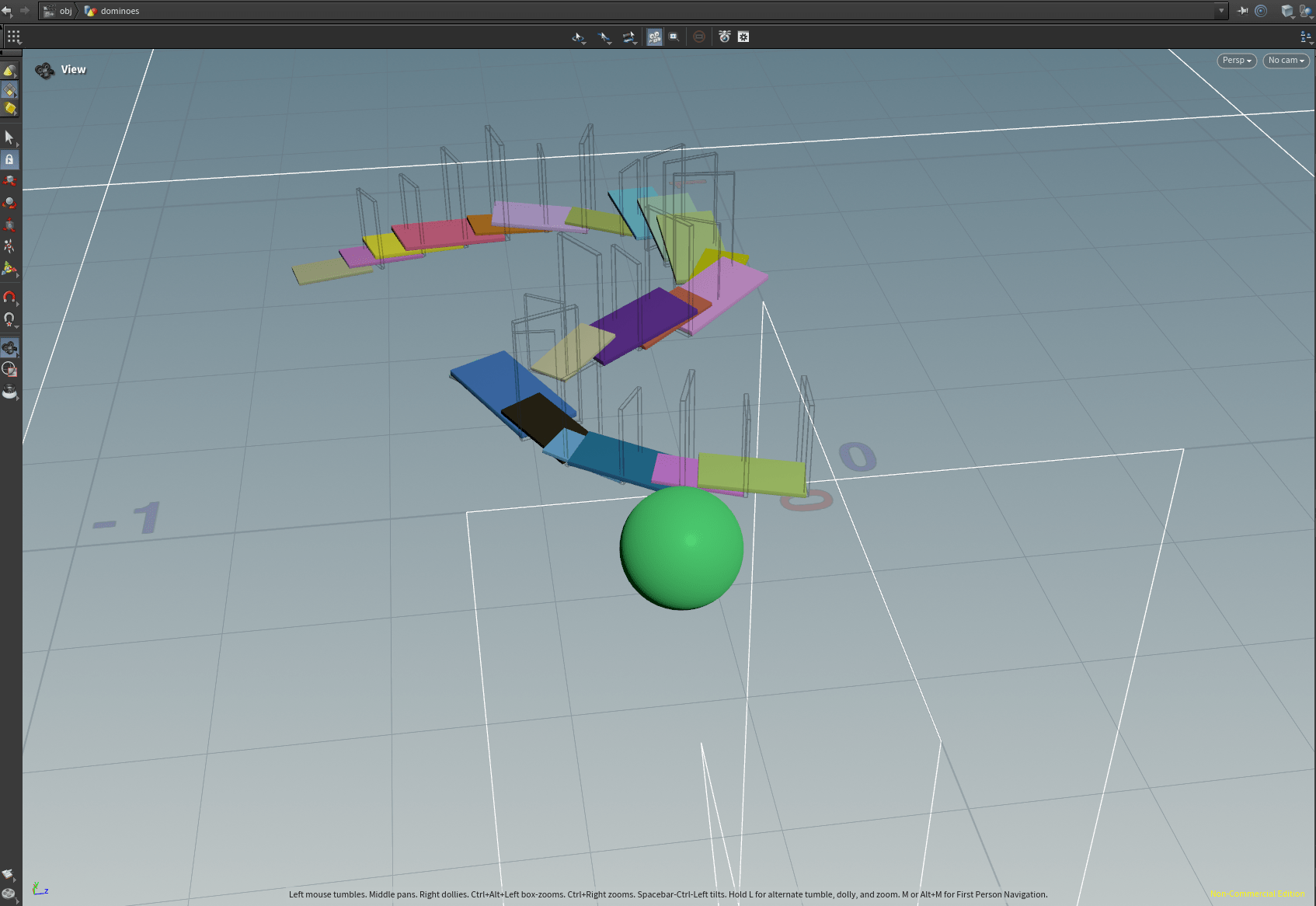
finally we are going to add a velocity to our ball so it collides with our dominoes.

End of week 1
Week 2: Mountain
to begin with we are going to create a geometry node.
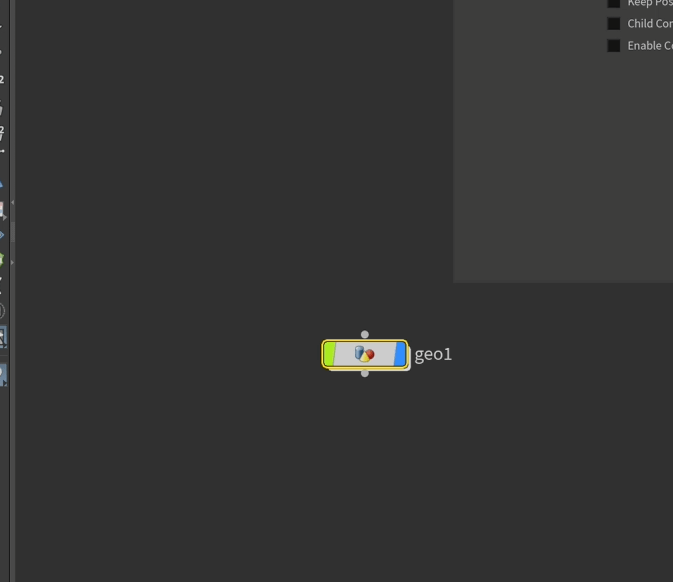
and inside we are going to create a grid.
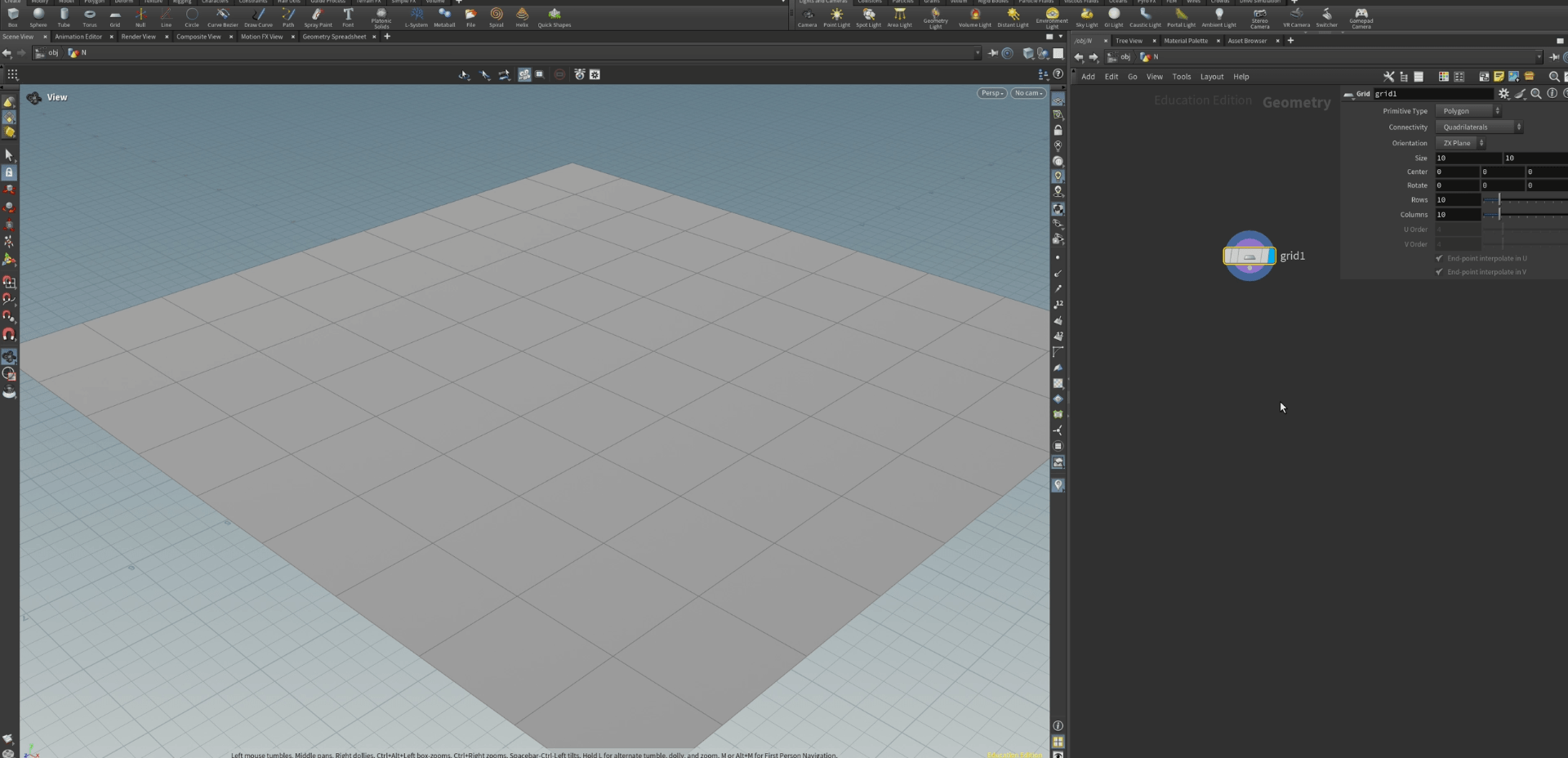
If we change the size of the grid the grid is going to look bad because is not symmetrical .
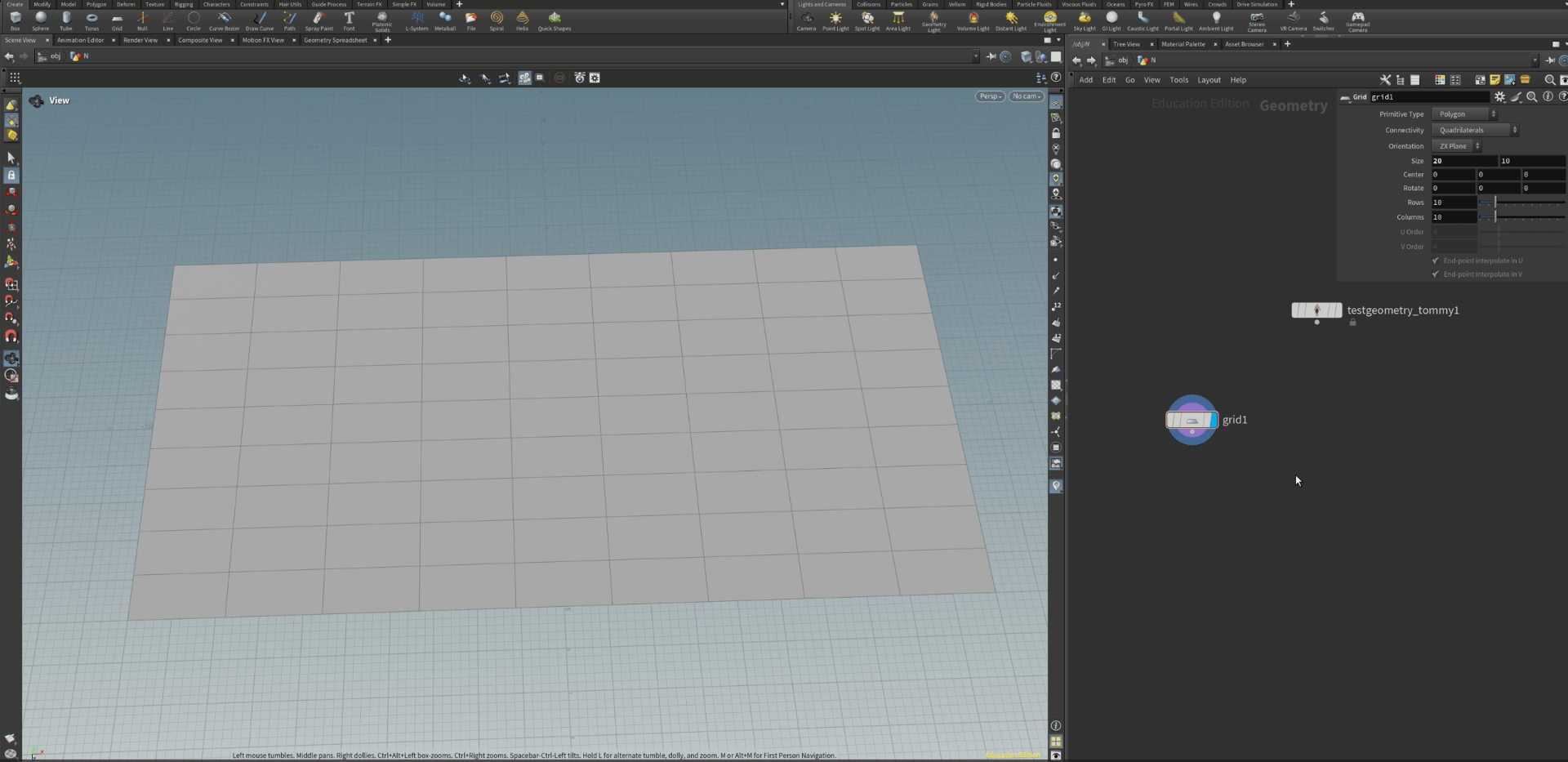
to solve this we are going to connect the columns parameter with the size parameter, to do this we have two ways the first one is typing the path as shown below.
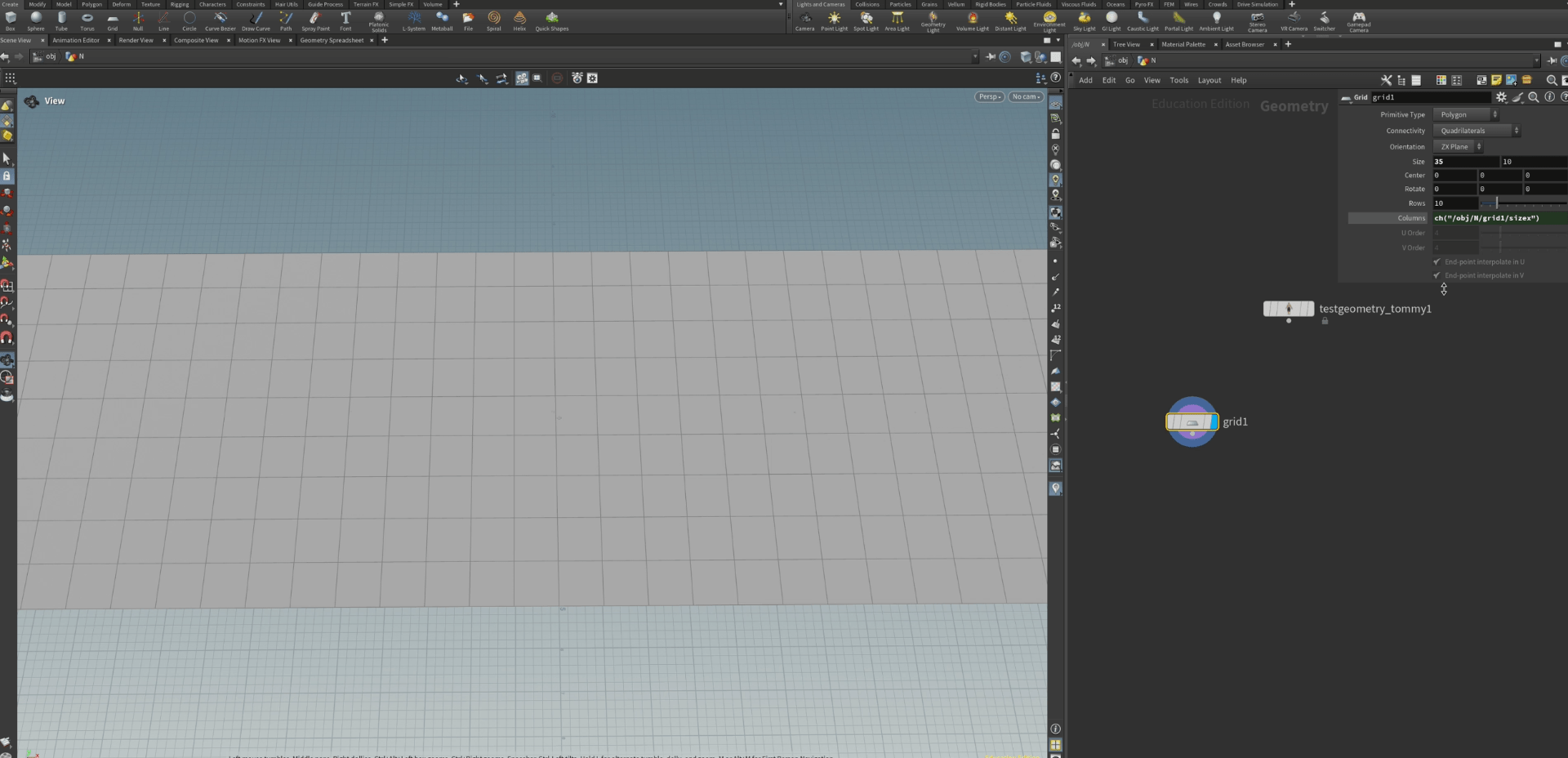
and the second way is to copy the parameter and paste a relative reference where we want it.
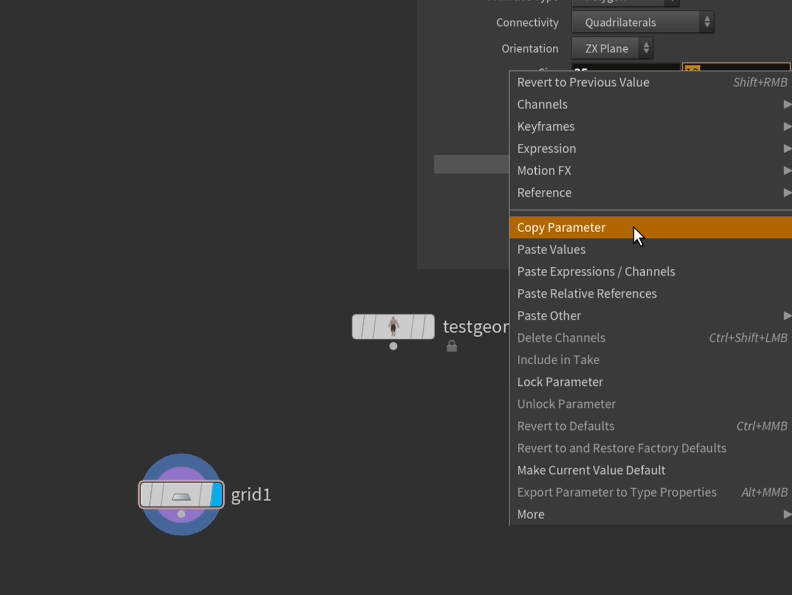
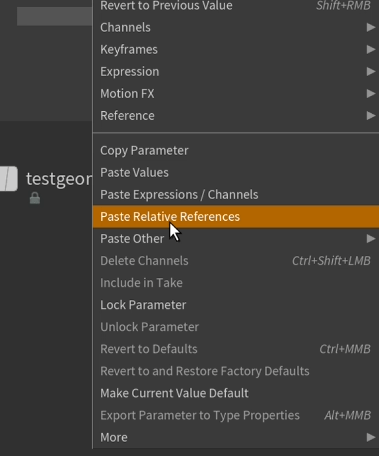
now every time we change a number is changing on both parameters and the grid cells are always square.
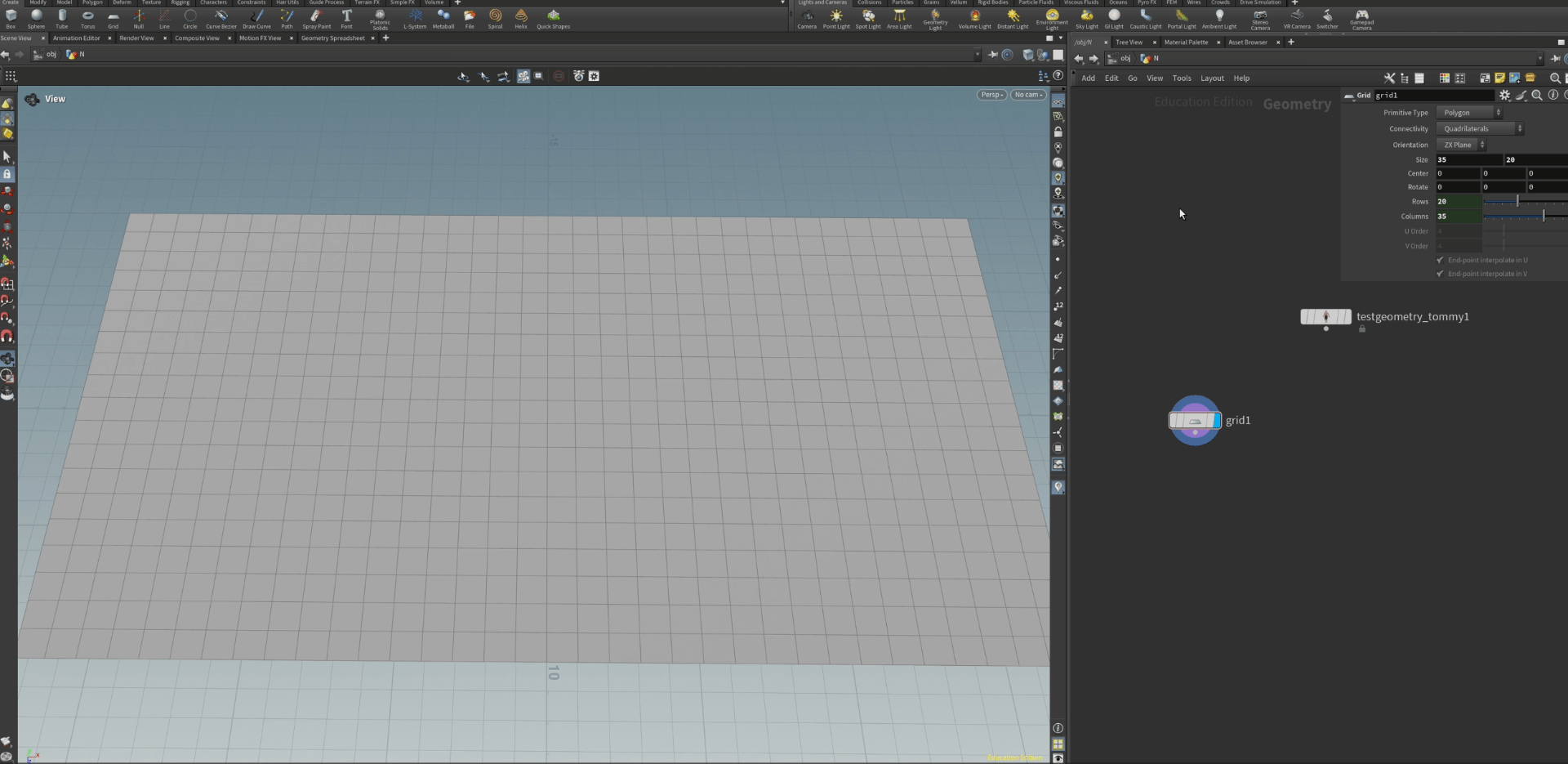
now we are going to create some UVs for this grid using the UV project node.
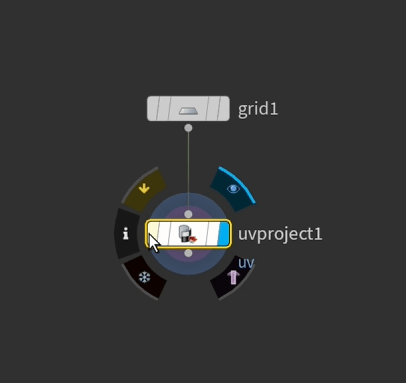
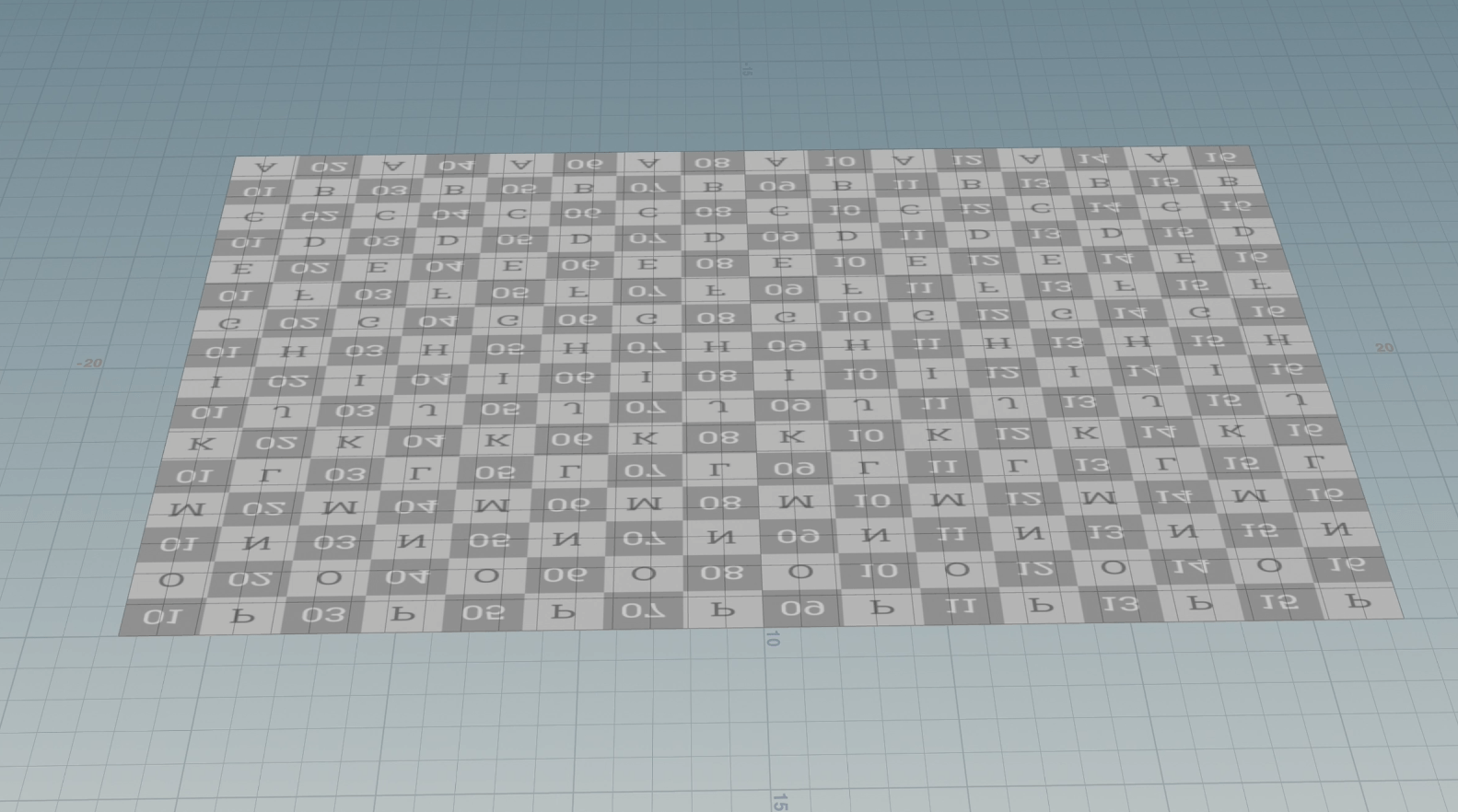
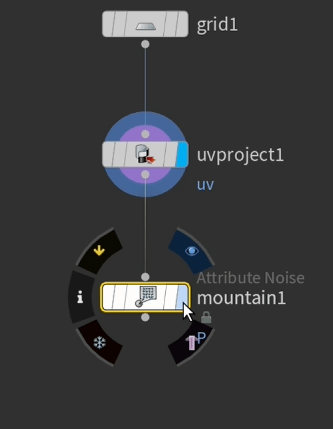
next we are adding a mountain node
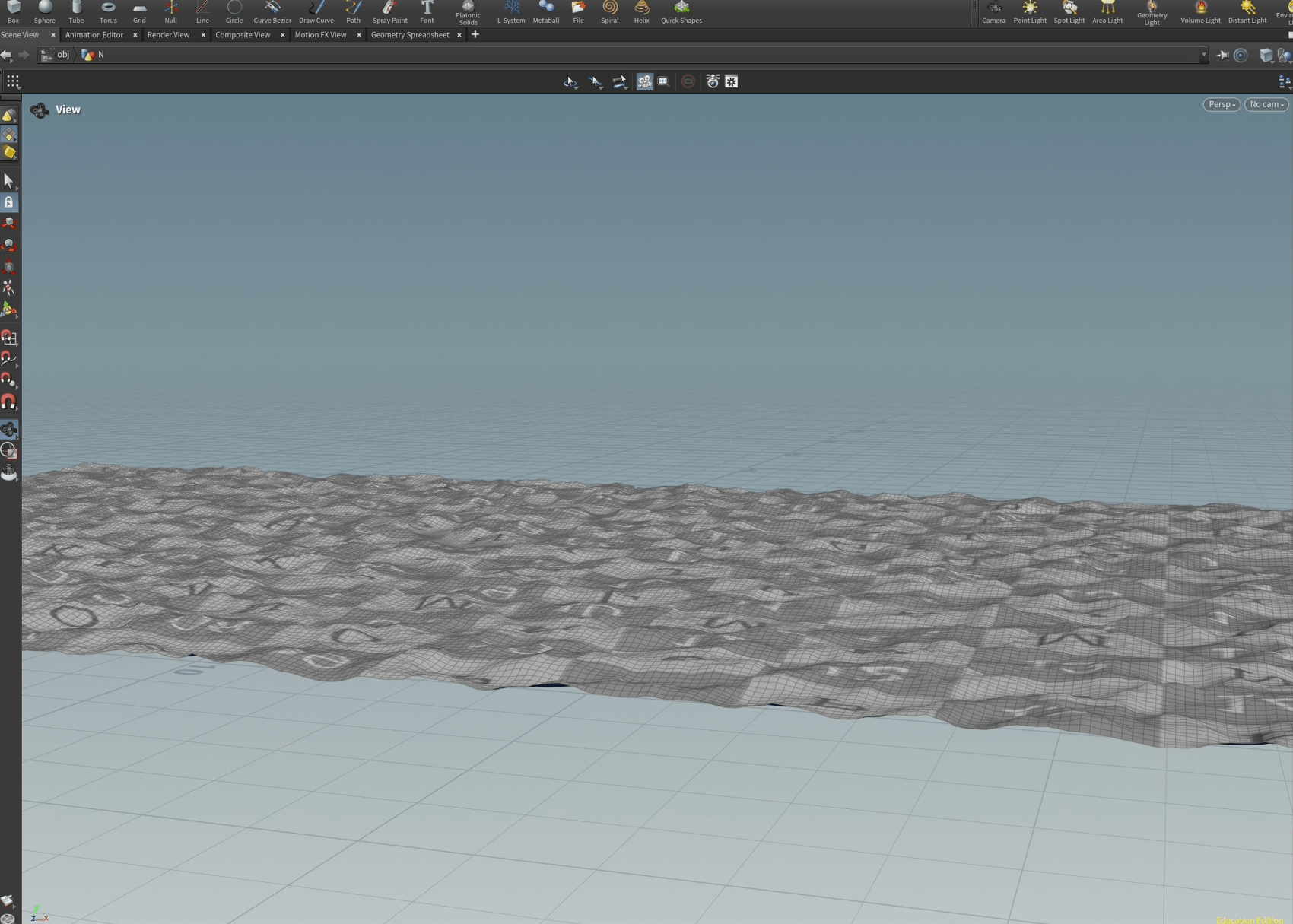
this creates this wave effect into our grid.
we can unselect the UVs on the viewer so we do not see the UVs.
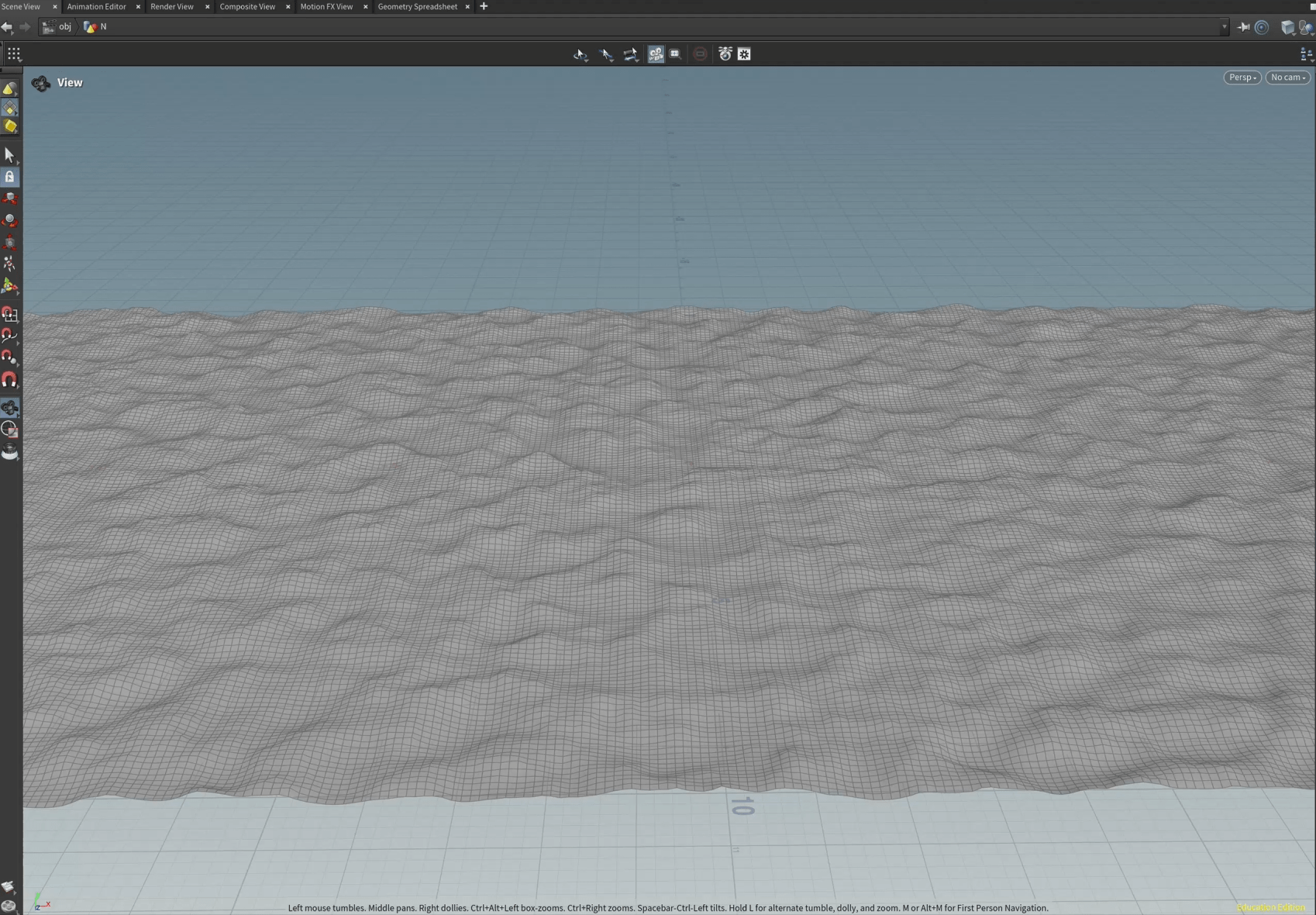
inside the mountain parameters we can change many parameter so our mountain looks different.
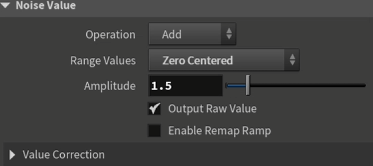
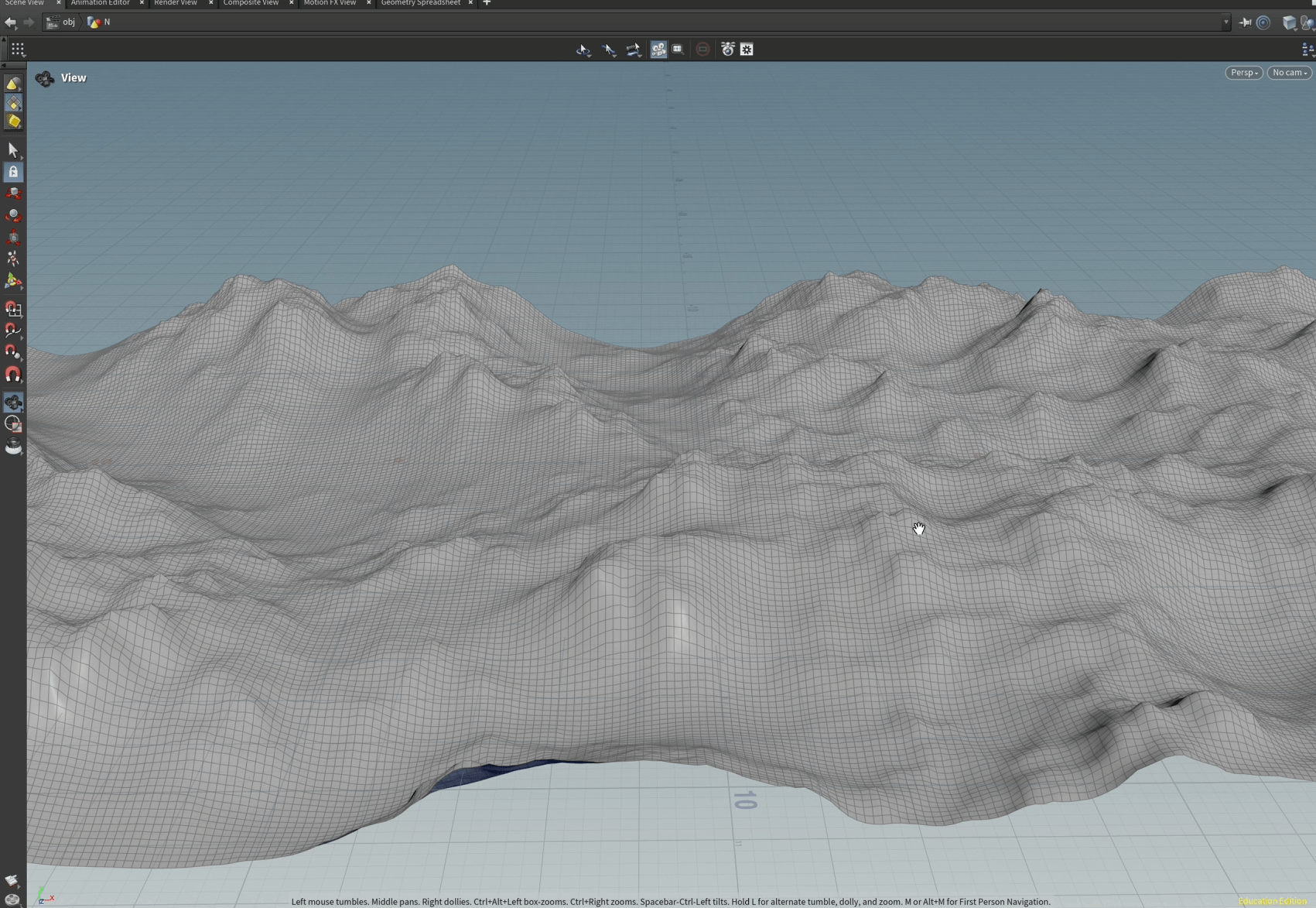
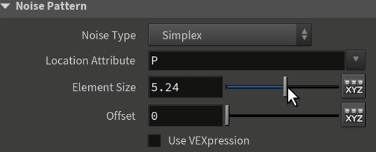
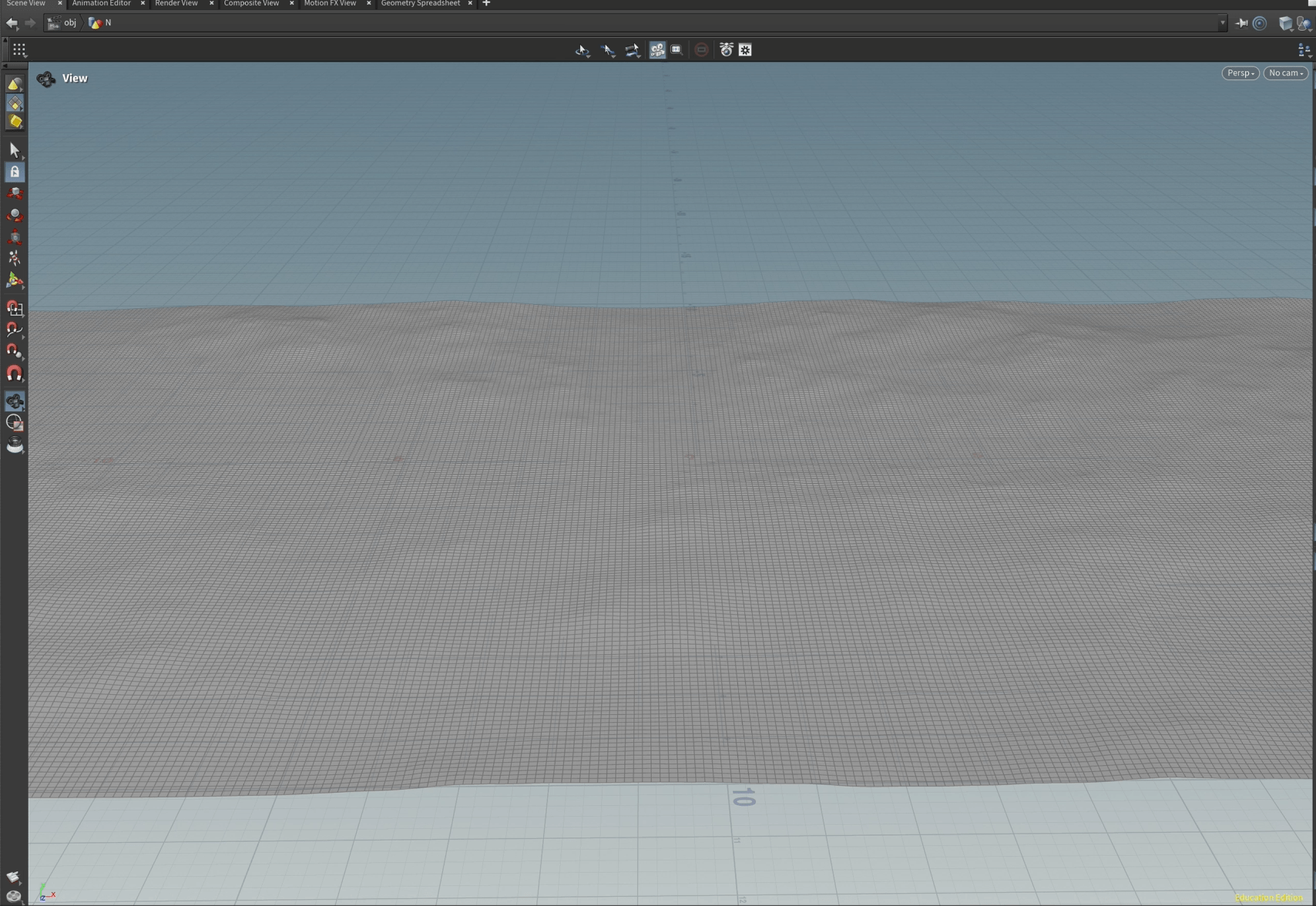
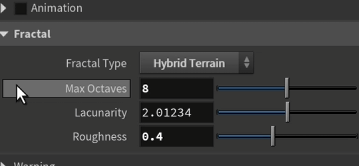
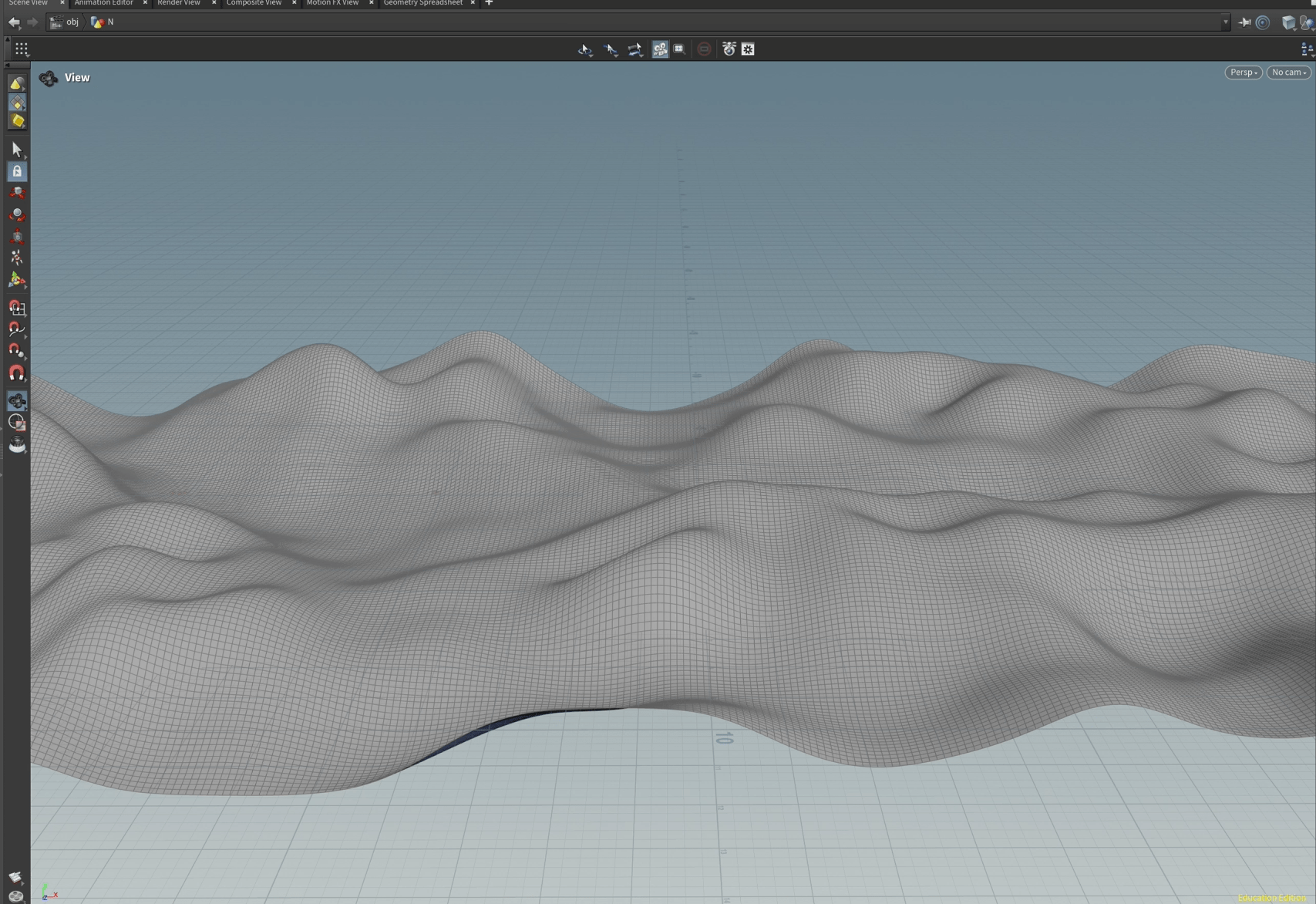
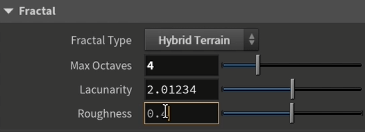
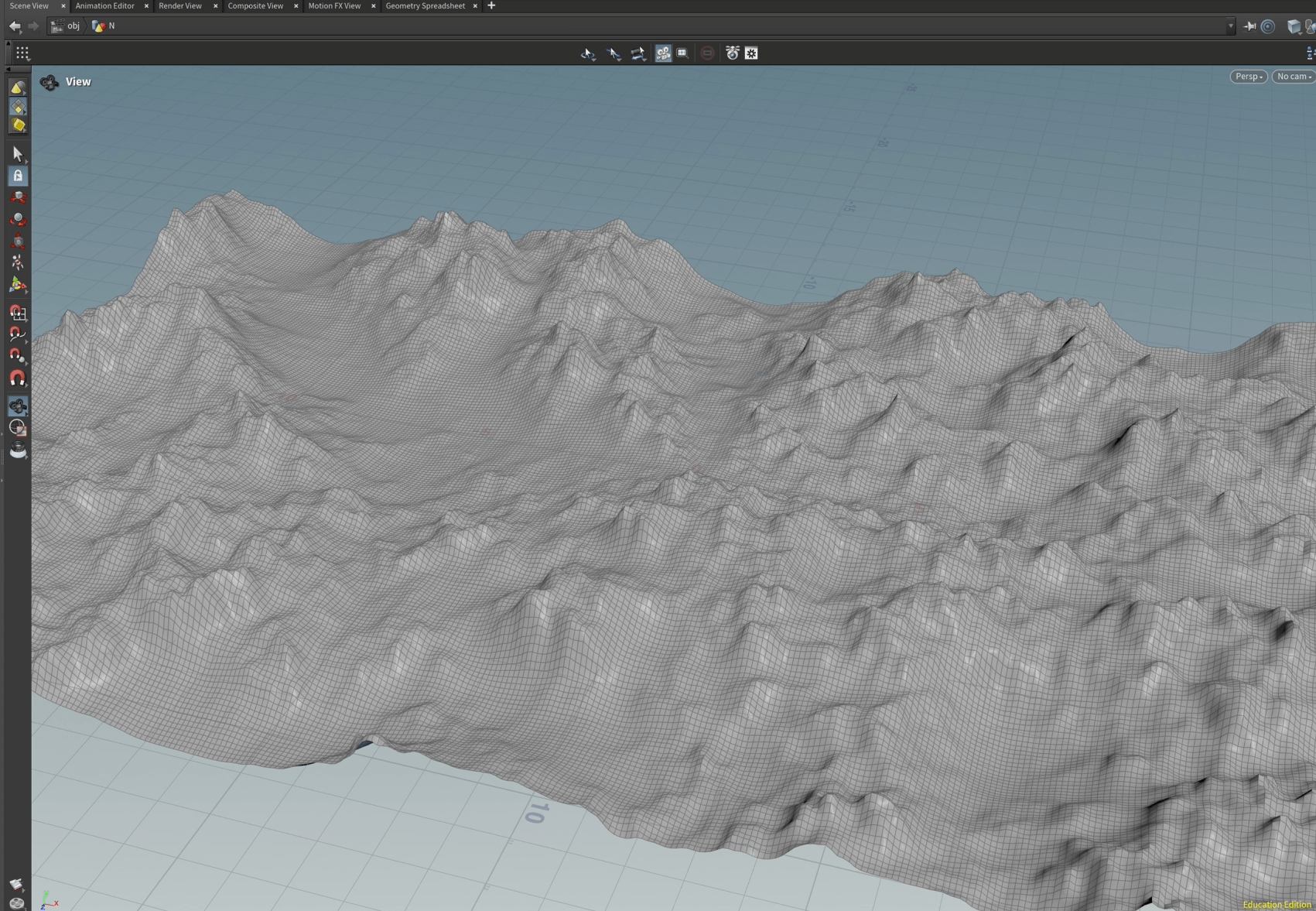
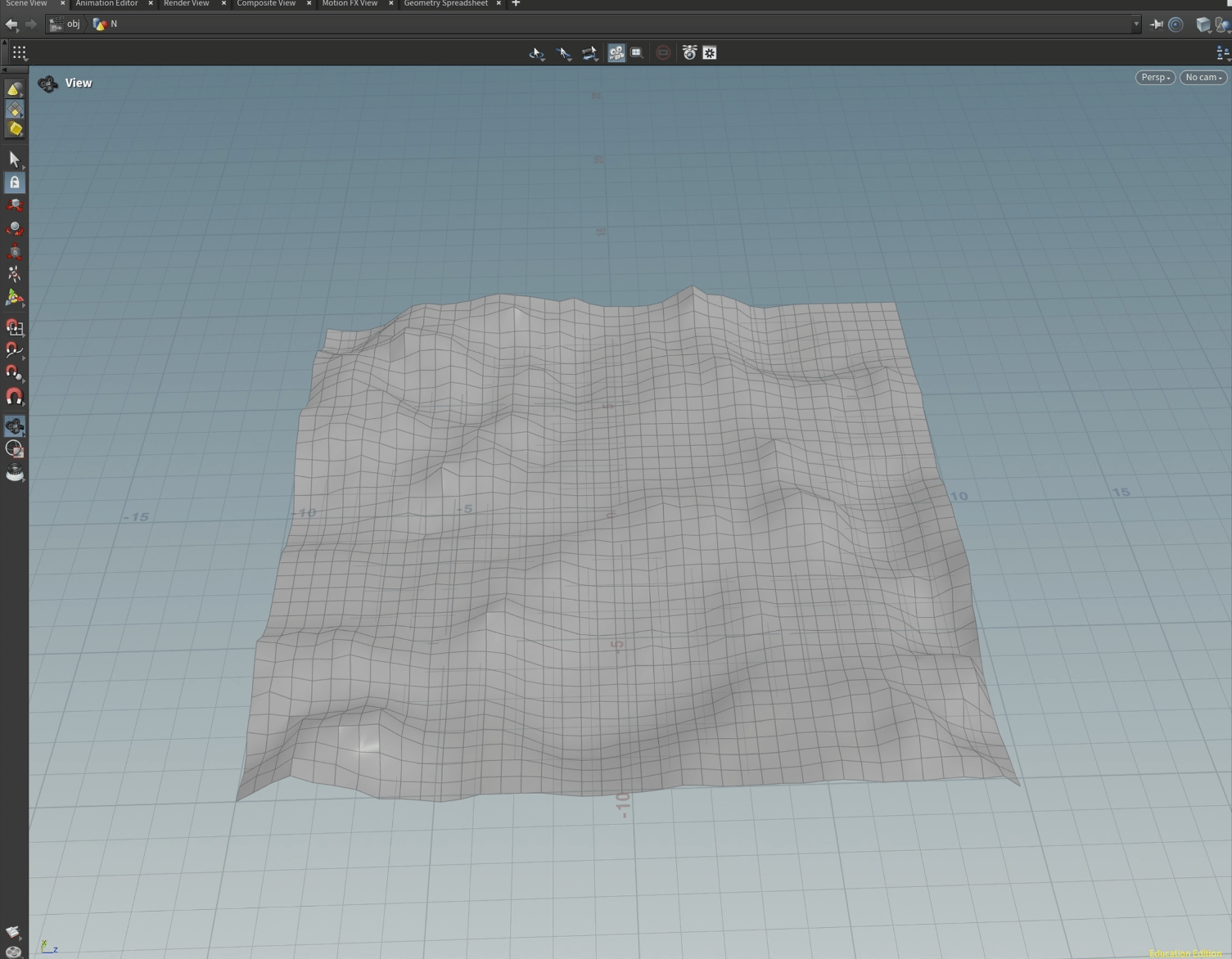
we end up with a mountain.
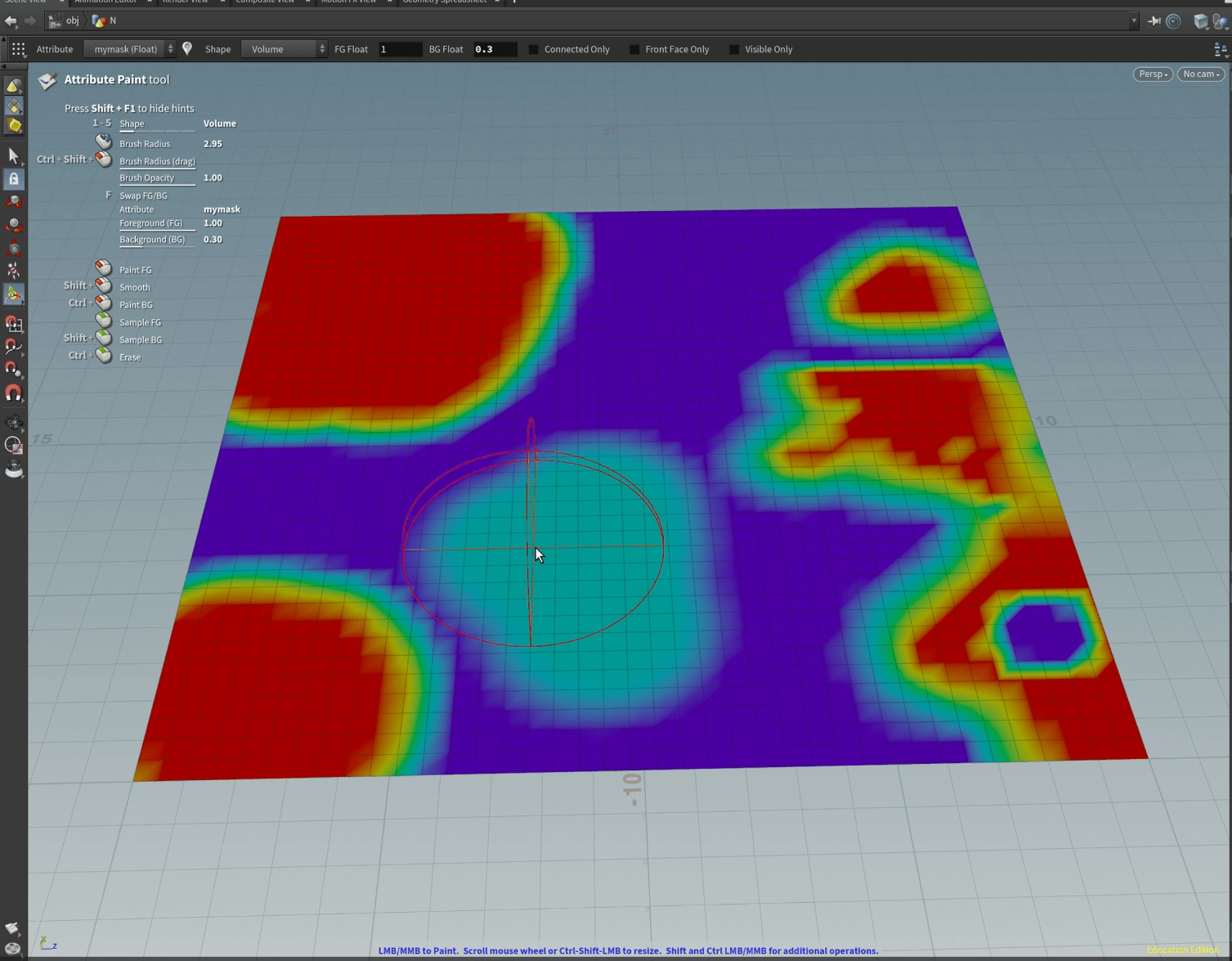
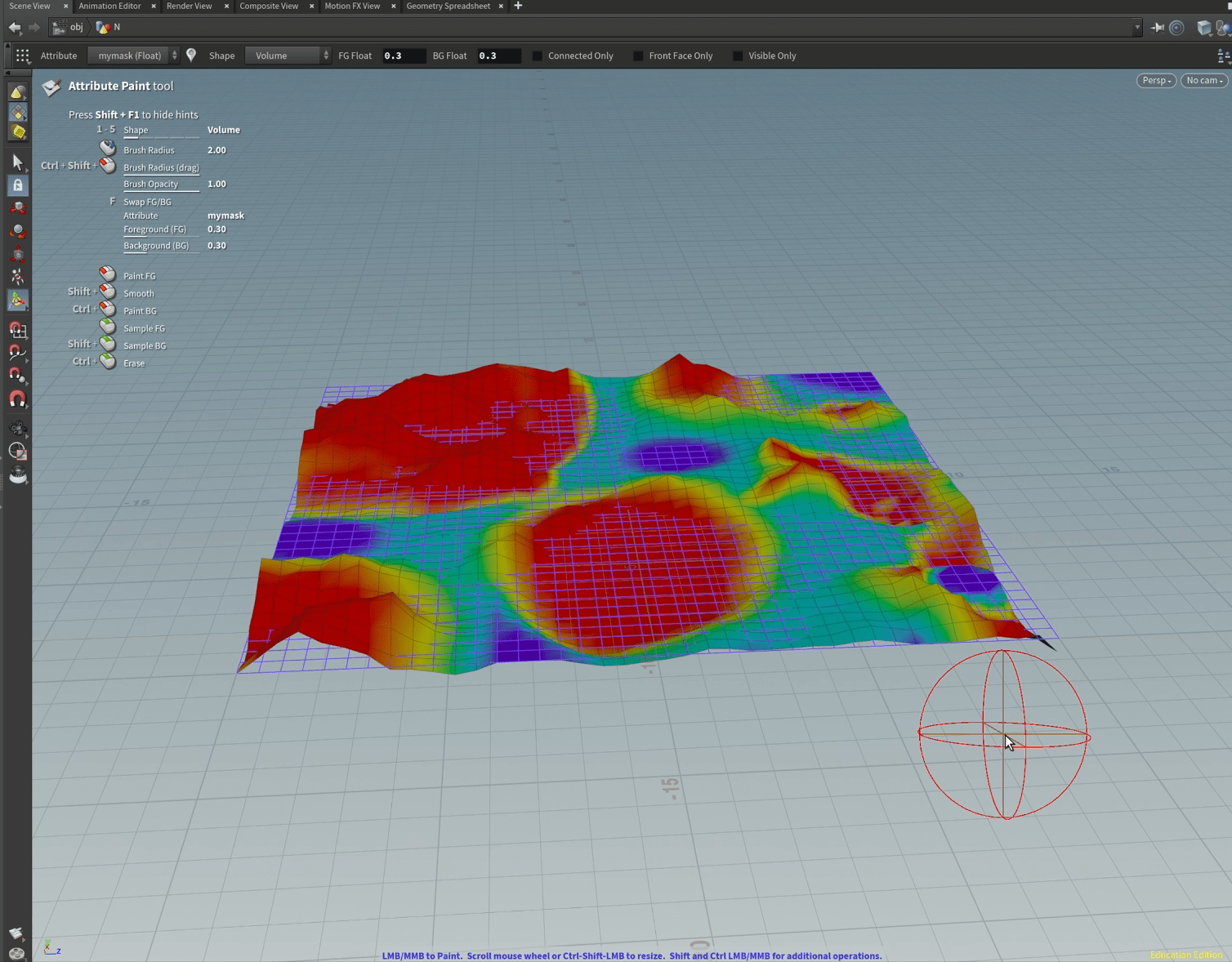
now we are going to paint a mast for the grid .
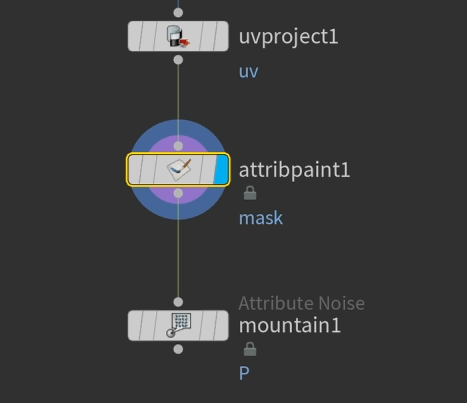
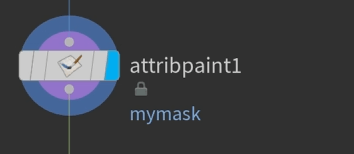
we are going to call this paint “mymask”.
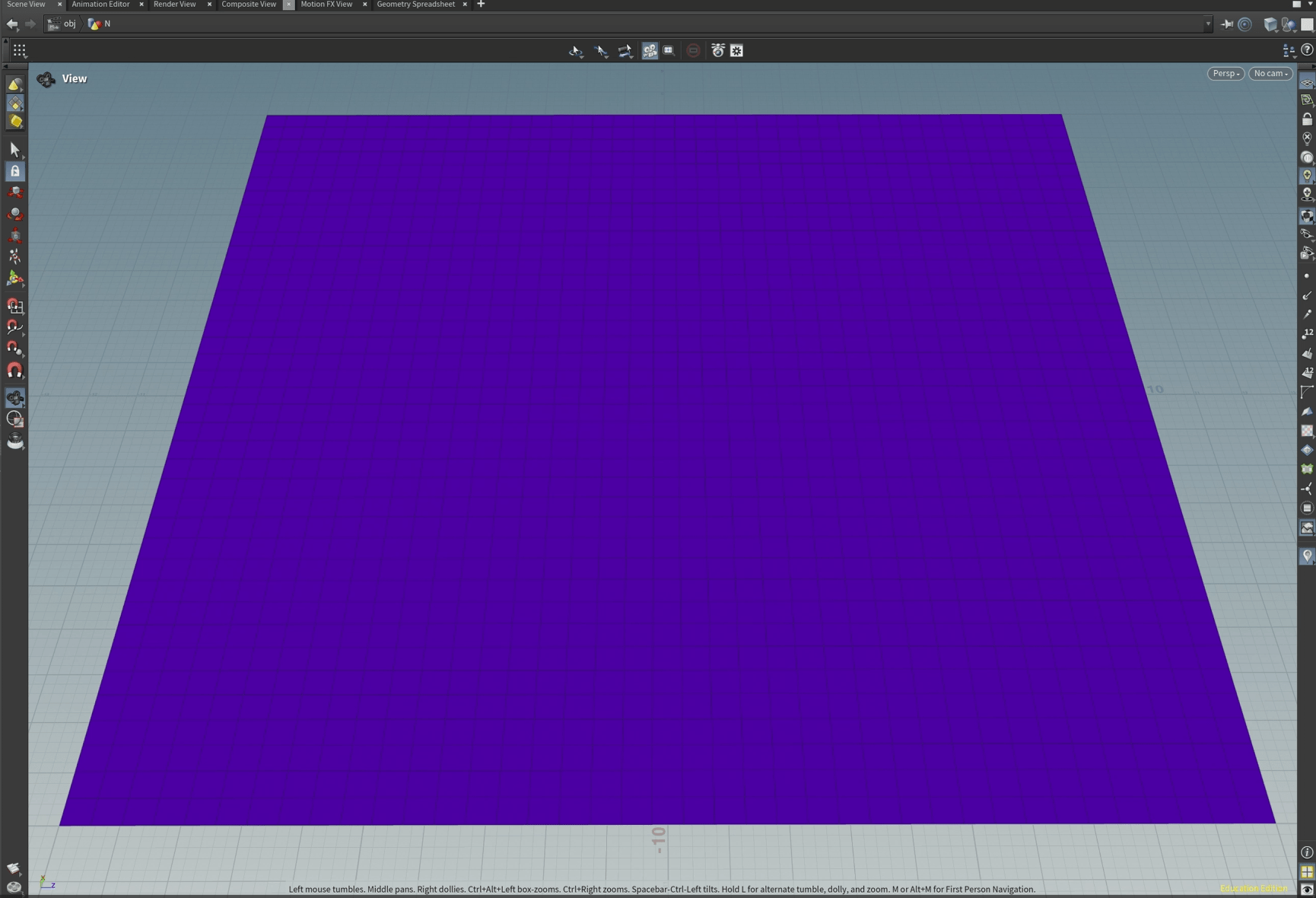
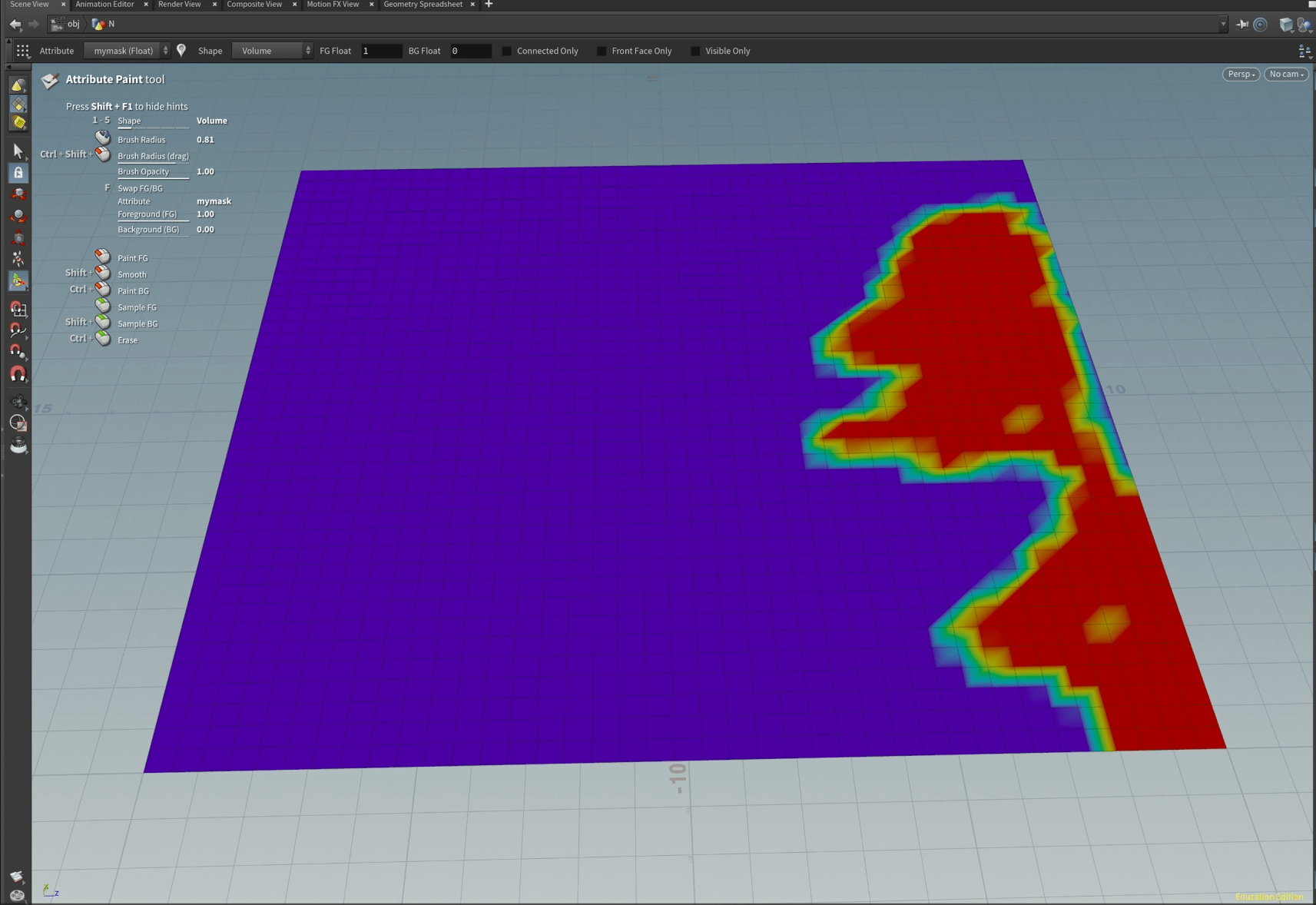
and using the special tool we are going to start painting our terrain.
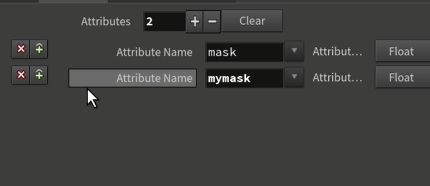
then we are copying the mask attribute and blend it with my mountain.
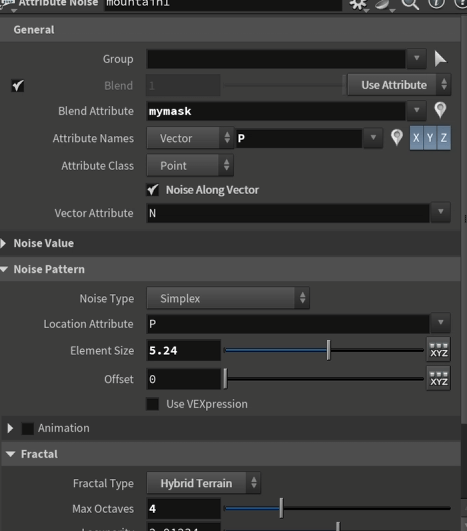
we will end up up with this.
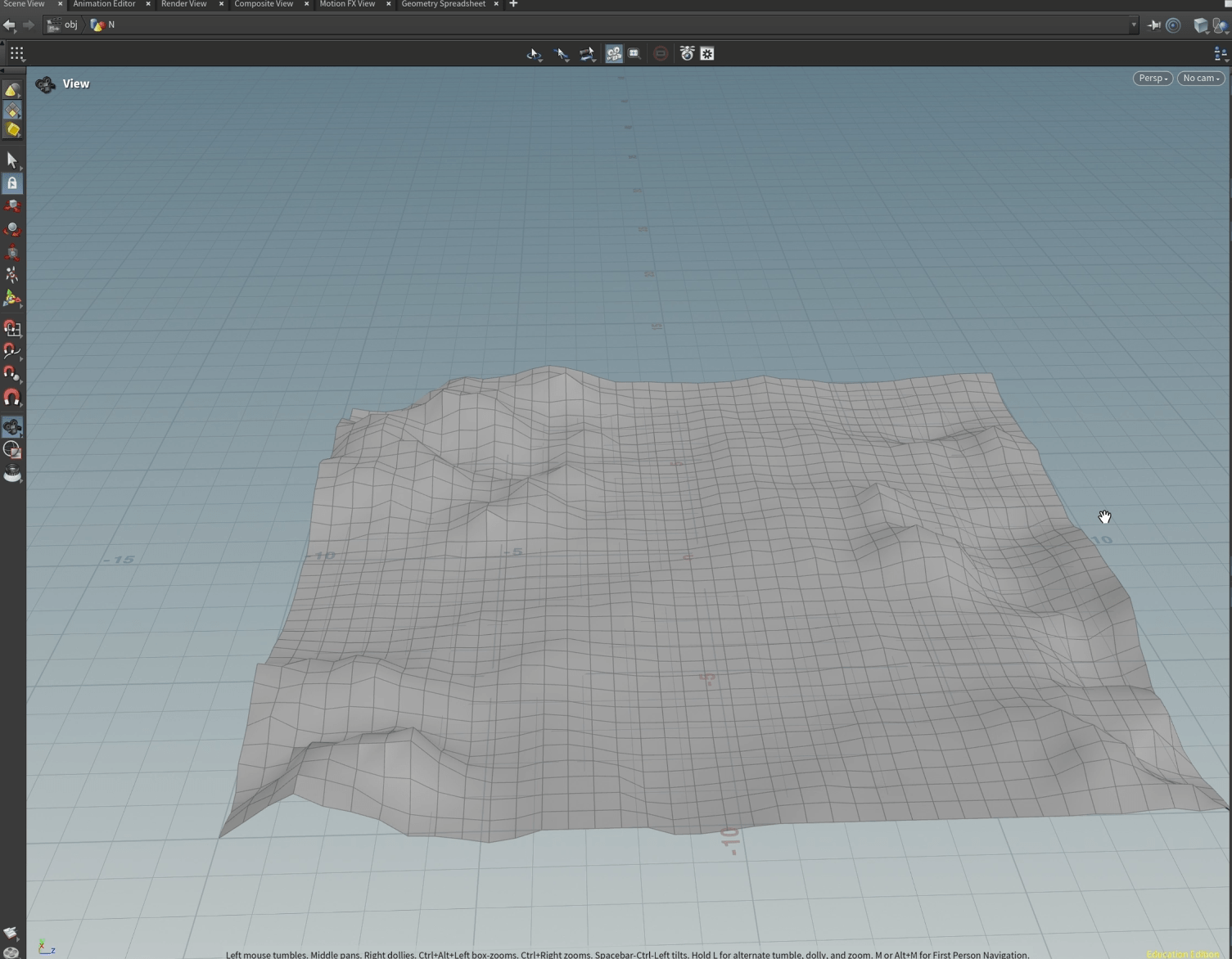
now if we modify the paint mask the terrain changes.
nest we are putting an scatter node.
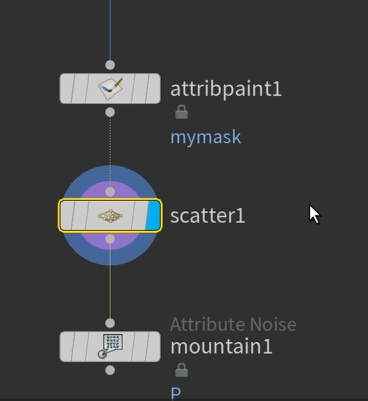
so now we have scatter points that inherited the mountain as a reference.
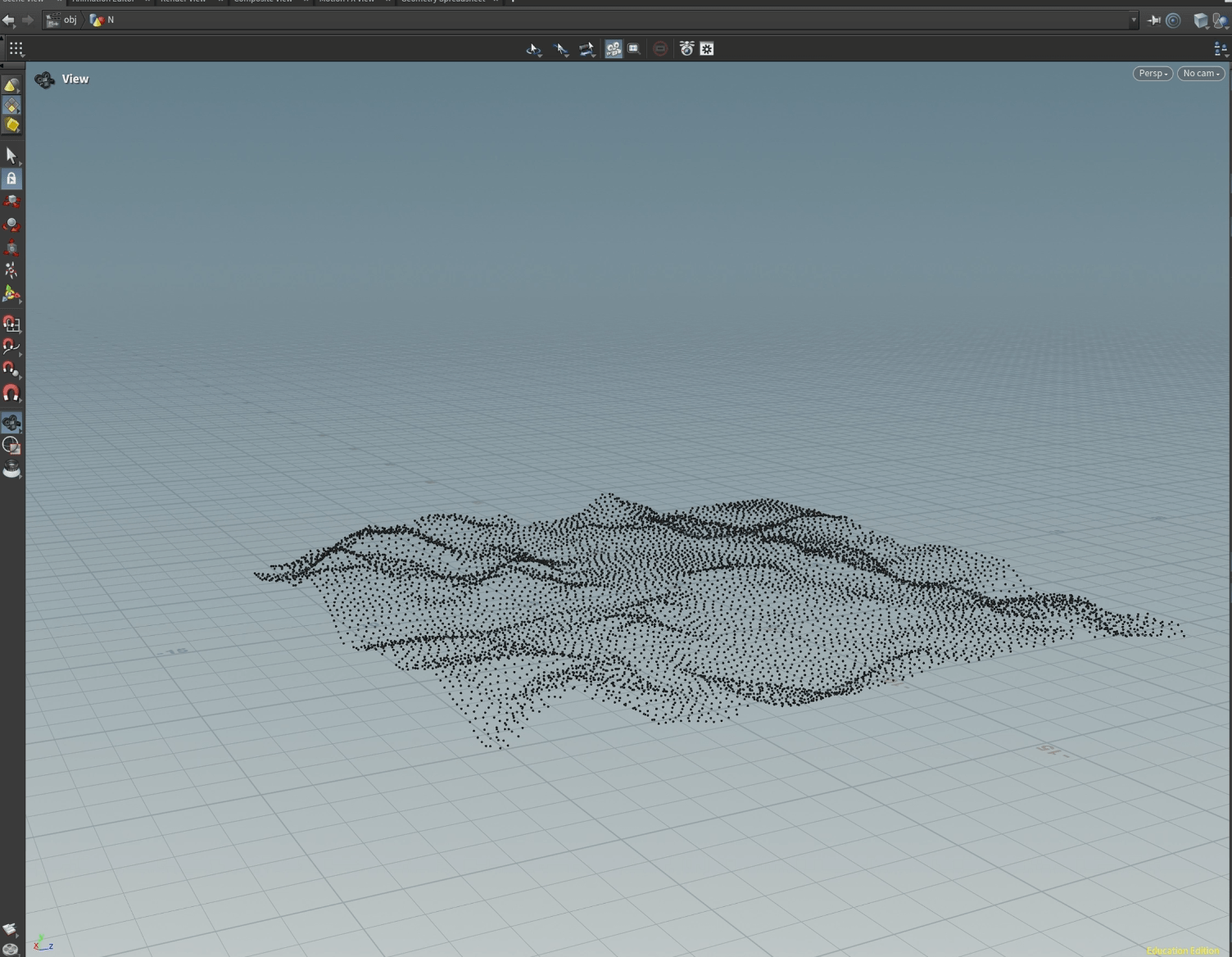
and we can change the parameter for the scatter to look more dotted.
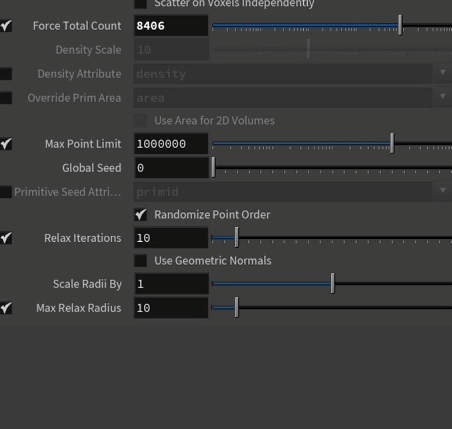
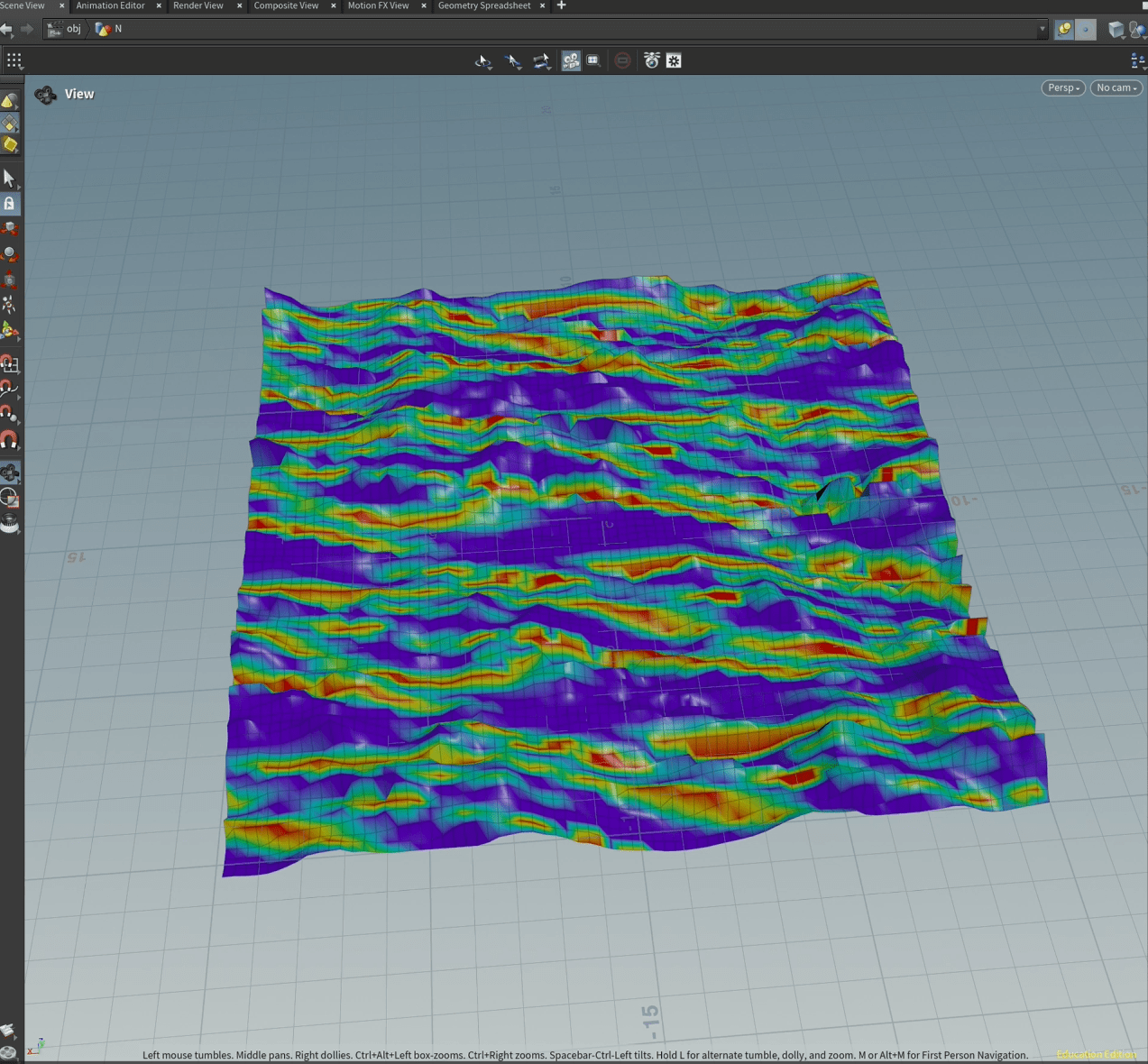
now if we create another mask called scatter mask and I paint on to, I can select where I want the scatter to happen.
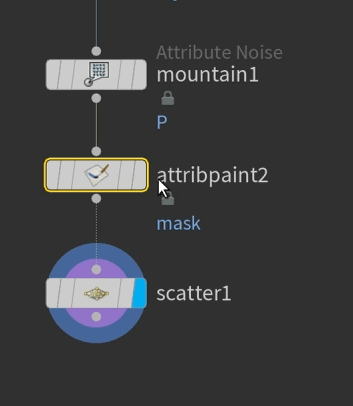
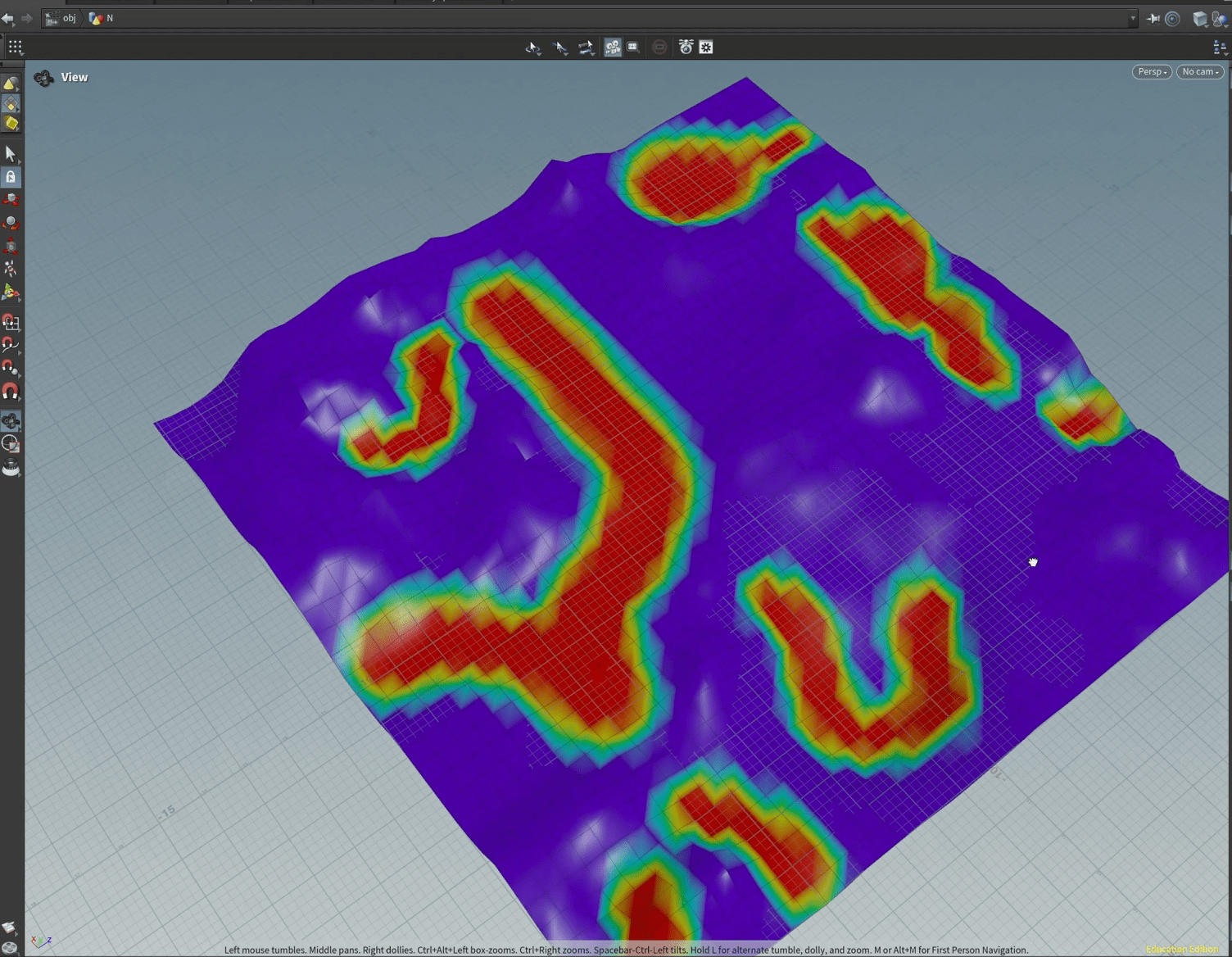
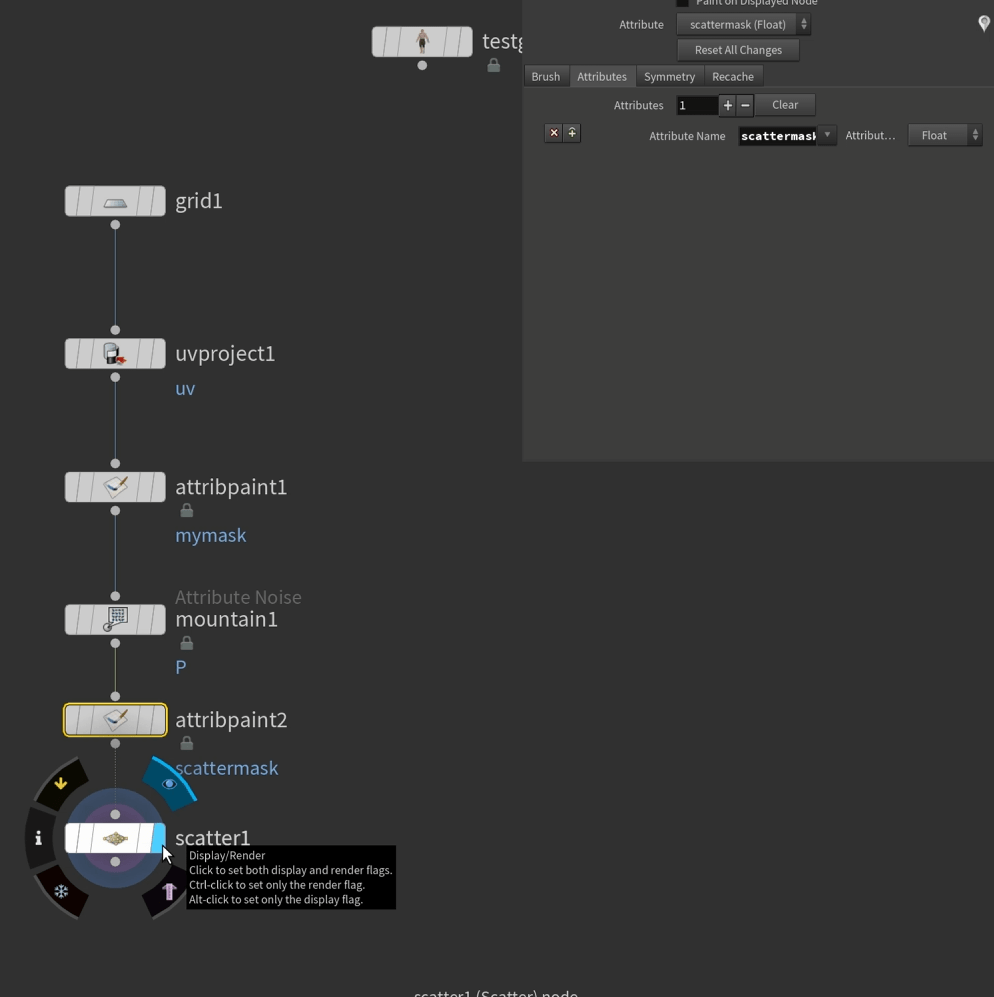
I will end up with this.
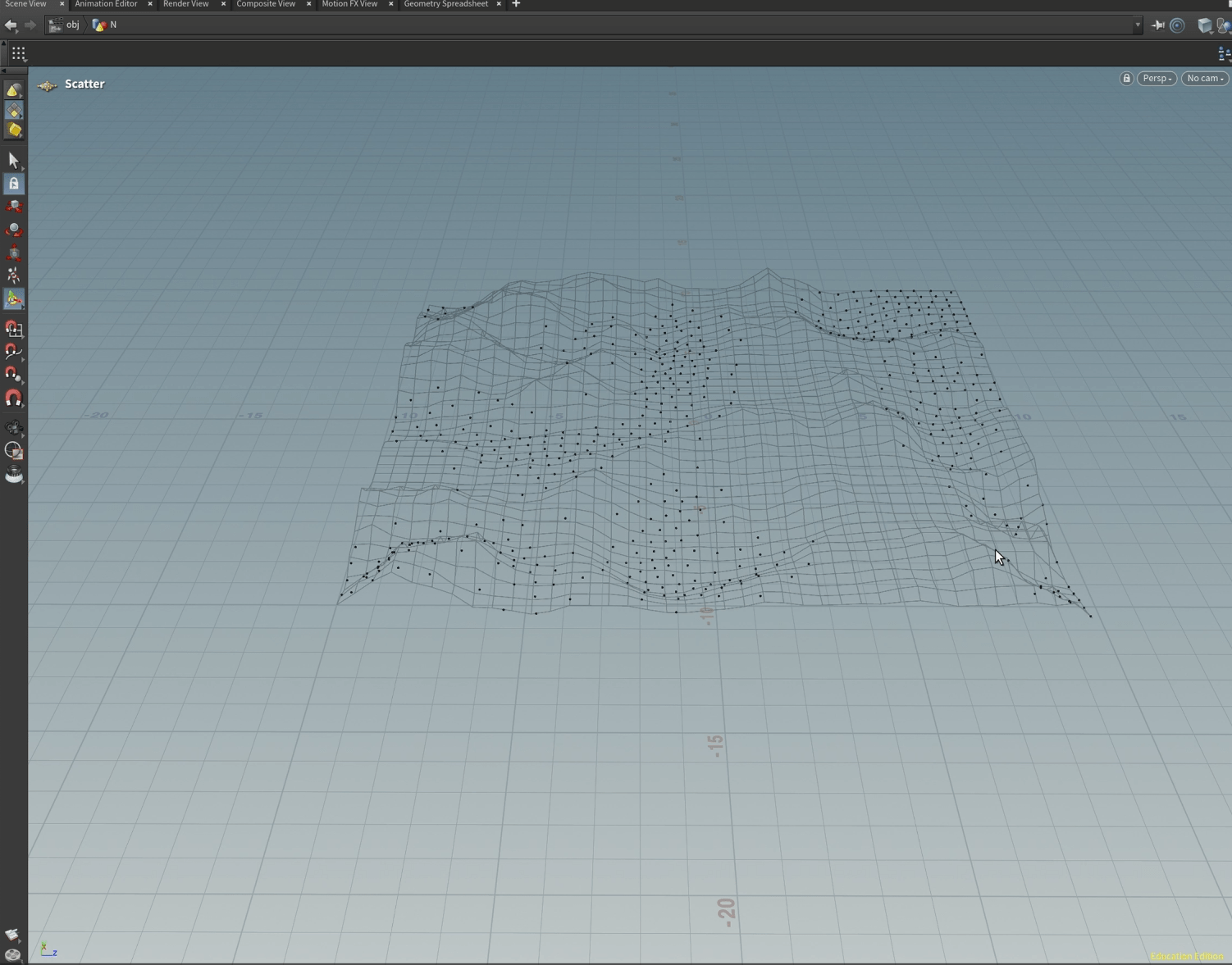
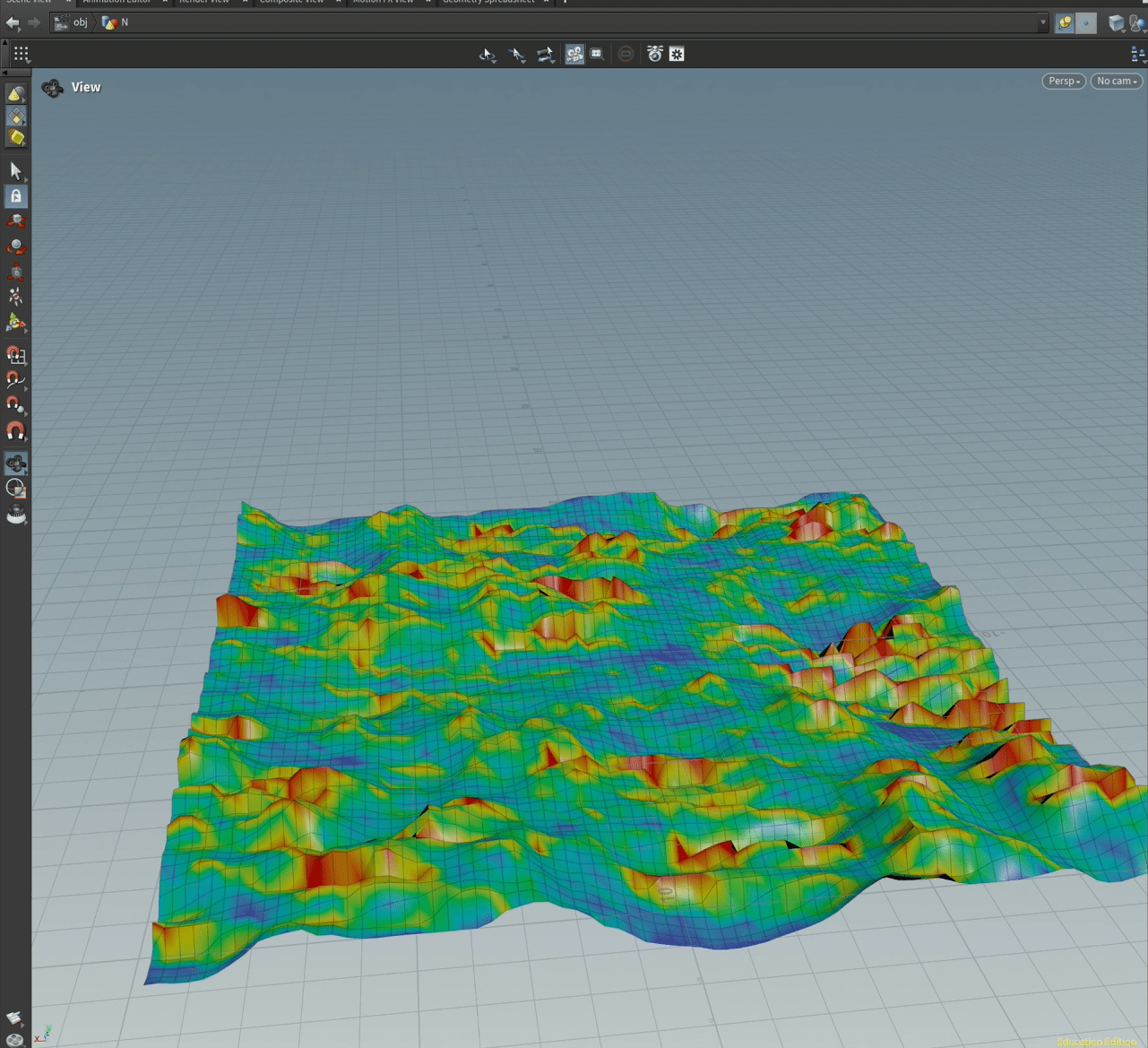
There are other ways to put the scatter on, in this case a different way that I am going to use I as normal map to place the scatter.
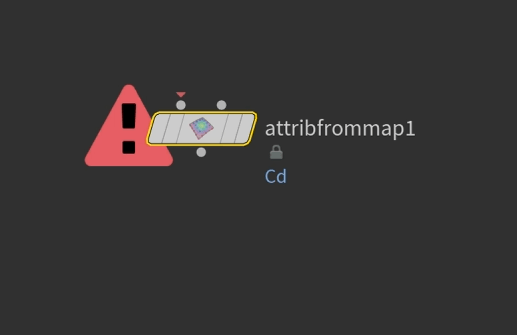
I am going to call this mas scattermask.
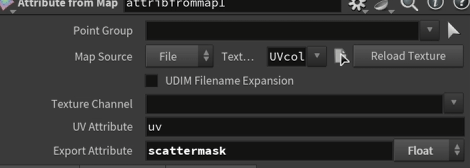
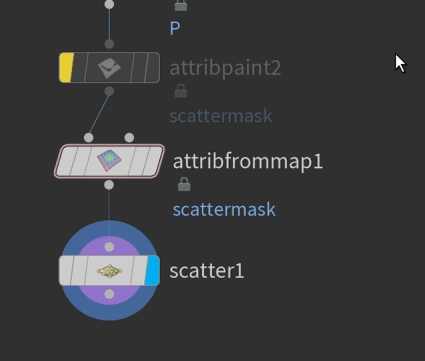
now I am going to use a default image called bacon as a normal map to distribute my scatter.
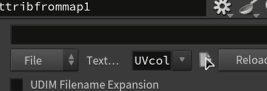
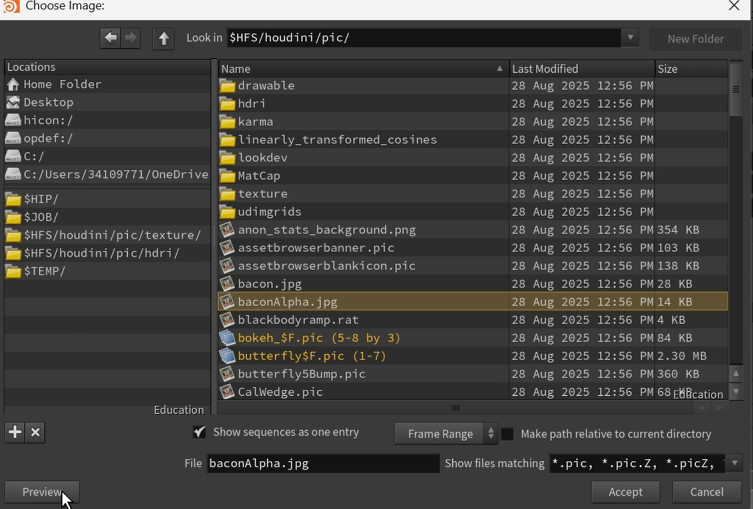
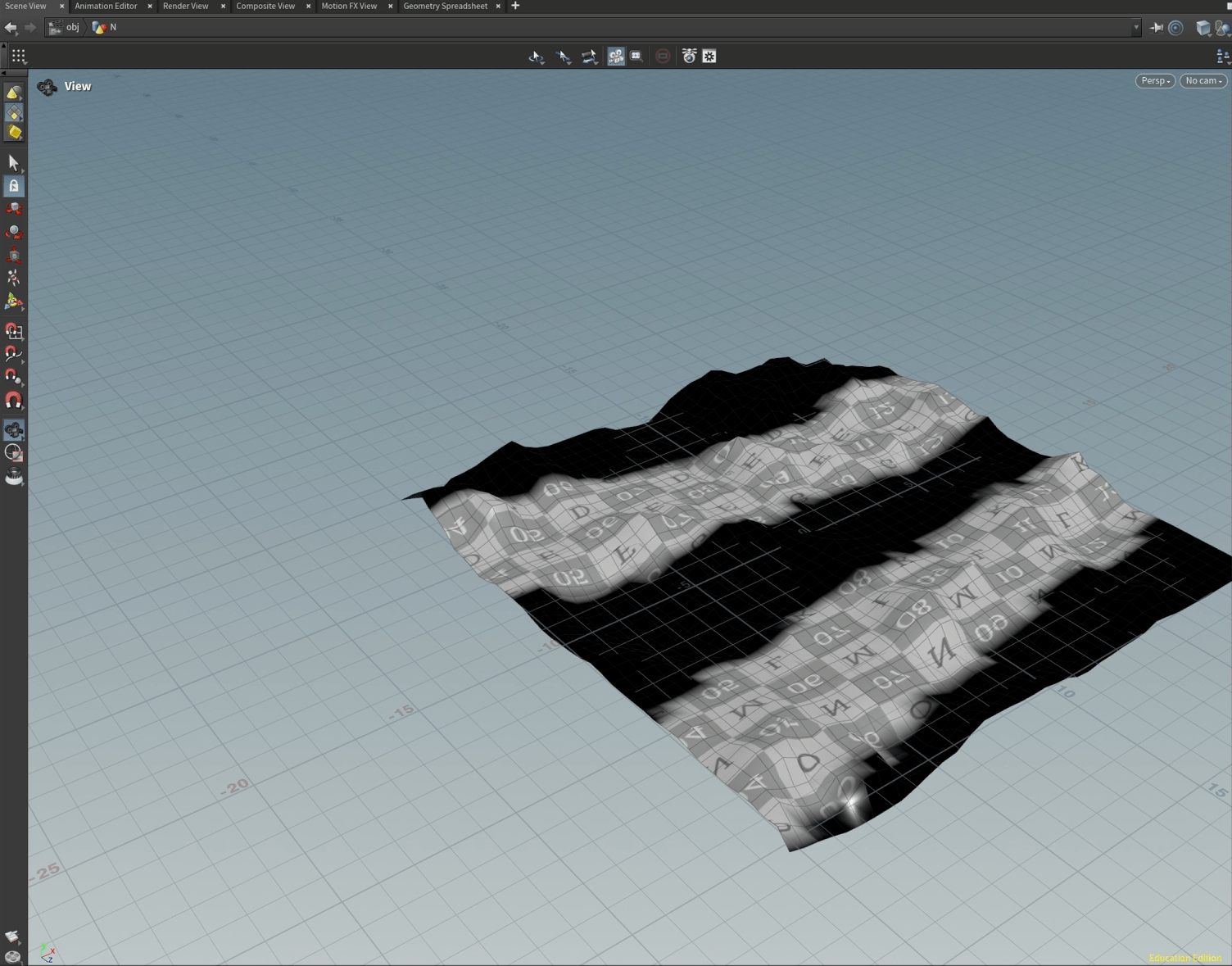
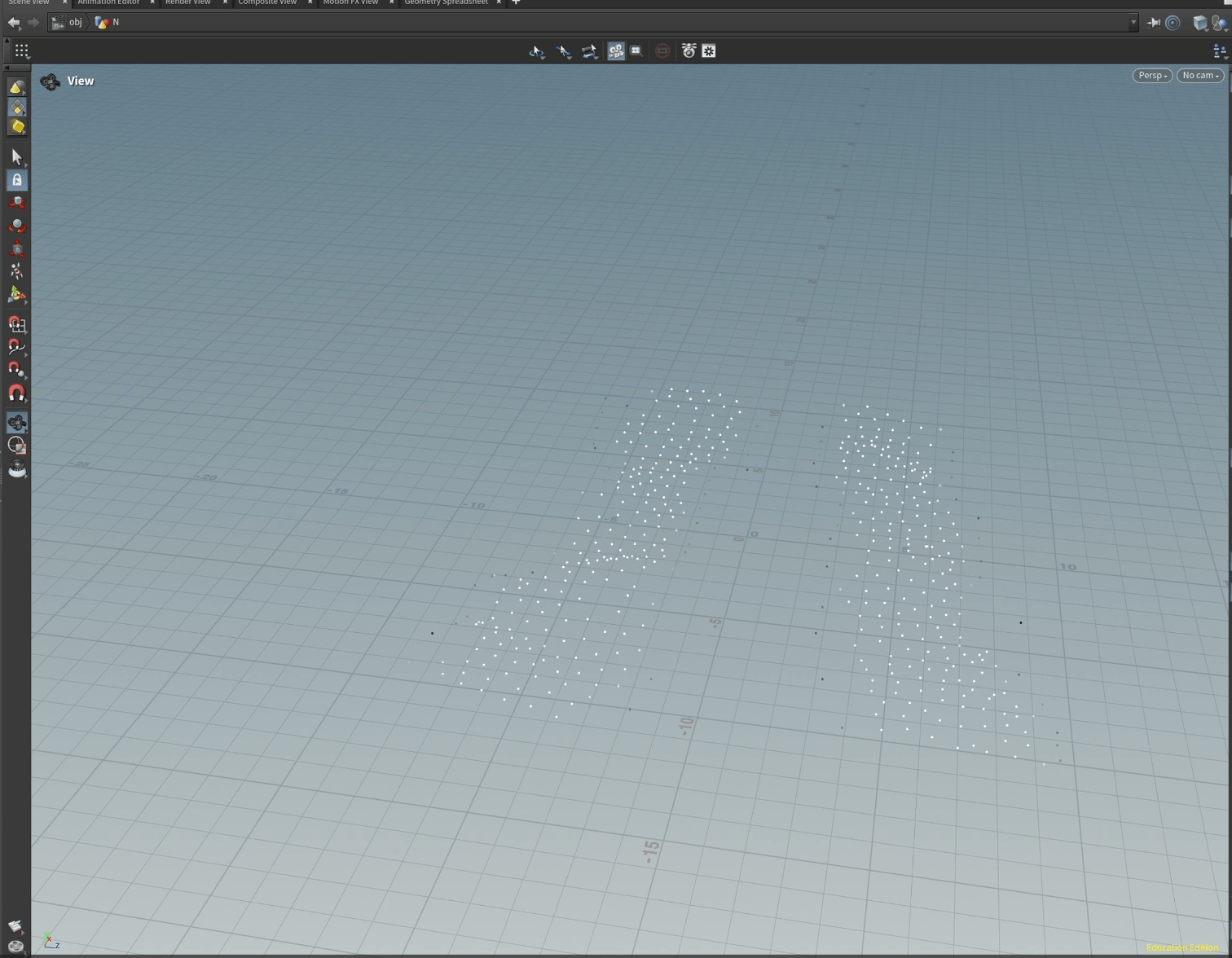
My scatter will look like this.
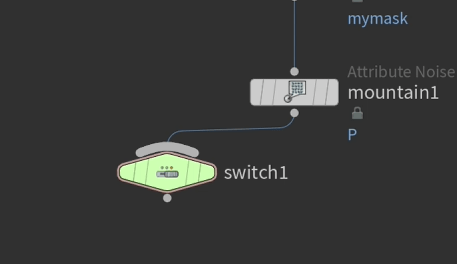
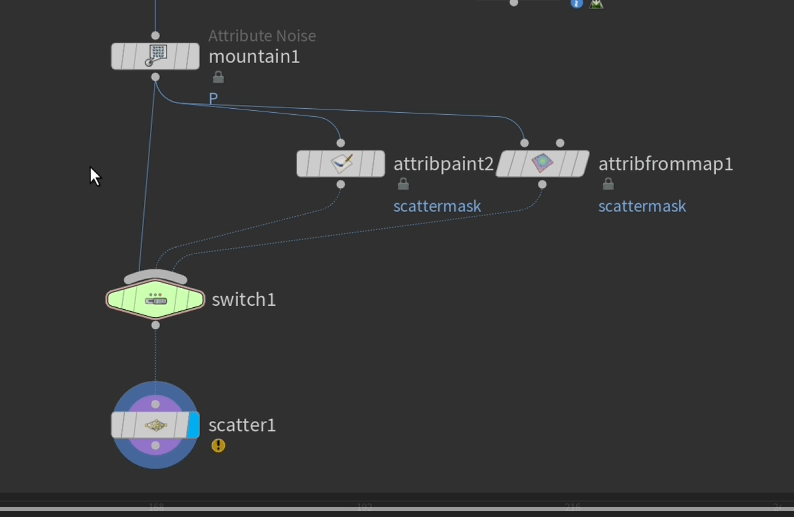
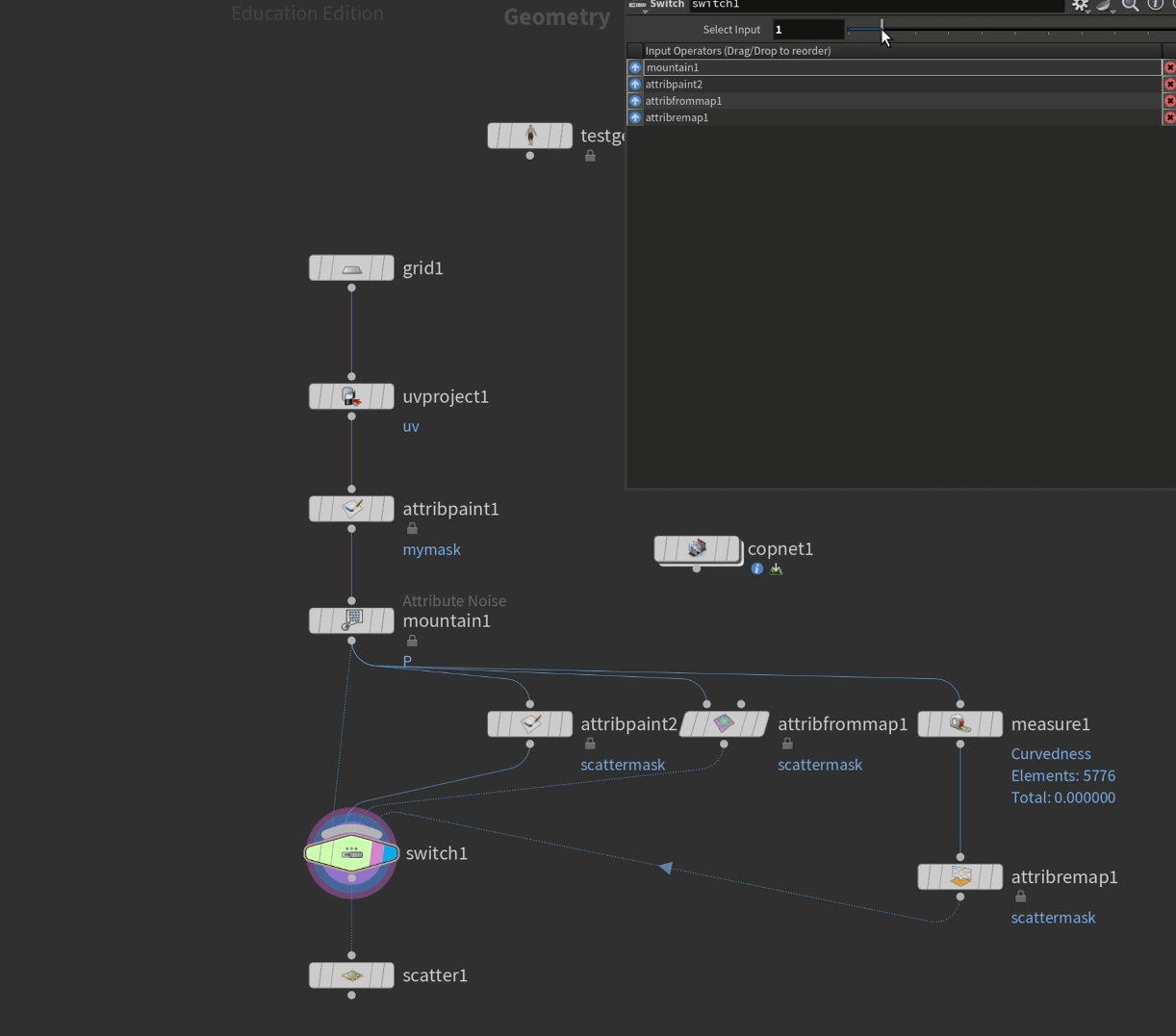
next we can put a switch node so we can alternate between the first painting and the normal.
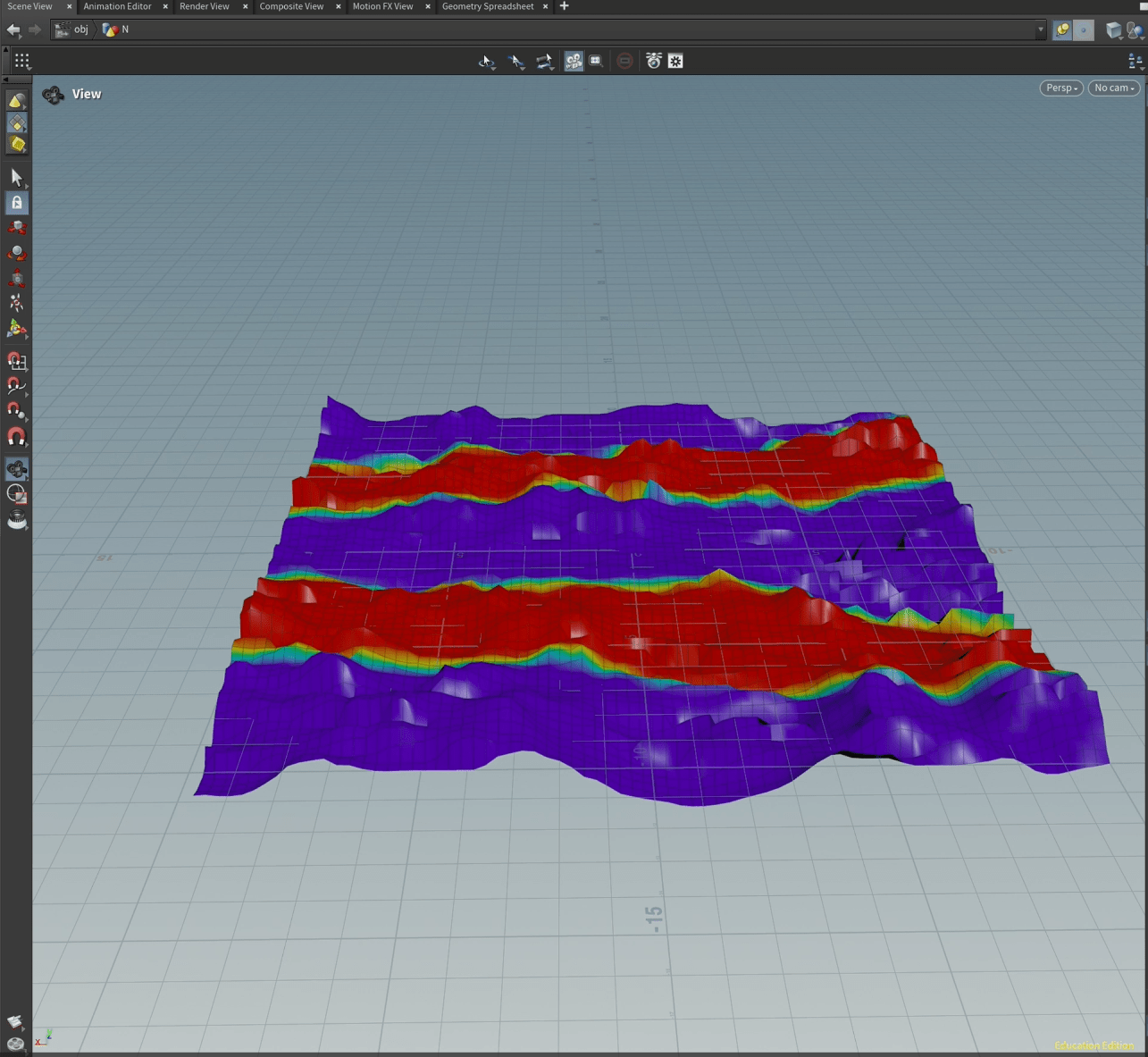
and finally we can add a third mask.
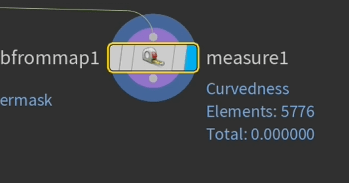
and add an attribute from amp node to this measure node, so it can be used to scatter.
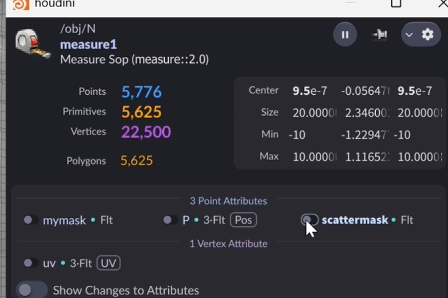
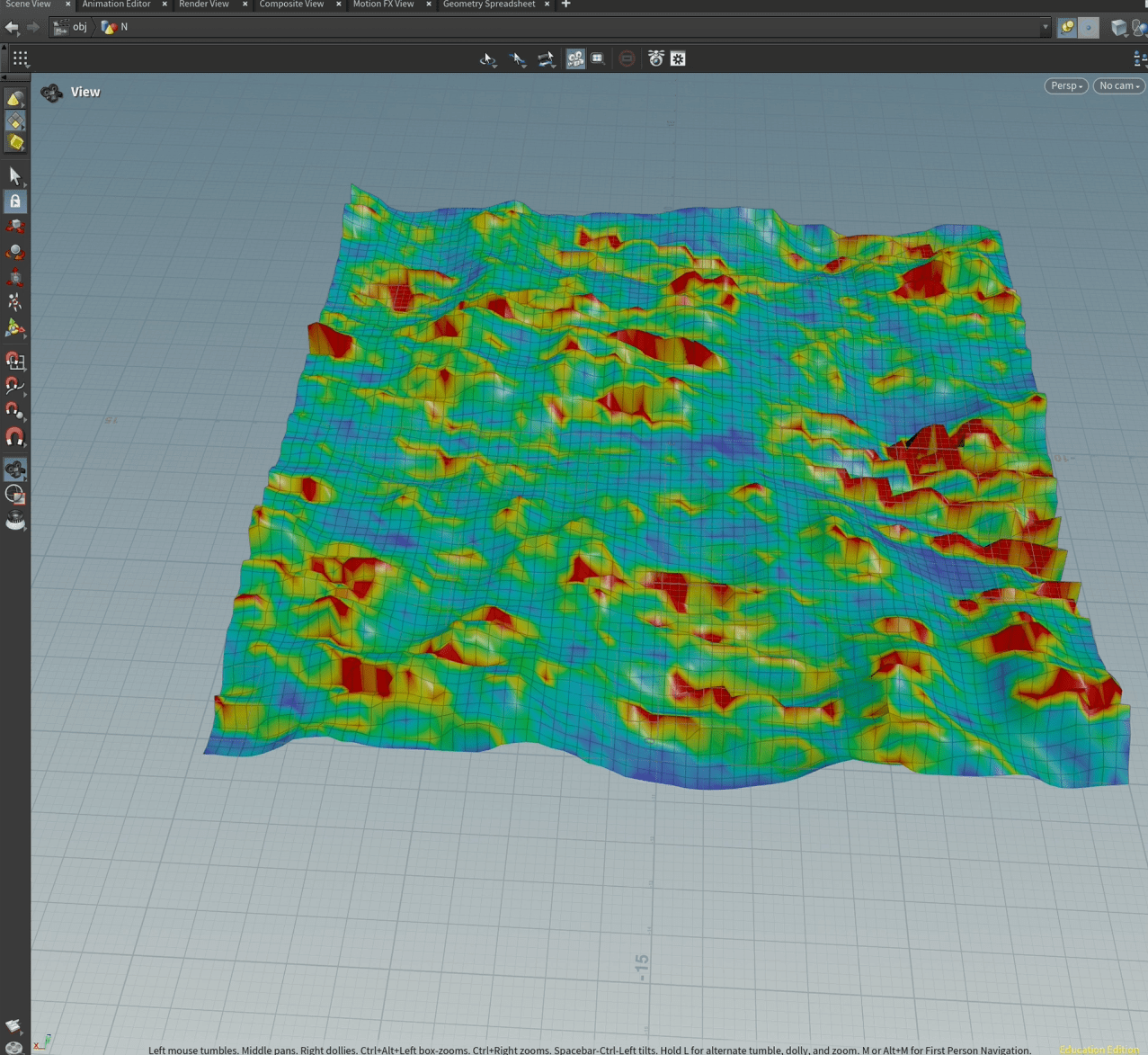
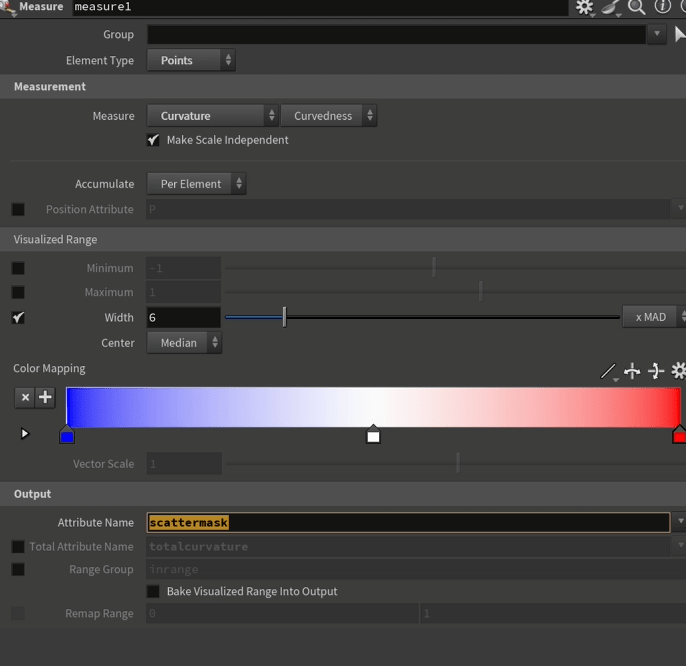
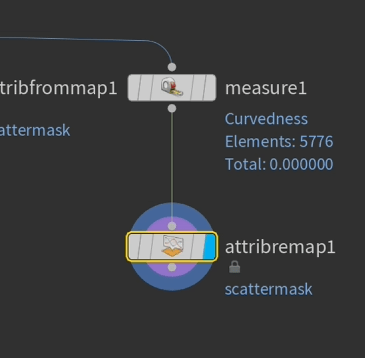
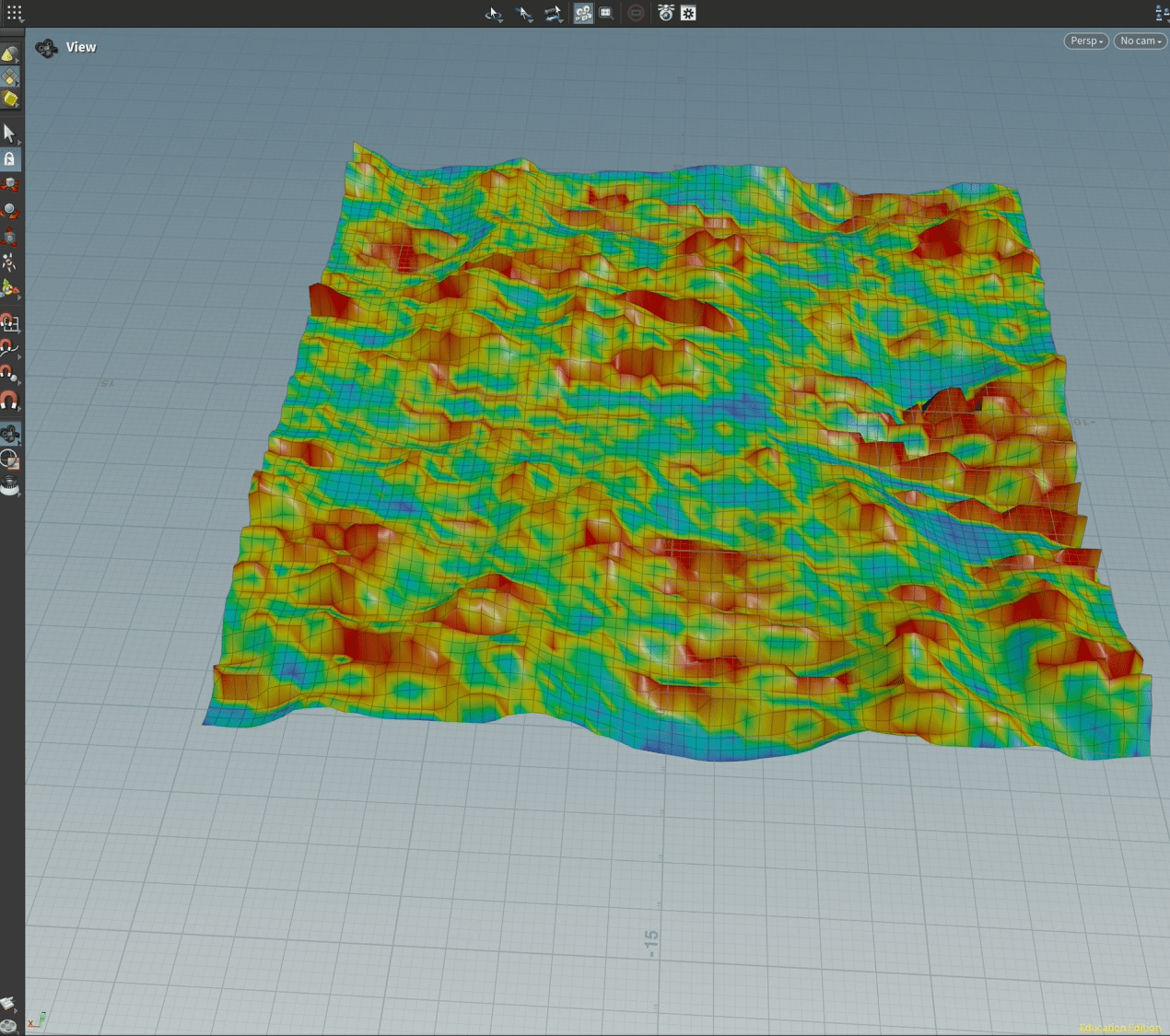
and now I can change between the three masks with the switch.
End of week 2
Week 3: Procedural generation
Here is the VOD on what I did in class.
End of week 3
Week 4: VOPs
This week we are going to be working in VOPs, to create different effects on our grid.
VOPs, or Vector Operators, in Houdini is a node-based visual programming interface for its VEX(Vector Expressions) language, allowing users to manipulate attributes on geometry, volumes, and more without writing code. By creating networks of VOP nodes, you can procedurally modify attributes, create custom shaders, generate geometry, and control simulations, providing a powerful and intuitive way to work with data in Houdini.
Exercise 1
In this task we are going to be working in VOPs, to create different effects on our grid.
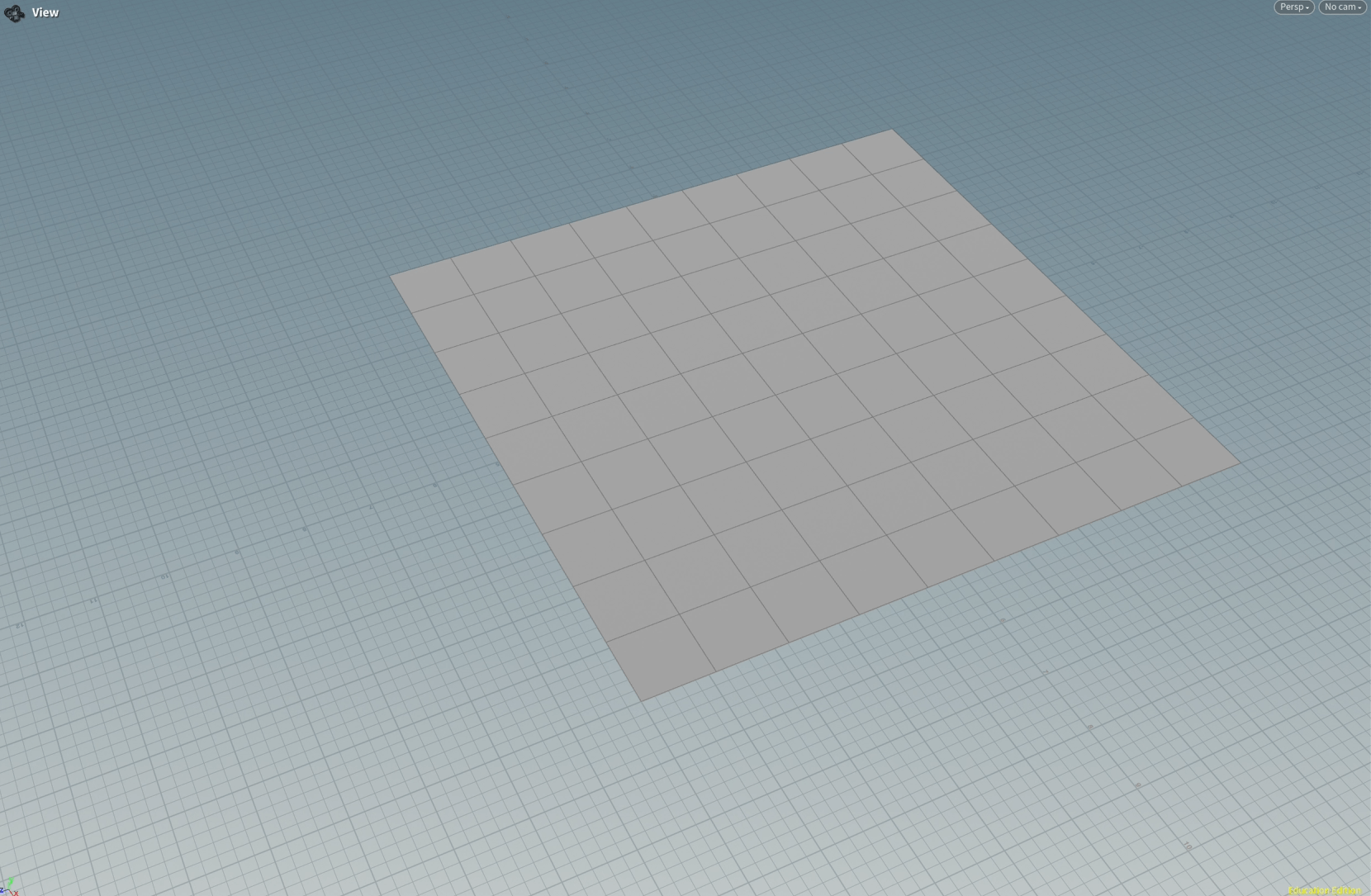
To start we are creating a simple grid.
nest we create a pointvop node.
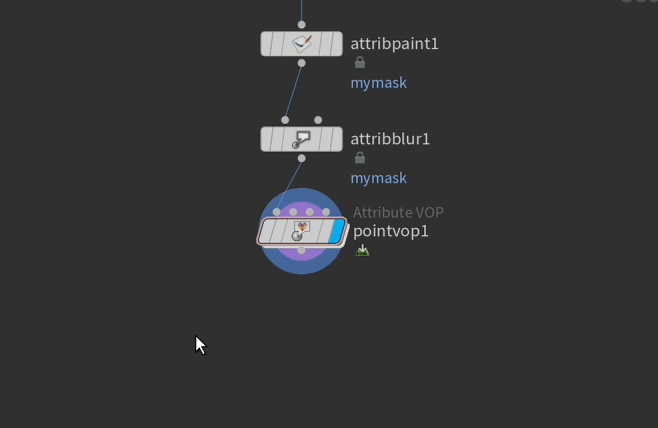
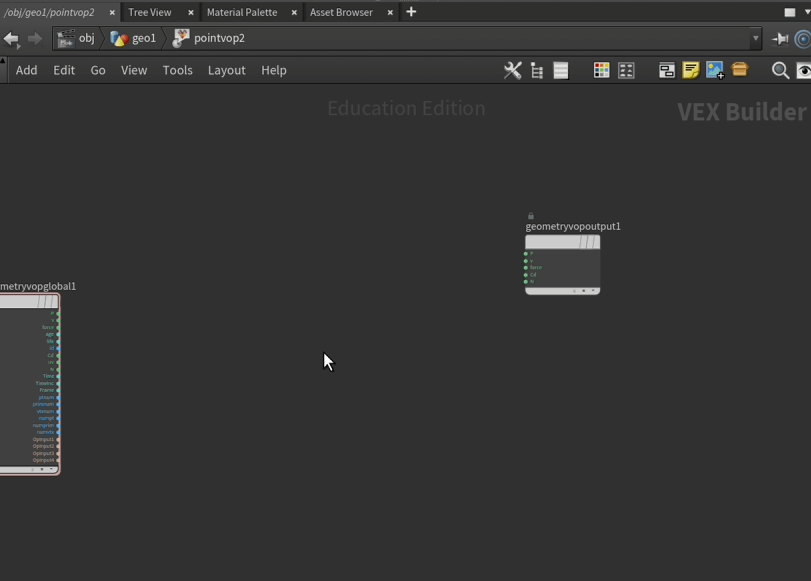
and we go inside this node to start modifying.
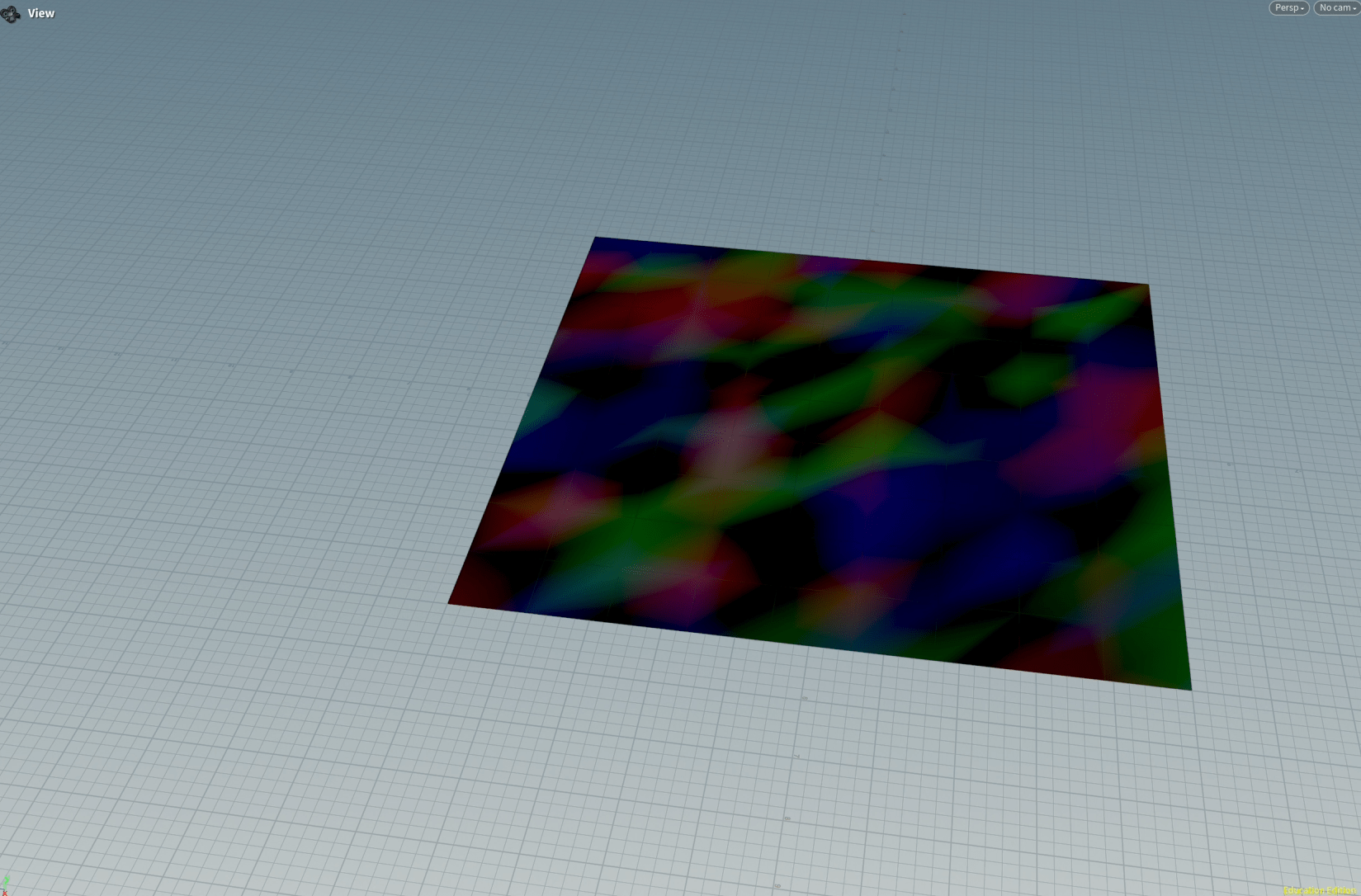
we are starting by adding an (a-noise) and connecting the position to the colour so we are able to visualize this noise.
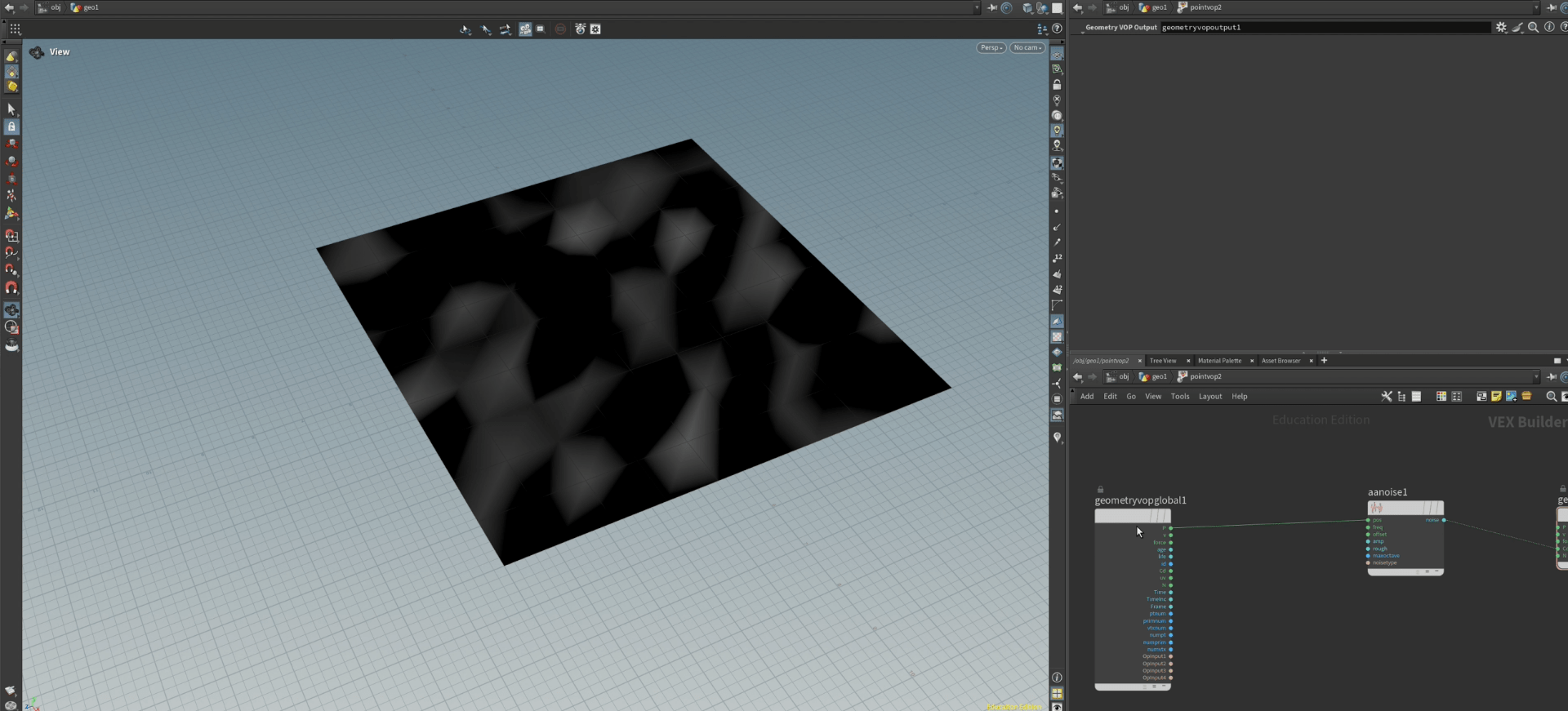
inside de a-noise we can change setting to modify the look of our noise.
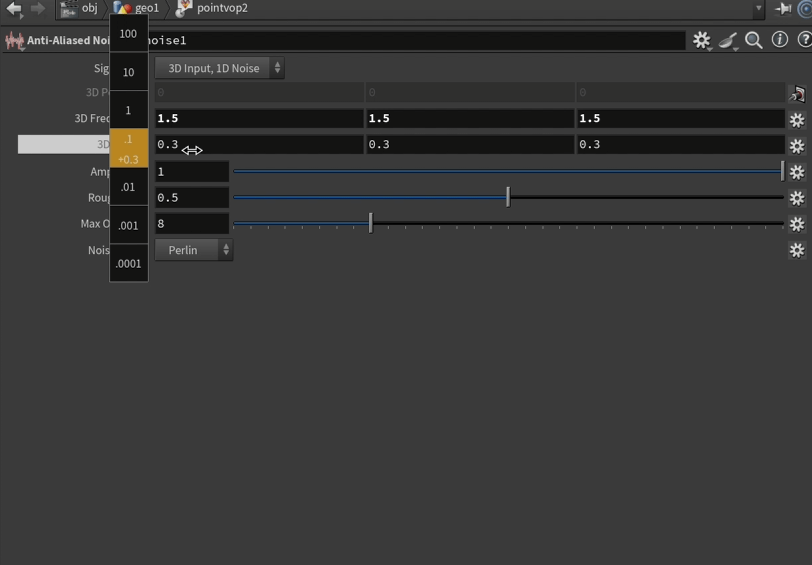
we can also change the signature of the noise to change the visualization.
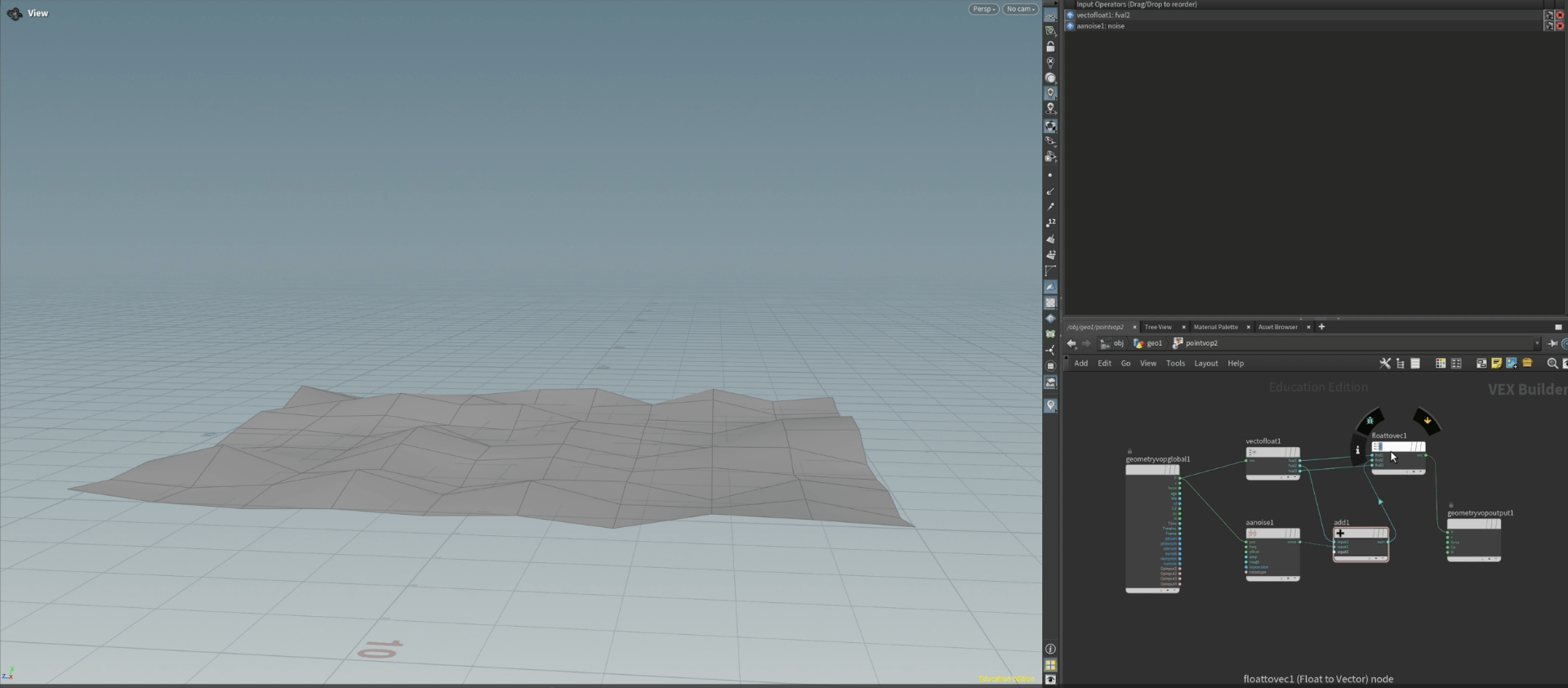
 now we add the noise to a vector position so we can alter the grid.
End of exercise 1
Exercise 2
For this next exercise we are going to use a sphere.
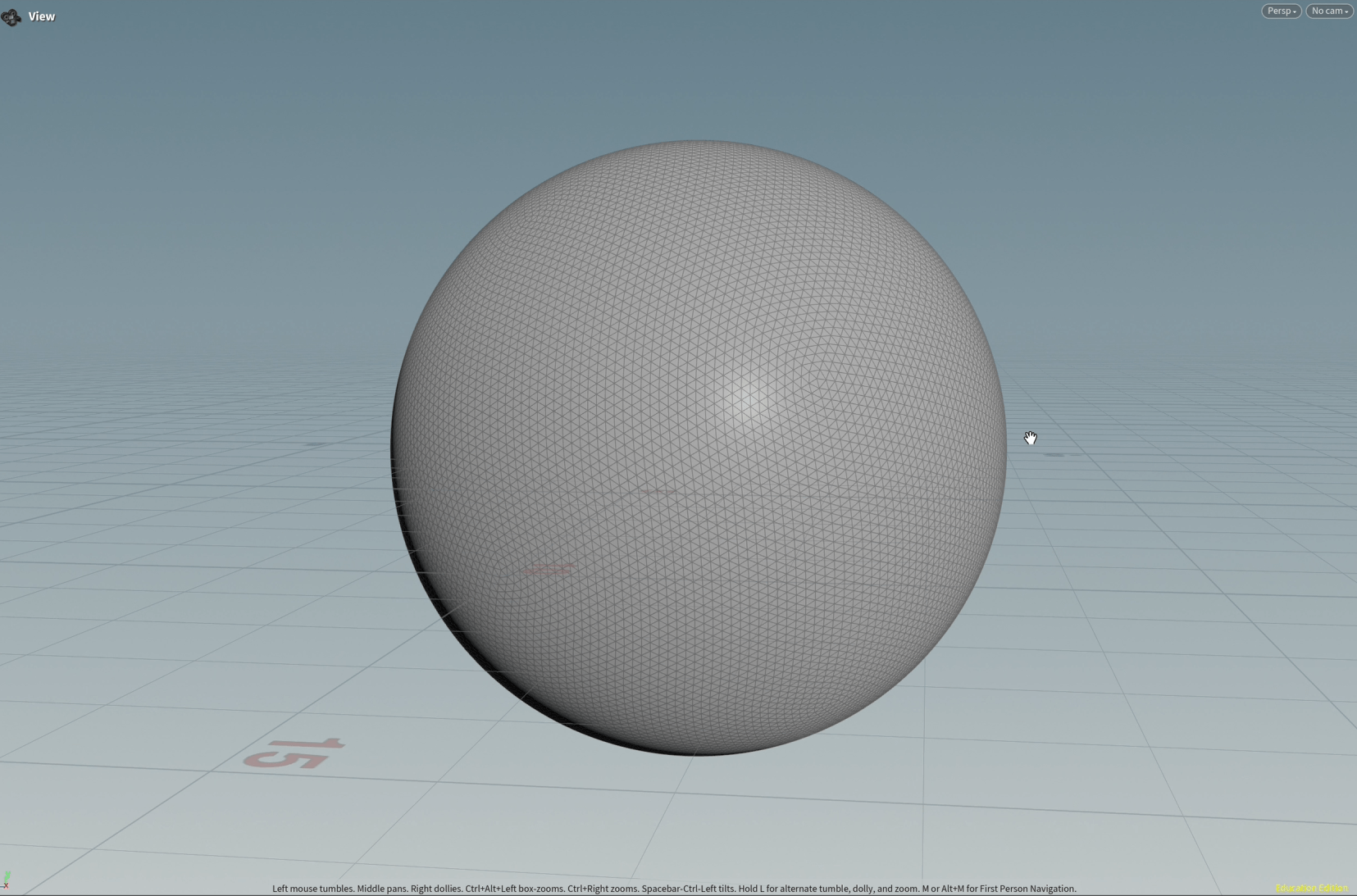
and we are going to connect the VOP we did with the grid to see how it behaves with the sphere.
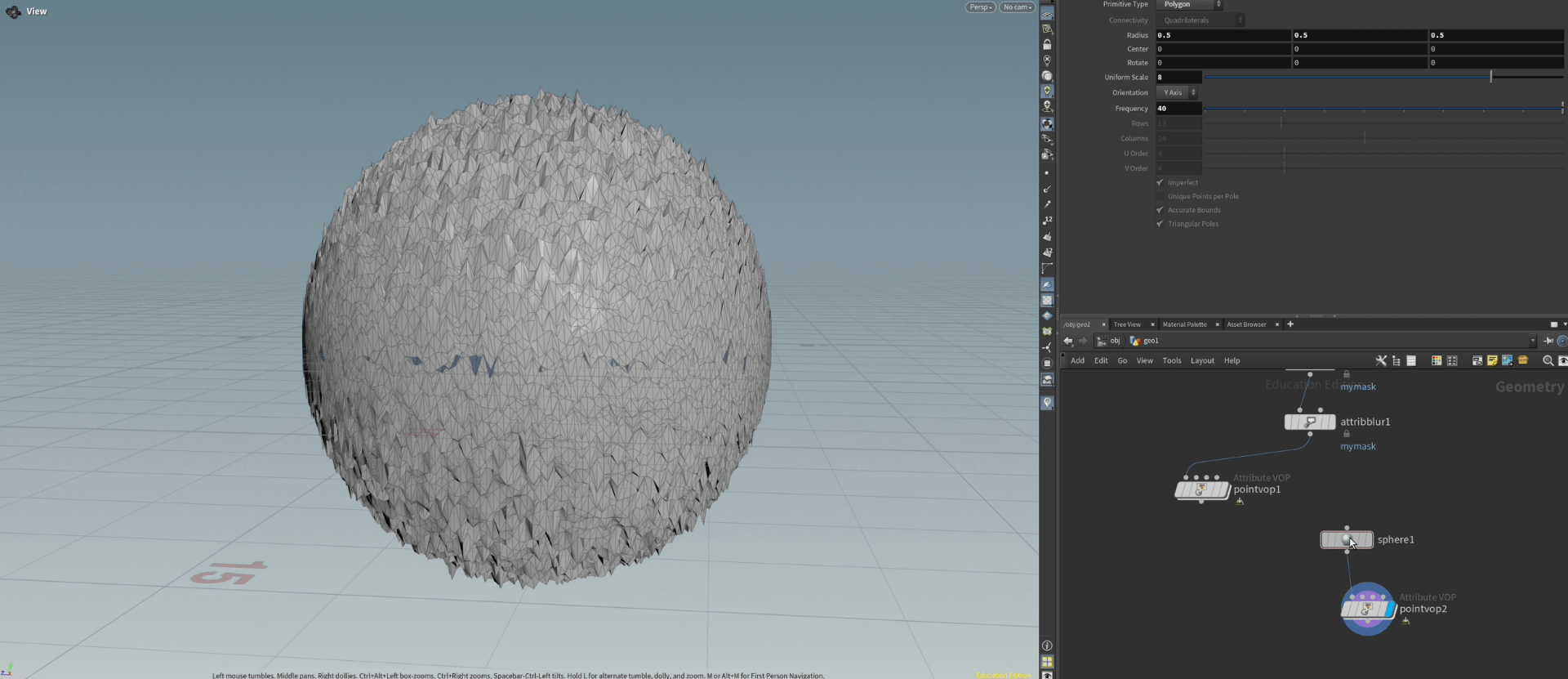
now if we go inside the VOP and start playing with the frequency of the noise we will see how it changes.
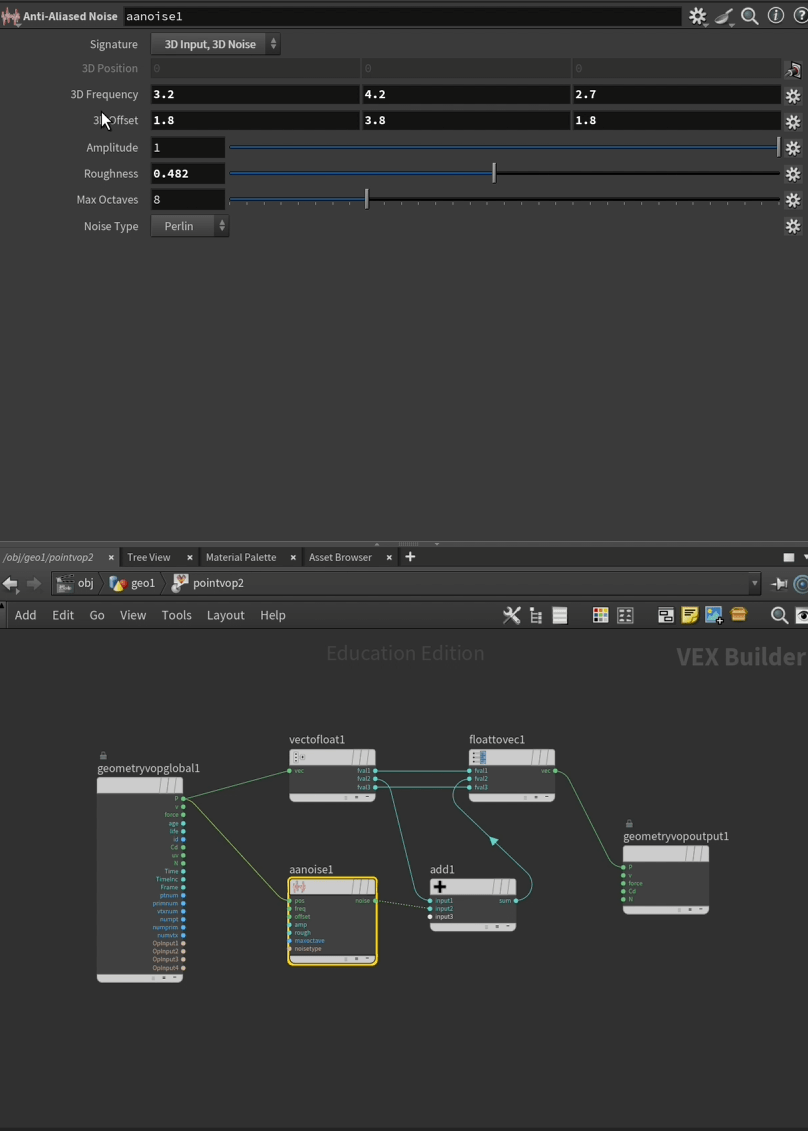
if we add a normal node to the sphere and we add its normal to the points we obtain a normalized sphere.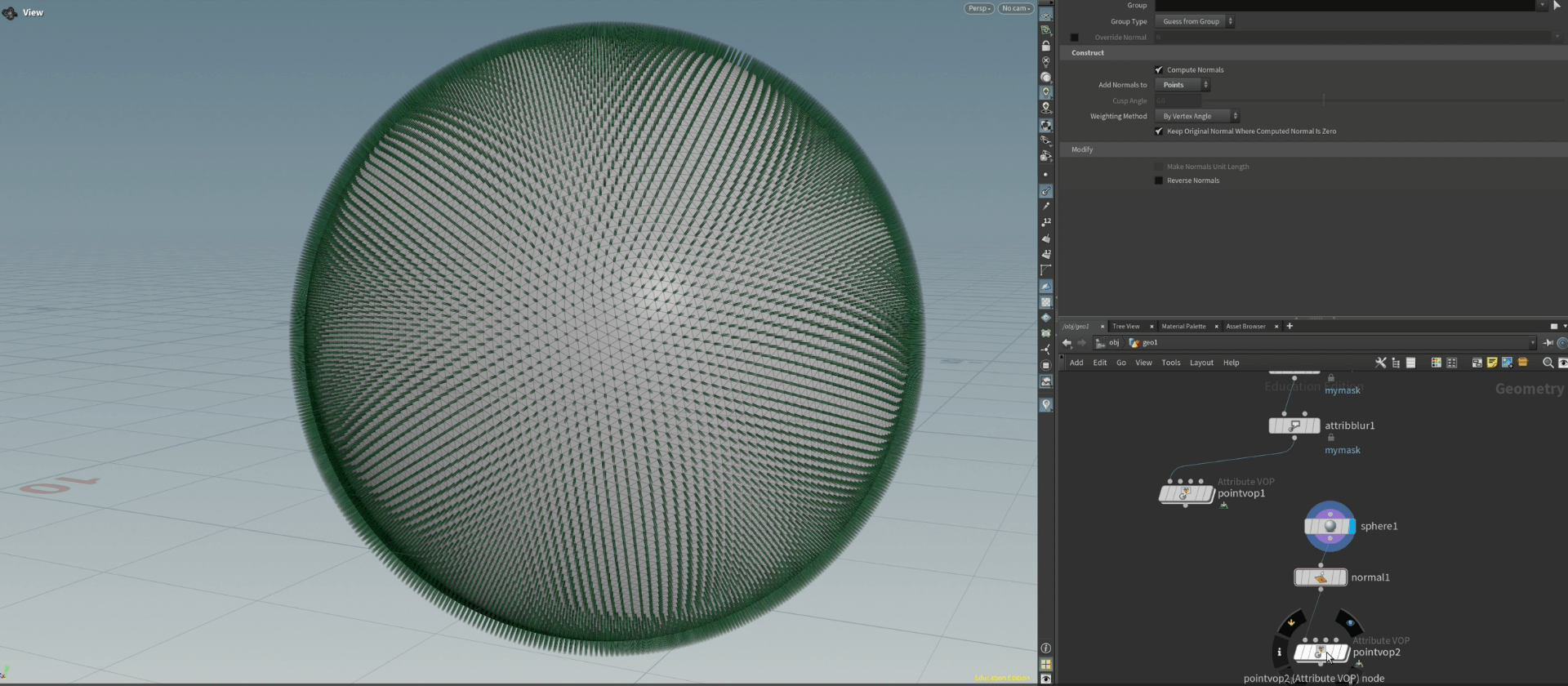
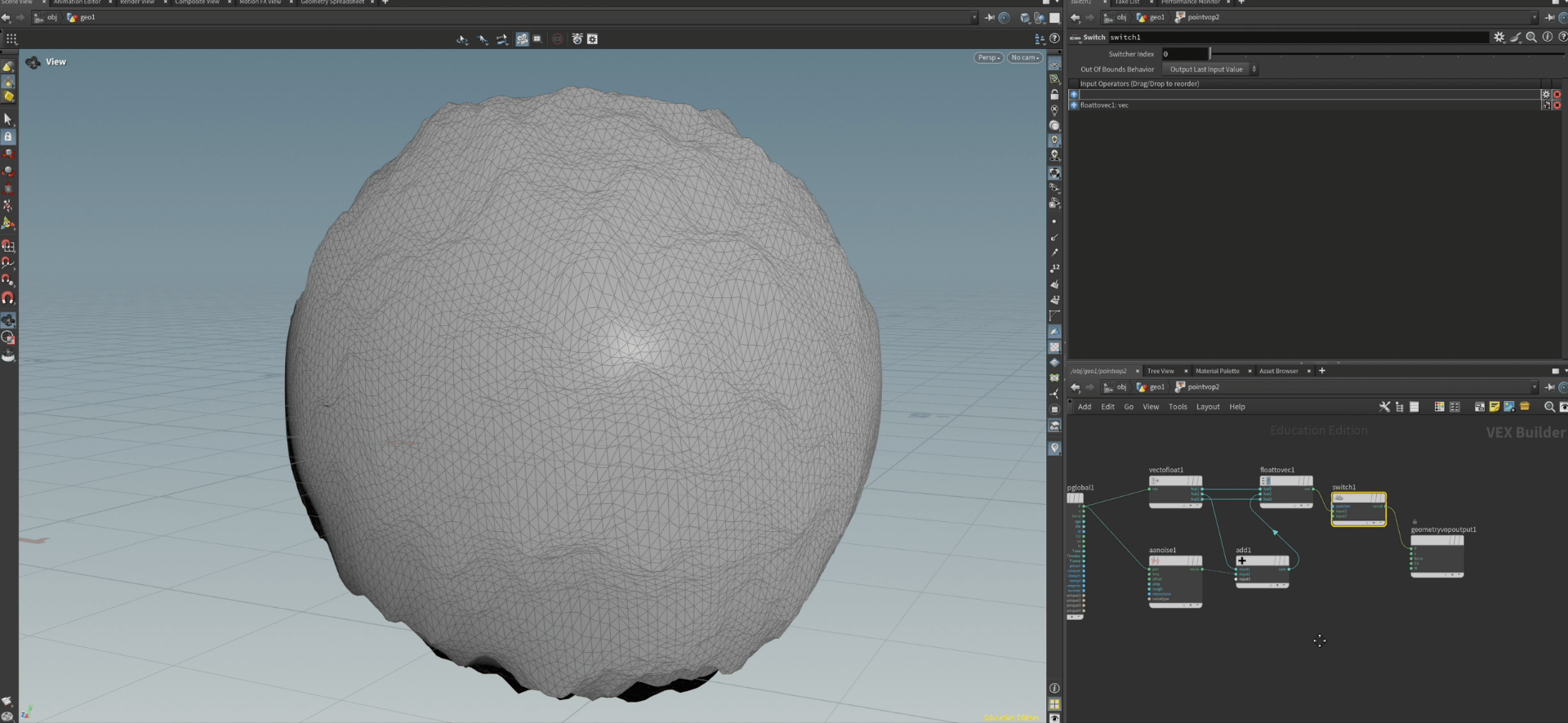
now we add displacement to see how it behaves.
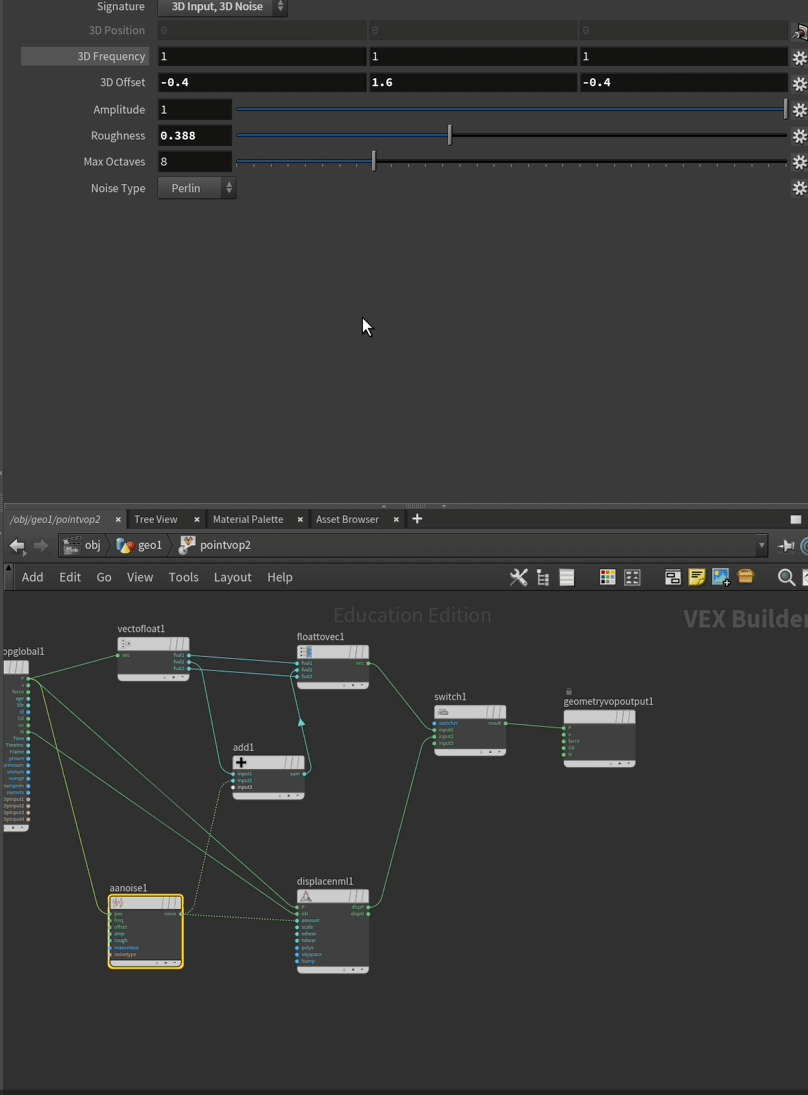 we see that affects differently the sphere.
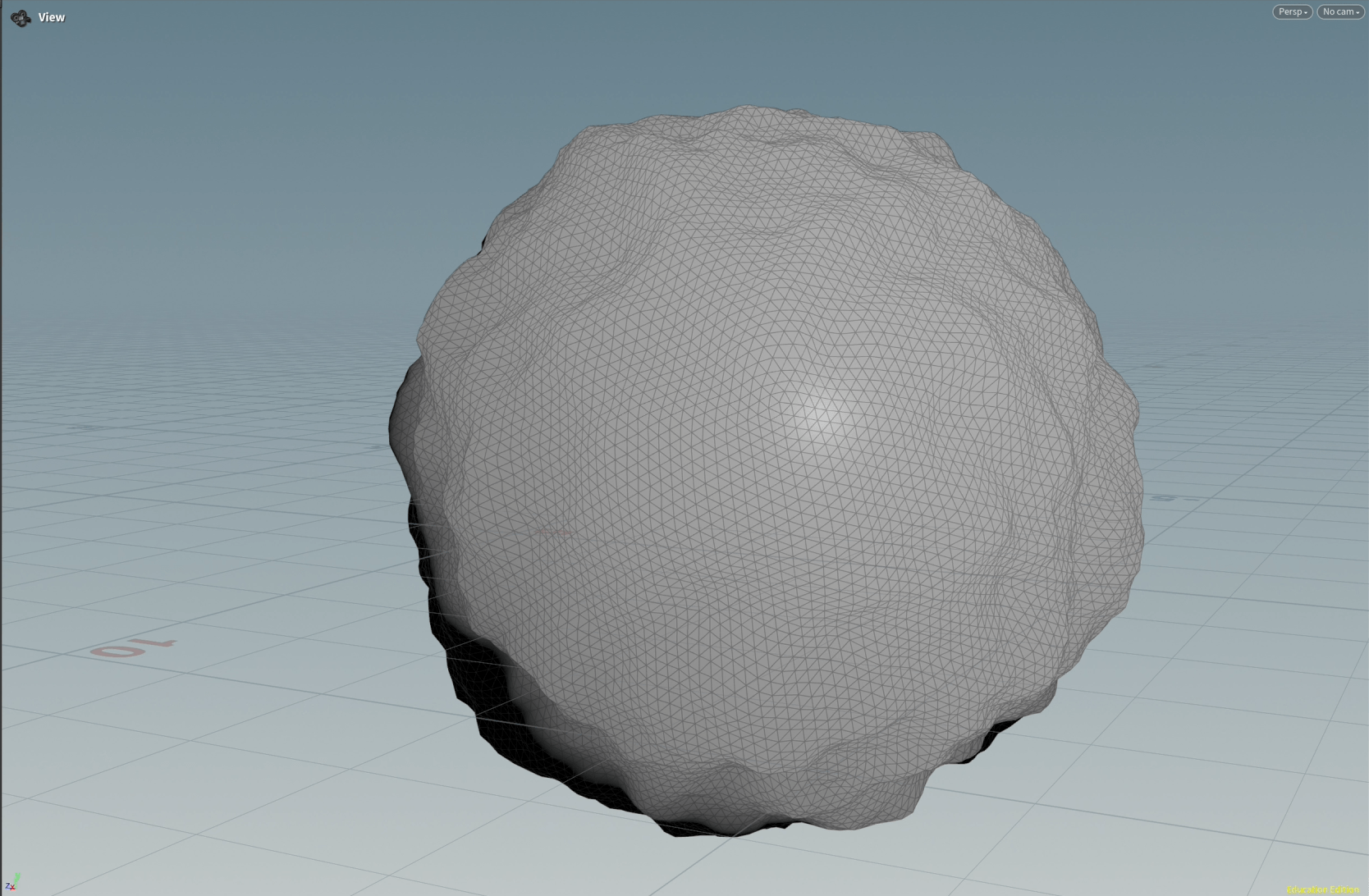 as we can see the shadows are not properly projected, to fix that we a are going to add normal after the pointvop node to fix that.
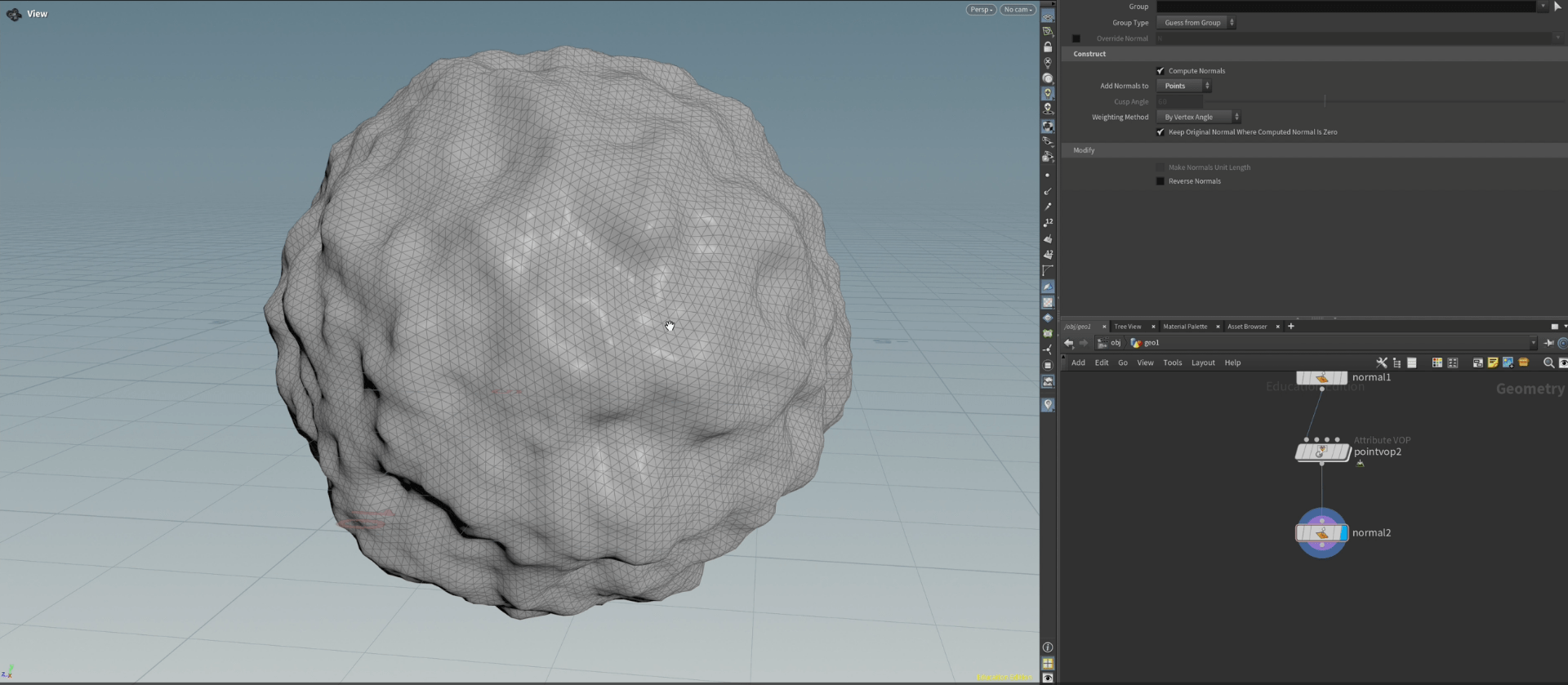
now our sphere looks better.
inside the VOPs we can promote parameter to easily modify them without the necessity of going inside the VOP constantly.
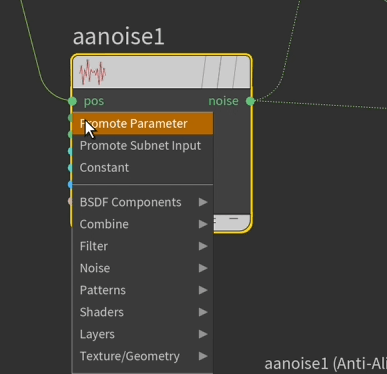
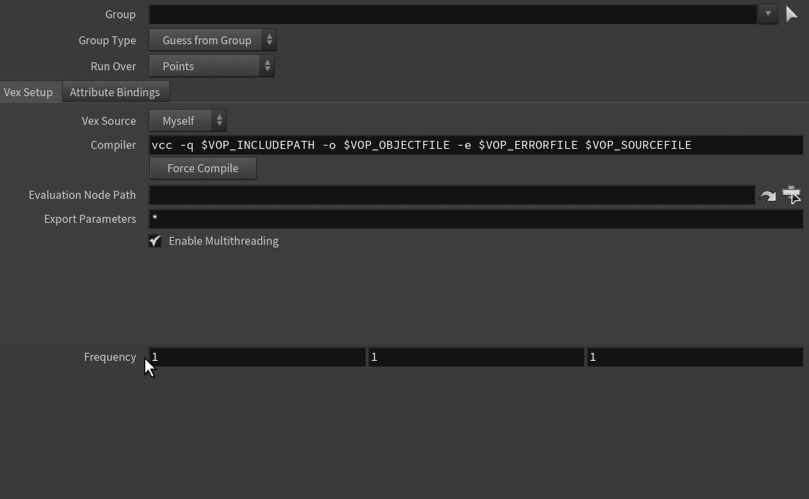
now we are able to change the frequency from the exterior. as we can see we are able to do this with all of the other parameter.
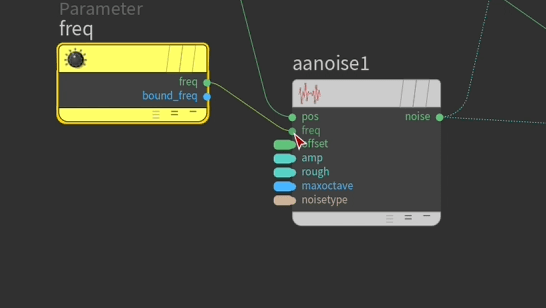
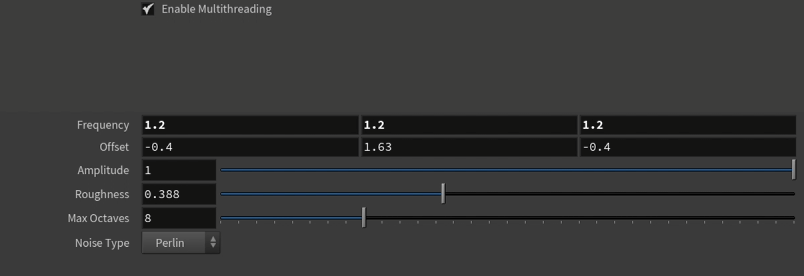
slowly building an interface where we can modify our sphere easily.
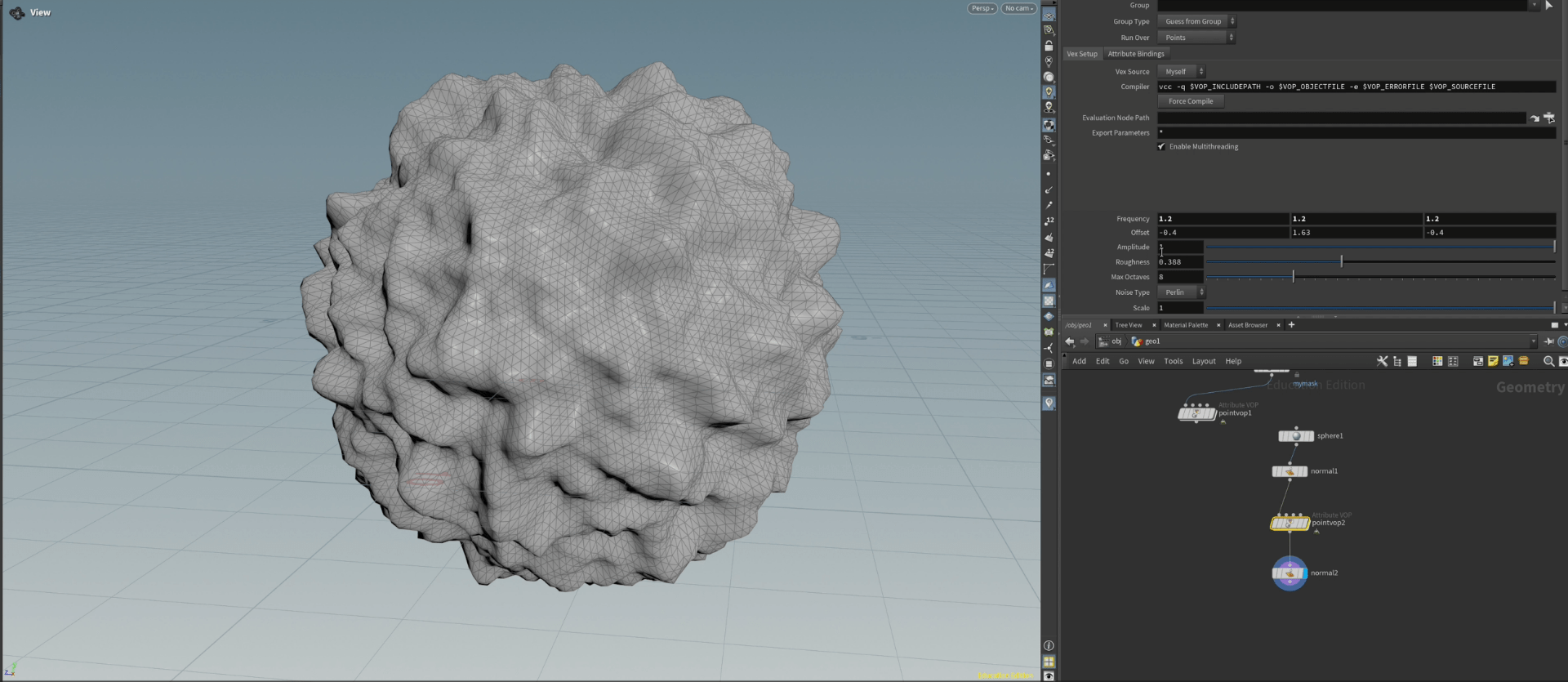
End of exercise 2
Exercise 3
we are creating another grid to put a pointvop node.
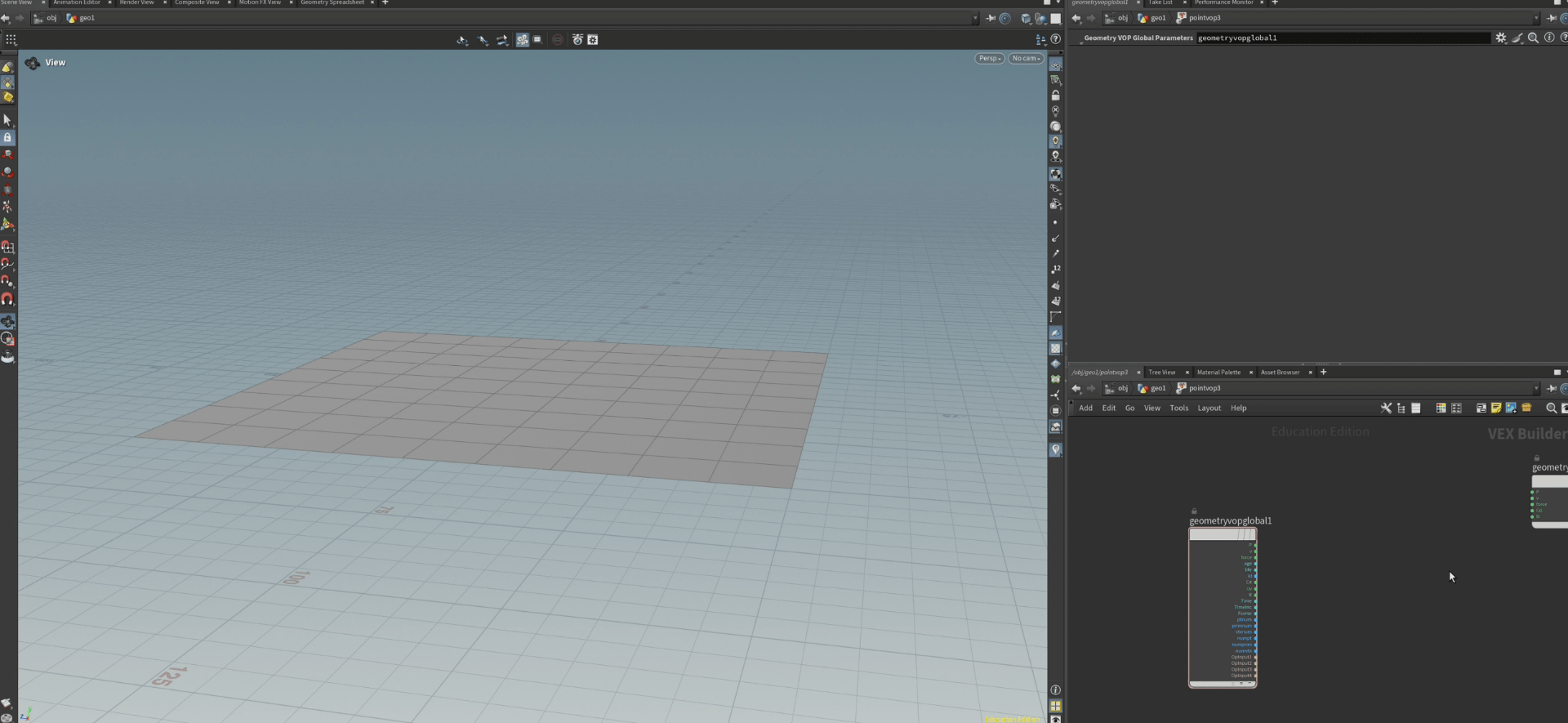
we are going to add some rows and columns to this grid to add more resolution.
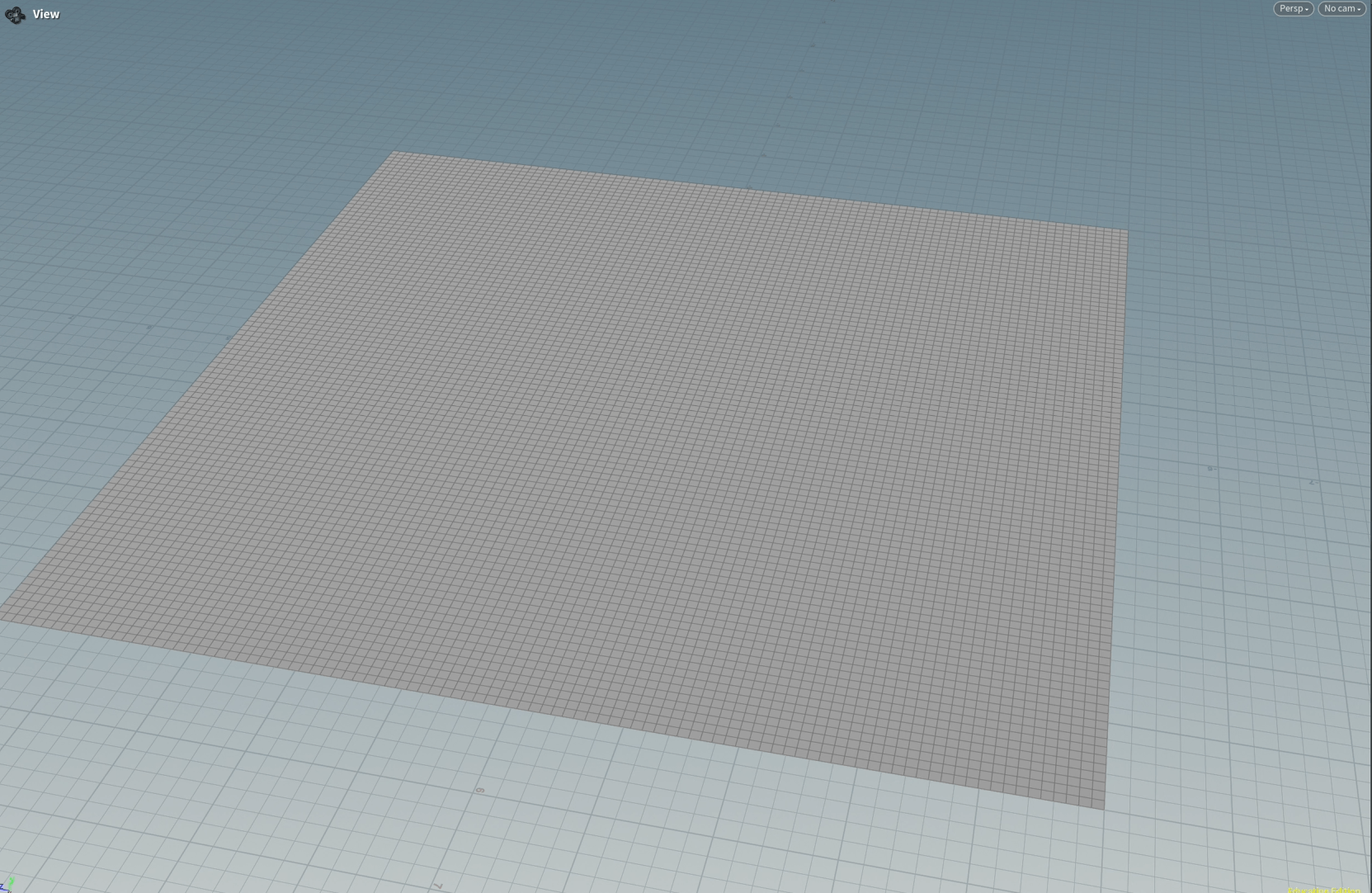
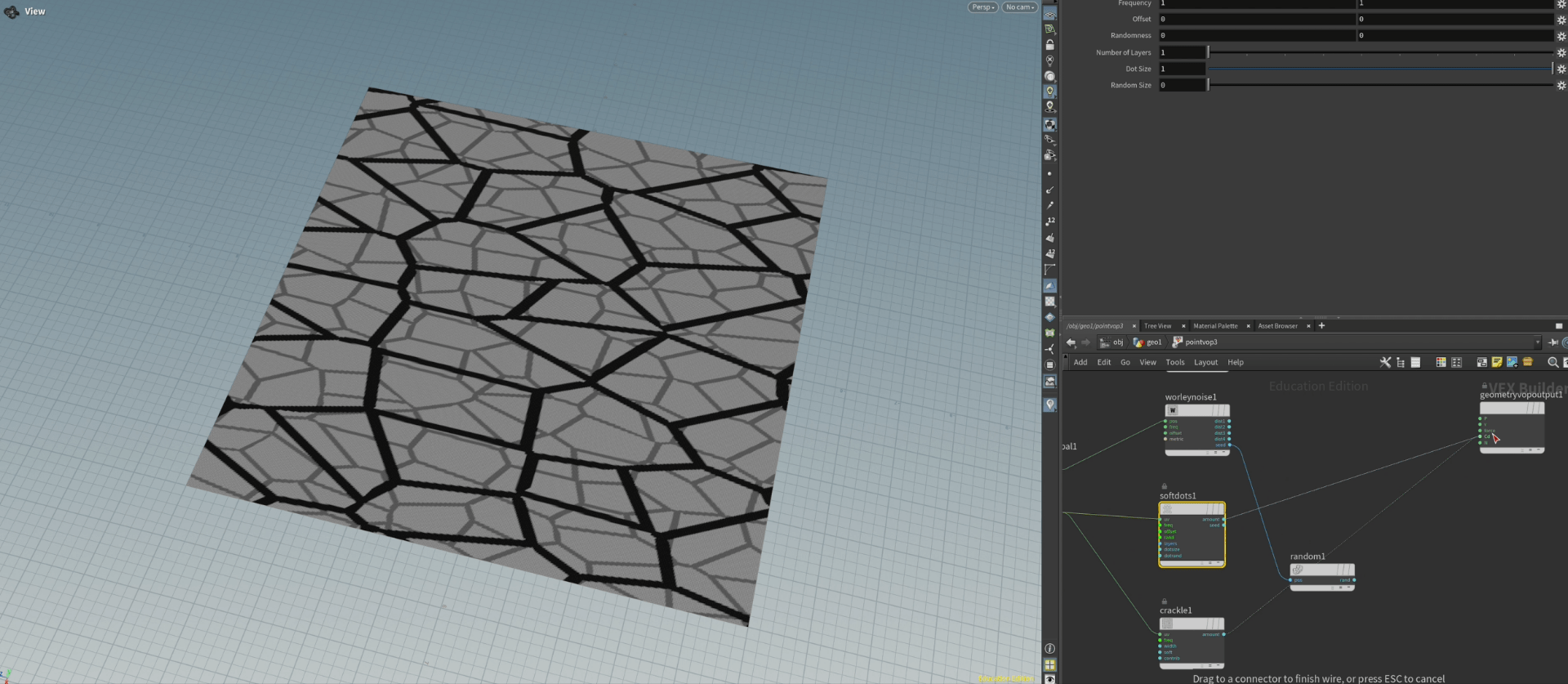
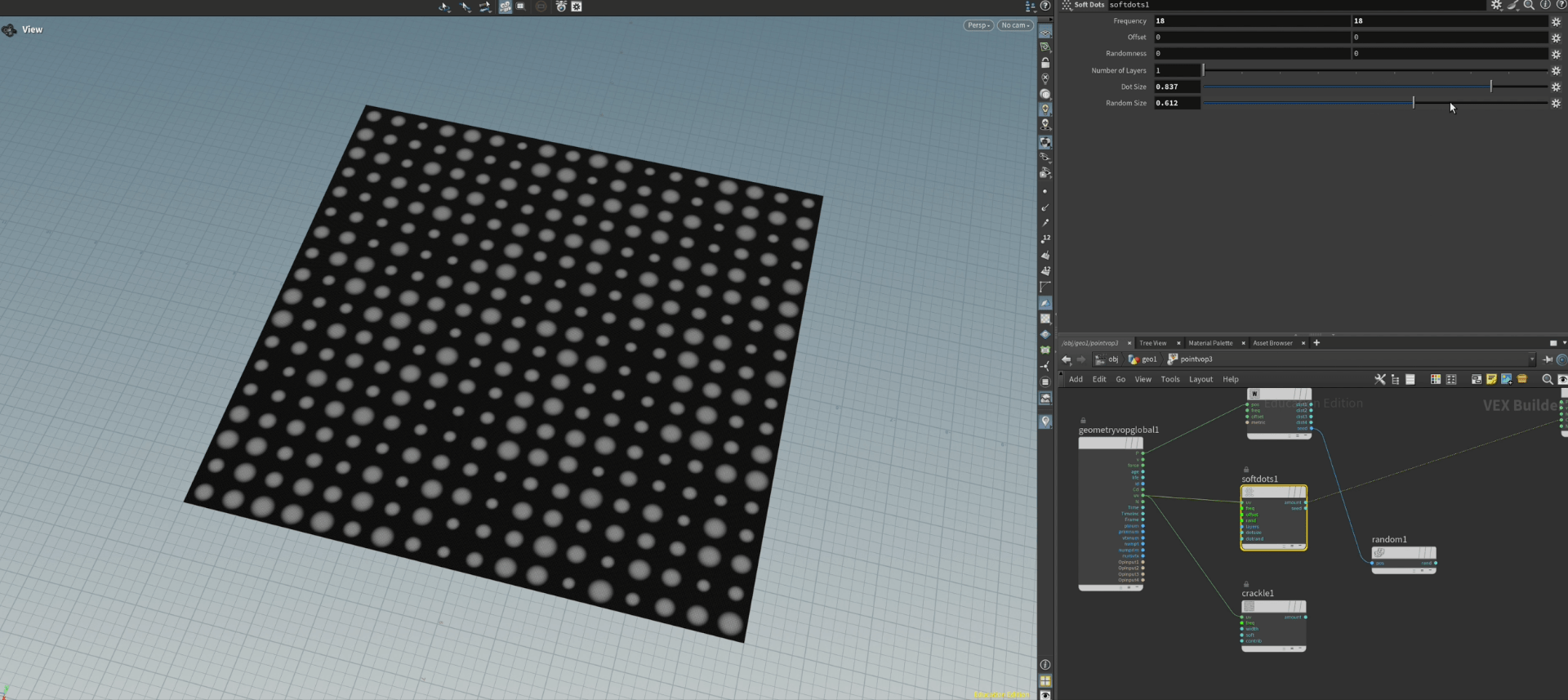
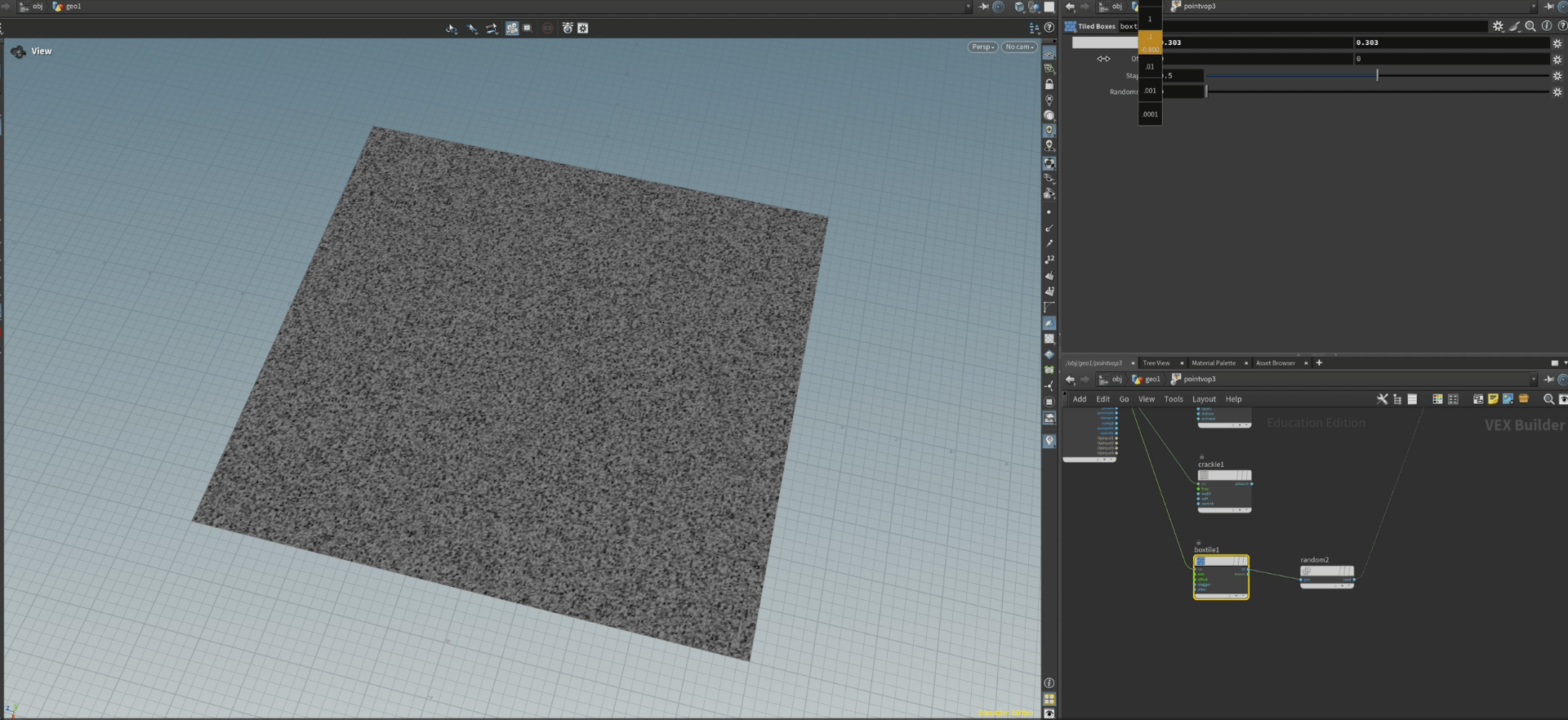
so inside the VOP we can start adding some noise presents such as the Worley noise and see what happens to the grid when we visualize it.
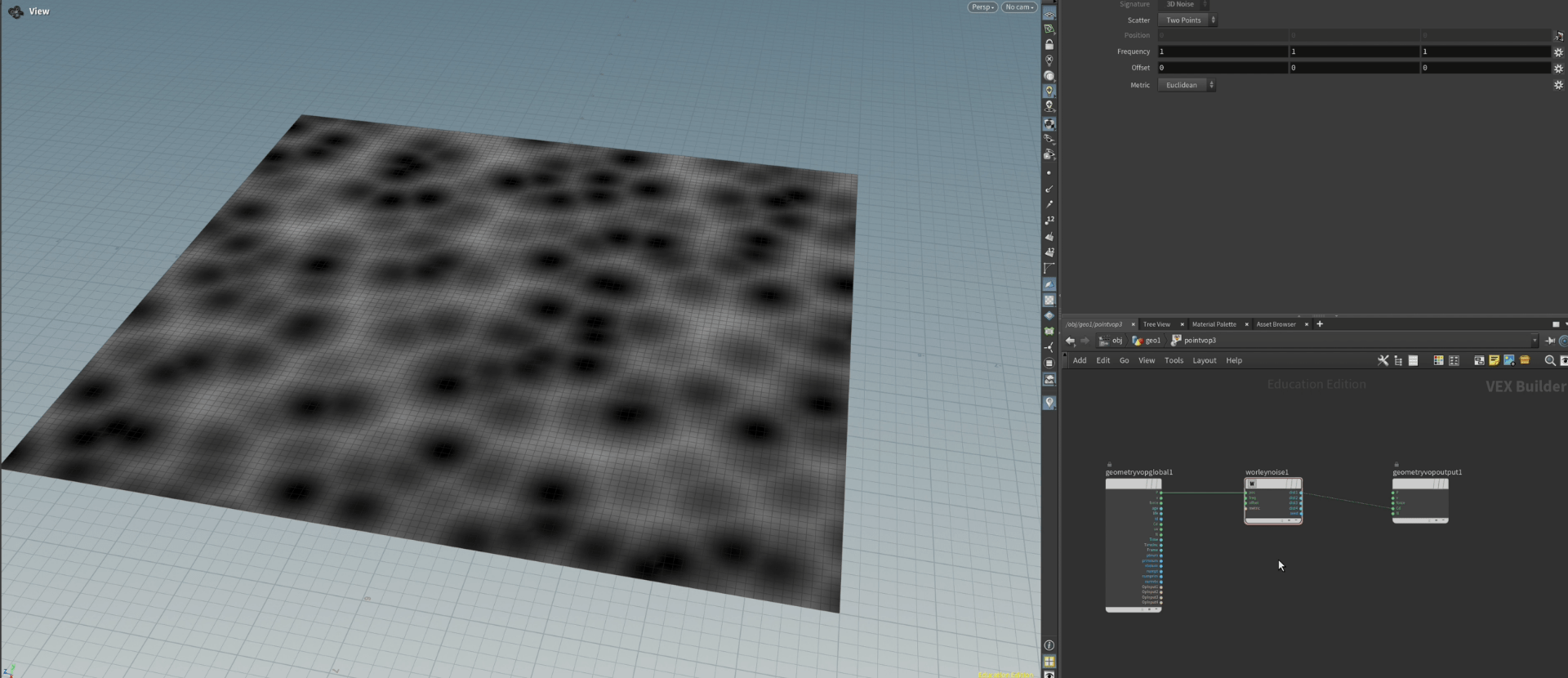
if we use the seed and randomized we obtain a totally different pattern.
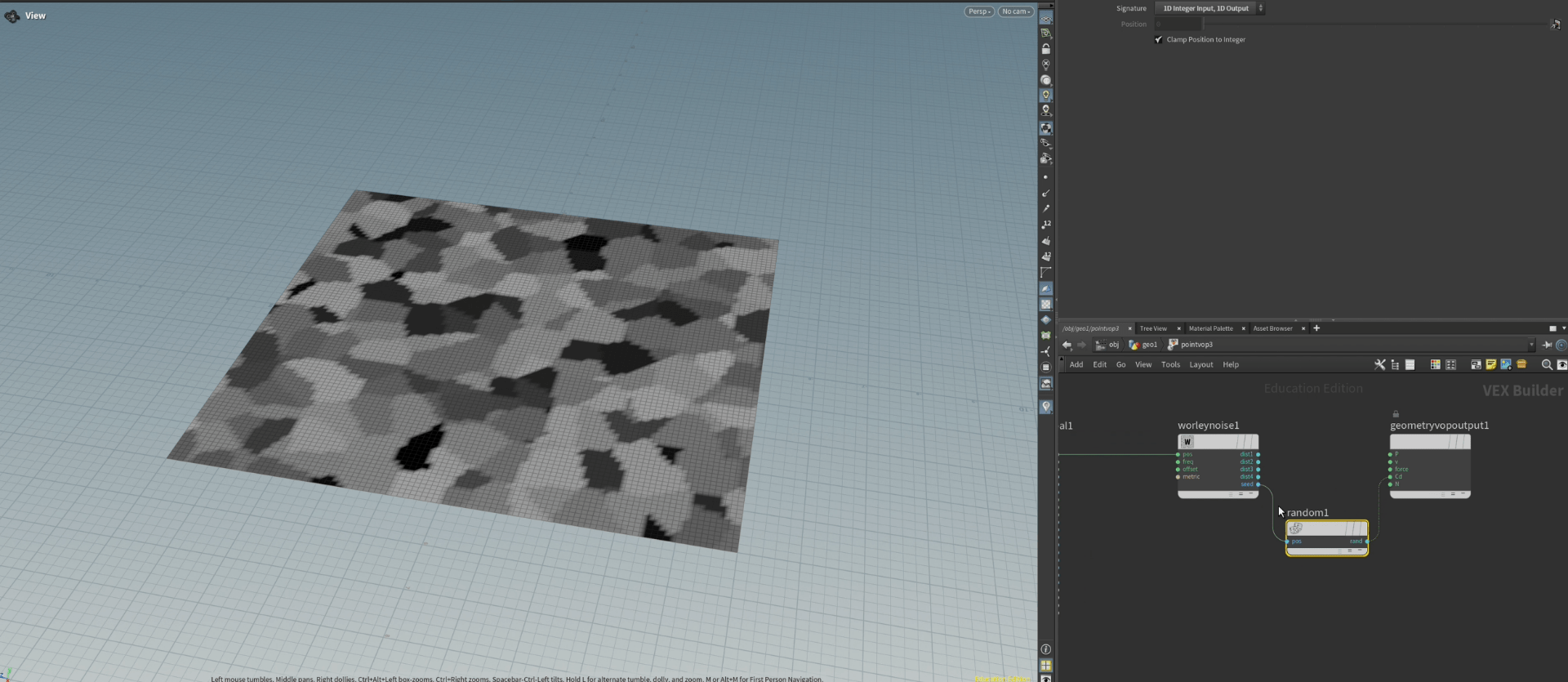
this way we can utilize different patterns and noises to modify our grid.
End of exercise 3
Exercise 4
we start from a fresh grid, this time our objective is to create a sine to modify our grid.
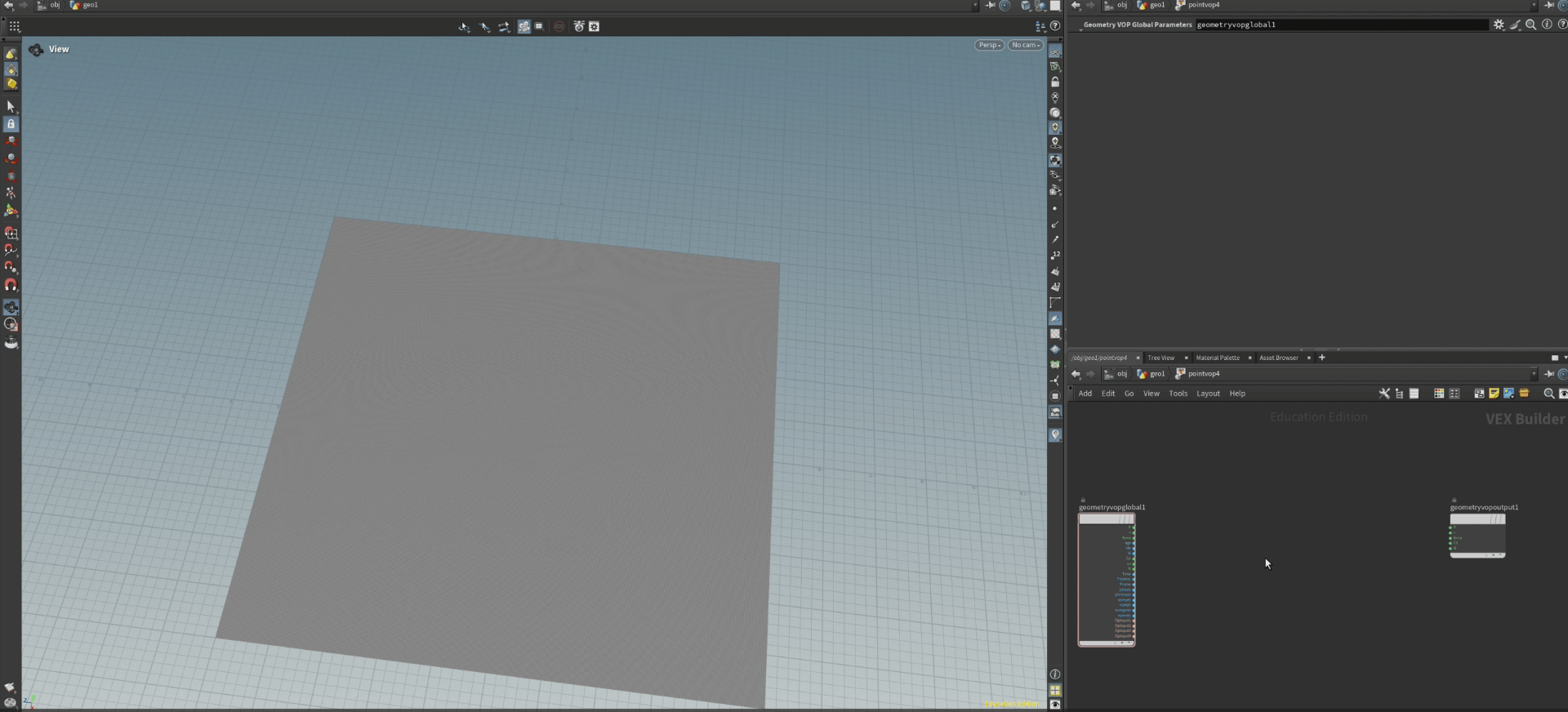
so we add a displacement and sine node to the position of our grid to obtain a wave like form.
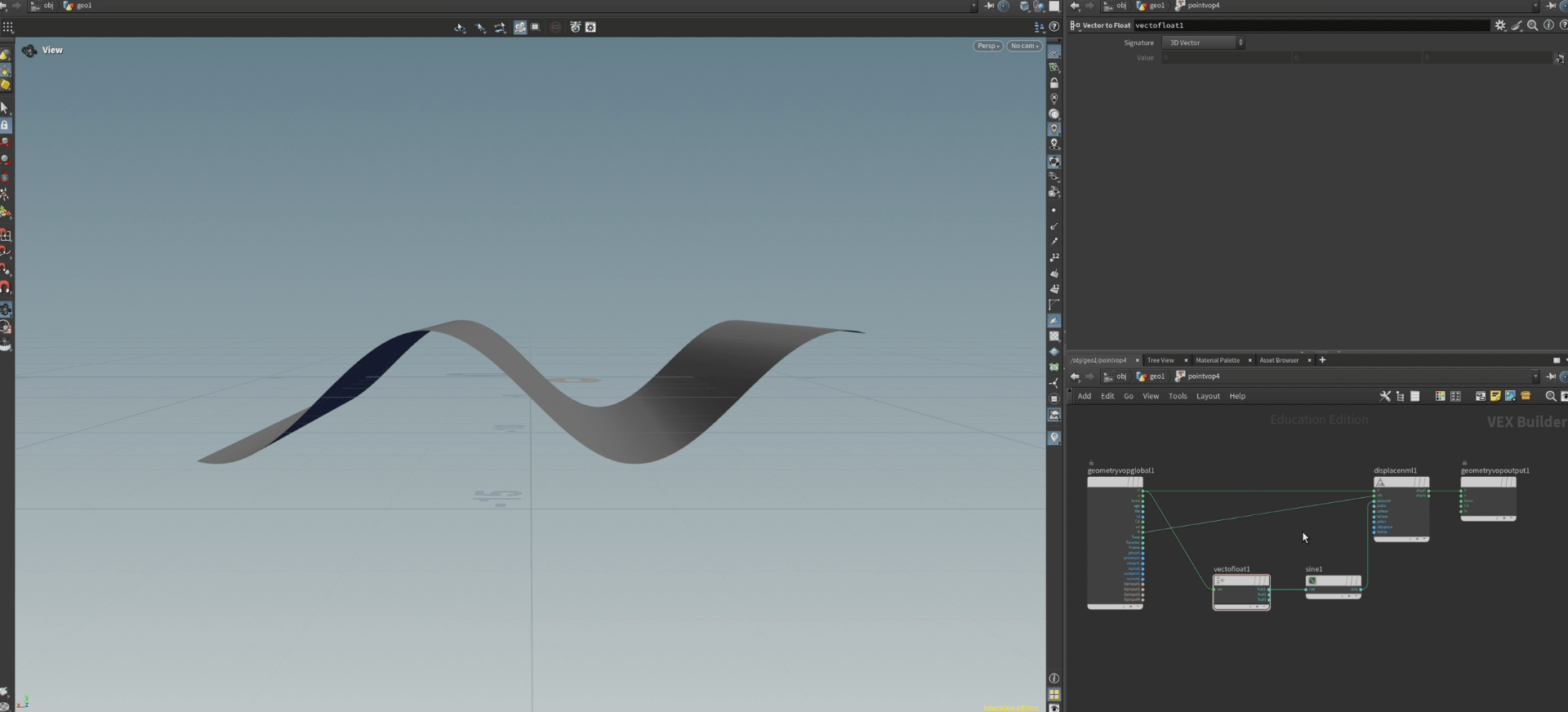
if we multiply the the value of the position to our sine we are now able to modify the frequency of the sine.
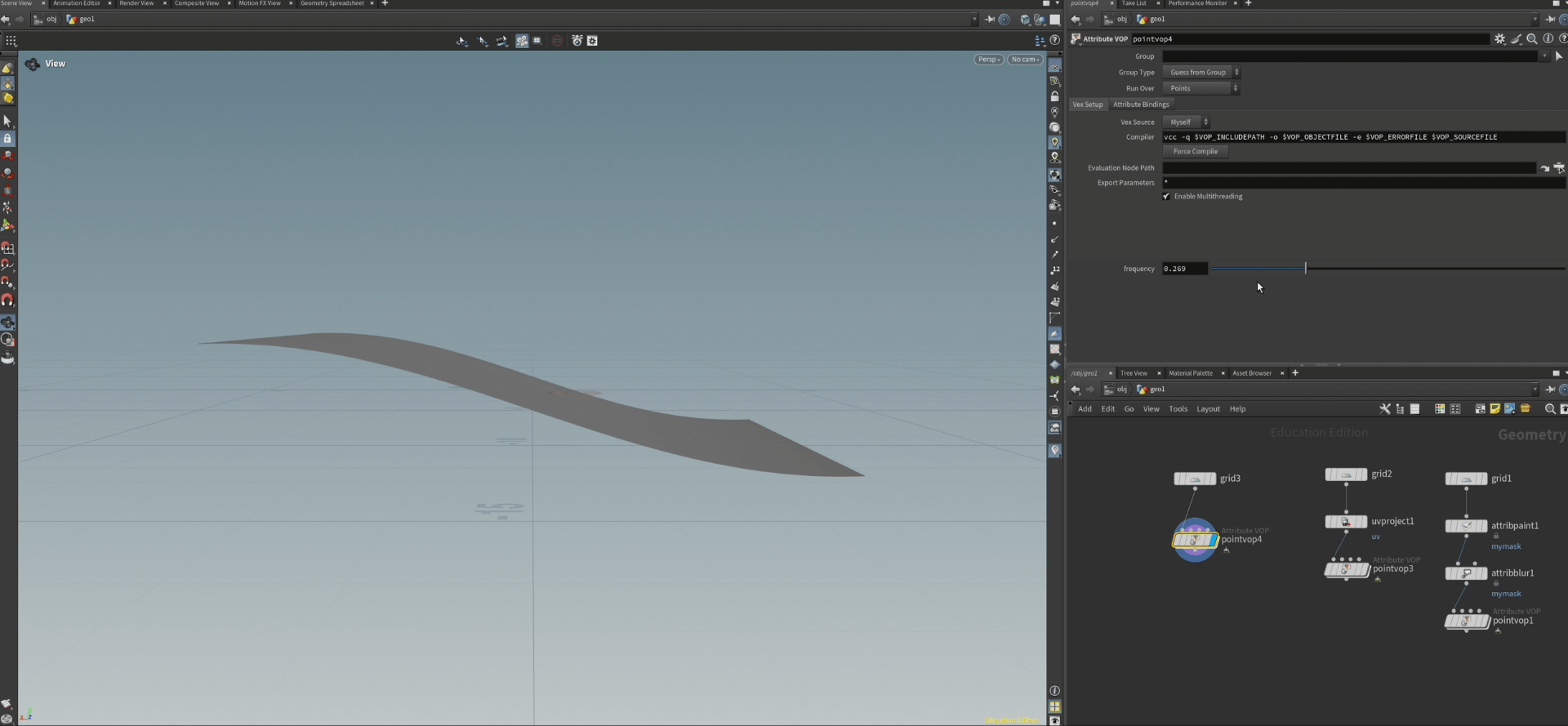
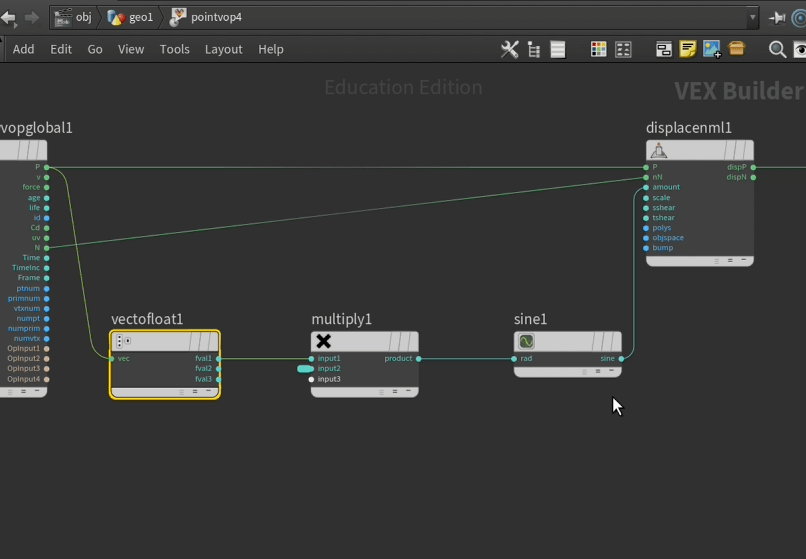
now we want to add the amplitude, for that we multiply the sine again before it enters the displacement node.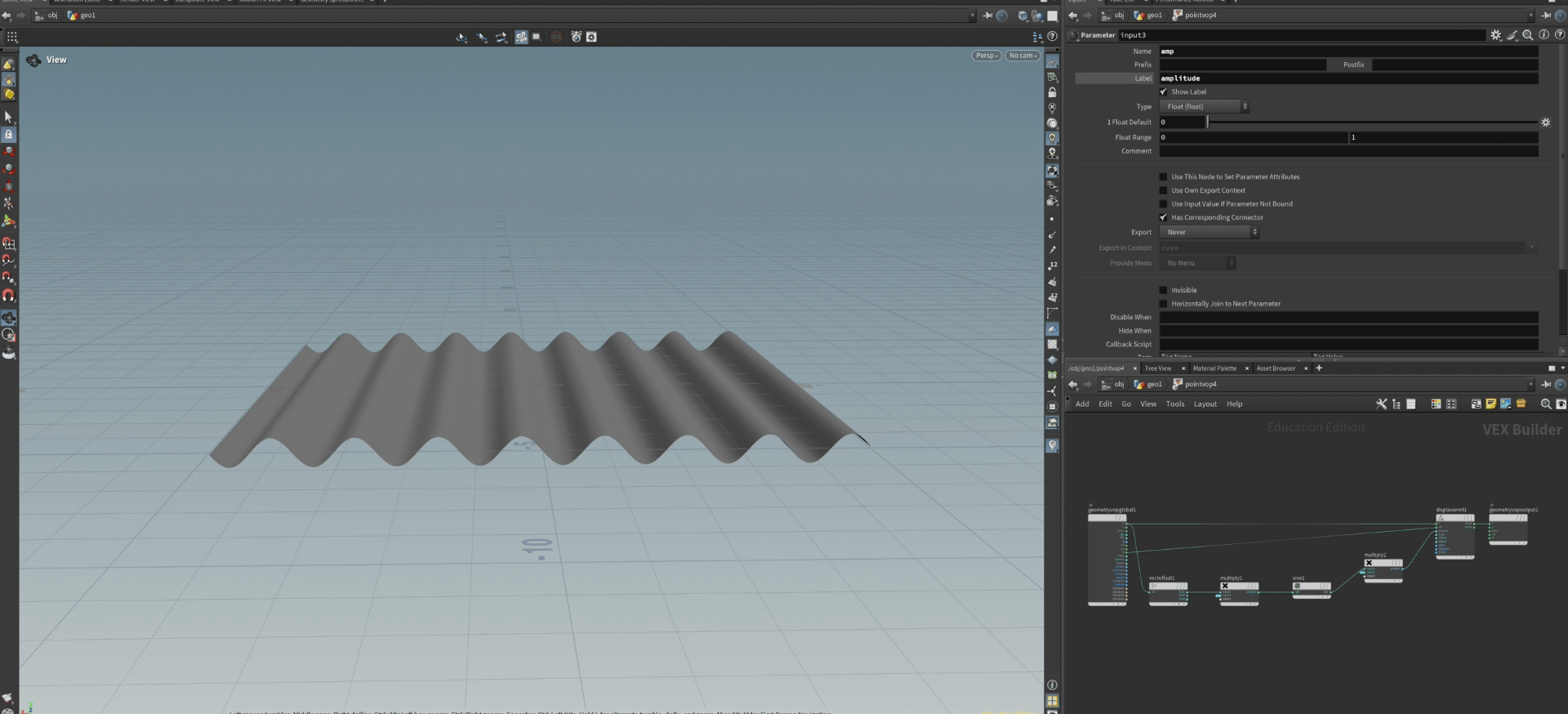 now if we connect the time to the add node we can animate the sine.
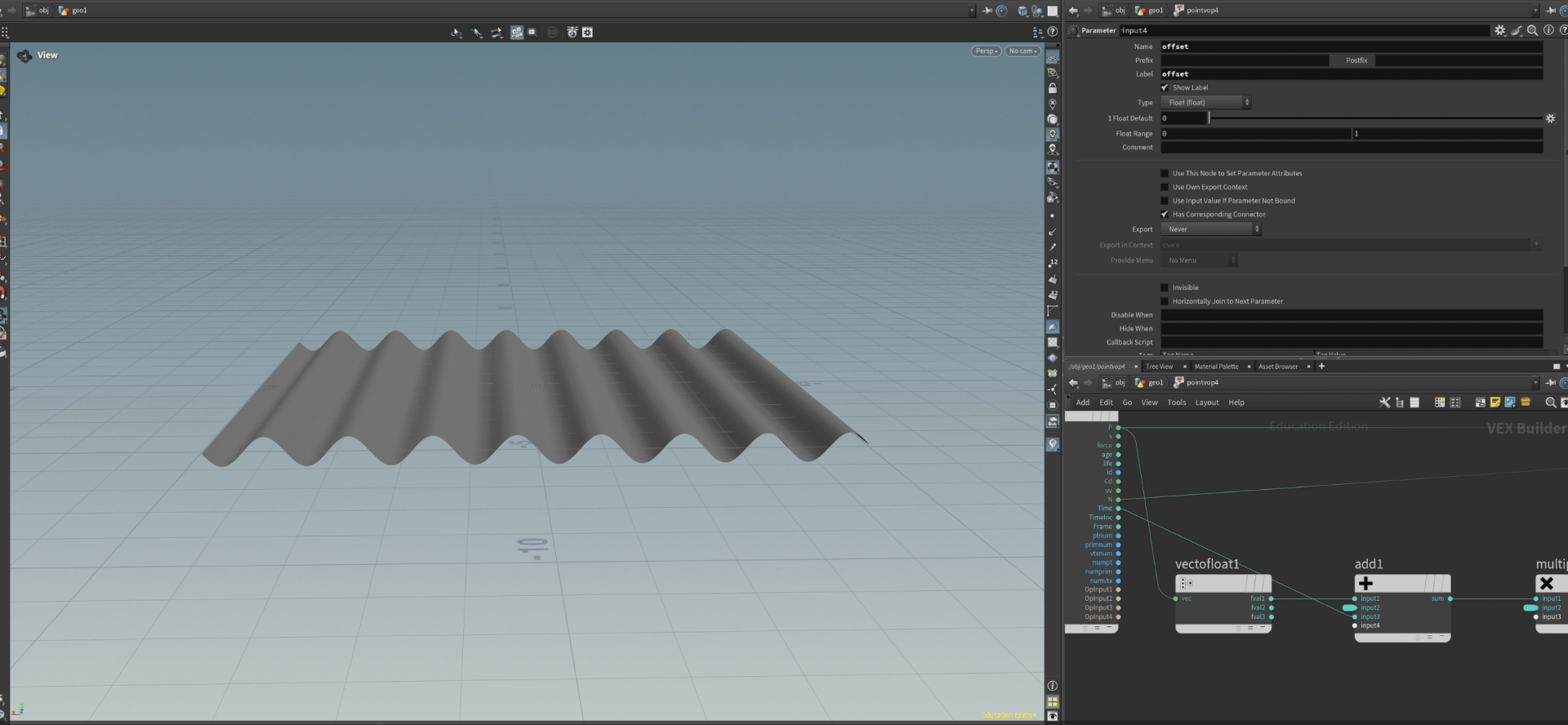
if we multiply now the time we obtain the speed for the sine.
since we created a system, we can connect a sphere instead of a grid and see what happens.
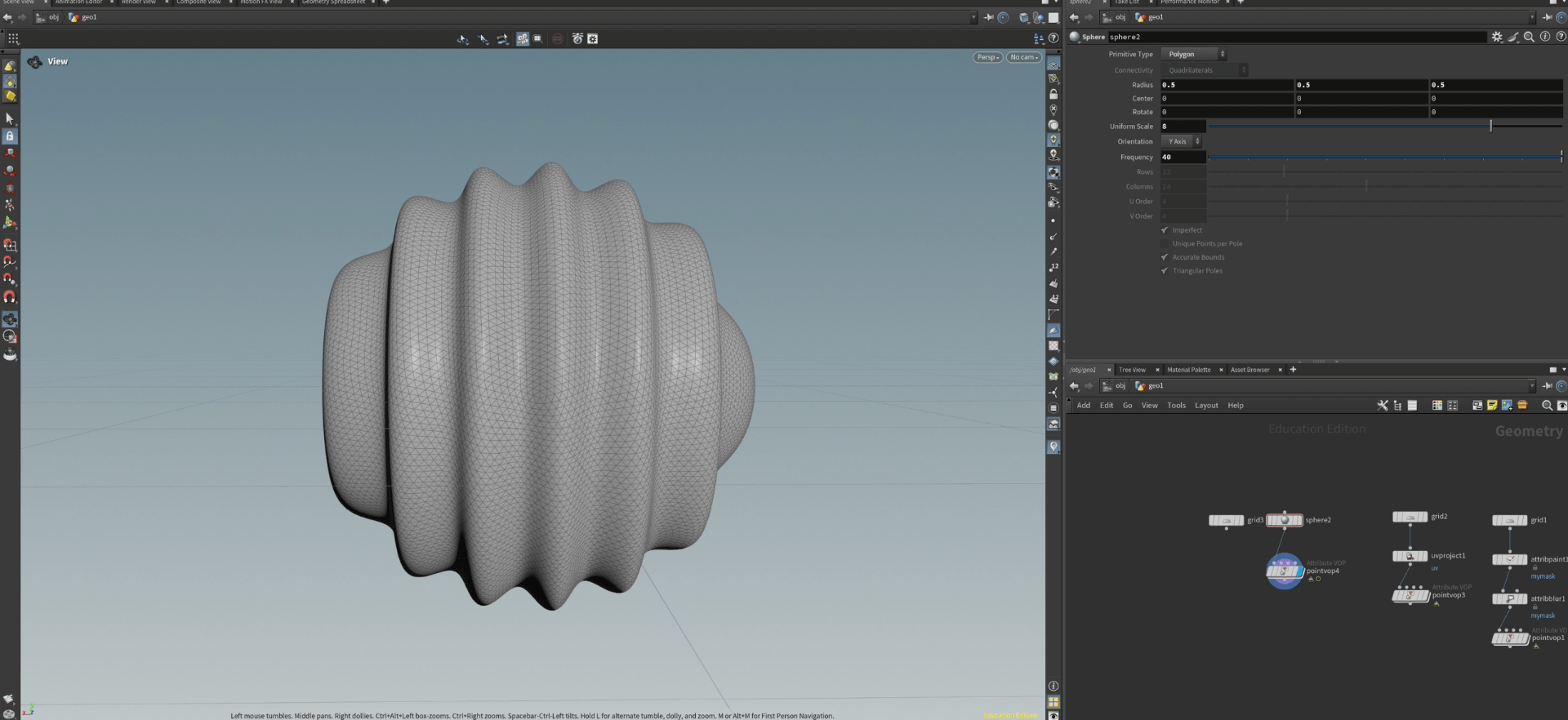
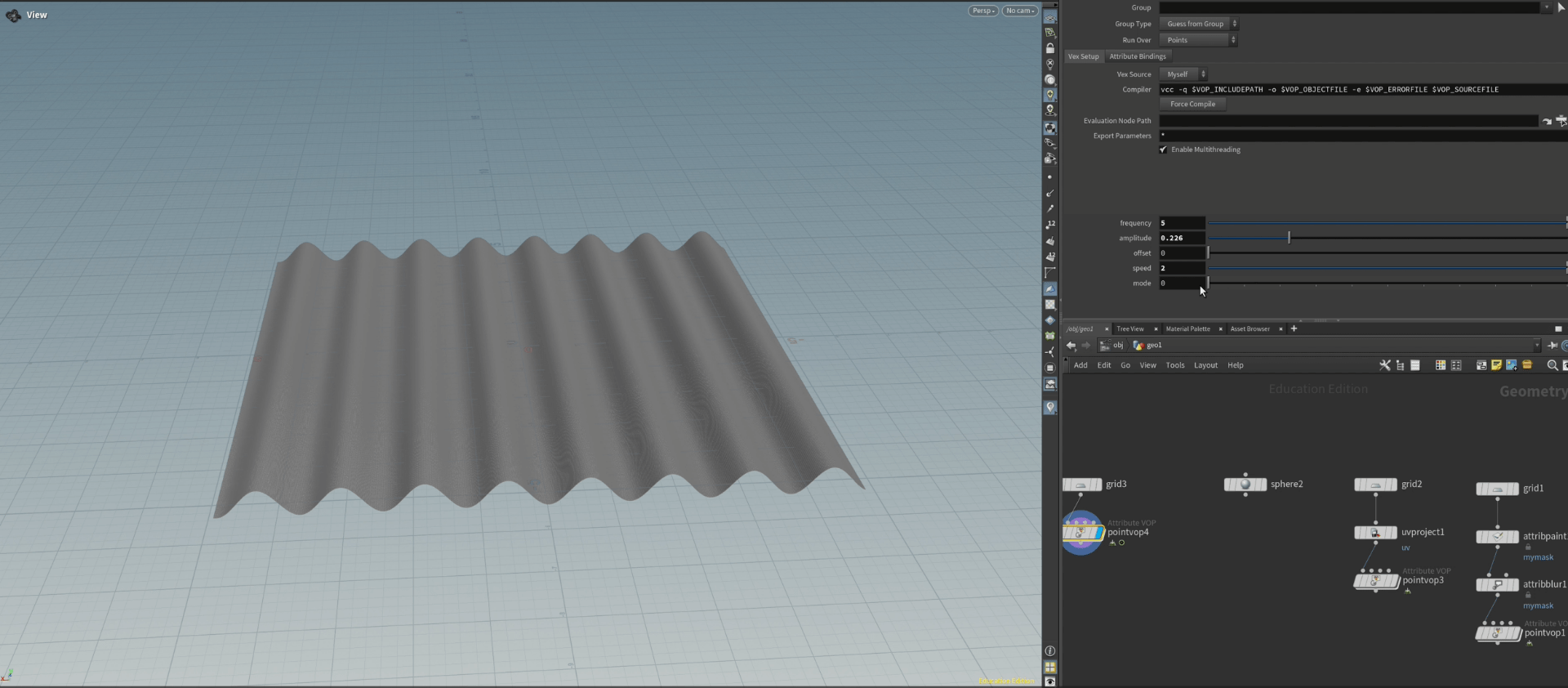
We continue adding modifiers to our sine, this time we want to interchange the axis on the sine for that we are adding a switch and choose what axis is changing.
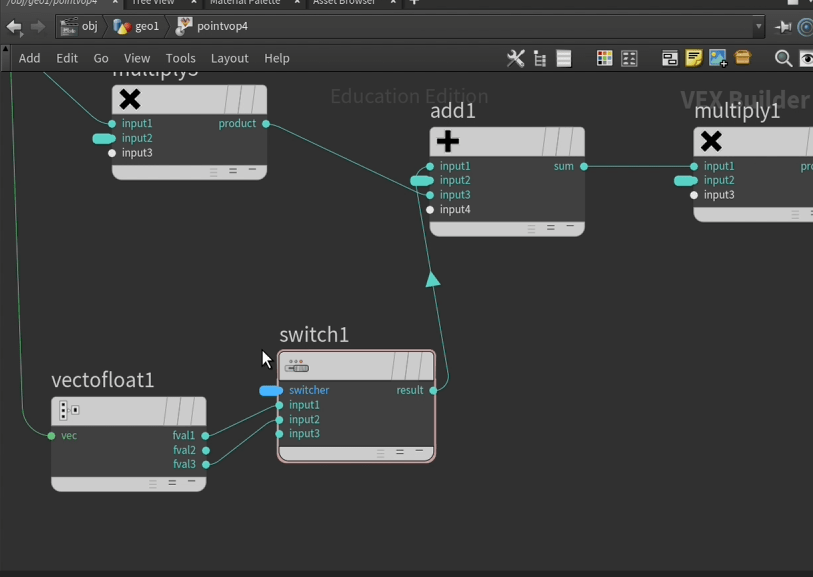
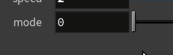
Now if we change the mode we change the axis.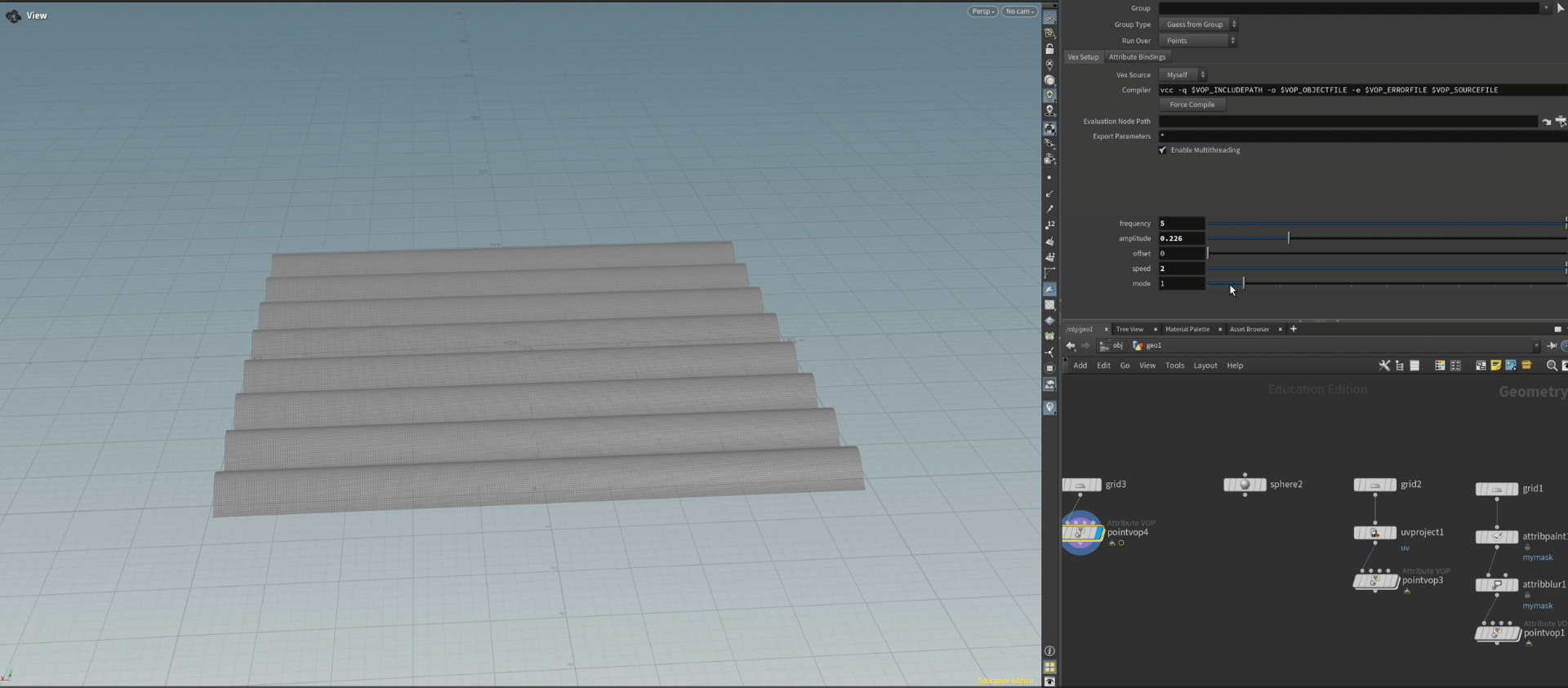
 next we are adding a centre to the sine.
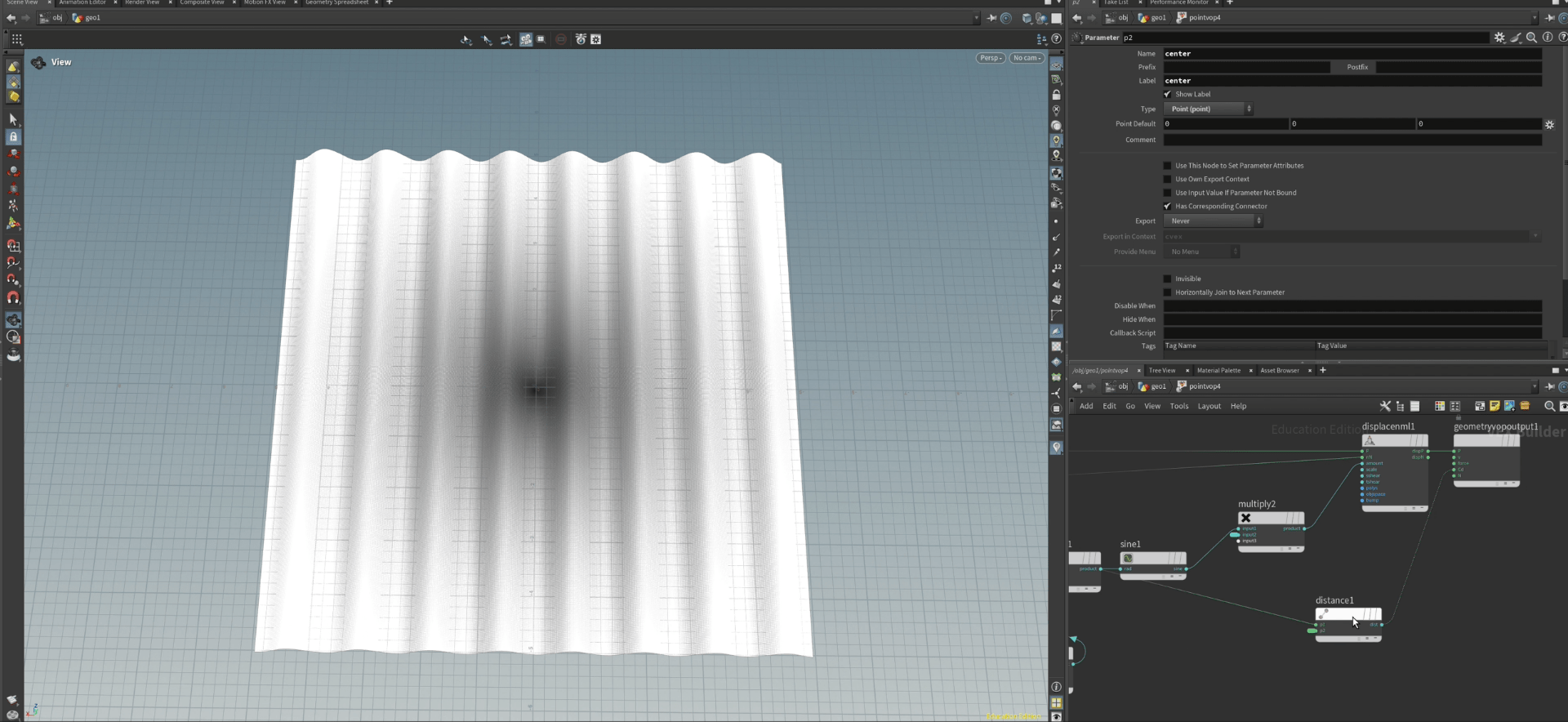
this is the visualization of the centre, but if we add this to the switch for our position we get waves appearing from the centre on the grid.
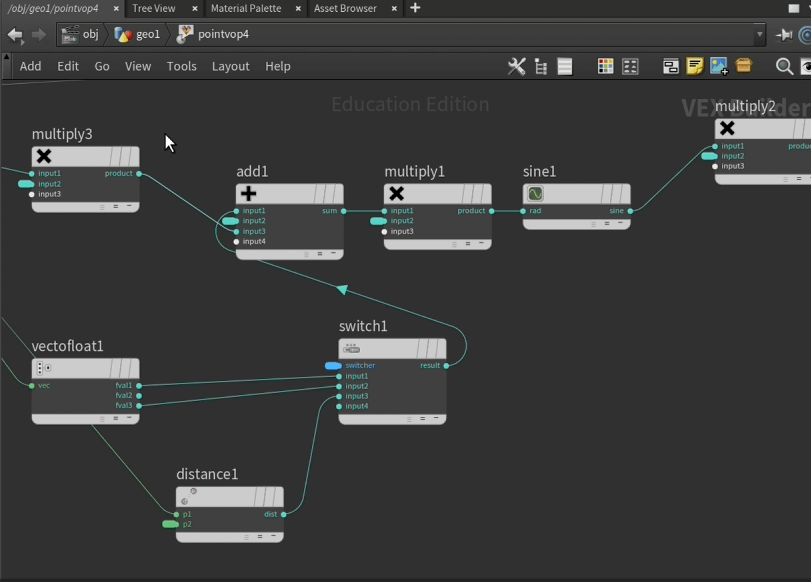
now slowly we are building an interface to modify our sine differently and change the mode of it.
finally we are adding a ramp to to the sine.
if we add a fit range node and the a ramp modifier to our switch we obtain the final mode for our grid.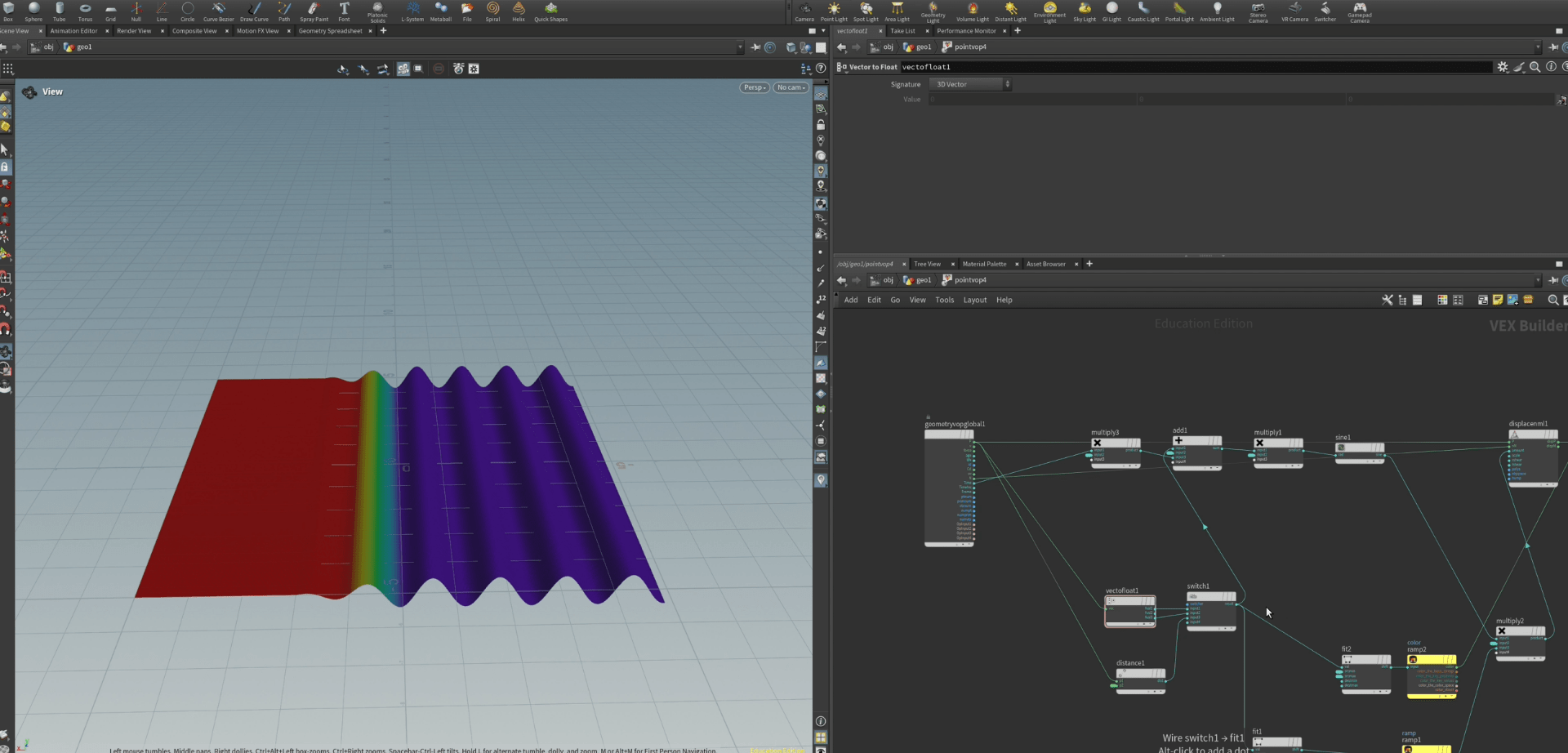
to finish with this exercise we are going to tiddy up our interface using the edit parameter interface.
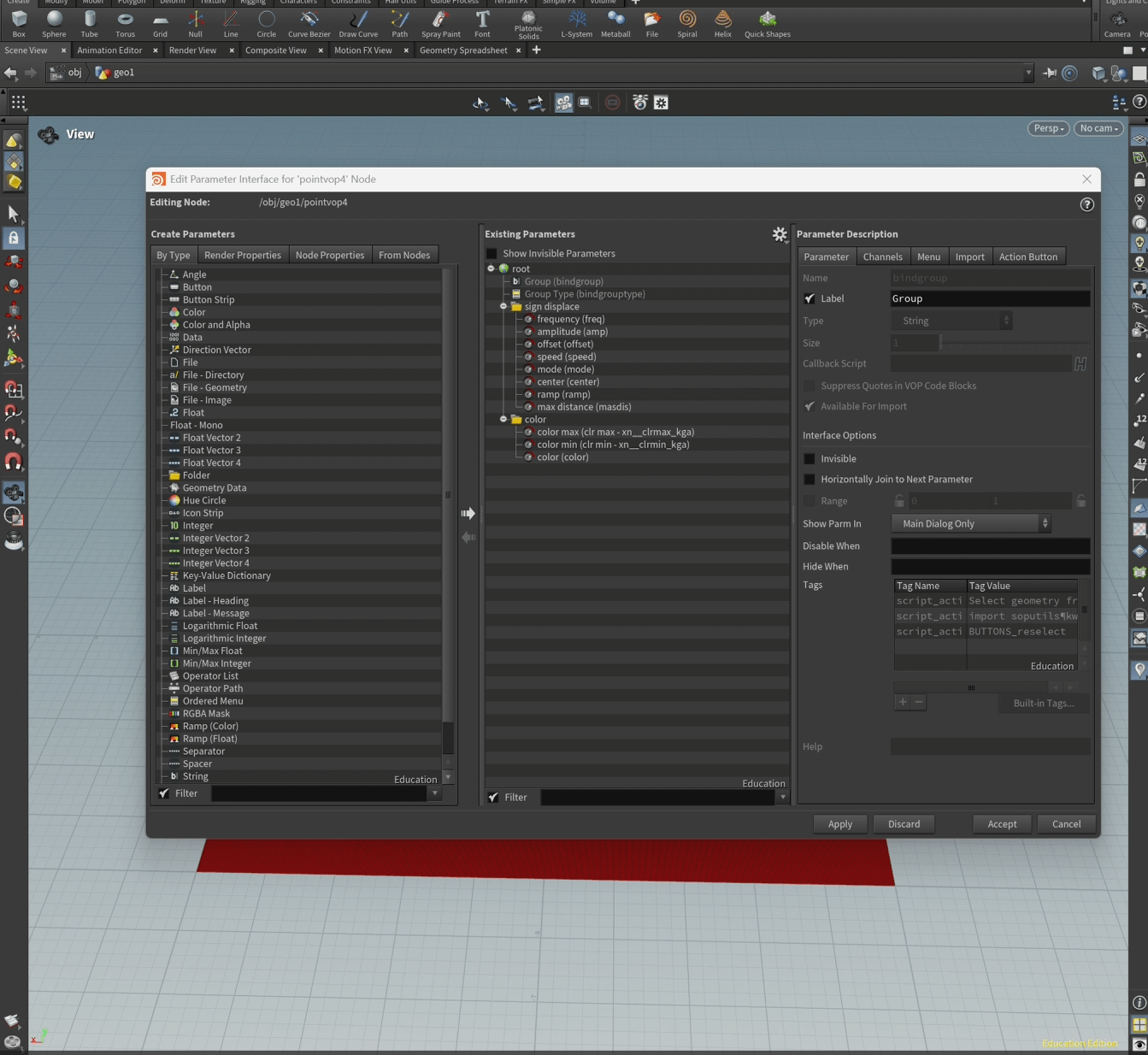
So it ends looking like this.
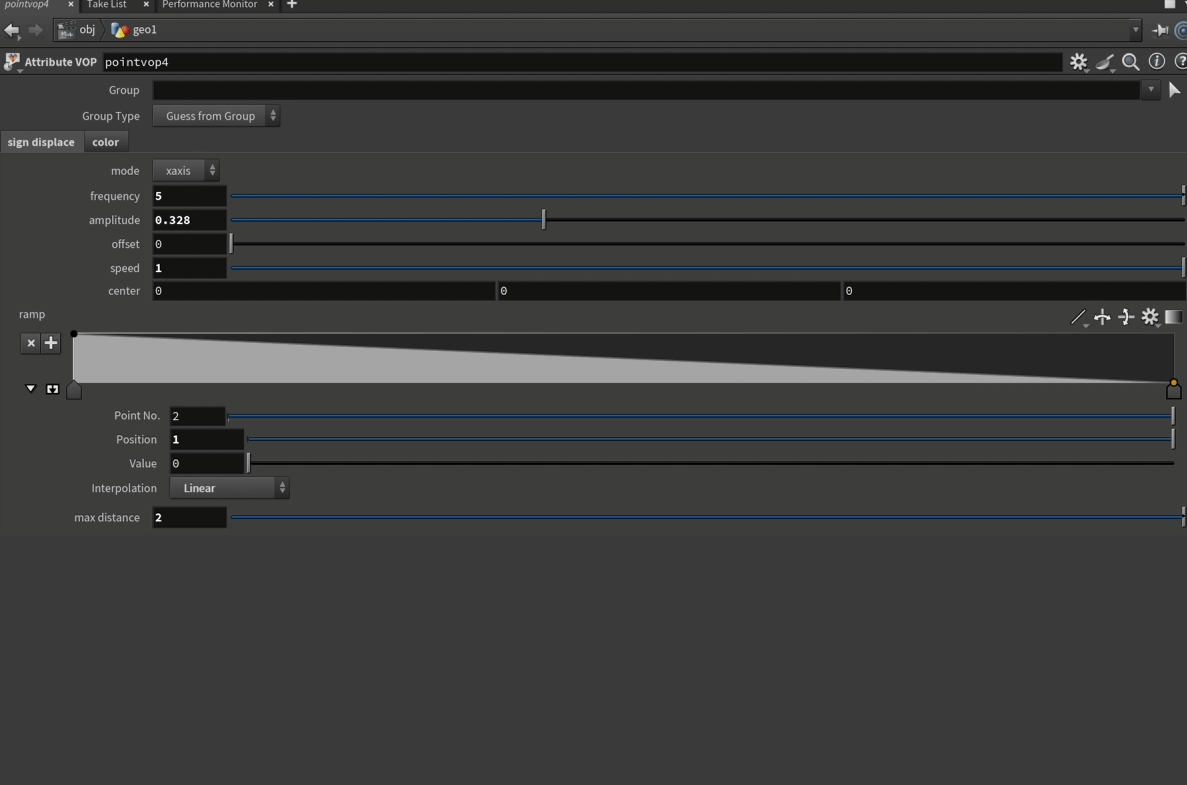
End of exercise 4
Here is the VOD on what I did in class.
End of week 4
Week 5: VEX
This week we are going to be working in VEX, to create different effects on our grid.
VEX (Vector Expression) is a high-performance, C-based expression language used in Houdini for creating custom functionality, similar to writing a script within the software. . It is designed for efficiency, allowing users to write code for shaders, custom nodes, and other operations that run directly on Houdini’s geometry. Instead of adding more nodes, VEX provides a way to perform complex or specific tasks directly through code.
Here is the VOD on what I did in class.
End of week 5
Week 6: Karma Rendering
This week we are going to be working in Solaris, to create a render.
Karma is a physically-based, production-quality render in Houdini that is designed to replace its older render, Mantra. It is deeply integrated with Houdini’s Solaris workflow and uses the Universal Scene Description (USD) format as its scene description language. This allows for both high-end rendering and a streamlined workflow within the Houdini ecosystem.
Exercise 1
To start with we have our test capybara on a scene.
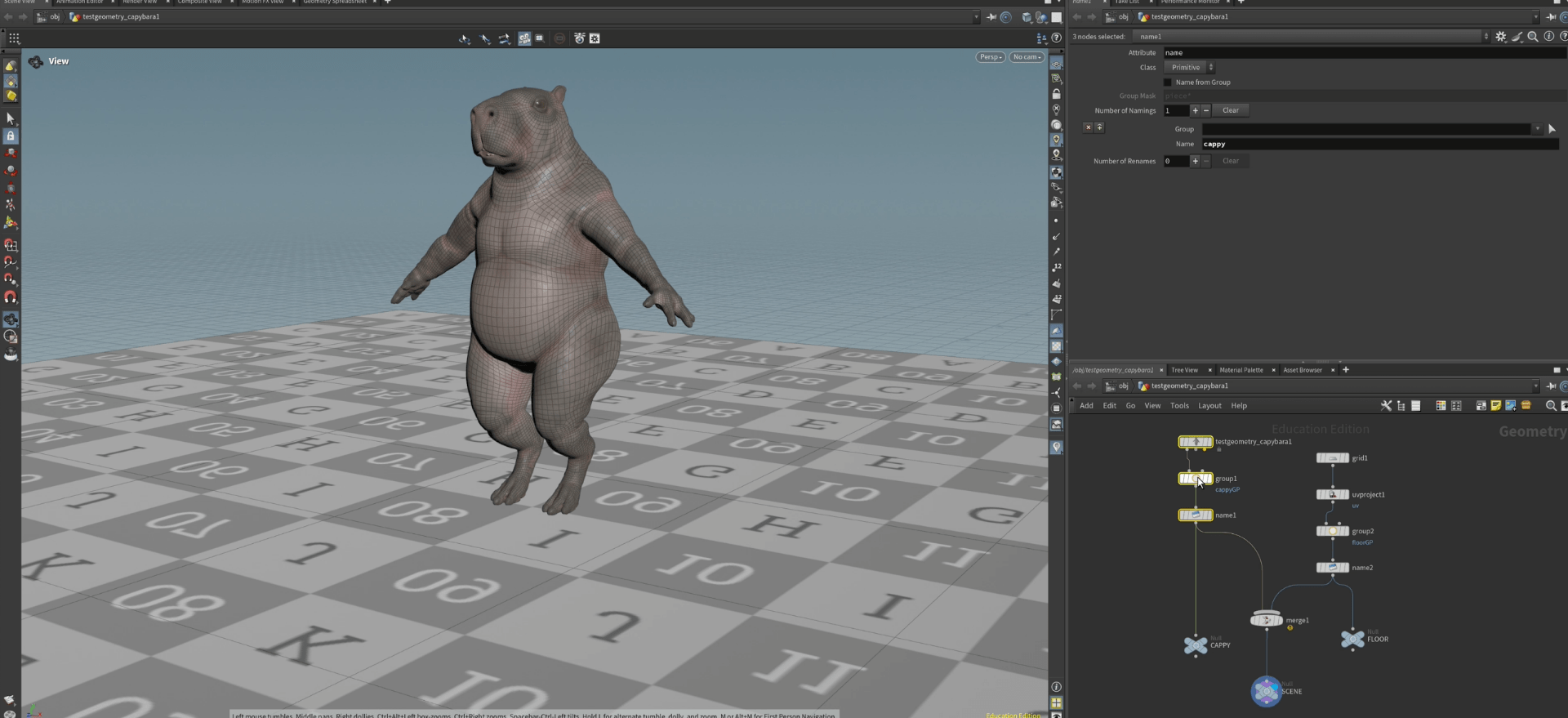
To start with our render we are going to head up to the menu and select Solaris.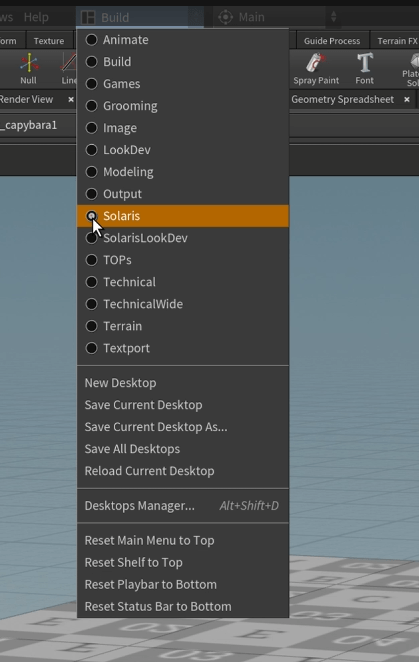
Once we enter Solaris we will have am interface like this.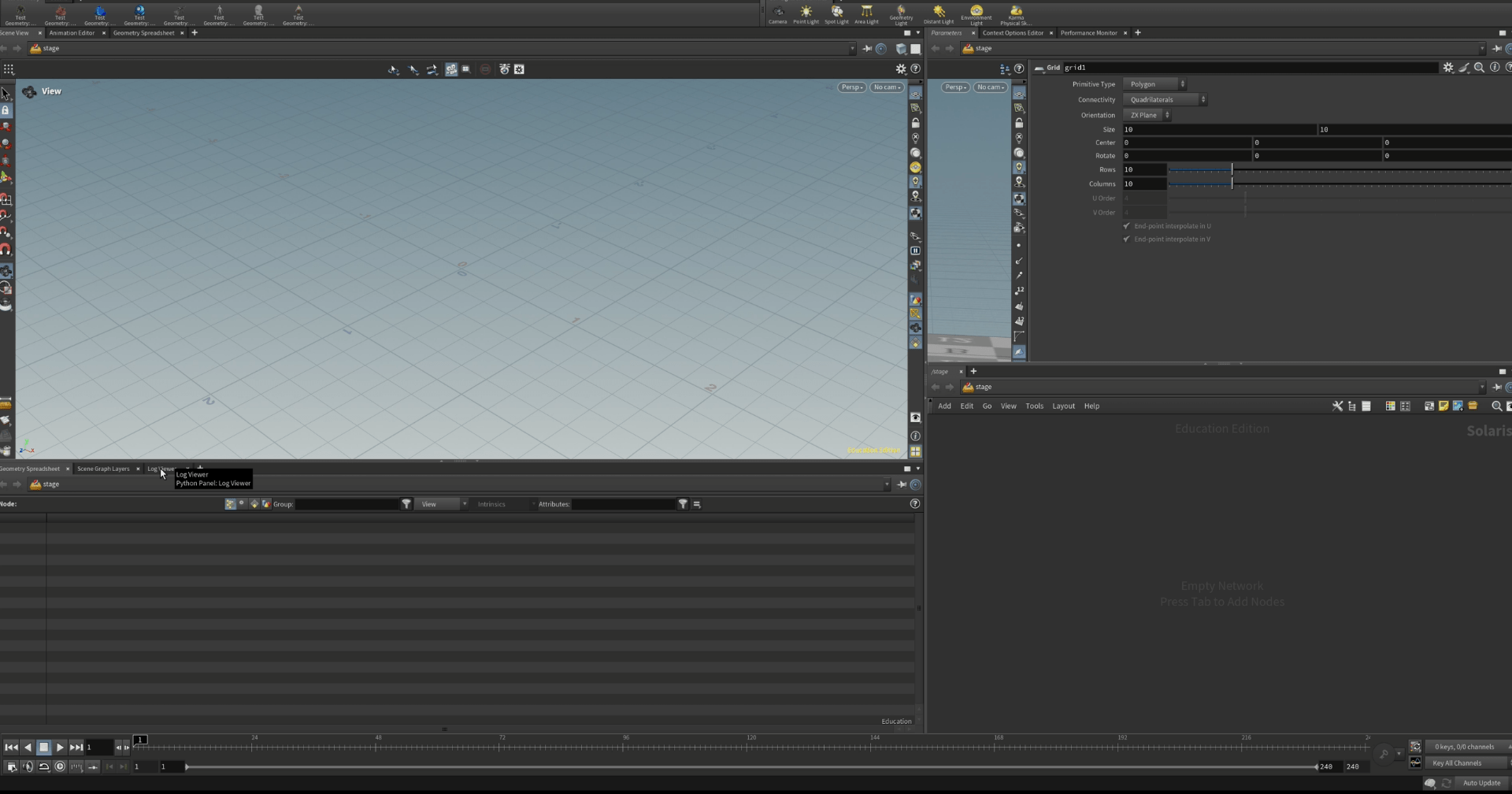
Now we will import our scene.
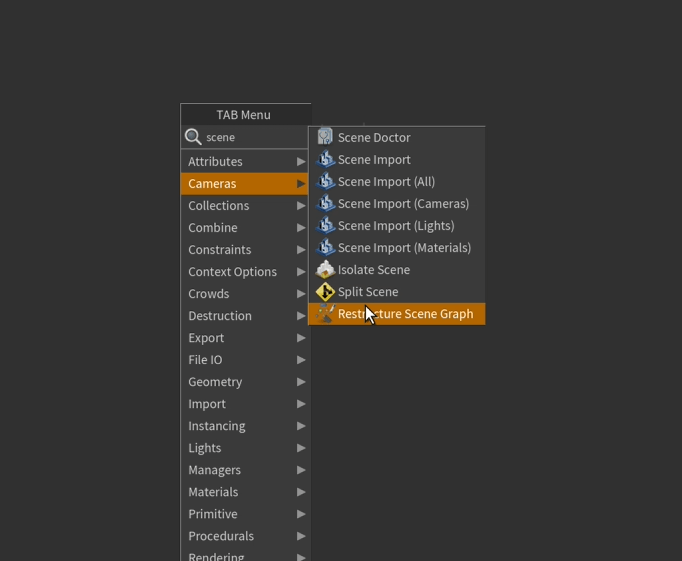
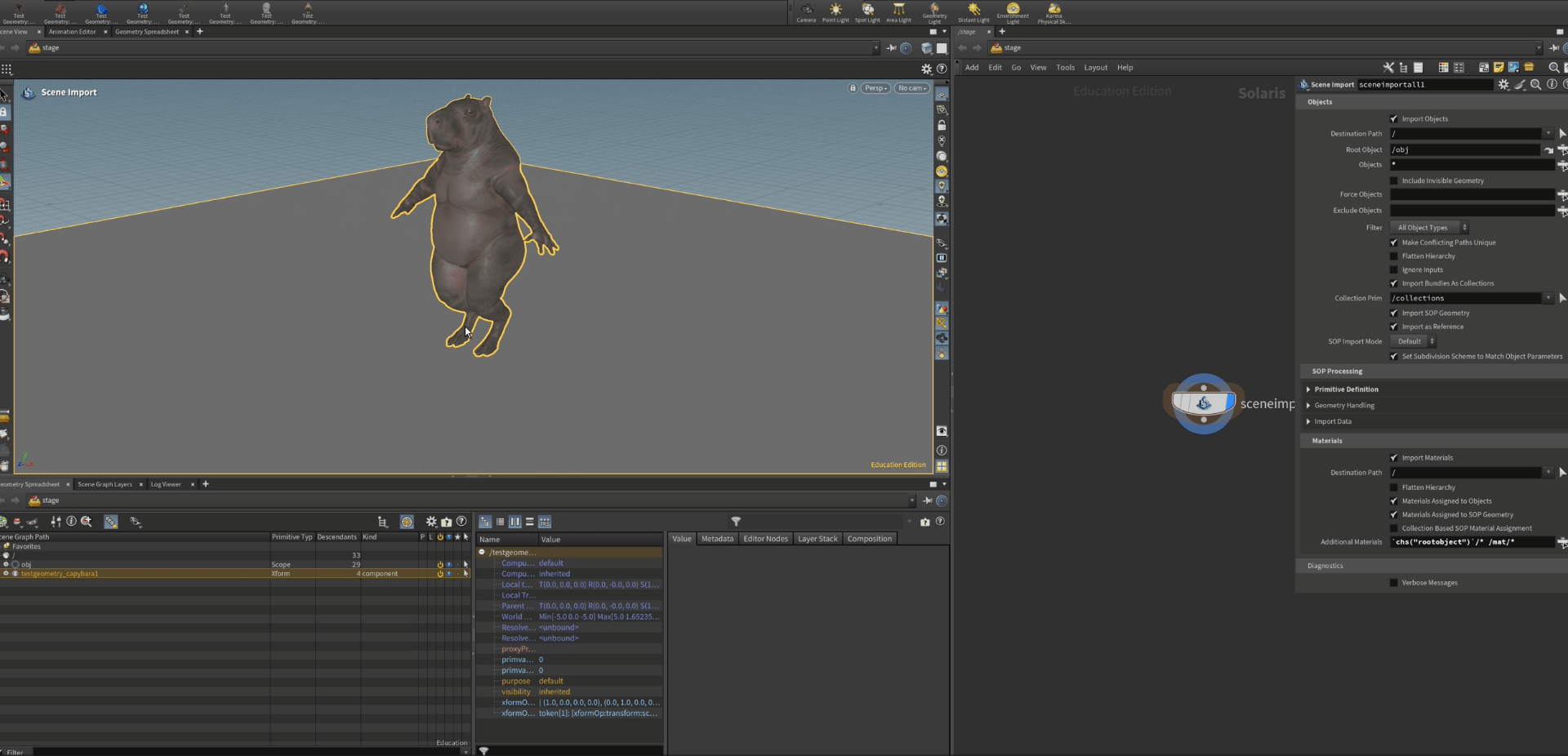
Now we are going to add a camera so we can see through it .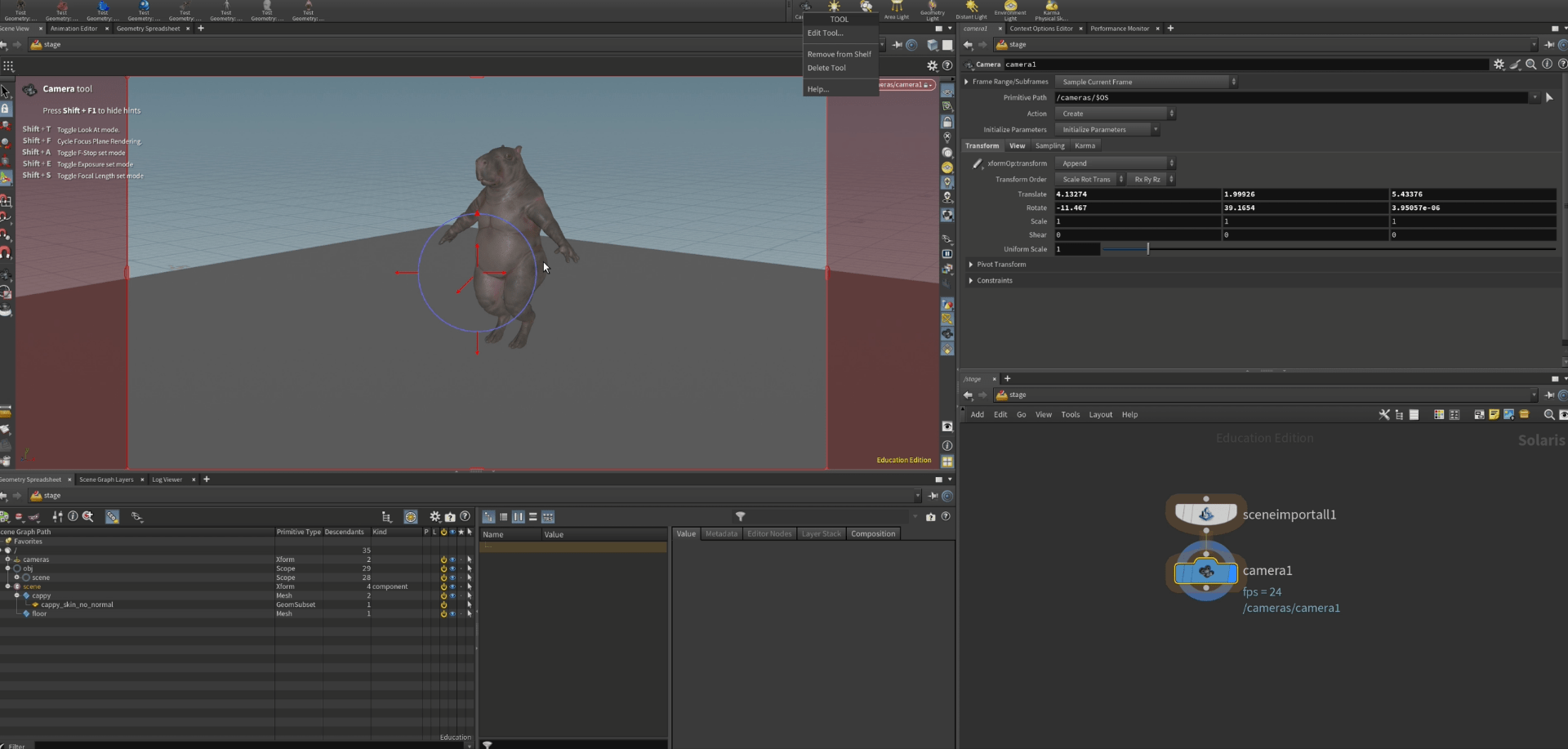
we are also adding a two merges to the camera and the scene.
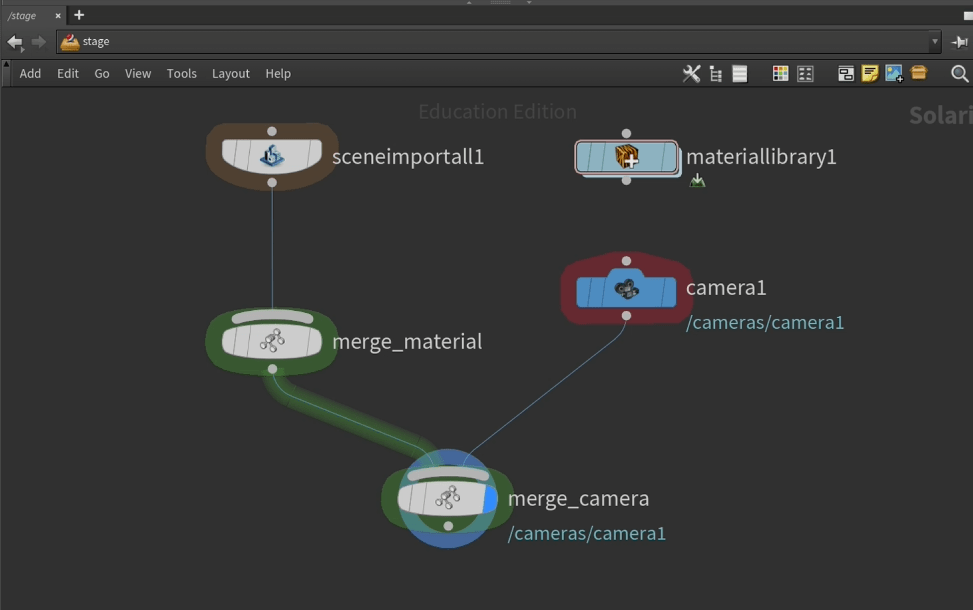
To add our material we will create a material library node.
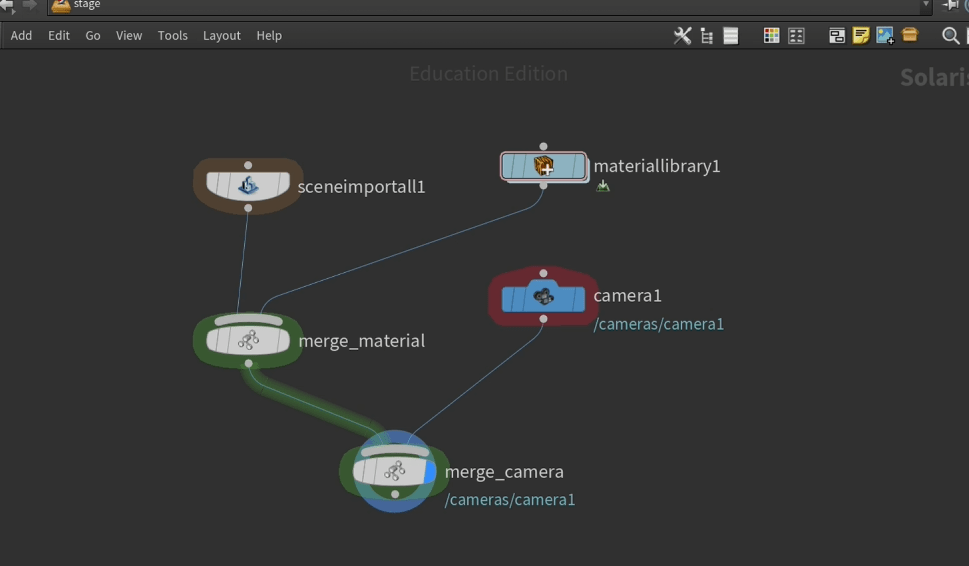
once we go inside there will be nothing. we are going to add a karma material for our floor.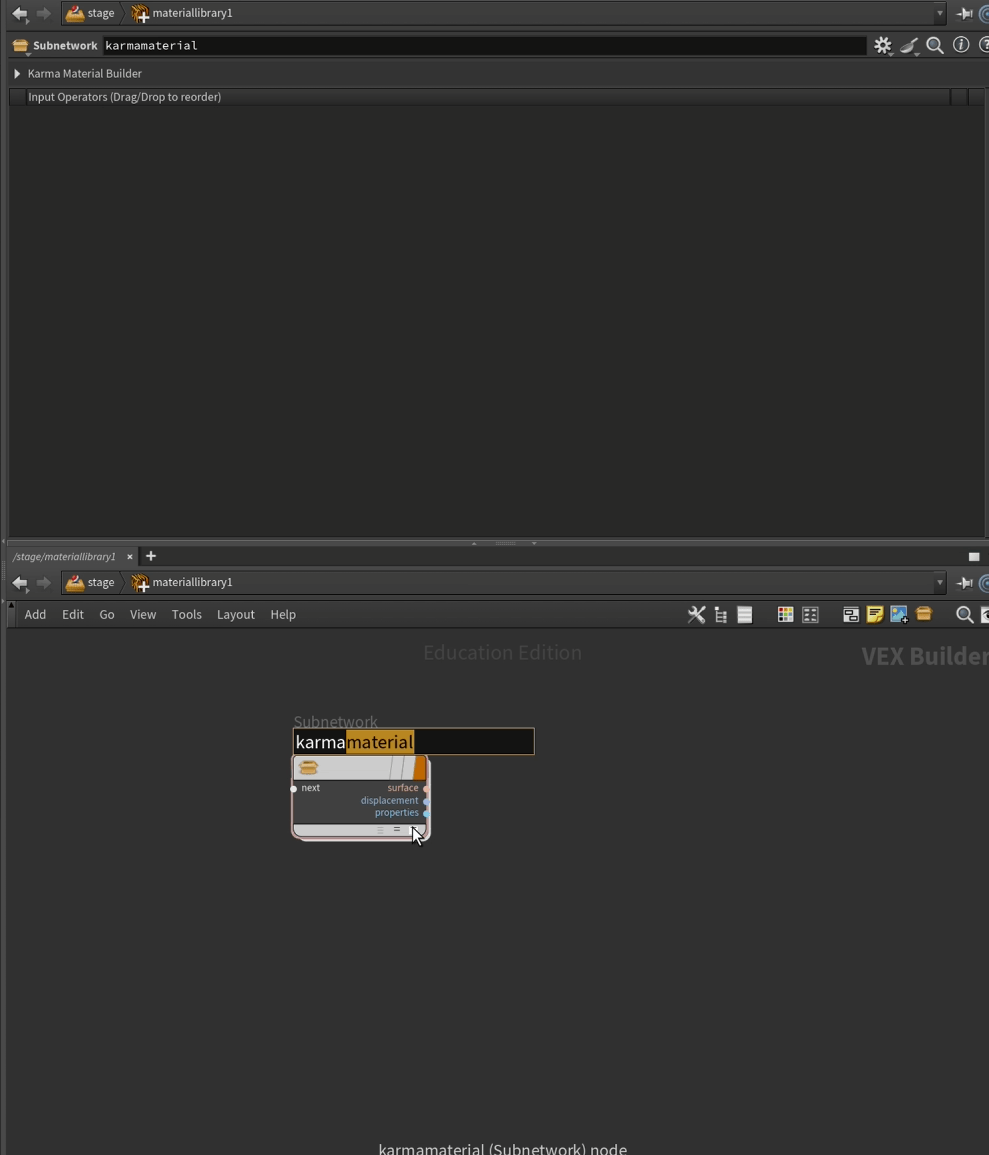
inside this karma material we will find our different inputs.
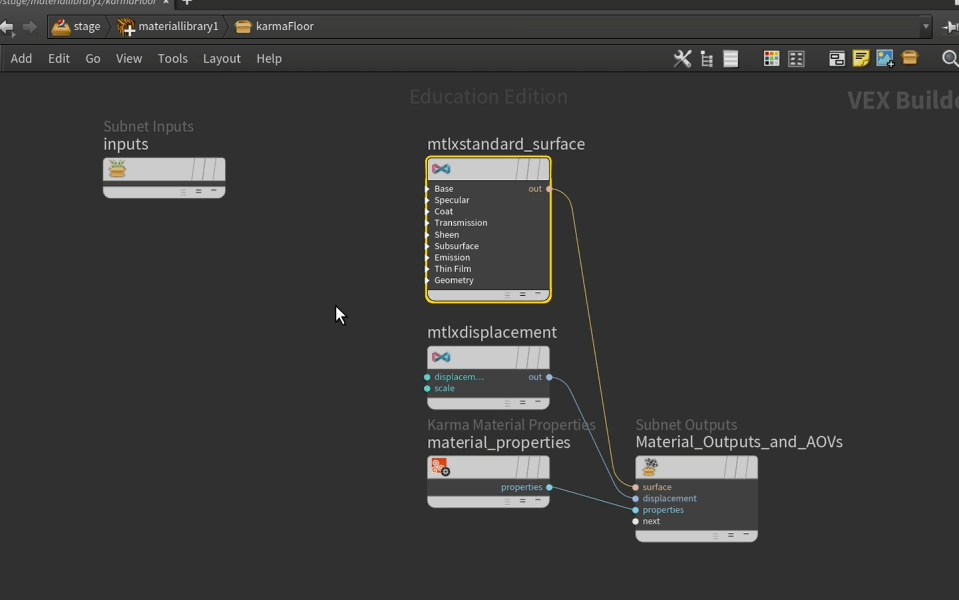
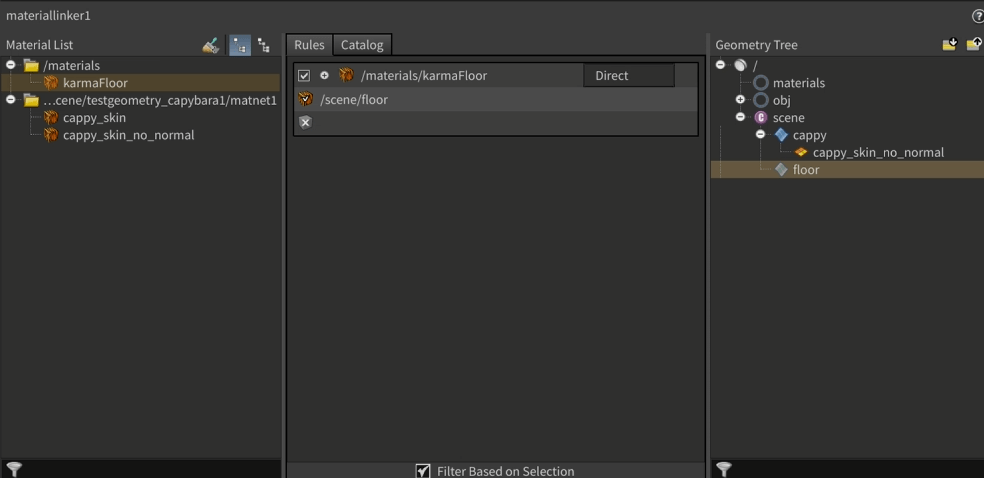
to link these material to the scene we need a material linker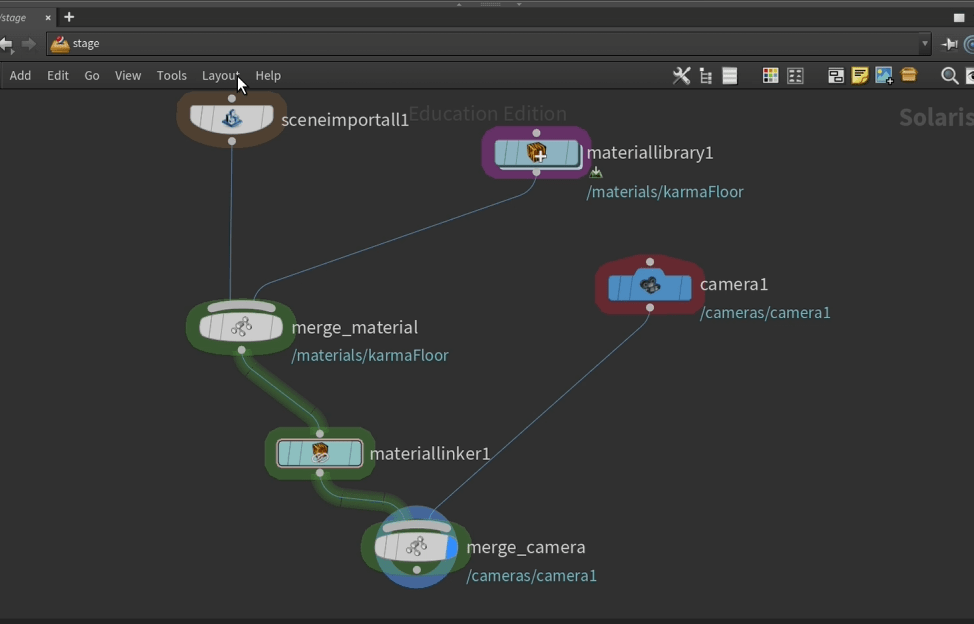
Inside the material linker we can link the floor material with the actual floor.
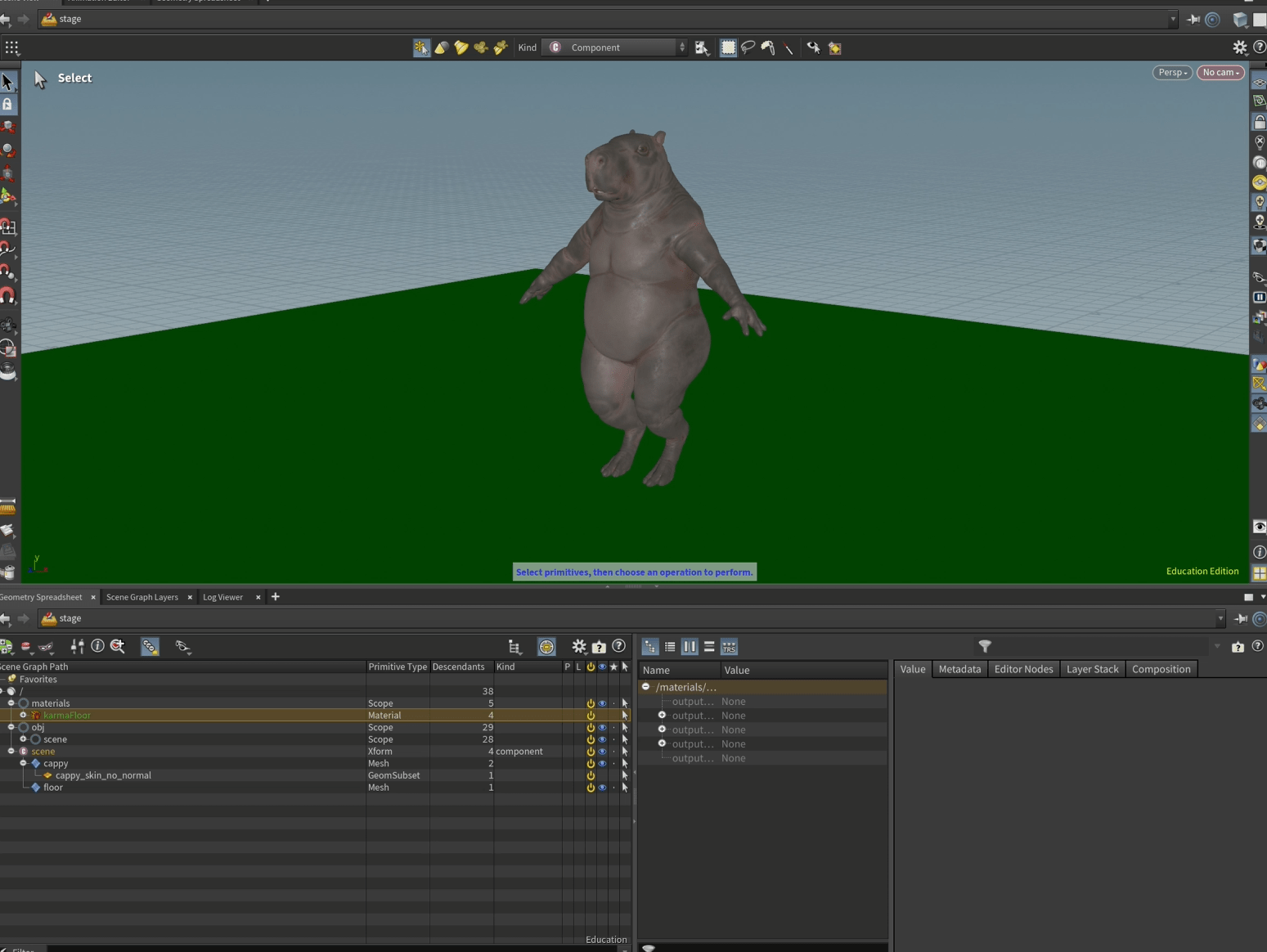
now our floor has a material.
we are going to create a merge for lights.
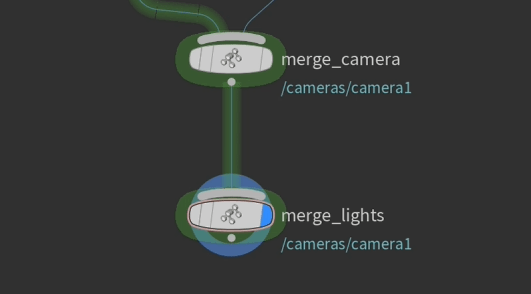
and add a spot light.
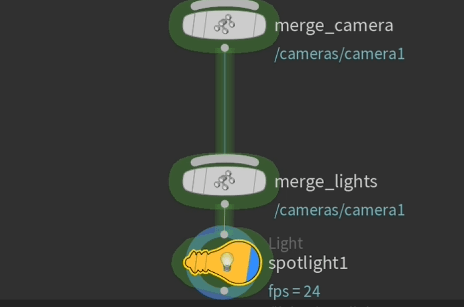
This light is affecting our scene.
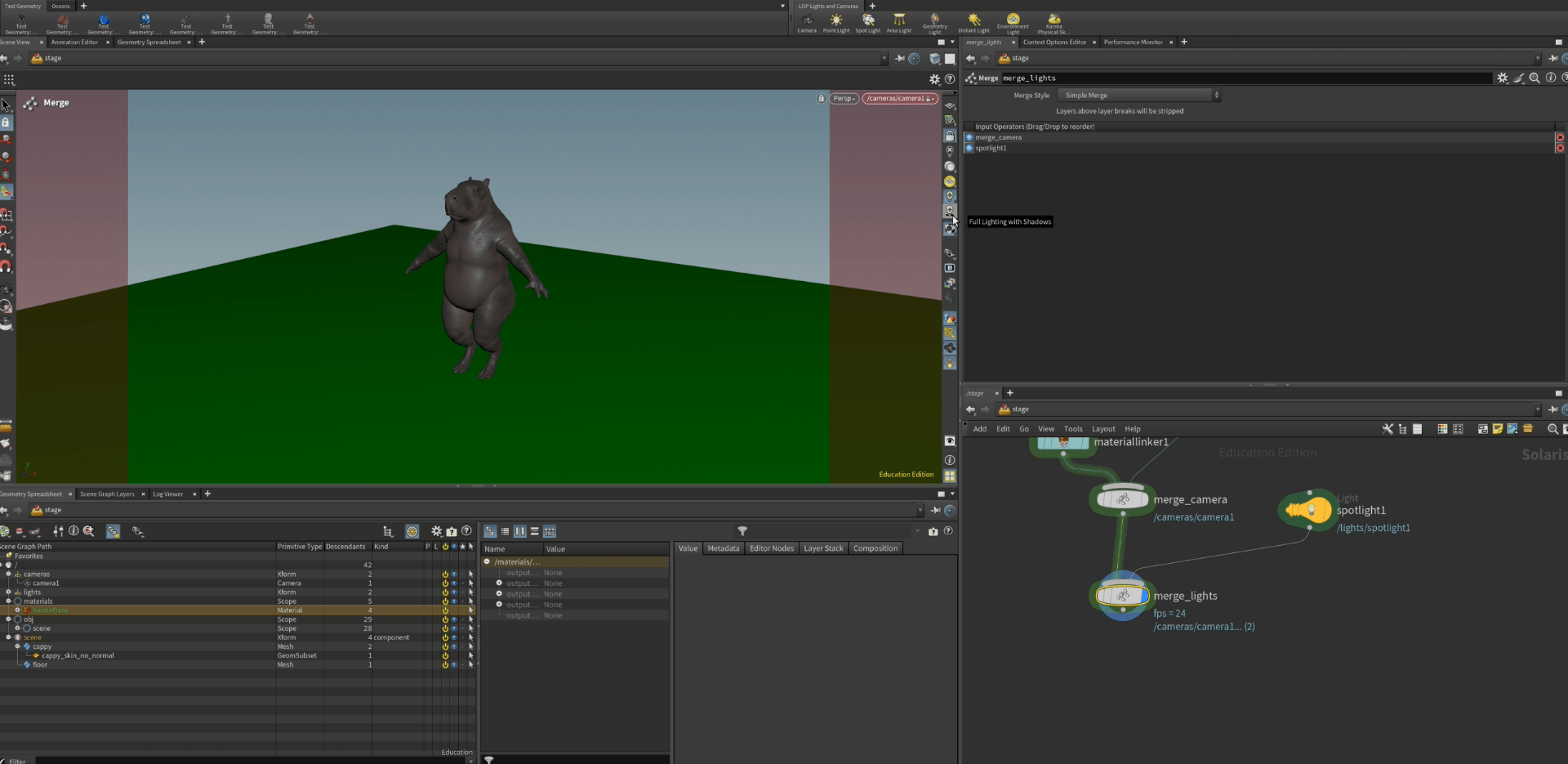
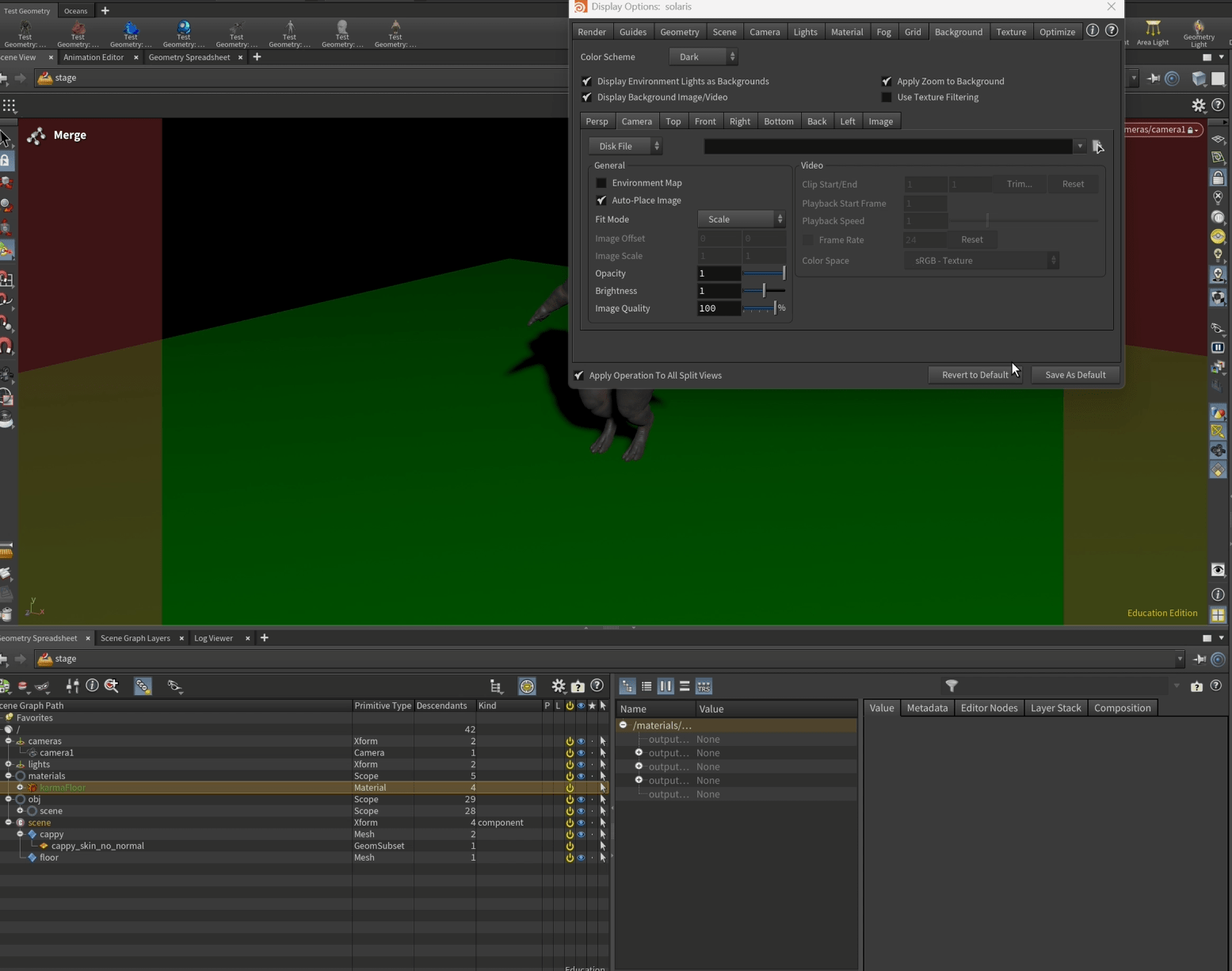
we are also changing the back ground colour to dark so we can see the shadows properly.
Next we are adding a karma render settings node.
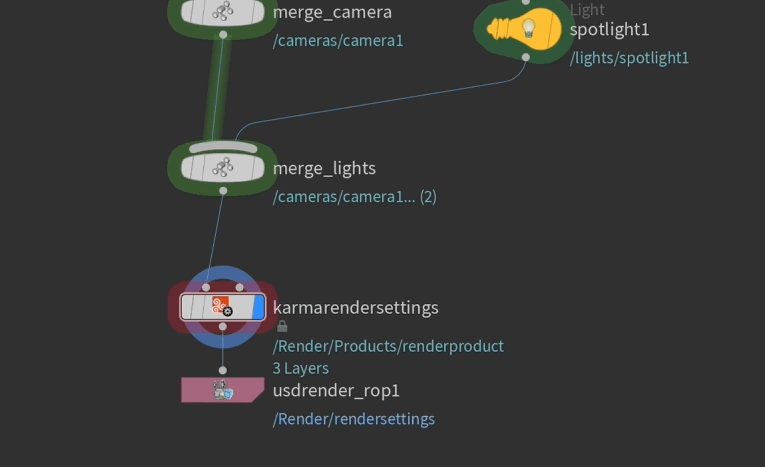
with this we can choose whenever the CPU or the CPU and GPU does the render work.
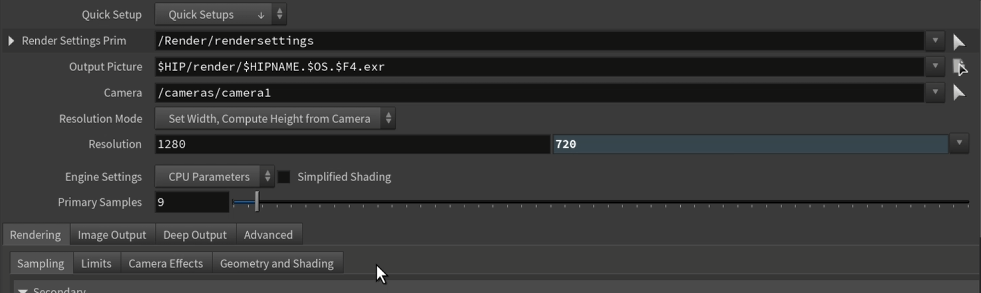
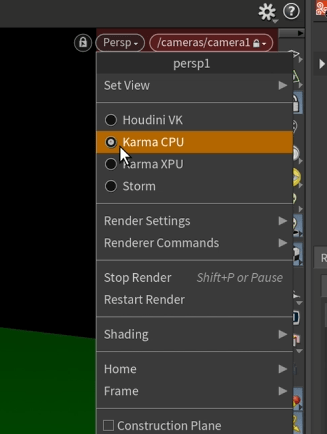
in our case we want to change it to XPU so we do. It is important that the perspective matches the settings.
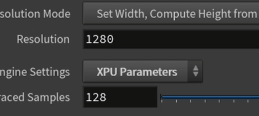
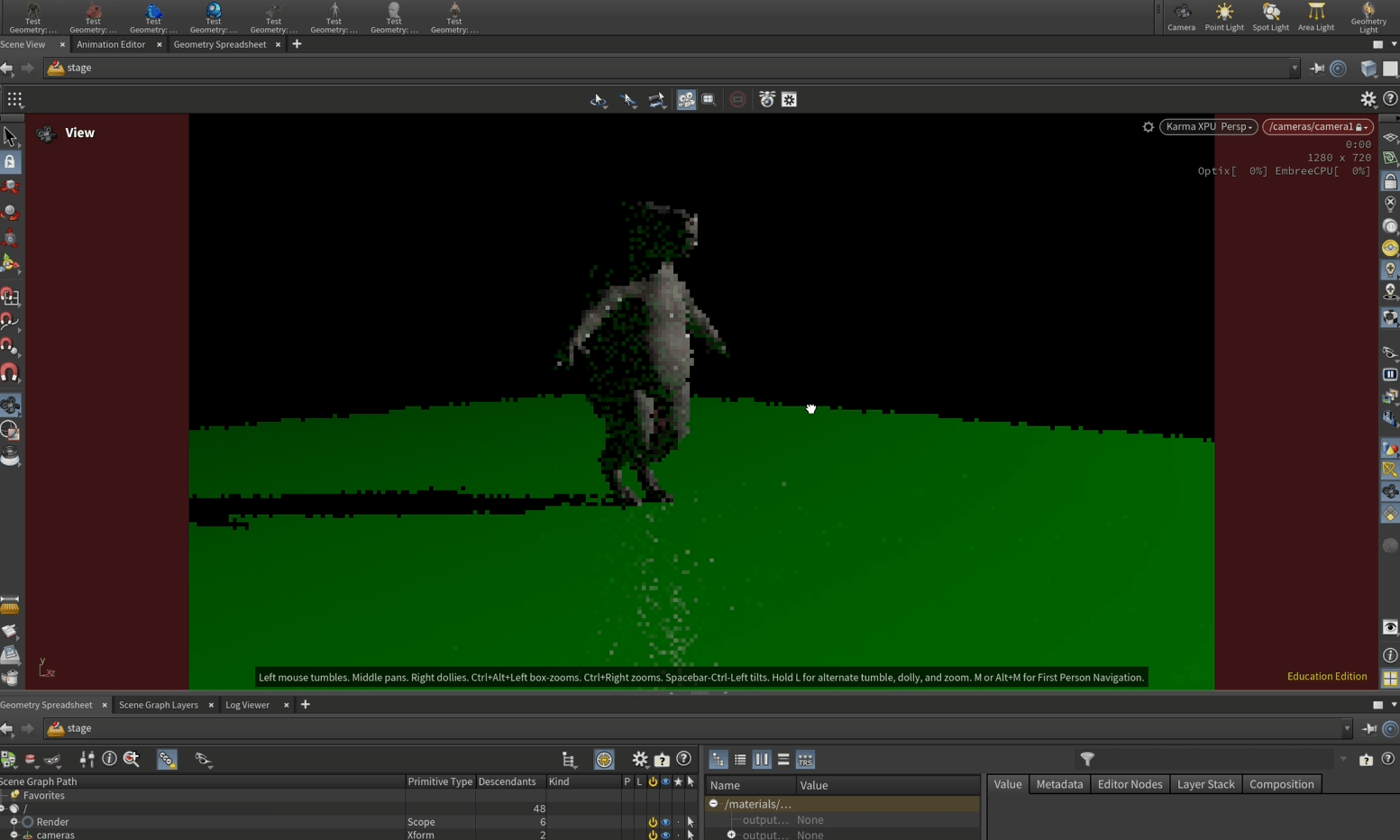
Now we are rendering with the CPU and GPU.
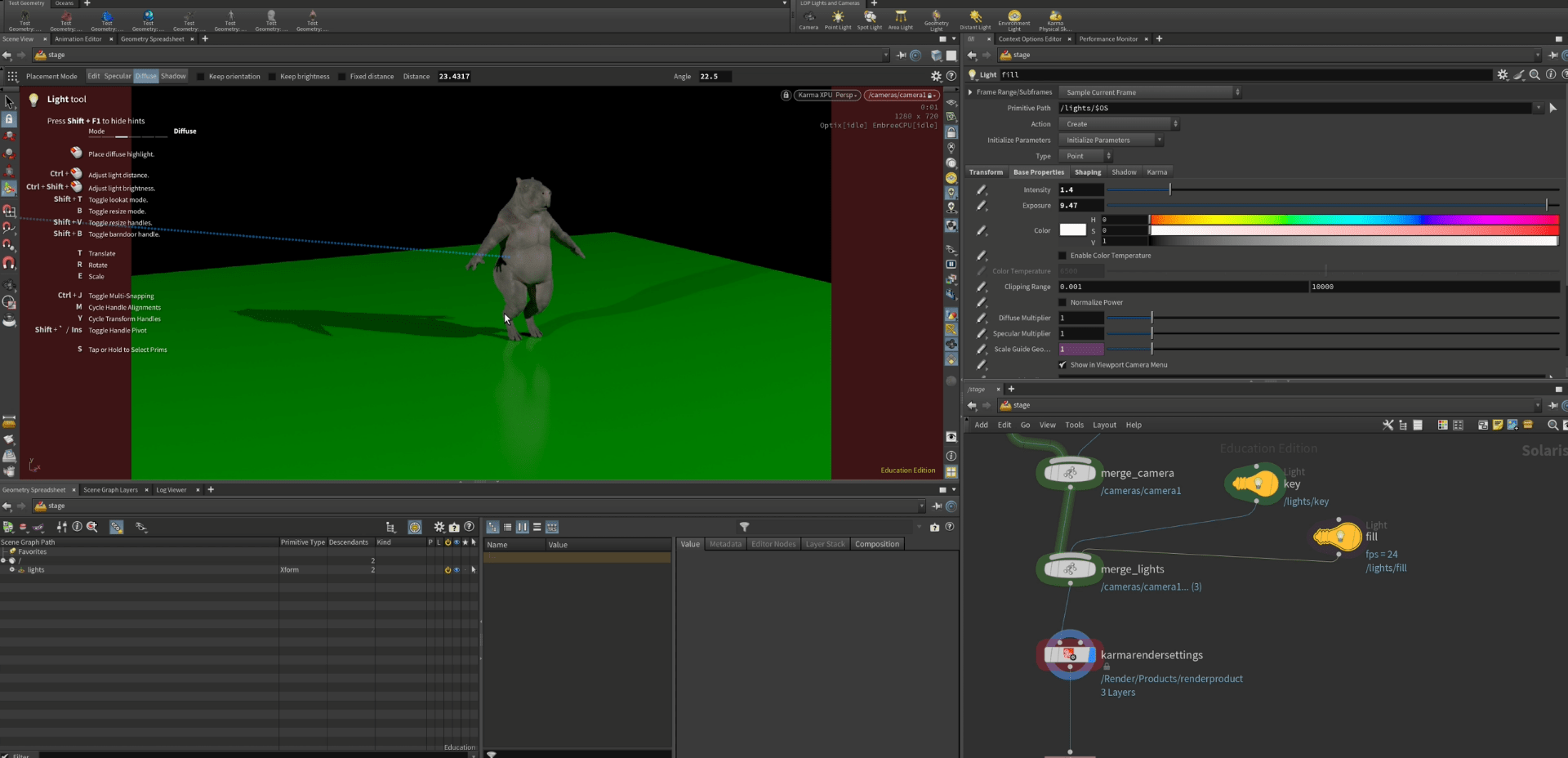
since the shadows from the left side are to strong we are adding another light as a a fill.
And we adjust it so it looks better.
D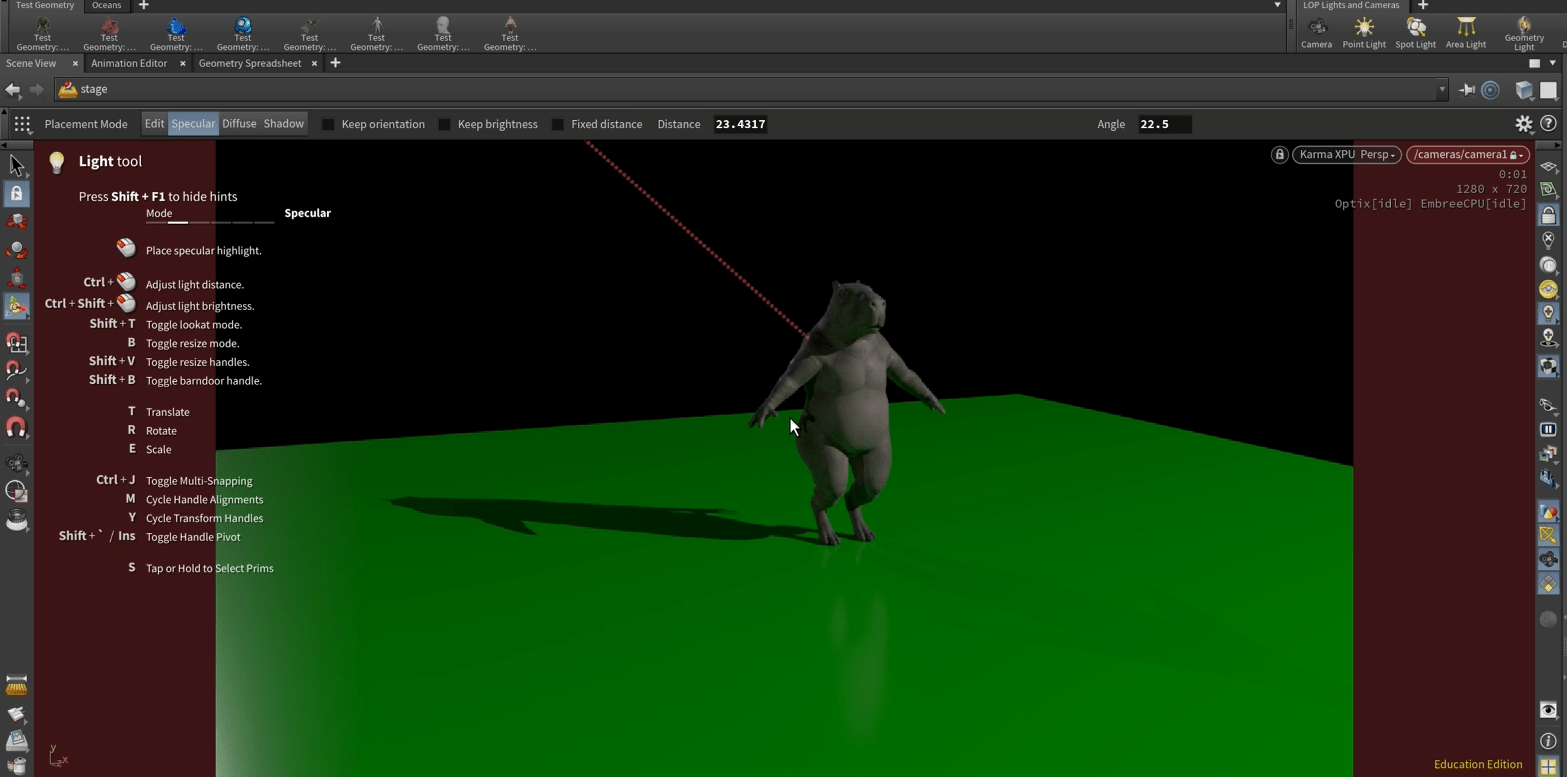
to finish the light set up we are adding a rim light.
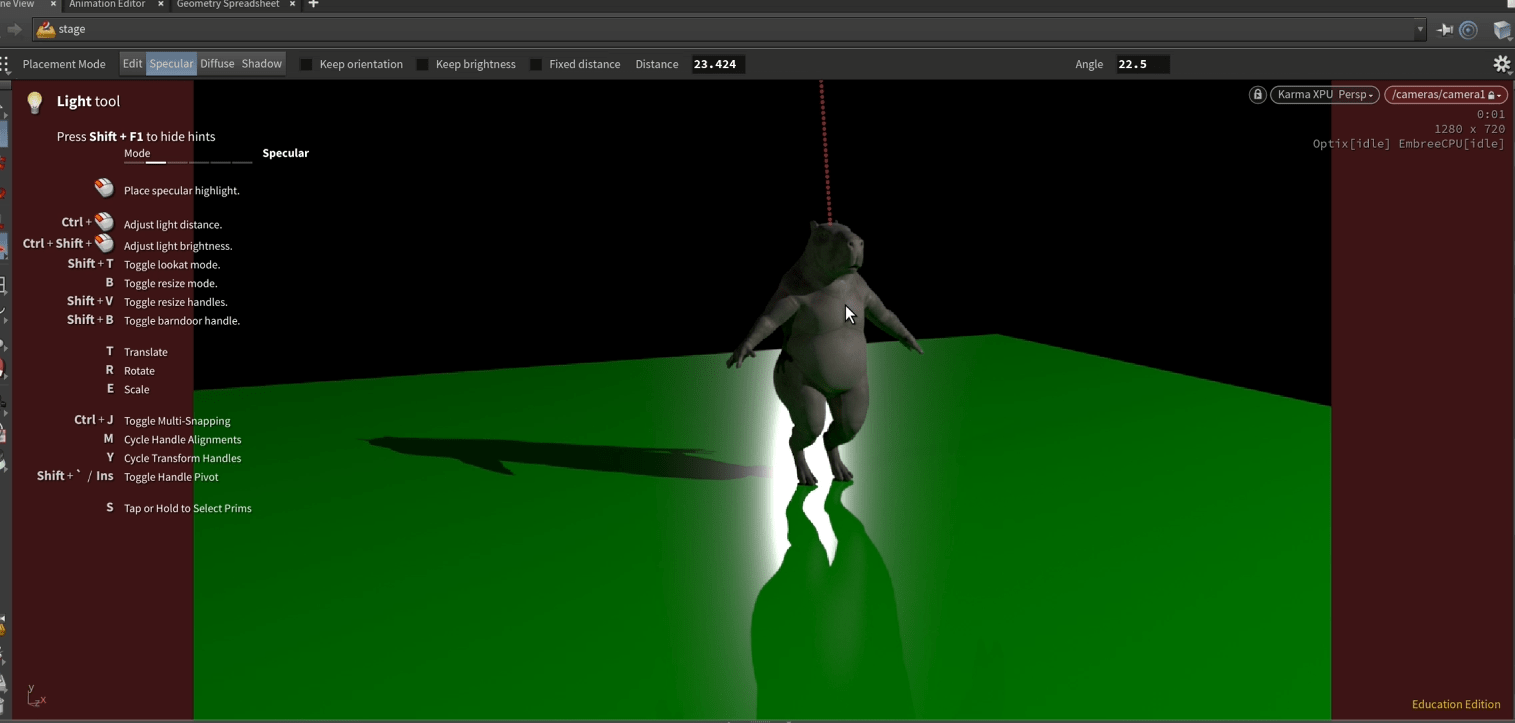
we can change the pivot of the shadow to our liking.
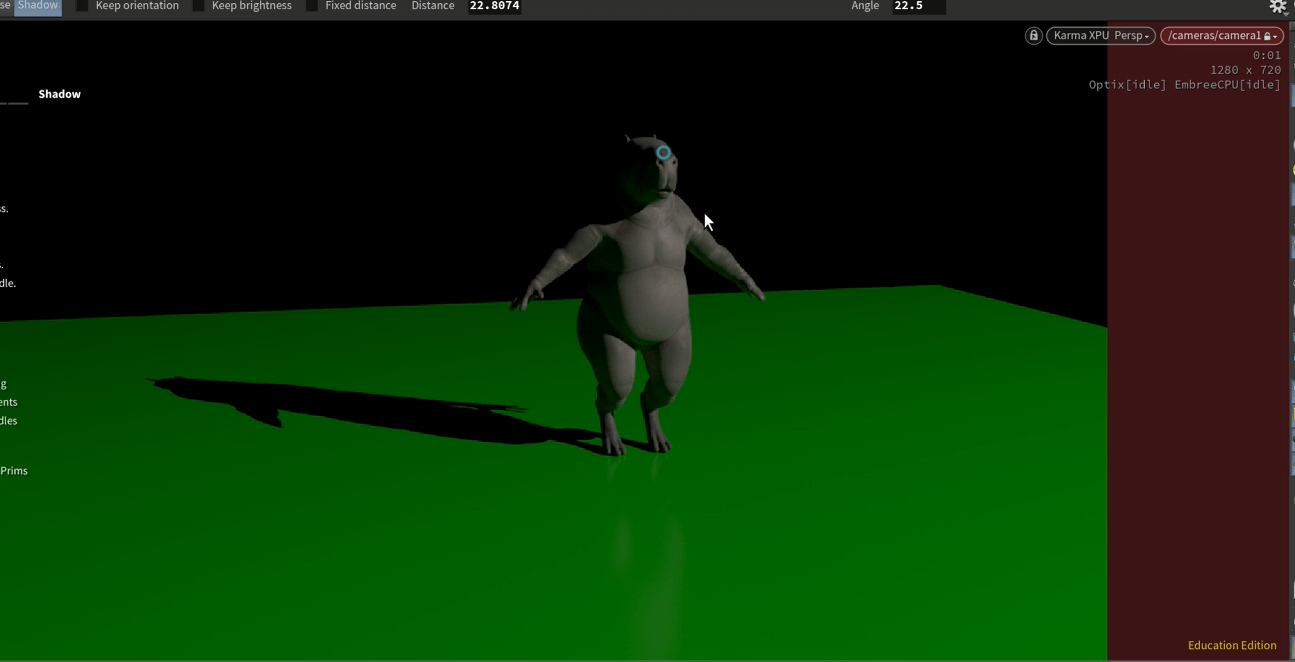
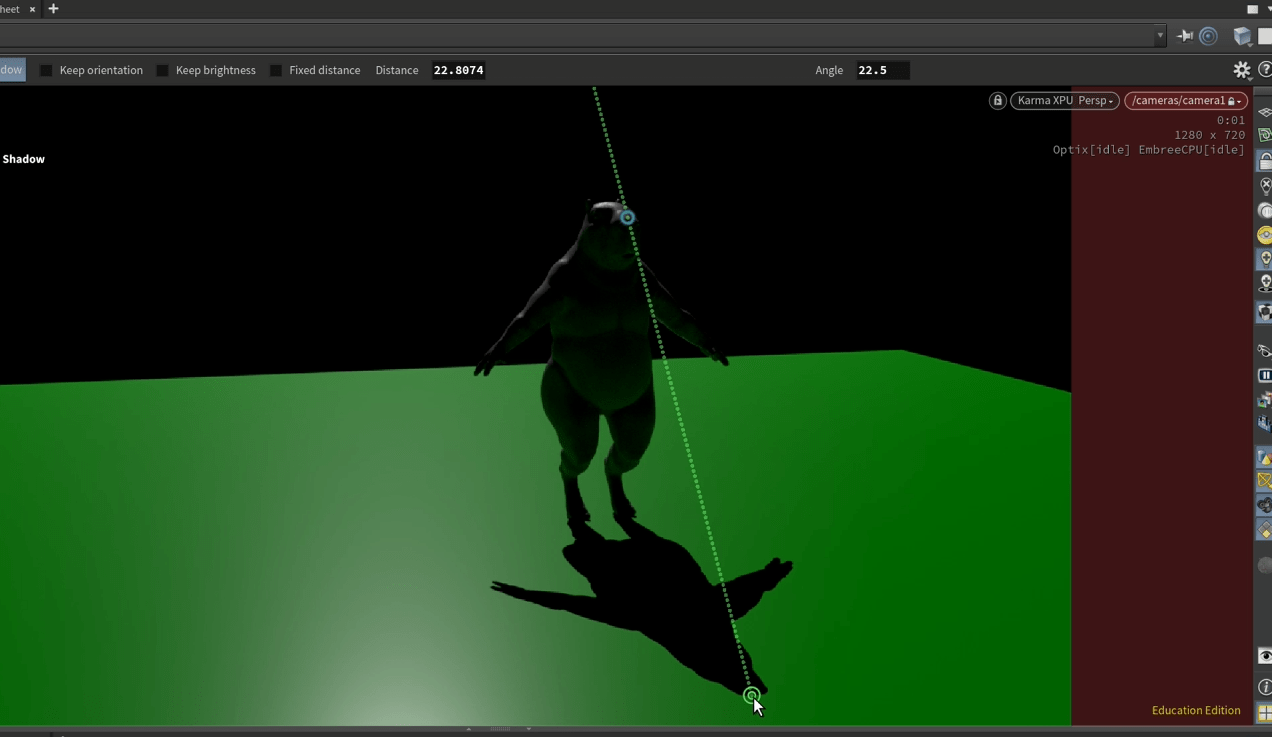
and then take snapshots.

this is my scene after playing a little with the lighting.
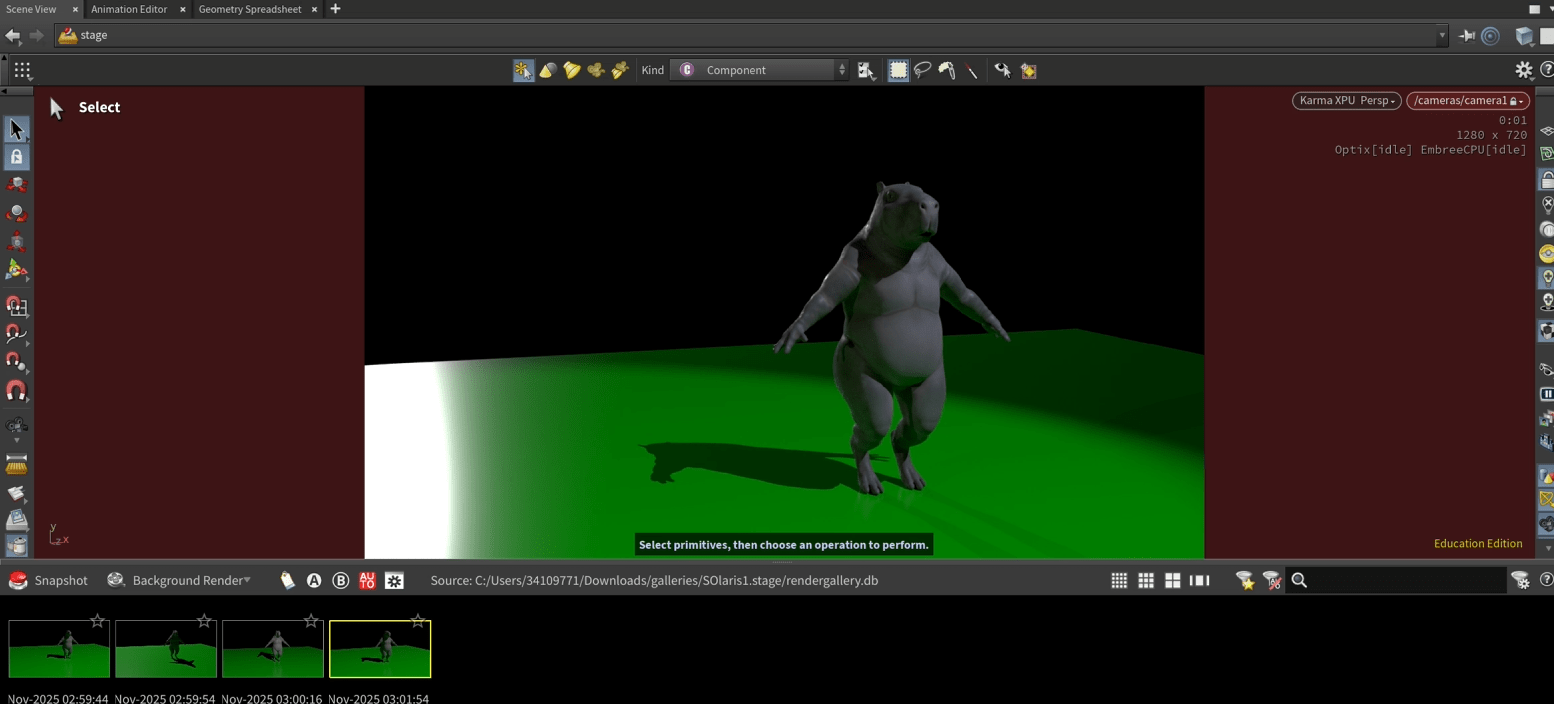
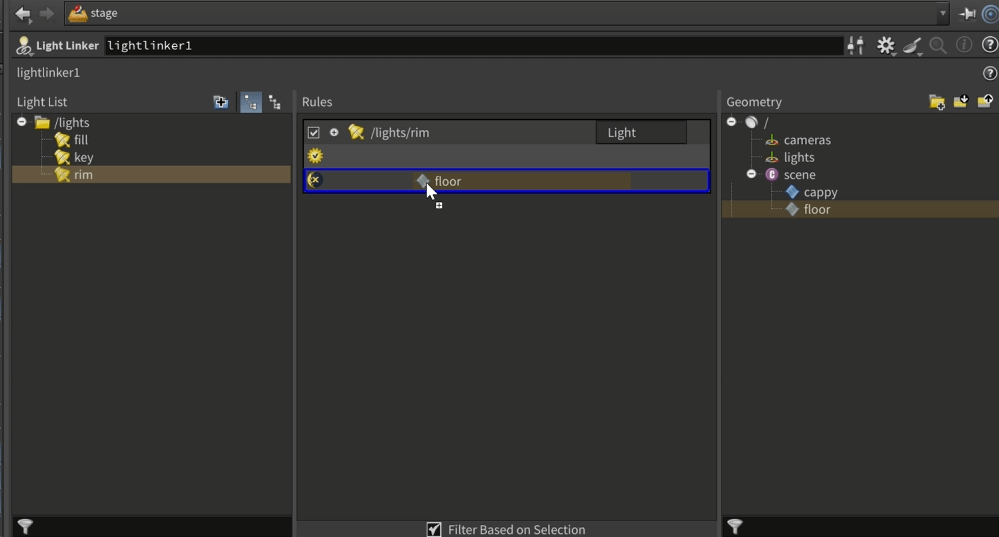
we can also choose the material the light interact with adding a light linker.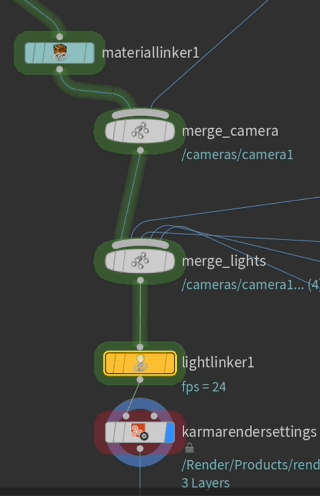 If we rule the floor to no interact with the rim light, it looks like this.
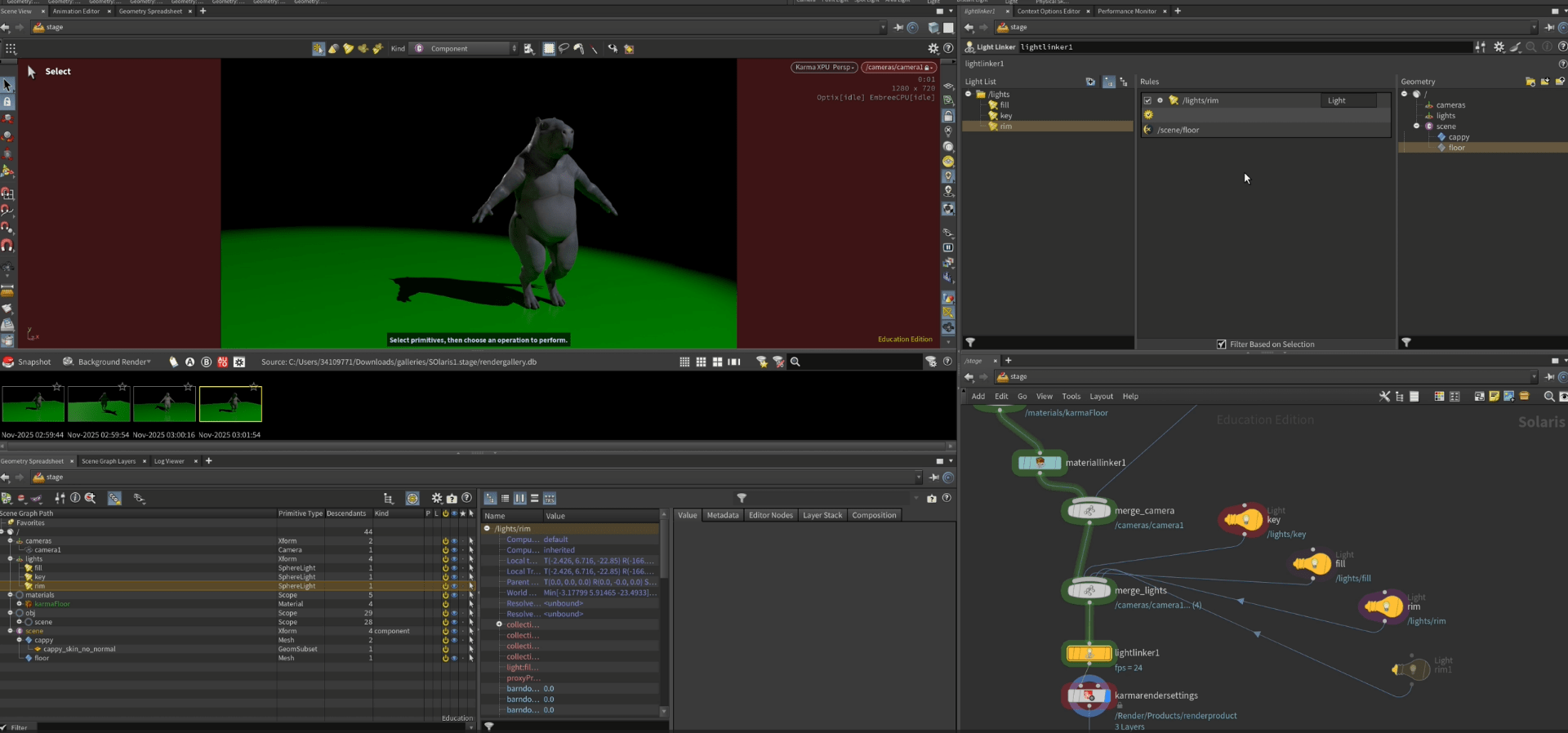
sometime could look unrealistic so be careful with this setting.
other way we have to avoid light reflecting the floor is changing the roughness of the material and it looks more natural.
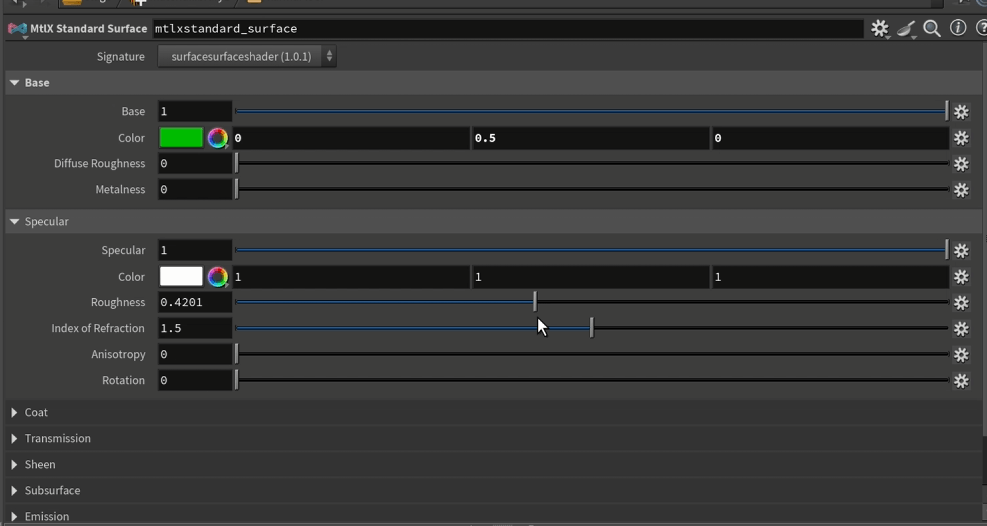
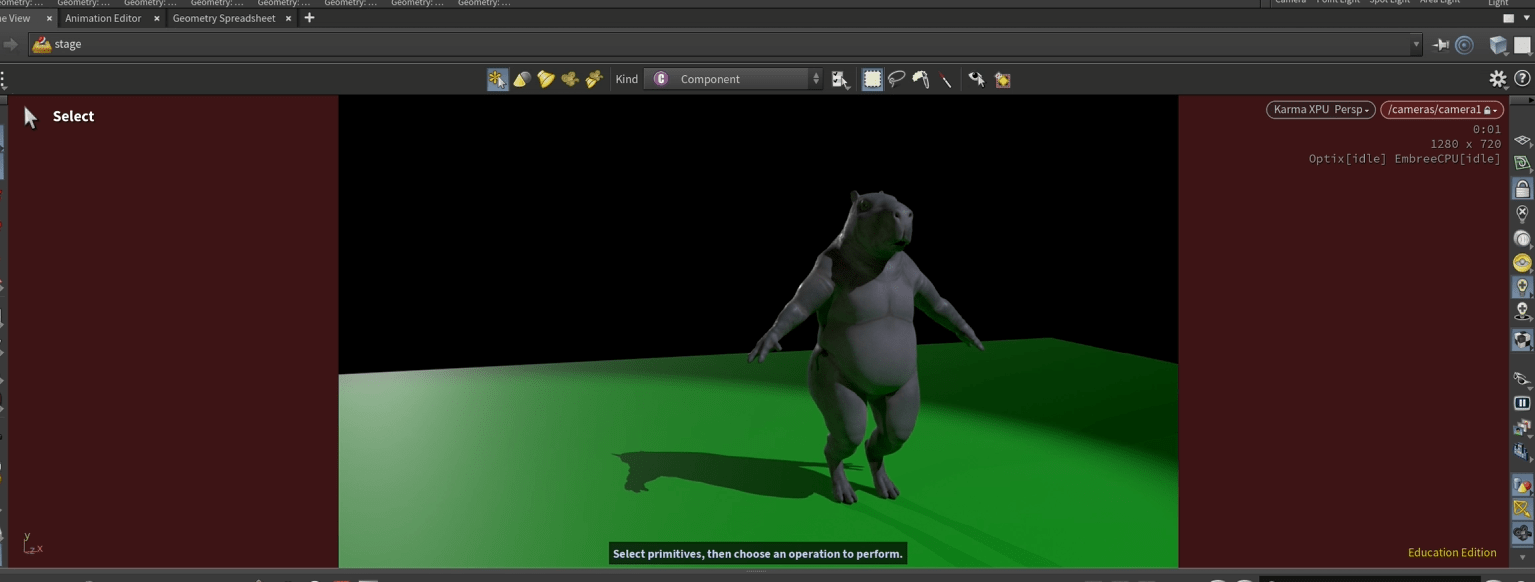
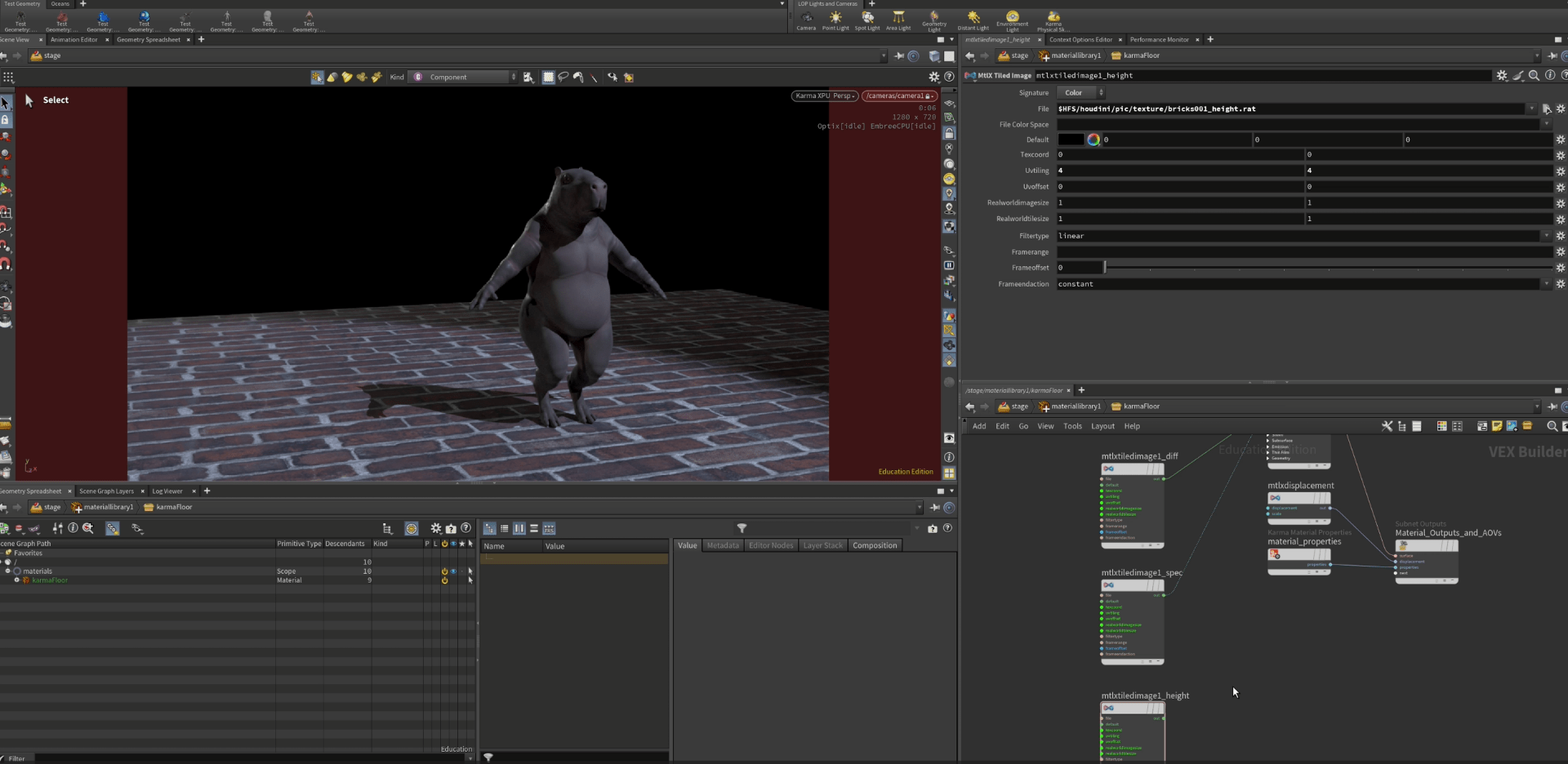
we can add a specular, height and diffuse to our floor material, in this case I am using the ones Houdini has for default..
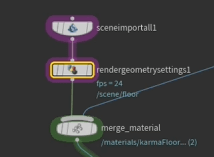
we can also add a render geometry node to choose the quality and detail of our render.
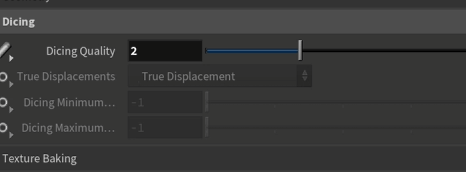
and inside change the dicing quality.
finally we are adding a new material for our capybara.
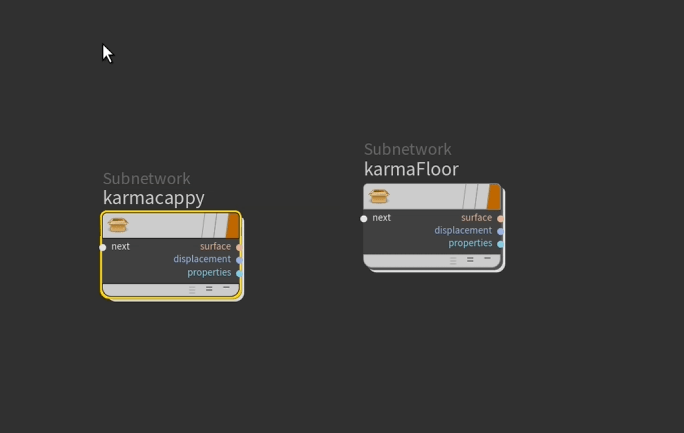
now we linnk the material as we did with the floor.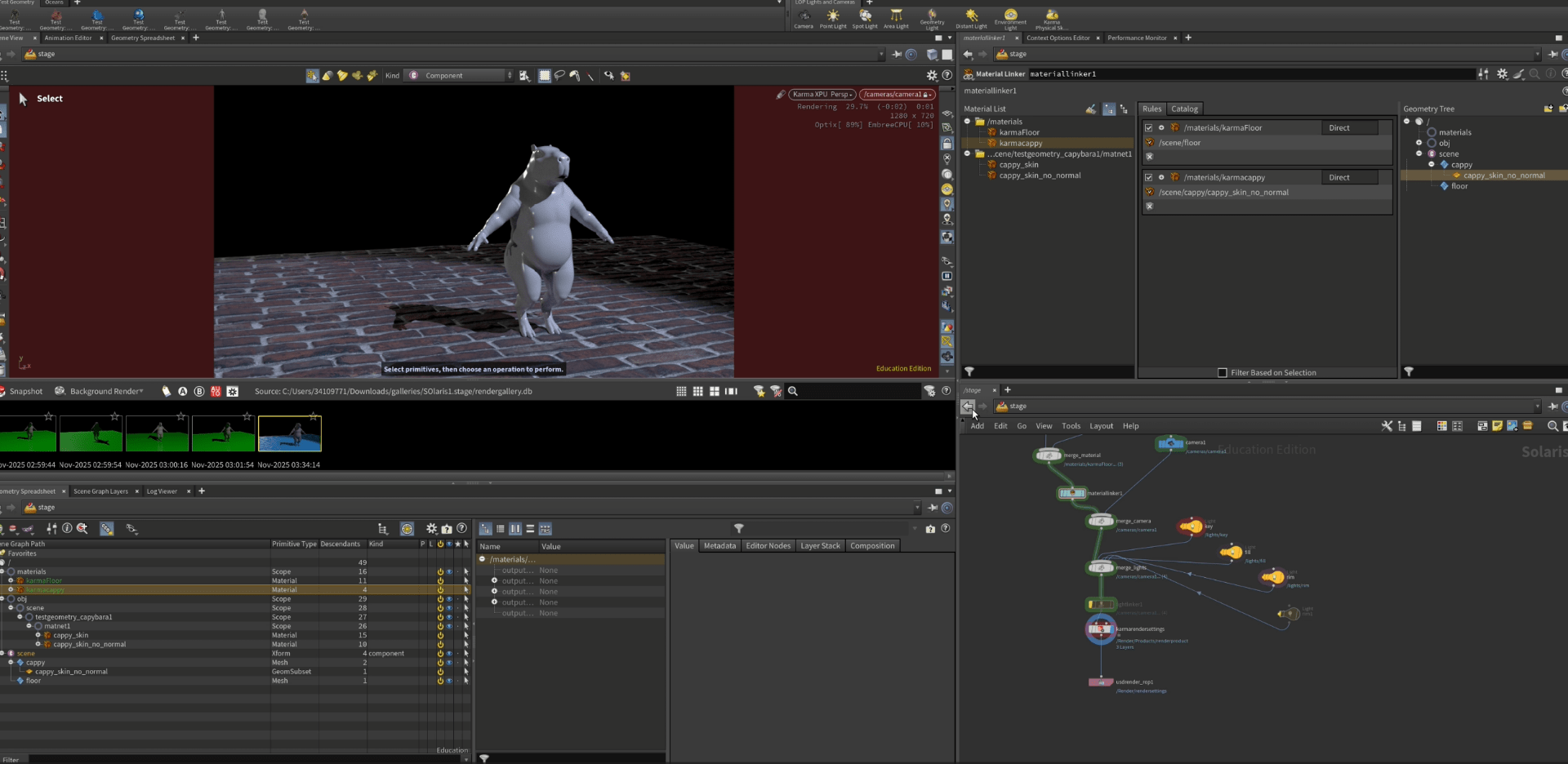
and finally we can change its properties as we like.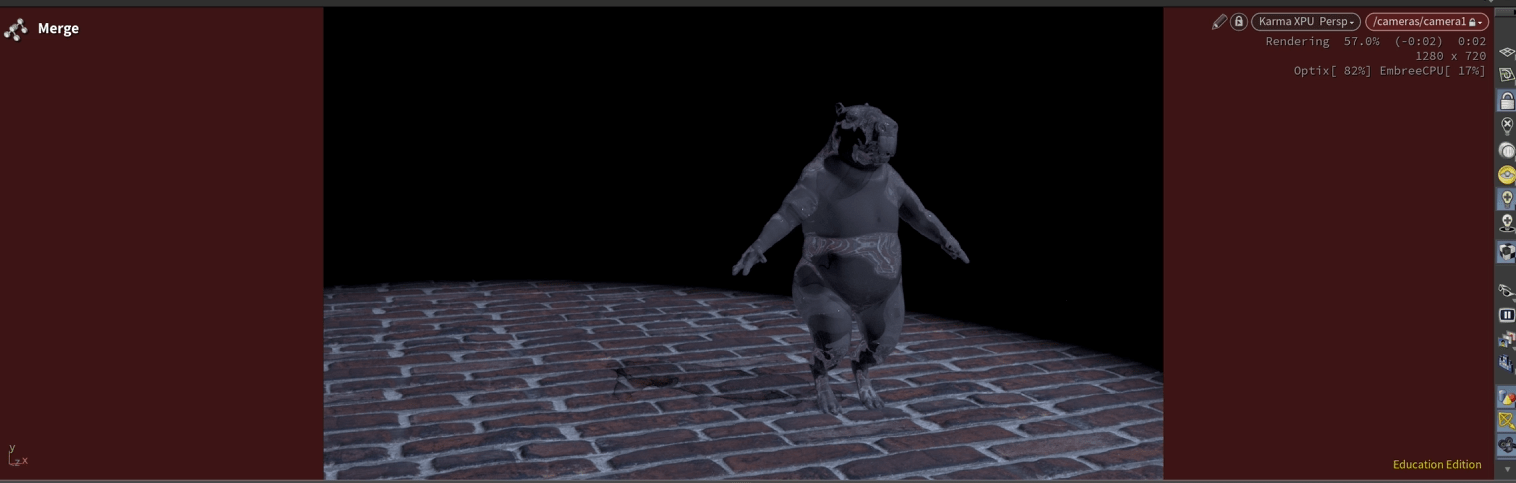
End of exercise 1
Here is the VOD on what I did in class.
End of week 6
Week 7: Rendering Techniques
Here is the VOD on what I did in class.
End of week 7
Week 8: Rigid Body Dynamics
Here is the VOD on what I did in class.
End of week 8
Week 9: Rigid Body Destruction and Constraints
Here is the VOD on what I did in class.
End of week 9
Week 10: Houdini’s Pyro Simulation
Here is the VOD on what I did in class.
End of week 10
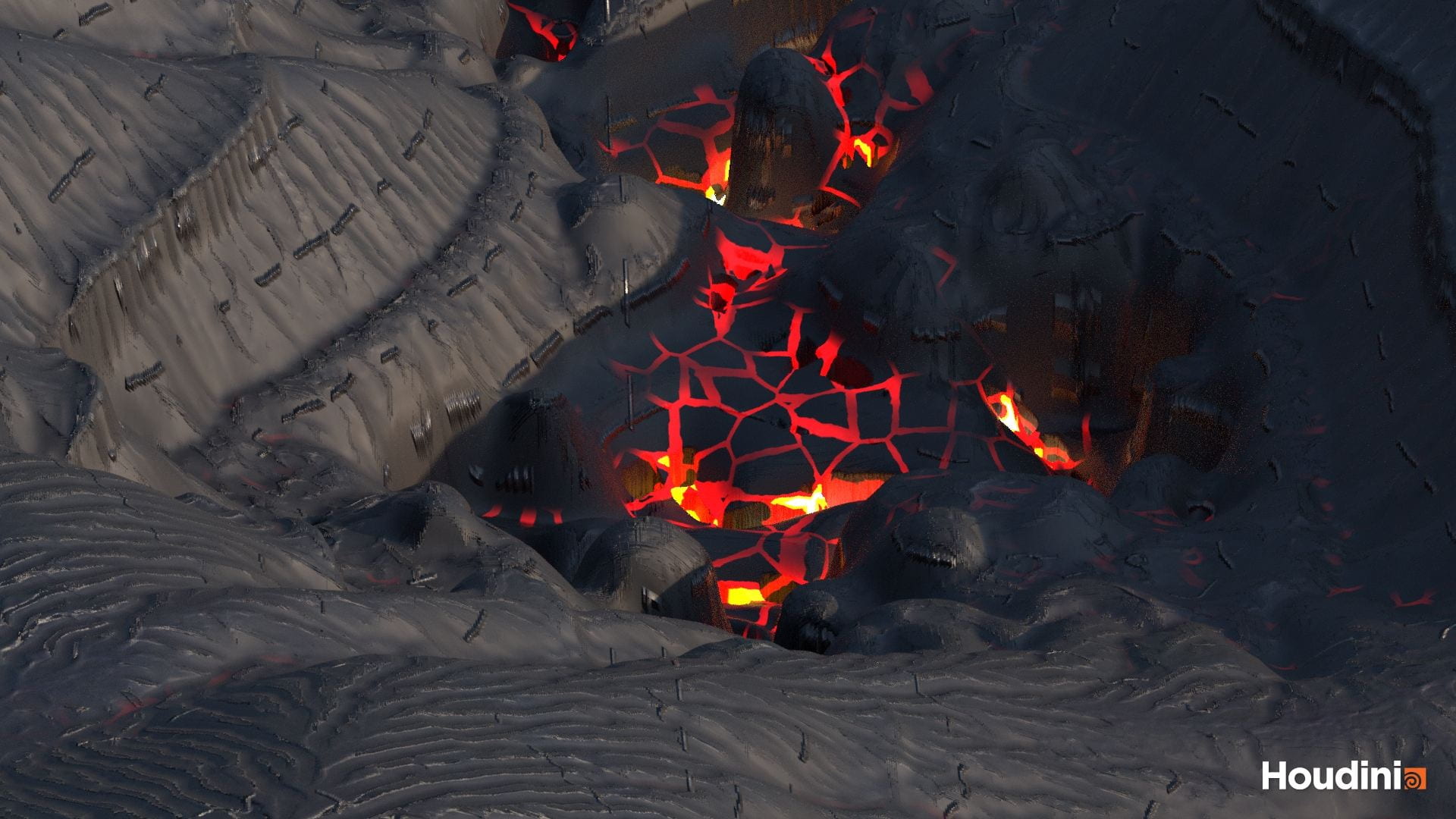
Assignment 2: Simulated Artefact
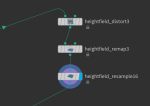
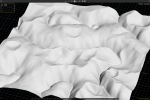
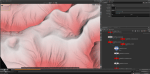
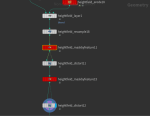
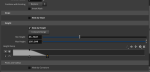
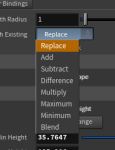
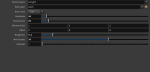
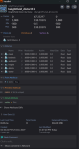
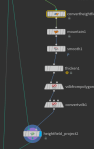
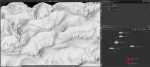
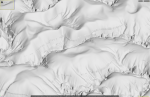
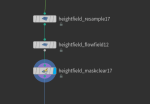
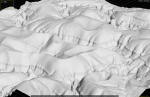
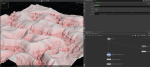
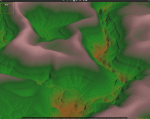
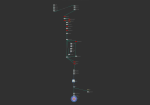
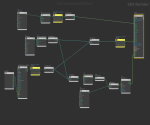
I followed a series of tutorials from Houdini, to achieve what it looks like a crater.
Development work gallery:
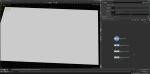
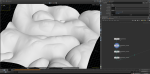
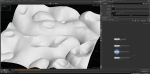
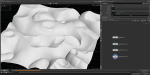
Videos:
Final render:
End of assignment 1

