Week 1 – Nuke 3d and Camera Projection
In the first 3D Match Moving session, we began exploring the fundamentals of 3D view space in Nuke. To do this, we introduced the Scene node and the Camera node.
We start by downloading the files provided for the task this week.
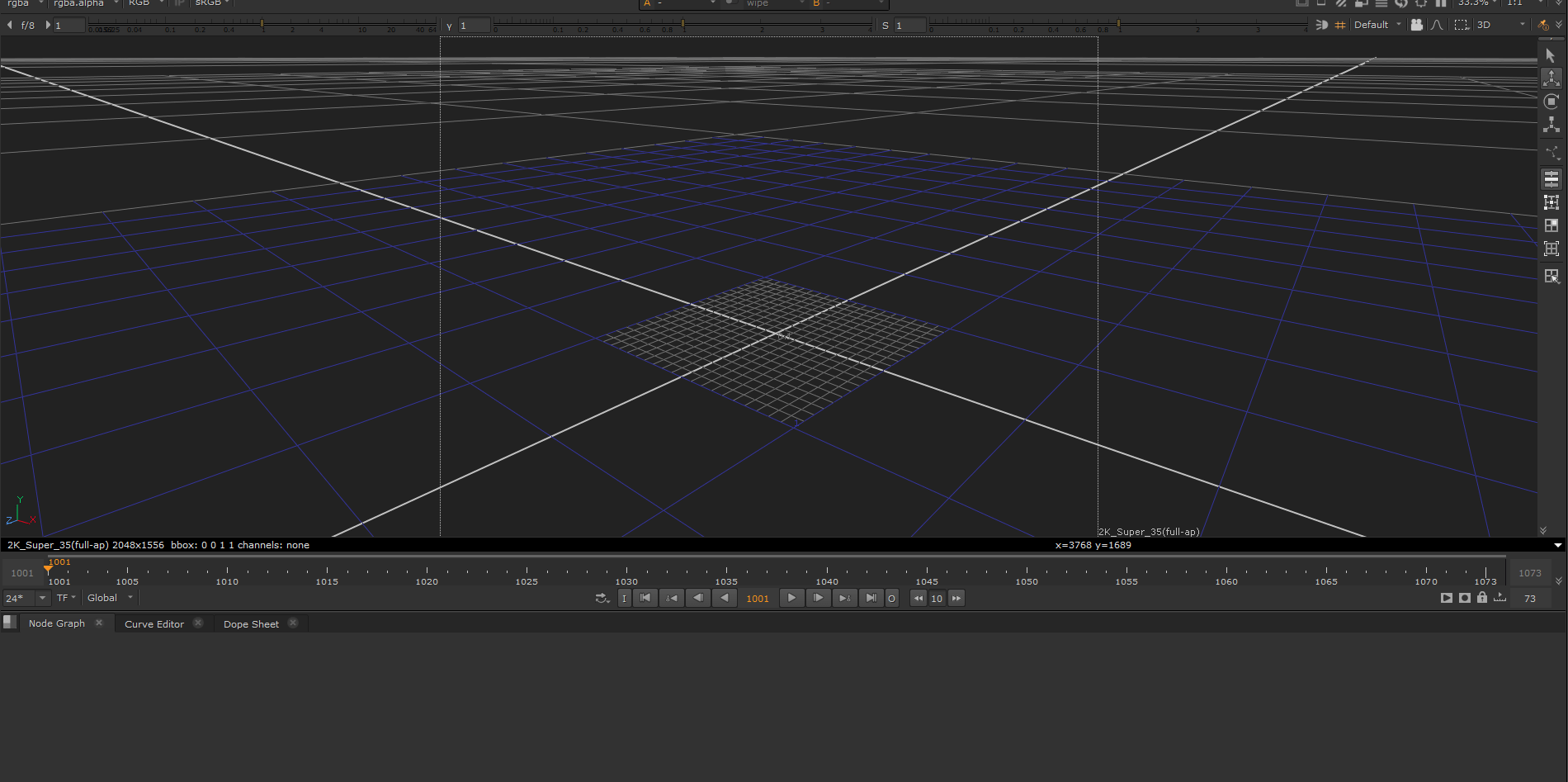
We going to start learning how to navigate trough the 3D viewer.
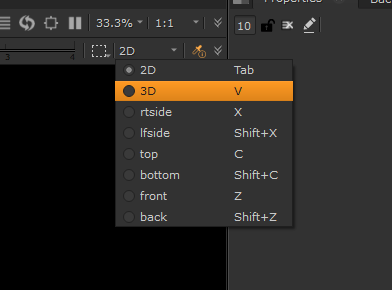
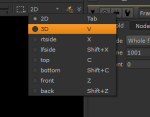
We will access the 3D viewer
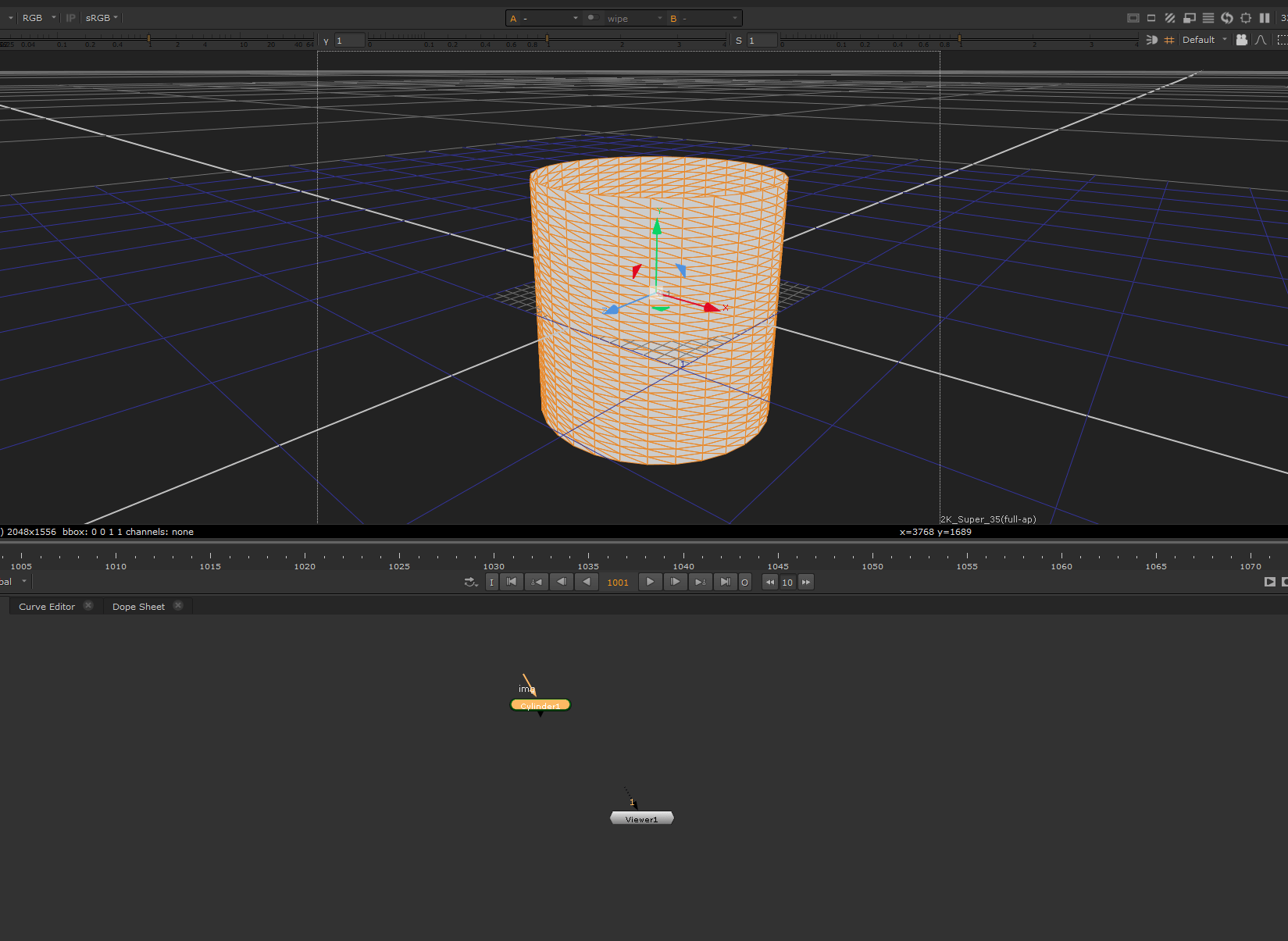
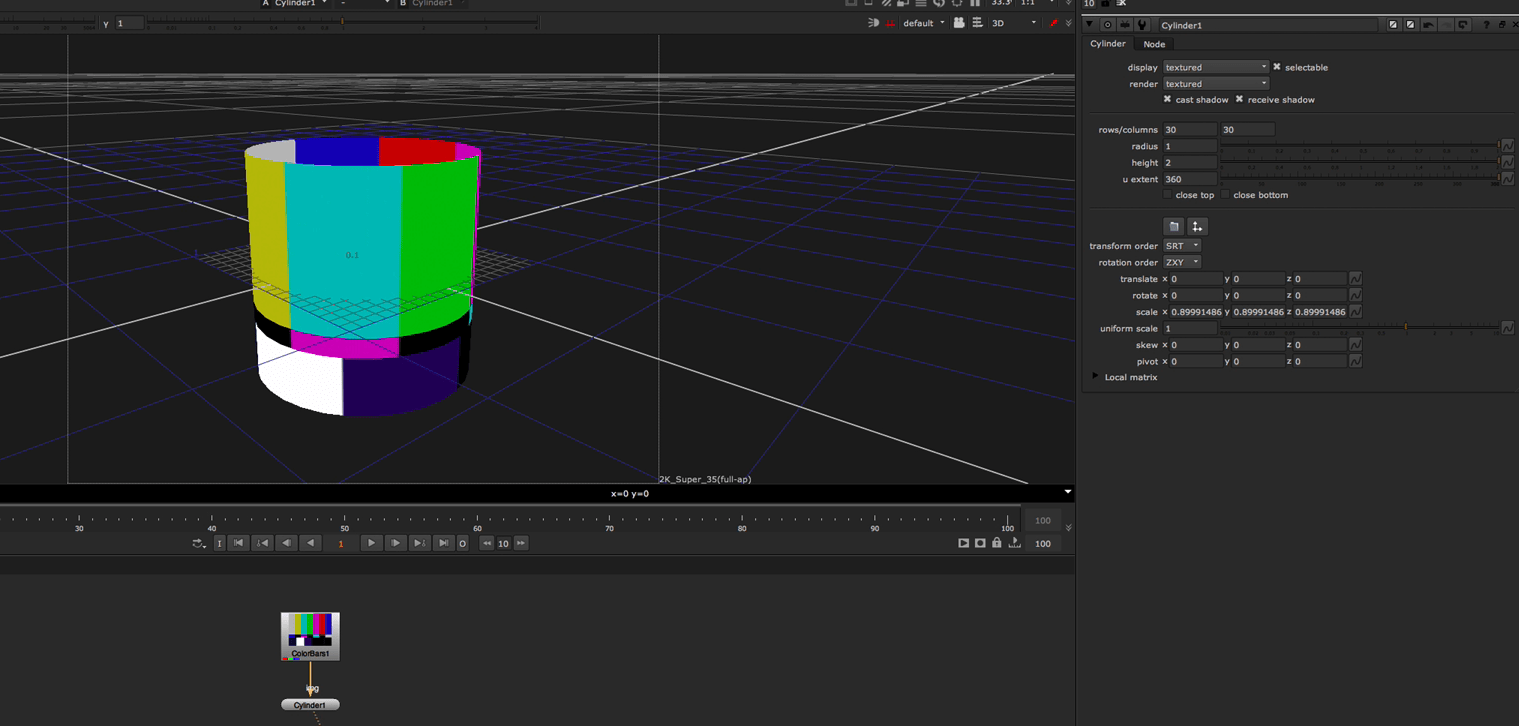
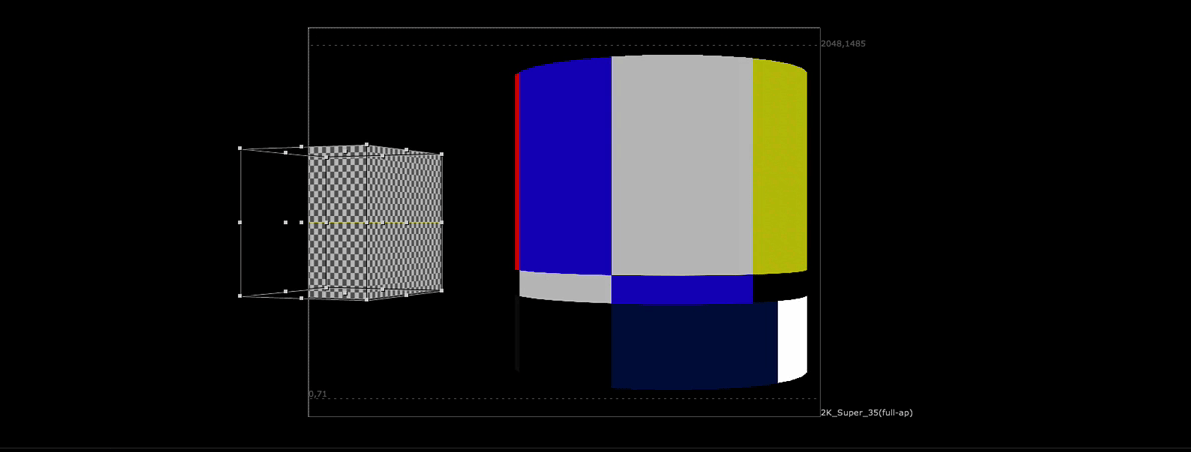
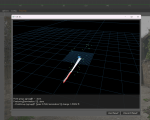
We test this adding a test cylinder model that we can manipulate in different forms
we can even add a texture to it
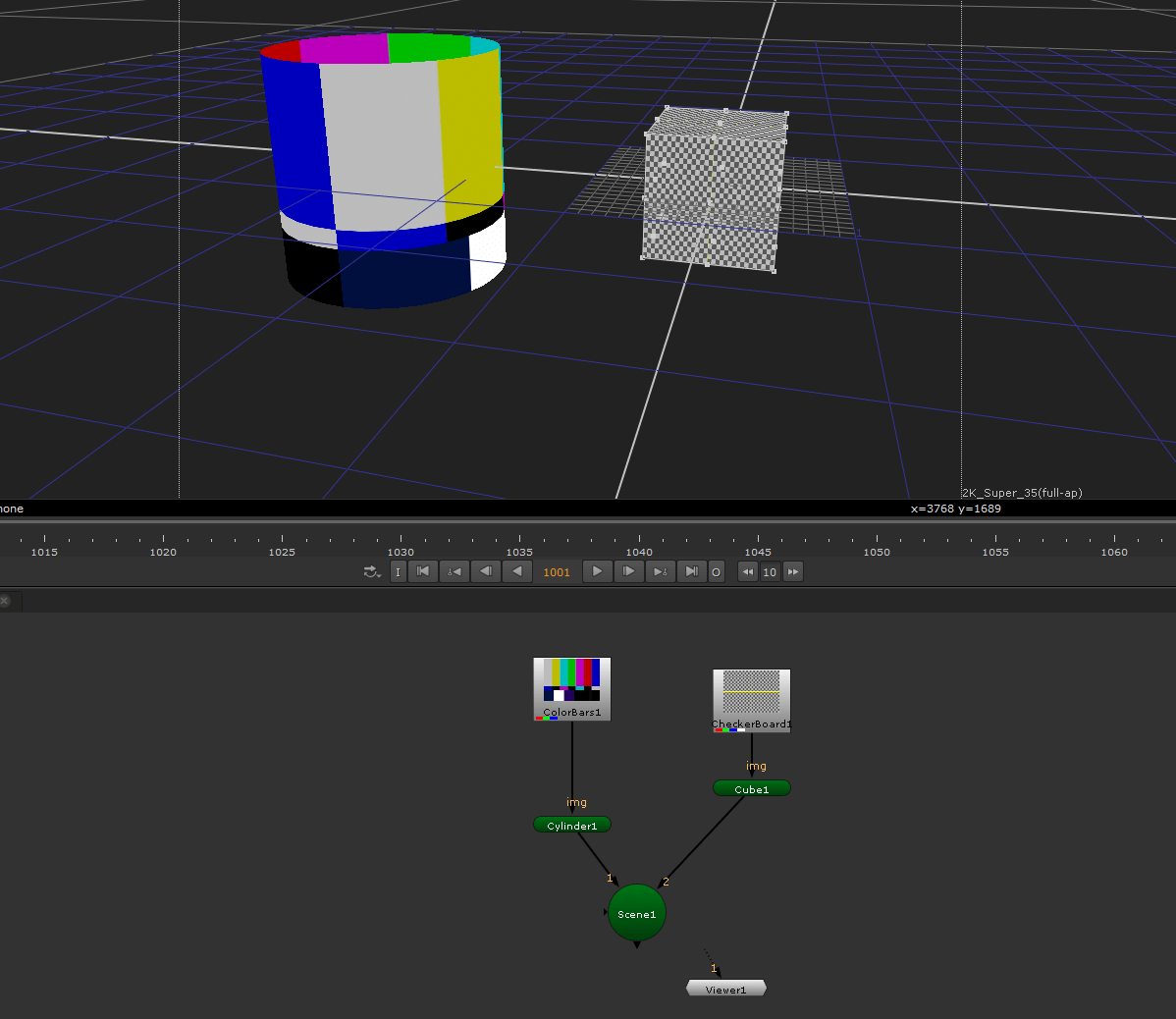
we add an scene merge to act as a merge for the scene and put another geometry object with a checker texture.
We also proceed to add a camera node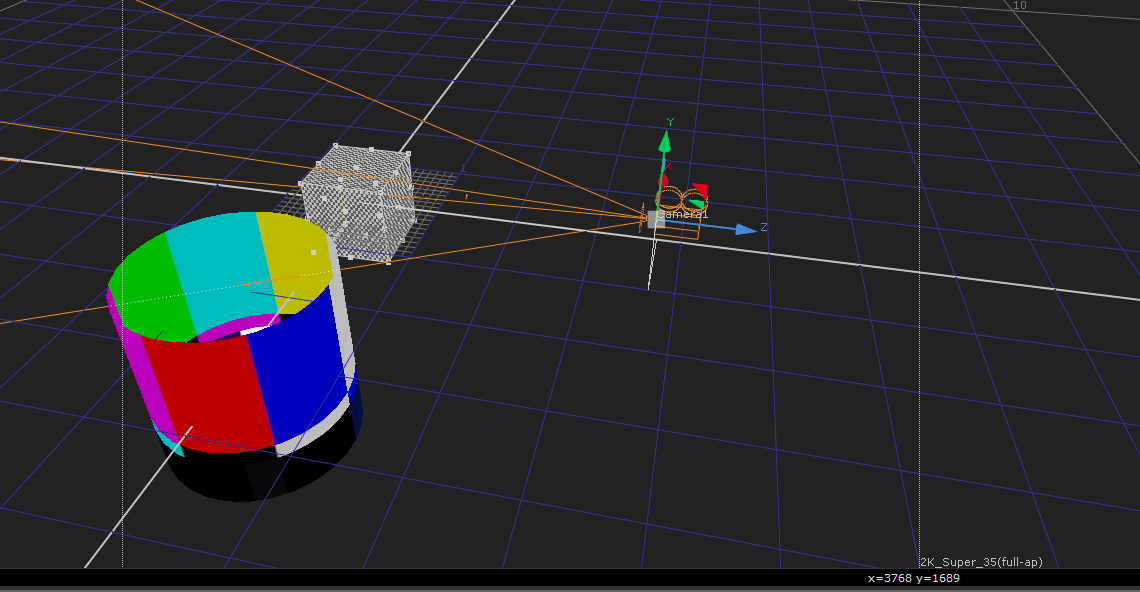
To finish with this exercise we are adding g a scanline render node so we can visualize our footage in a 2D view.
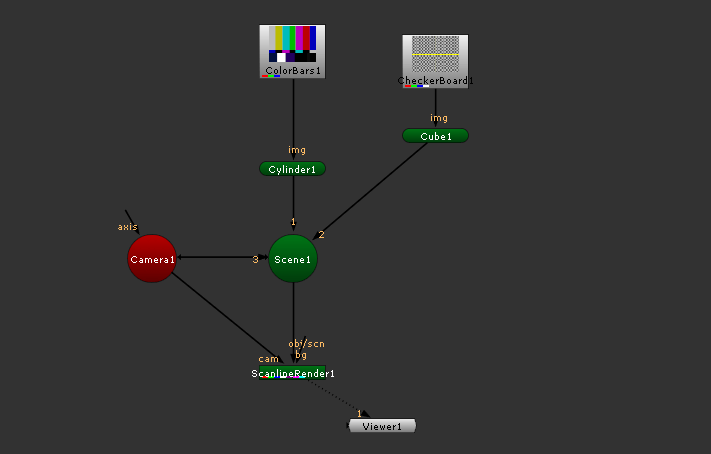
after keyframing our camera we get this:
Now we have a different task
Camera Projection
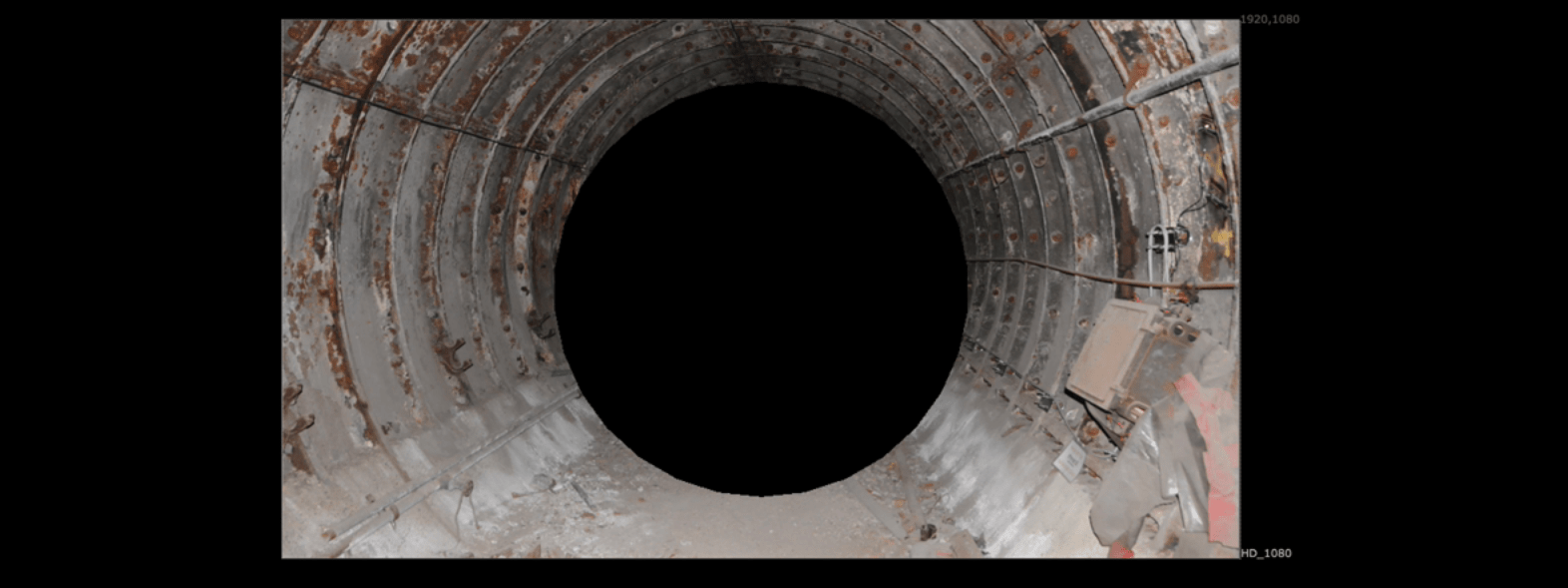
we are going create a camera that moves through a tunnel:
this is our image:
We change our view to 3D, and add a camera.
and we apply the image to an object.
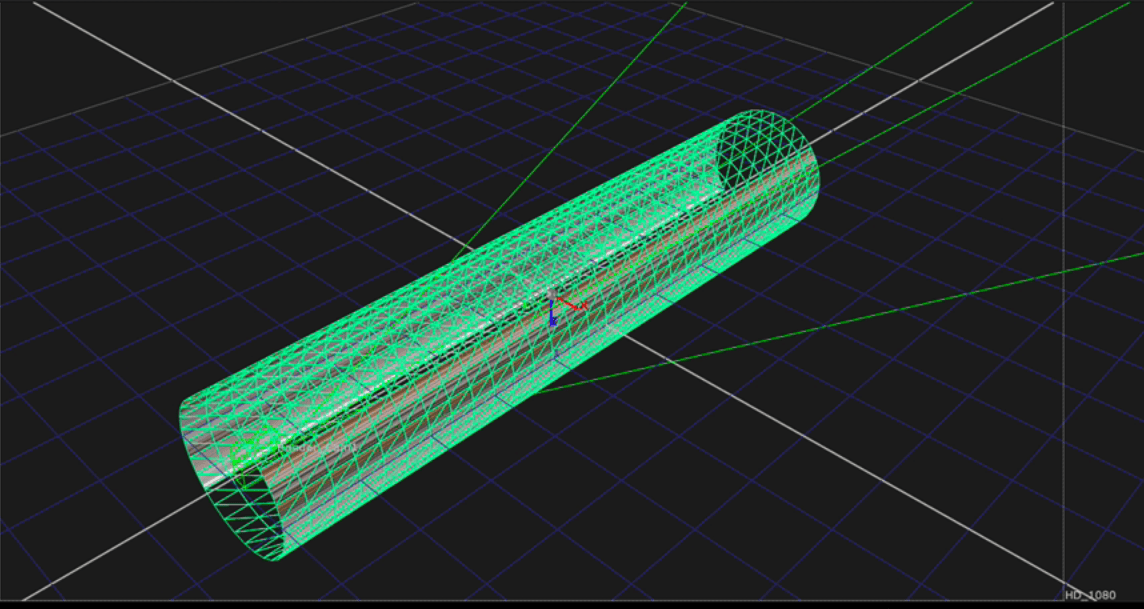
we then scale up our cylinder.
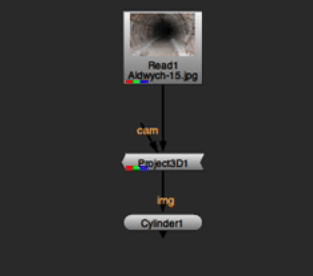
We add a project cam node so the image is projected into the cylinder.
so it looks like this in 2D view
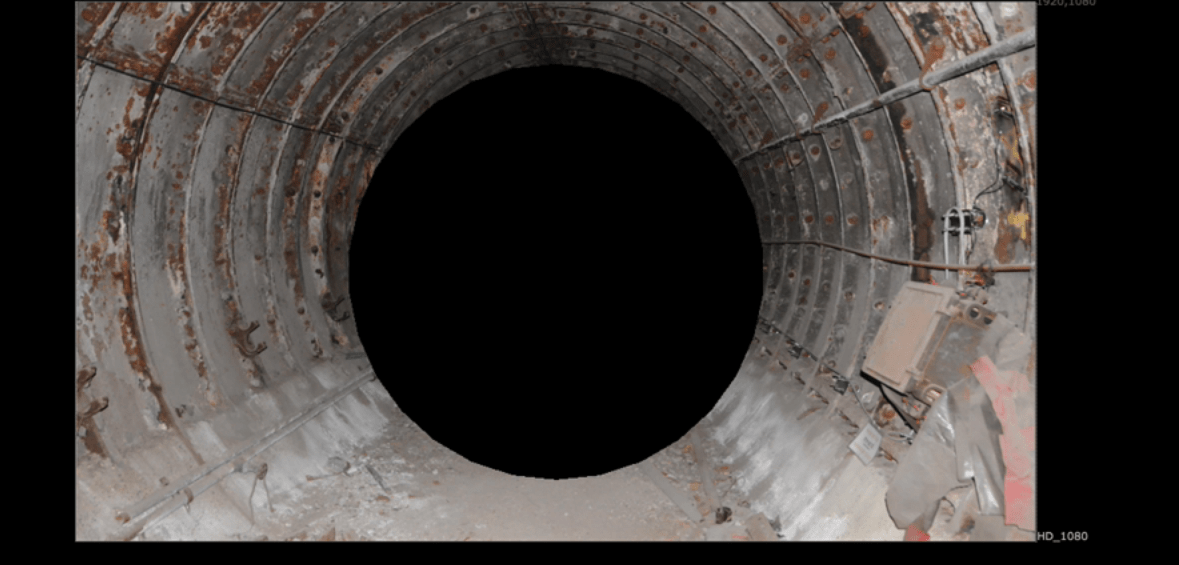
now if we adjust the cam projection, we give the sensation to go thought the tunnel.
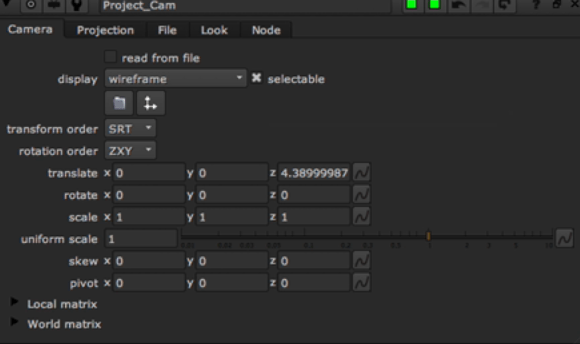
We head now to the last exercise for the week :
We are going to create a cell using the images provided:
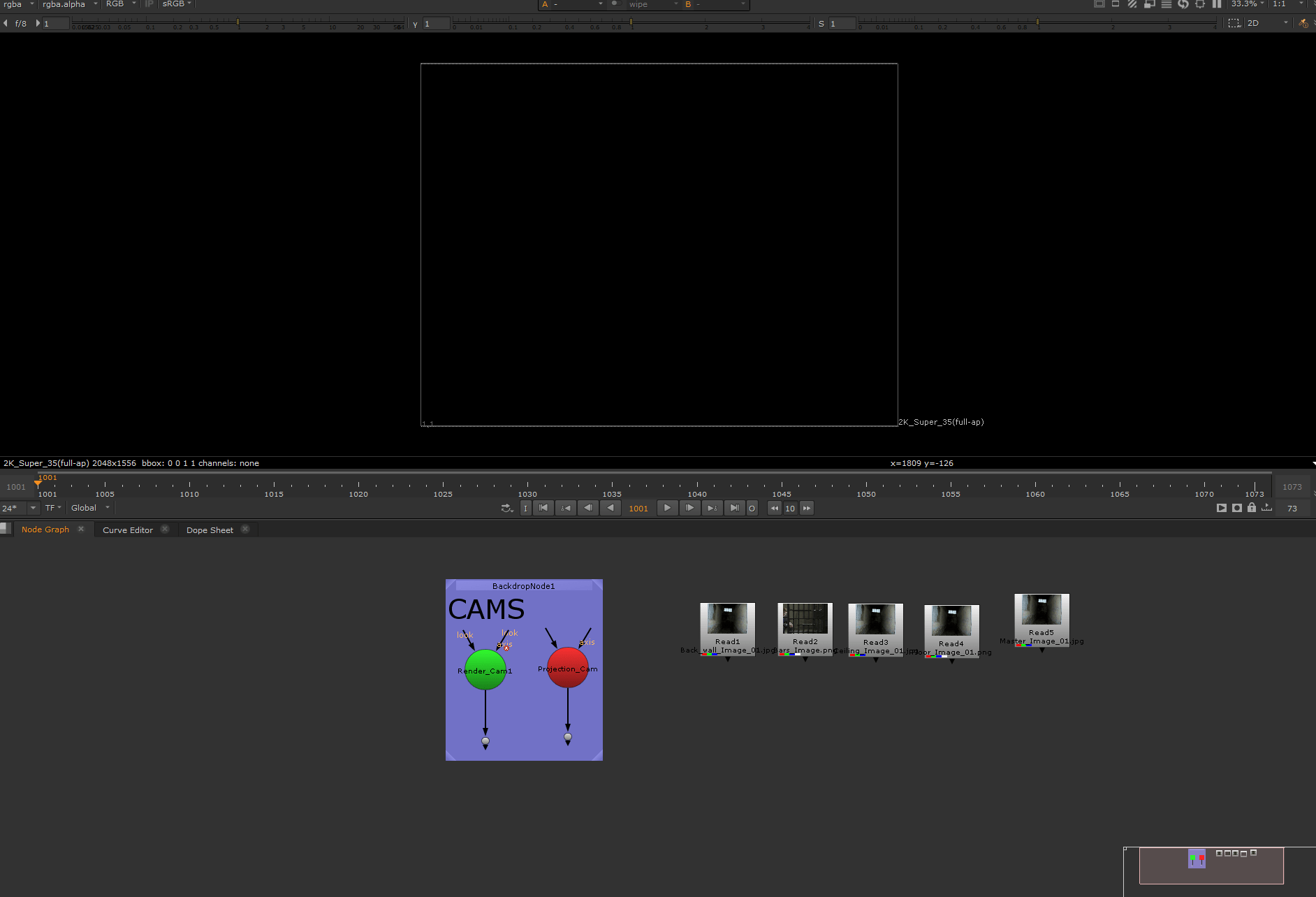
first we are going to roto each individual image:
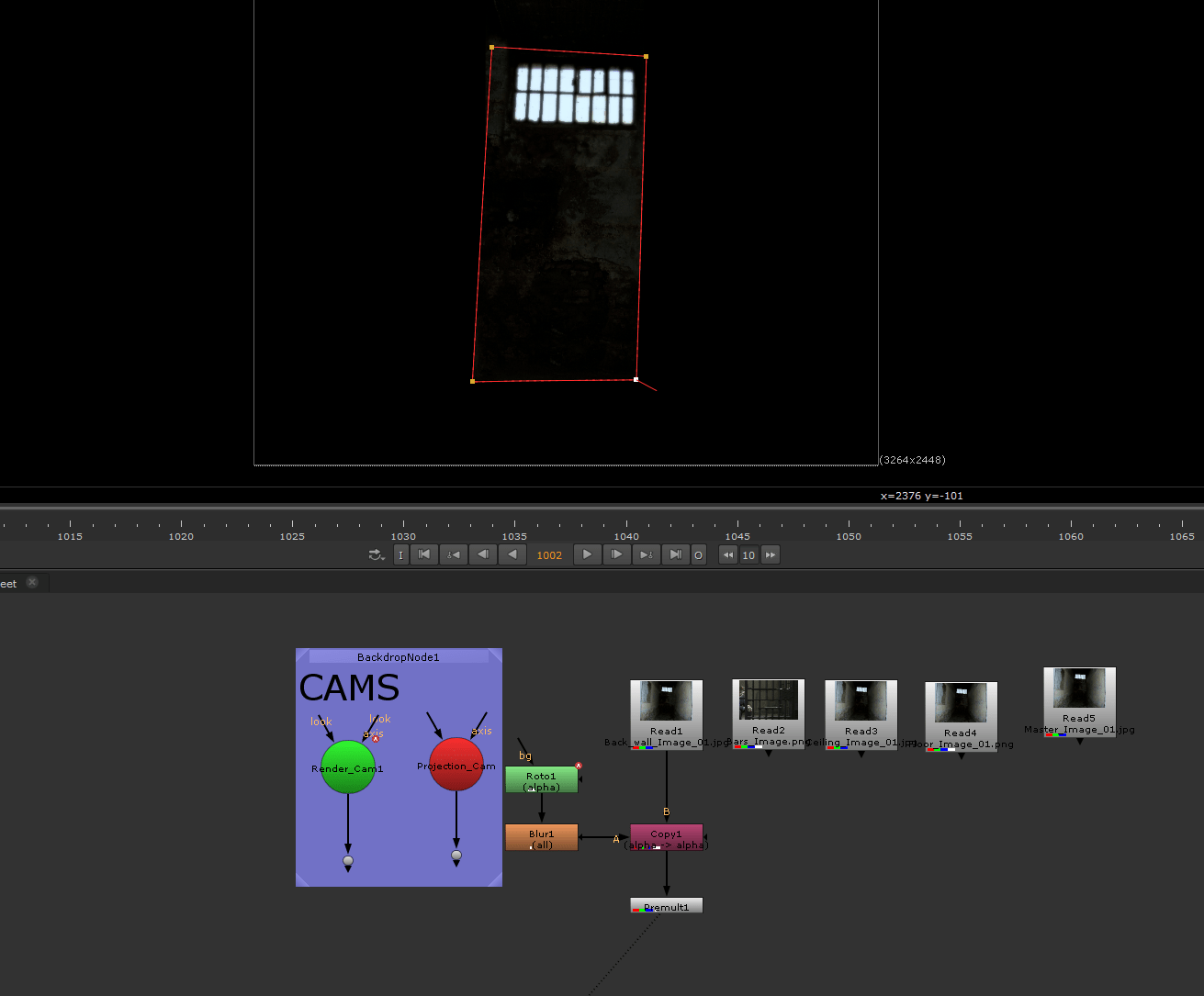
now we repeat this process with all the other images:
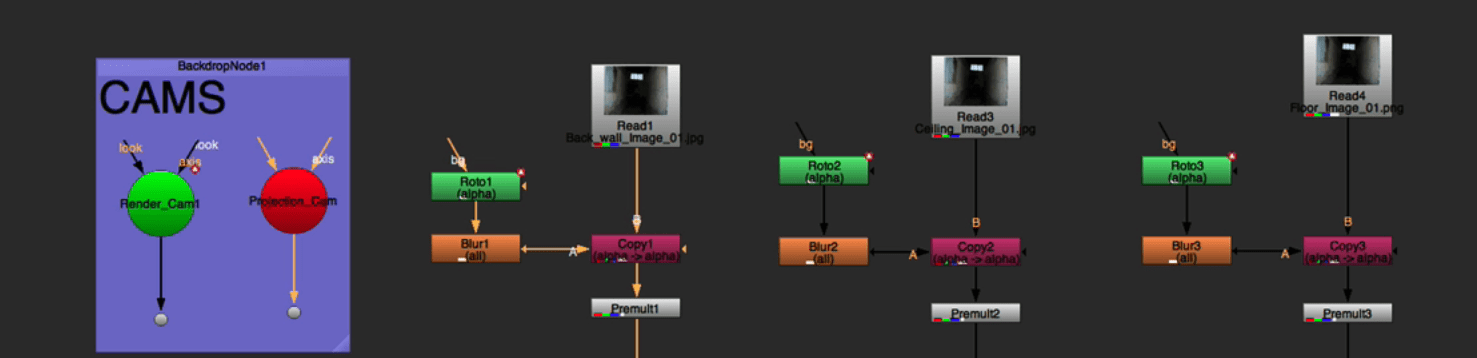
after cutting all the elements for the room we are going to project to add a projection card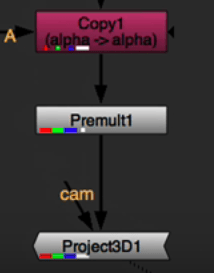
we repeat the process to all the images again:

after adding the card and adding the scanline render, we adjust all the pieces of the room.
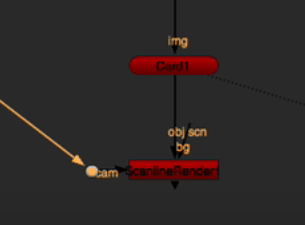
We manually adjust the environment:
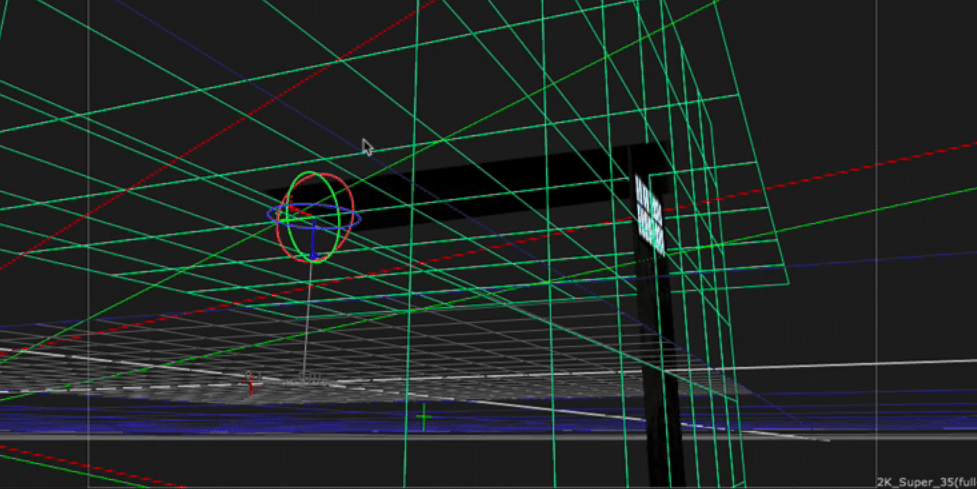
for it to look like this 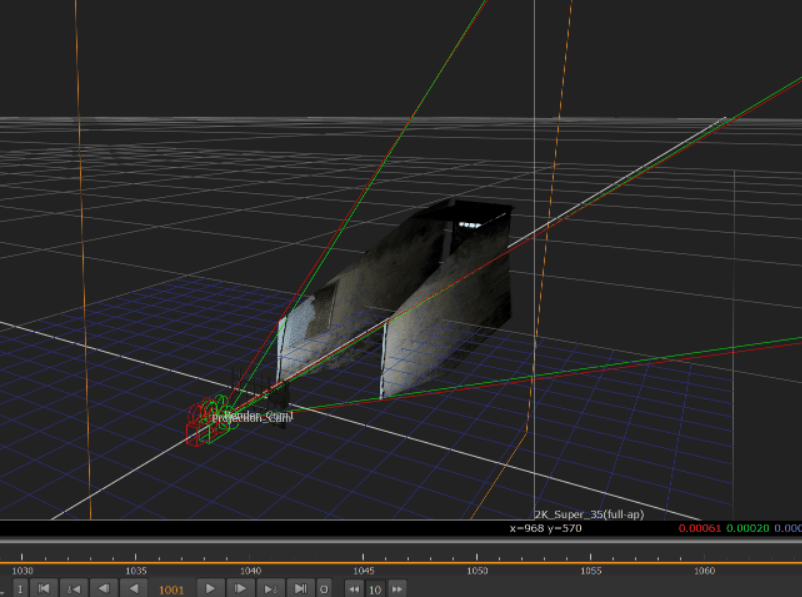
After merging all the cards and do little adjustments, this is our final result:
End of week 1
Week 2: Nuke 3d Tracking
For this week I was given a scene that I needed to track, so lets start:
So we open up the project:
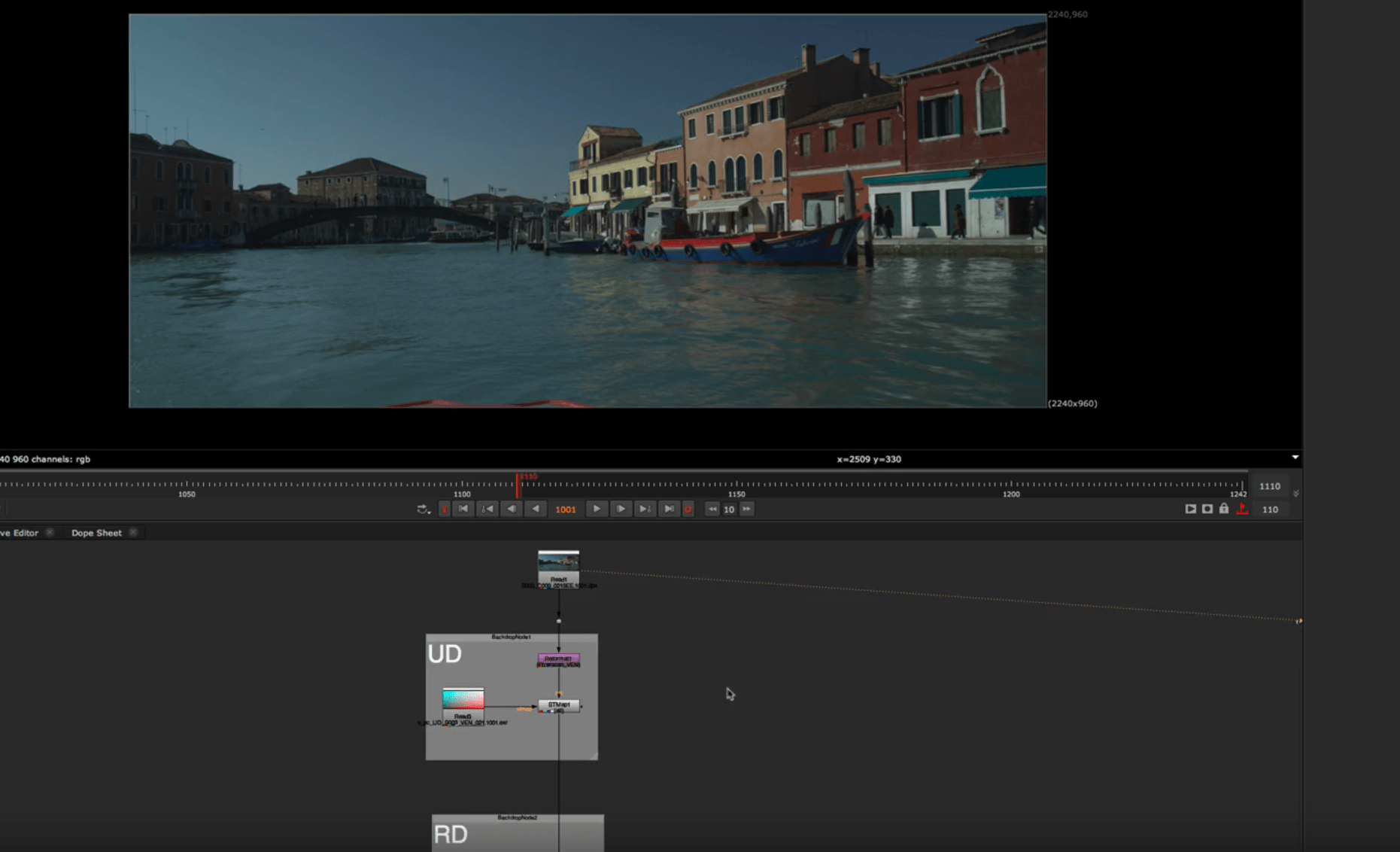
Inside this project we already have an UD and RD nodes
the first thing we are going to do is track the scene, rooting out the water area so we don’t have a problem with it, and we track the main subjects in this case the buildings.
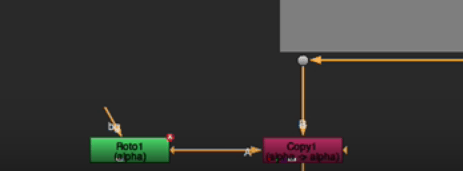
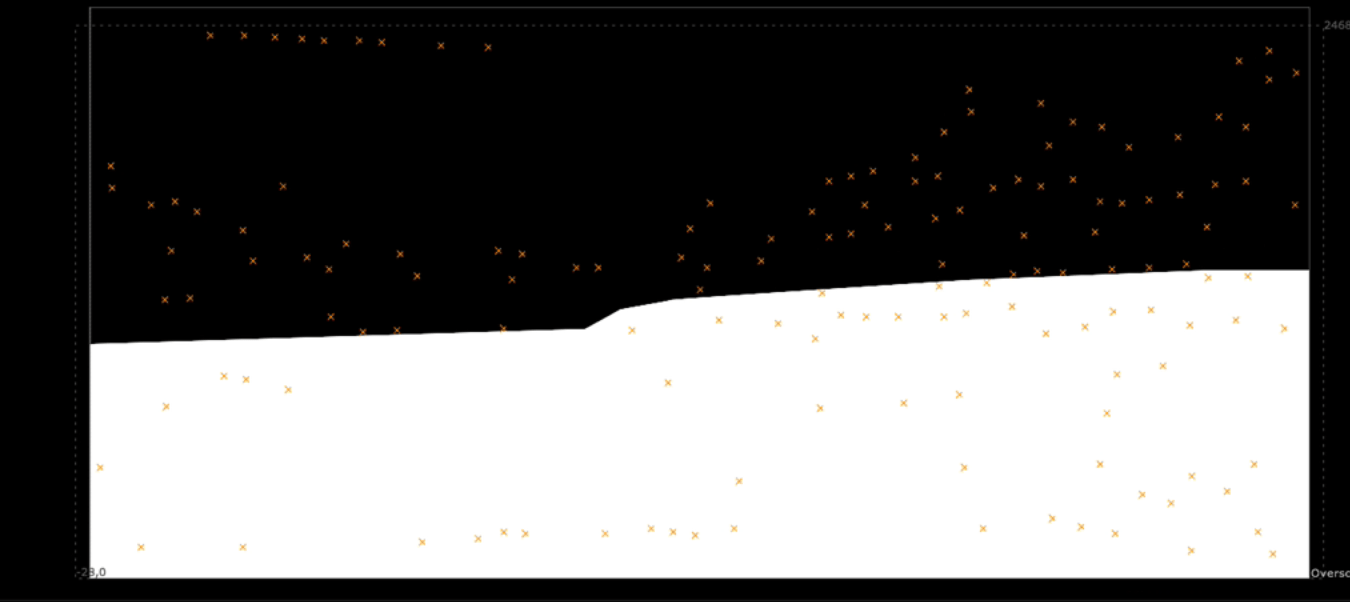
we change our source to alpha so it uses the roto that we selected.
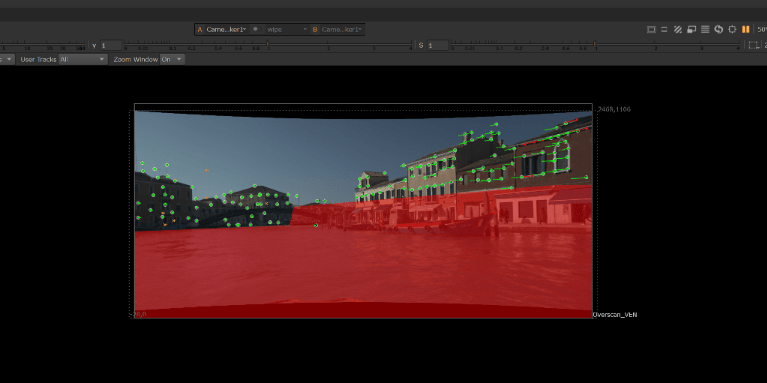
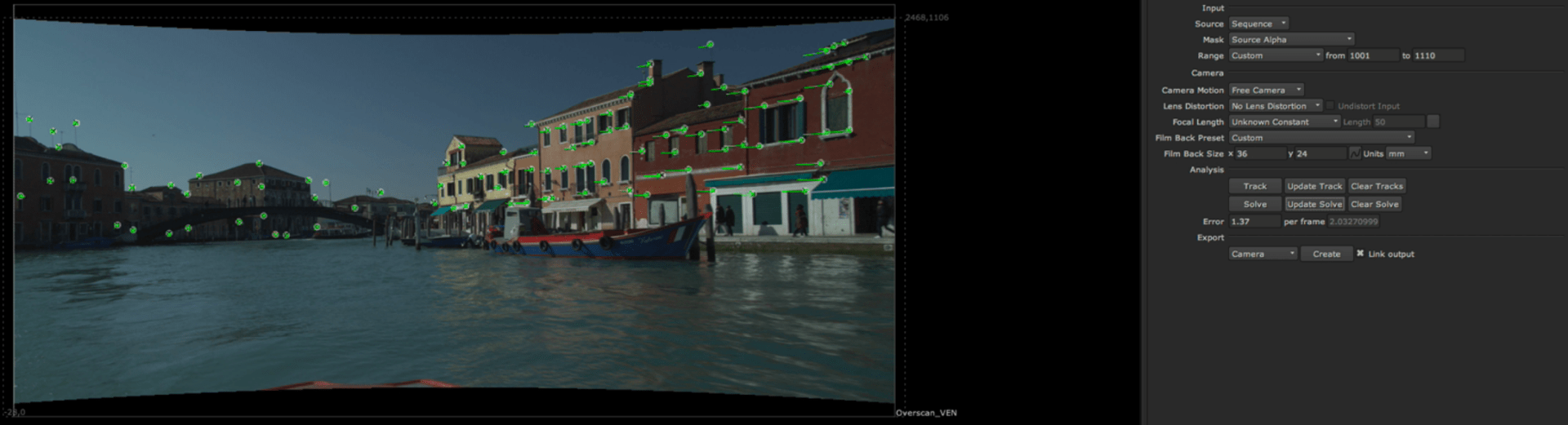
and now we only have the trackers on the buildings
We are now adding a camera to the script.
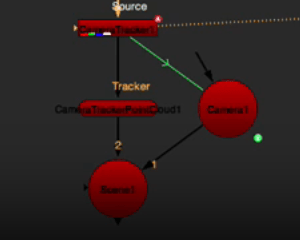
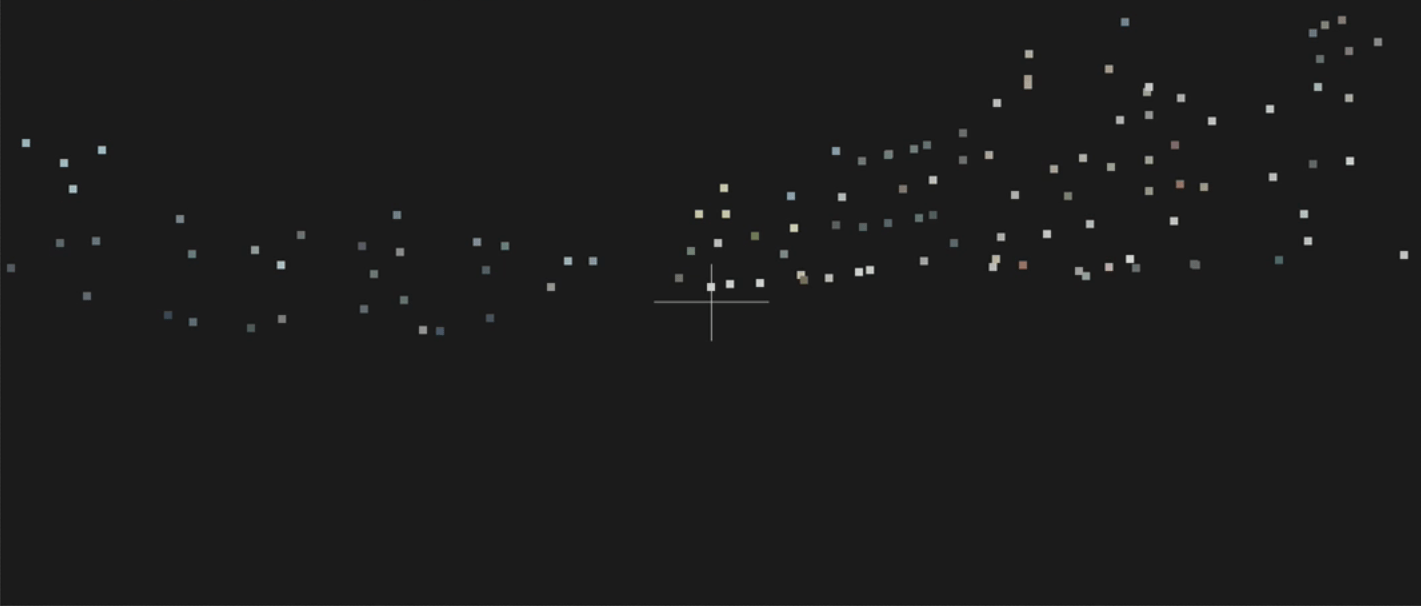
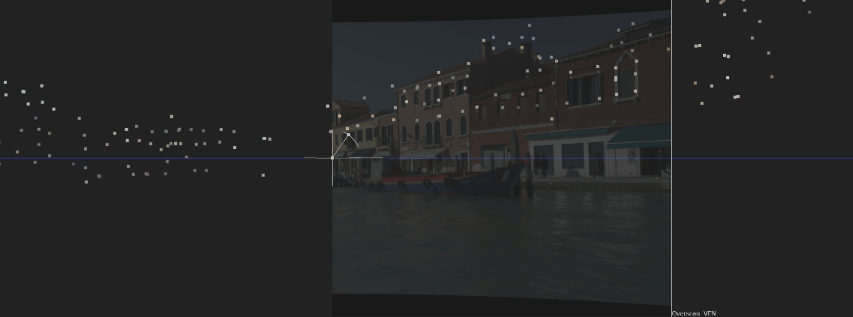
We now have a cloud point
Next we select two points on the scene and add a card
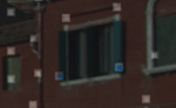
And we put the card to line it up with the cloud point and scale it down.
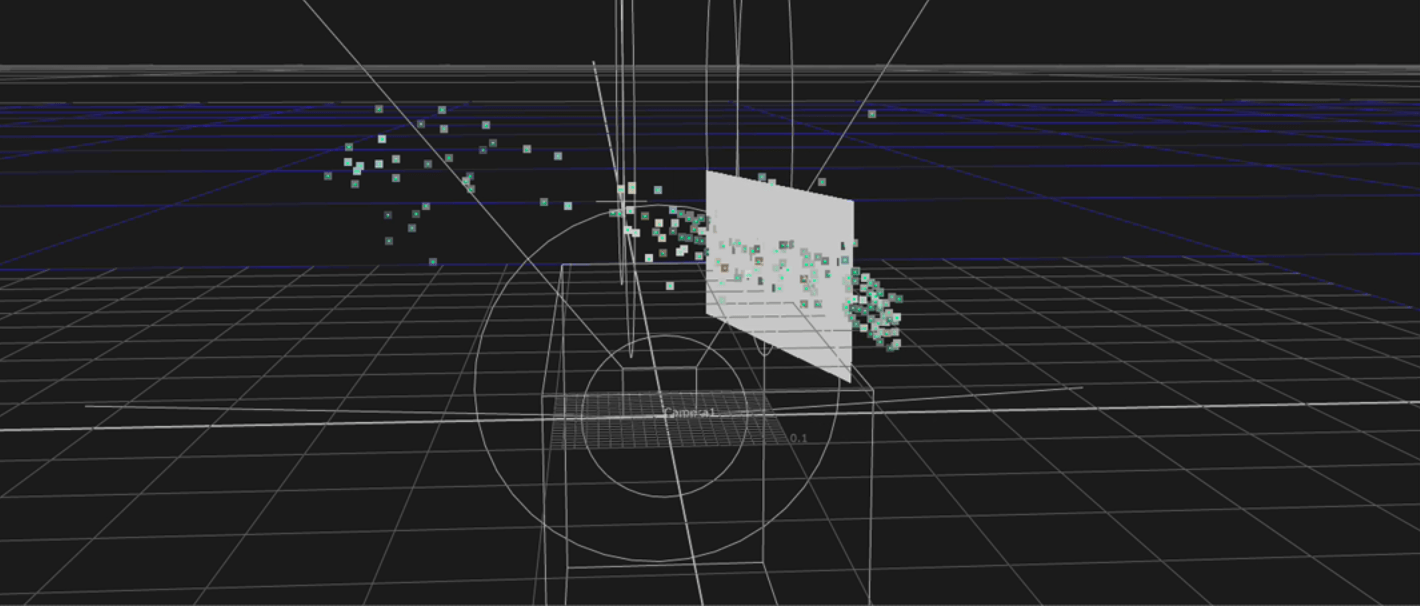
we now add a scene node and connect it to an scanline render node and add a checker board node to our card.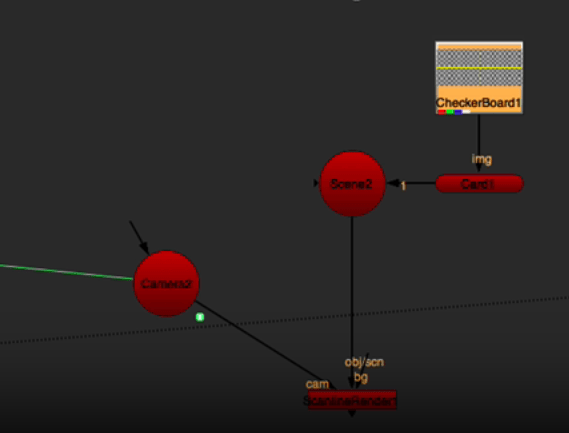
We get this:
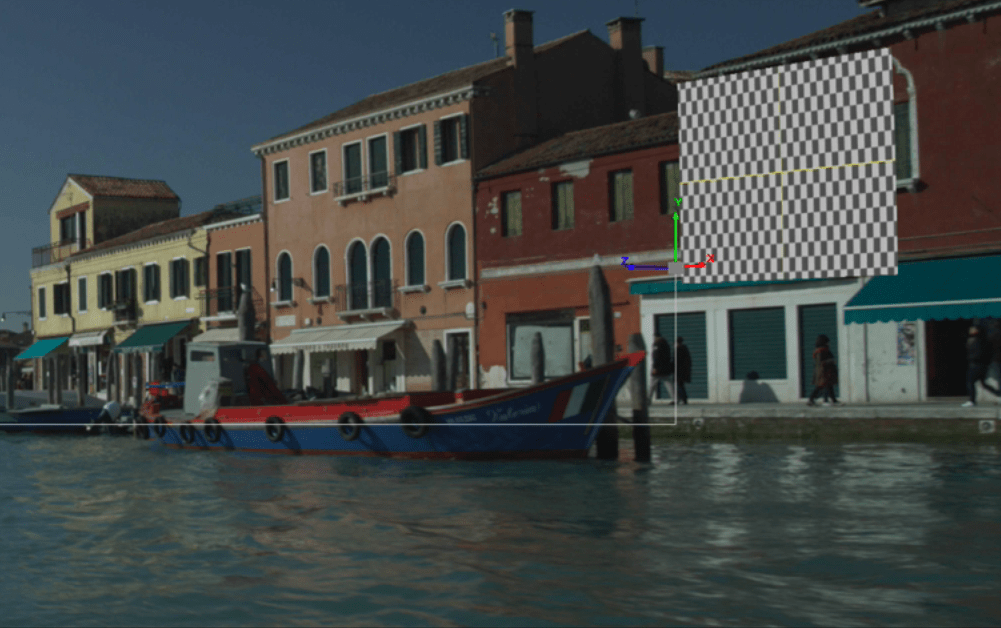
This card should be on that wall trough the whole scene.
Finally I am going to put a roto to paint and add a patch to the window on the wall.
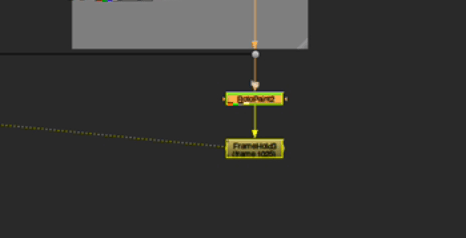
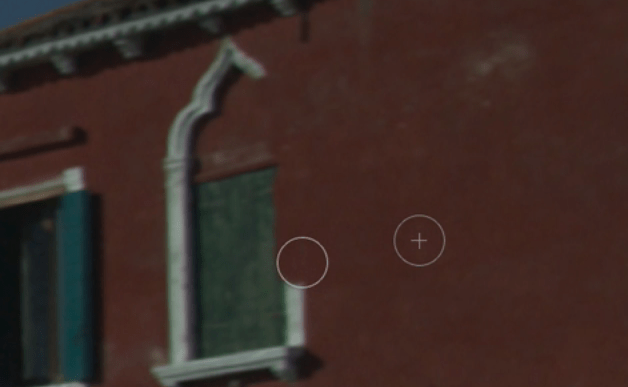
now that we have our patch we are going to add another roto and a copy node to roto out the original window.
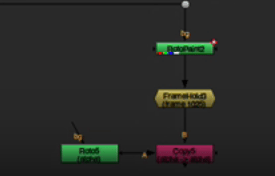
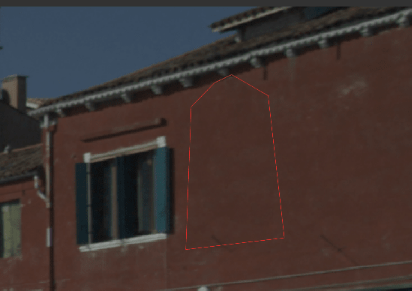
And with our patch, we now just need to apply it.
For that we are adding a projection node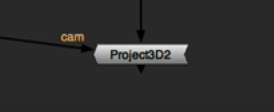
we are going to use the same method we used with the first patch and align our new card with the cloud point once again.
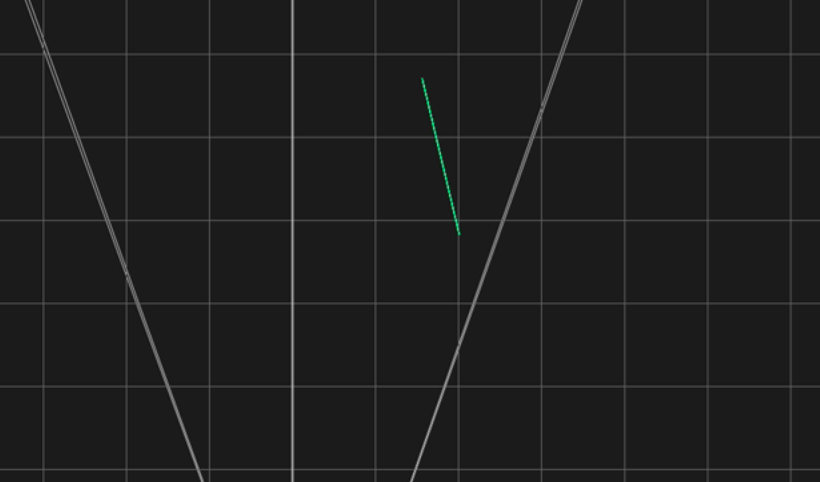
so to see the final result we have to add a scanline render node to our camera.
so our card is being projected
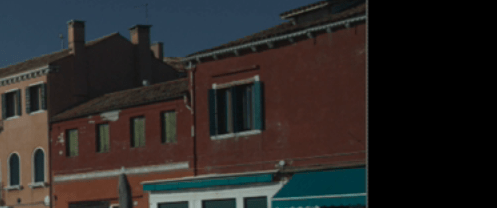
This is the final result:
End of week 2
Week 3 and week 4: 3DE Freemove and nodal 3DE
This week we will be learning how to use a software called 3DEqualizer which is a leading, match move software used in film and television to precisely track 2D and 3D motion, allowing seamless integration of CGI elements into live-action footage.
Before we start with the fist task we are going to set up some shortcuts to our keyboard so our navigation through the UI of the software is easier.
This is the layout provided and the one, we are going to use.
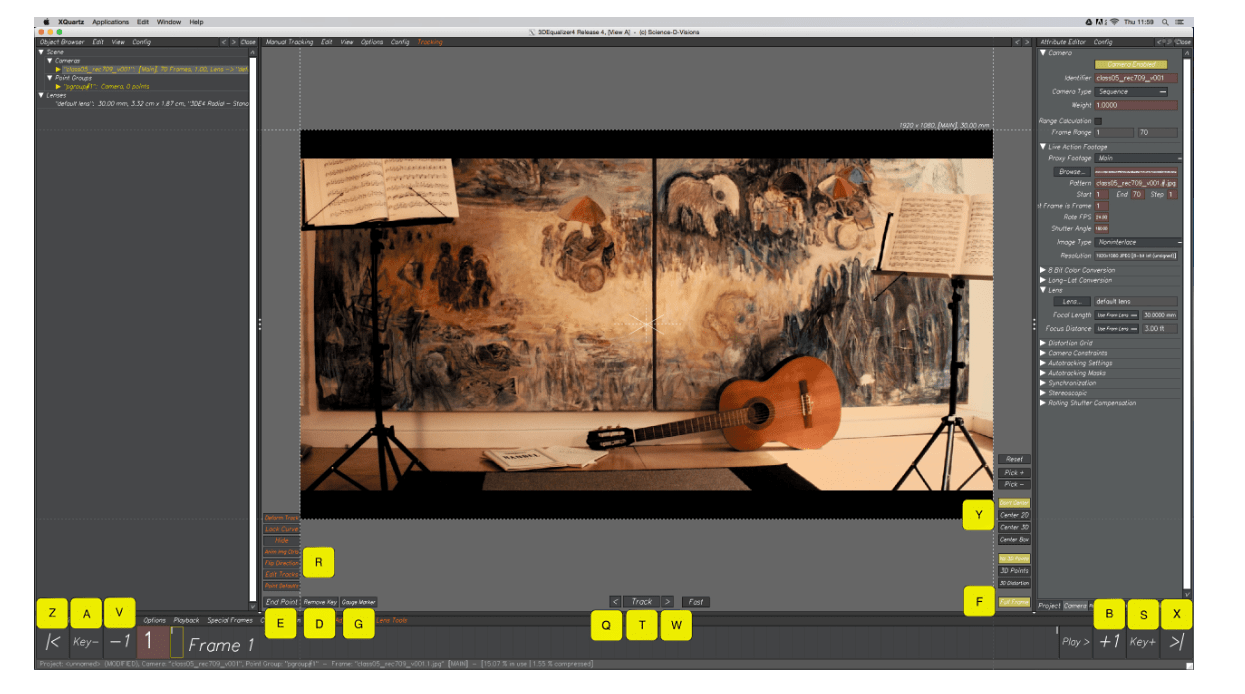
This is the first impression of the software:
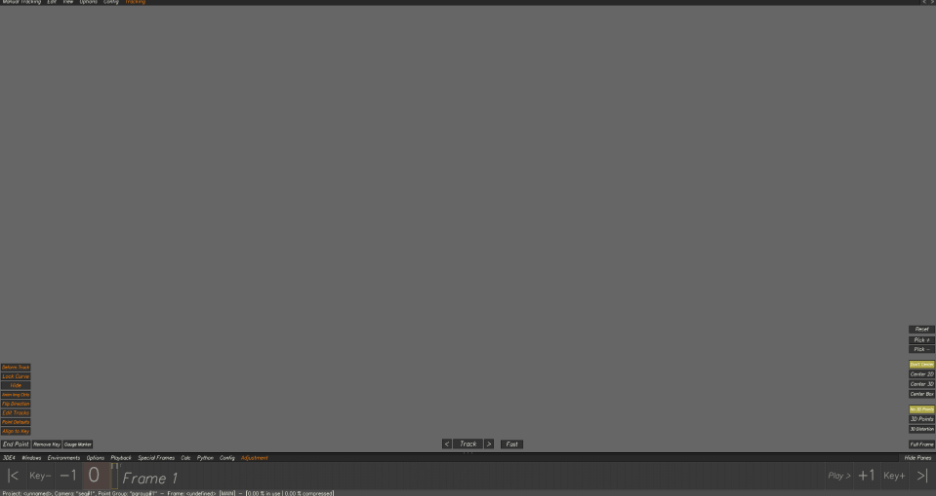
To as I said before we are going to set up our shortcuts before we start with the task:
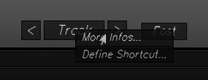
To do this we simple right click on the function we want the shortcut to and select the “define shortcut option”.
and on the menu, we select which key to assign:
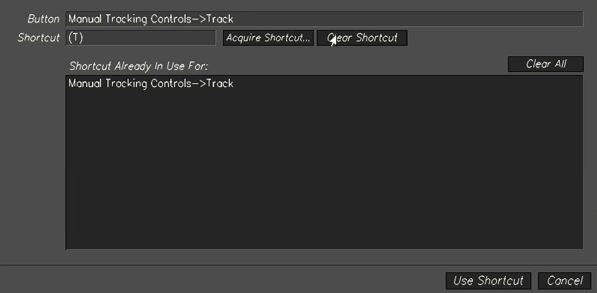
We repeat this to every function we want a shortcut to…
task 1
We bring in our sequence:

we doble click on the sequence and the we hit the browse button.
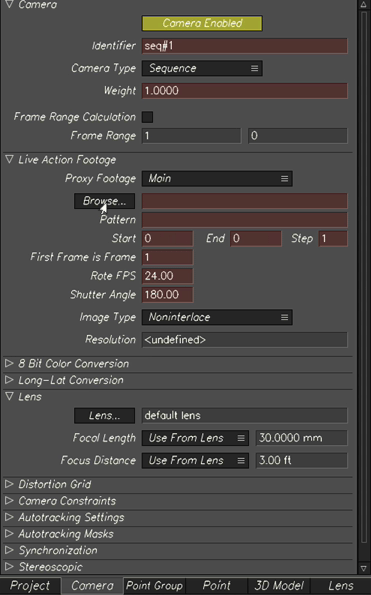
We are going to use the image sequence that we got provided with.
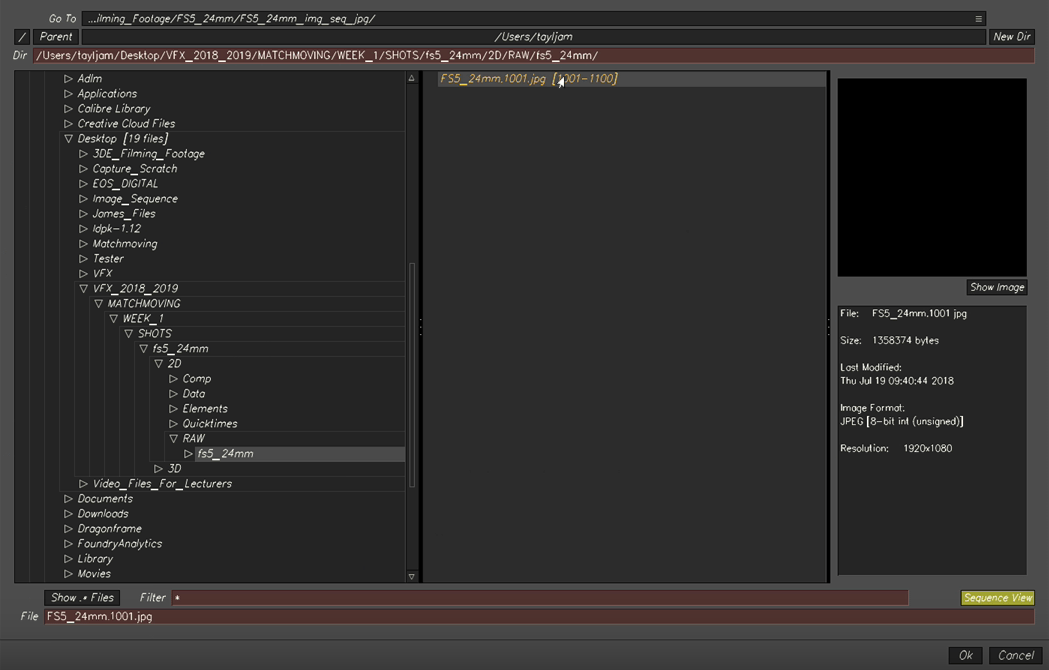
And we have our first sequence imported into 3DE:
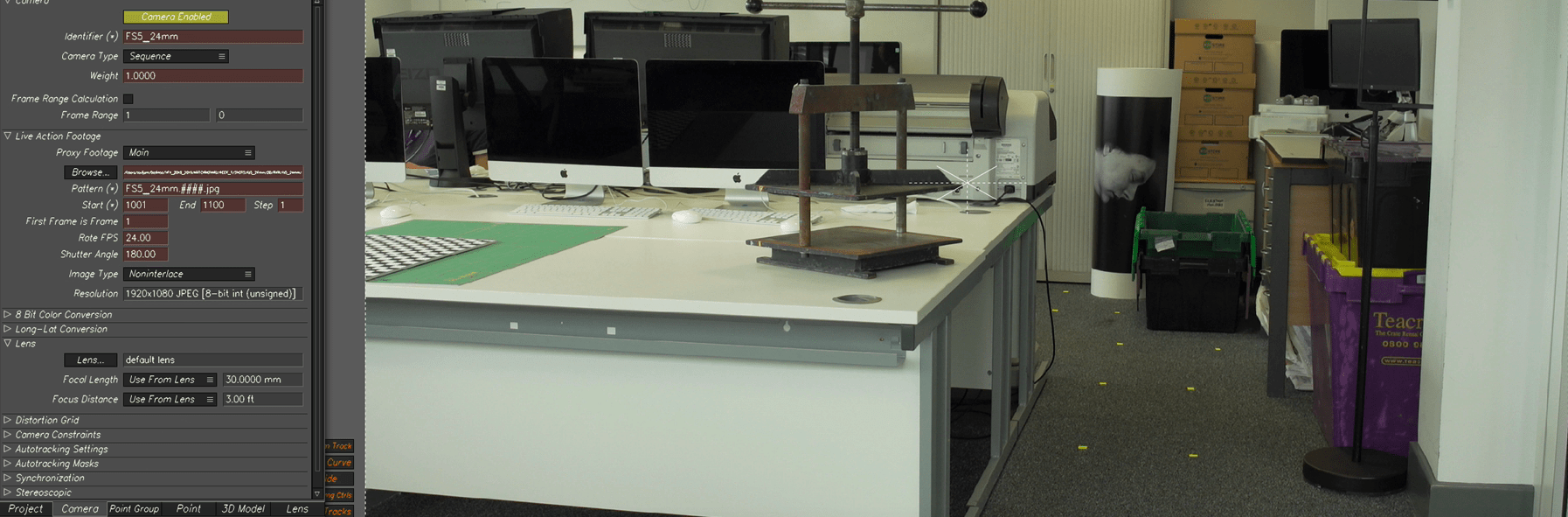
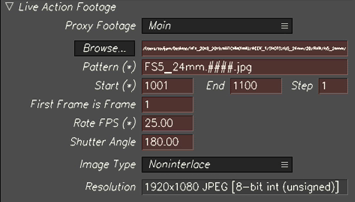
next step is adjust some option in the panel such as change the frame rate and start frame and end frame so they are correct.
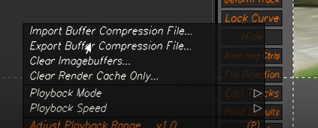
The video is quite slow the first time we play it, but we can solve that problem by exporting the buffer compression file on the playback panel.
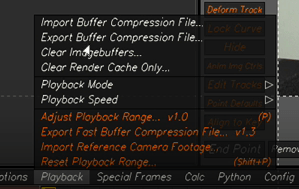
Now our footage should be smoother.
Now that our scene is ready where are going to track it:
To start with the tracking, we are going to focus on a clear pattern on the scene, in this case is a symbol on the white board.
To put a tracker we CTRL click and we press G to gauge the marker.
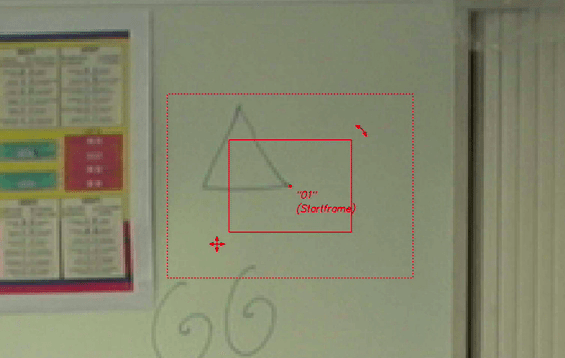
once we gauge it we can track by hitting the track button or shortcut.
We can follow the marker so it is easier to look at what we are tracking by selecting the cage that indicates “Center 2D”

Is we want to deselect the current marker so it doesn’t move anywhere, we hold down ALT and click anywhere else.
From here we are going to select different areas on the scene and track them.
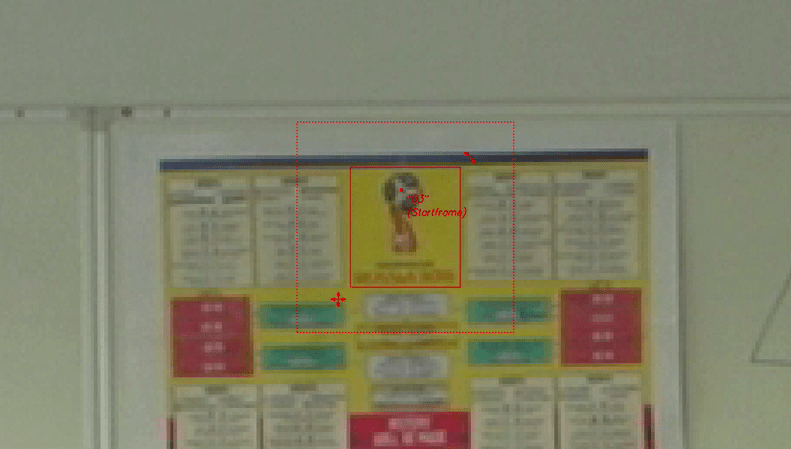
We can track backwards or forward.
we can also track objects that go outside the scene.
We are going to take this monitor as an example
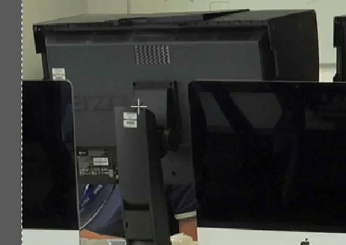
All we need to do is put a marker as usual
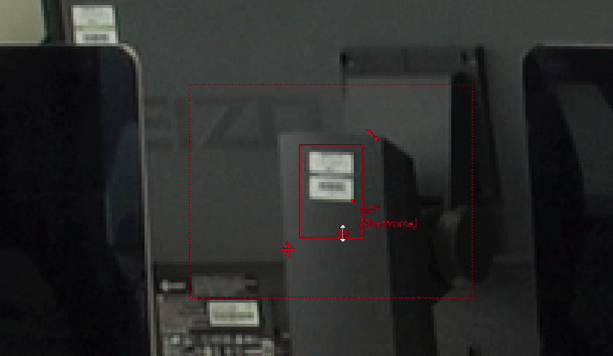
and track it up to the point that the subject start to move outside the scene.
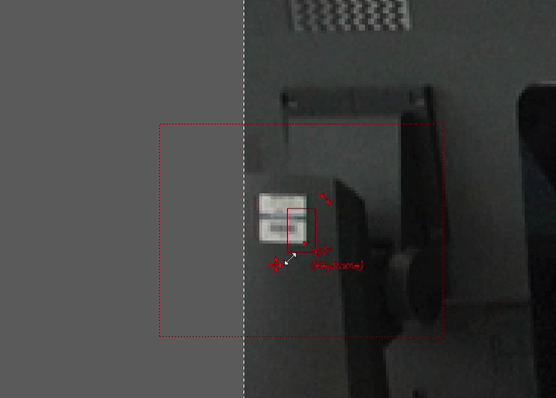
and start manually adjusting frame by frame the marker box.
Well now we know how to track, but we are going to learn a bit about the deviation browser.
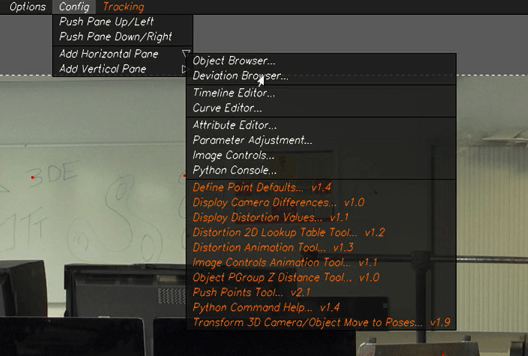
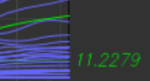
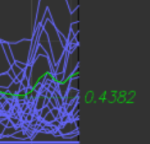
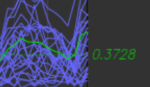
We will get this graph.

If we hold down ALT+C , we see a points cloud of all the markers that are whiting our scene.
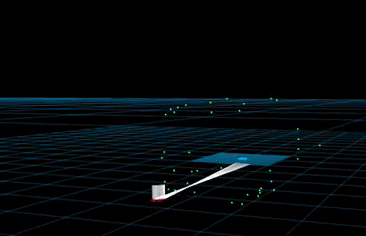
we are going to use this.
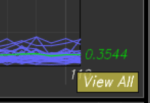
if we view all our points in the graphs we are looking at this.

we use this graph to correct our markers when needed.
after adjusting the markers, we can hold down ALT+C again and recalculate the graph, the objective is that the average number of the graph is below 1.
There is a thing that is very important when tracking things and that is making sure the information on the lens parameters is correct.
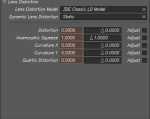
To correct this parameters we click on the lends tab.

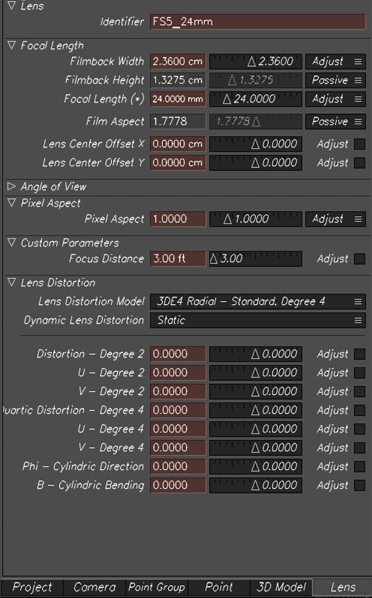
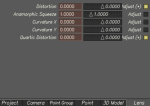
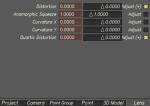
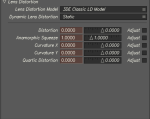
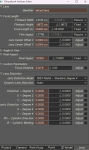
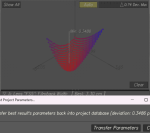
we will get a window like this.
The more accurate the lends information is the less deviation we will have on our deviation graph.
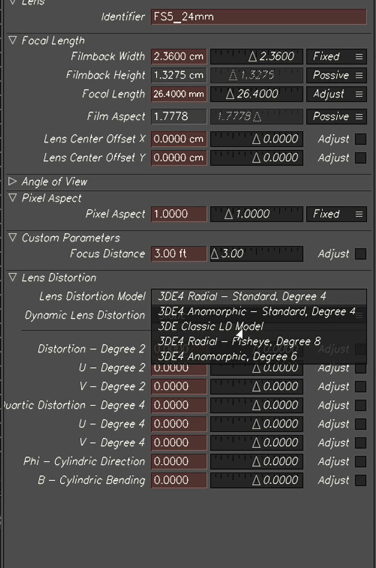
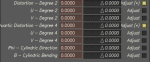
we can change different parameters to improve this, in this case we are going to change the lends distortion.
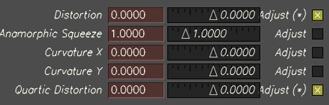 and the we are going to calculate the lends distortion on our image.
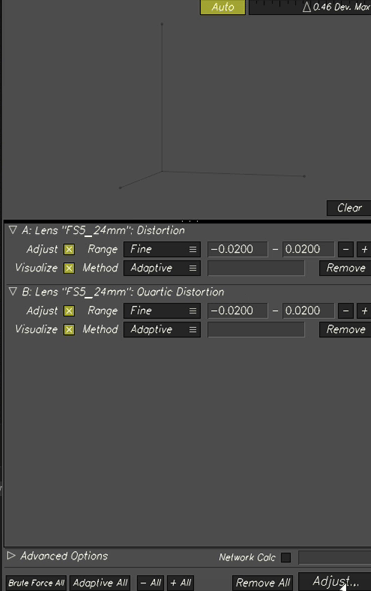
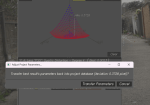
once done we are going to transfer the parameters.

and we have to do the same process to recalculate our deviation, which is hold up ALT+C and use the result
up to this point our deviation point has improved a lot.
Before adjustments:

After adjustments:

End of task 1
Task 2 from week 4
As the other task we start by importing the image sequence.
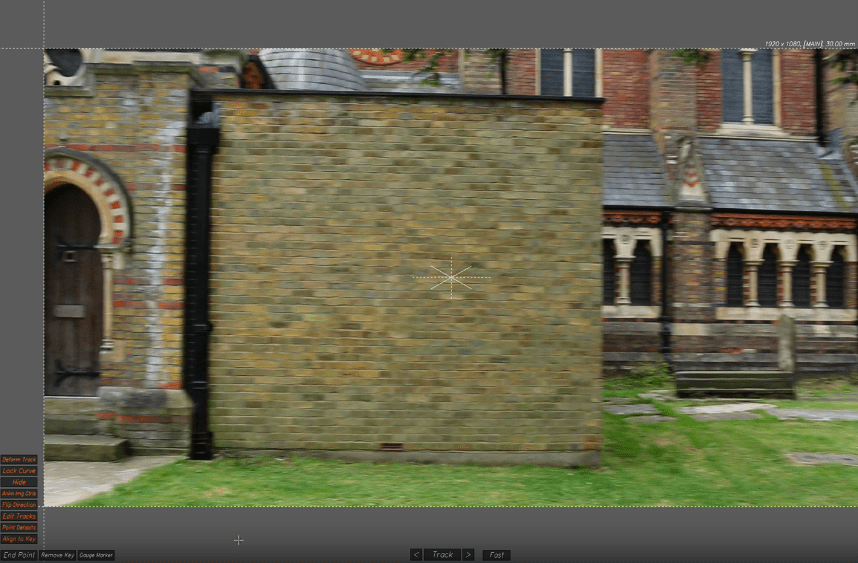
And to prepare it, we export the buffering compression, so it can play smoothy.
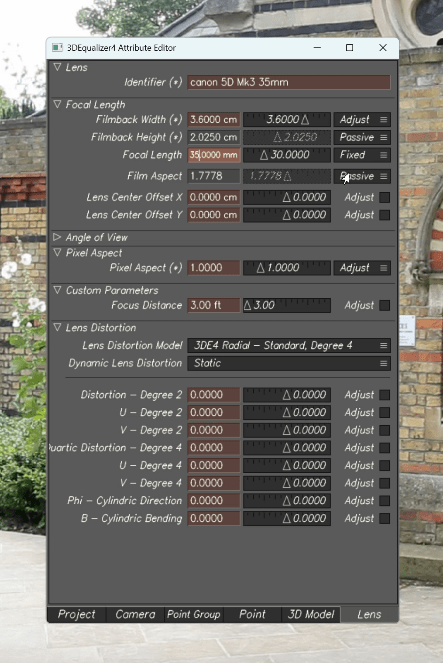
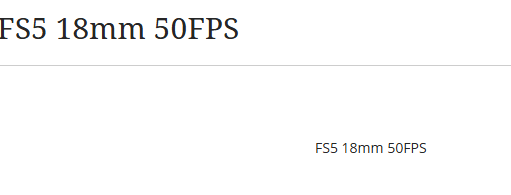
Now we are going to set our focal lens and sensor size, to find out this we use google to search for the information needed. and then apply it.
we will start by finding a master frame which in this case will be frame 78, where everything looks clear and we will be tracking backwards.
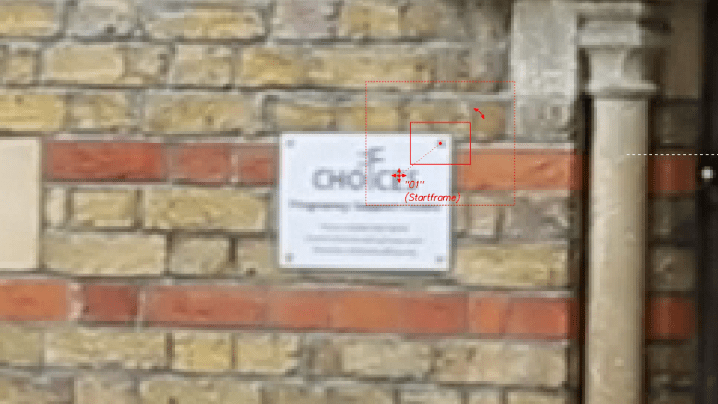
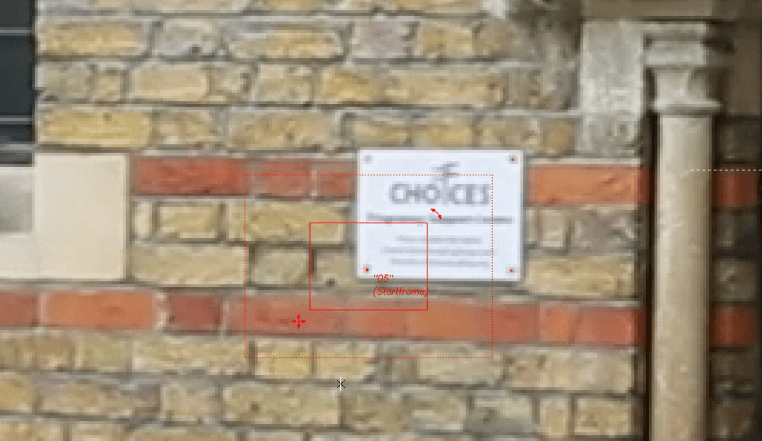
we start tracking this panel.
sometimes the tracker point moves, so in this cases we can track frame by frame to prevent this from happening.
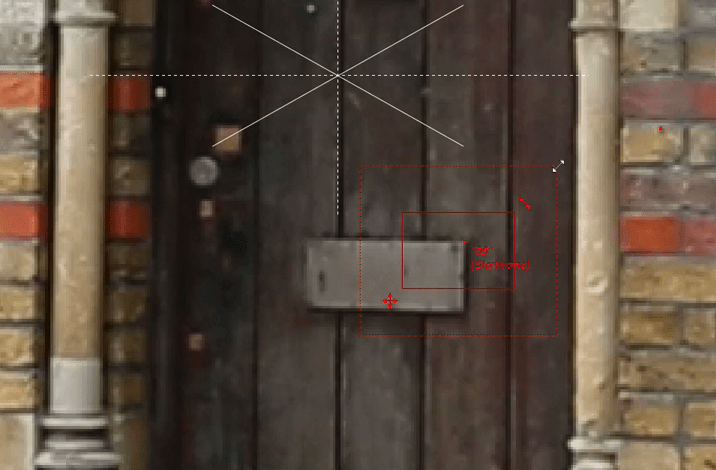
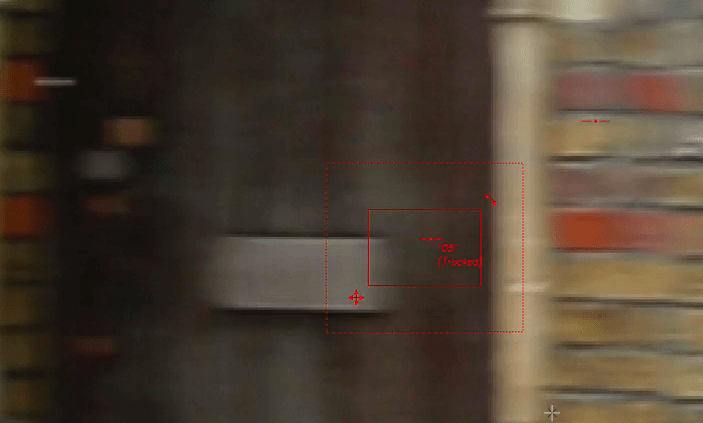
when this happens, we have to go back to a frame that is sharp and track frame by frame, making the tracking box bigger so it is easier for the mark to follow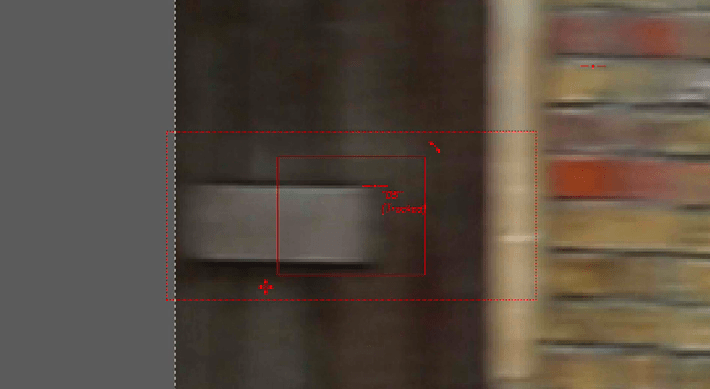
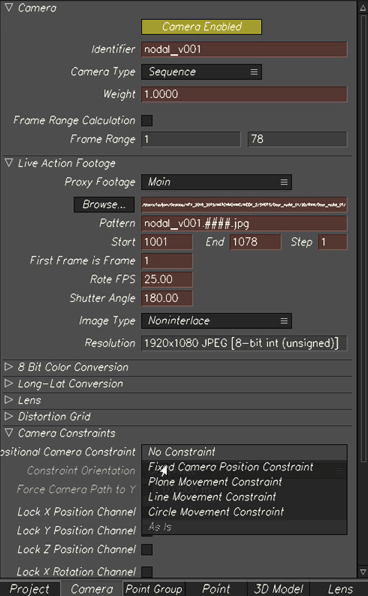
Now the difference between the week 3 task and this one, is that this is a nodal shot, shoot on a tripod.
So we must adjust this in the lenses properties.
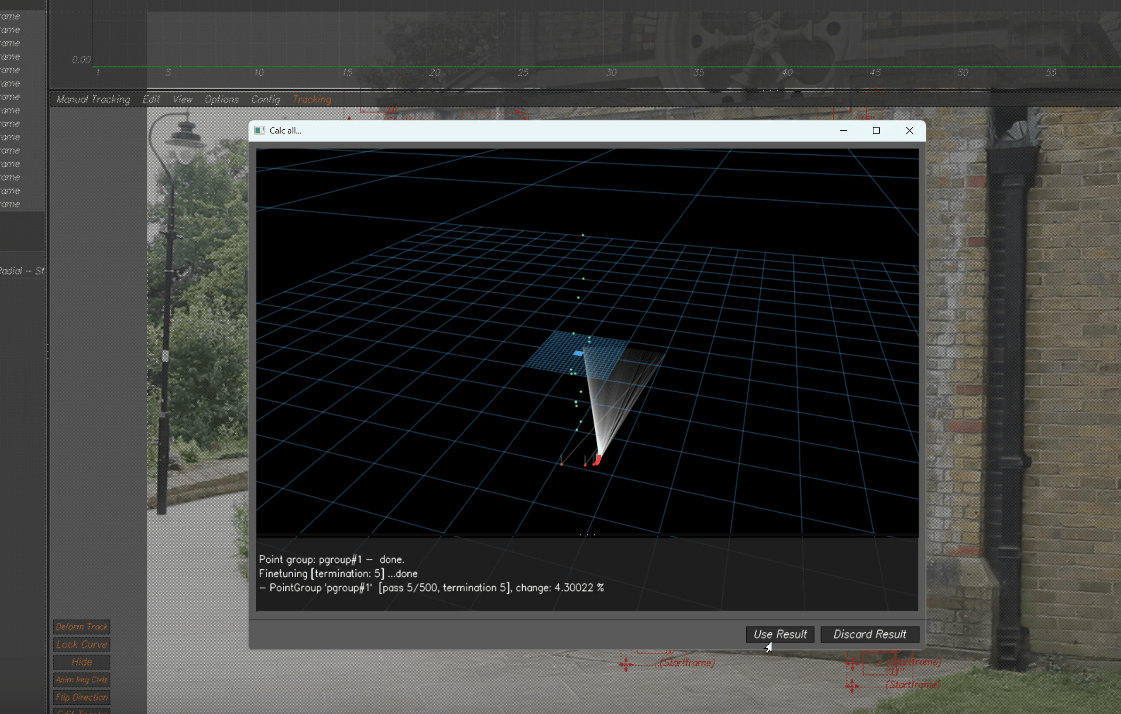
Now when we calculate with ALC+C we can see all this lines.
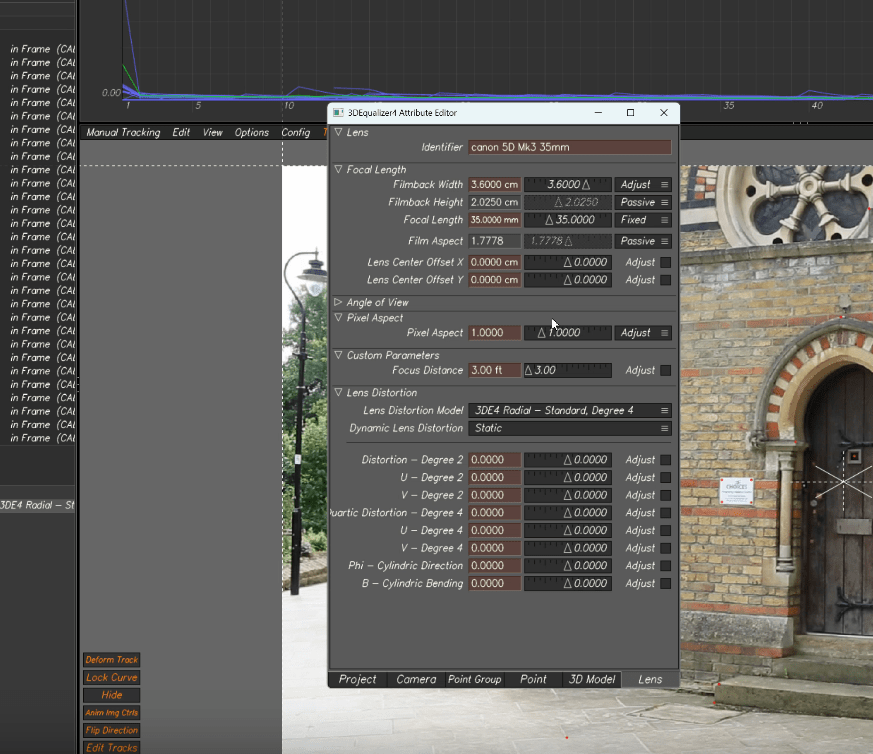
as we did with the other shoot we are going to correct the distortion and focal length, for a better deviation.
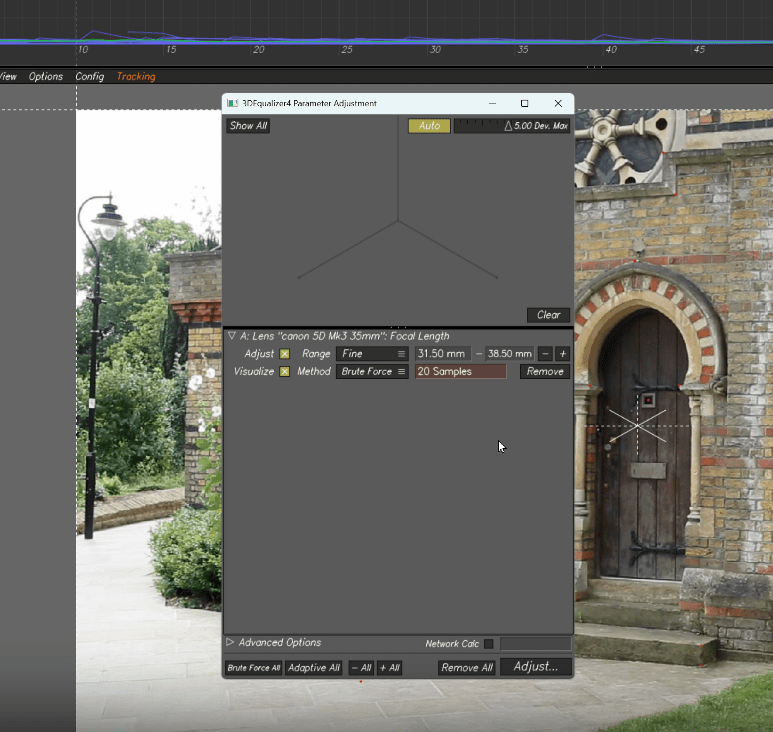
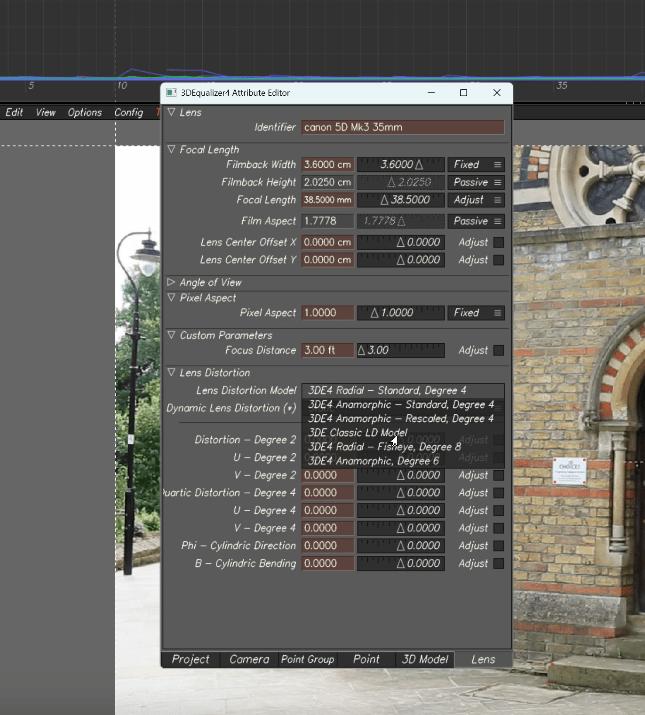
So our deviation graph is better, in my case stills a little off.

This is how I did in class:
End of week 4
Week 5: 3DE Freeflow and nuke
Following last week session we are going to bake the scene a export it ready for nuke.
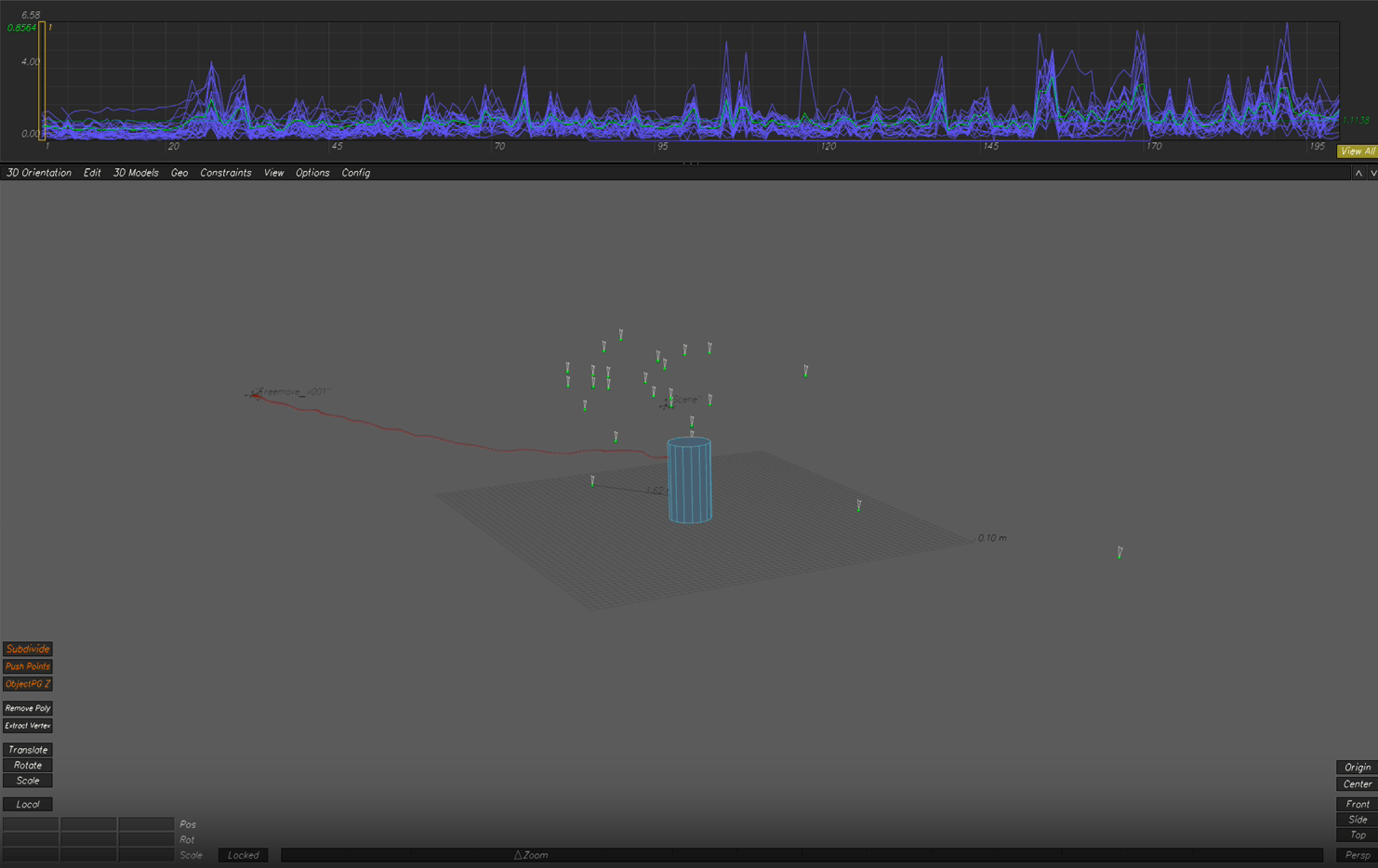
First of all we save our project just in case.
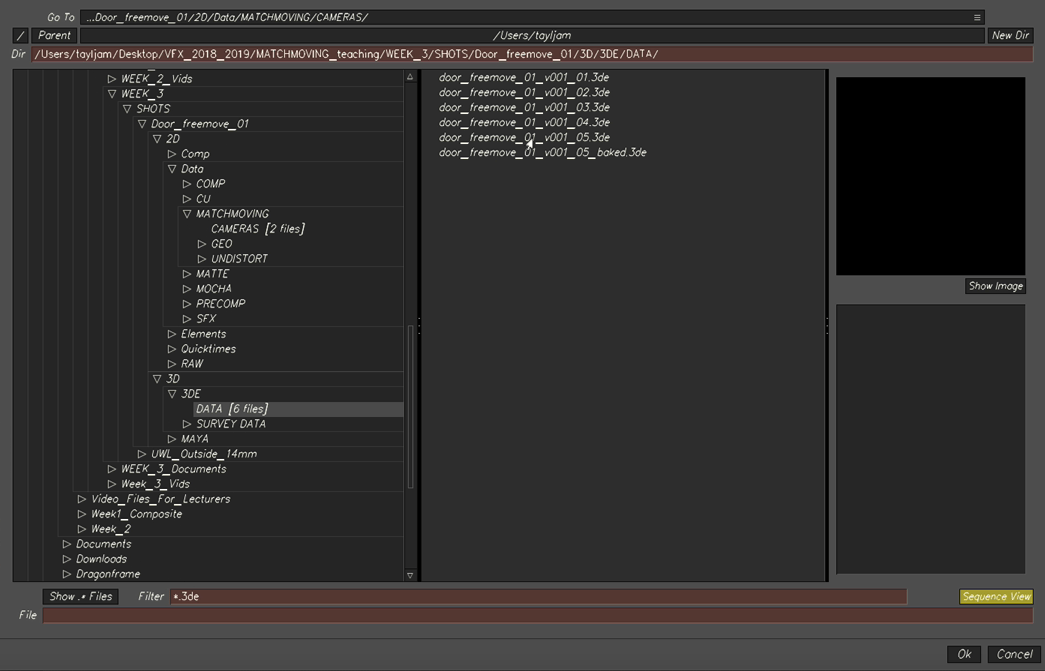
Then we bake the scene.
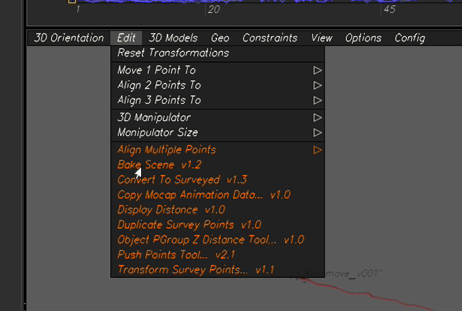
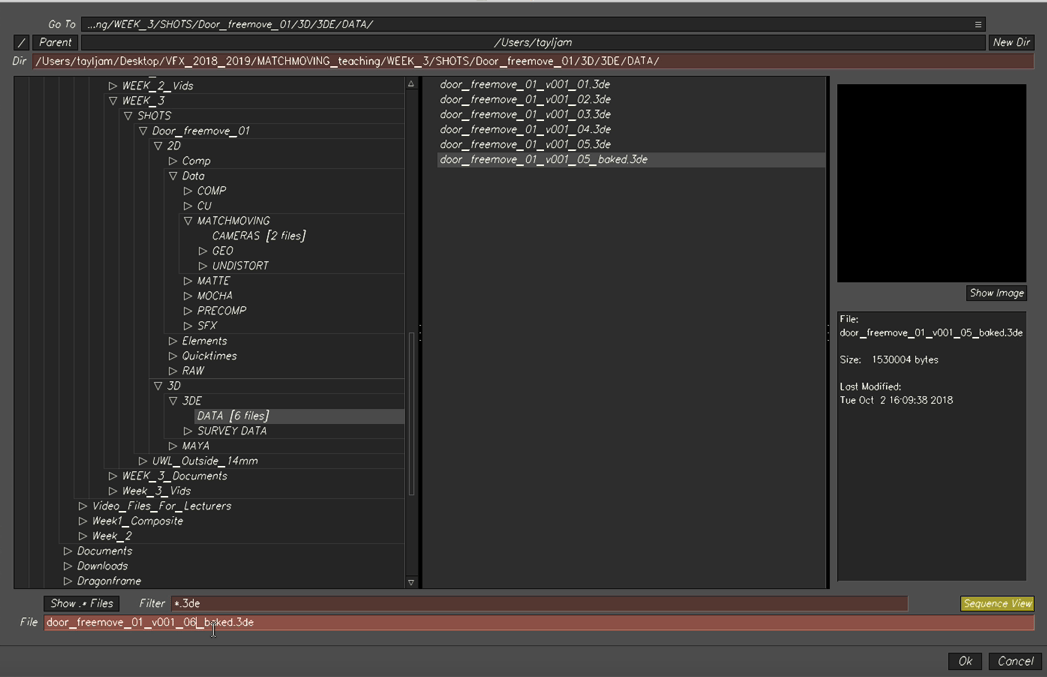
and we save the scene again with the bake.
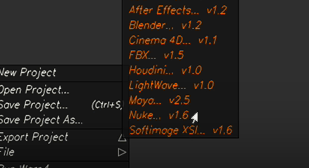
once we have the scene baked, we will be able to export our project with all the information into nuke.
our sequence start on the frame 1001 so it is important to put the right information in.
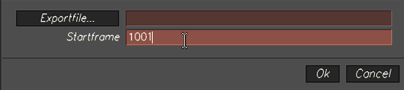
With this we are exporting the nuke camera data.
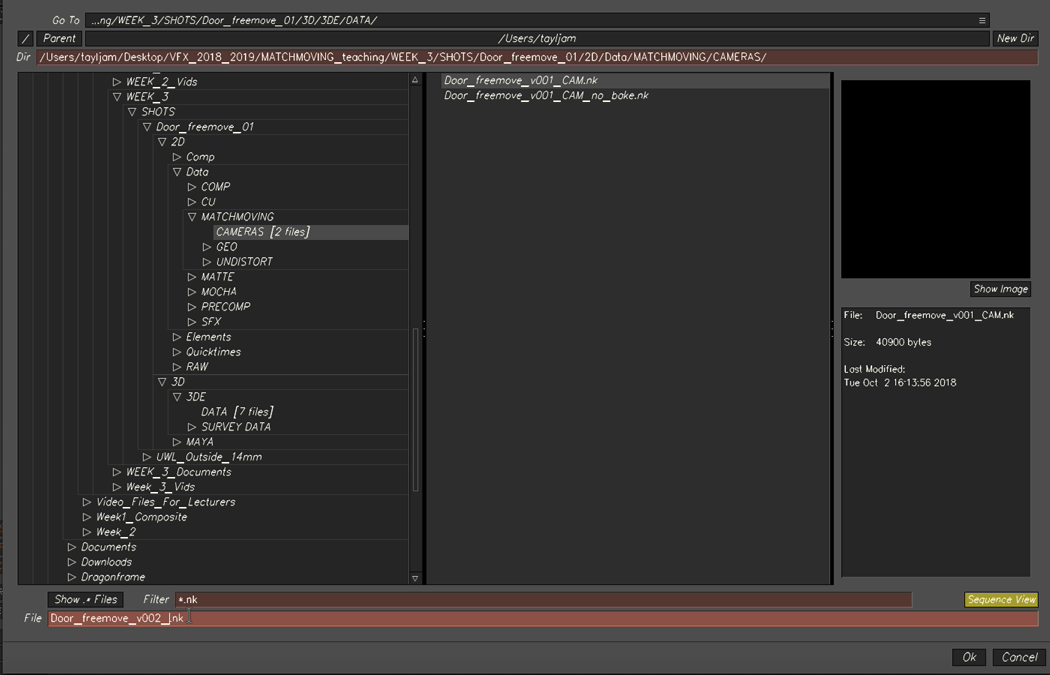
We can then export locators, lends distortion.
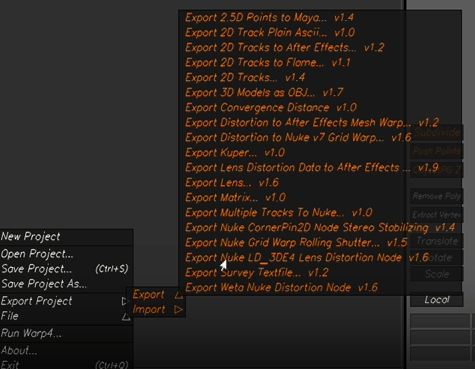
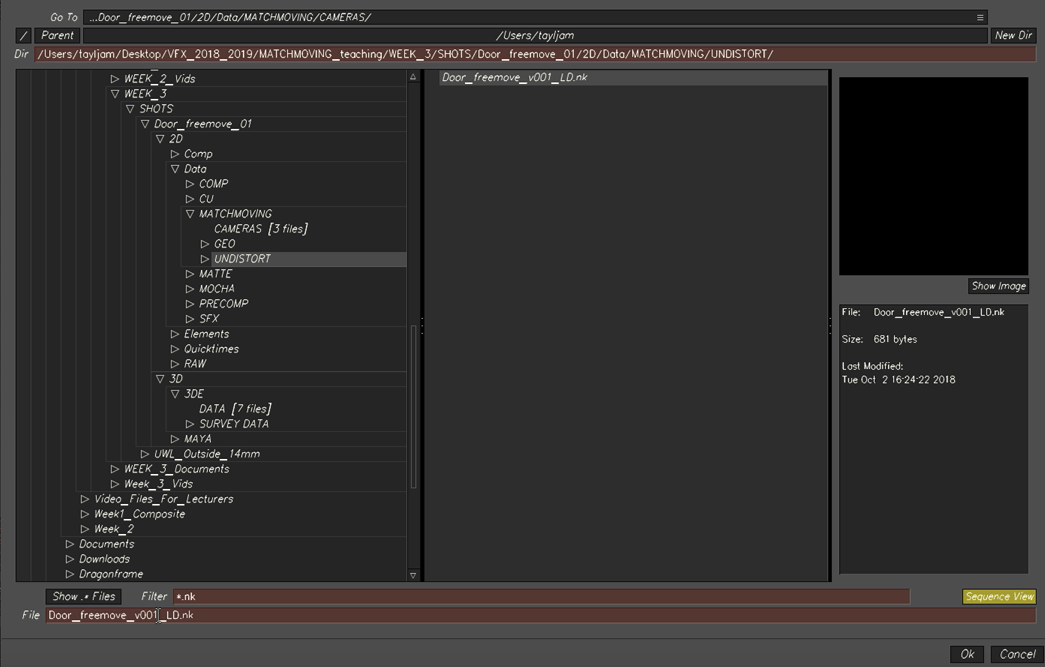
and we save it into the undistort folder.
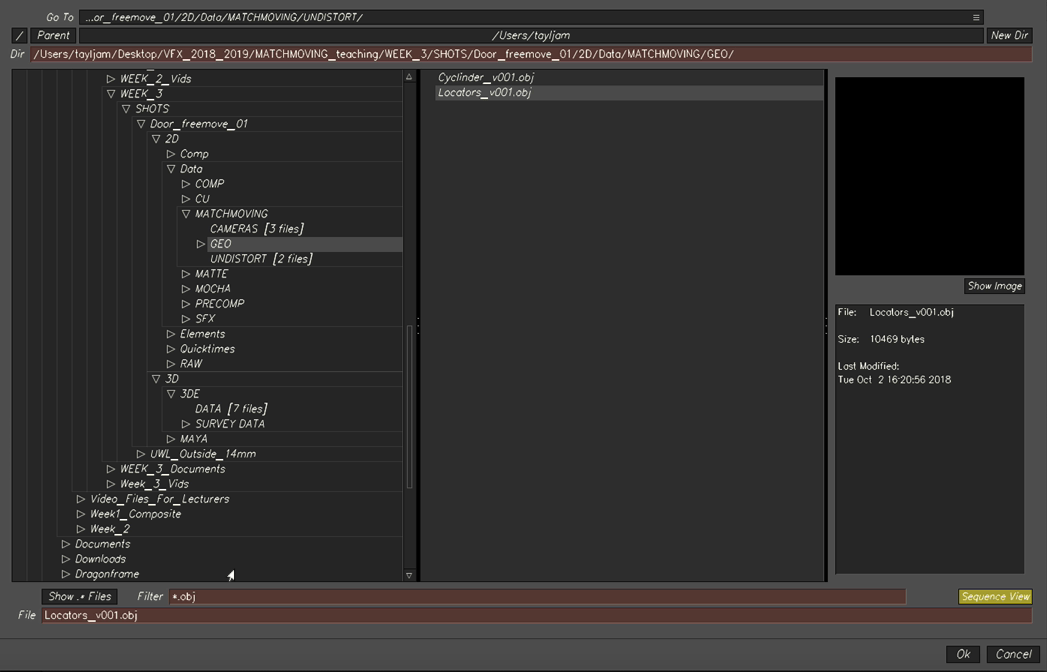
We repeat this process with our locators.
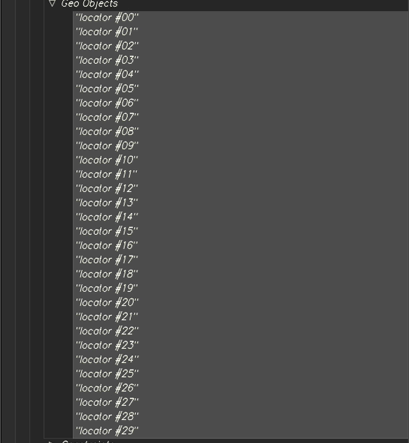
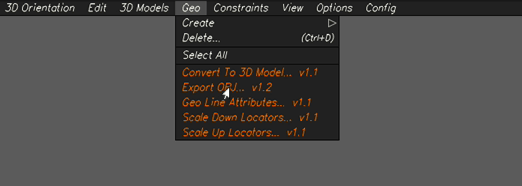
And export them to the GEO folder.
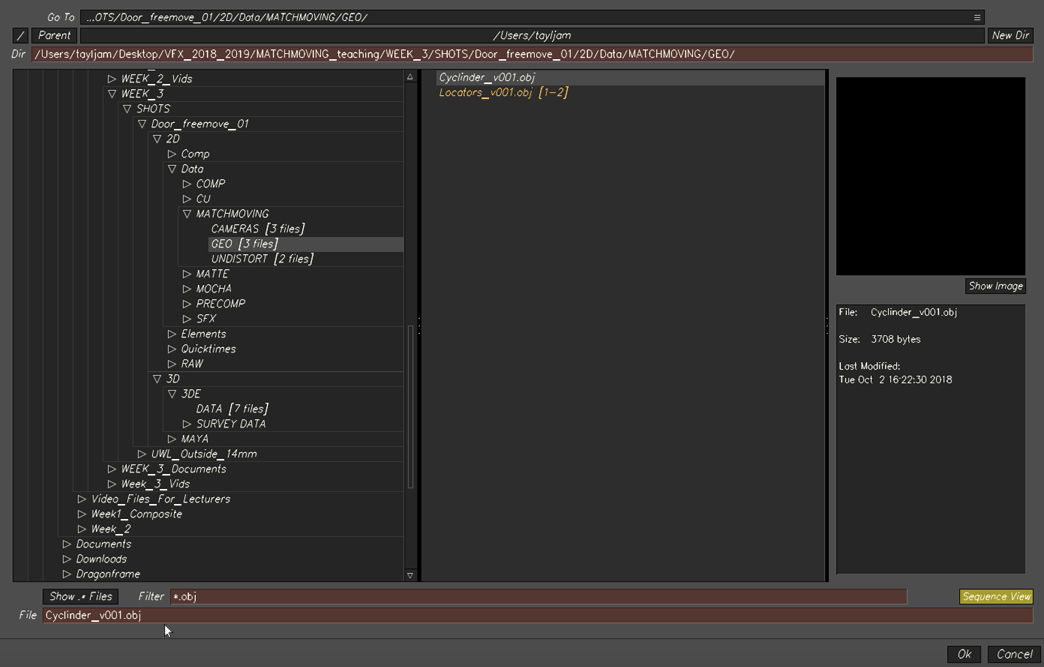
And finally we are exporting the cylinder:

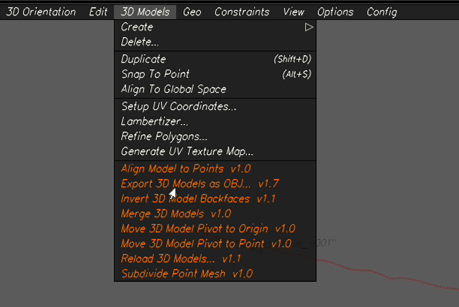
And we export it to the GEO folder as well.
Now everything is ready to go into nuke.
We are going to open nuke X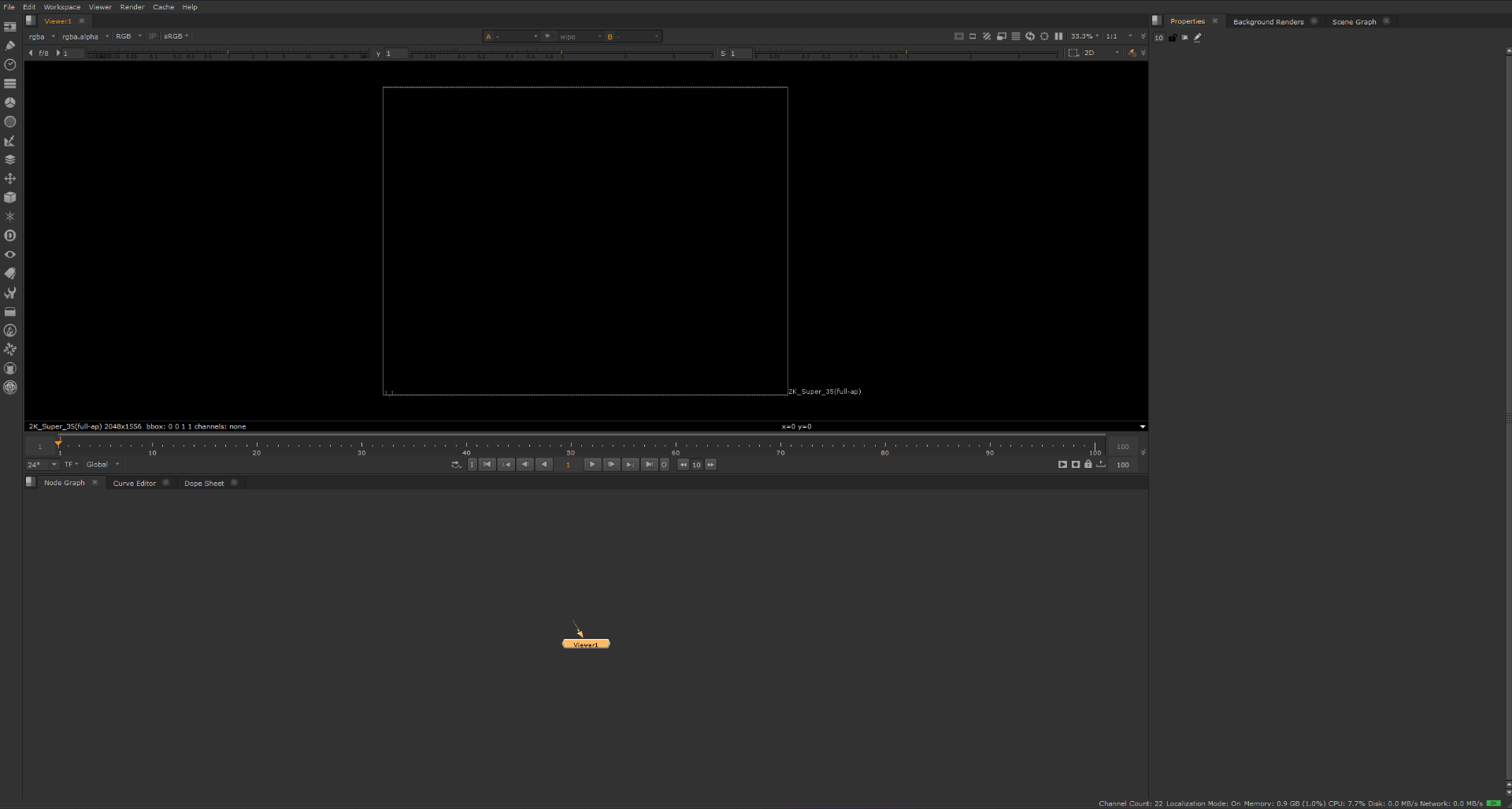
lets start by open our image sequence.
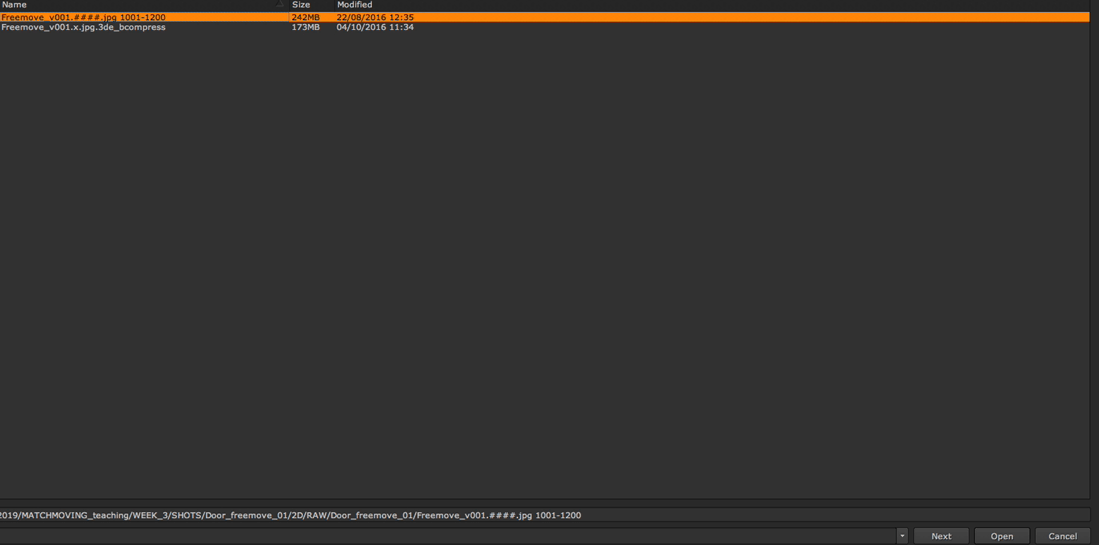
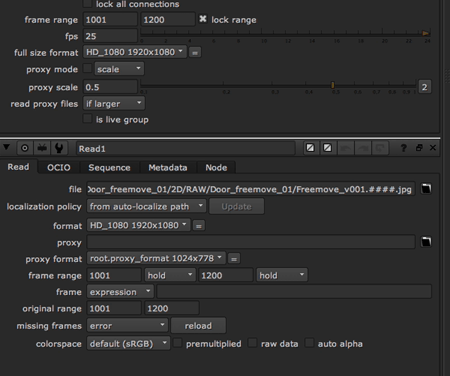
and don’t forget to set the projects setting and the time line, as well as the correct framerate.
and now we are going to import all the data we exported in 3DE:
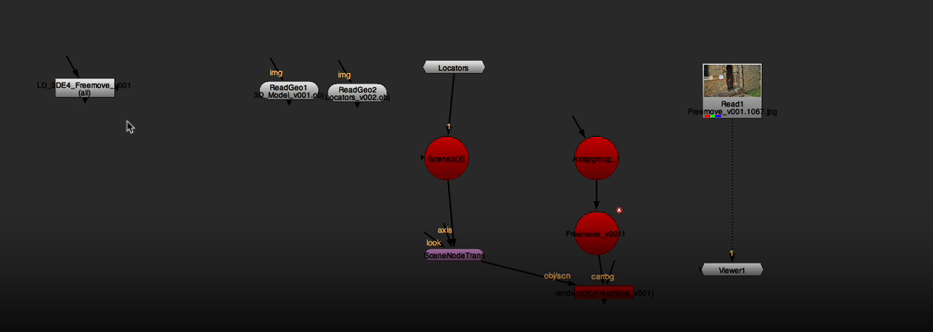
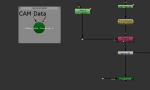
I made some backdrops that will help me identify the different parts of my script:

To begin with we are connecting our lends distortion node.
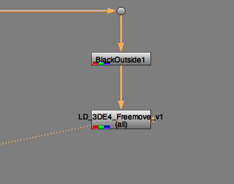 Which will undistort the image.
and then we are adding a reformat node, to give us a bigger area to work with.
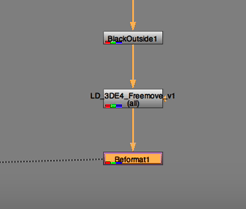
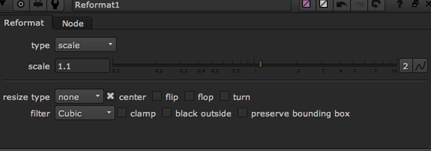
in a normal workflow, then we would distort back before exporting so we add a reformat node at the bottom and the lends distortion.
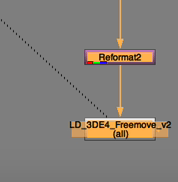
Now lets move to the camara data and locators:
if we select the locators that we exported from 3DE, we will see the markers on our 3D space in nuke.
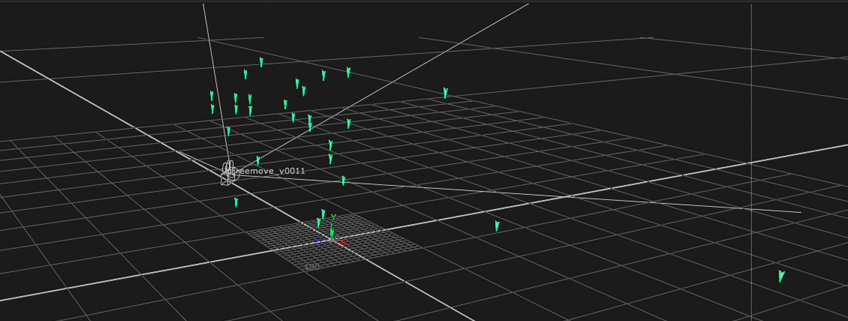
we can do the same with our cylinder.
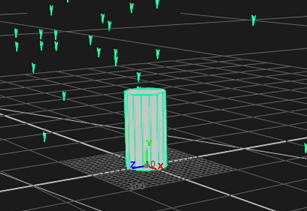
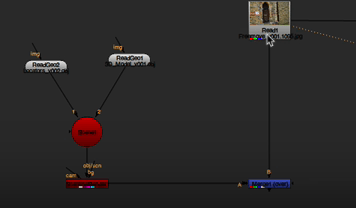
Now will be bringing an scene node to connect all the elements and see what is going on in our scene.
if we merge the scene with the actual footage we will see that something is wrong, because we haven’t applied our camera data over.
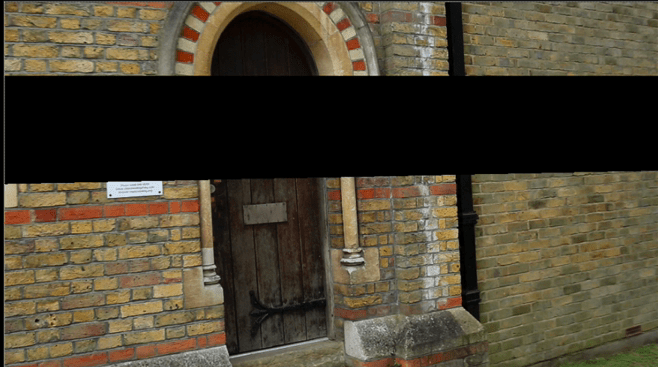
So our next steep is to apply a wireframe to physically see our object when we connects our camara data.
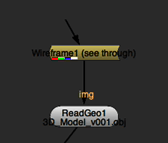
and we put a constant on the markers so later we can modify them.
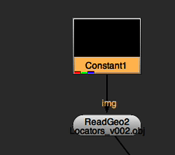
once the camera data is connected we can see the markers and objects on the scene, but some points do not match correctly.
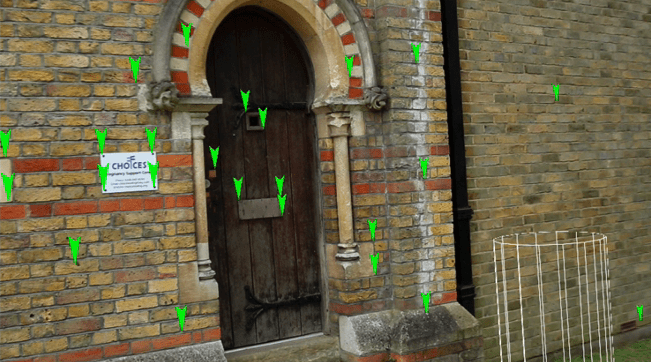
And that is because we did not add the distortion, so we are ging to apply what we have learn at the beginning of the lesson, to add a reformat for the bigger work room and add the distortion.
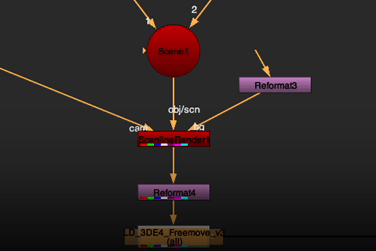
Now all the points look all right.
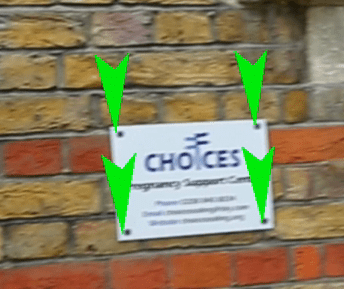
before:
after:
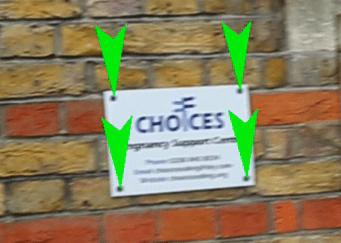
much better.
result:
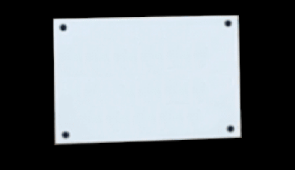
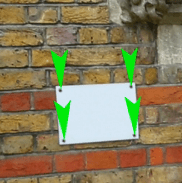
We can now use this information to do a clean up patch, in this case of the white sign:
End of week 5
Week 6: Surveys
Assignment 1
Assignment 1 Brief
Shot:
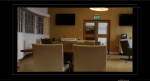
Pillars_table_freemove_01
- Minimum 40 tracked points
- Use whatever method is required to get a low deviation and therefore a solid track (e.g. lens distortion and focal length adjustments)
- Solve and align scene in 3DE using survey data
- Add in locators and 3D Cube to test stability of solve
- Export camera, LD data, locator geo, and 3d models to Nuke
- Undistort lens and reformat
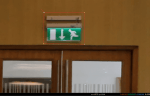
- Place cleanup patch on the fire exit sign
- Overlay locators and 3d model to highlight strength to track
Hand in:
- 1x Video Render of the shot with clean up patch of fire exit above door, locators and 3d model Comped in.
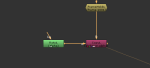
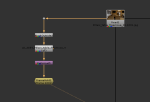
- 1x Nuke Script with backdrops describing your process
- 1x 3DE script
On Digital Sketchbook
- All development work
- Final video
Development work:
Here is a gallery with all my development work:
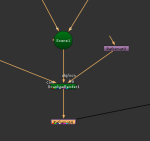
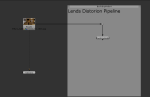
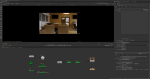
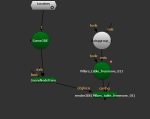
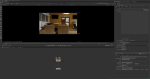
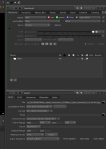
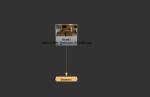
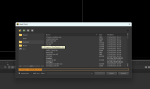
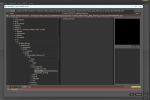
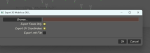

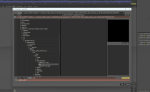
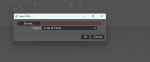
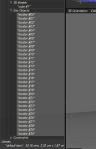
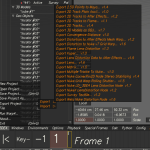
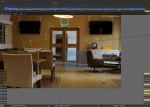
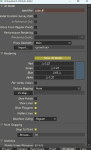
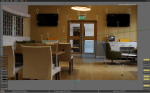
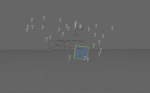
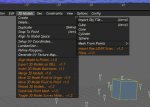
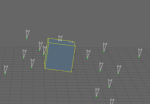
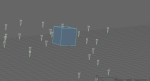
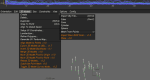
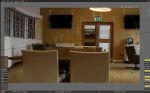
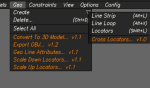
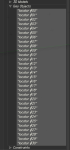
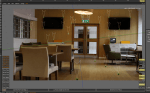
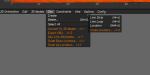
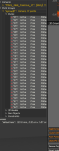
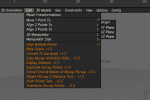
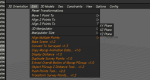
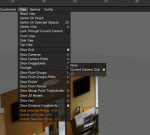
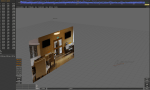
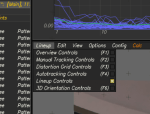
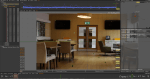
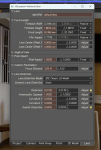
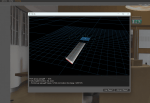

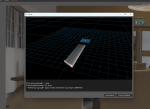
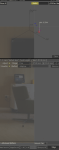
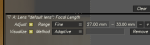
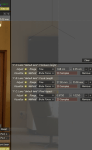

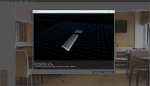
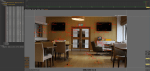
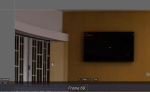
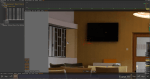
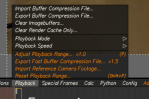
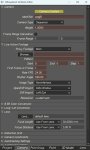
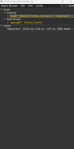
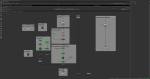
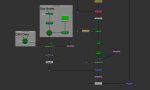
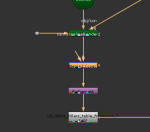
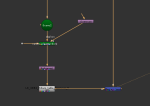
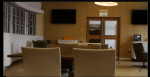
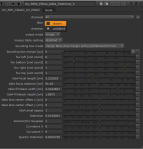
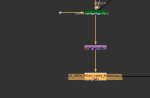
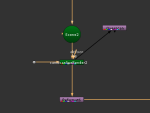
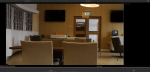
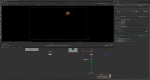
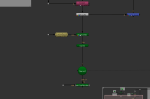
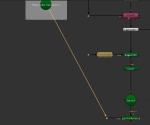
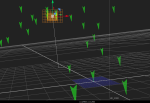
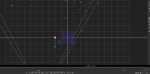
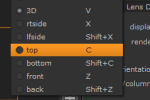
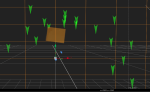
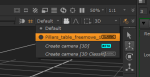
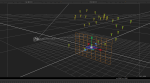
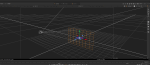
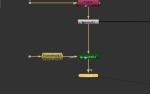
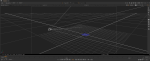
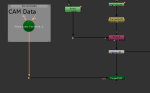
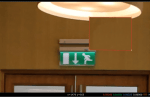
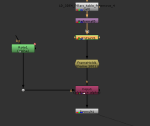
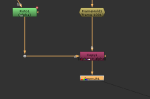
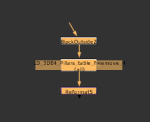
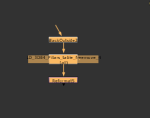
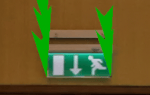
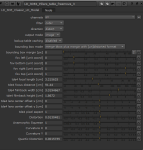
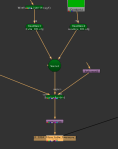

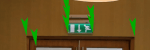
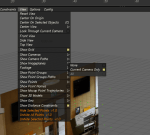
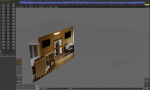
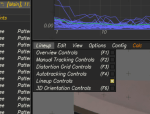
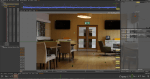
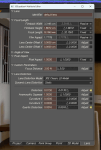
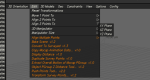
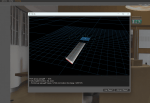

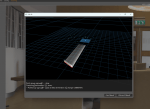
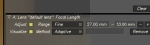
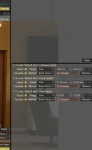

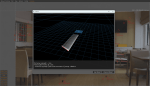
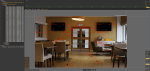
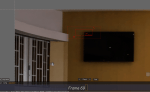
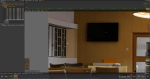
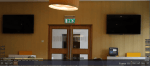
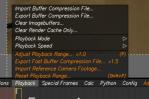
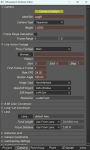
Here you can find some videos of the process:
IMPORTANT FILES:
Distortion graph.

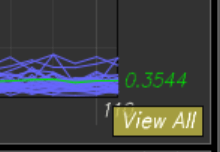
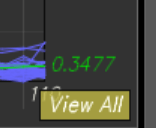
3ED final scene:
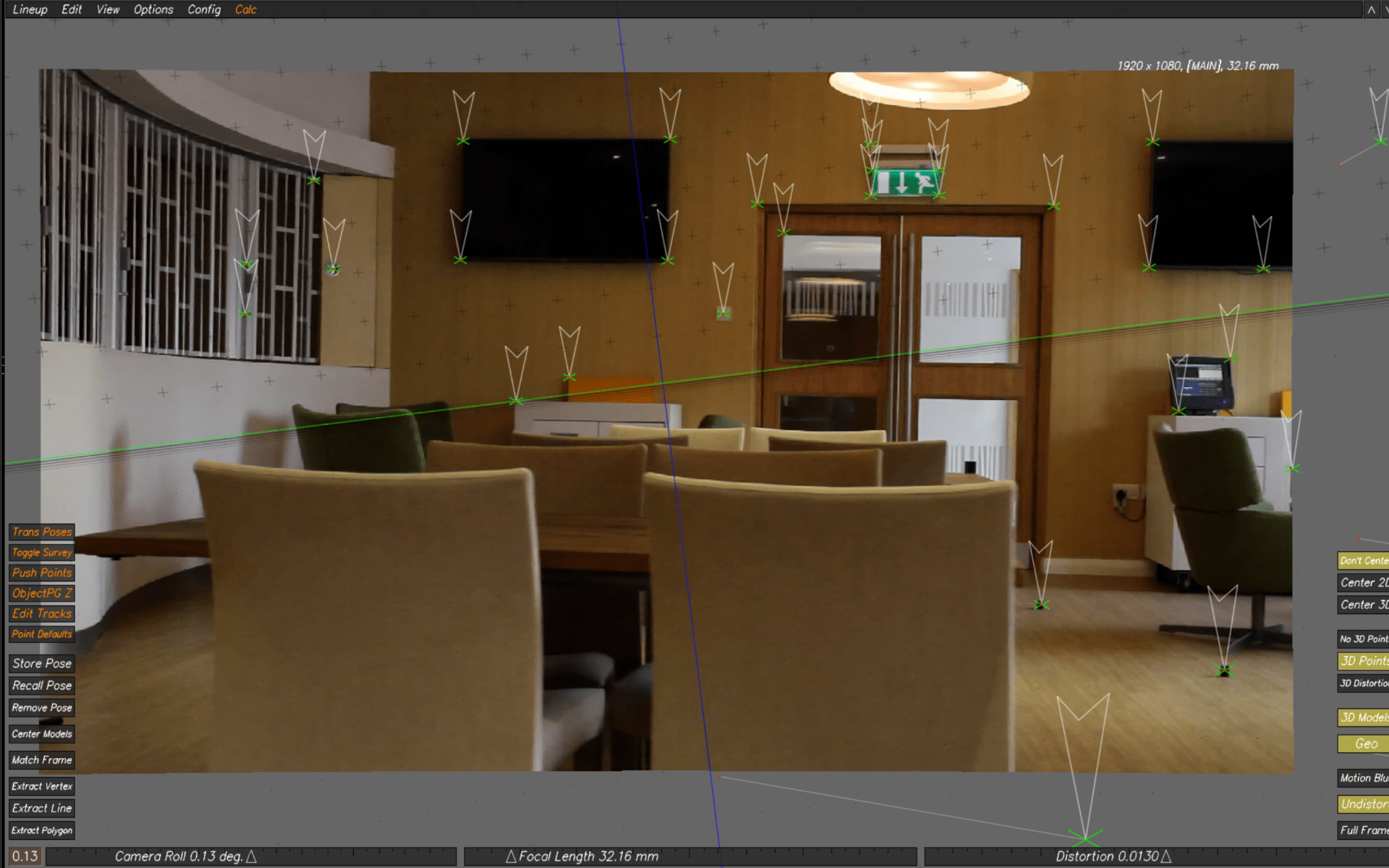
Final nuke script with backdrops:
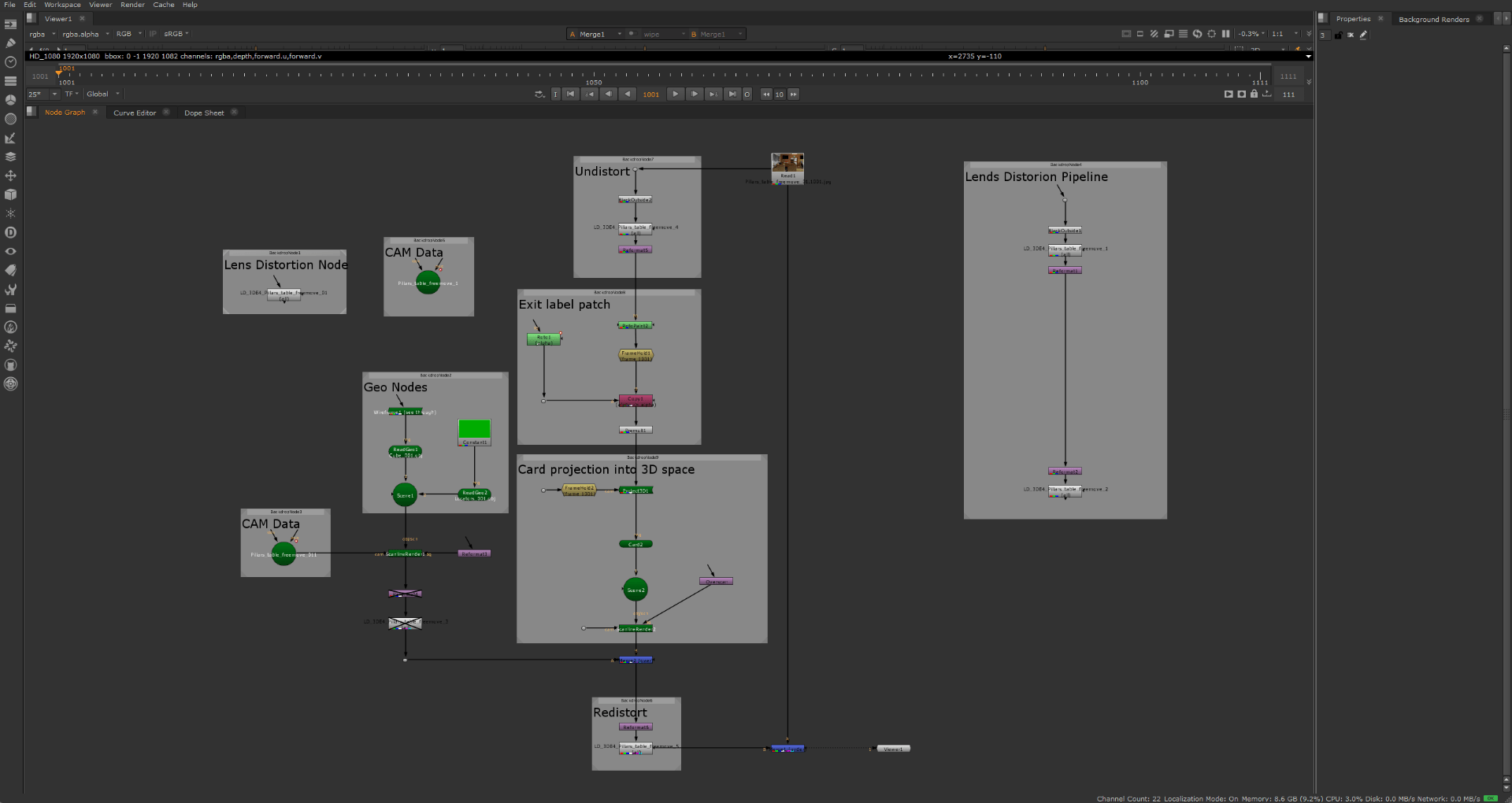
Final nuke render:
End of assignment 1
Week 7: Filming for assignment 2
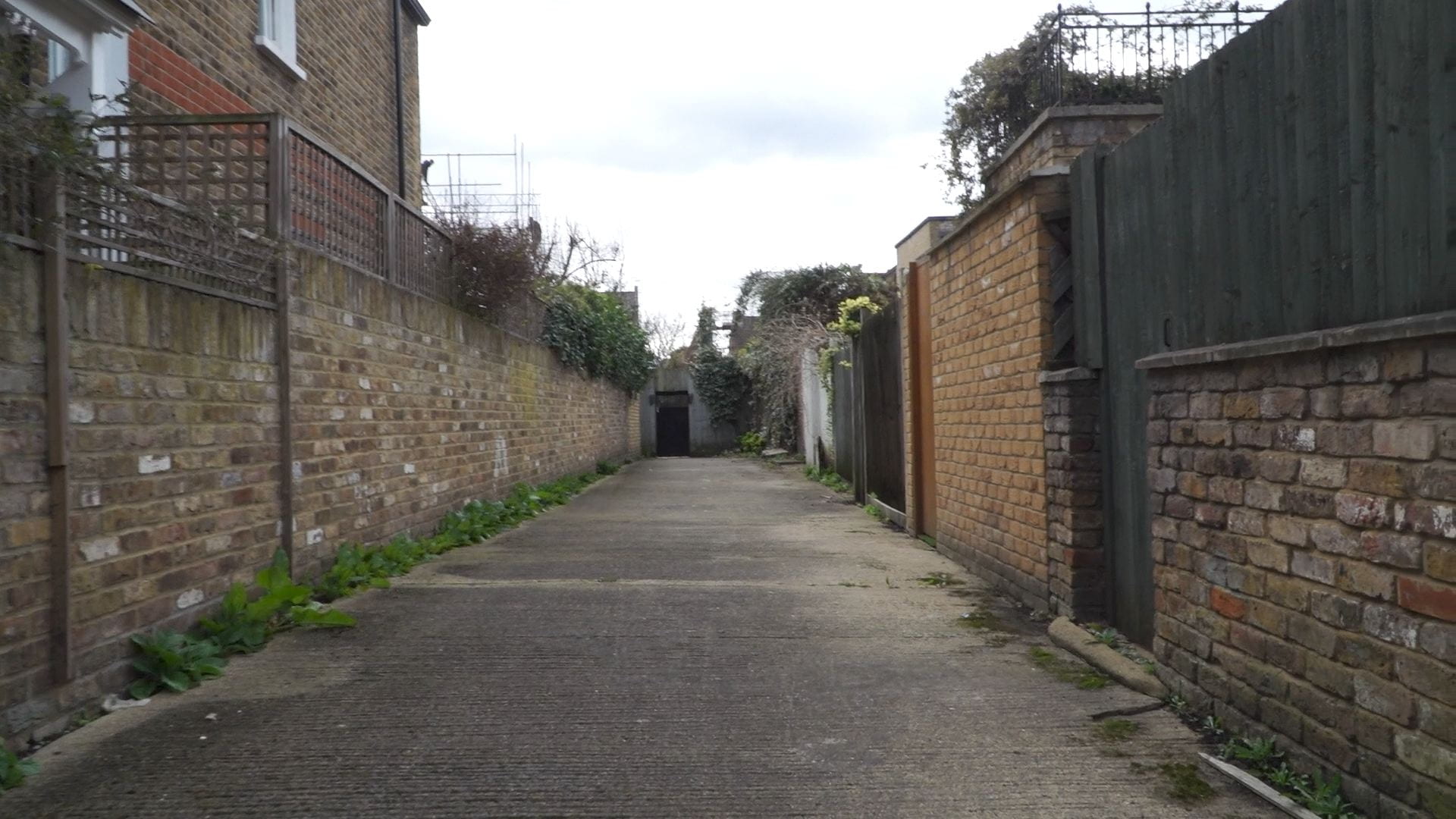
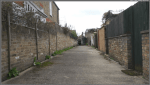
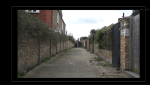
This week we filmed the footage for assignment 2
End of week 7
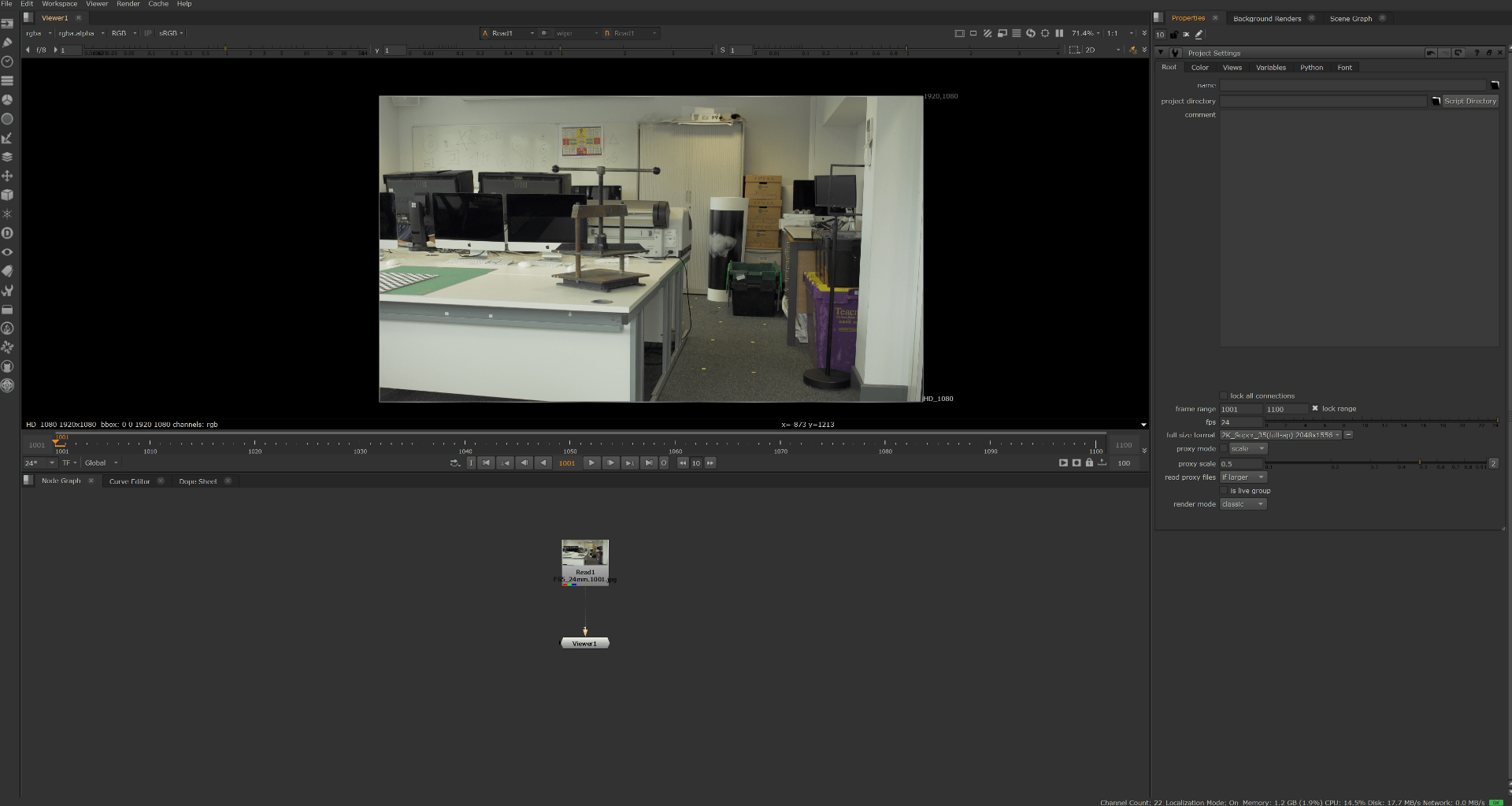
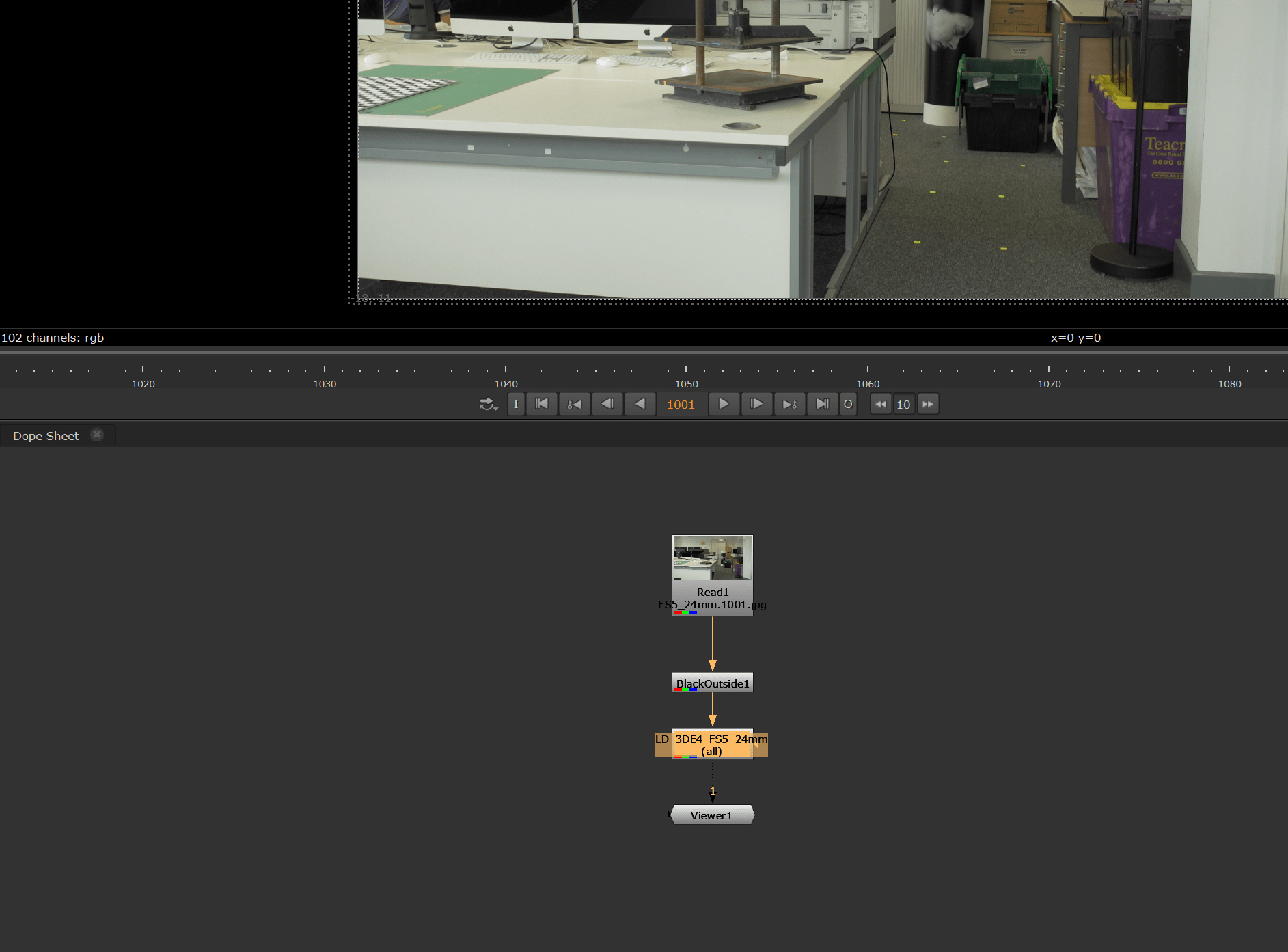
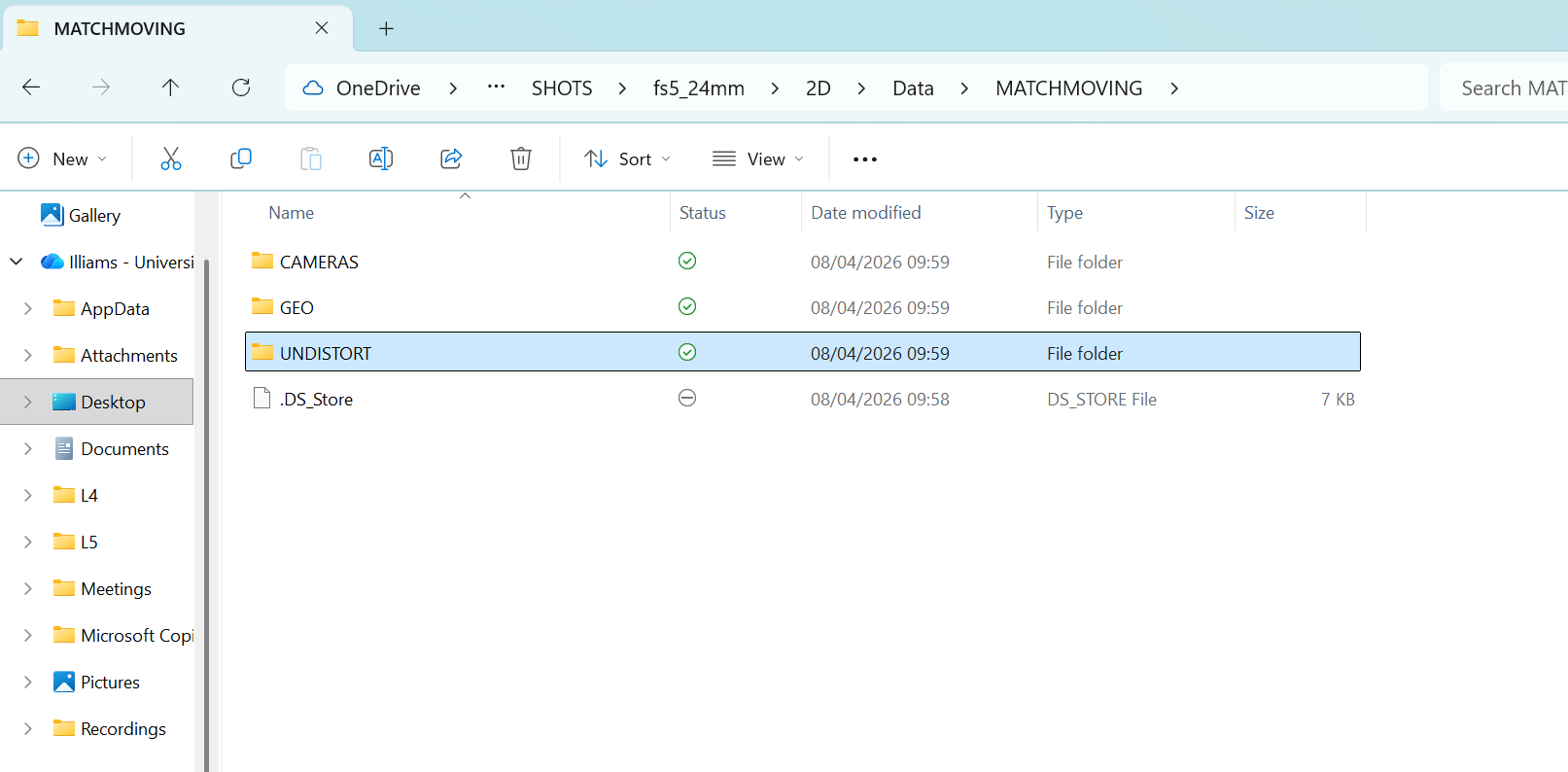
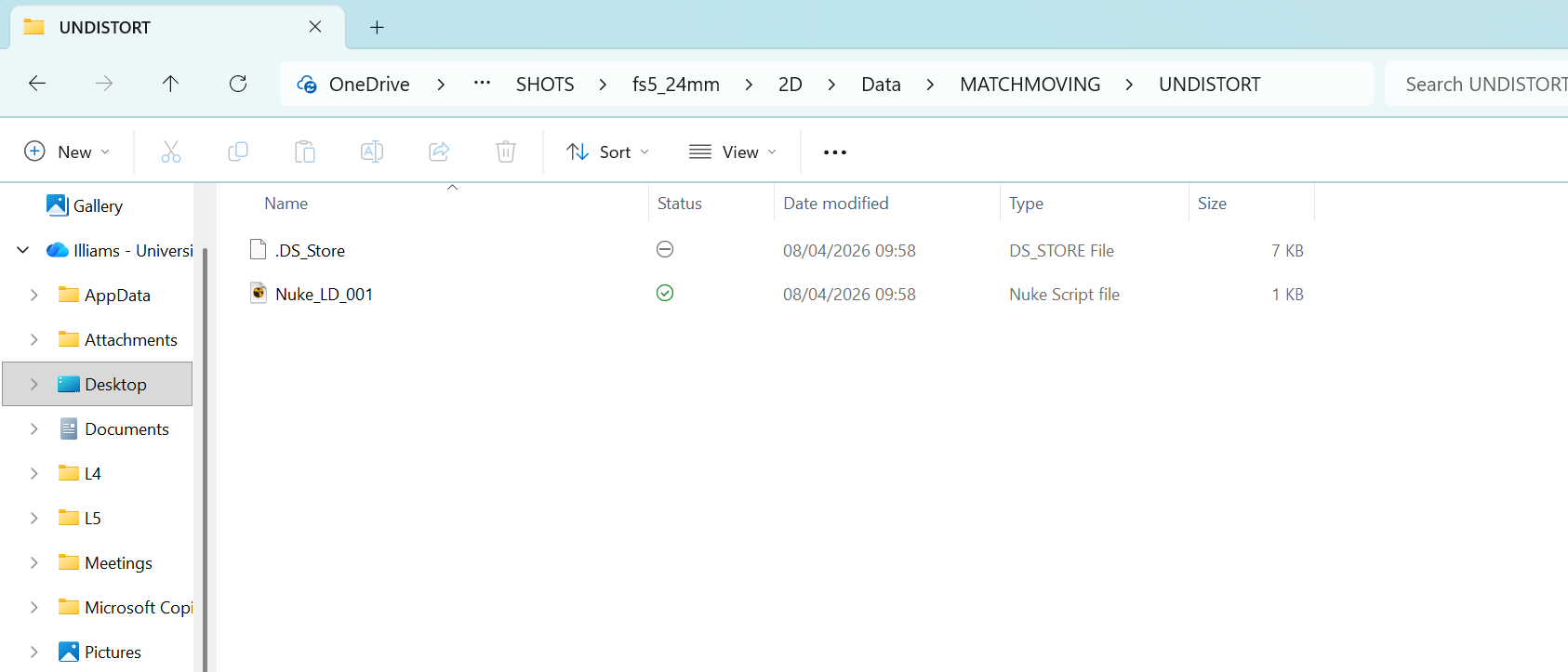
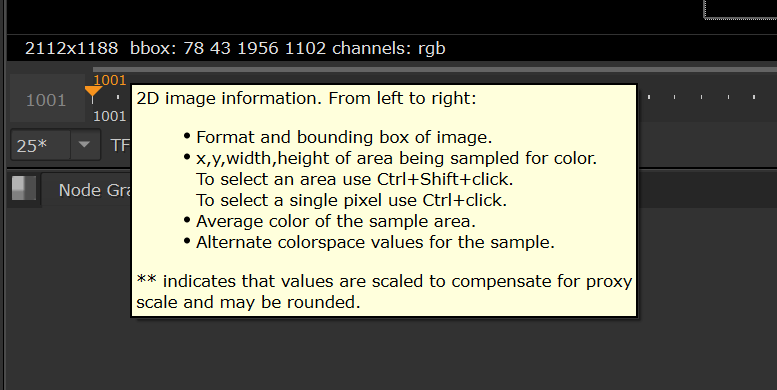
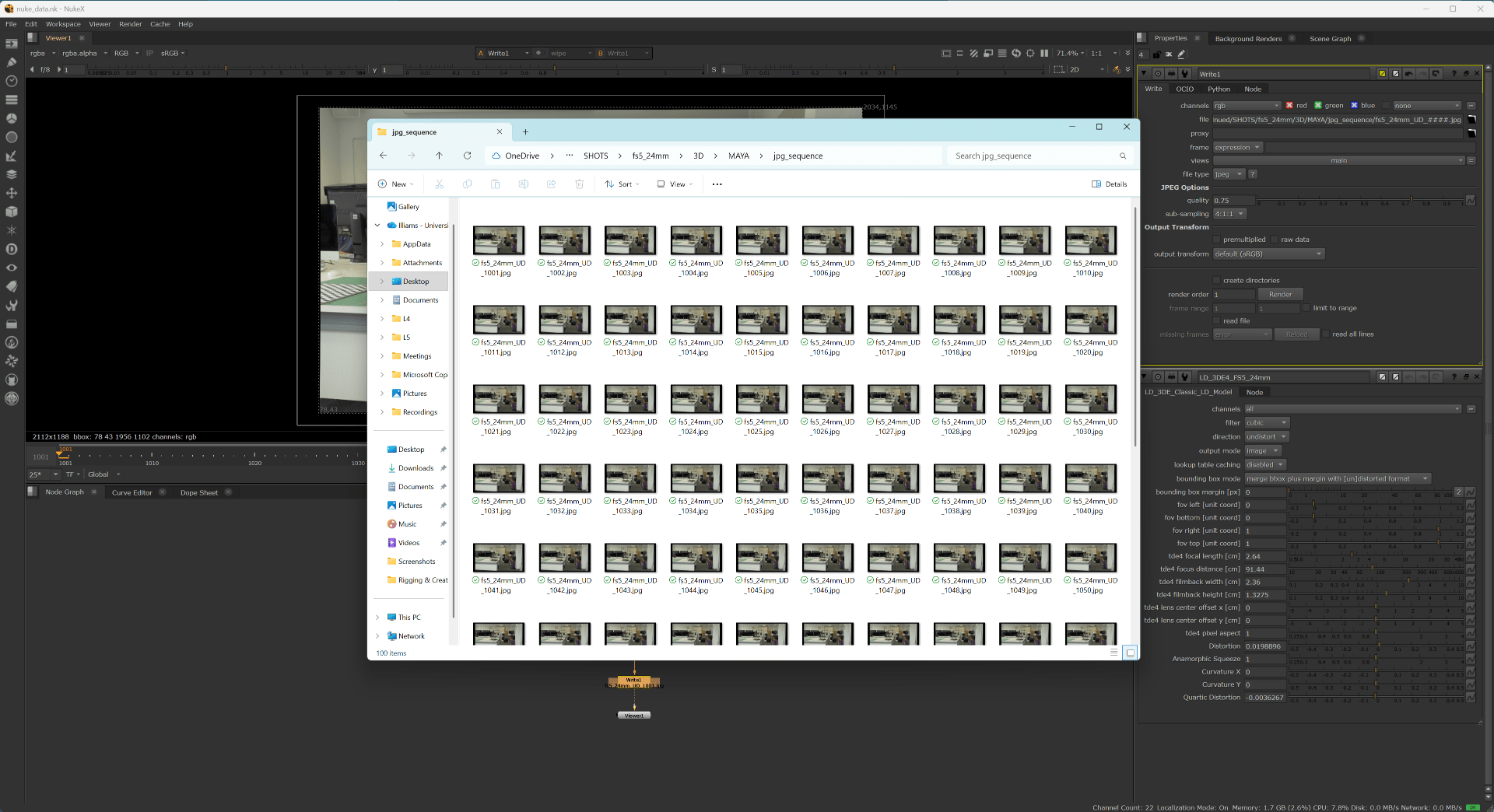
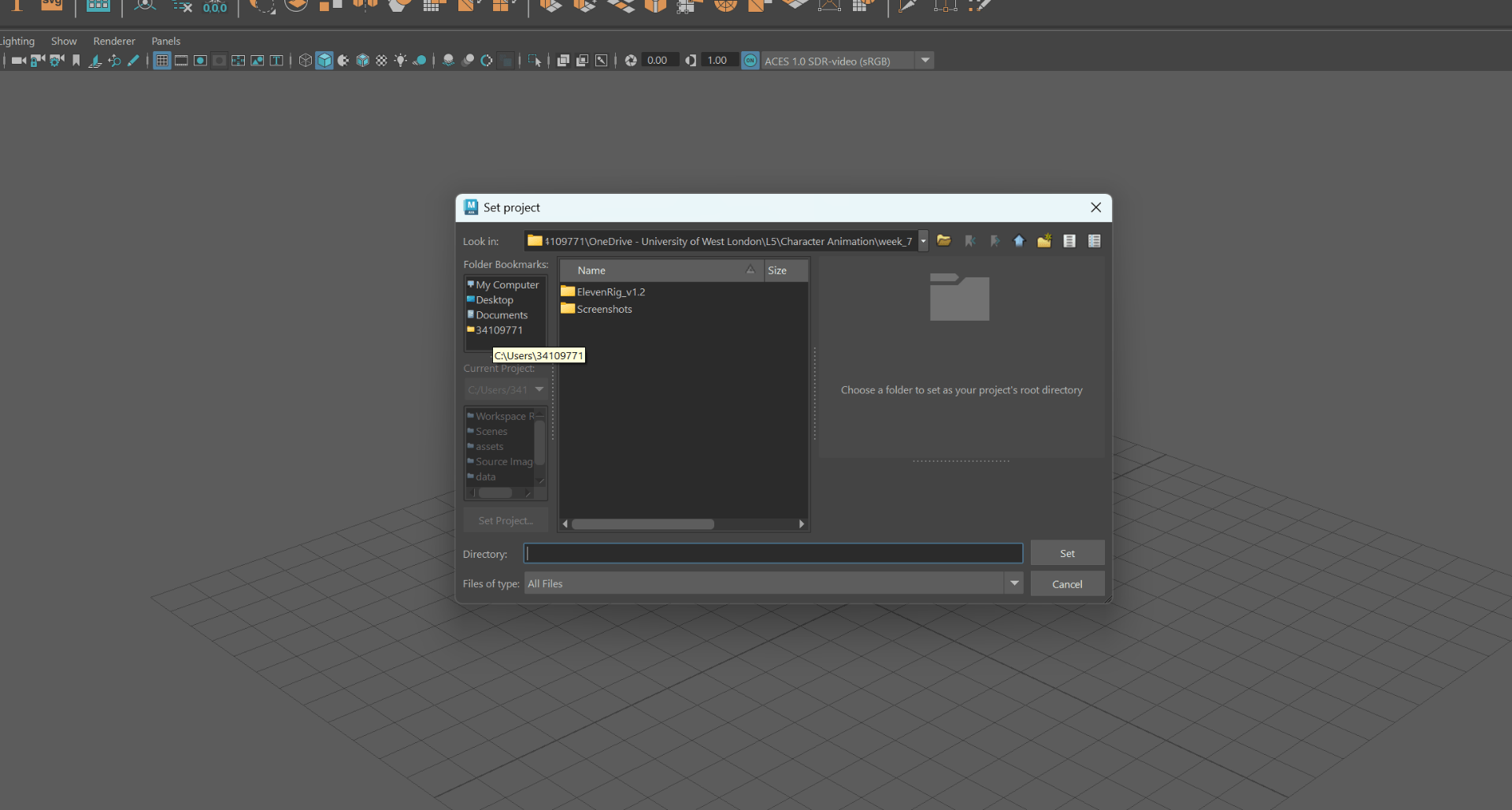
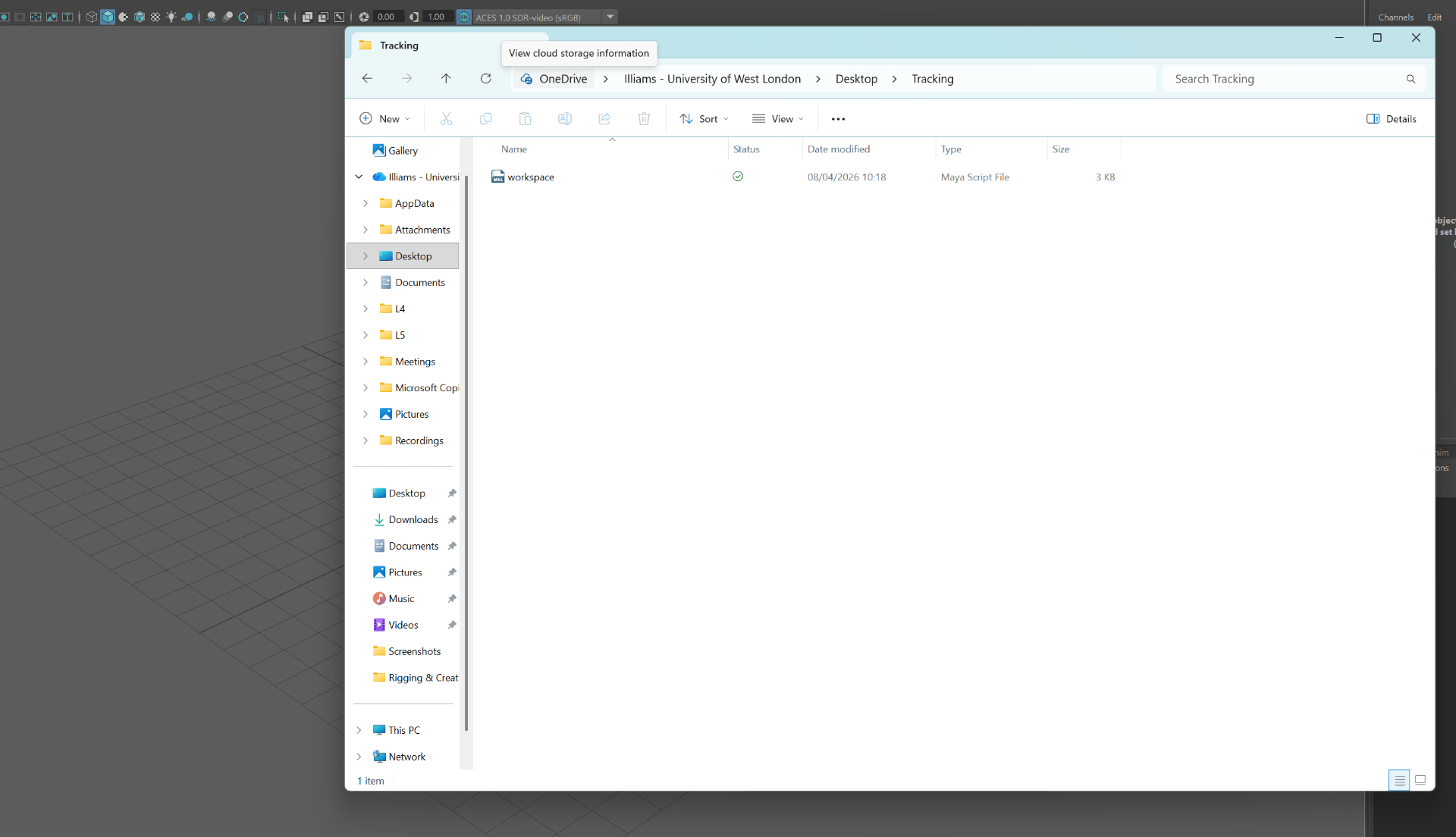
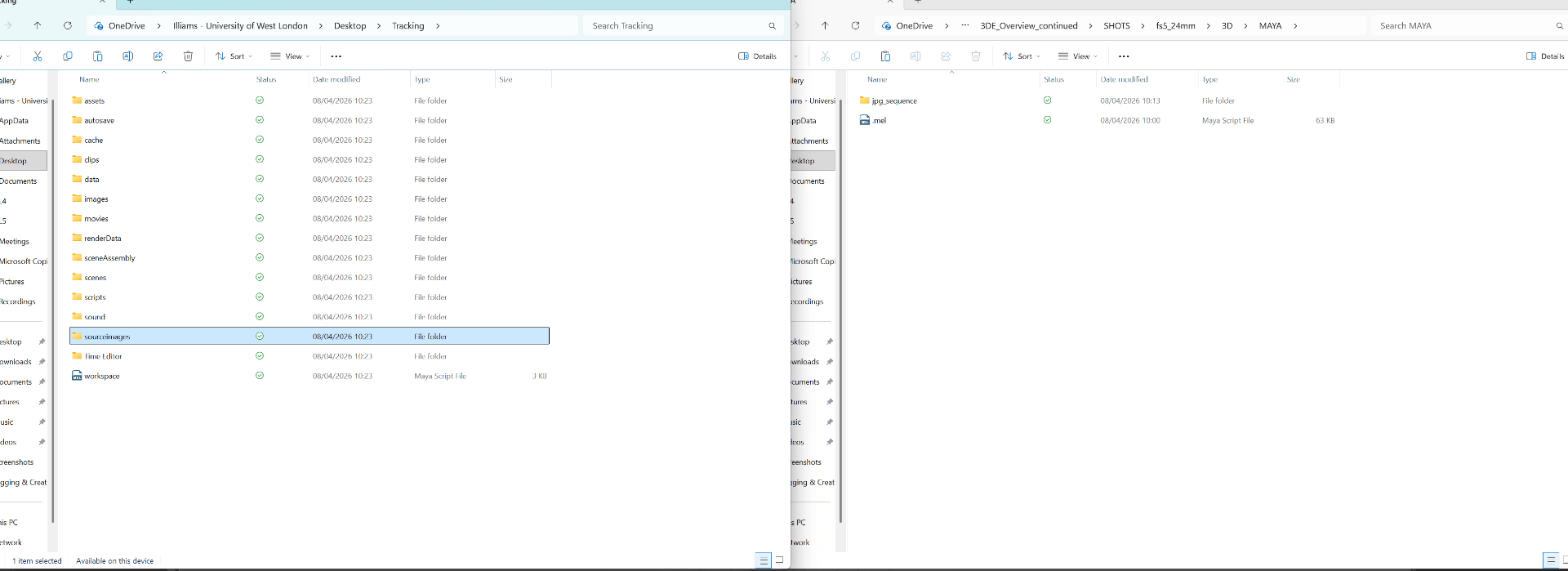
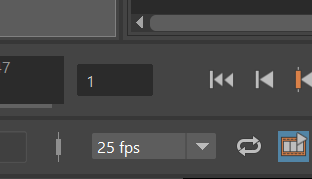
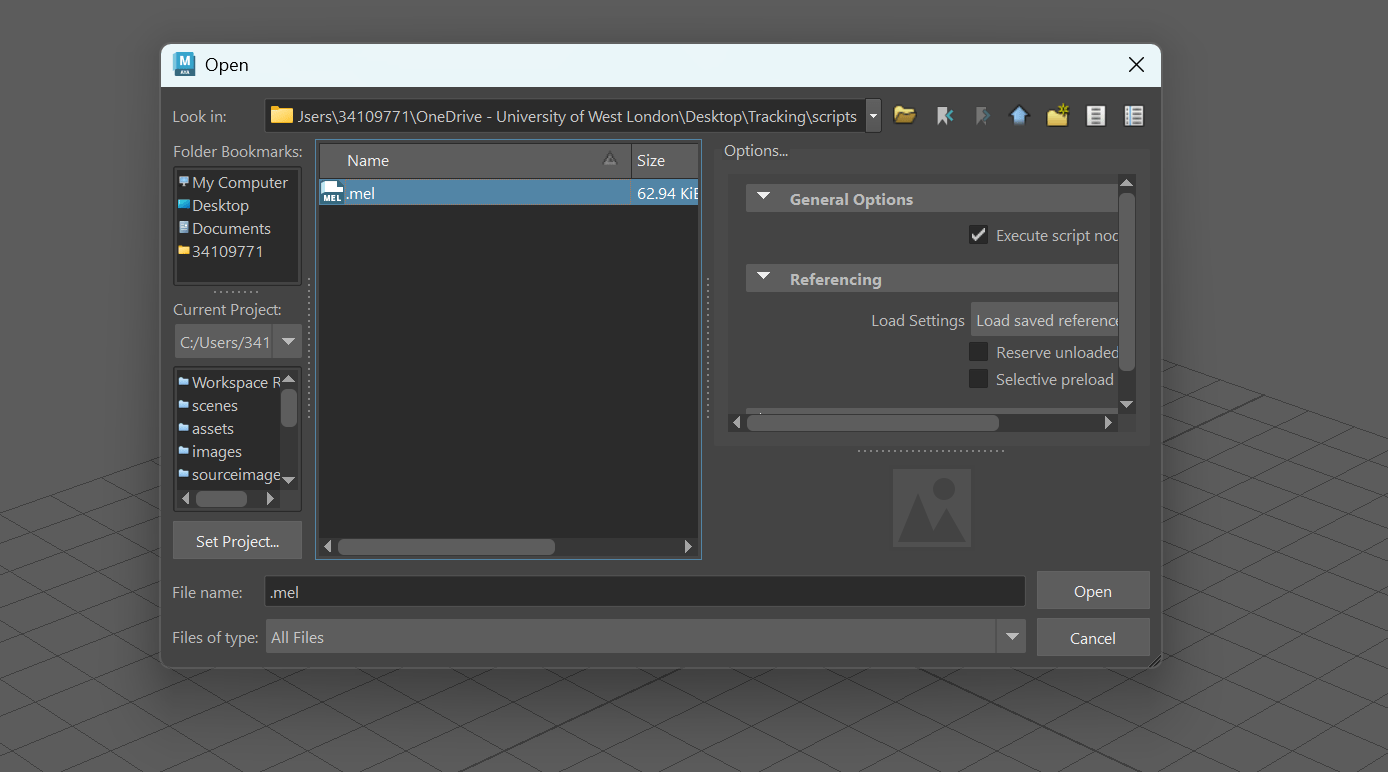
Week 8: Nuke maya pipeline
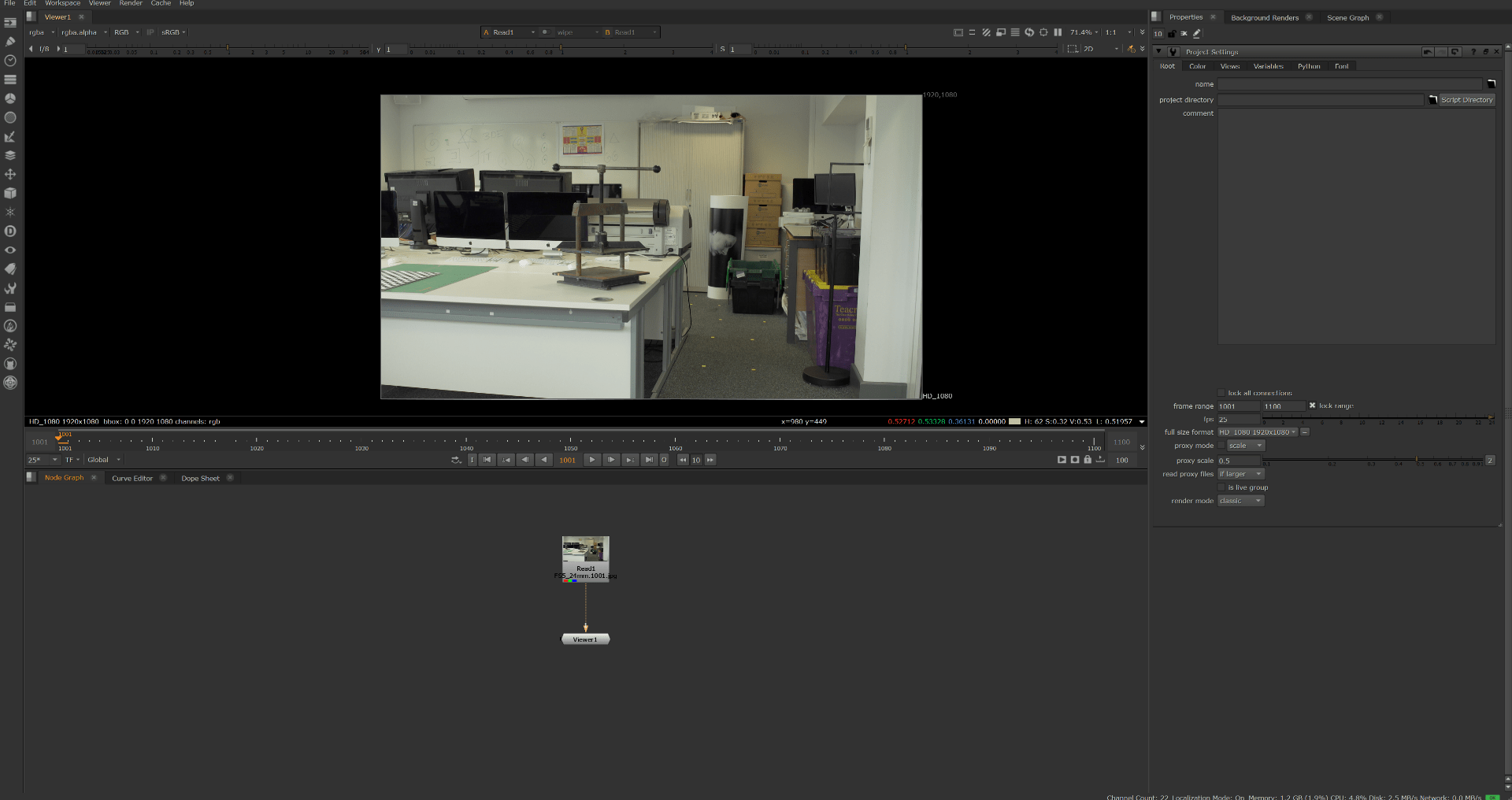
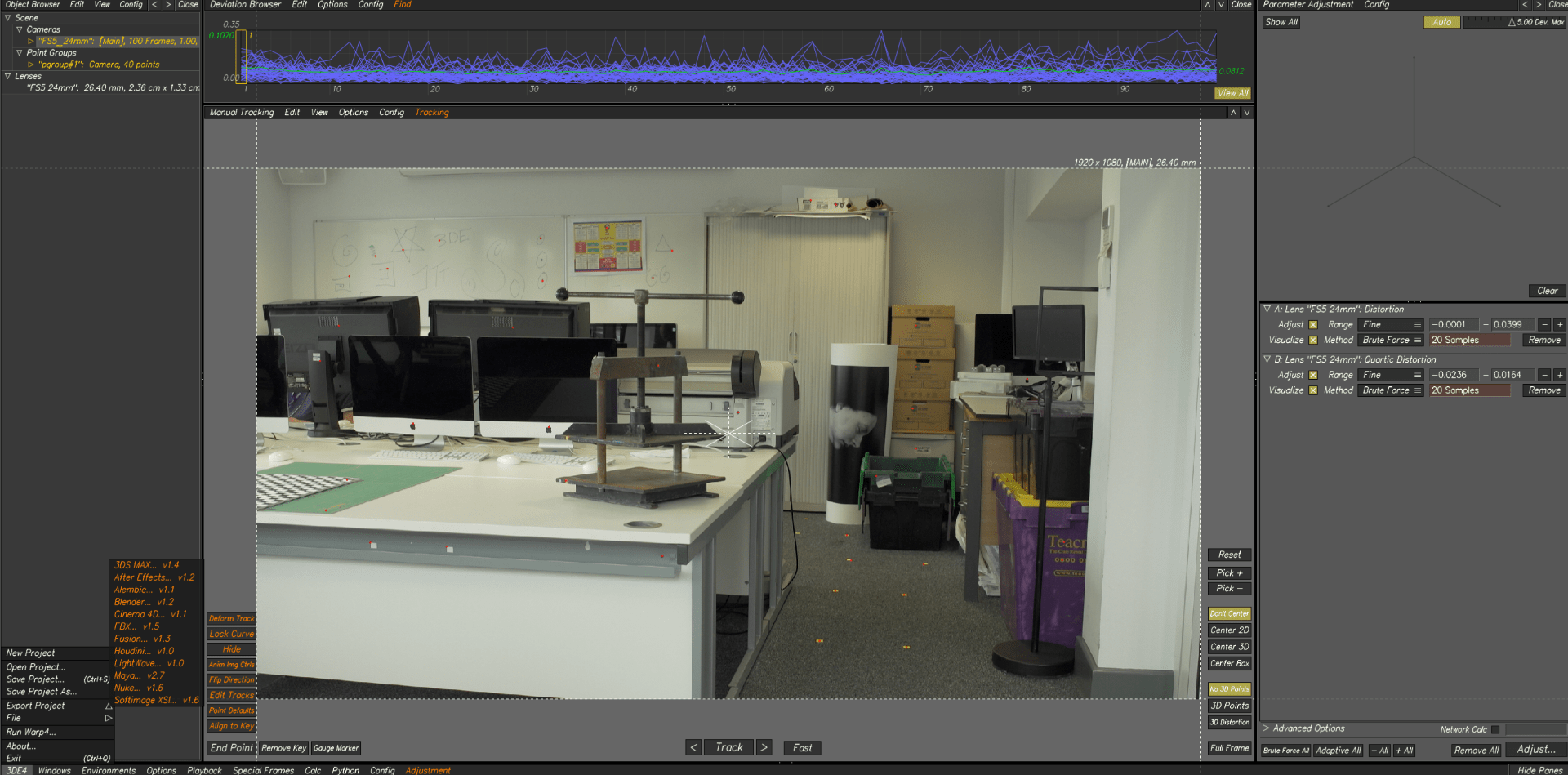
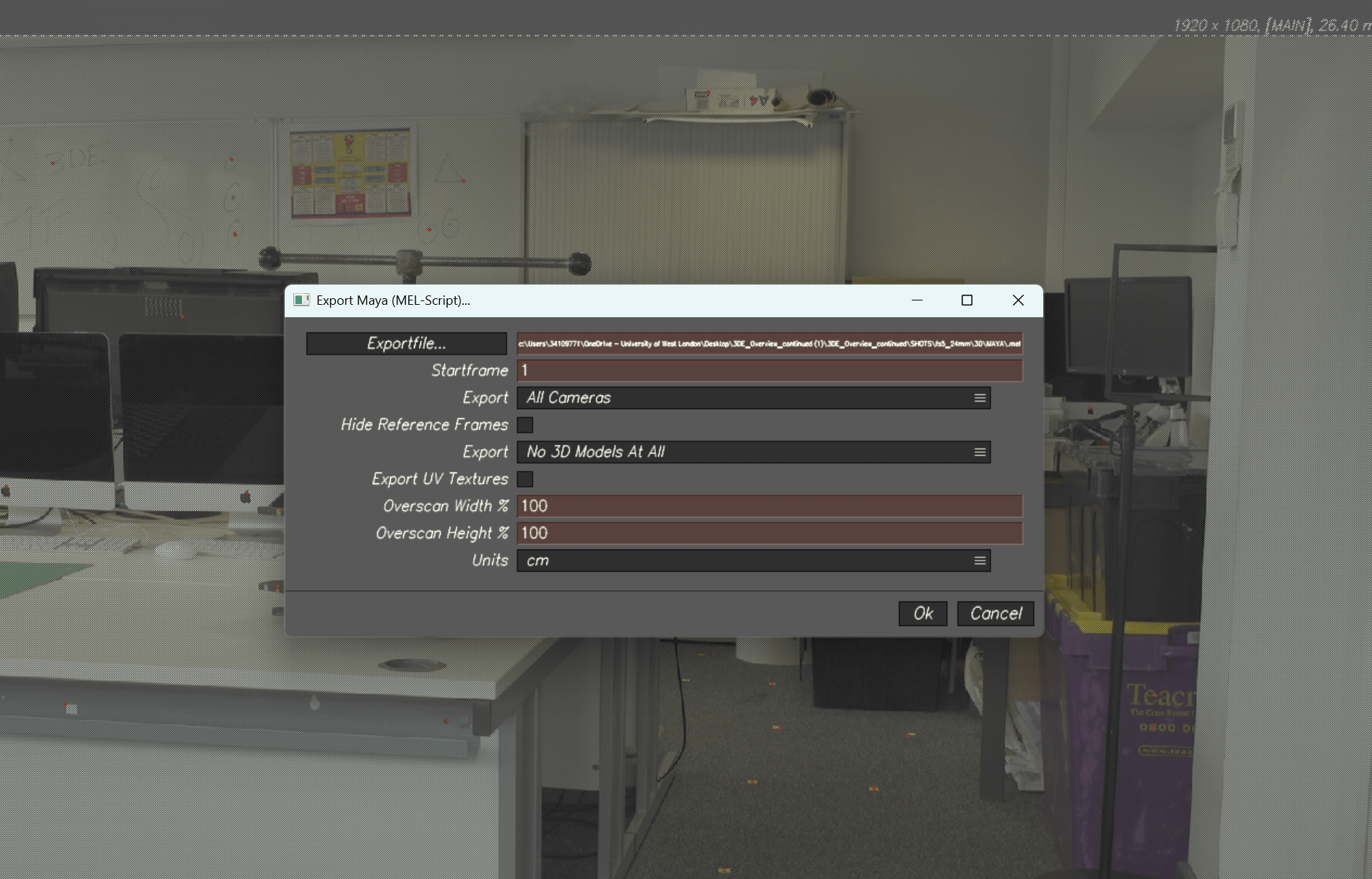
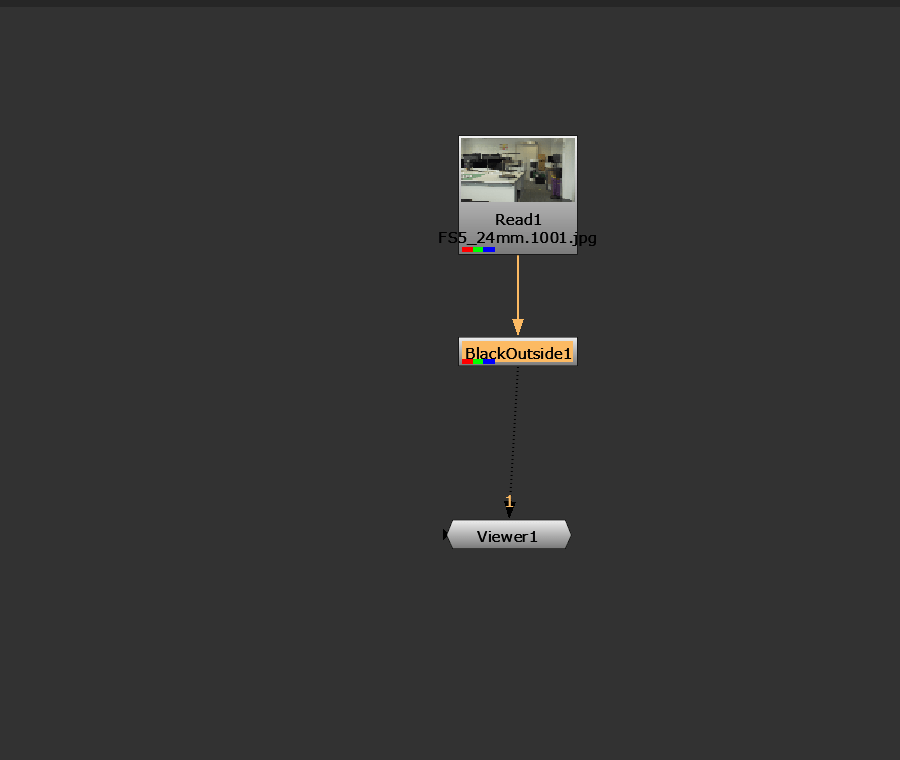
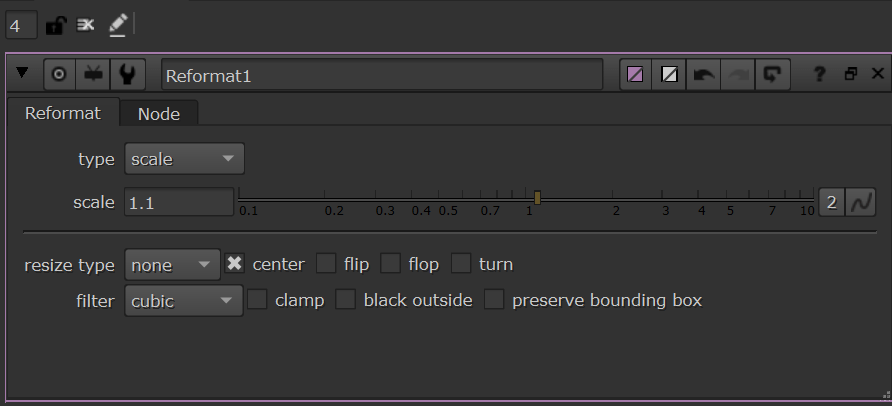
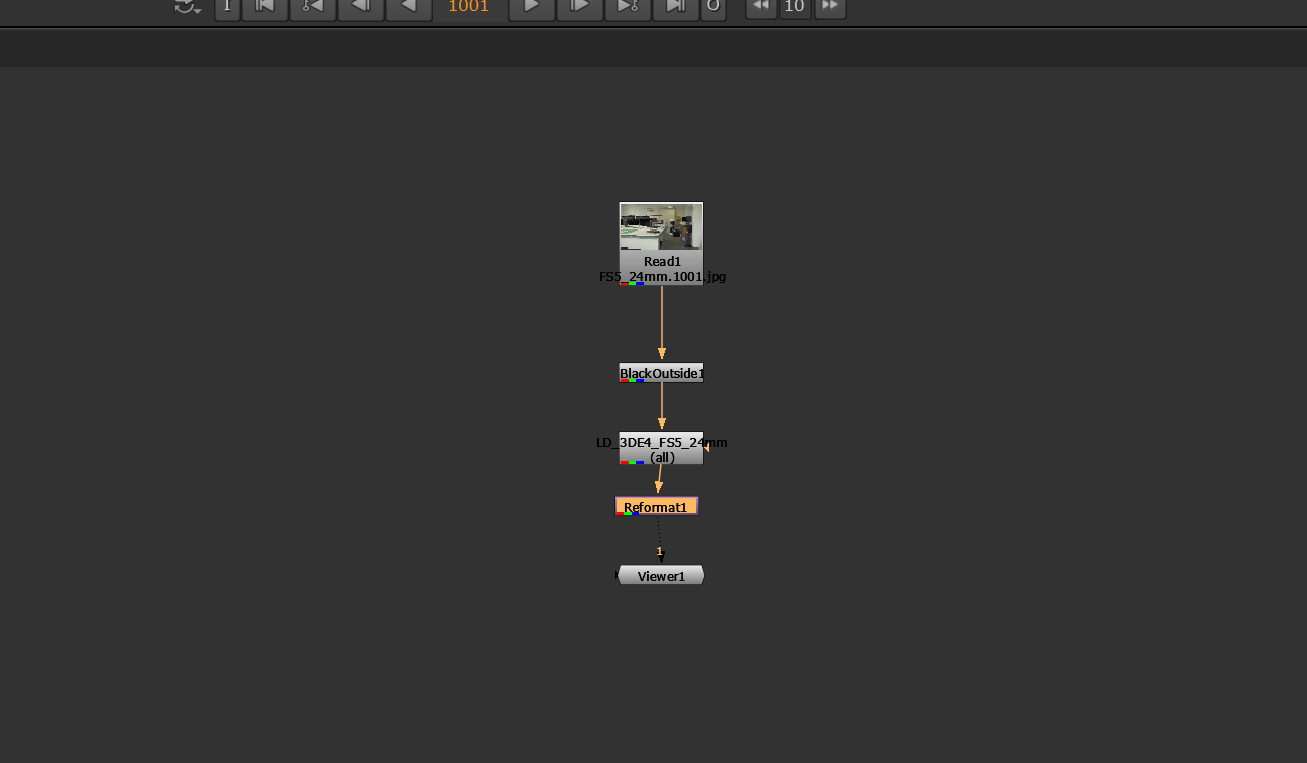
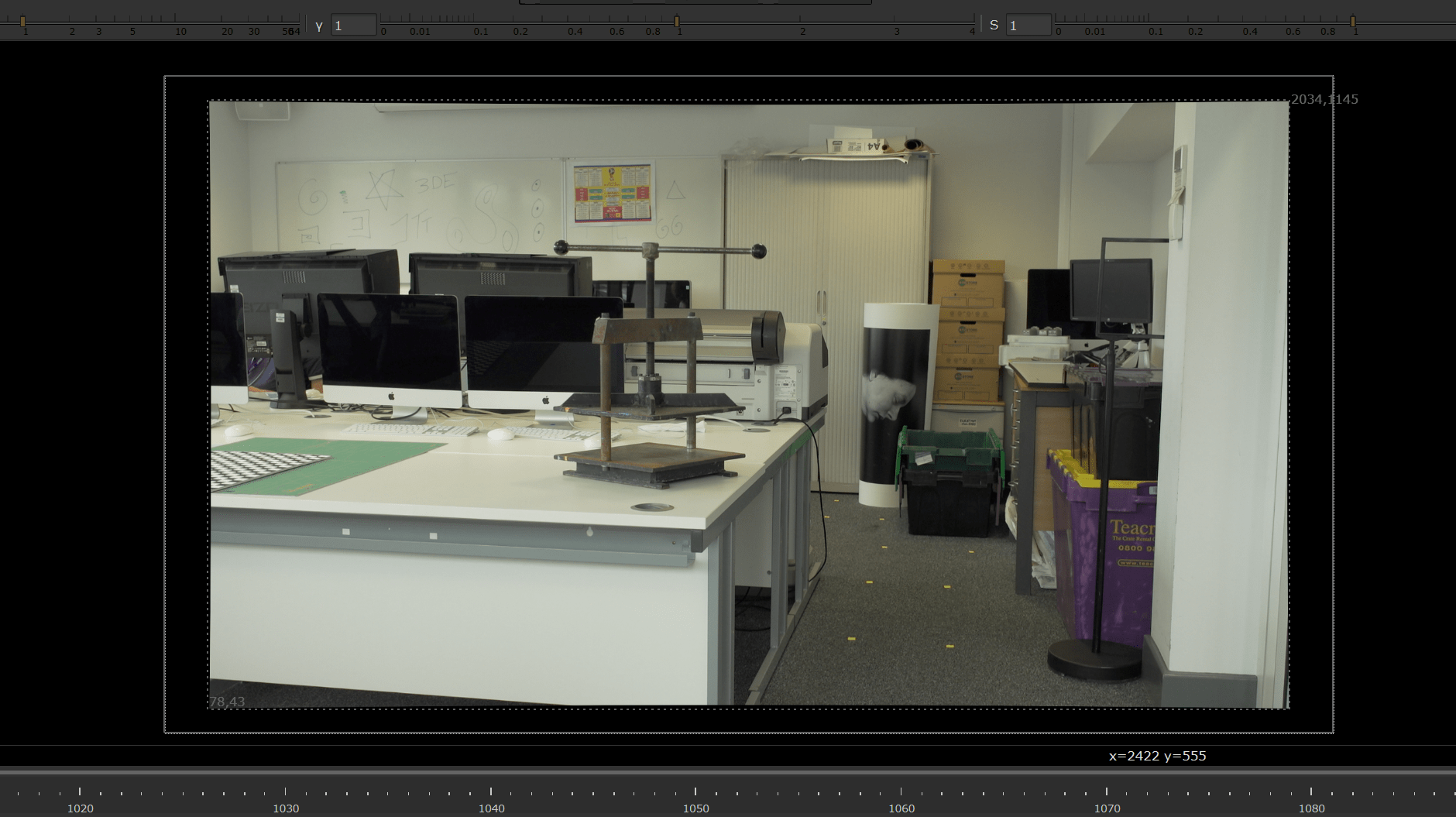
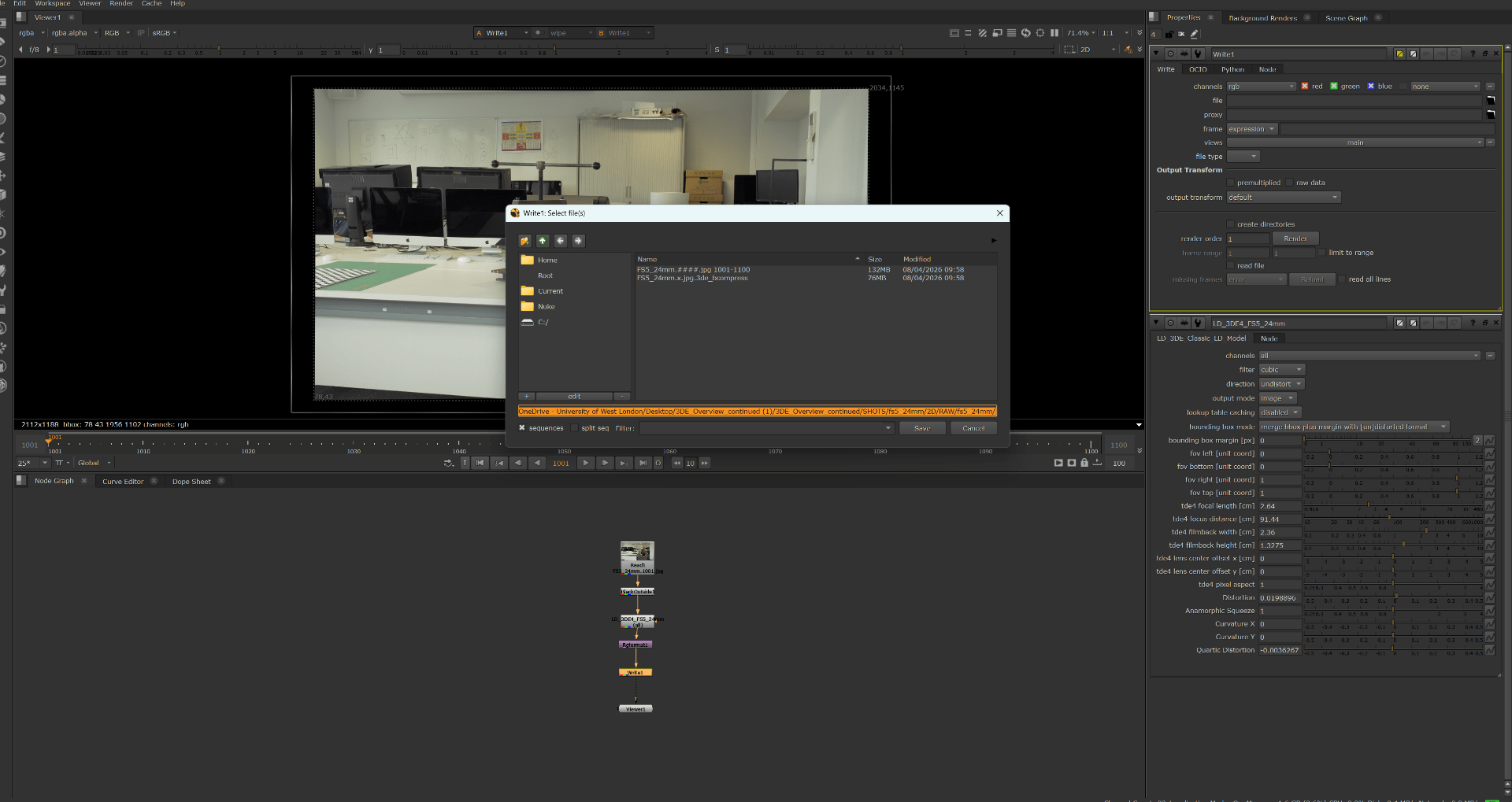
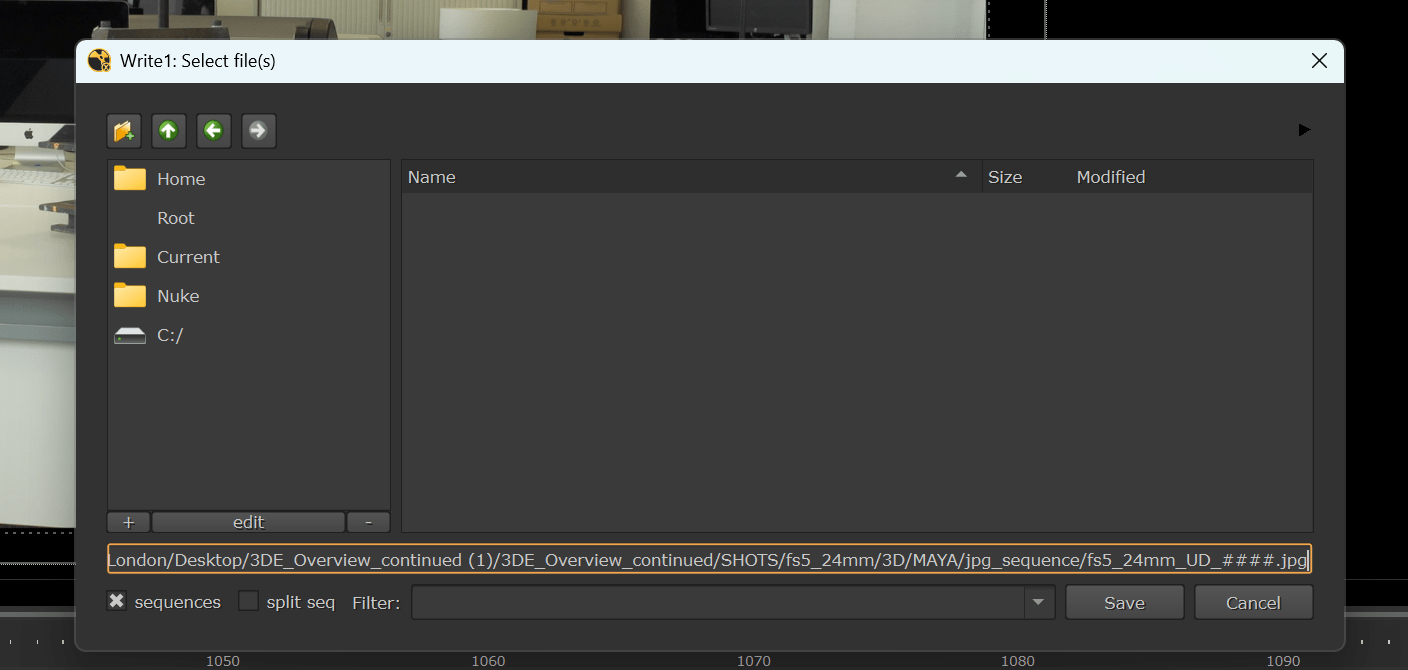
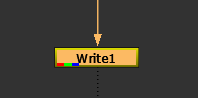
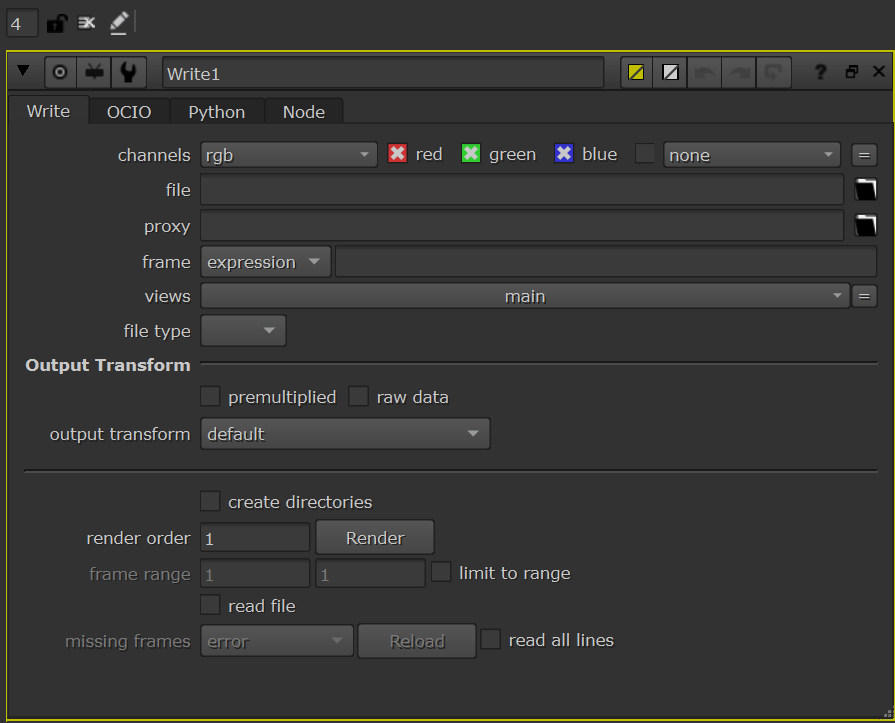
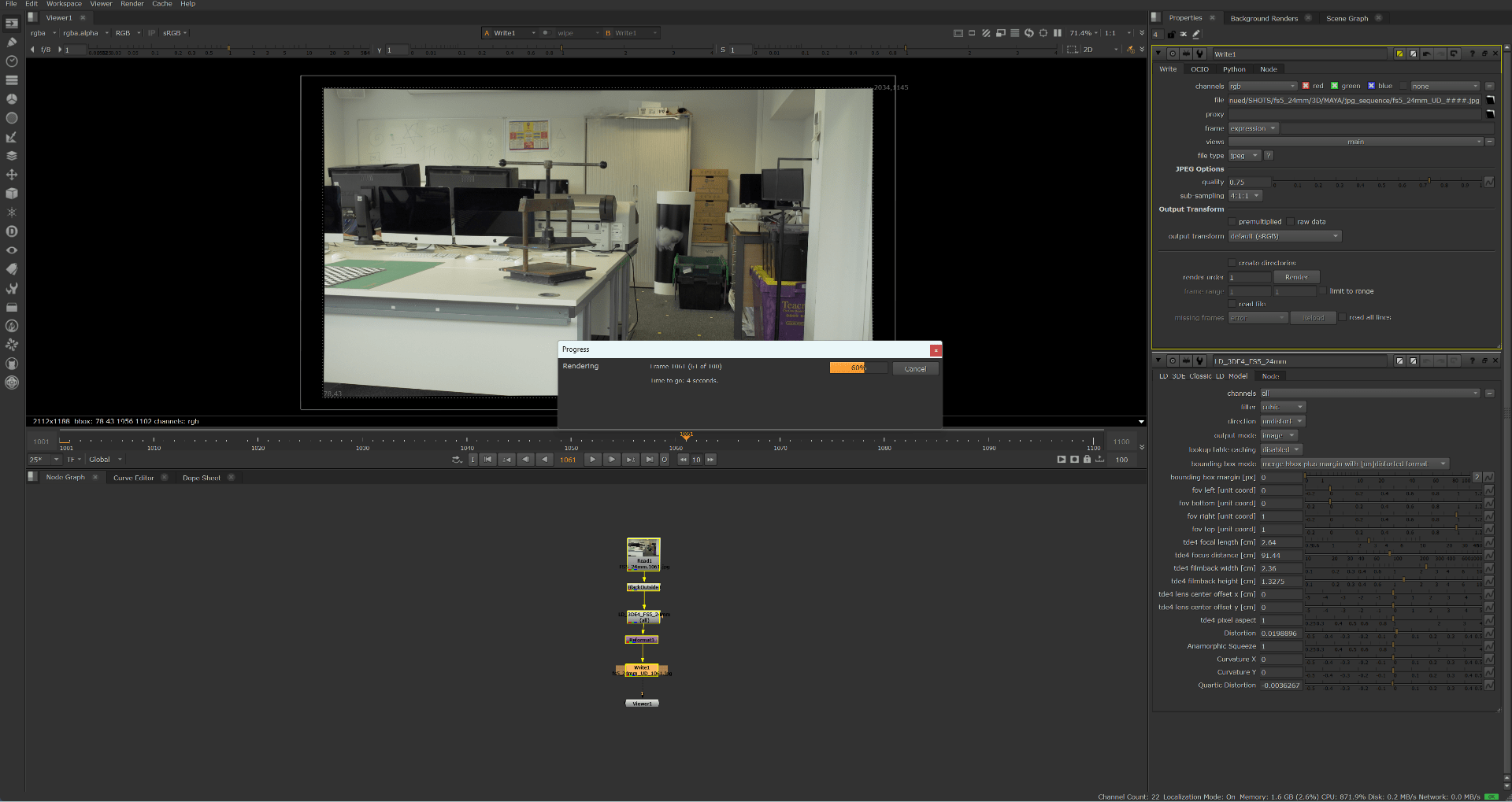
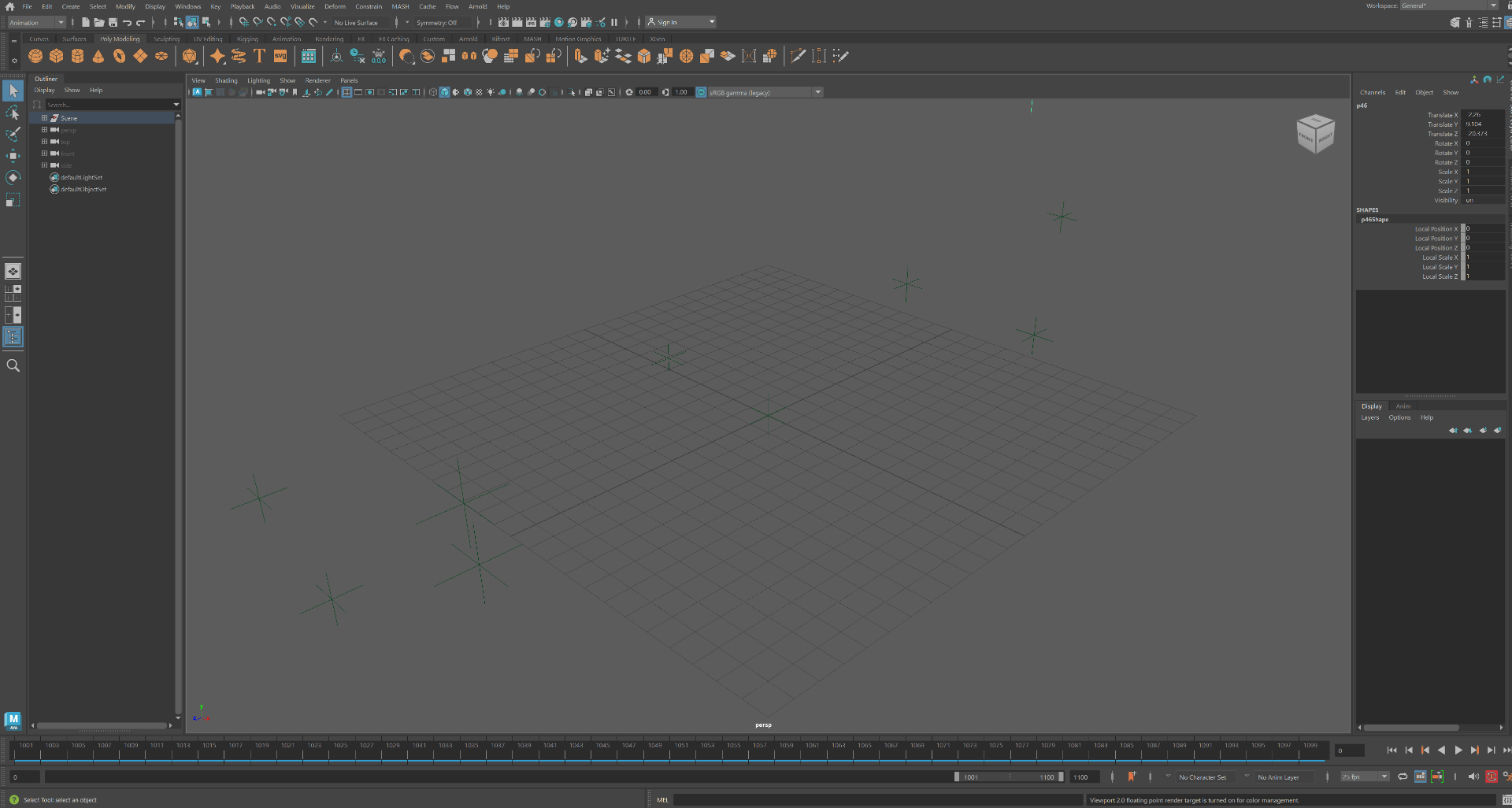
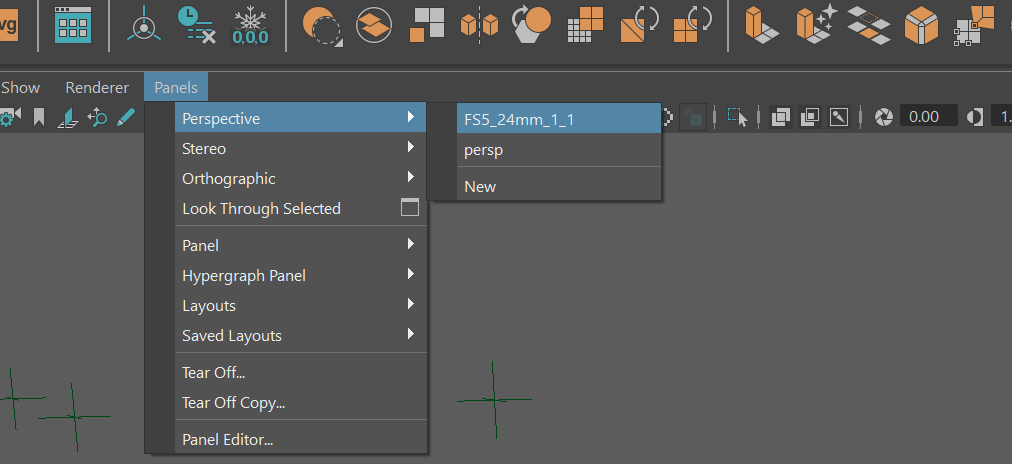
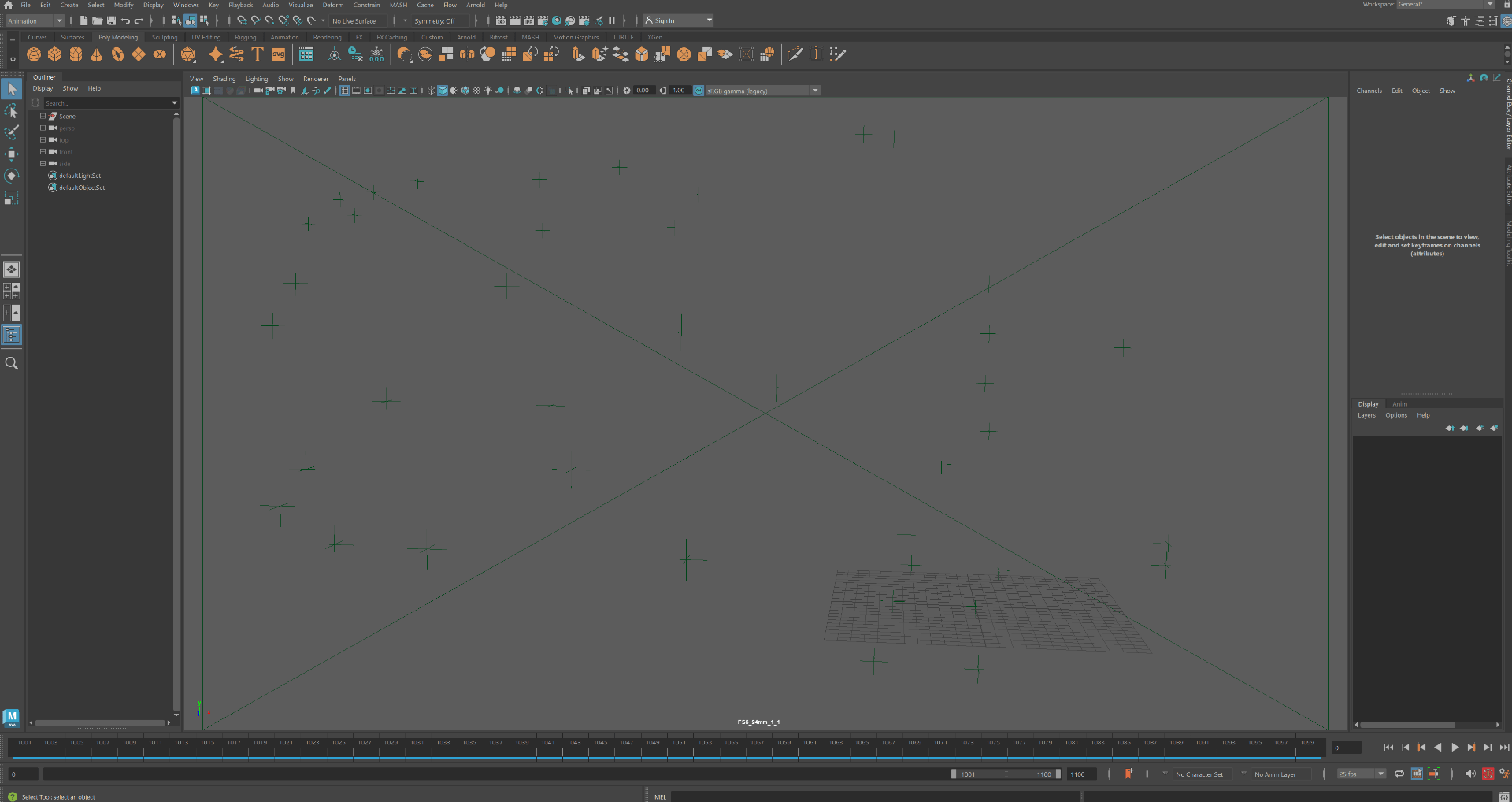
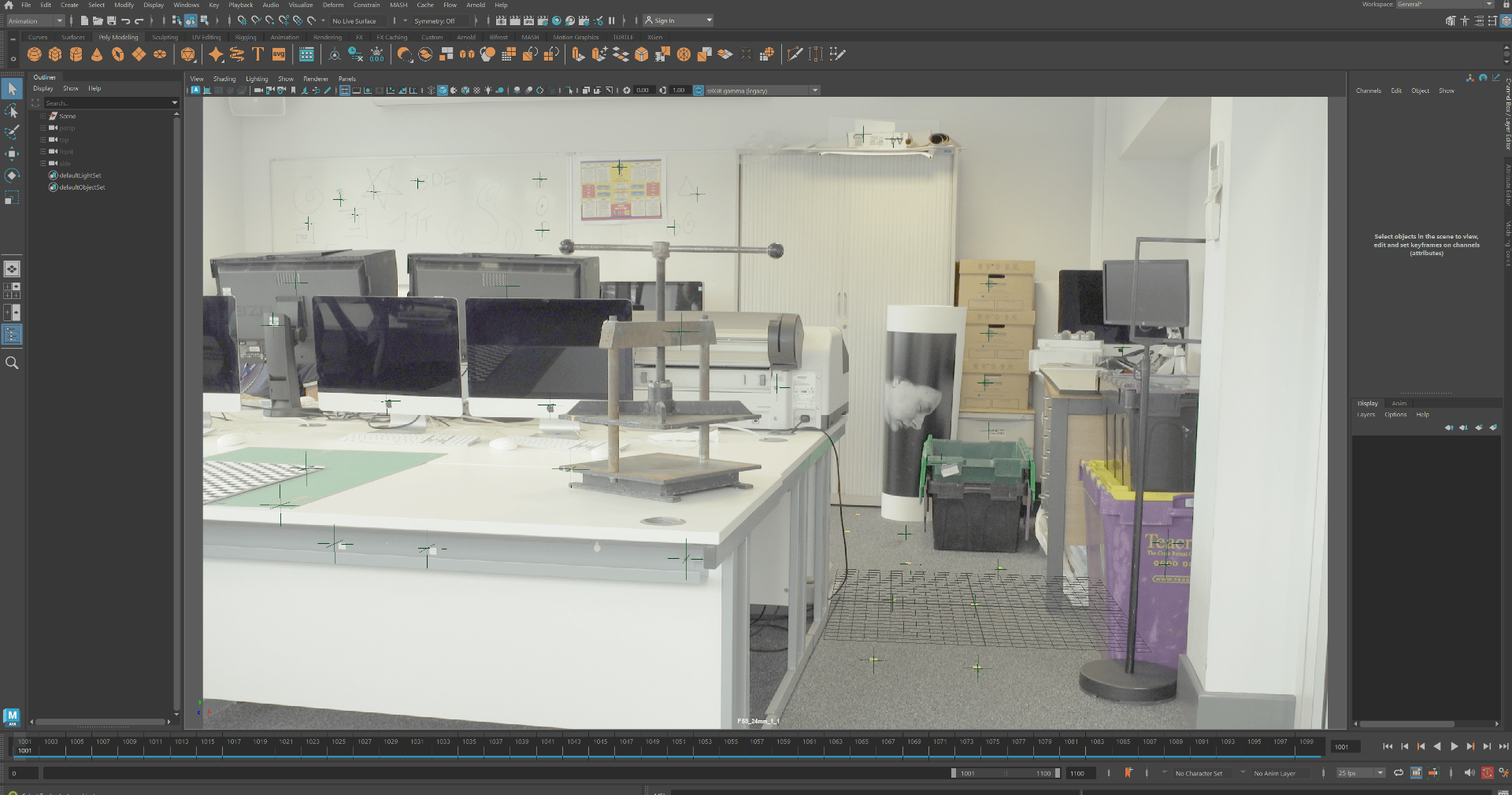
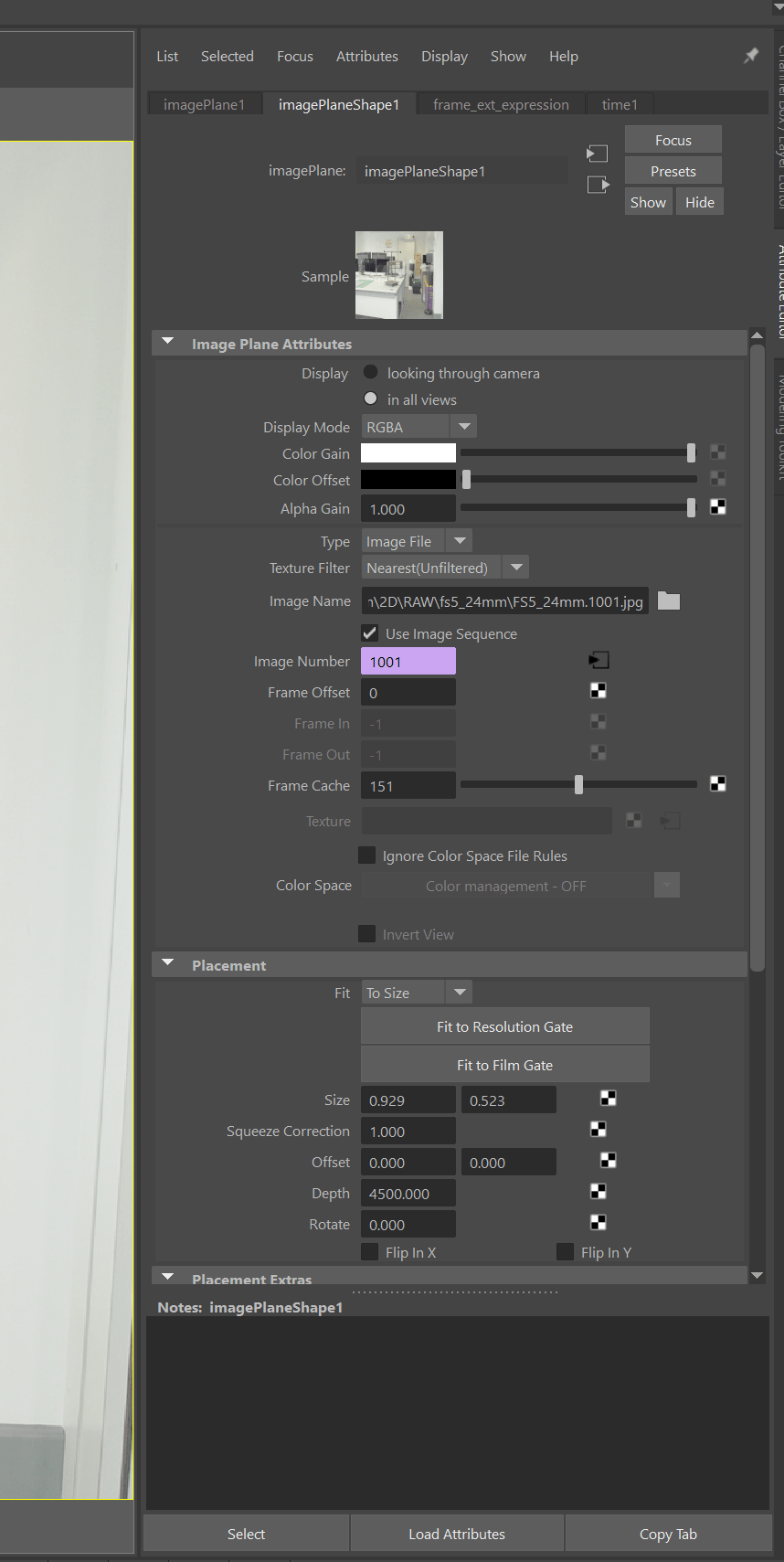
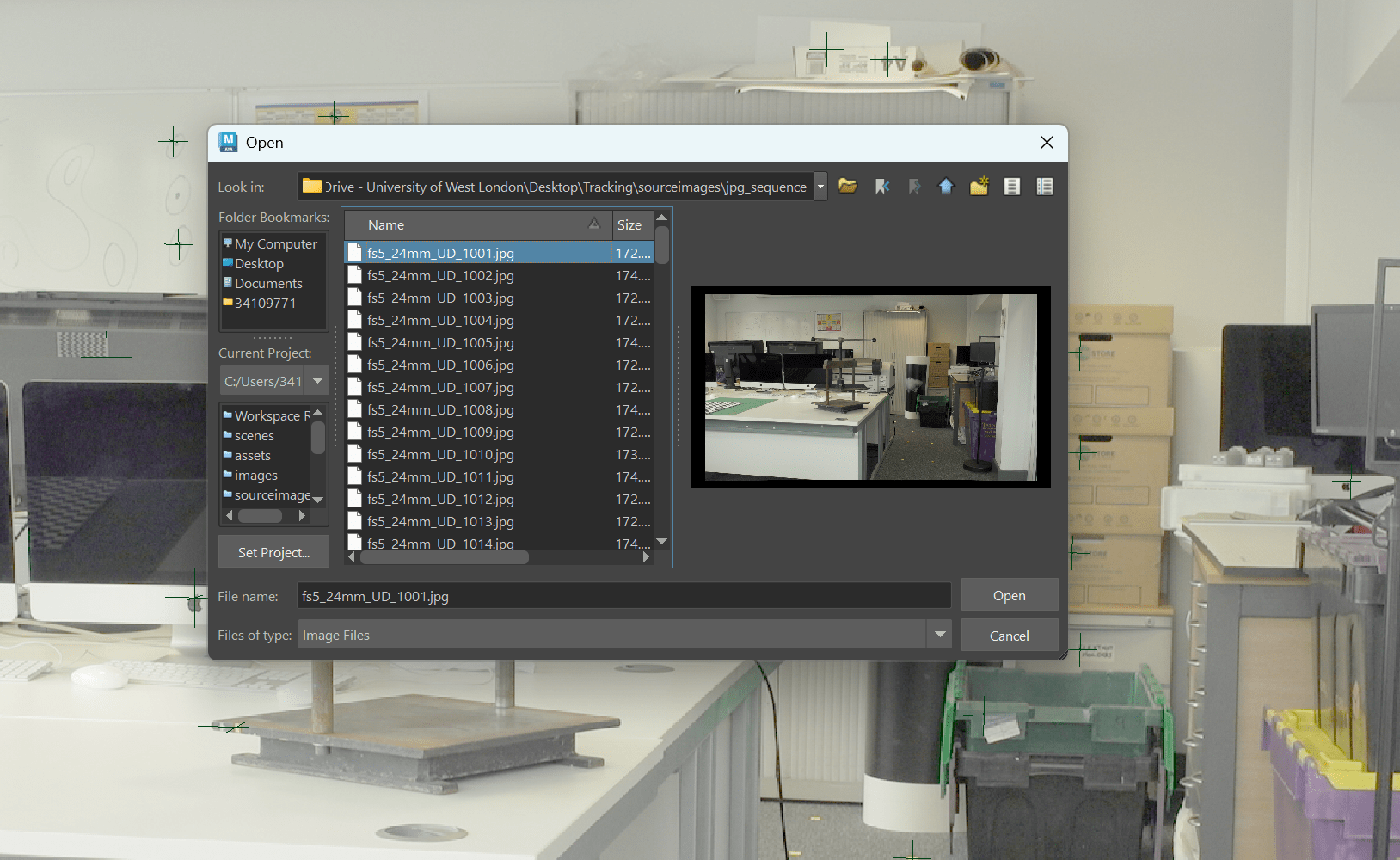
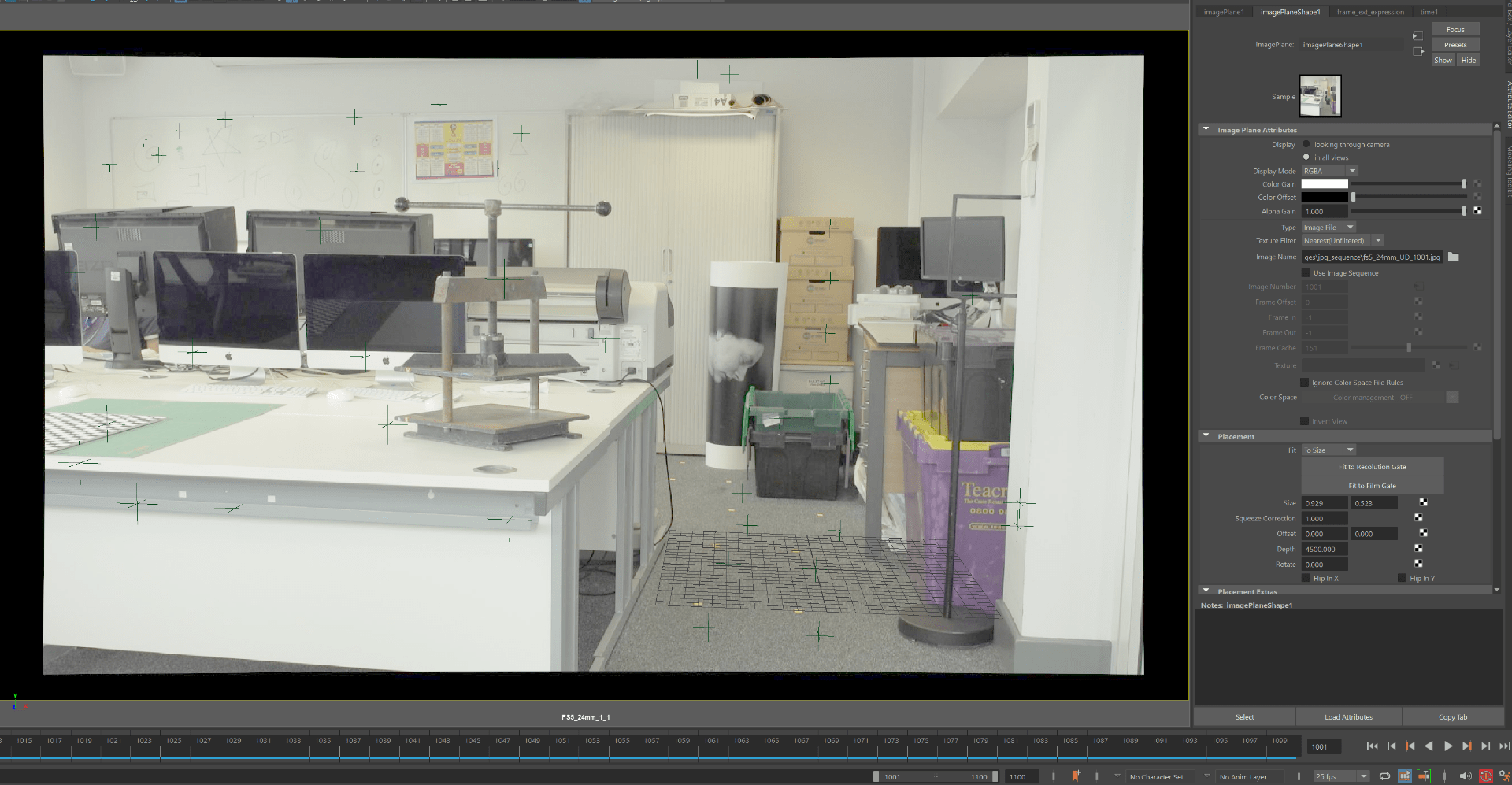
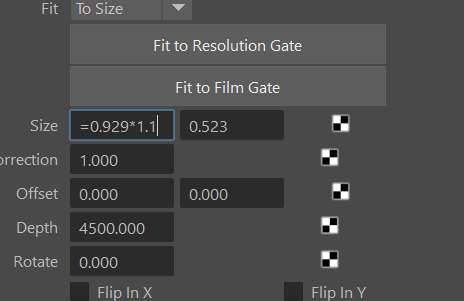
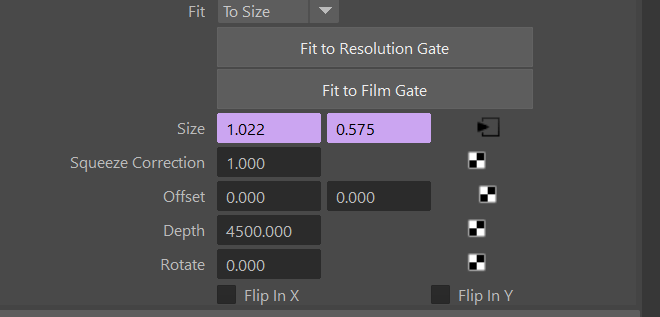
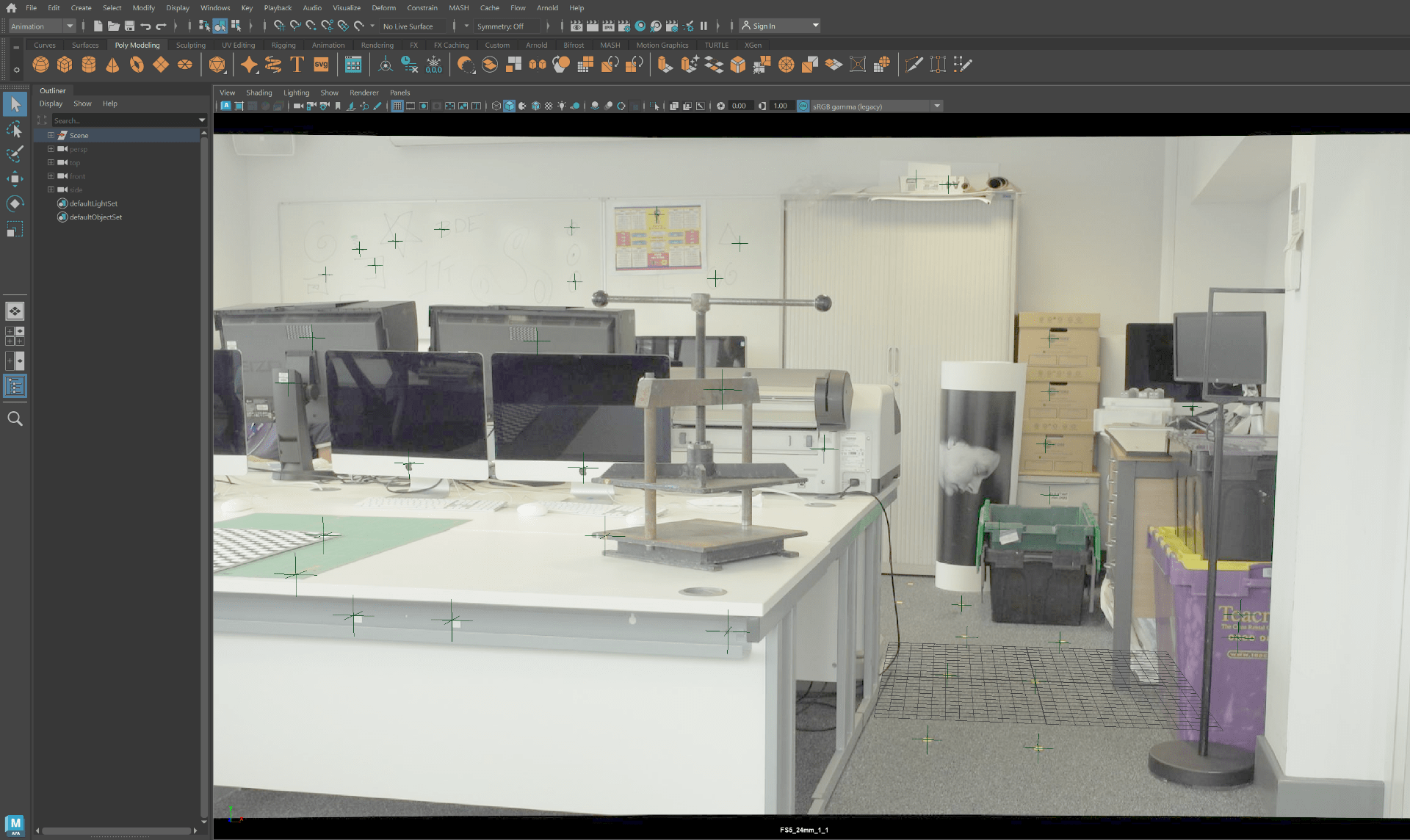
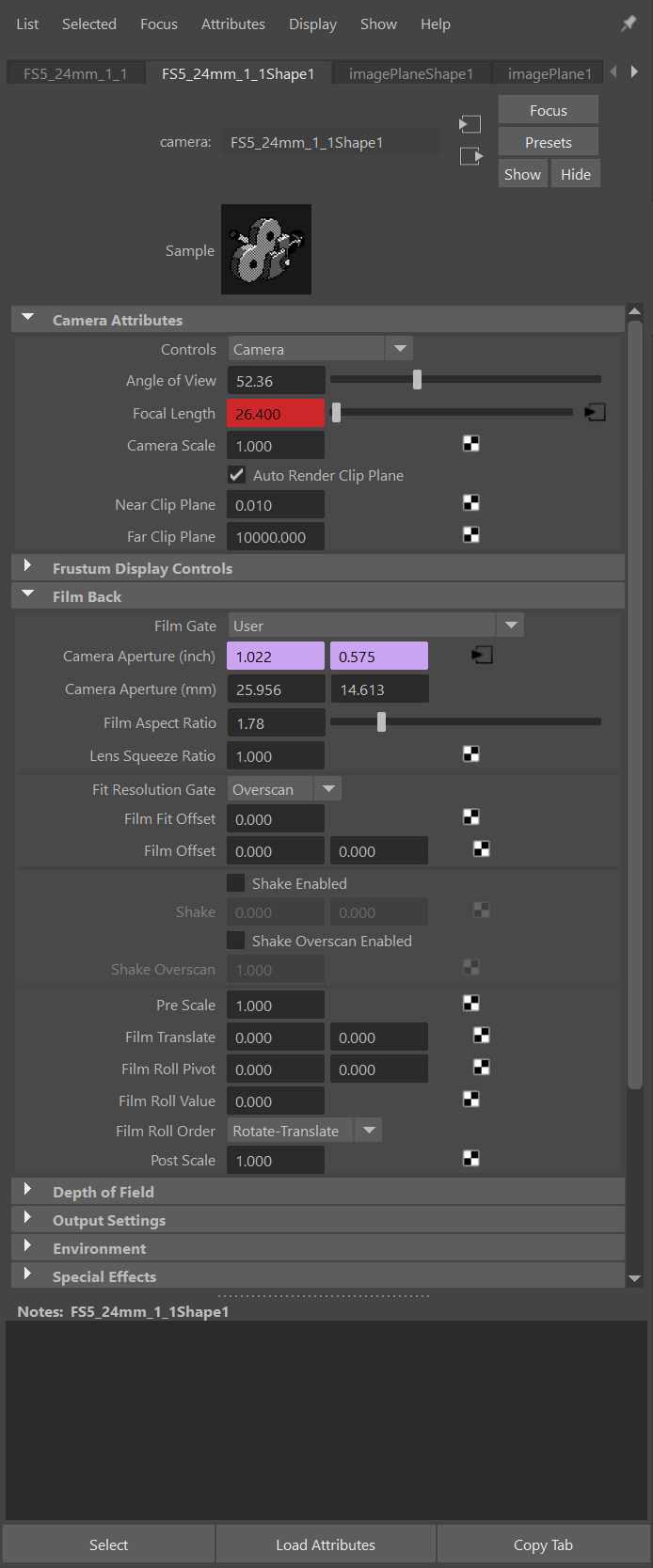
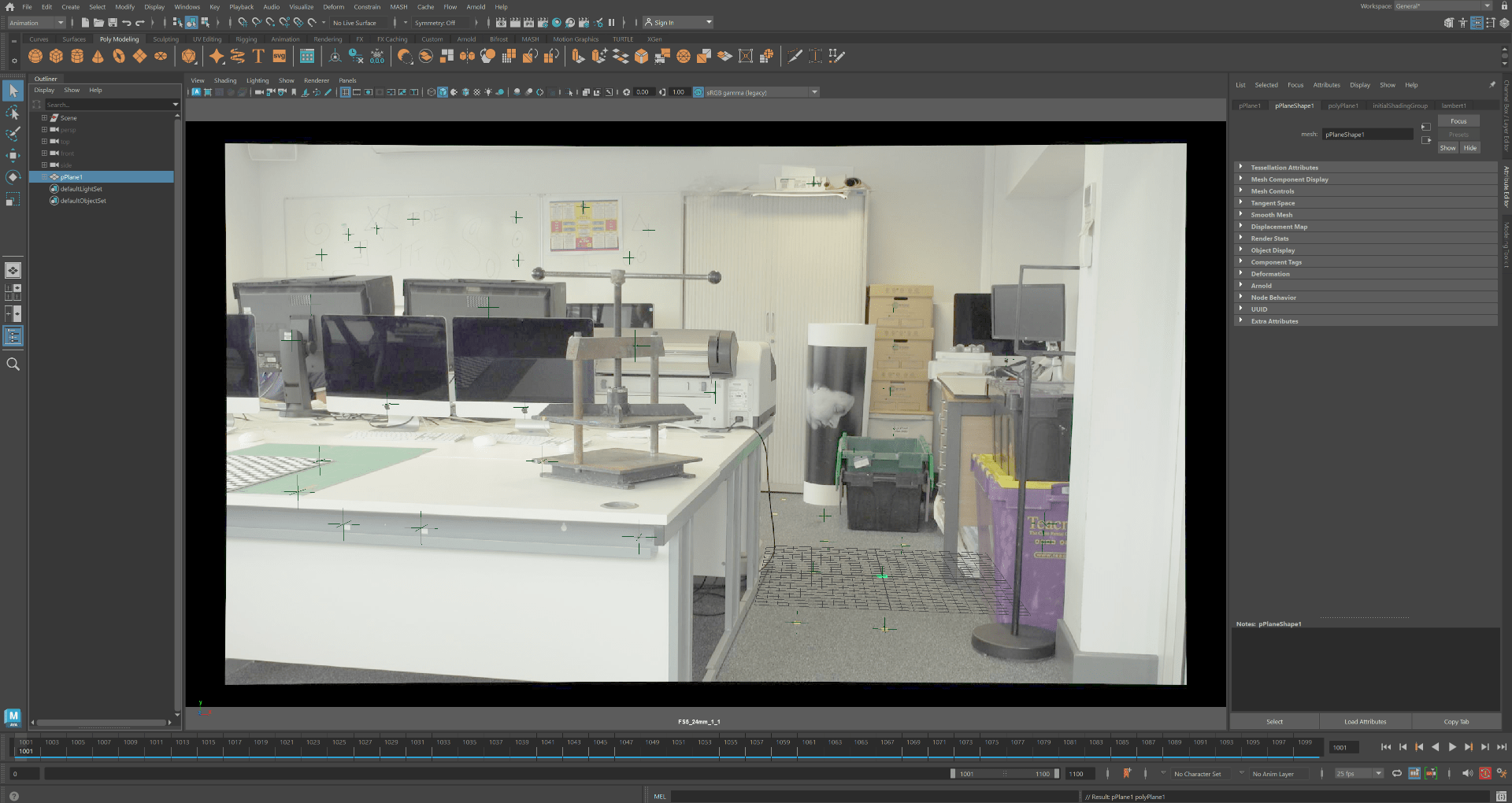
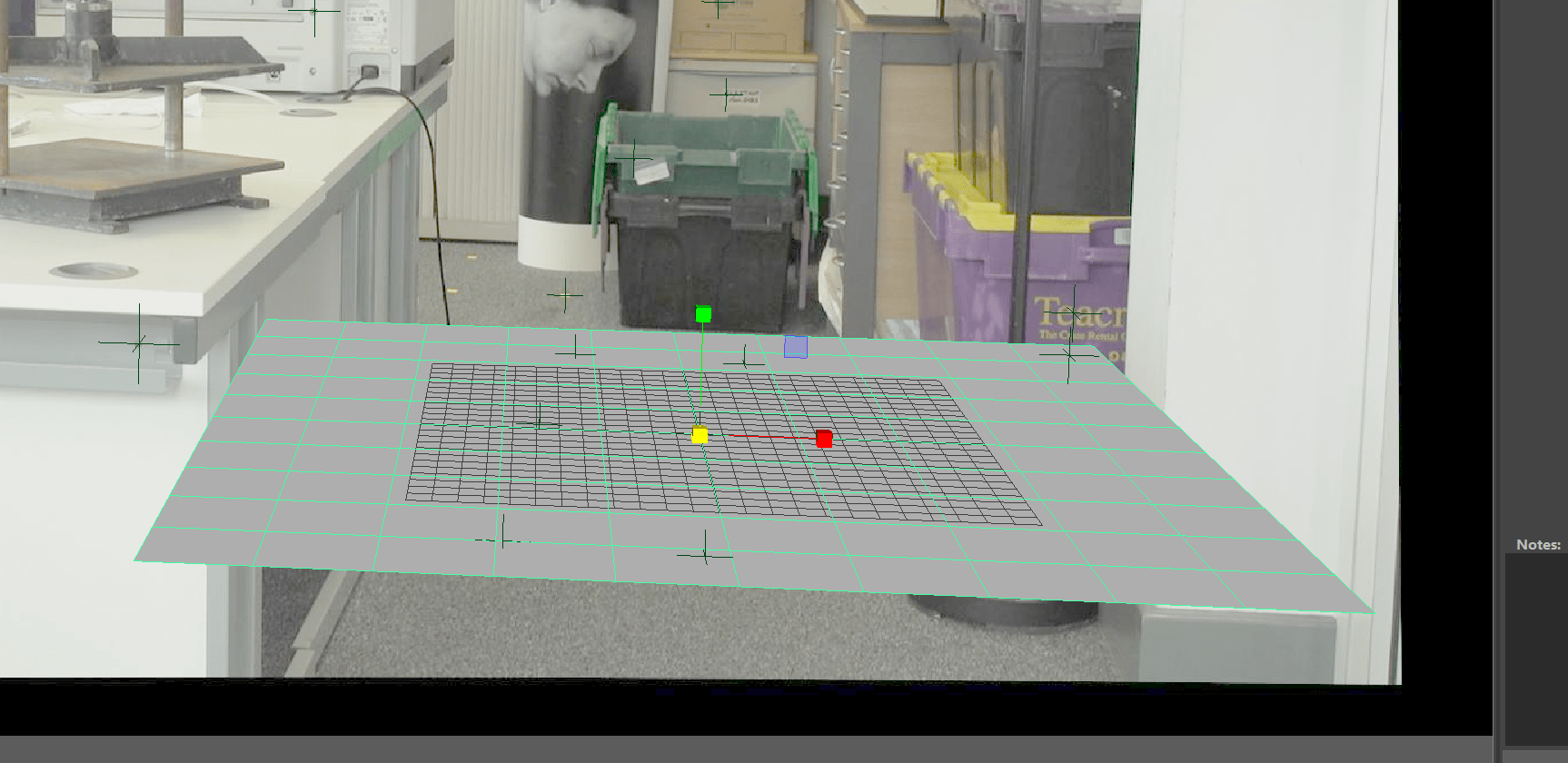
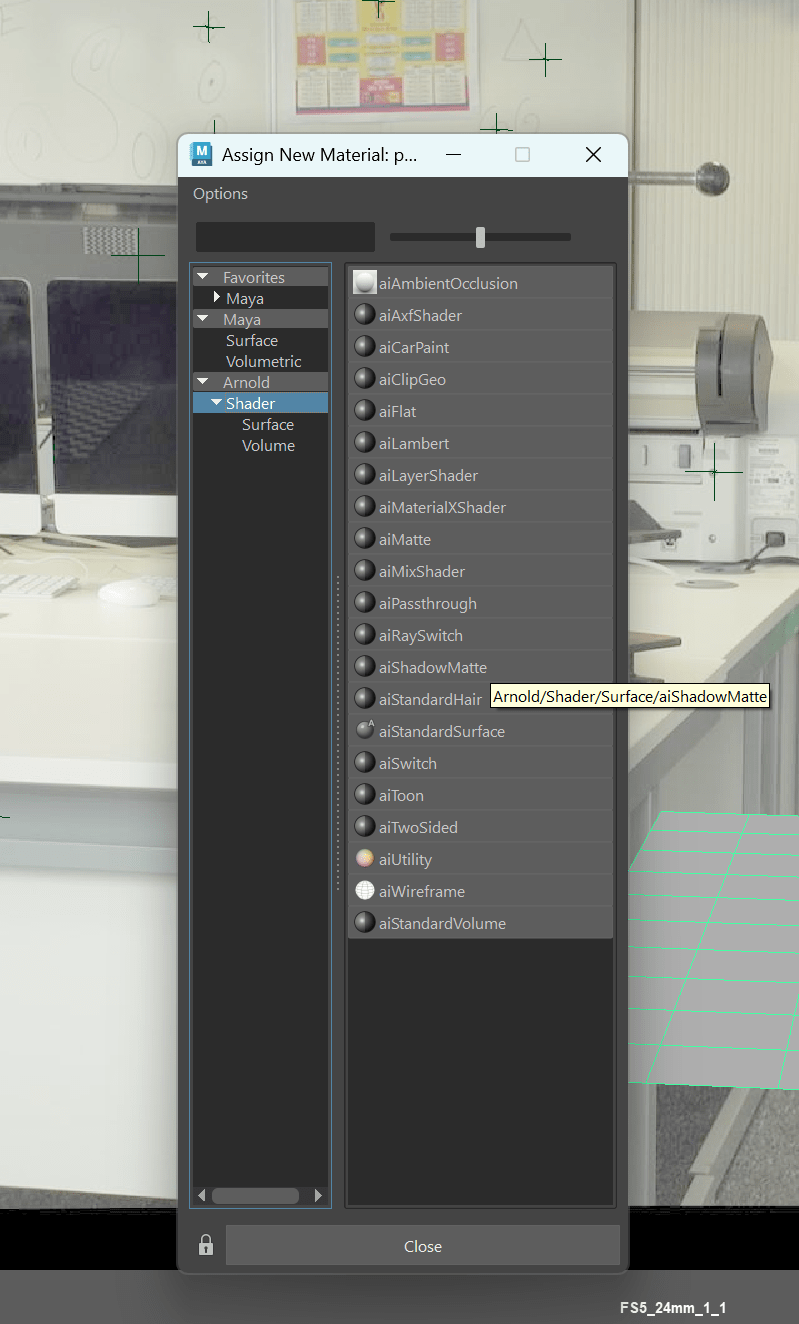
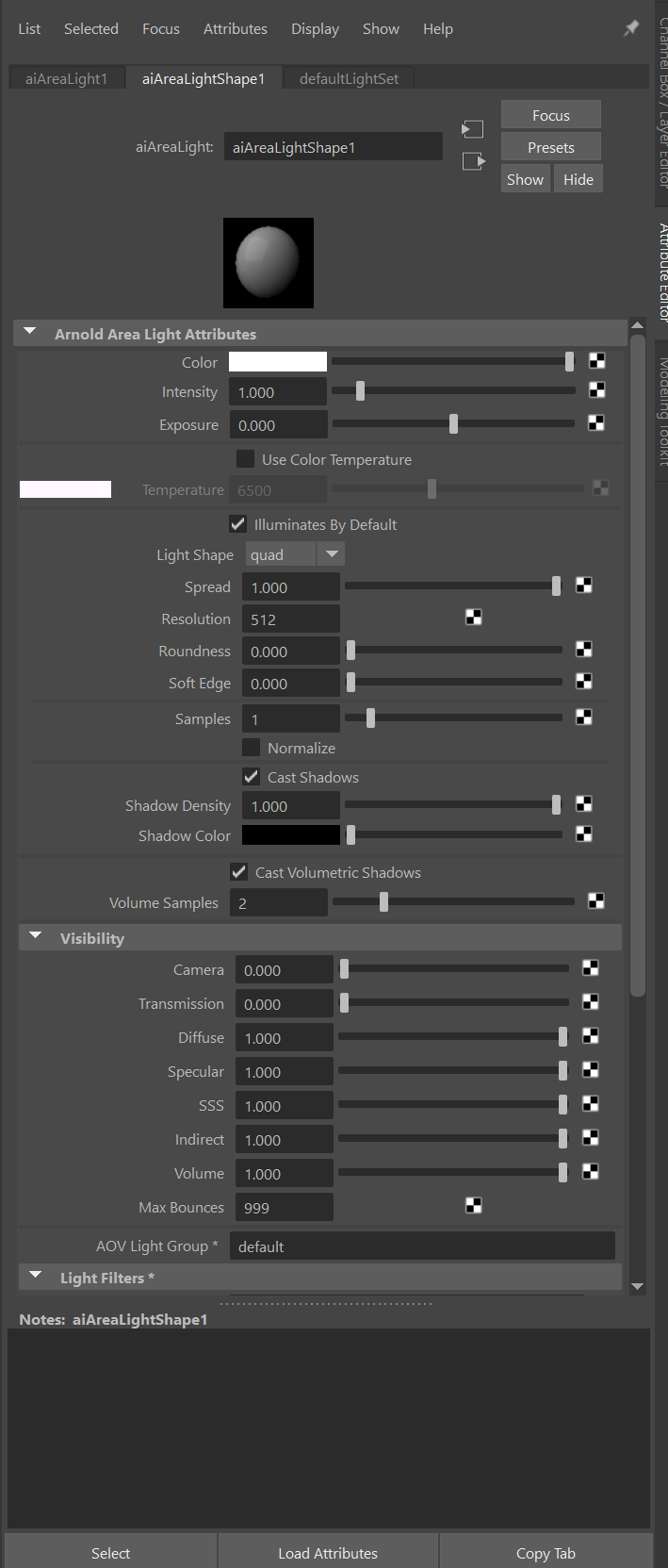
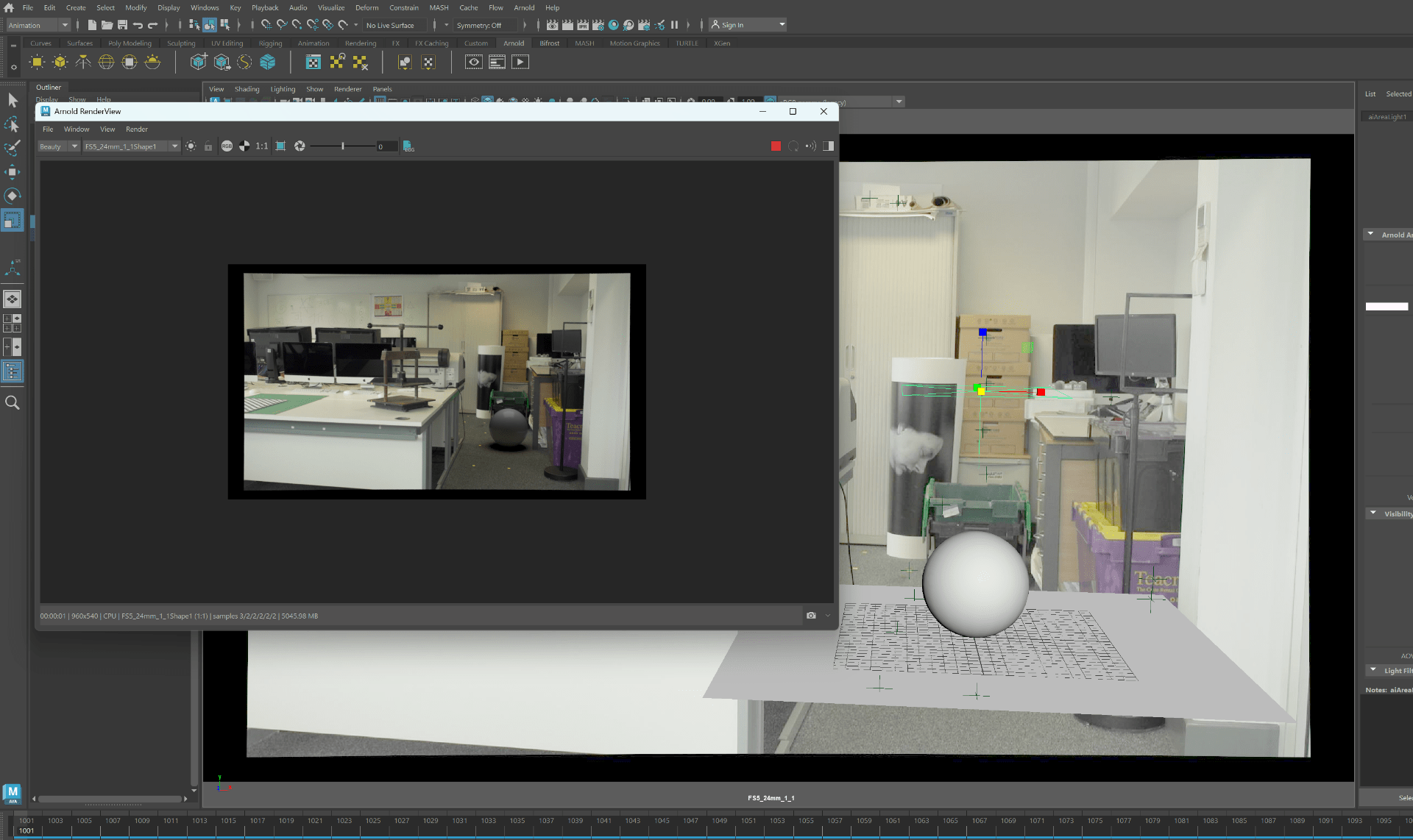
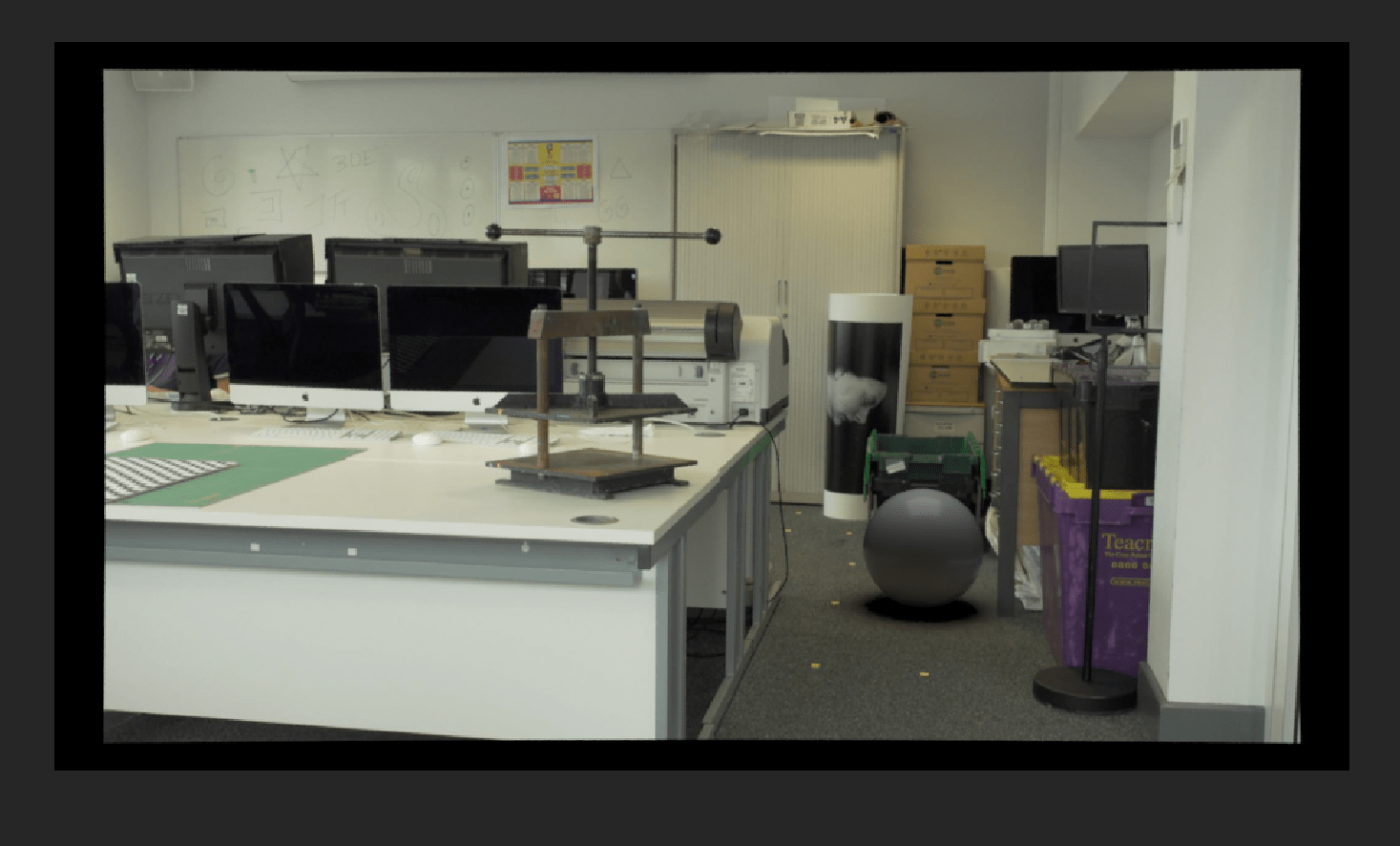
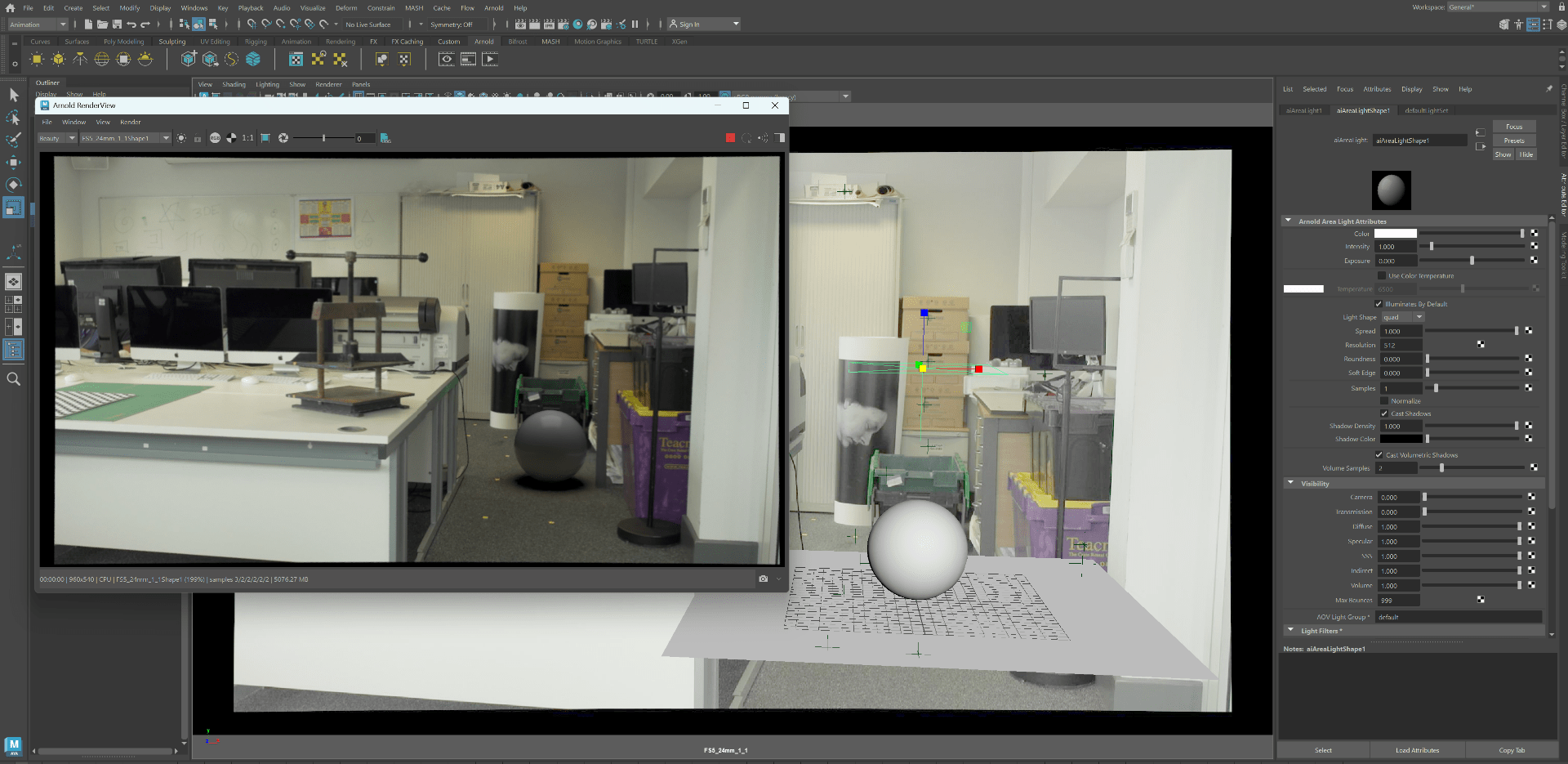
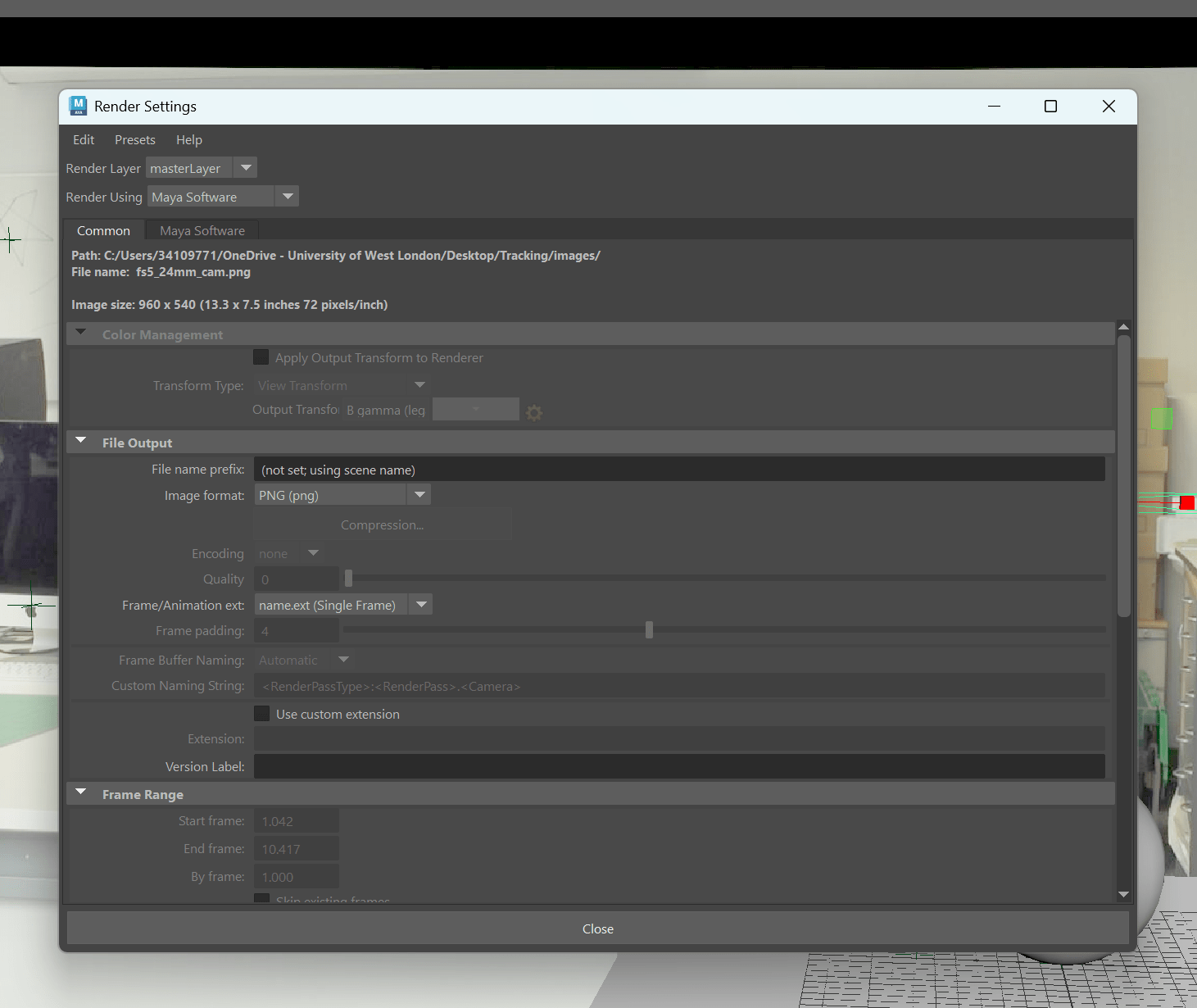
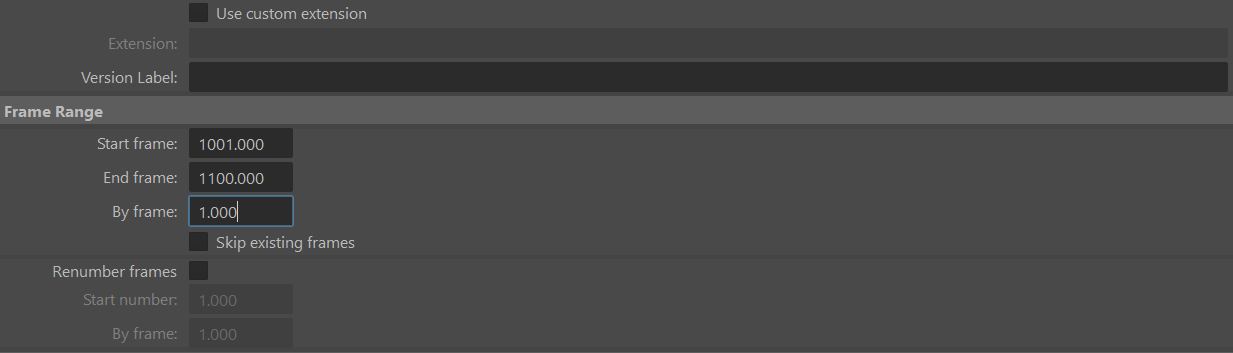
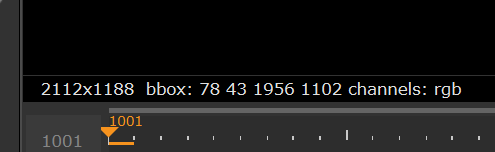
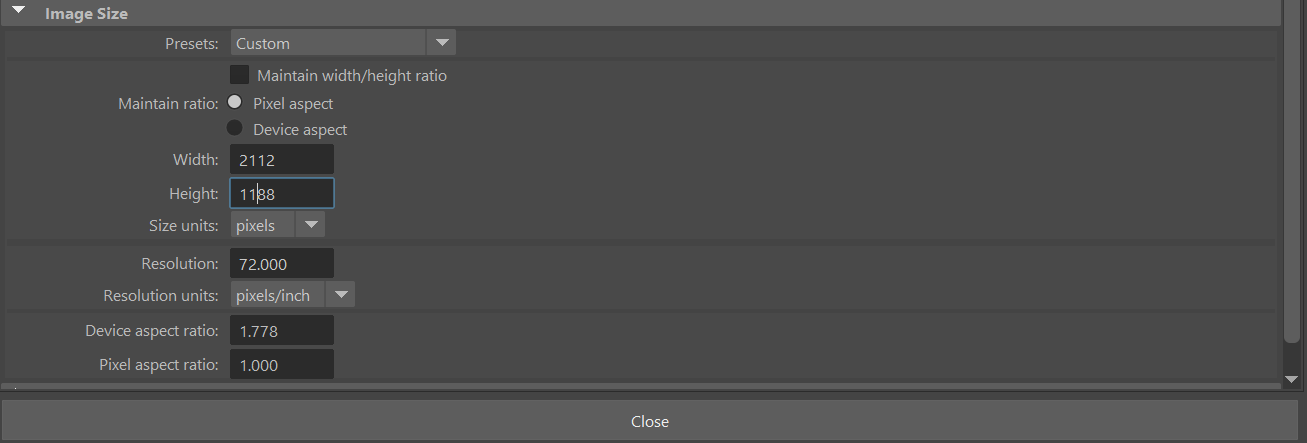
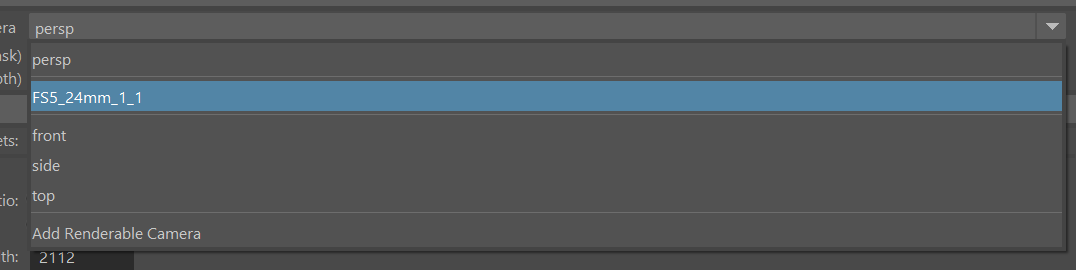
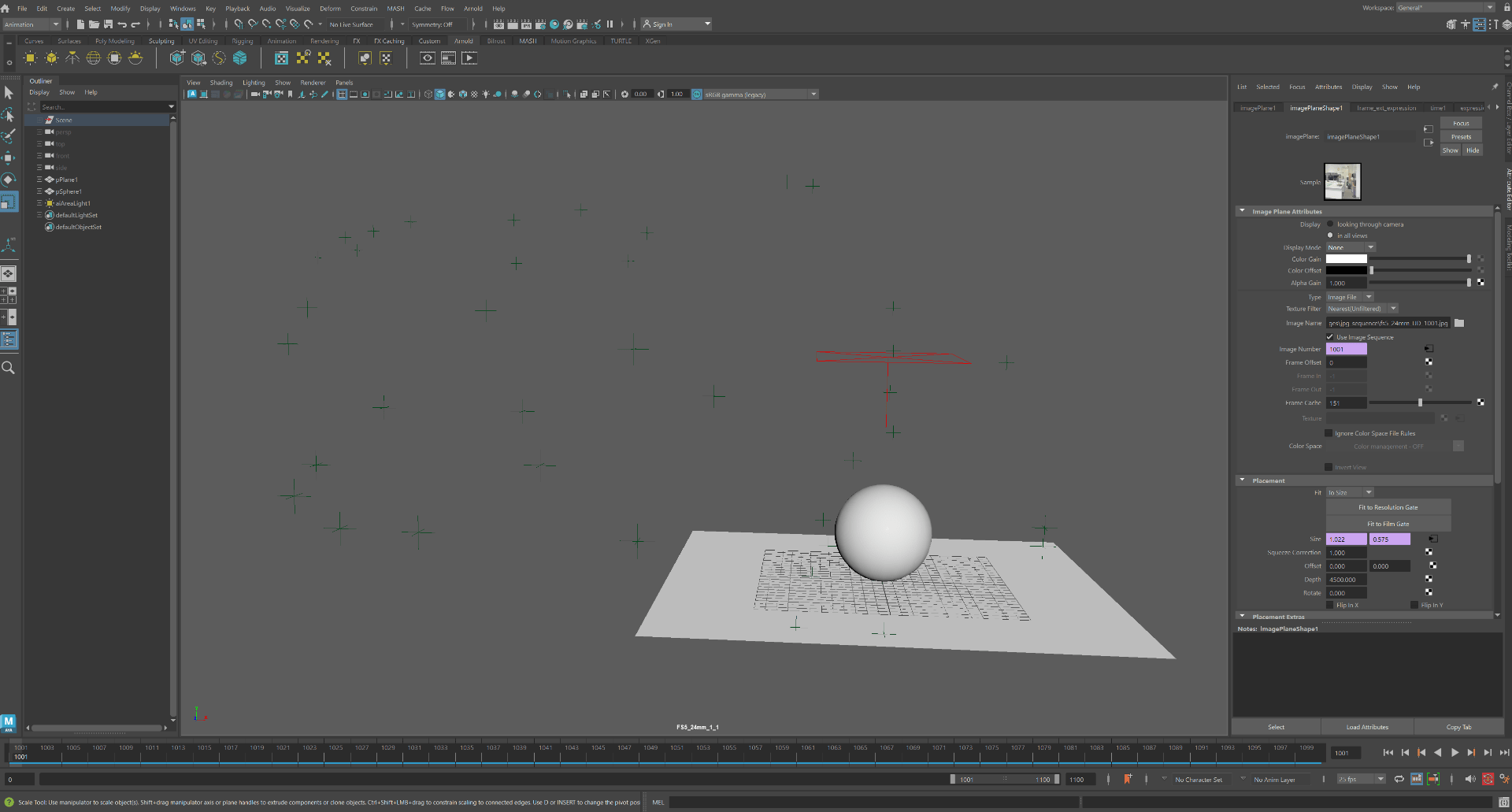
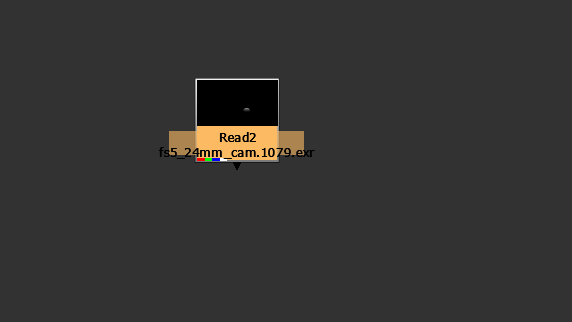
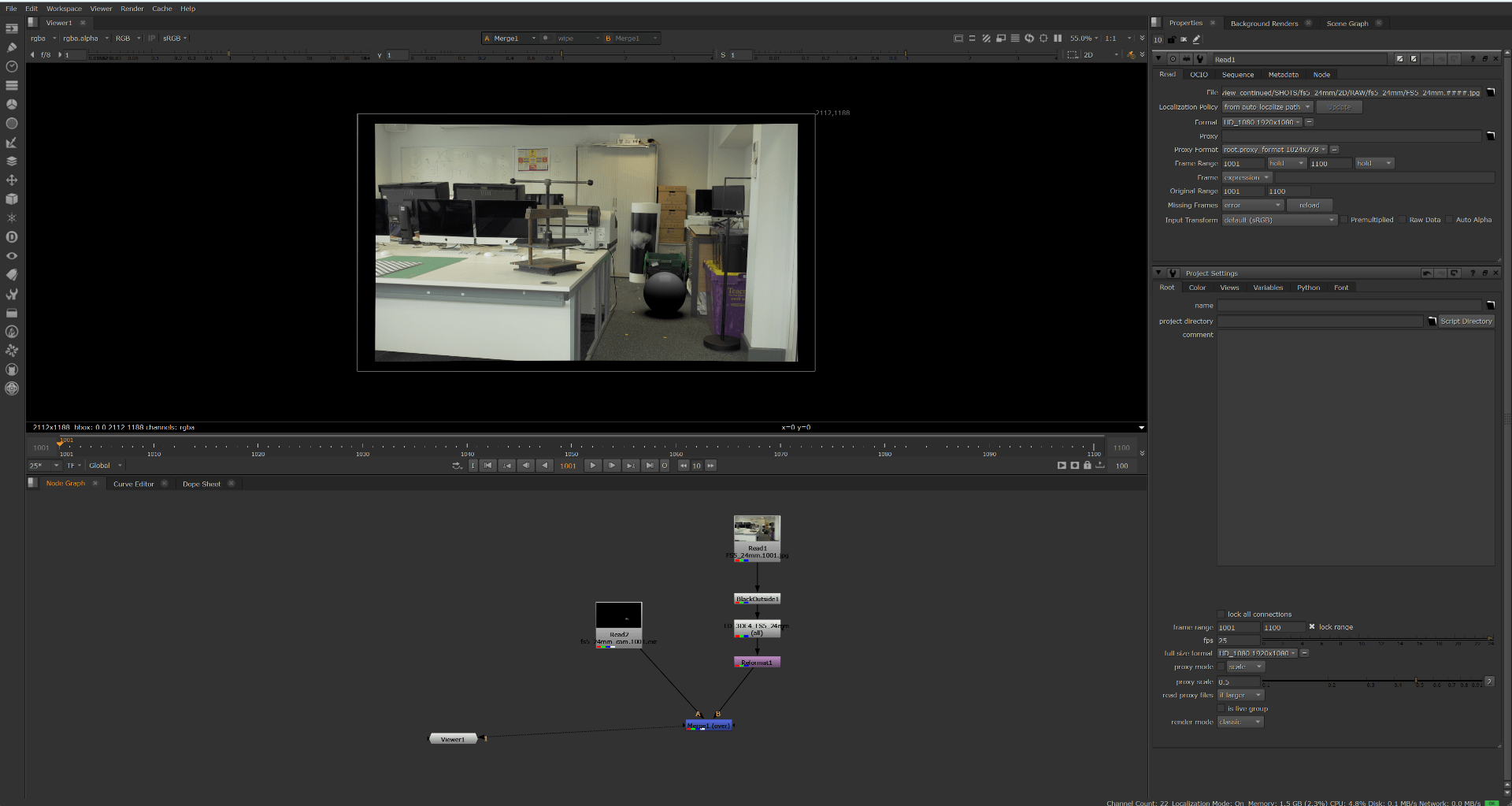
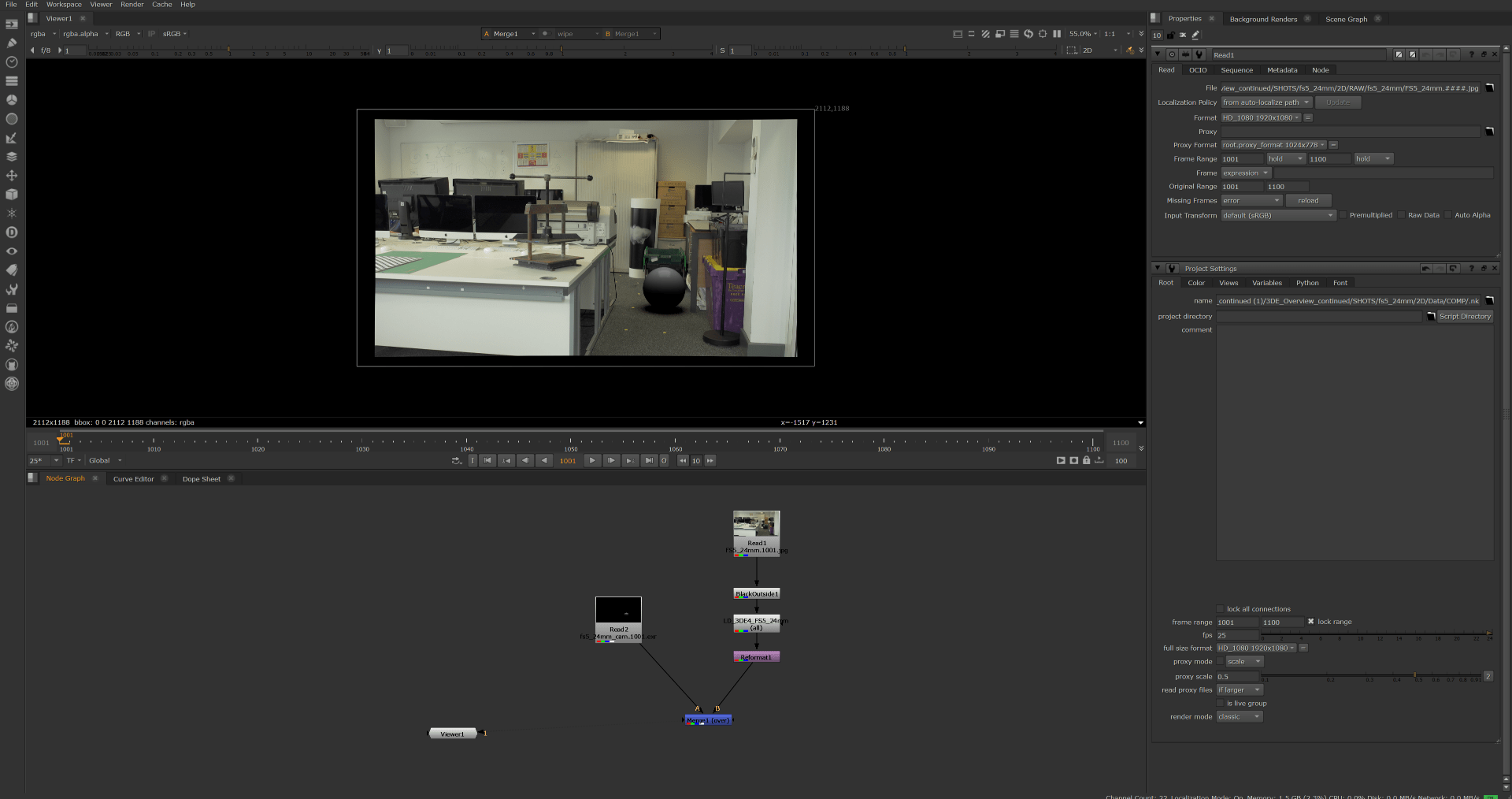
Videos:
Missing video 5
End of week 8
Week 9/10: Houdini masterclasses
This Wednesday’s sessions will run slightly differently, as Mark Spevick will be on site providing Houdini support. With his extensive industry experience, he’ll be able to help with a wide range of 3D-related queries. Alongside this, we’ll continue running the 3D matchmoving session, and both James and I will be available to support you with any matchmoving questions.
Level 4 students have also been invited to join on Wednesday afternoon, when Mark will deliver an introductory session on Houdini. This could be particularly useful if you’d like a refresher, especially if you’re retaking the module next semester.
Overall, the day will run as an open, workshop-style session, with Mark supporting Houdini and James and I available for 3D matchmoving.
End of week 9/10
assignment 2
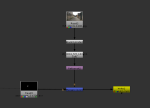
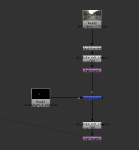
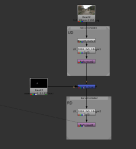
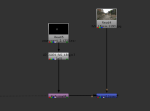
Gallery:

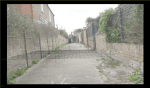
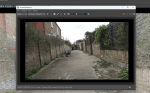

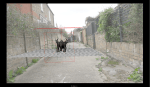
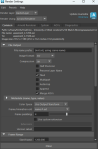
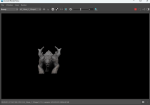
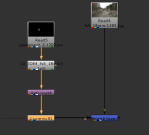
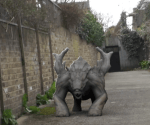
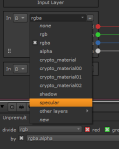
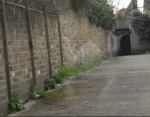
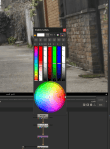
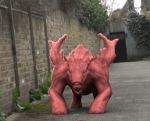
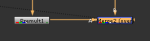
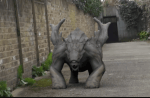






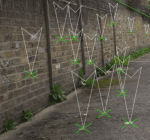



Videos:
Final render:
End of assignment 2

