Week 1: Introduction to CGI foundation
- Introduction to CGI Foundations
- Reading Material
- Approaching Assignments
- The Definition of CGI
This first week we get introduced to CGI foundations through a slides presentation:
Here I post some key slides from the class presentation:
In this slide we find the module name and the tutor with contact details.

In this slide we find the module overview, where we can see how the assignments are going to be assessed, next to the different assignments.
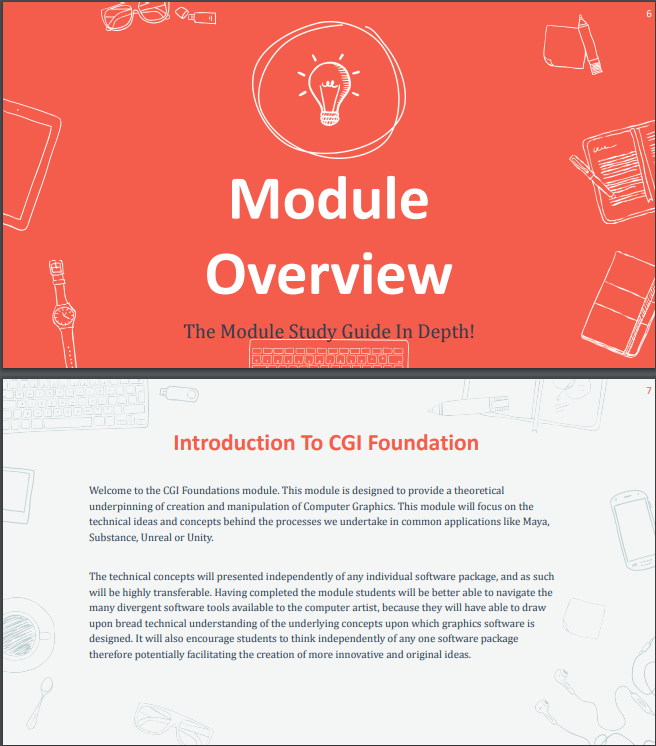
How is the course assessed .
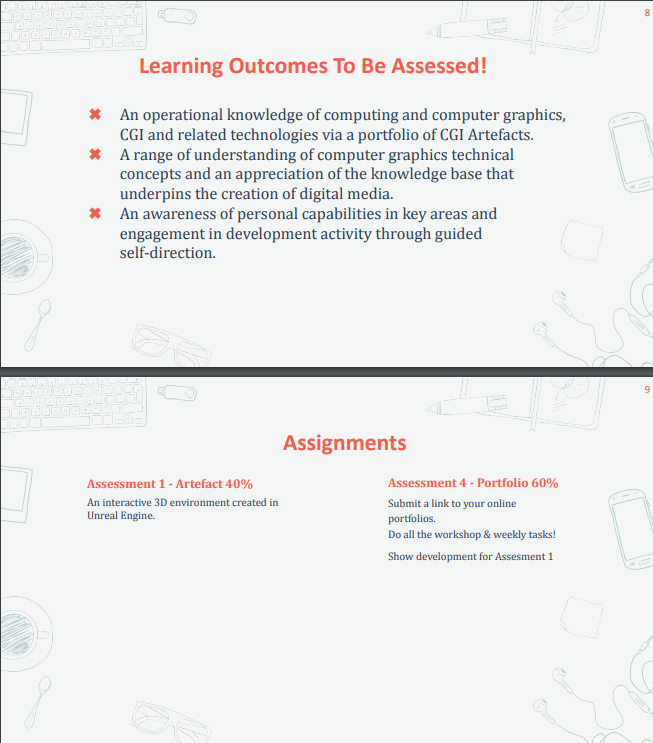
Assignments overview.
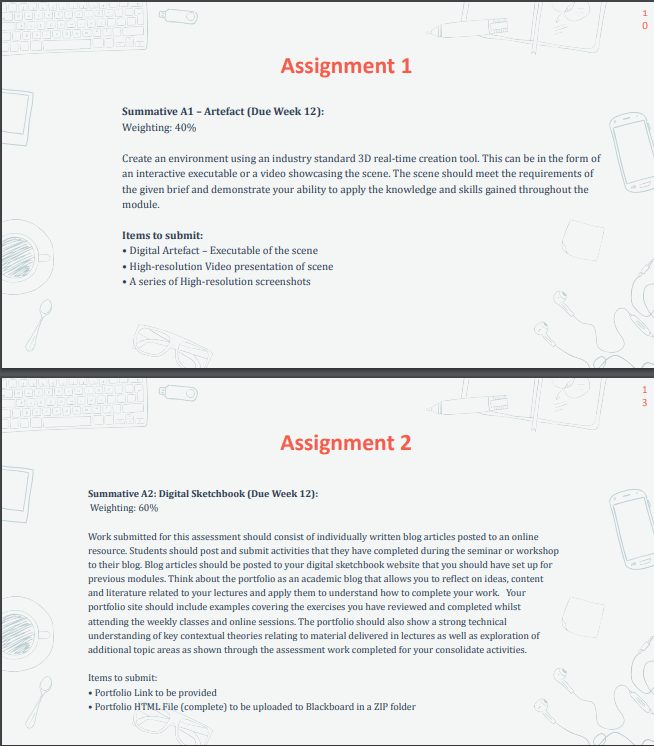
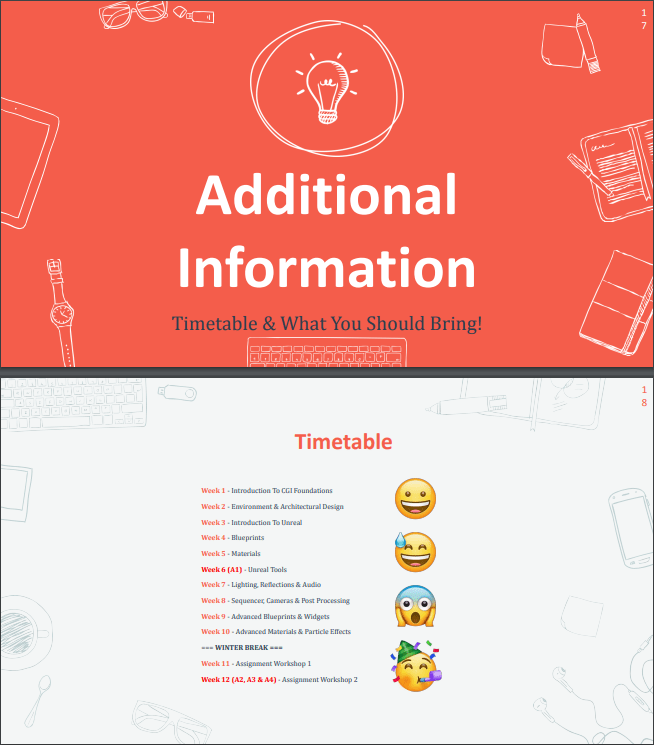
In this slide we can find some additional information such as the timetable and the material required to work fluently.
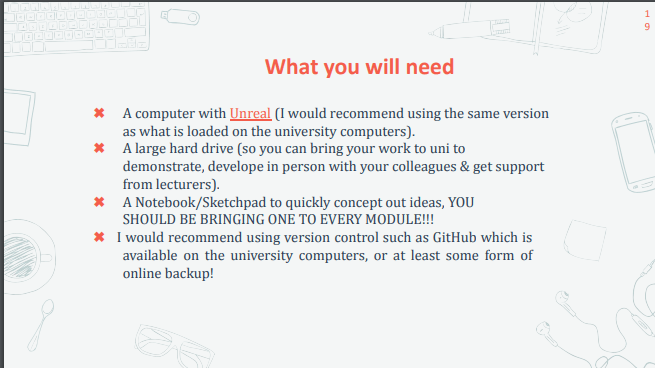
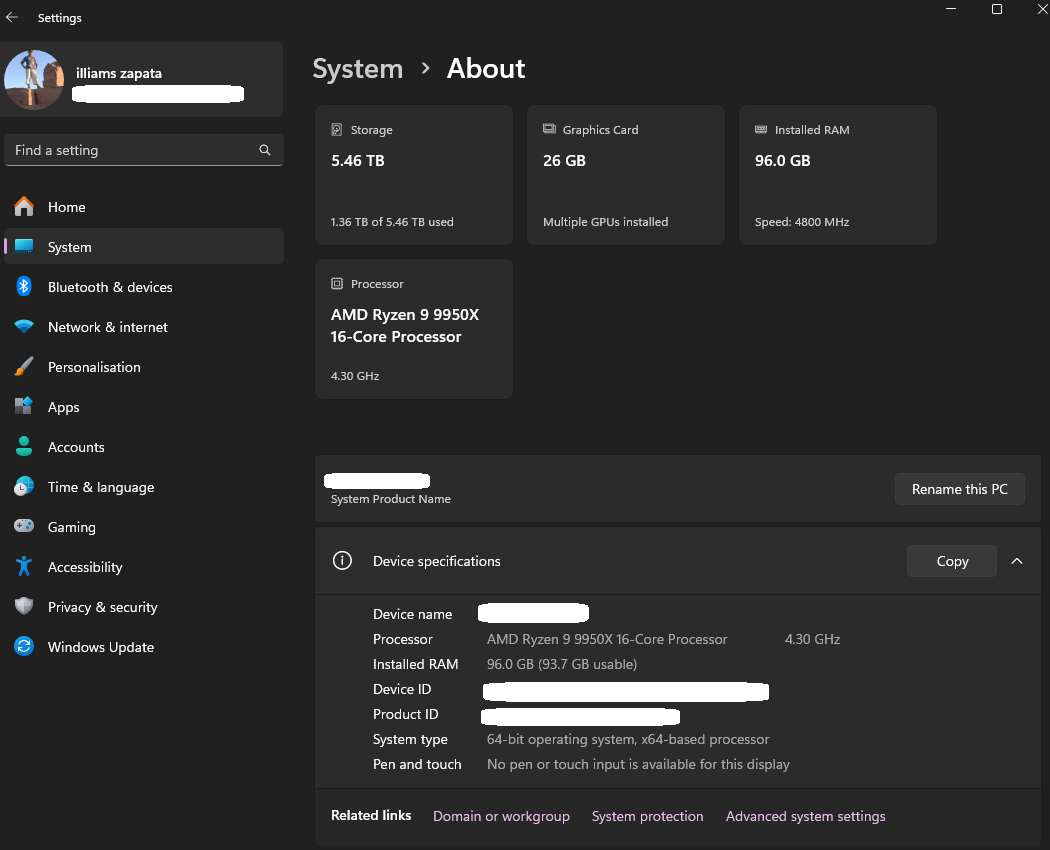
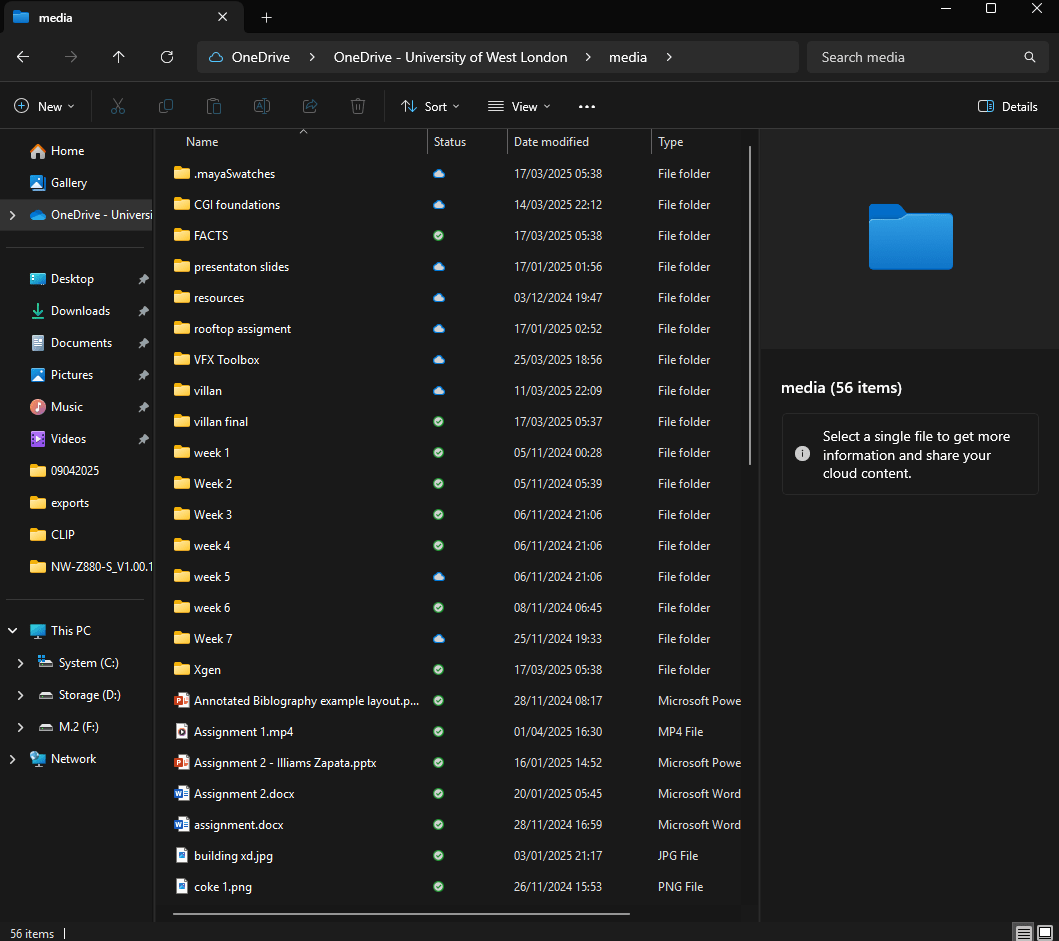
About the things I need for the course, I am well equipped with a computer capable of run unreal engine at home to work with with large capacity storage drive, and I use OneDrive as a backup for all my work:
In this slide we can find different recommended sources to work with if we have any doubt and resources that we can use such as unreal engine marketplace.


And then we learnt about “What is CGI”.
CGI = Computer-generated imagery that is the creation of still or animated visual content using software.
Workshop Week 1:
For this week we split into groups and discussed modern media ang CGI techniques used.
We end up with the conclusion that we use computer-generated imagery (CGI) in a lot of aspects in our life such as films, games, advertisements, magazines and so on…
this workshop activity was very useful to me, because helped a lot to put us into perspective.
End of week 1
Week 2: Environment and architectural design
- Environmental Design
- Architectural Styles
- Designing Environments For Interactions
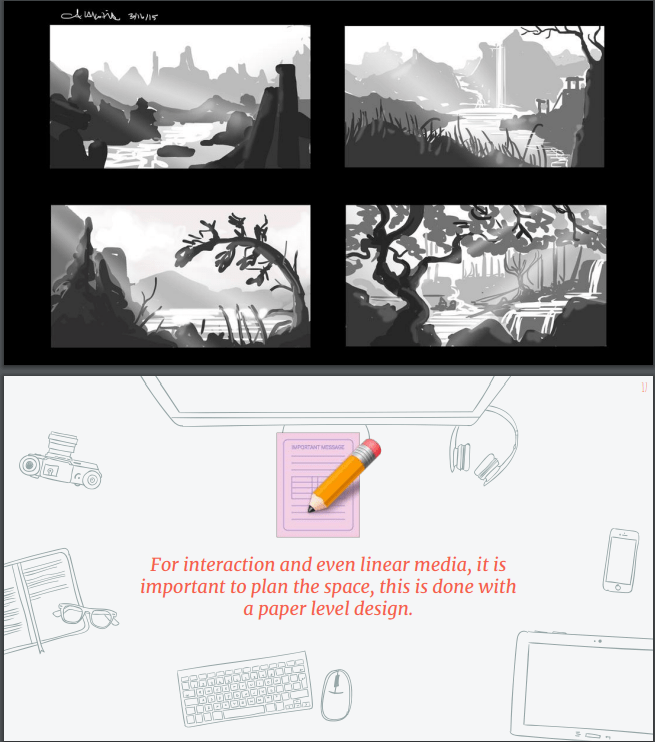
This week we learnt about environmental design trough examples showed to us from the slides showed in class.
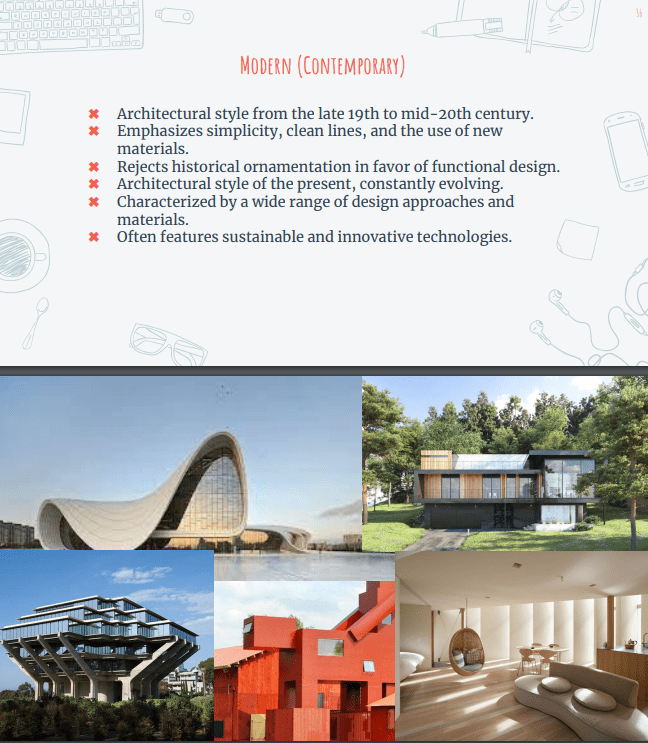
We also have a look at architectural styles and some examples my favourite was the “Modern” style, because it looks very clean and minimalist to me.
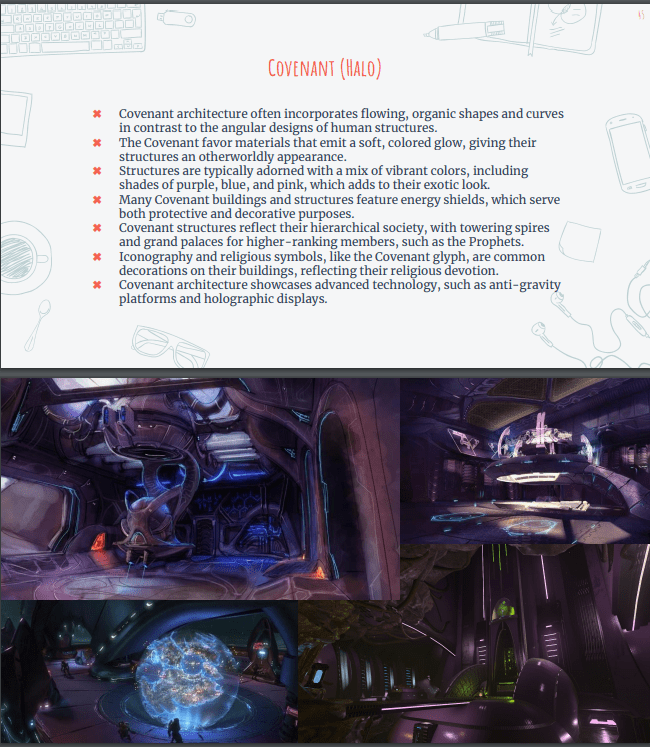
Next we see examples of Fictional styles created for fictional worlds, the one I liked the most is “Covenant (halo)” because I am familiarised with them since I played the saga.
And to finish with we learn about the designing for interaction.
Workshop activity week 2:
Research a specific architectural style and present your finding to the class.
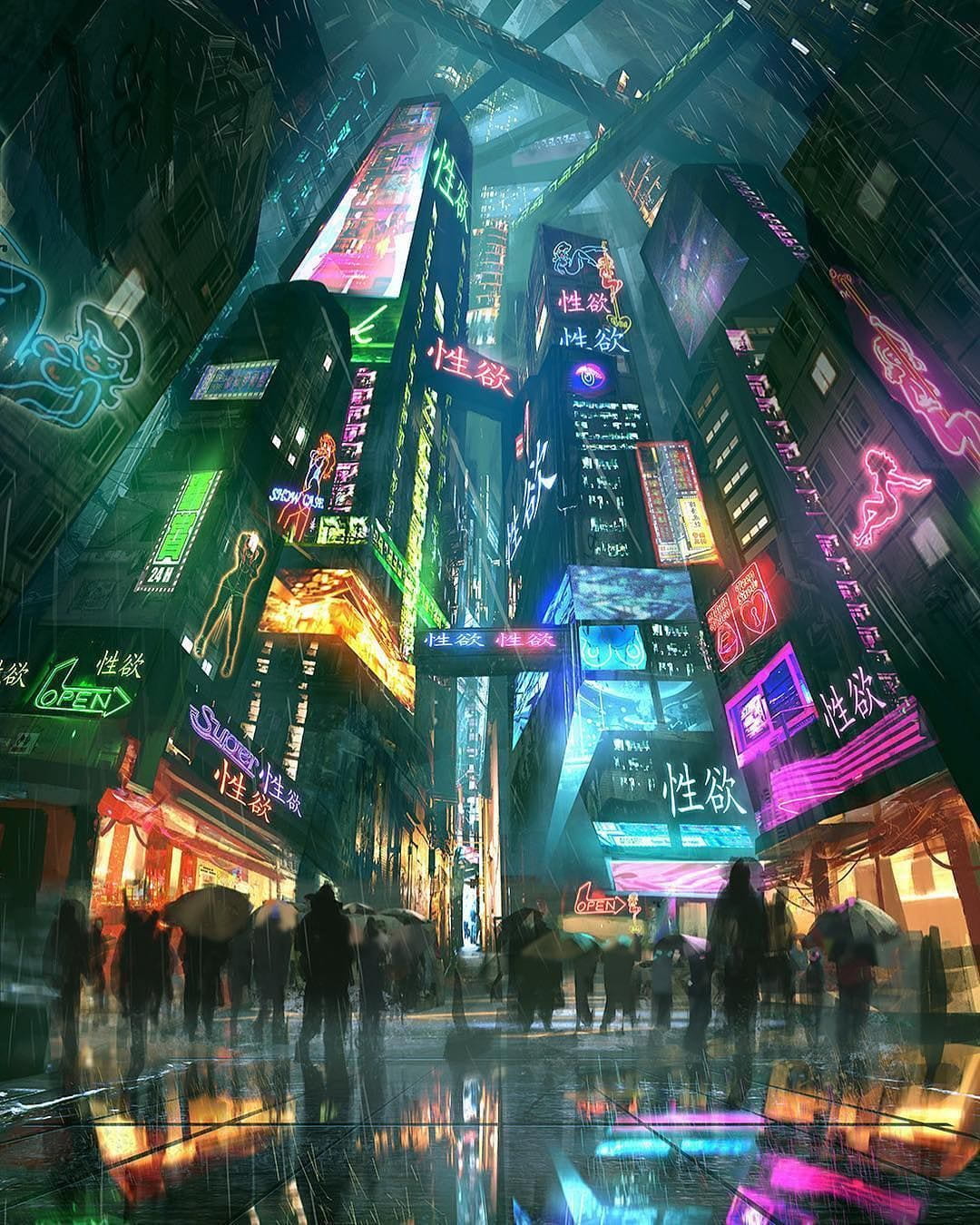
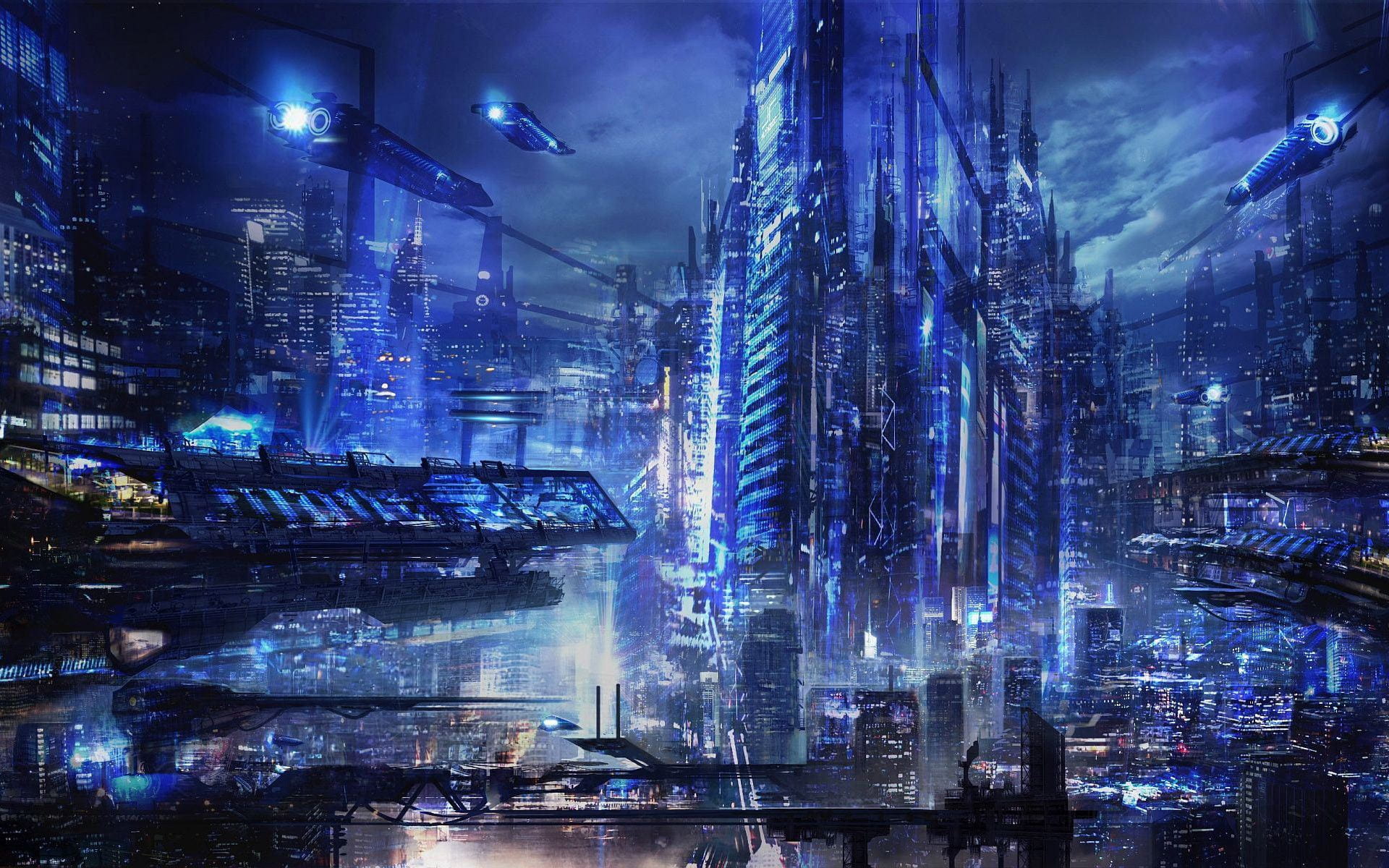
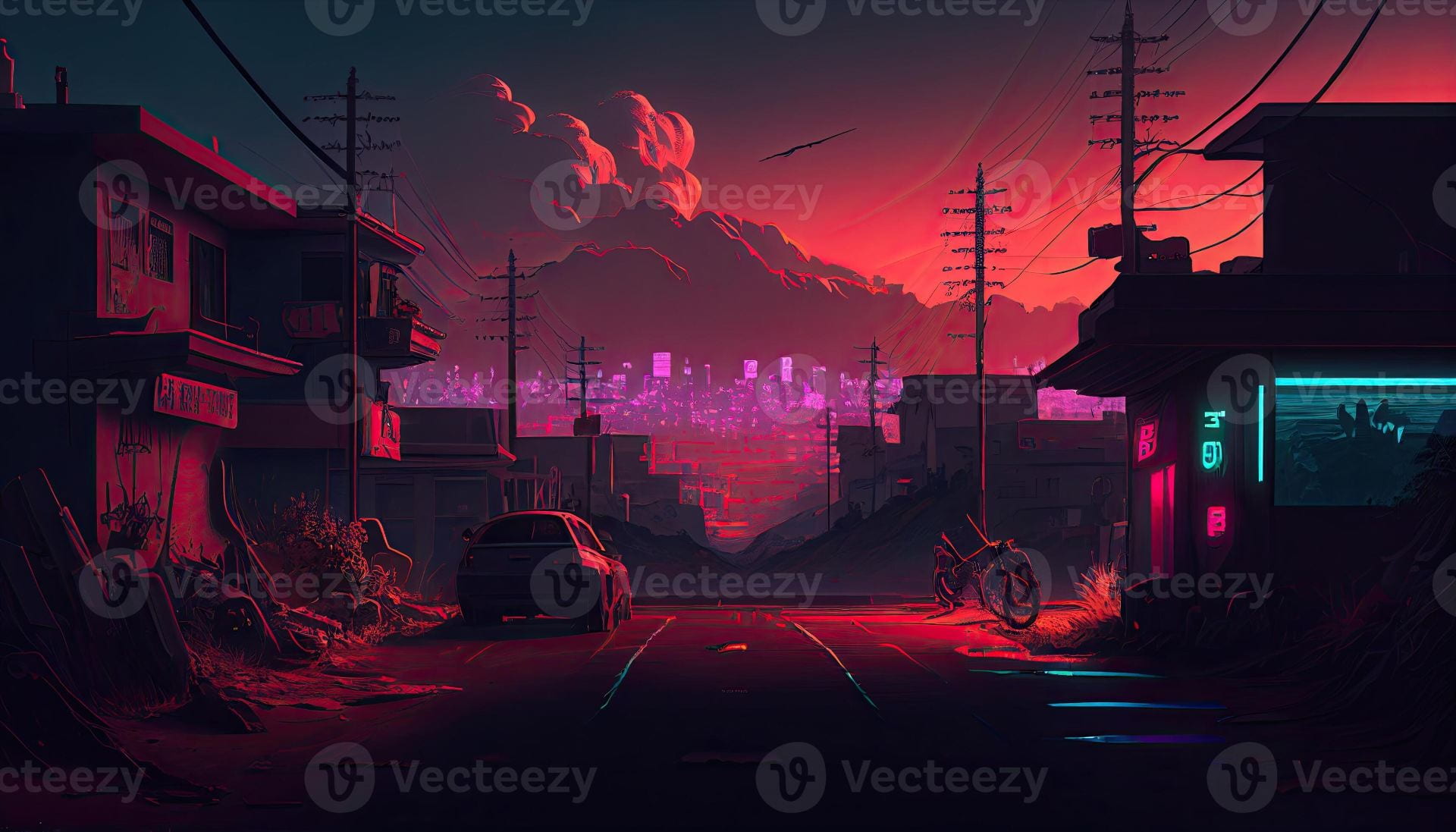
This is my research about the cyberpunk architecture.
cyberpunk architecture

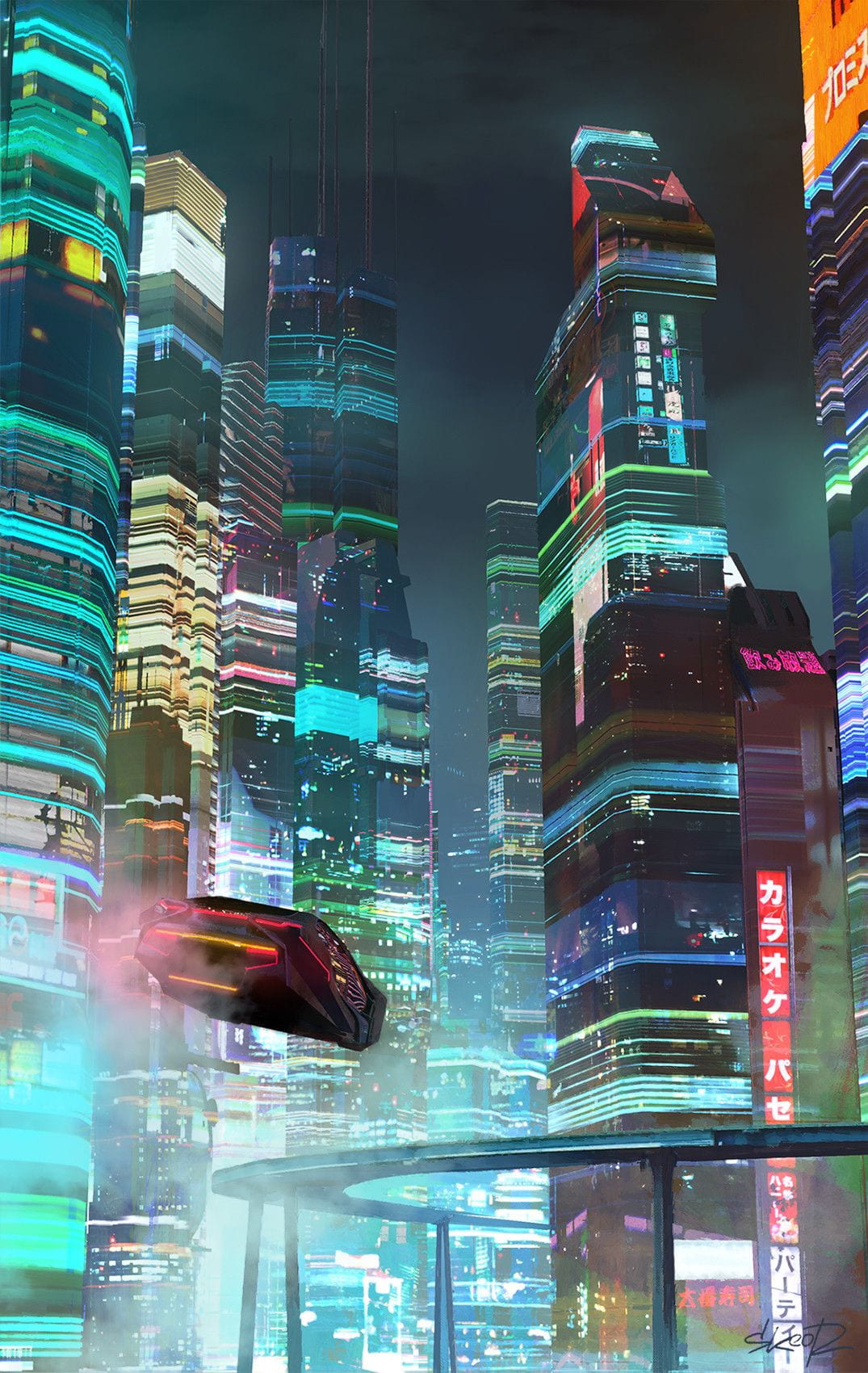
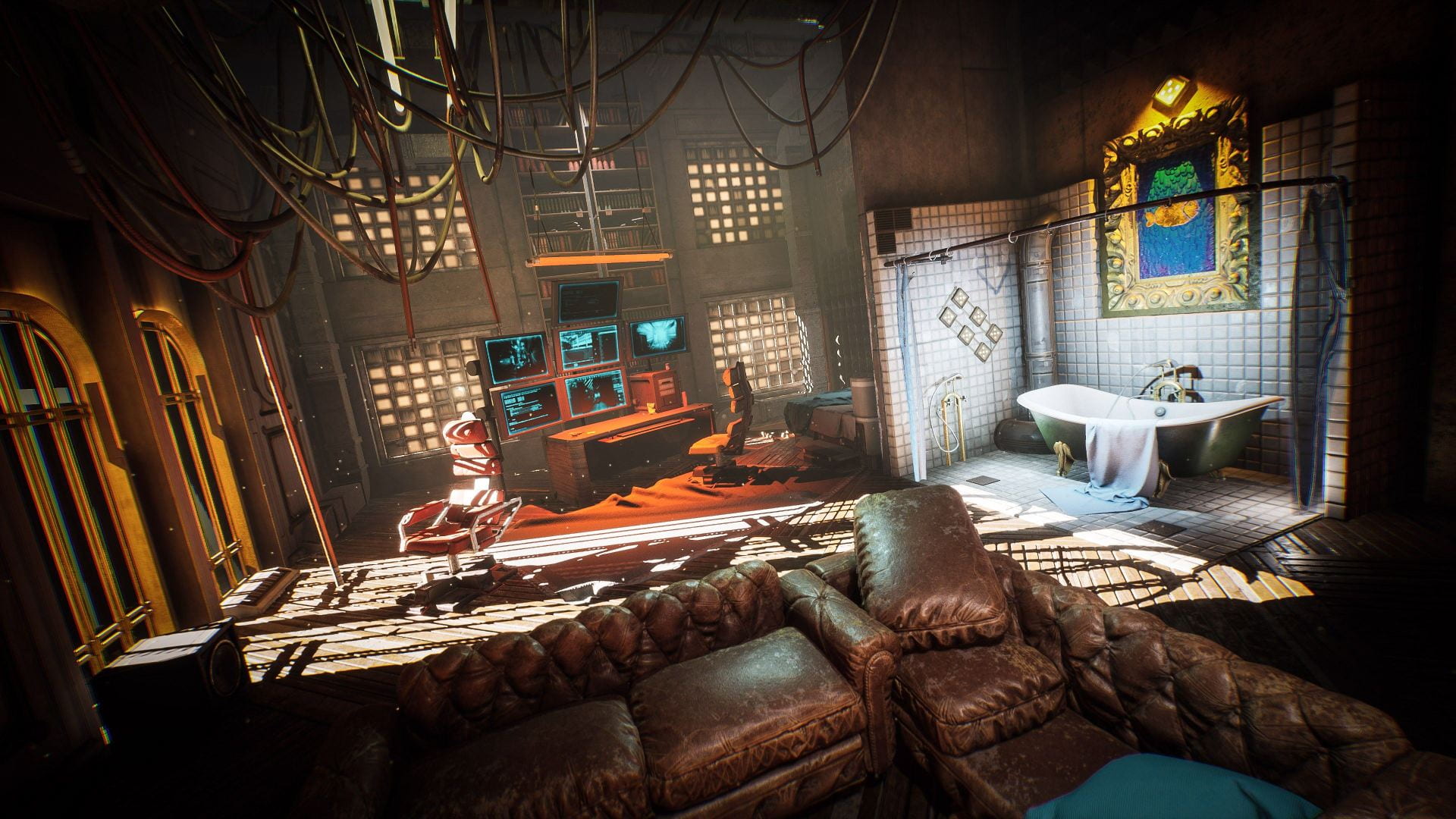
Characteristics:
Design
This genre encapsulates a vivid portrayal of the future, where cutting-edge technology dances alongside urban decay, creating a narrative that is as much about aesthetics as it is about societal commentary. As architects delve into the principles of this captivating style, they navigate the delicate balance between innovation and functionality, all while reflecting on the pressing issues of our time.
Materials
Cyberpunk design is distinguished by its bold use of mixed materials such as glass, steel, and concrete, often juxtaposed to create visually striking and immersive urban environments. Buildings in this genre prominently feature vibrant neon signs and digital screens, enhancing the aesthetic’s futuristic allure.
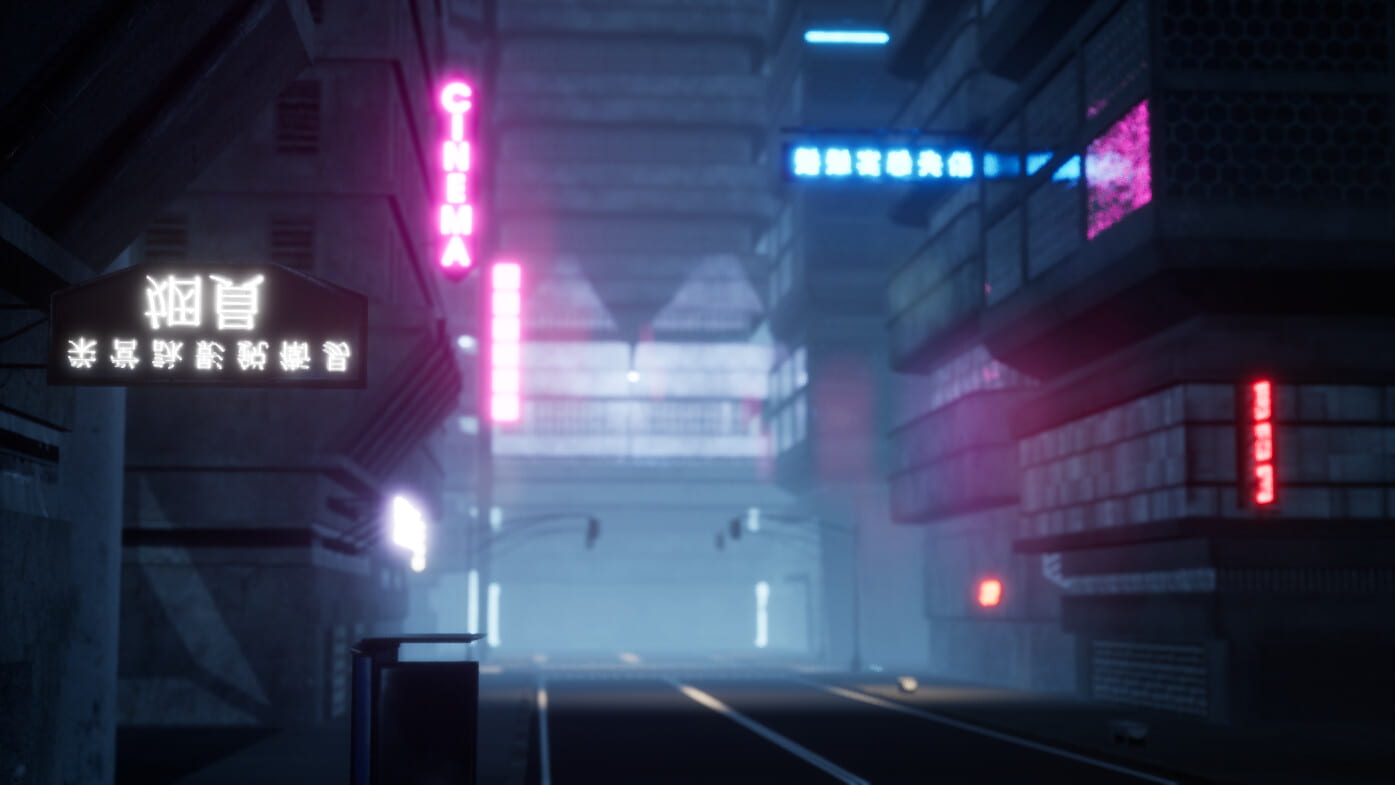
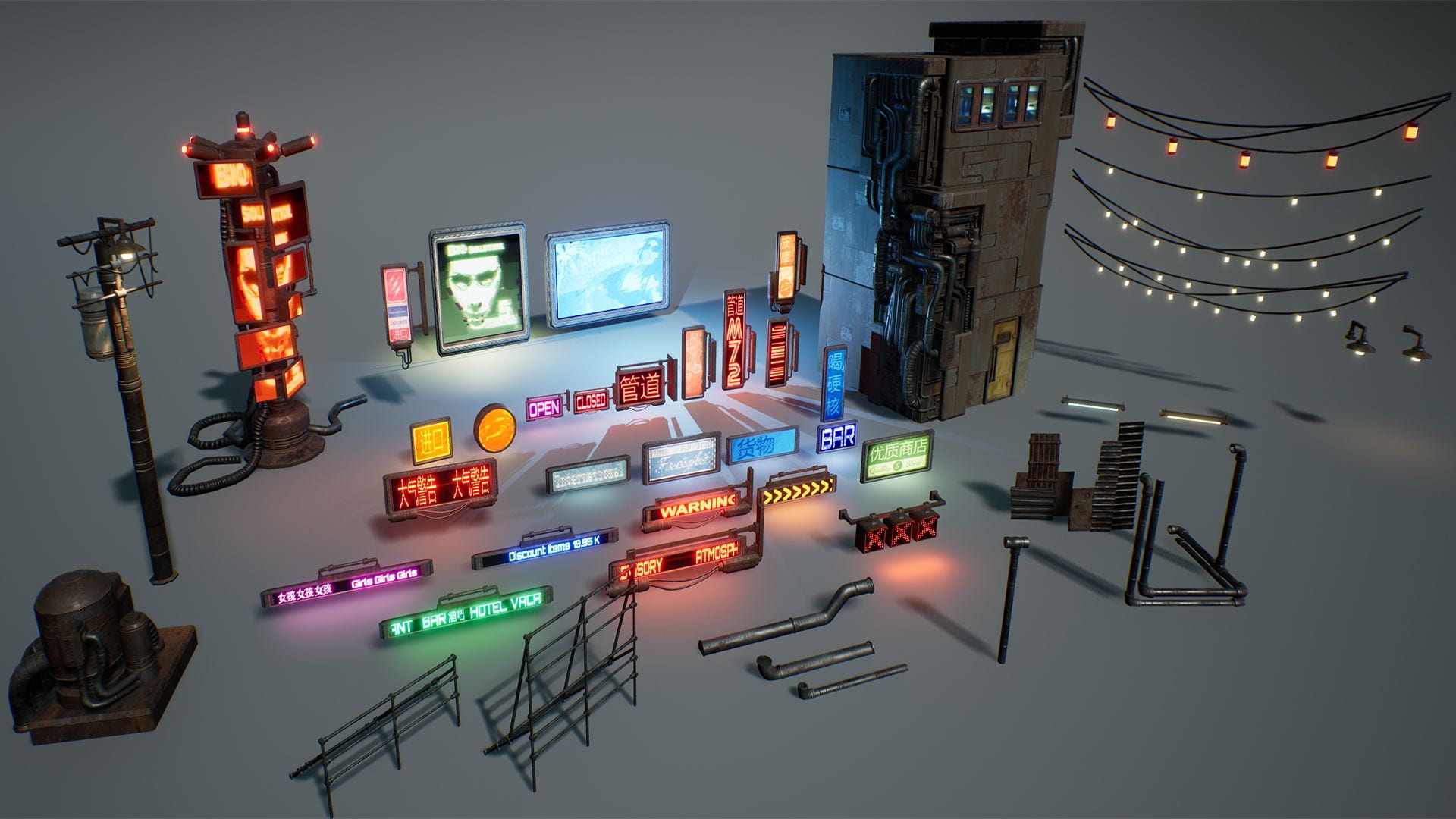
Narrative
Cyberpunk architecture transcends mere aesthetic appeal, serving as a profound commentary on society’s intricate relationship with technology and urbanization. Central to its themes are:
- Surveillance
- Corporate dominance
- Pronounced social inequality
This style vividly depicts the disparity between the privileged and the marginalized. It has notably influenced urban planning in cities like Tokyo and Hong Kong, where high-tech environments coexist with stark social divides, prompting architects to reimagine spaces that embody cultural narratives and social realities.

End of Workshop.
Weekly activity:
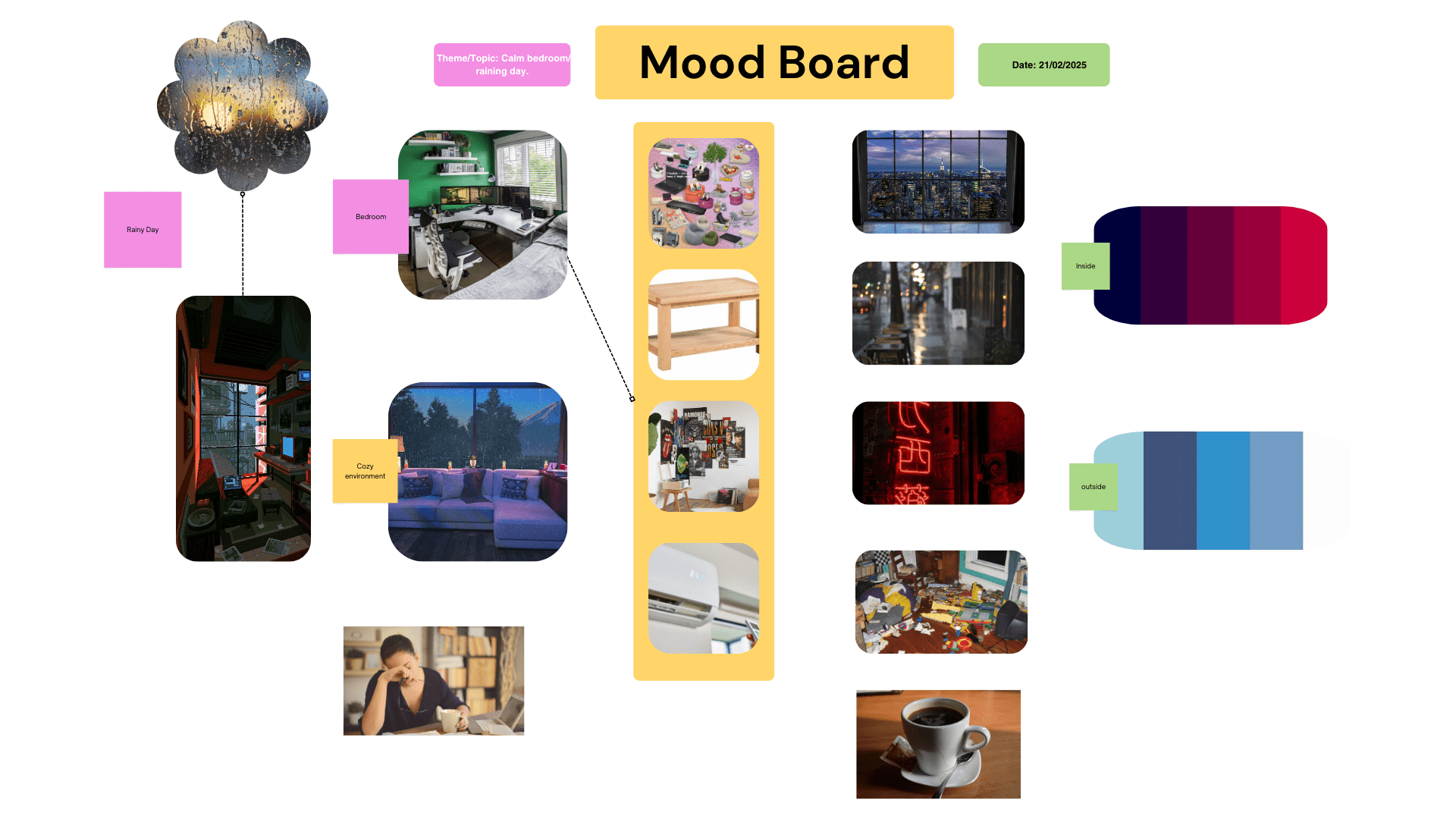
Create your mood board and research document for chosen environments.
This is the mood board I created for my future assignment in this module:
Moodboard
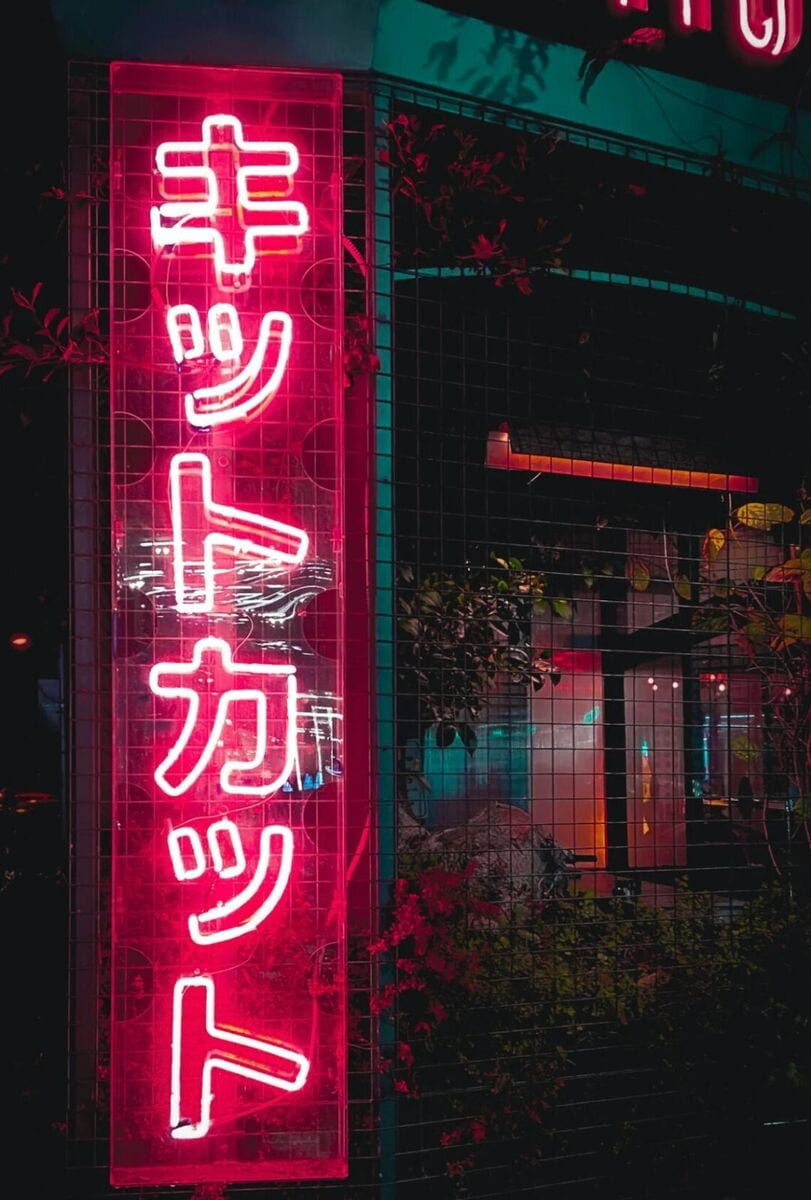
And this is my research about my environment.
For this assignment I chose to get inspired from the “Lo-fi mood videos” and The big cities of Tokyo, I really love Tokyo landscapes and be resting at my home during a rainy day.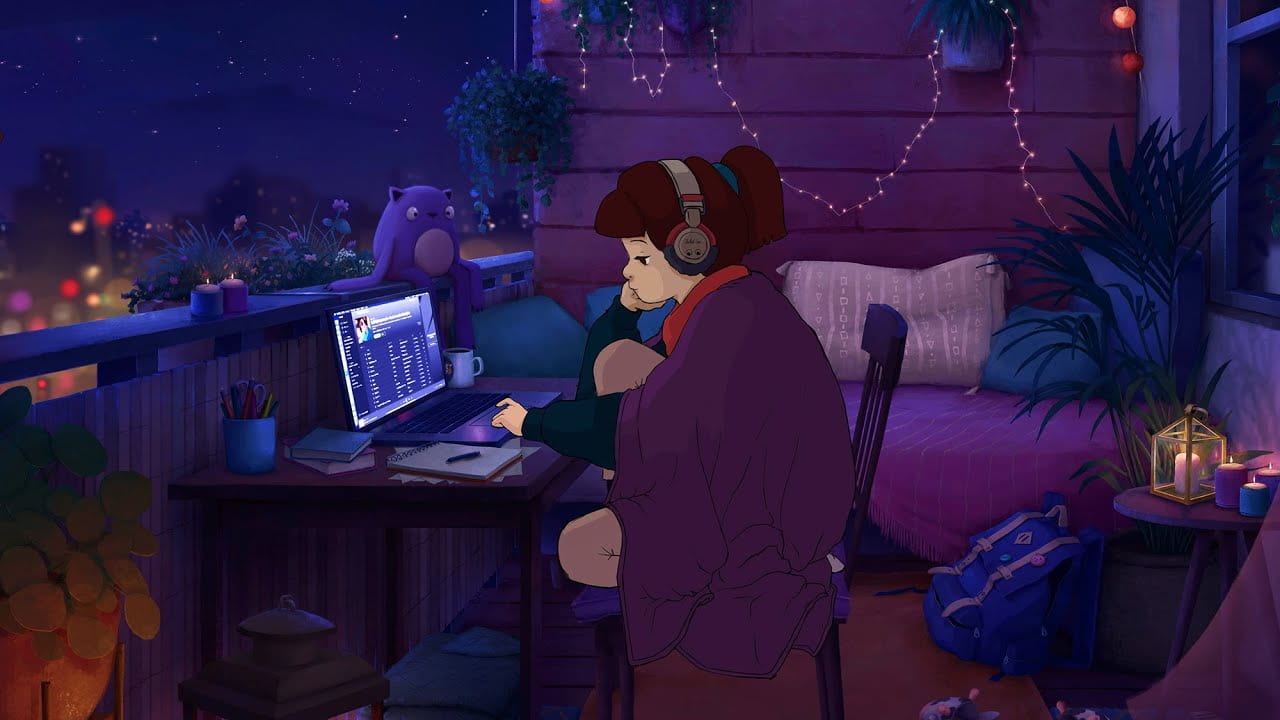



End of Week 2
Week 3: Introduction to UE
- Object Oriented Design
- Getting Started With Unreal Engine
This week we will be working with unreal engine and look at class slides.
In this slide we learn about Object oriented design.
Next we see what is unreal engine.
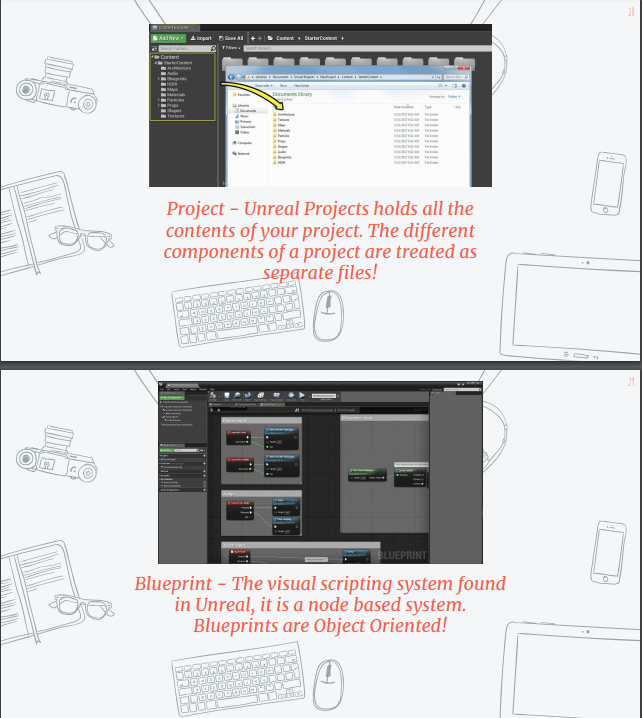
Now we are going to see main terminologies and concepts inside ureal engine, the understanding of these term is key to progress during the module.
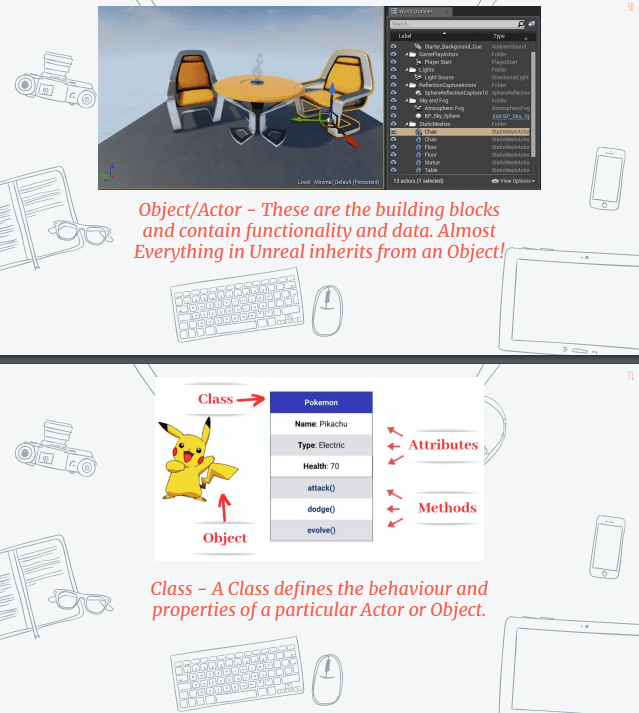
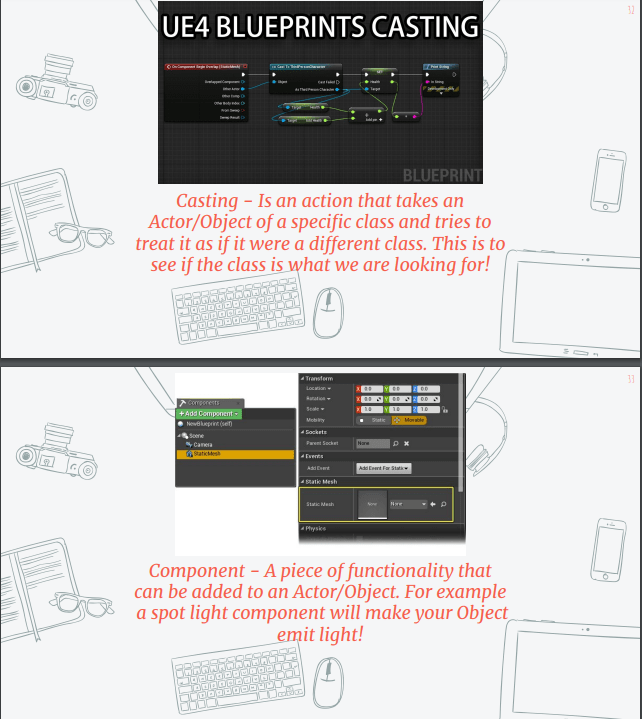
After looking at the slides we are going to get started in unreal engine using the software for the first time and creating a test project.
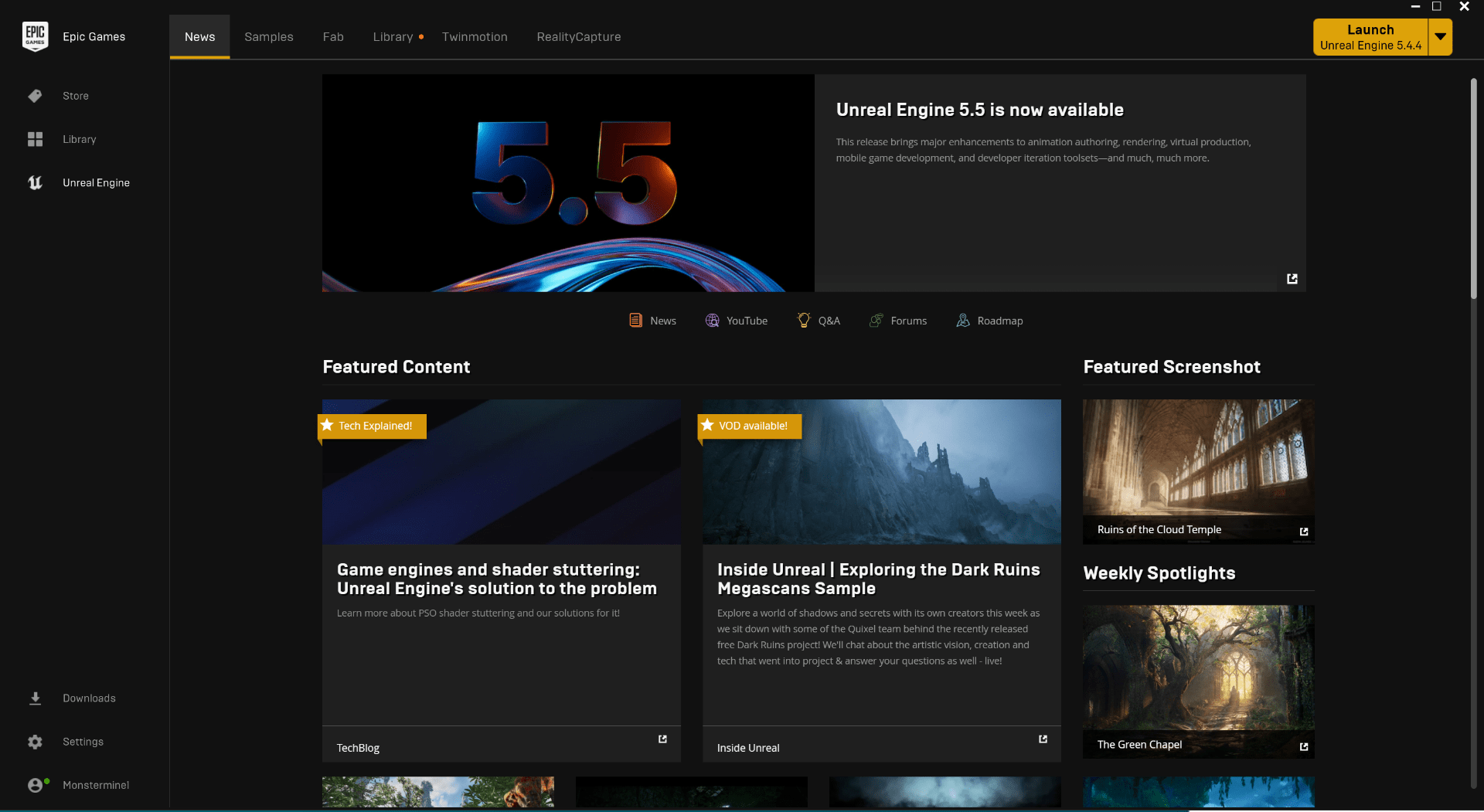
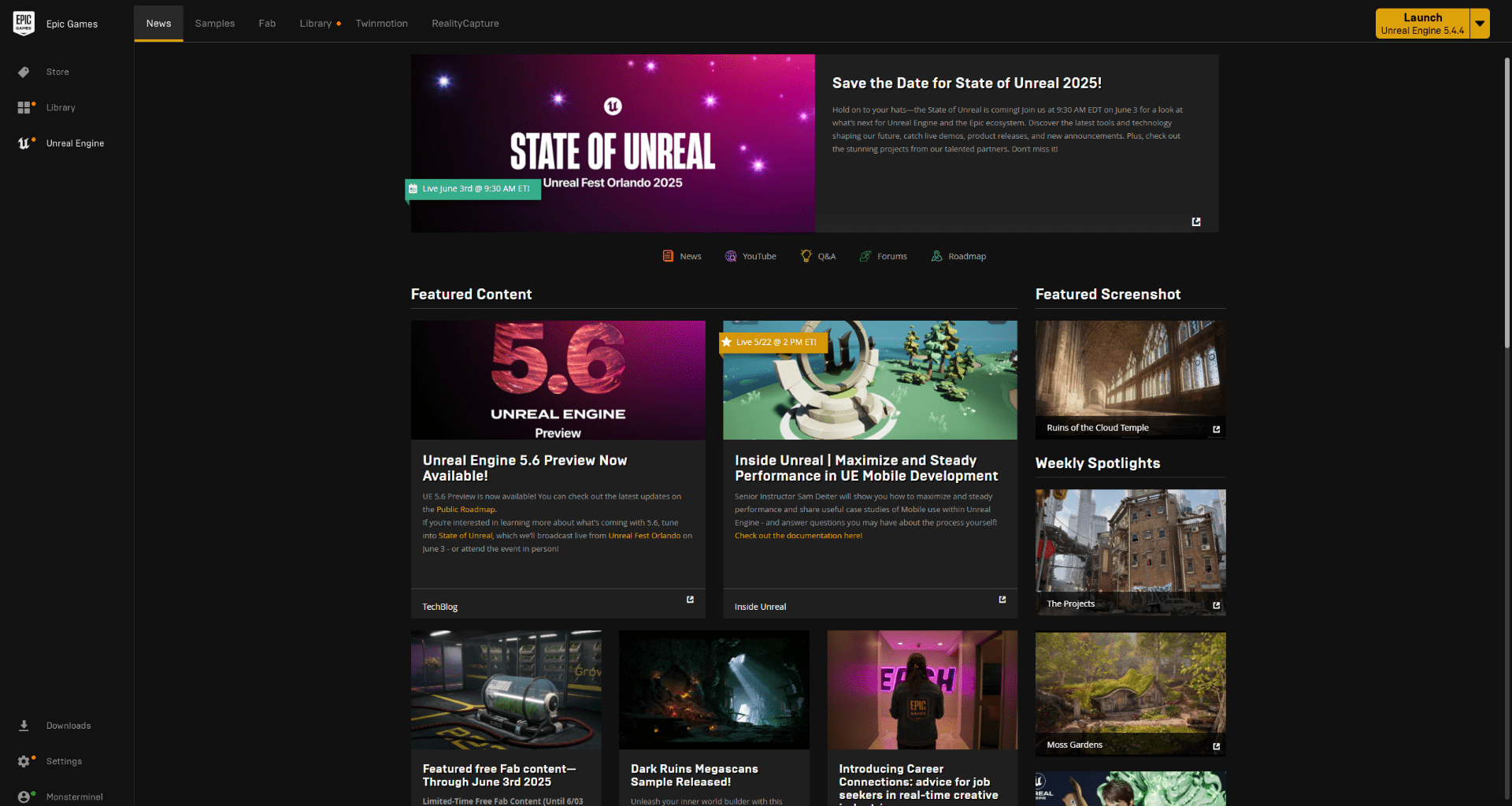
We find unreal engine inside the Epic games launcher.
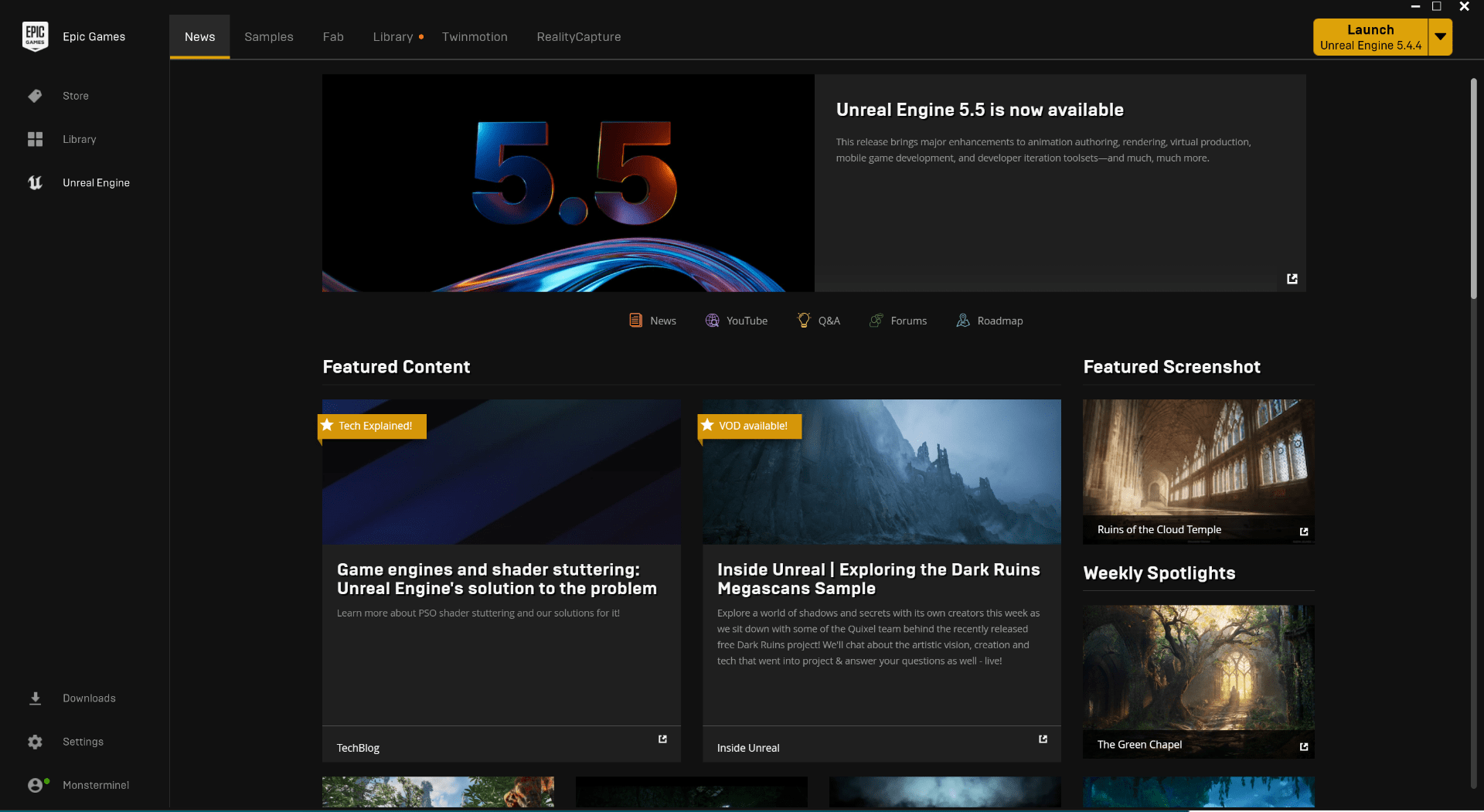
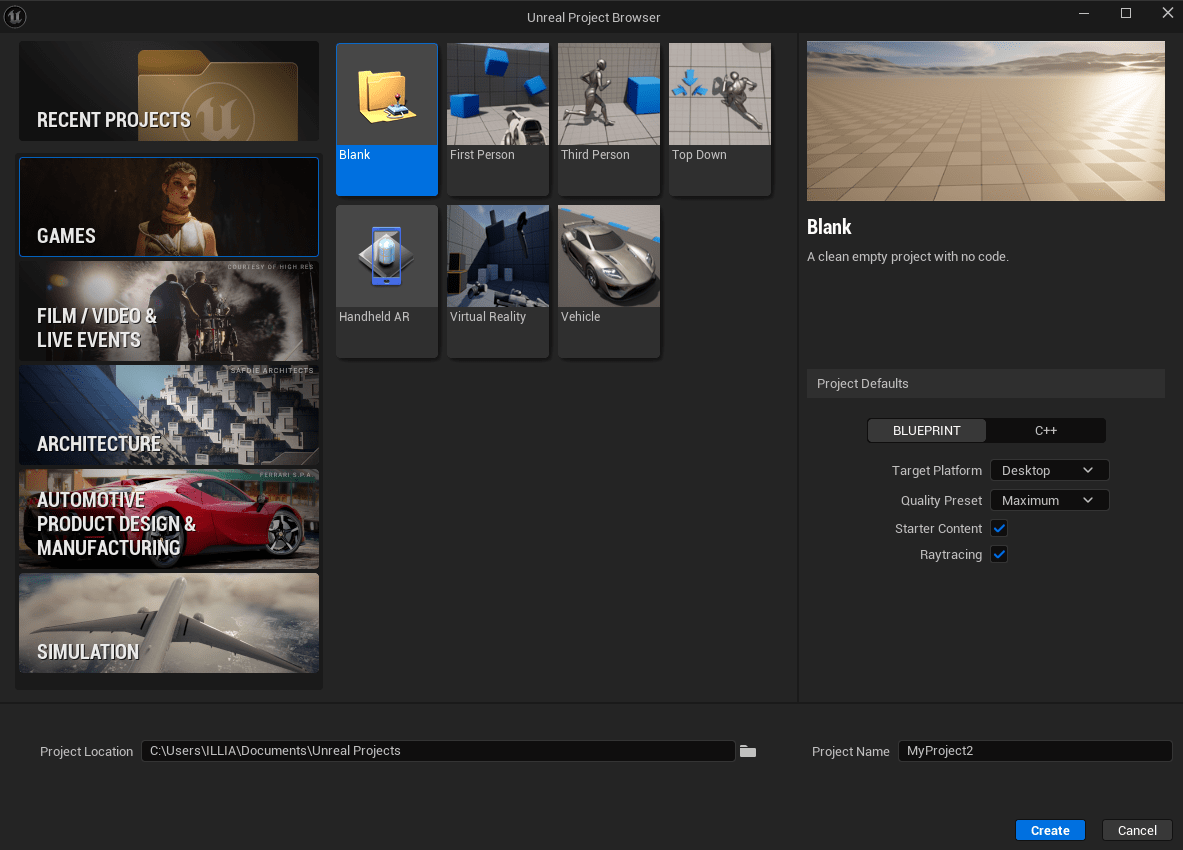
As we launch the program we see this window, where we can find different pre-sets to choose.
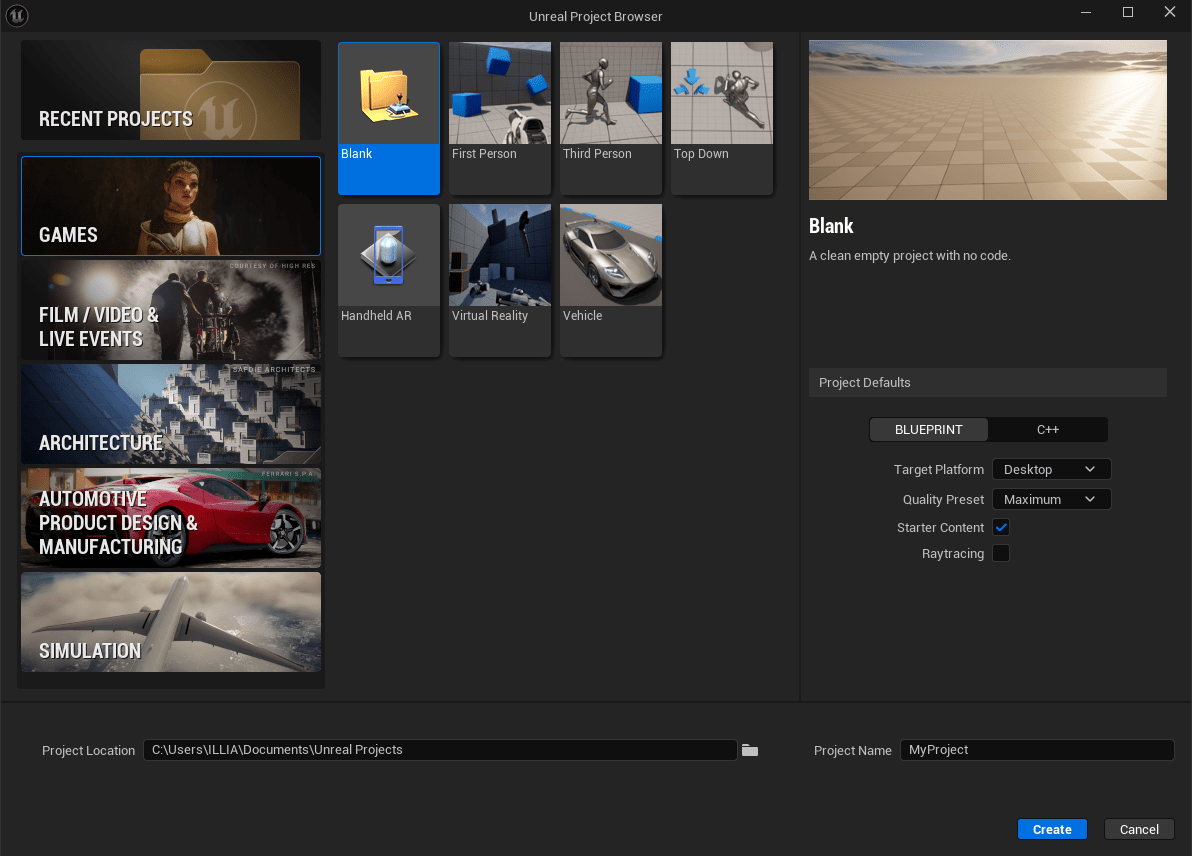
There are also some setting we can modify:
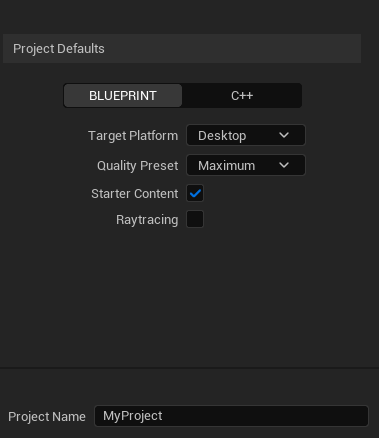
In our case we are going to work with blueprints.

Our target platform will be Desktop.

Our pre-set will be set at maximum since we are working on desktop.
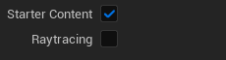
We check the starter content square for some material to play with and uncheck the Raytracing square since we are not going to work with that option for now.
Finally at the bottom we could find the name of the project and the address of the project folder is saved in your computer.


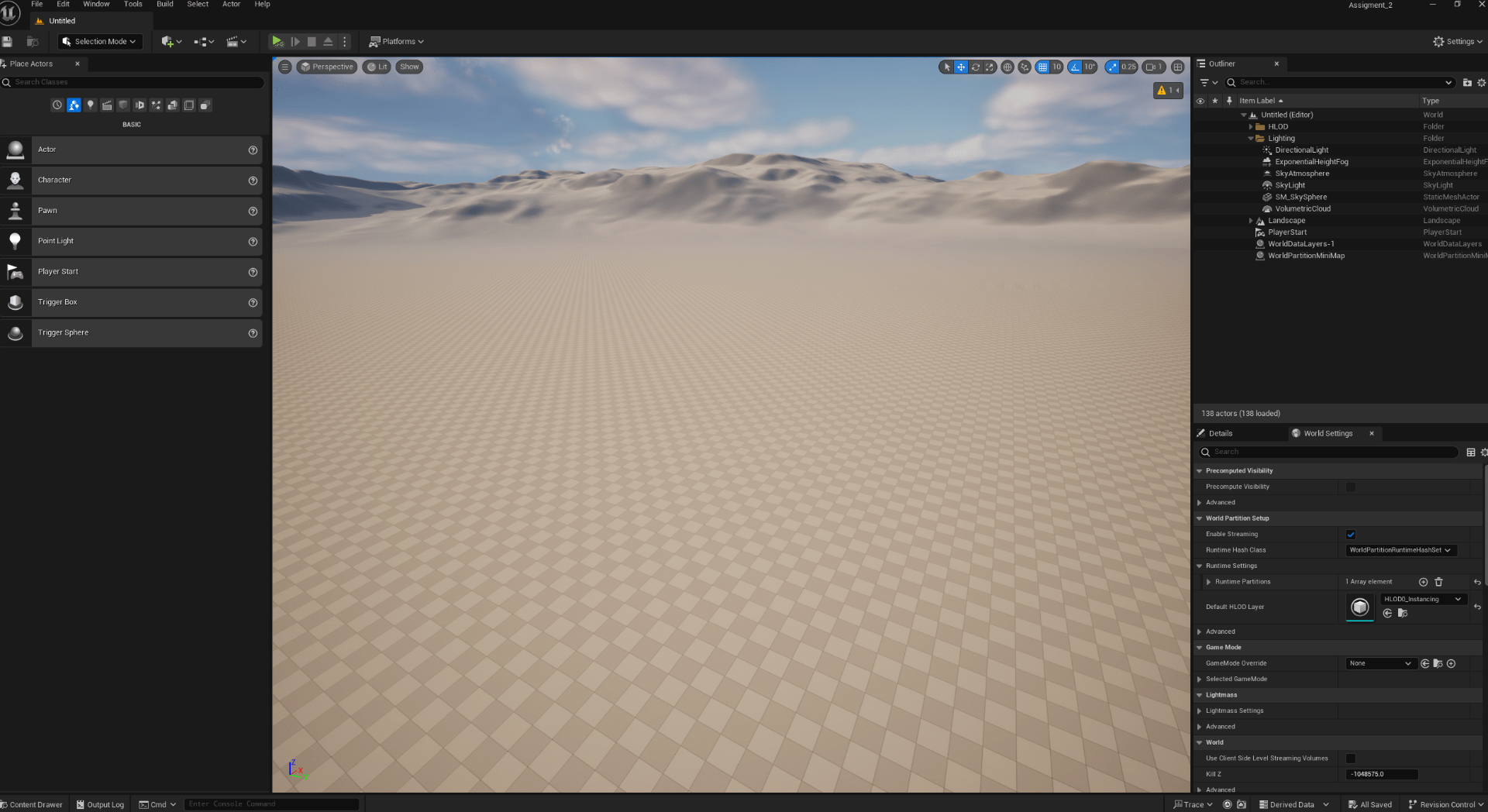
We had a lot on how to create a project, now we are going to have a look at the interface.
On the top we find the “Toolbar”.

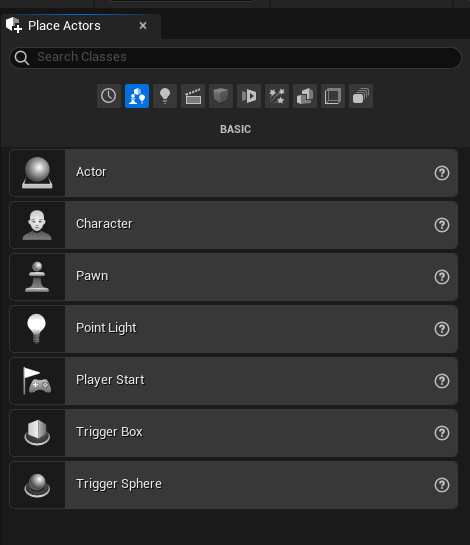
This is the “Place actor panel” , where we can place different object in the scene.
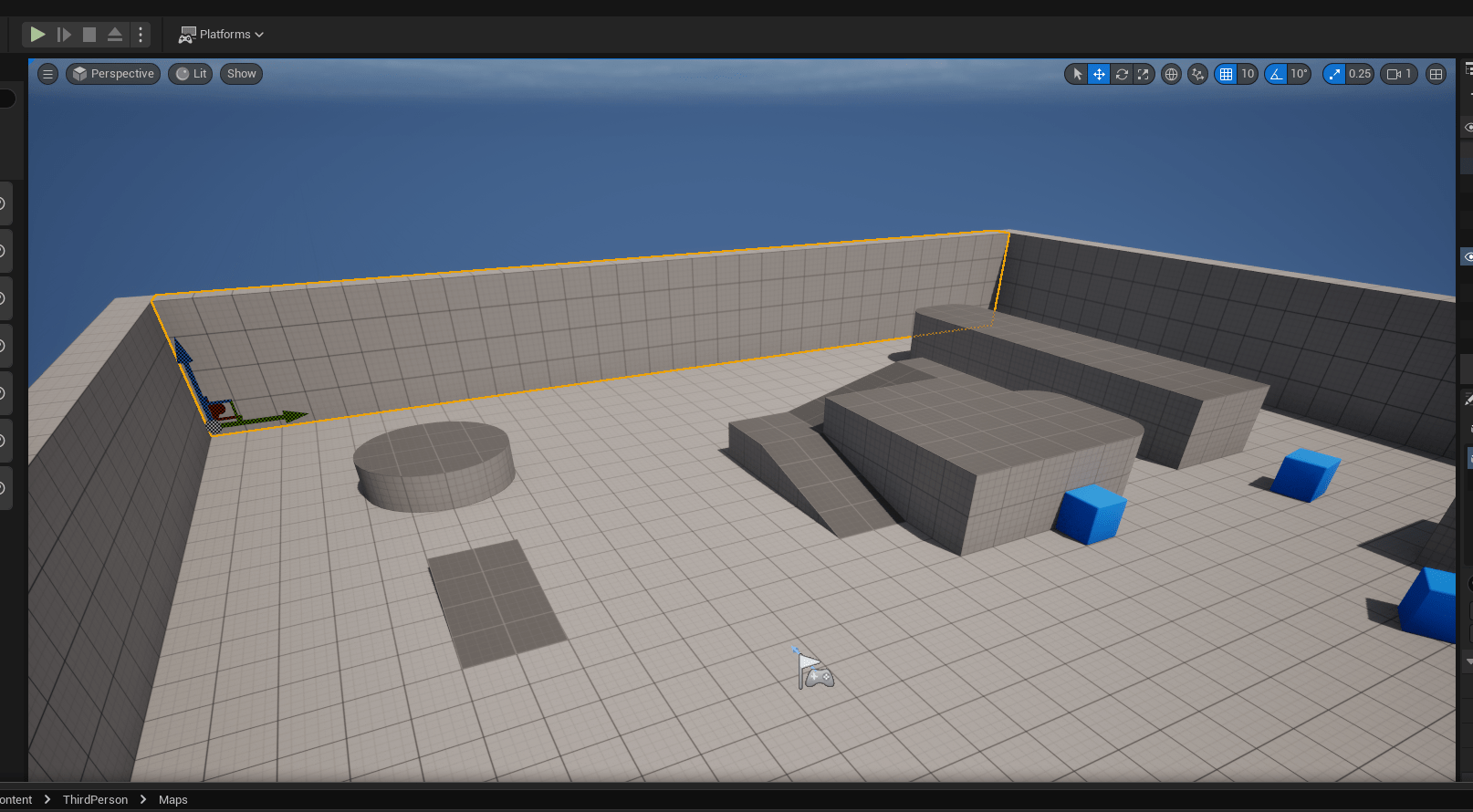
This is the “Viewport” Where we can see what our game looks like.
At the bottom we can find the “Content browser” that contains all the files for our project.
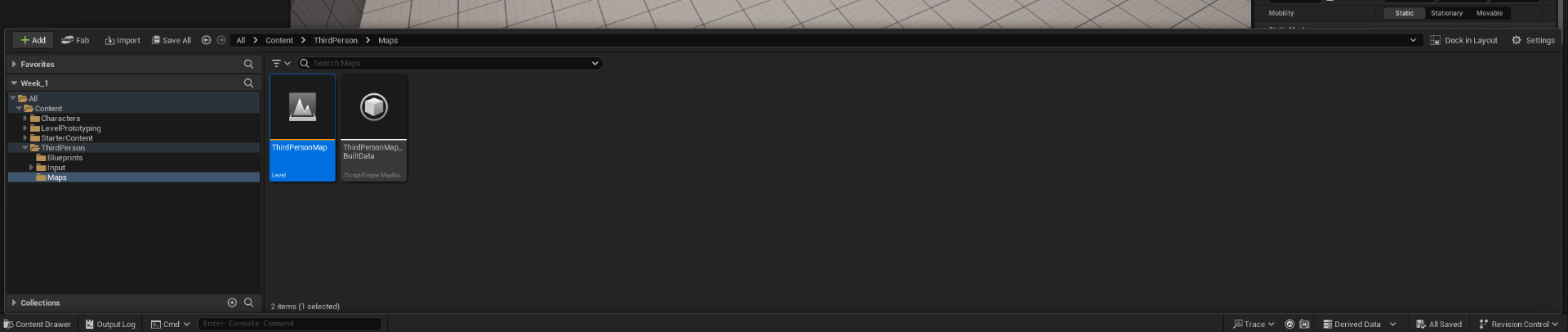
This is the “World outliner” this window shows us where are all our objects in our scene.
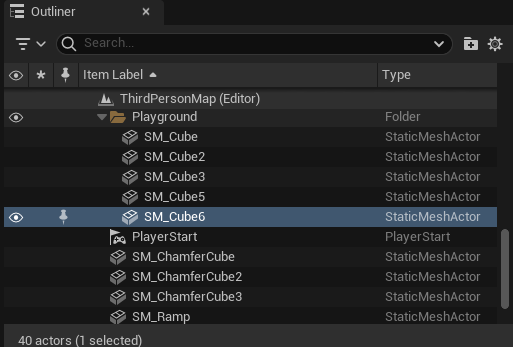
This is the detail panel that has all the information regarding our objects.
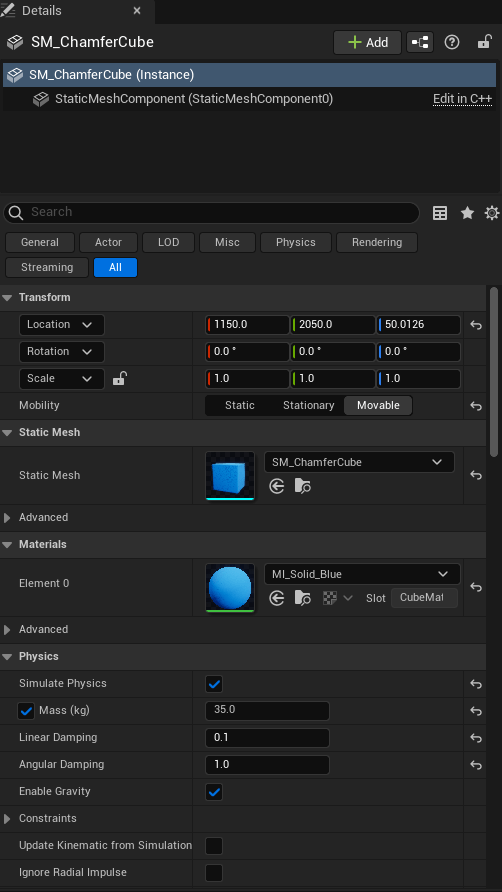
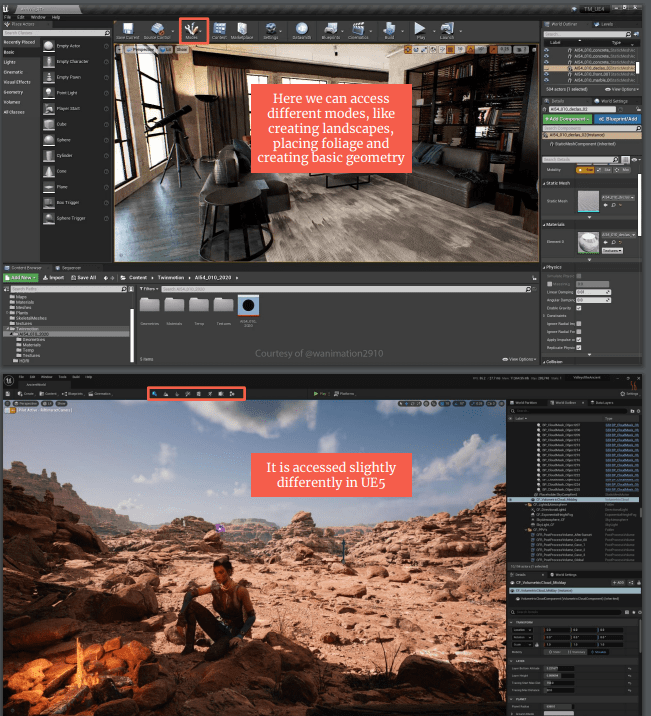
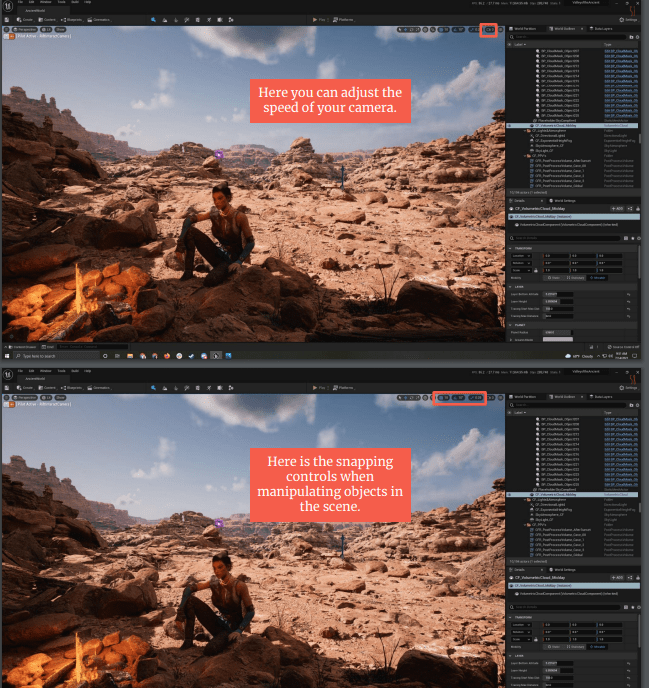
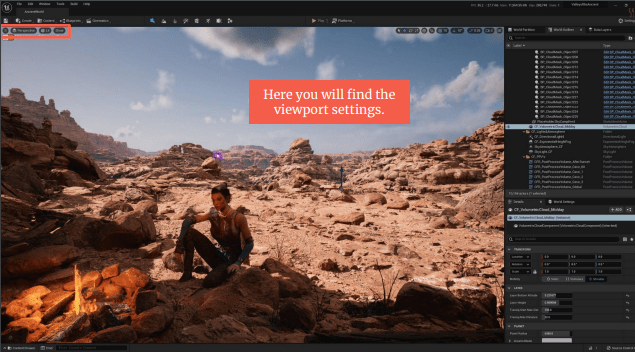
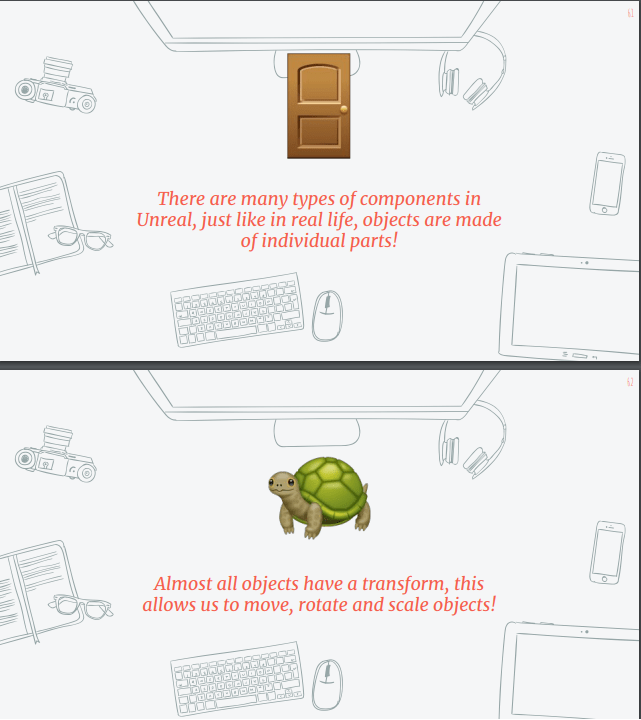
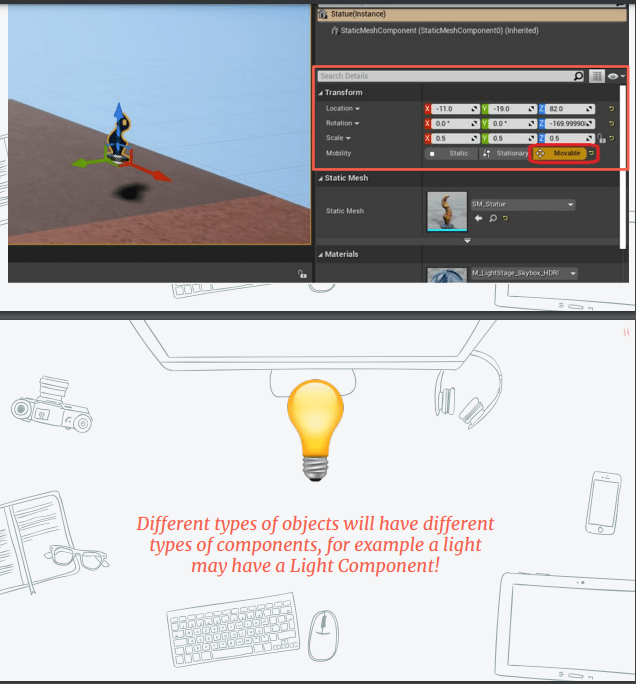
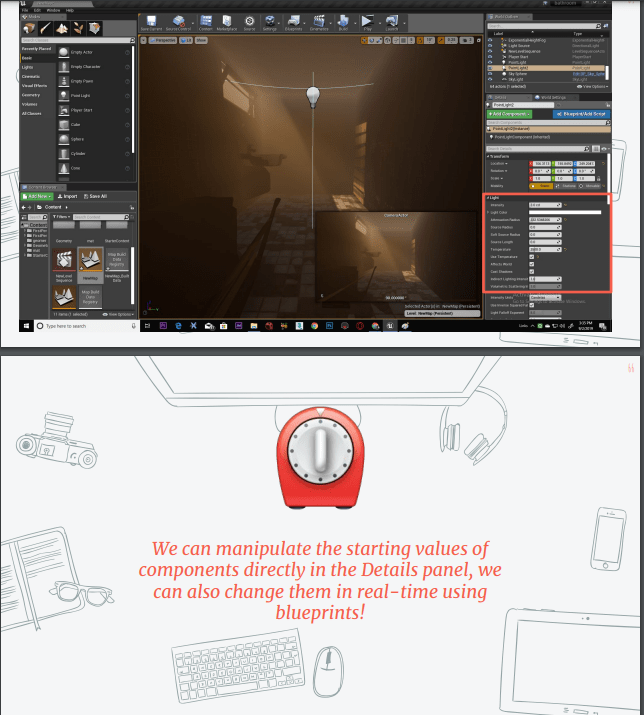
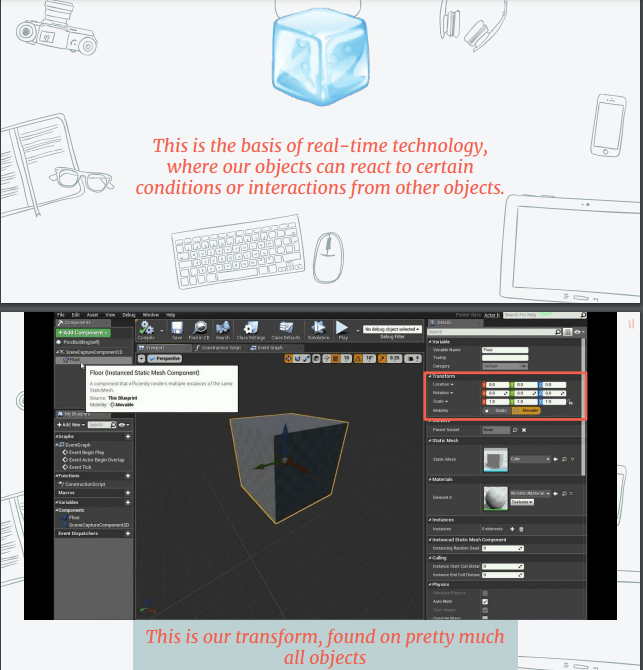
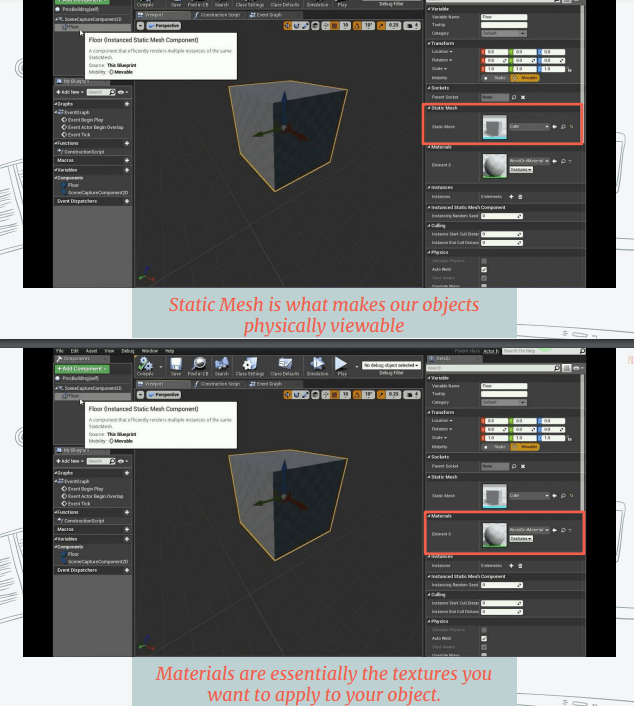
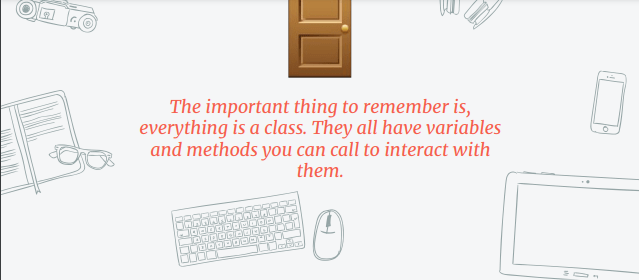
Now we see How the components look like in unreal.
End of week 3
Week 4: Blueprints
- Unreal Blueprints
- Variables
- Events
This week we will be exploring on what blue prints are and how to create them.
In this slide we can find how blueprints work.
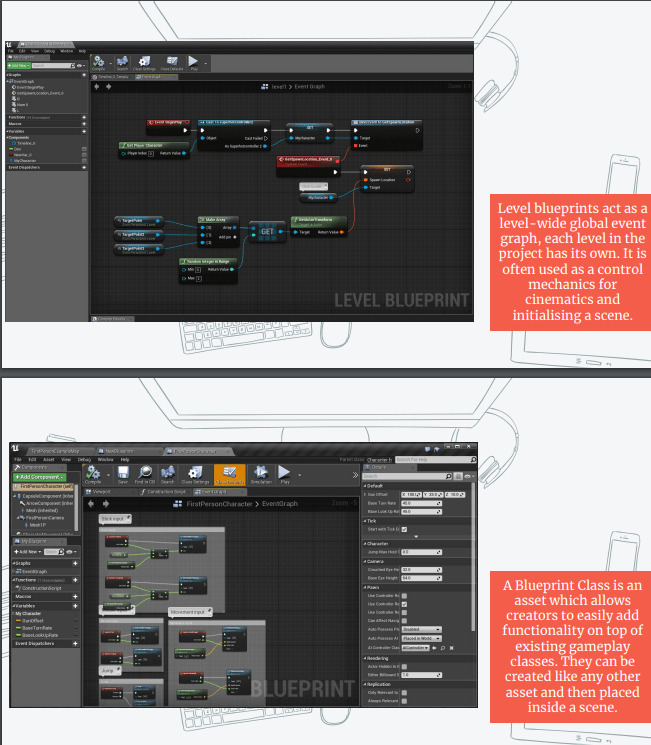
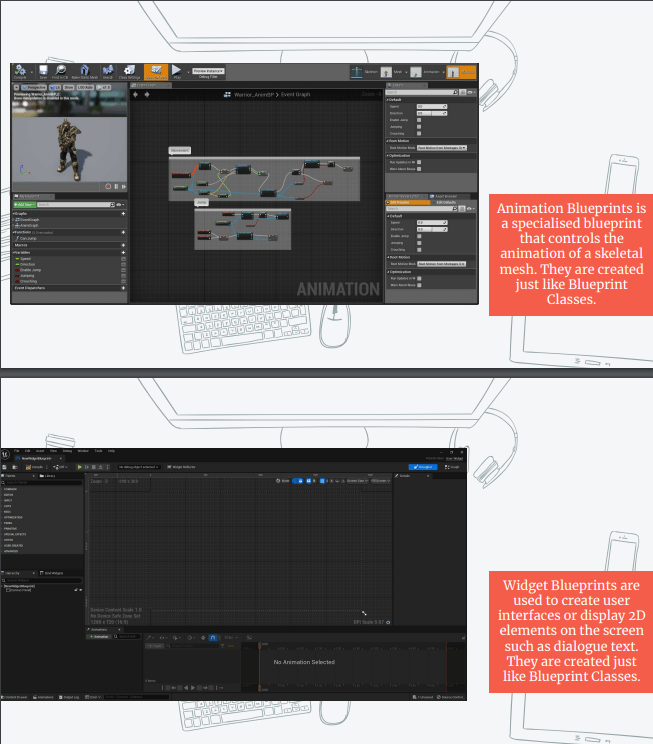
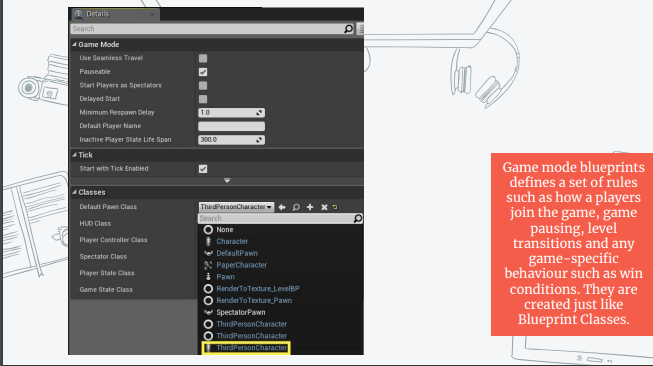
In this slide we can find the different types of blueprints.
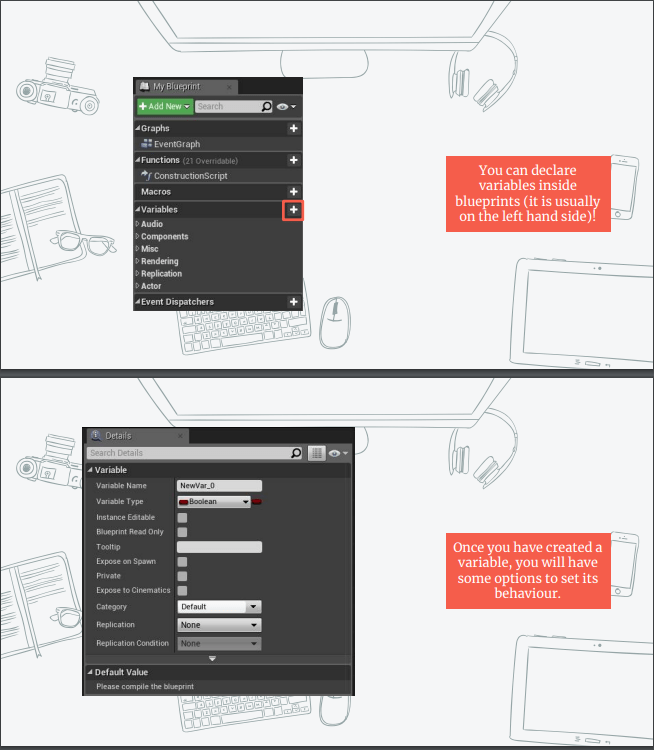
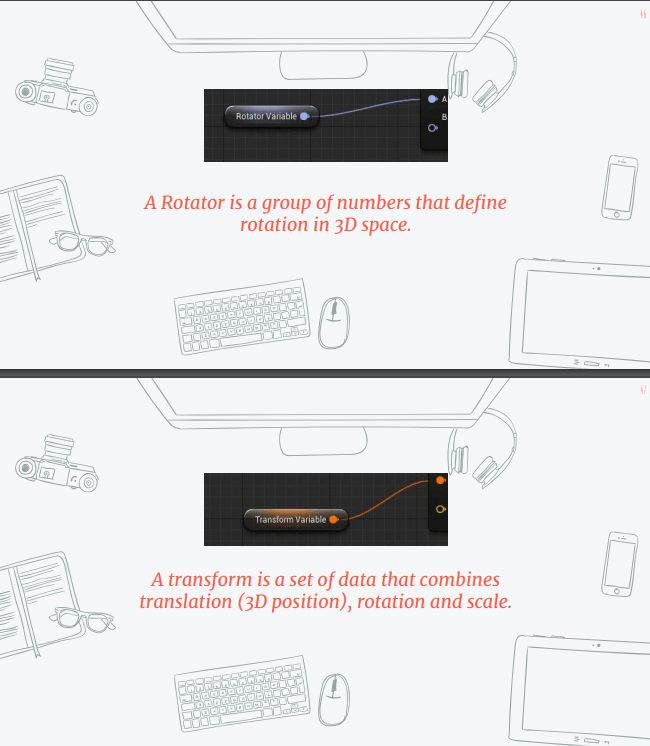
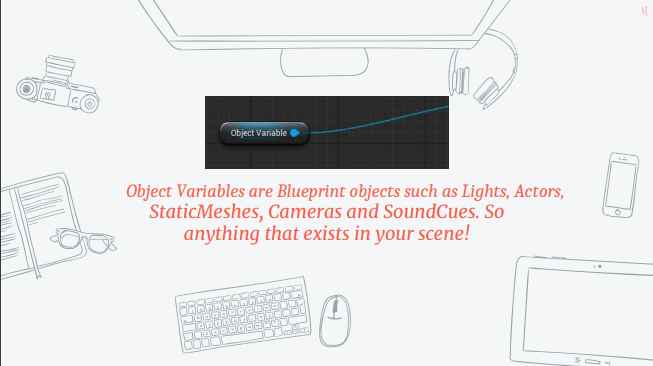
Next we are looking into variables and the types of it.
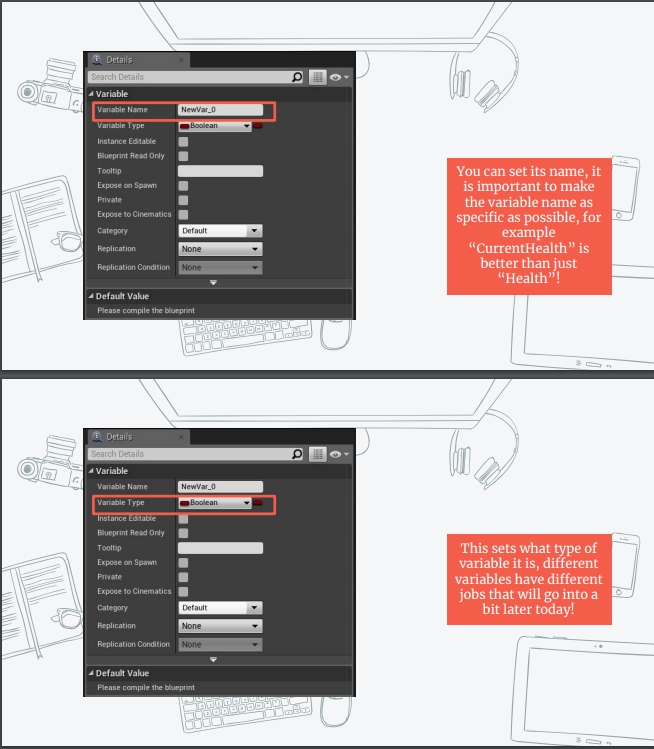
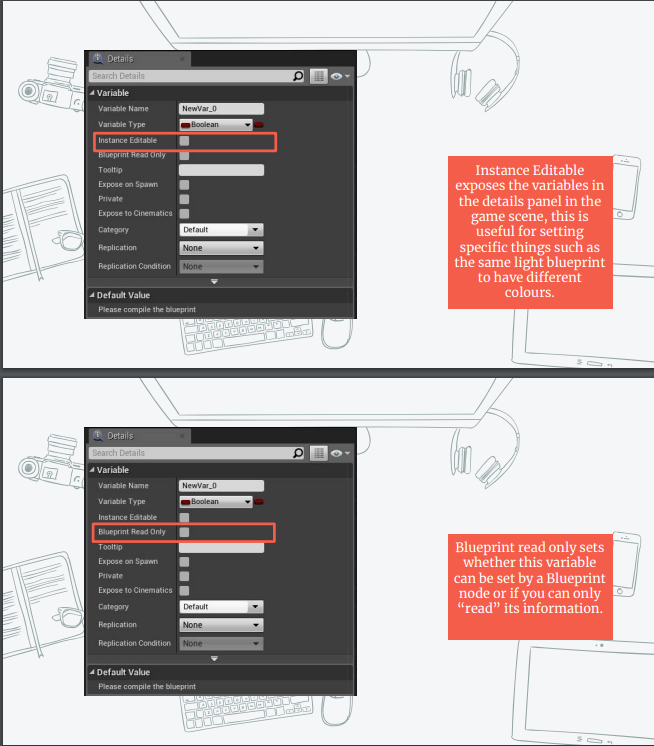
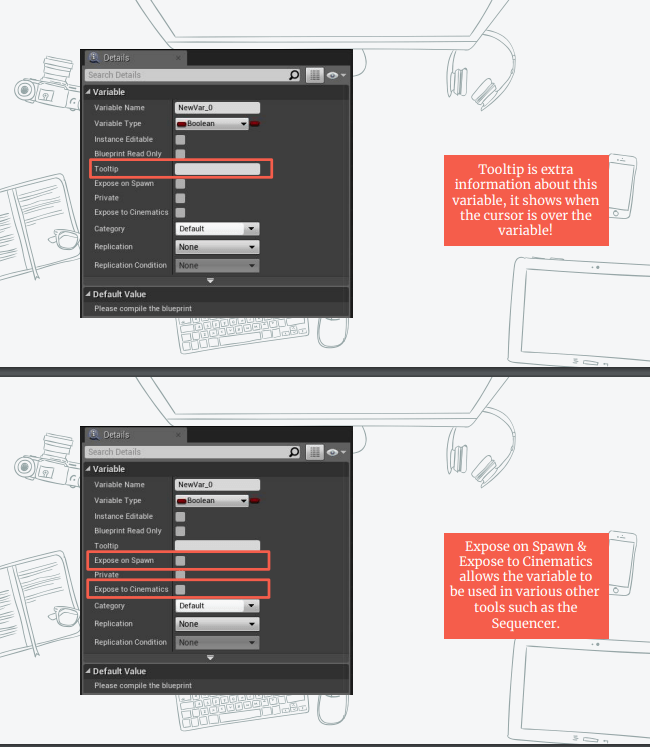
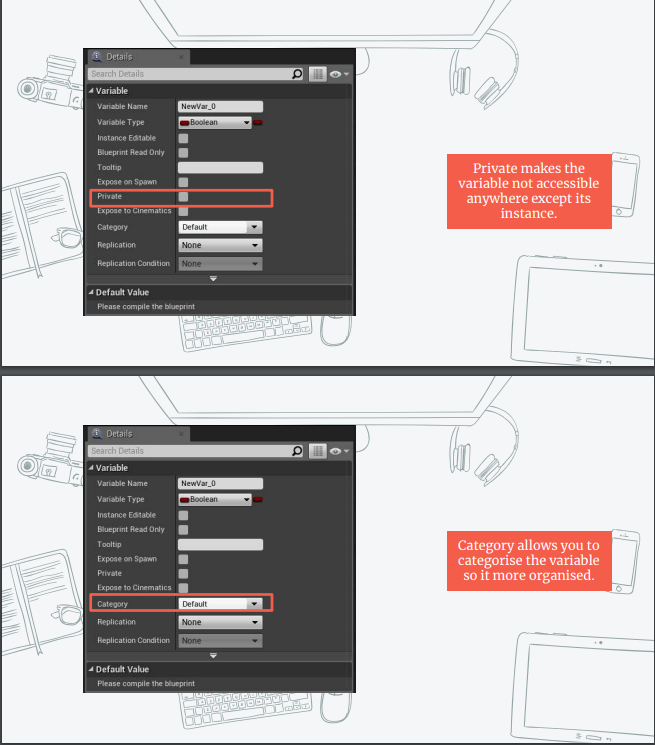
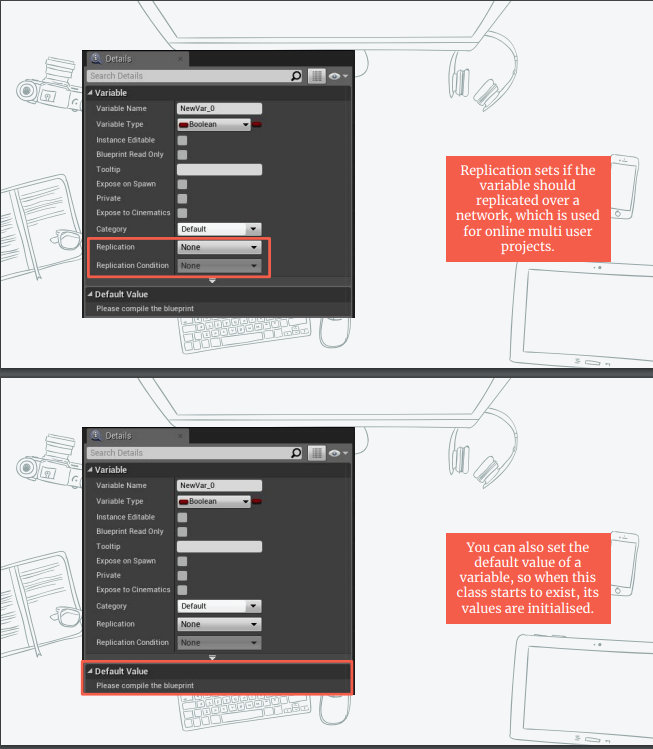
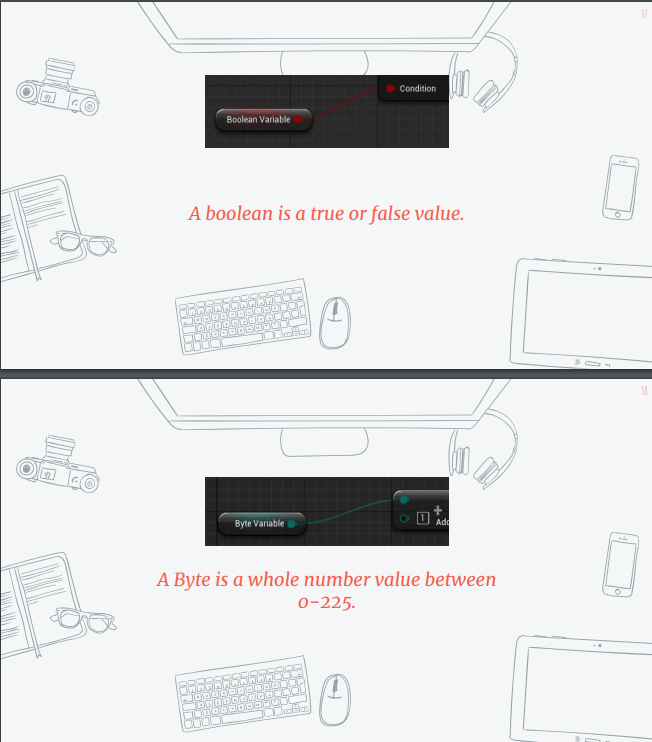
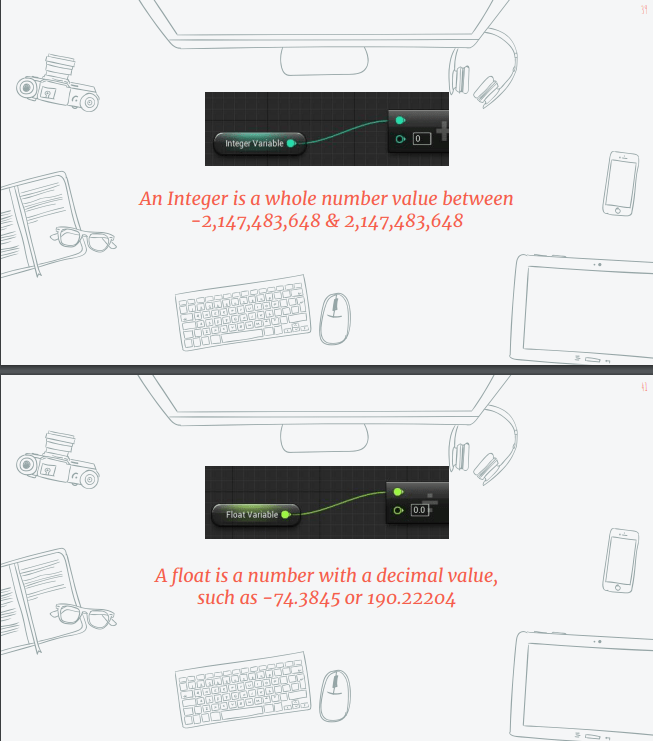
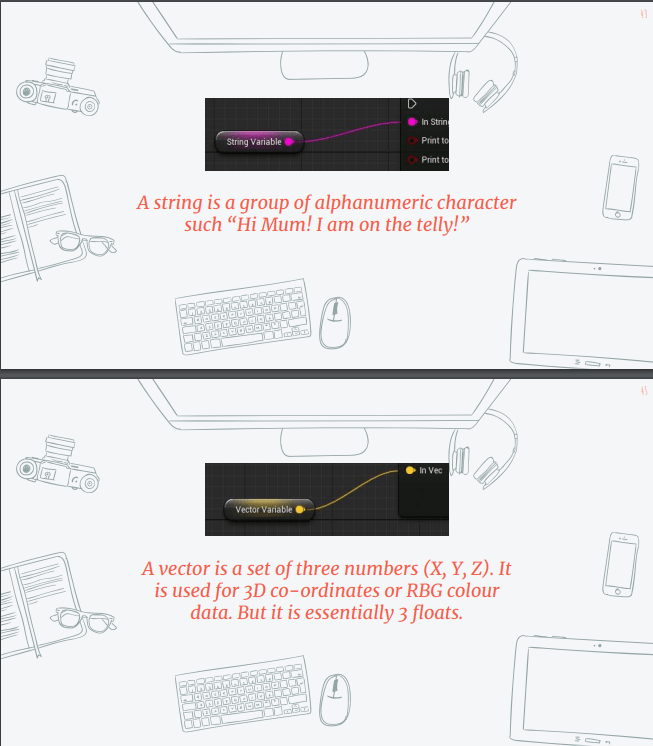
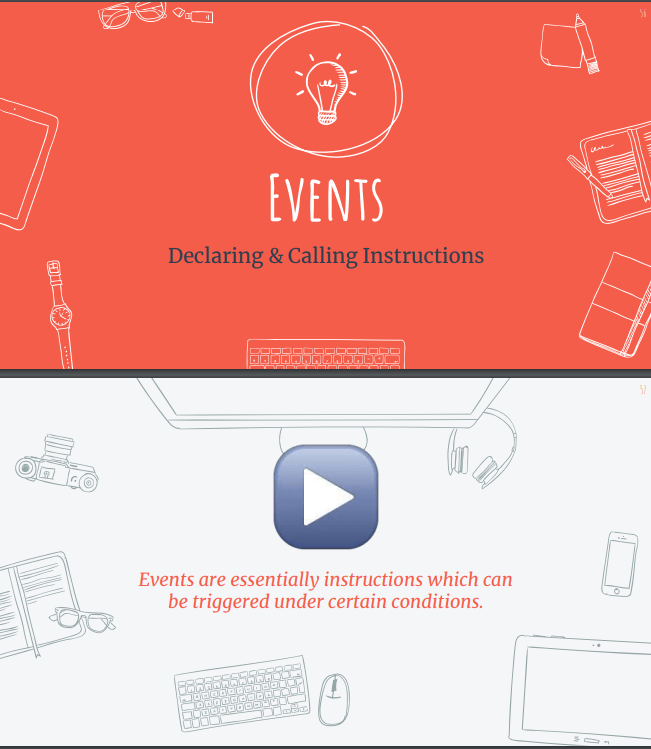
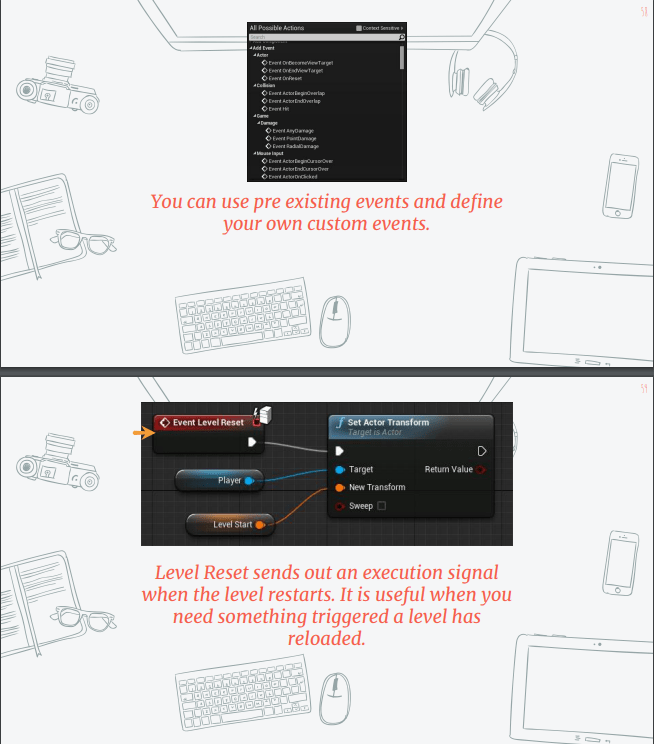
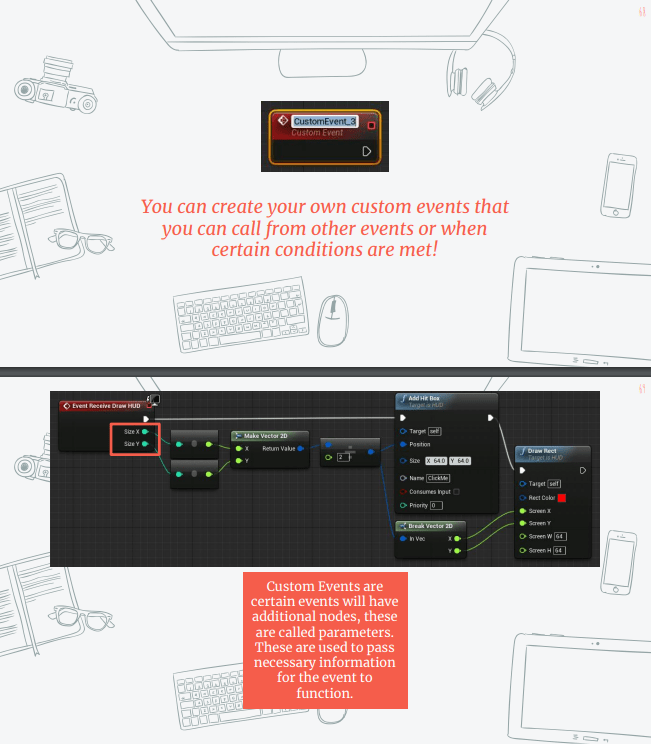
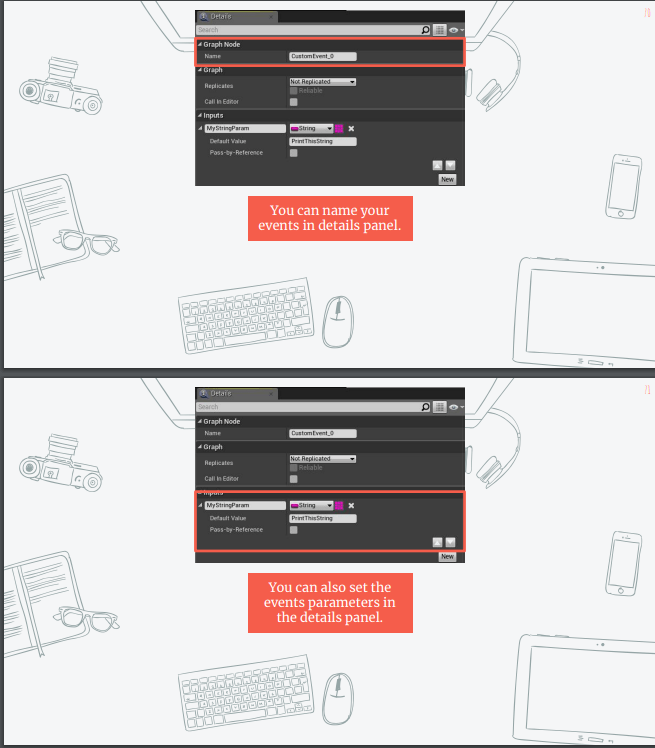
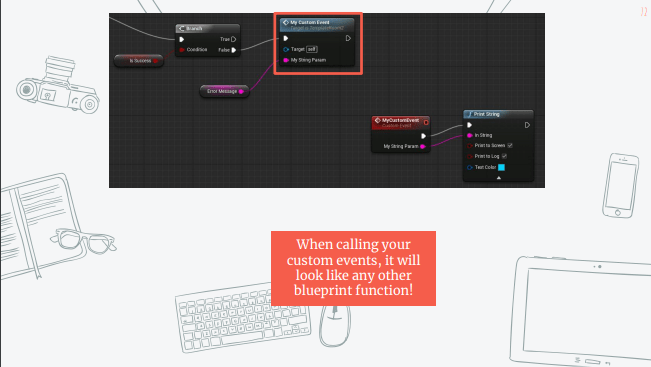
We also look at events
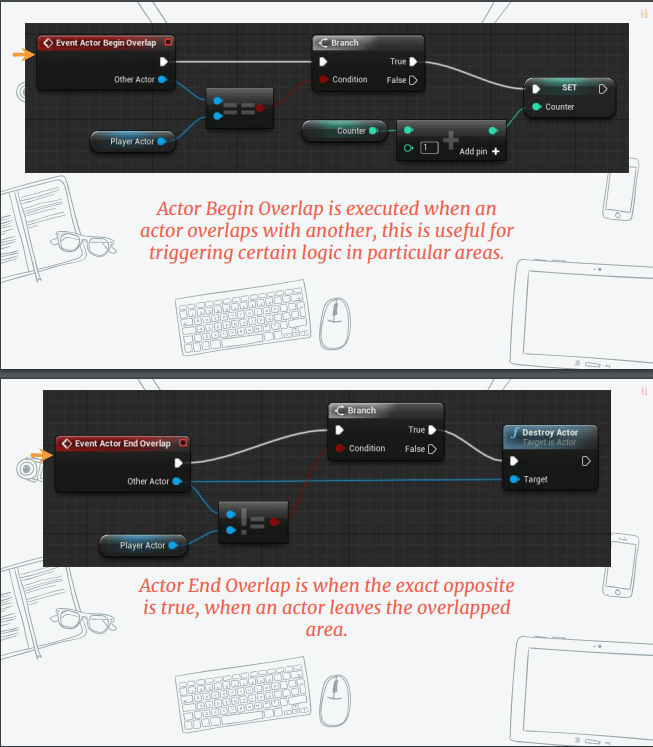
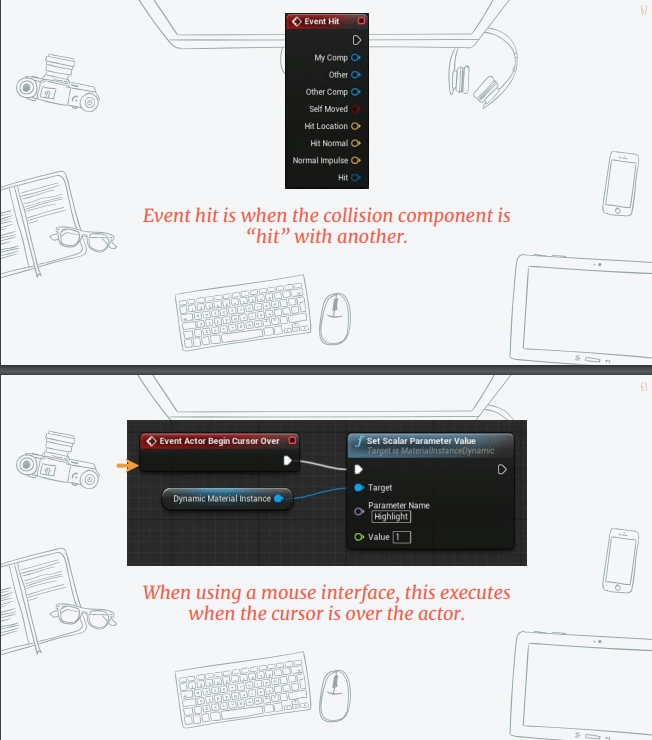
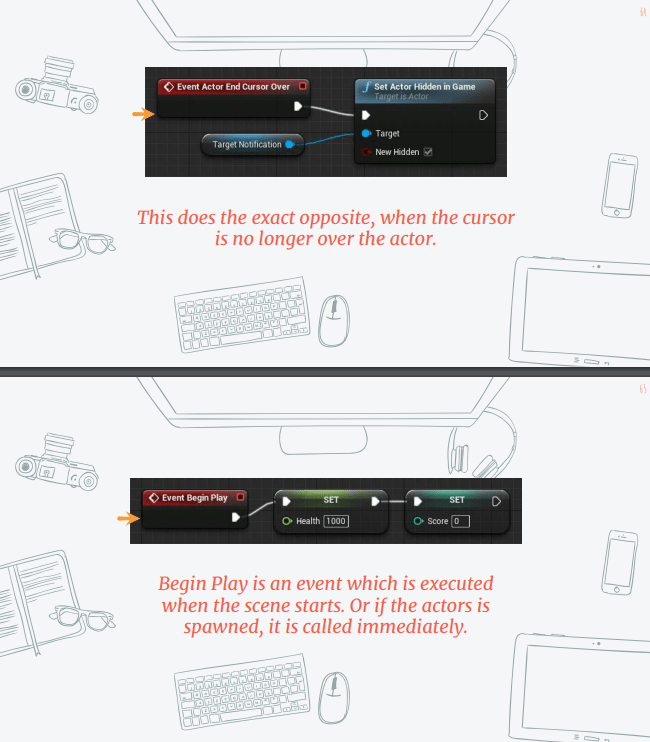
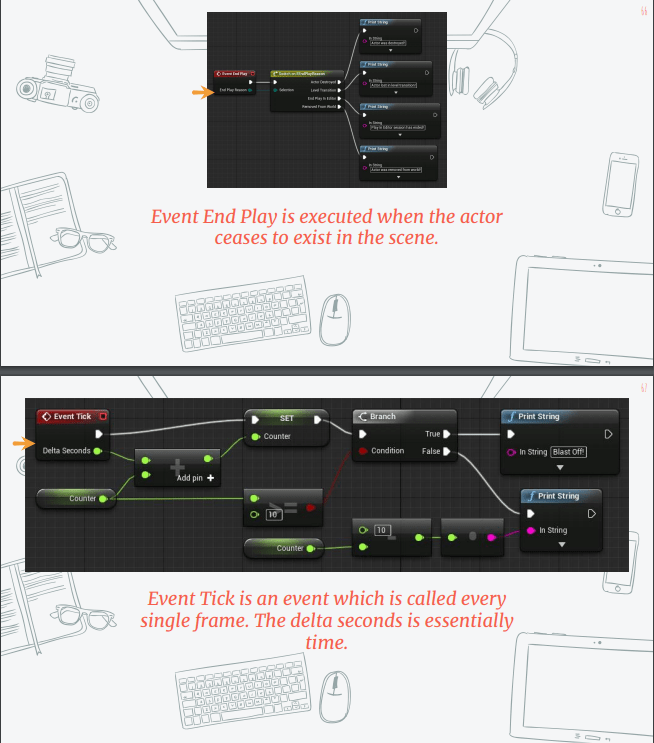
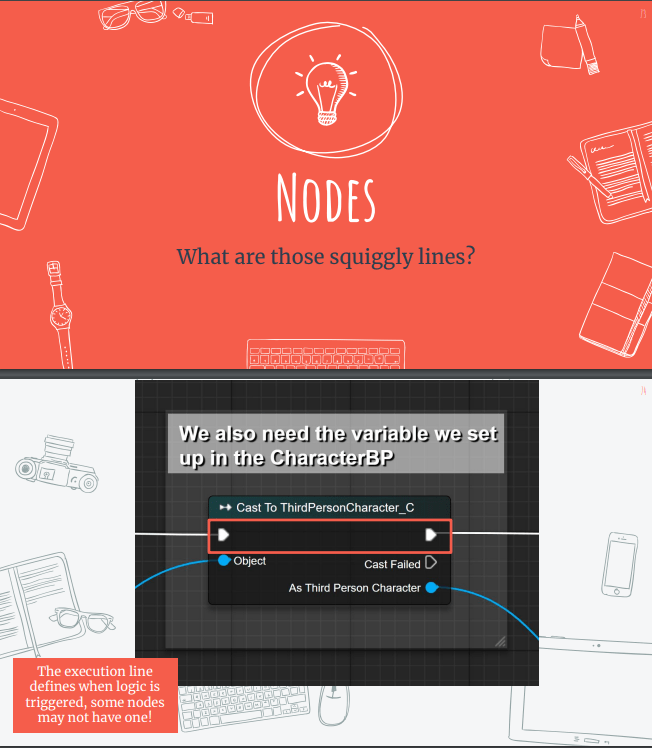
Finally we look at nodes.
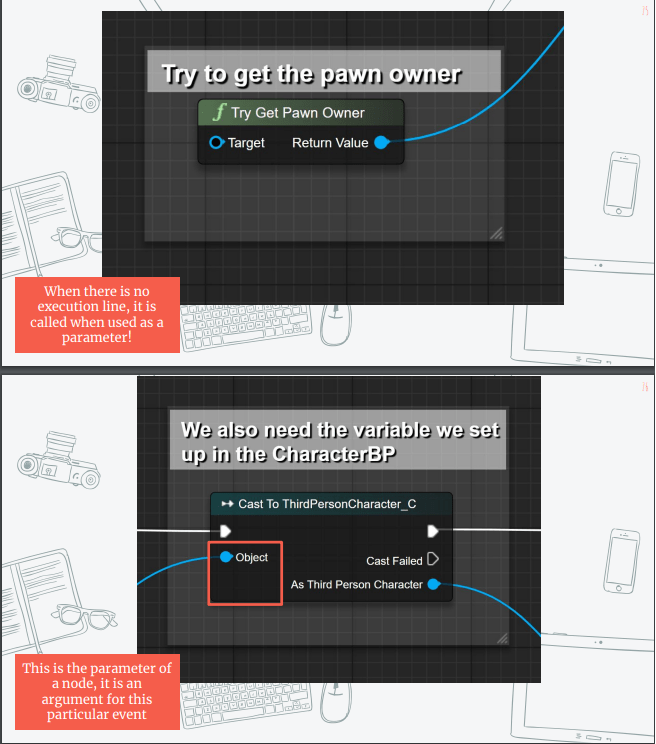
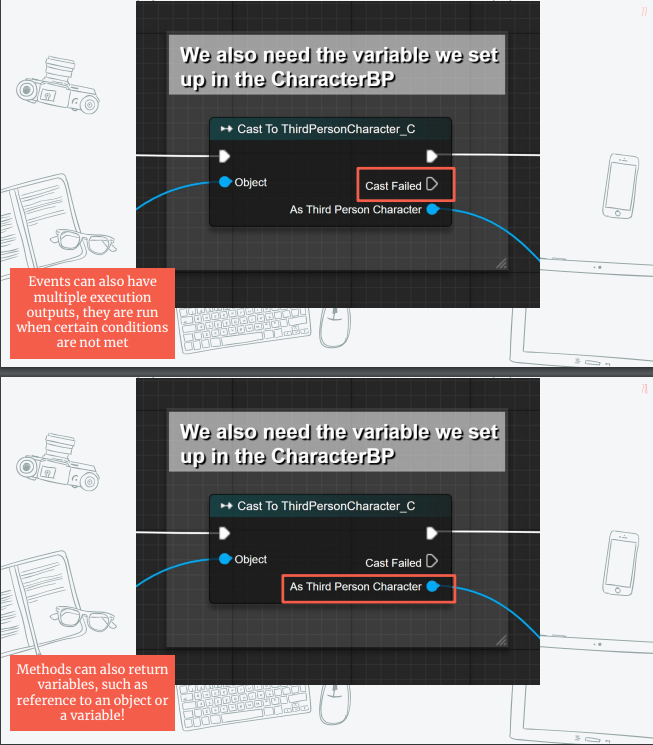
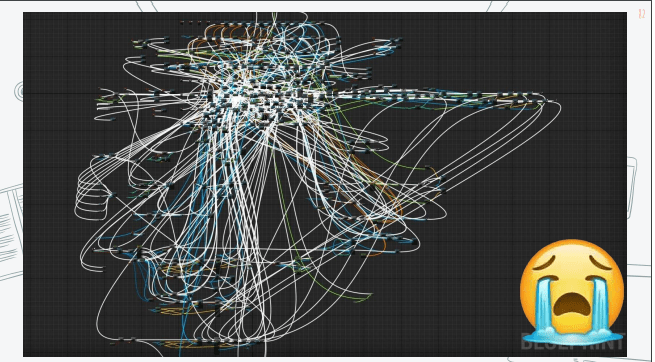
It is very important to keep our blueprints tidy and well organized, because a bad manage blueprint can affect our workflow.
Workshop activity week 4:
Create a trigger box which changes the colour of a light.
To begin with we create a new third person project:
we wait for the creating of the project:
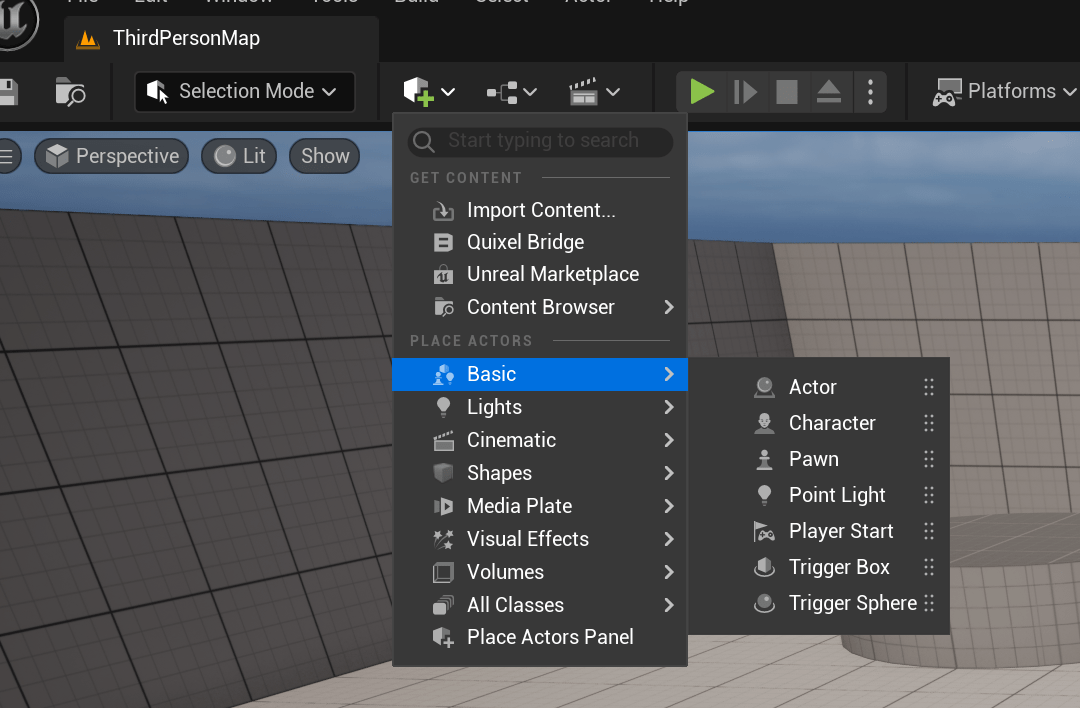
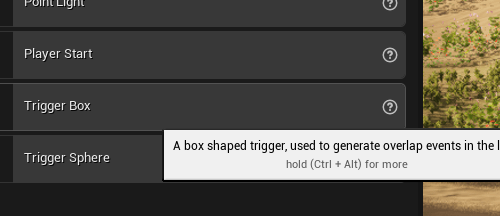
We add a trigger box using the toolbar:
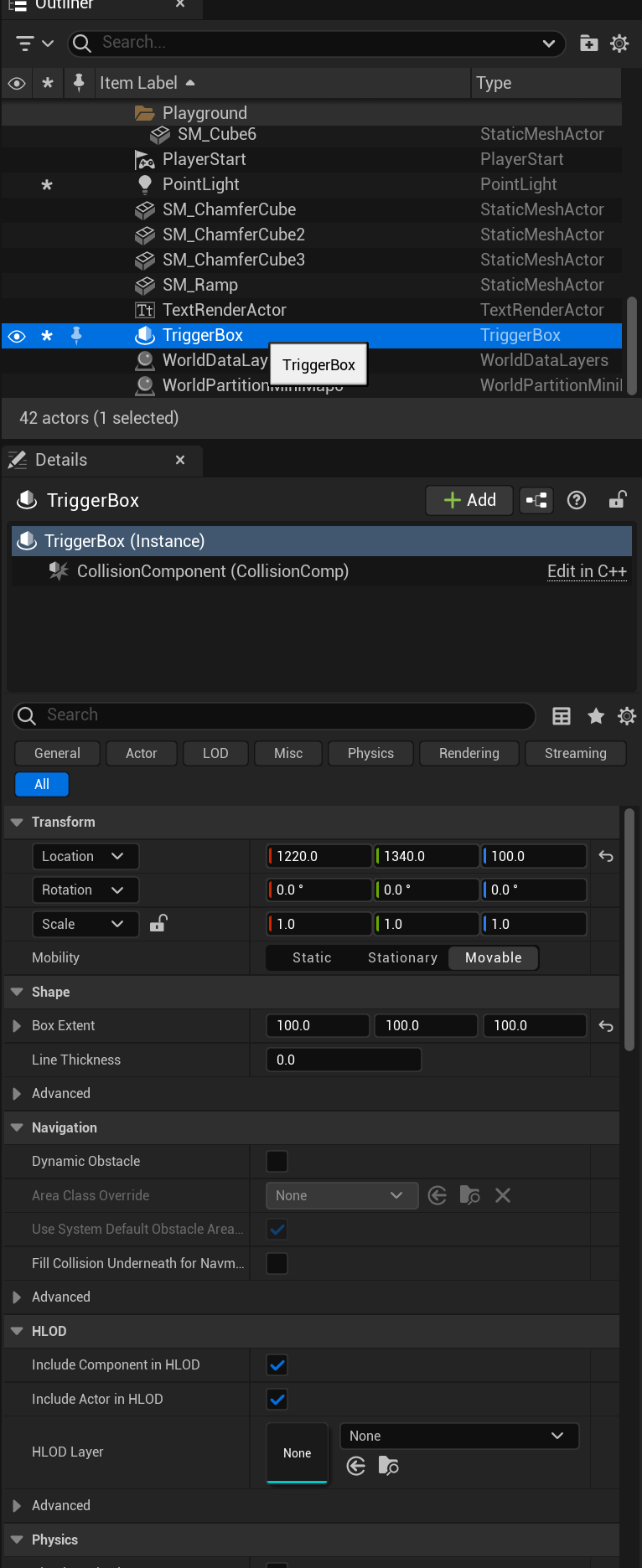
we also add a light:
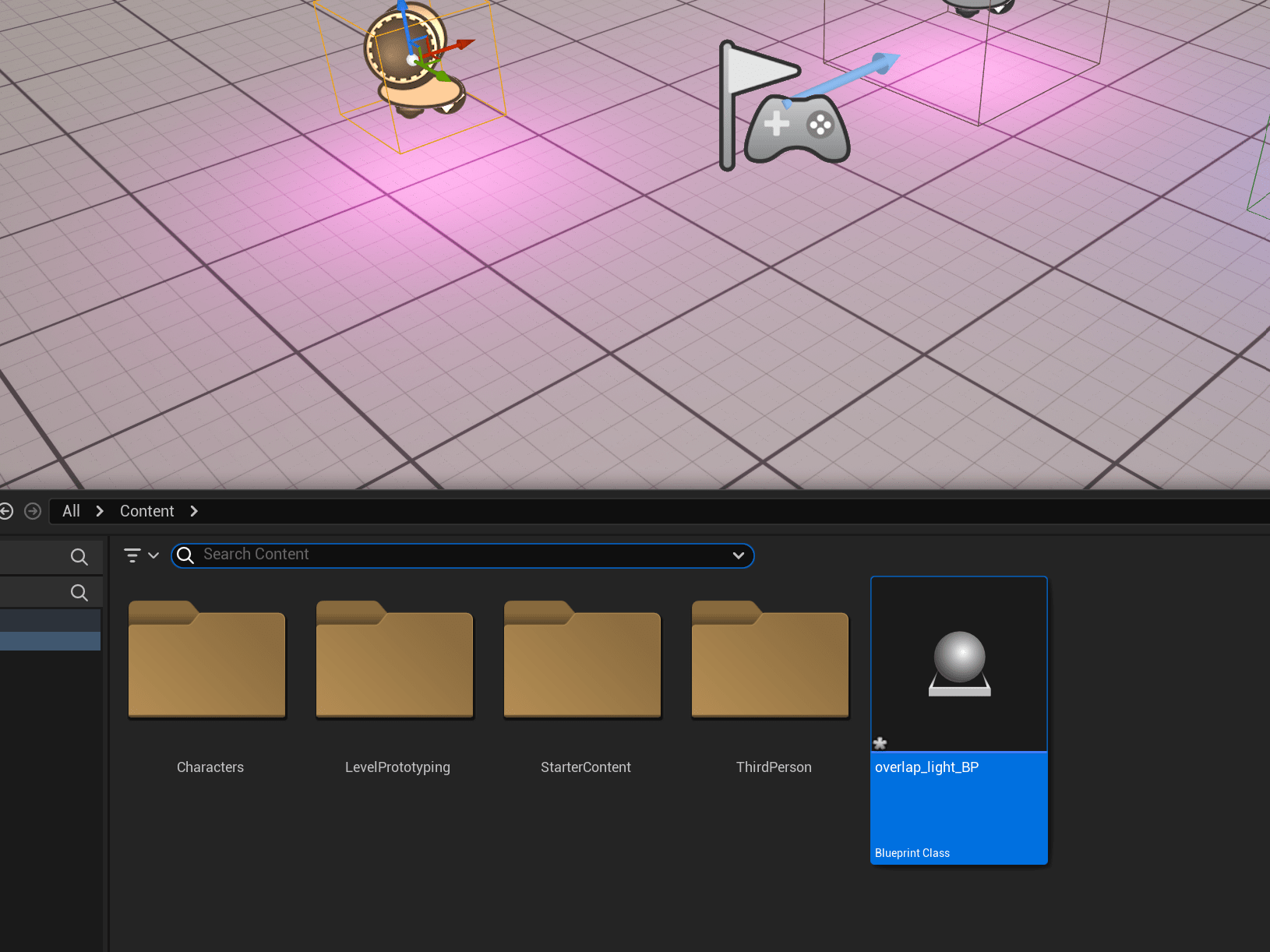
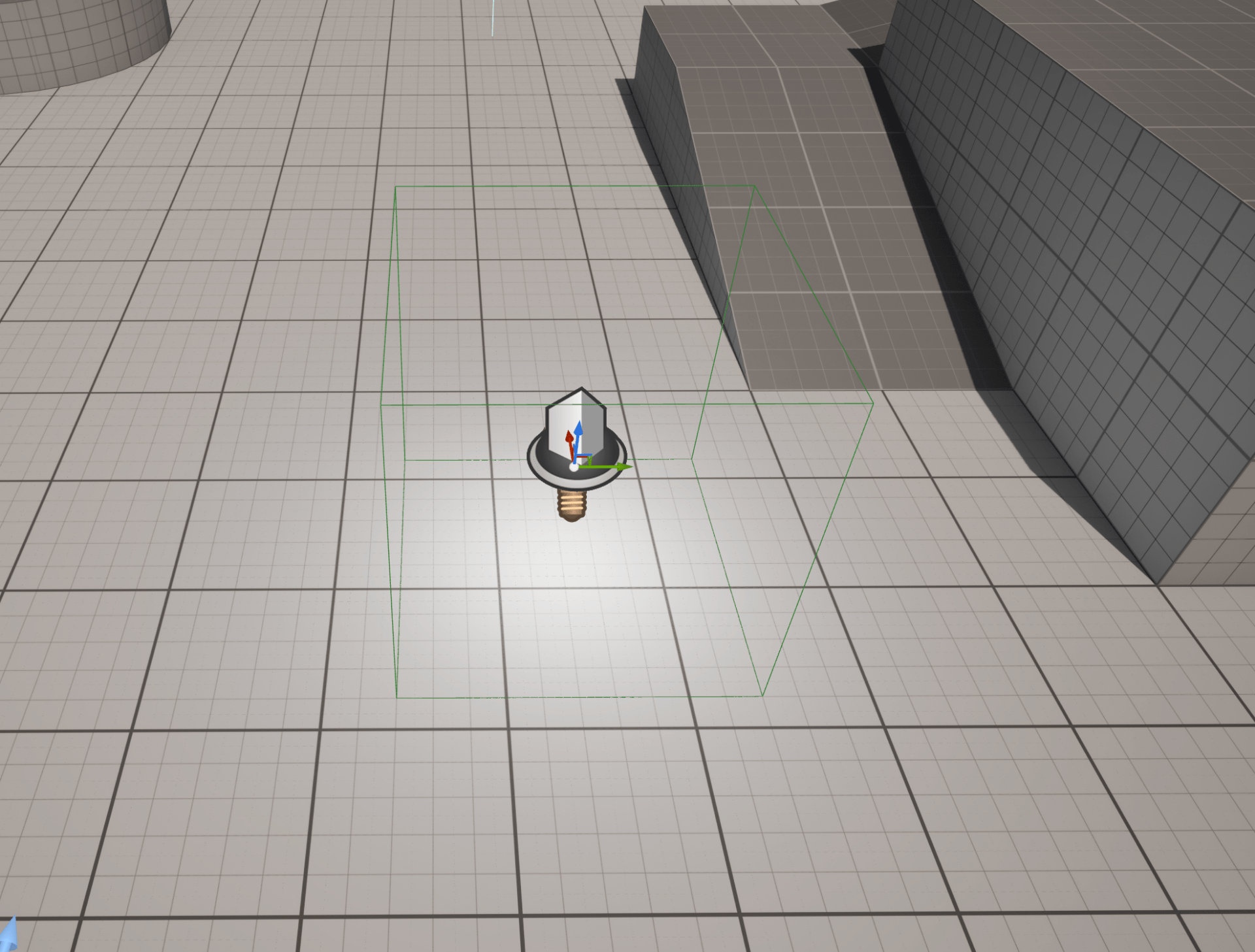
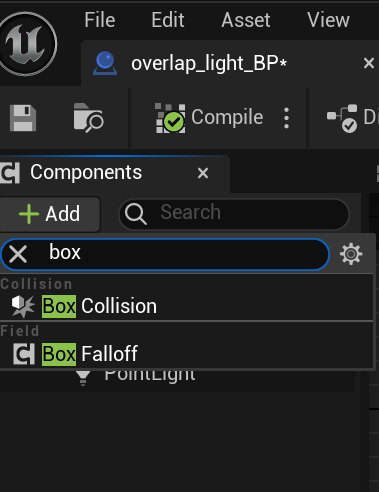
Next we open our event graph blueprint editor and add a collision box:
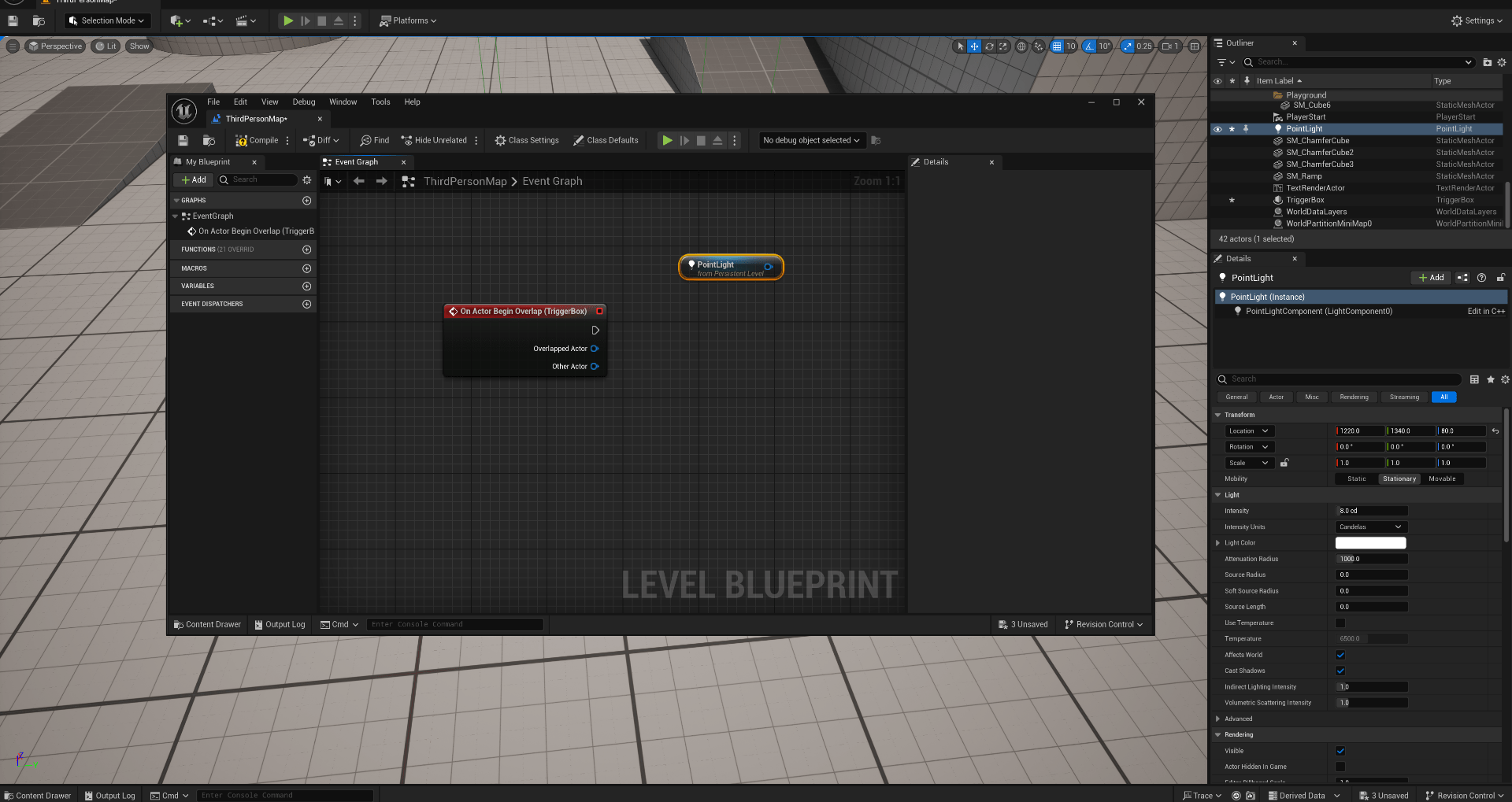
 We then proceed to add an on overlap event:
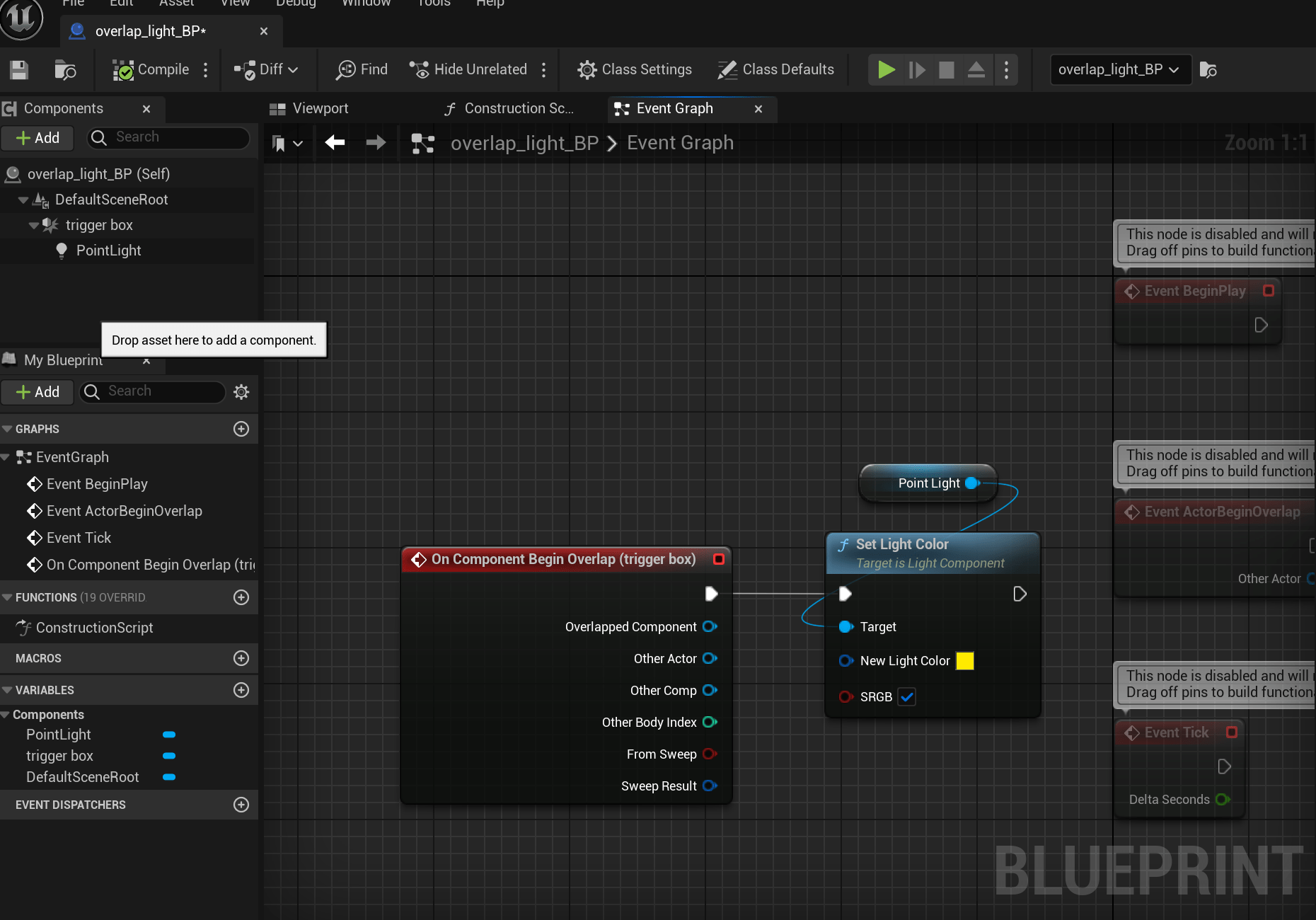
Set what is going to happen when our actor triggers the light:
And finally we have our light changing colour whenever we trigger the box:
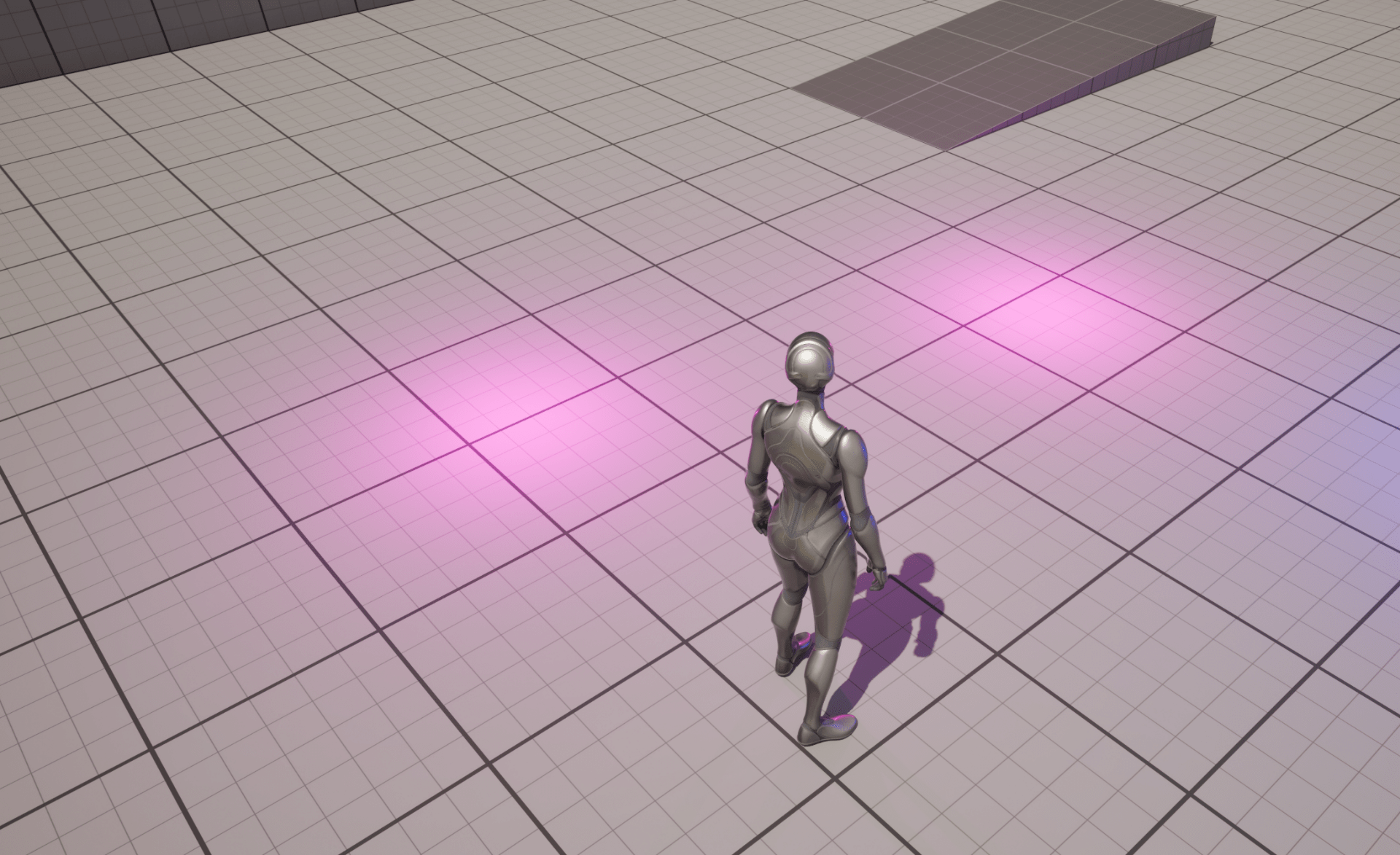
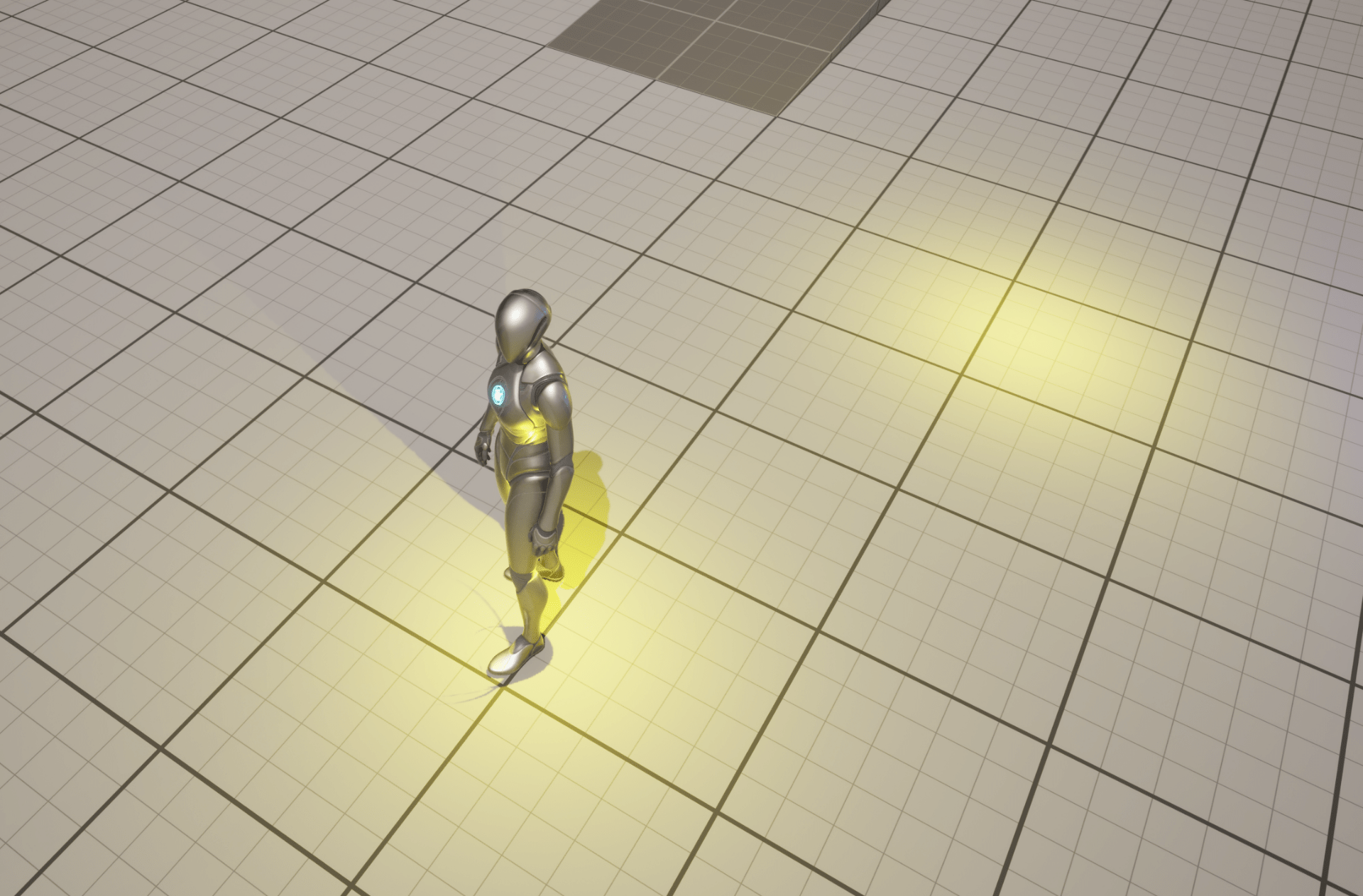
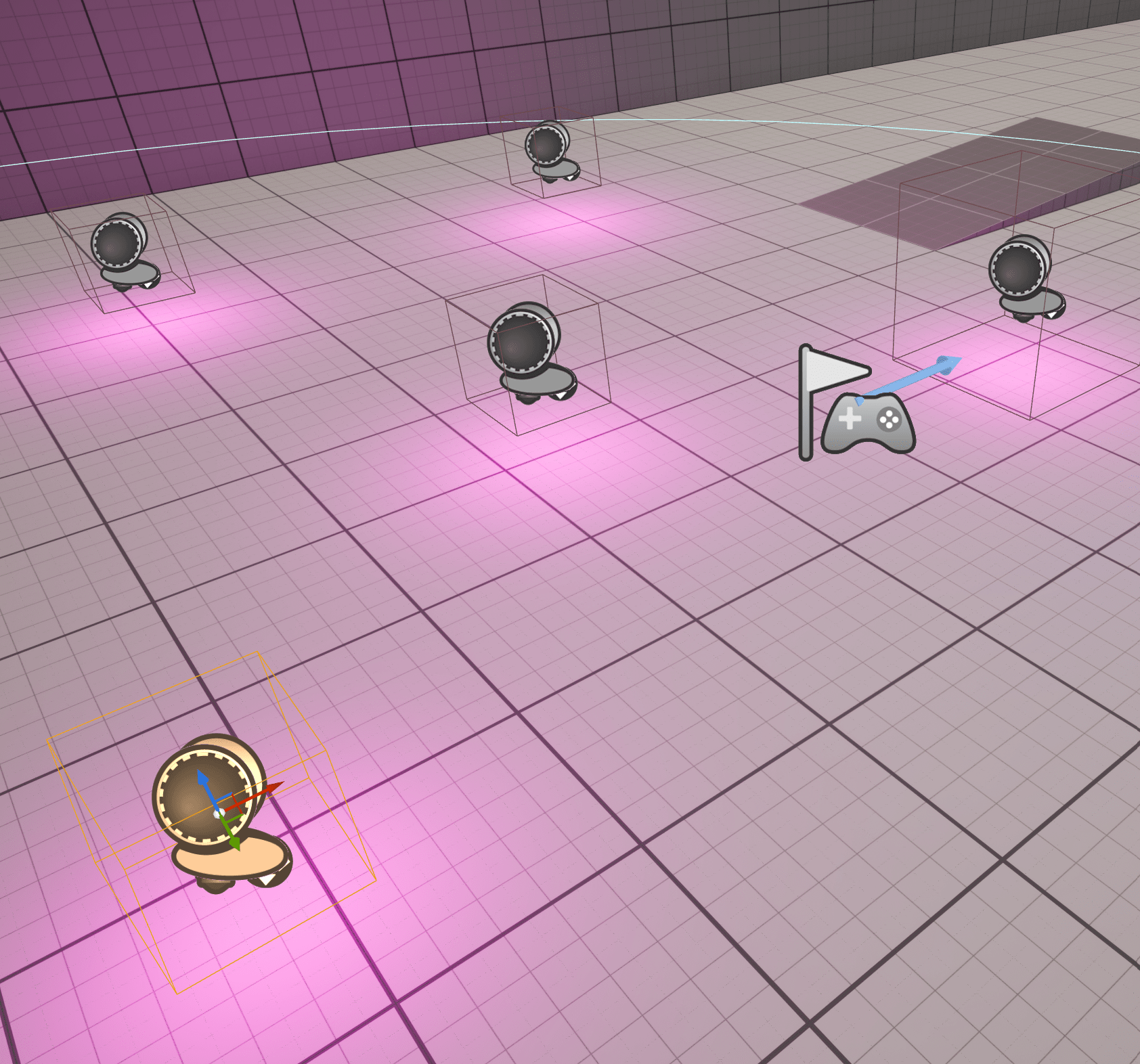
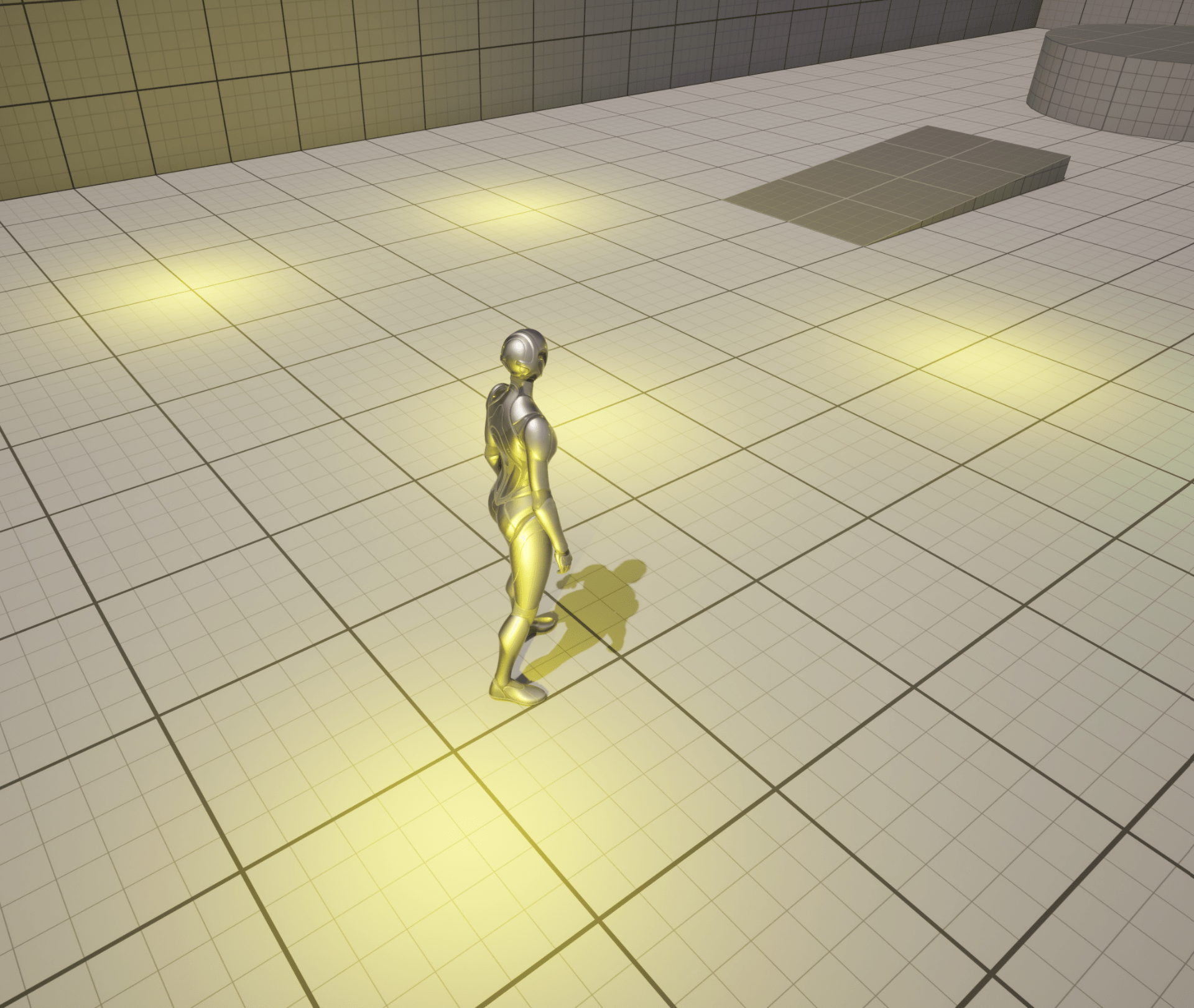
End of workshop
End of week 4
Week 5
- Fundamentals Of Materials
- Analysing Real Life Materials
This week we will be focus on different kind of materials and how to create them.
These are the slides that where shown in class.
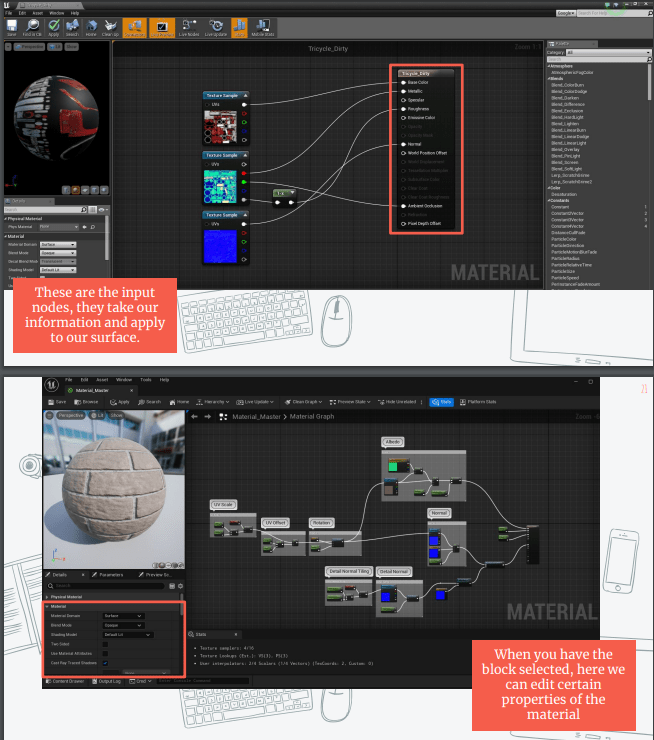
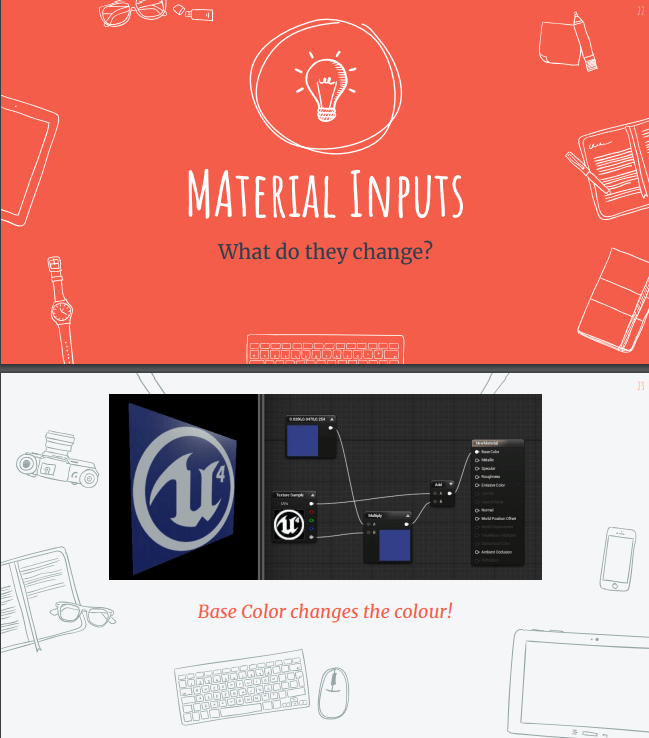
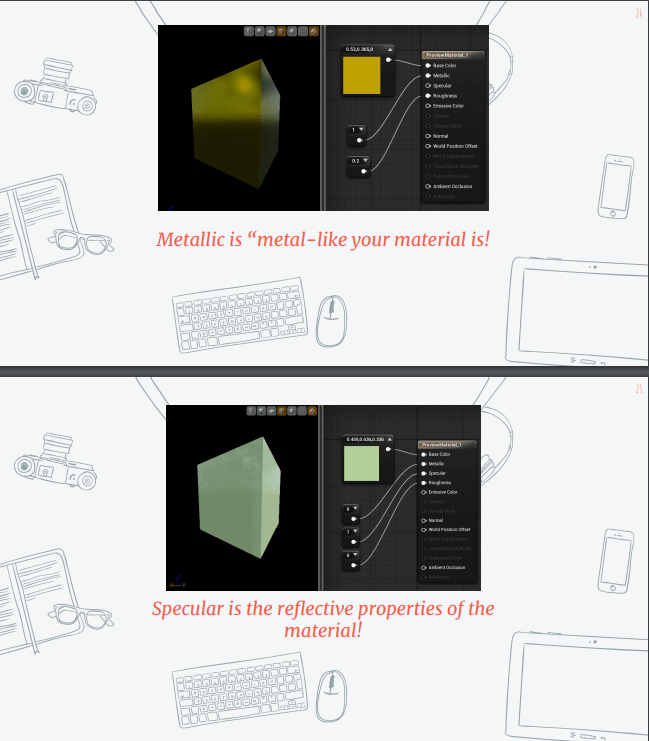
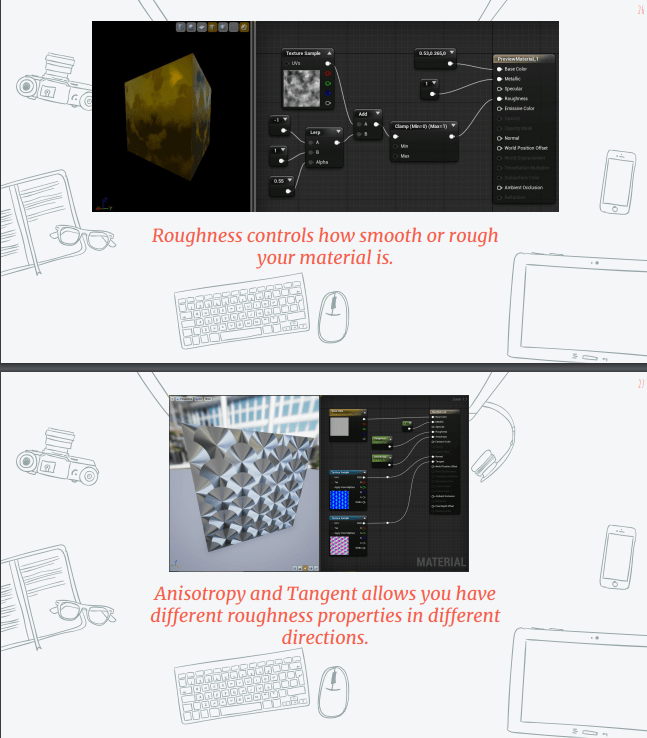
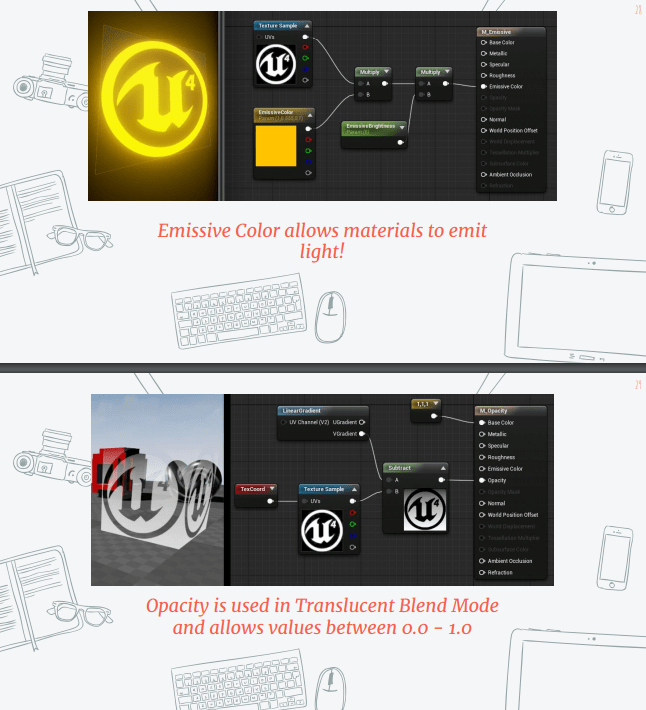
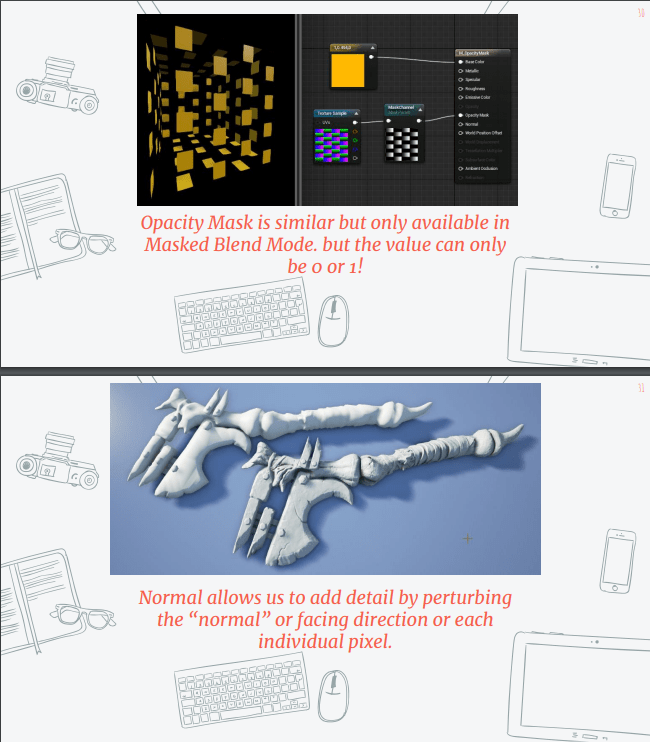
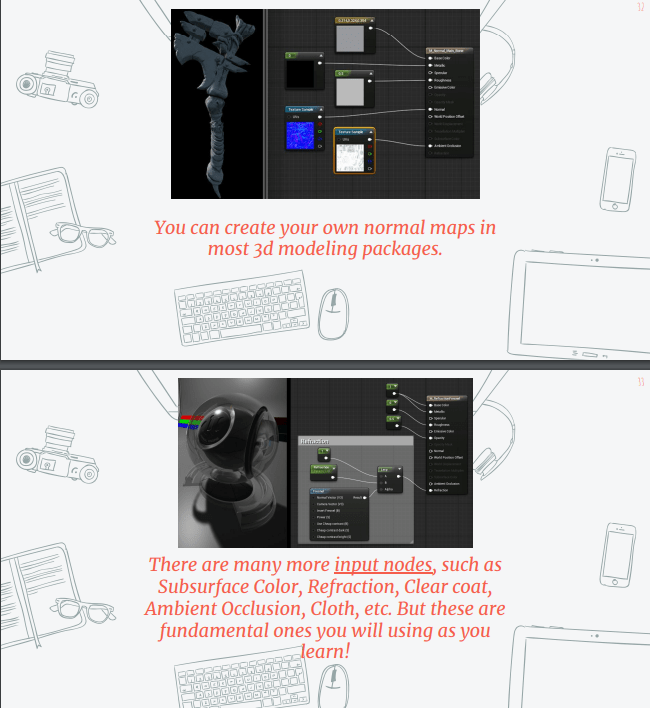
In this slide we look at material inputs and what they do.
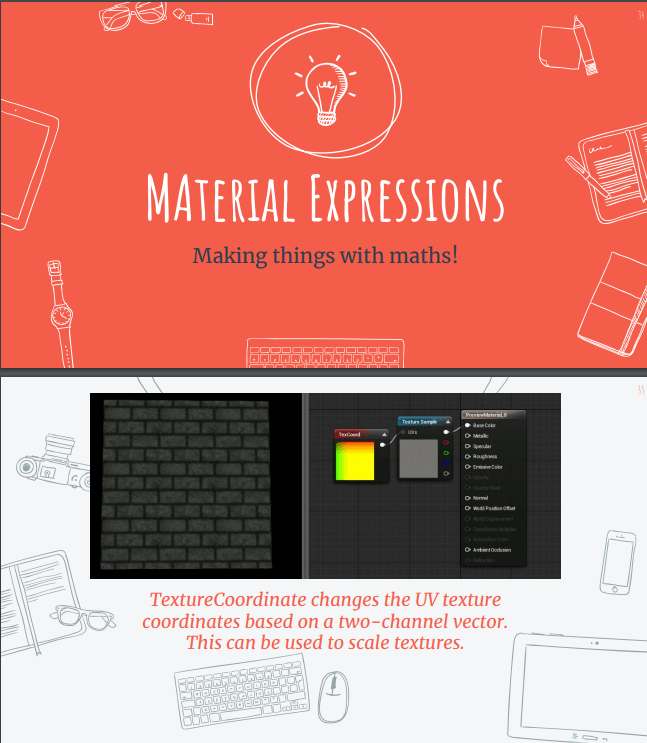
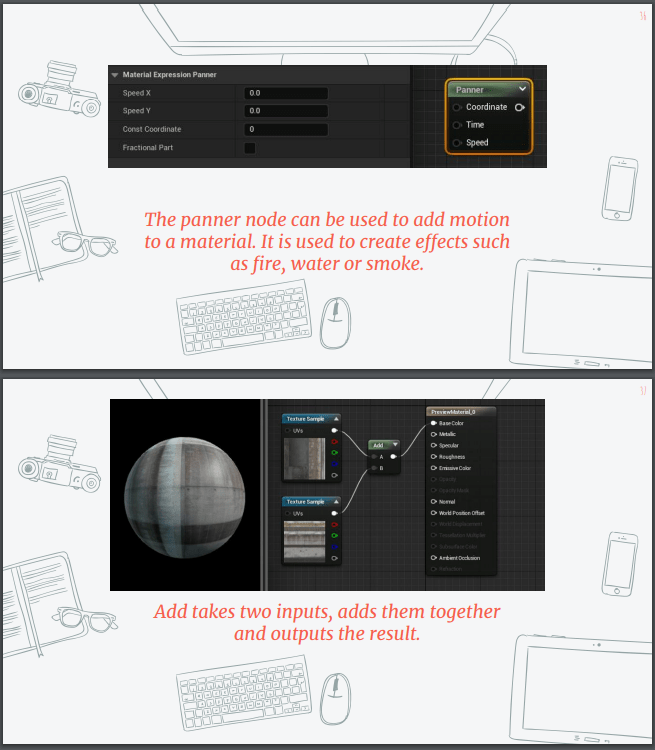
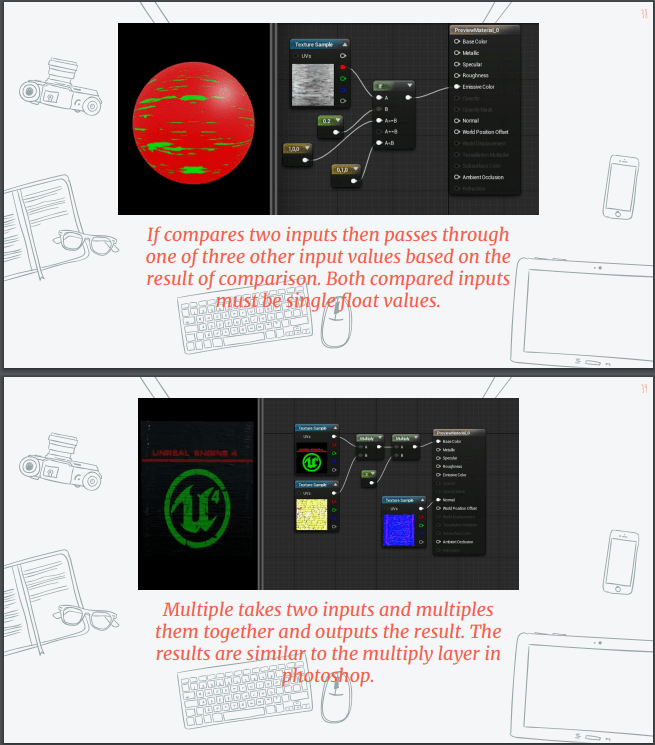
Finally we learn about material expressions.
Workshop activity week 5:
Create a series of materials and apply them to objects in a scene.
For this workshop I am using the same project as the previous activity.
To begin with we are going to head up to the content window and create a material folder, so everything is well organized.
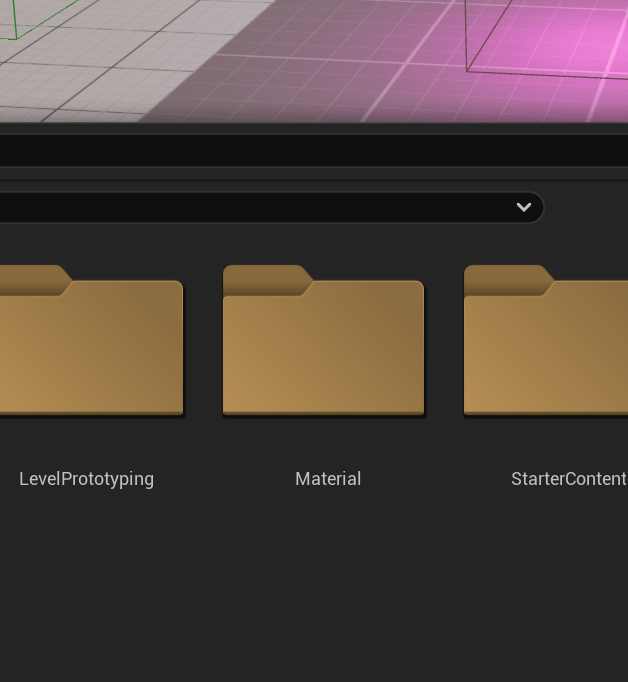
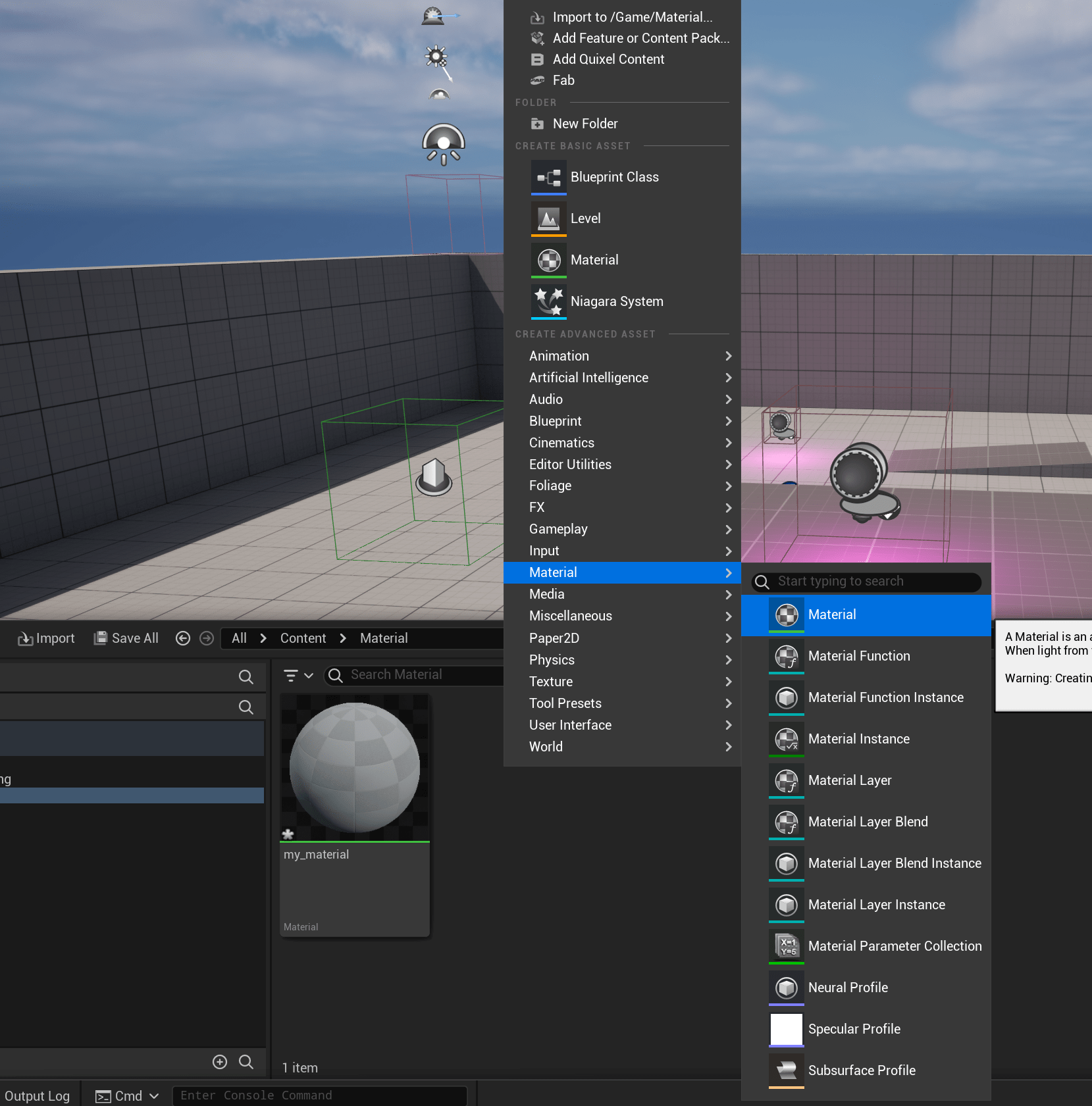
Inside the folder we are creating a material.
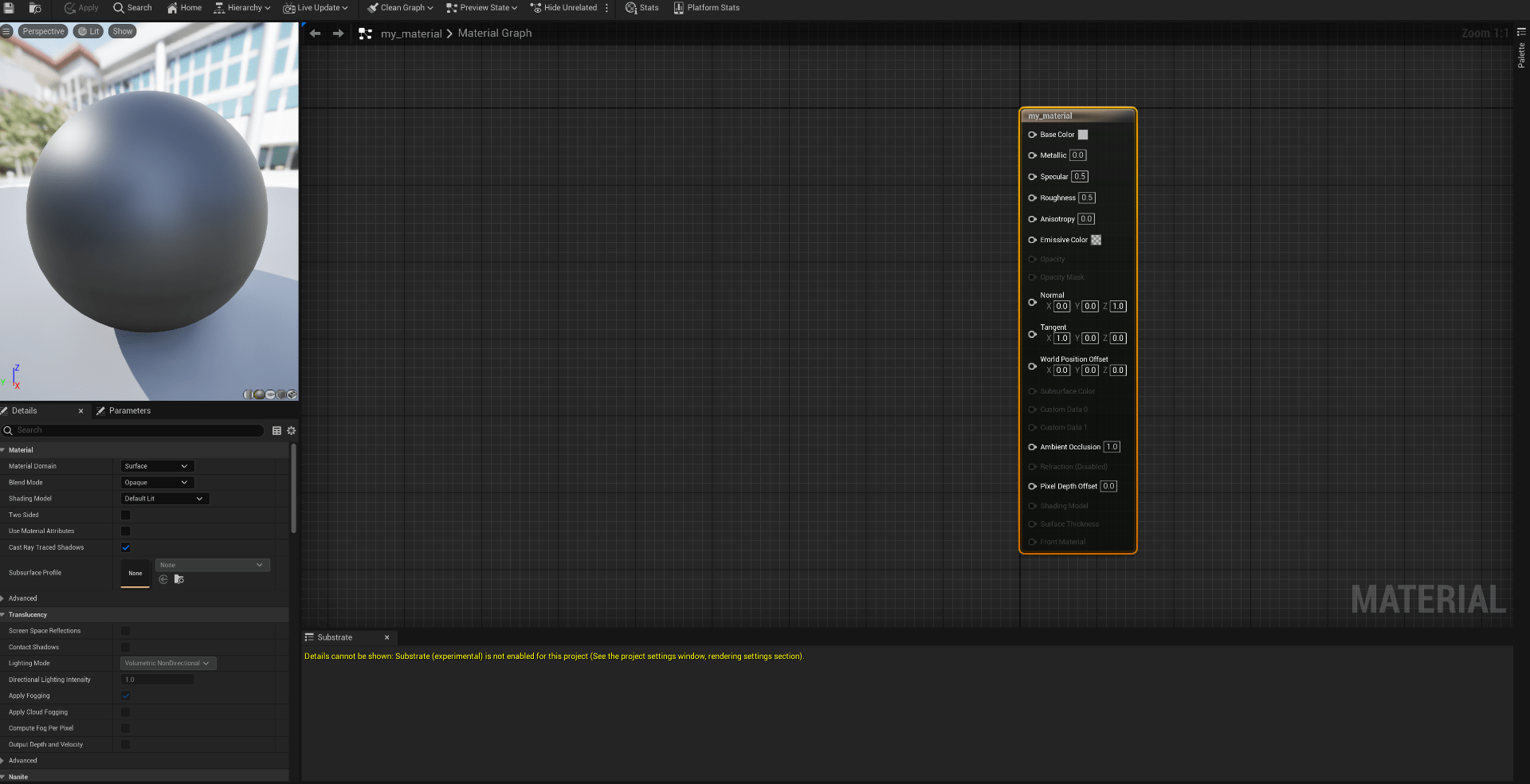
Now we have our plain material.
We start creating some nodes and parameters.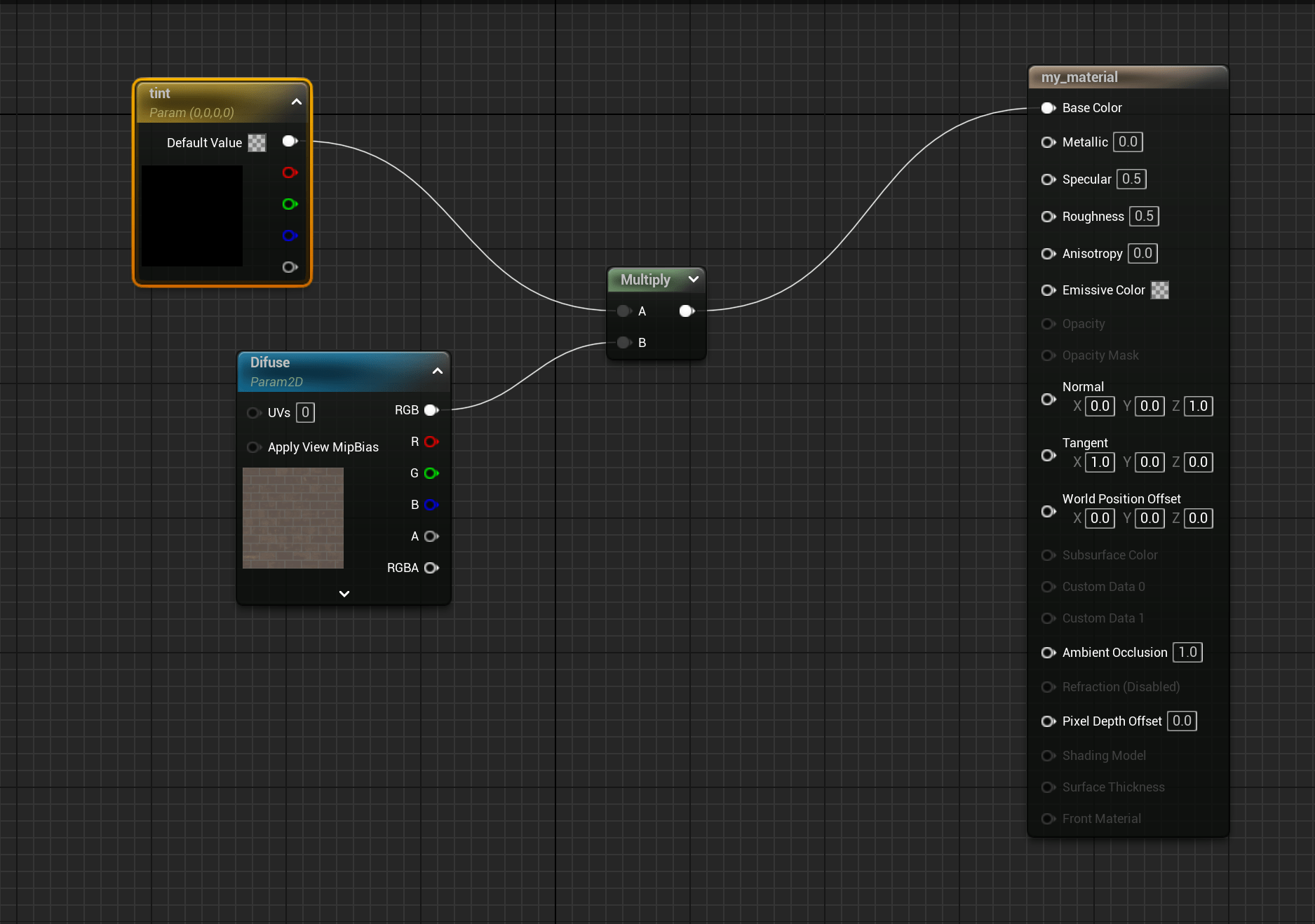
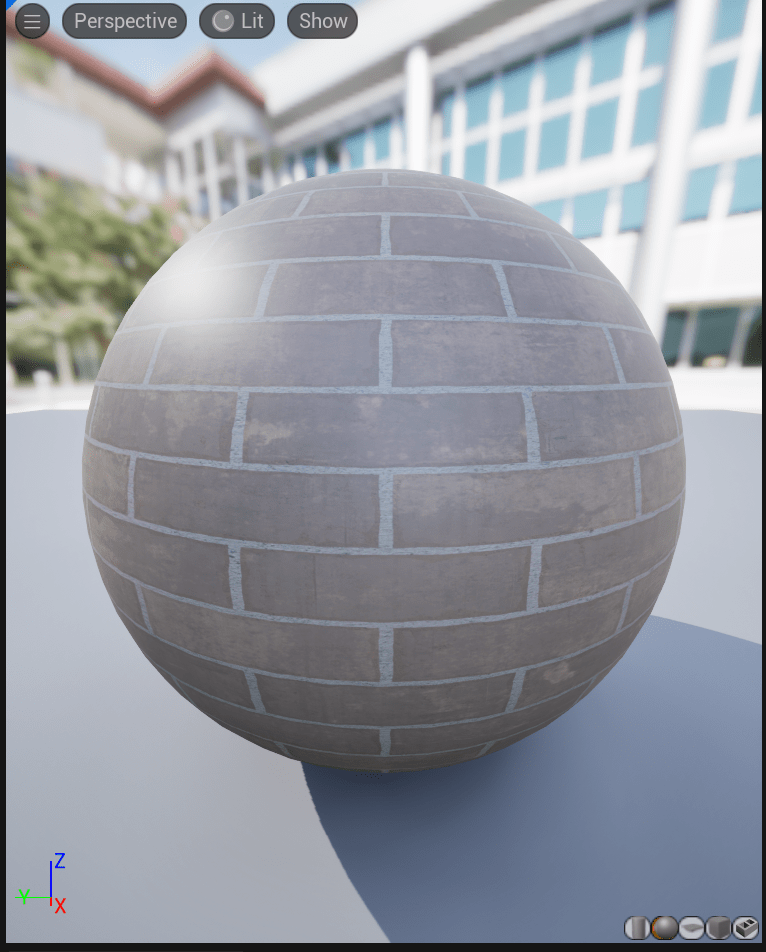
After applying a simple brick texture looks like this.
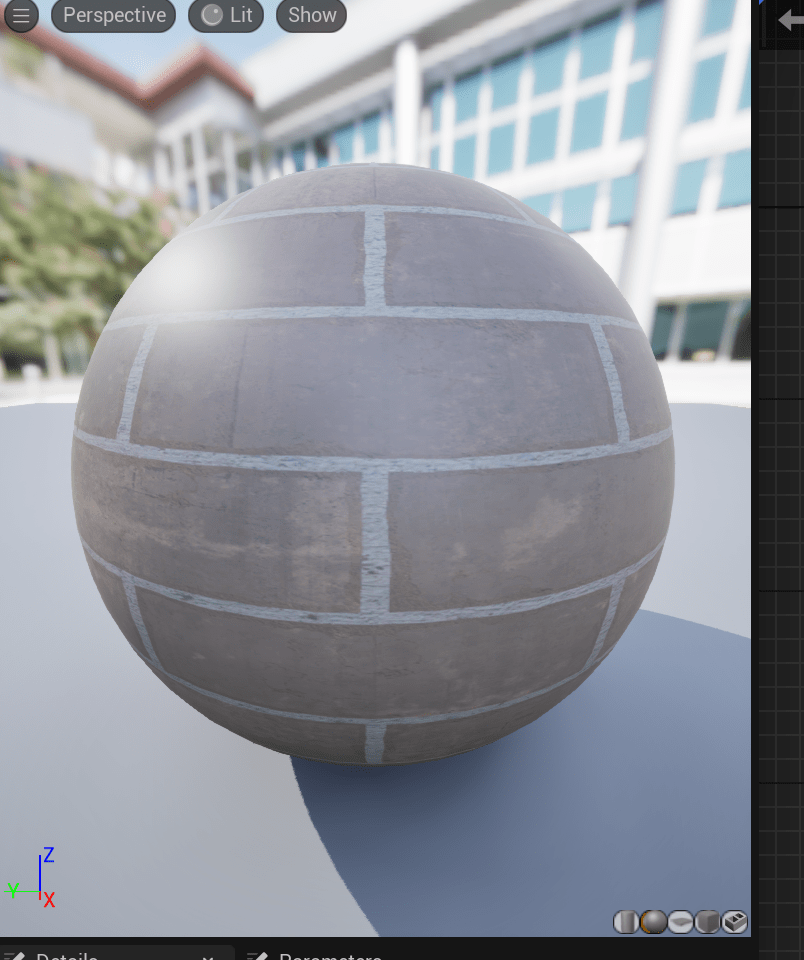
we can play with the parameters.
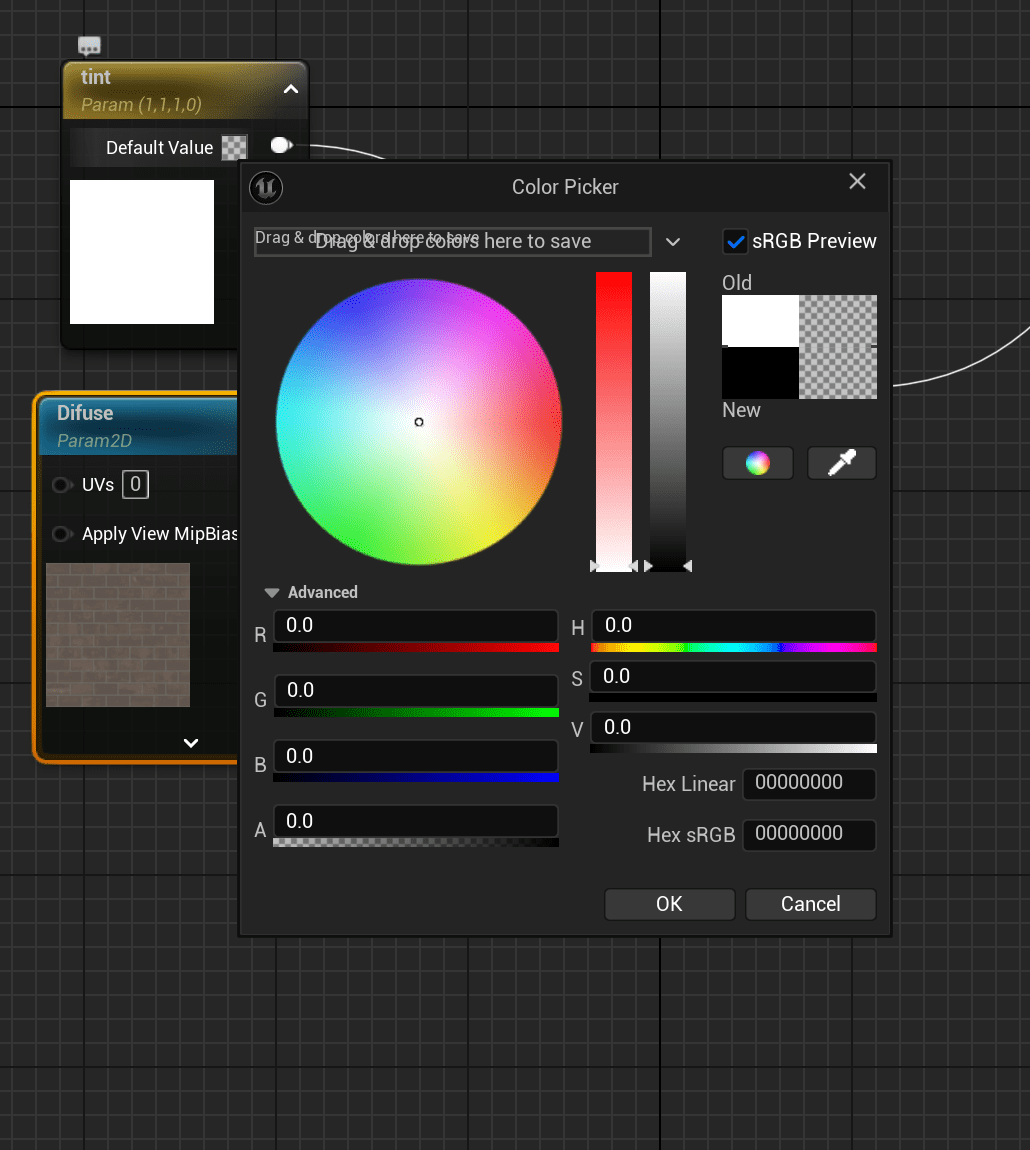
To maintain everything tied up we make groups so later everything is easy to find and modify.
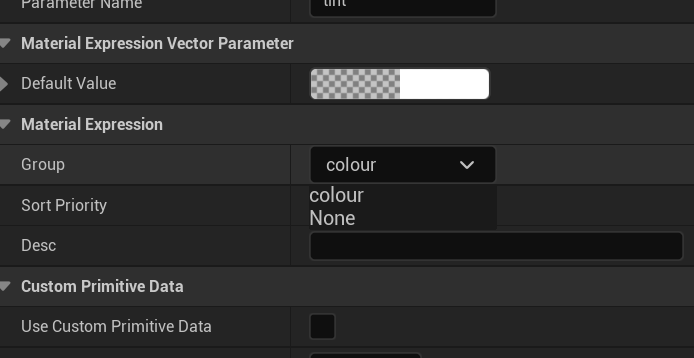
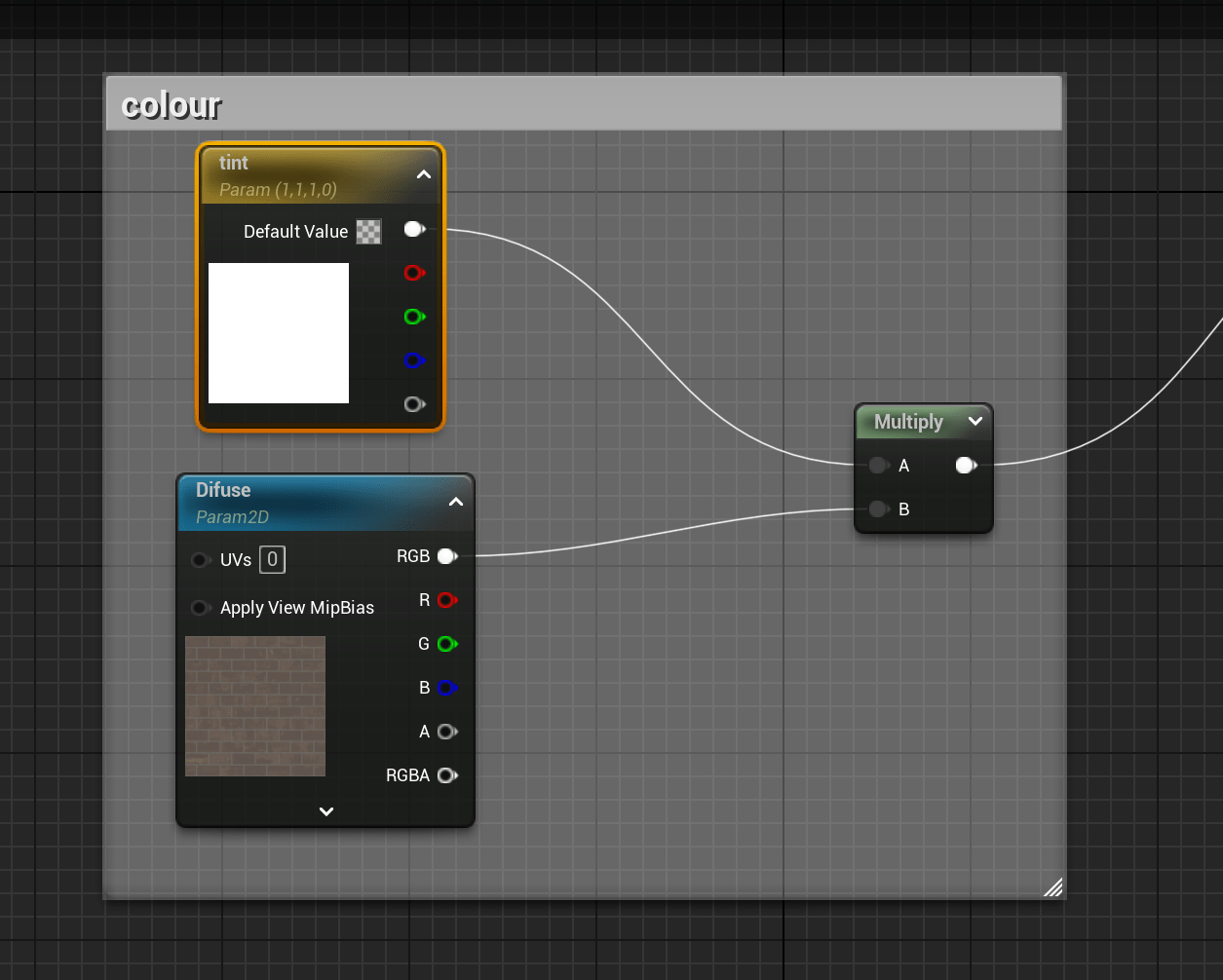
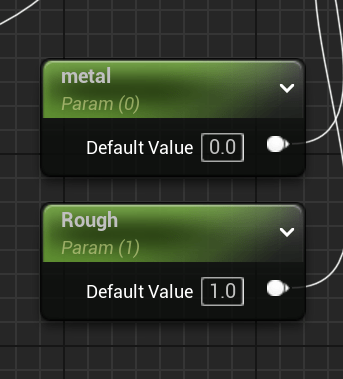
we create the parameters for metal and roughness.
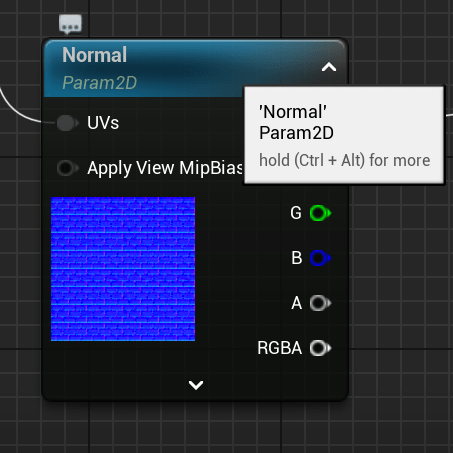
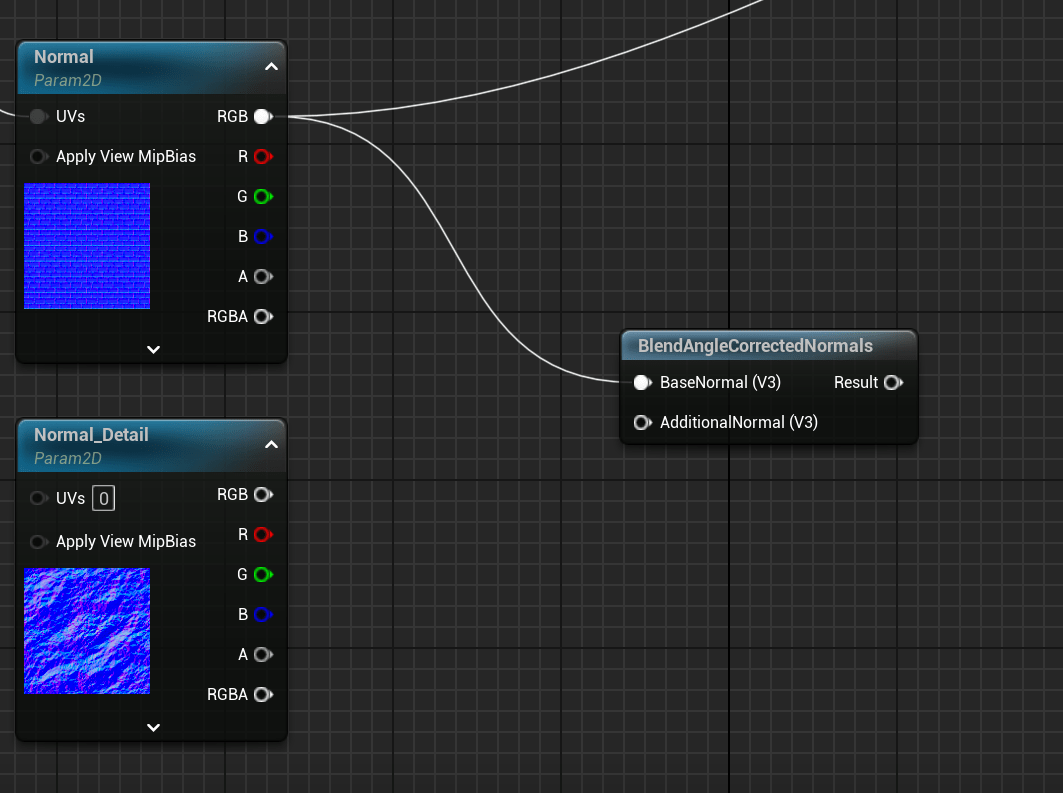
Now we procced to create a normalizer for the texture.
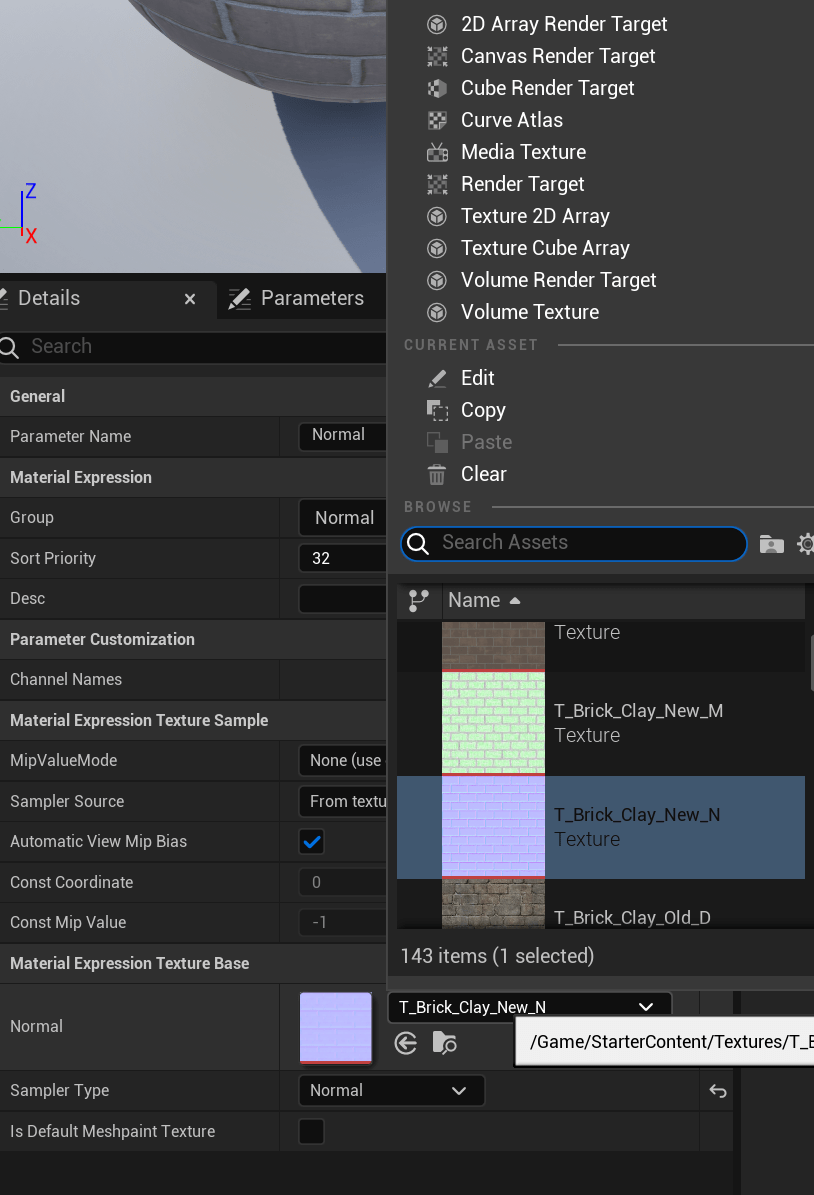
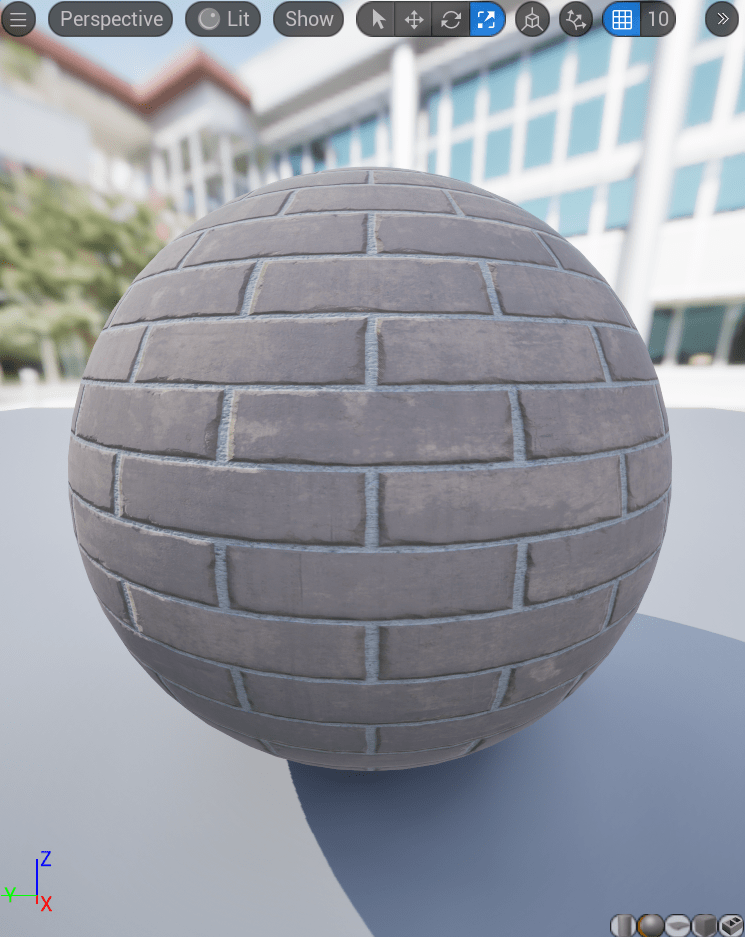
We also add a detail map.
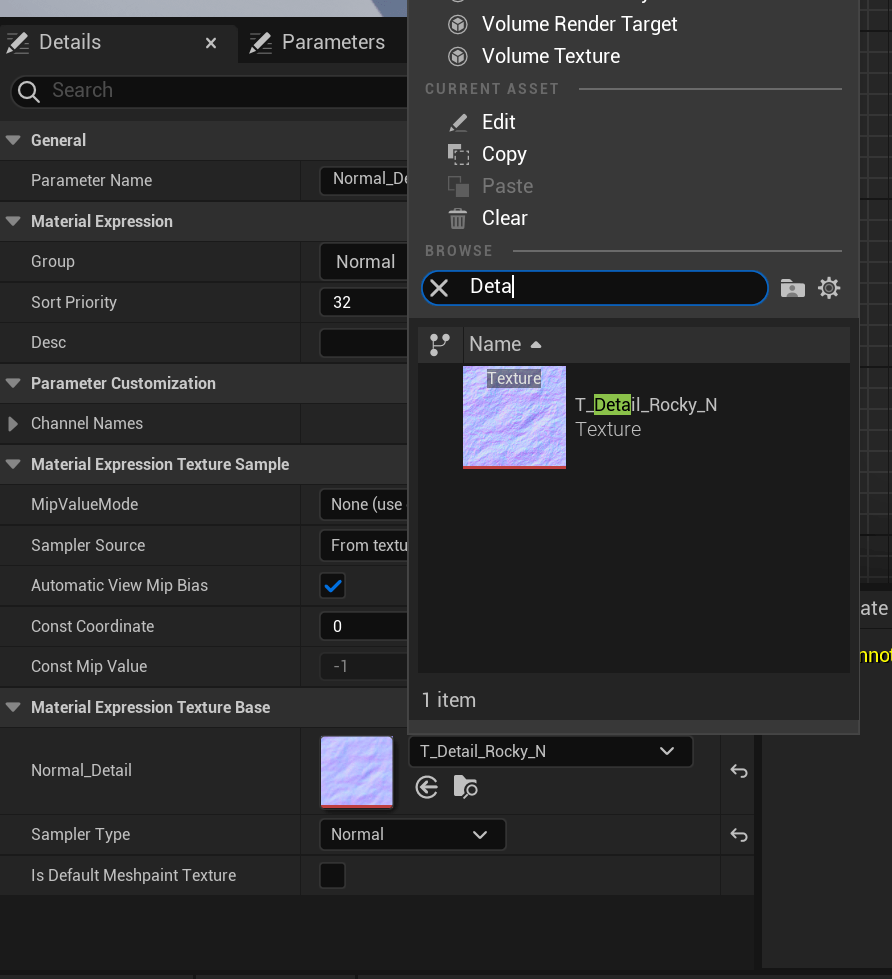
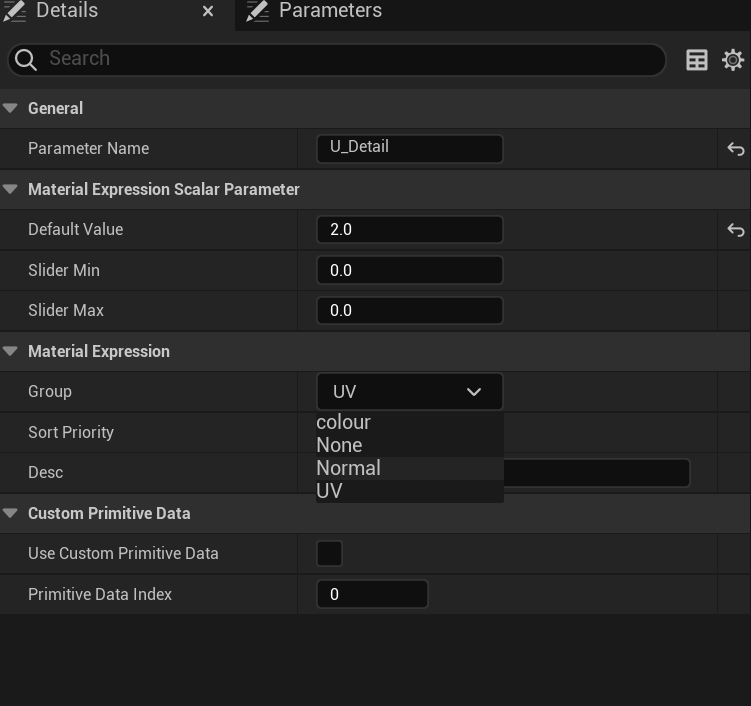
These are parameters and nodes for the UVs and we also put them in a group.
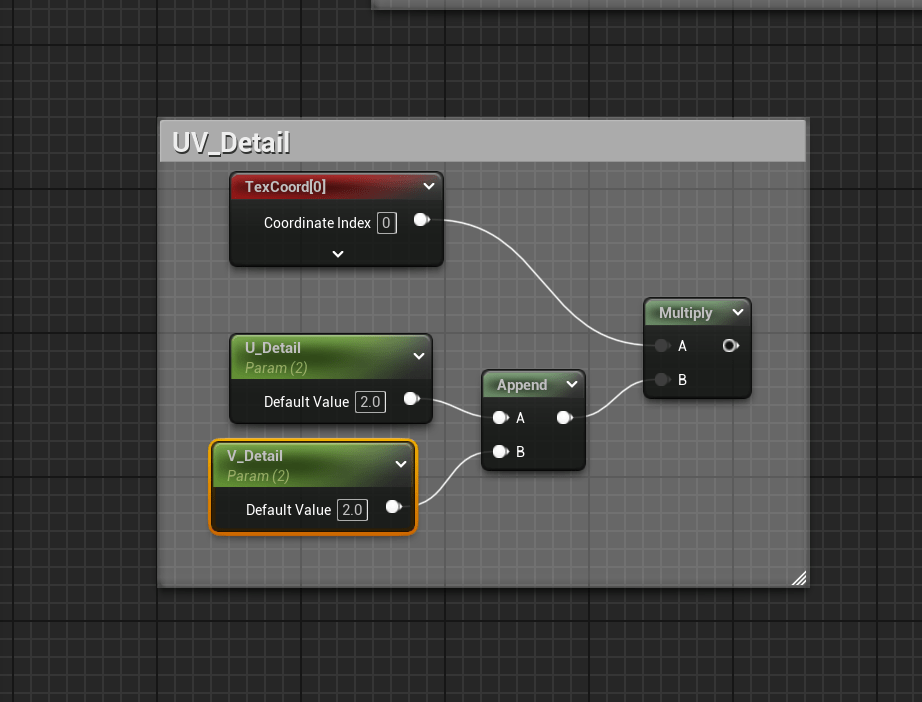
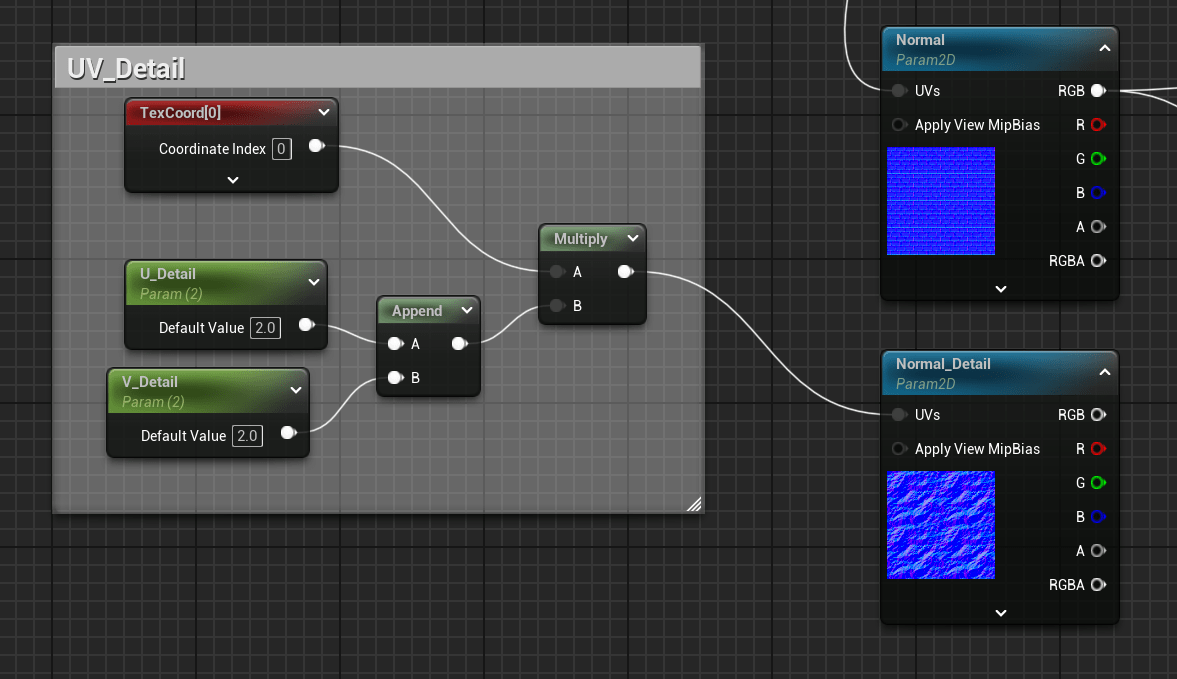
We connect the UVs to the detail map.
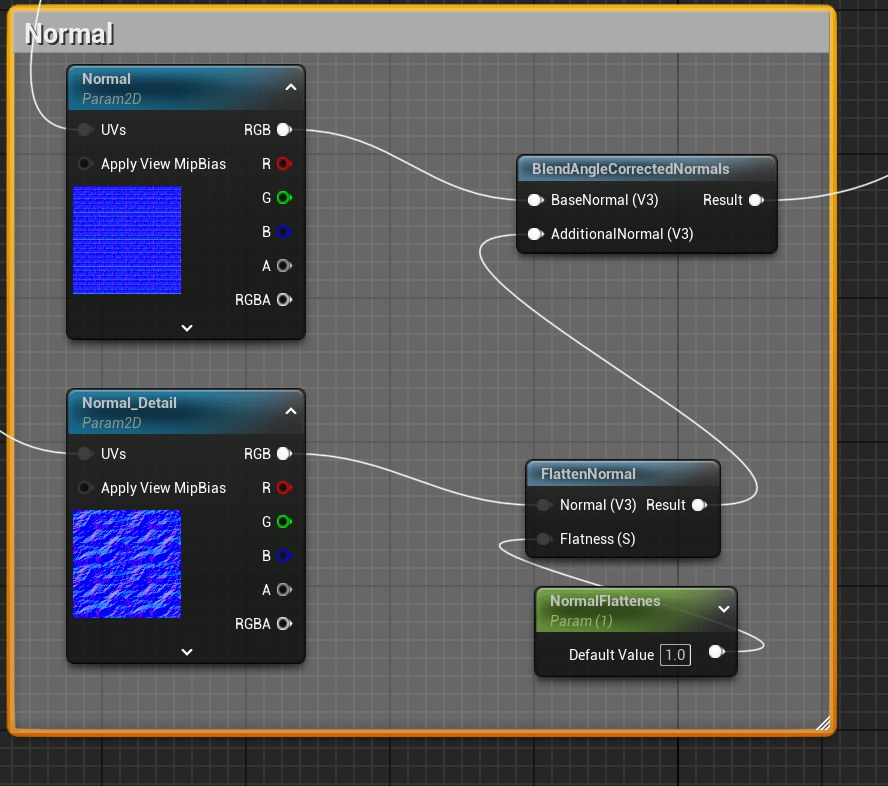
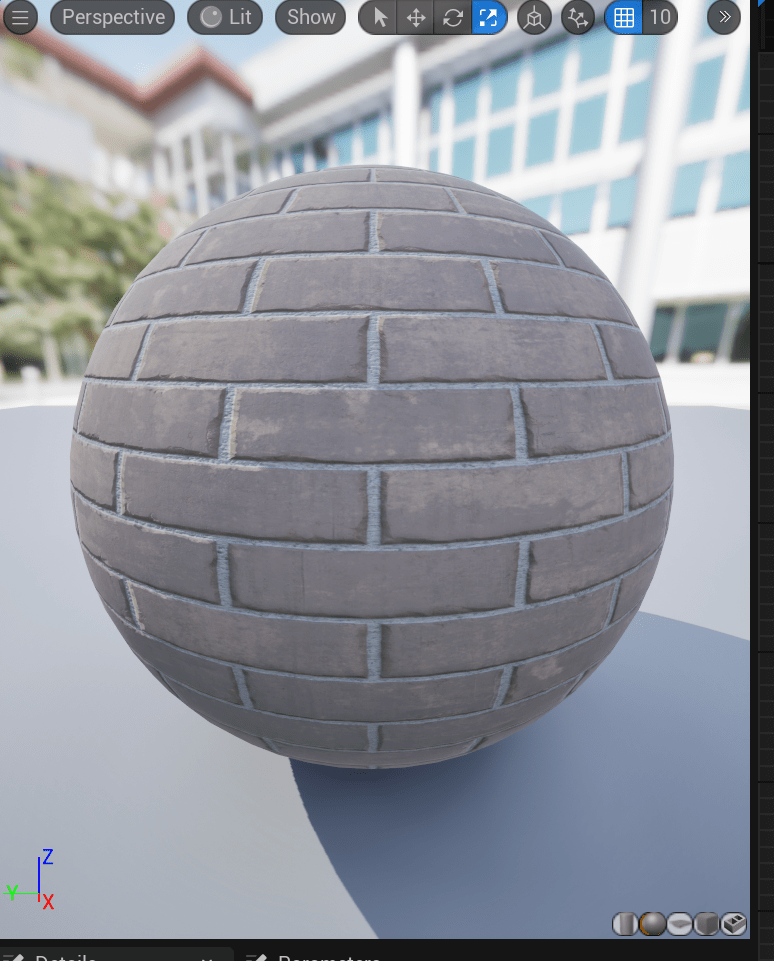
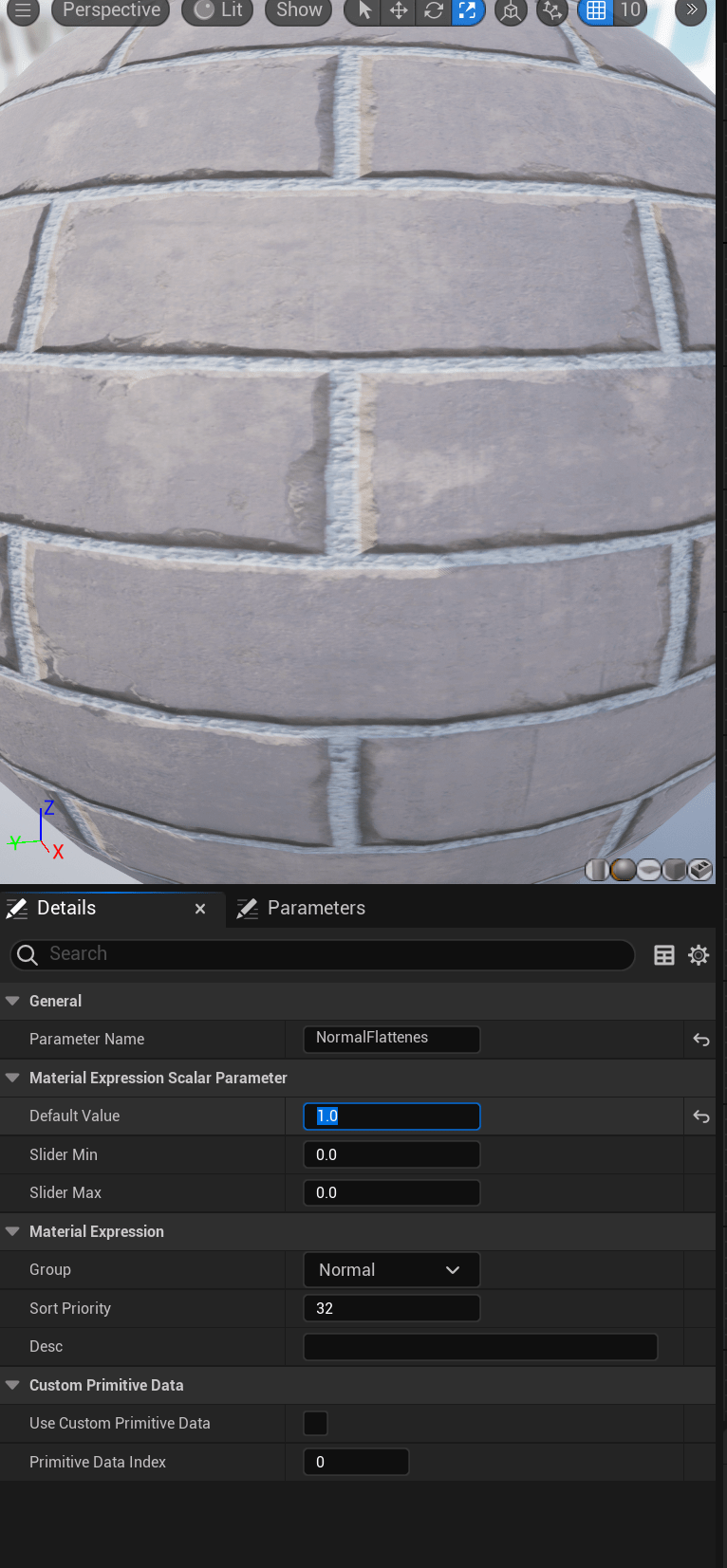
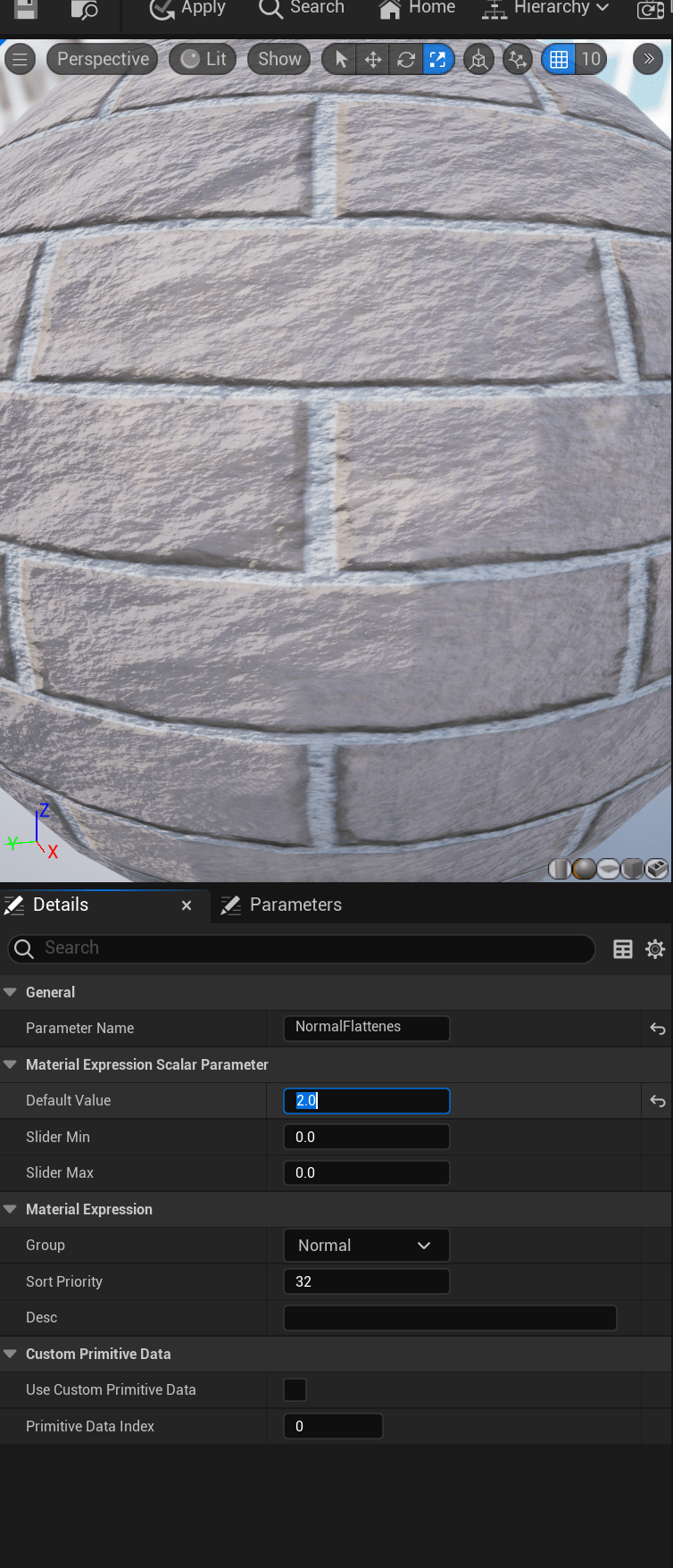
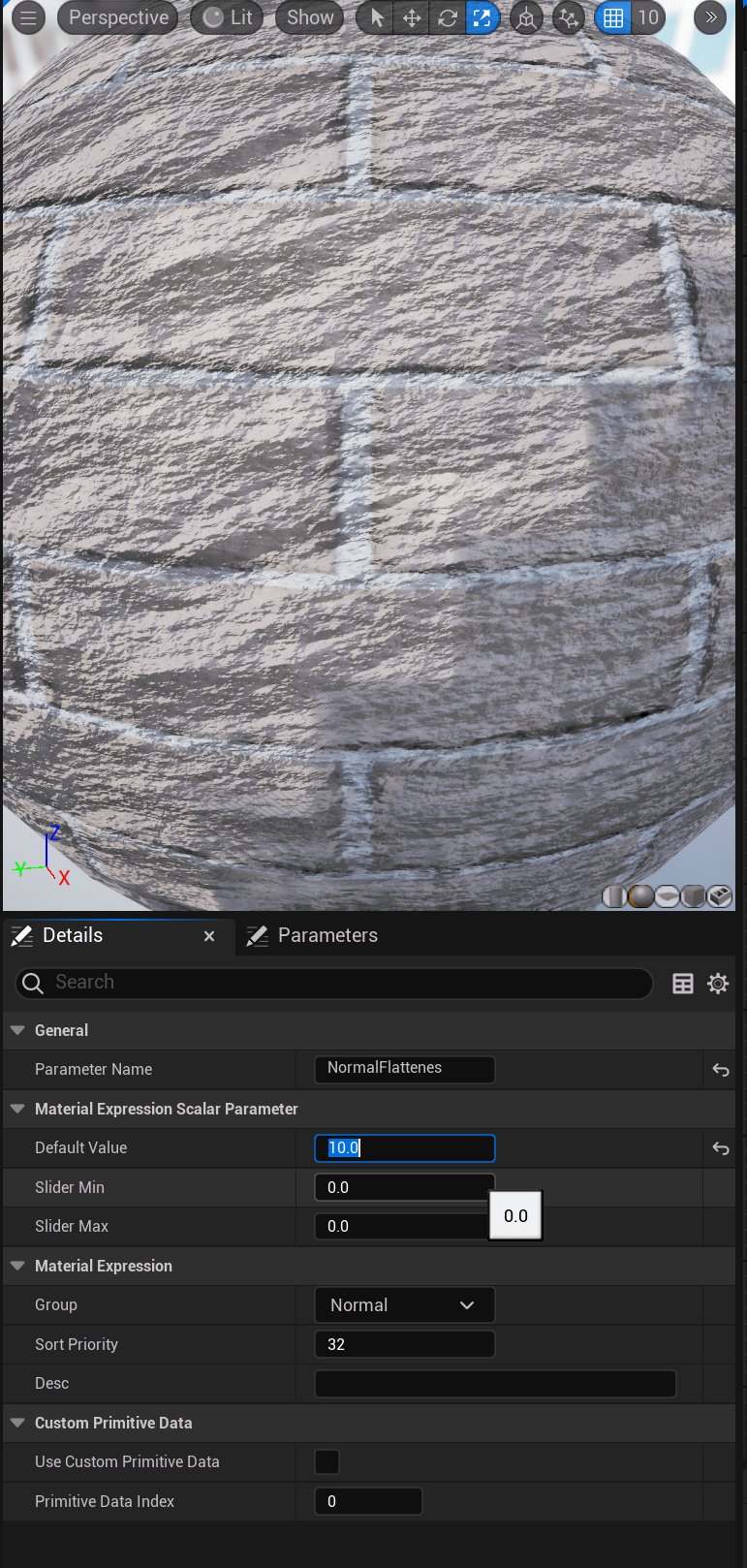
And we add some Flattens.
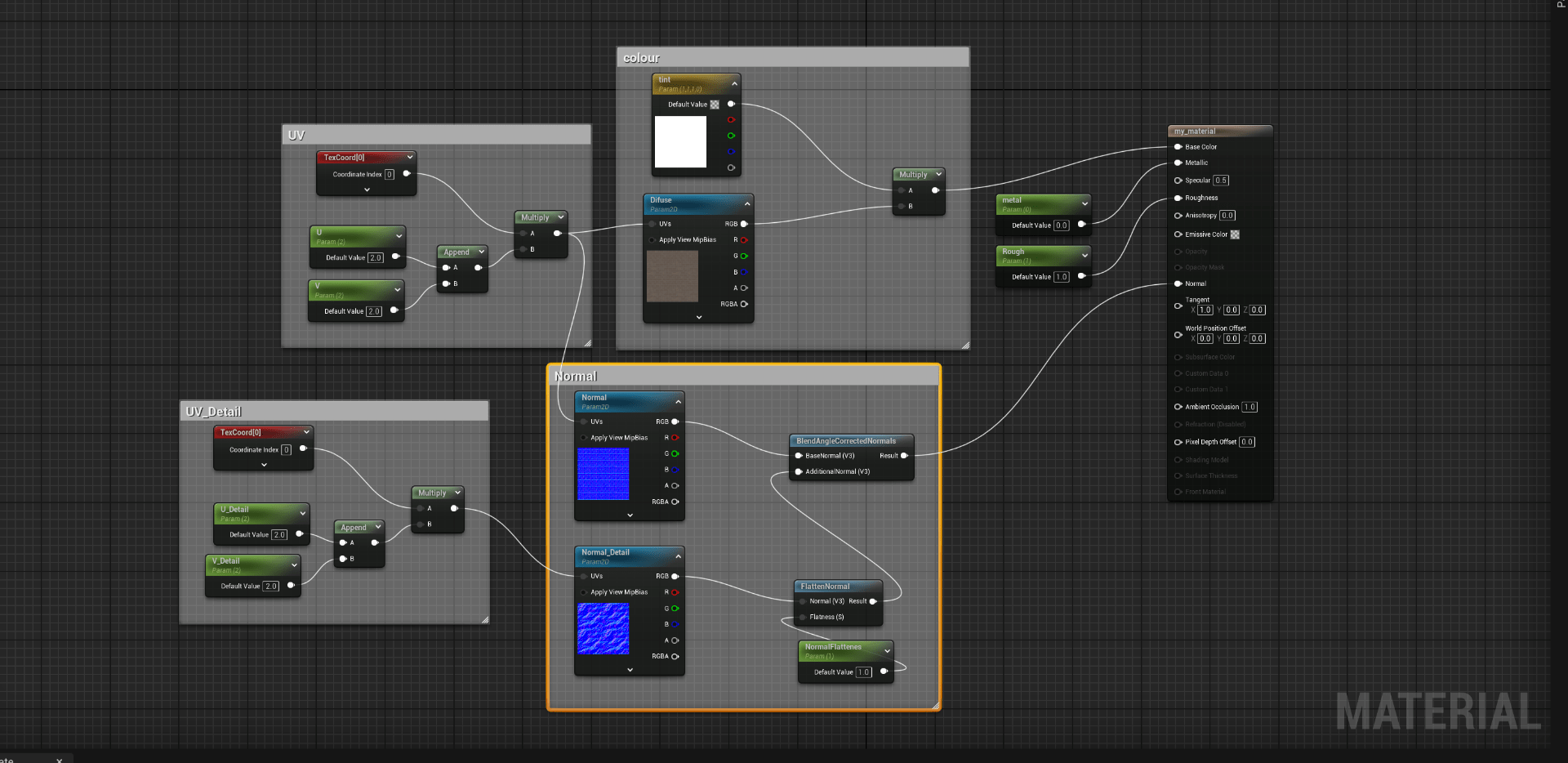
After that we have something like this.
We play a little with the flattens.
Finally we are going to add emission.
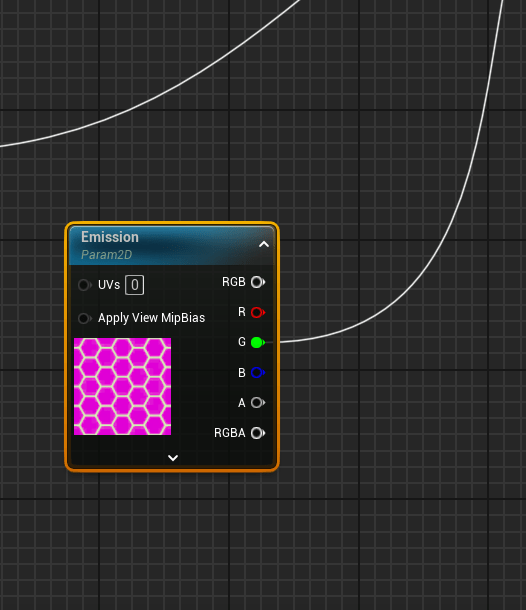
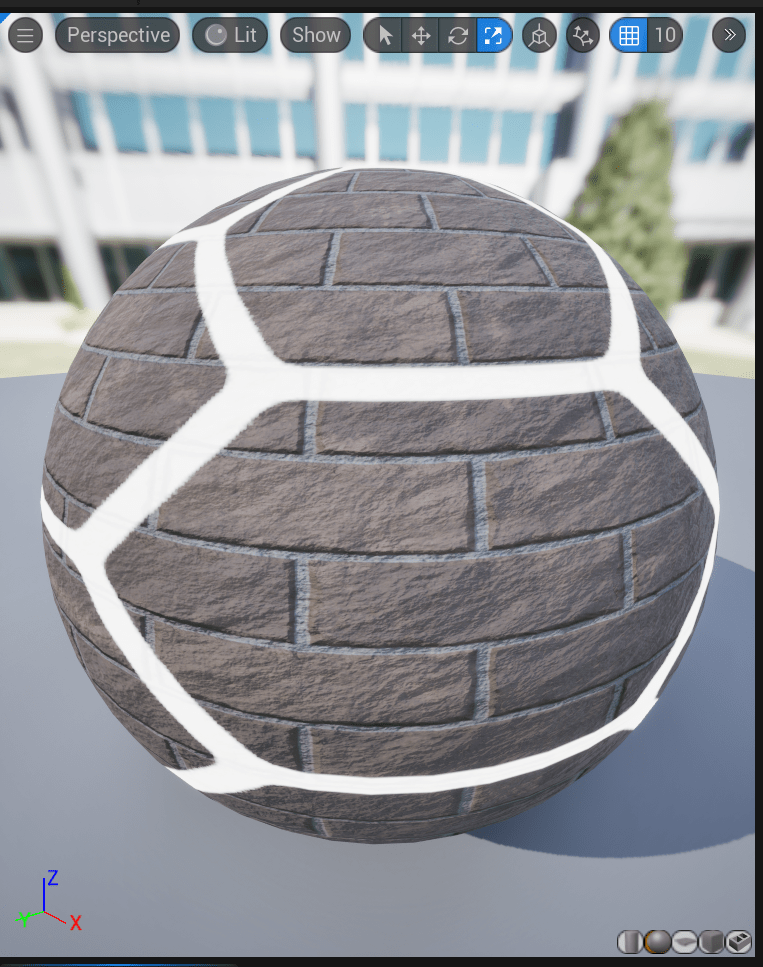
We add colour to the emission.
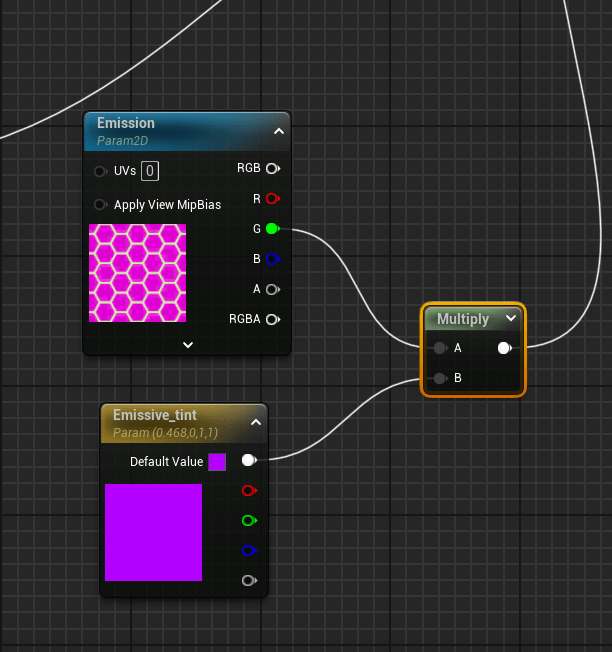
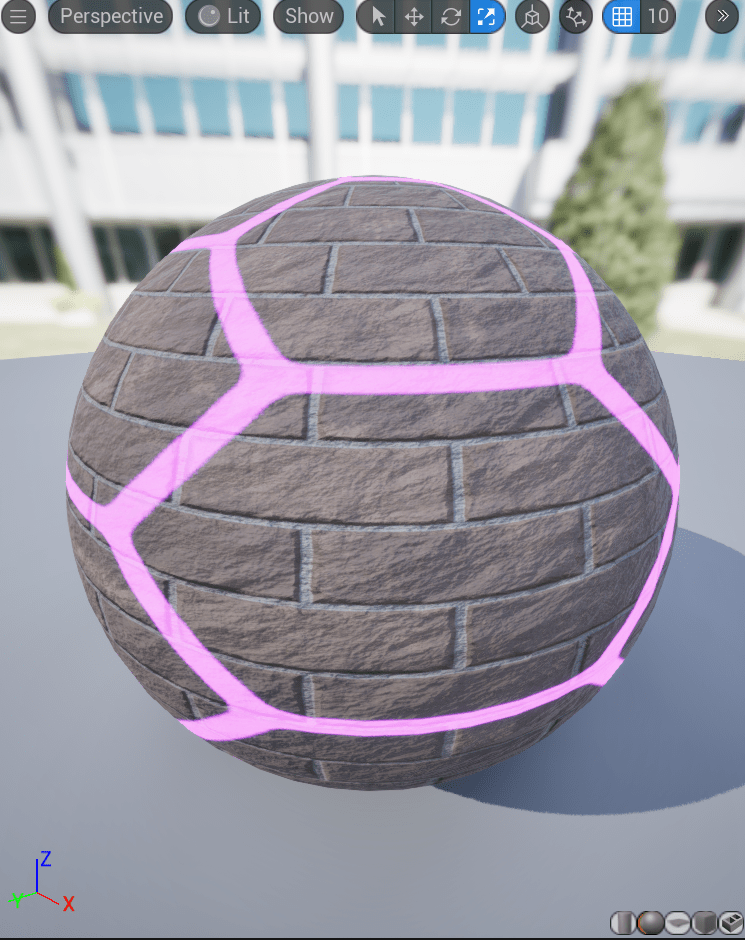
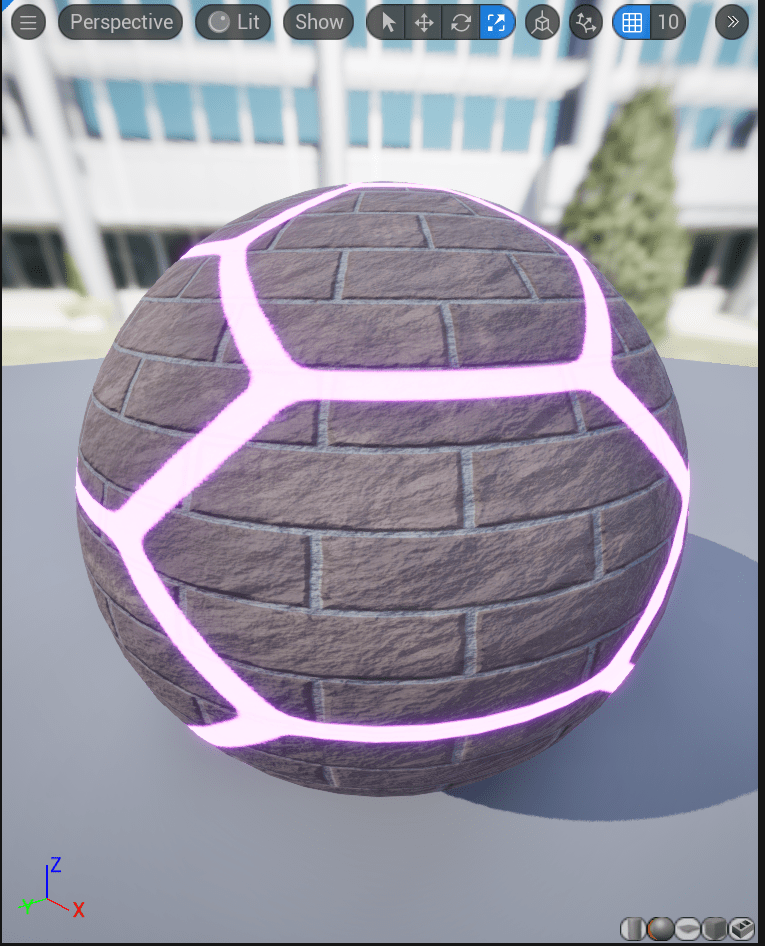
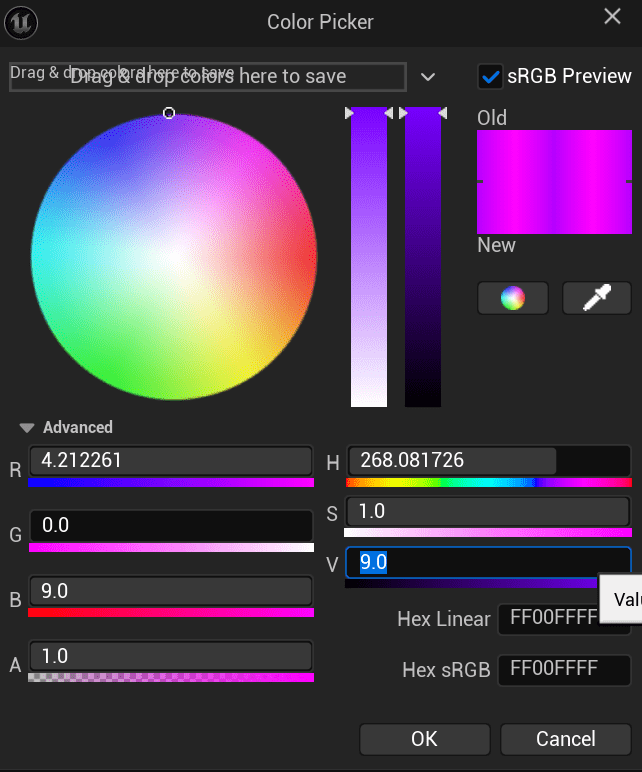
Now we have emission but we are unable to activate and deactivate the emission, that is why we are going to put a switch.
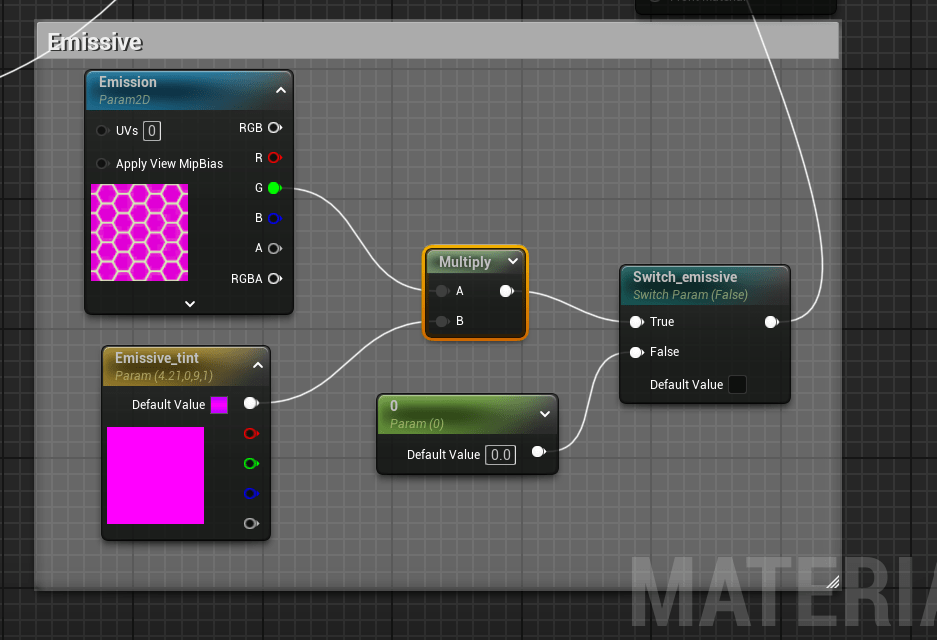
Now we can disable or enable the emission.
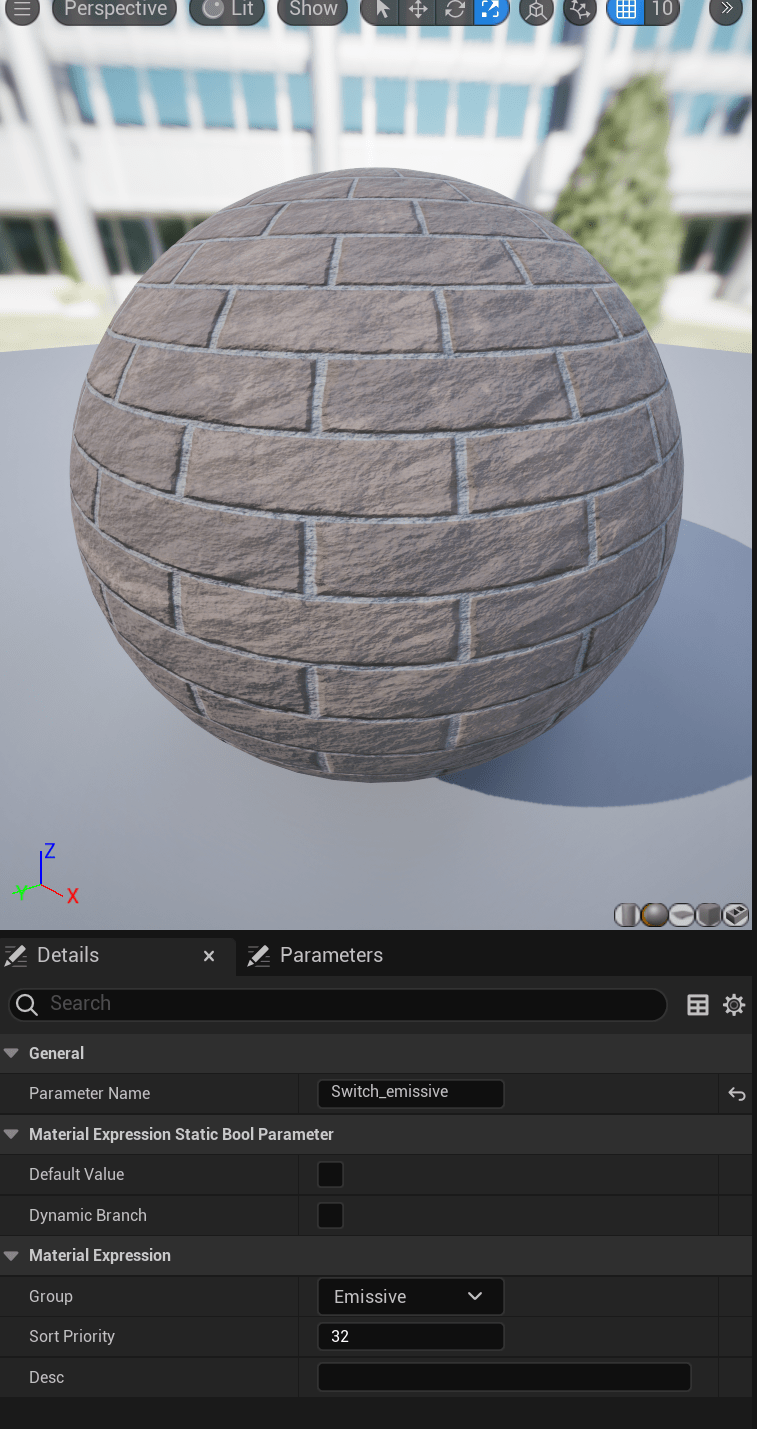
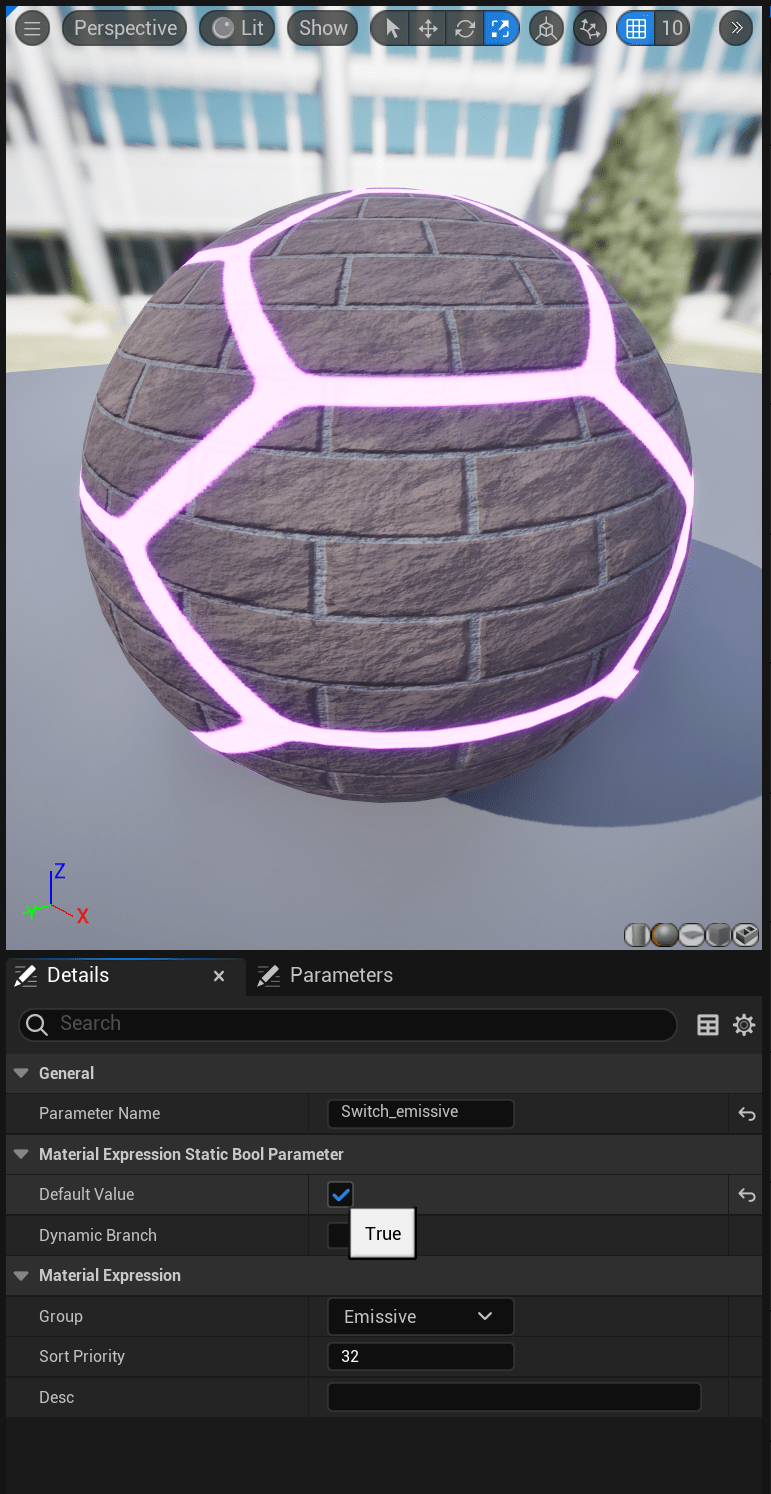
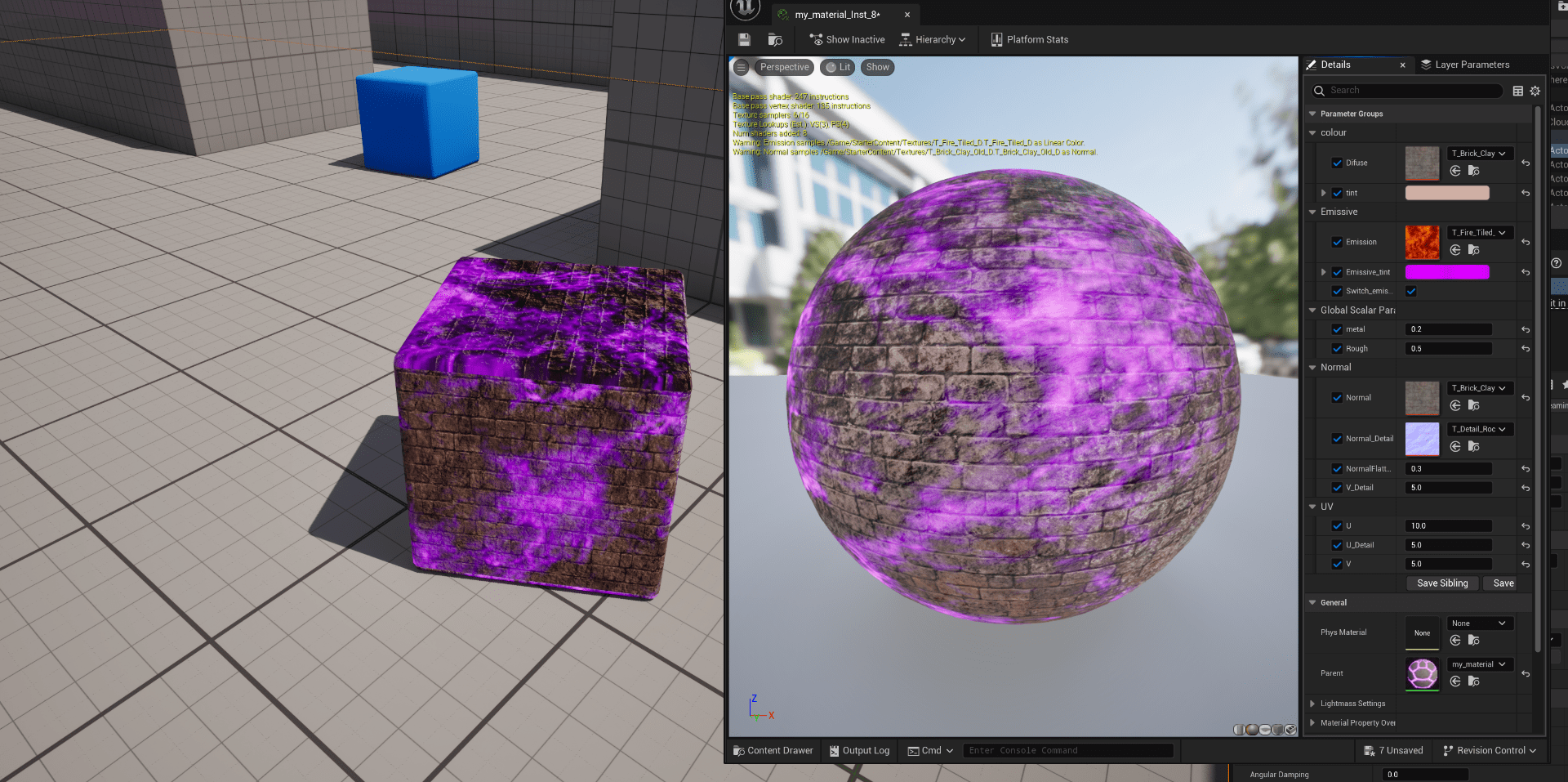
This is the final result for the master material.
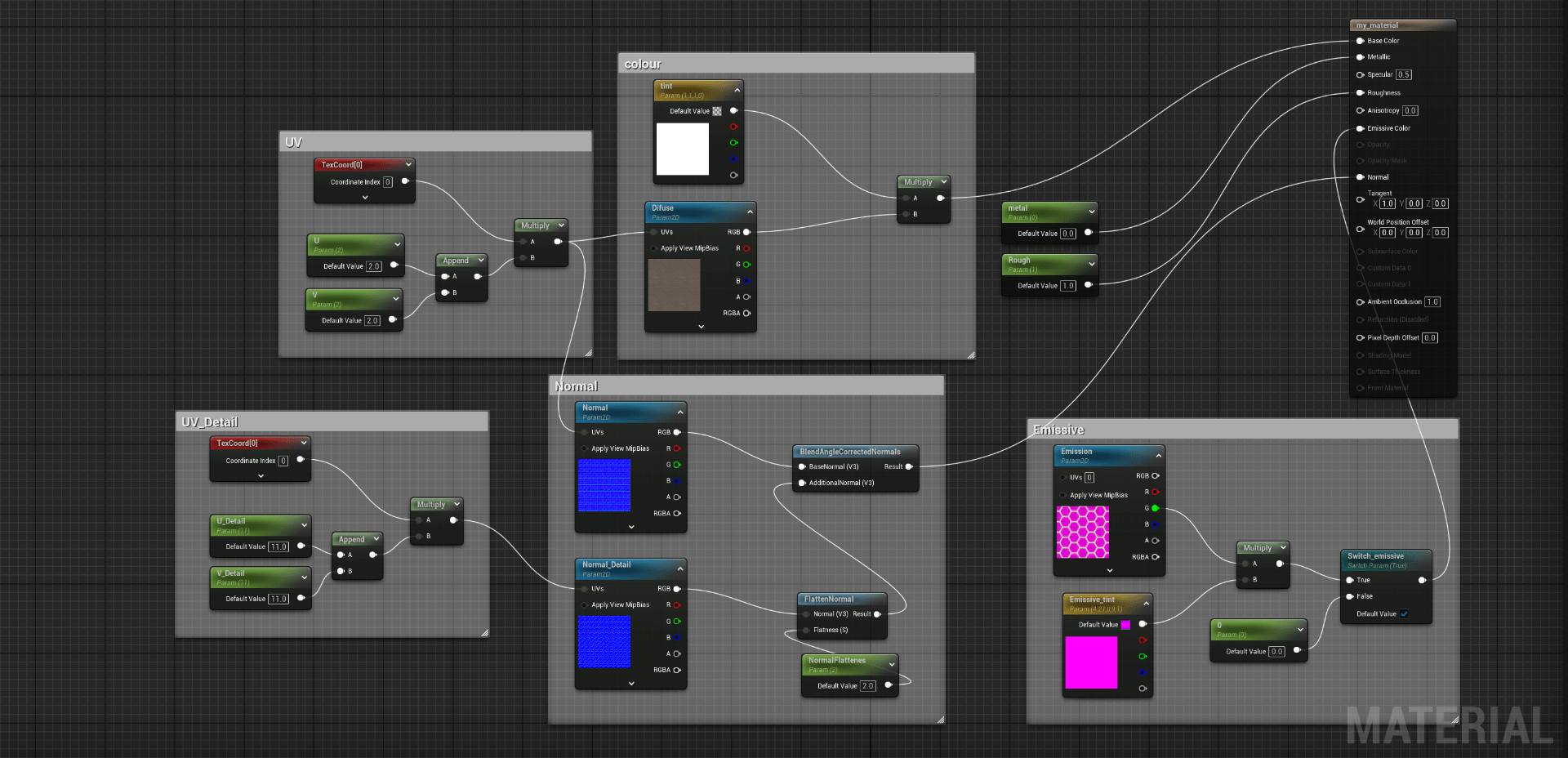
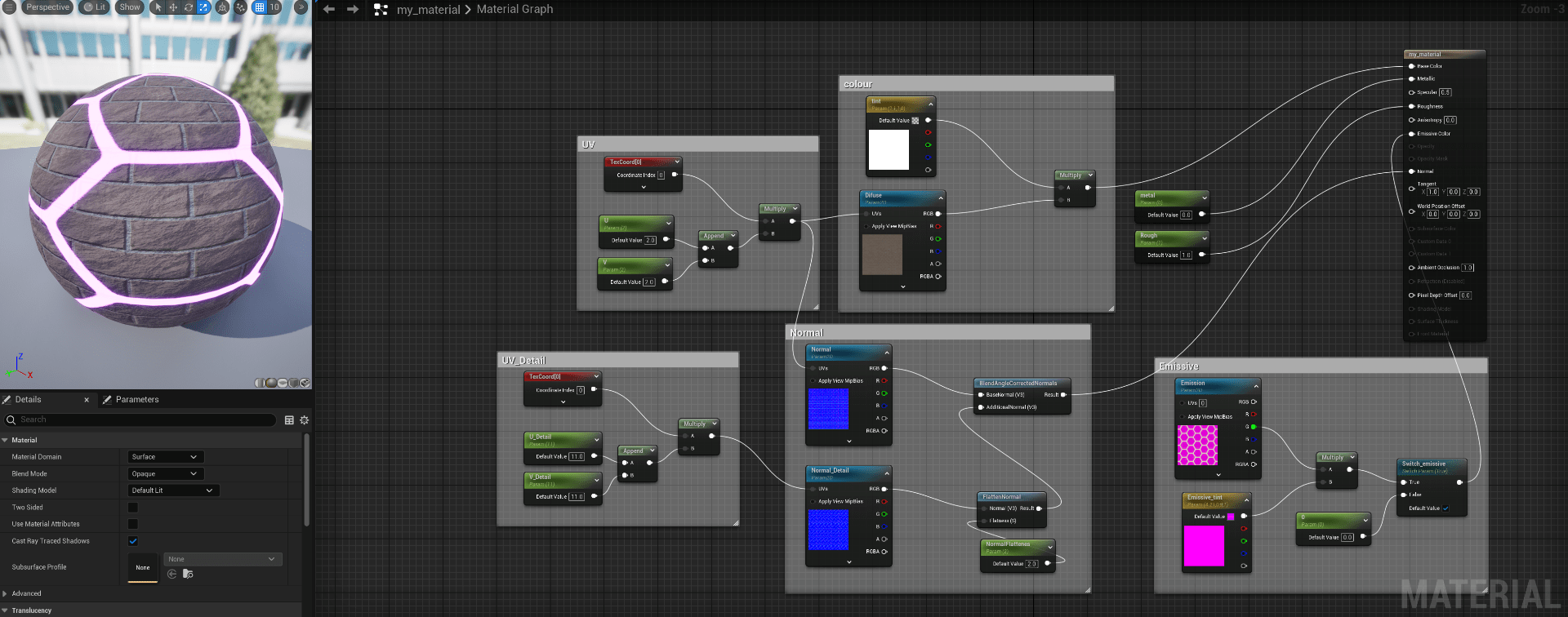
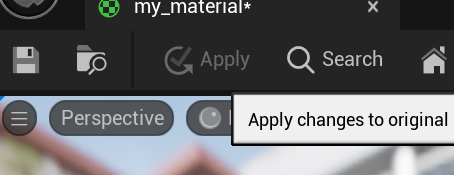
We apply the changes and have the mater material in our folder.
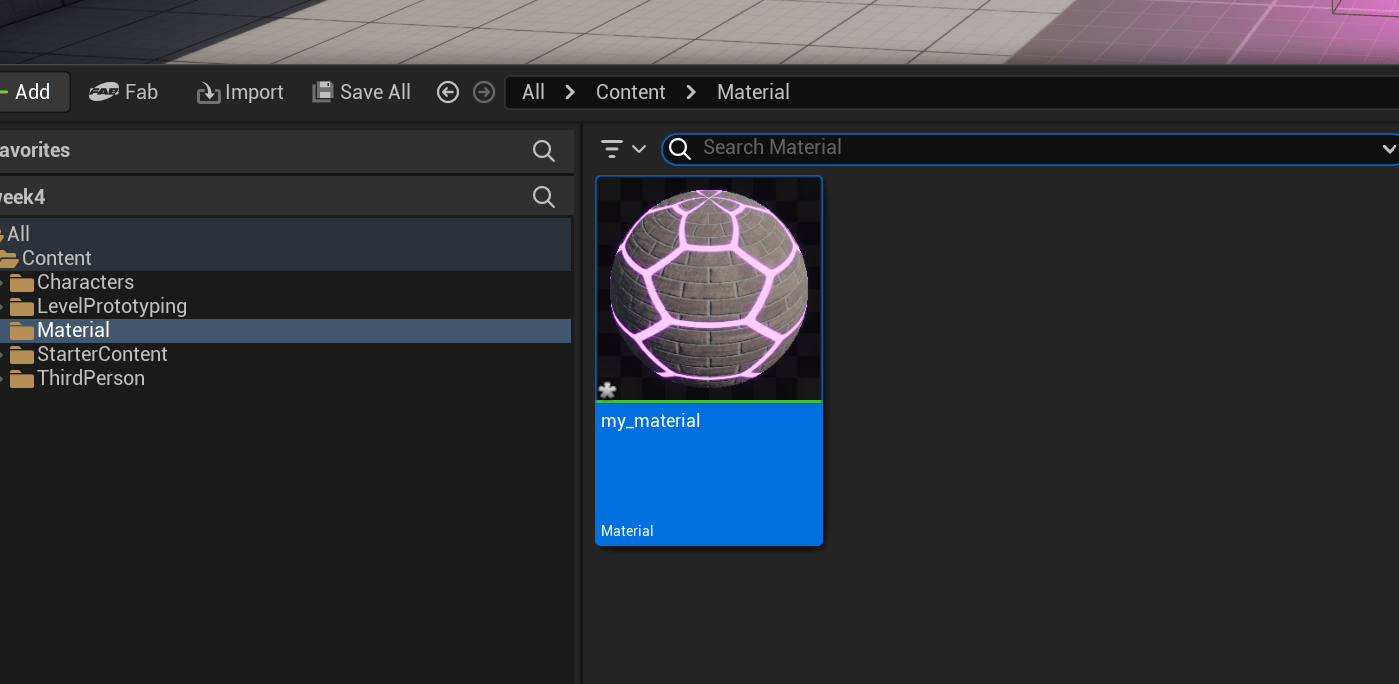
With our master material, we can create material instances.
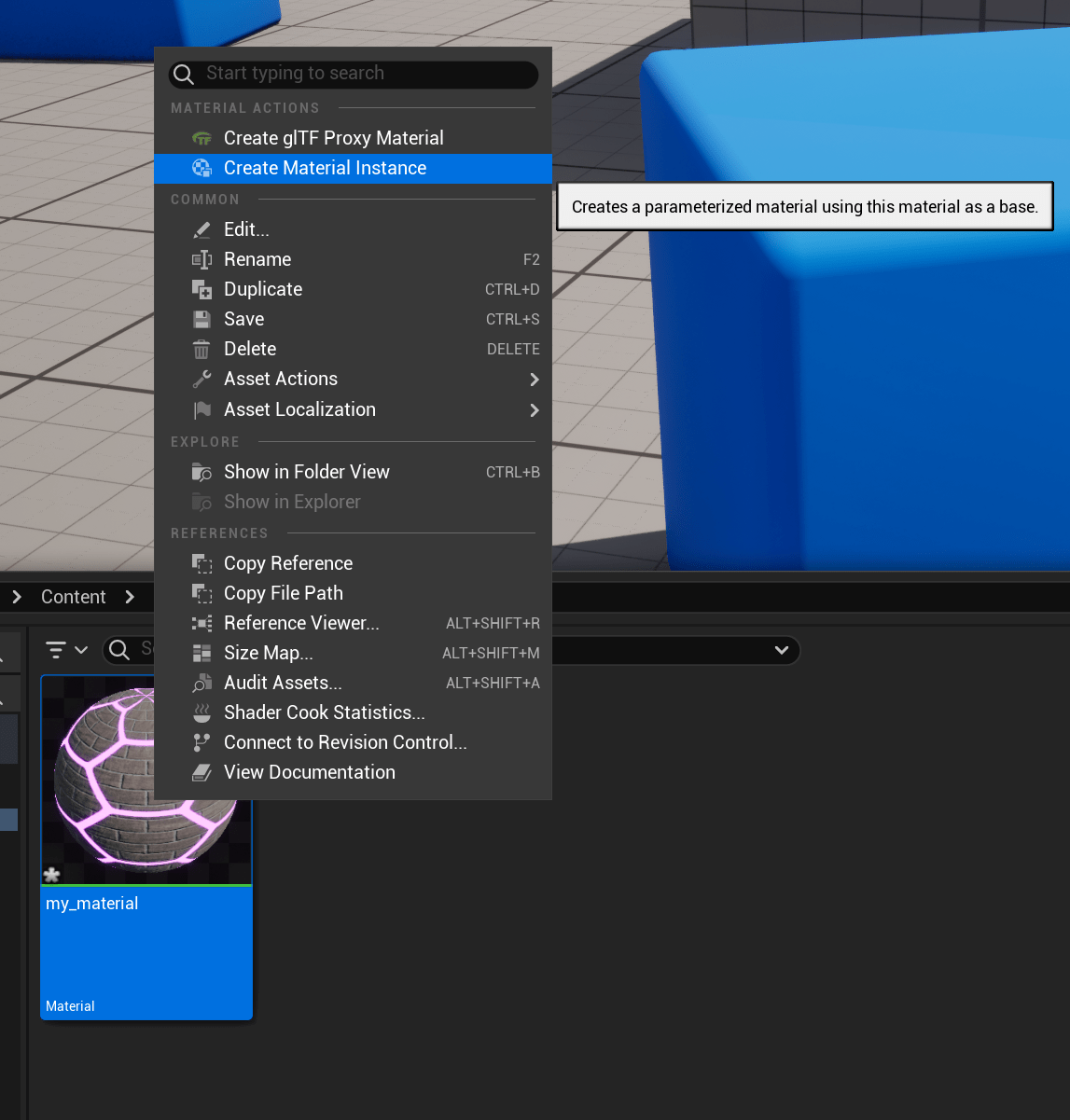
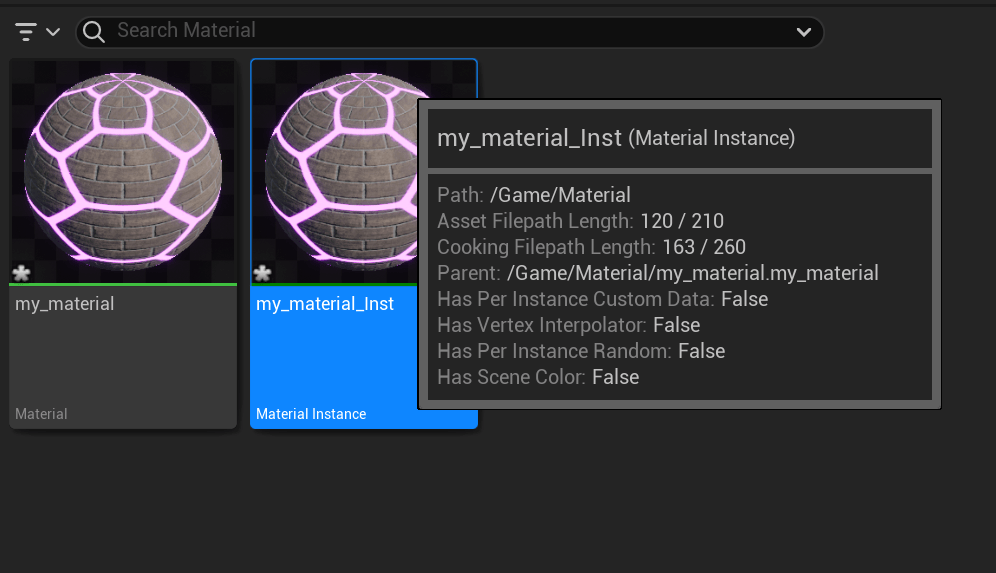
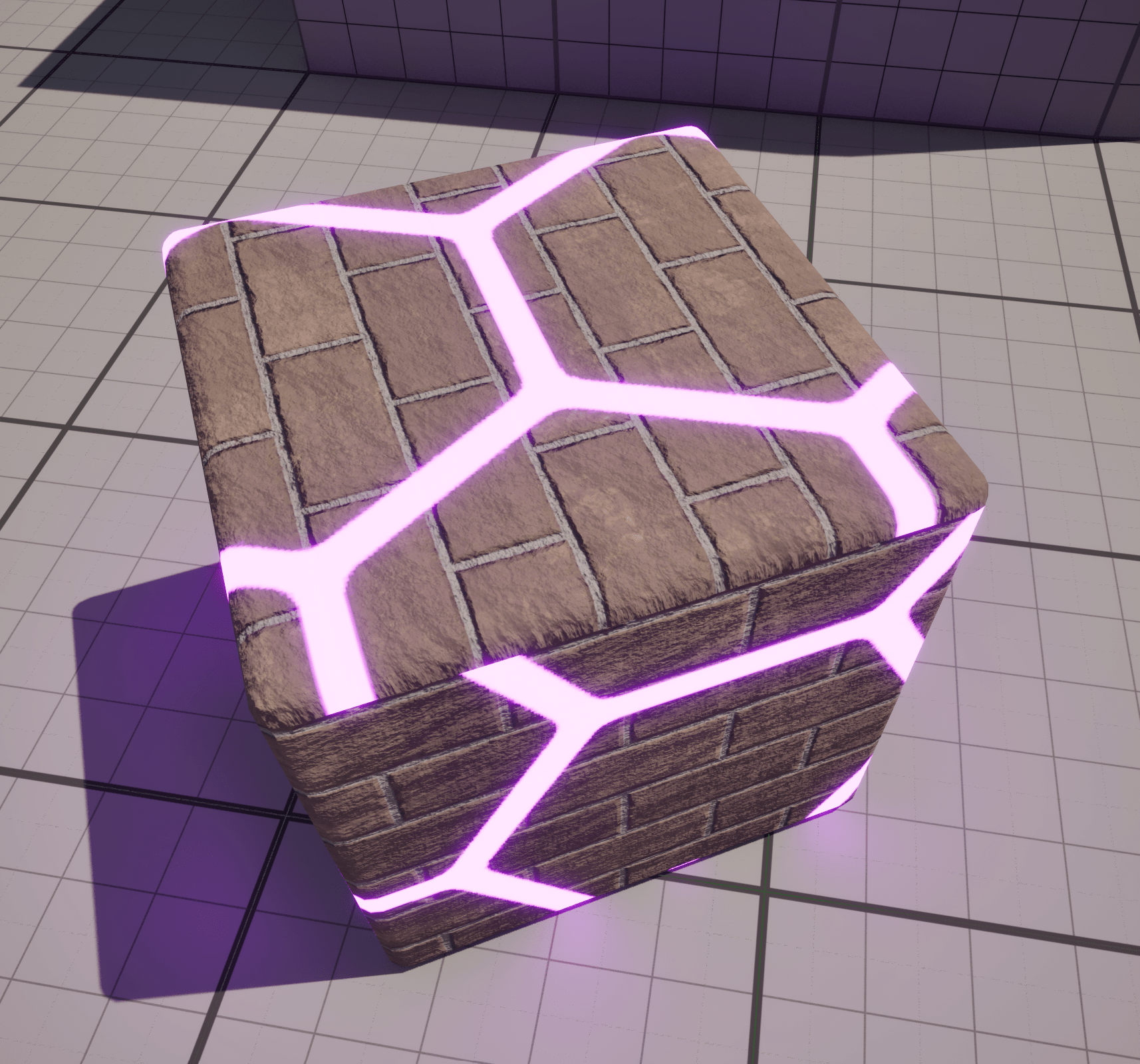
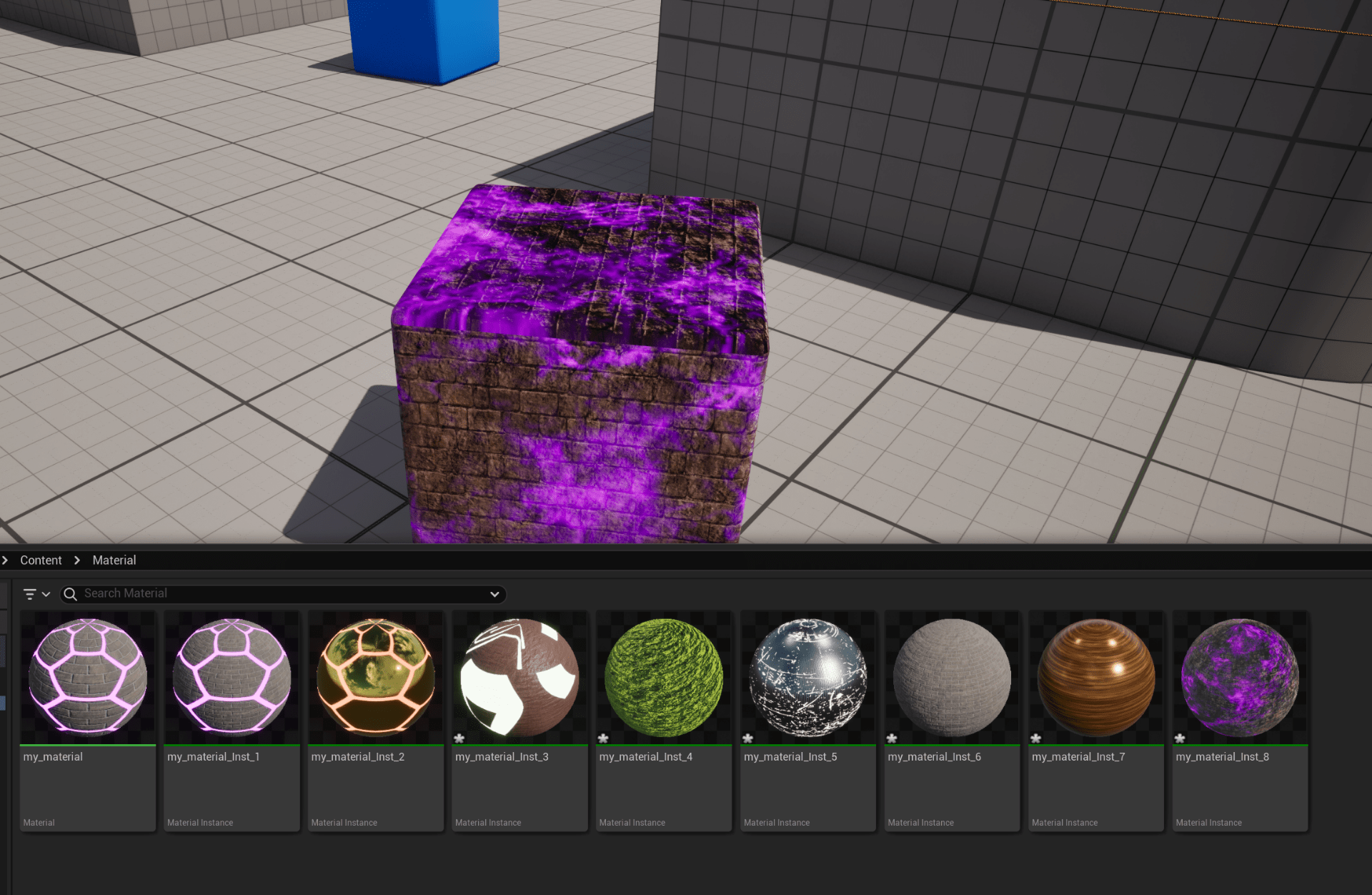
This is the material applied to a cube.
Finally we can play with the options to change the look and texture of our material.
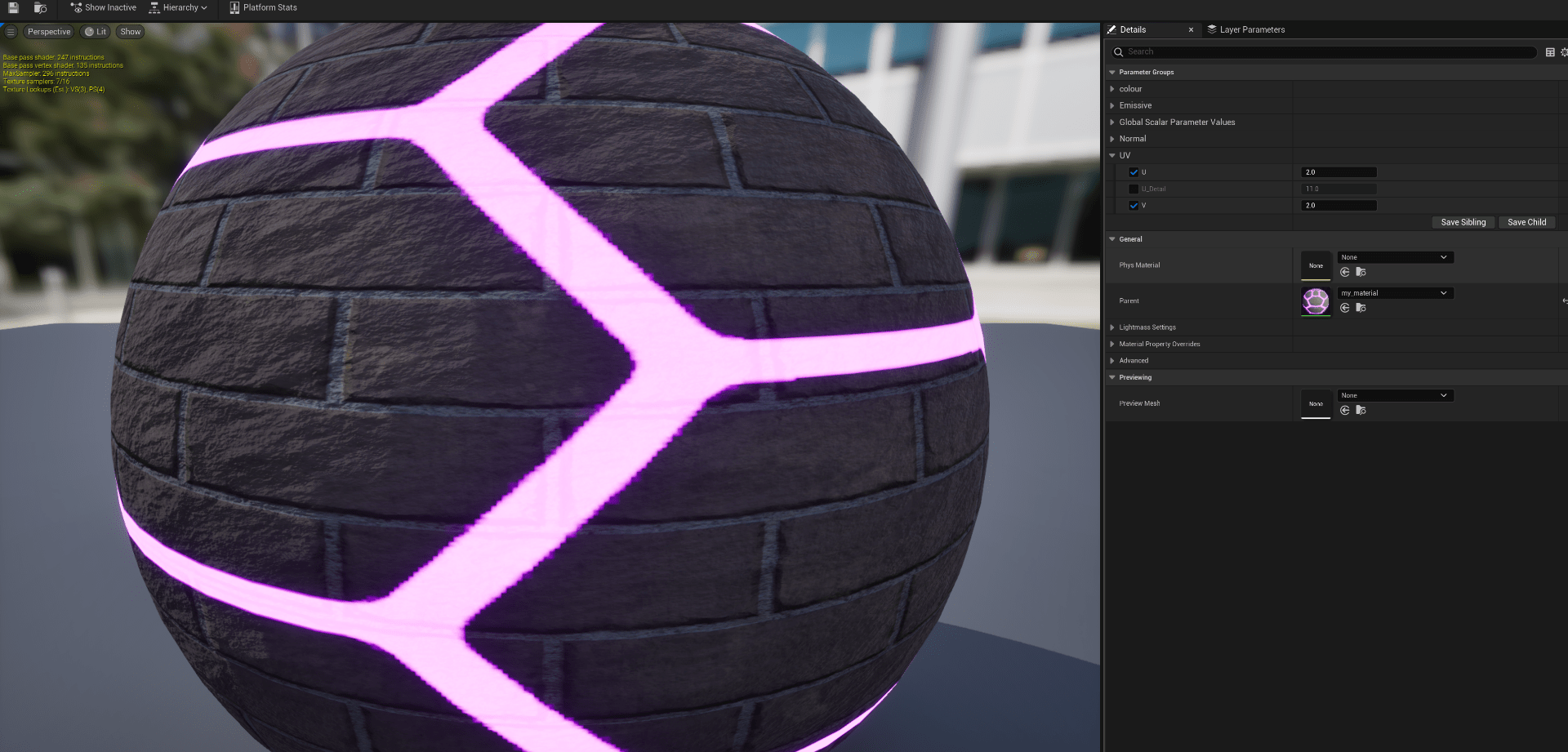
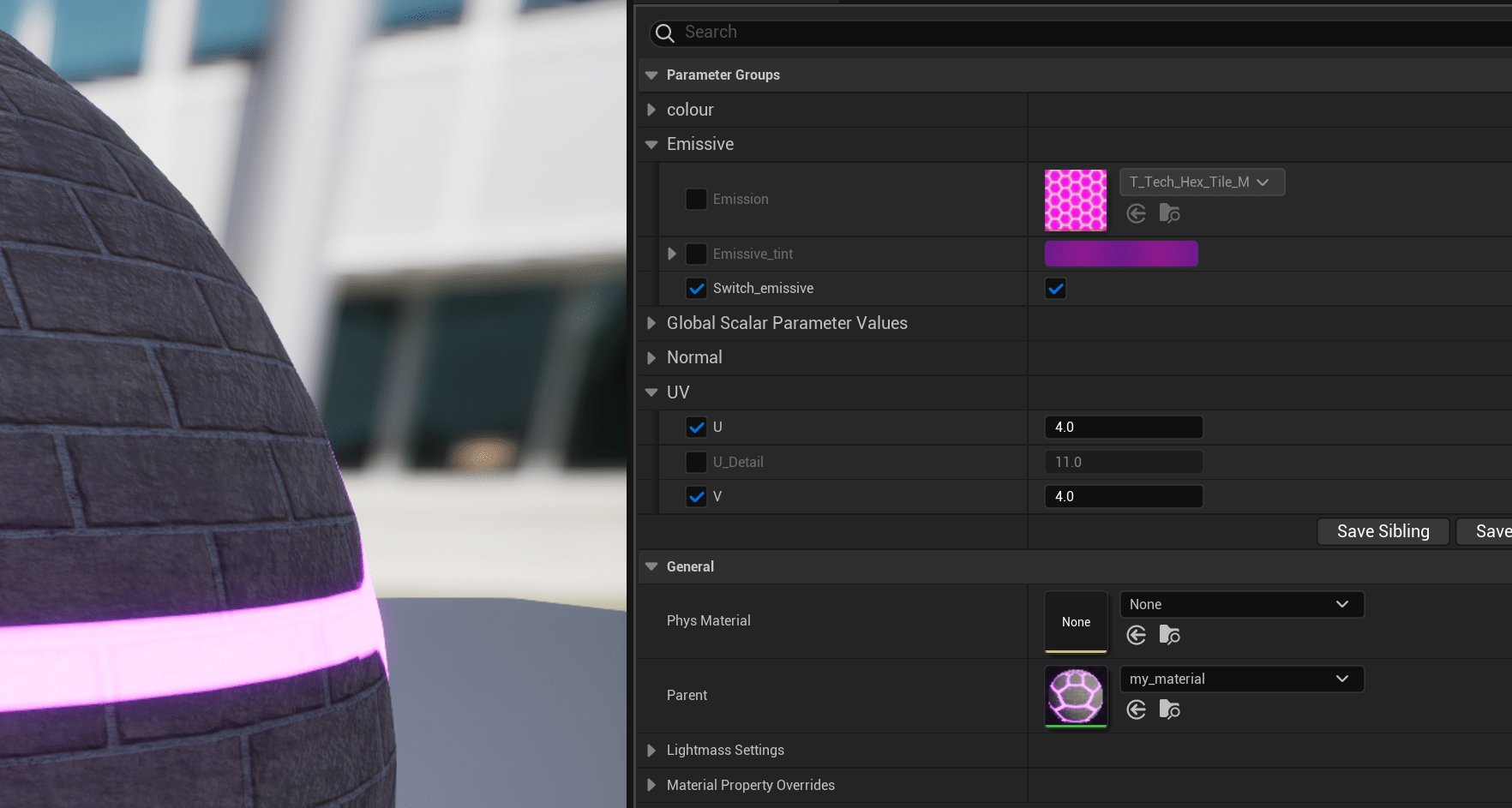
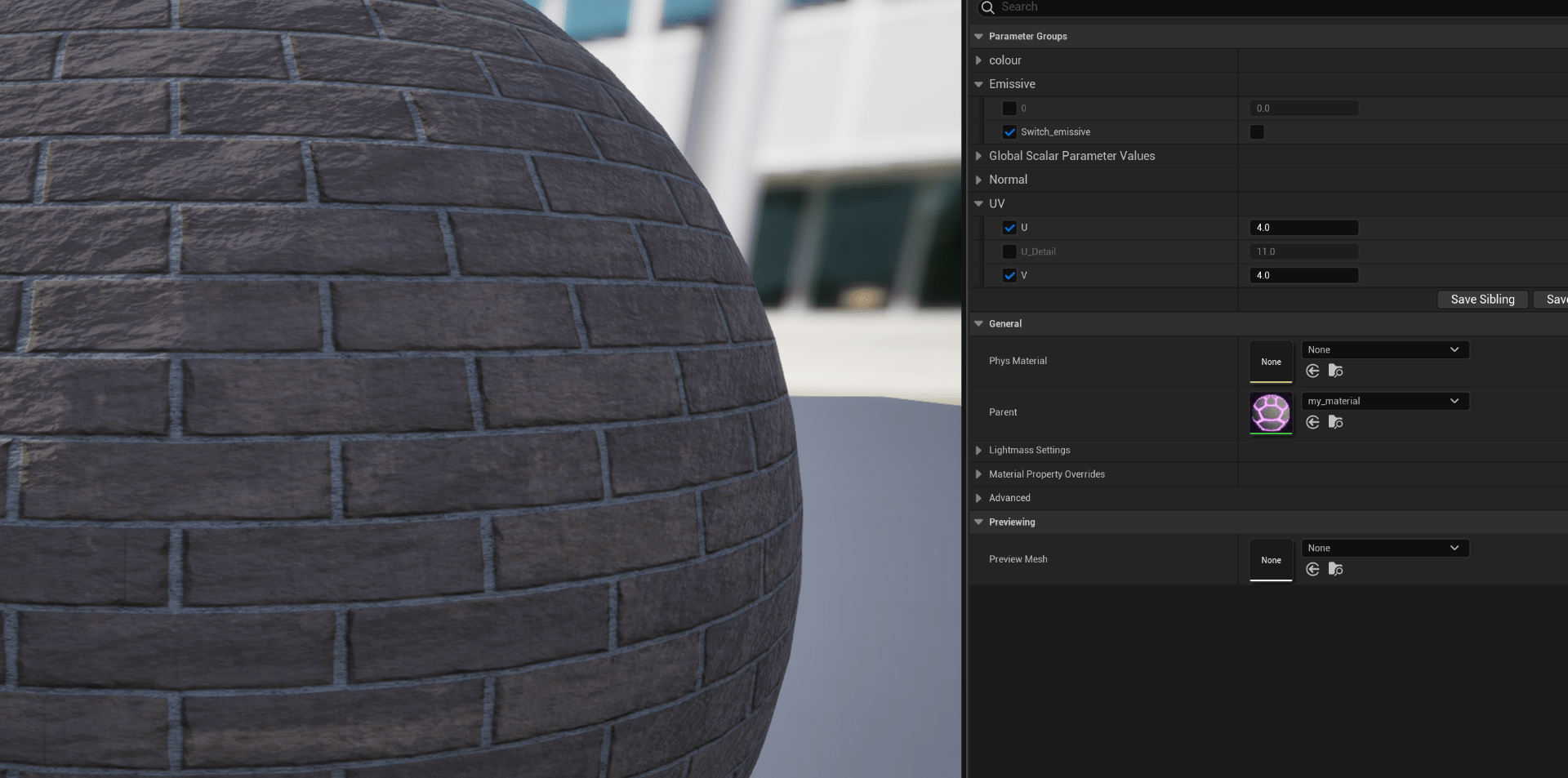
These are some examples.
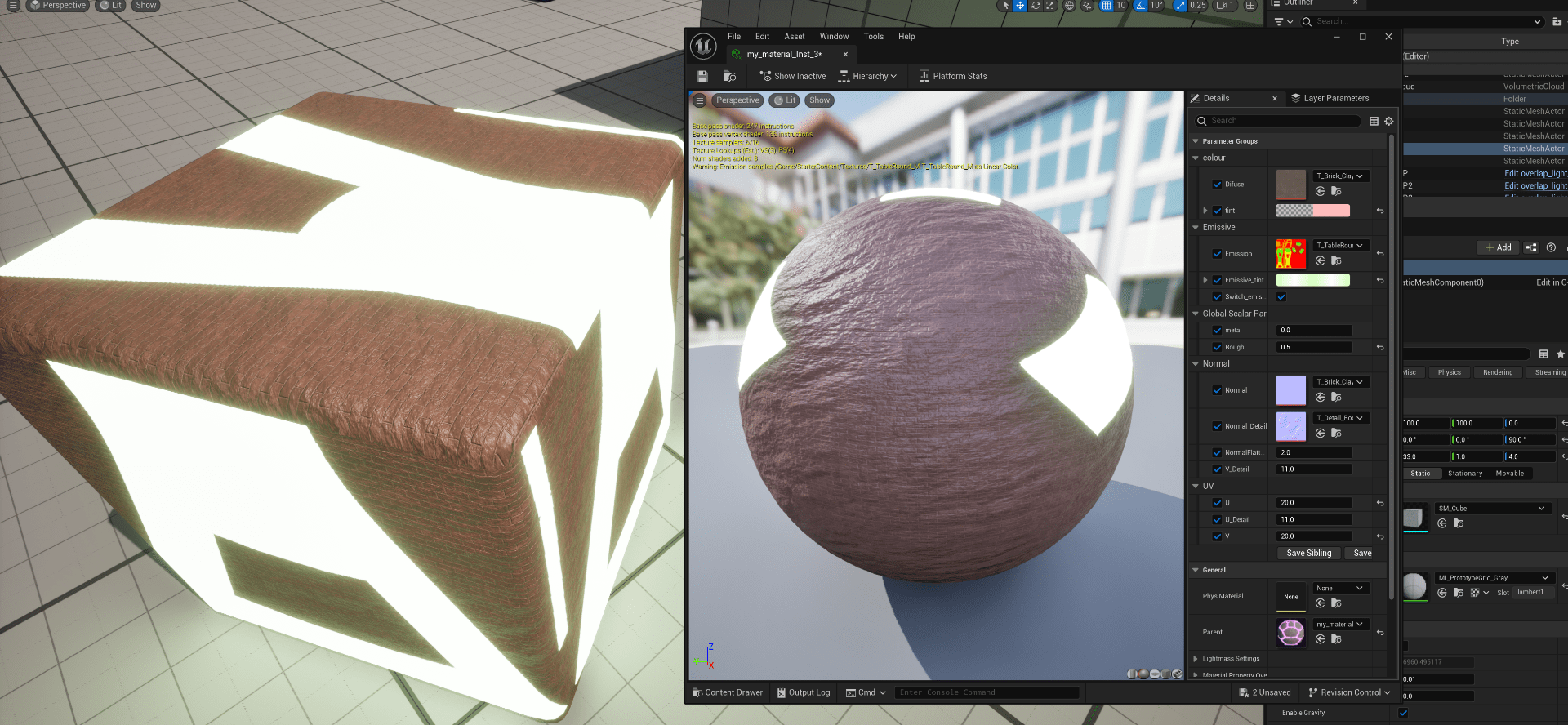
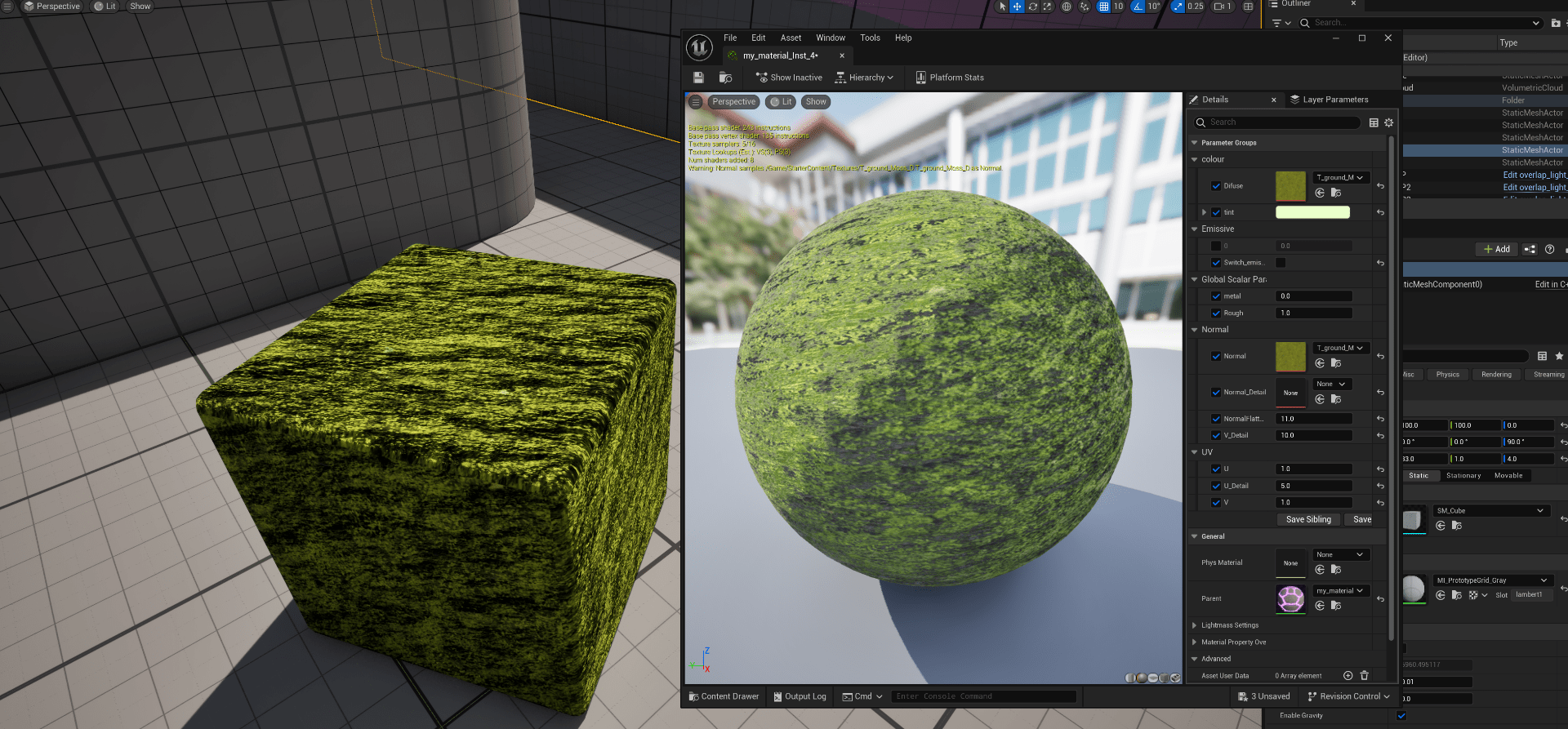
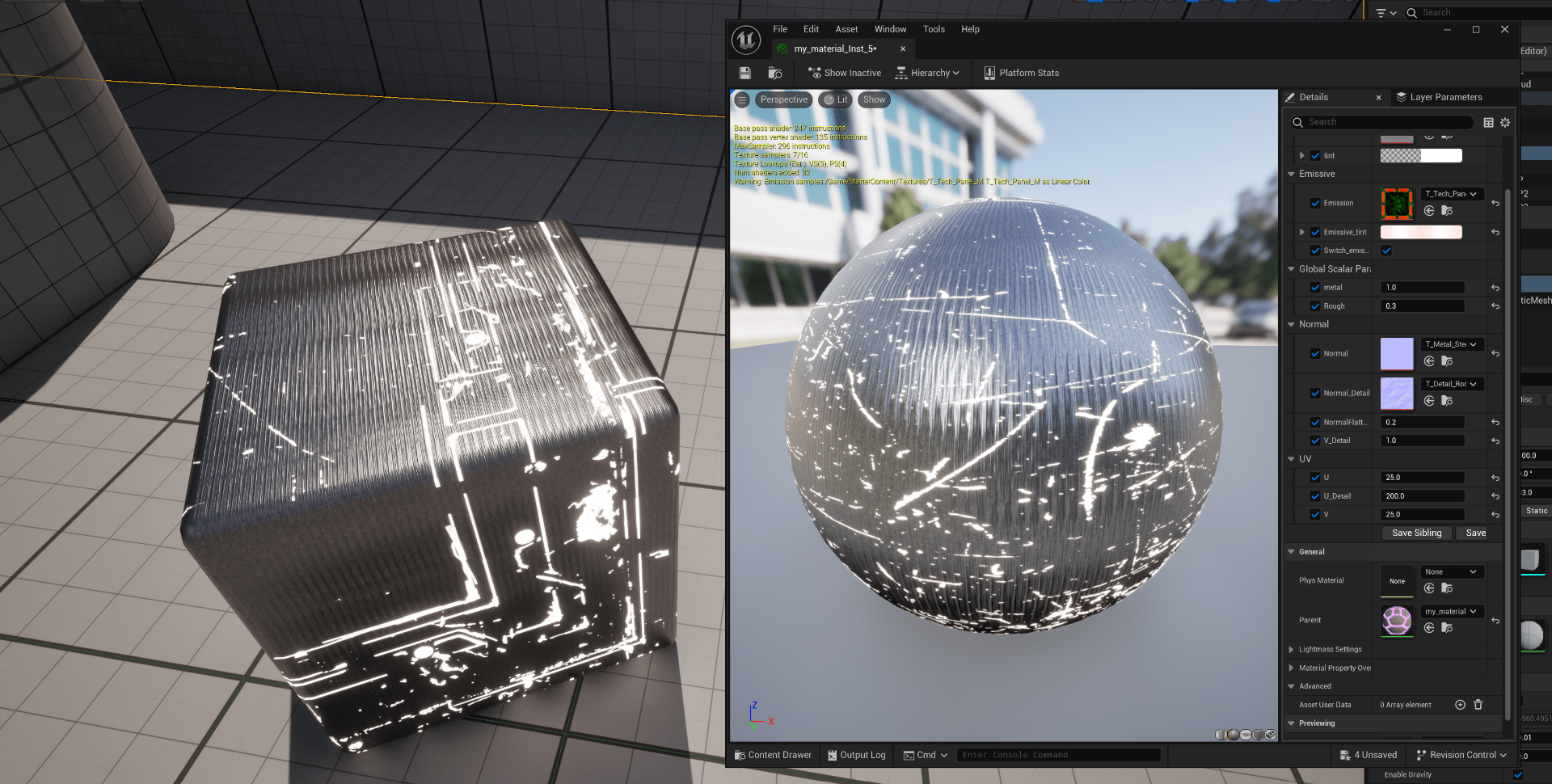
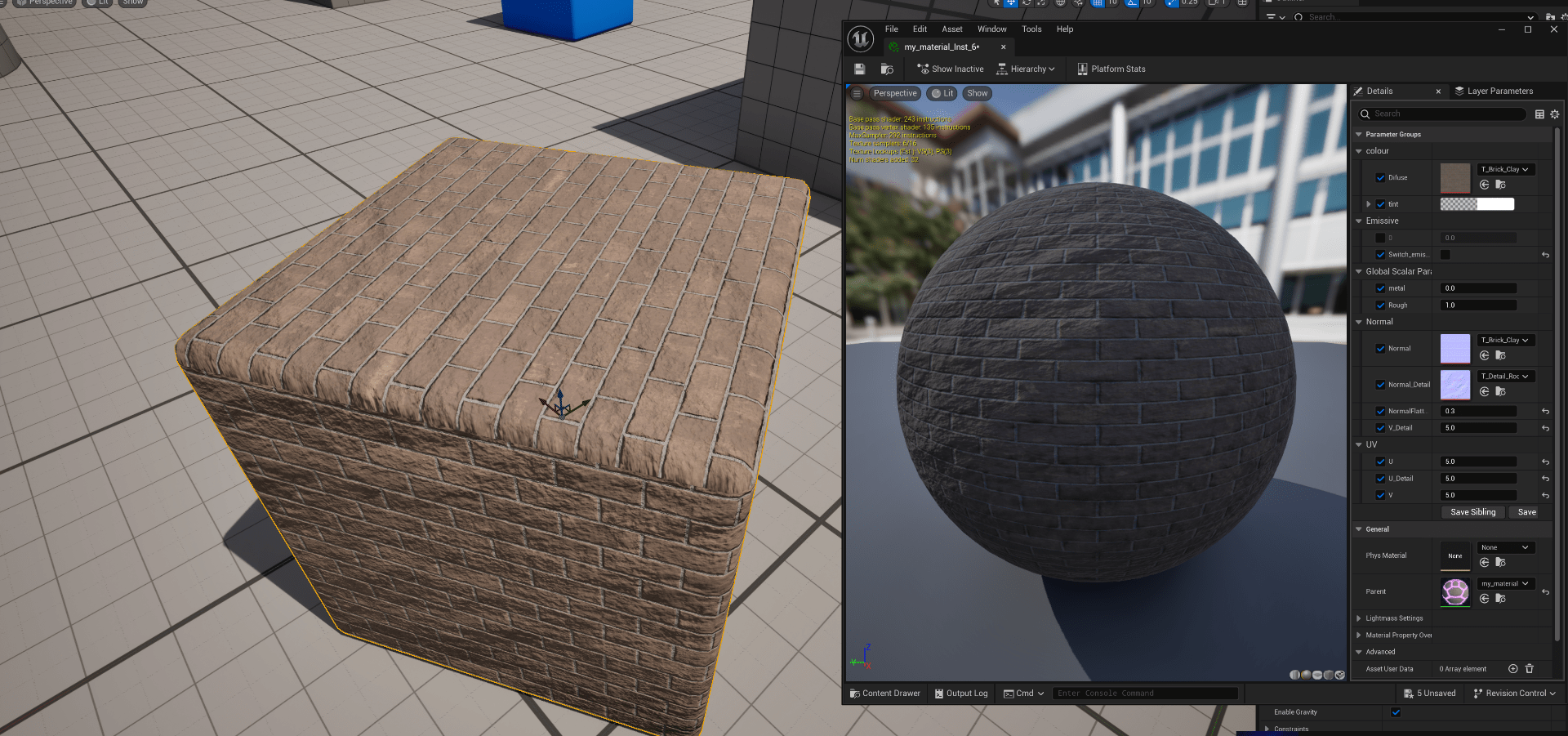
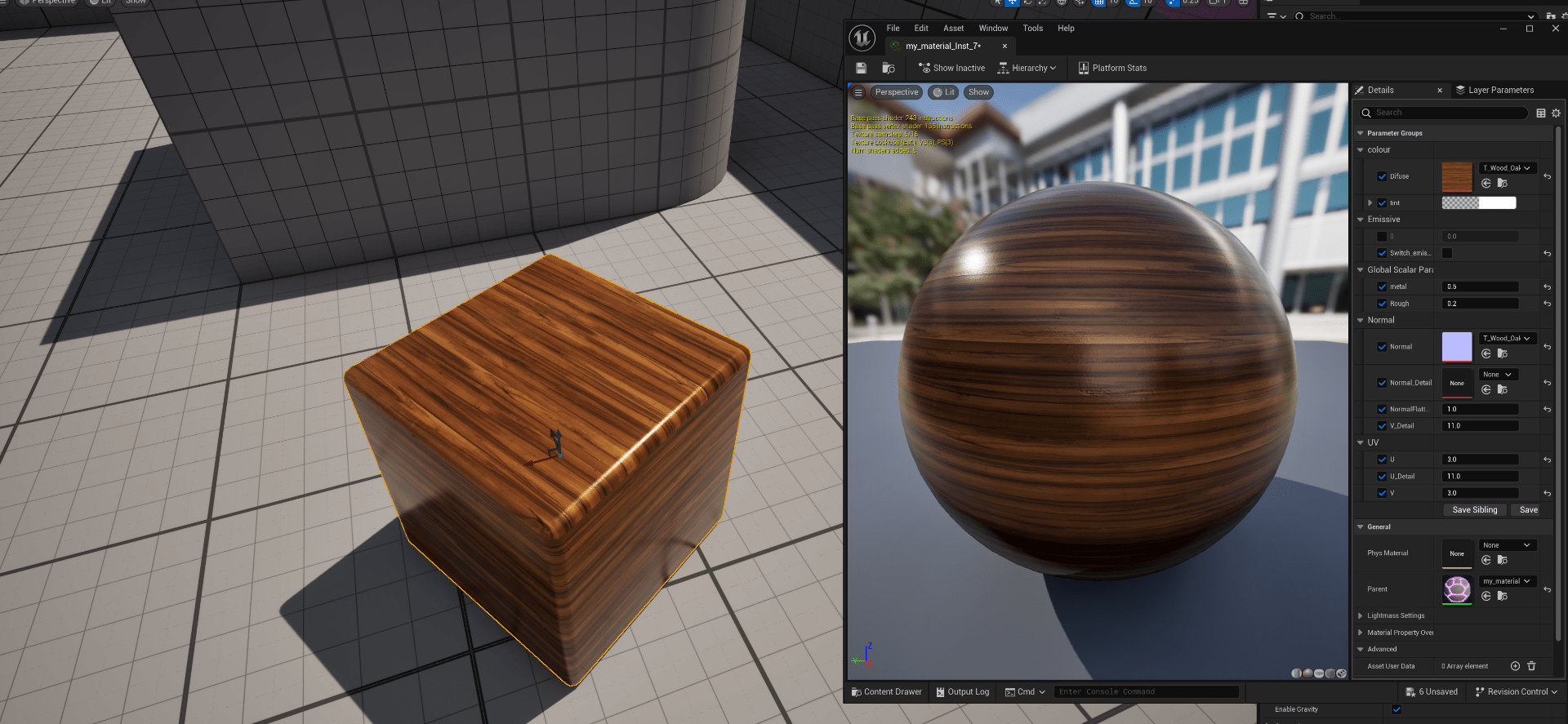
End of workshop week 5
End of week 5
Week 6: Unreal Tools
- Landscape Tool
- Foliage Tool
- Geometry Brushes
This week we will learn how to create, sculpt and paint landscapes. Place actors using the foliage tool.
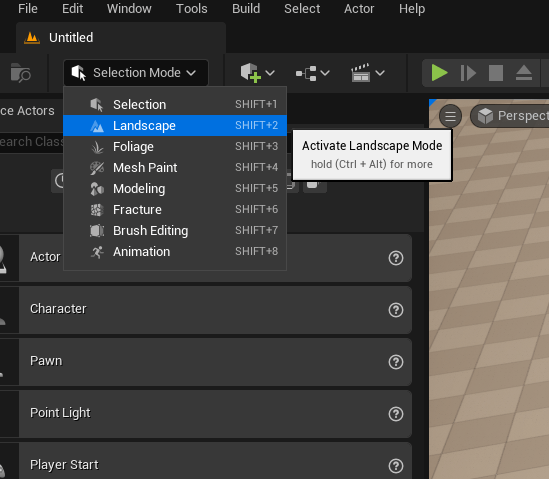
First we are going to get familiarized with the landscape interface.
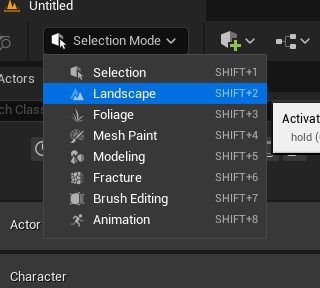
Top left we find the landscape mode.
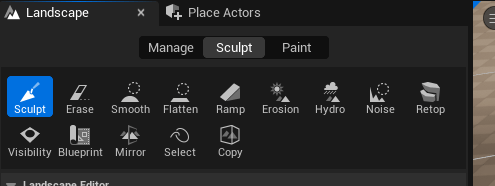
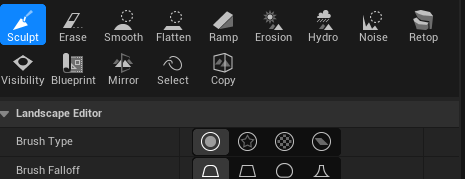
This is the sculp tab.
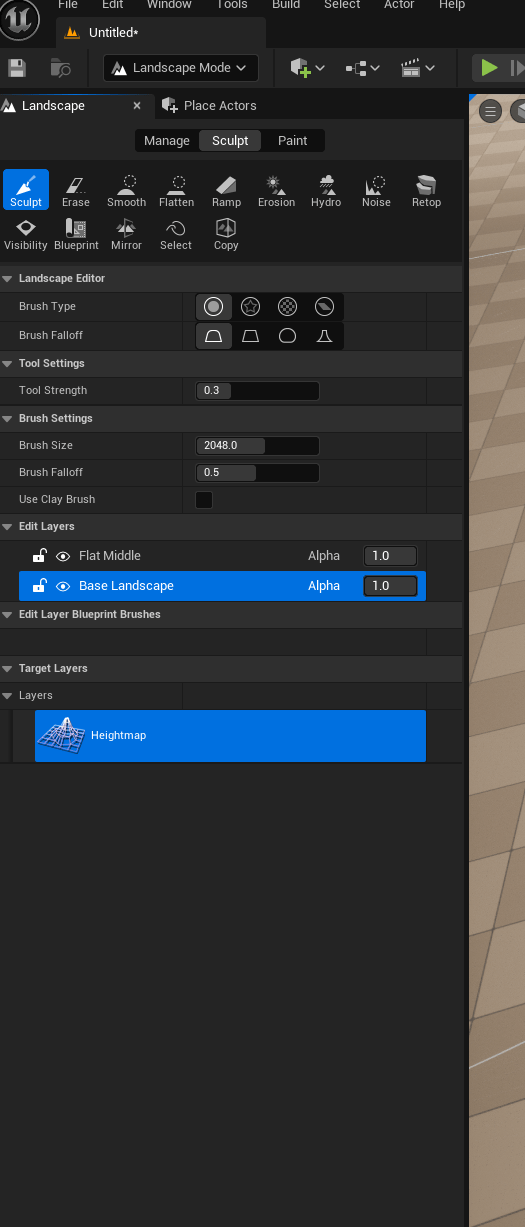
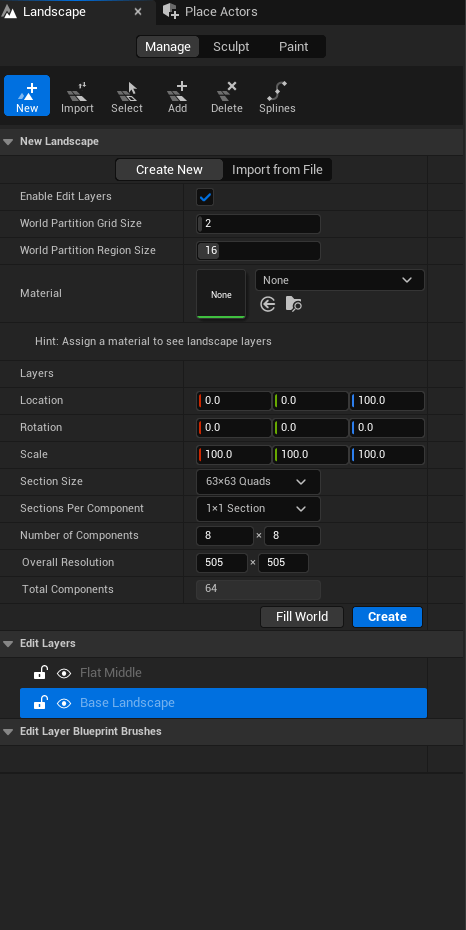
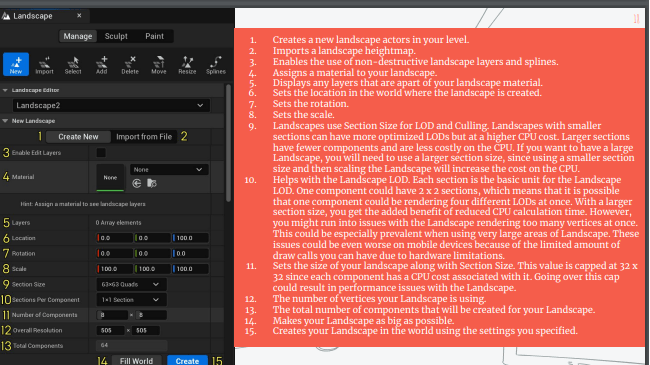
This is the slide that shows what all of the options do.
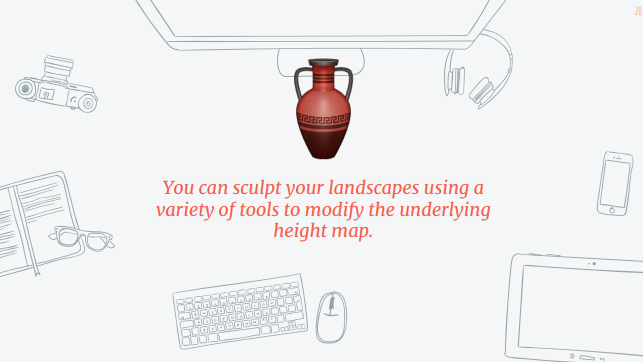
Now we are going to look at the different tools under the sculp tab.
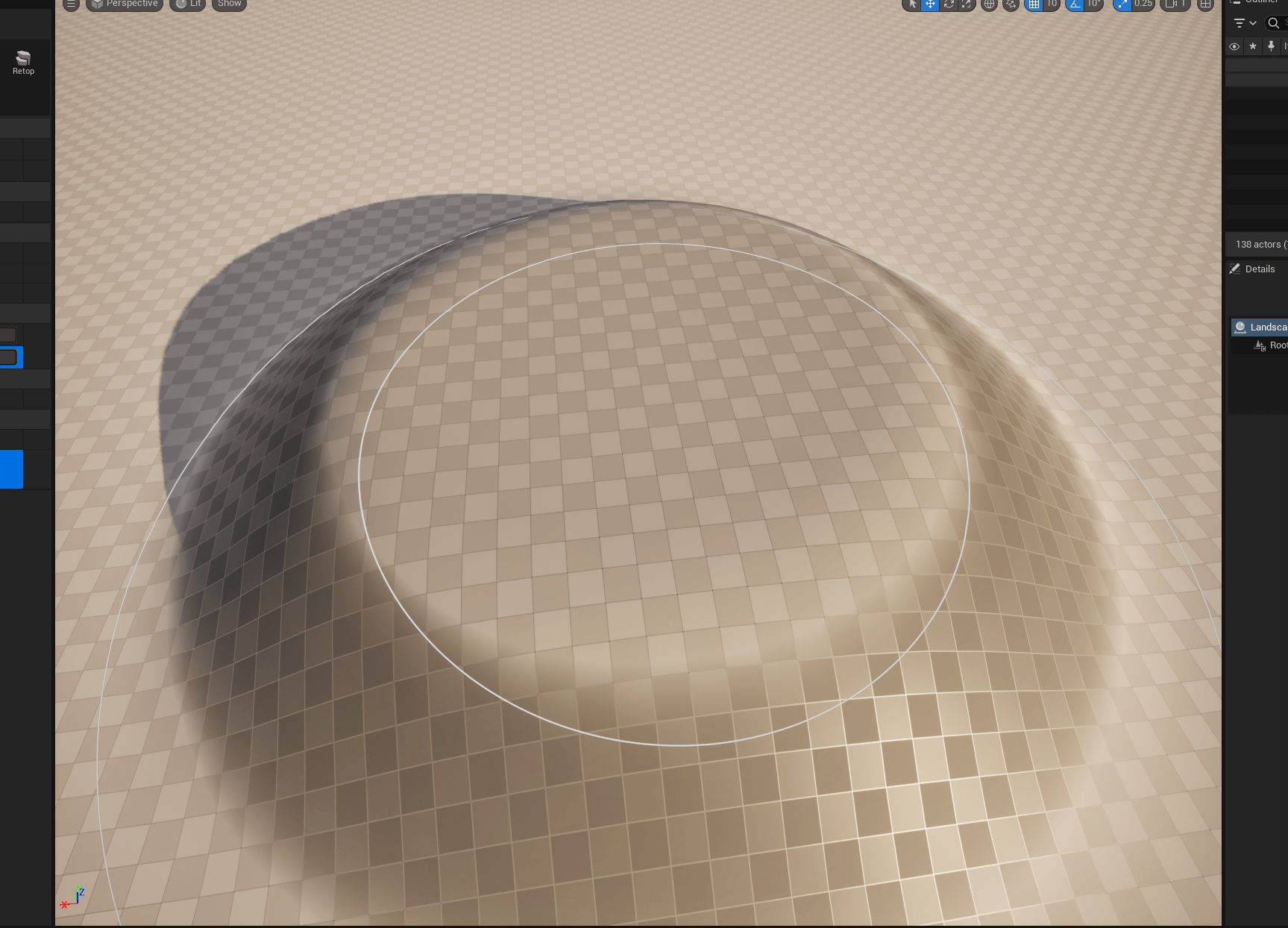
Smooth tool
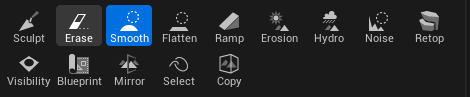
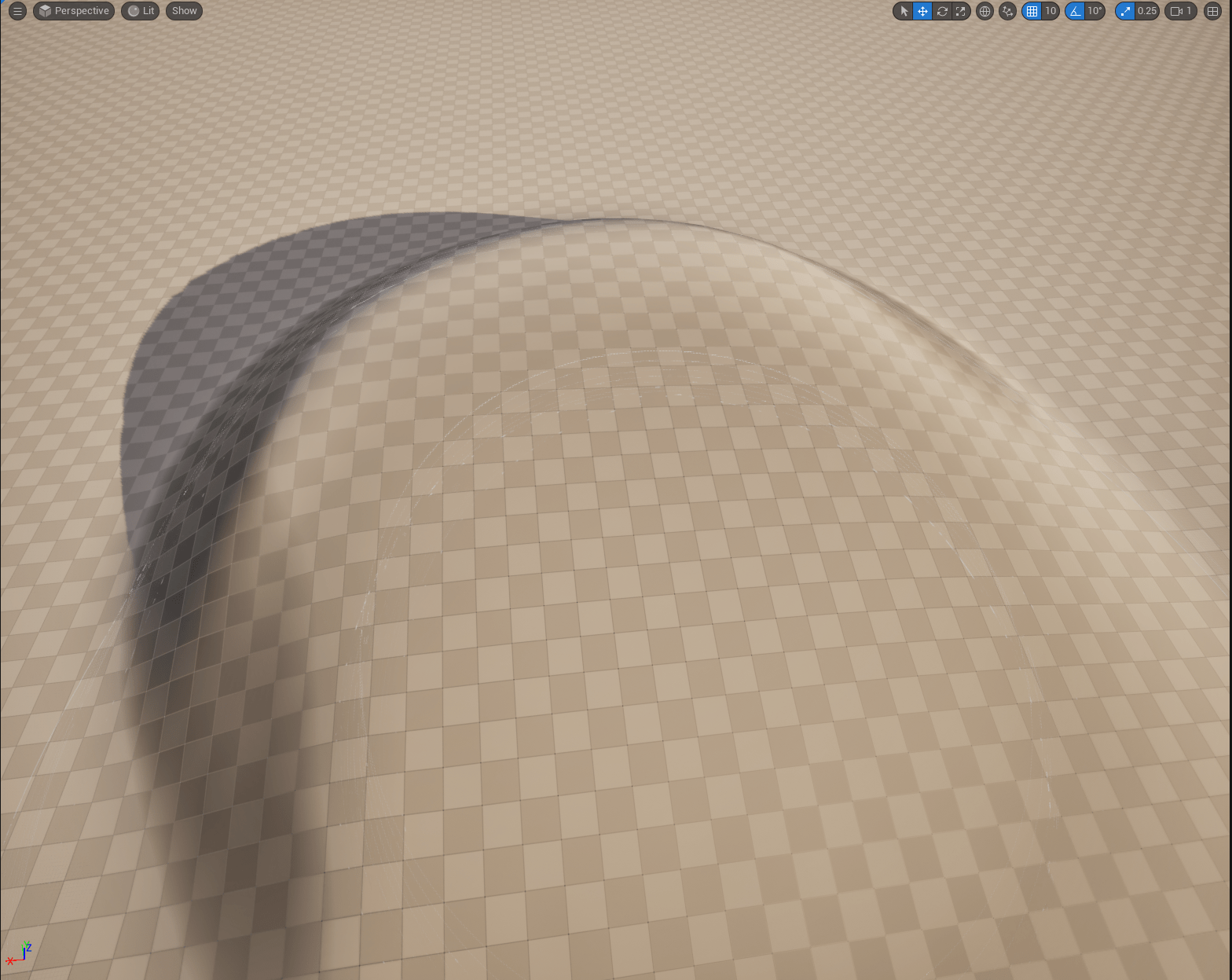
Ramp tool
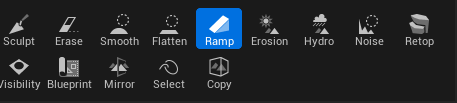
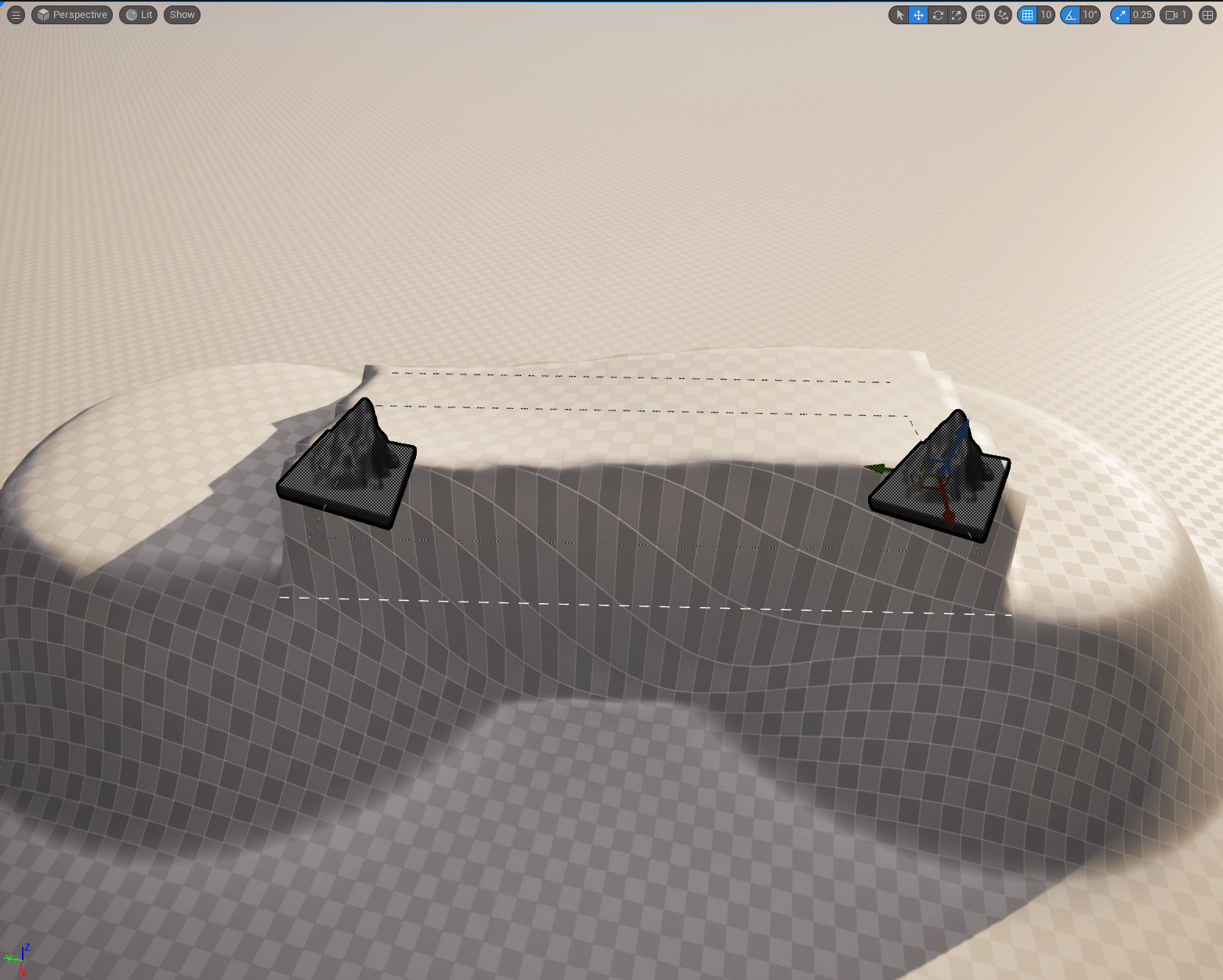
Erosion
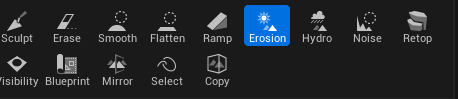
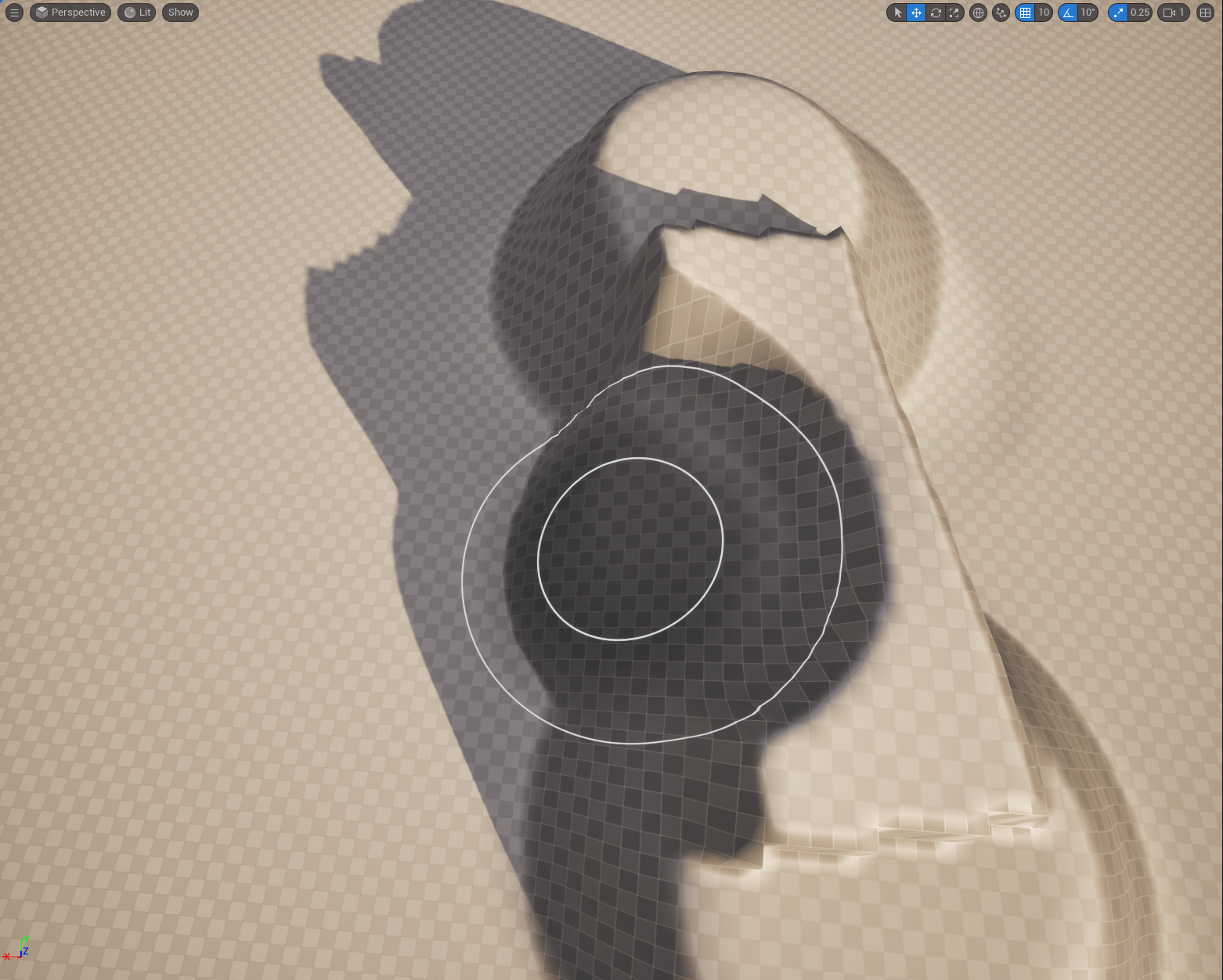
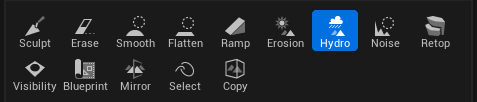
Hydro
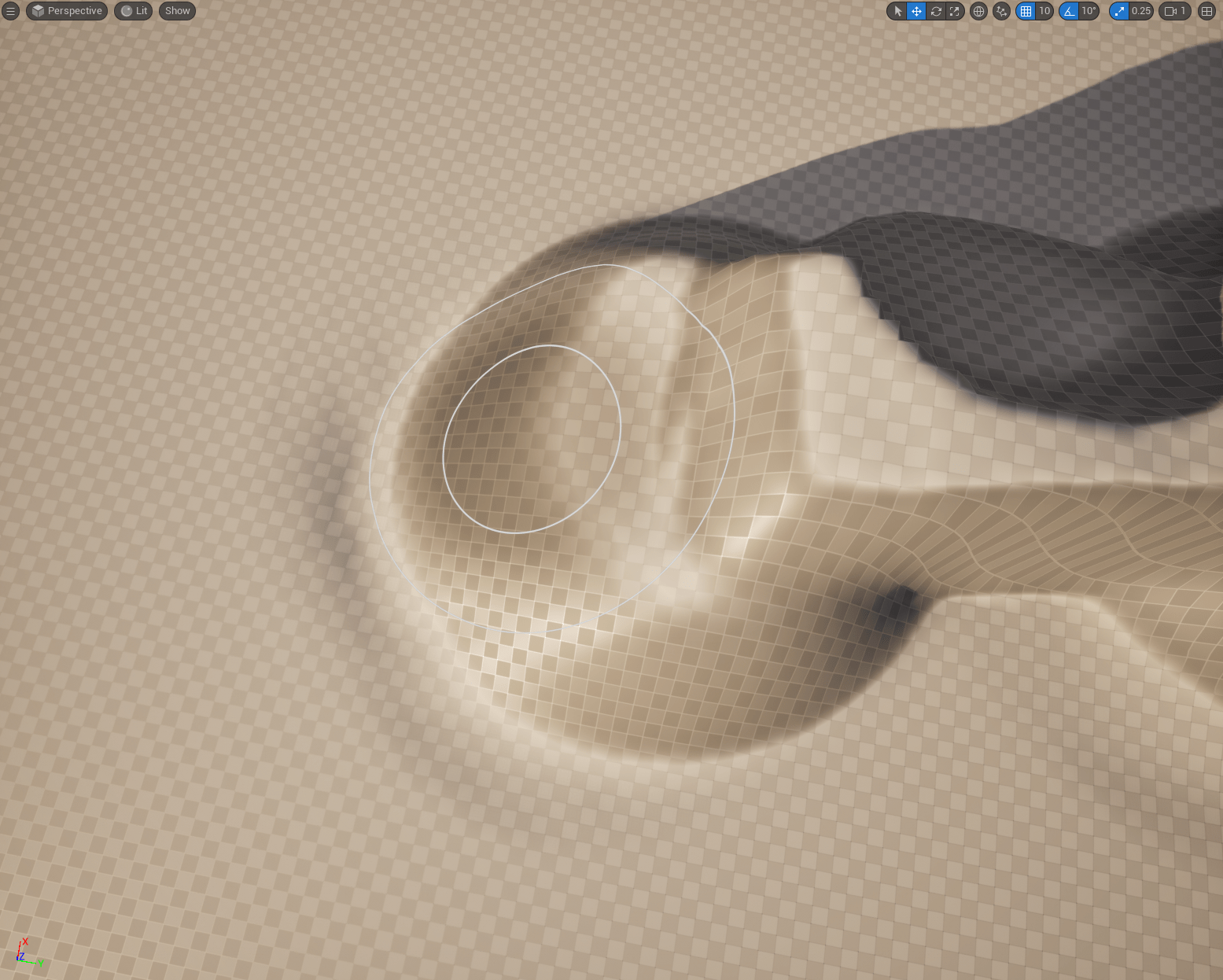
Noise

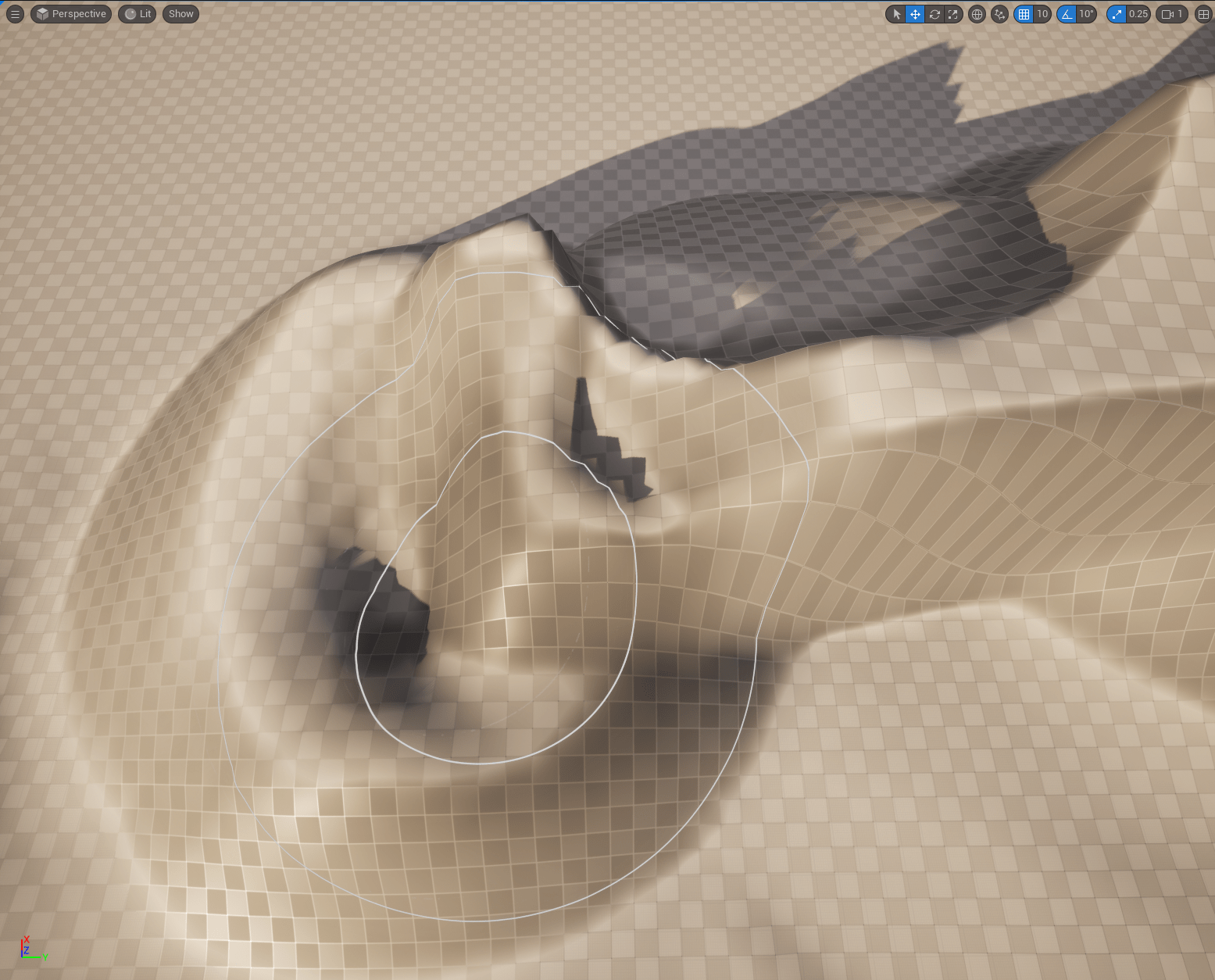
Retopo
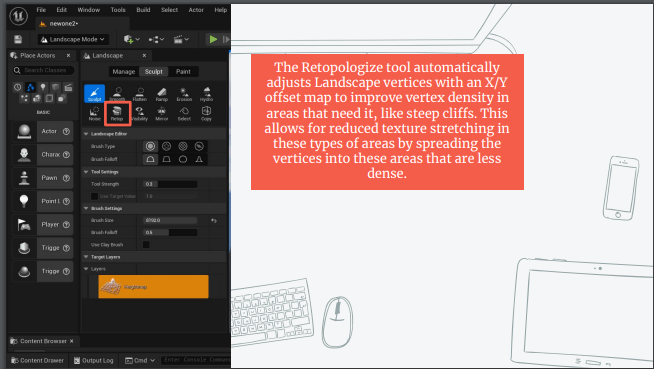
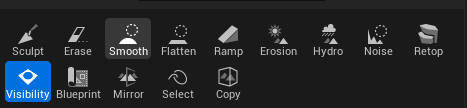
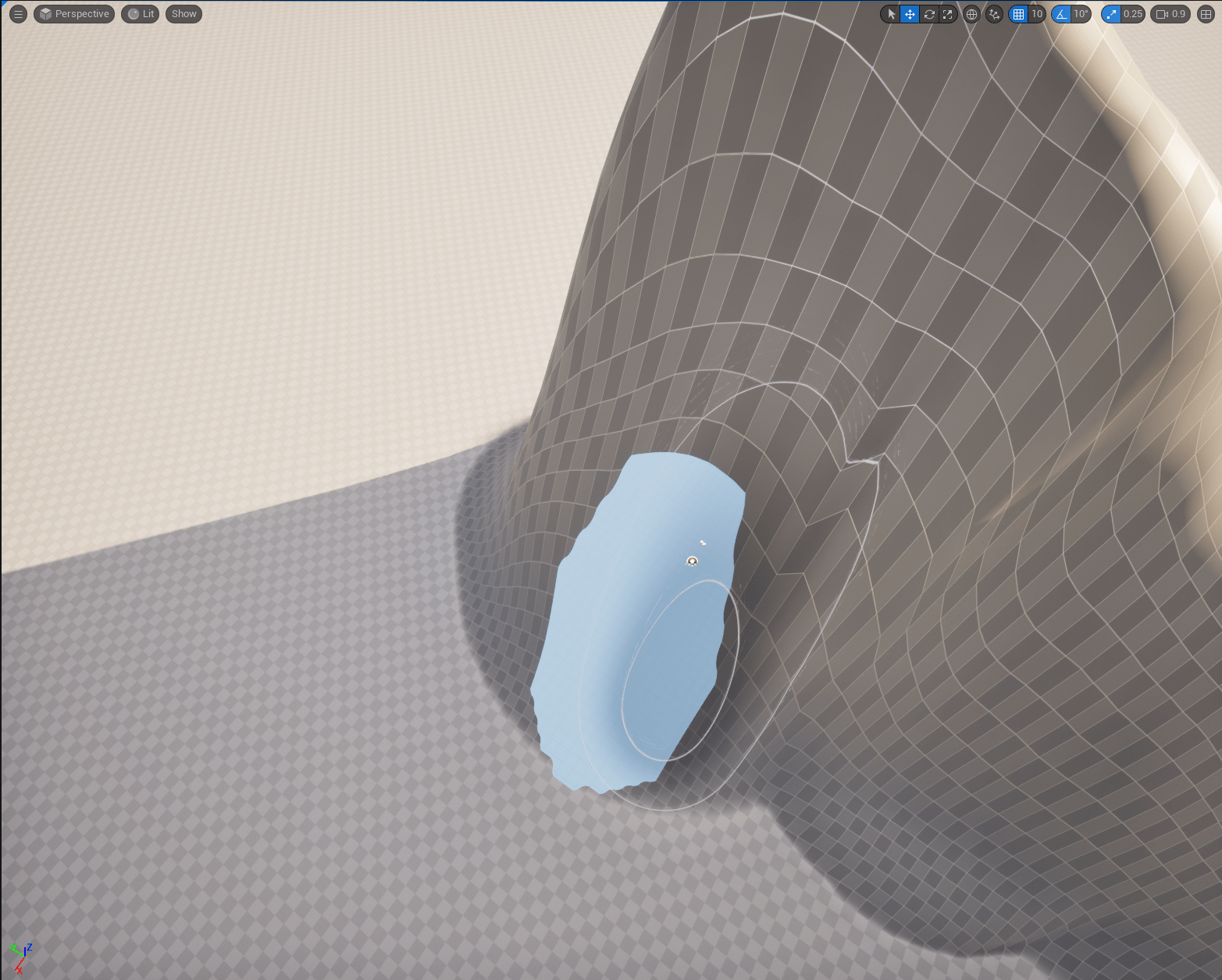
Visibility mask
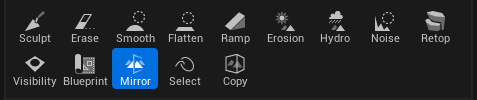
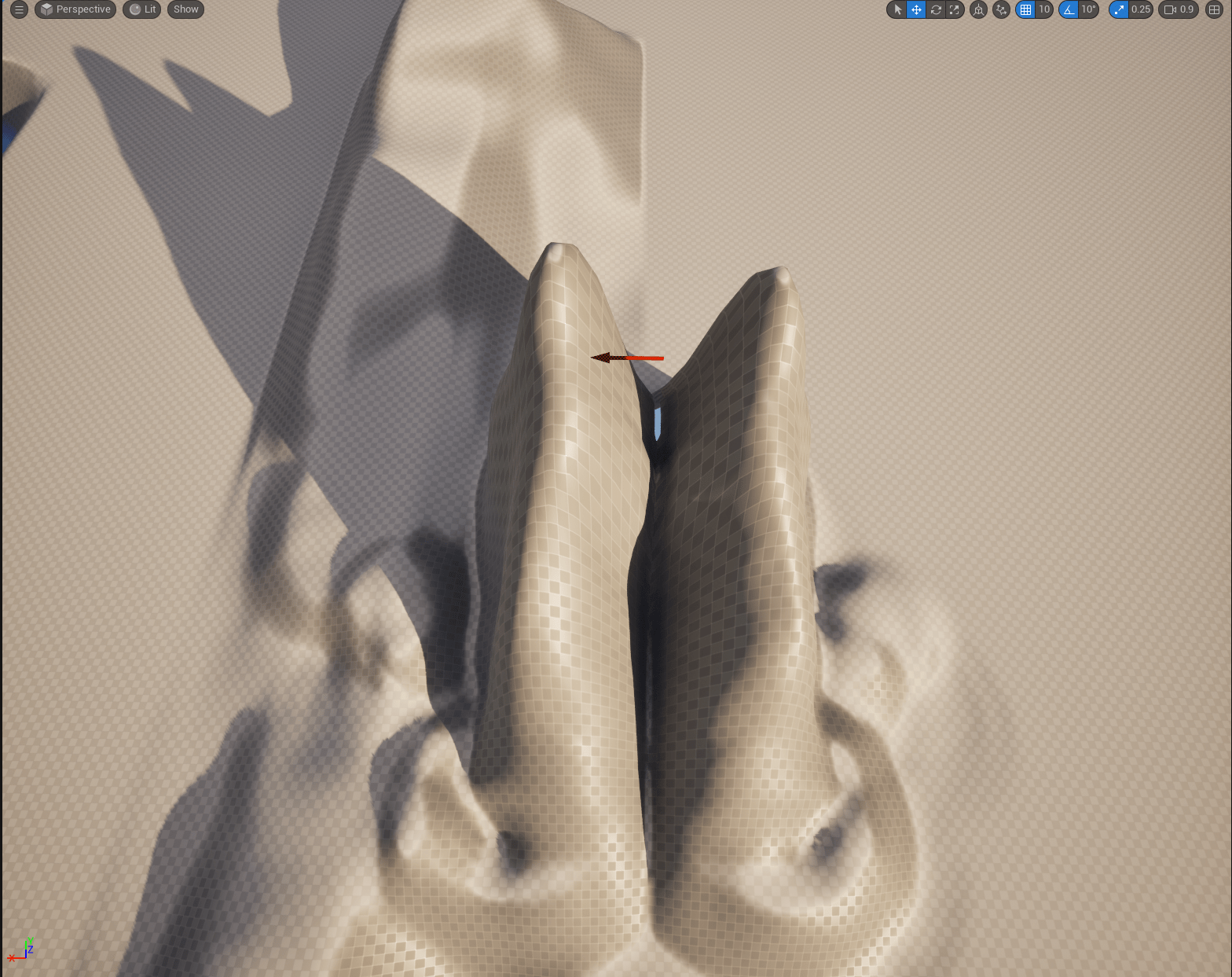
Mirror
End of week 6
Week 7
- Unreal’s Different Lighting & Reflection Systems
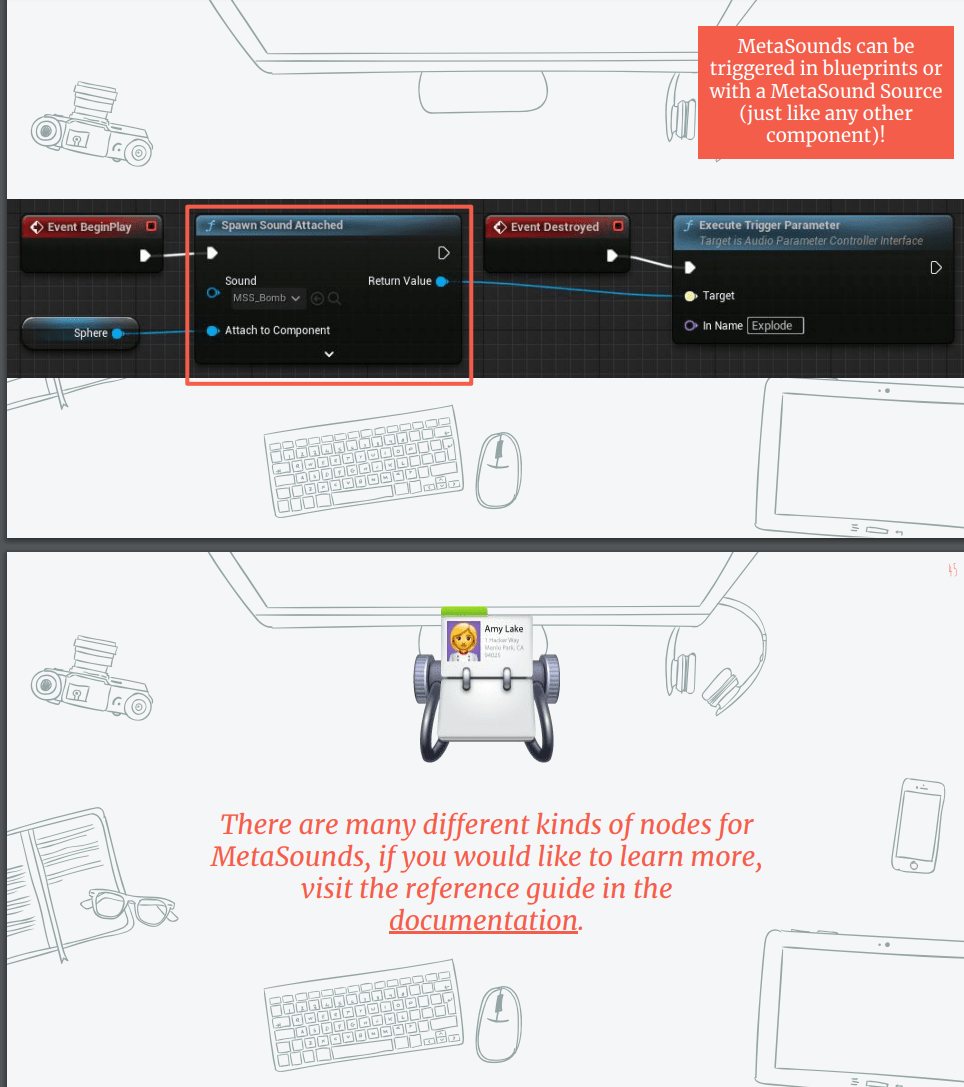
- Metasounds
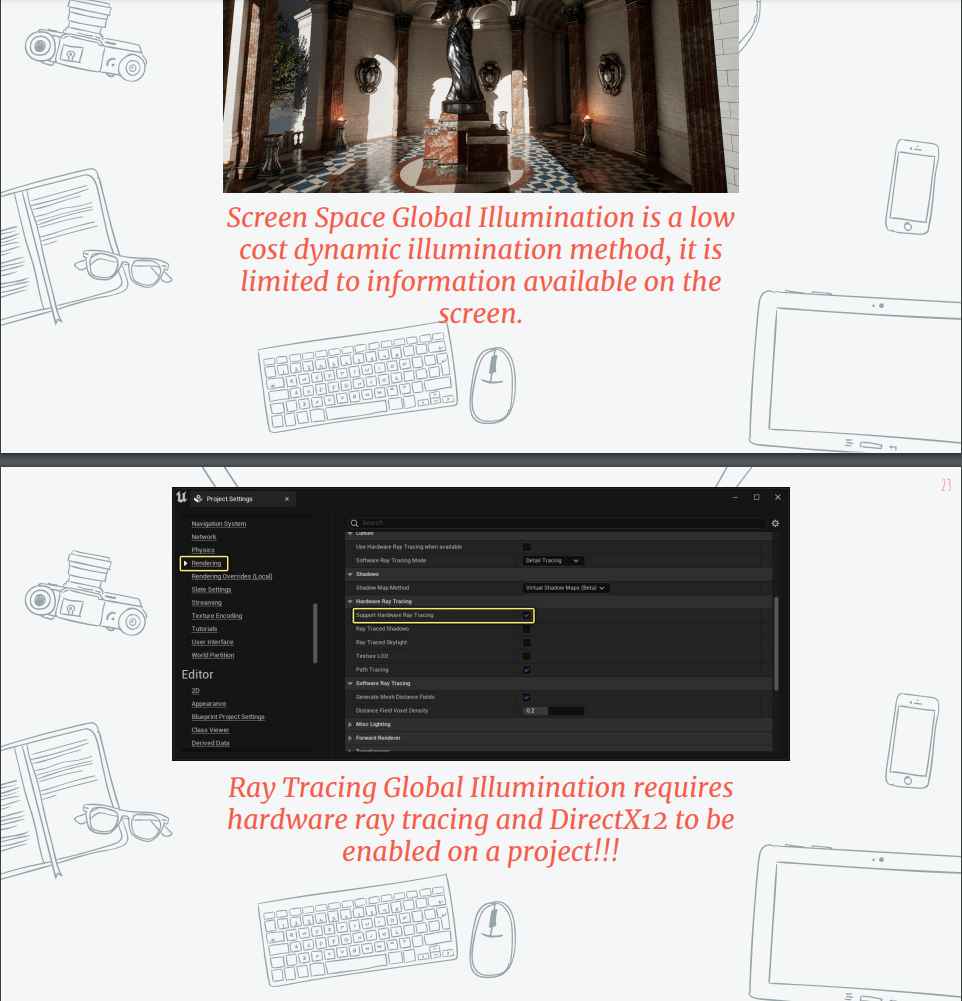
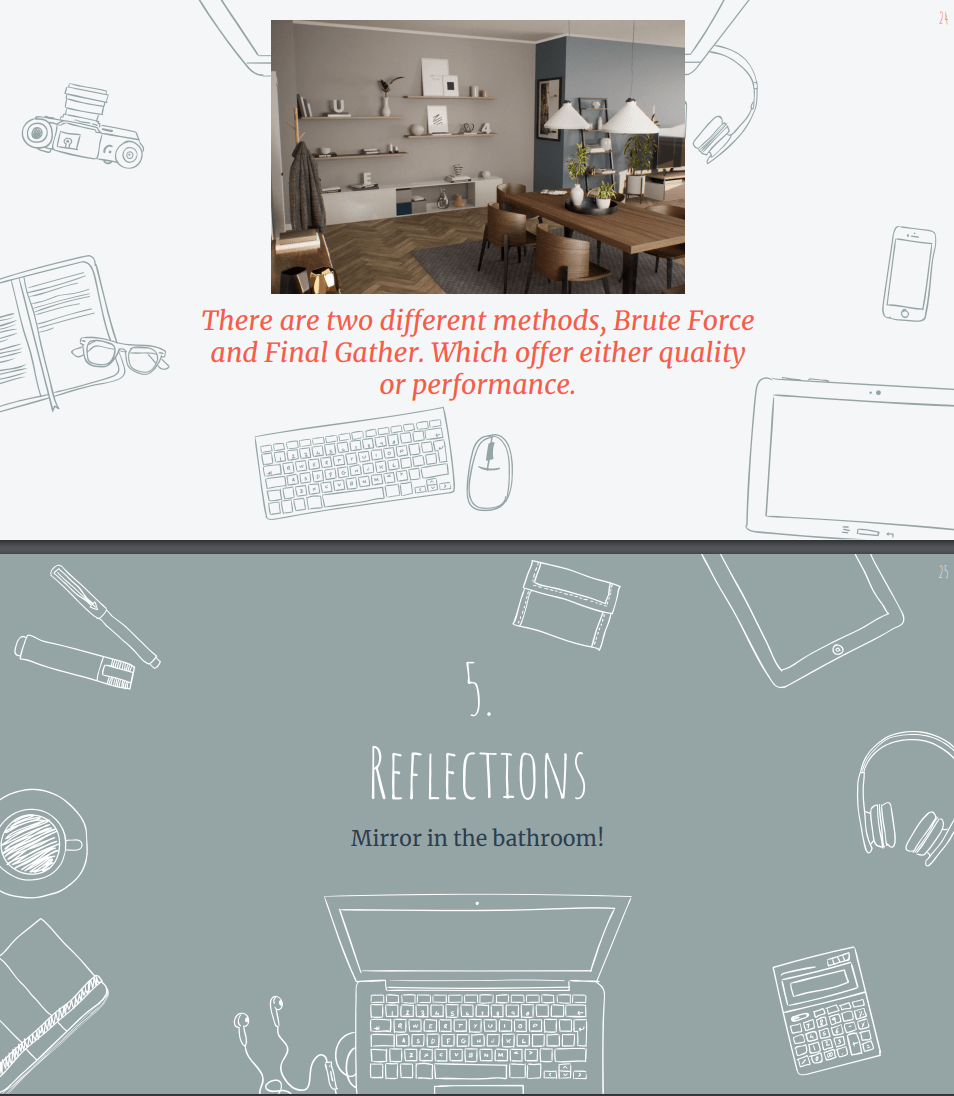
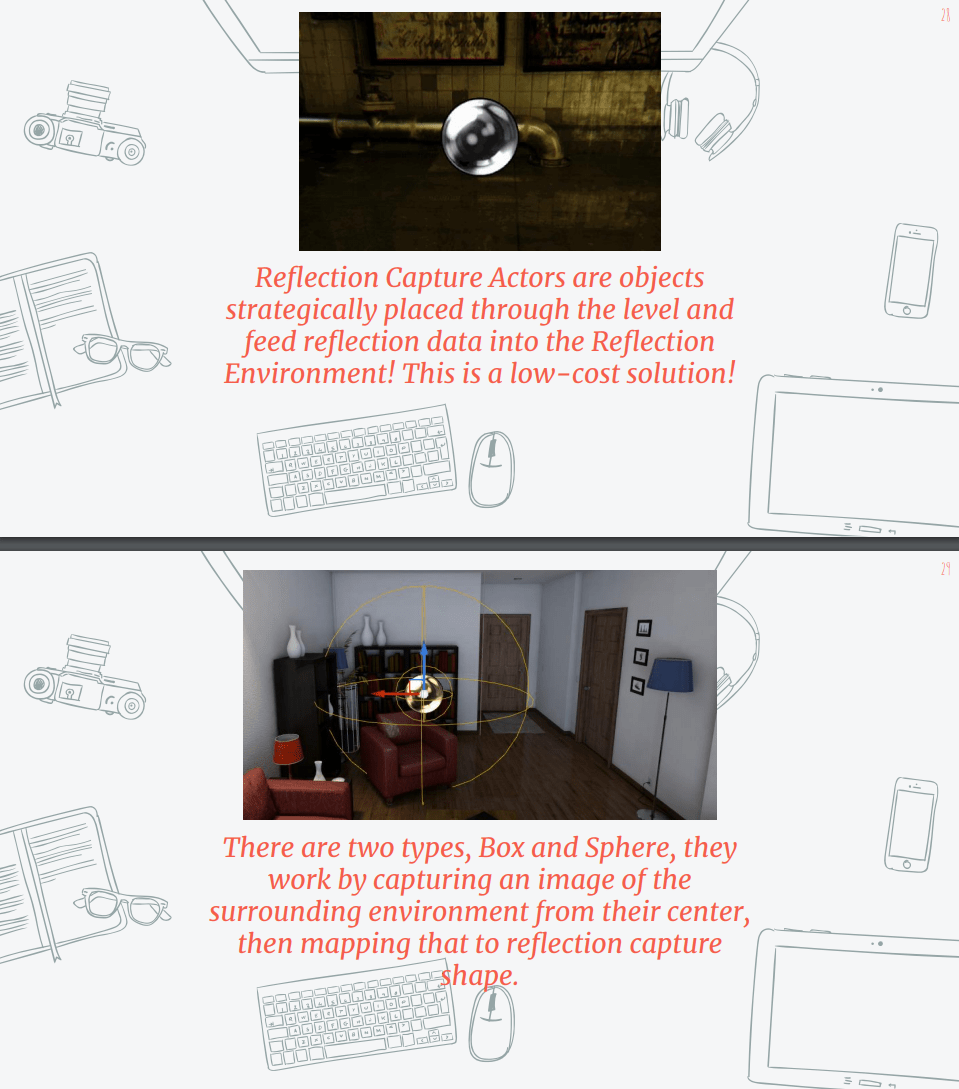
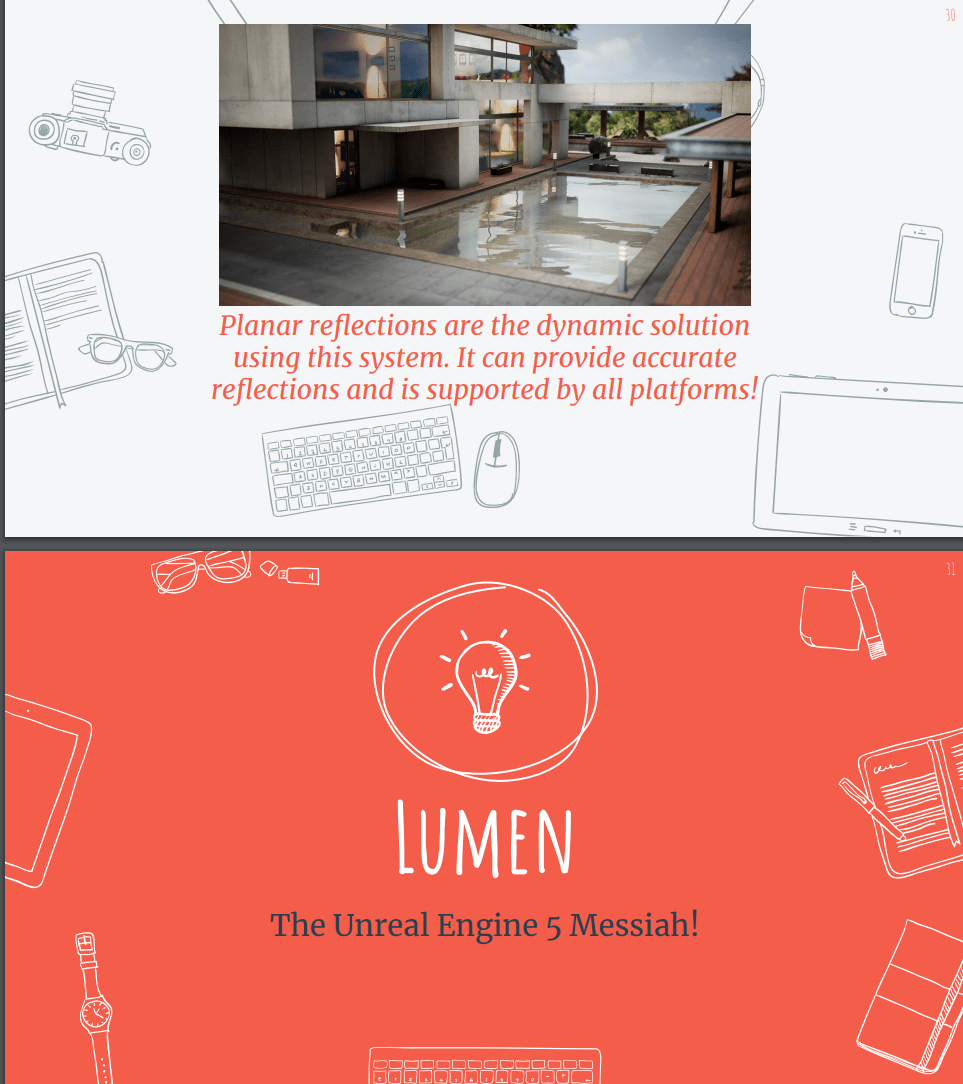
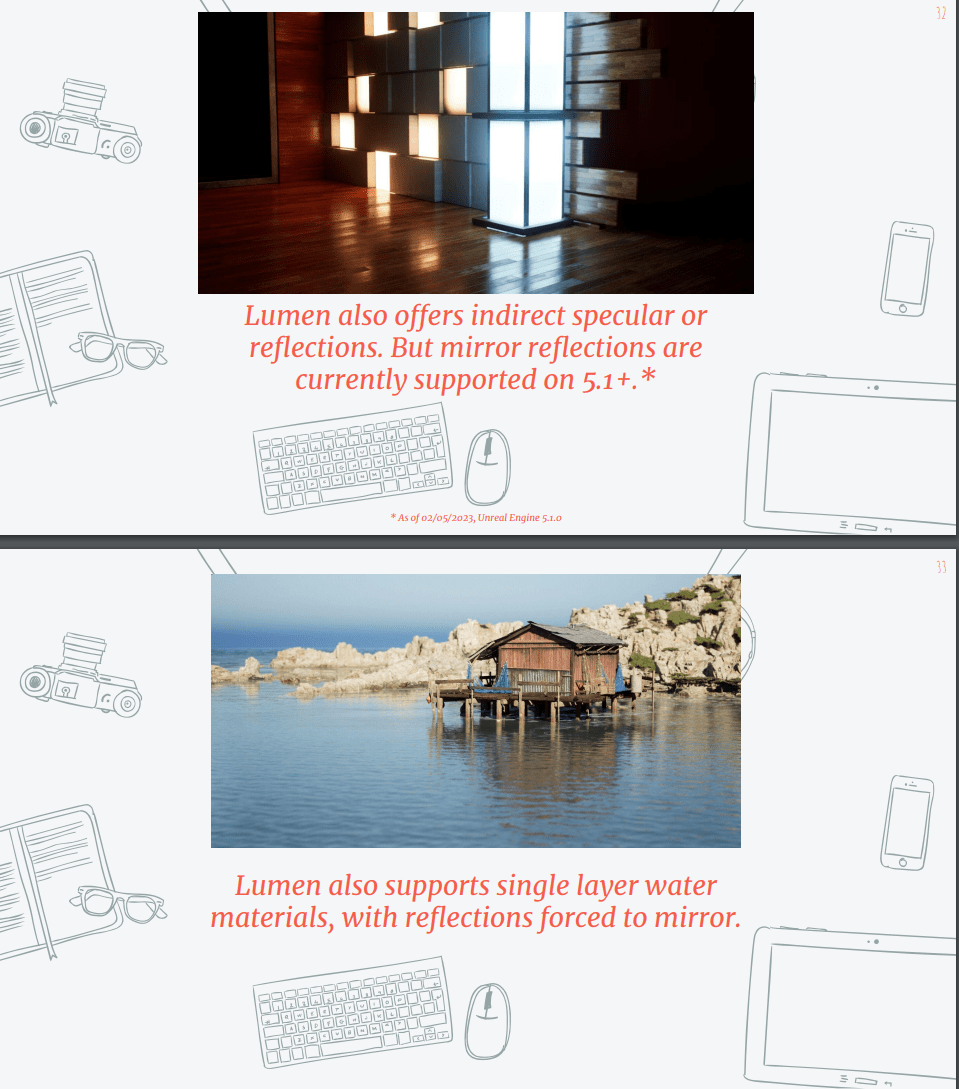
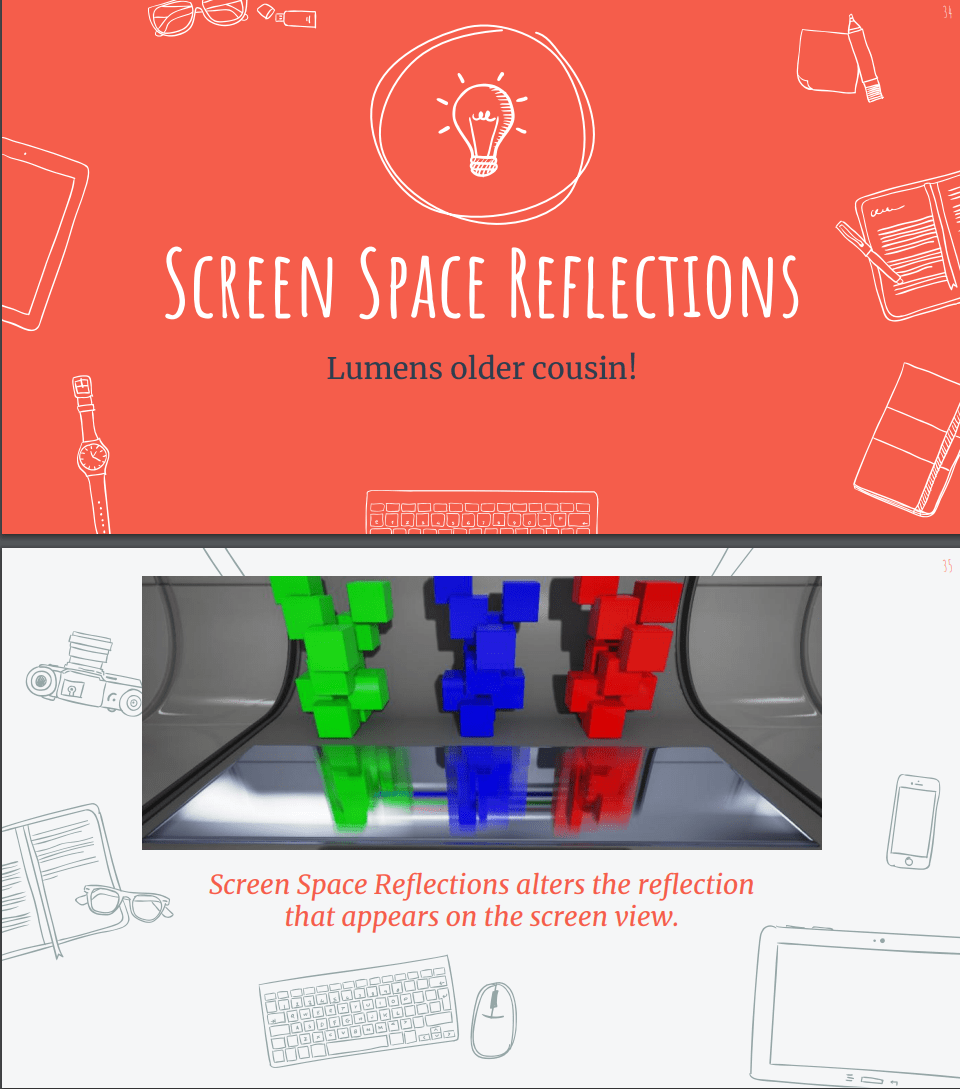
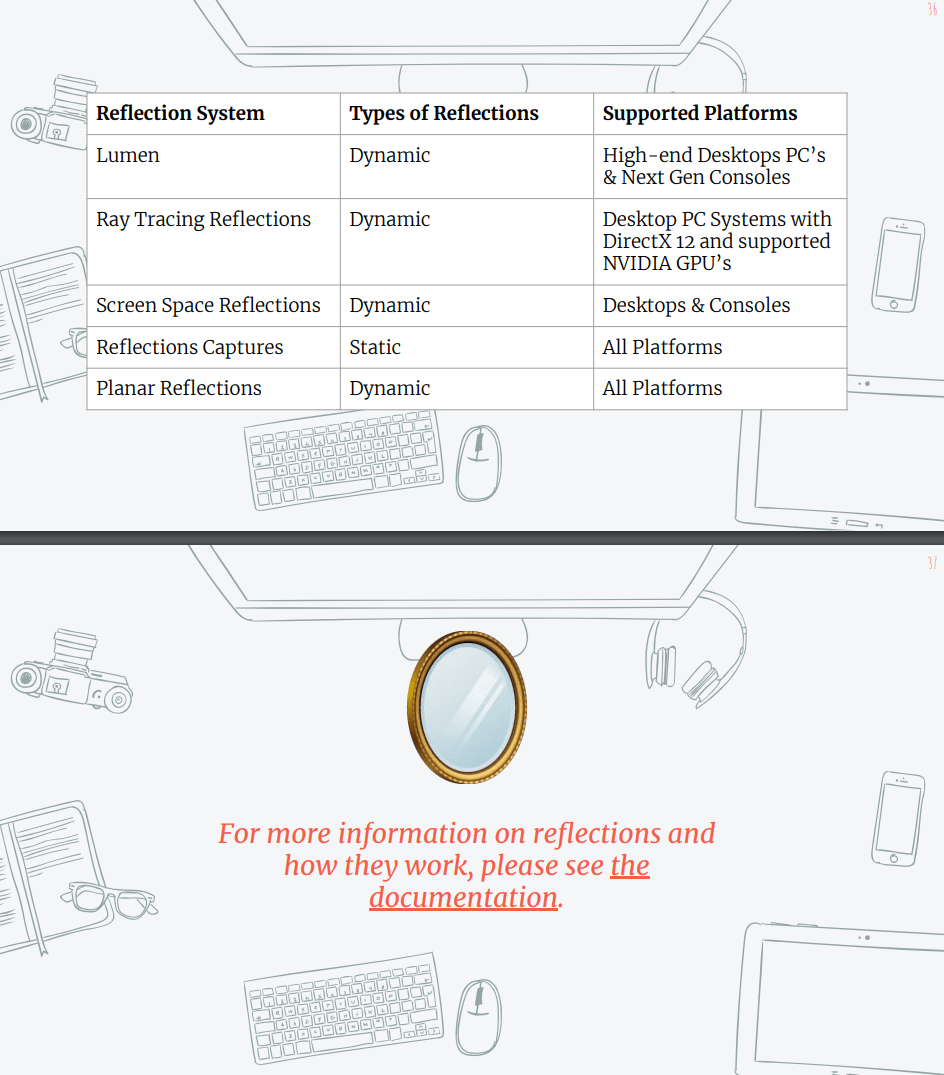
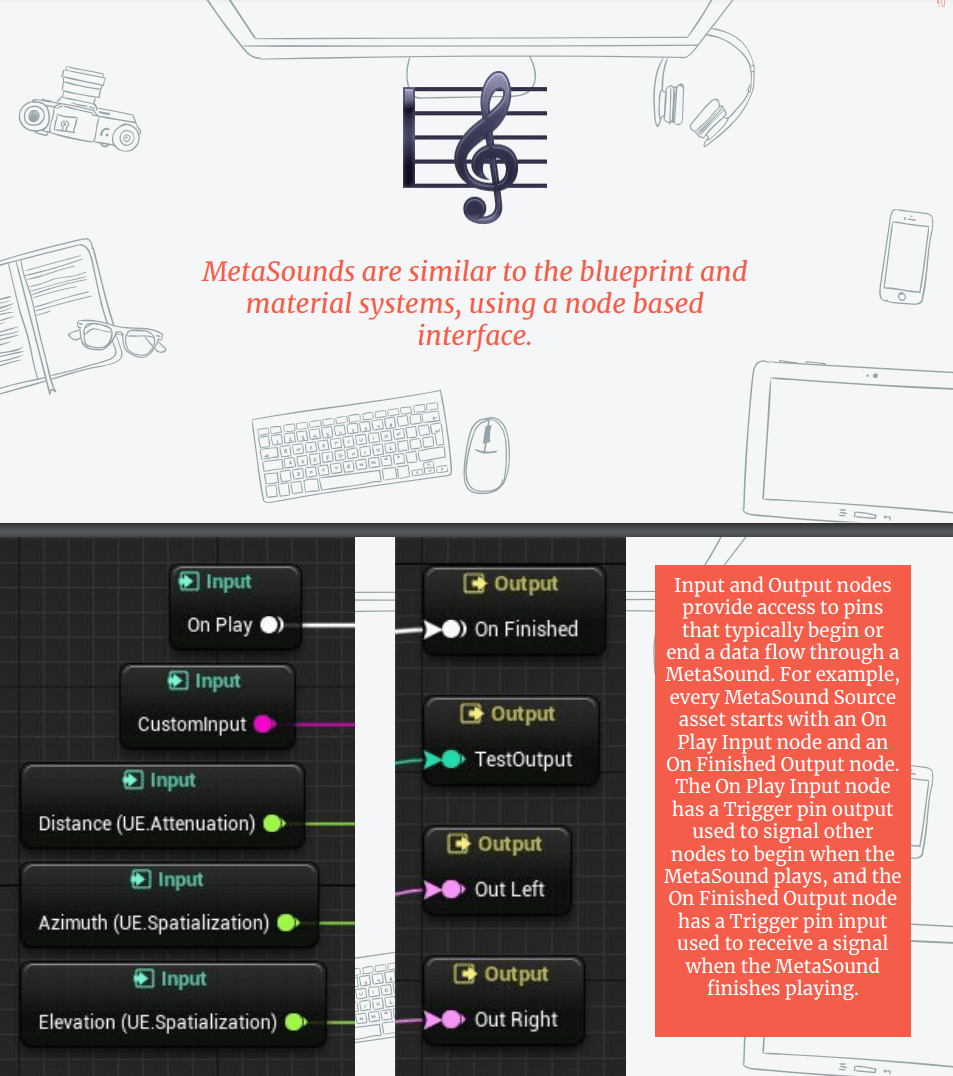
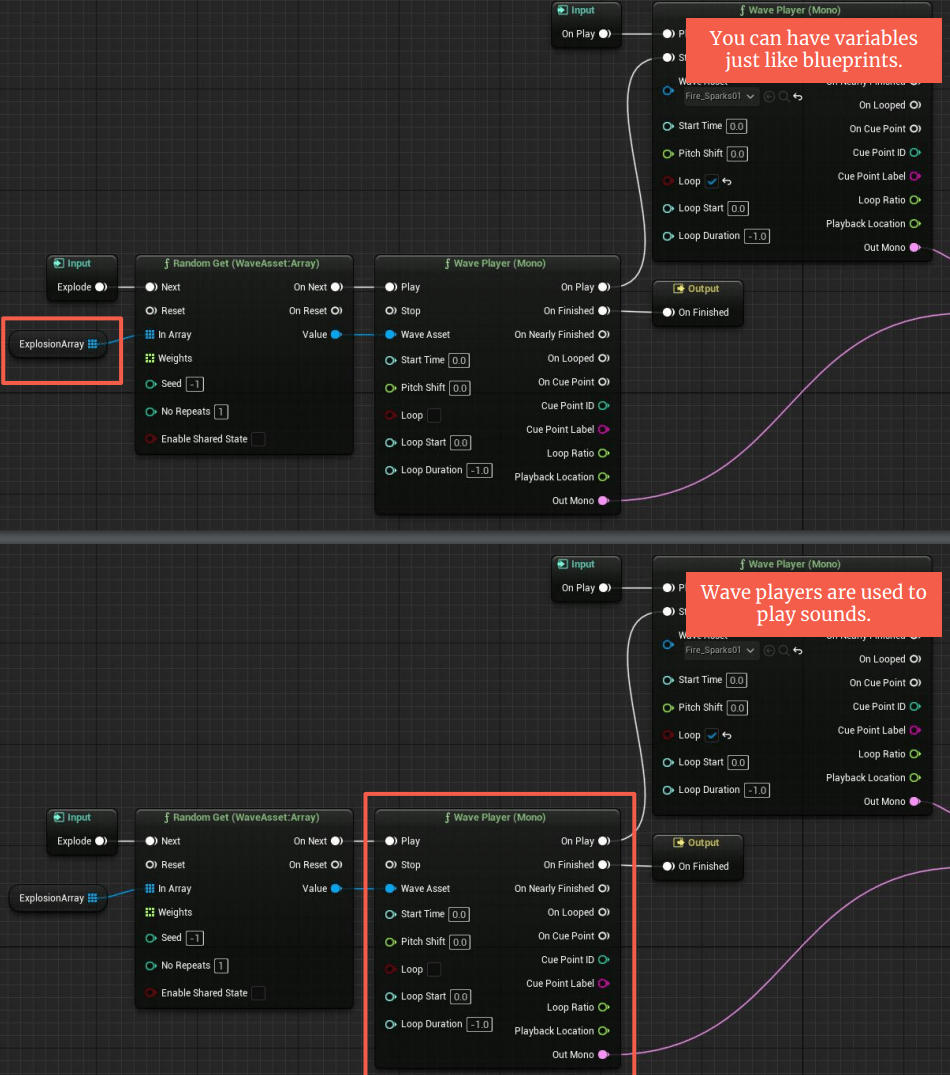
This week we will learn about the lighting and reflection system and the understanding of global illumination and meta sound.
Let’s start with the slides we saw in class:

End of week 7
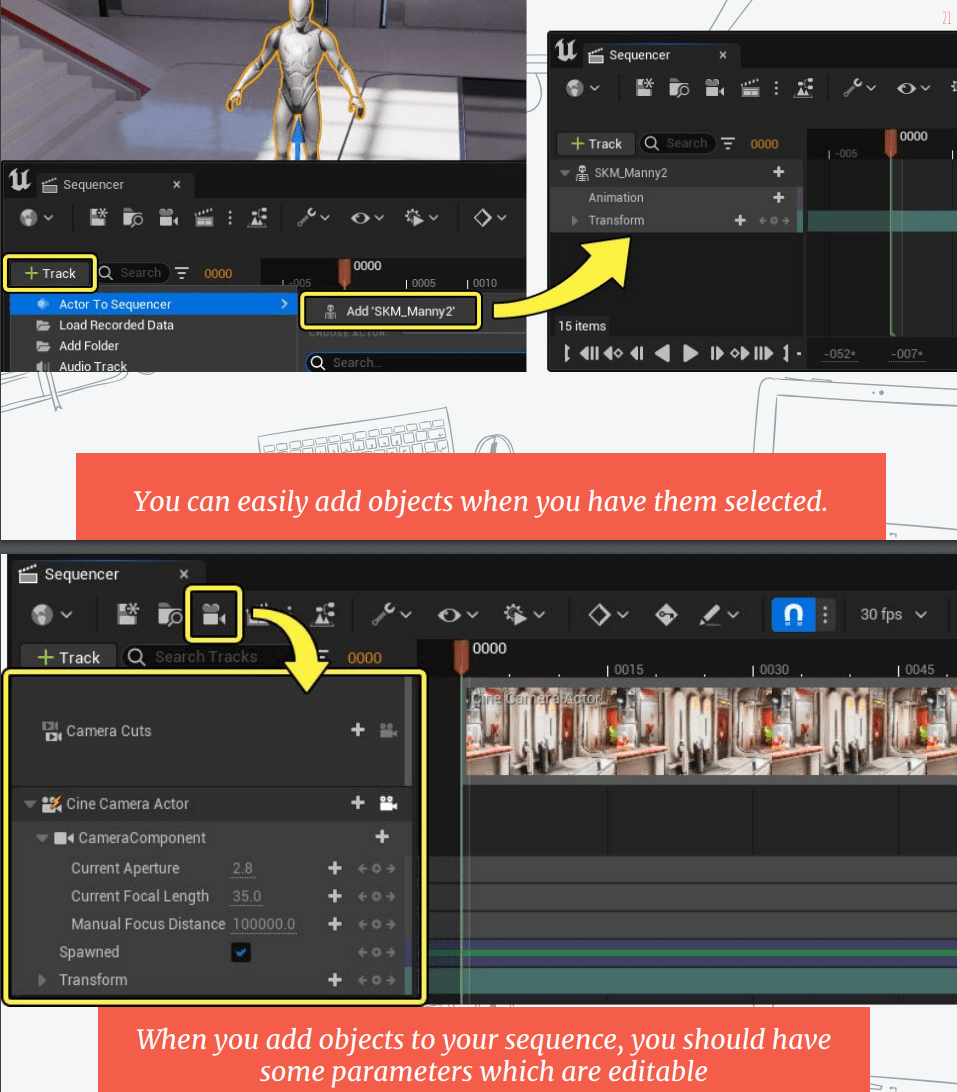
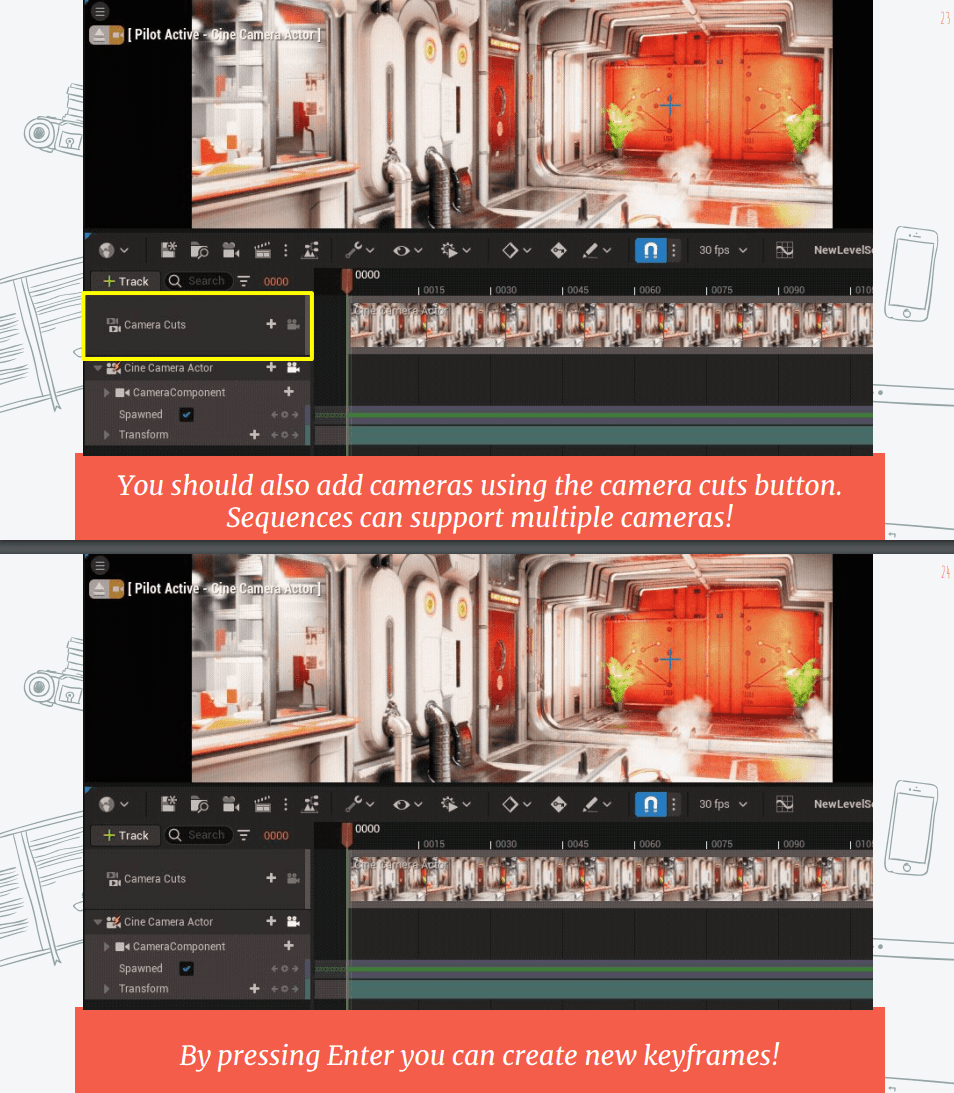
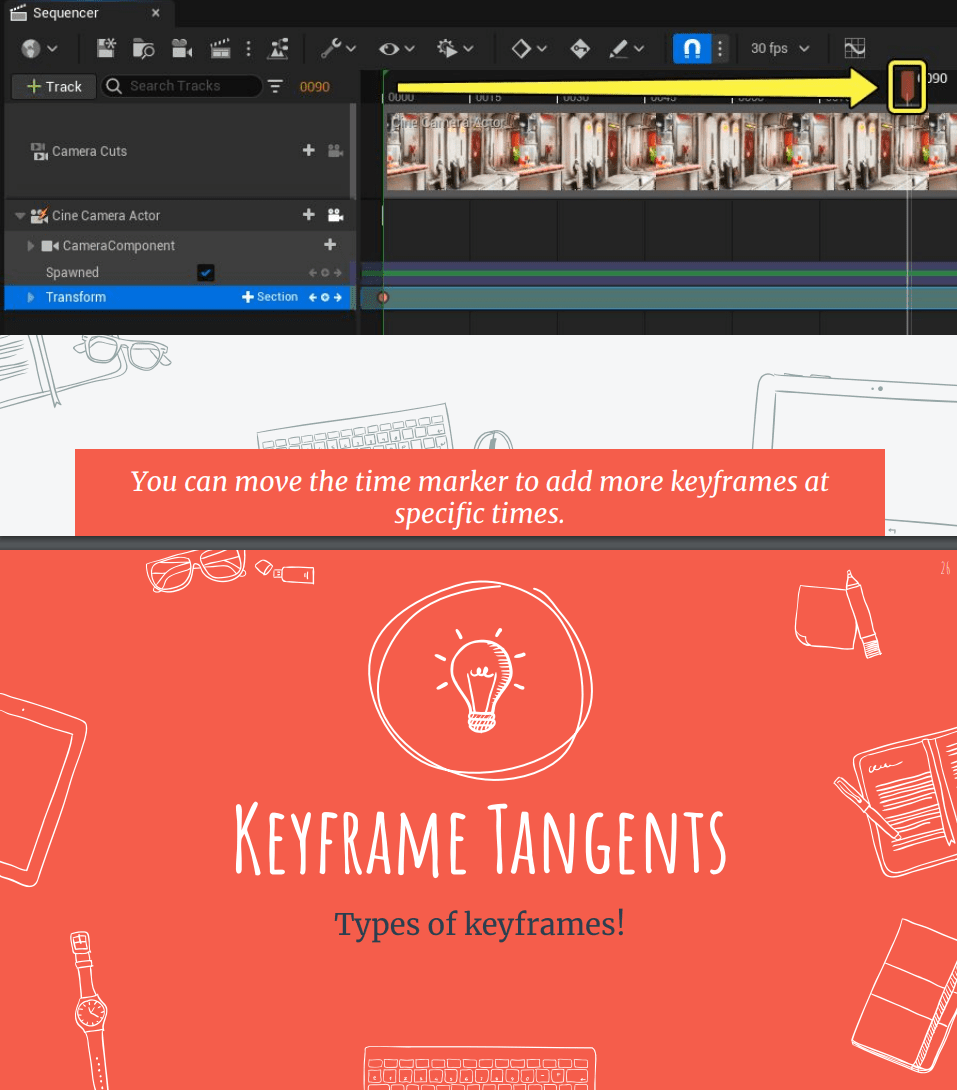
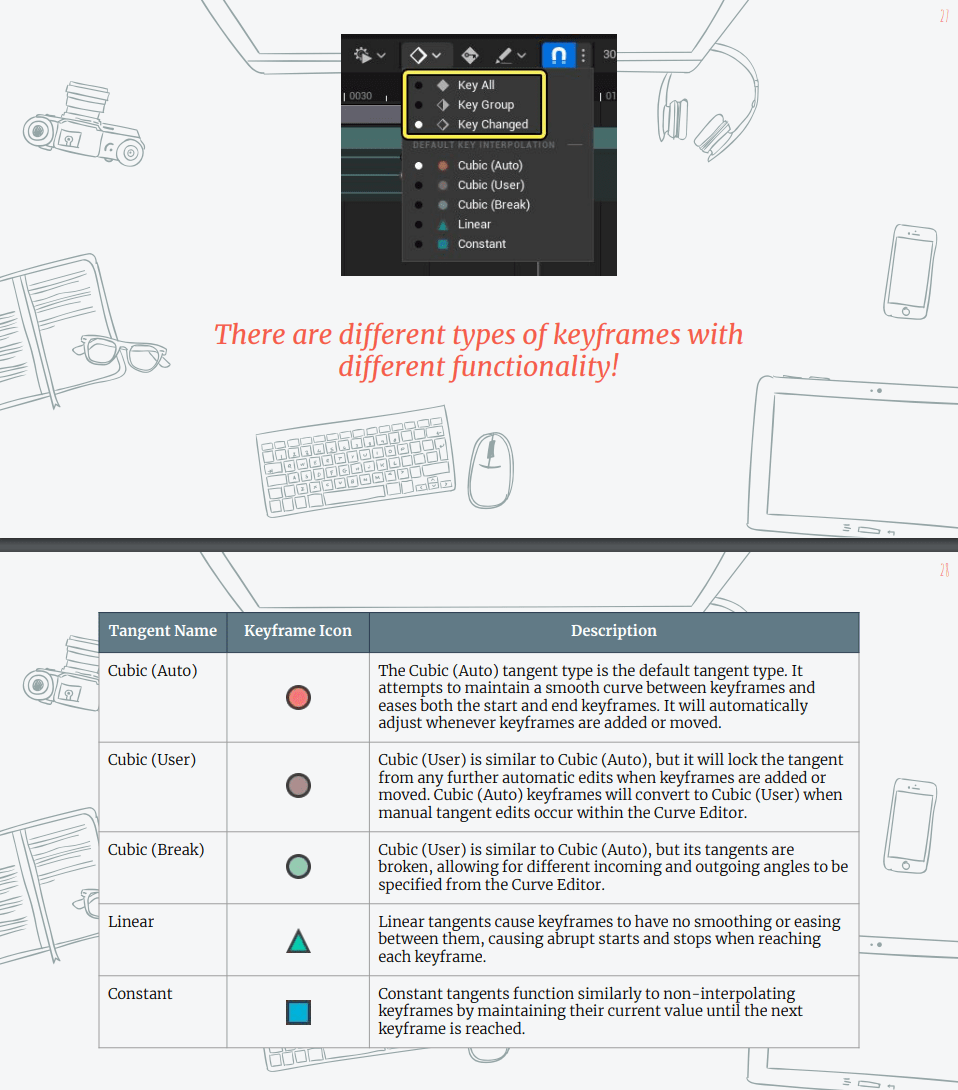
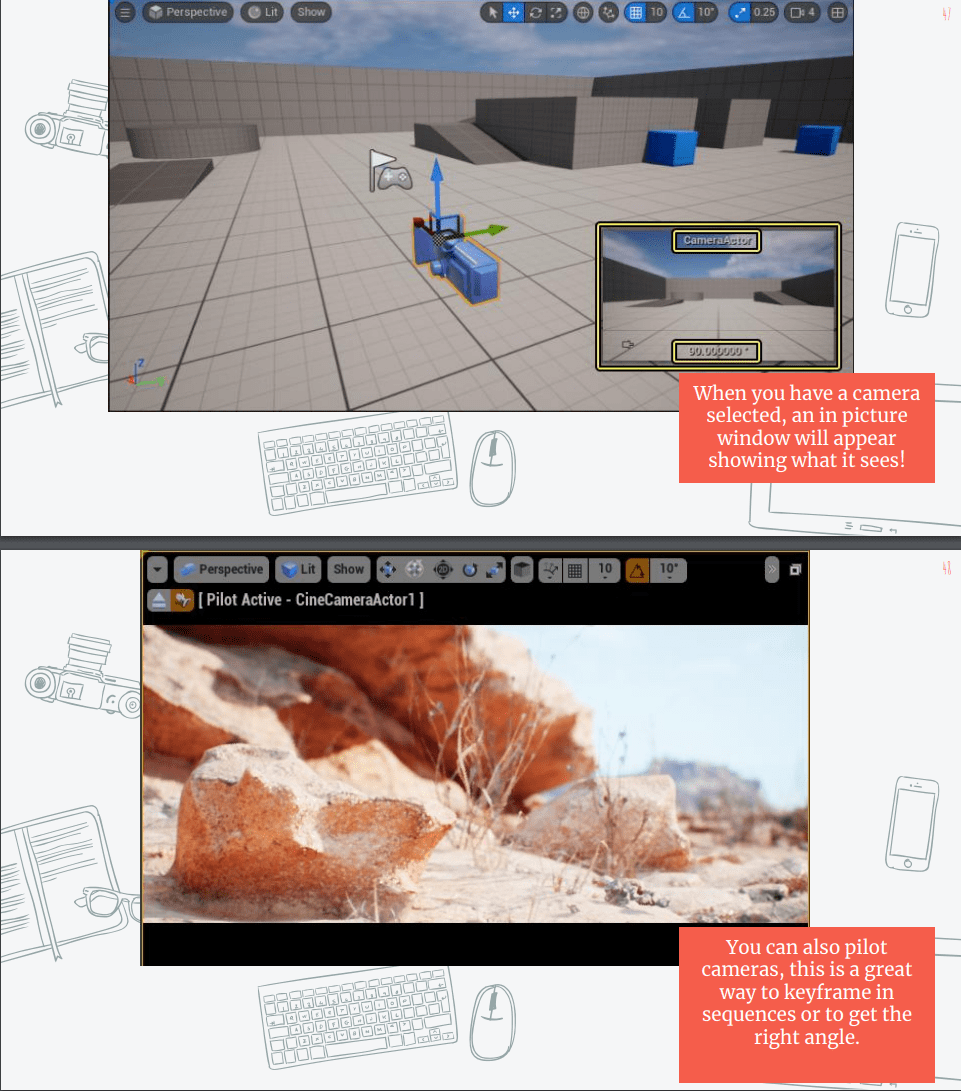
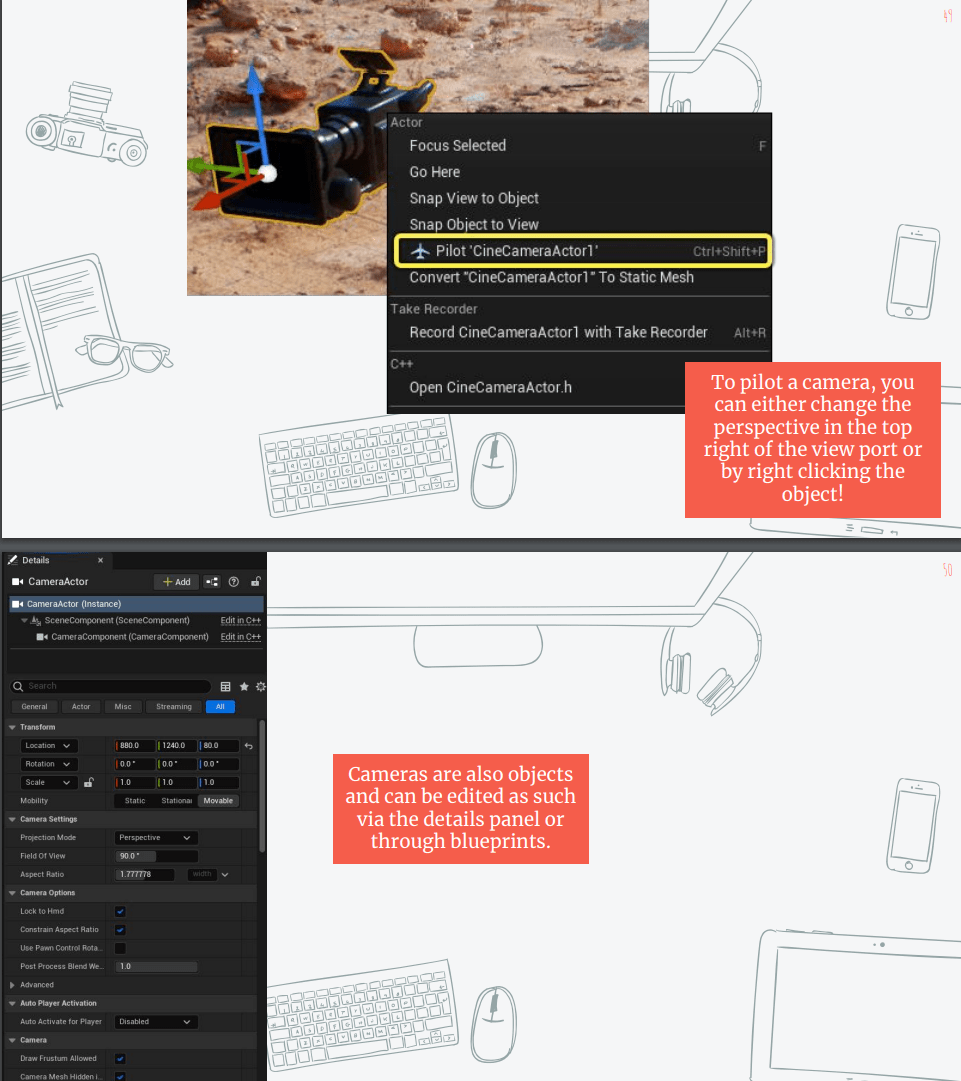
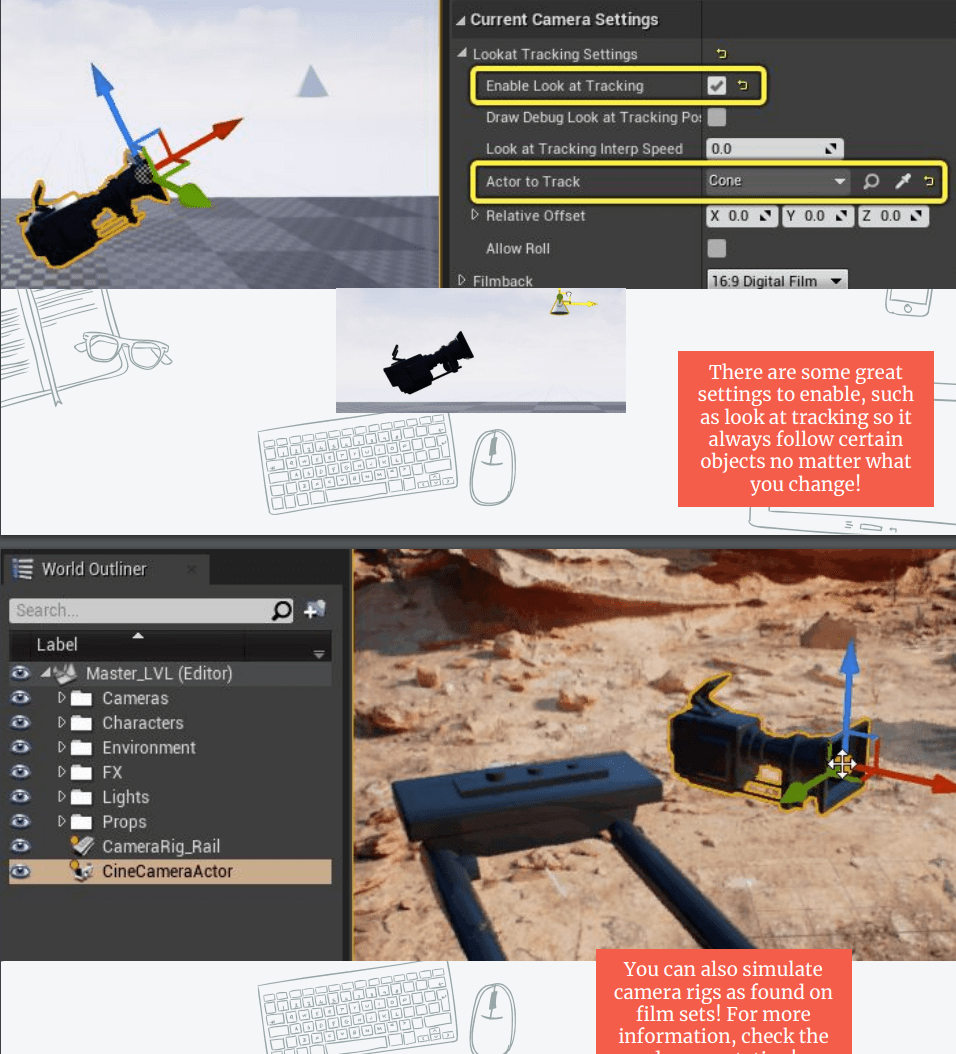
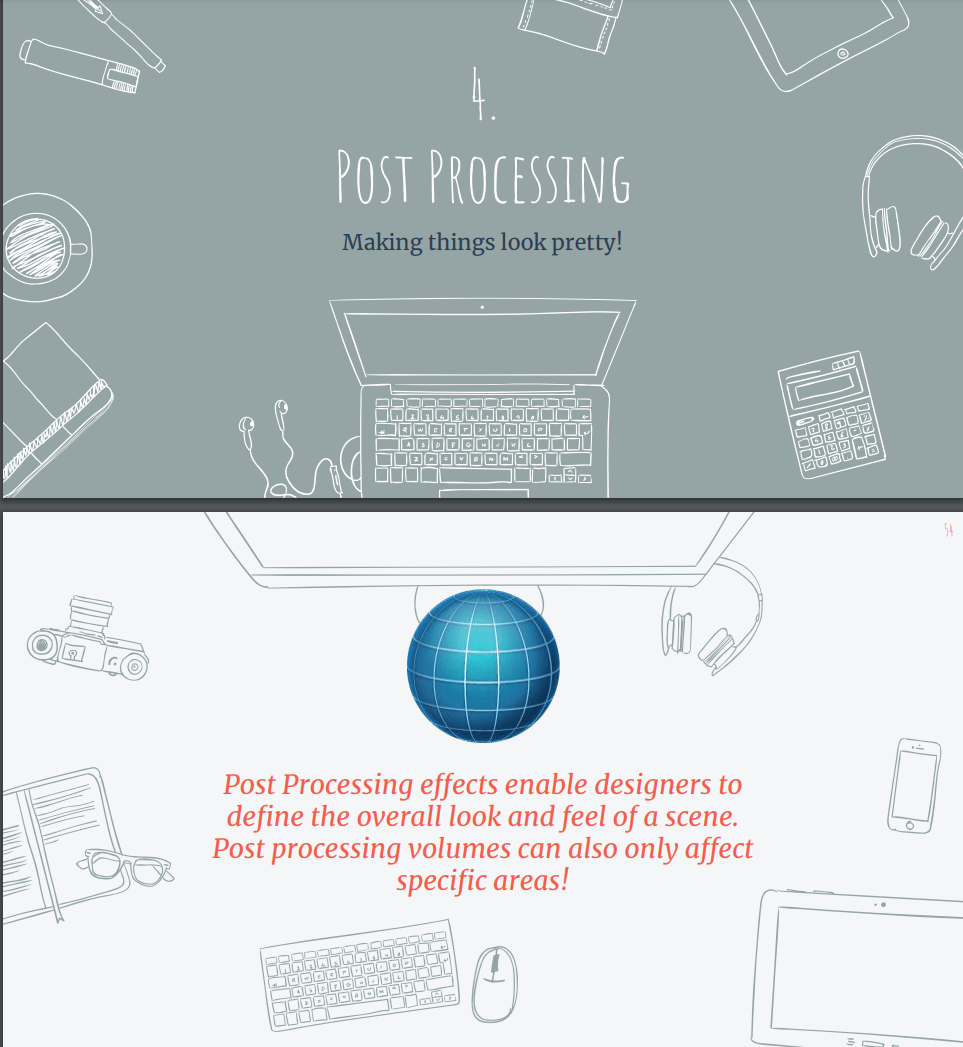
Week 8:Sequencer, cameras and post post-processing.
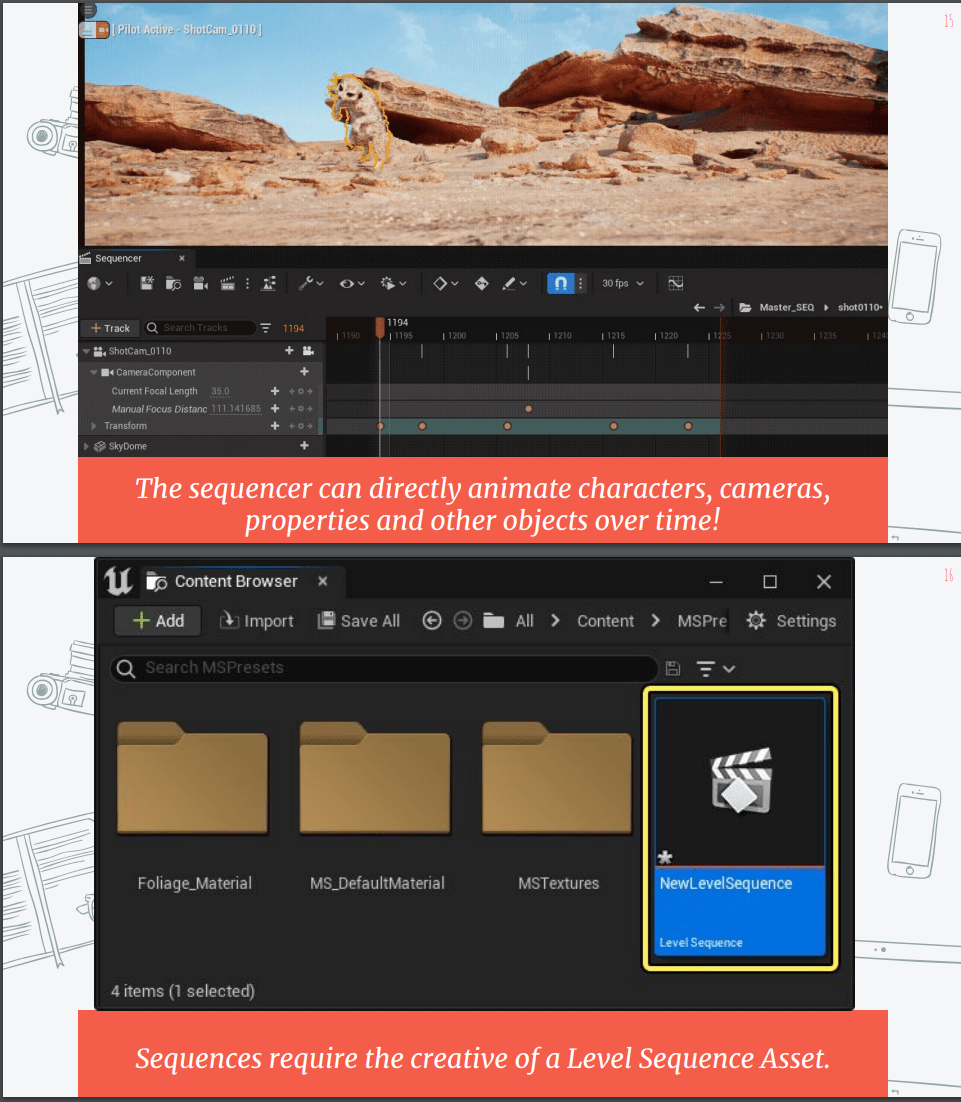
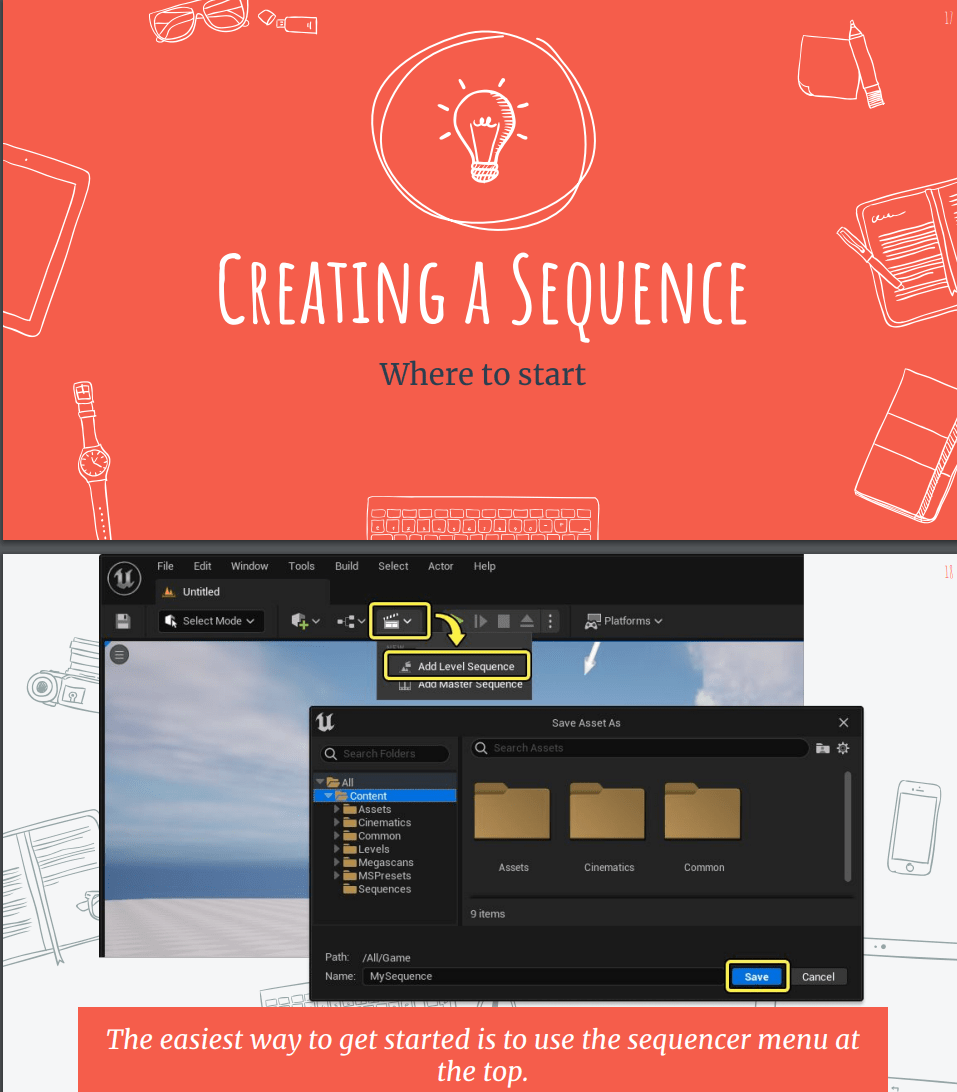
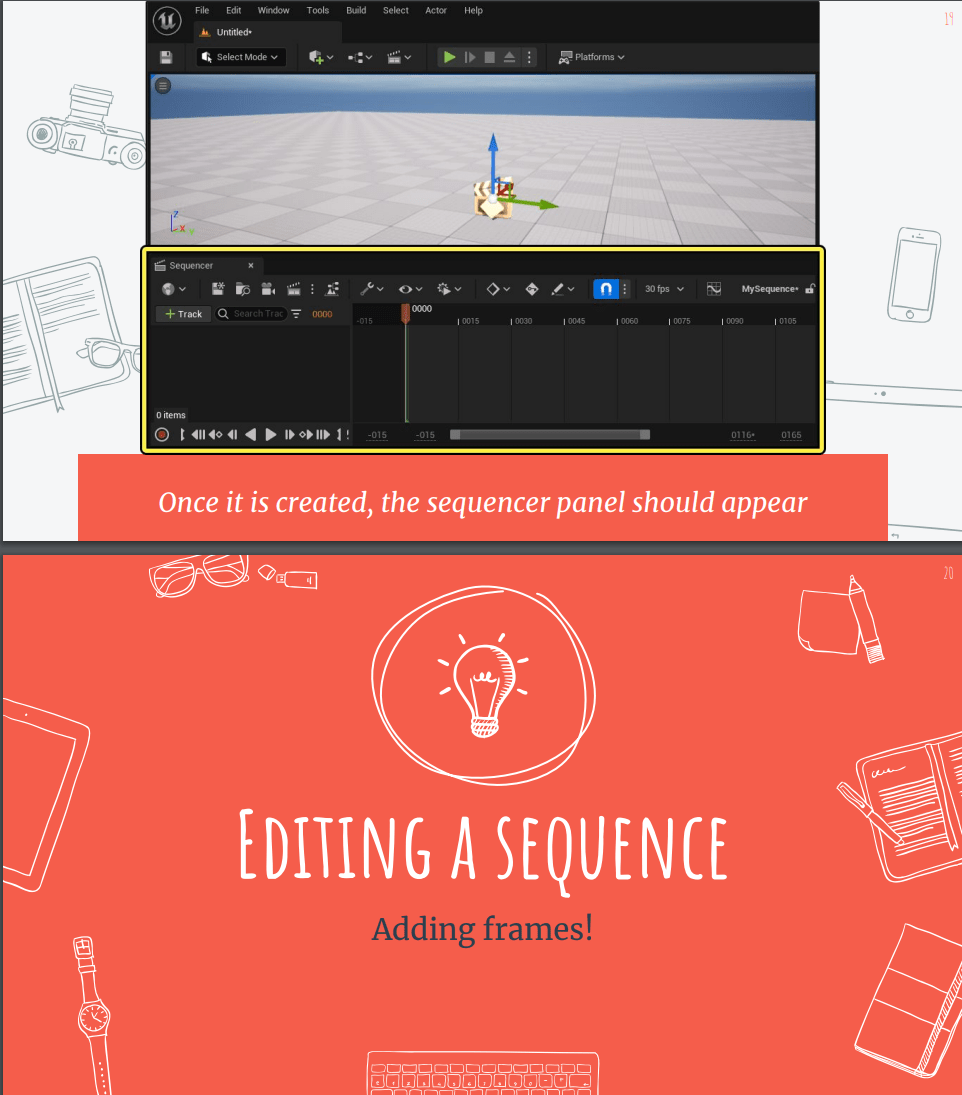
This week we will learn how to create cinematics in Unreal.
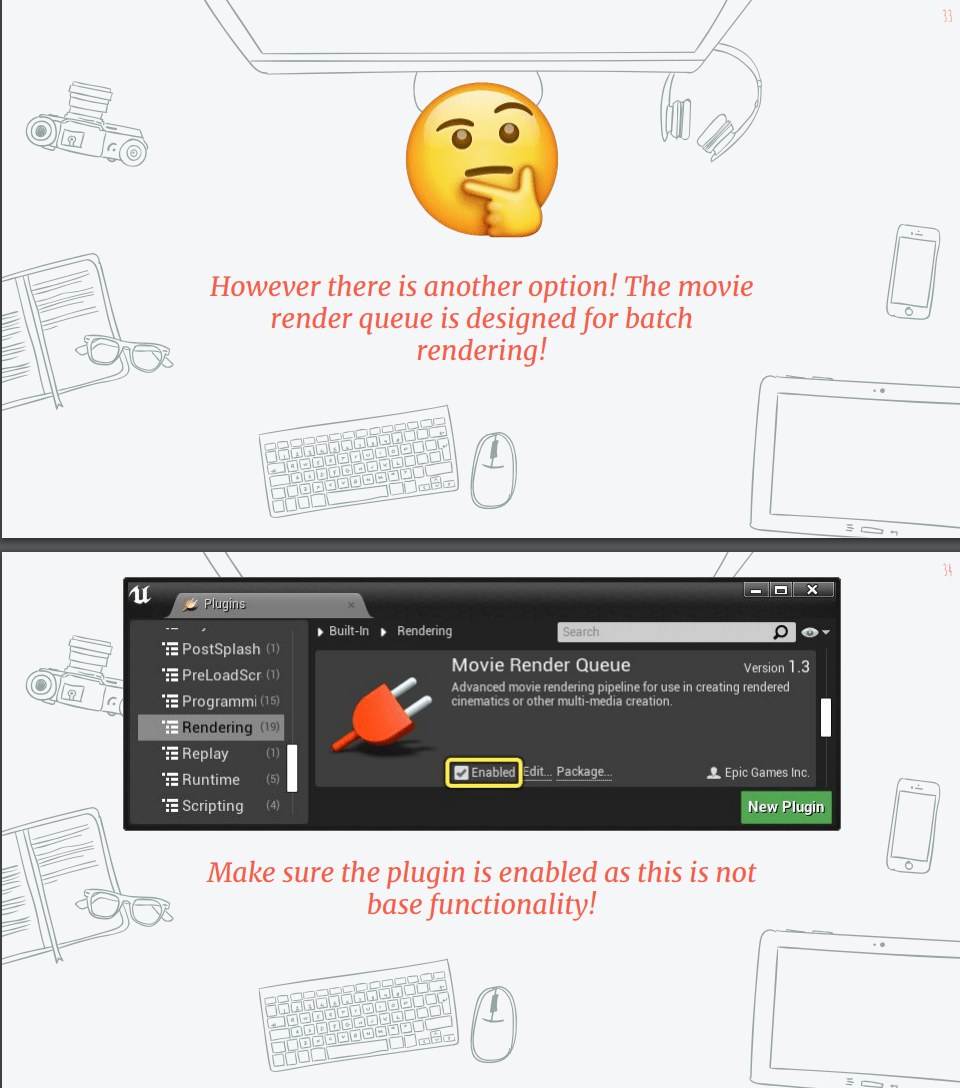
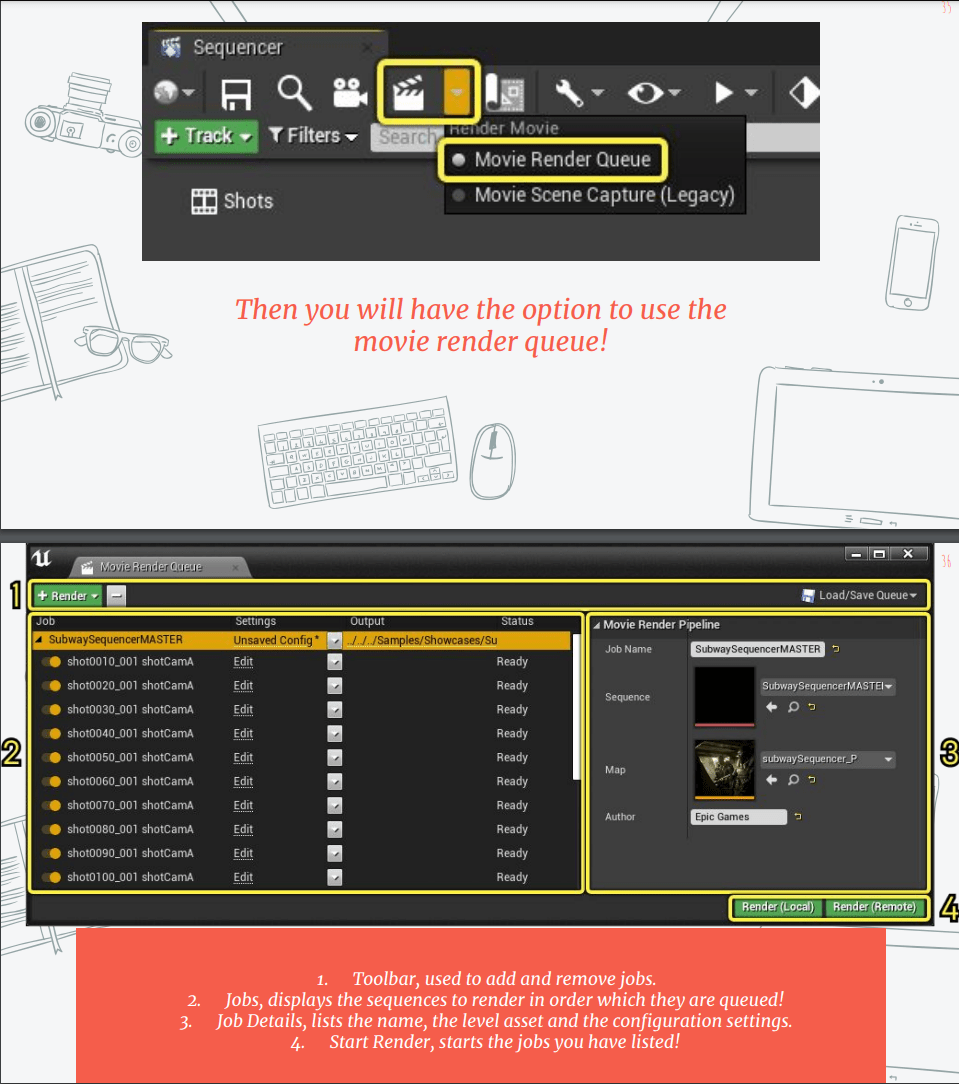
So lets start with the slides from class.
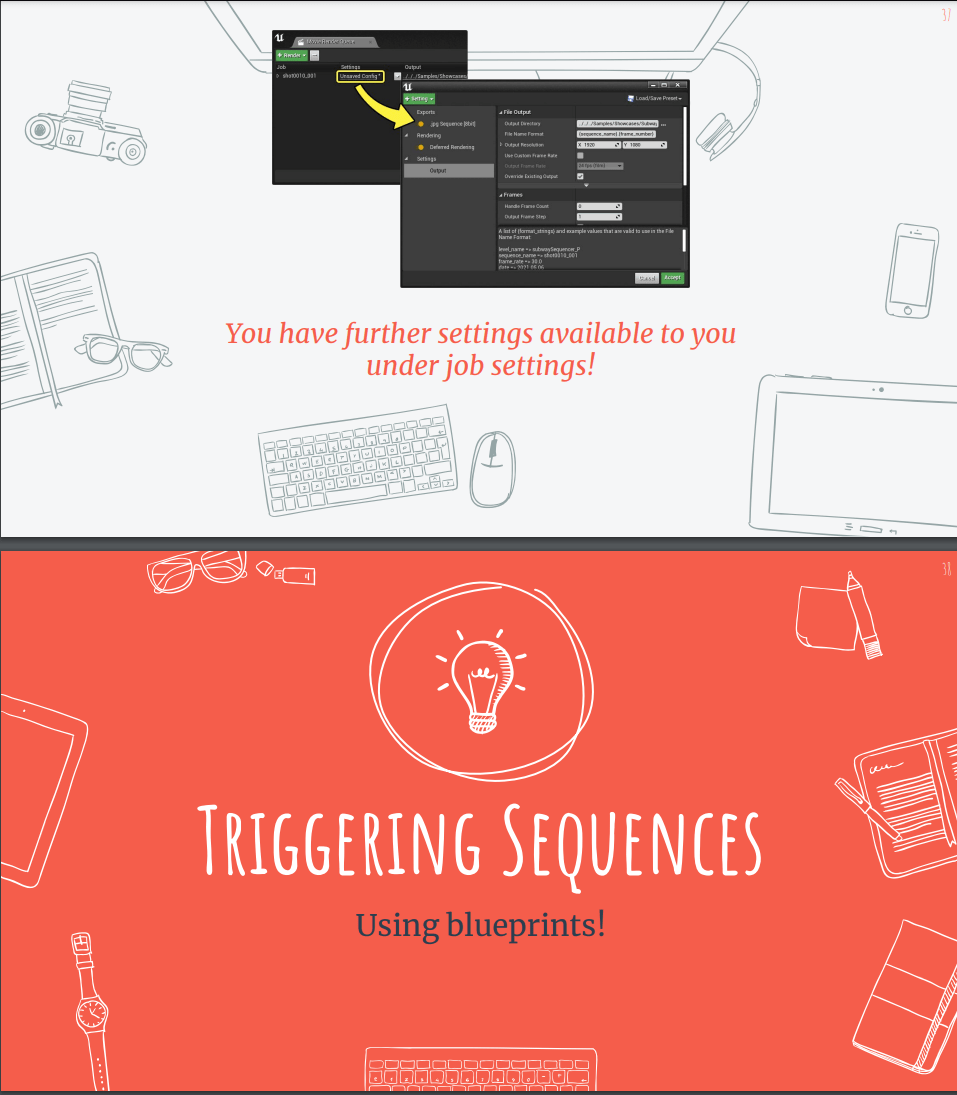
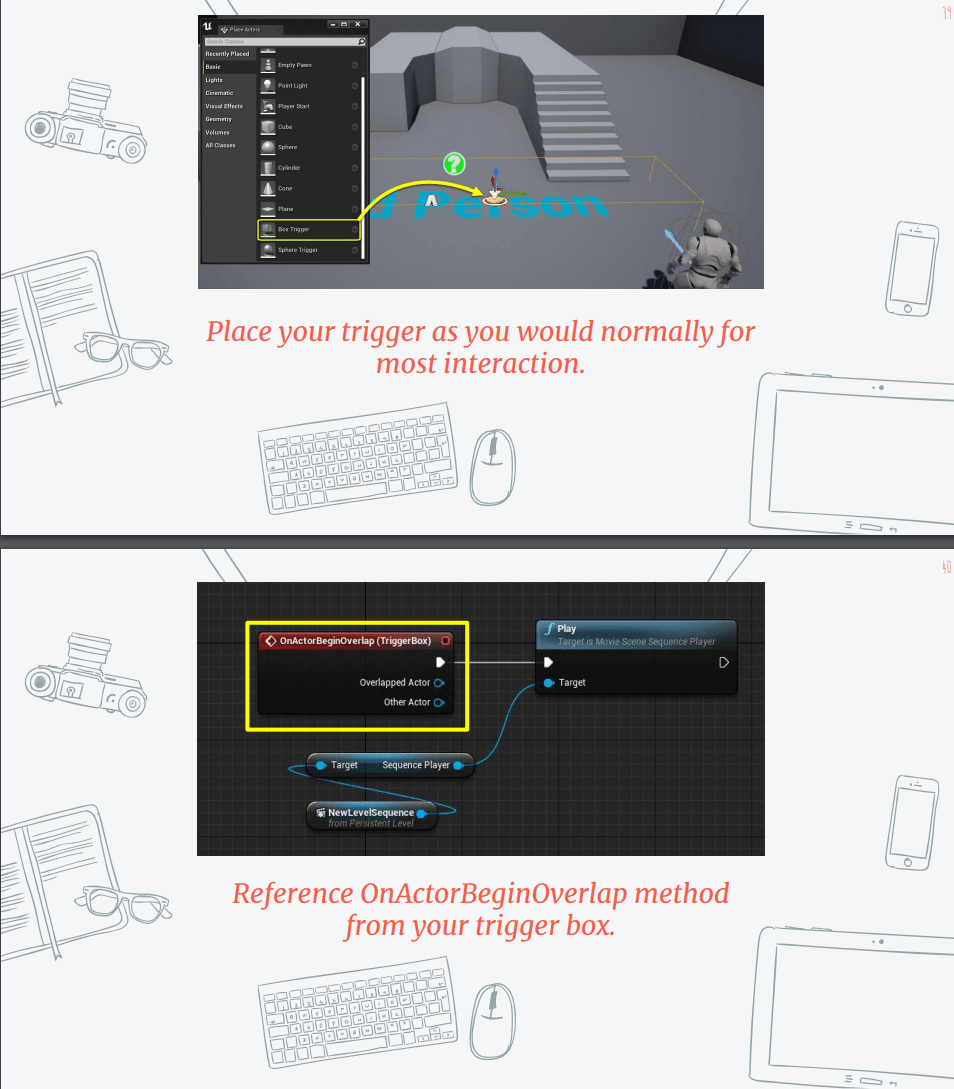
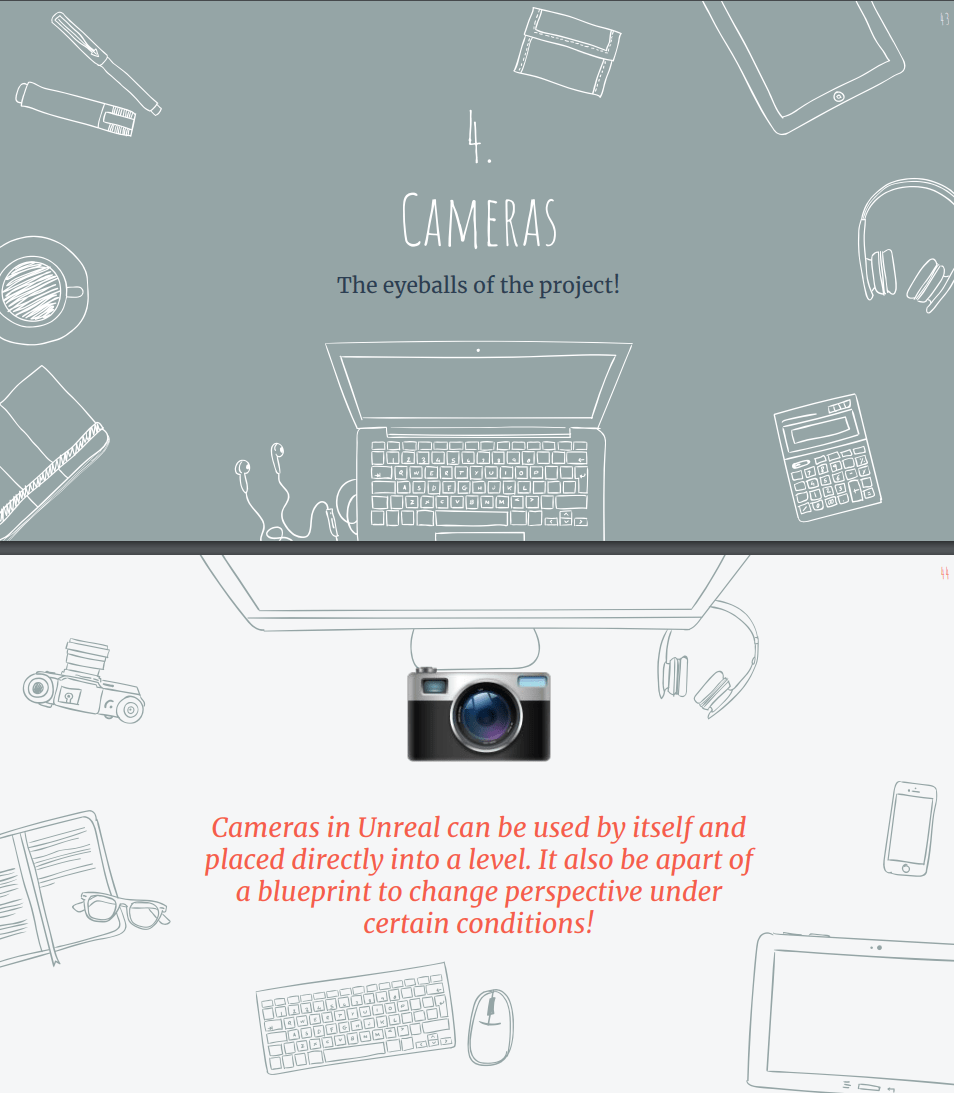
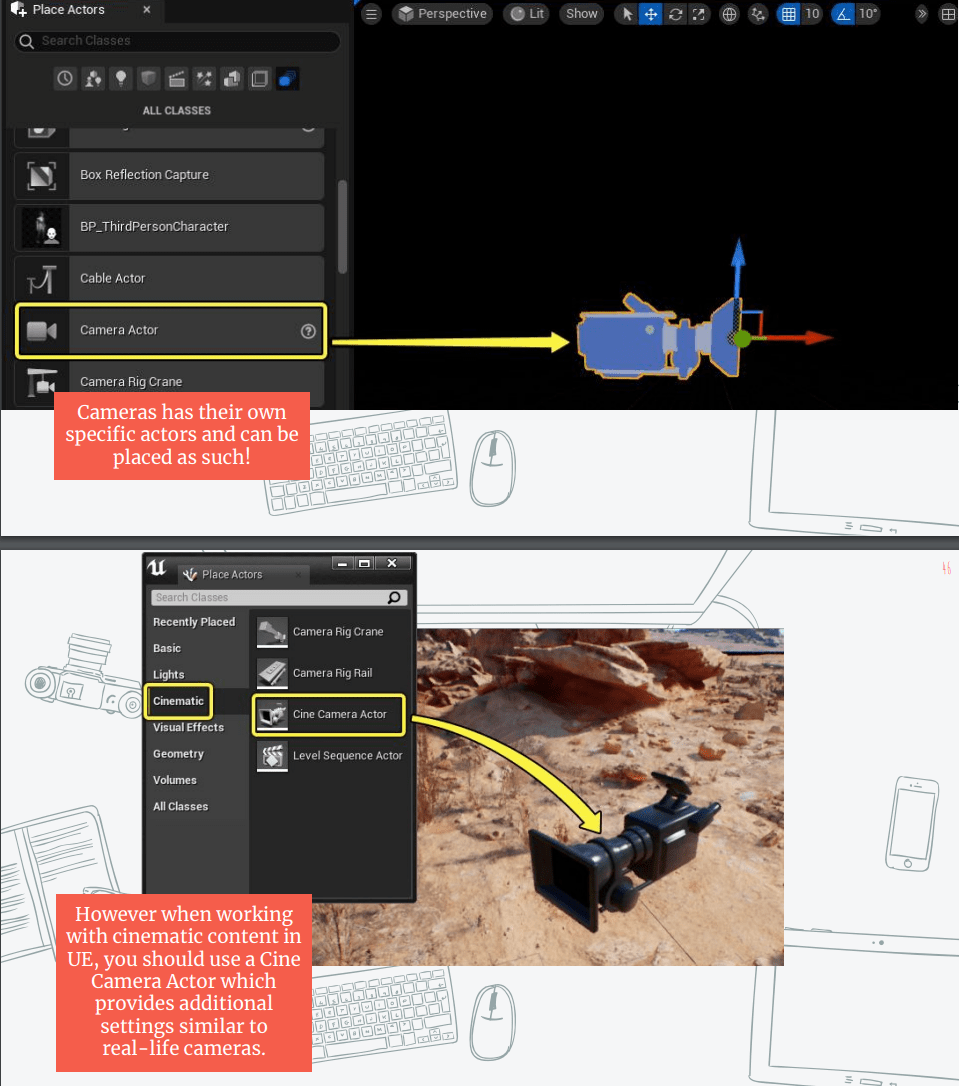
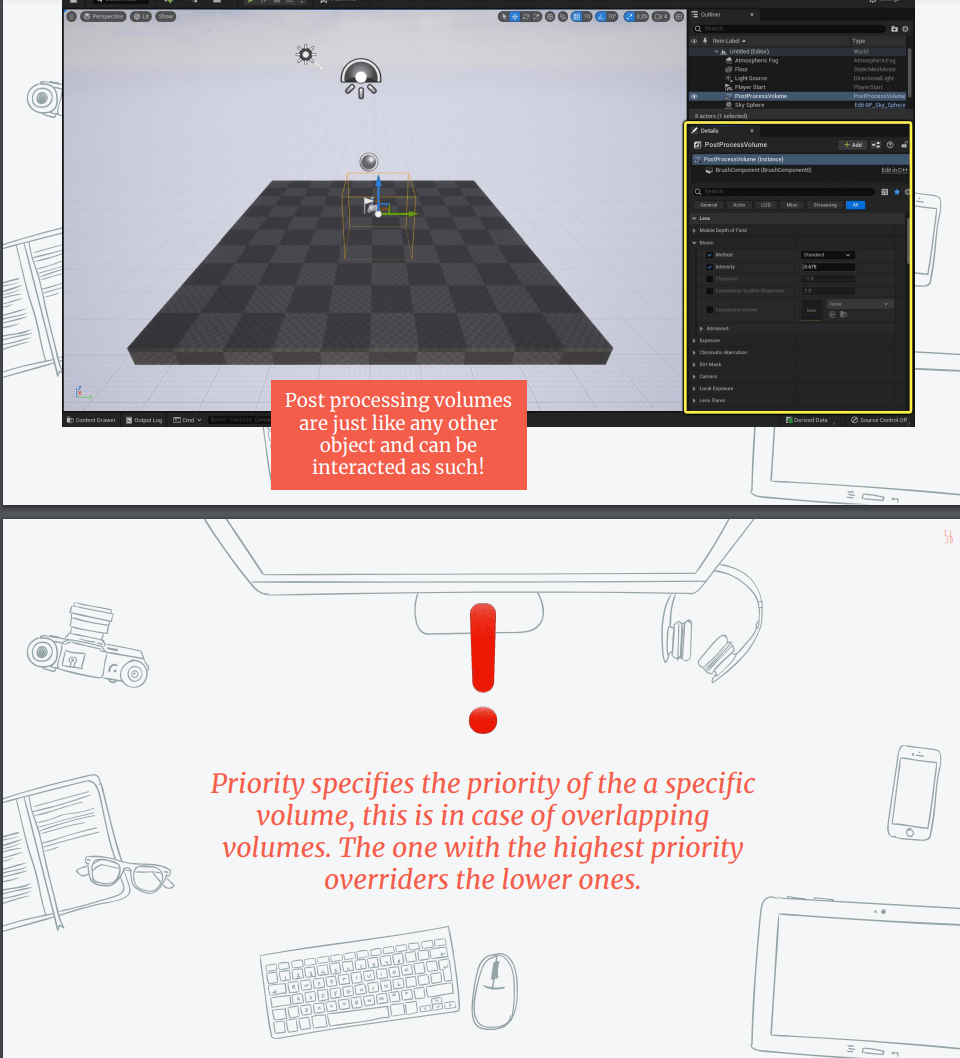
Workshop activity: create a sequence using a cine camera.
For this workshop we are going to use a test scenario.
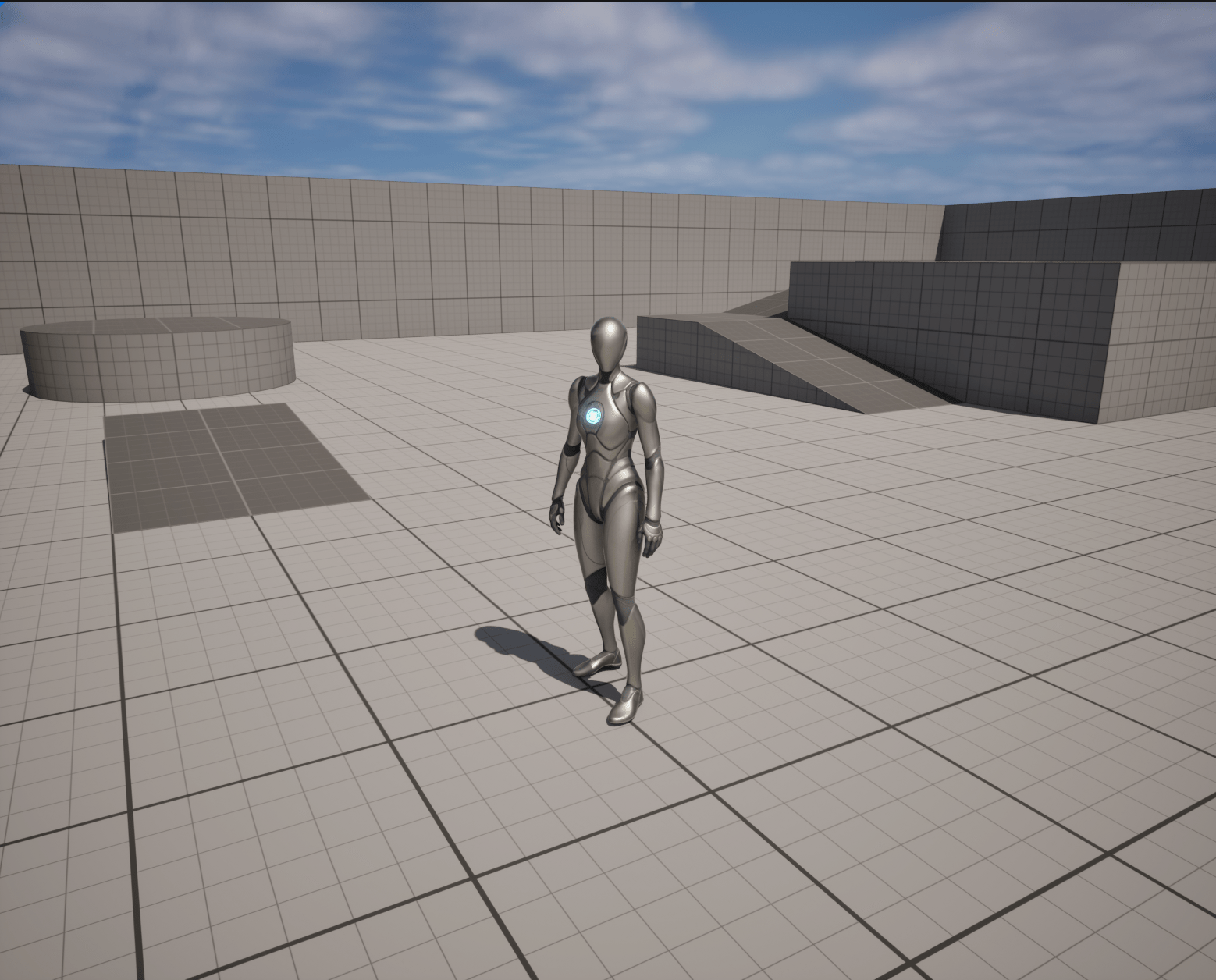
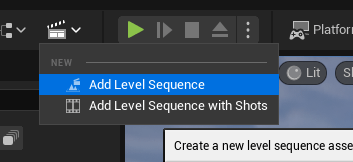
To begin we add a level sequence so we can edit and modify our sequence.
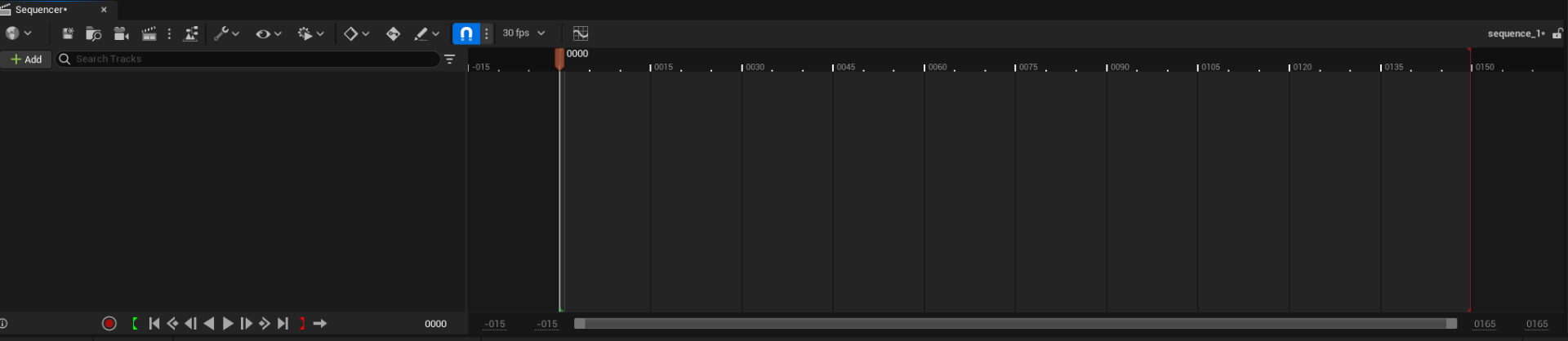
We choose a name and save.

Now we have our sequence.
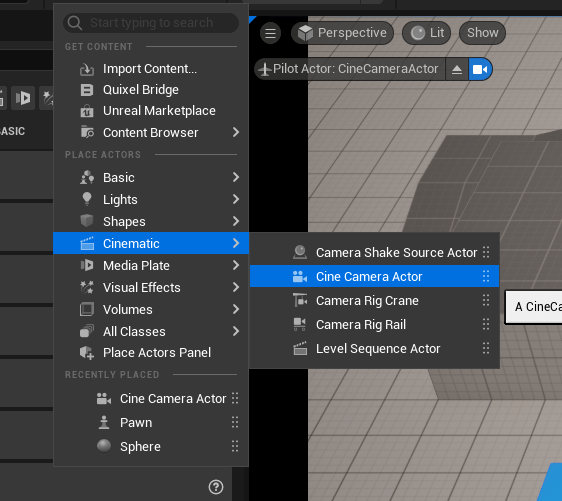
Next we are going to create a came actor.
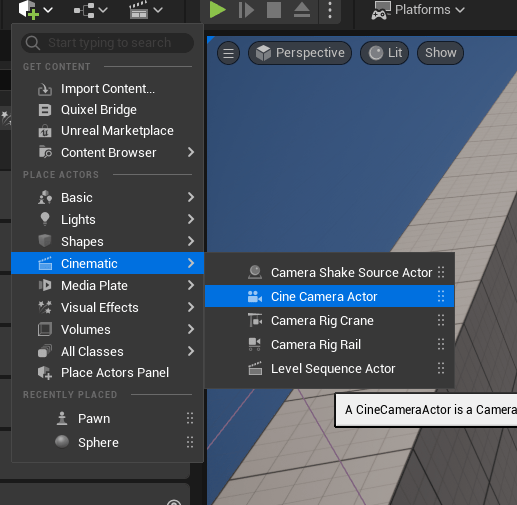
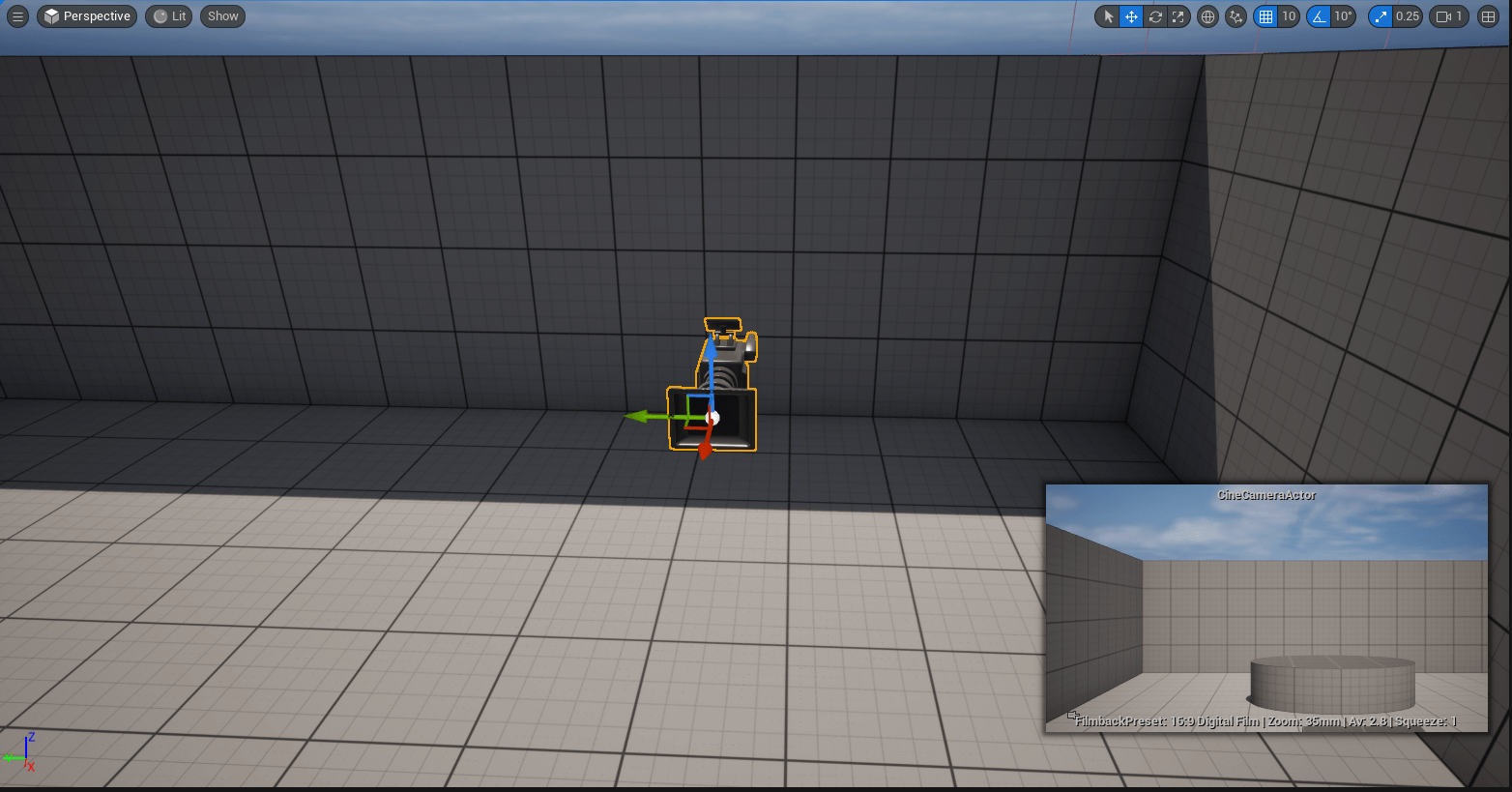
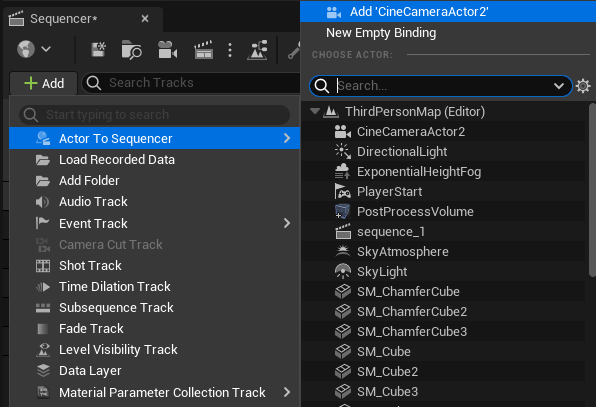
And we are going to add it to our sequence
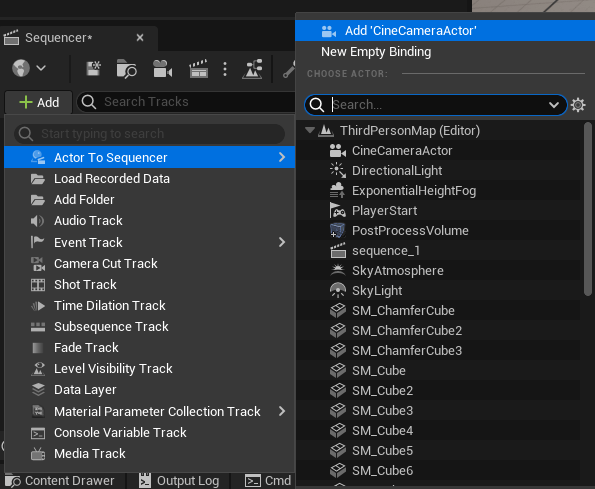
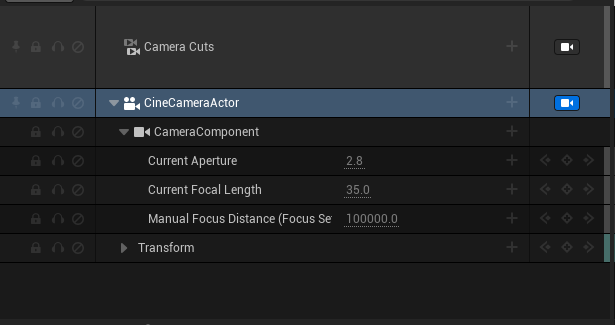
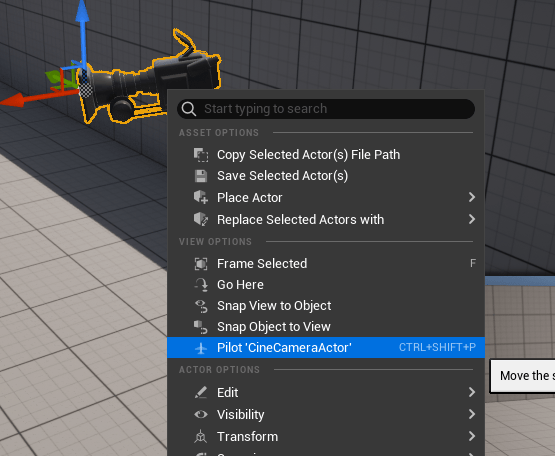
With our camera in the sequence now we can pilot the camera to our desired position.
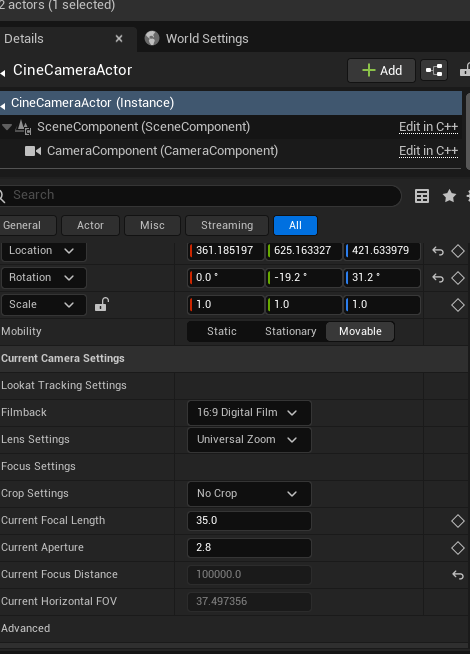
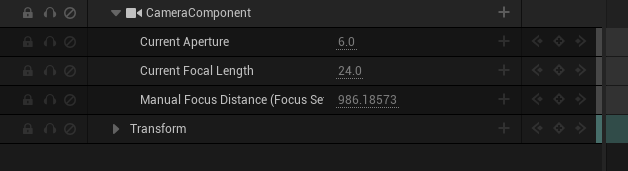
And we can play with the properties of the camera.
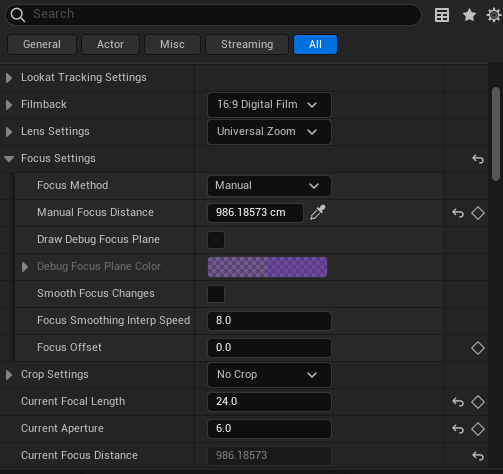
We have change the setting to achieve the desired result.
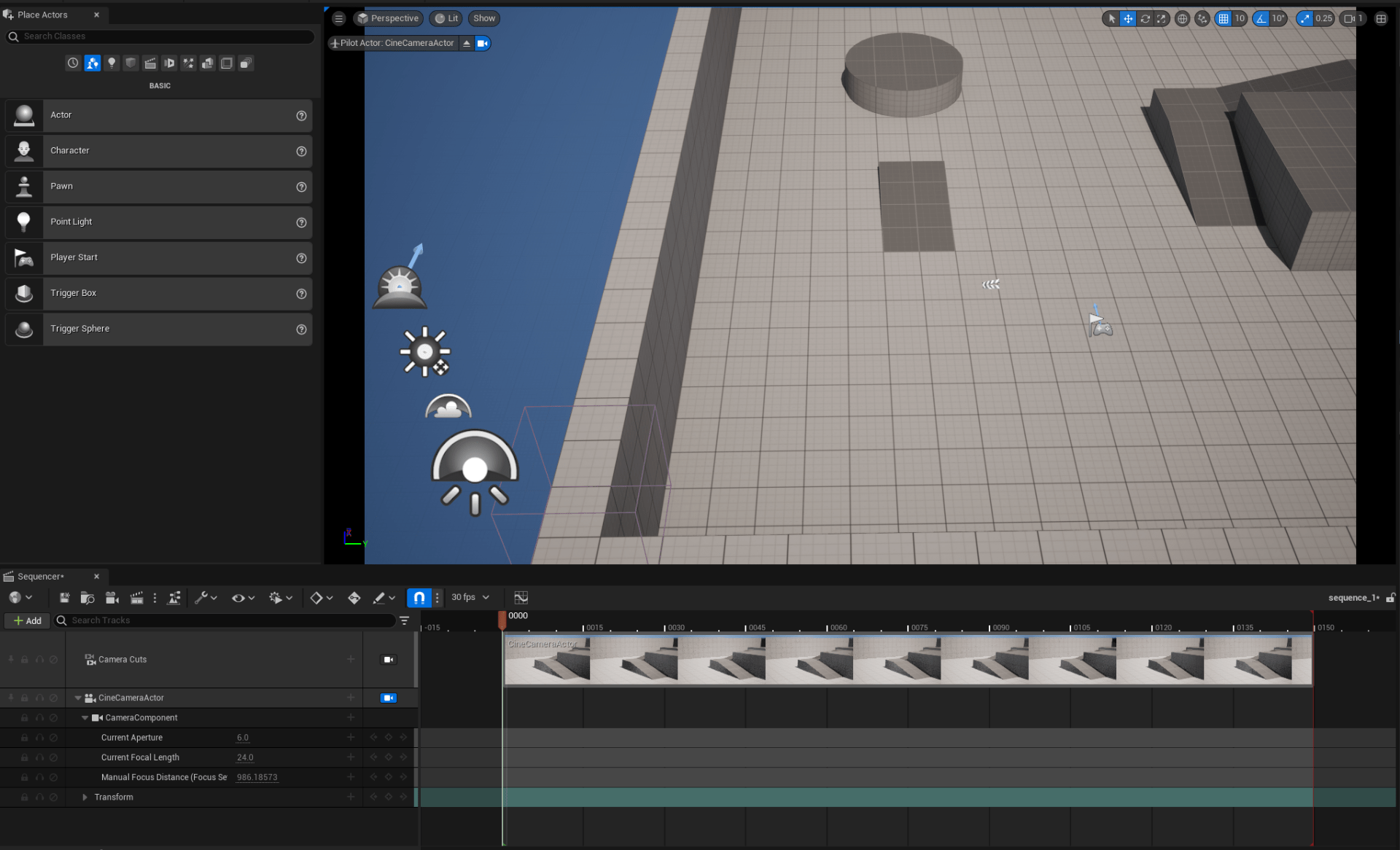
With the camera in the sequence we are going to keyframe the initial position of our camera.

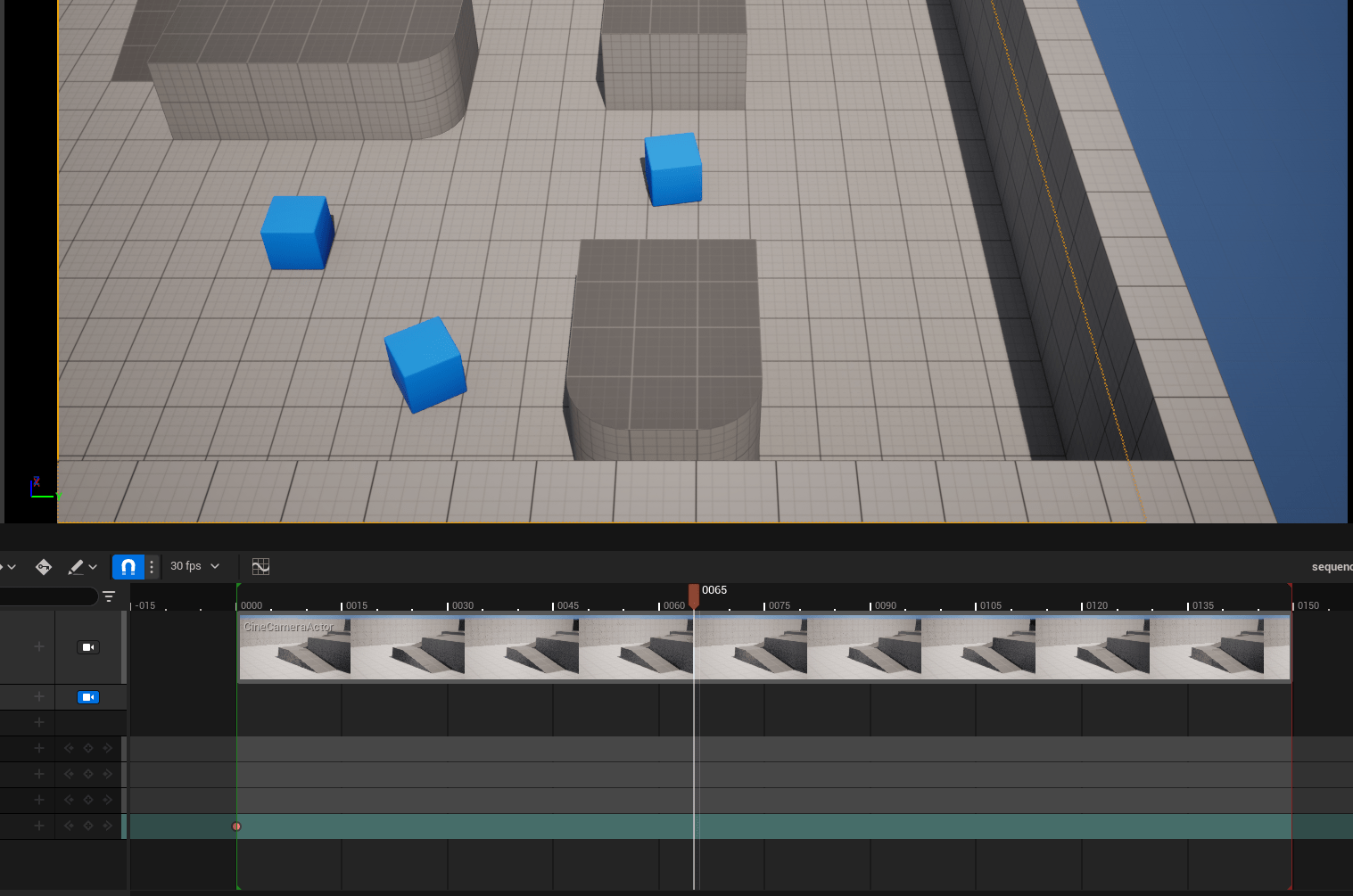
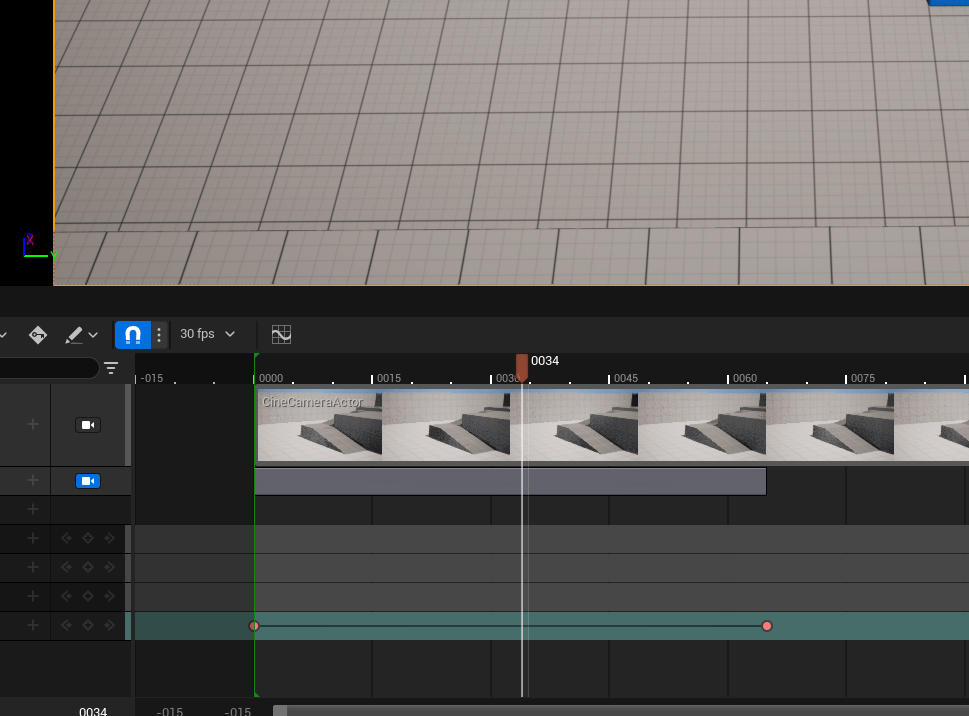
And after sliding the sequence and changing the camera position we are going to keyframe the ending position.
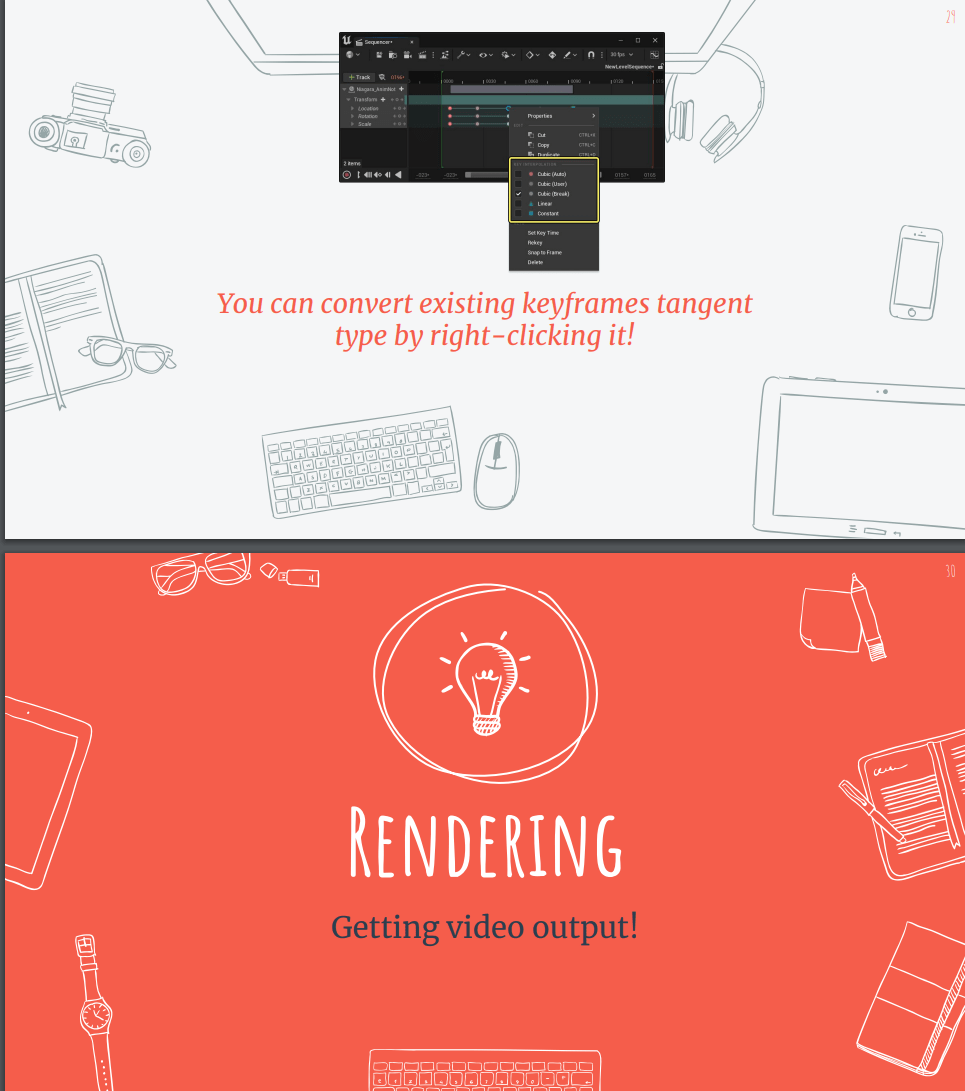
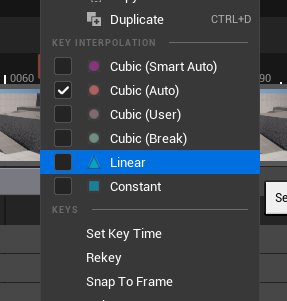
Since our keyframe are not linear we are going to change them by selecting them and changing the type.

After finishing with our first camera we are going to do the same with the rest,
Create a camera actor.
Add it to the sequence
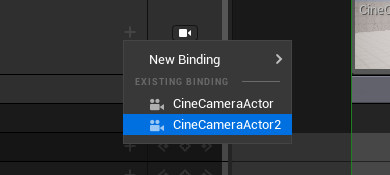
Configure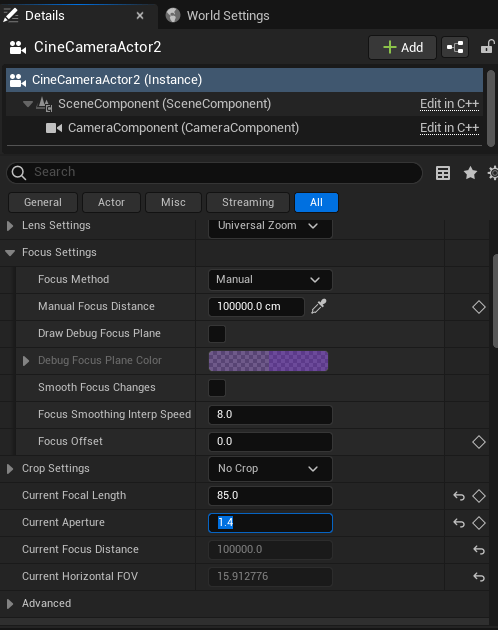 We pilot it
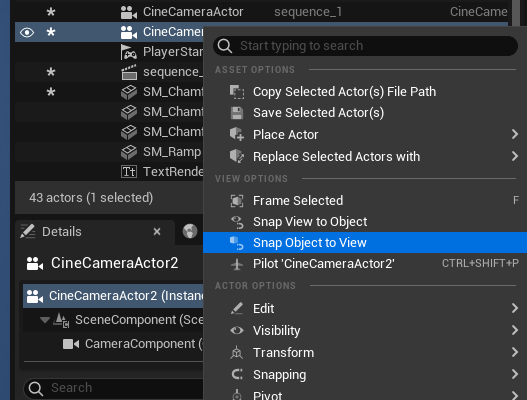
Key frame the start and end

And finally we create a third camera but this time we also keyframe the focus distance.
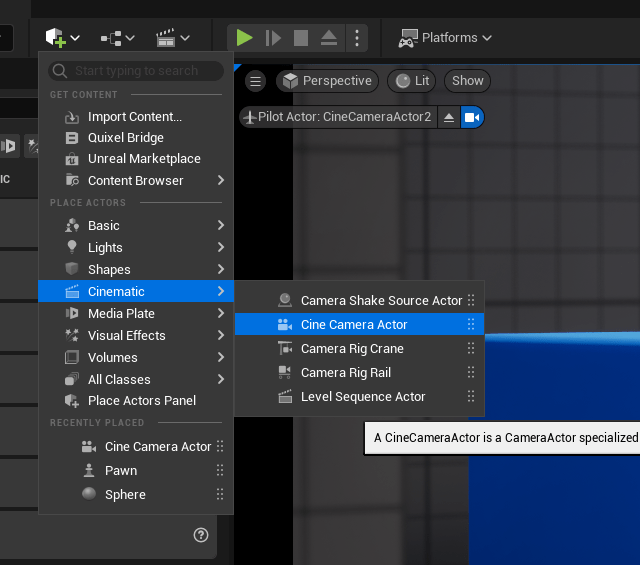
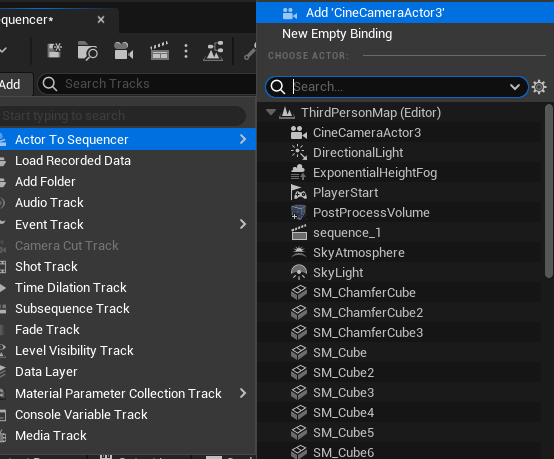
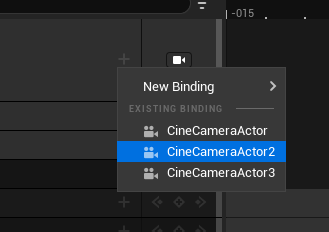
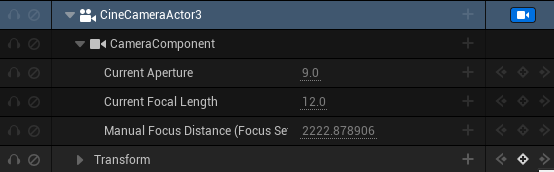
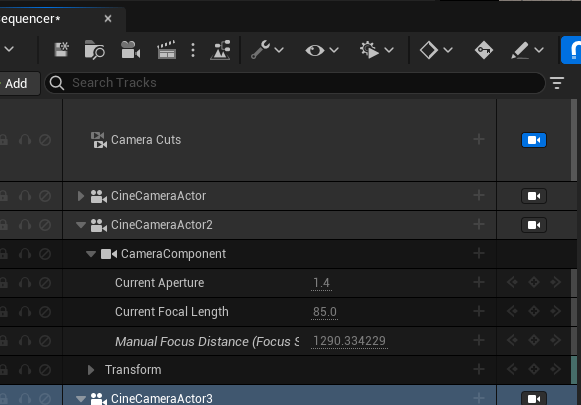
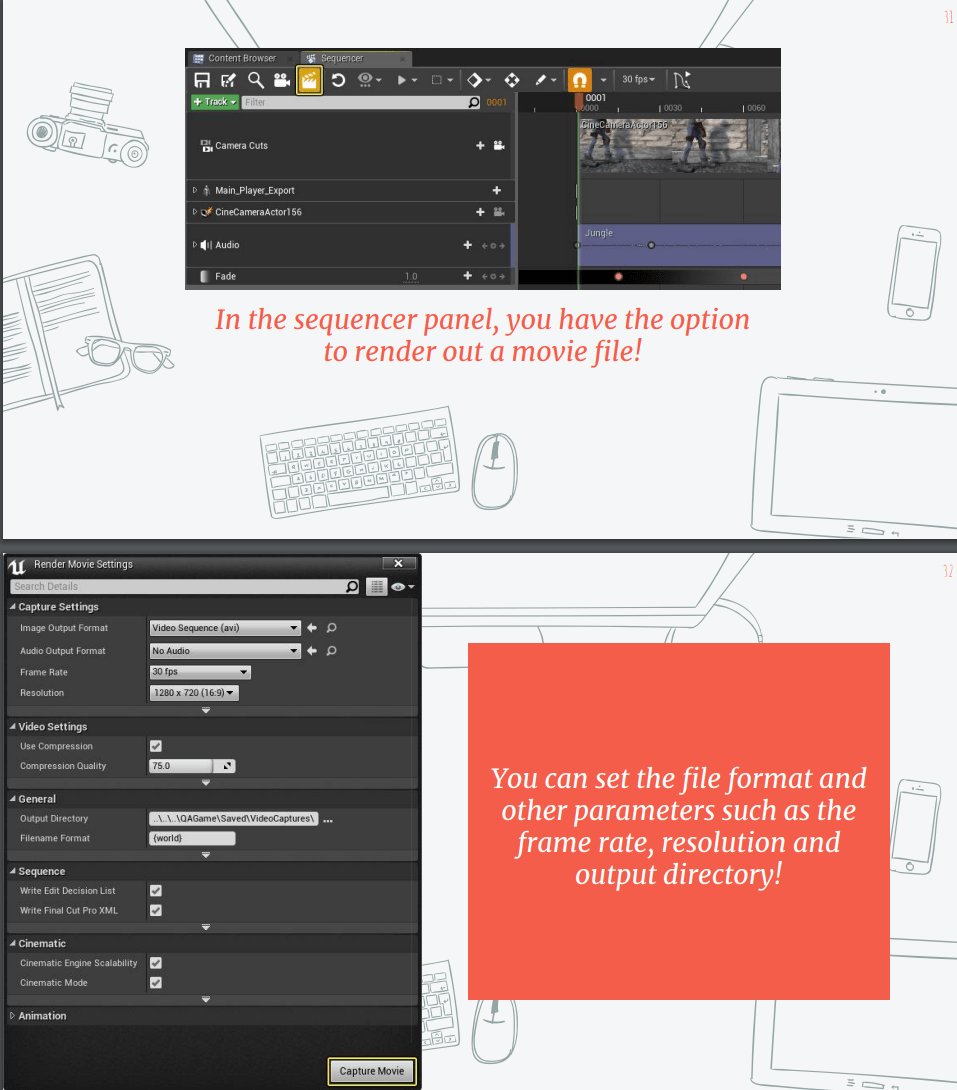
After finishing with our sequence we can export it, so we change the configuration to match out needs
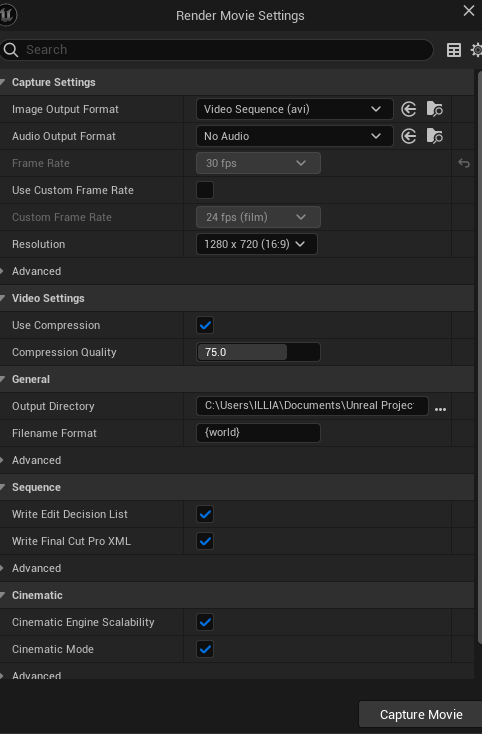
And capture the movie
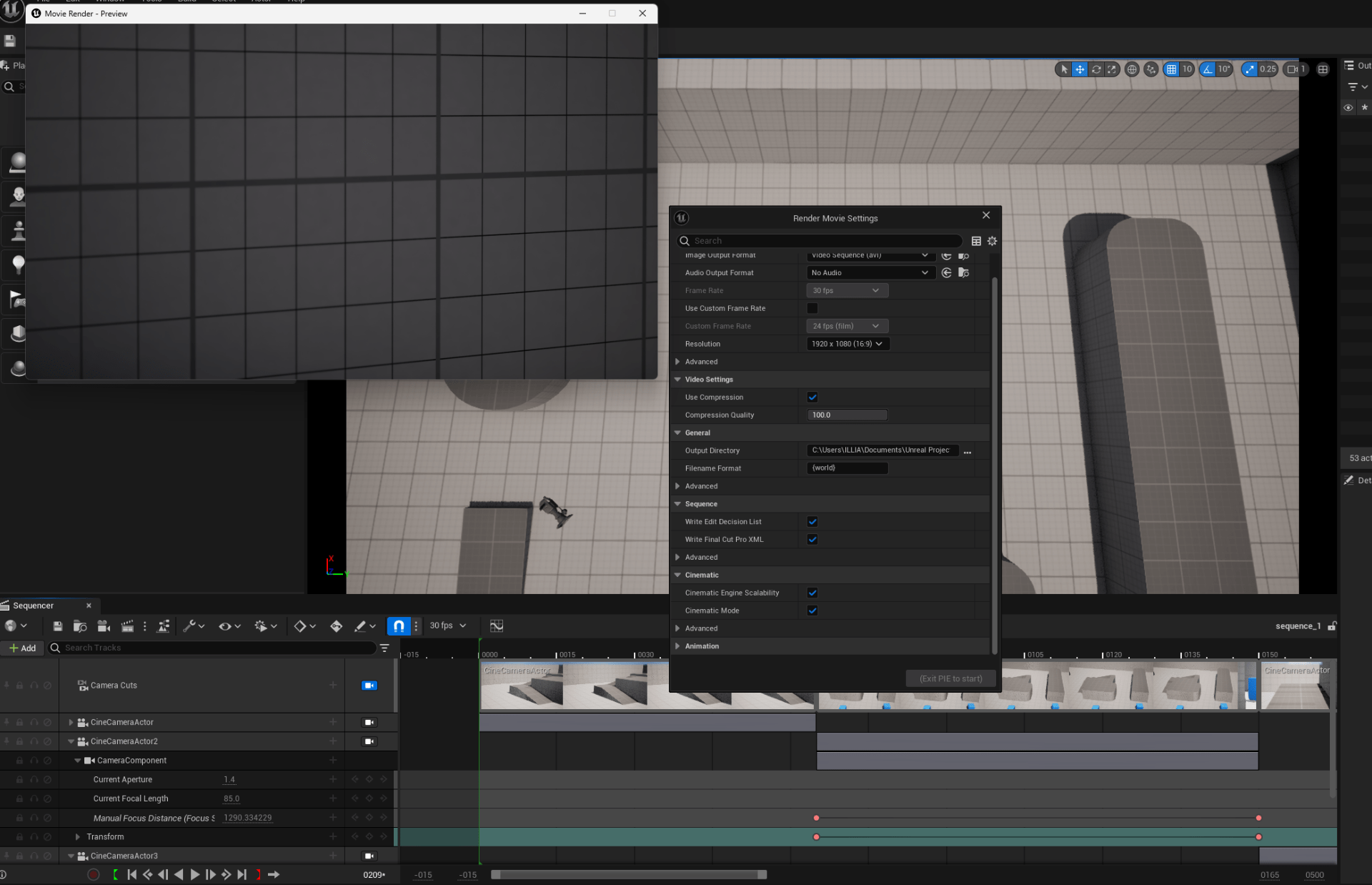
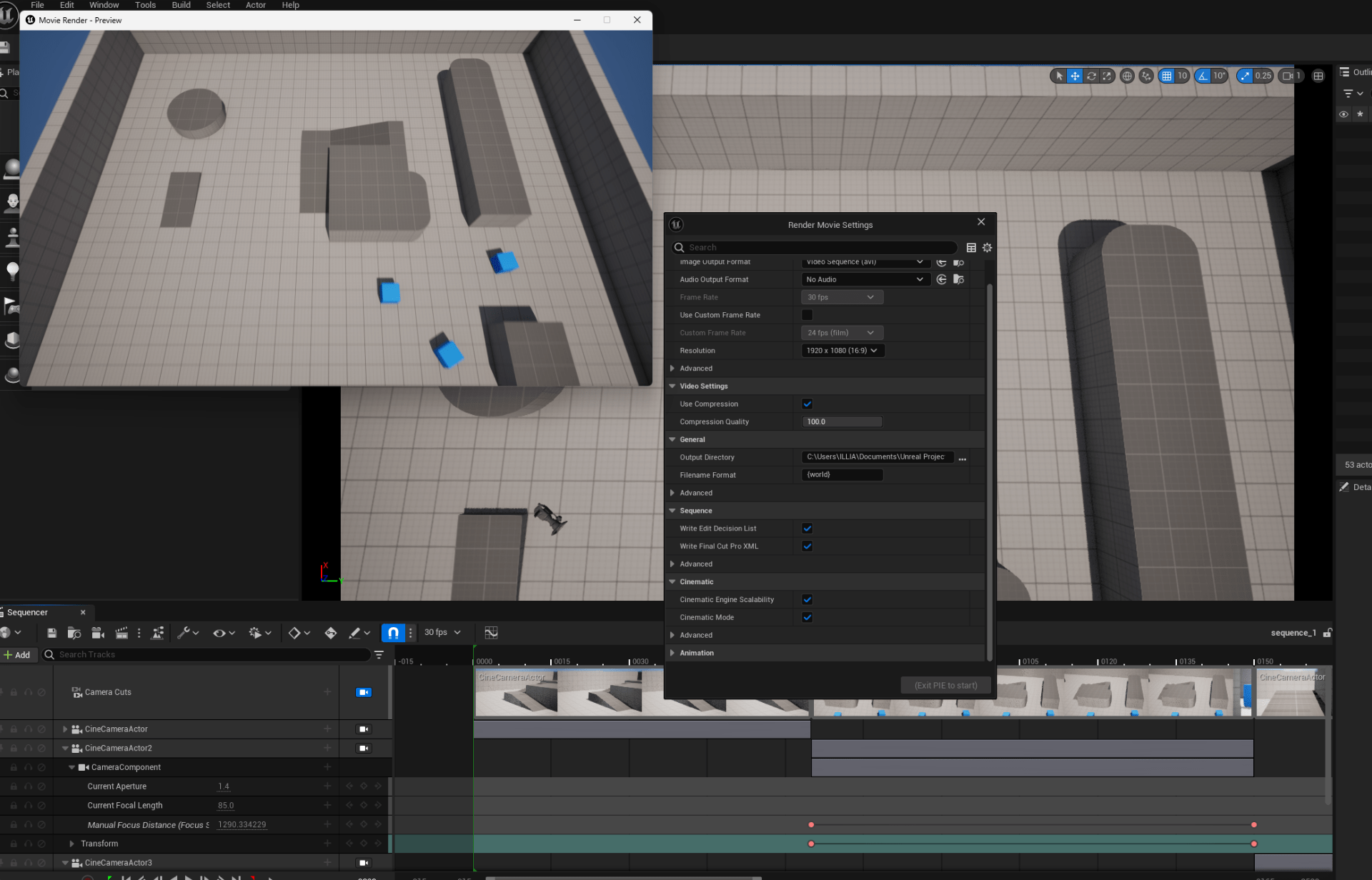
Now we have the file with the camera sequence.
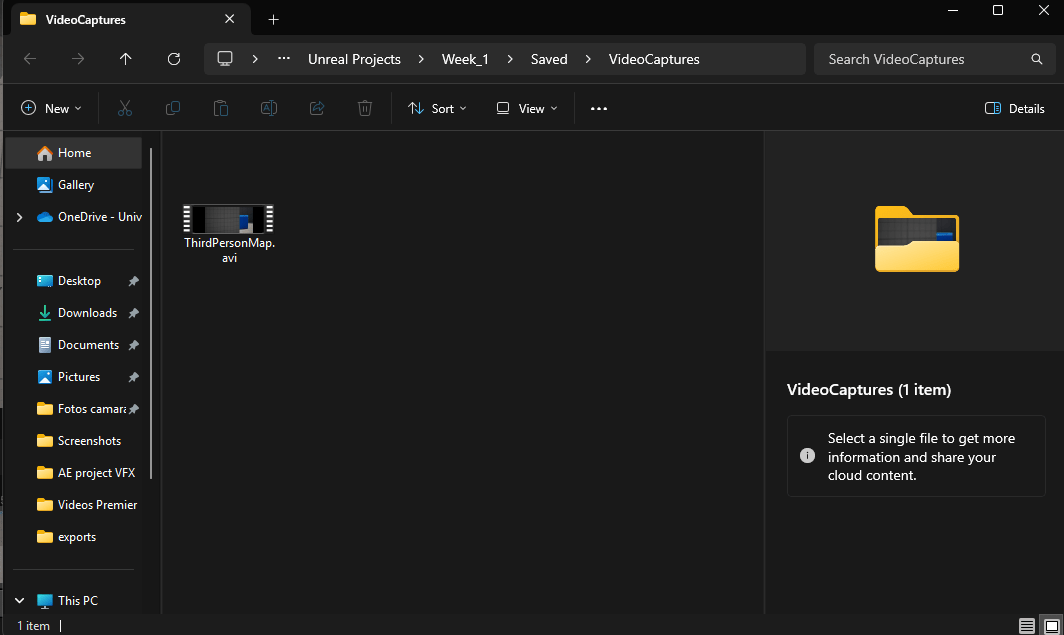
Final result:
End of week 8
Week 9:Advanced blueprints and widgets.
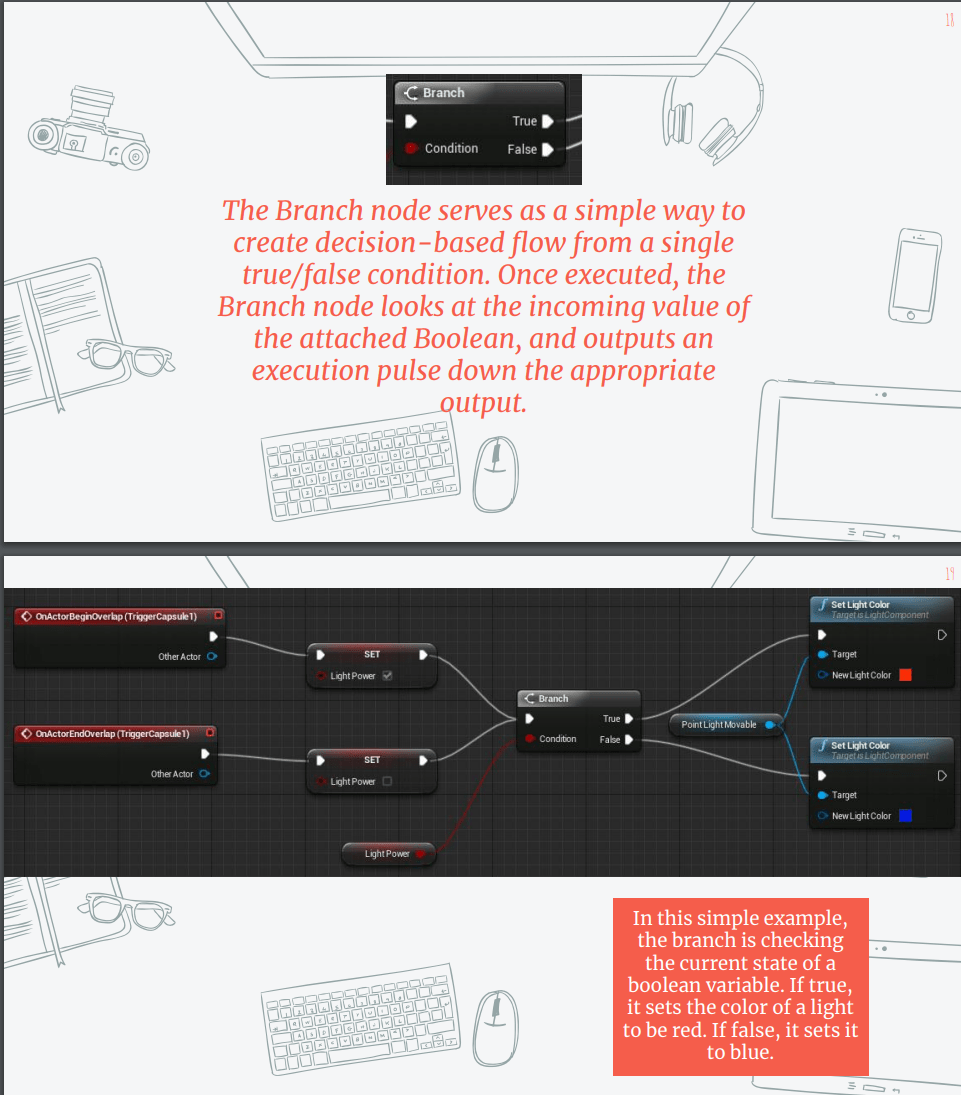
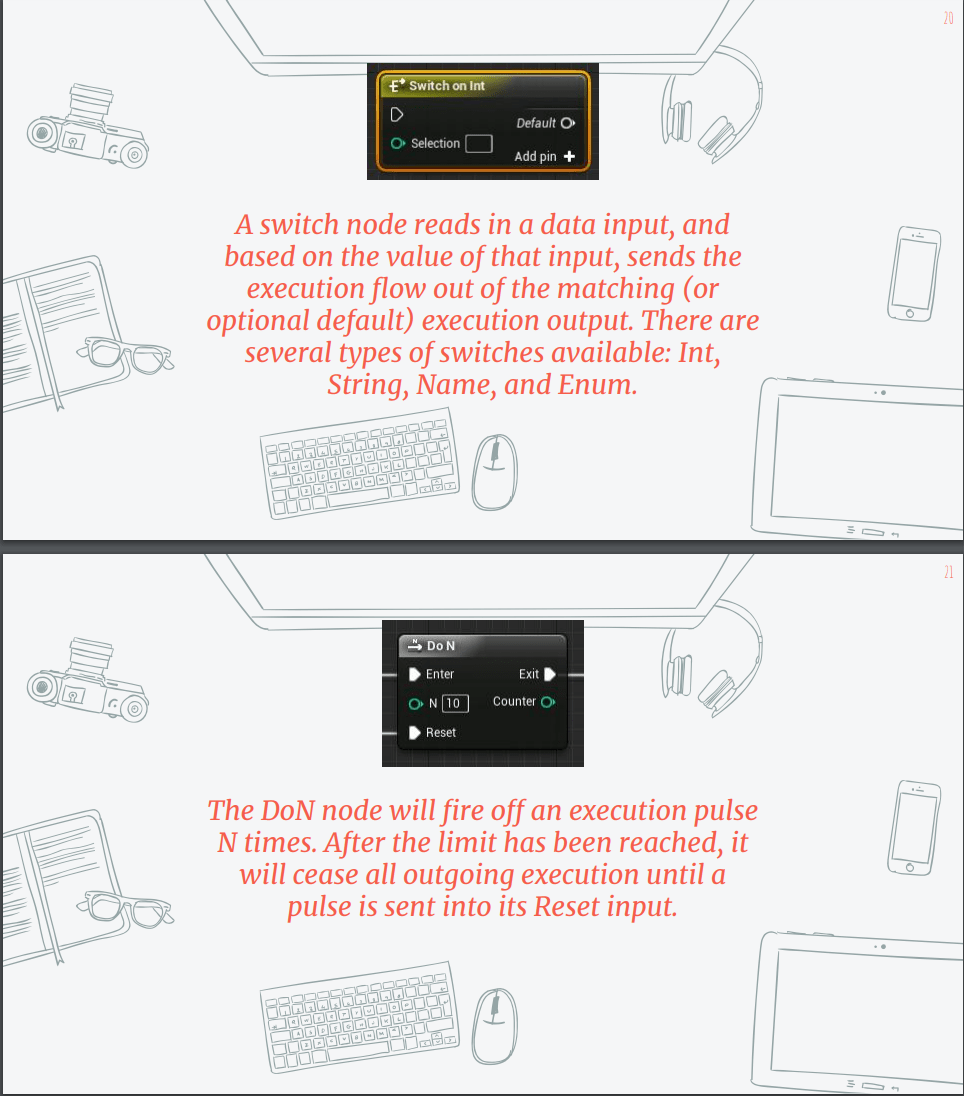
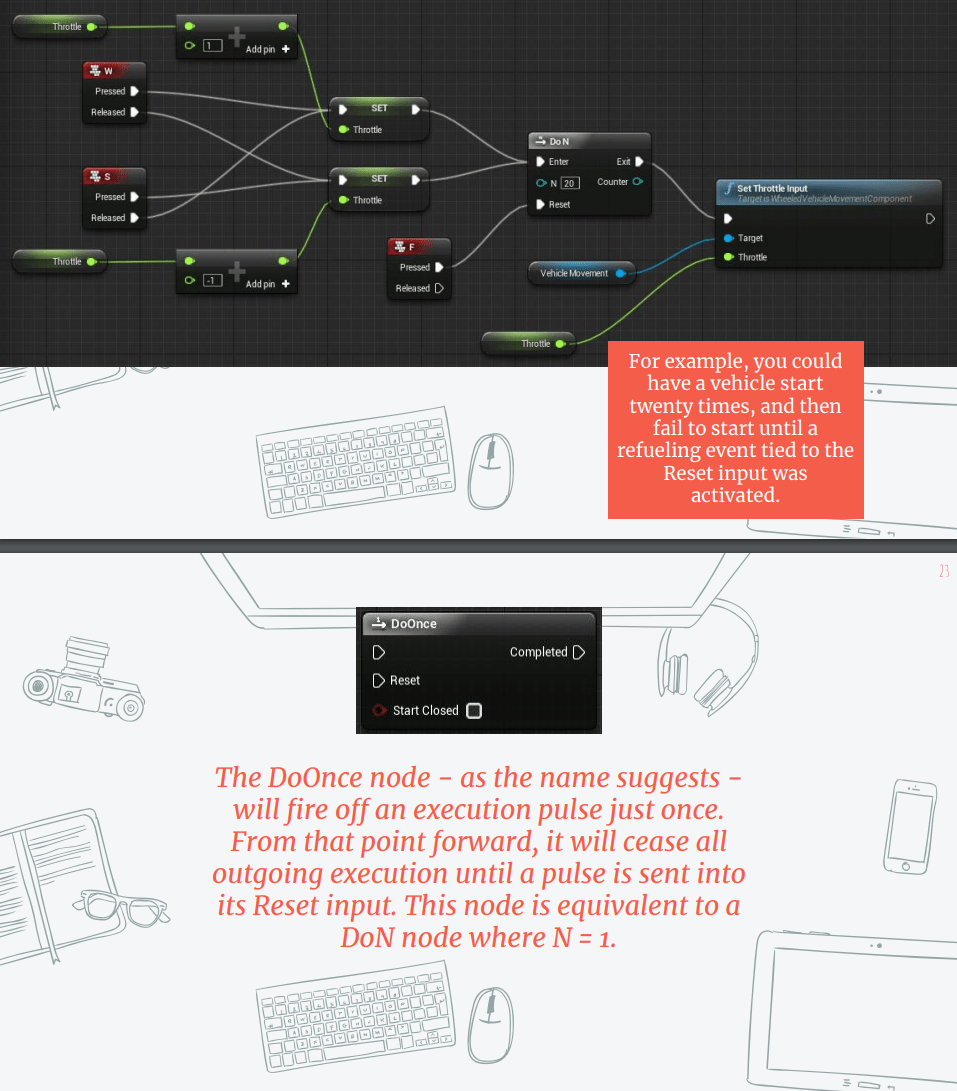
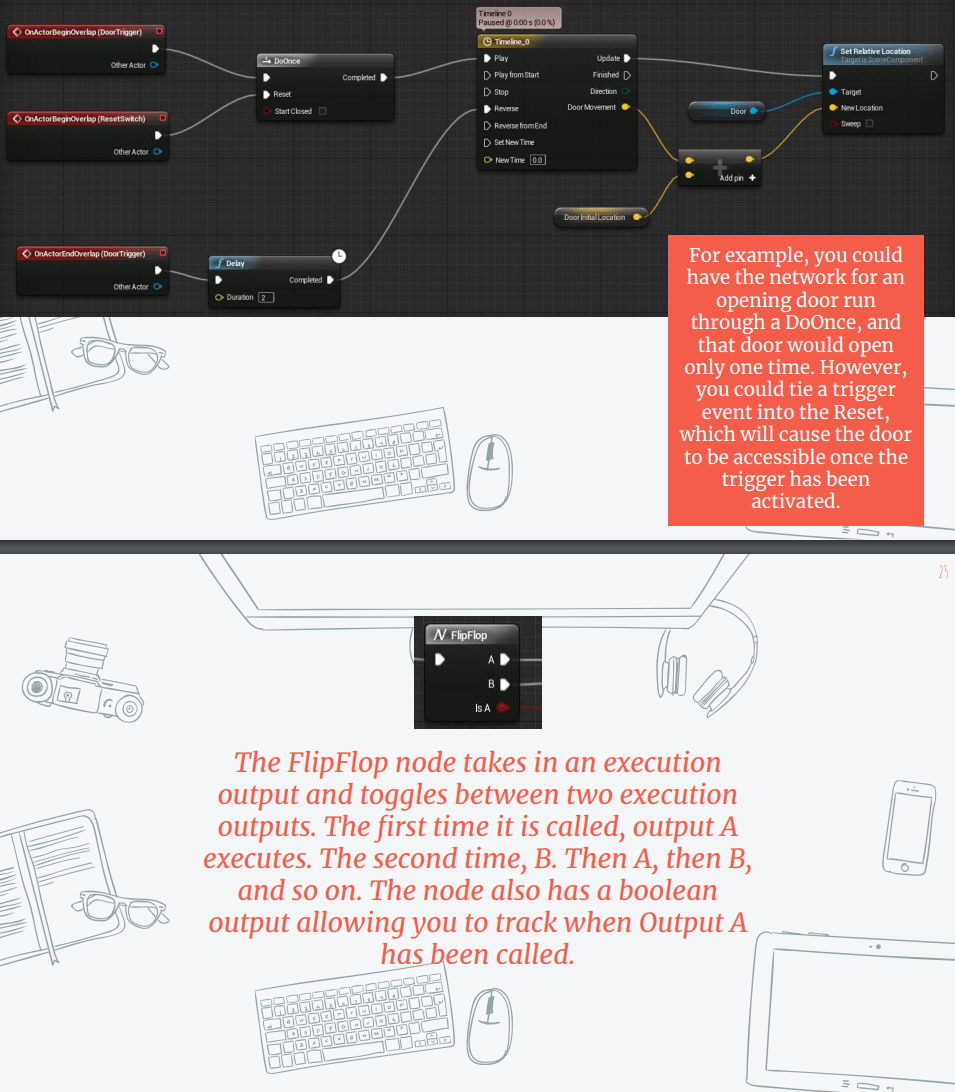
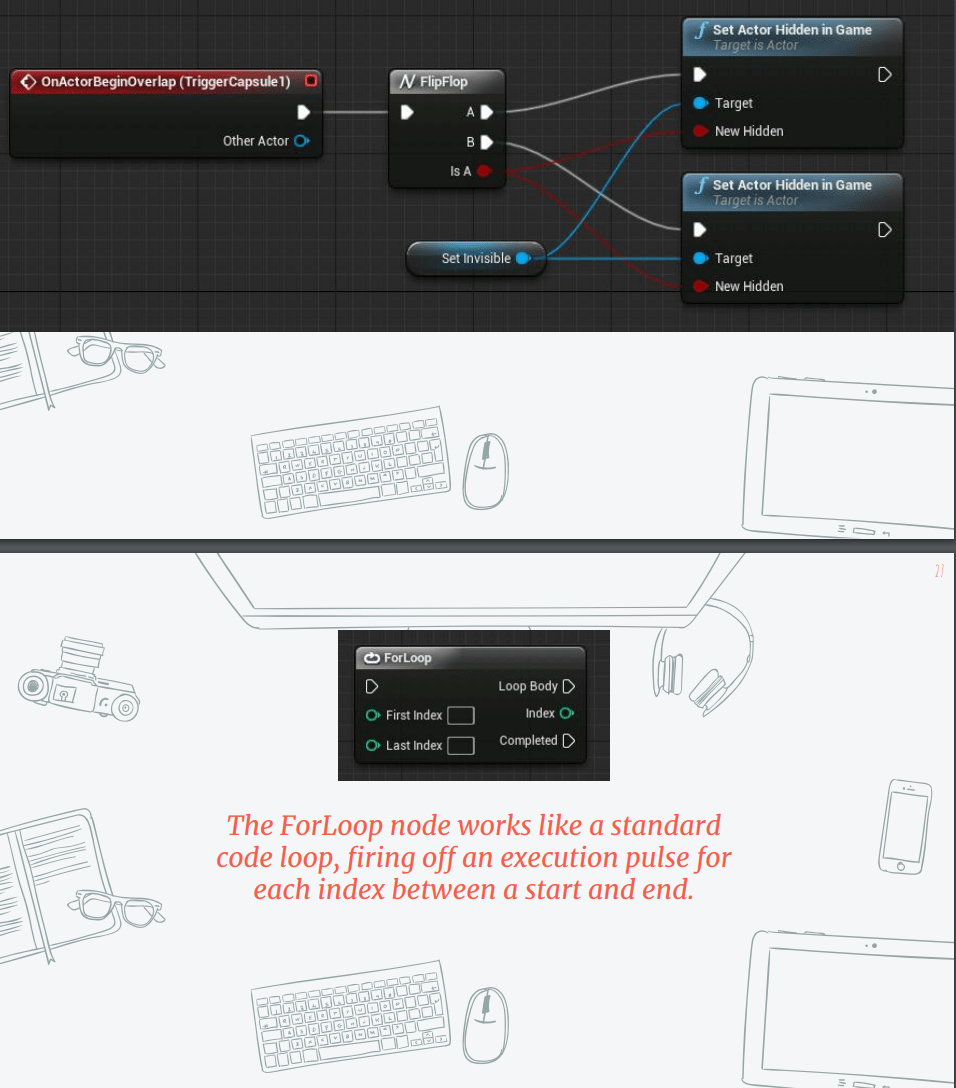
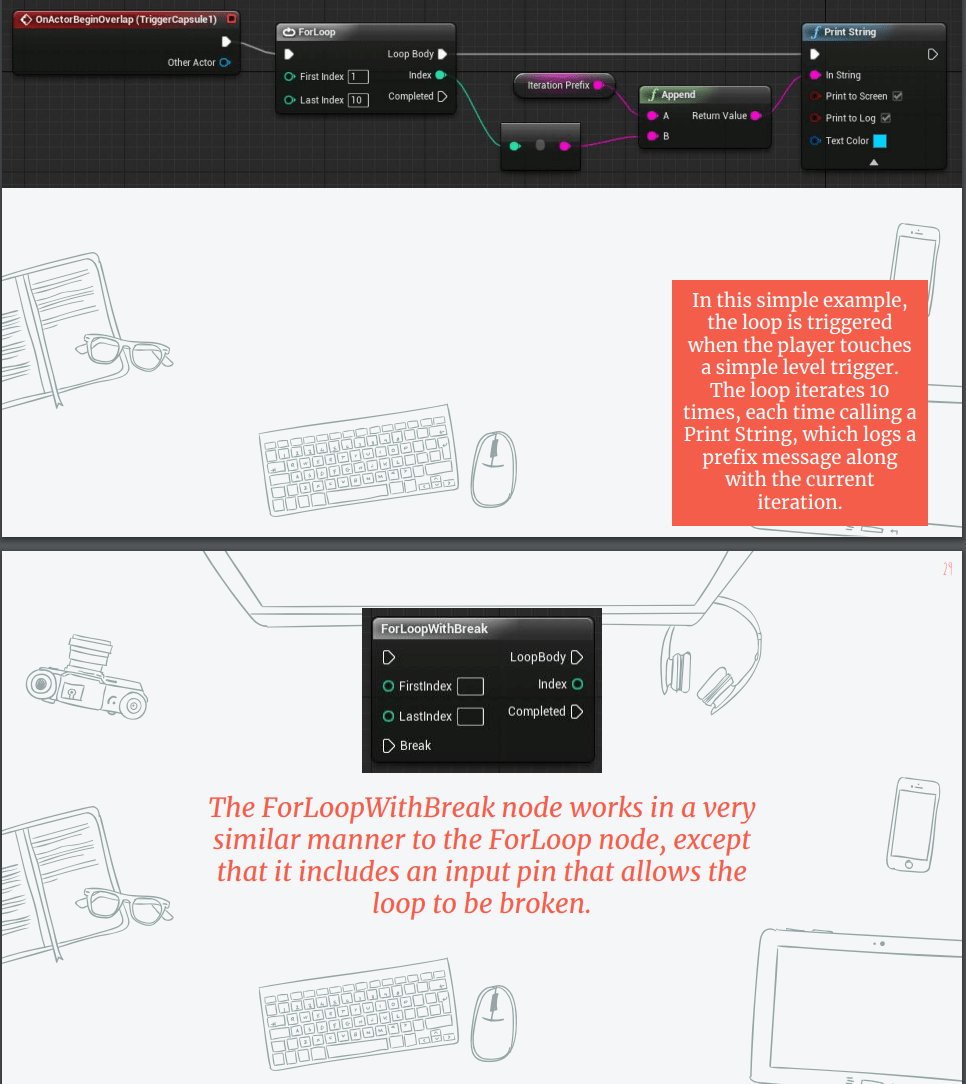
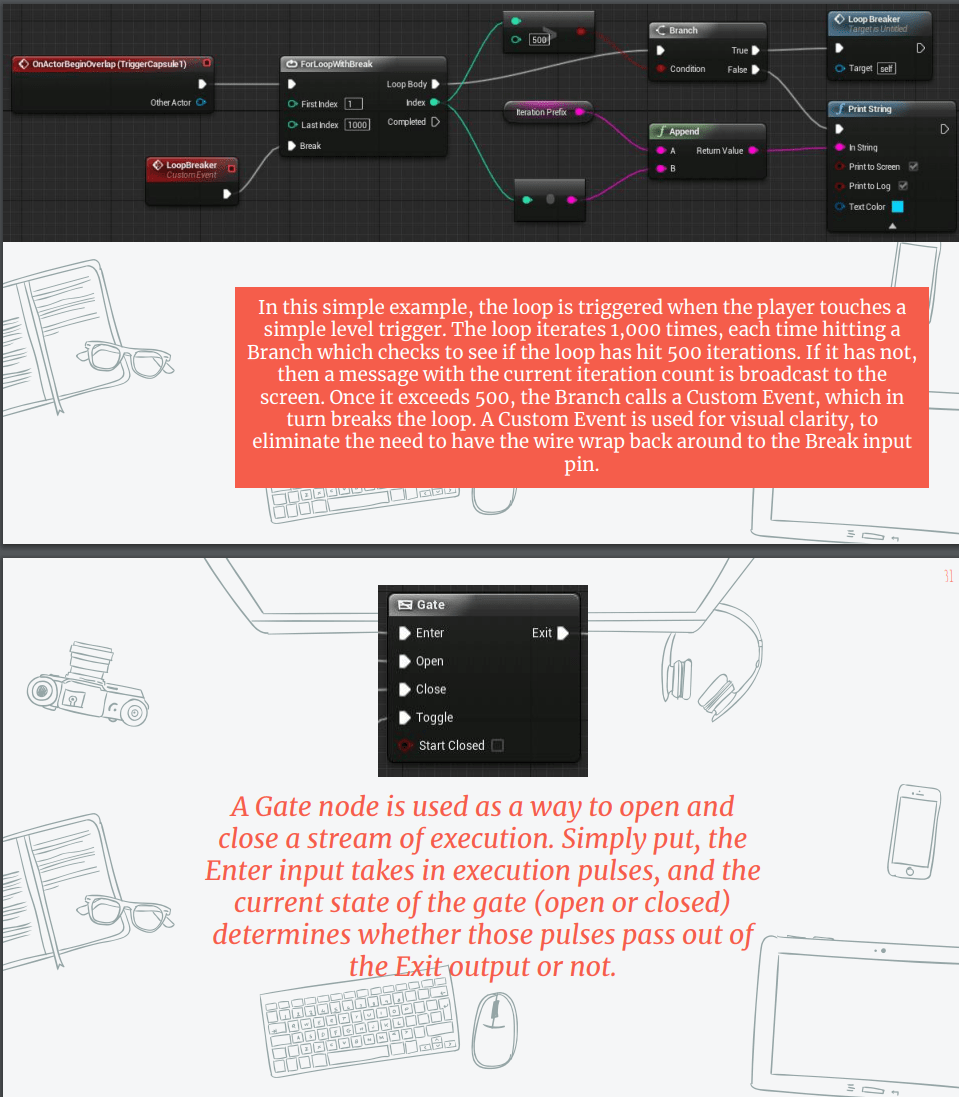
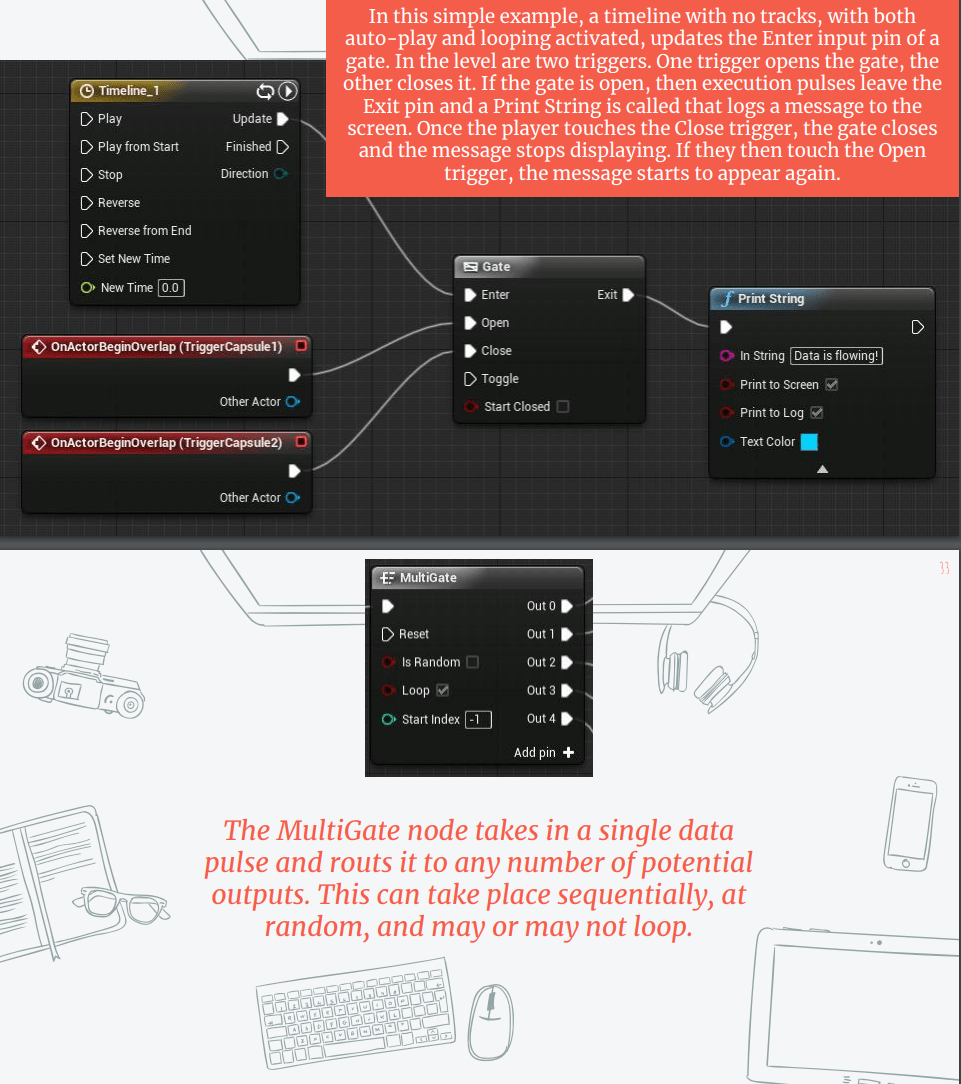
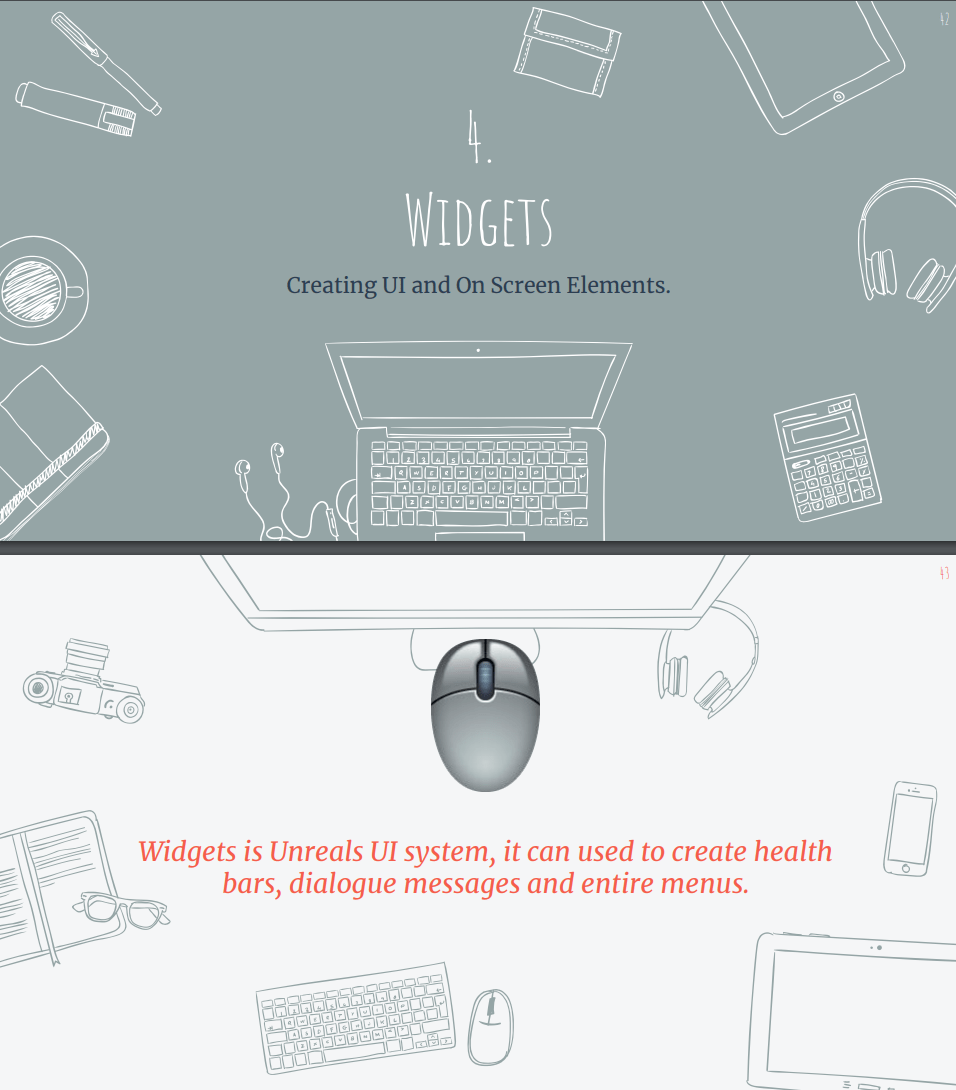
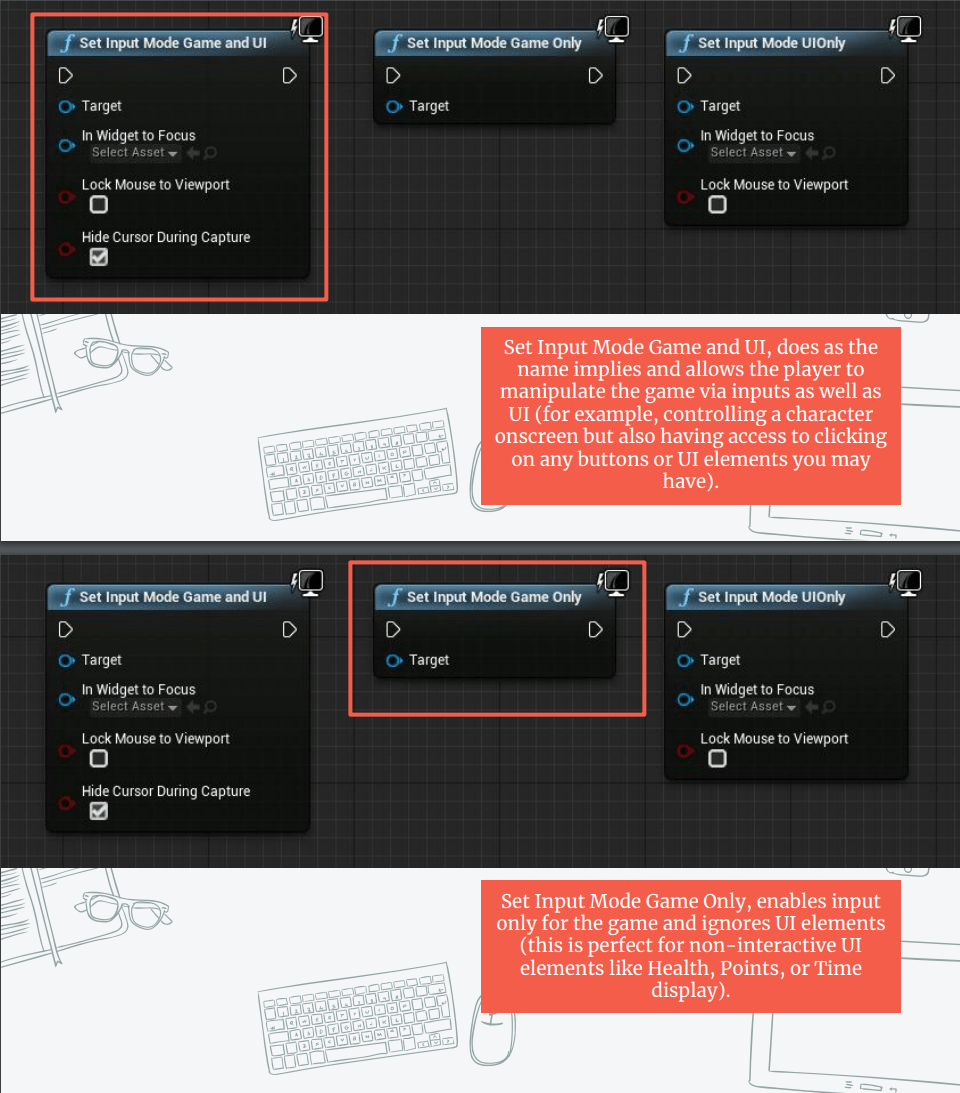
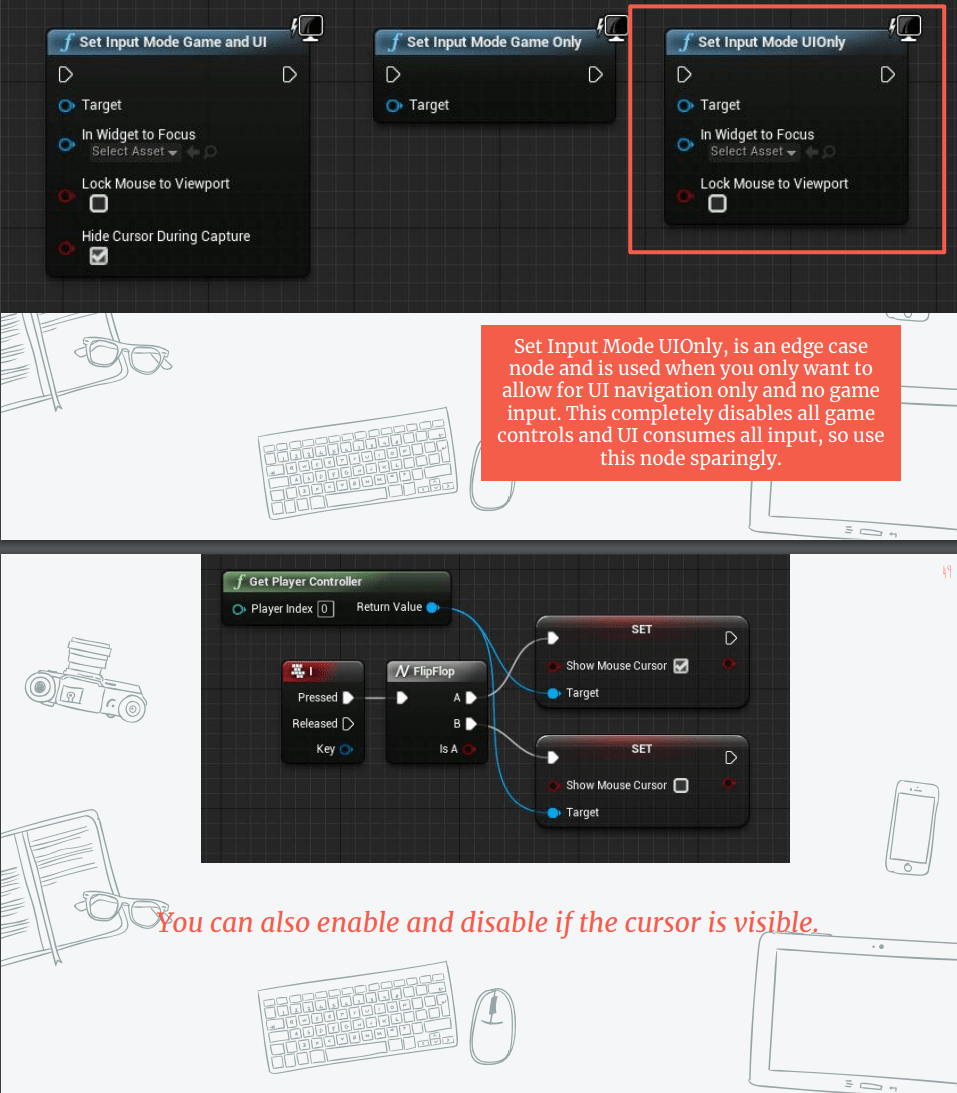
This week we will learn to create create advanced logic using the
blueprint system, but we need to understand some basic programming concepts first.
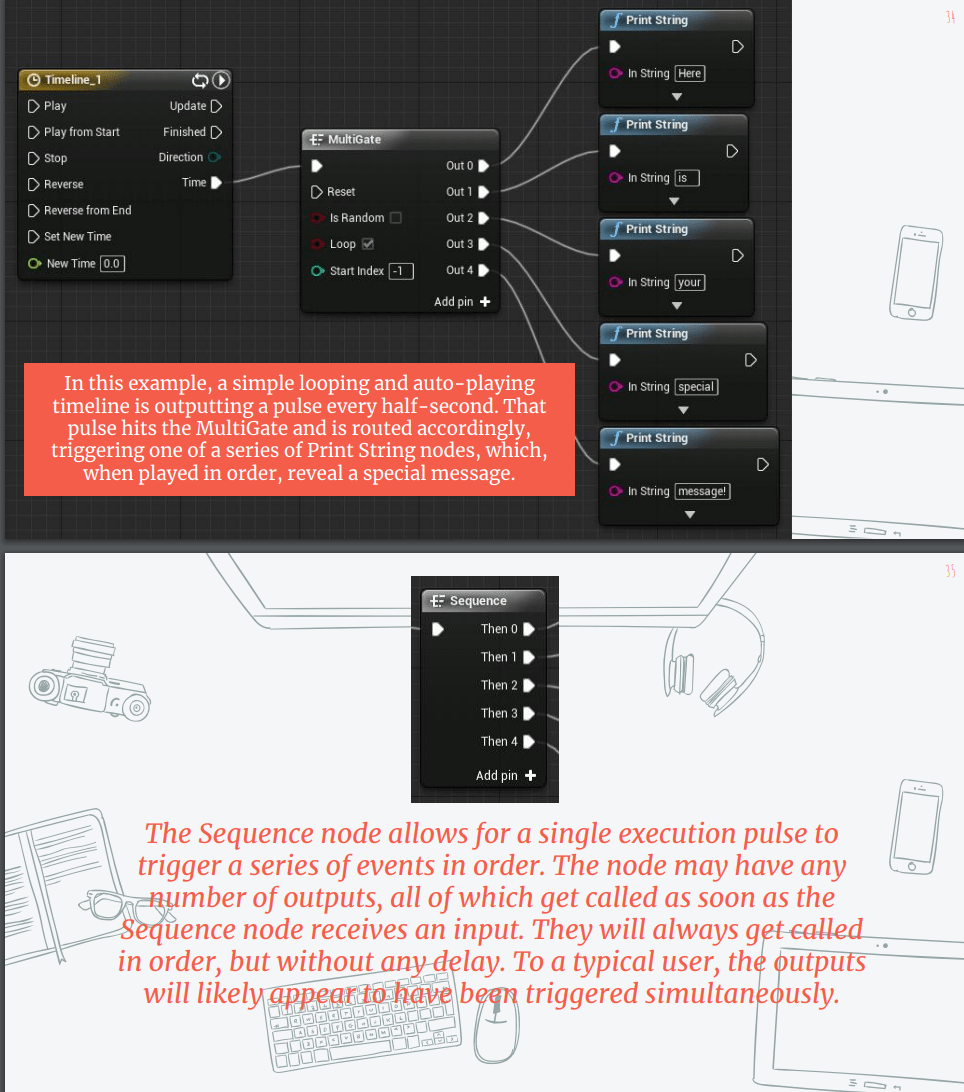
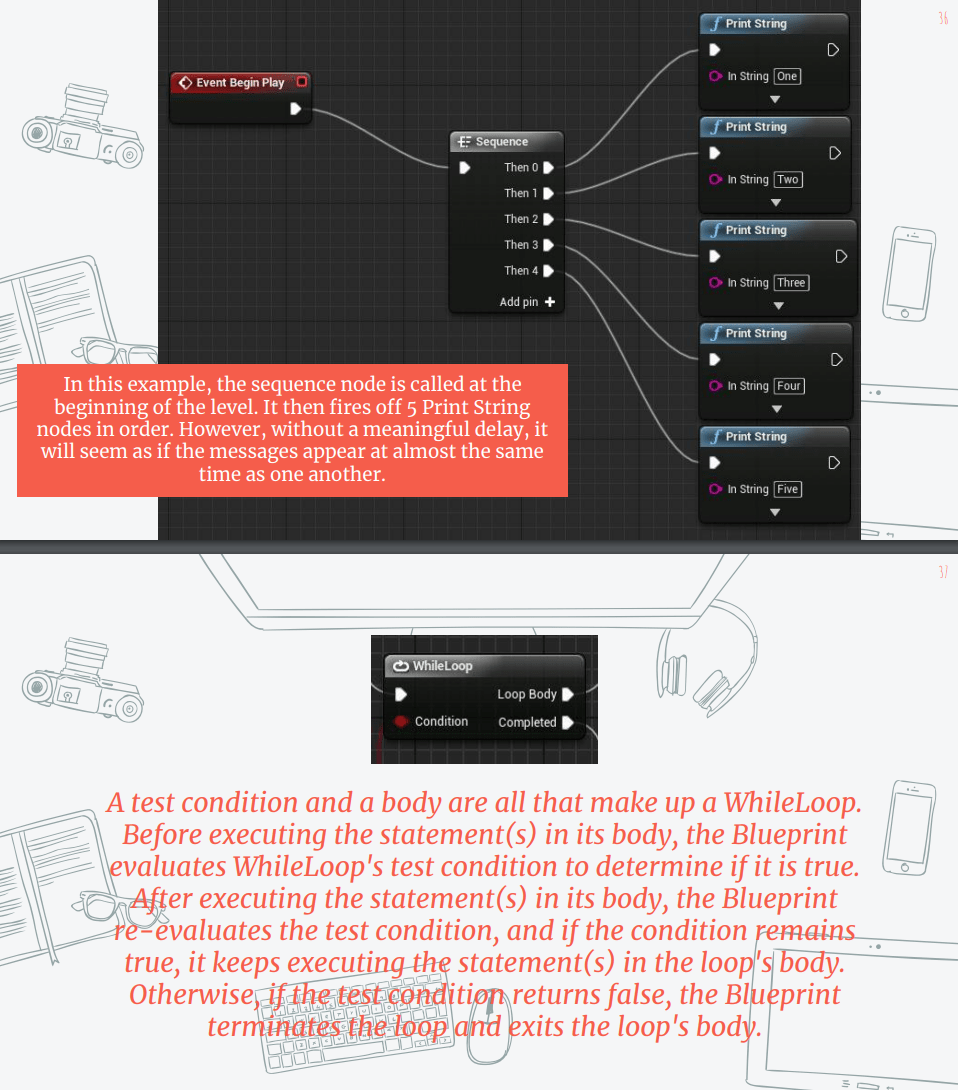
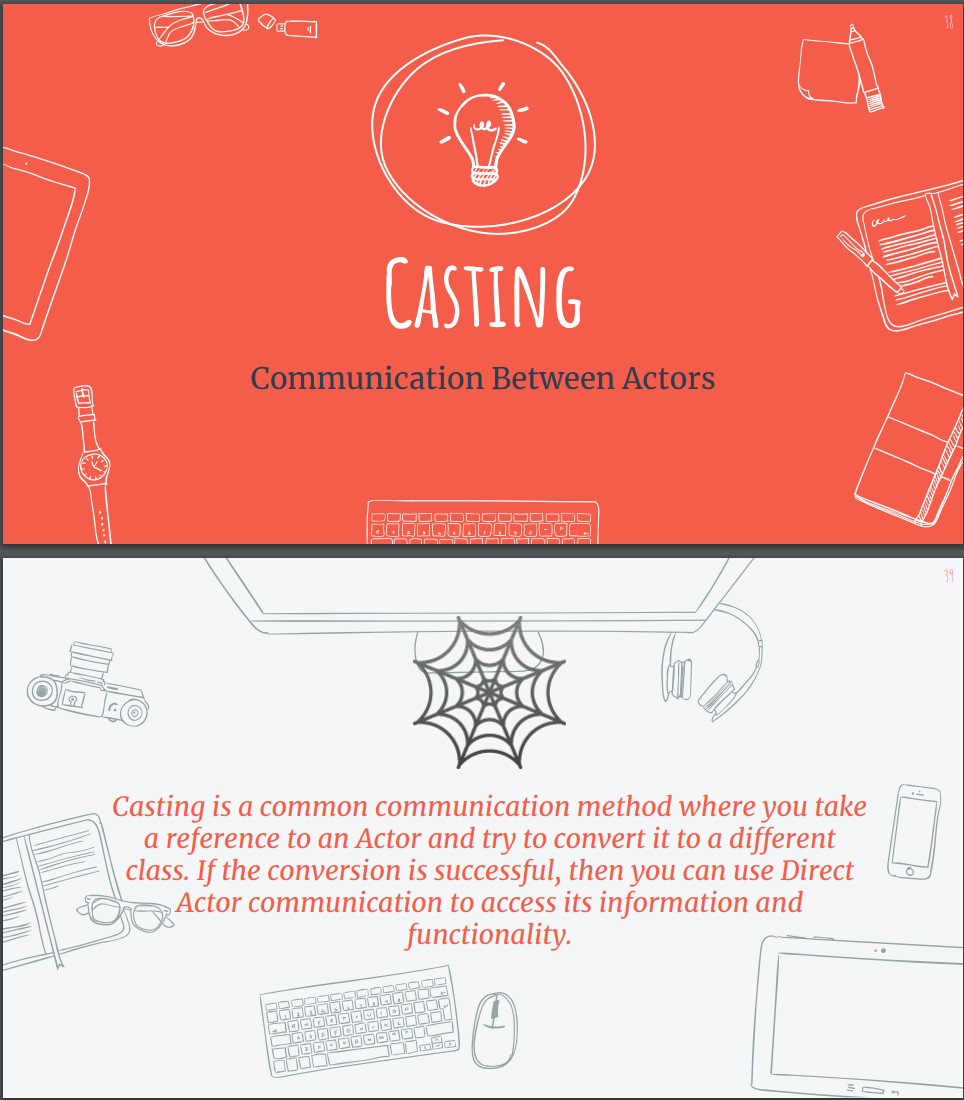
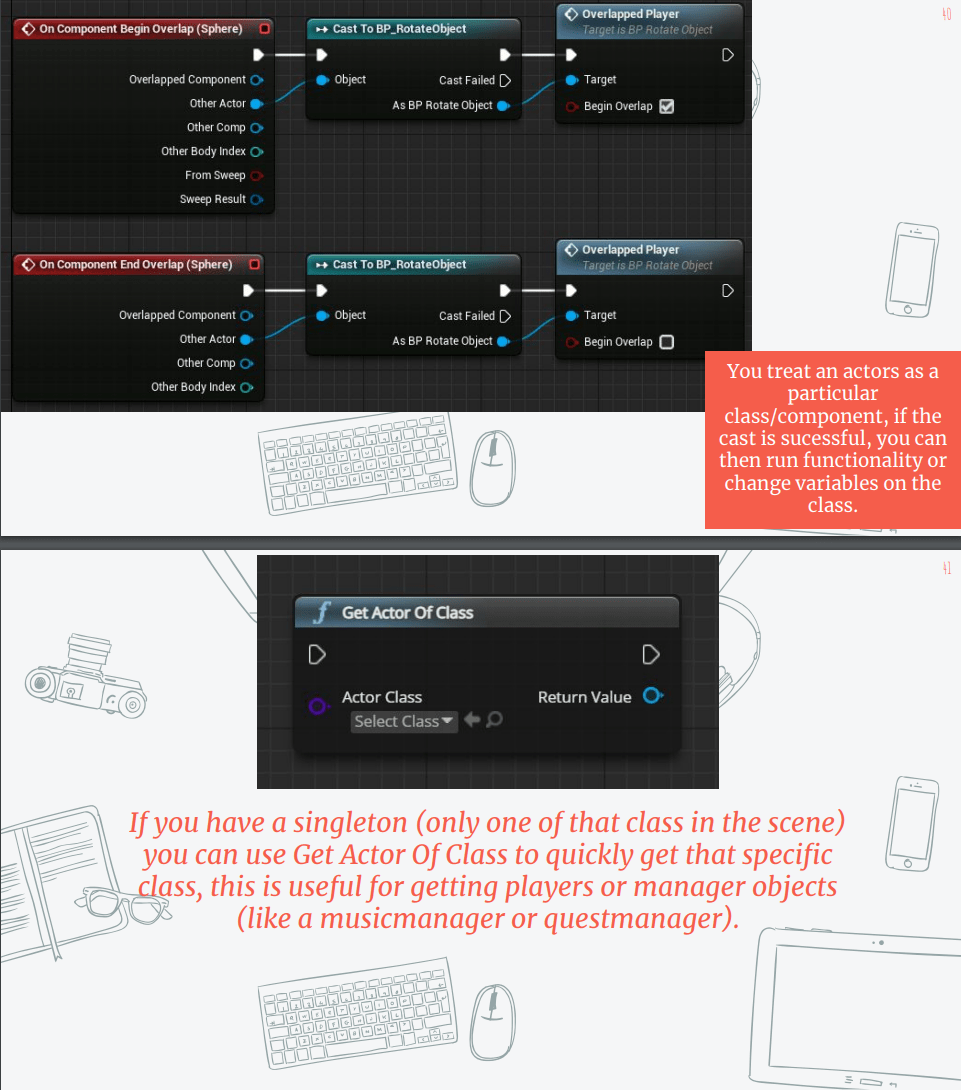
So we are going to look at the slides:
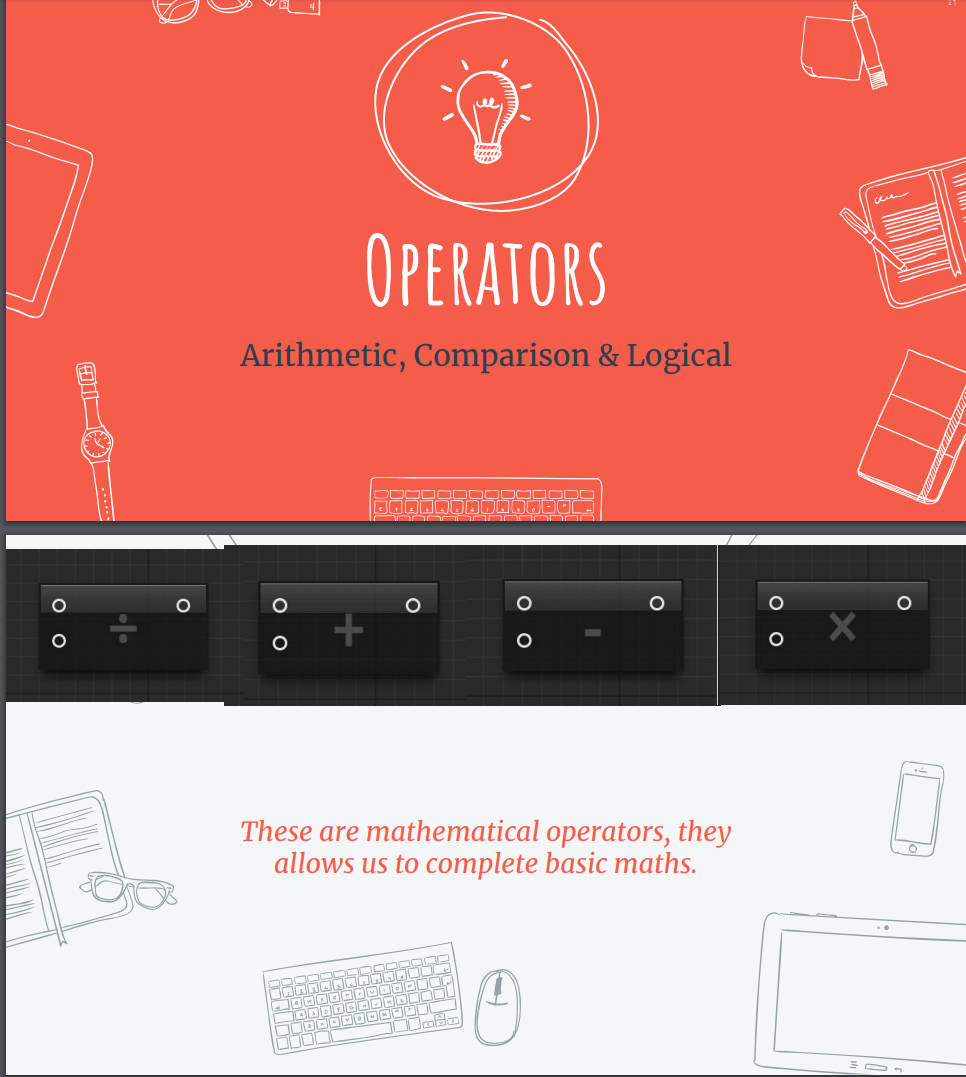
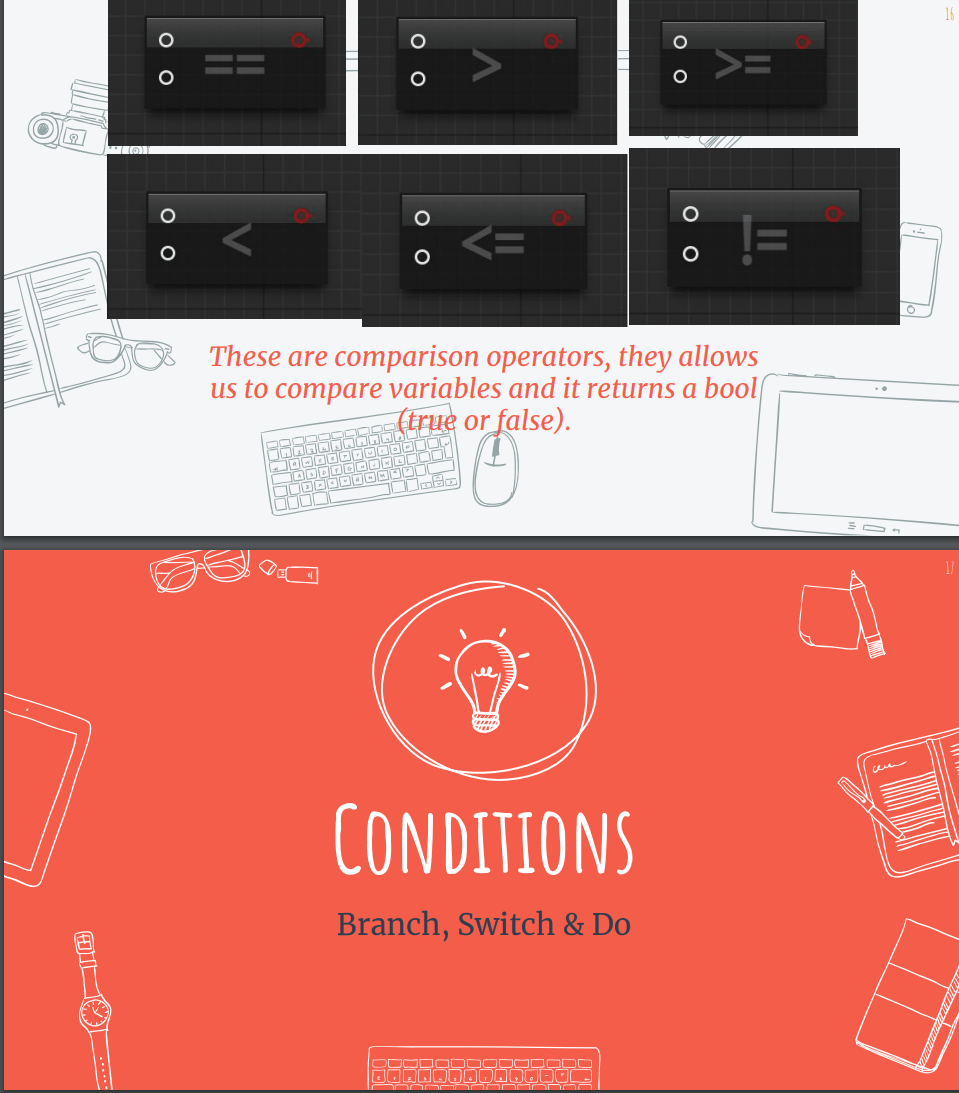
Workshop activity: create a functioning health system.
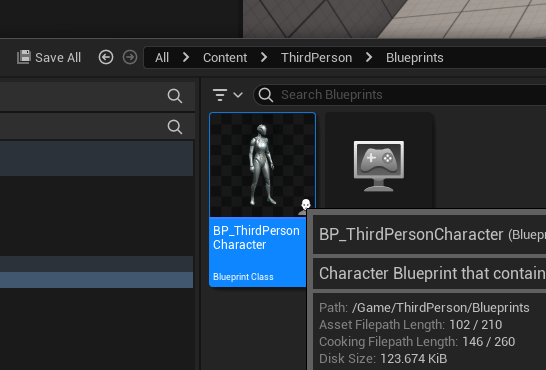
For this workshop I am using the blueprint from the unreal mannequin.
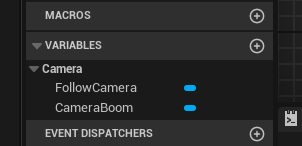
We start by adding a variable and setting it up to float.
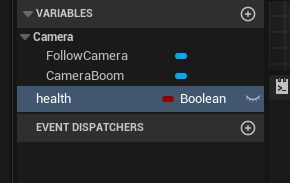
Now we set the health variable to the blueprint
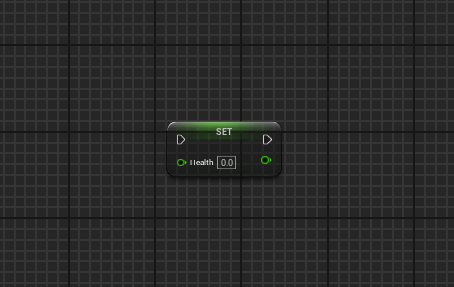
We initiate an event any damage
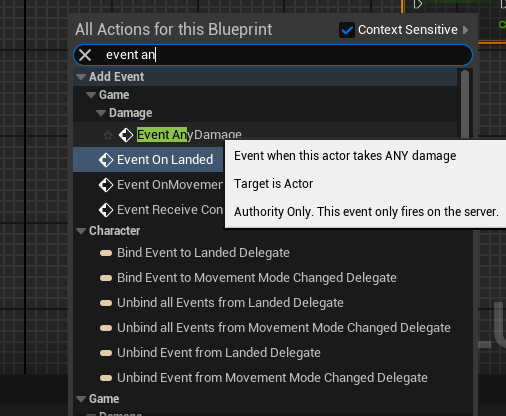
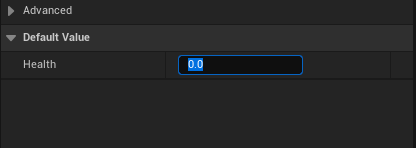
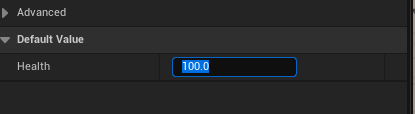
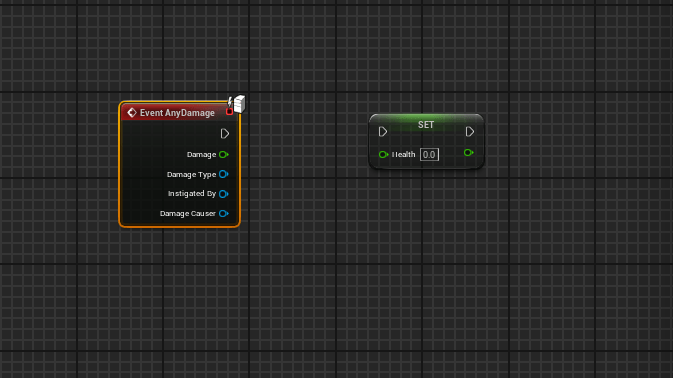 And set the default health value to 100.
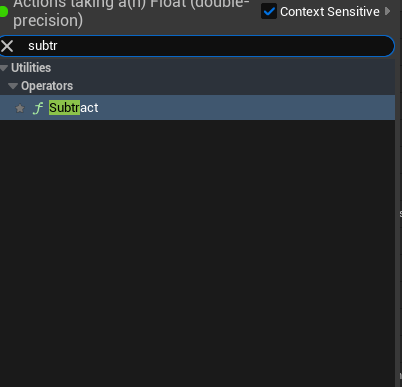
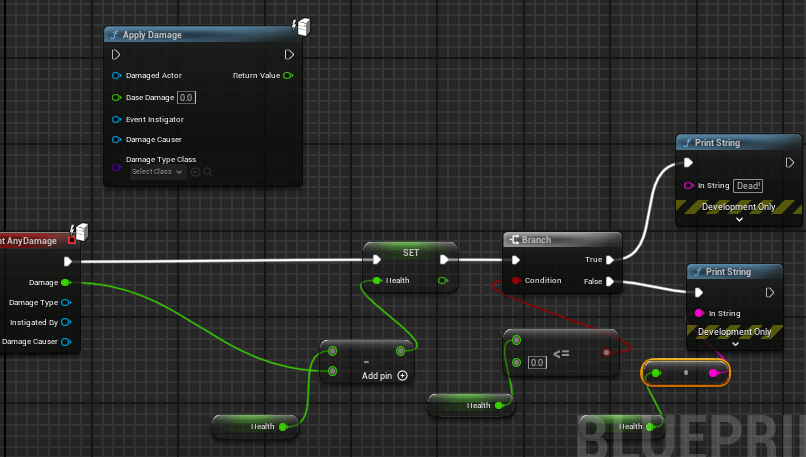
Now we set health to the blueprint and add a subtract function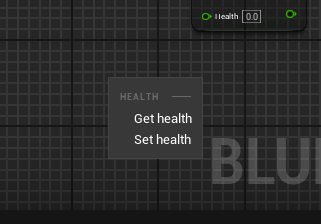
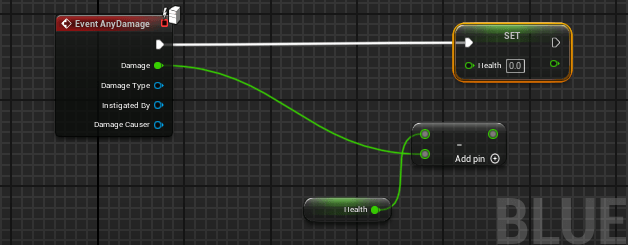
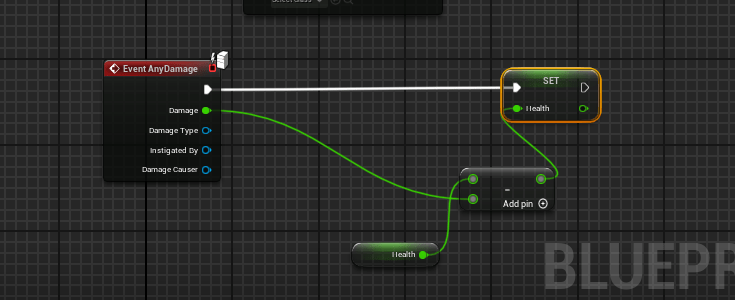
This will start looking like this, now we create a branch from the health
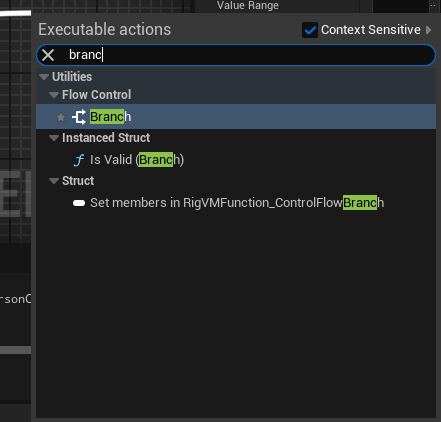
And use the function “less equal” to put a filter to our blueprint
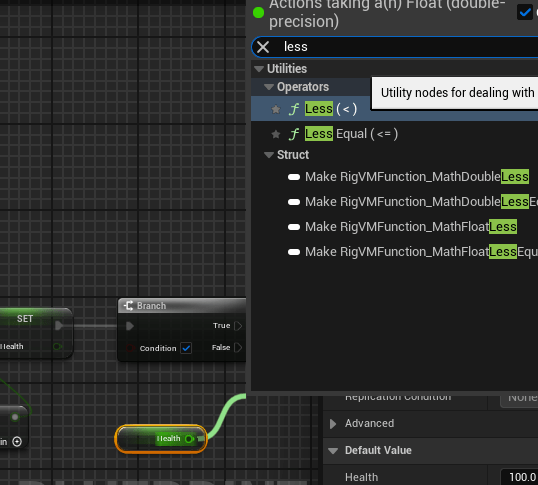
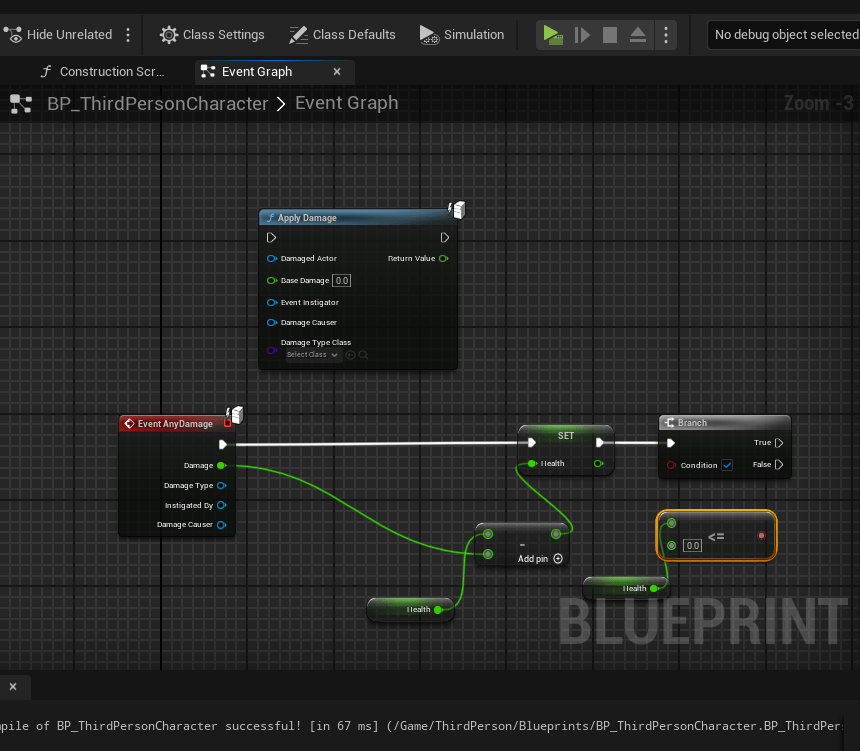
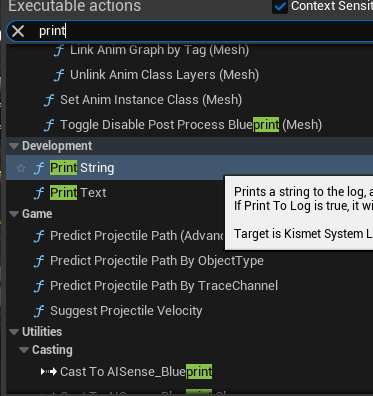
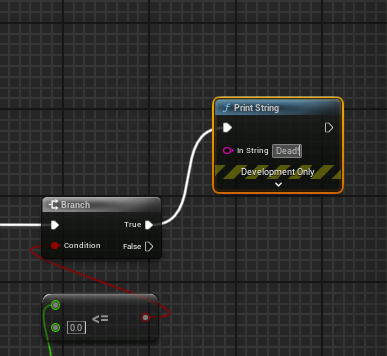
With this we are going to set that if the health is equal or less than 0 is going to print a dead message, and if is more than zero is going to print the actual health.
To test that our health system is working properly, we are going to set a key do deal damage to our selves “the character”.
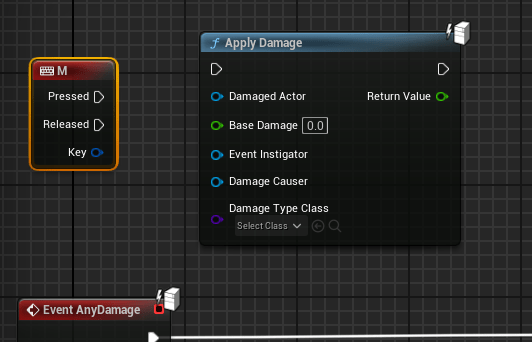
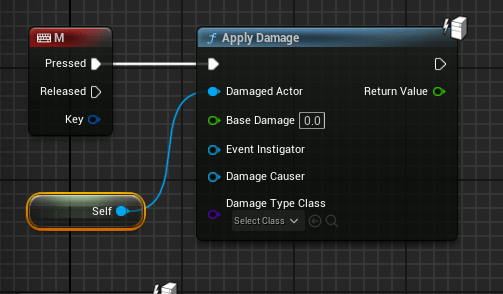
Setting the base damage to 10.
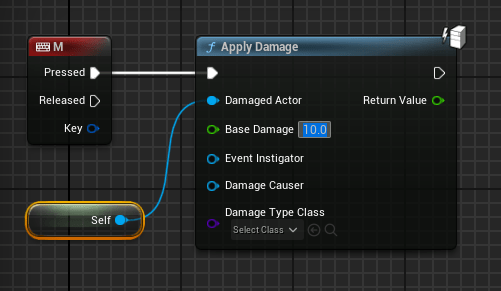
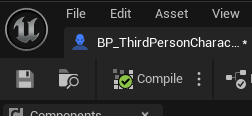
After completing this we are going to compile and save.
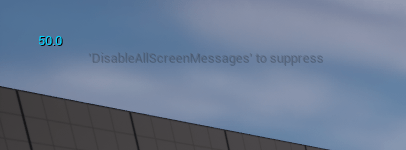
Now if we start the simulation and press the bottom M, a number should be displayed, which is the current health.
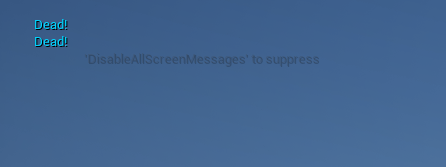
If the health is equal to 0 the text dead is going to be displayed.
With the health system ready, now we are going to create a widget to display a our health properly, though a health bar.
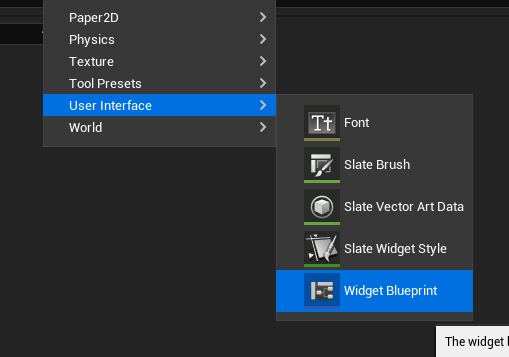
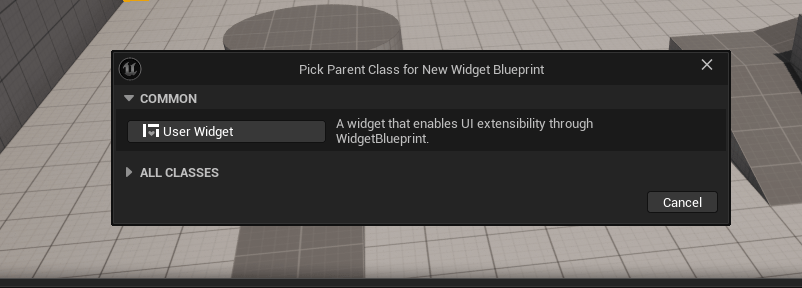
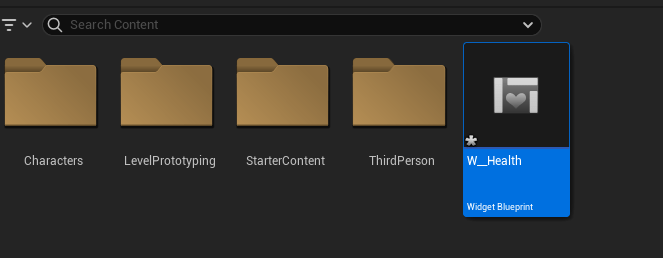
After creating a widget into our content folder, we add a canvas to our widget.
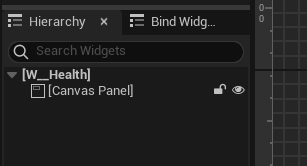
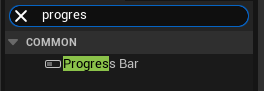
And place a progress bar.
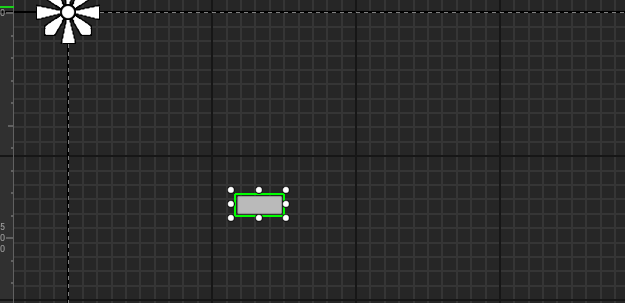
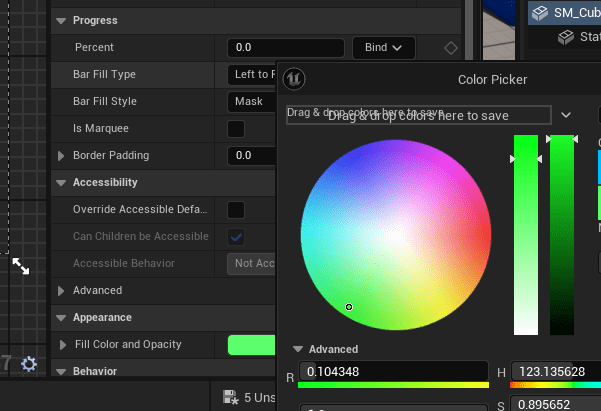
We adjust the size and colour
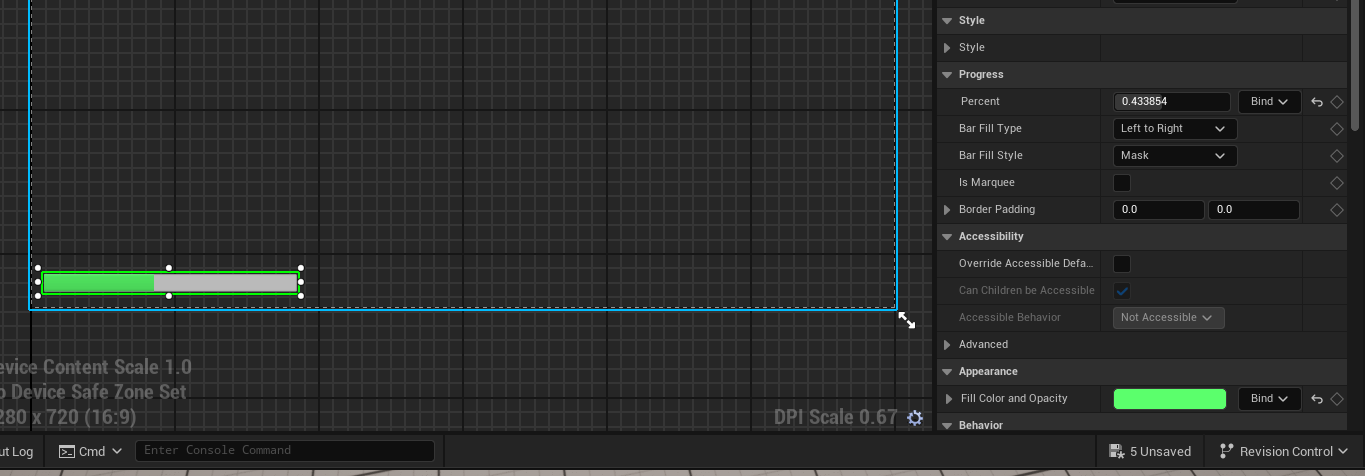
Now we are going to bind our widget to our character and health system.
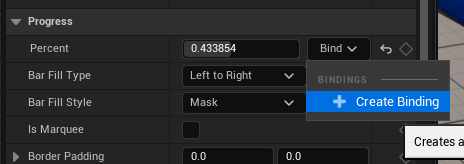
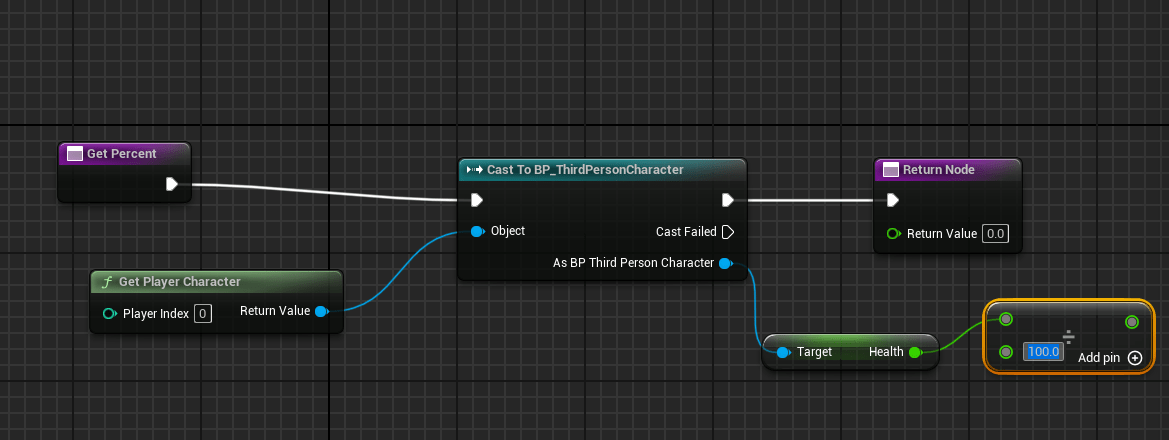
For that we crate a binding.
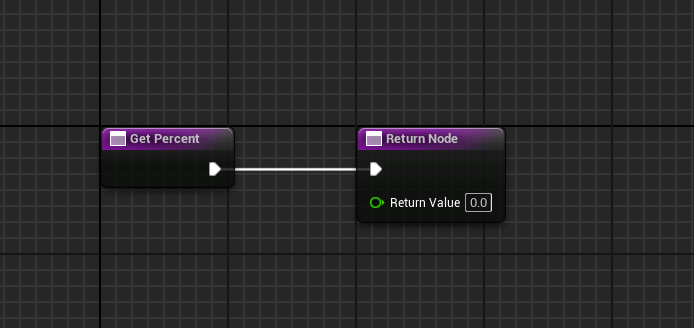
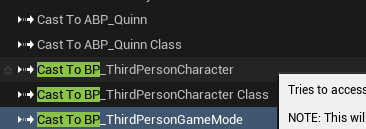
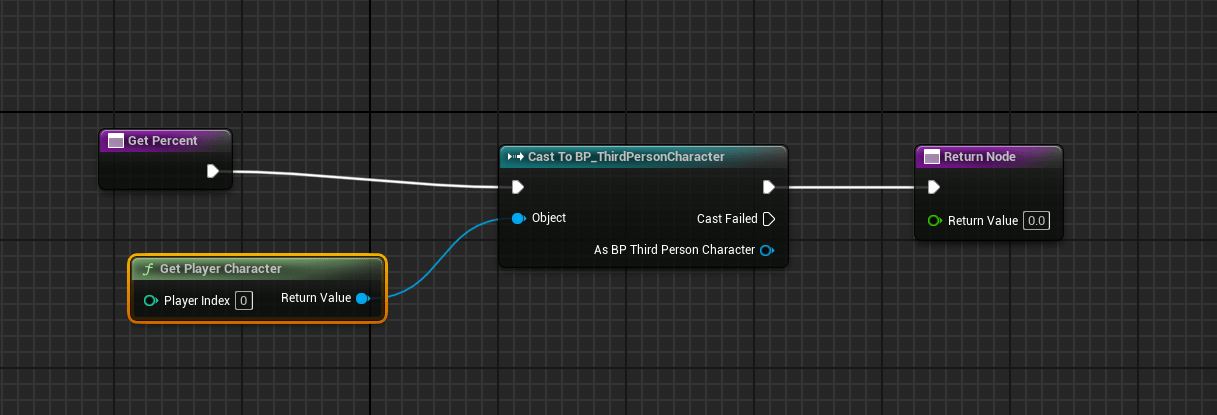
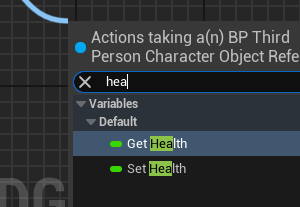
Adding the health
Dividing the health bar by a 100.
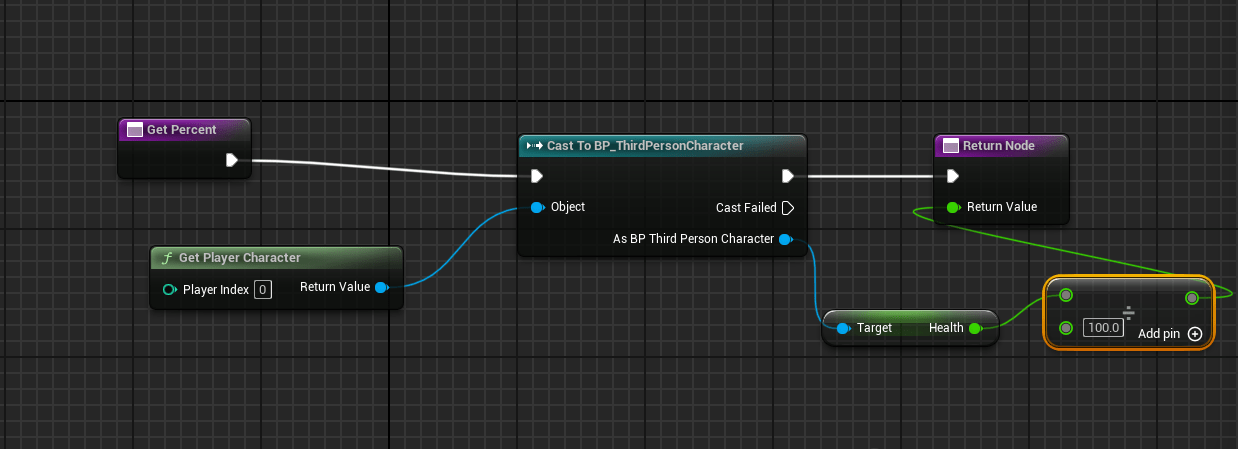
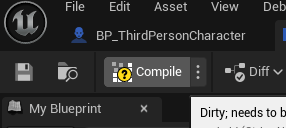
After finishing the binding we compile, to check for error.
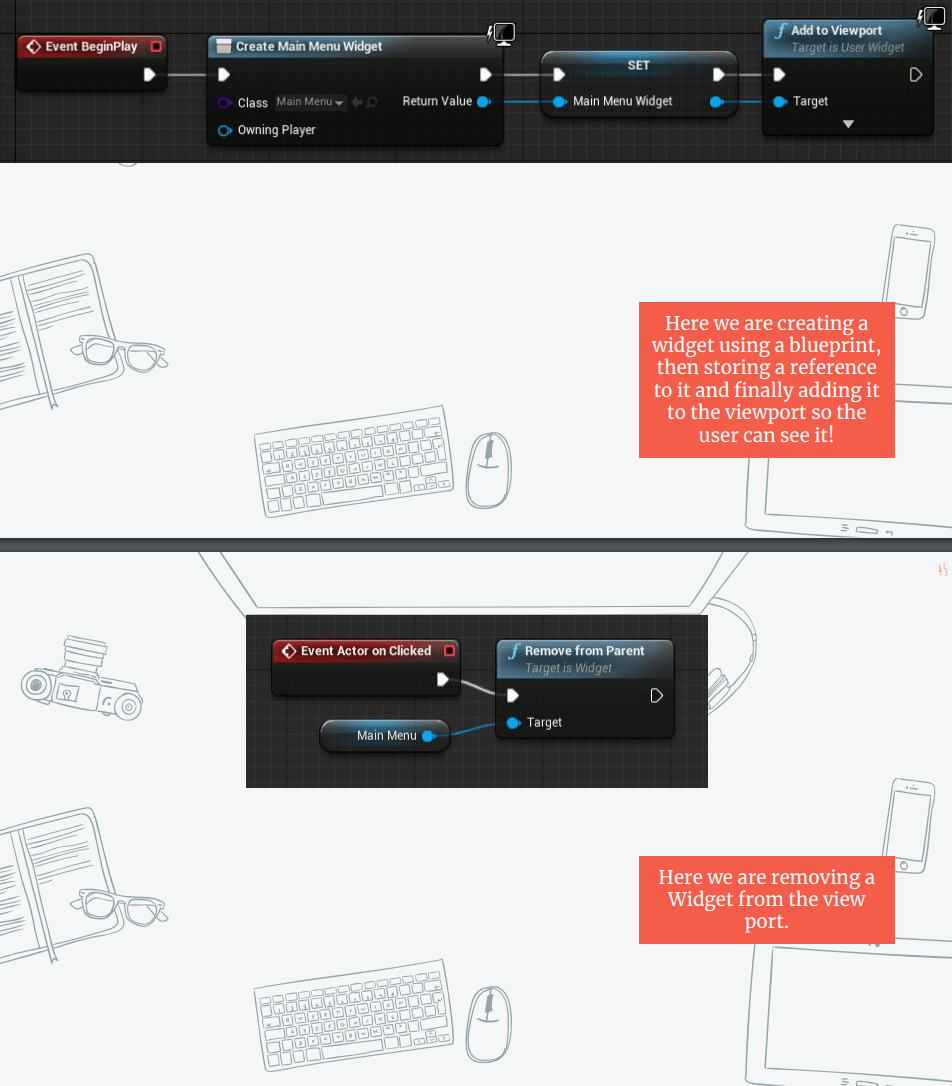
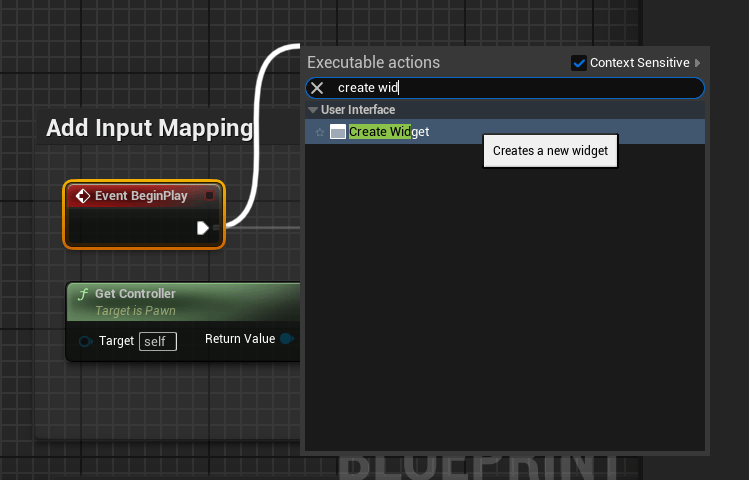
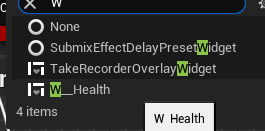
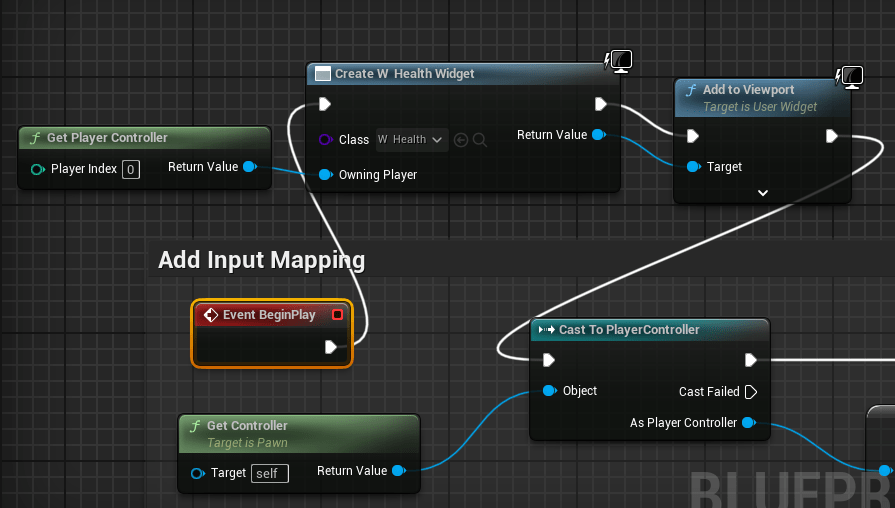
Now using the “event beginplay” we create a widget
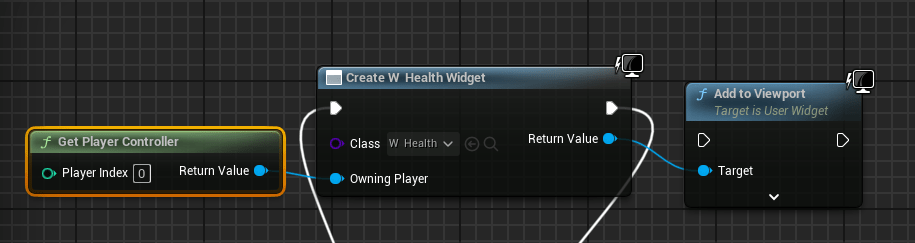
Now for it to be visible thought the viewport we add the ” add to viewport function”
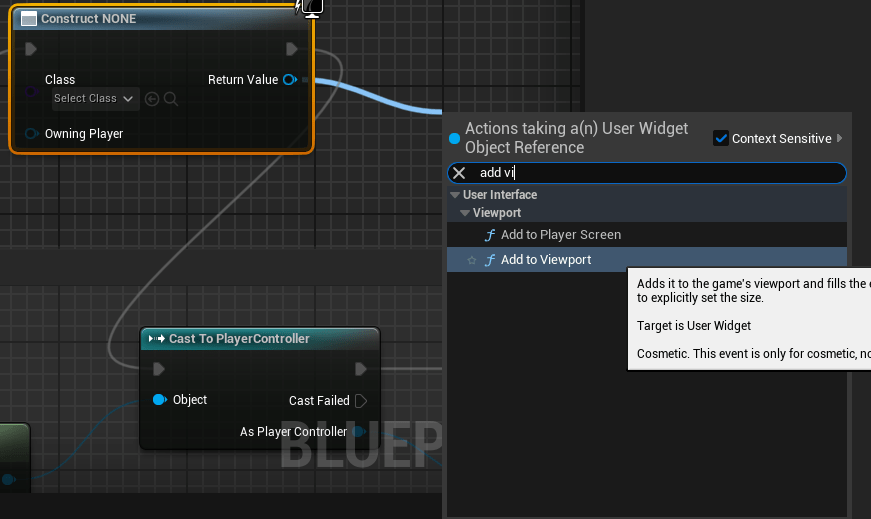
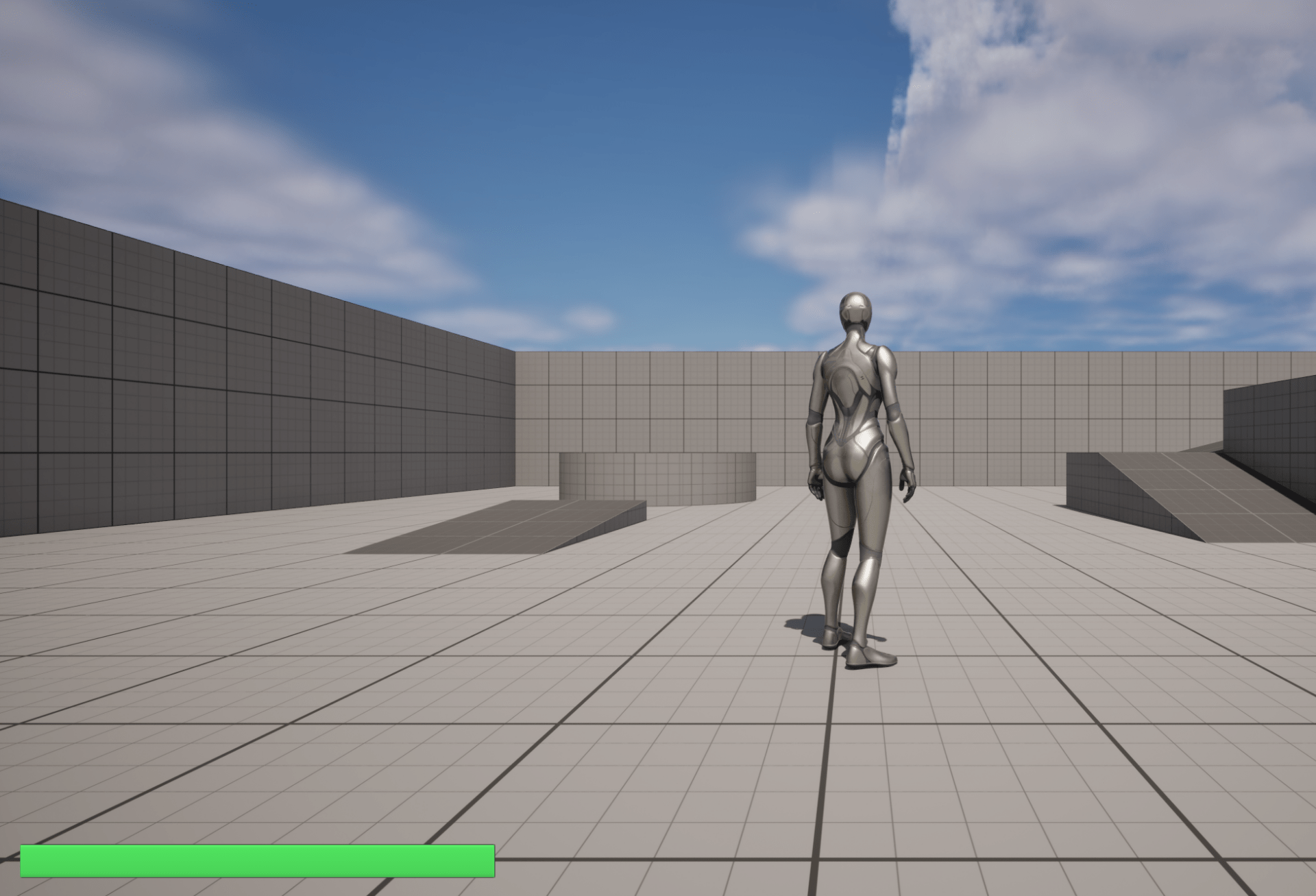
This is how it looks like.
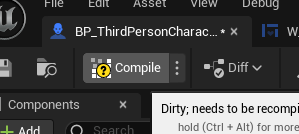
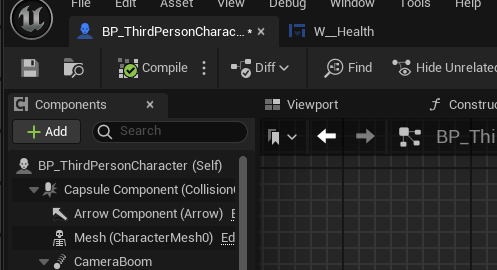
We compile to check errors
And now if we hit play, the health bar should be a the bottom
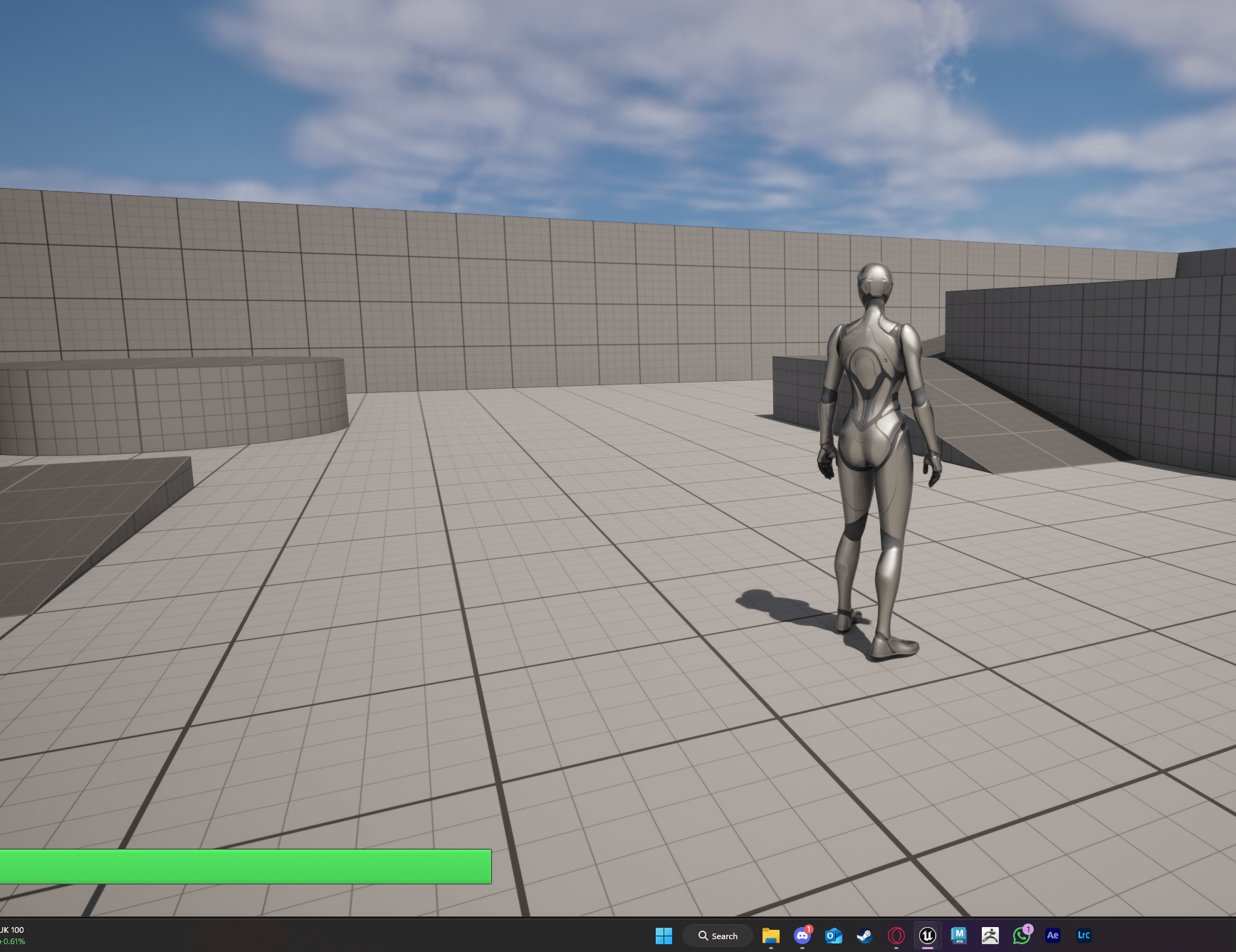
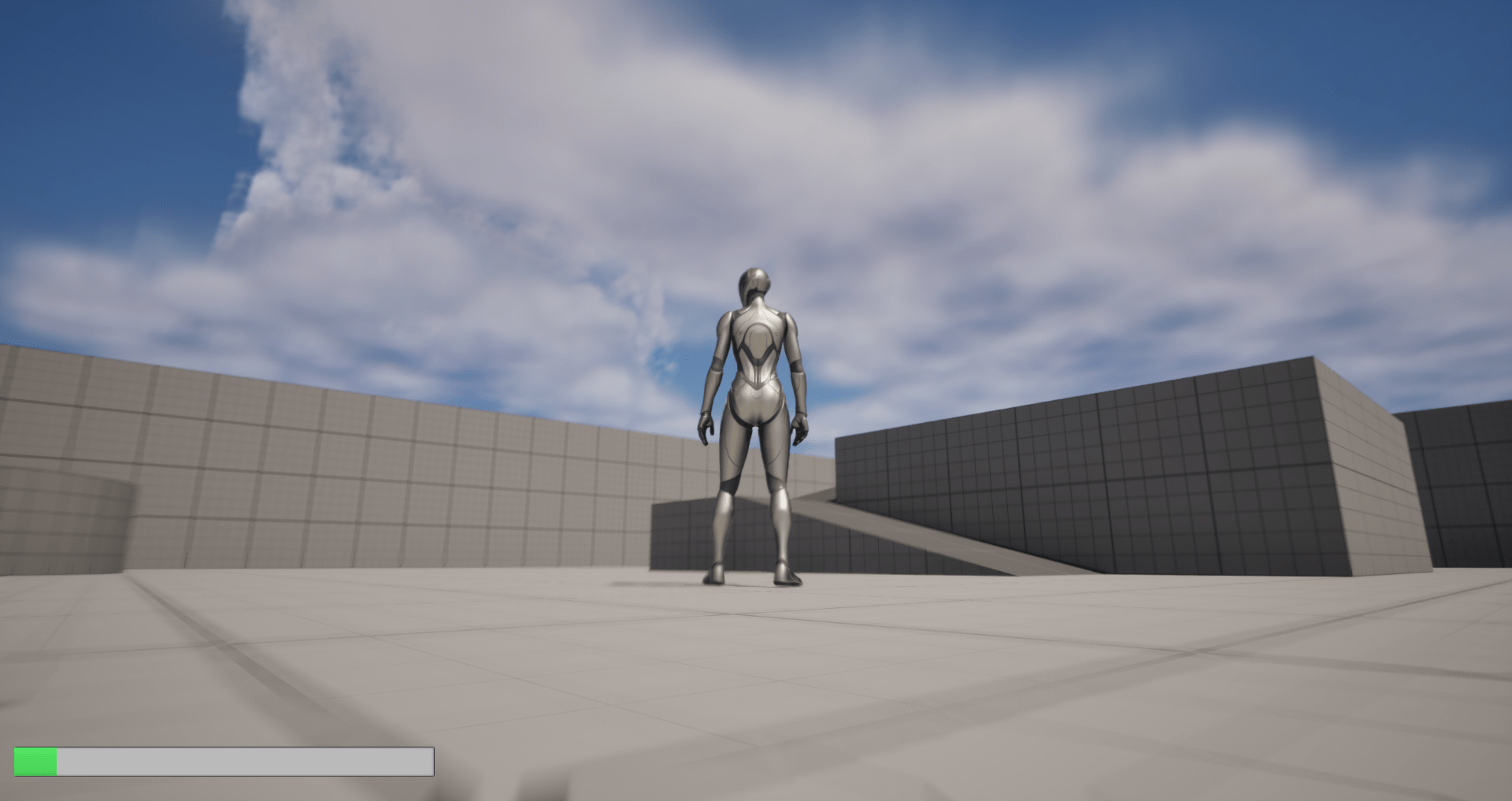
If we receive damage the bar empties.
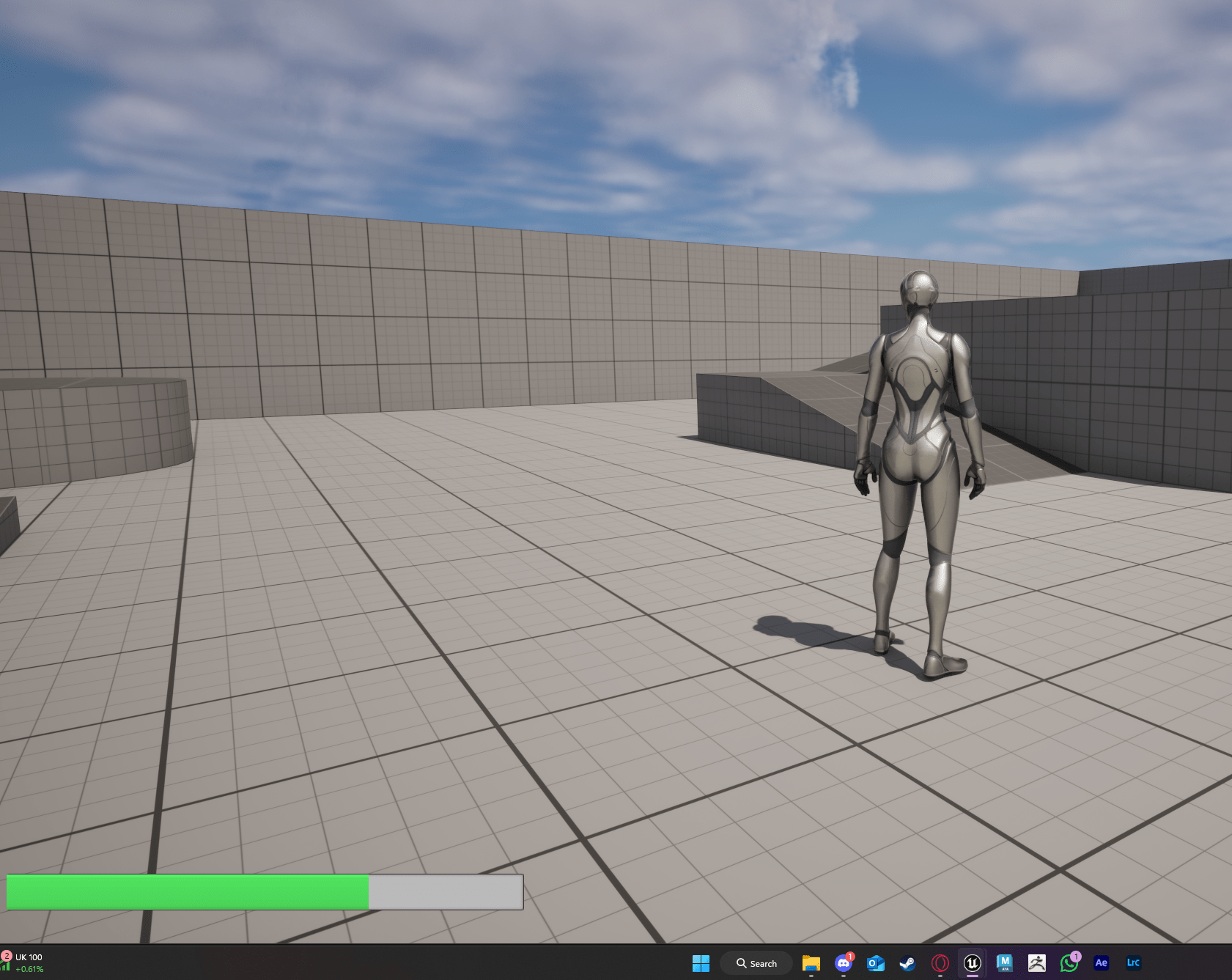
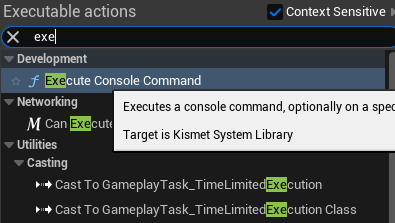
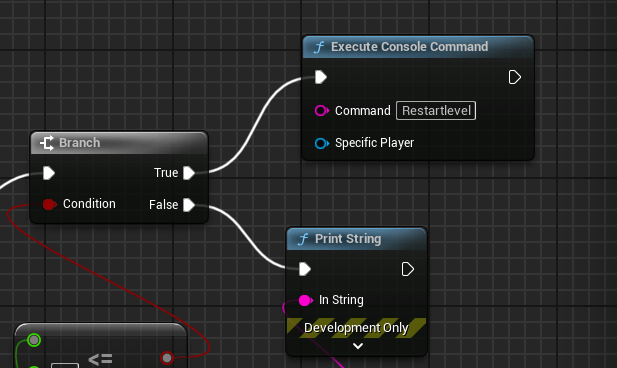
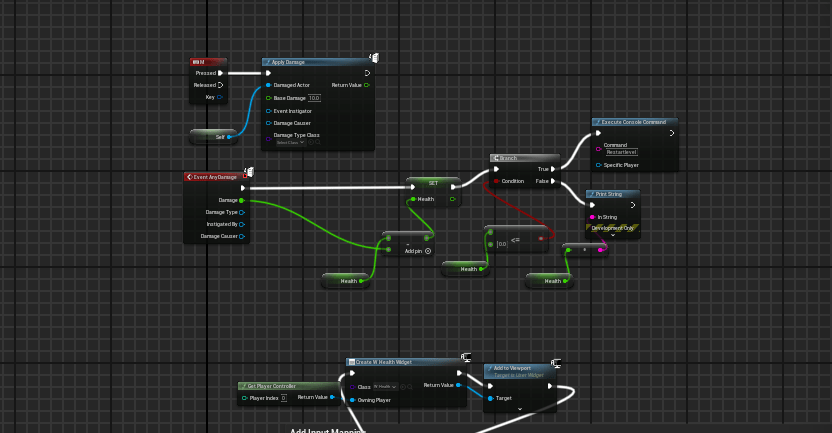
Finally we change the branch and eliminate the print dead function and create a console command function with the command “Restart level”, so if our health hits zero the level restarts
This is the final blueprint.
End of week 9
Week 10: Advanced materials and Particles effects
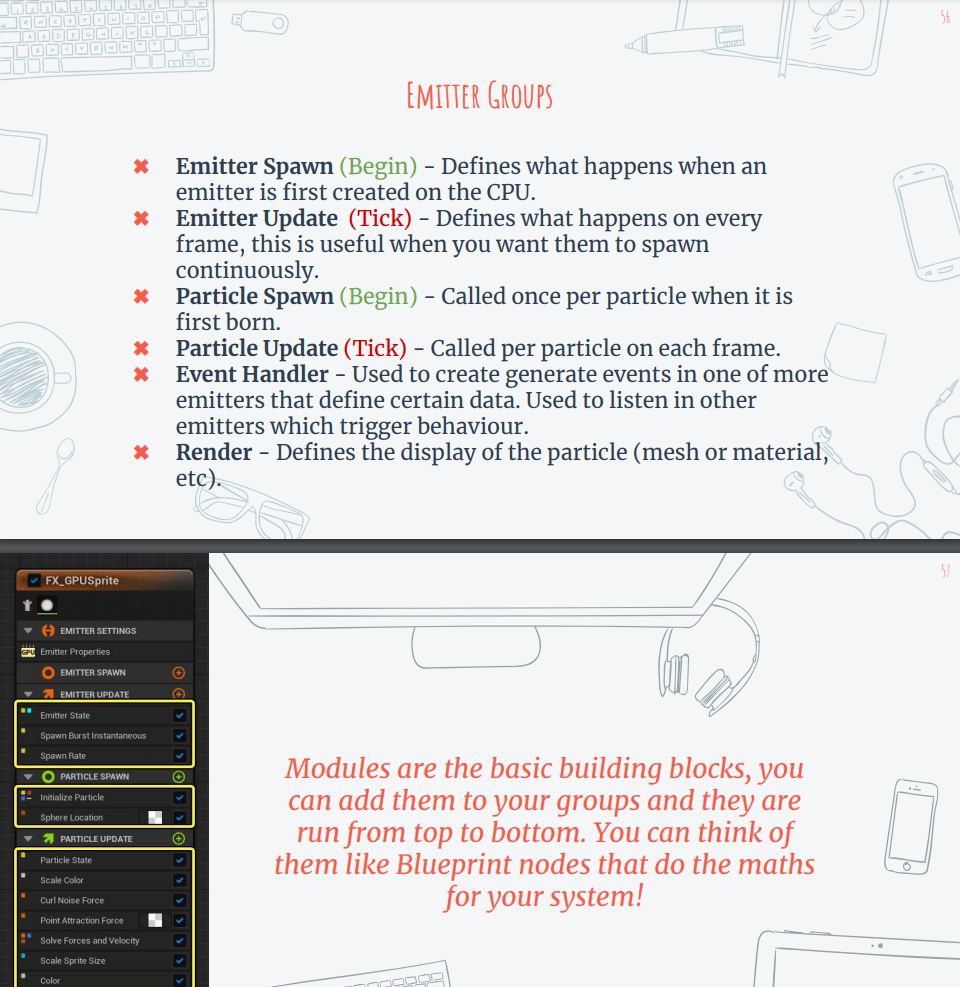
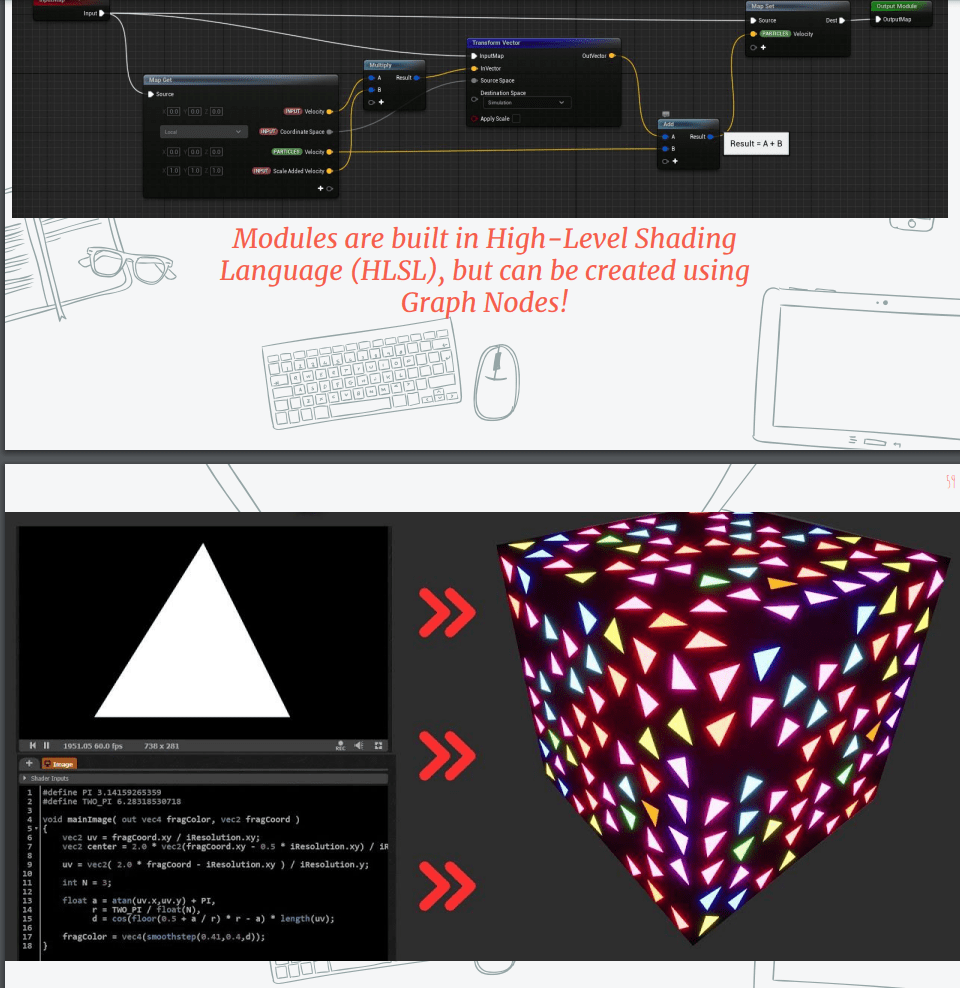
This week we will learn about the Niagara particle system and advanced materials in unreal.
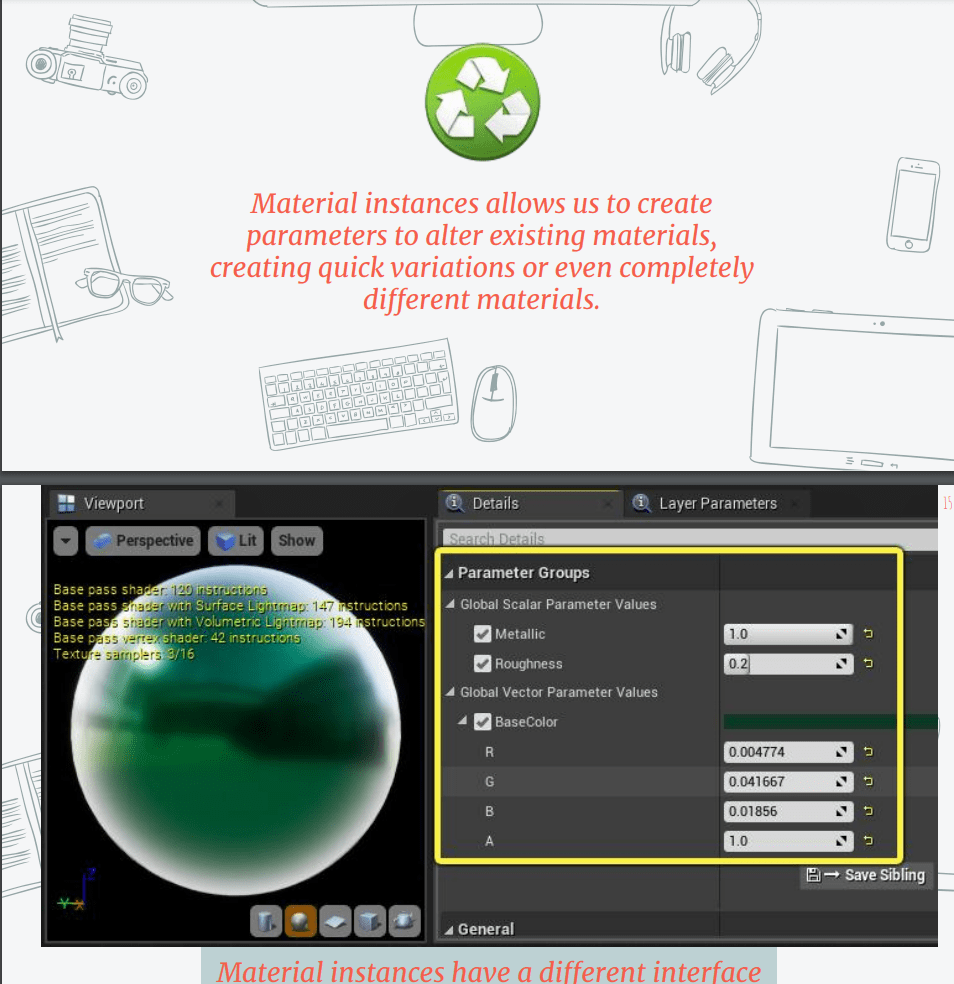
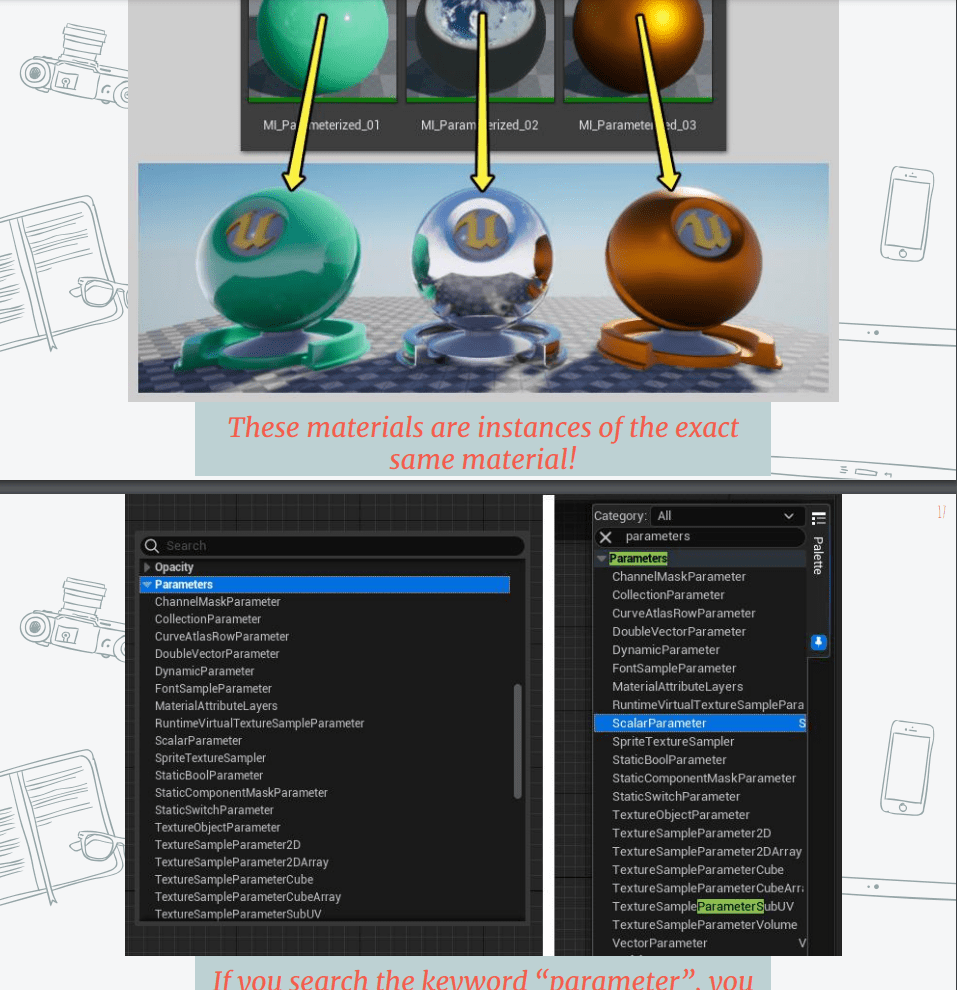
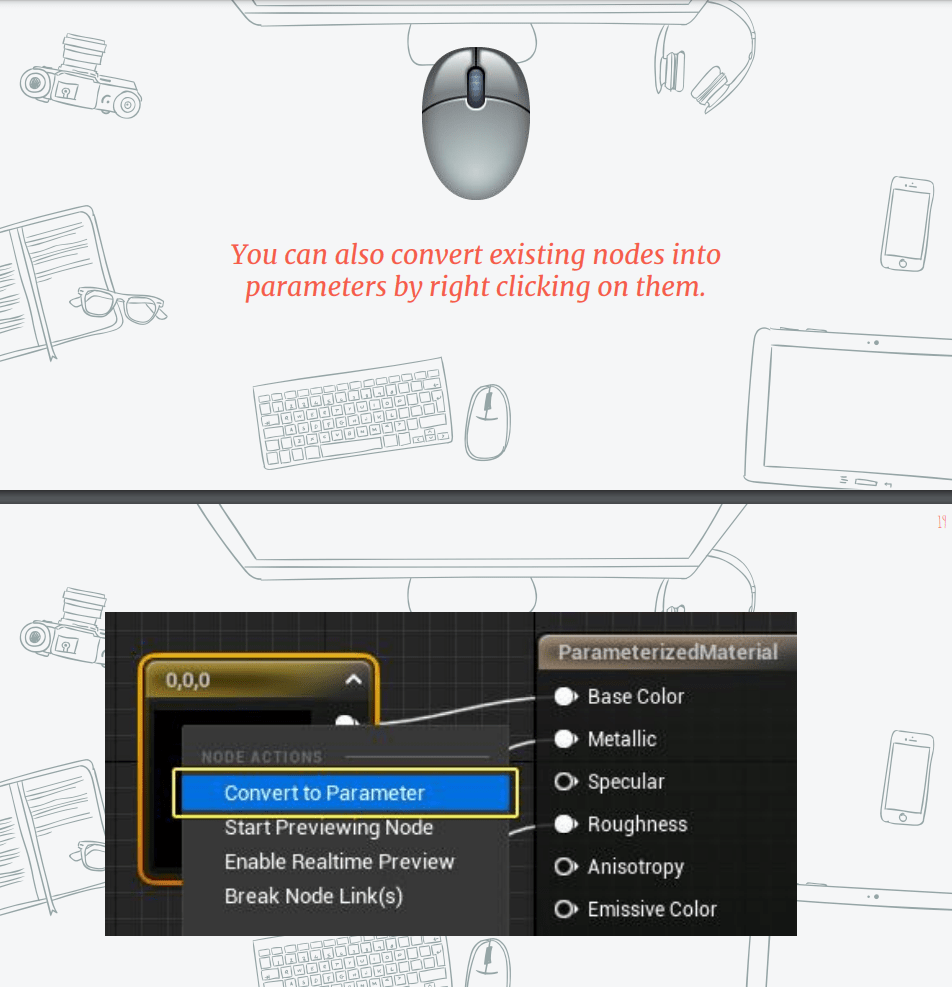
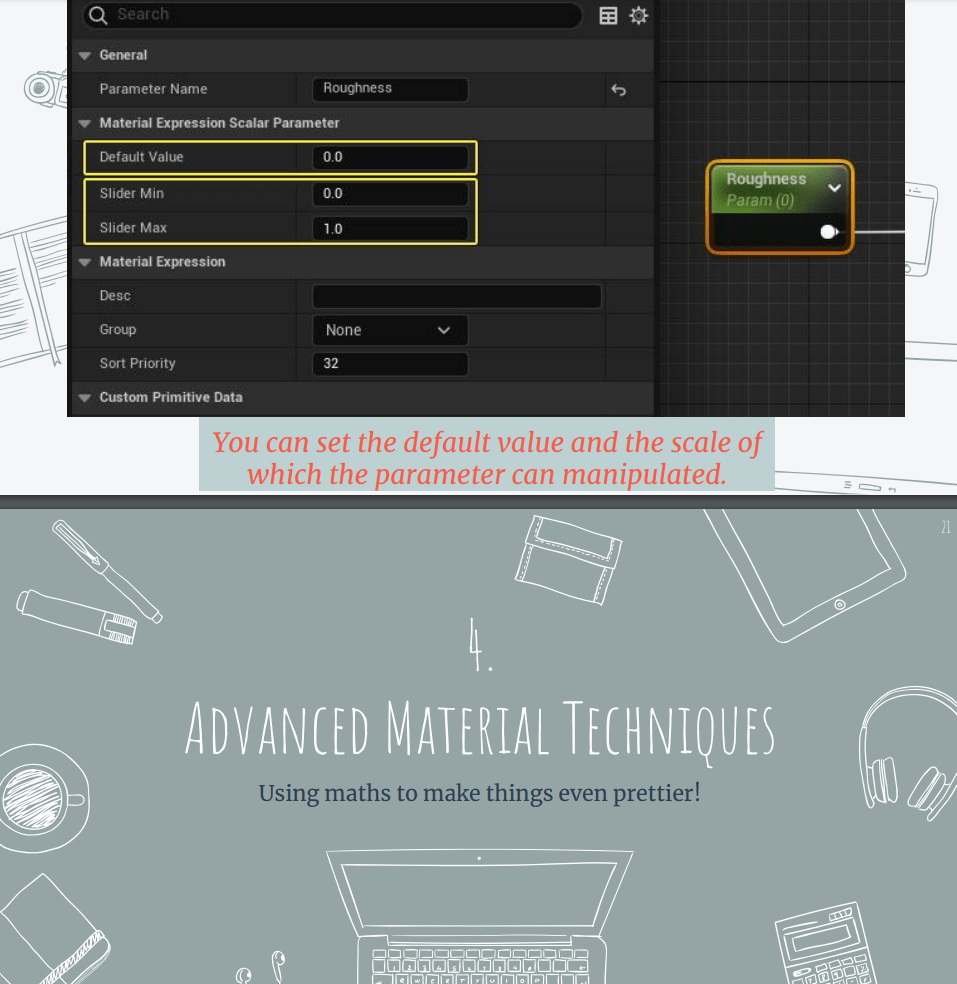
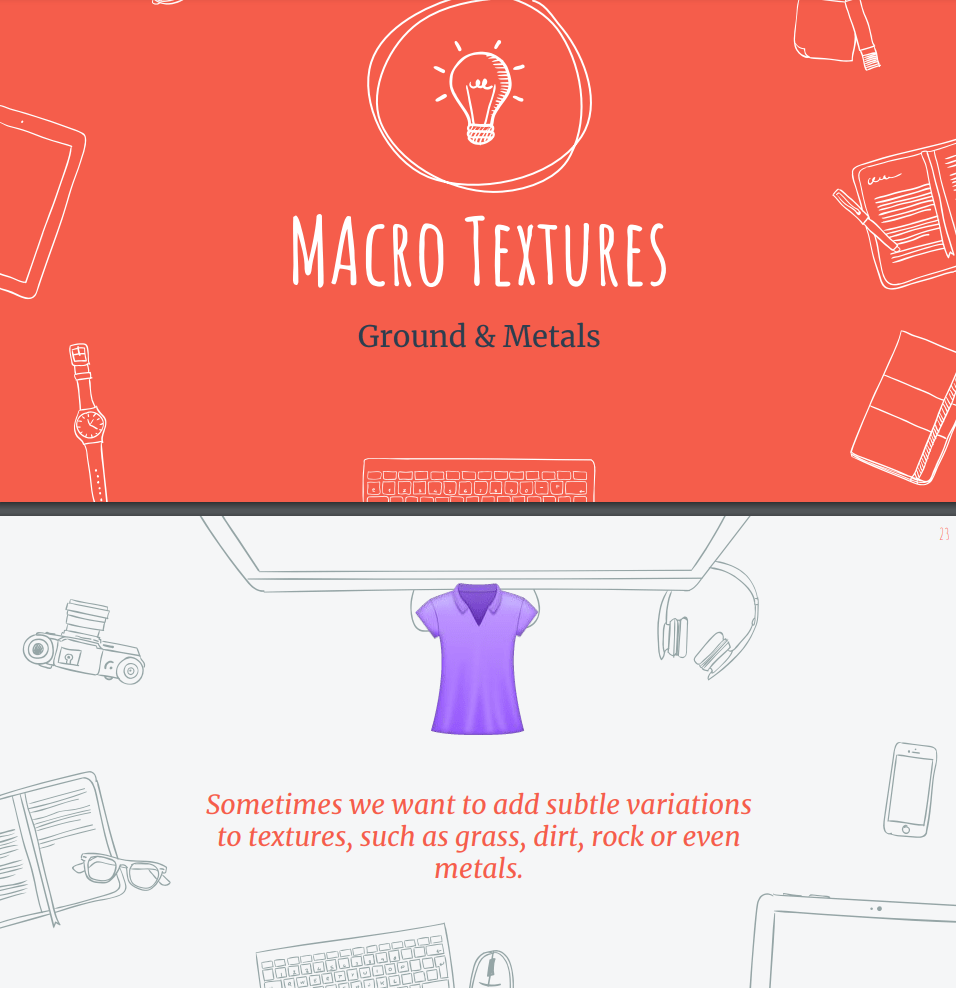
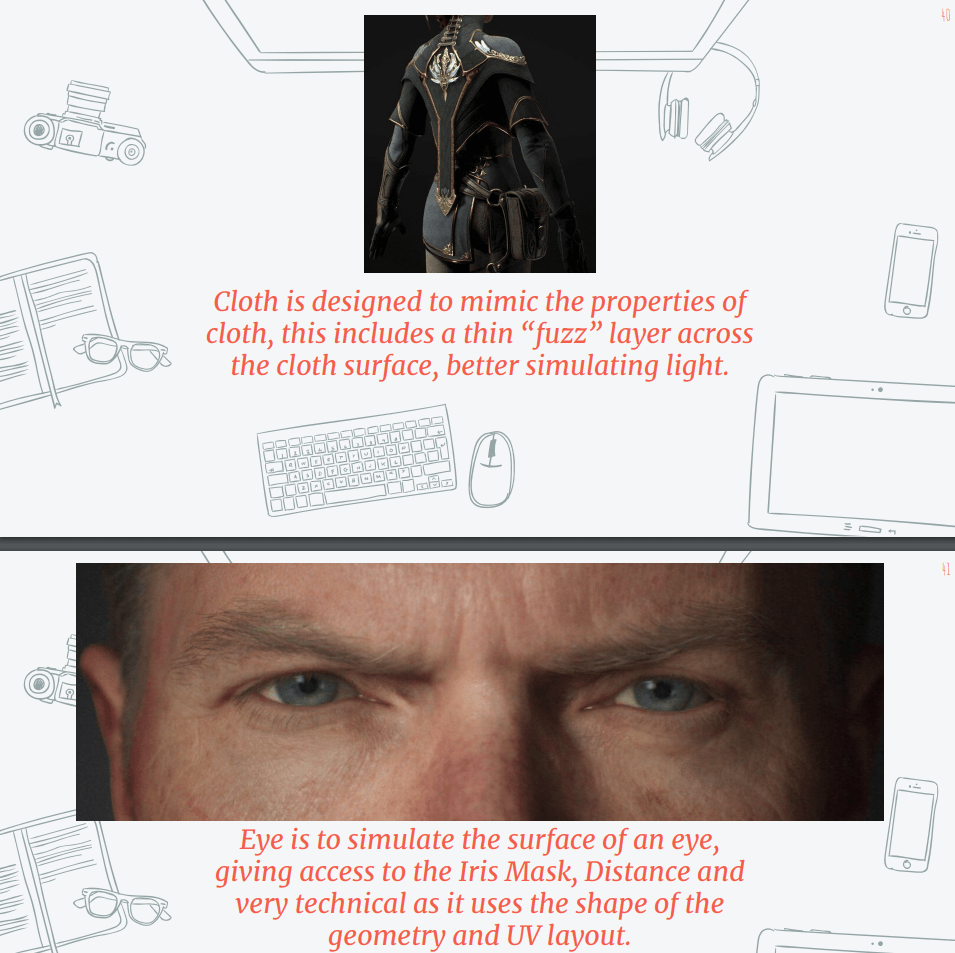
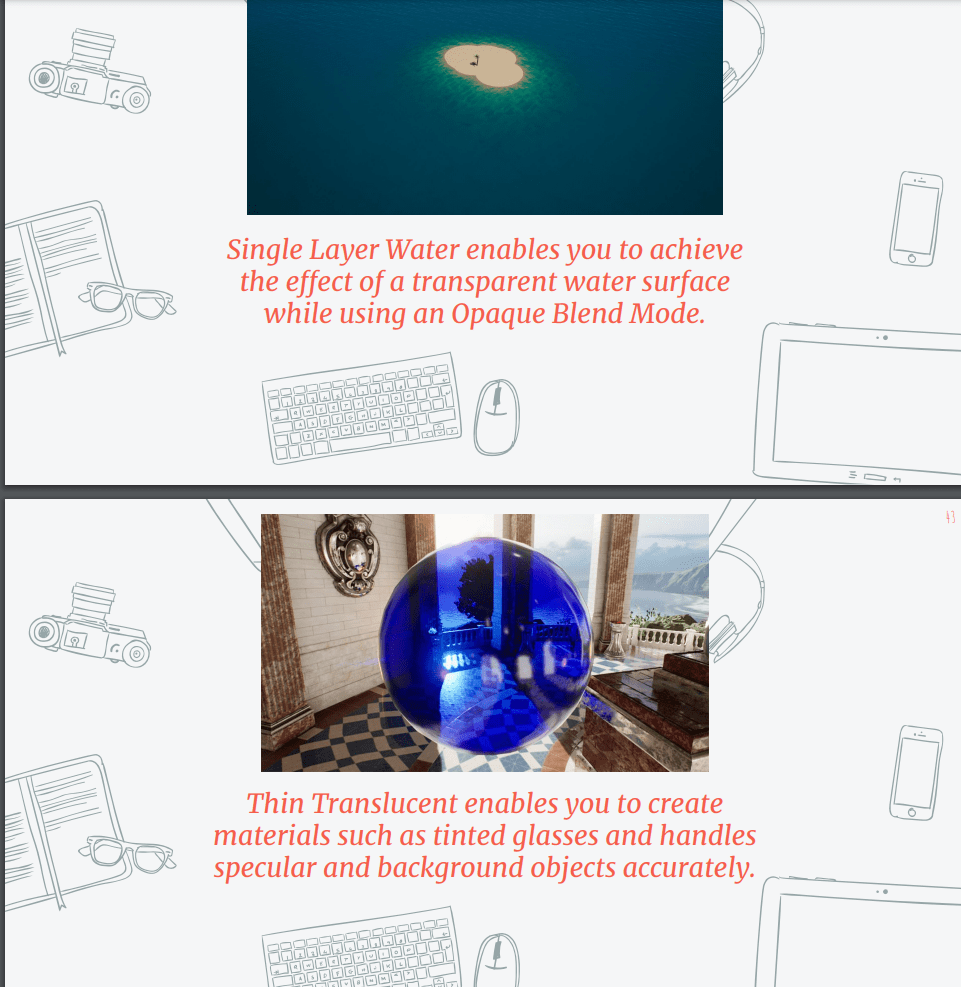
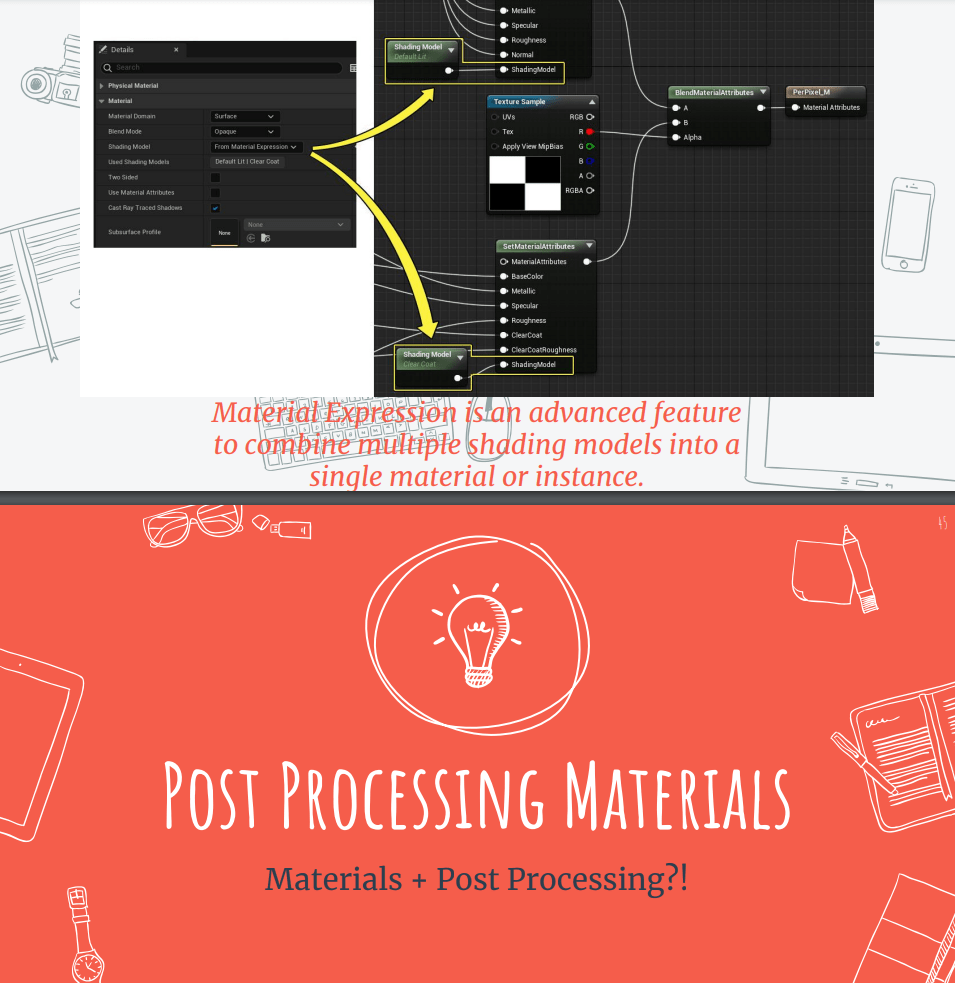
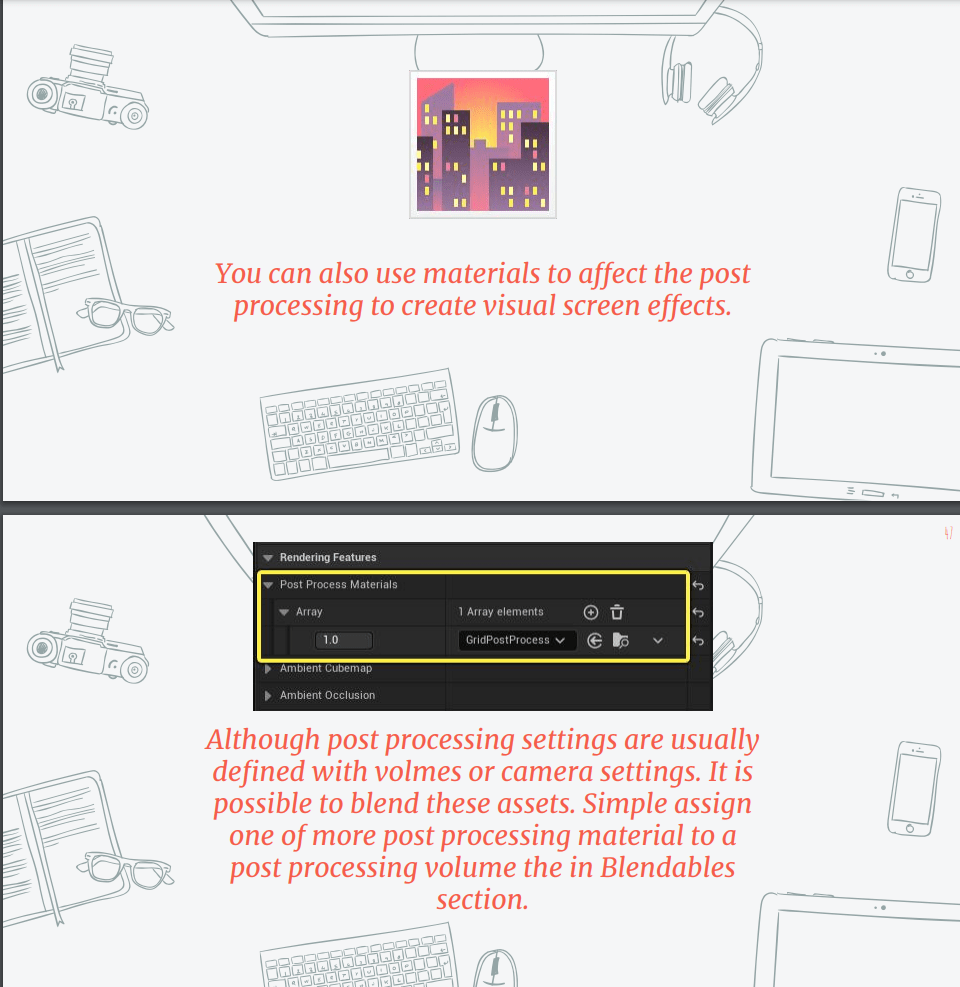
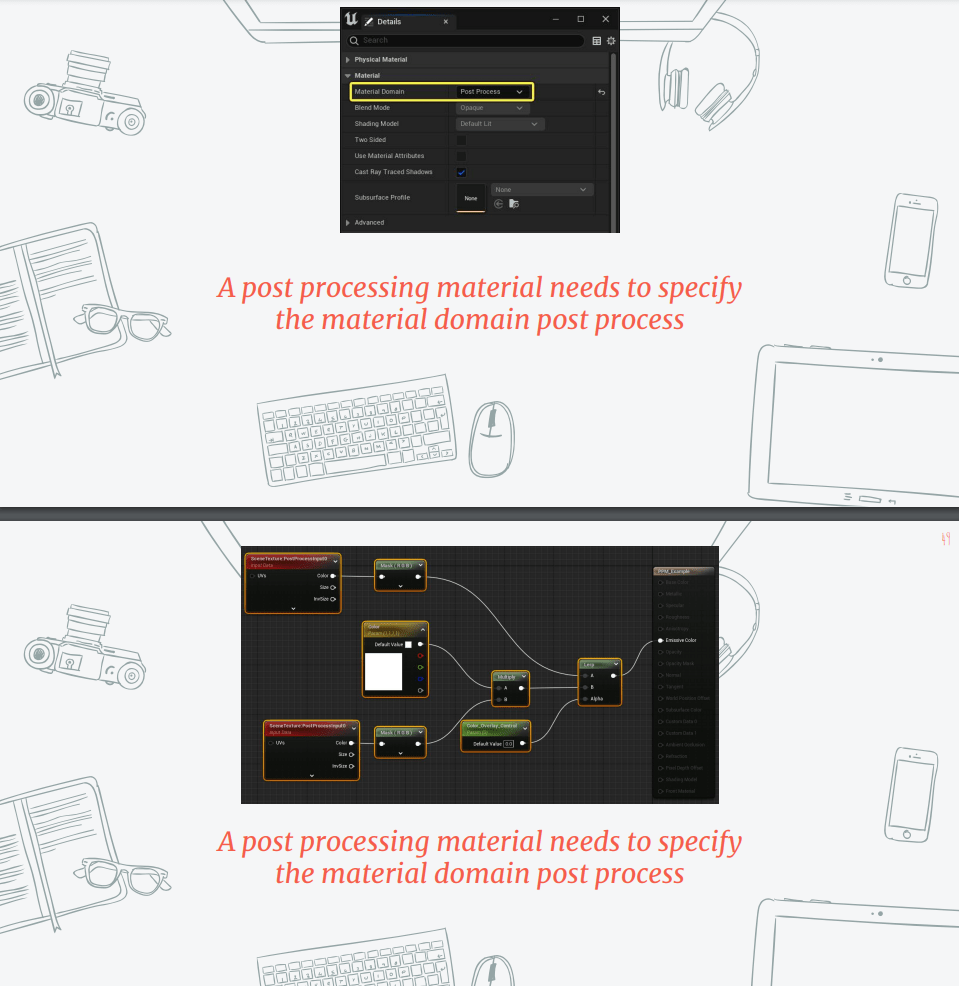
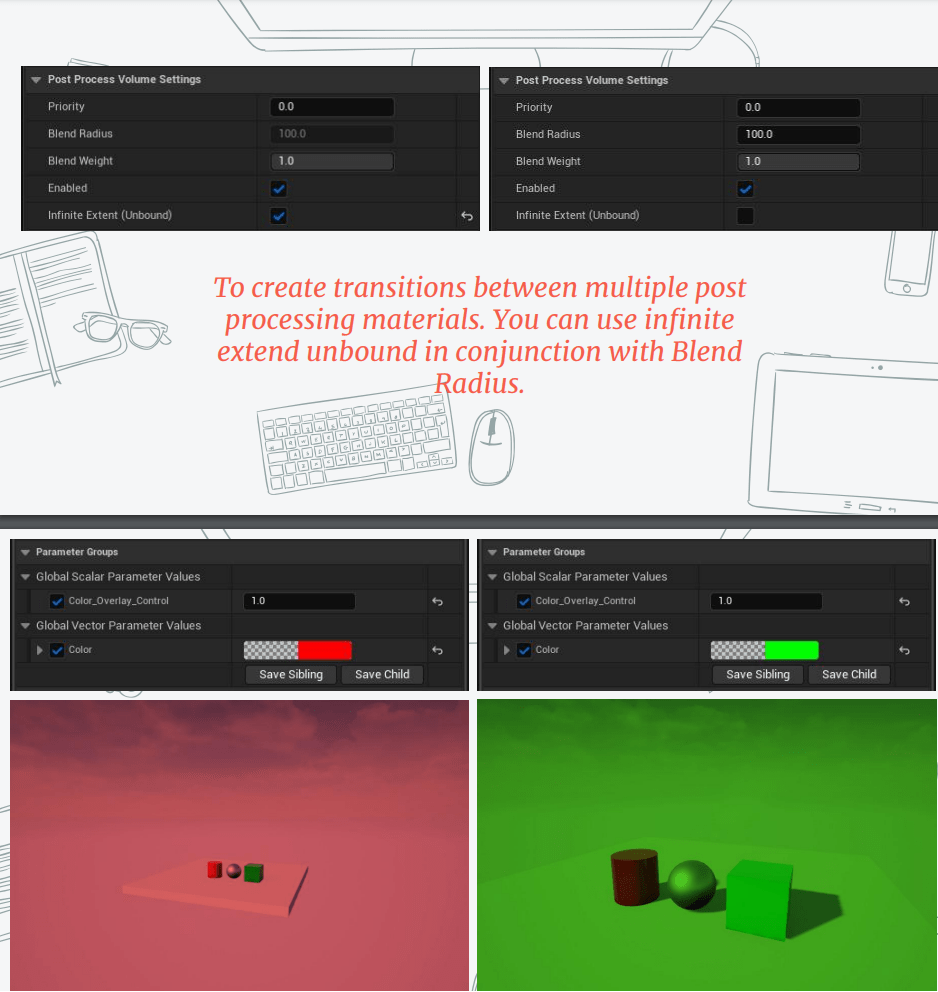
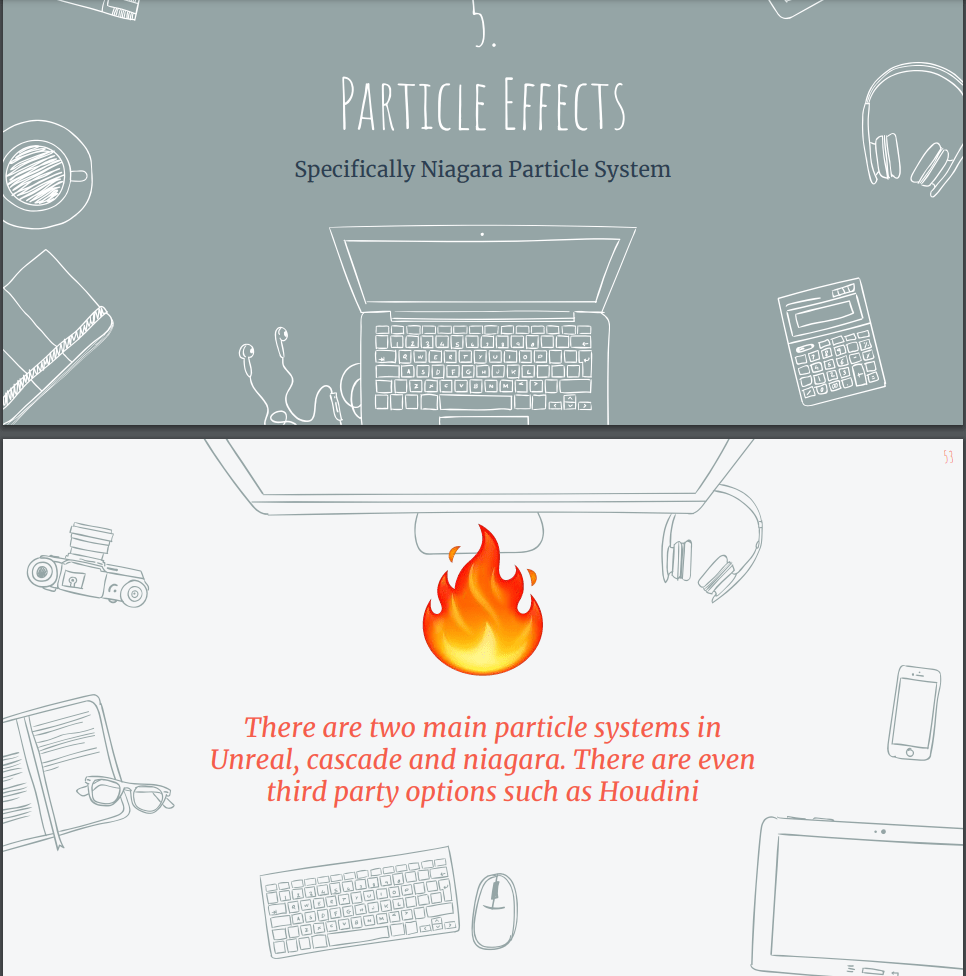
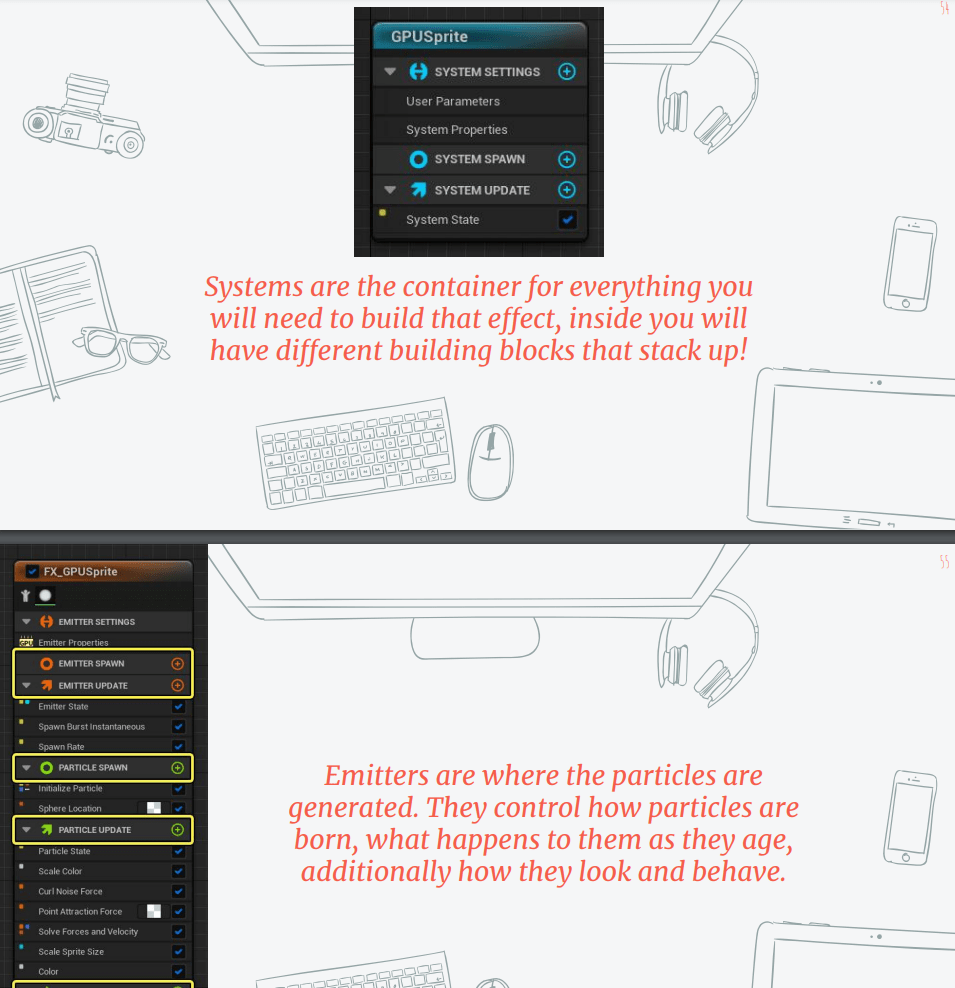
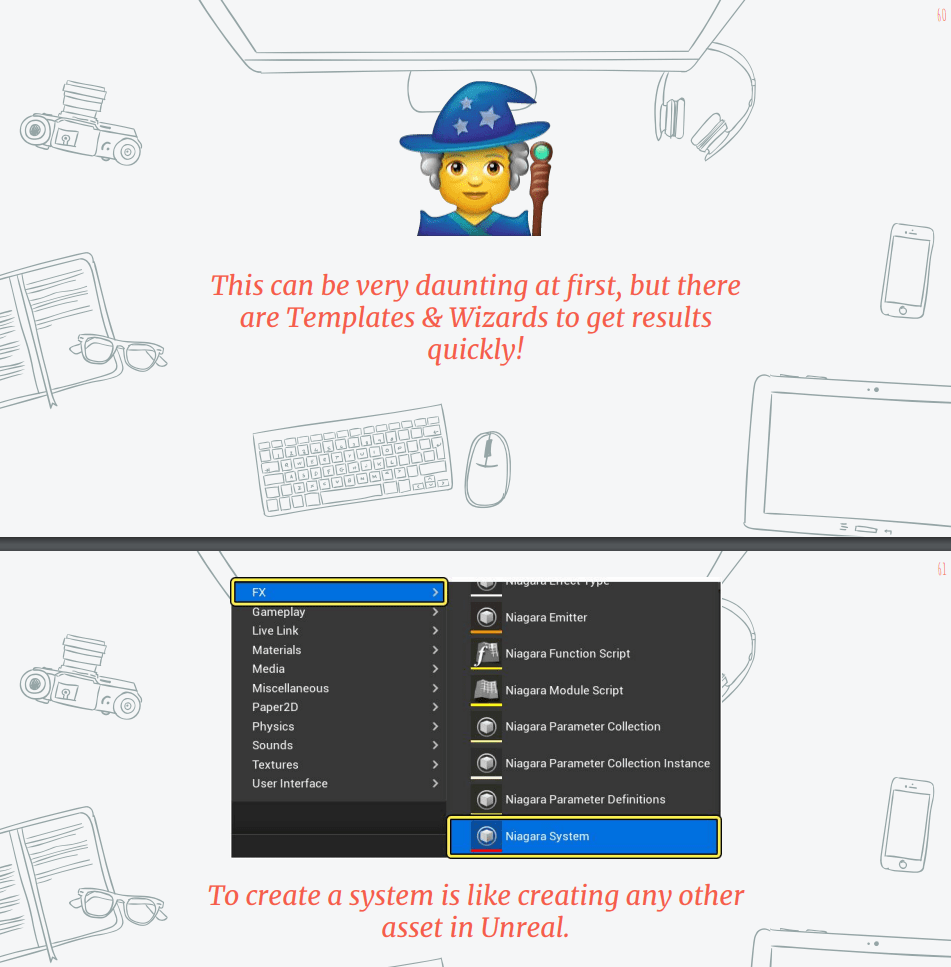
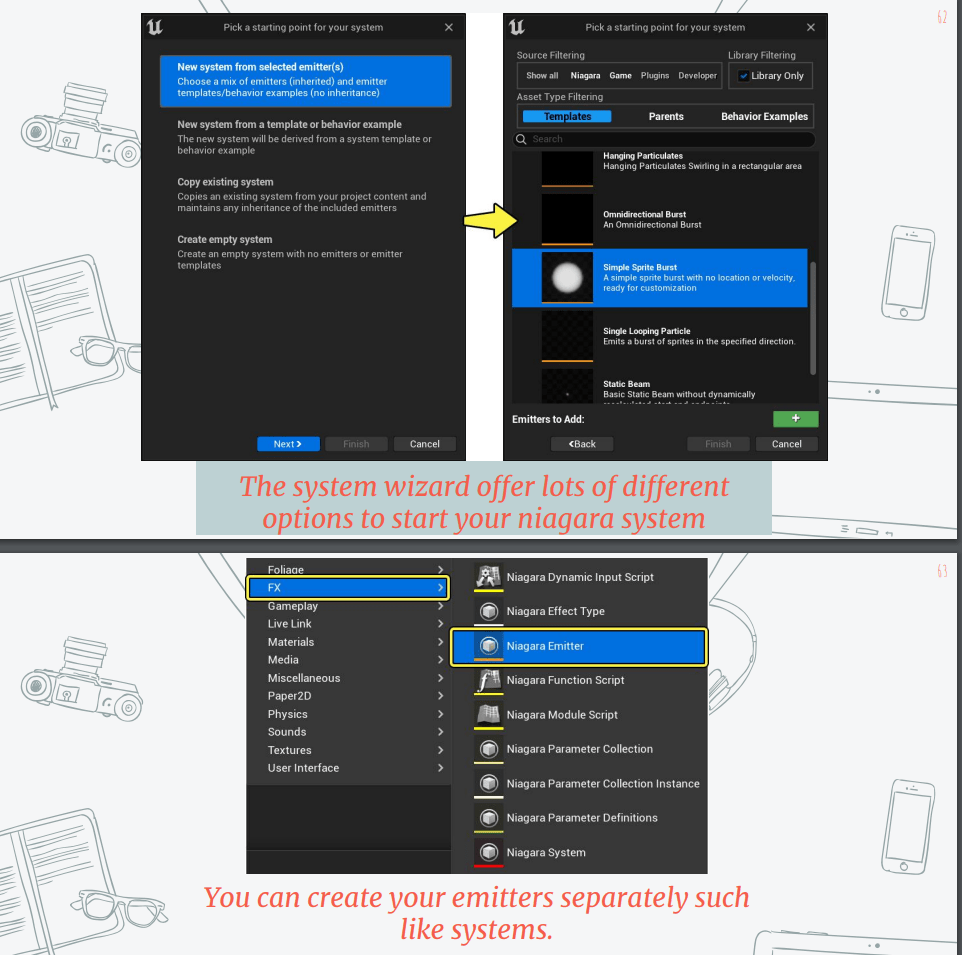
First we are going to have a look at the slides from class.
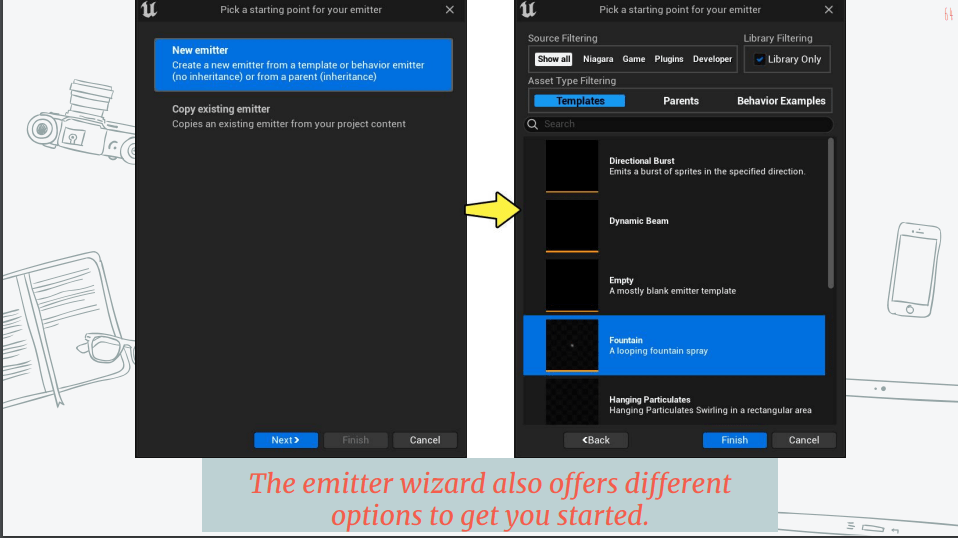
Workshop activity: Create a particle effect of your choice using the niagara particle system.
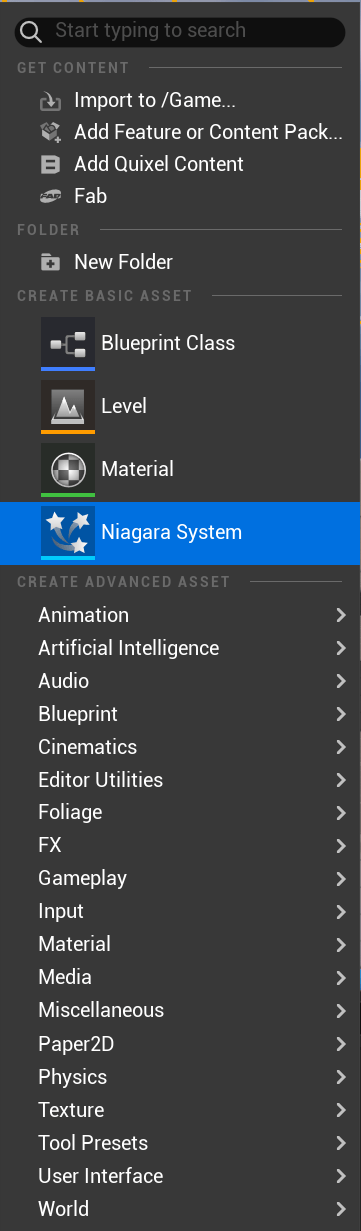
We create a Niagara system
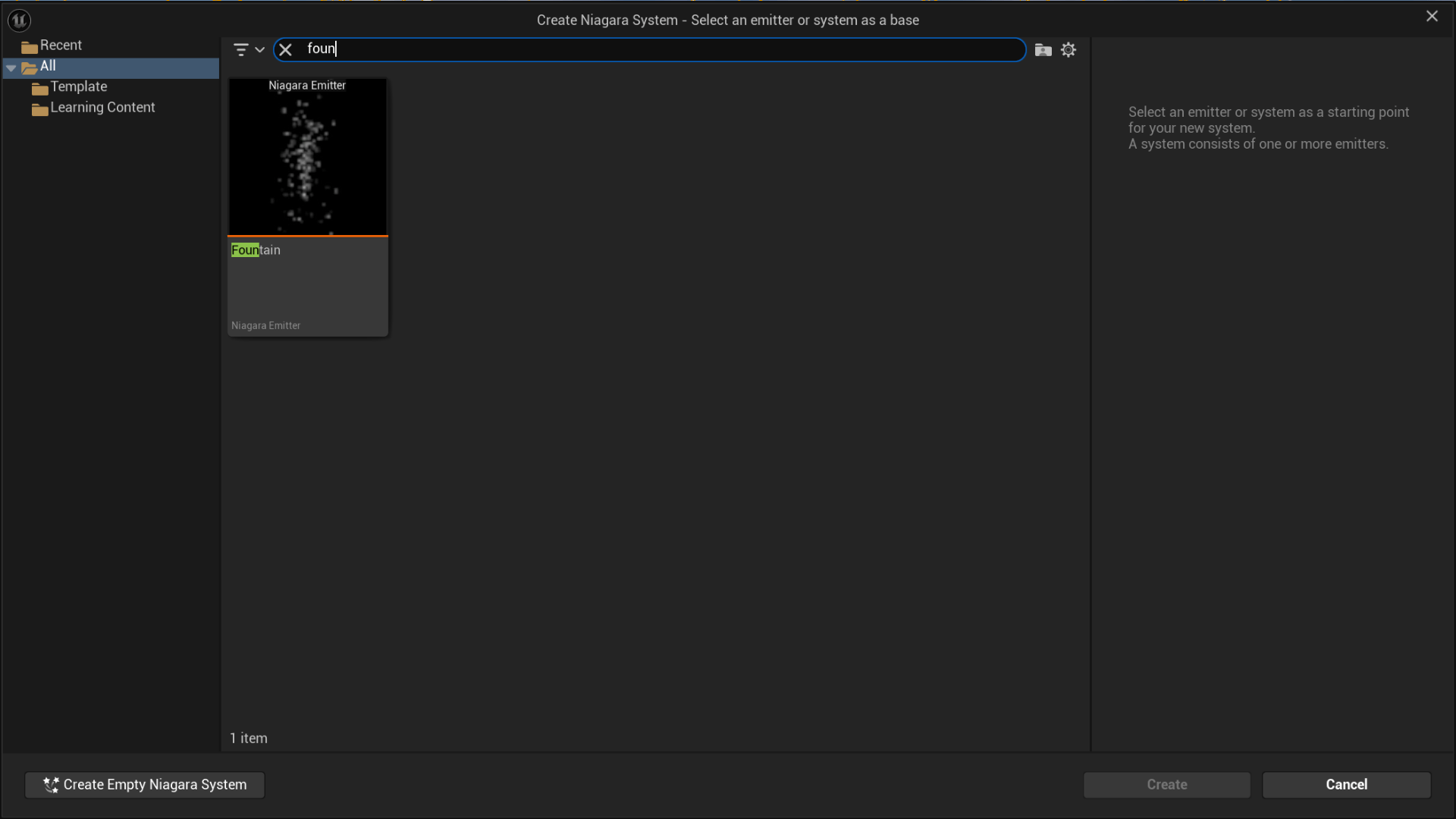
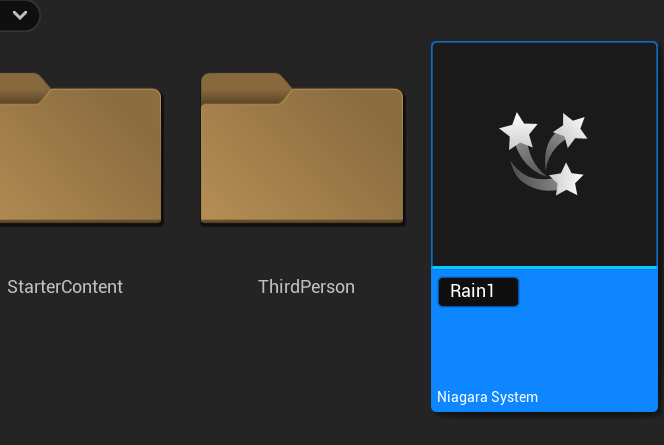
We call our system rain because I am going to create rain.
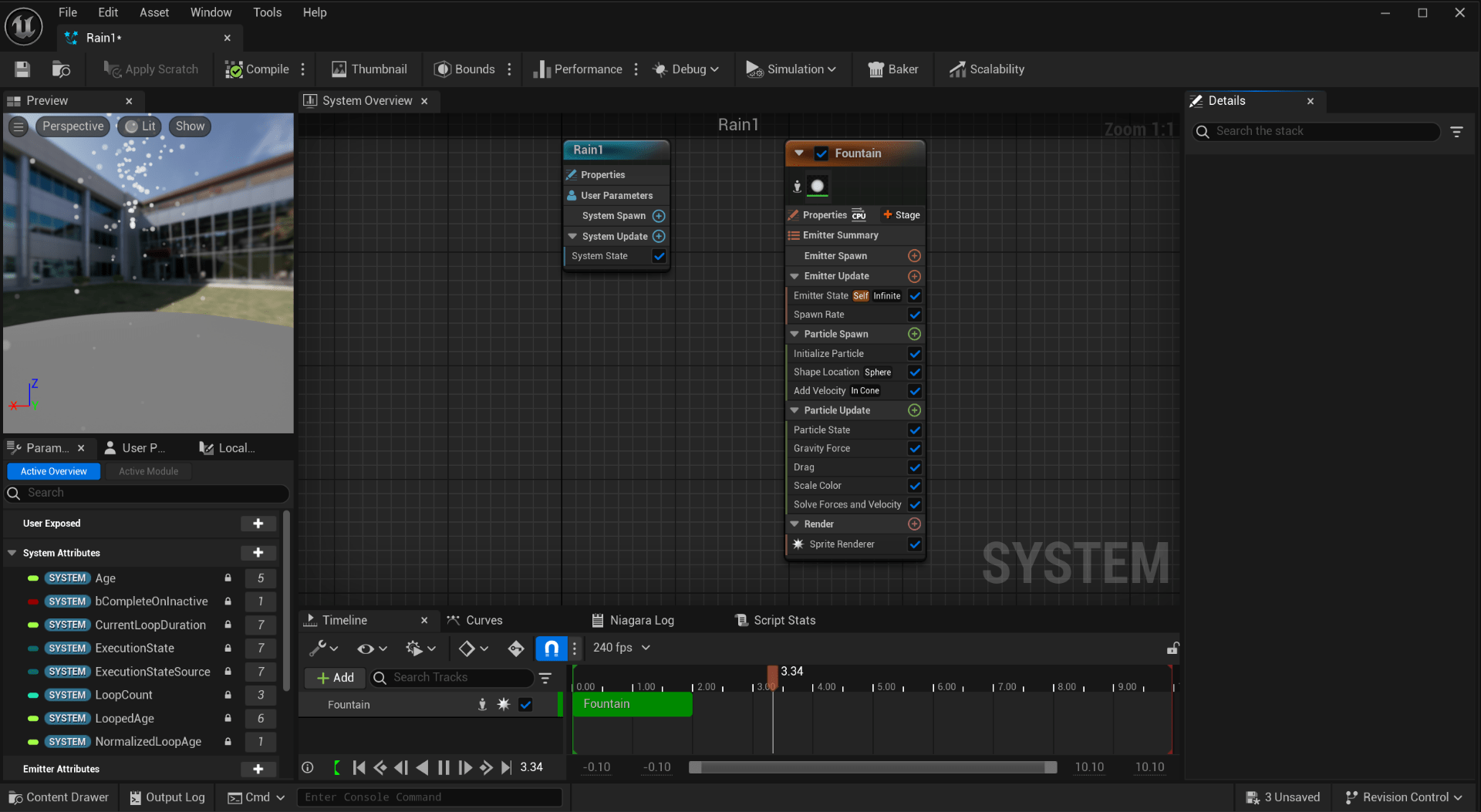
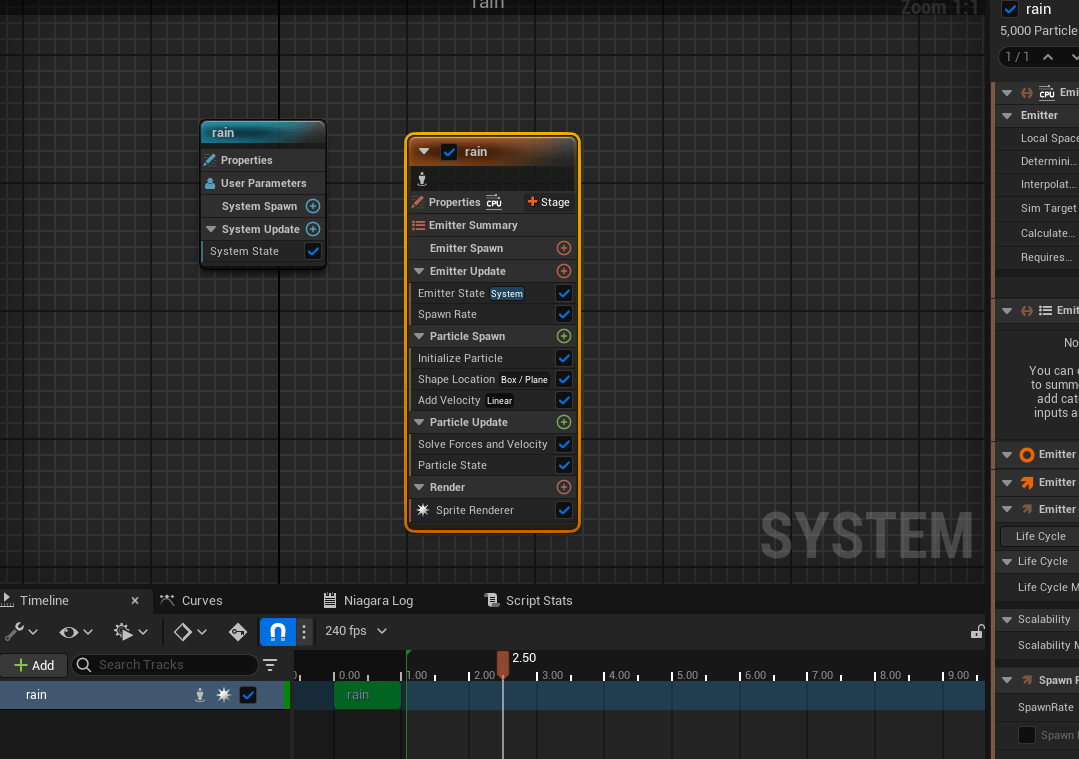
This is the blueprint of the system.
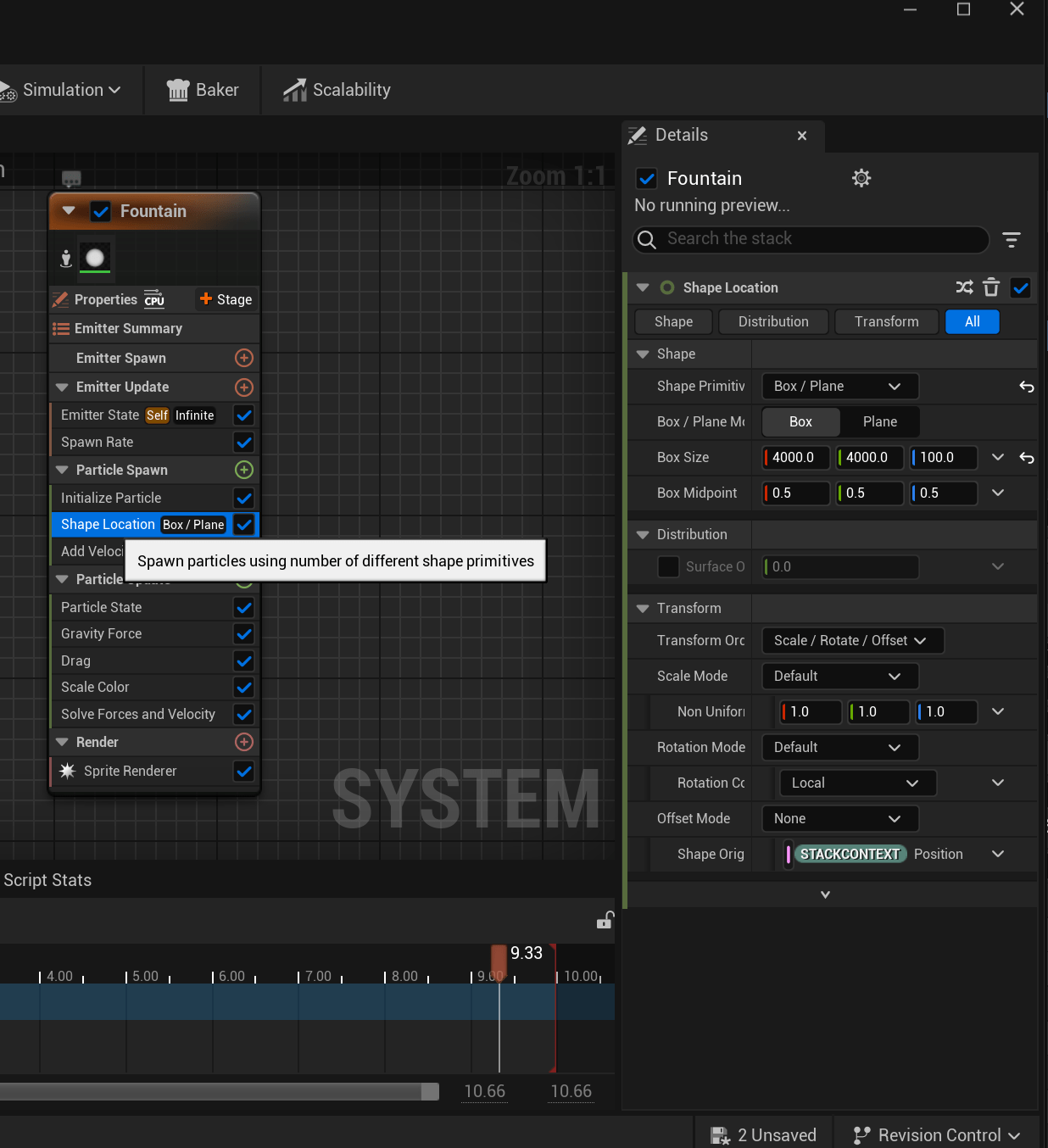
We set the shape location to a Box/Plane.
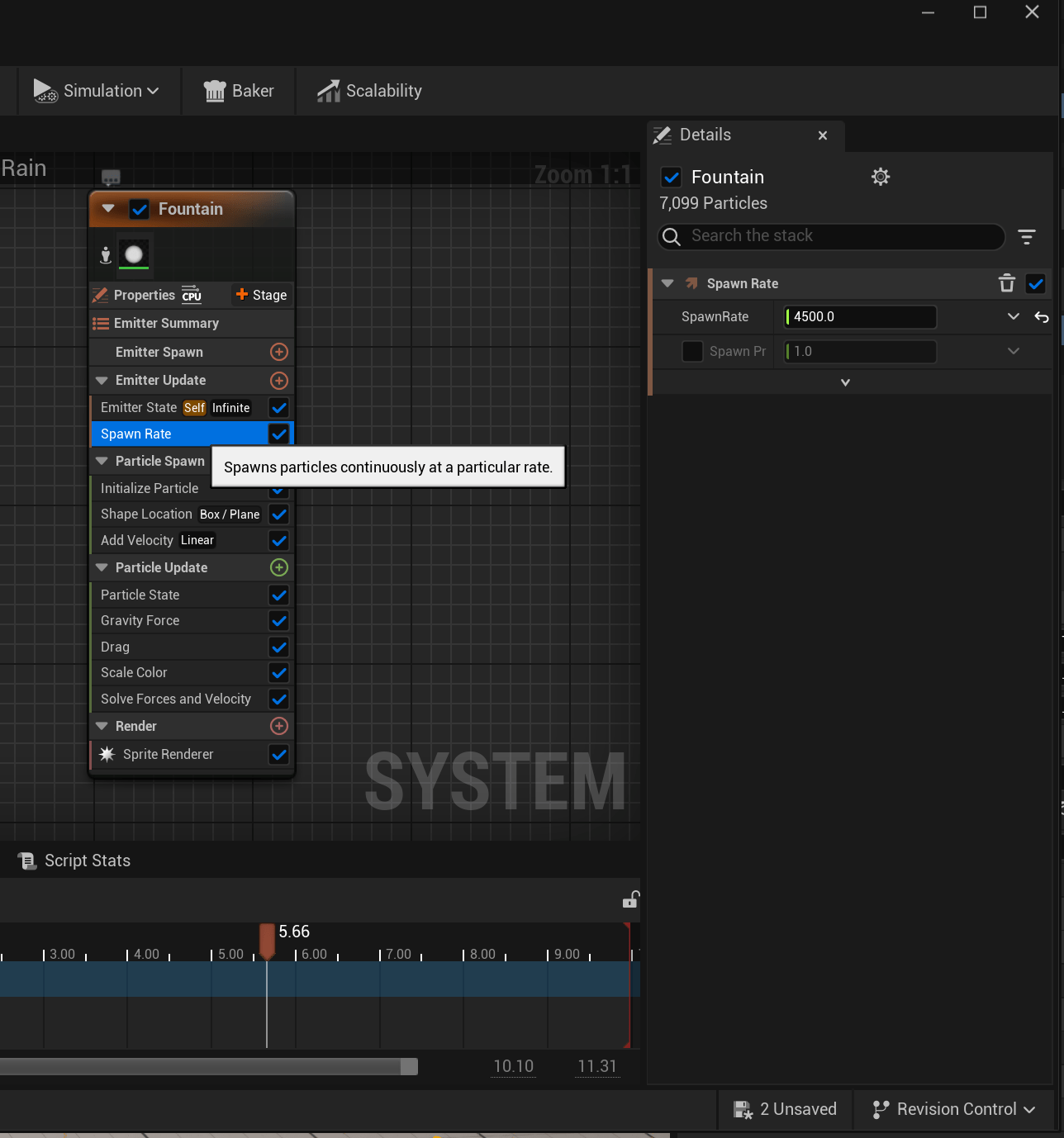
We set a high spawn rate so there is a a lot of particles.
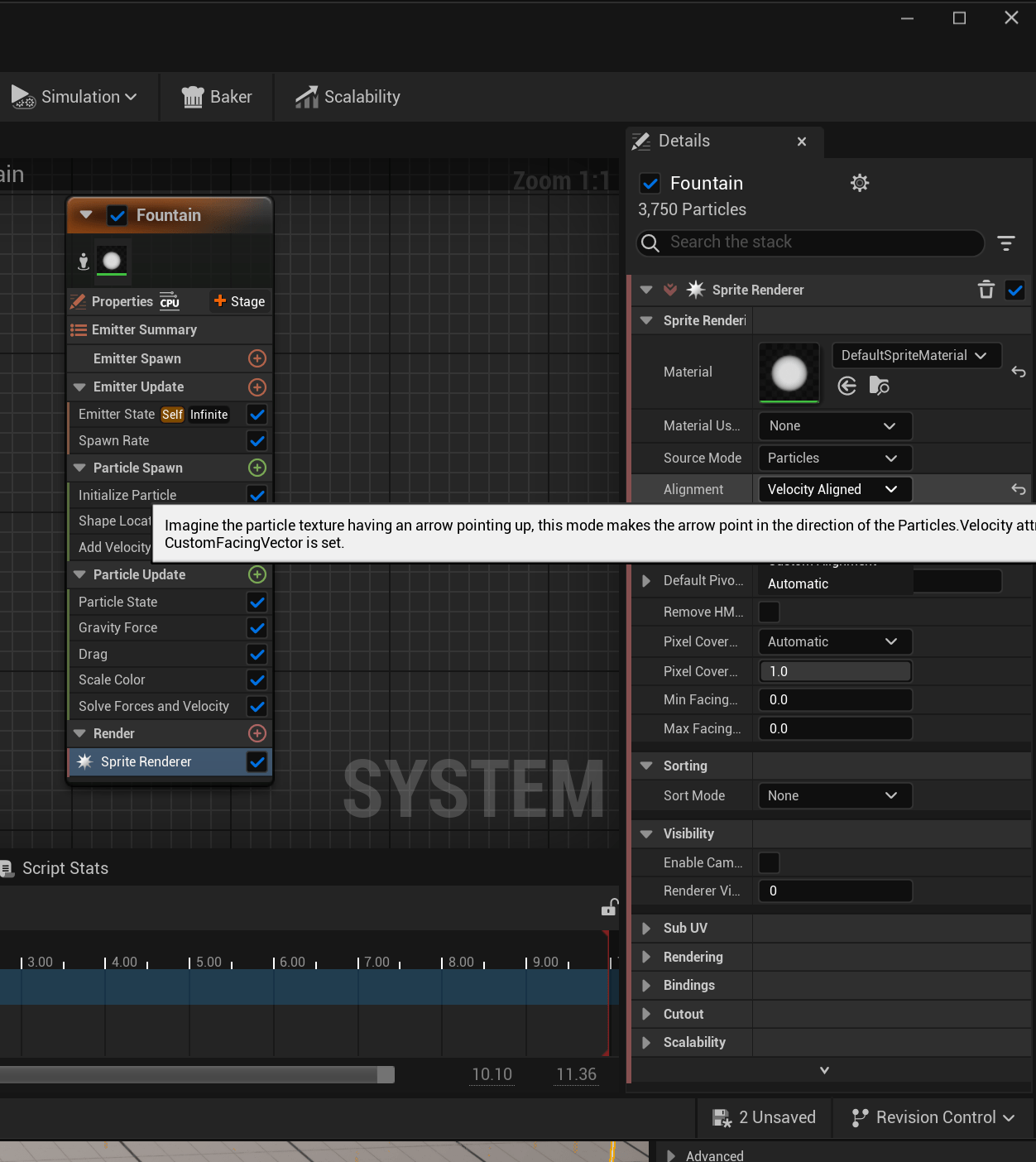
And we apply a velocity aligment.
This is how our rain is looking.
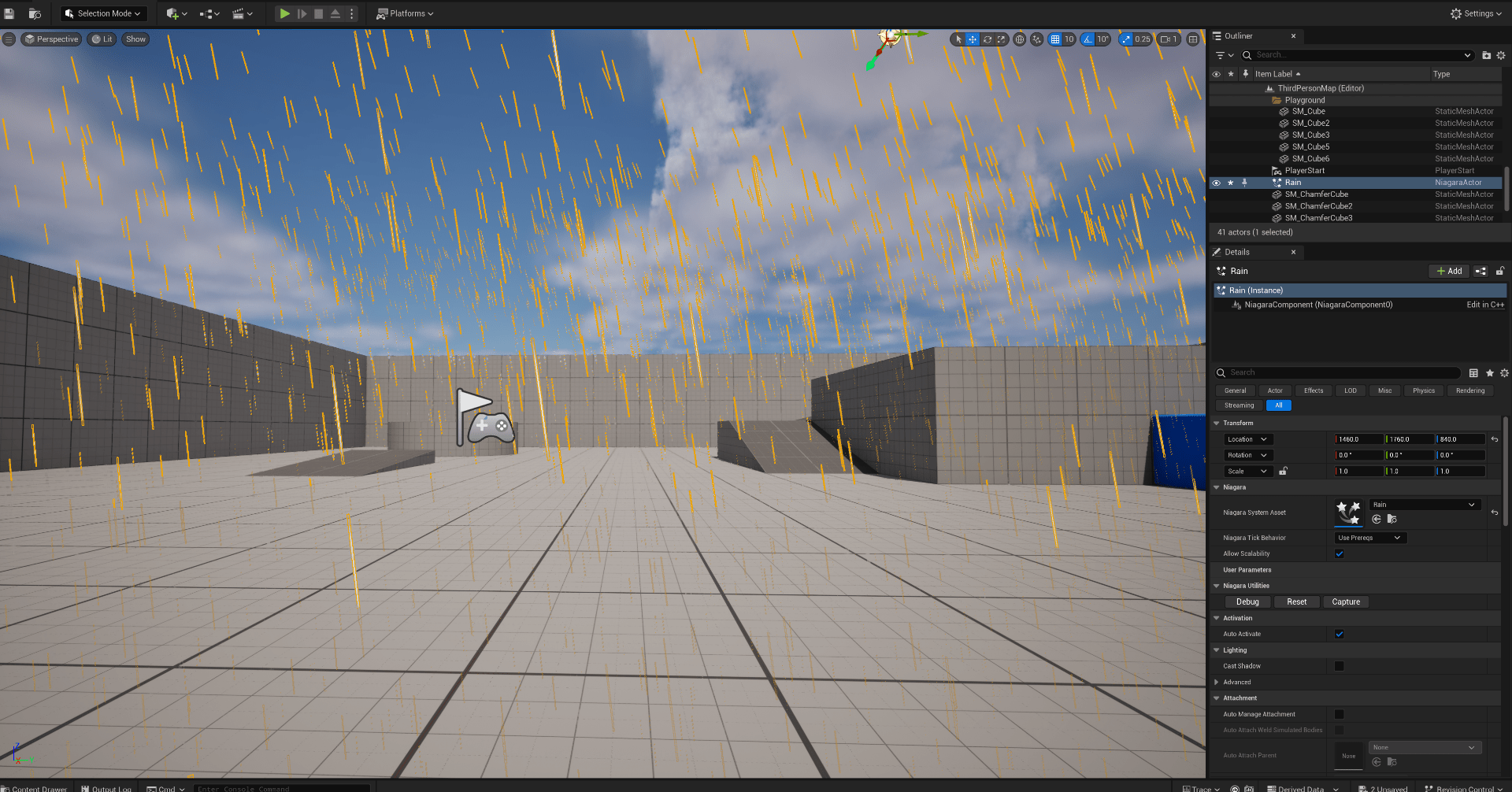
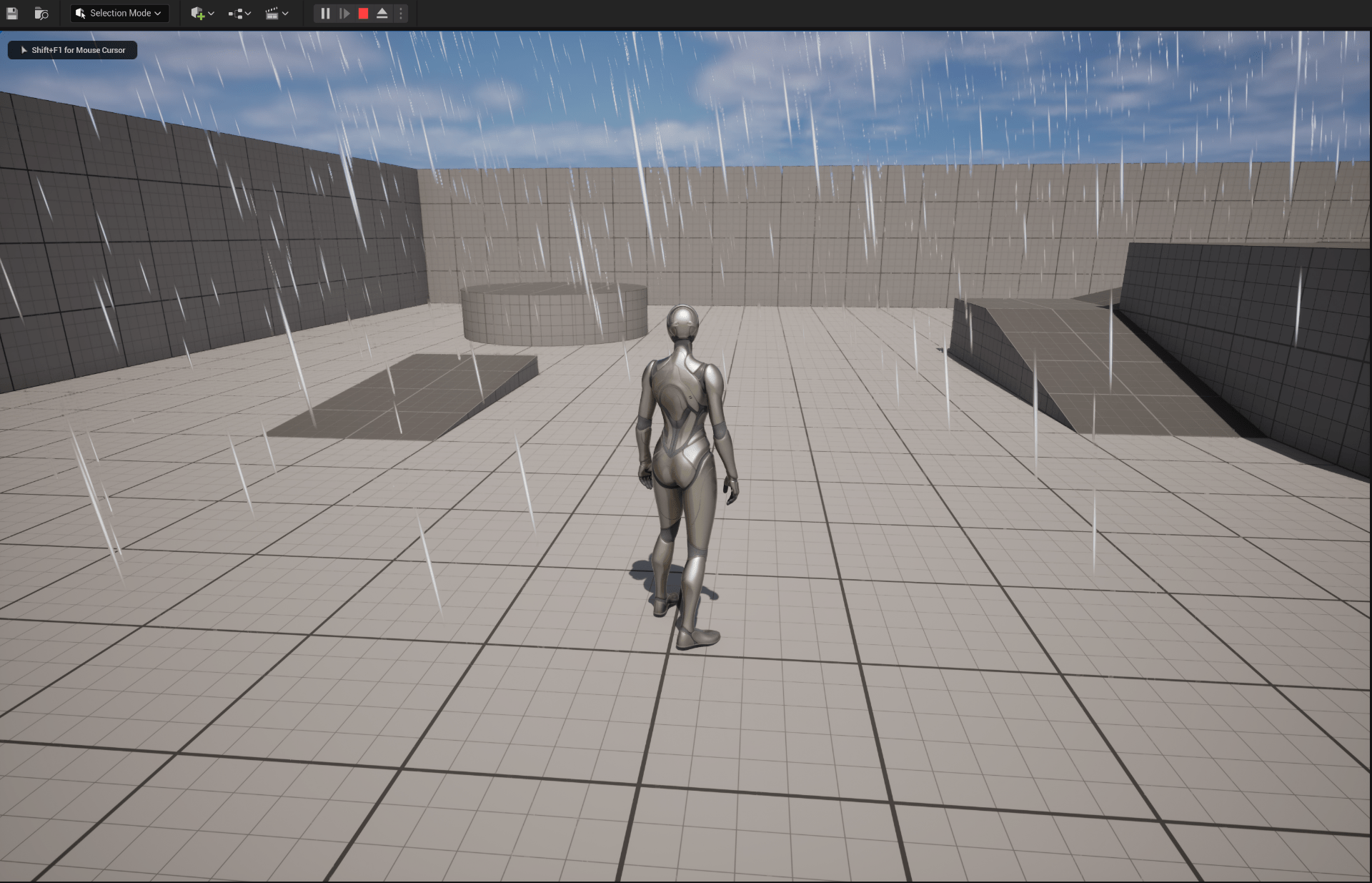
Now we are going to add and emitter to create the splash of the rain touching the floor.
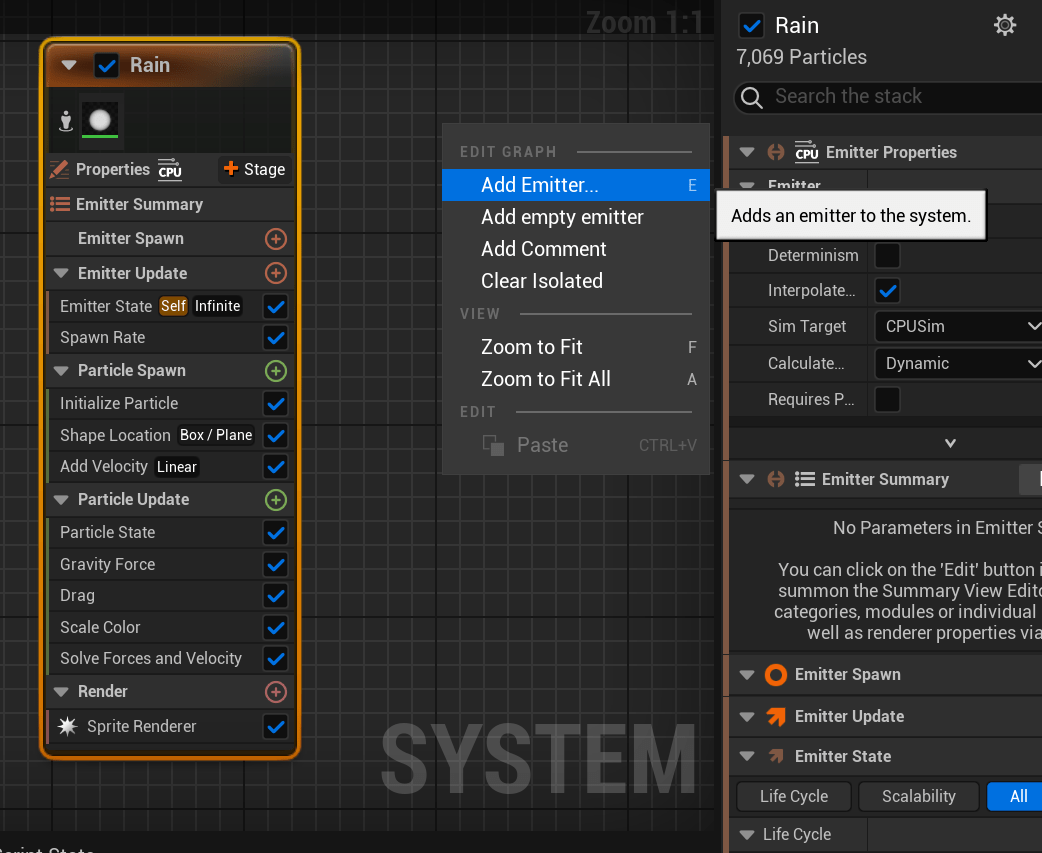
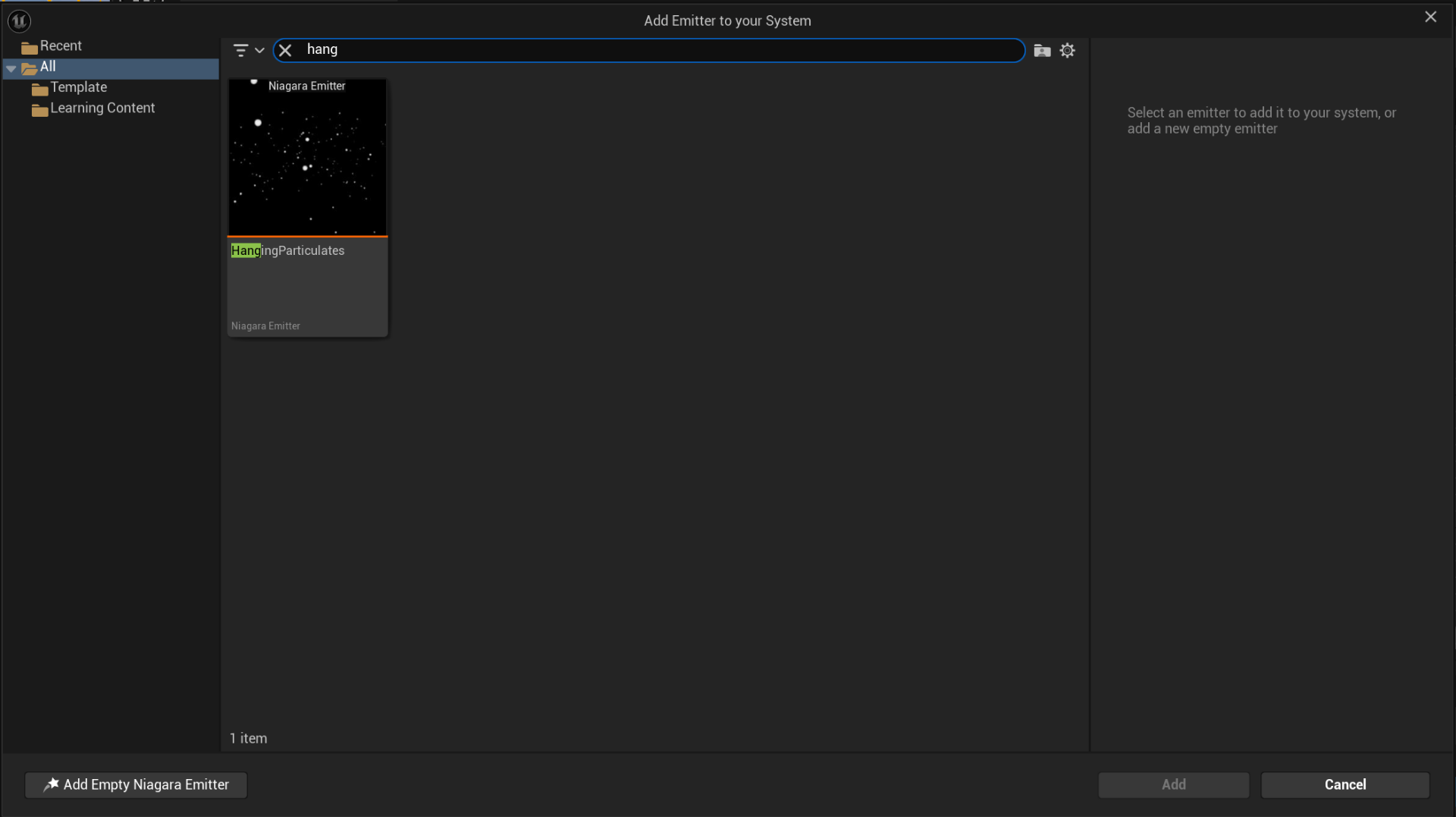
But first we are going to add a coalition and set that the particles disappear when touching the floor.
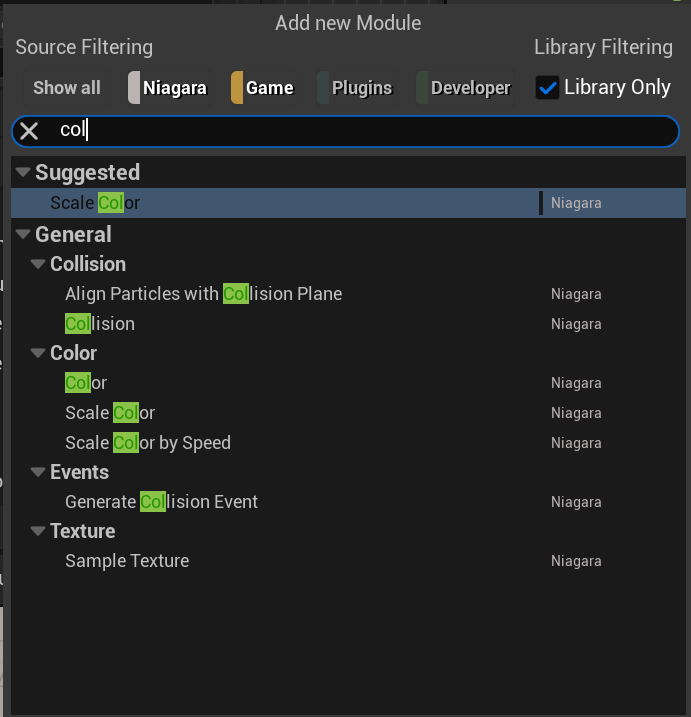
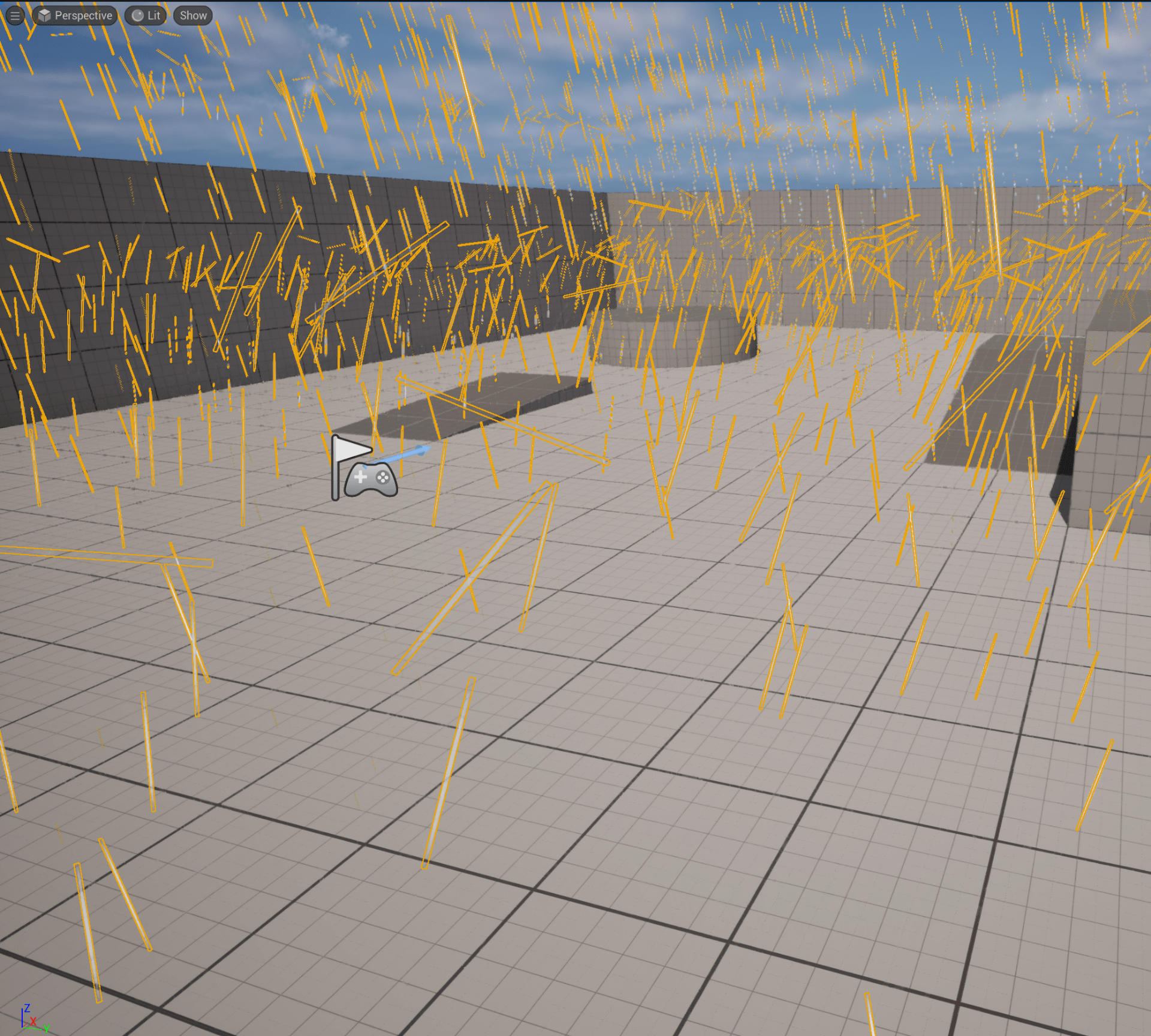
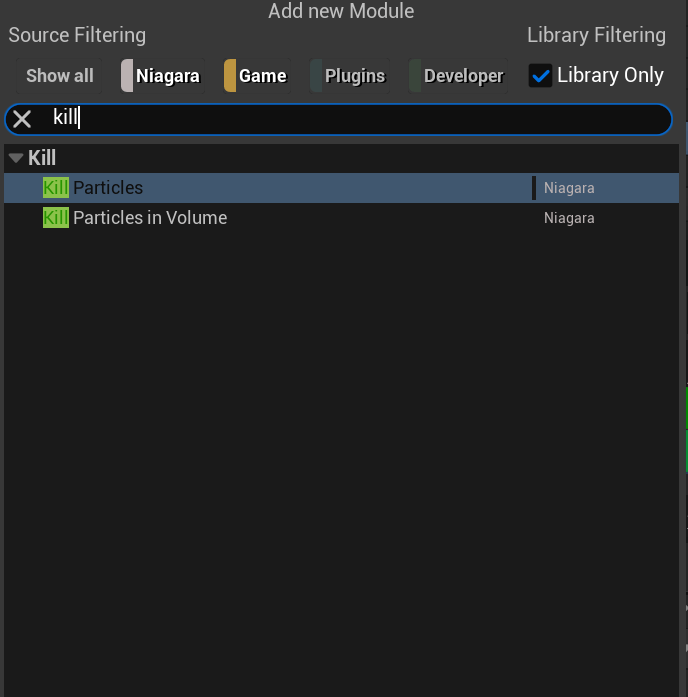
Now our particle will not pass through the floor.
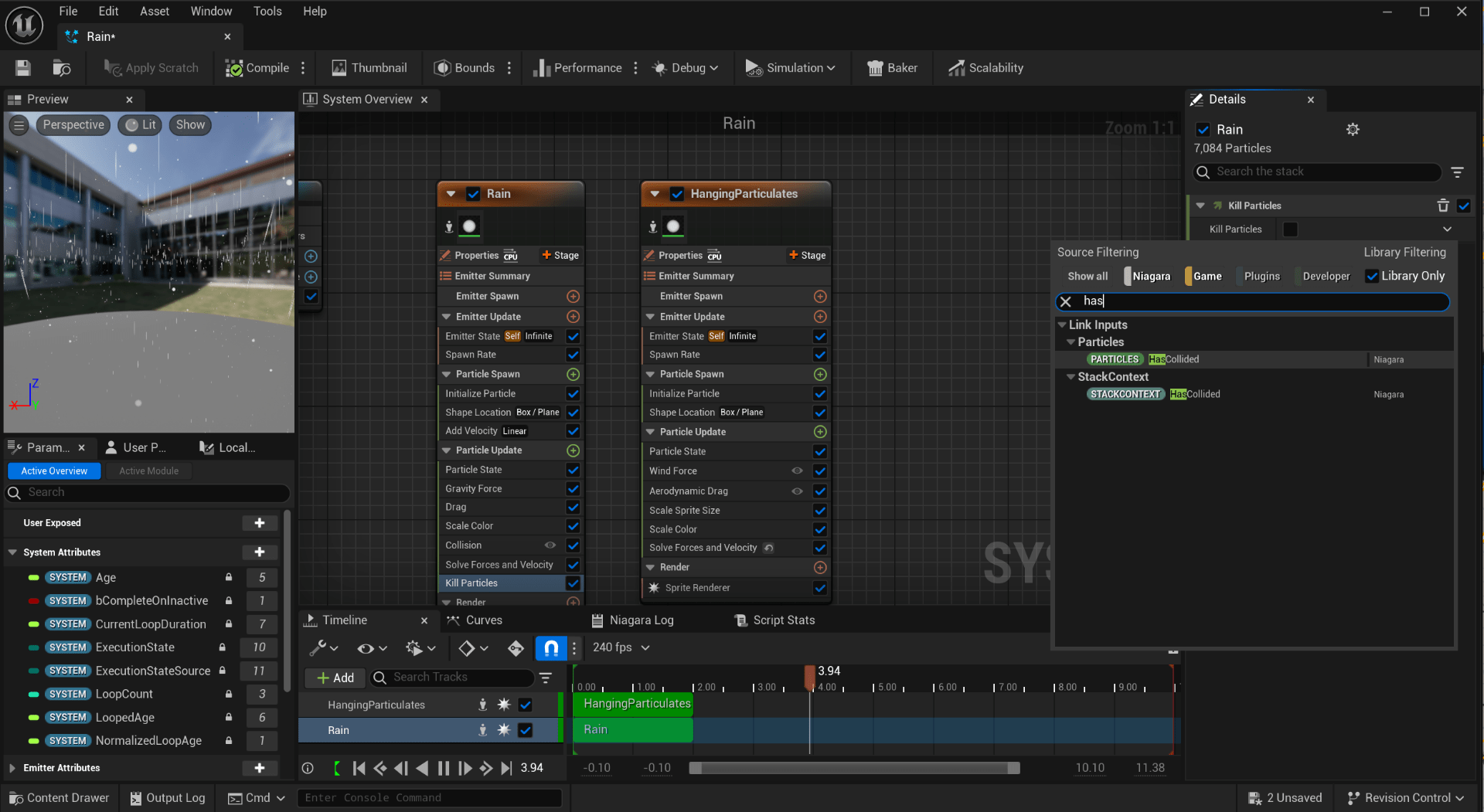
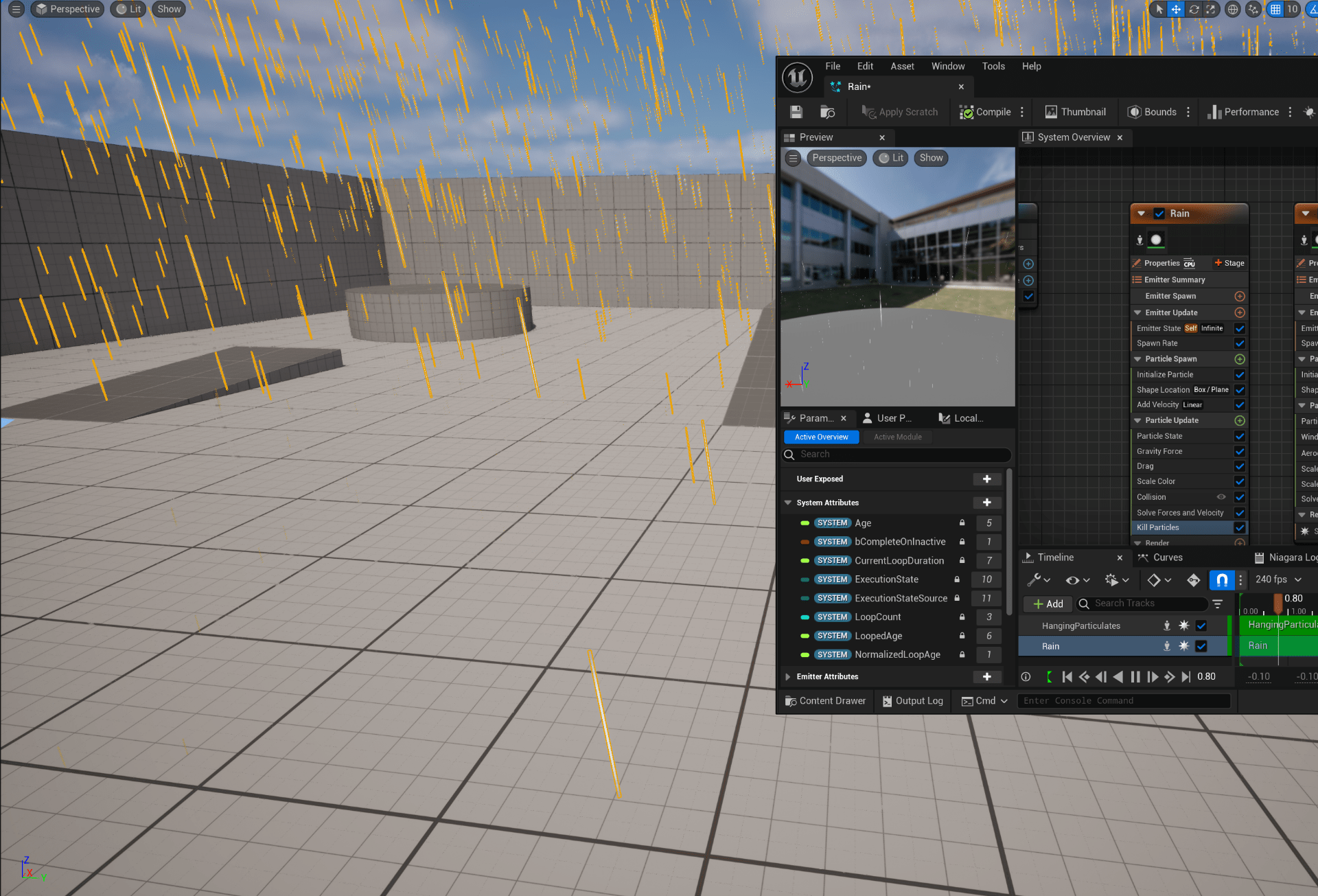
We add an event handler so when our particles touch the floor the emitter appears.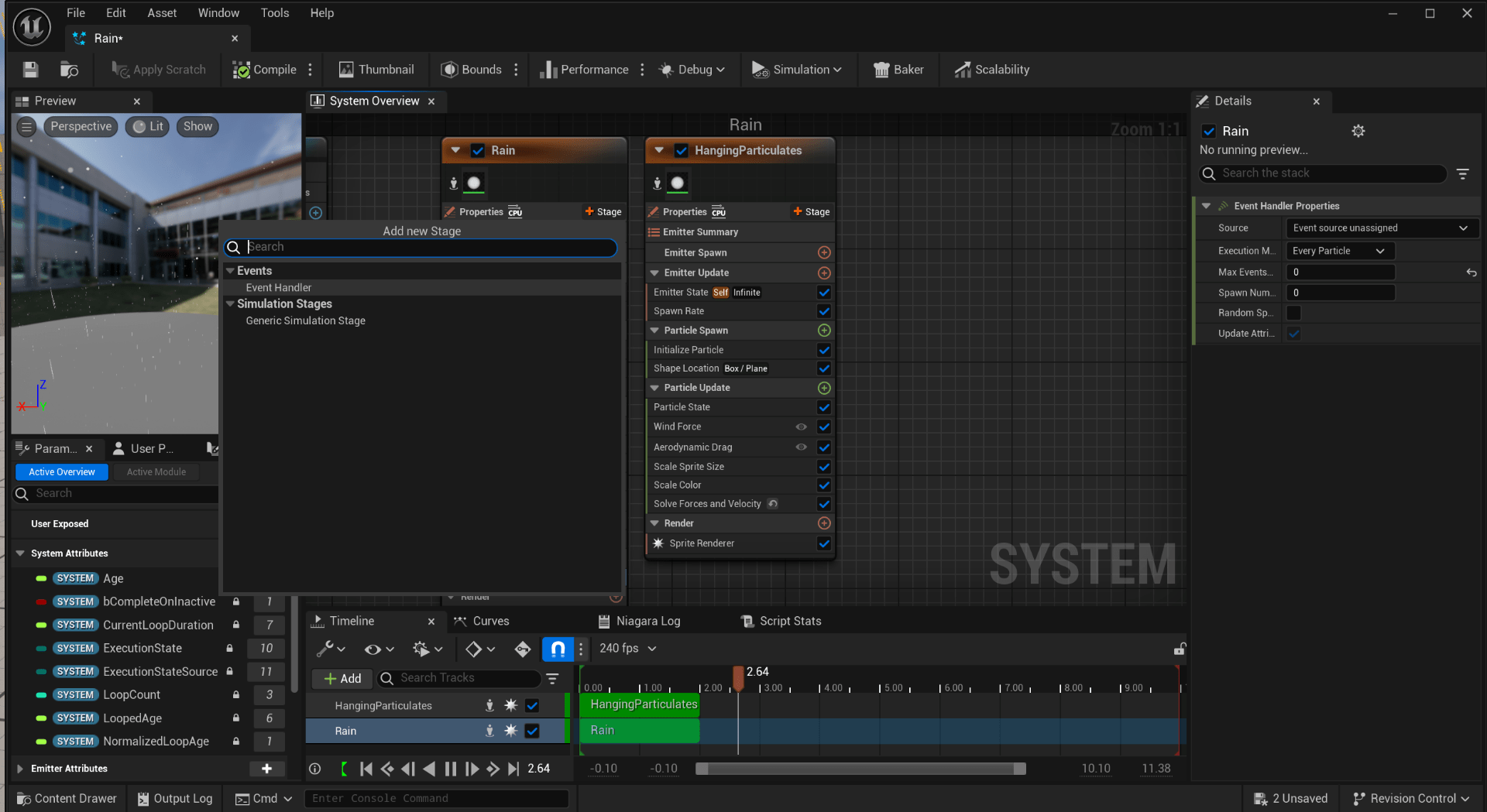
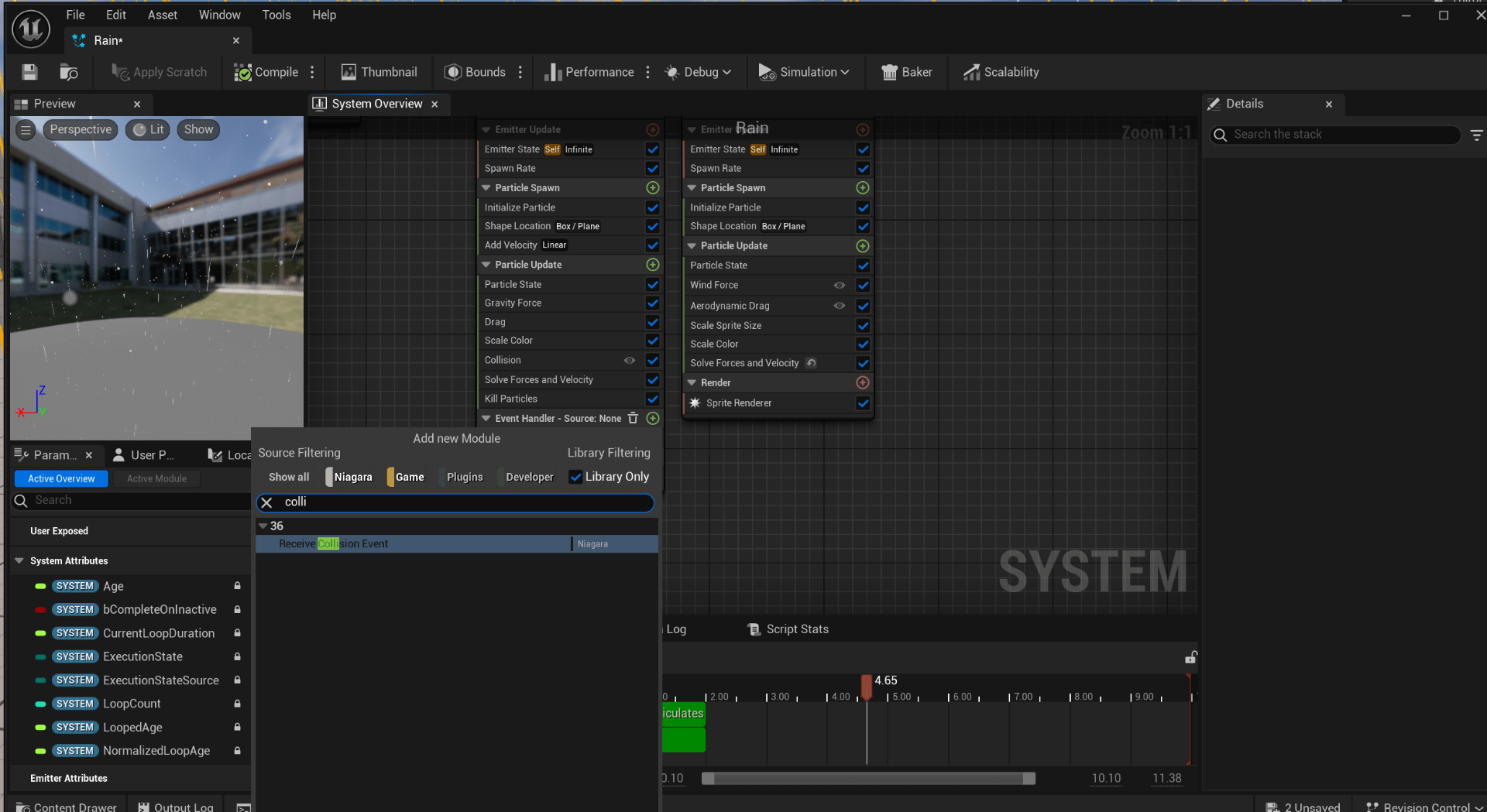
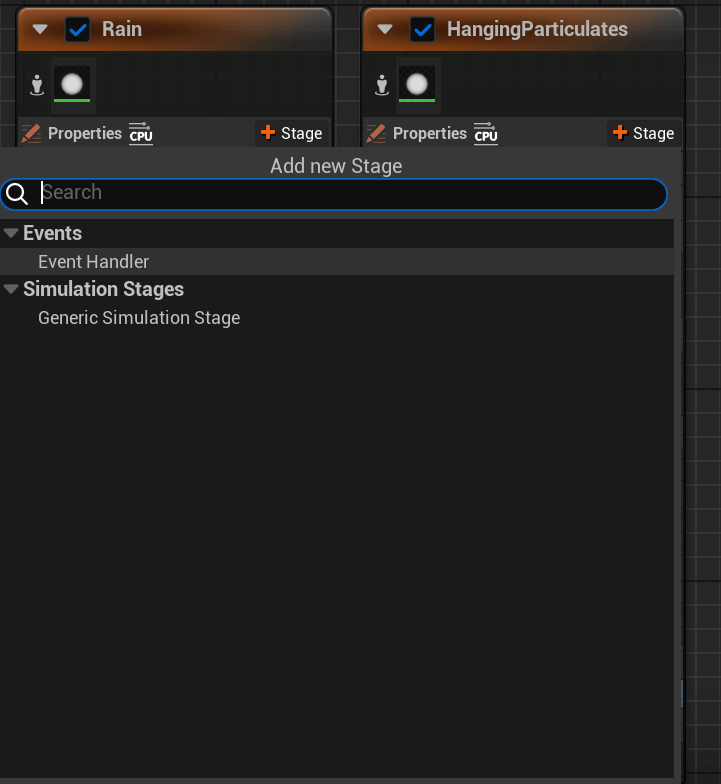
We set the particles that are going to be generated during collition
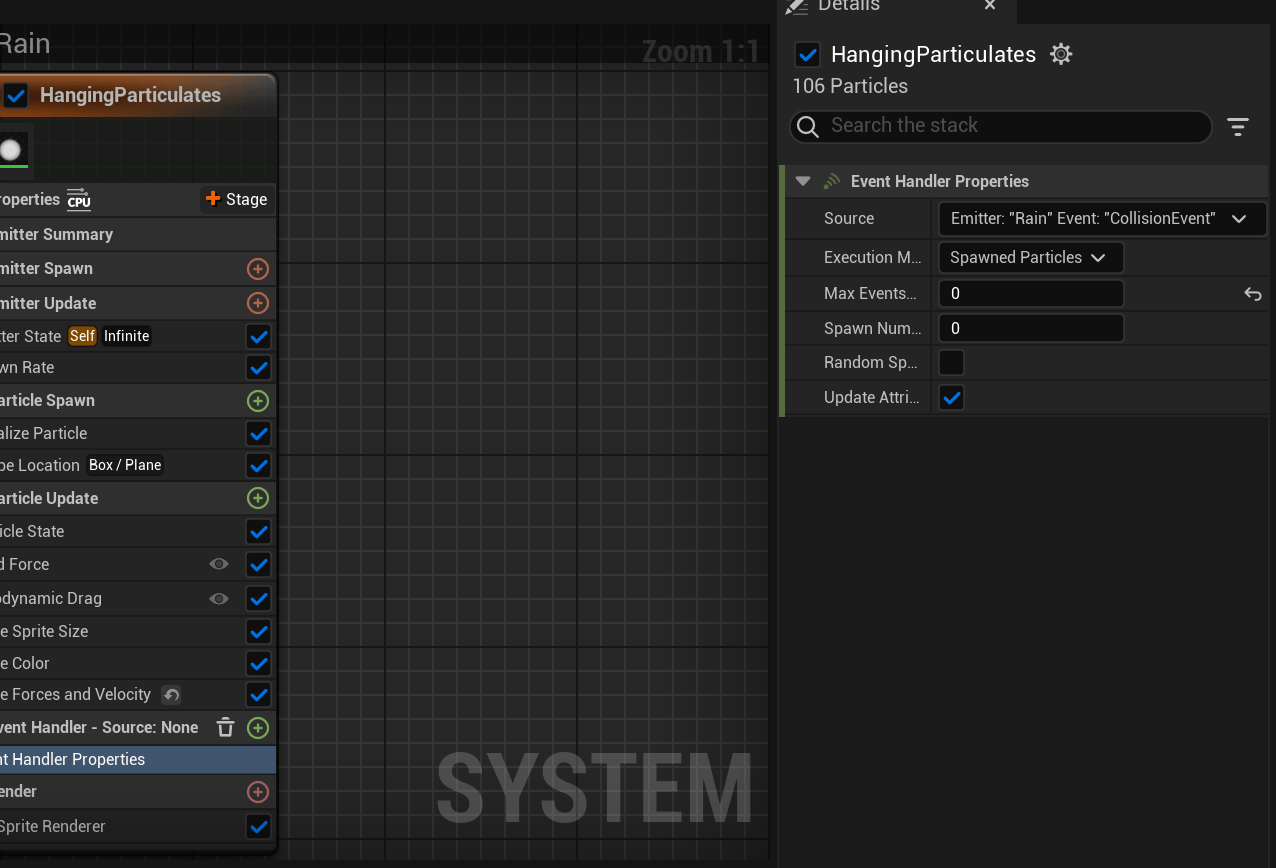
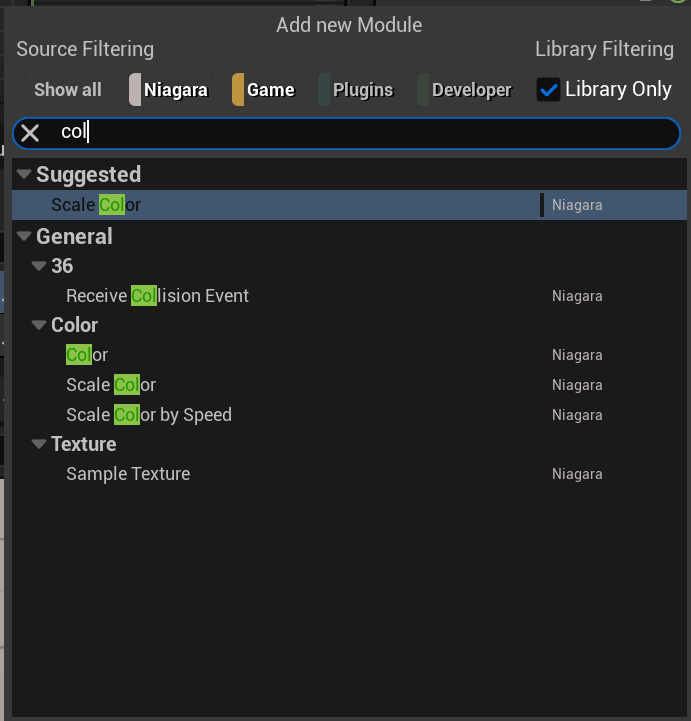
And add a coalition receive event to the emitter
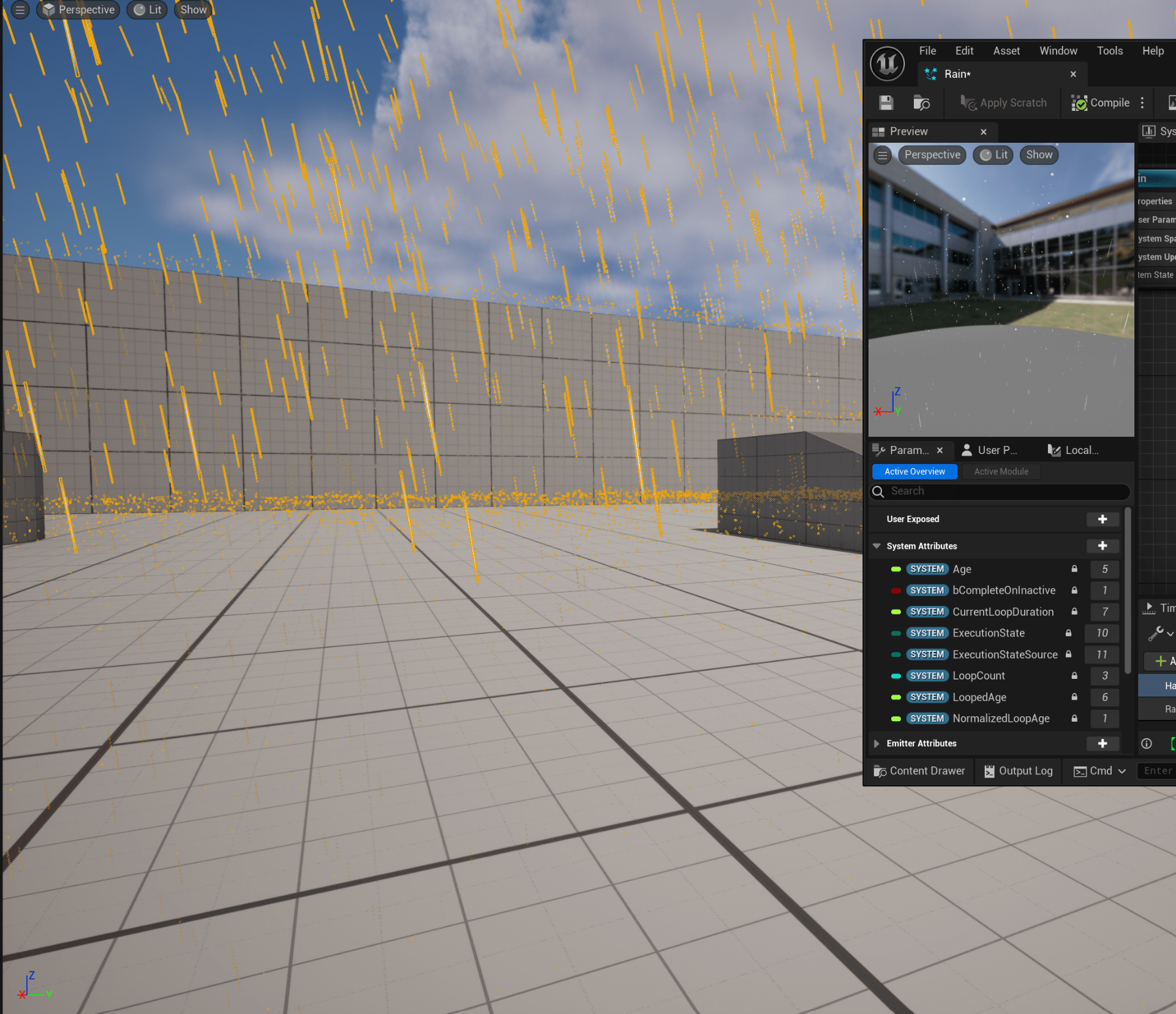
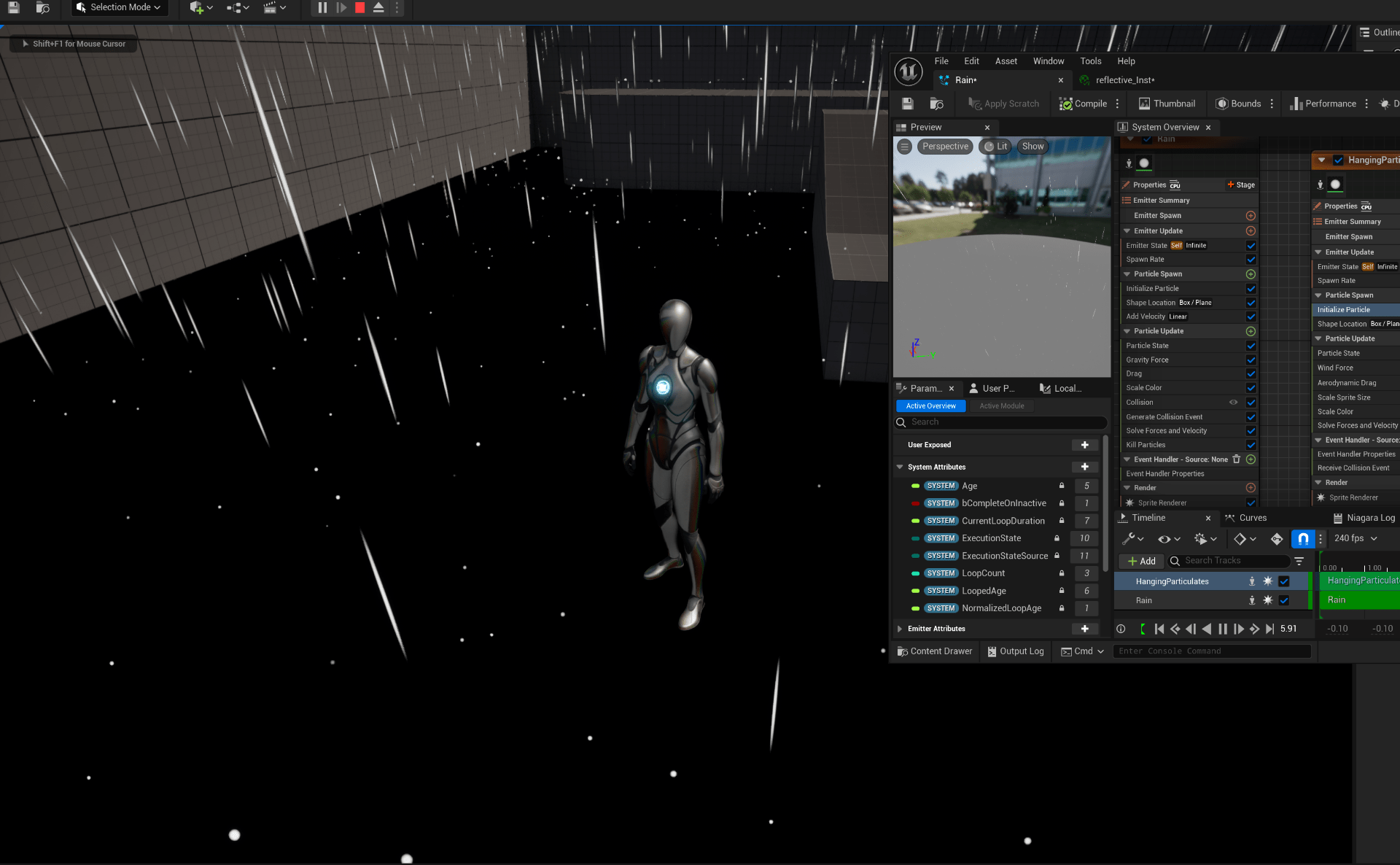
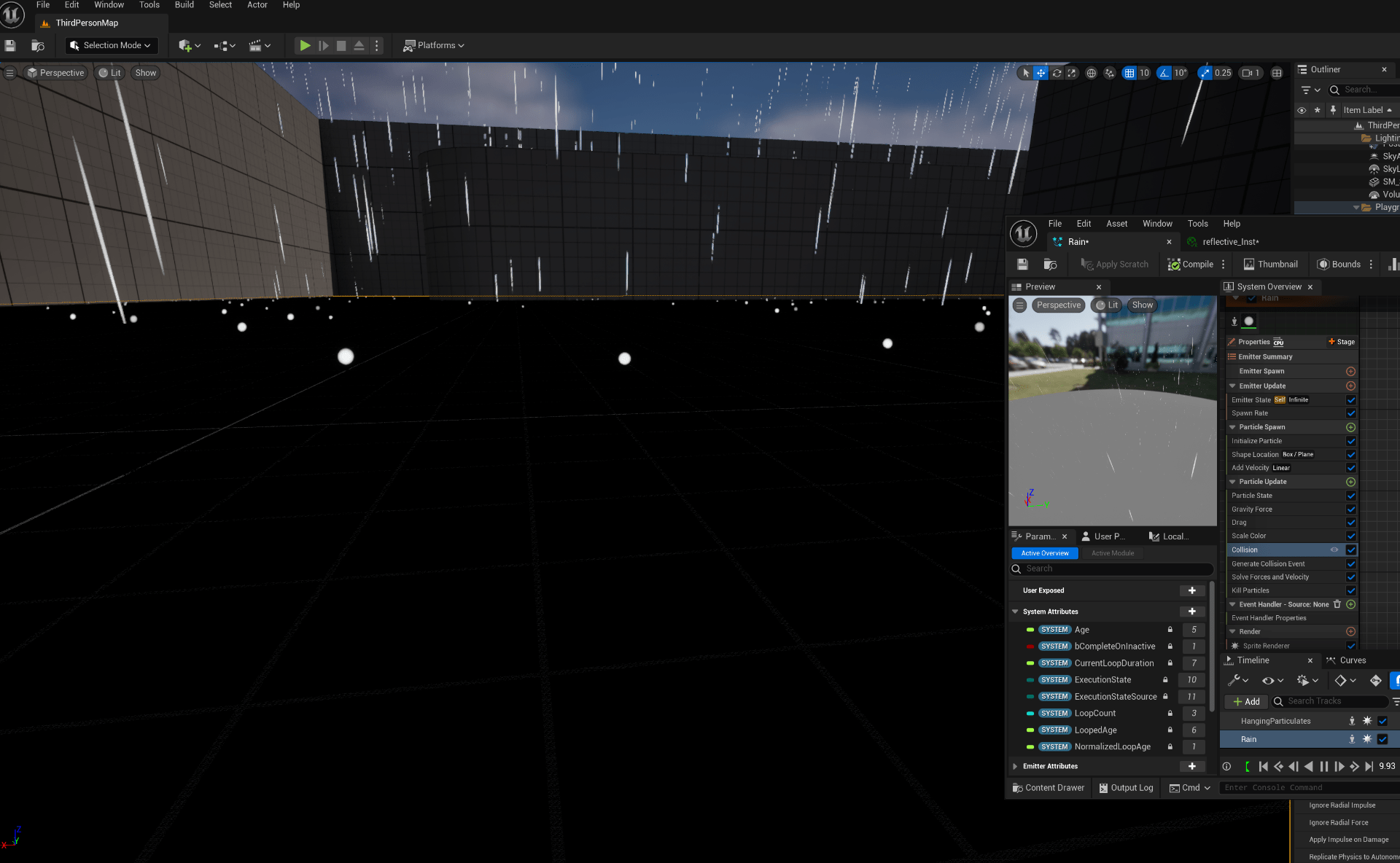
This is how it looks.
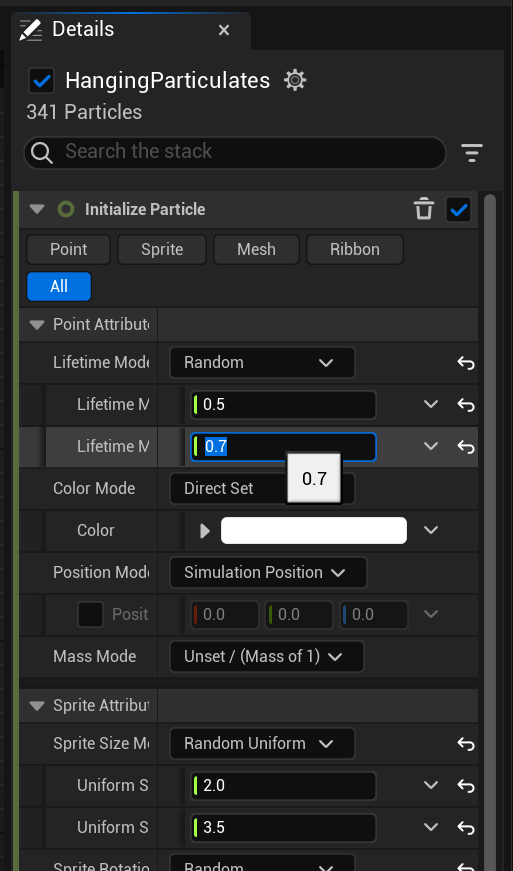
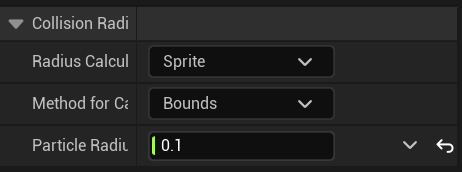
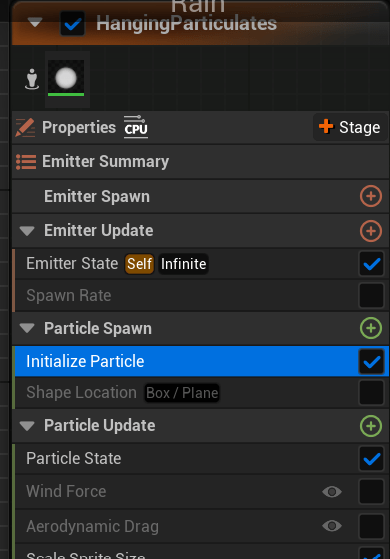 Now we are going to change some parameter to adjust the size of the particles and the duration.
End of week 10
CGI Assignment 1
Progress:

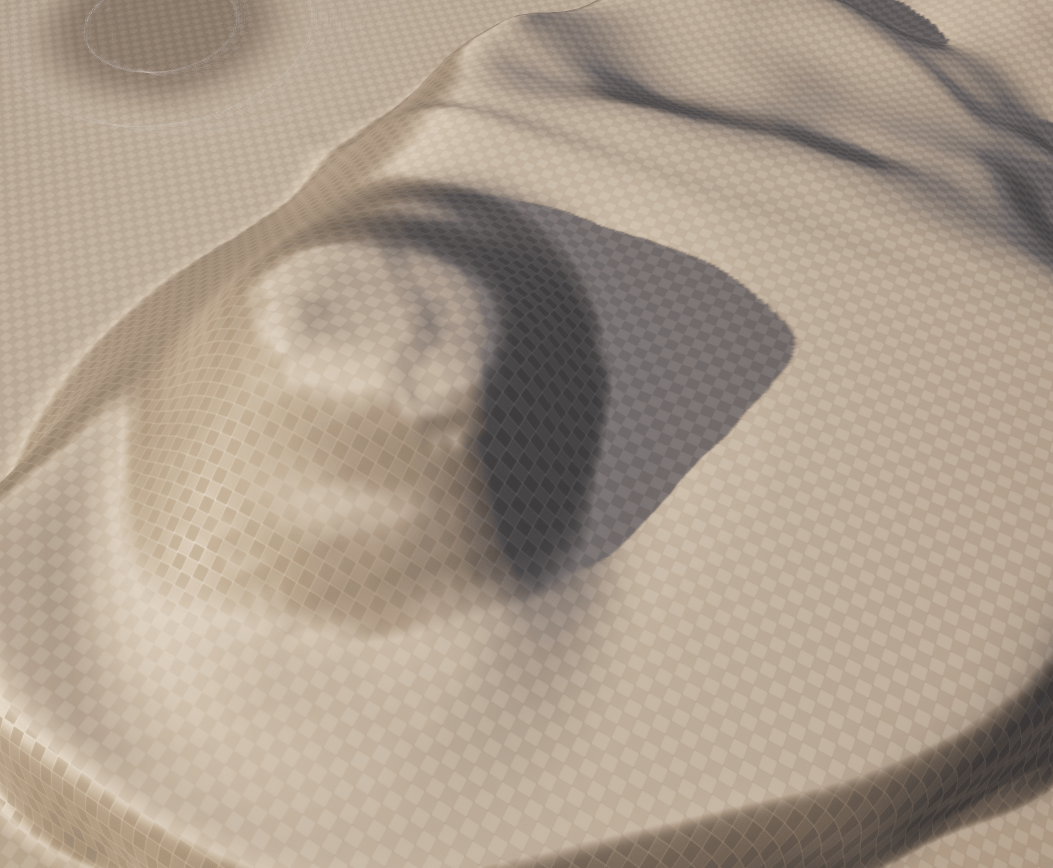
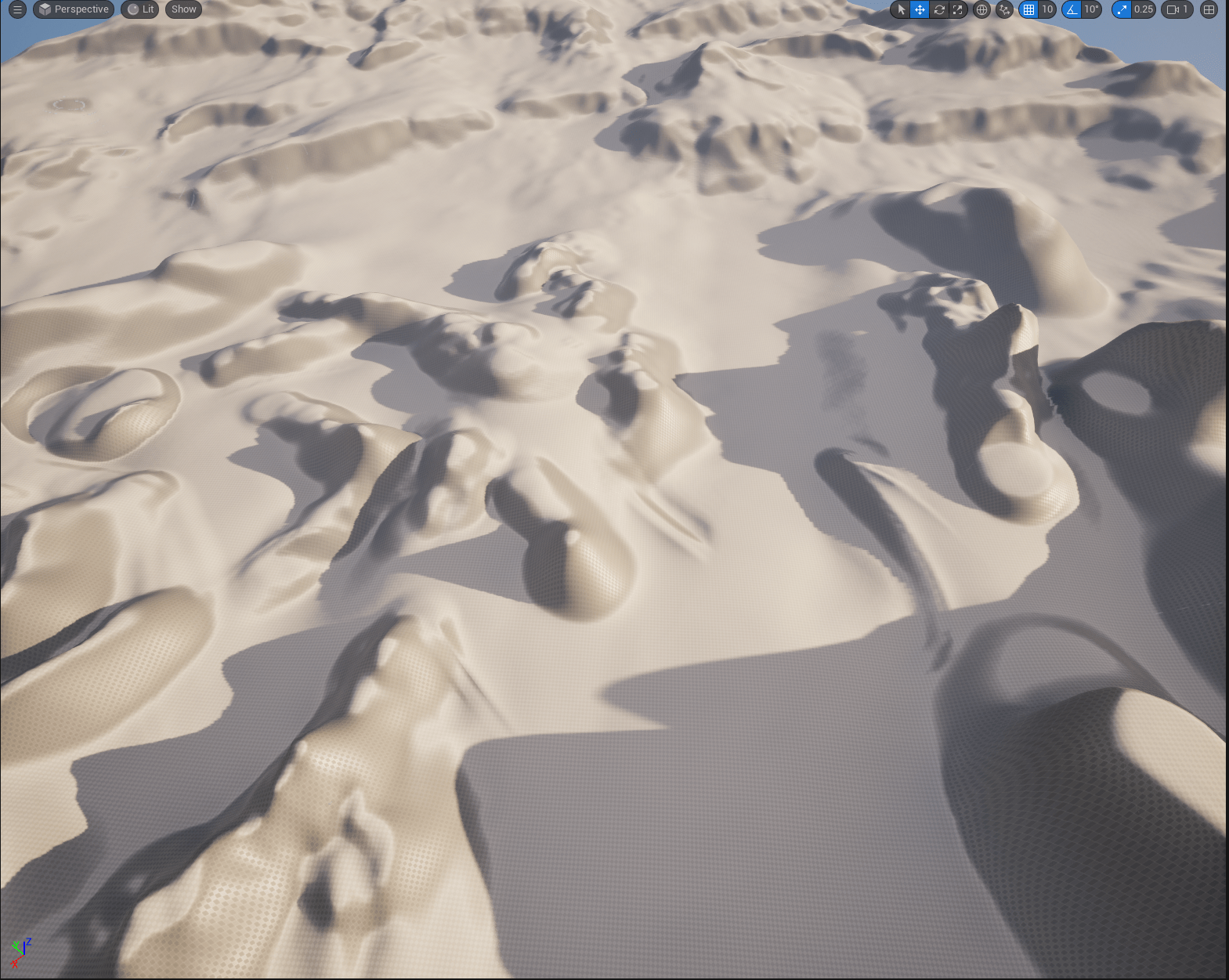
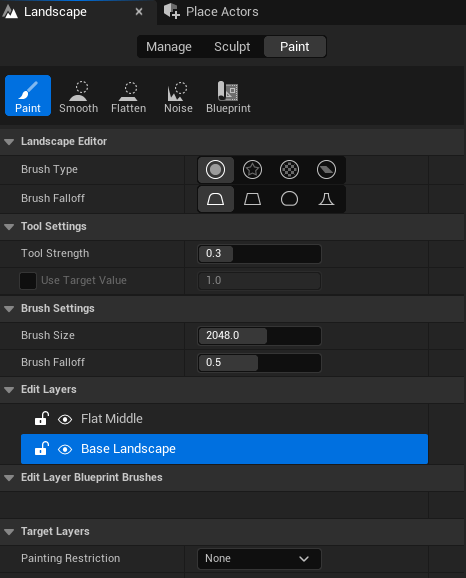
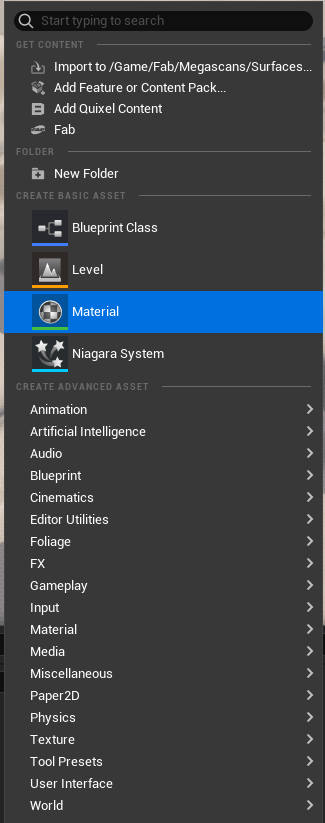
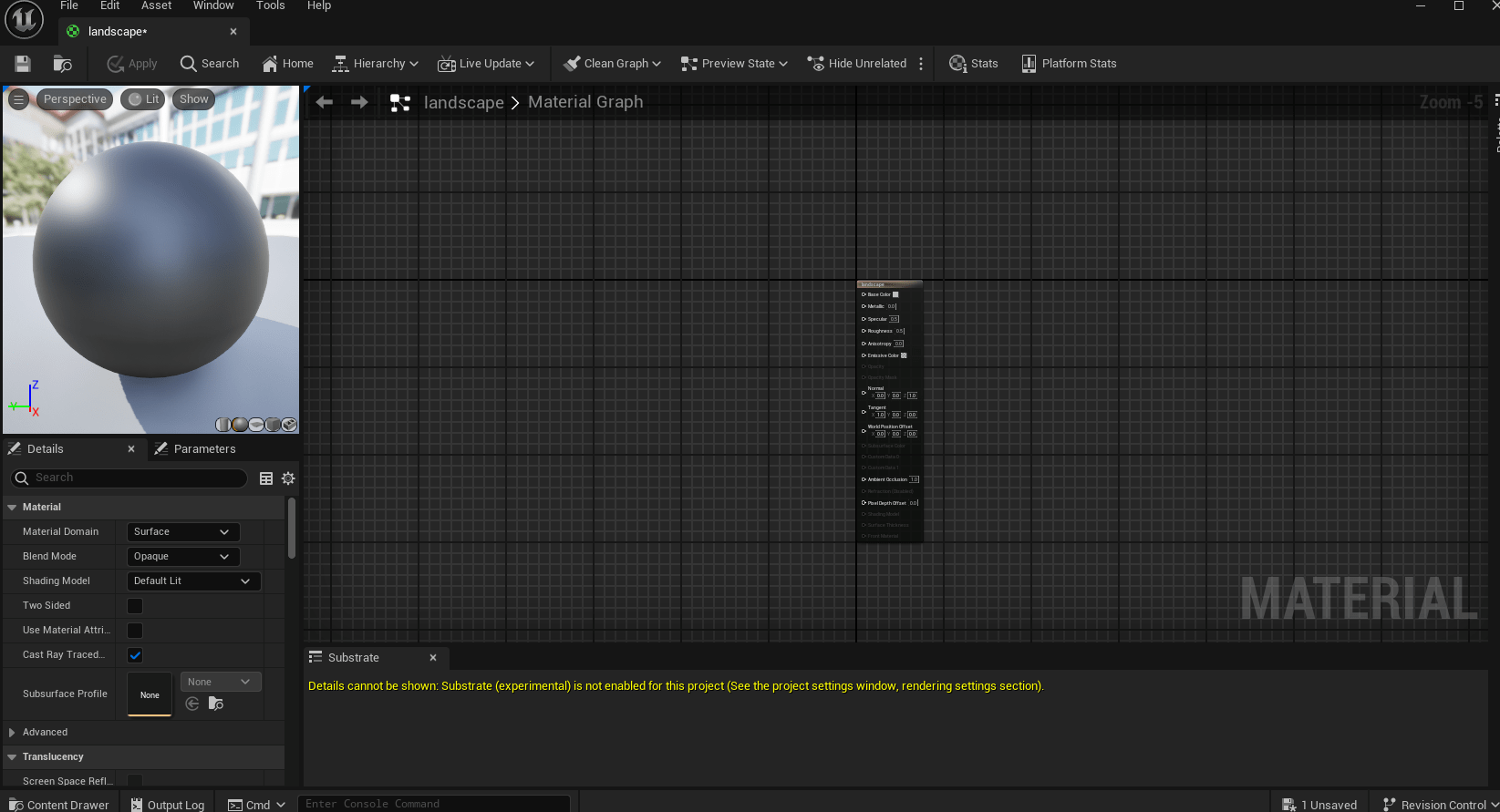
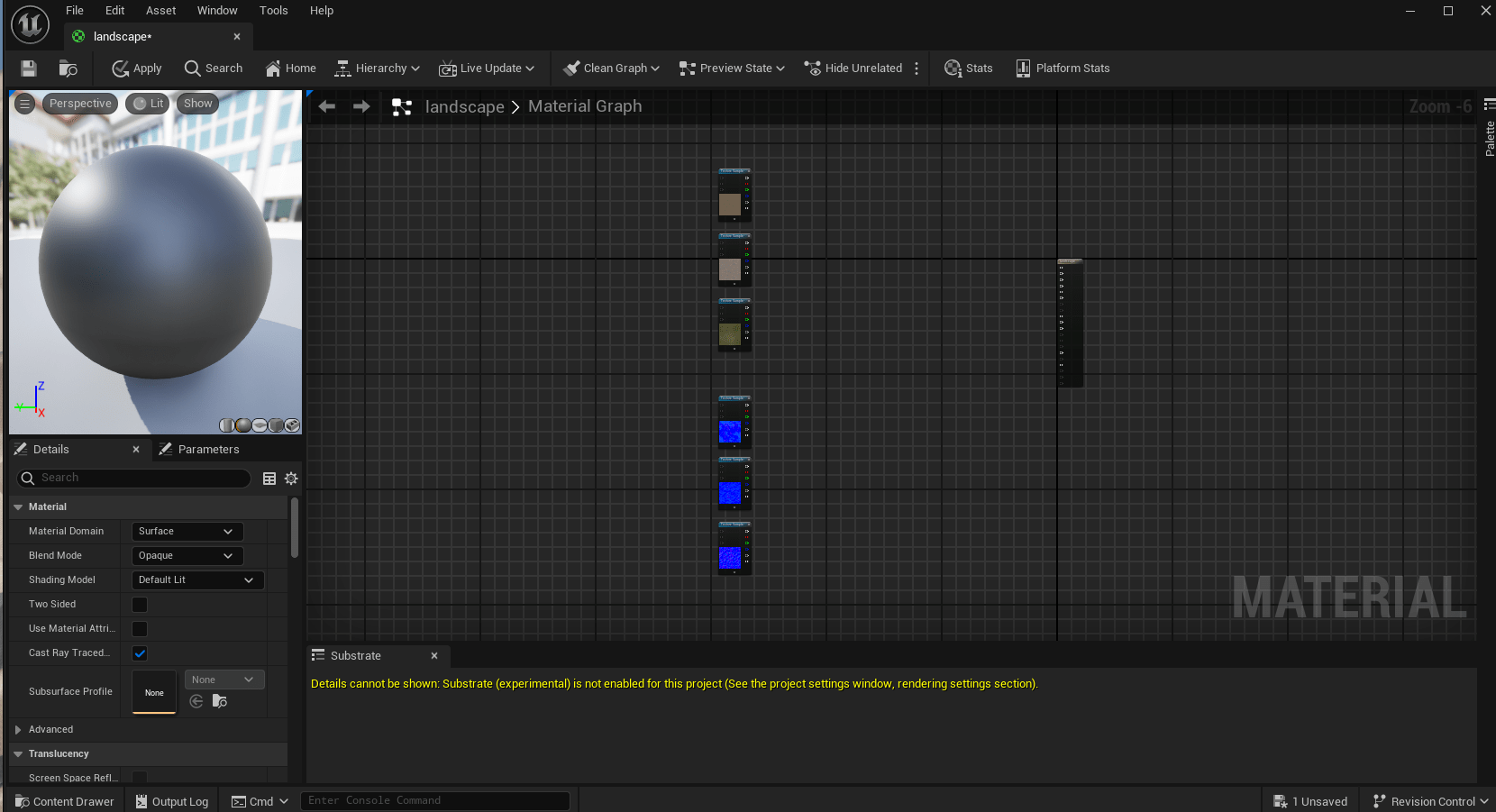
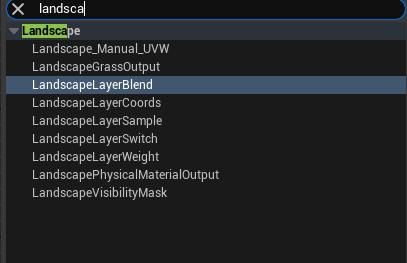
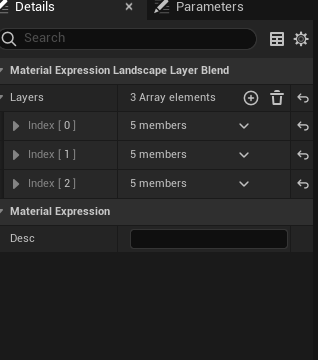
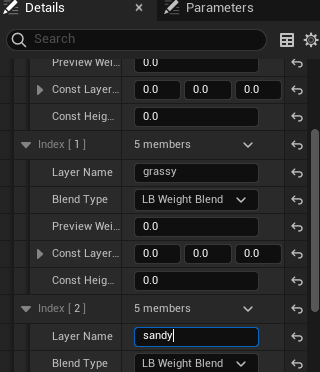
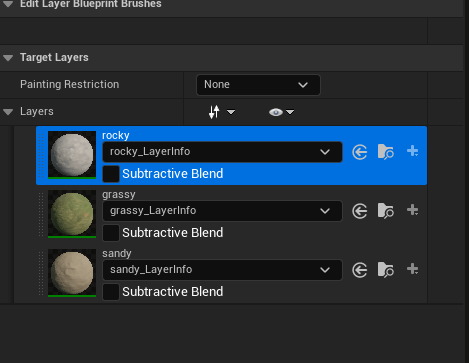
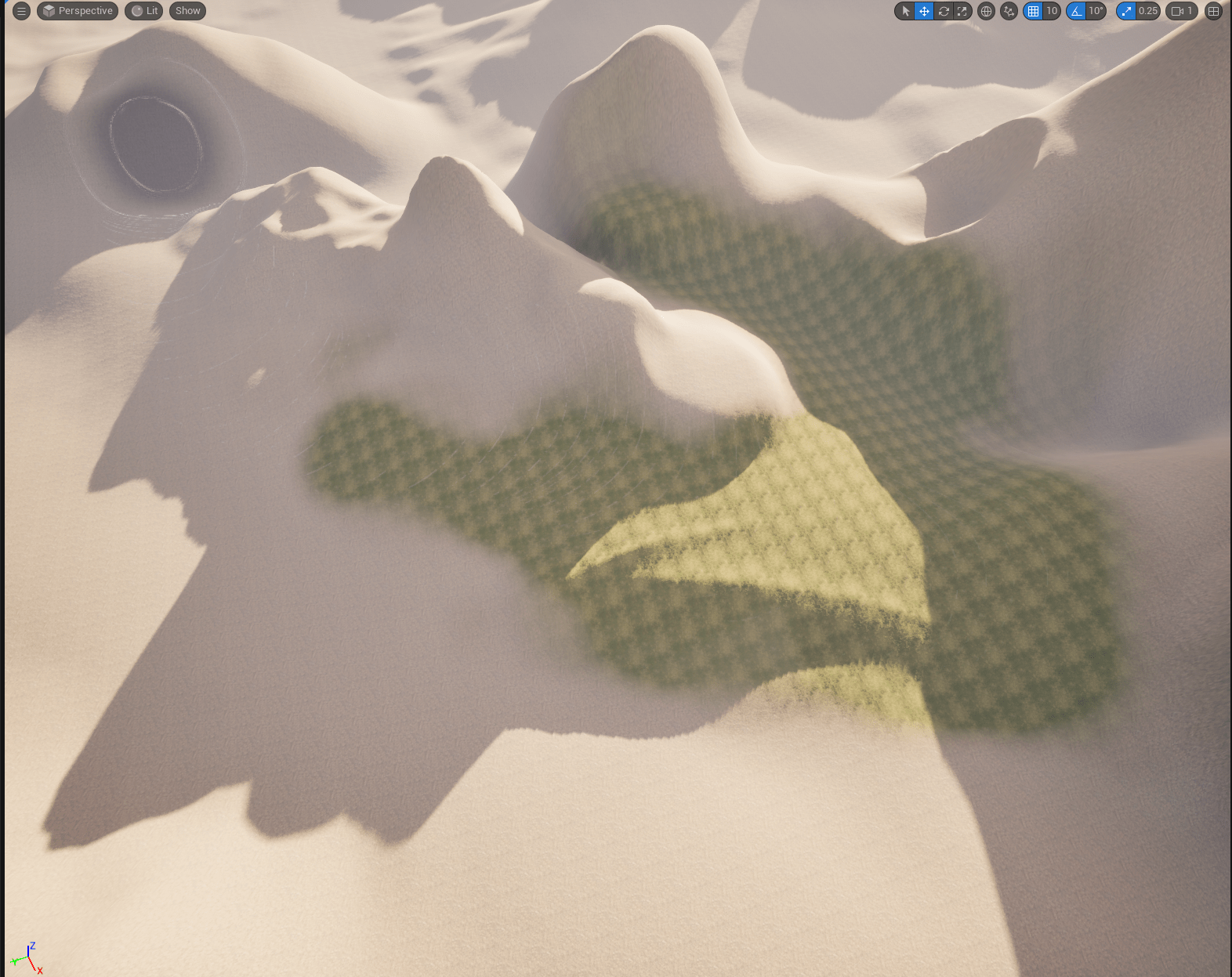
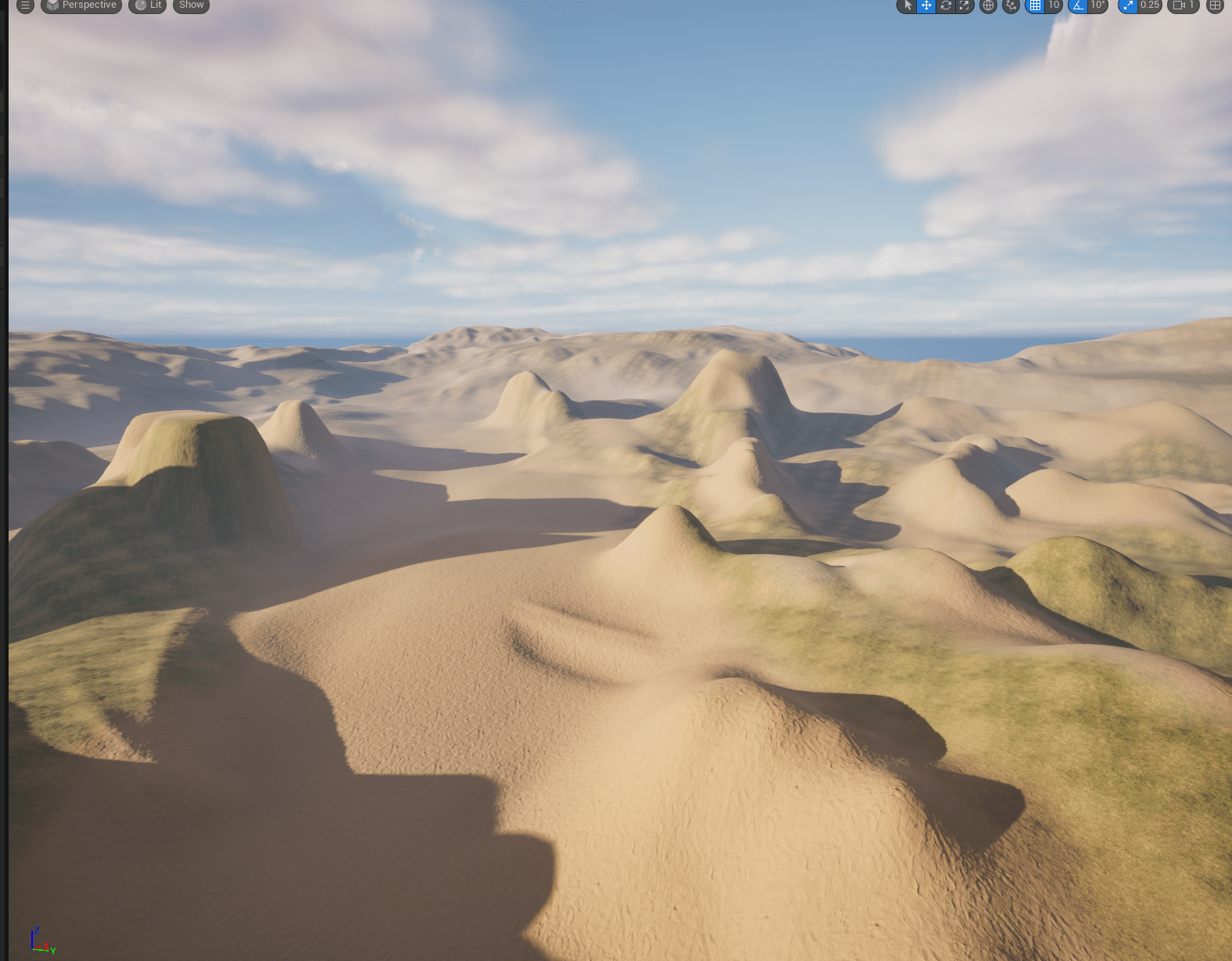
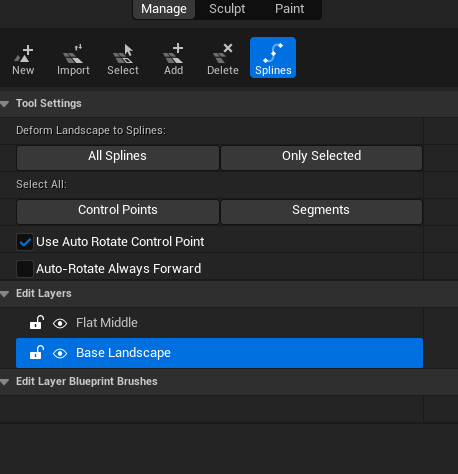
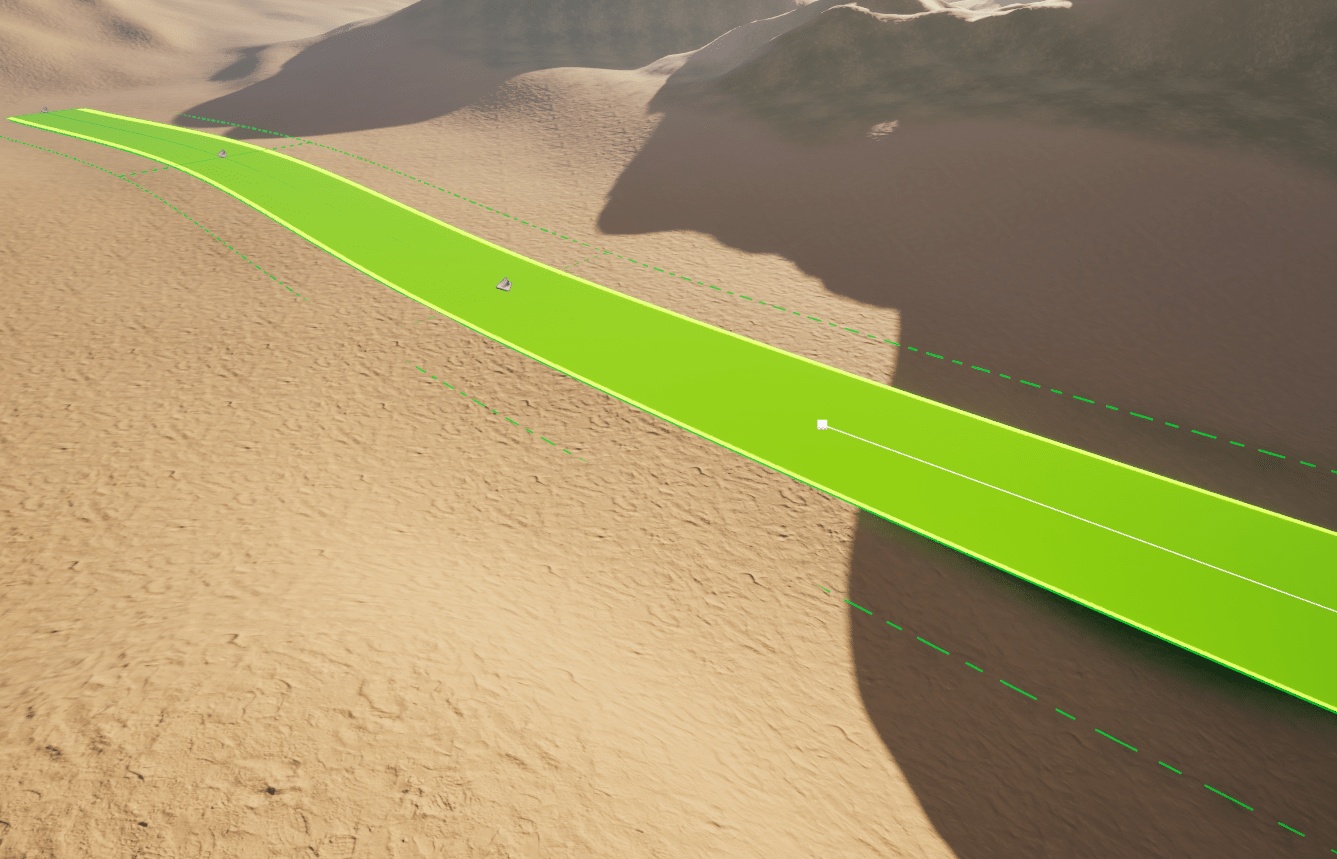
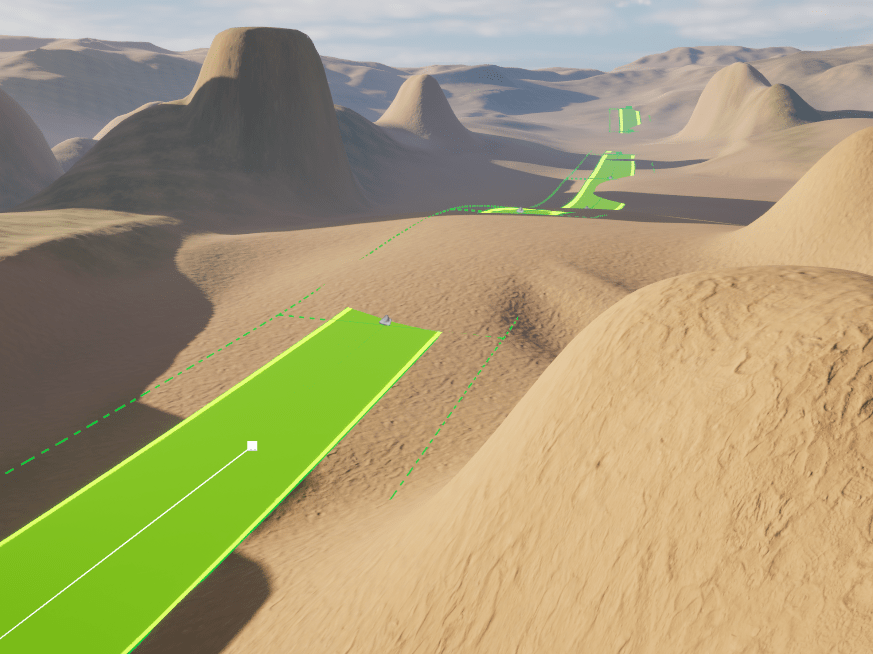
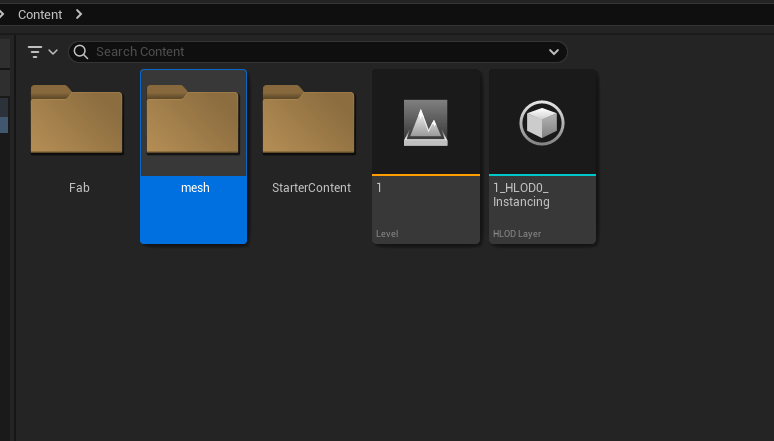
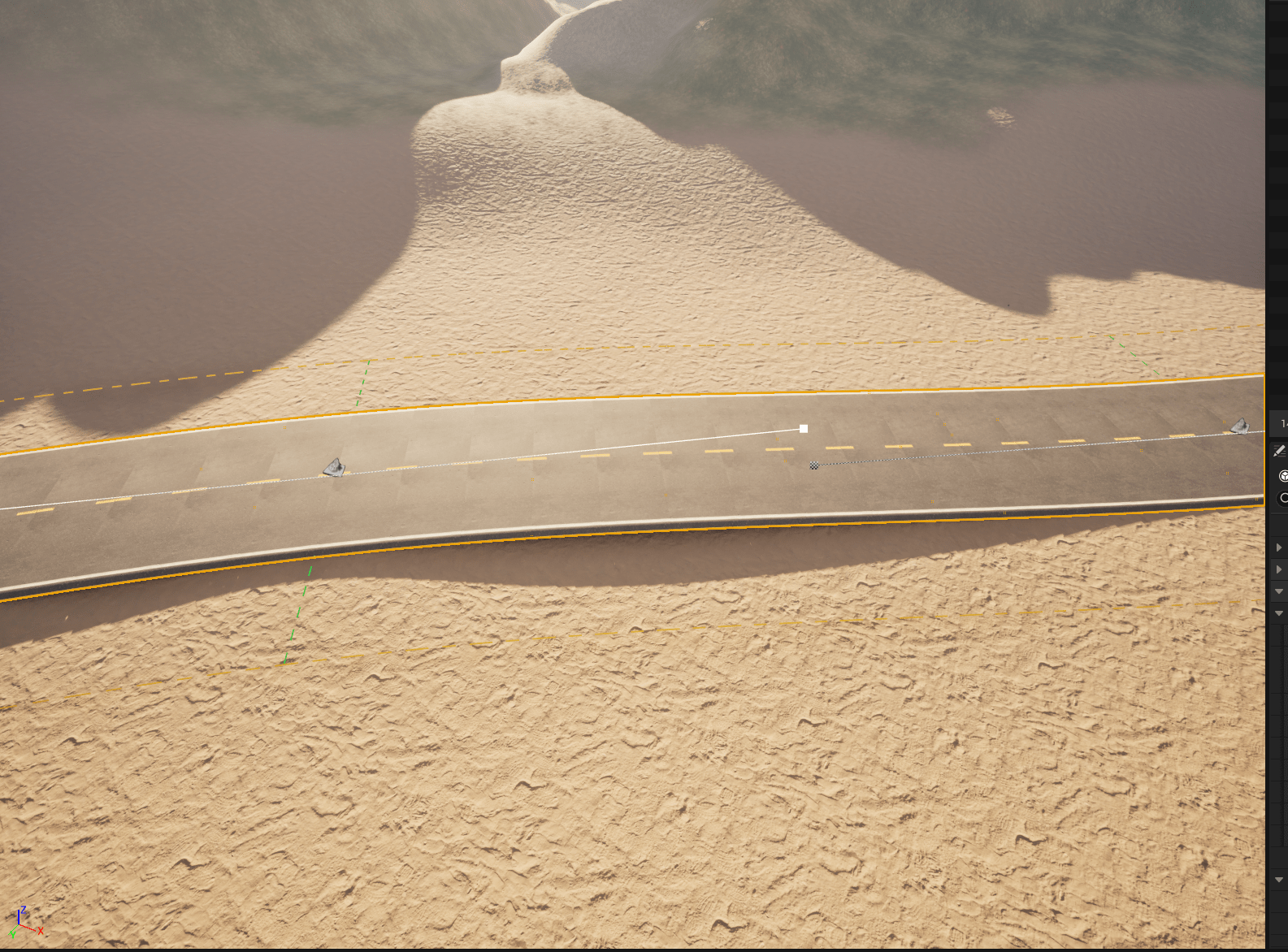
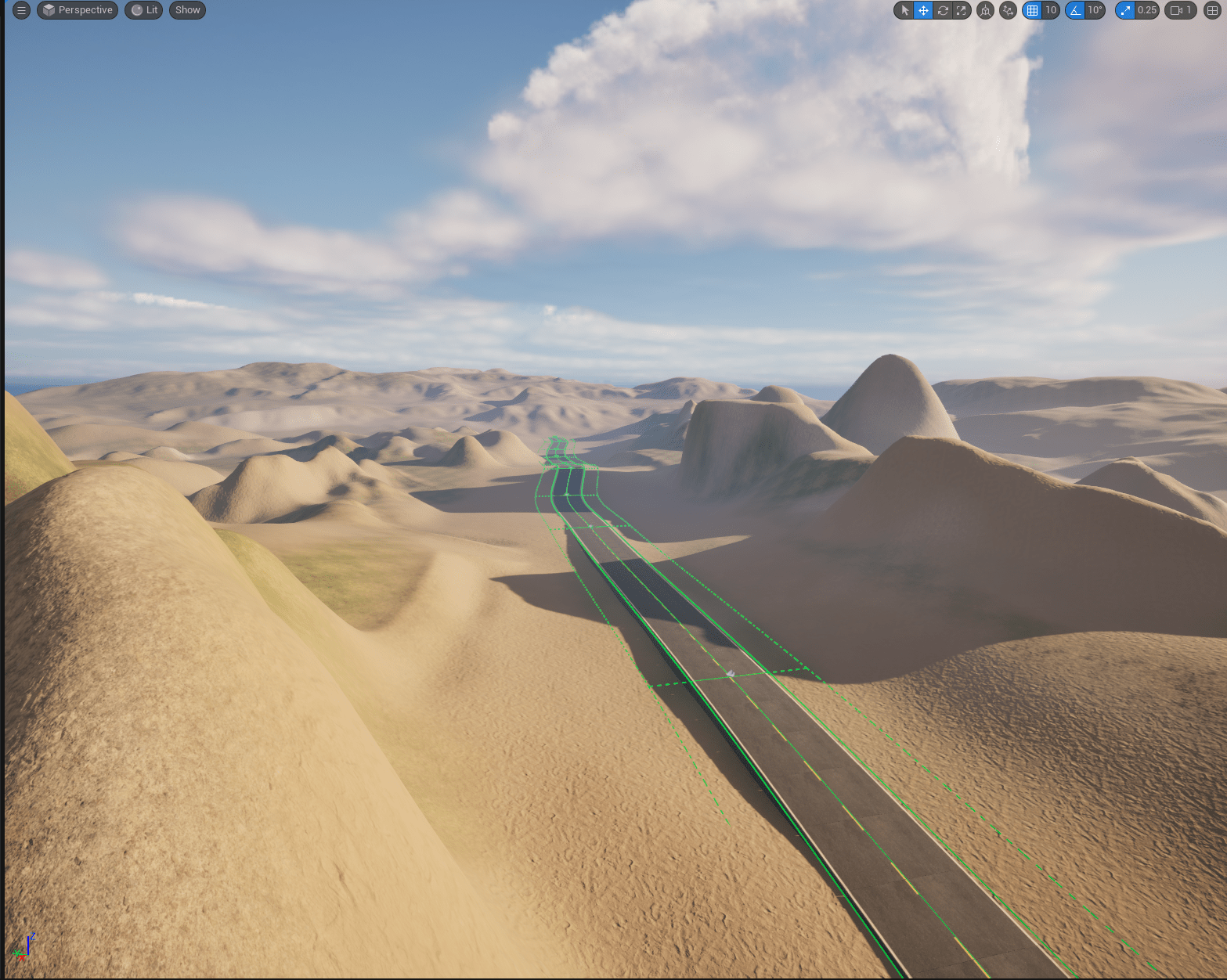
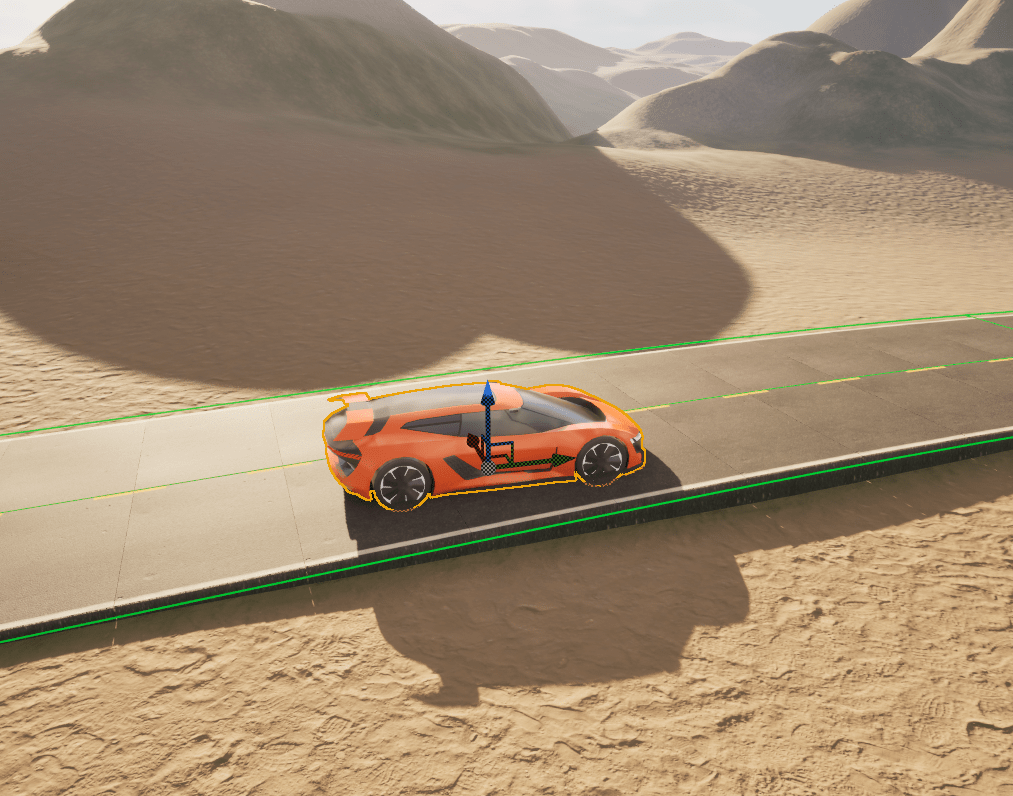
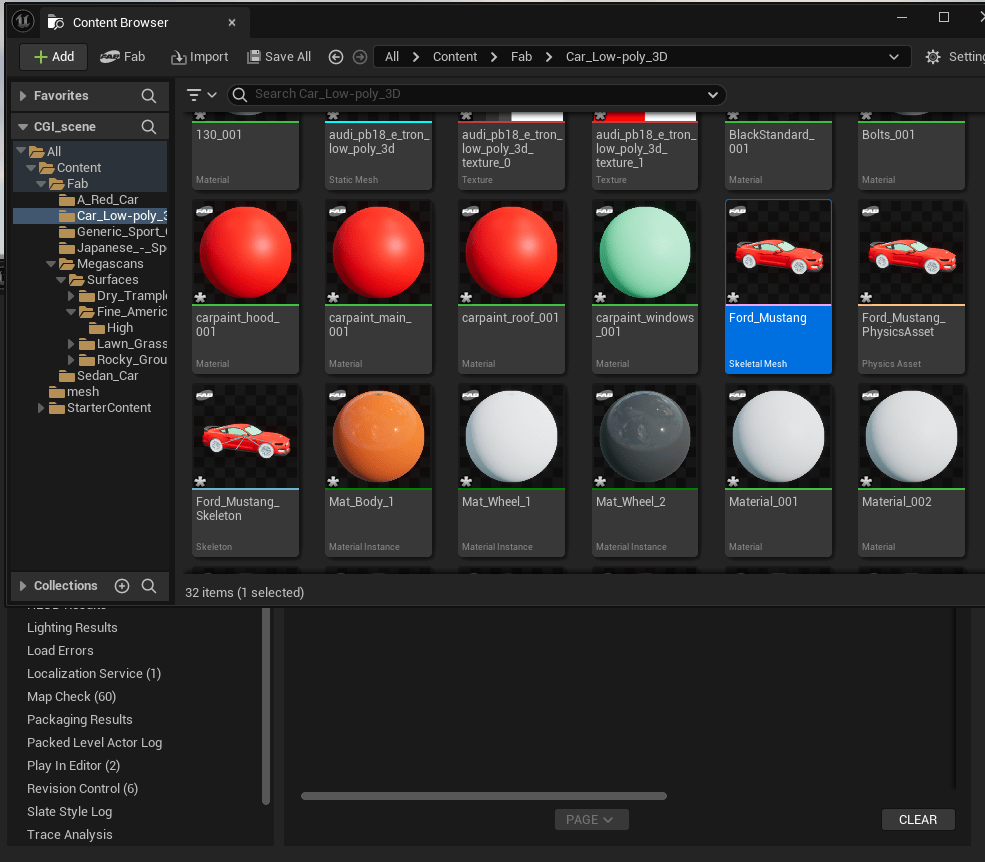
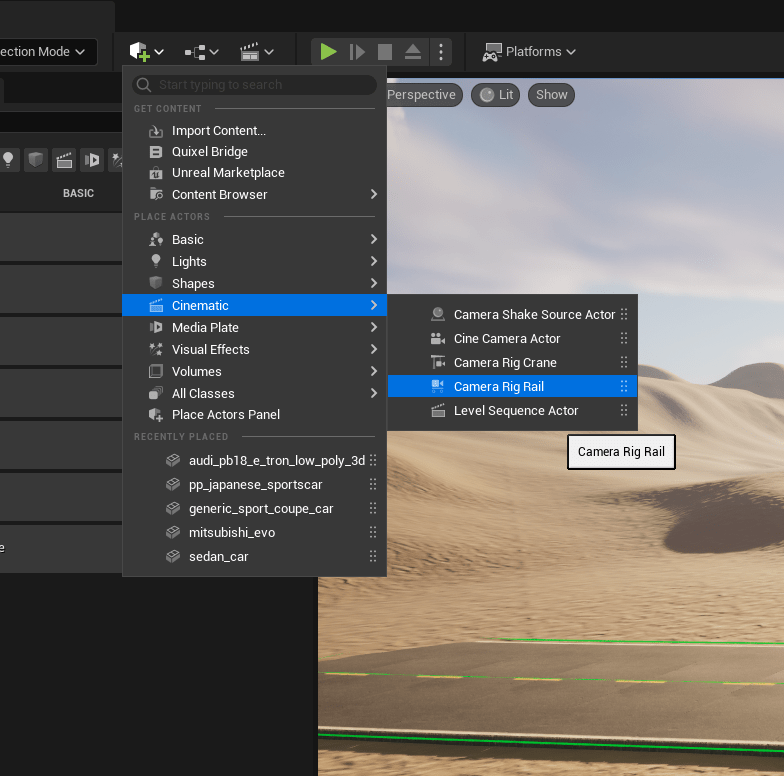
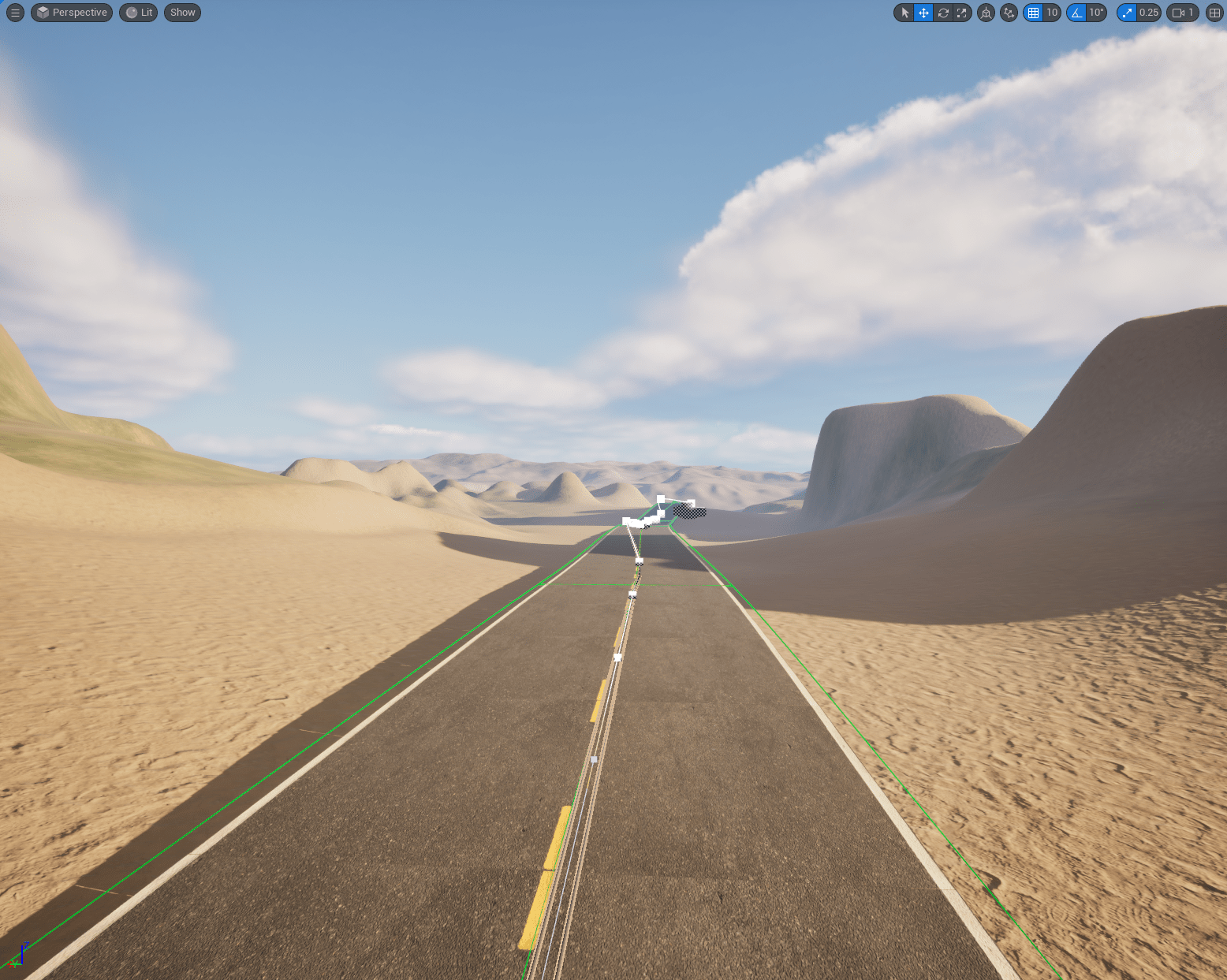
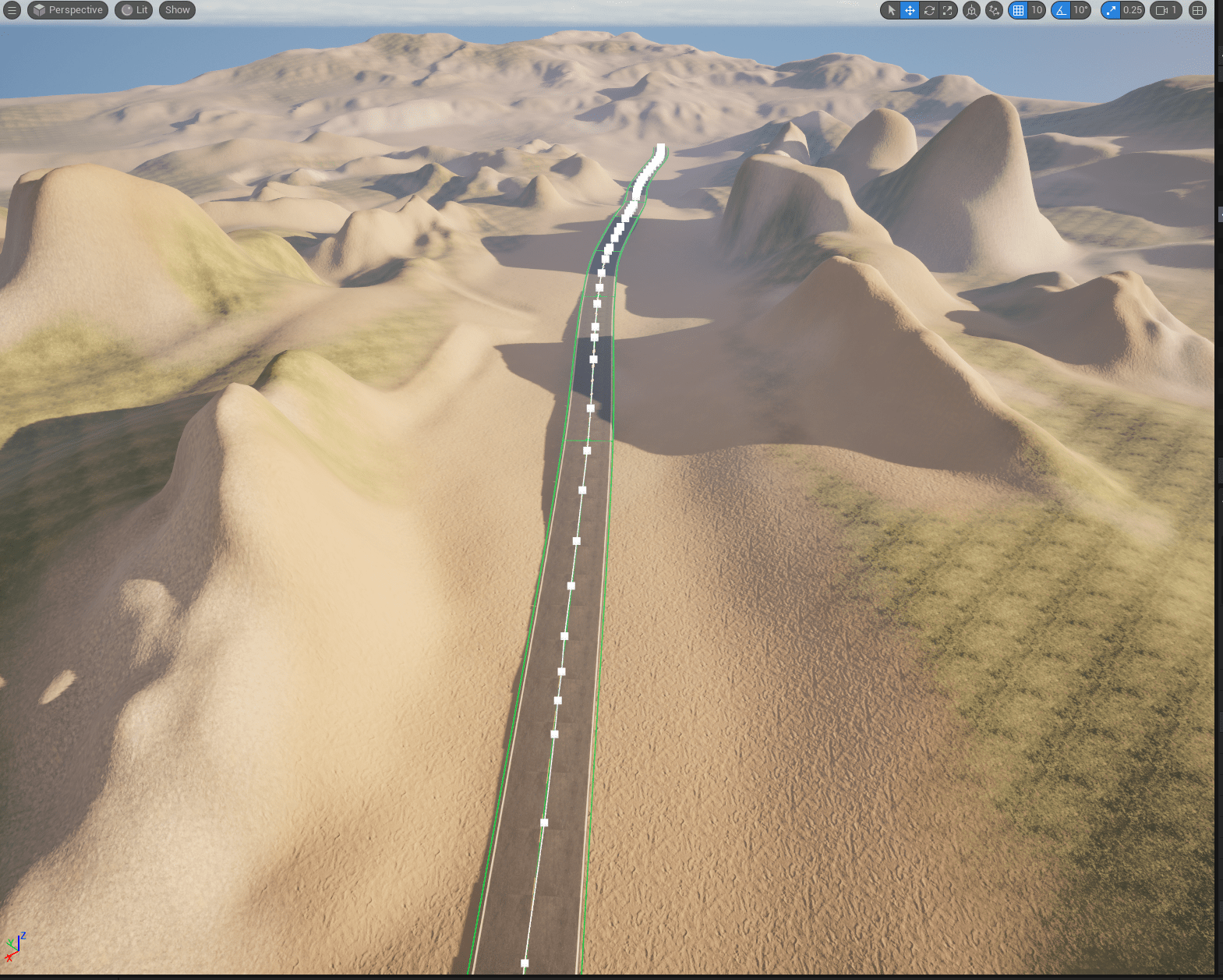
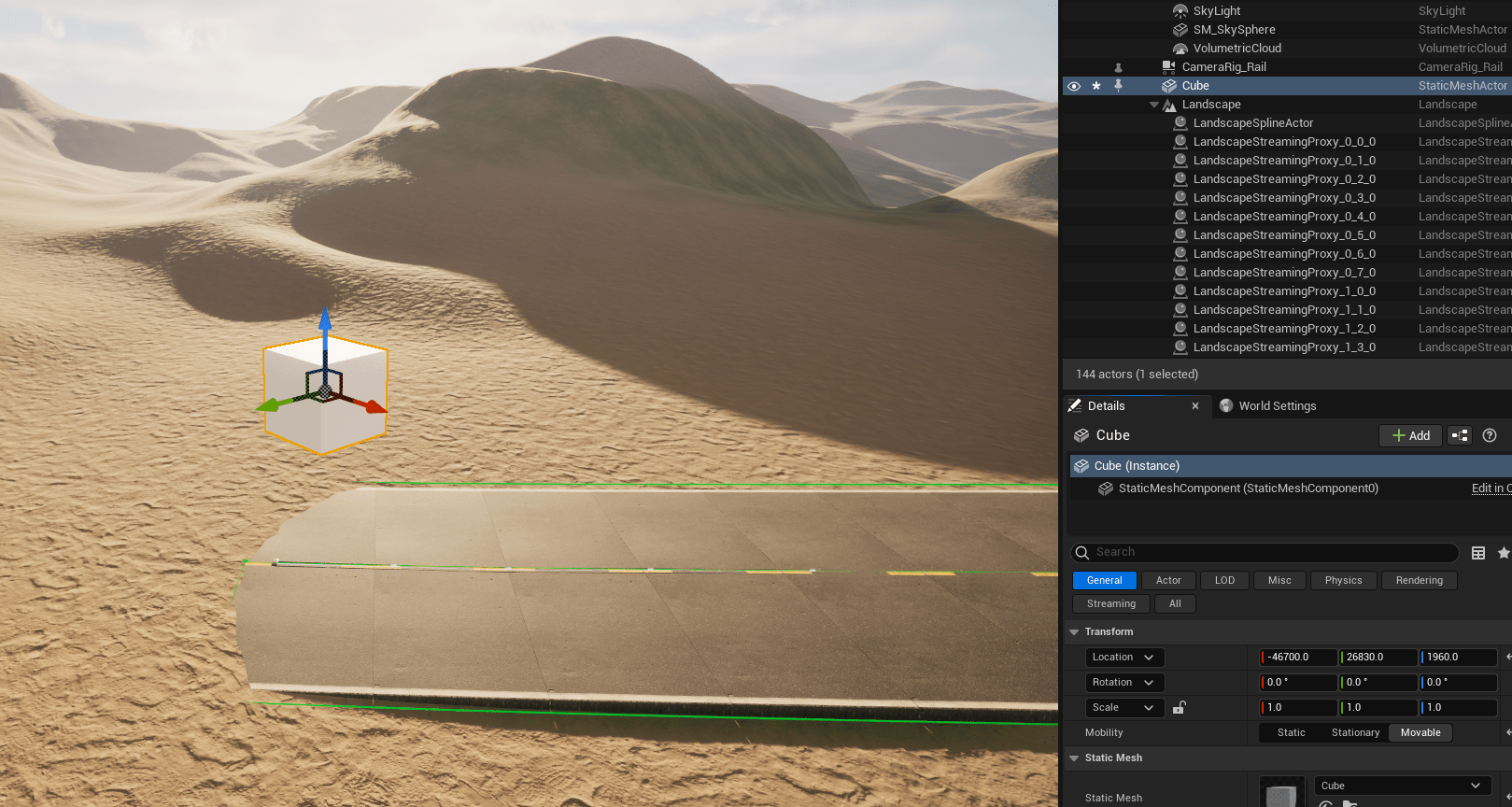
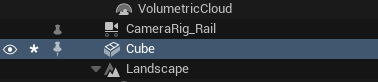
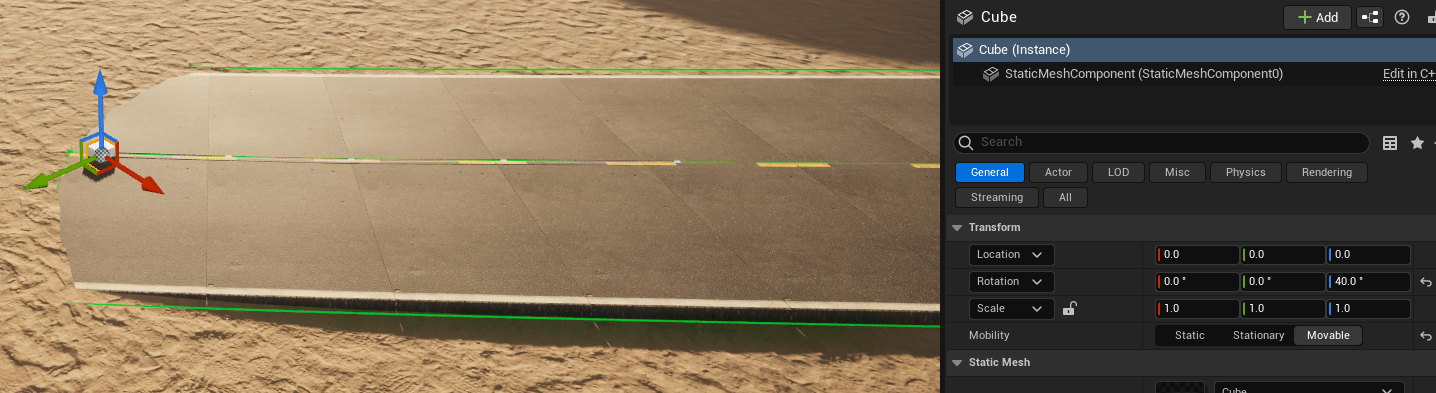
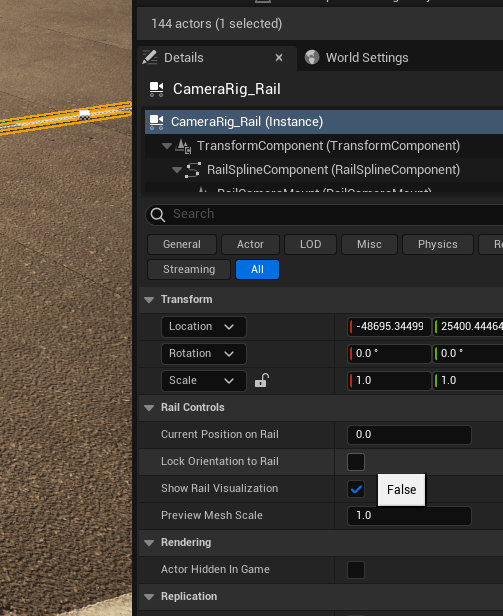
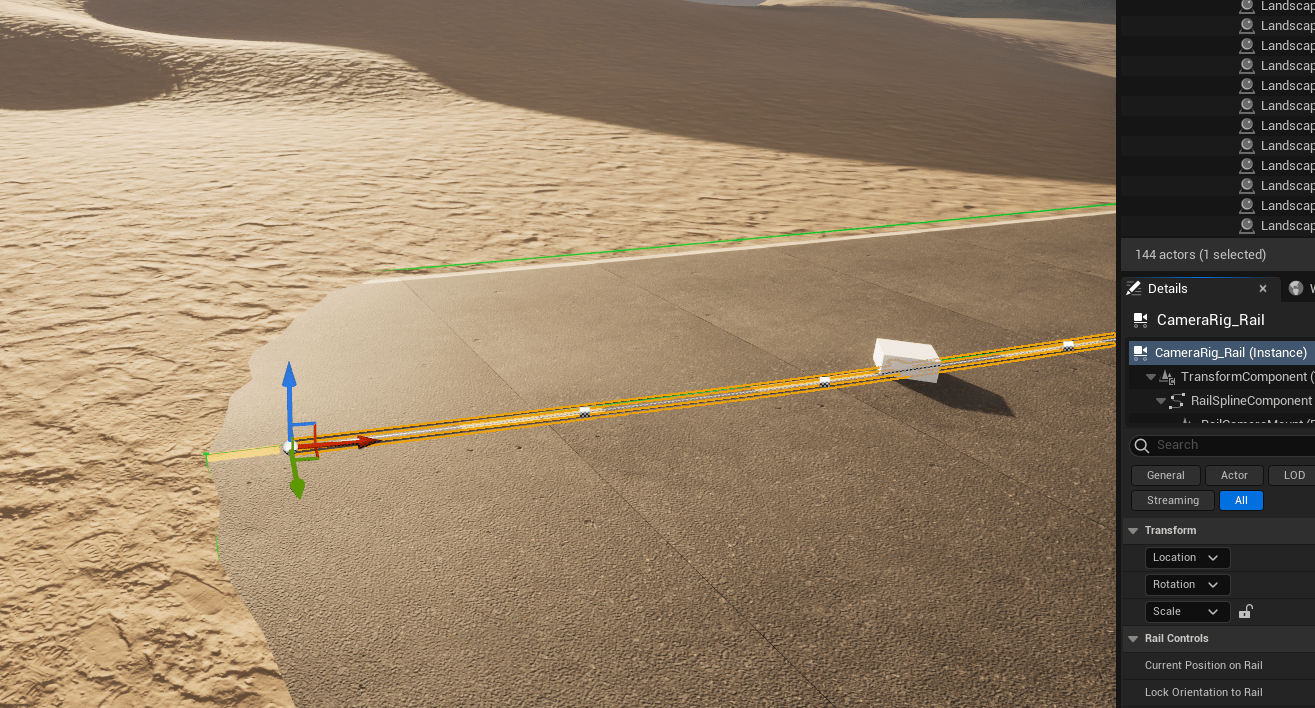
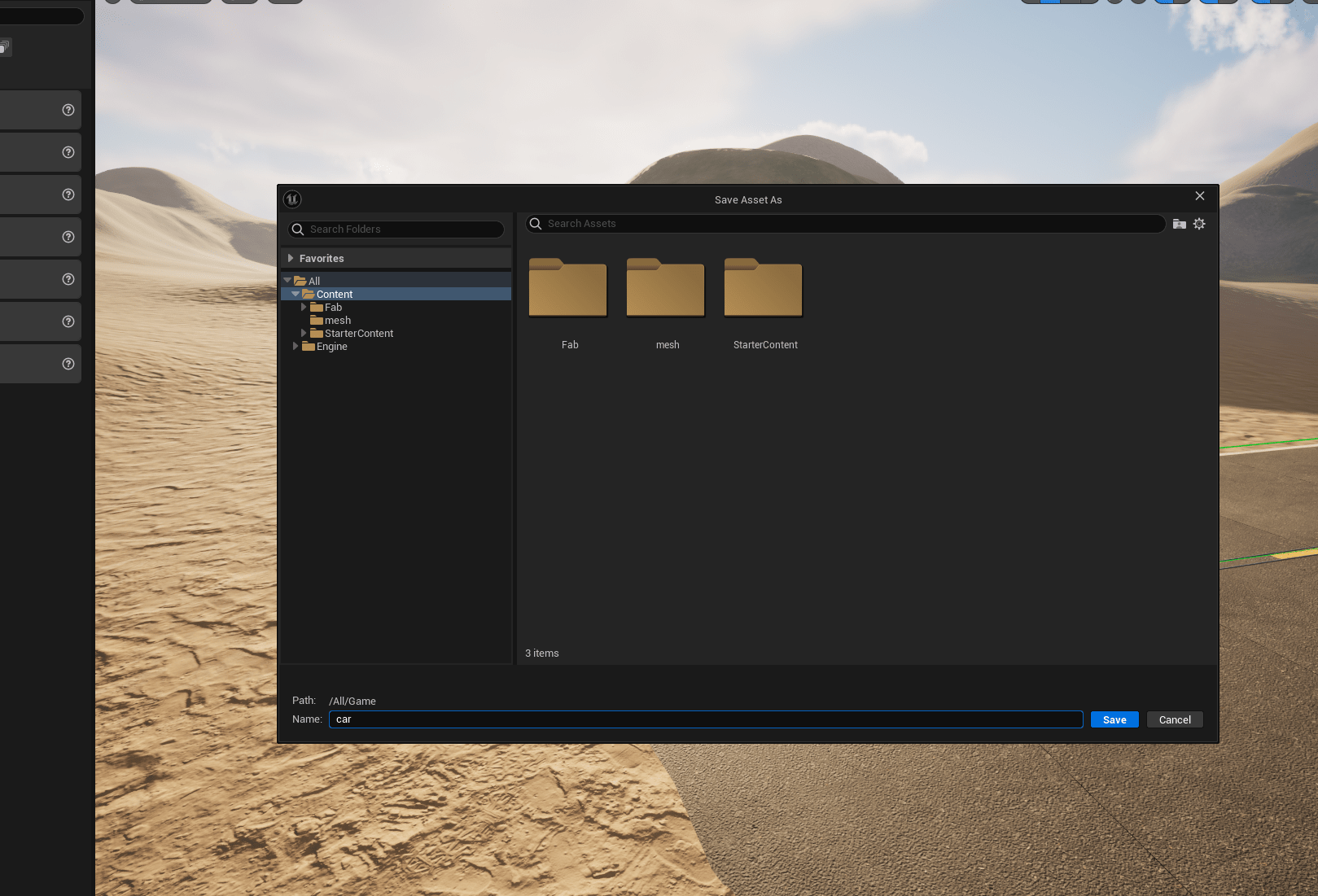
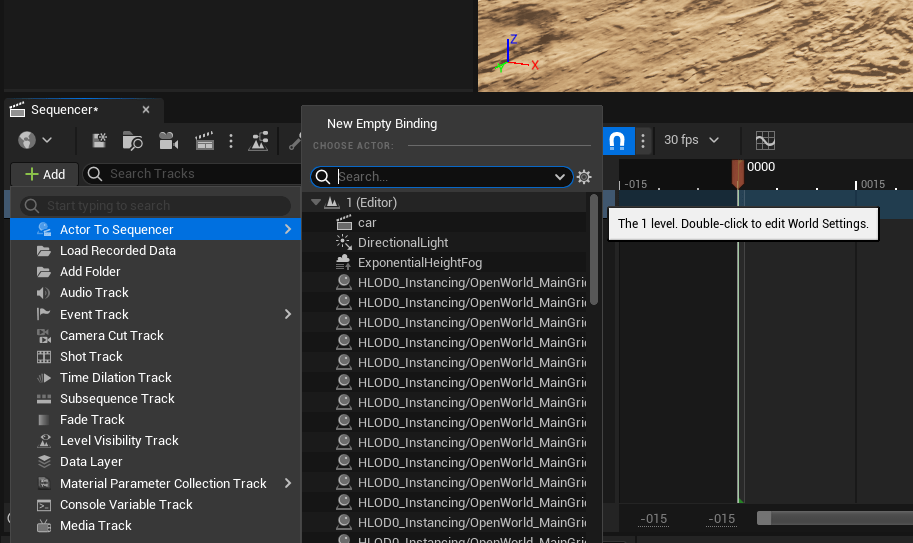
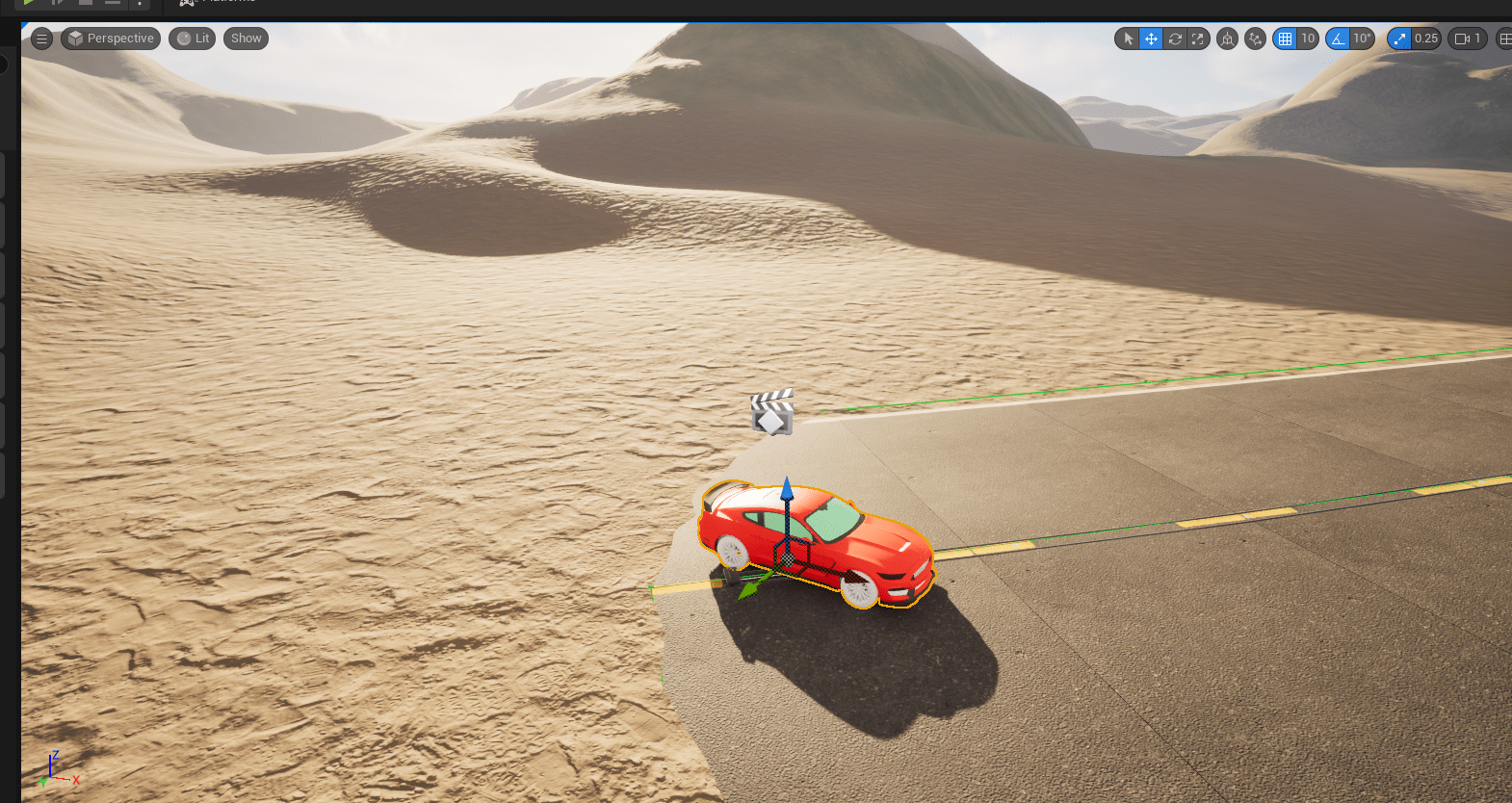
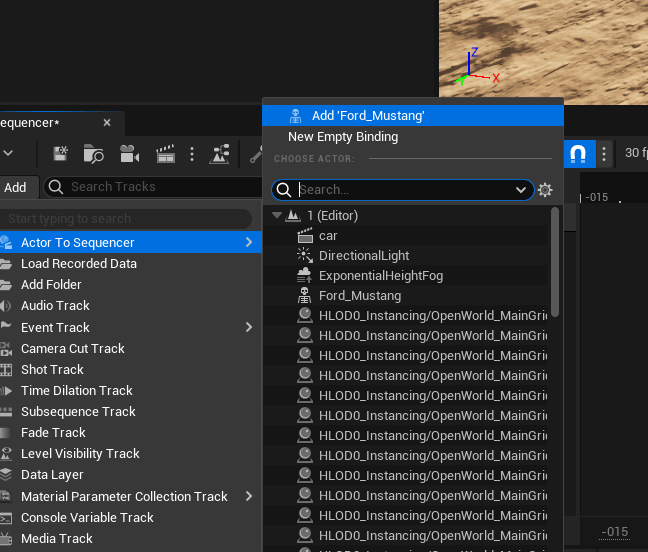
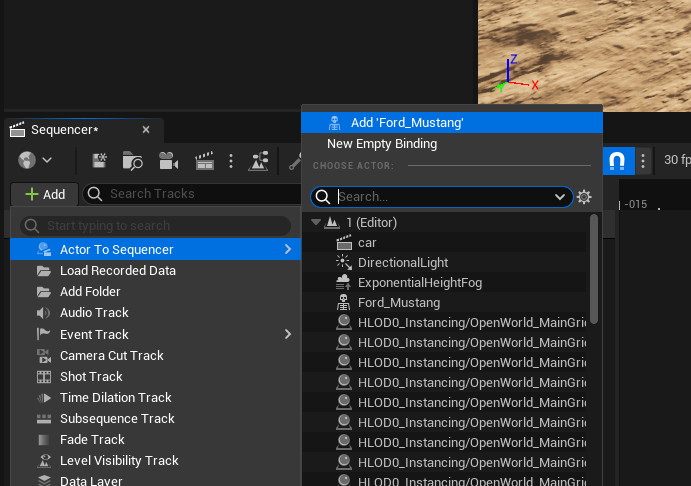
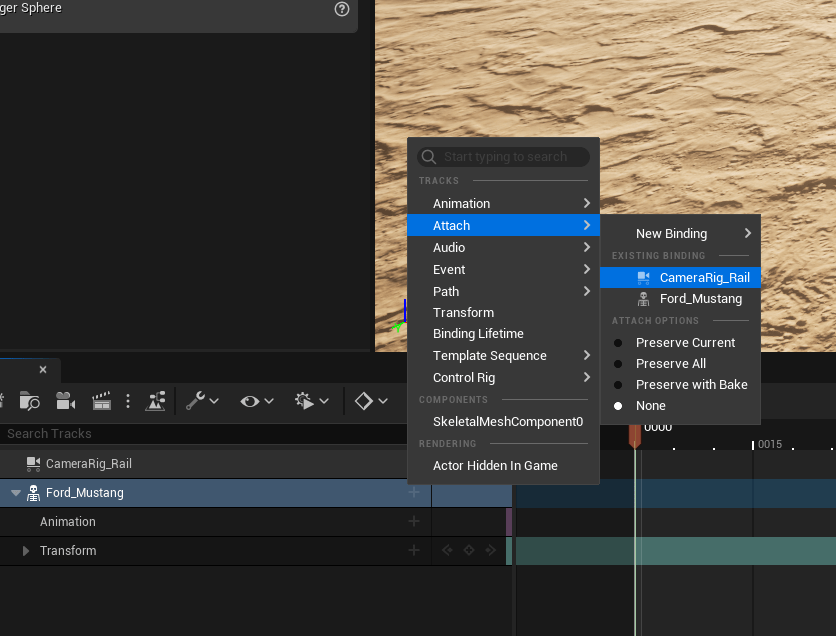
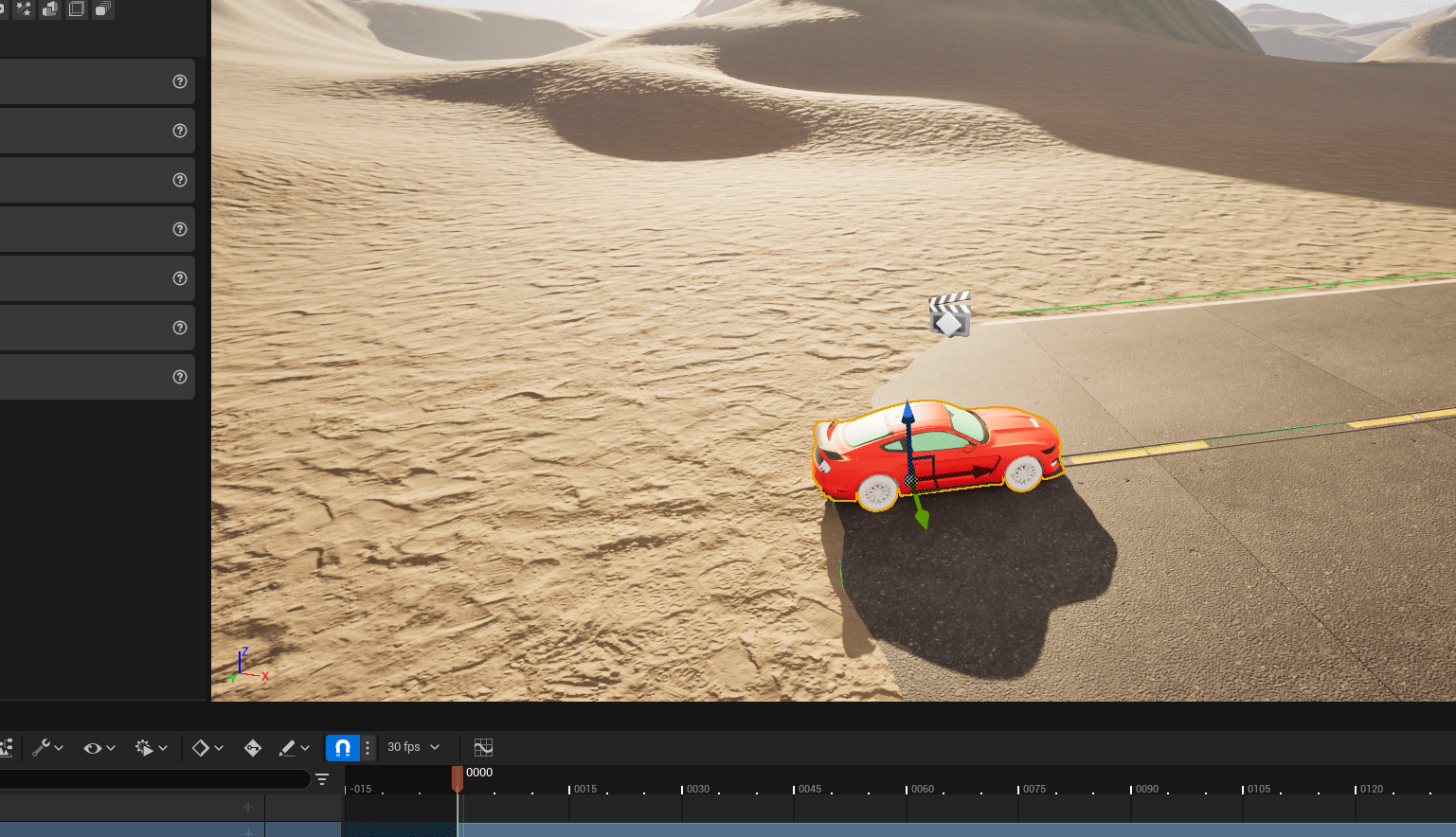

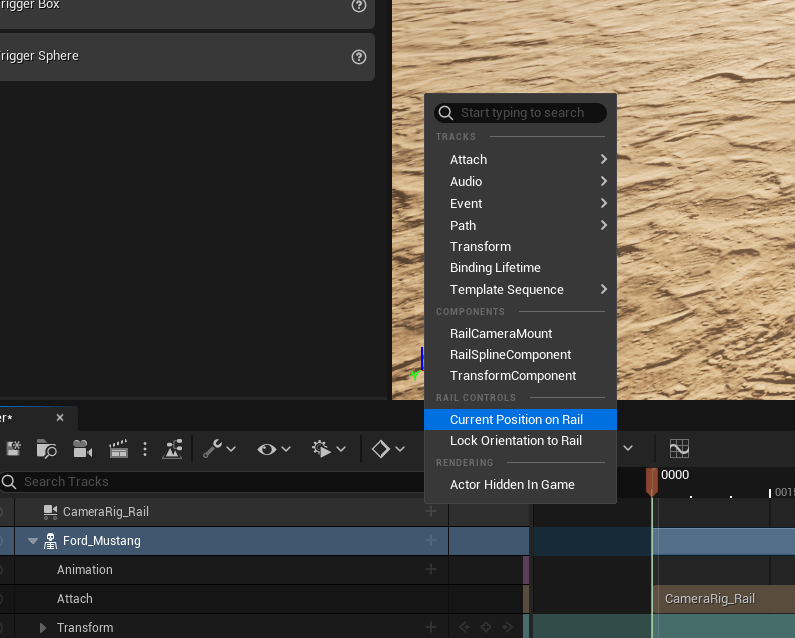
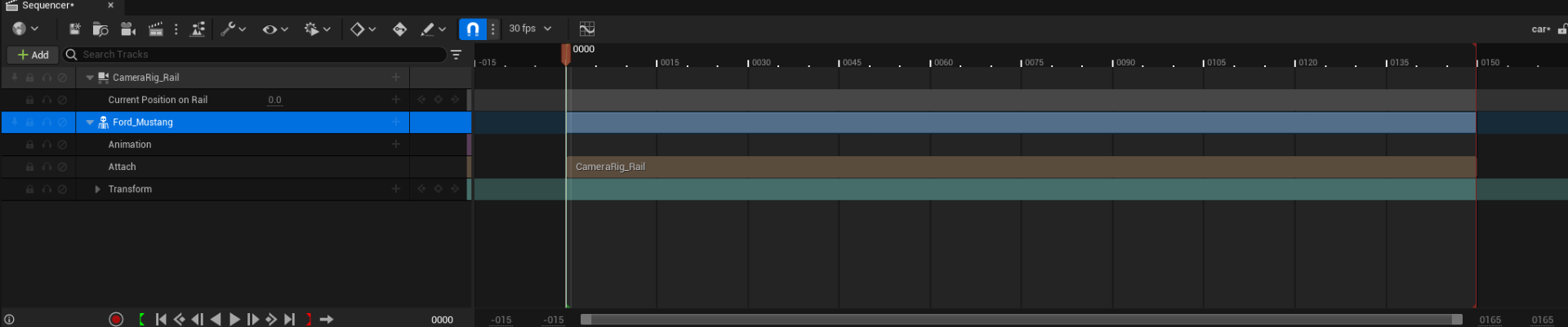

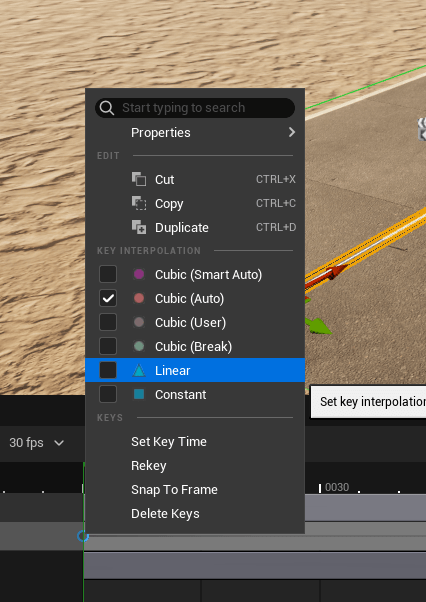
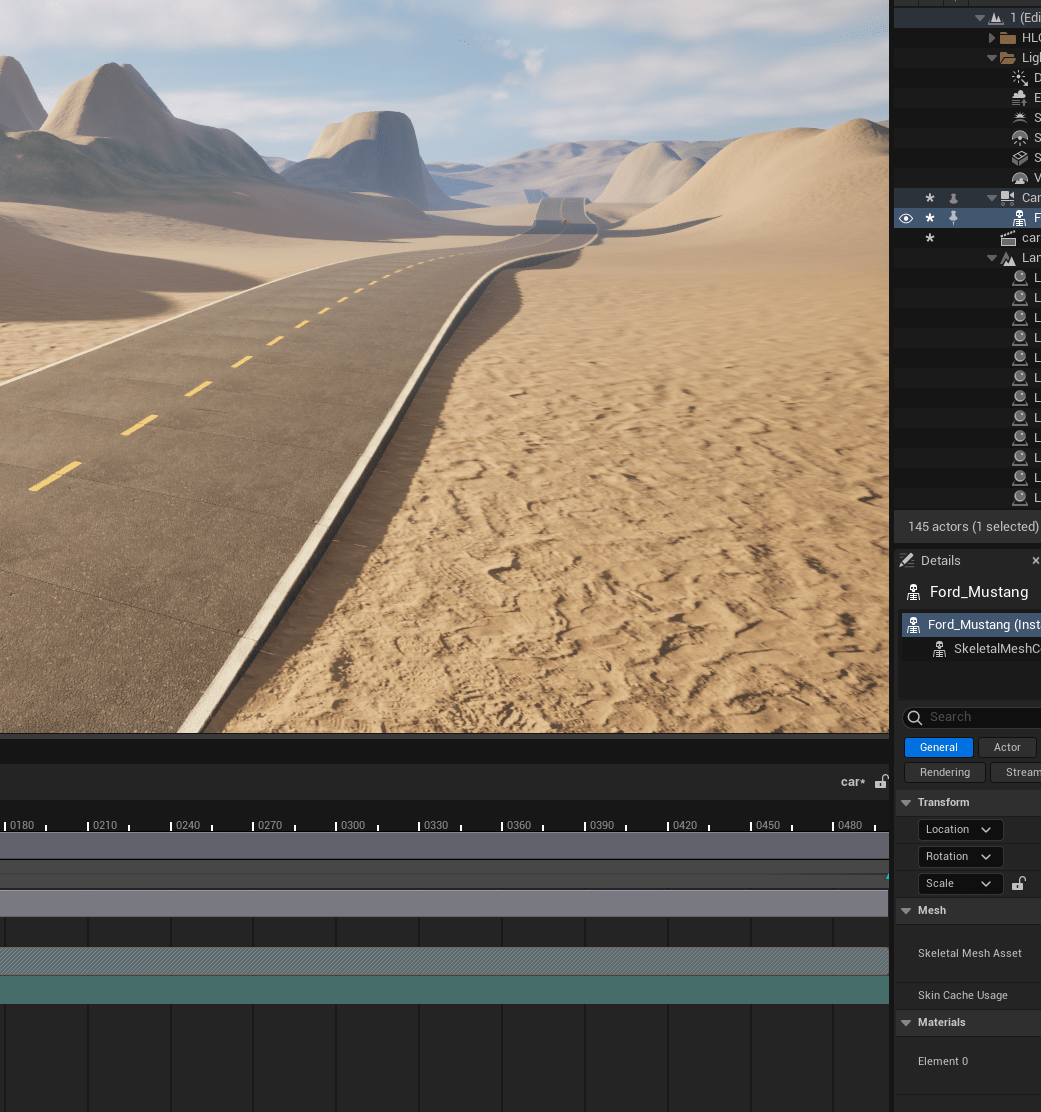
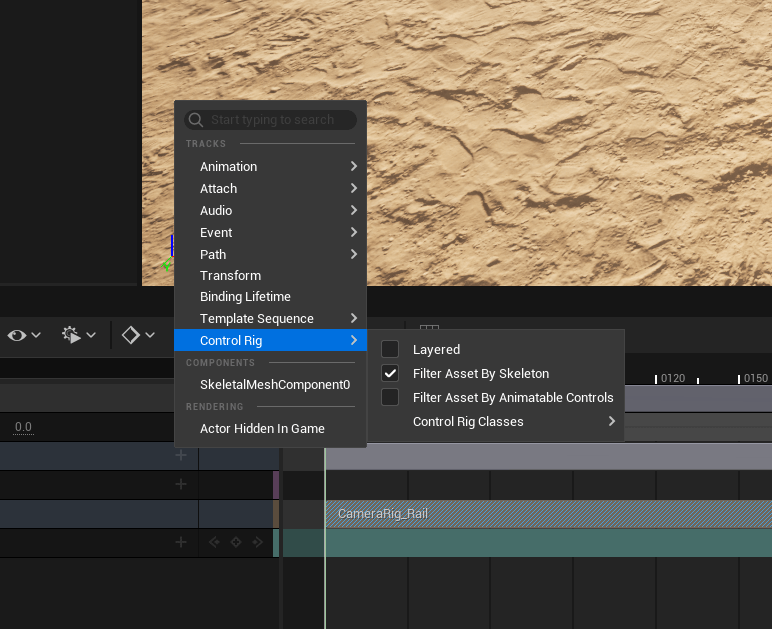
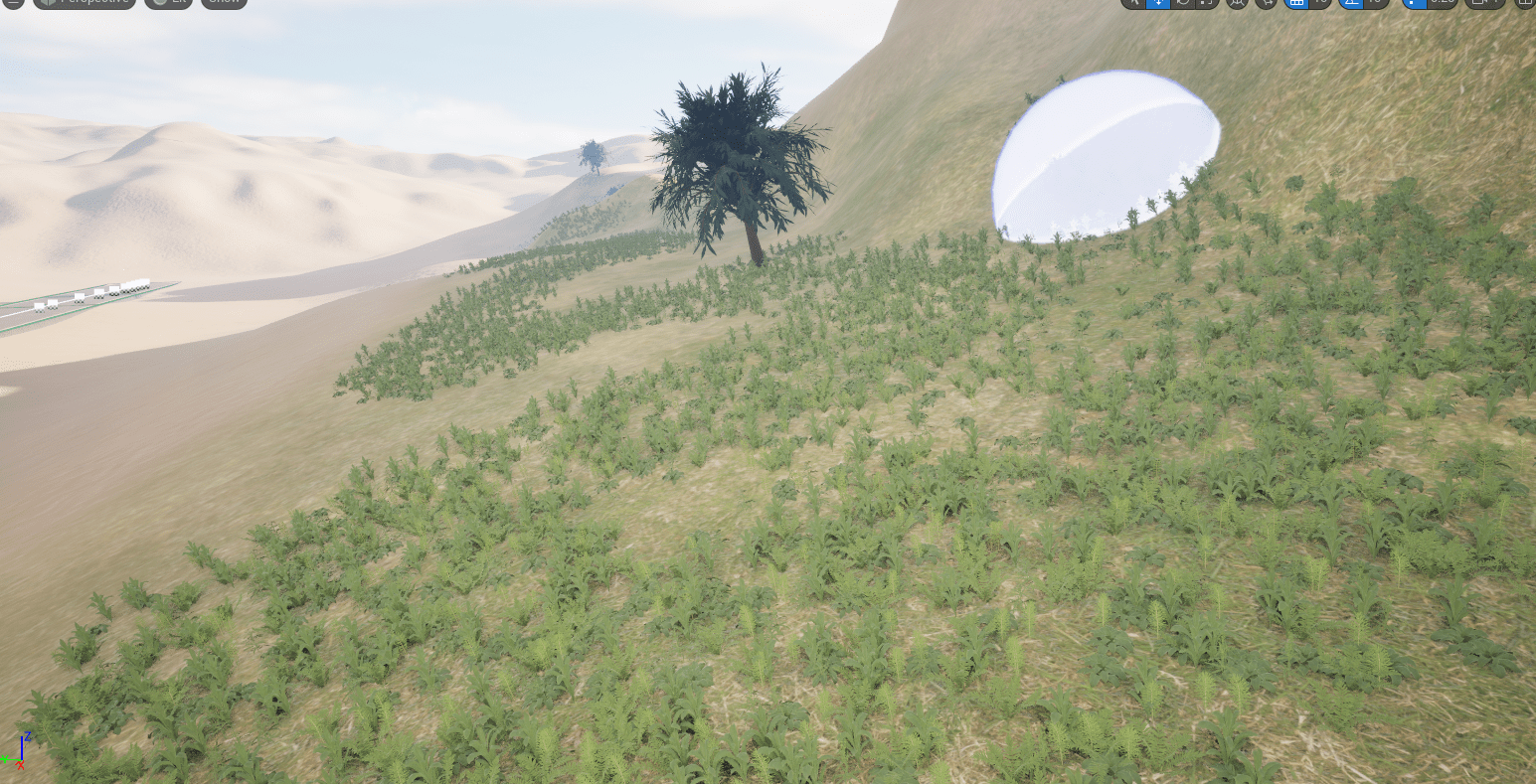
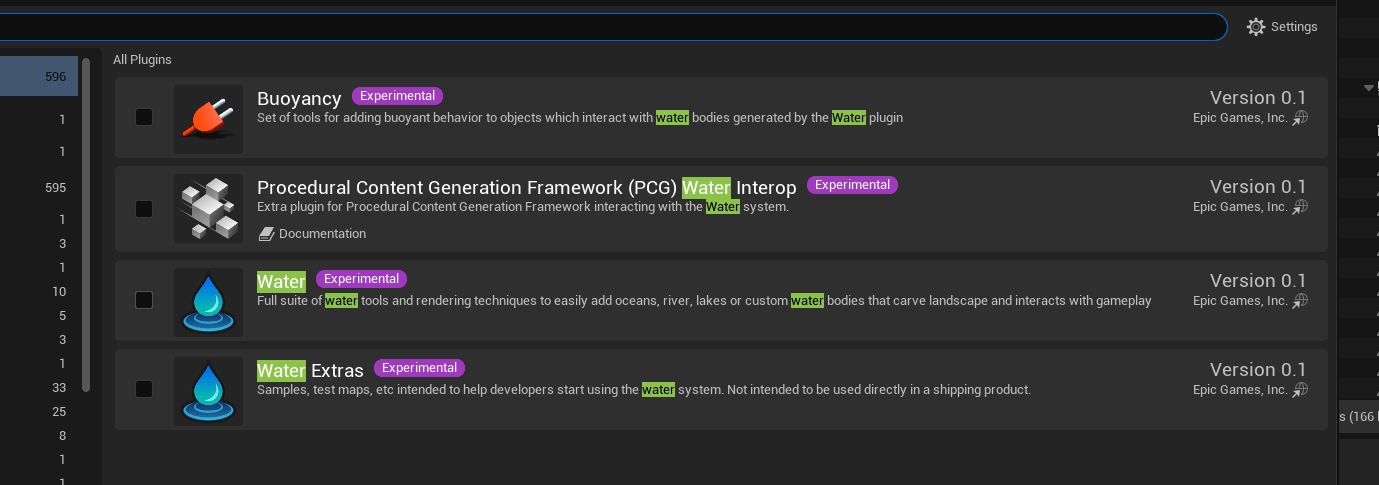
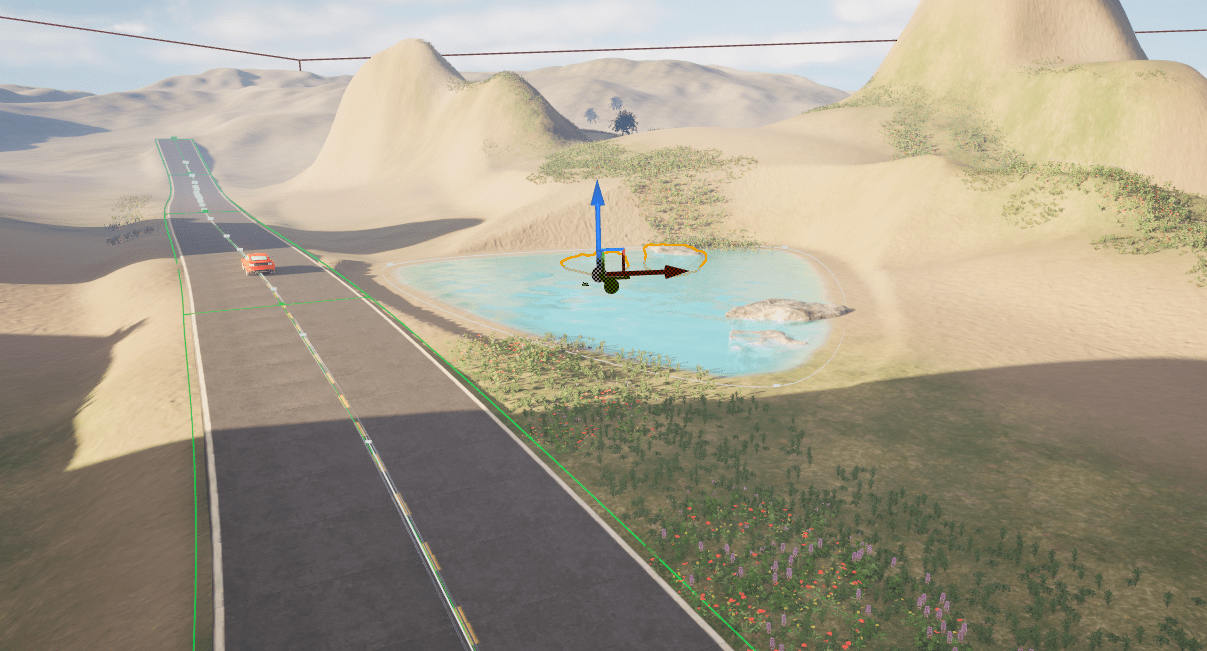
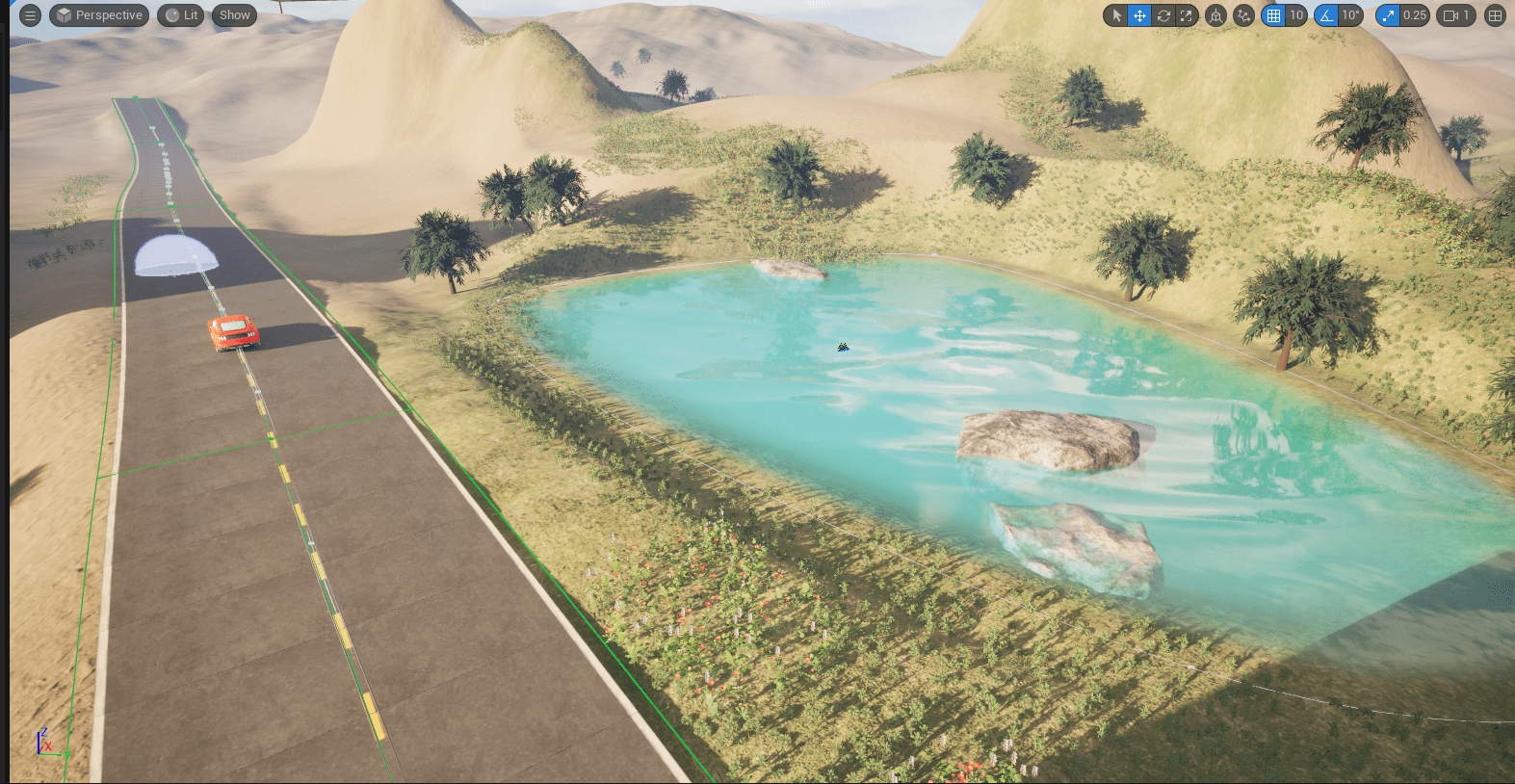
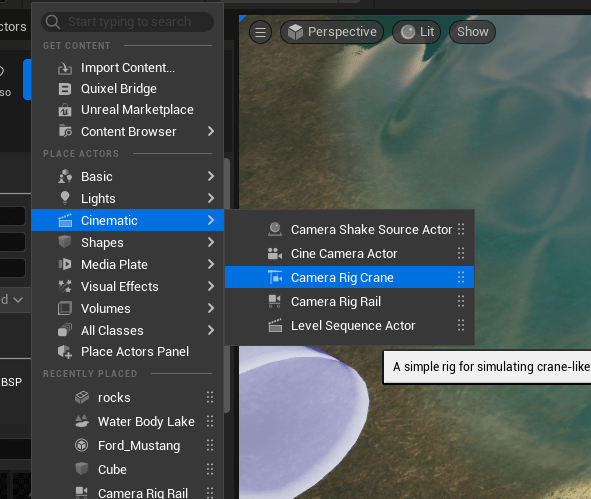
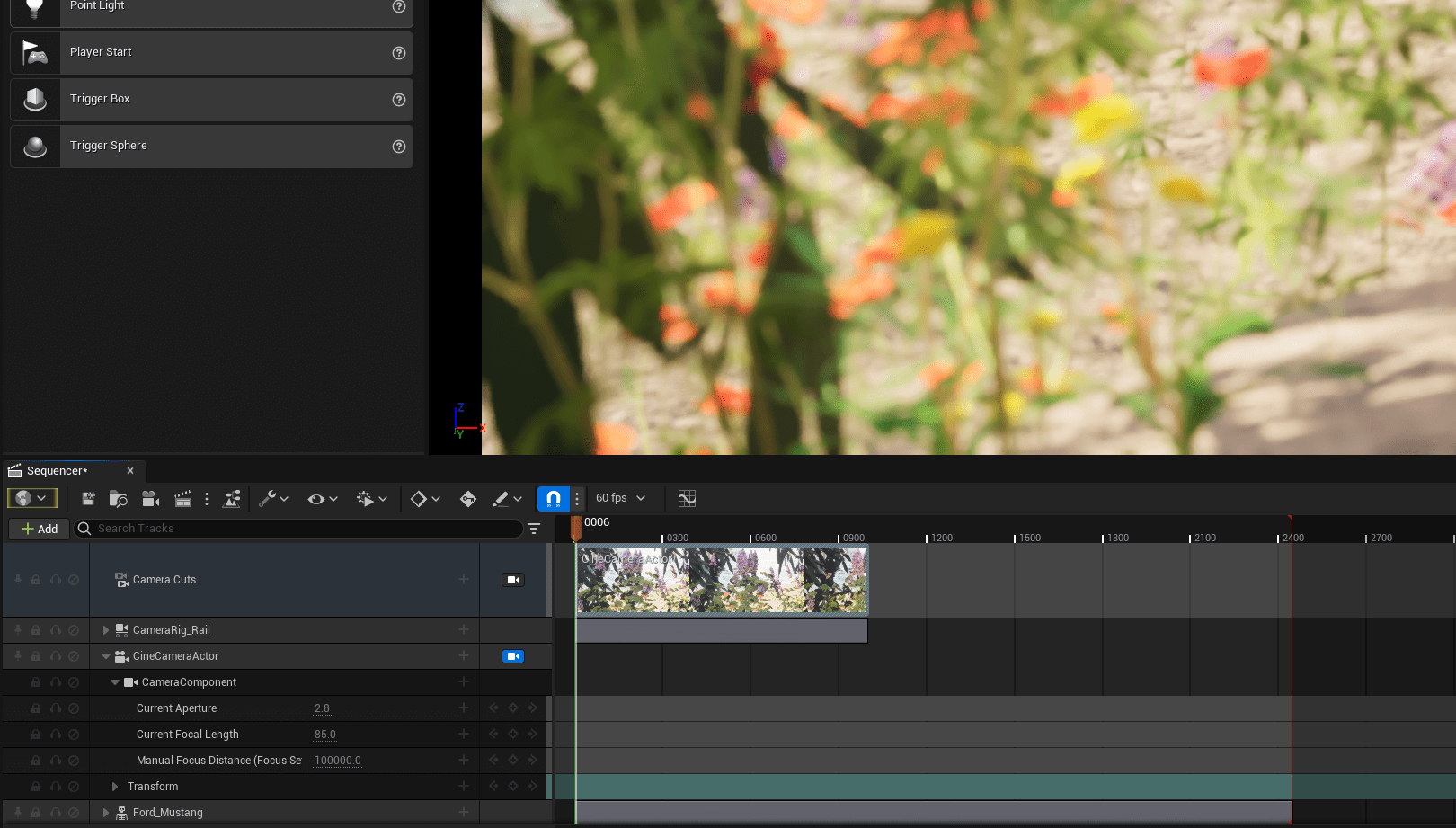
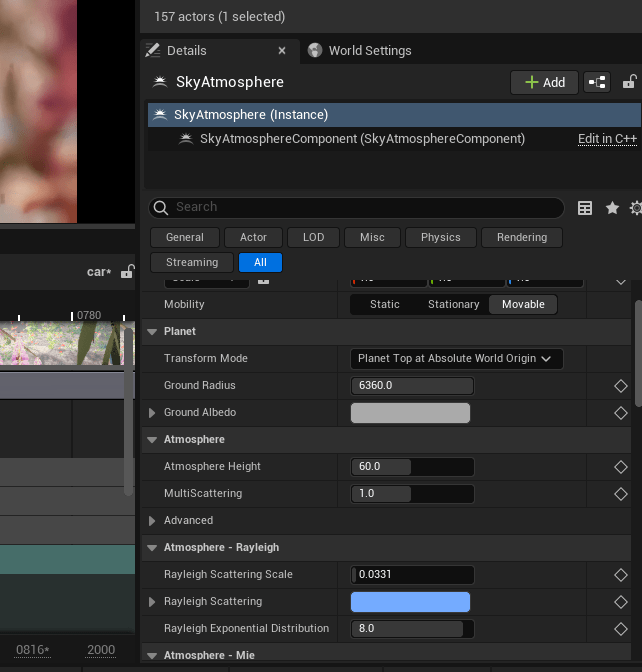
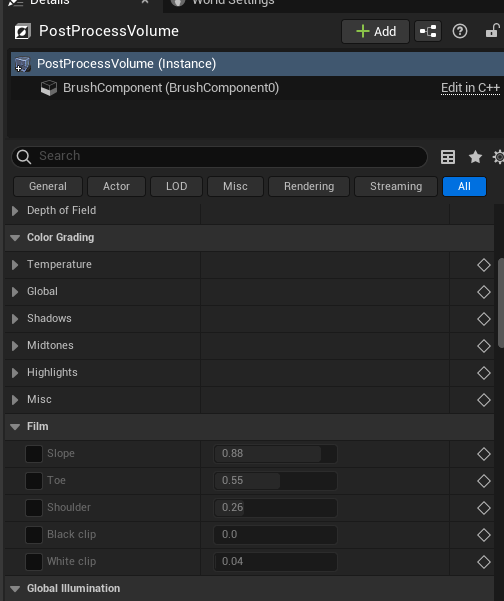

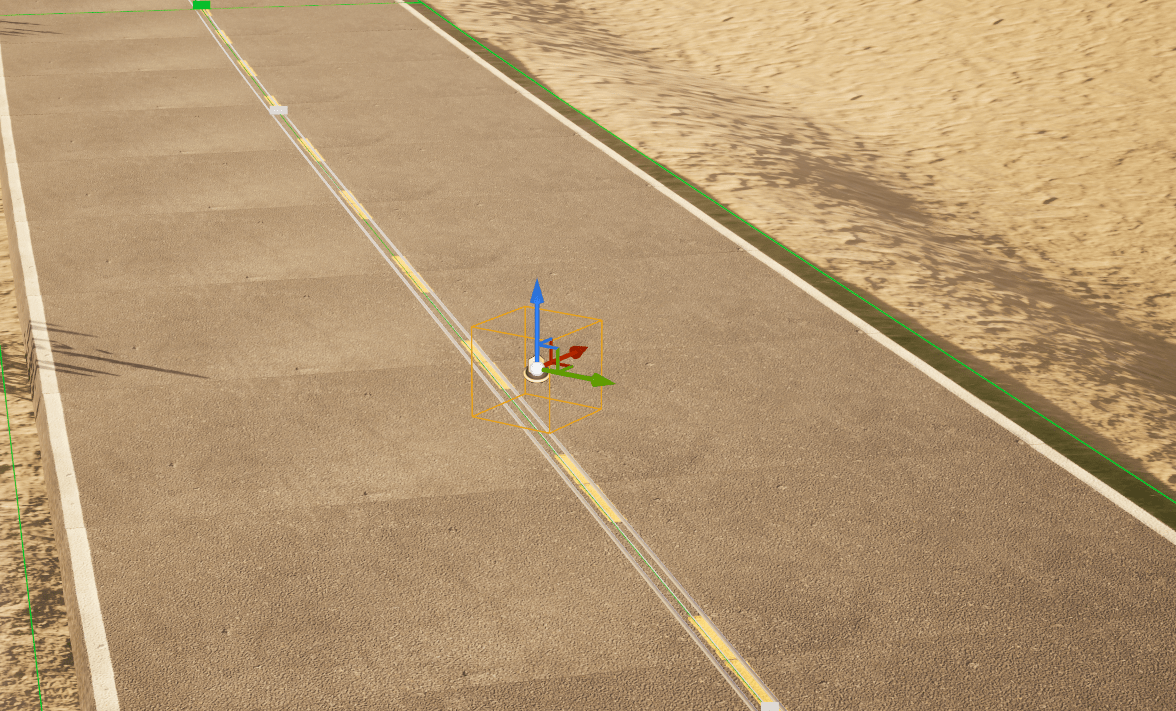
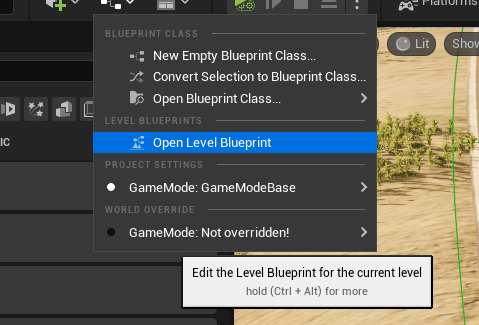
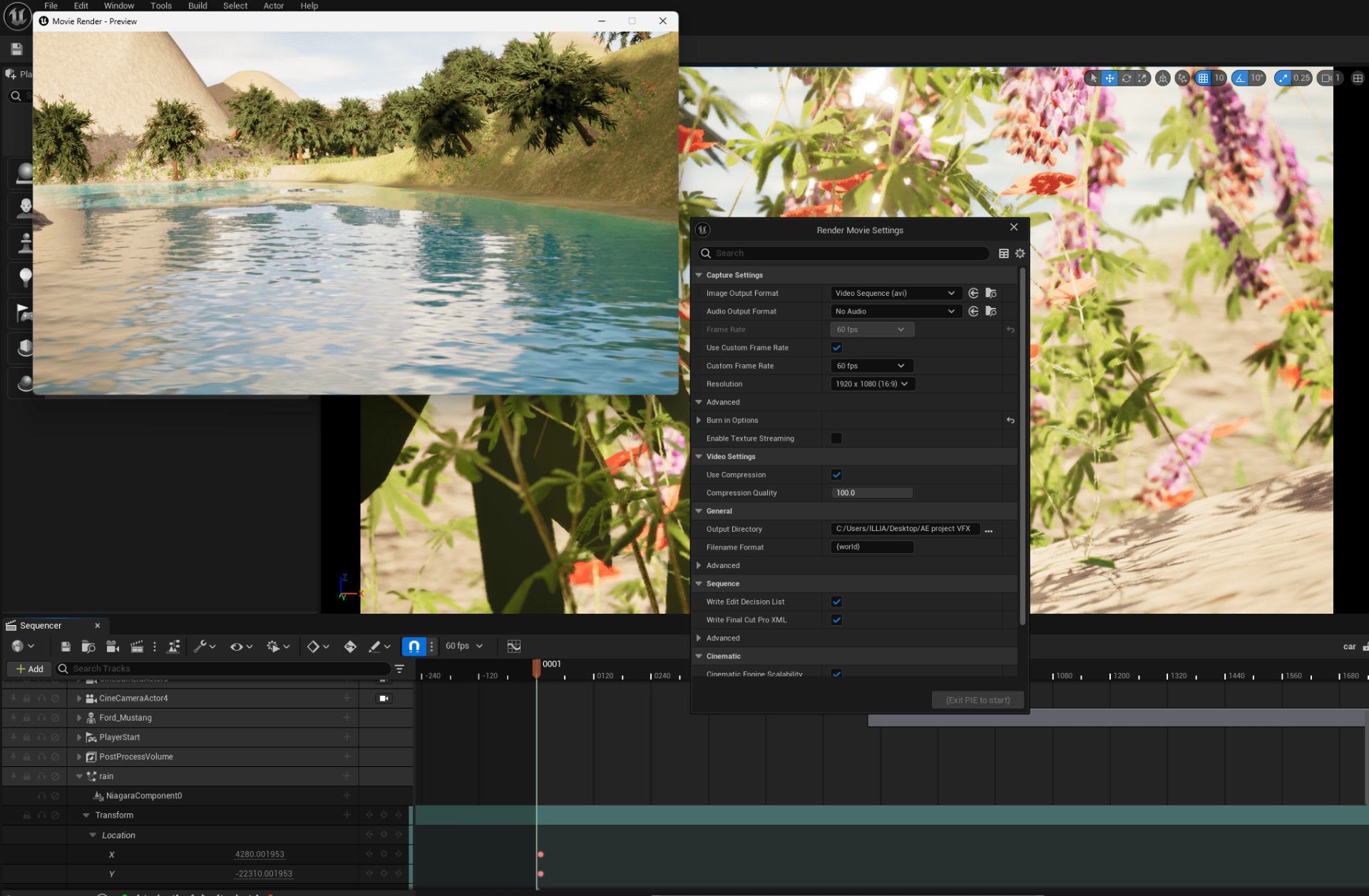
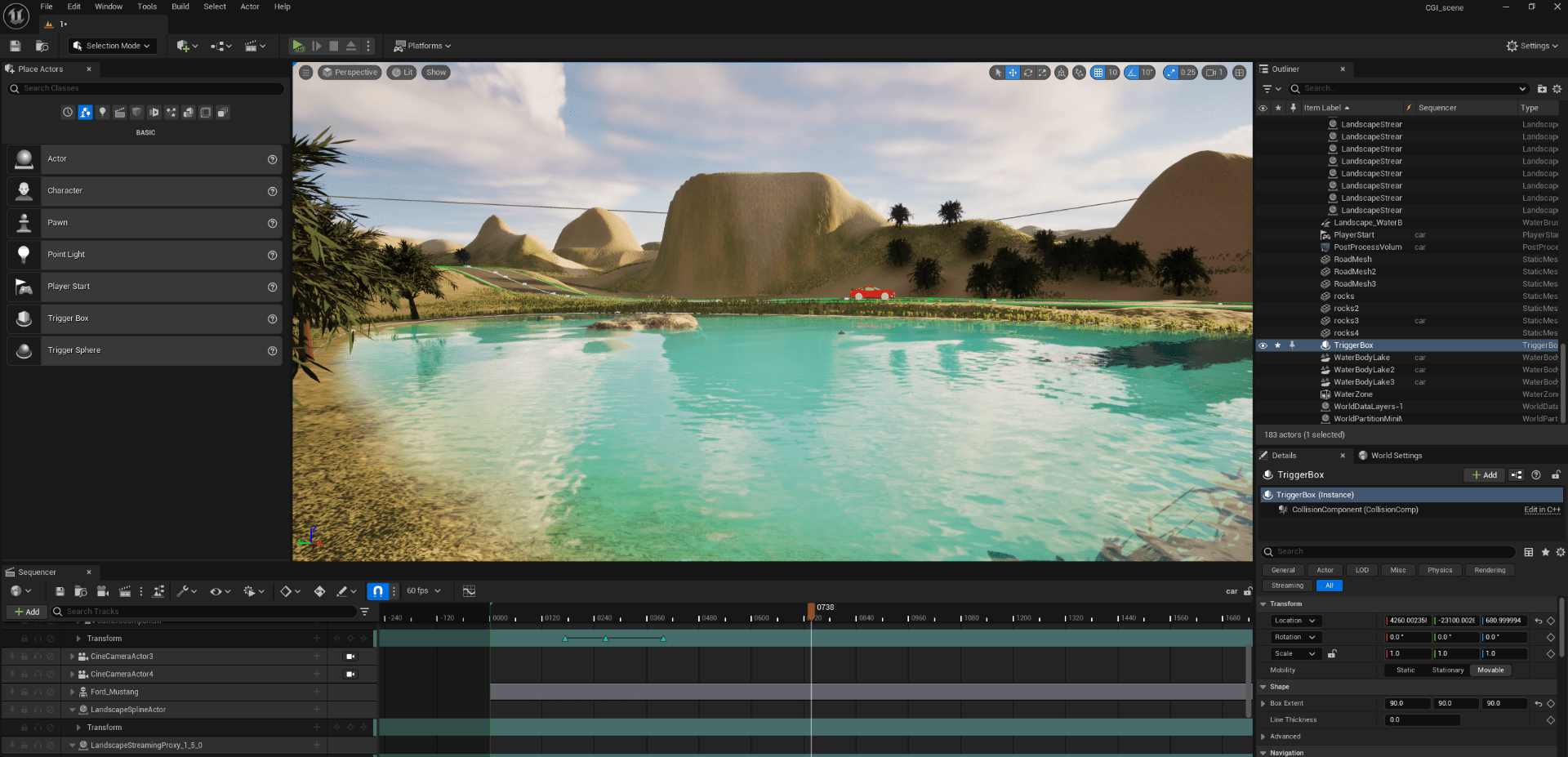
Final result
End f assignment 1

