Week 1
One of my favourite tittle sequences is the one from doctor who.
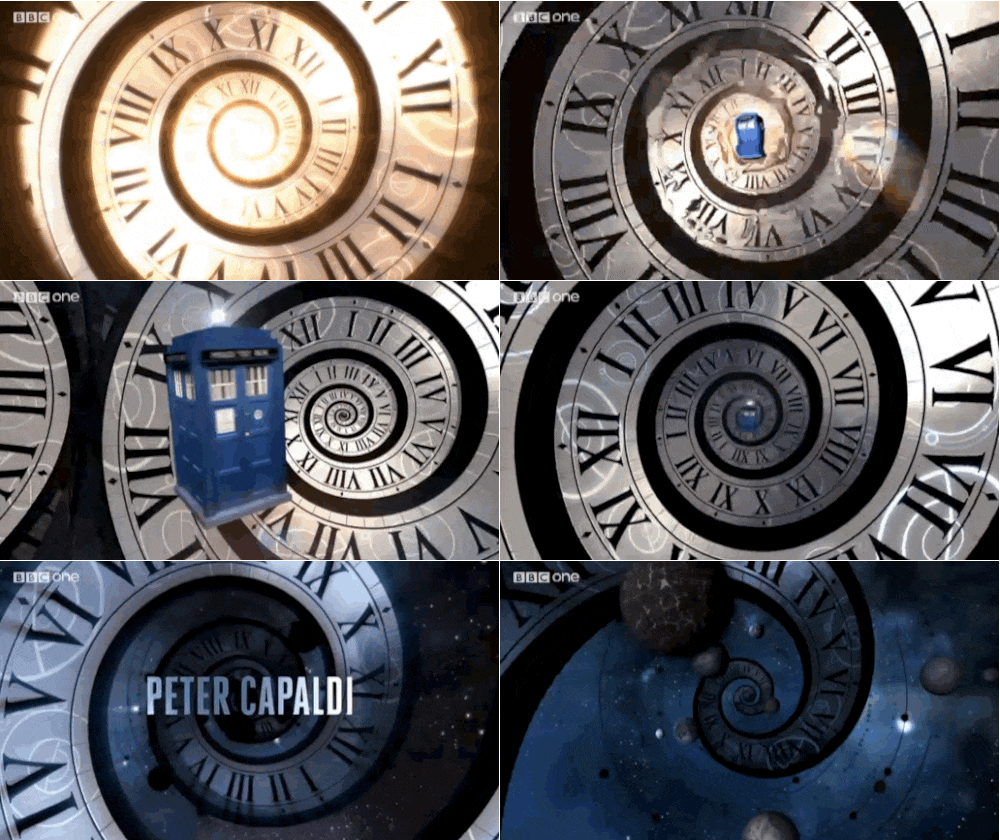
I will use this opening sequence as a great inspiration through the course.
After effects interface introduction
For the optimal use of a creative programme we should start always with the basics, such as the interface.
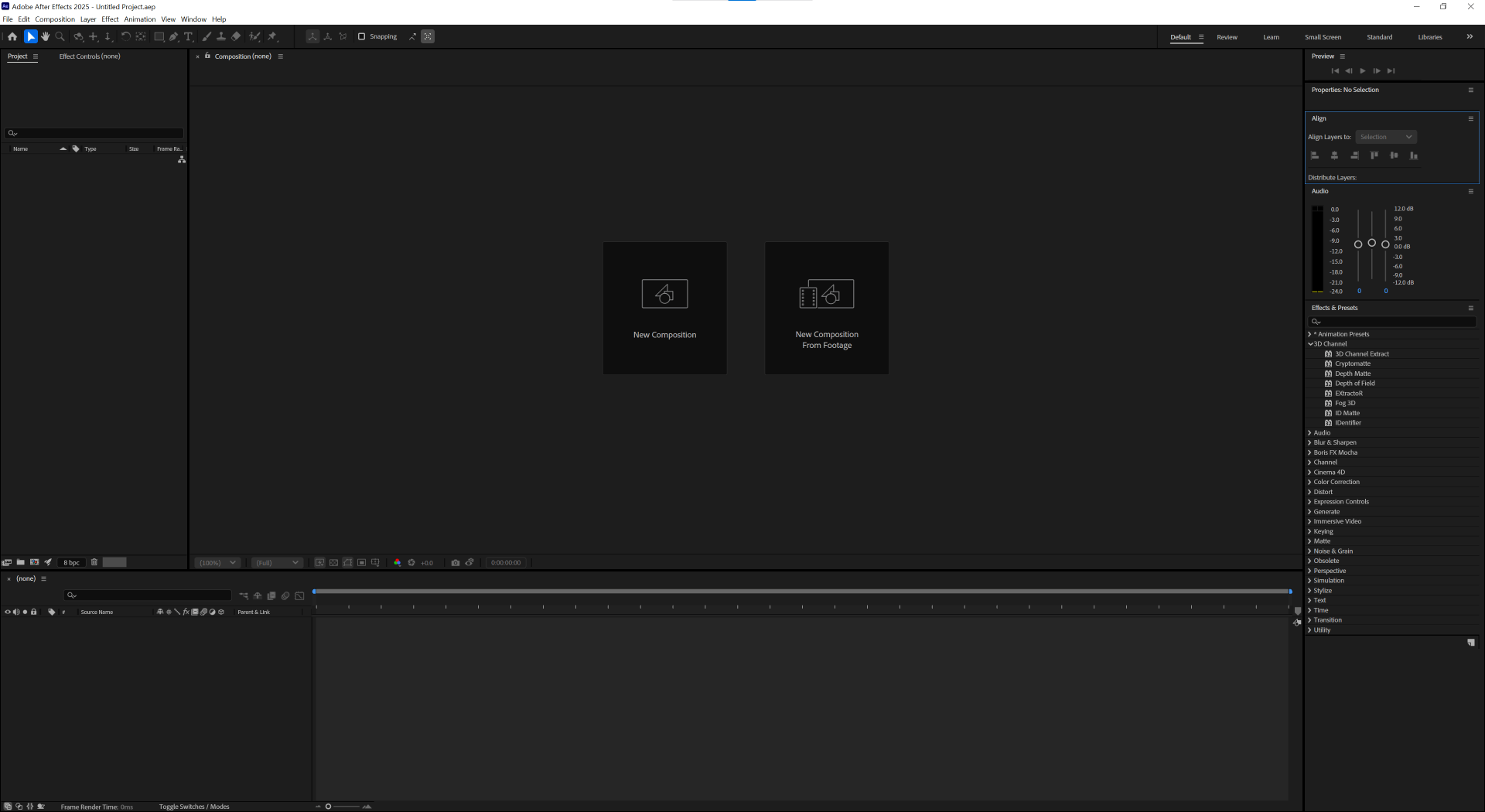
First we can find the “Toolbar“. Here we find different types of basic tool to manipulate the composition.

Then we move to the “pre-set workplaces” were you can save different pre-sets that are adjusted to your preferences to optimise different types of work.

There is also the “composition window“. Which allows us to see our composition.
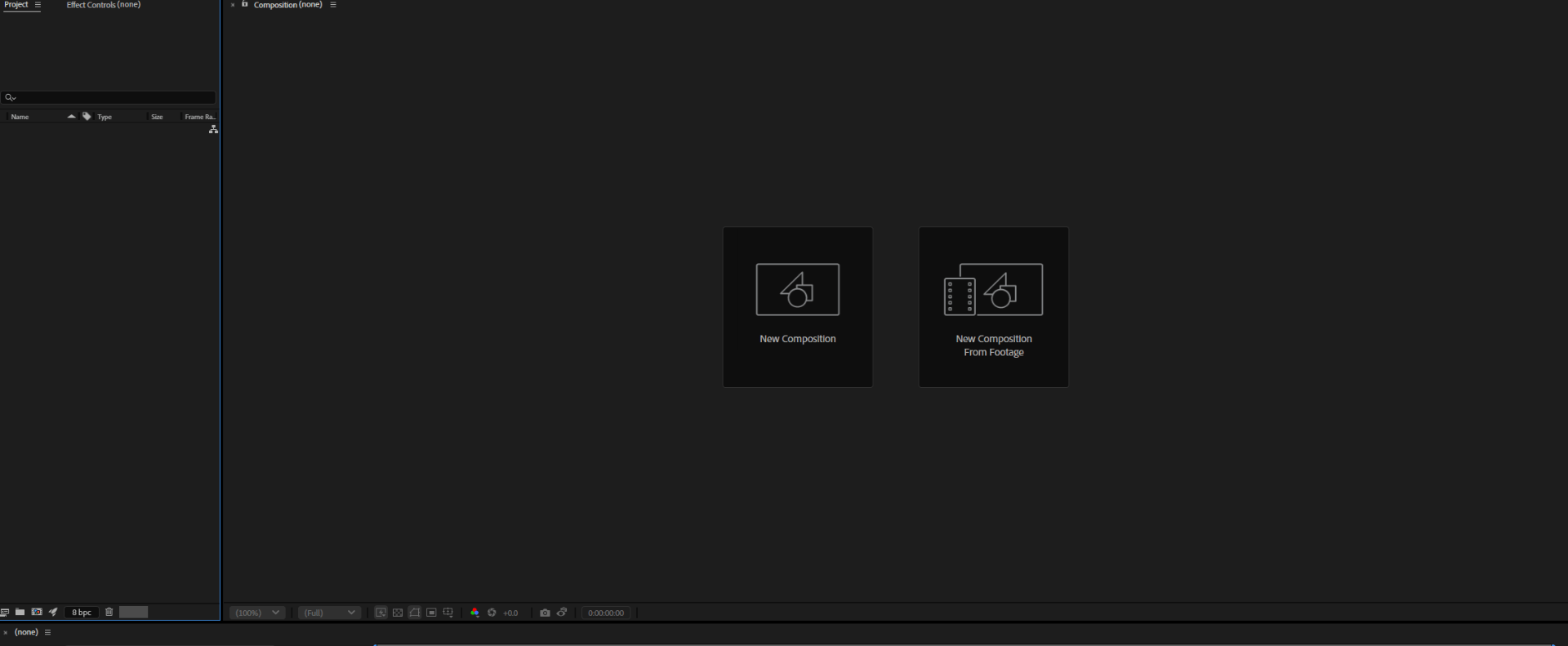
We see here the “timeline“. Where we putt our layers and work with them.

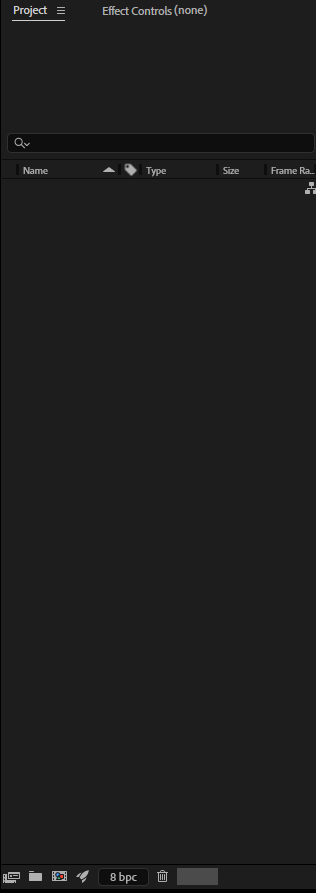
This here is the “project window“. Here is where you import all your assets.
And finally there is a “menu bar“. Where we can find all kind of useful options to work with on our project.

After effects compositions
To create a new composition we should click the new composition button.
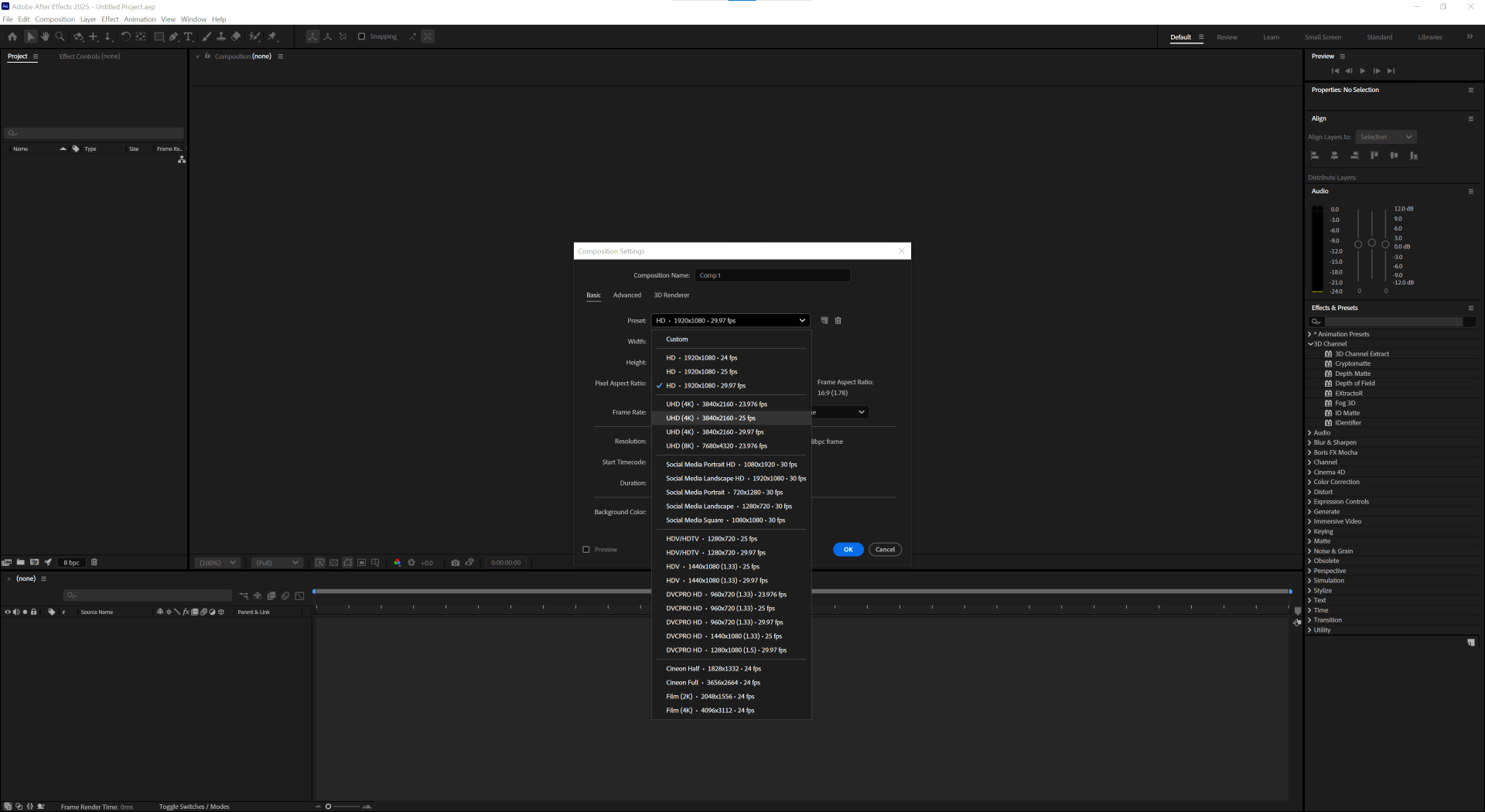
After select to create a new composition there will be some options that we should select depending on our type of project.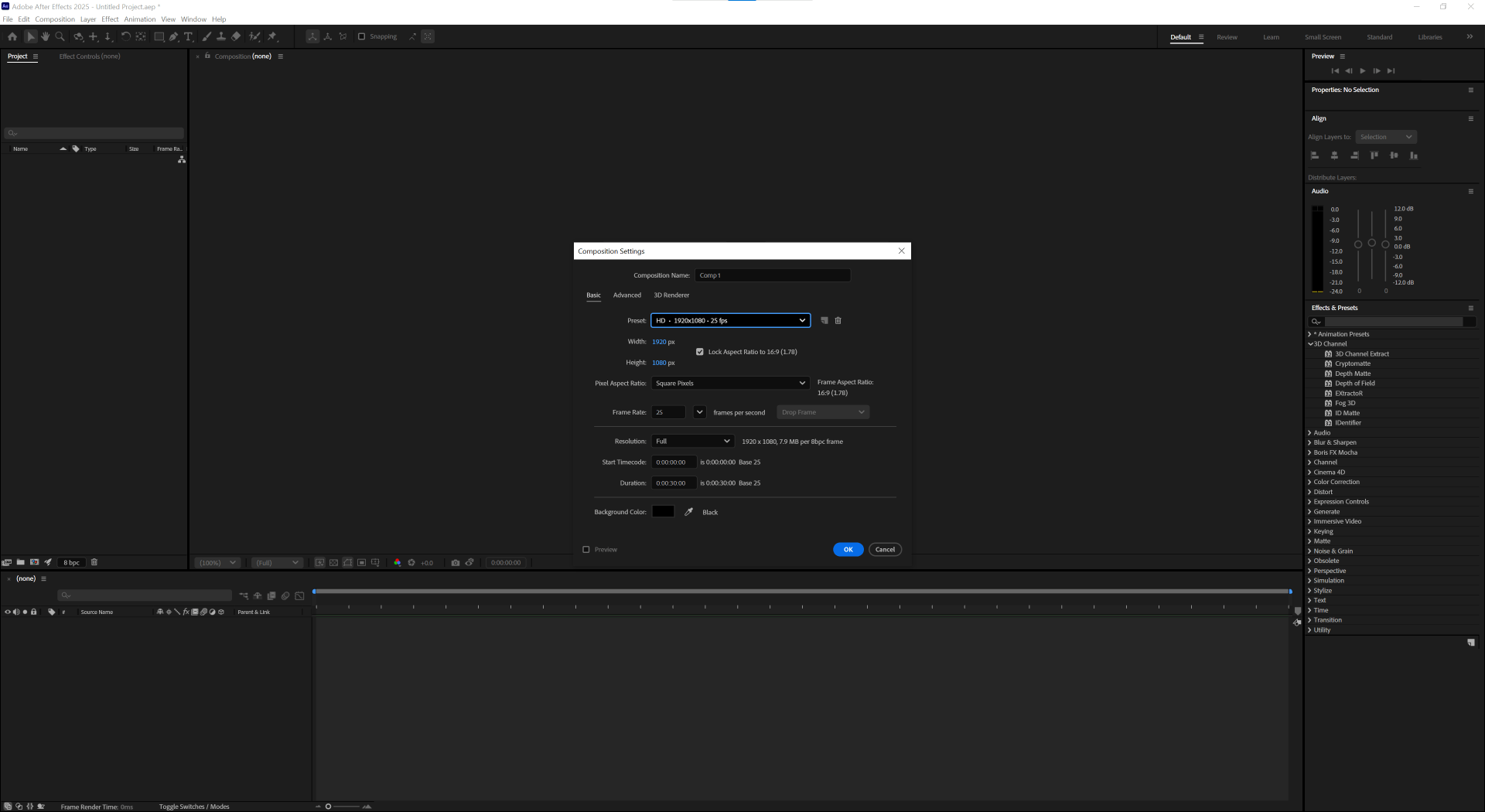
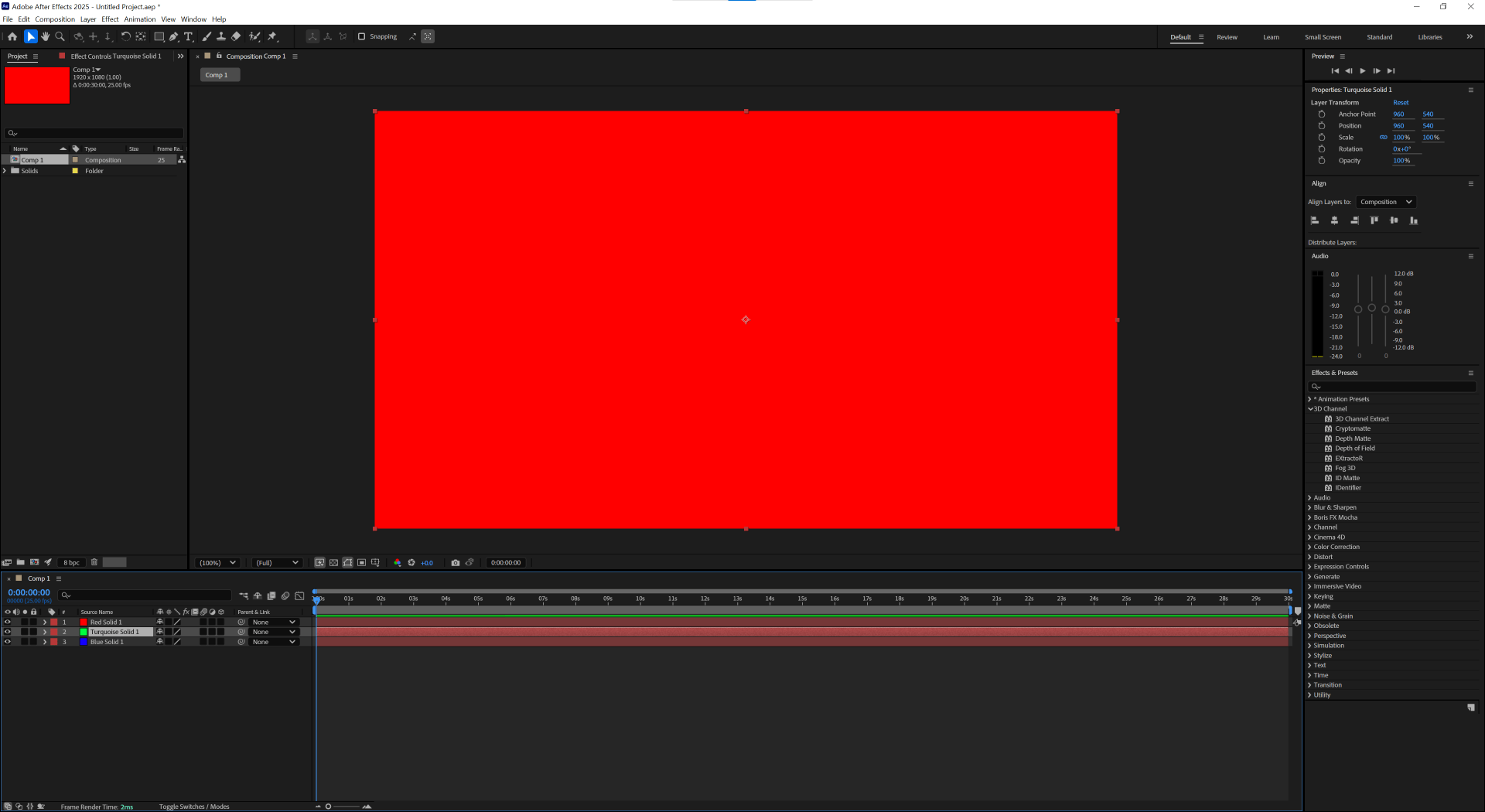
After creating a new composition we will have a black composition.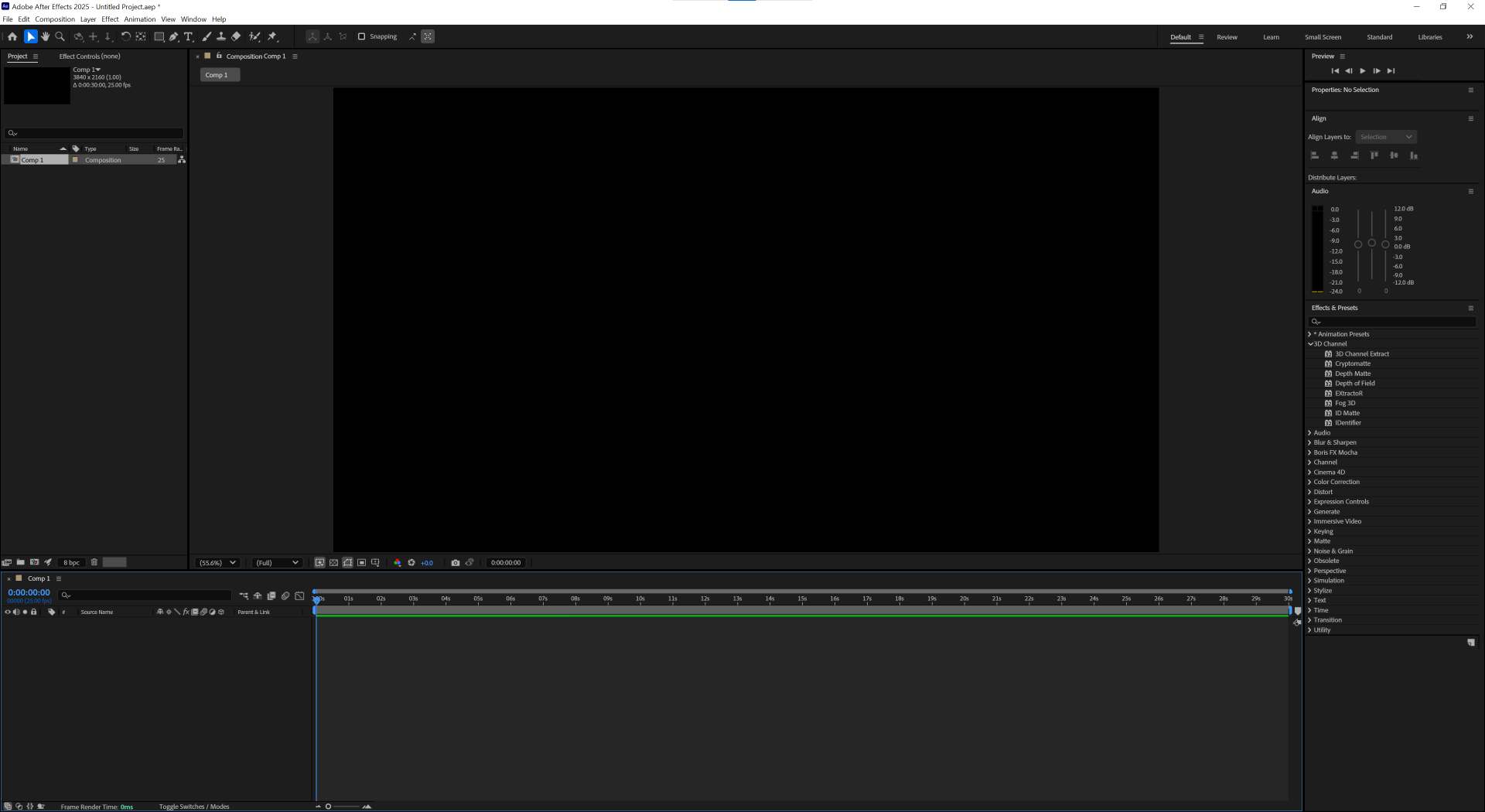
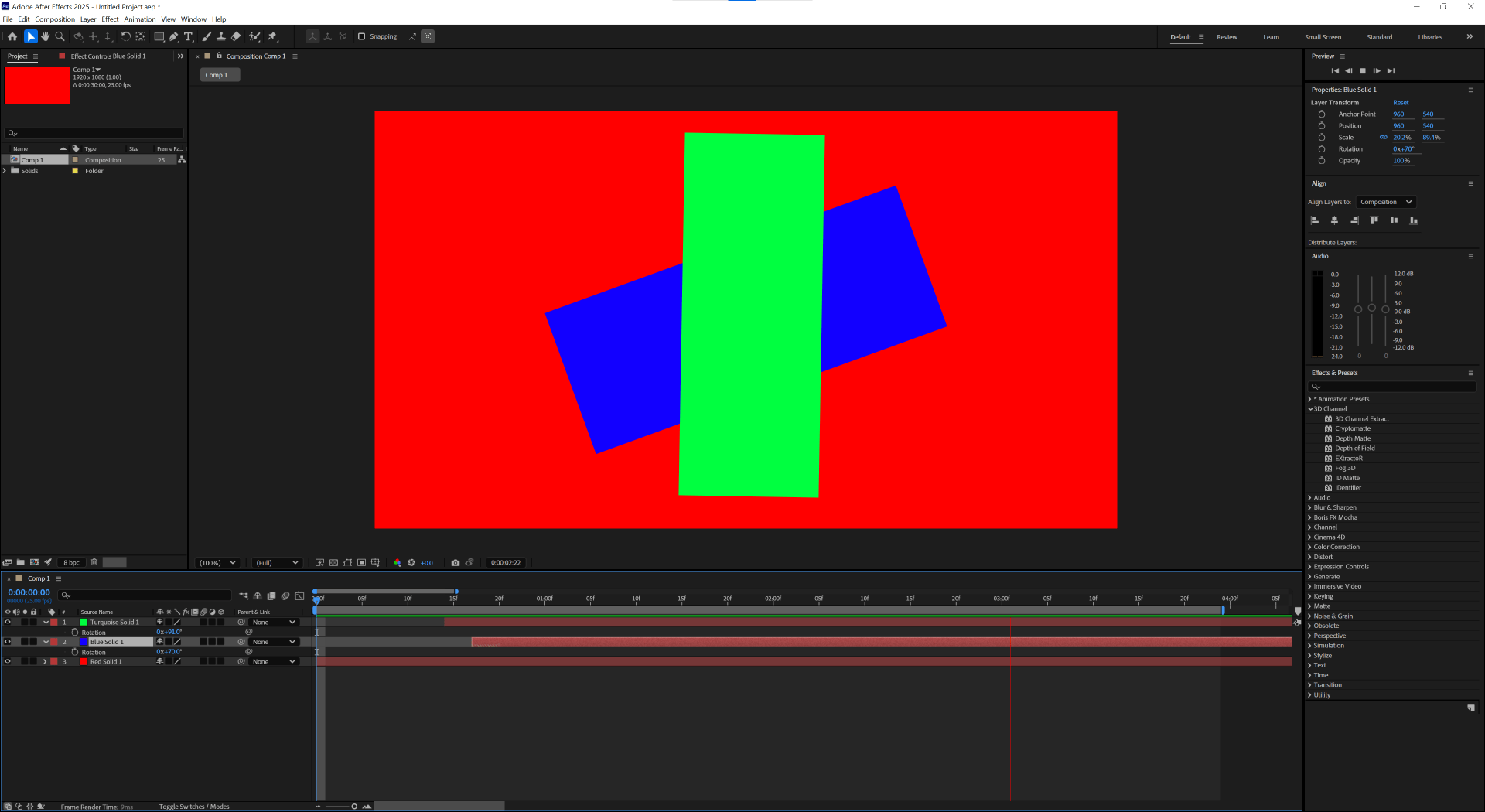
we are going to test our new composition by creating a solid and some layers to play with.
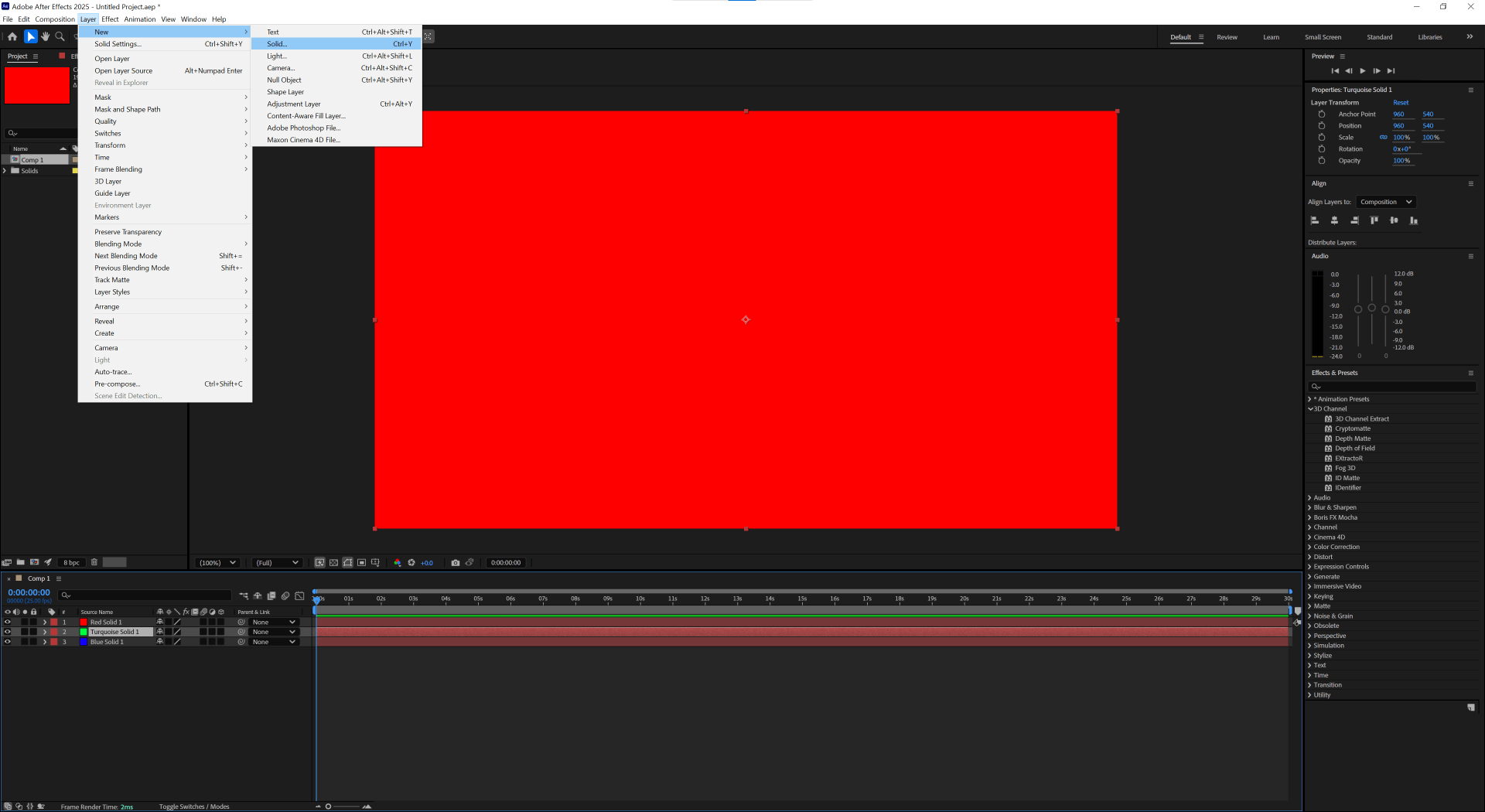
After effects layers
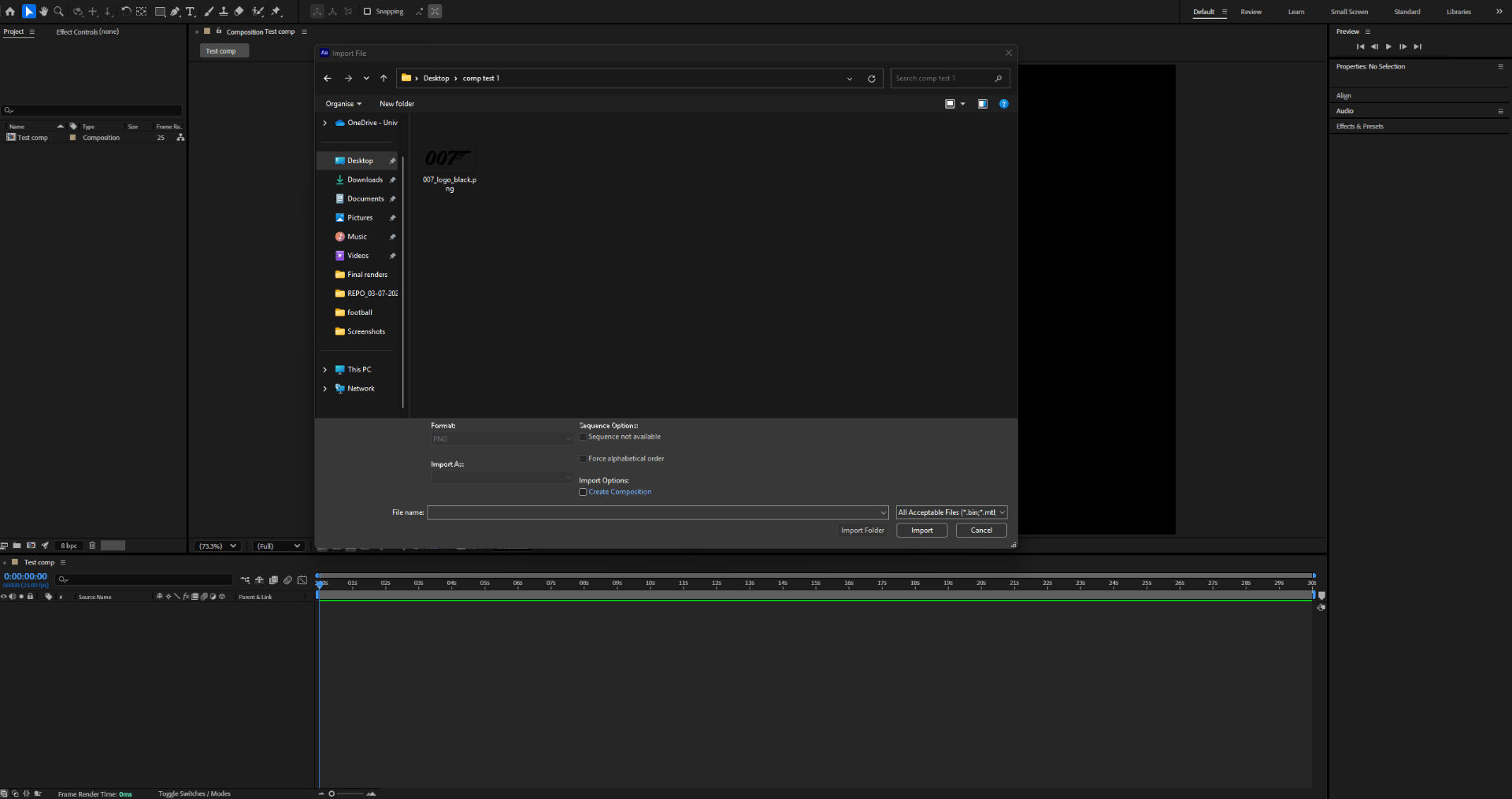
First we are going to import a file to the project file.
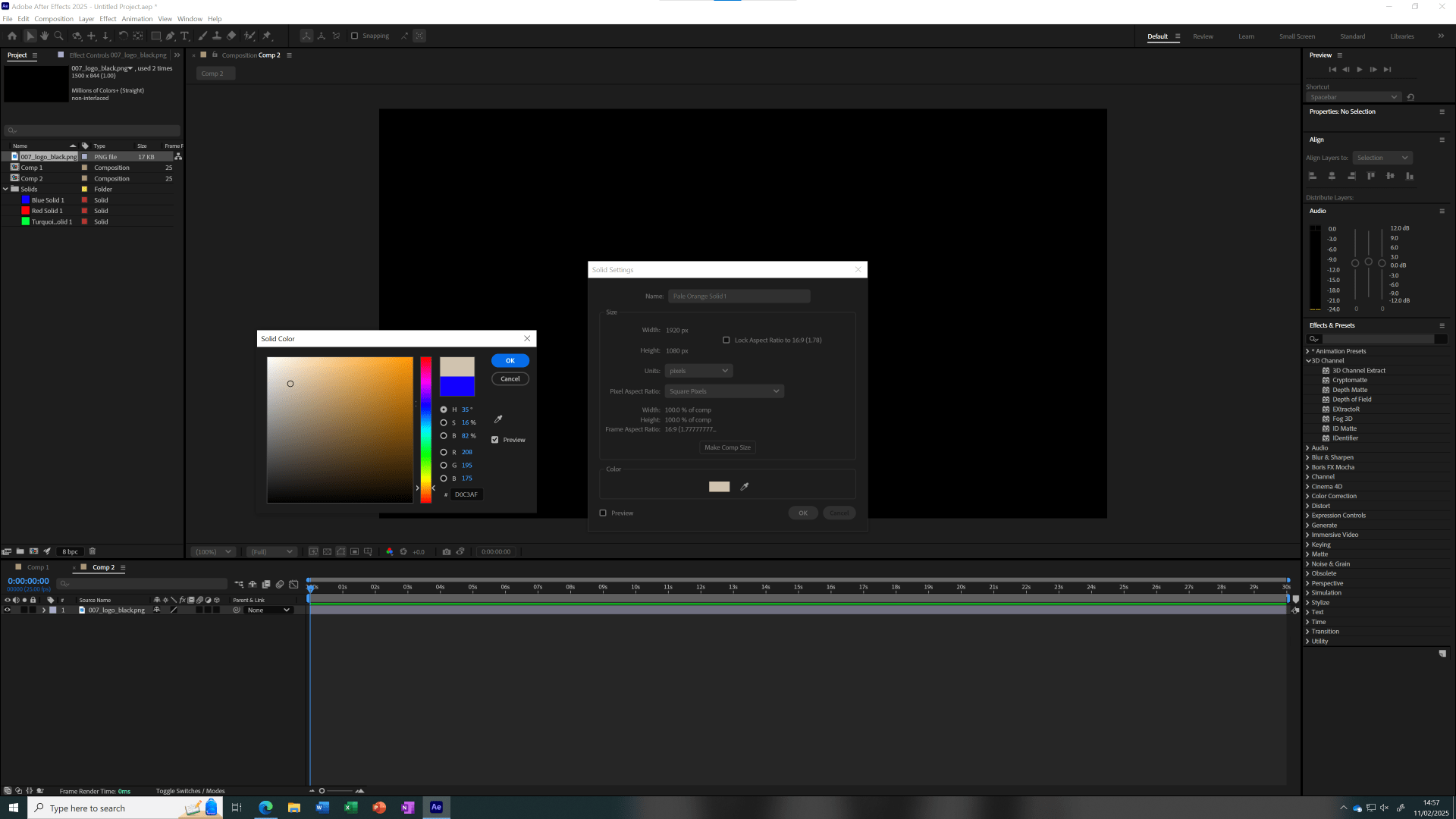
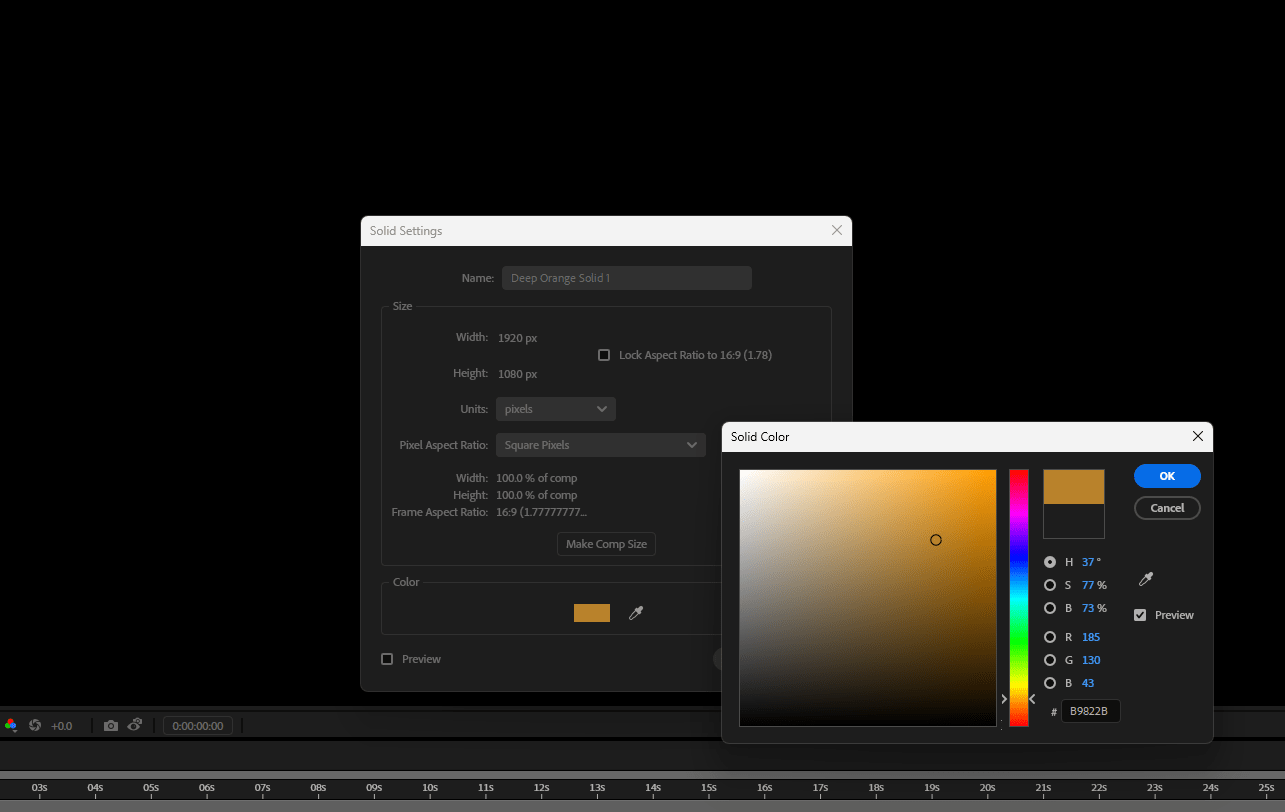
We create a solid layer with a different colour and put it together with the logo at the time line.
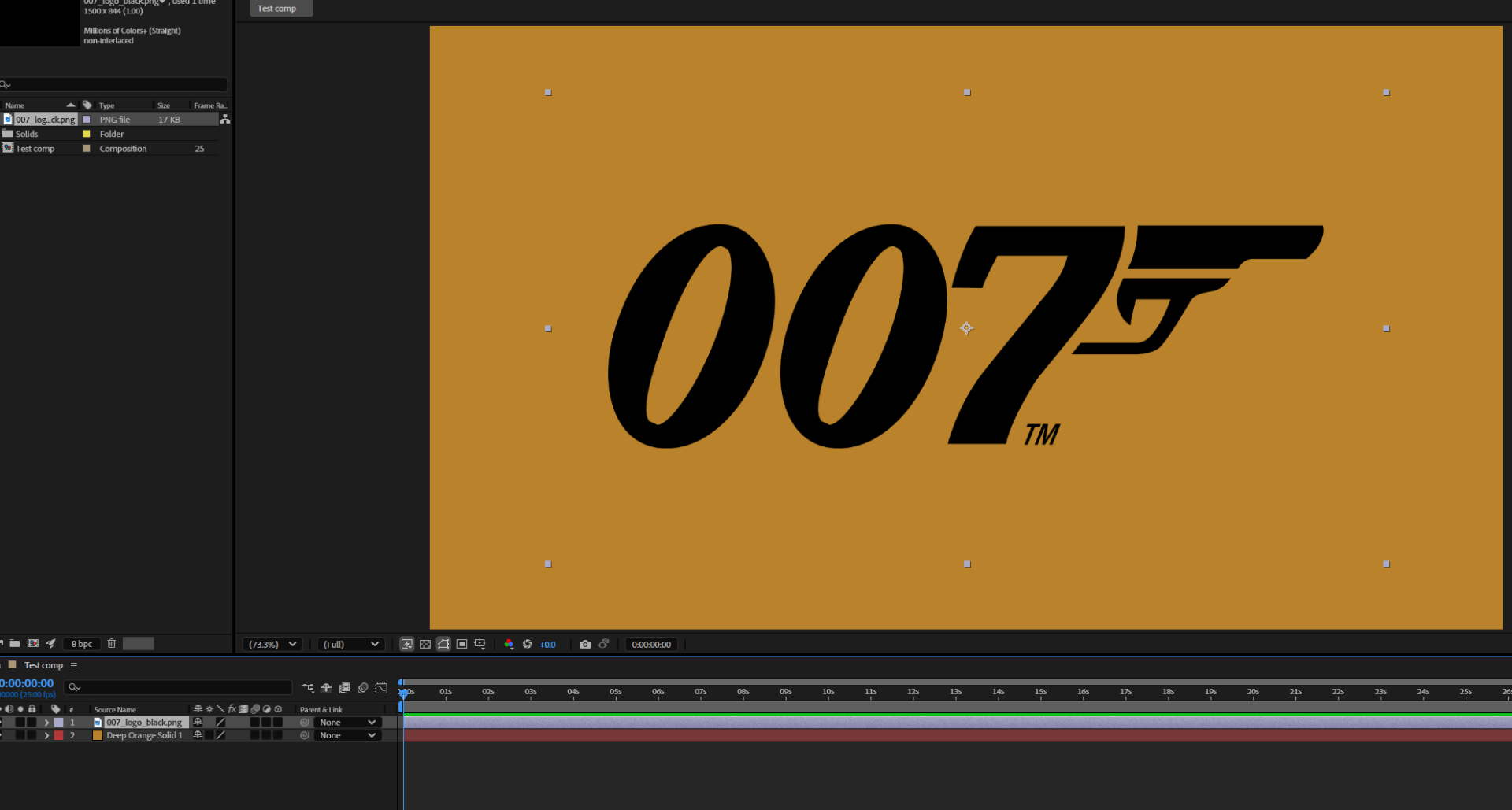
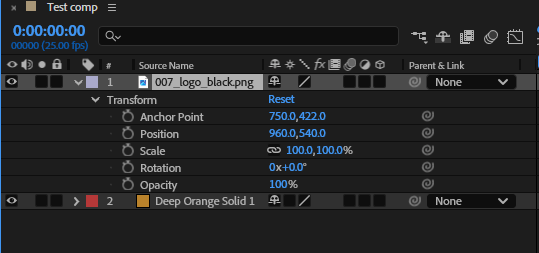
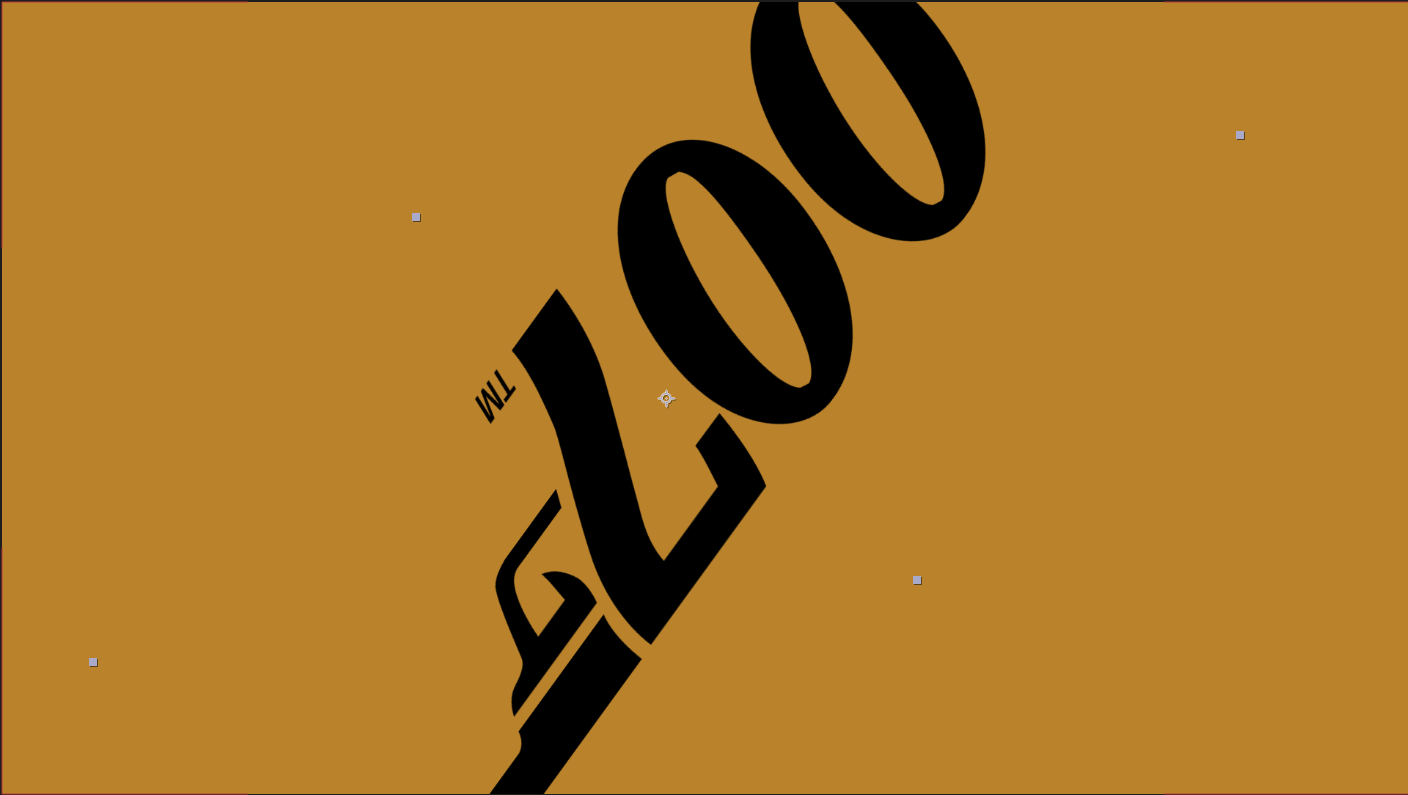
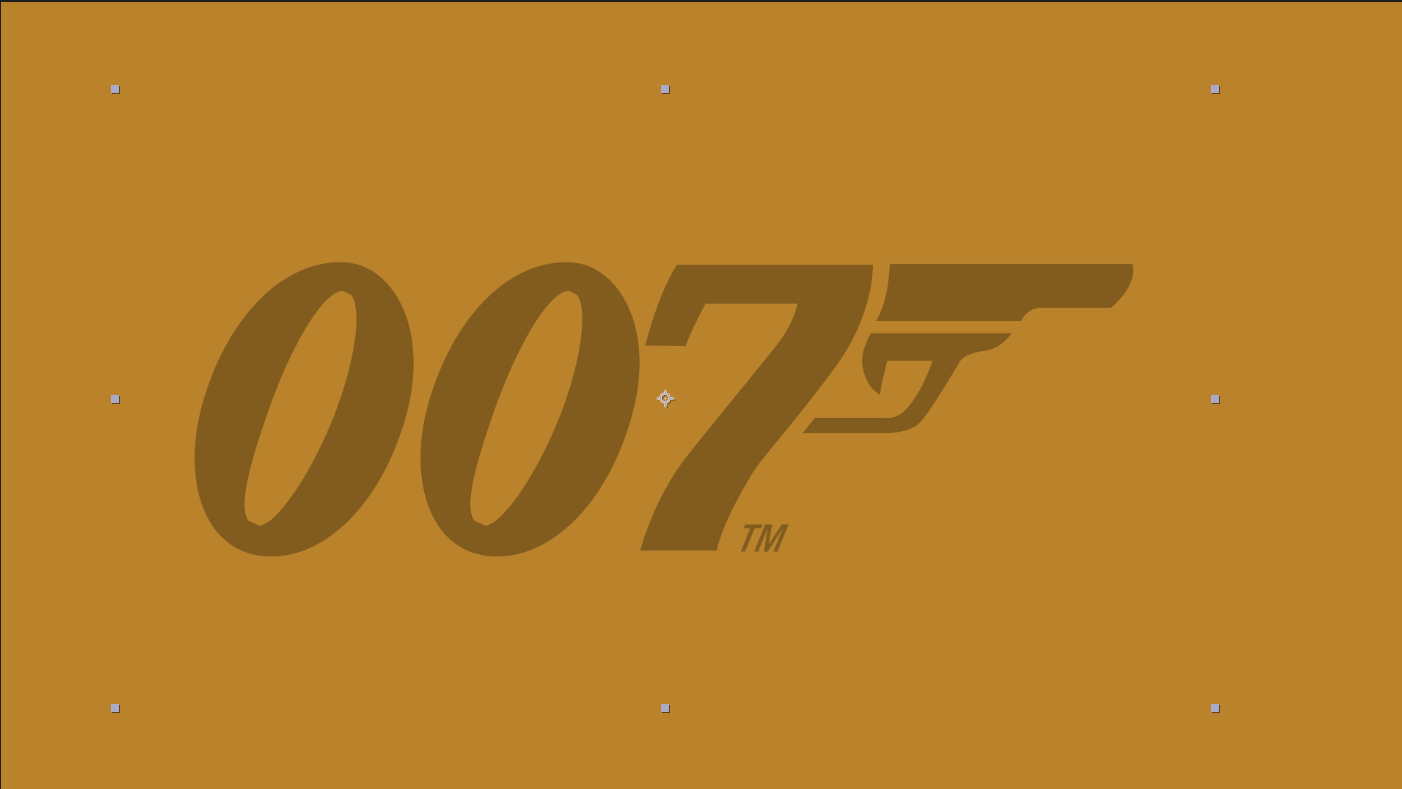
We can find the logo and layer here where we can play with different properties such as position, scale, rotation, opacity and so…
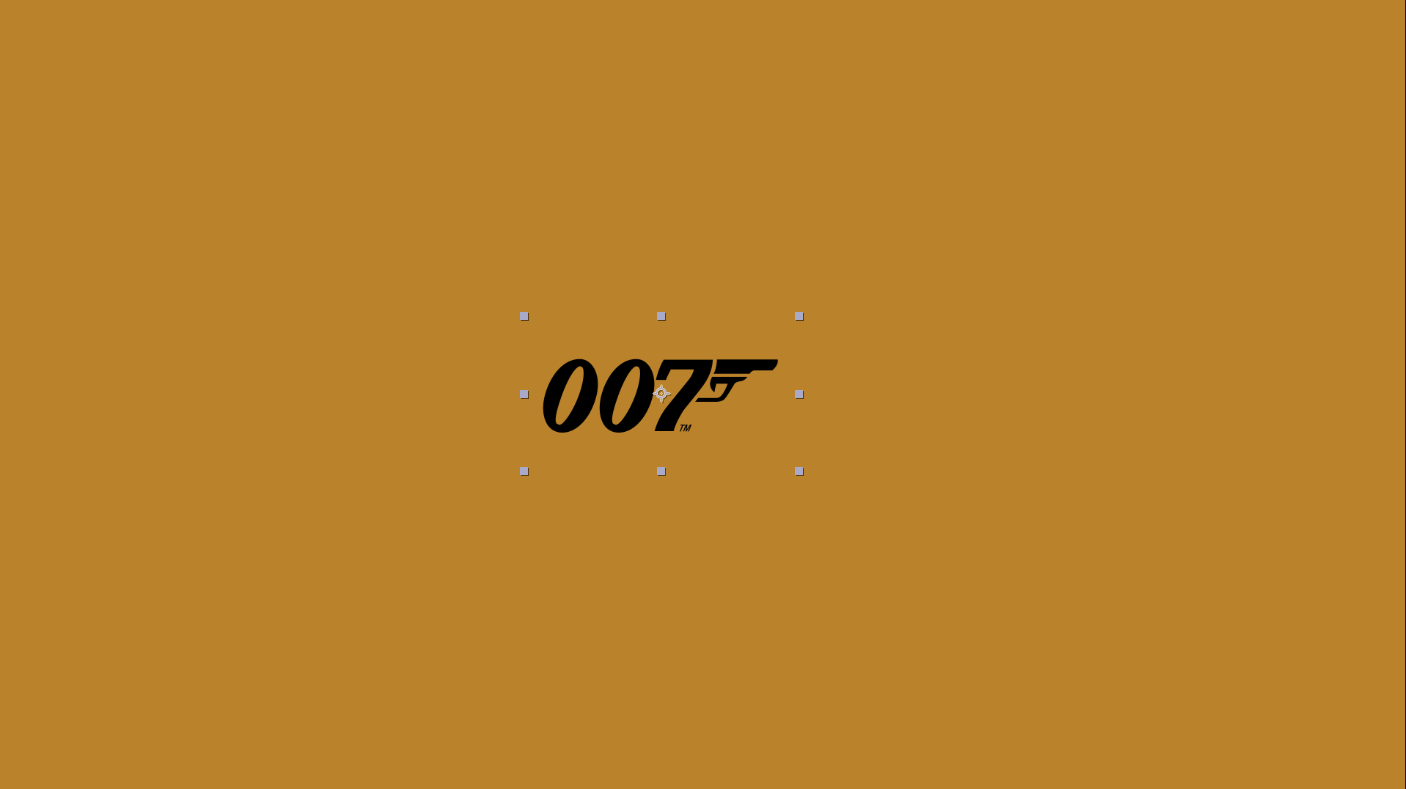
Here are some examples:

After effects layer animation#
As we have seen before we are able to change different properties of the layer. But we are able to keyframe these out to make an animation. 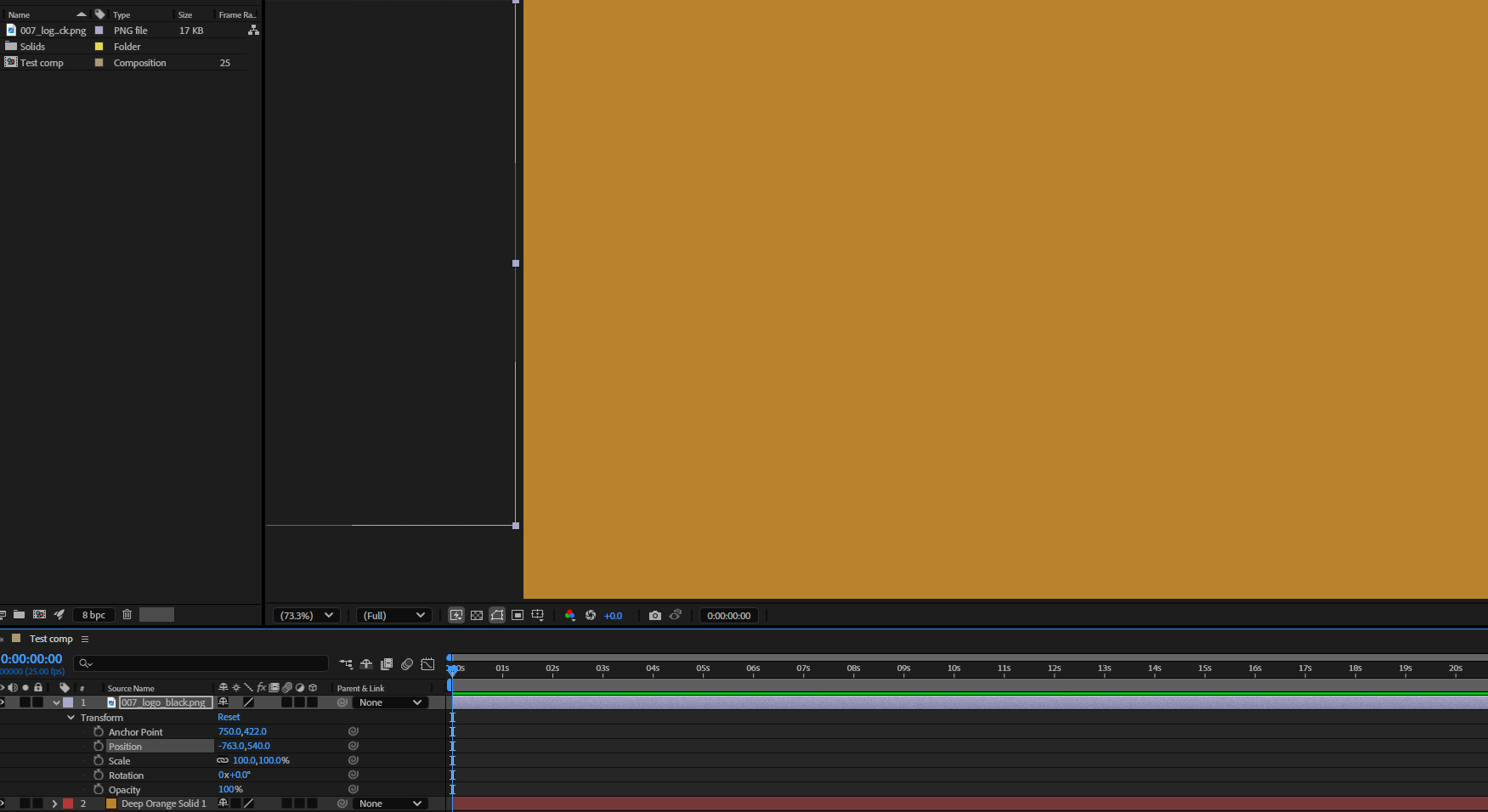
If we hit the clock button next to the desired property we are able to keyframe that specific property as seen in this example bellow:
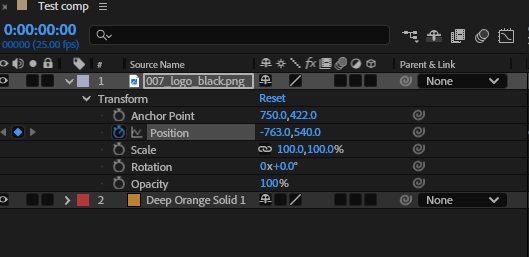
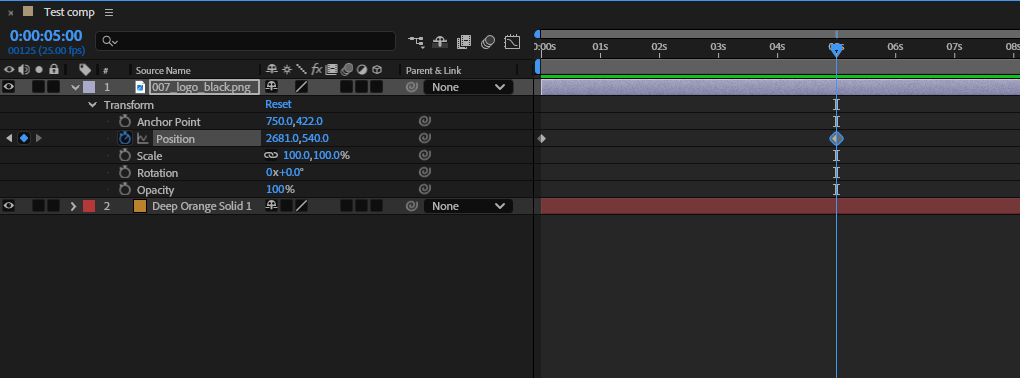
sometimes we will notice a little stutter in the animation, we use the “motion blur” option to try and smooth the animation.
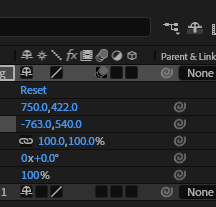
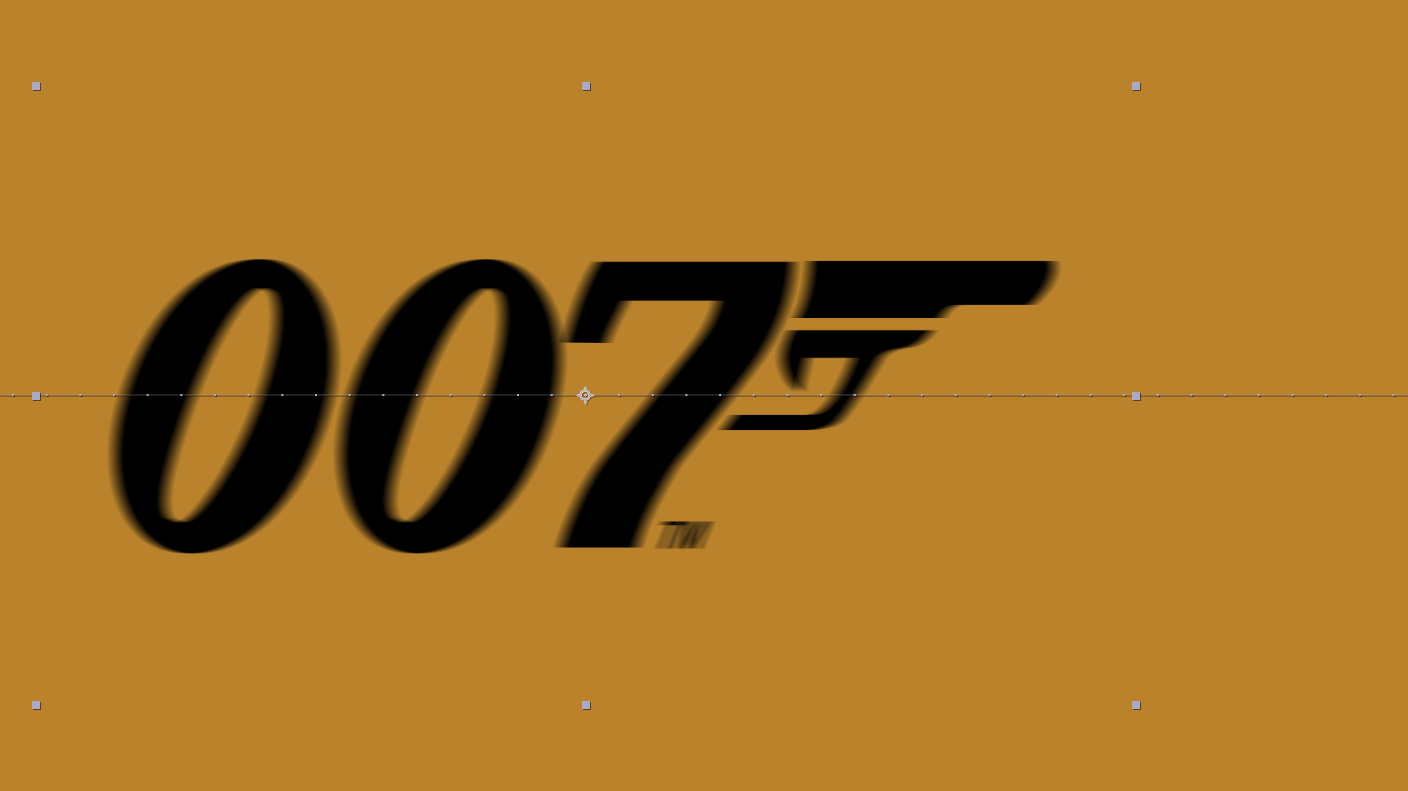
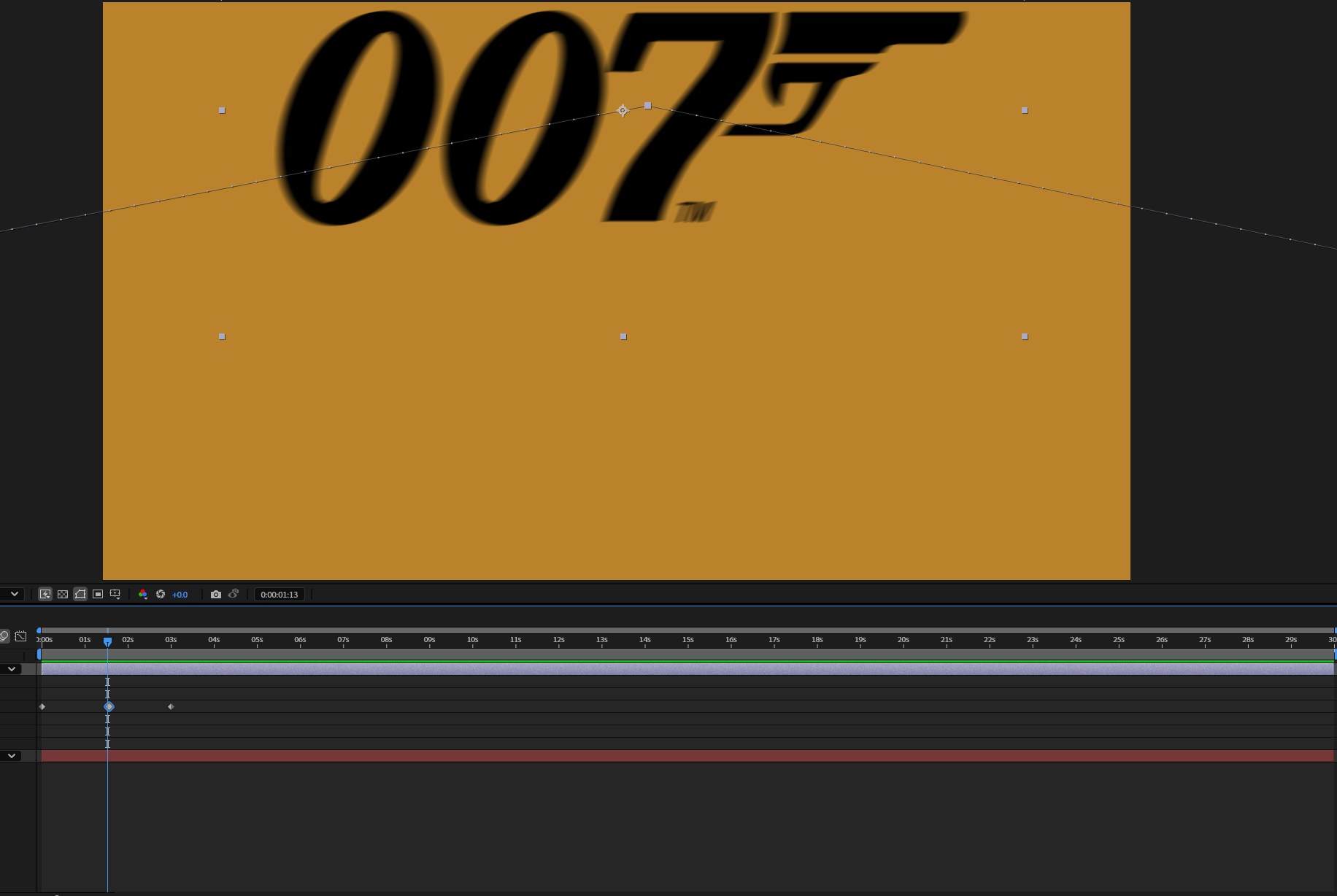
We can keyframe more than one property at once.


Final Test 1
Task 1
Apply: Recreate a Dr.NO sequence
We create a new composition. Where we create a vector.
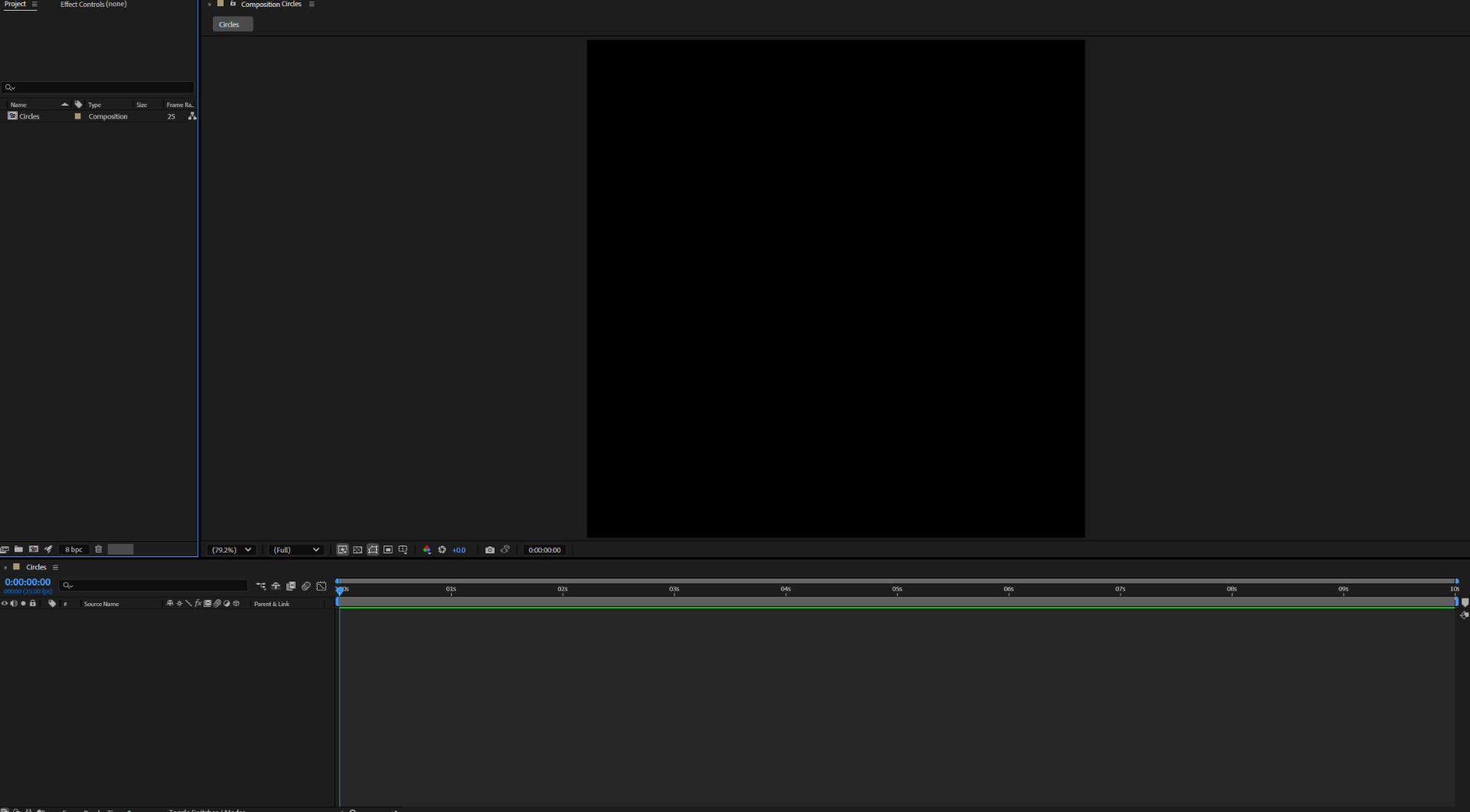
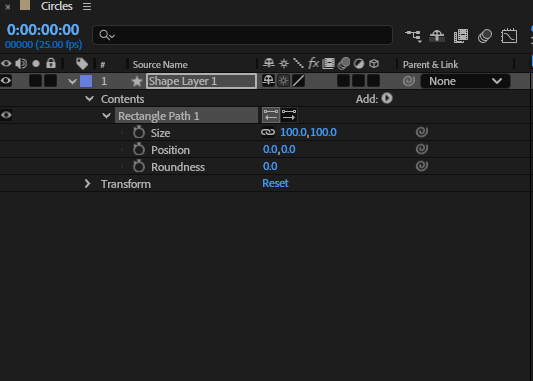
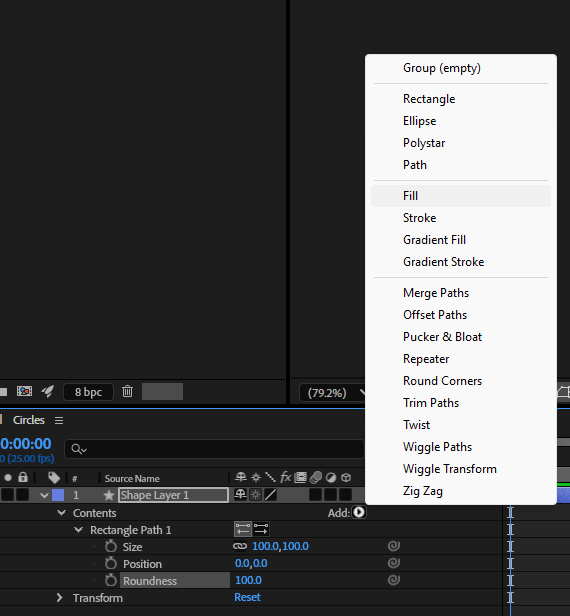
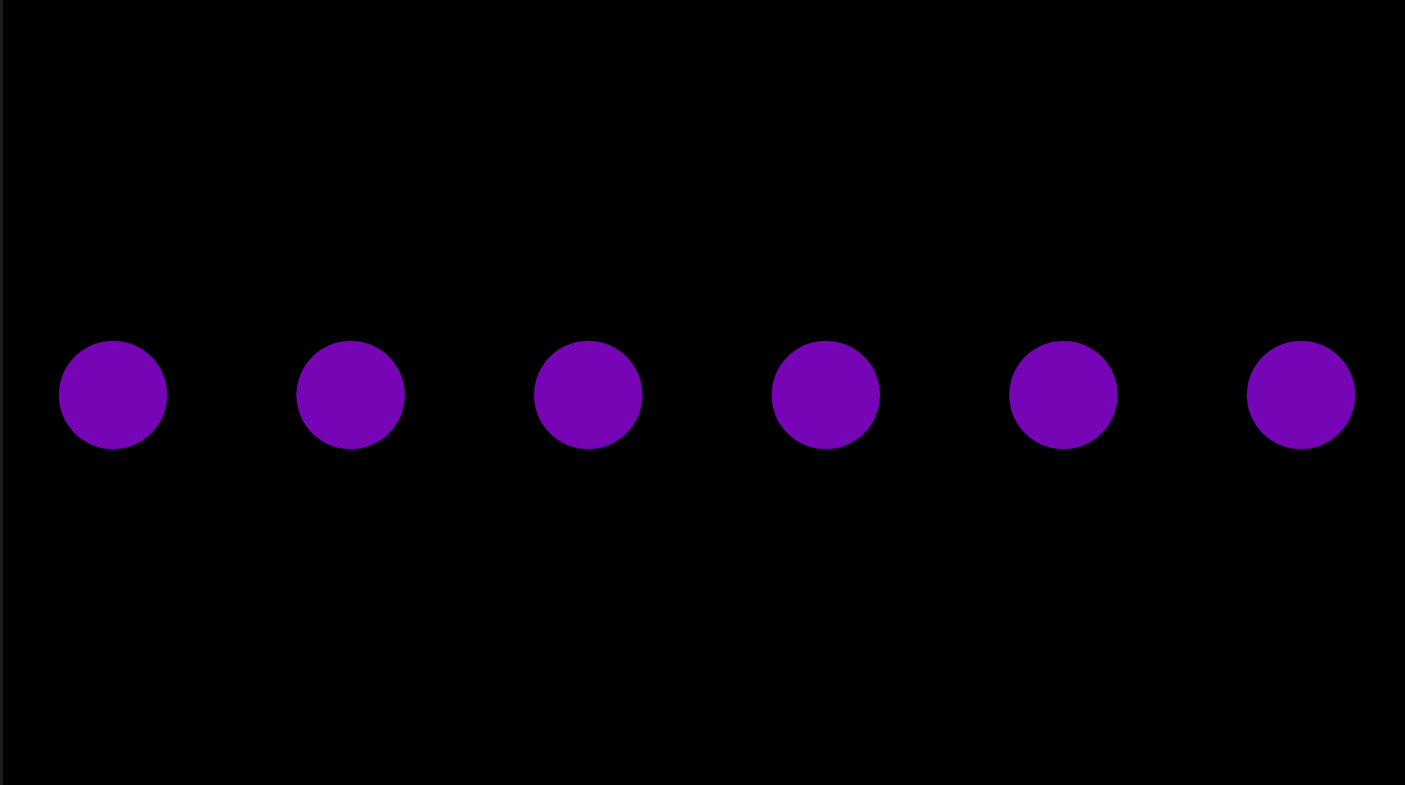
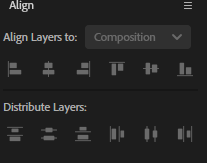
We used the align tool to prepare our circles.
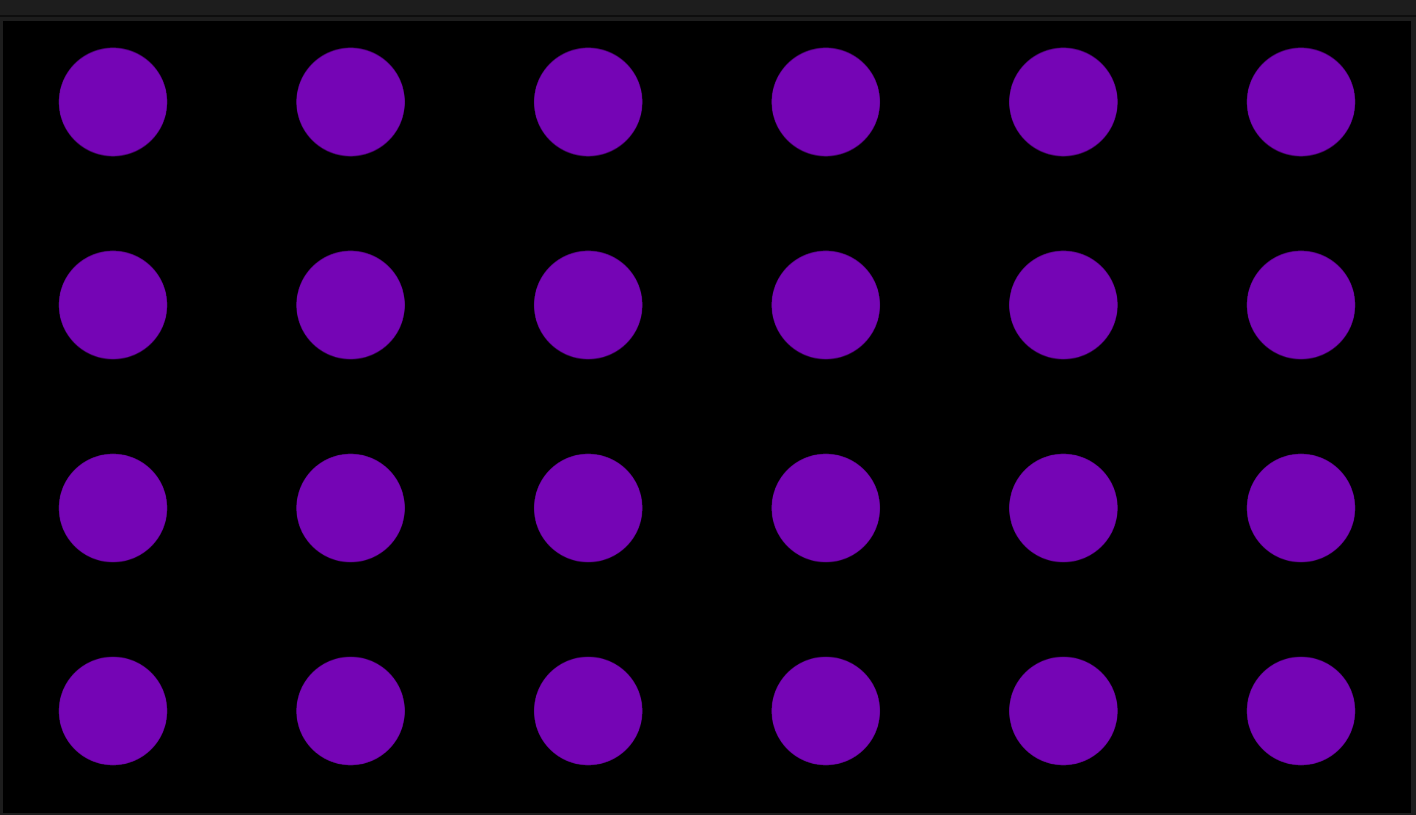
We select the different layers to edit the circles.
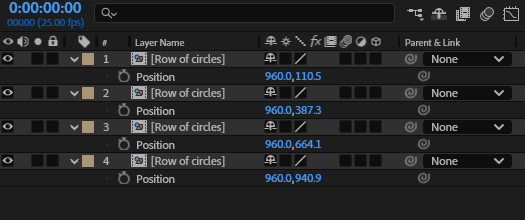 Layer
LayerWe used the keyframe assistant to help us keyframing the project.
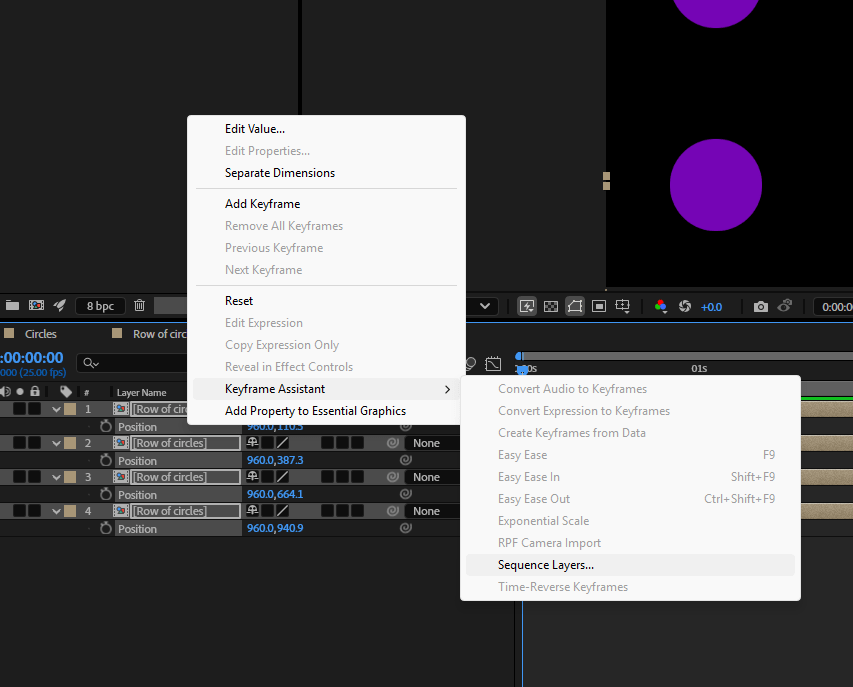
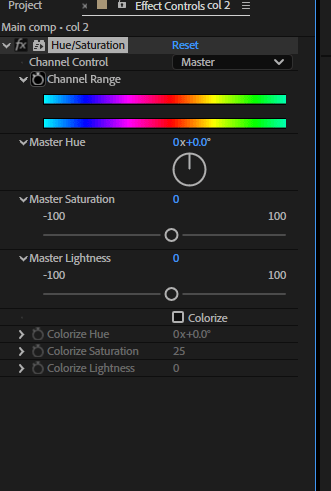
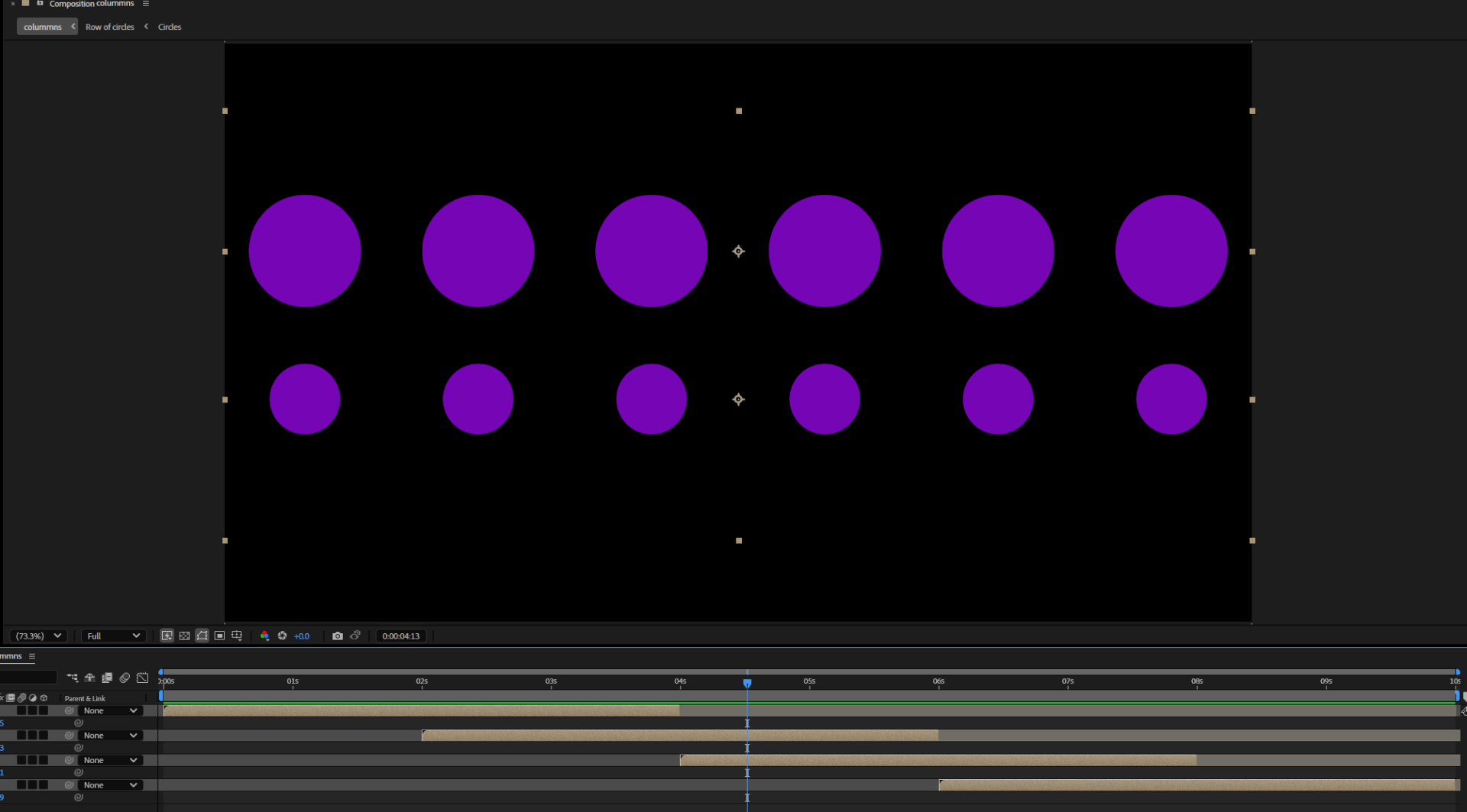 After using different compositions, we use the Hue/saturation to change the colours of different layers.
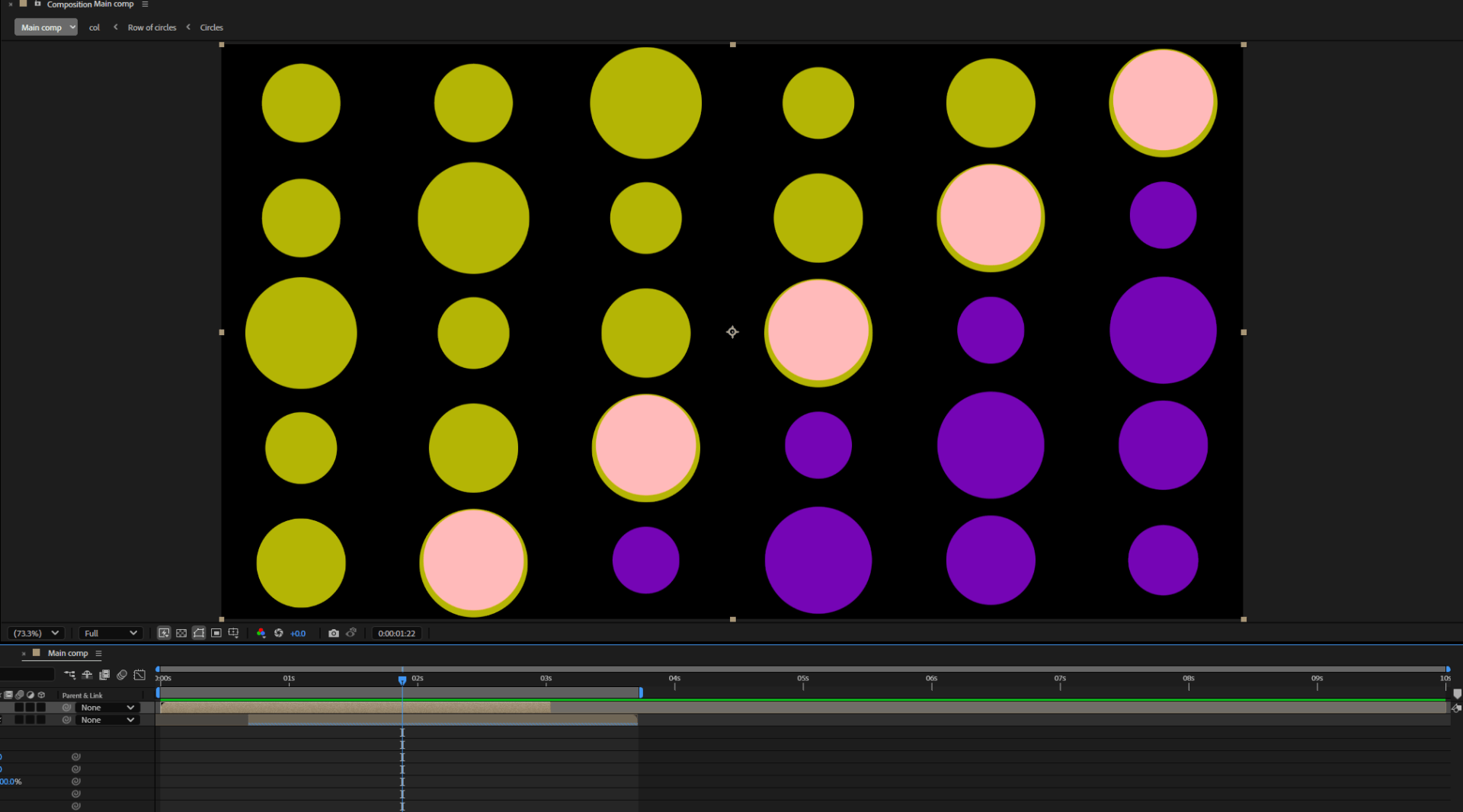
Final result
End of task 1
Week 2
Introduction to the topics of Alphas and Transparency
This week we will be an introduction to After Effects:
- Alpha Channels
- Layer transparency
- Masks
- Mattes (Alpha and Luma)
- Importaning footage
- Using Blending modes
Learning outcomes
By the end of this week you should be able to:
- make a Live and Let Die style skull sequence
By engaging with the assigned lecture material in Investigate, face-to-face (Apply) sessions and Consolidate activities you should be able to achieve this week’s learning objectives.
ALPHAS AND TRANSPARNECY
We create a new project for our alpha and transparency practice.
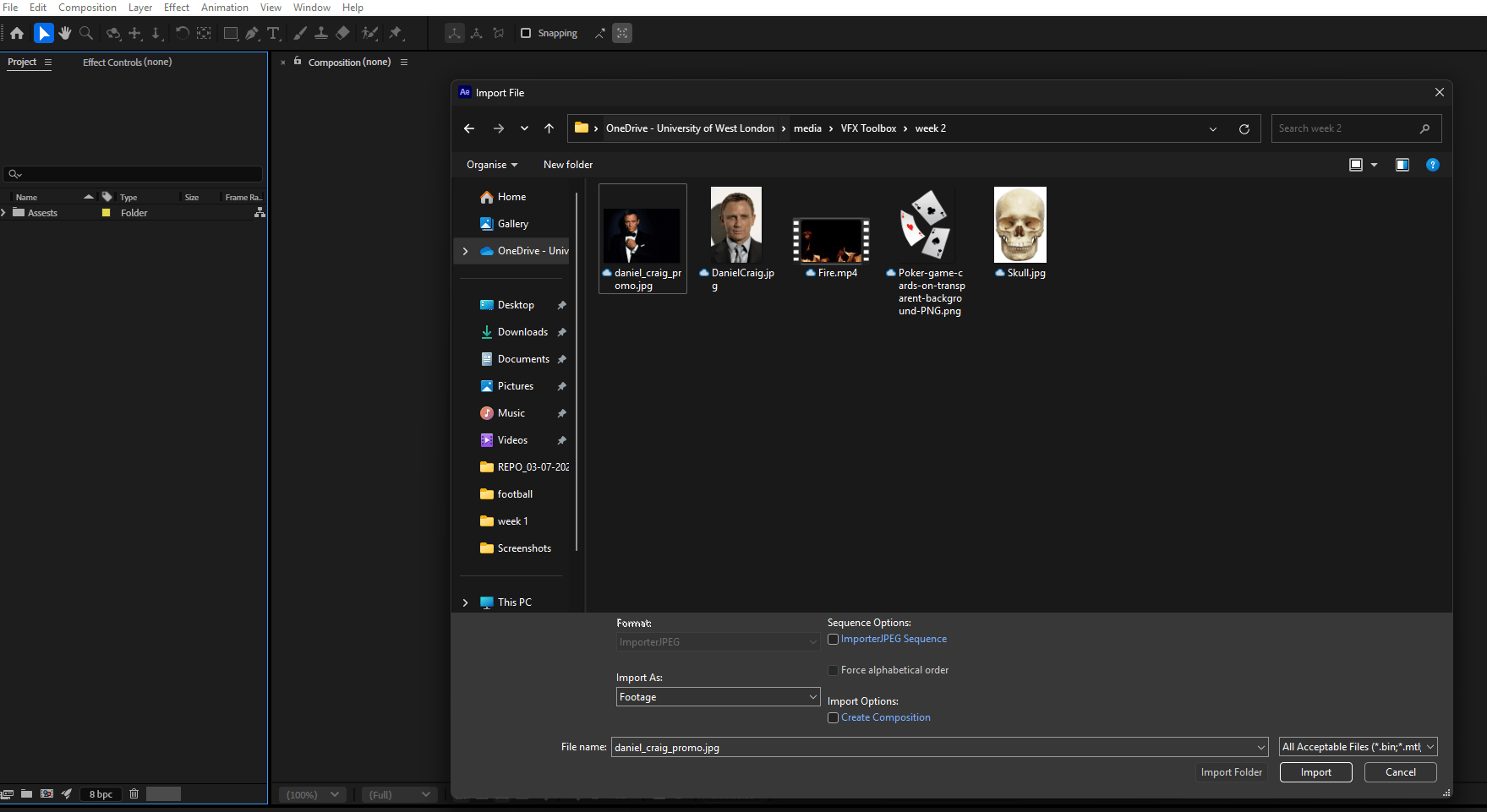
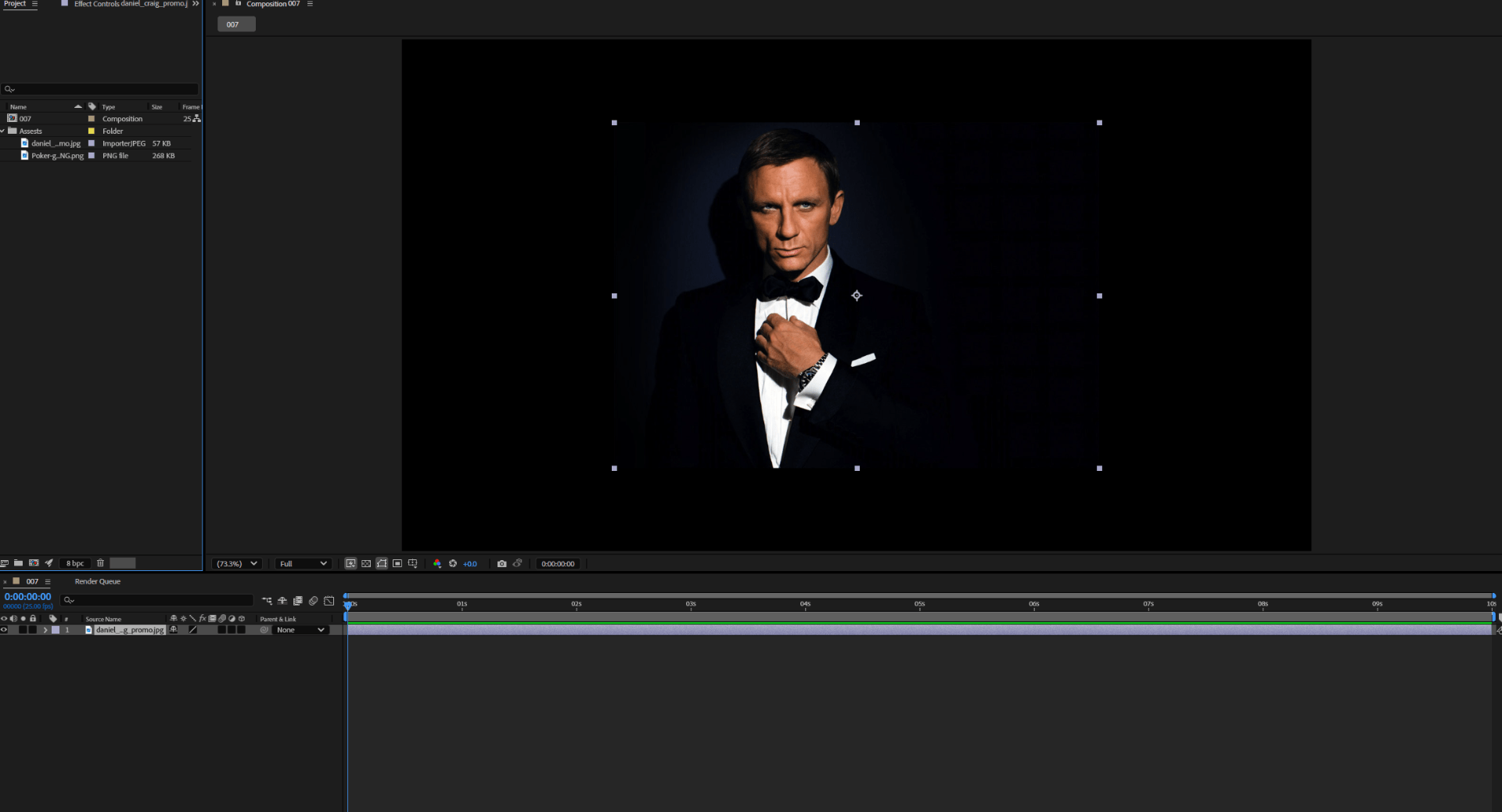
We put our images into a composition.
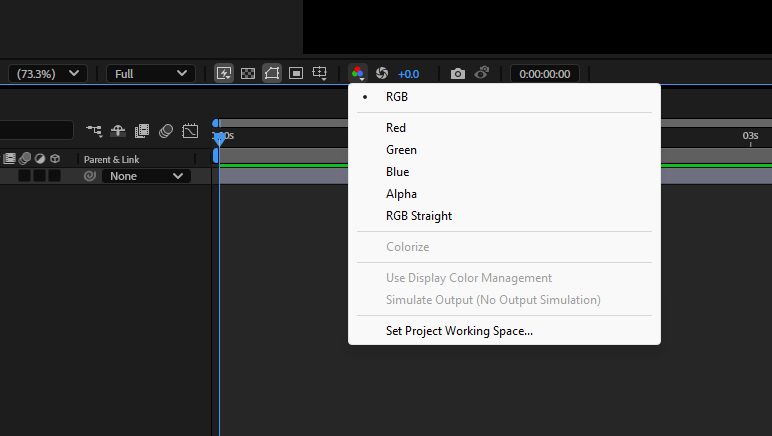
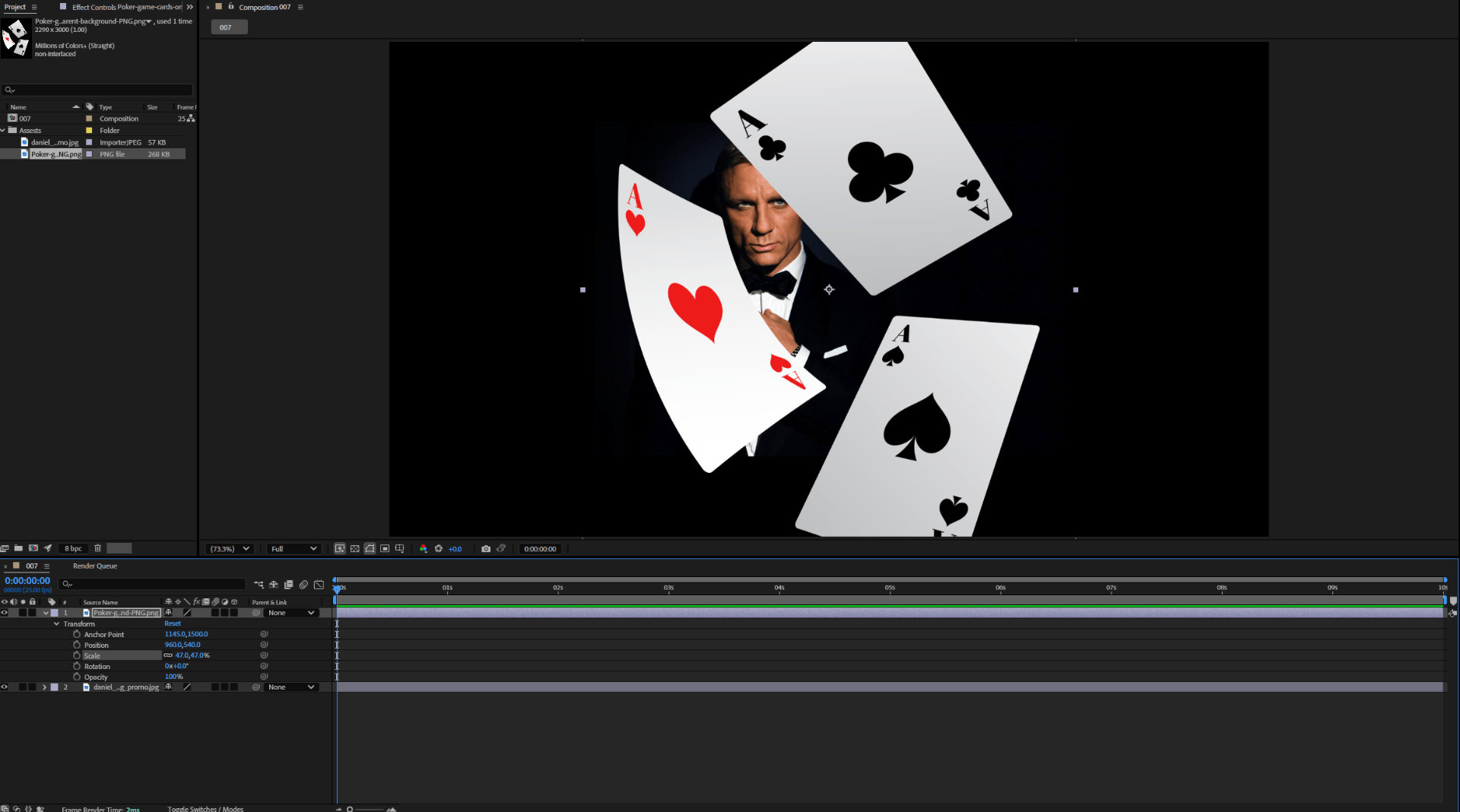
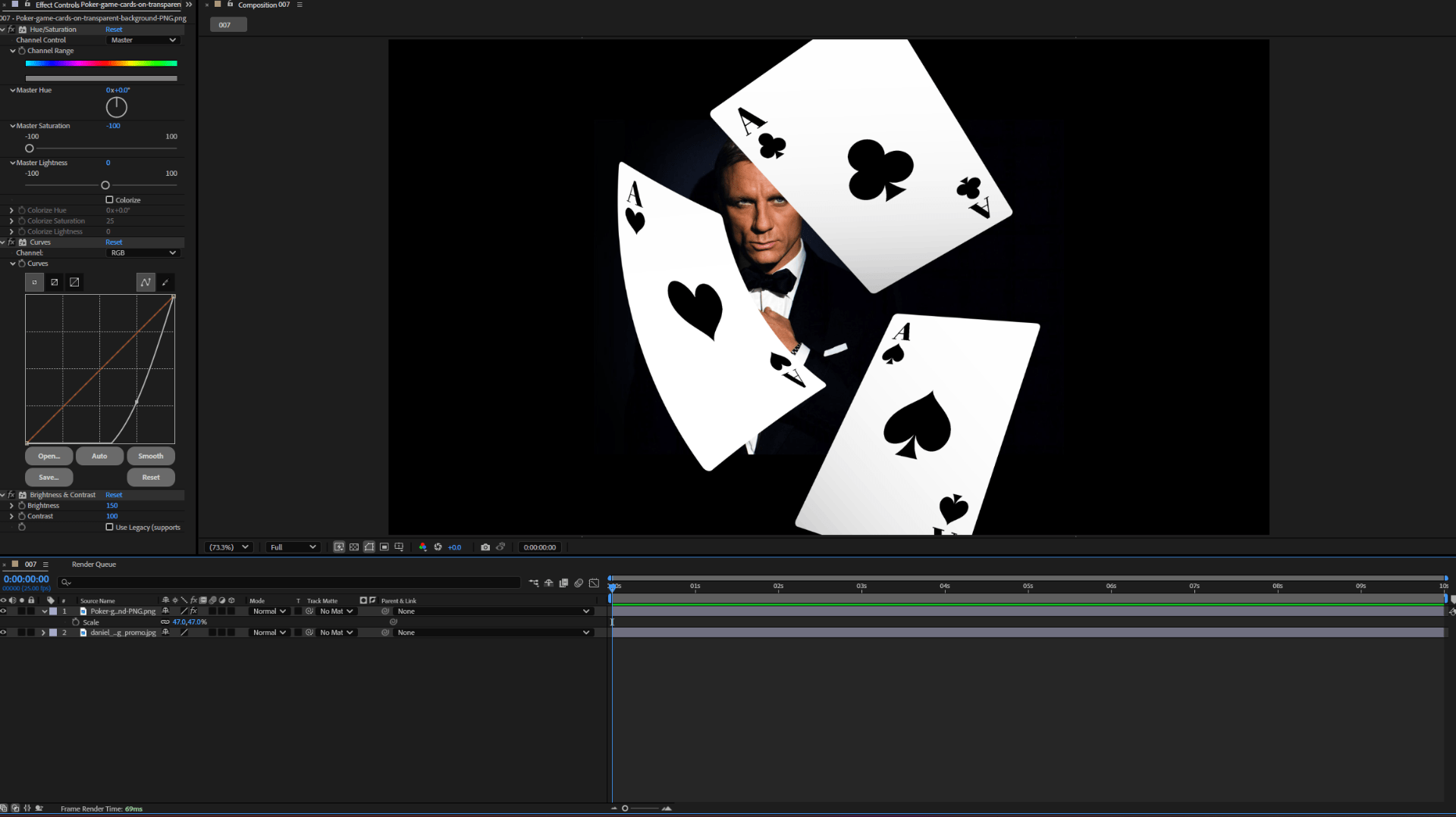
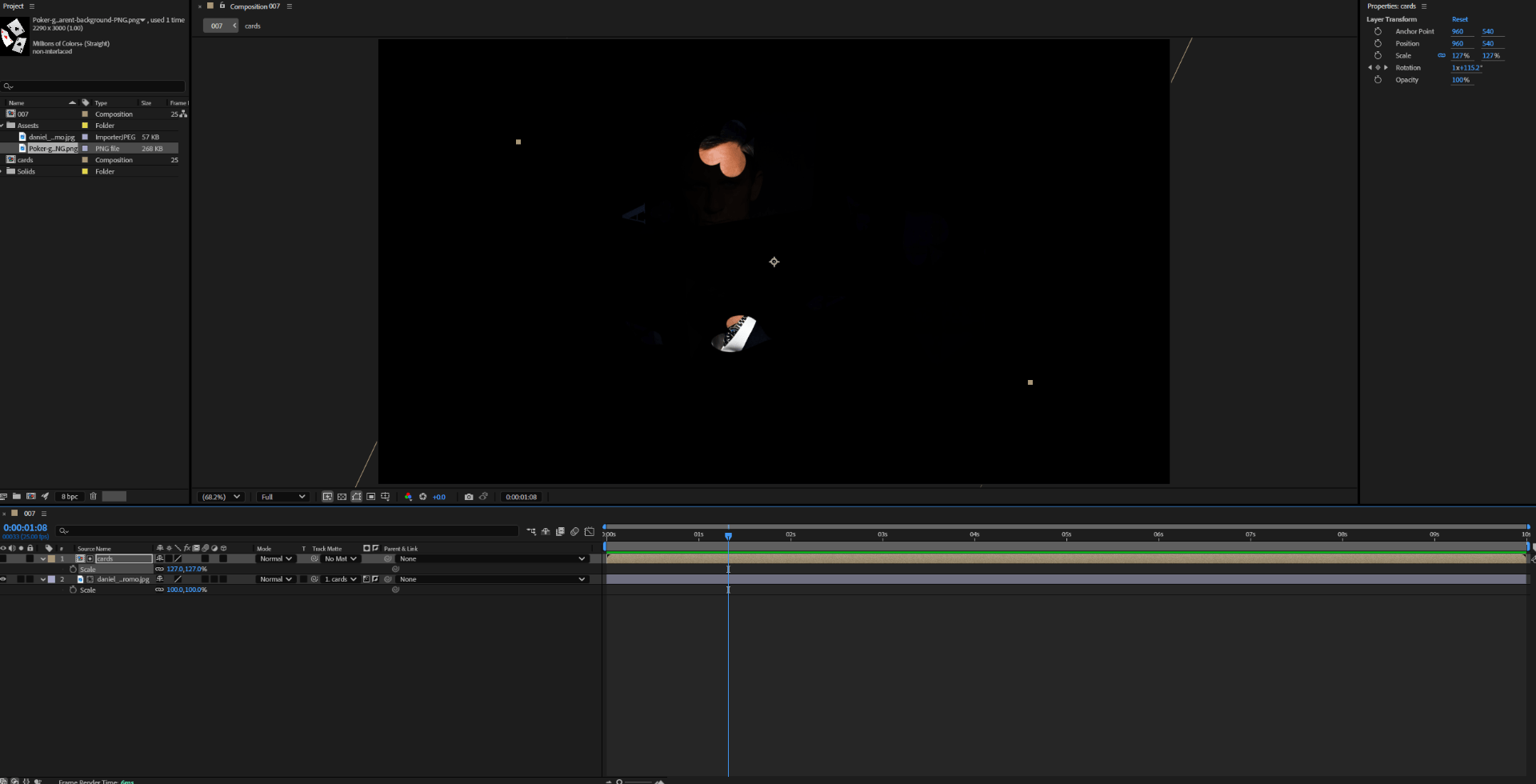
We use colour correction to supress the red colour on our card.
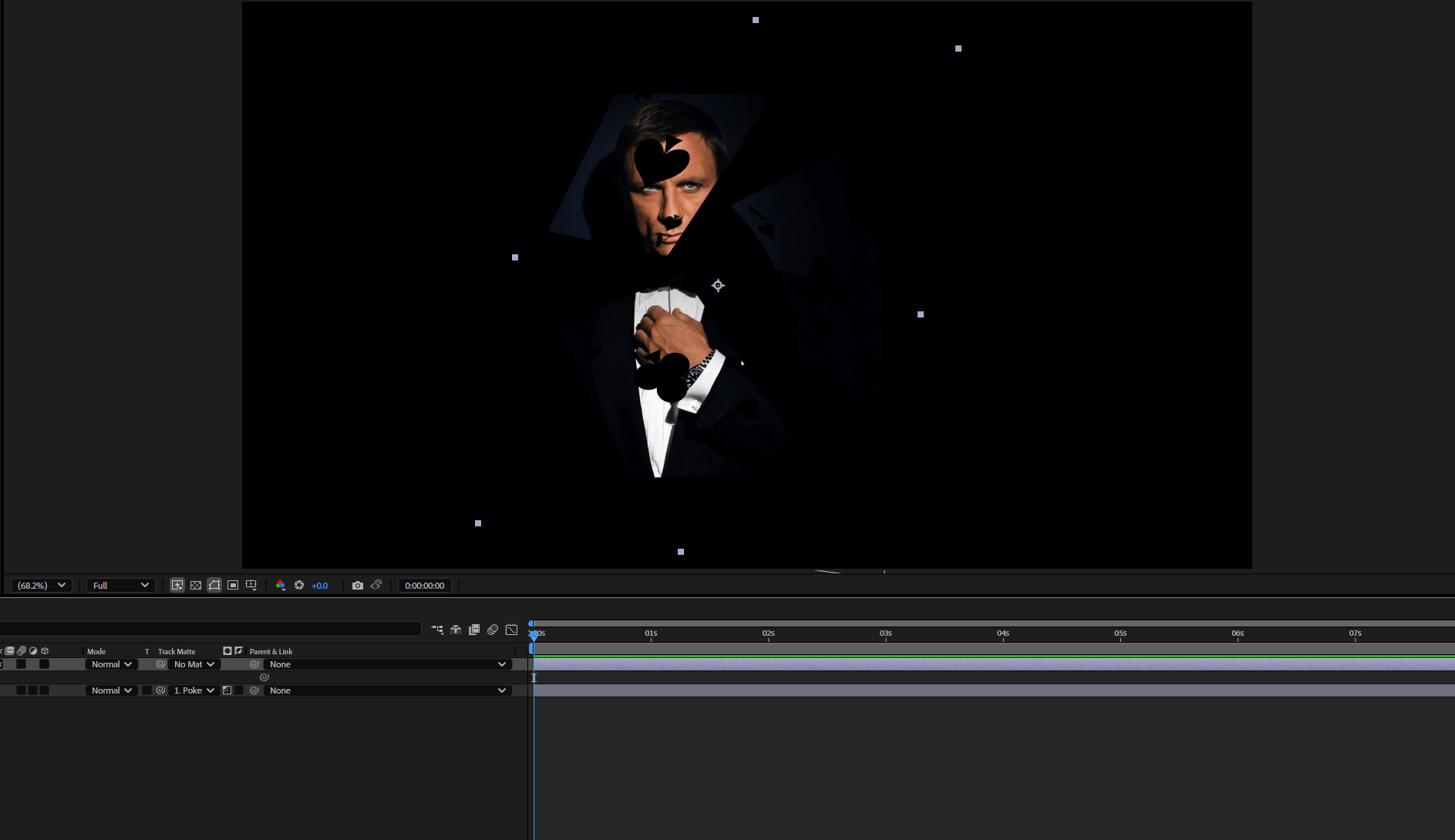
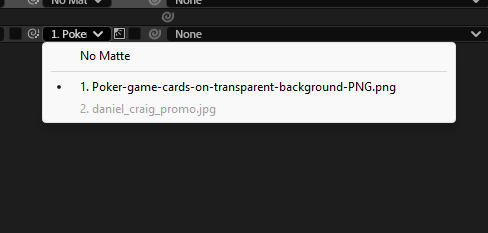
we use the luma matte to create a interesting effect on our project.
INTRO TO MASKS
To make a mask we first have to select the pen tool or shape tool.
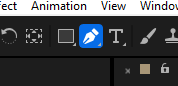
We use the pen to create a mask.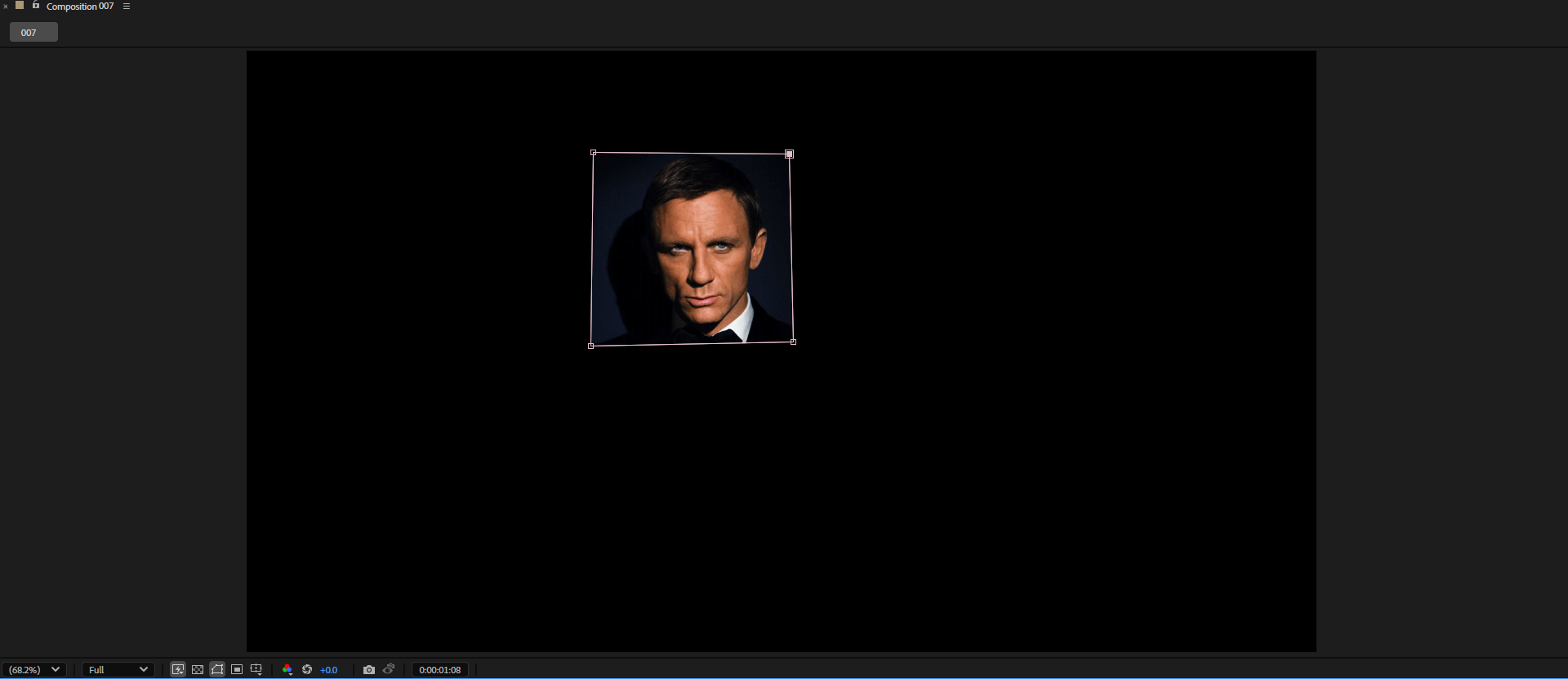
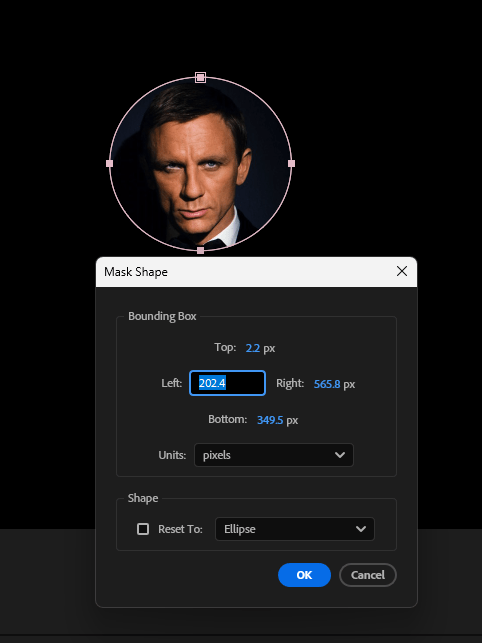
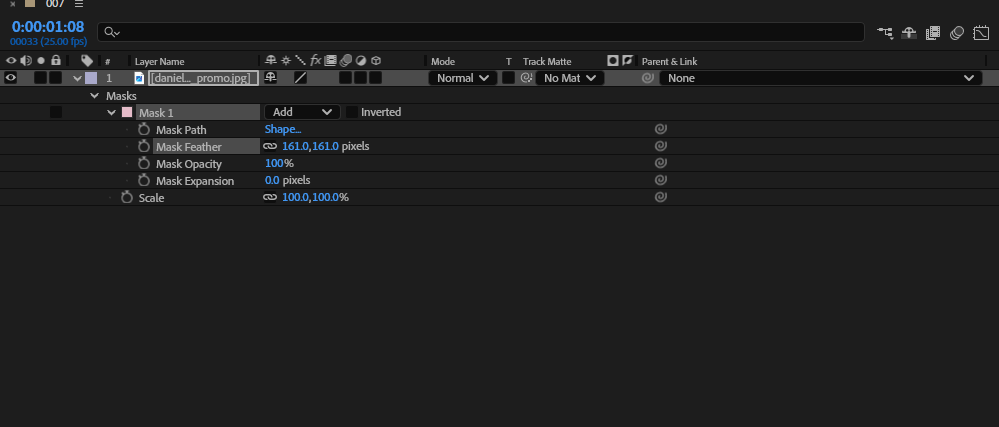
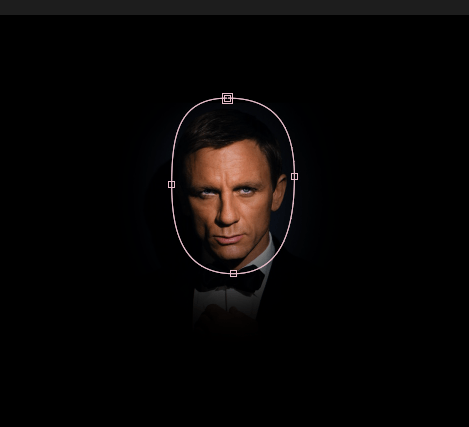
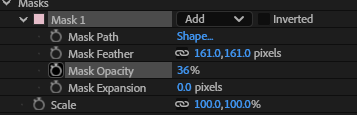
We use some mask feather.
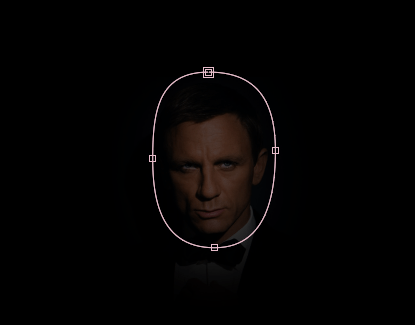
SKULL MASK
For this example we are going to use the masks to mask out the skulls and blend it with the face of Daniel craig.
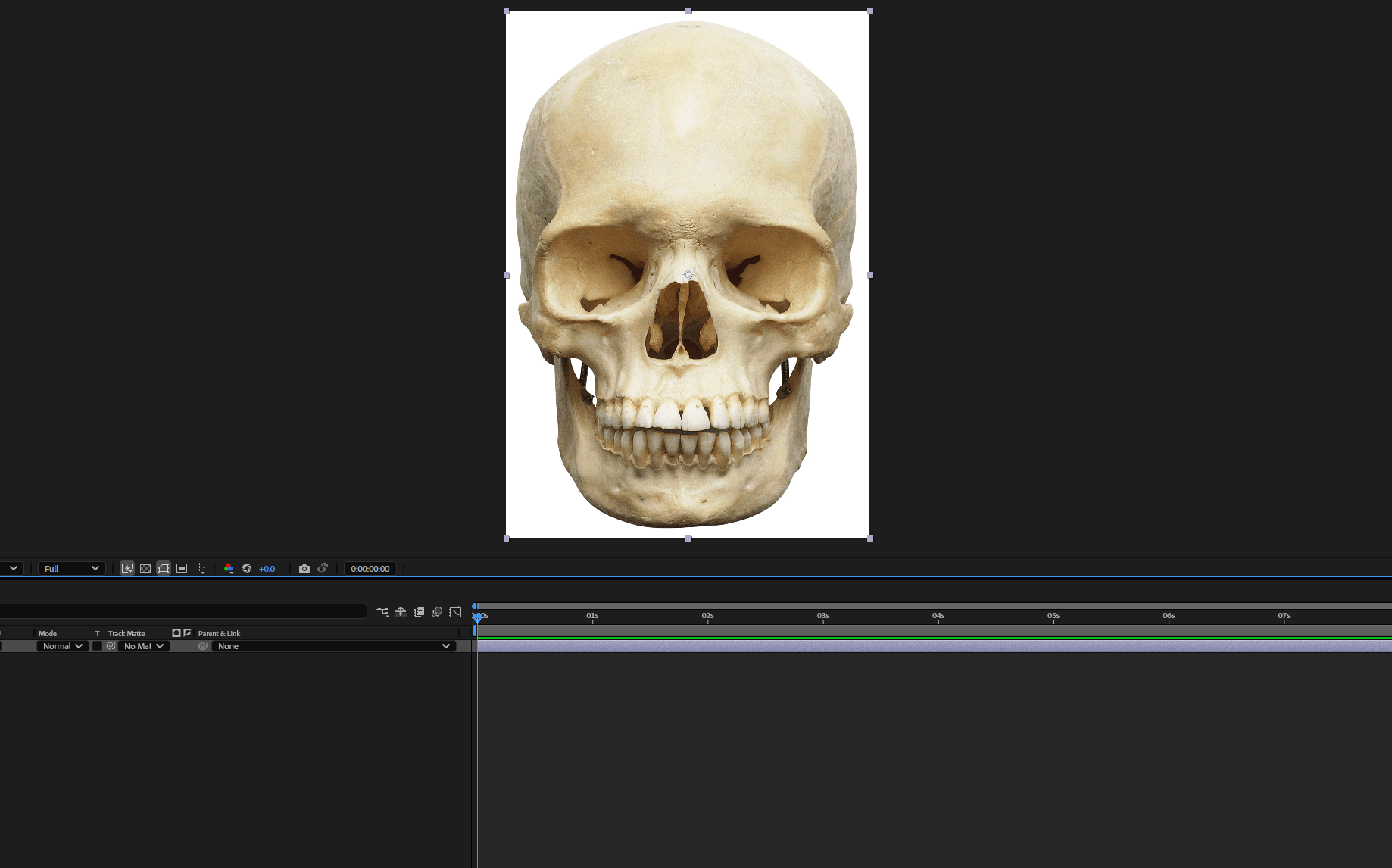
We start by putting a mask around our skull.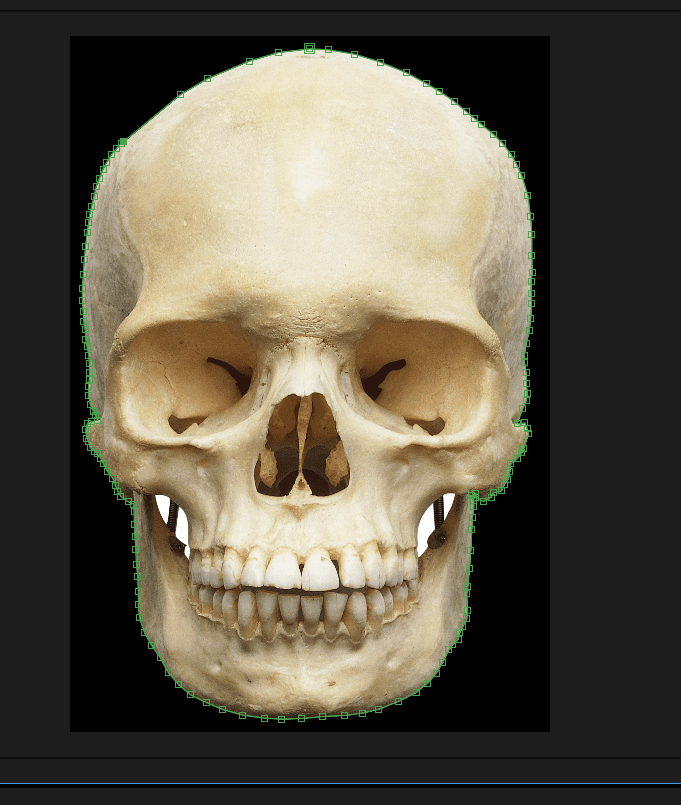
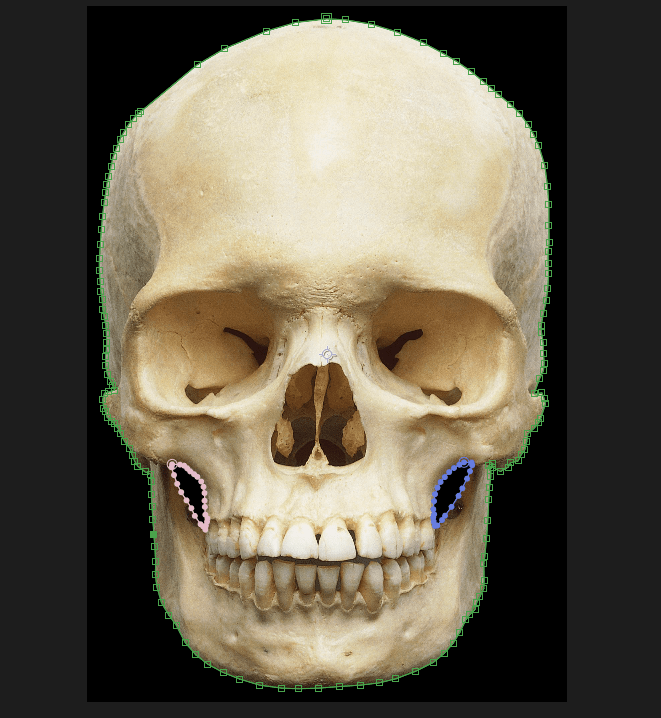
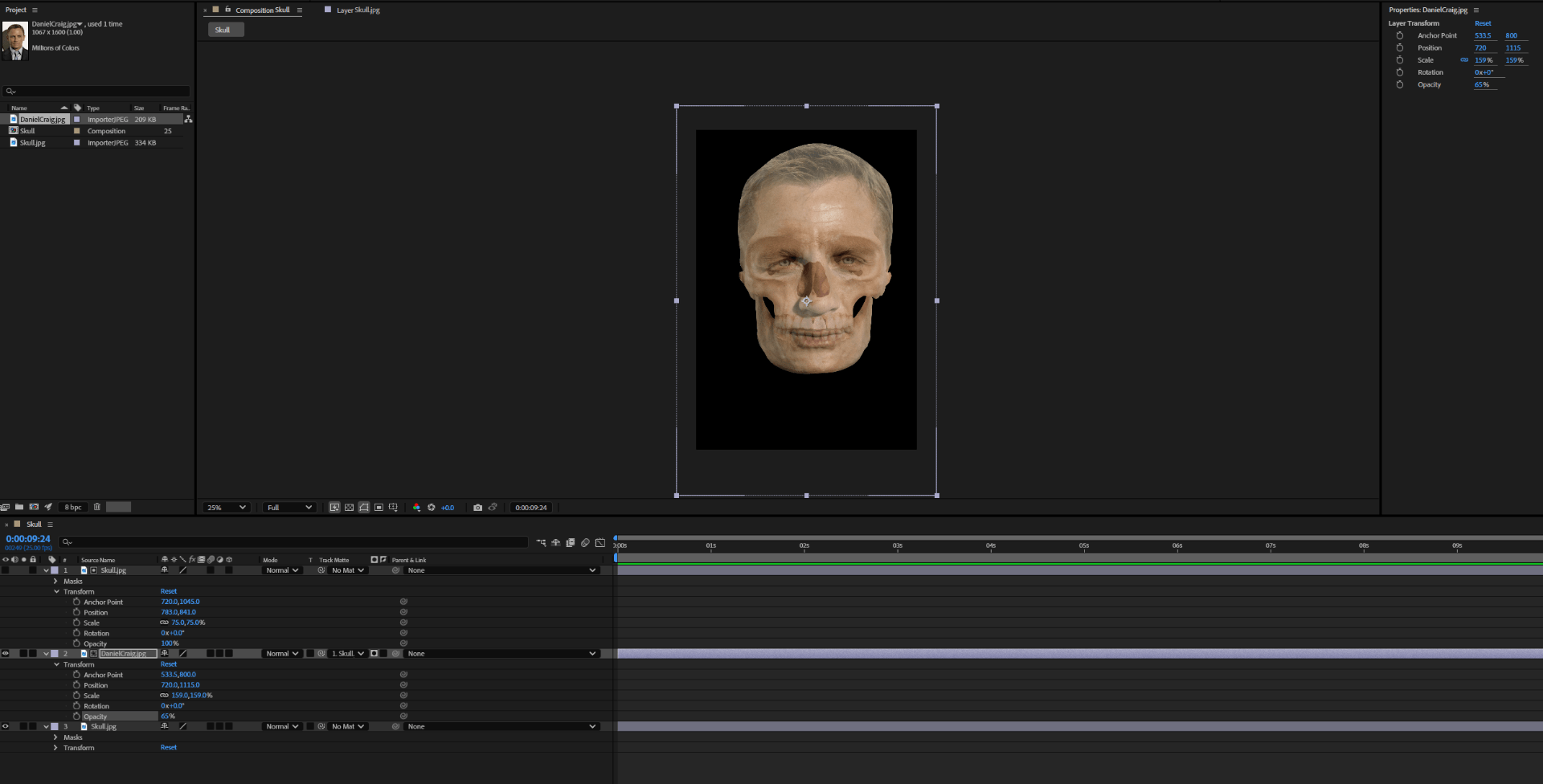
After making out the skull we use a track matte to put Daniel craig face.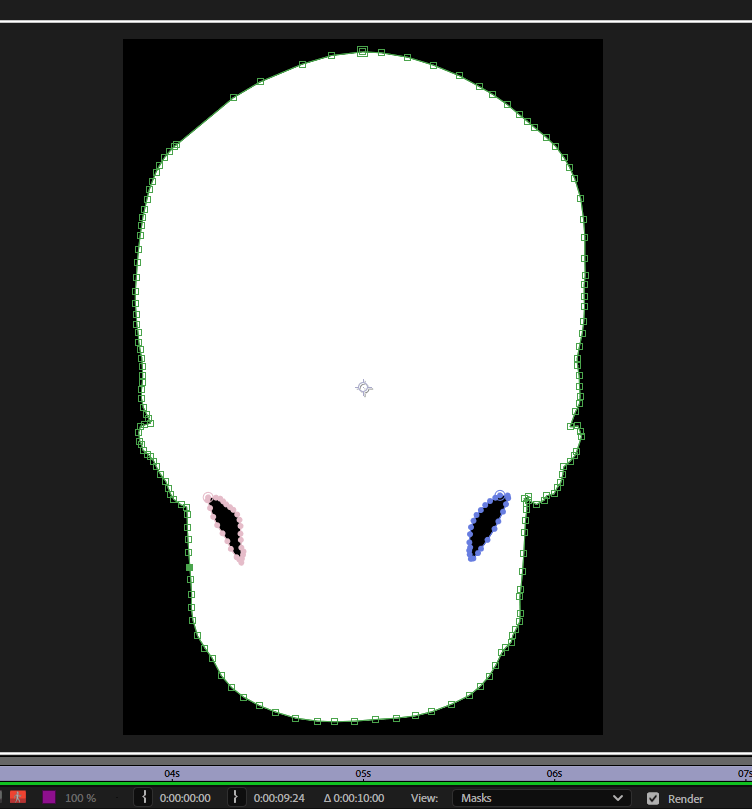
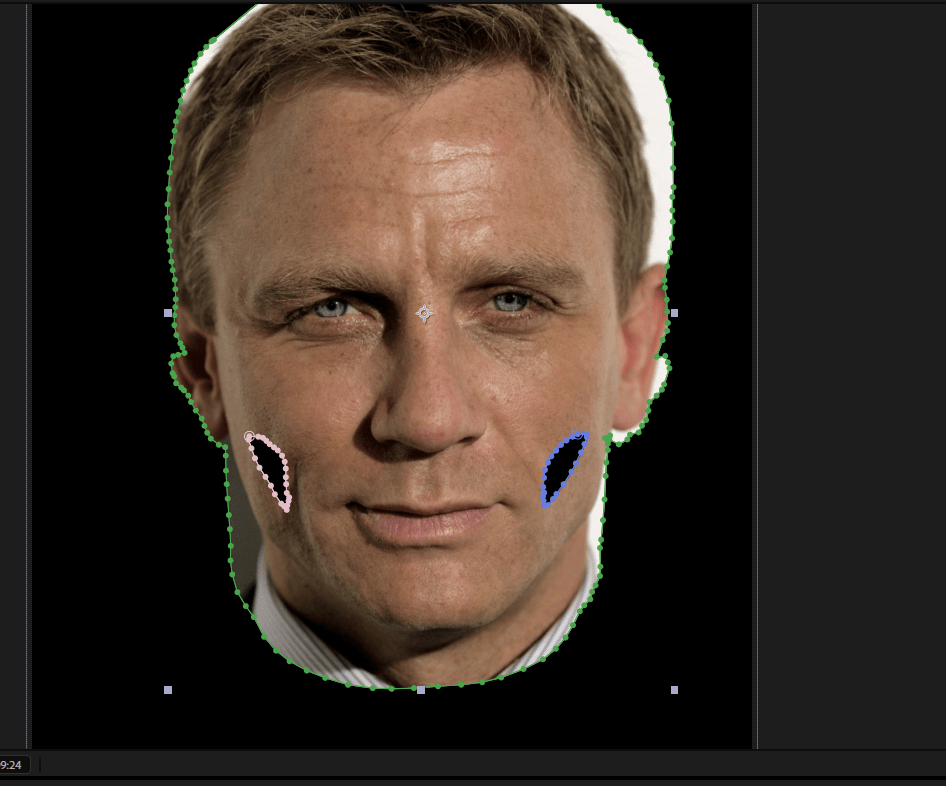
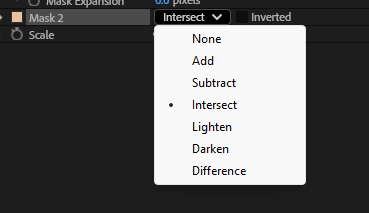
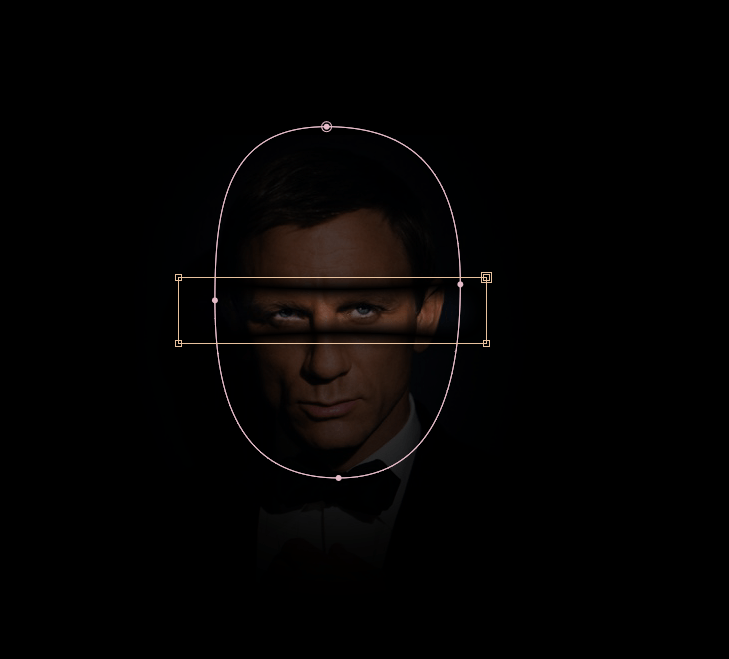
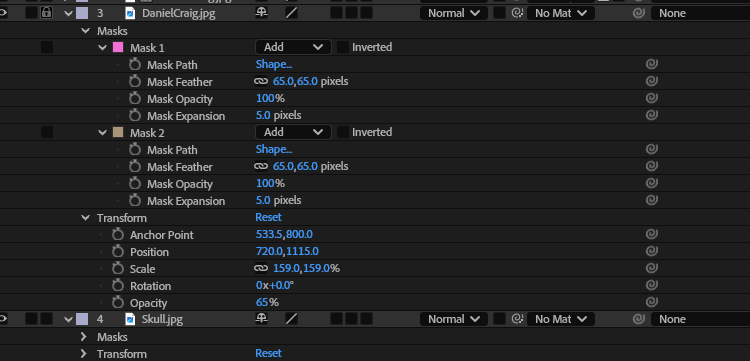
we use different masks around the face where we want to accentuate facial features.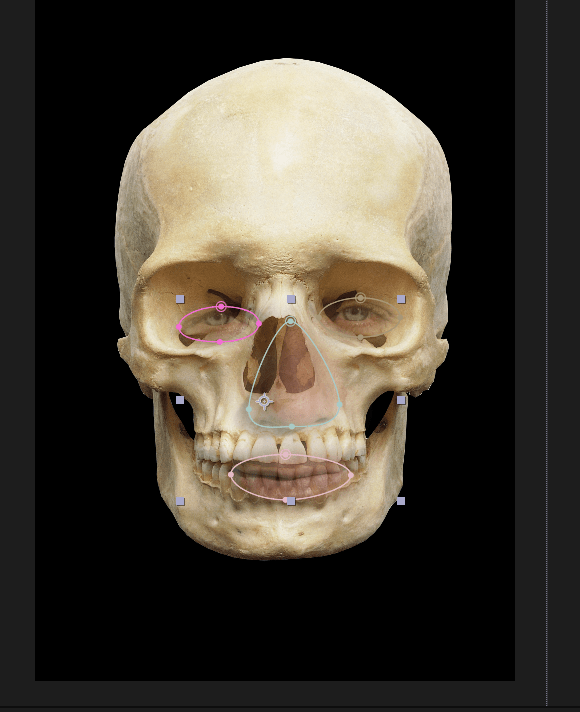
Final skull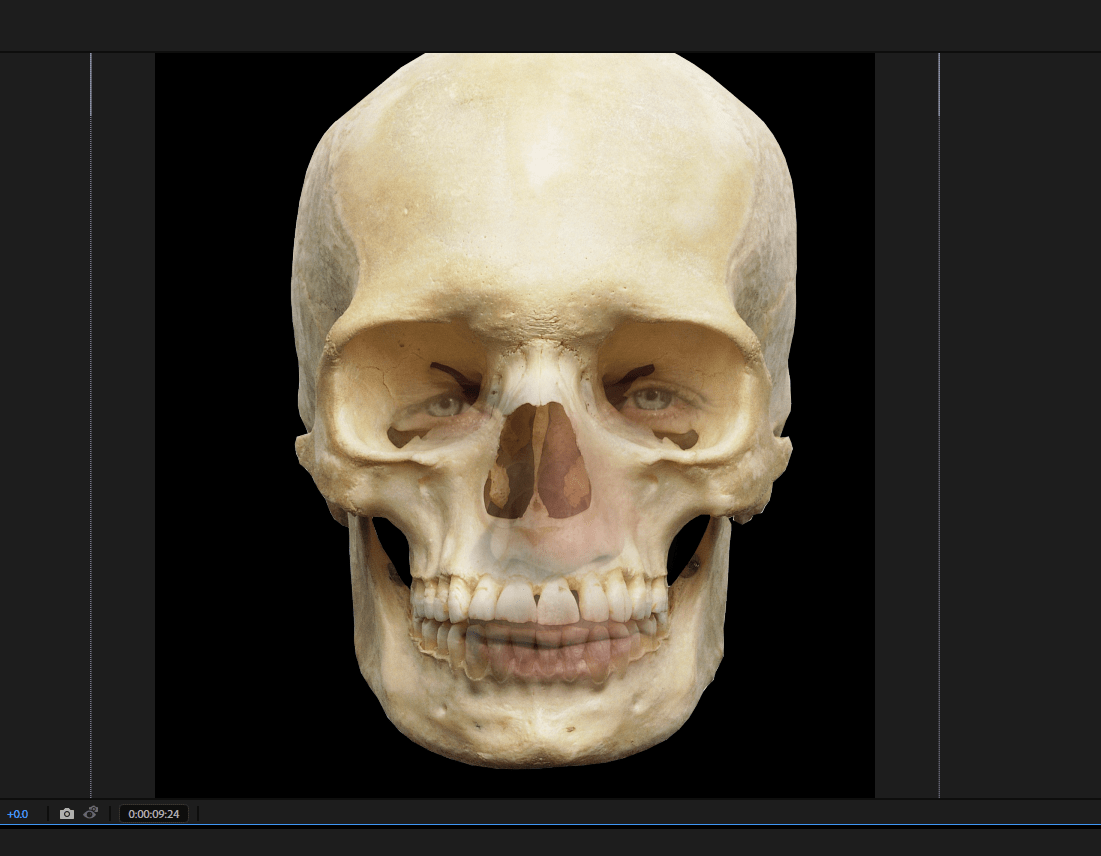
Skull mask (flames)
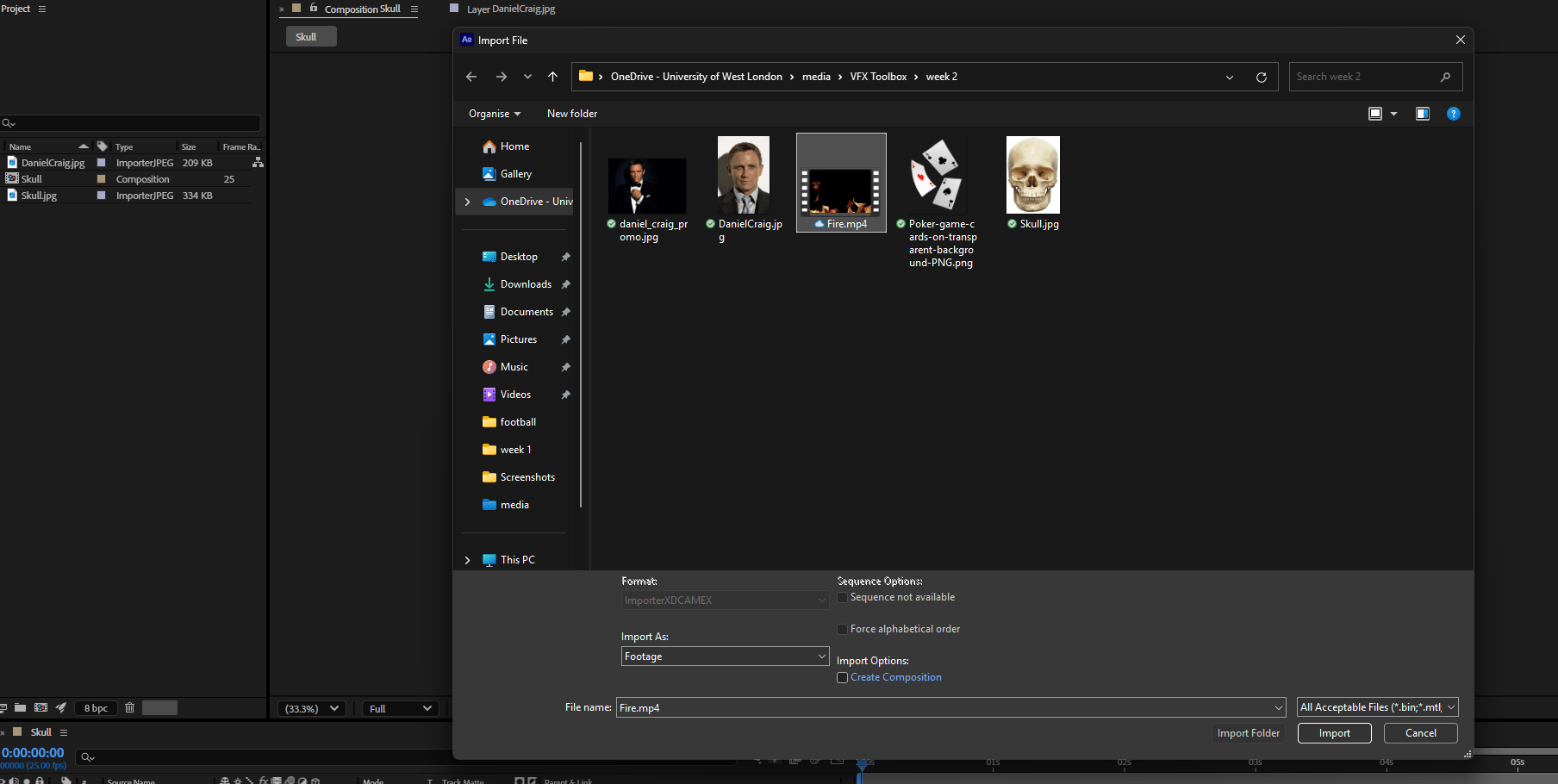
We import our flames to the project.
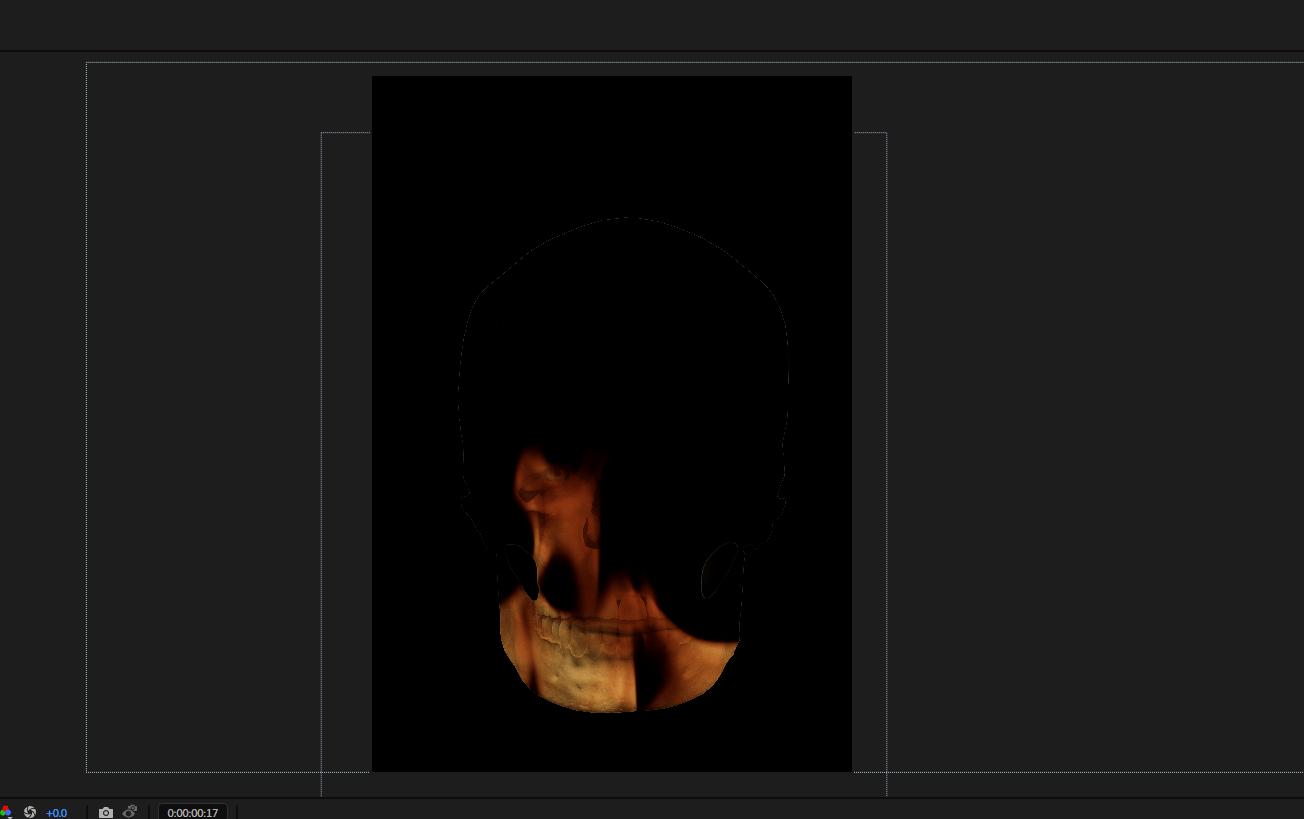
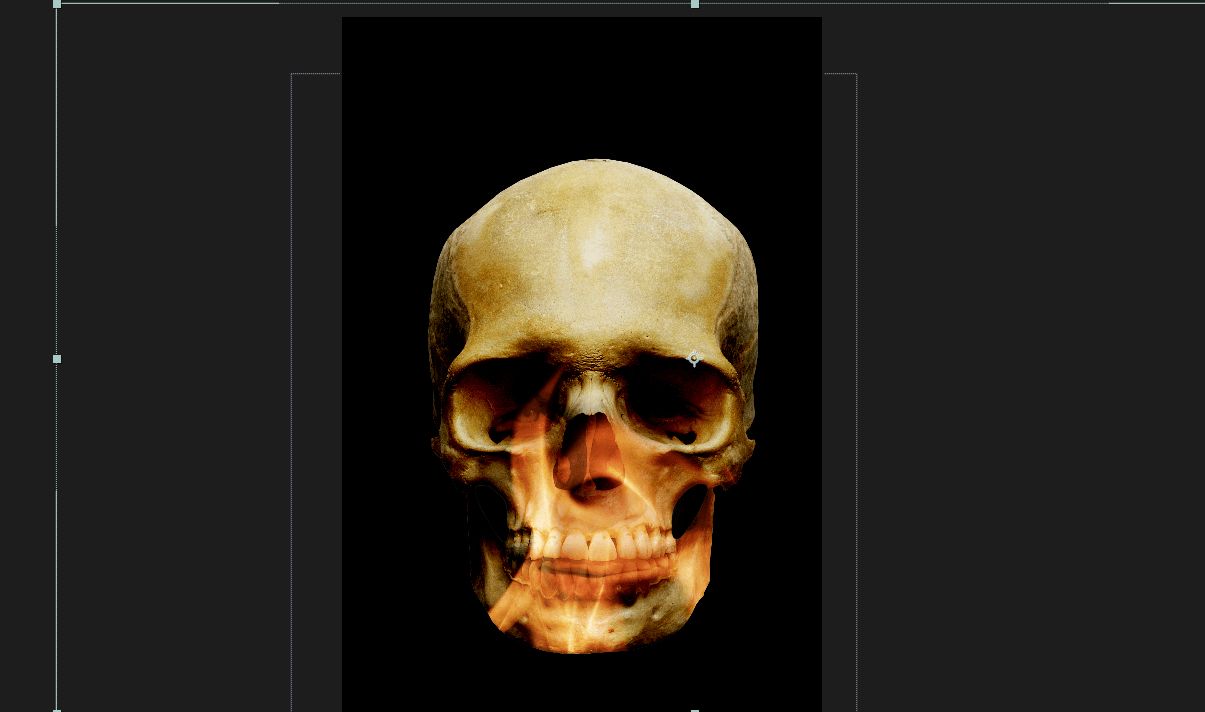
Using the matte track of our skull we achieve an interesting effects.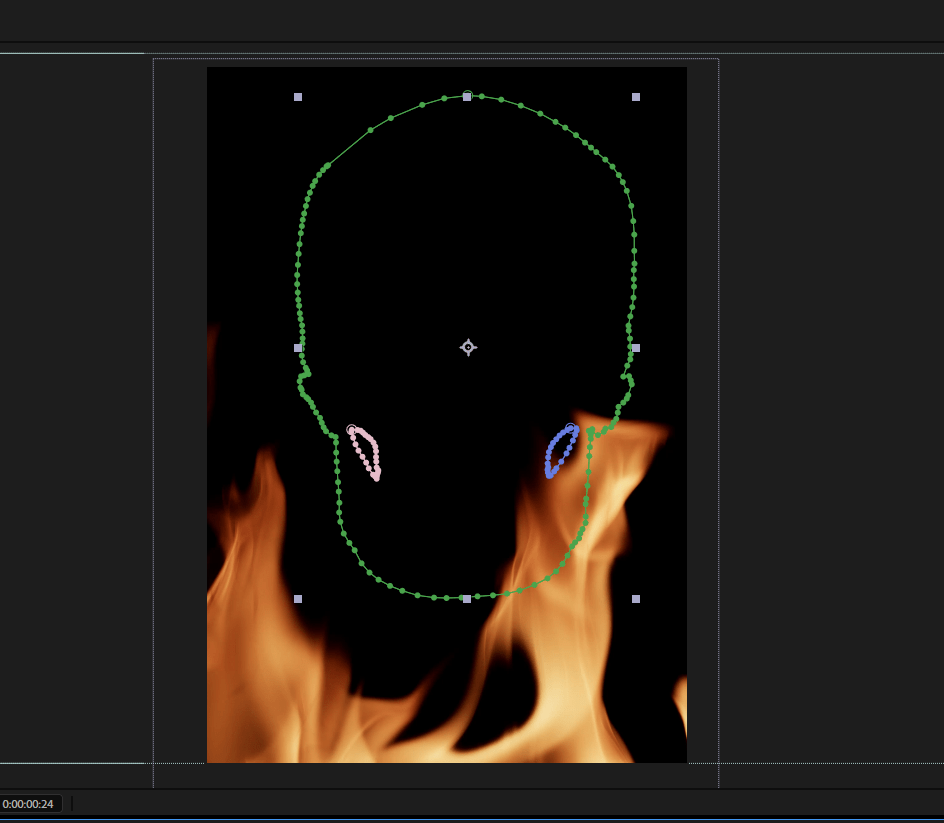
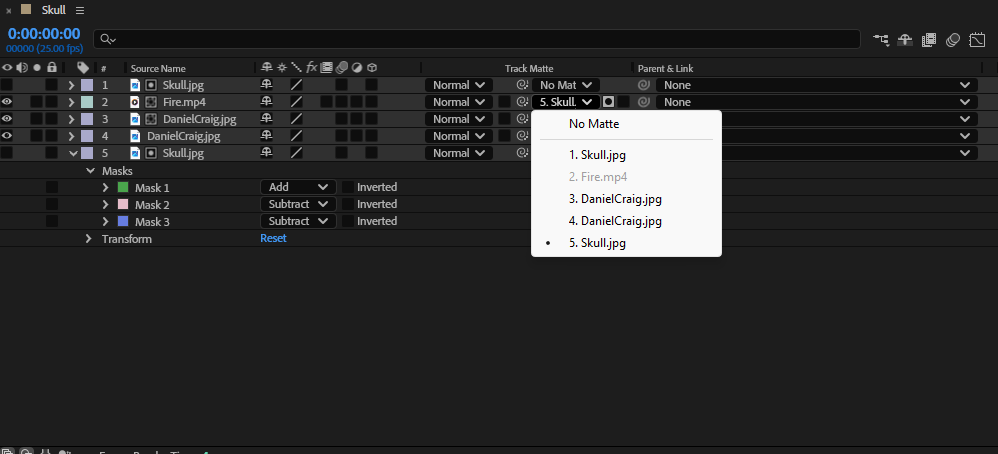
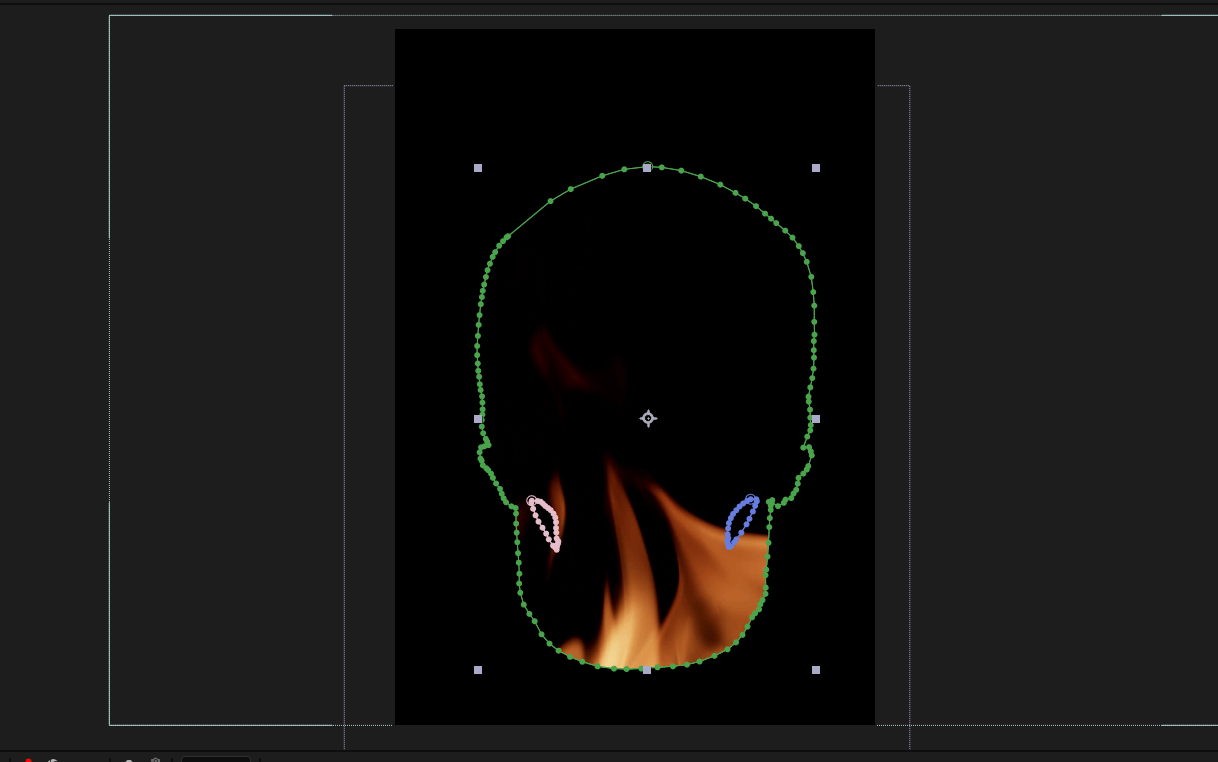
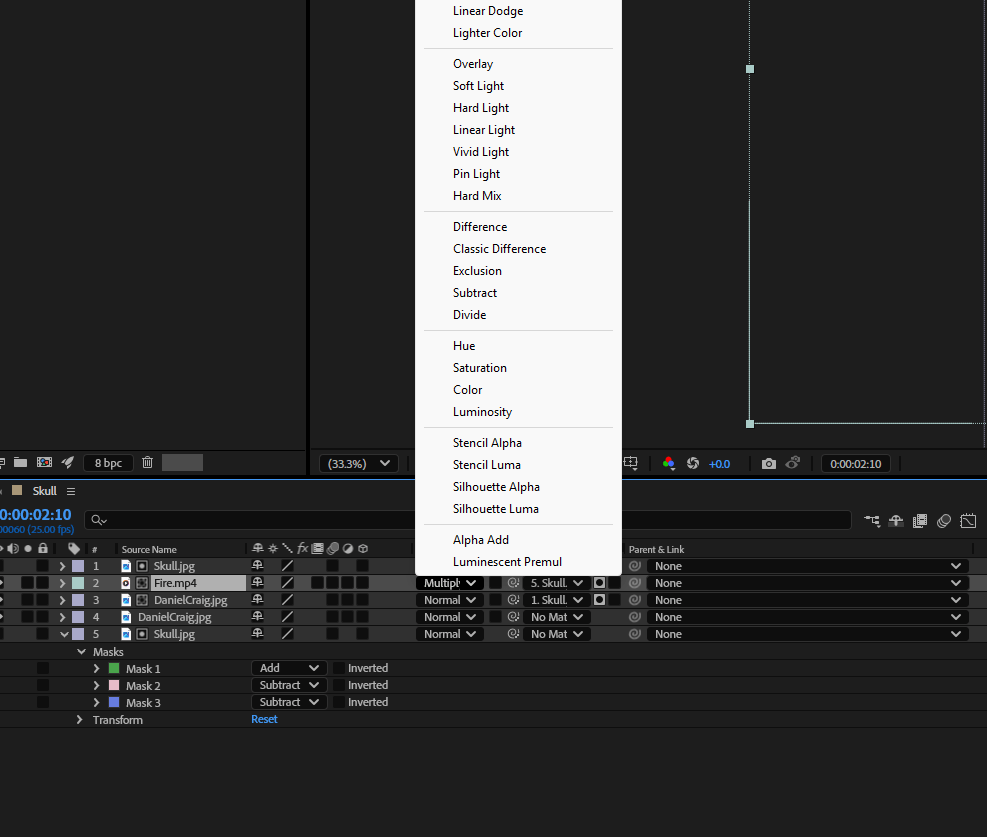
Using some blending modes we test how is it looking.
We duplicate the fire layer and apply some Hue effects.
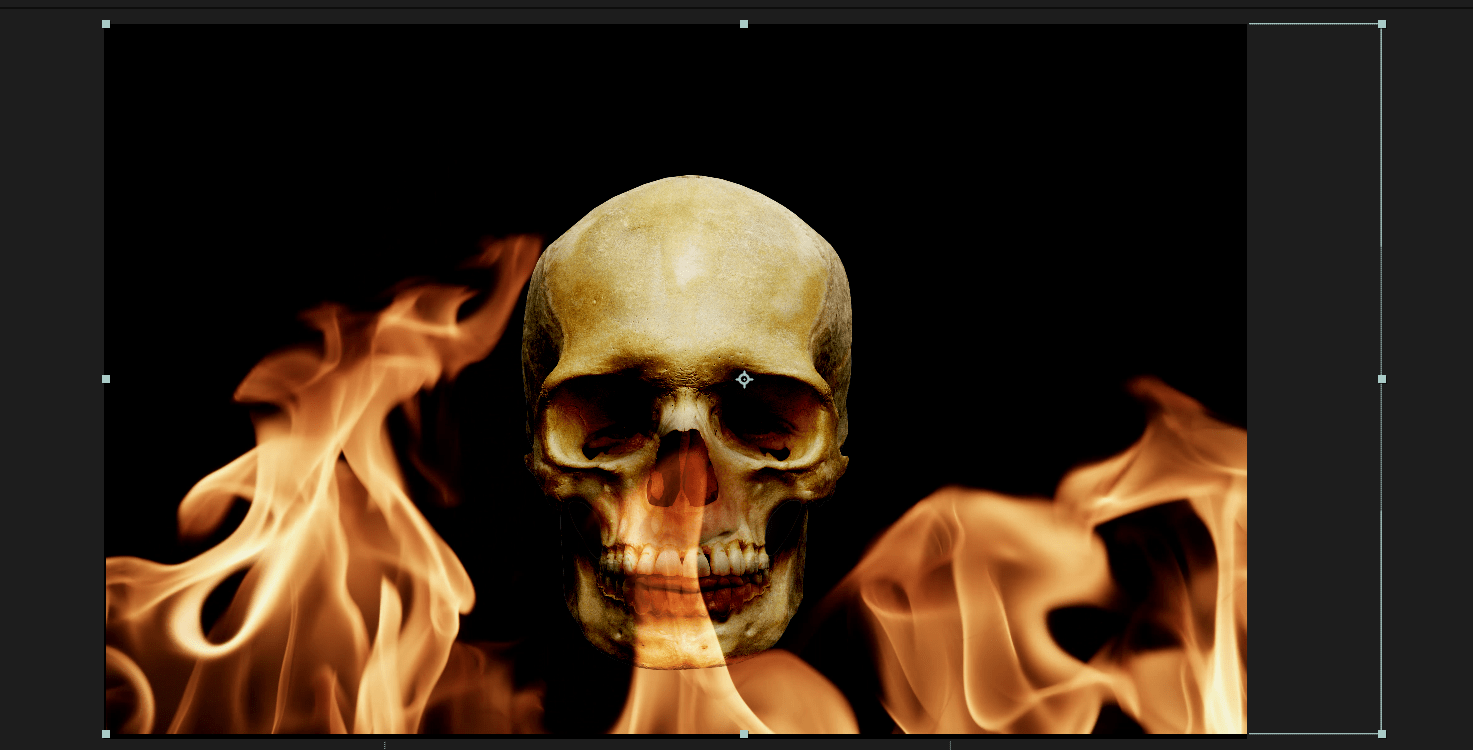
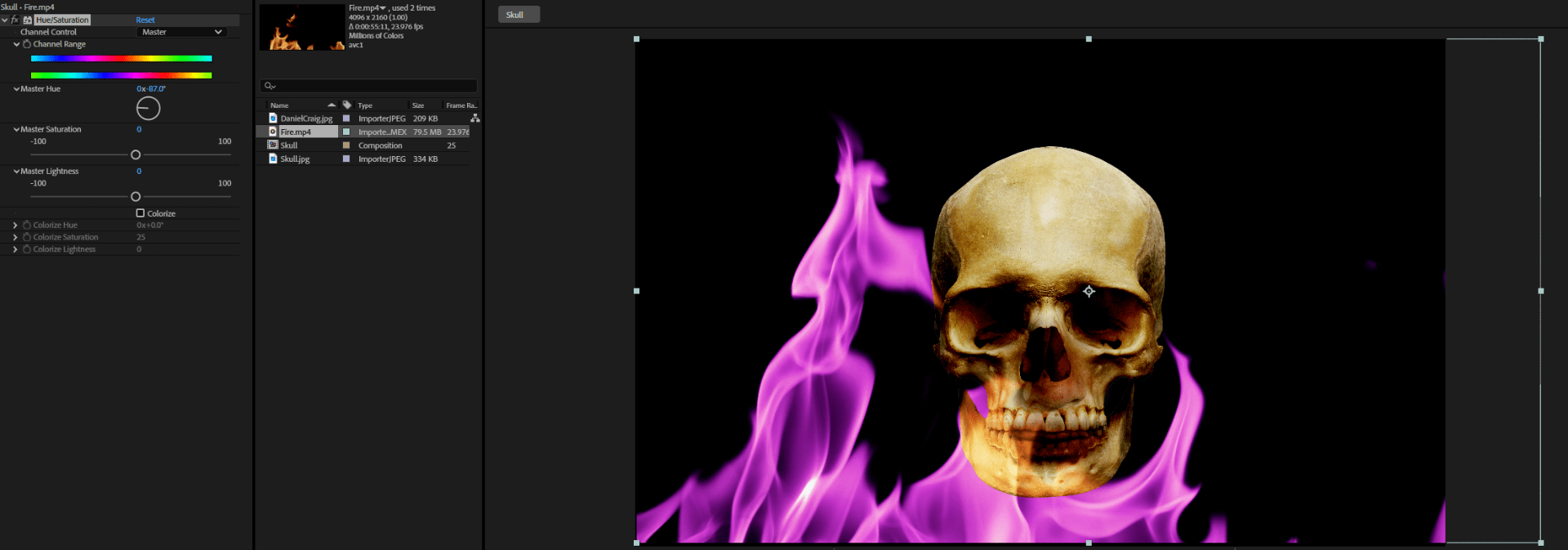
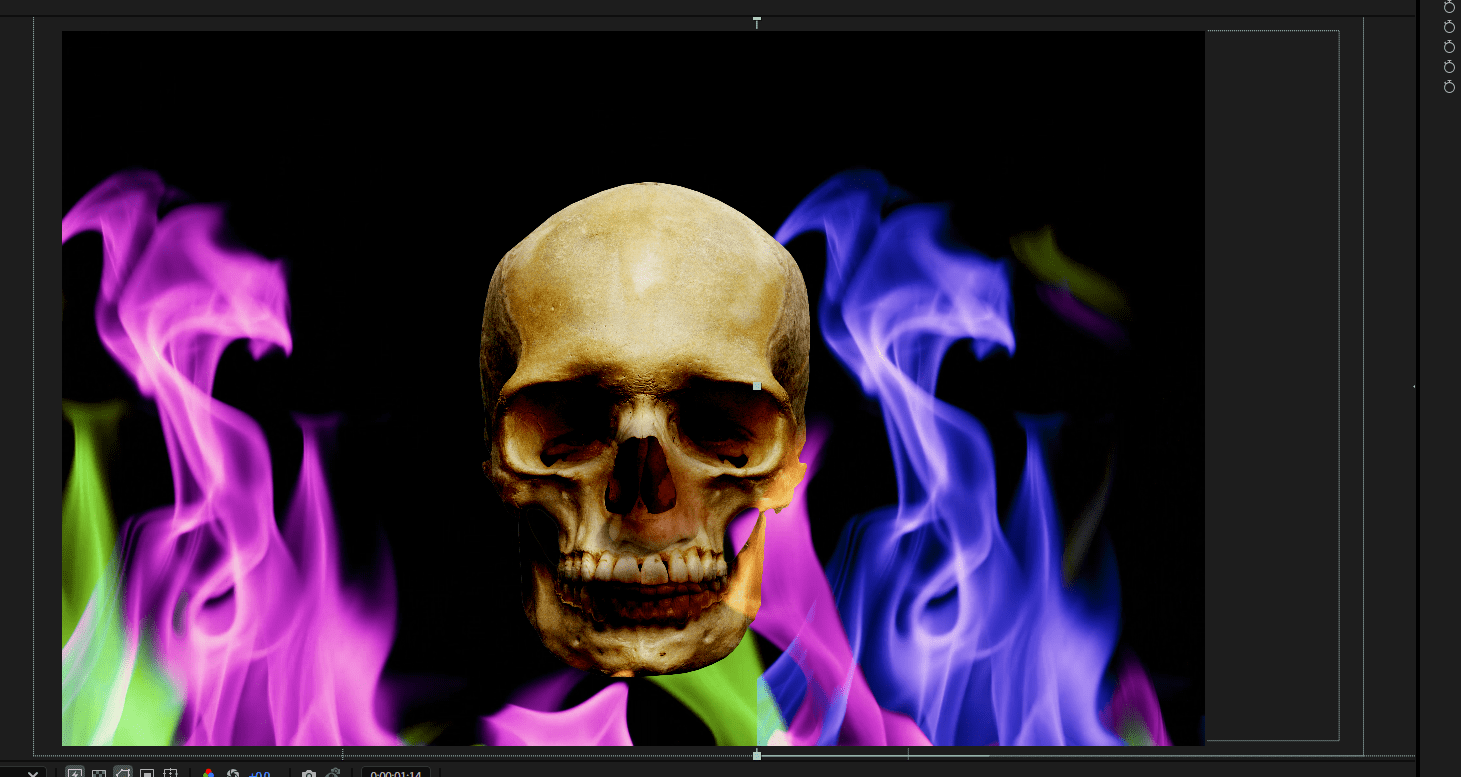
Final result
End of week 2
Week 3 and 4:Keying Green Screen Plates and filming green screen
- Keying principles
- Transparency
- Green screen
- Cameras / lighting for this setup
A shot and keyed silhouette sequence (with addition of stock footage)
Green screen keying workflow for silhouettes
Keying
We search for the key light effect.
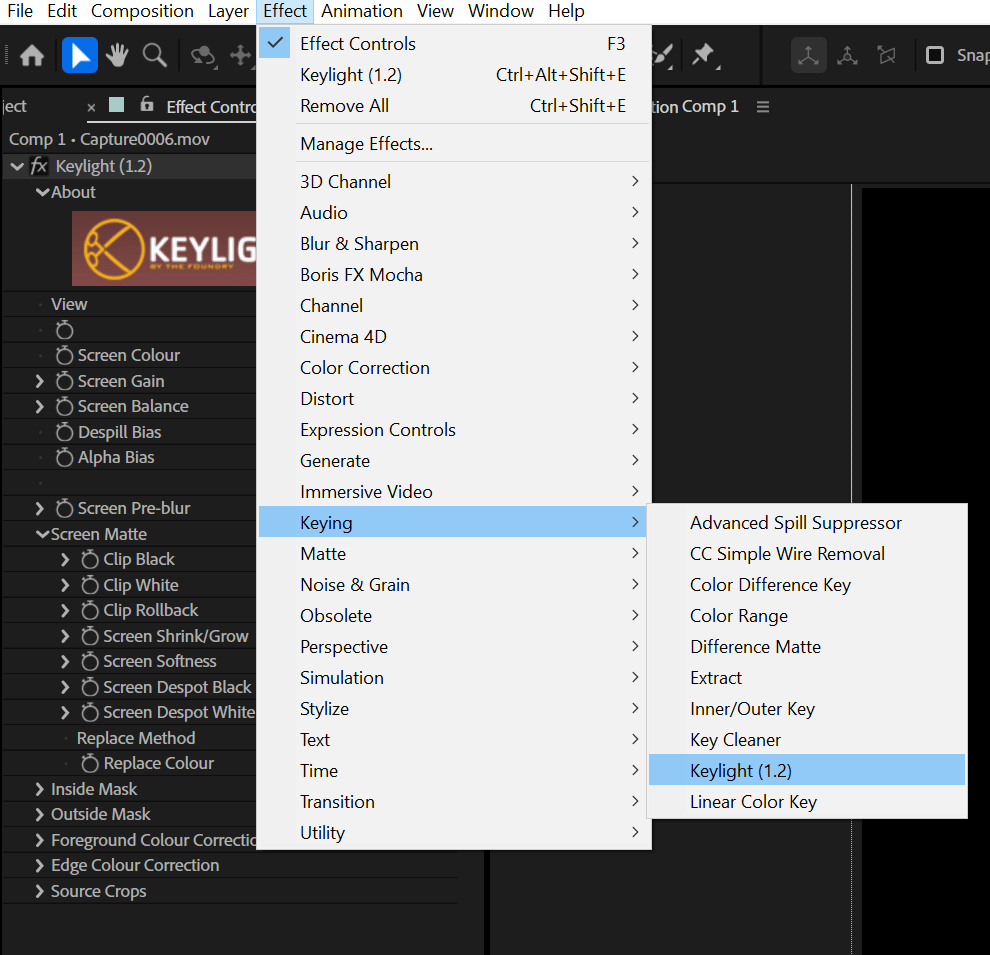
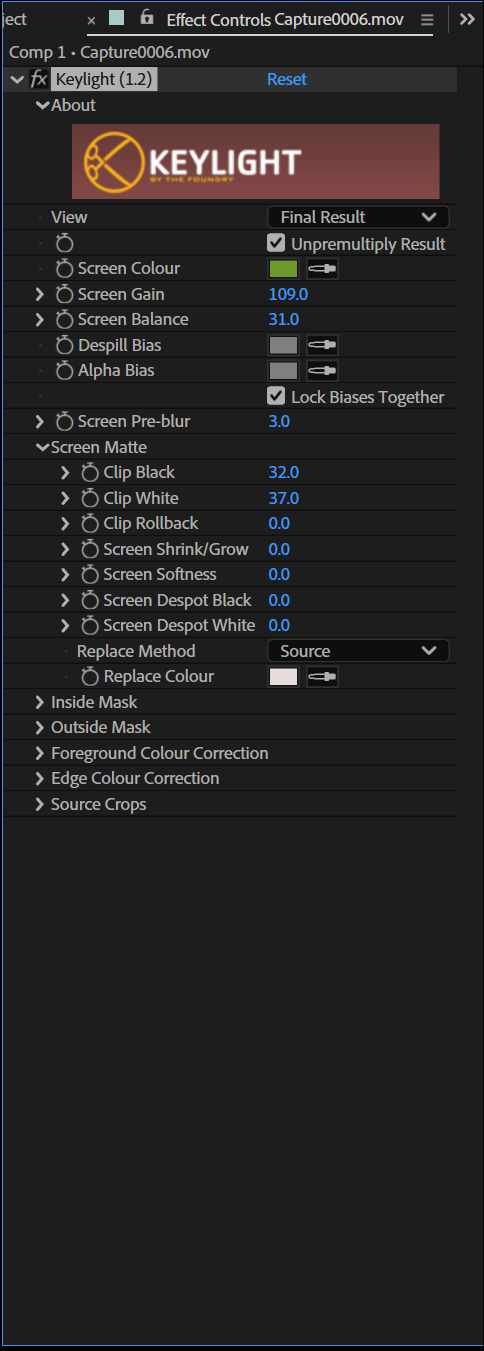
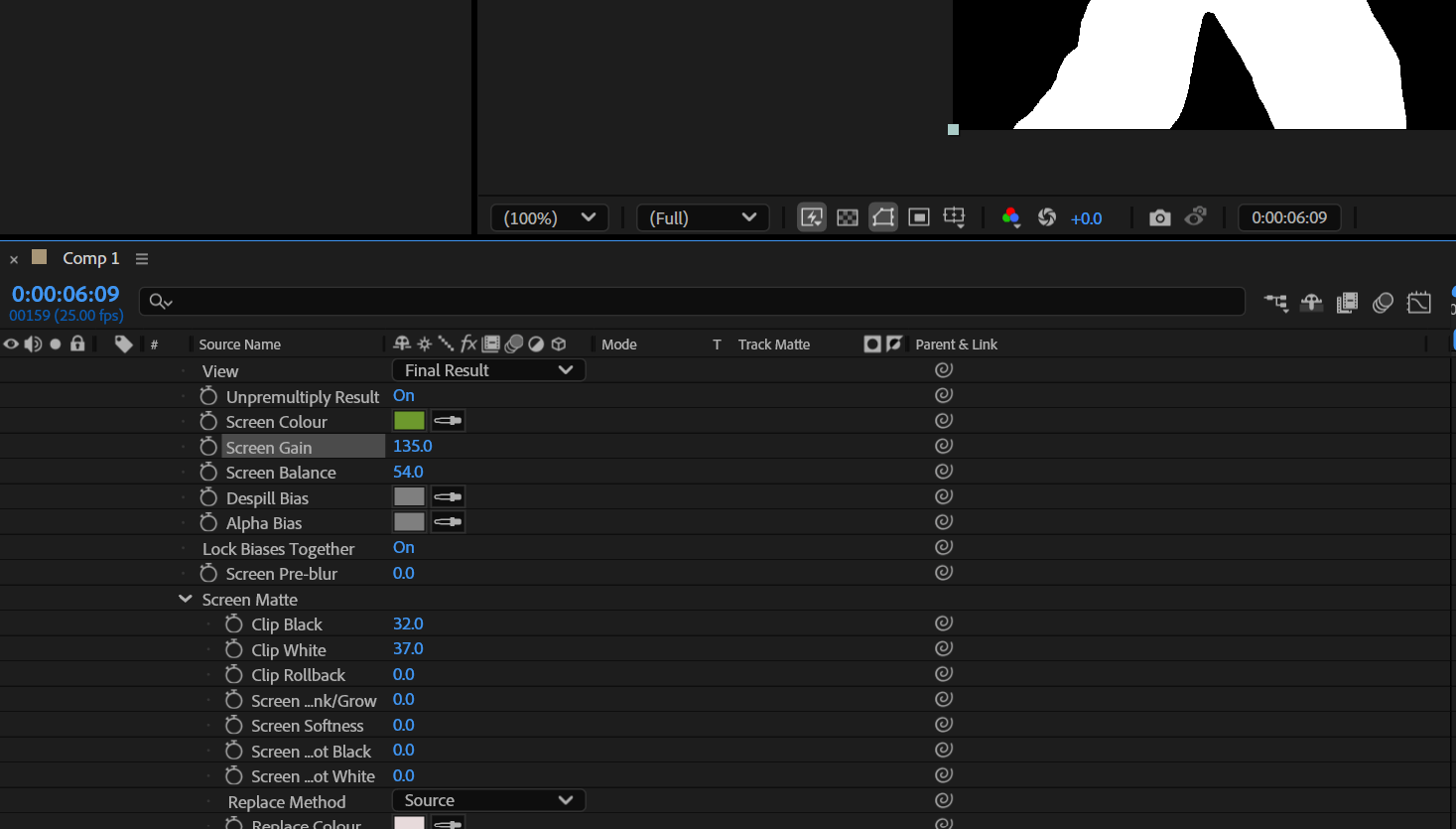
We will have a menu like the one under, where we can select the colour we want to remove (Green in my case), and we can change some settings.
after removing the green screen we end up with something like this.
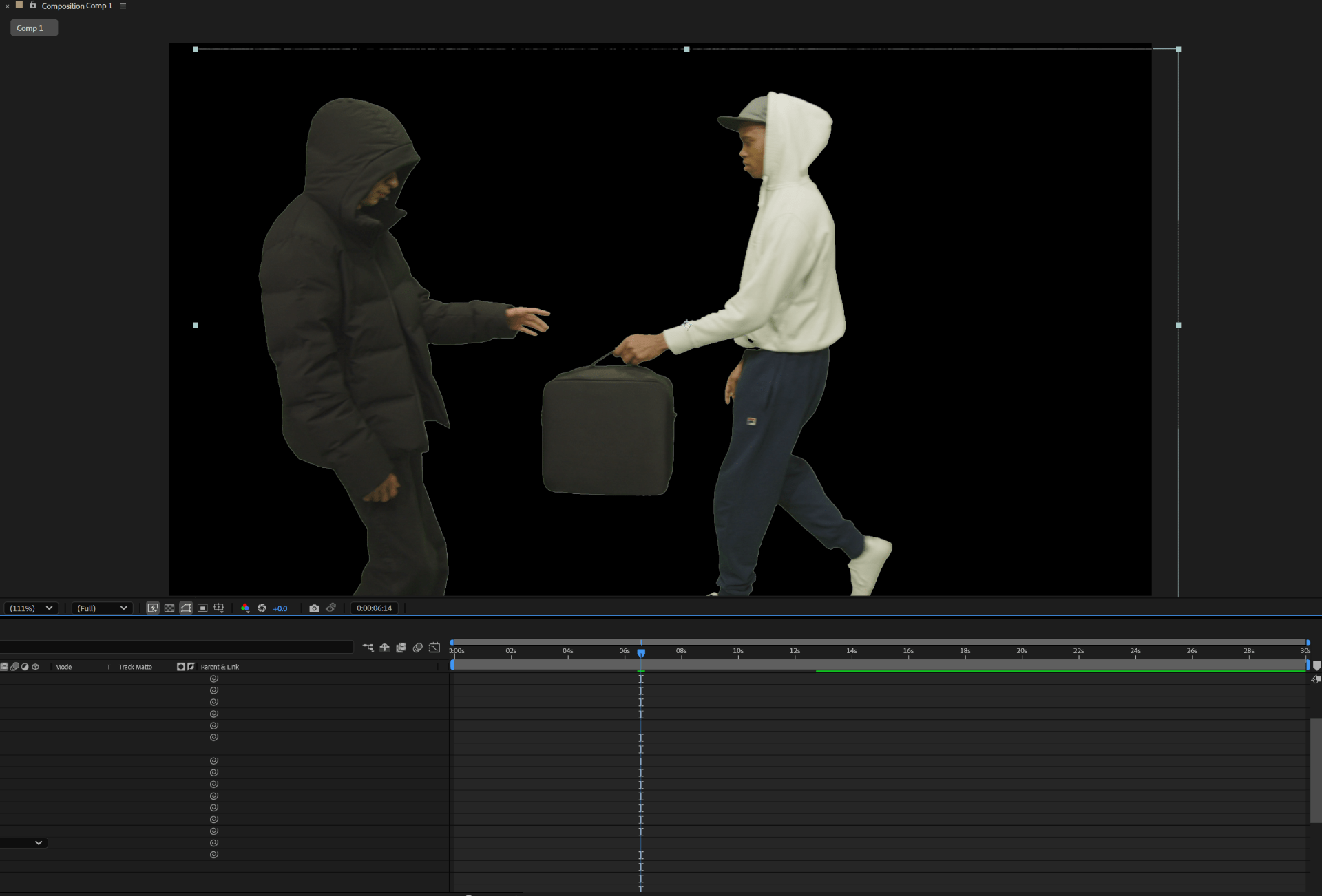
We adjust some properties and adjust our track matte to end up with a silhouette.
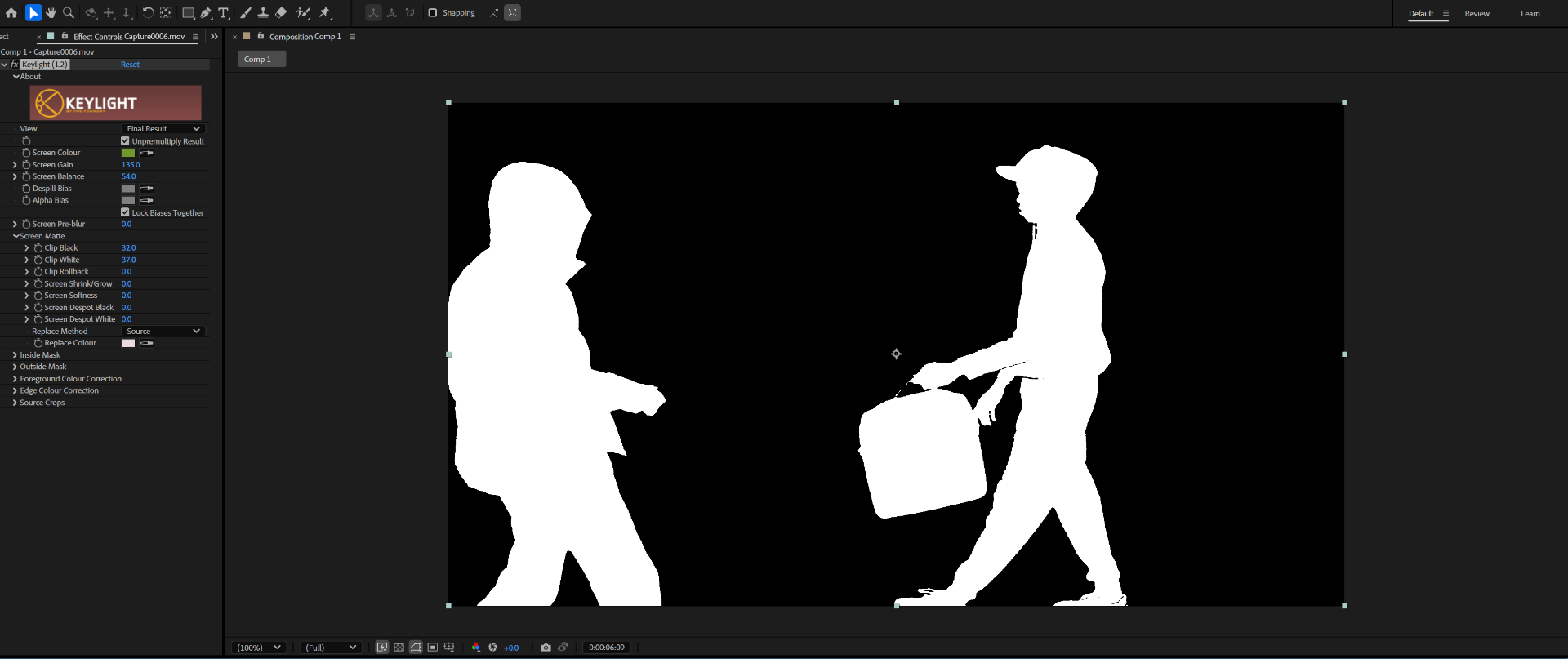
This is the result keying out a simple silhouette.
Task 1
Create a 007 style silhouette sequence using captured green screen footage and some Mitch Martinez stock footage
End of task 1
End of week 3 and 4
Week 5: introduction to tracking
Face traking
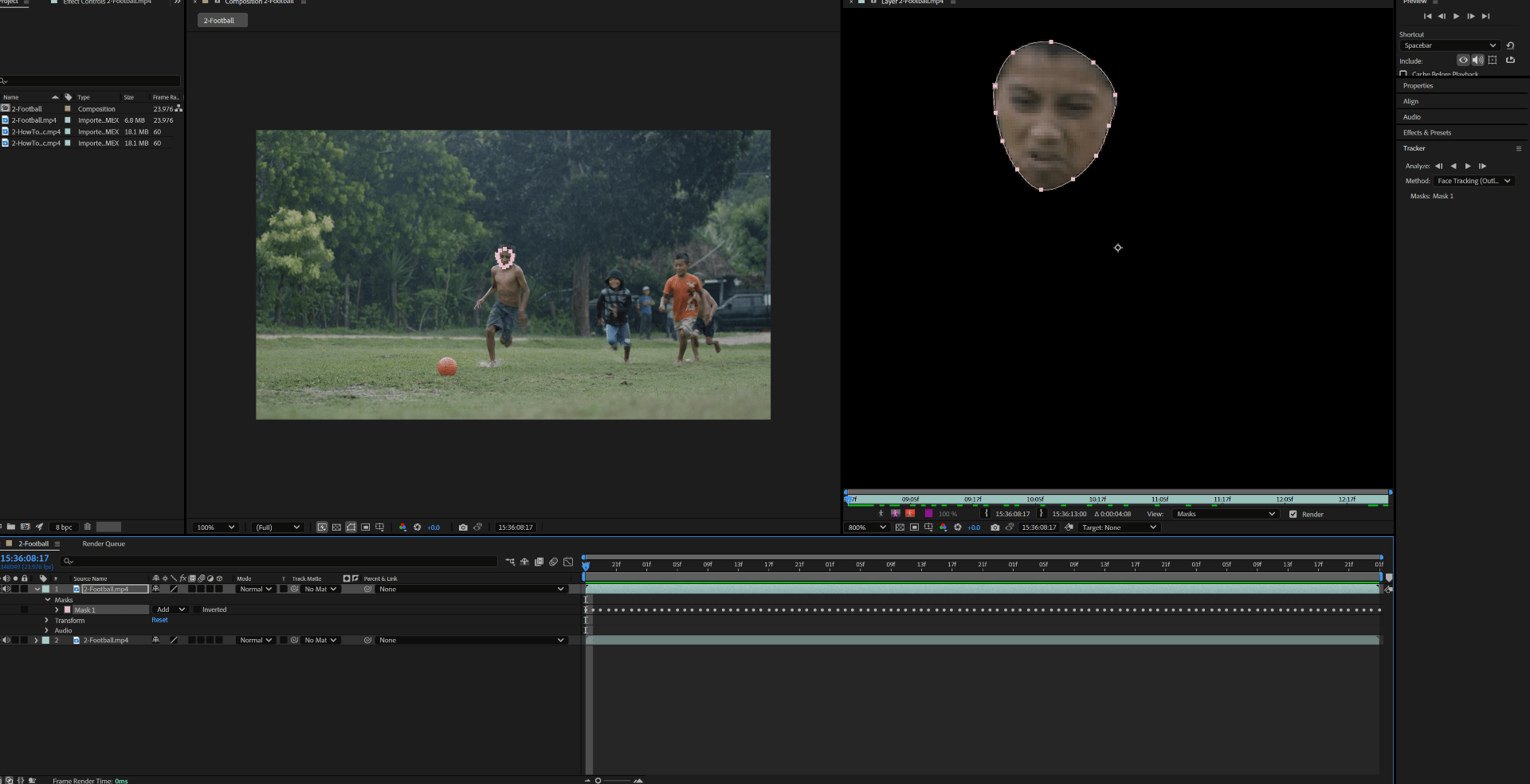
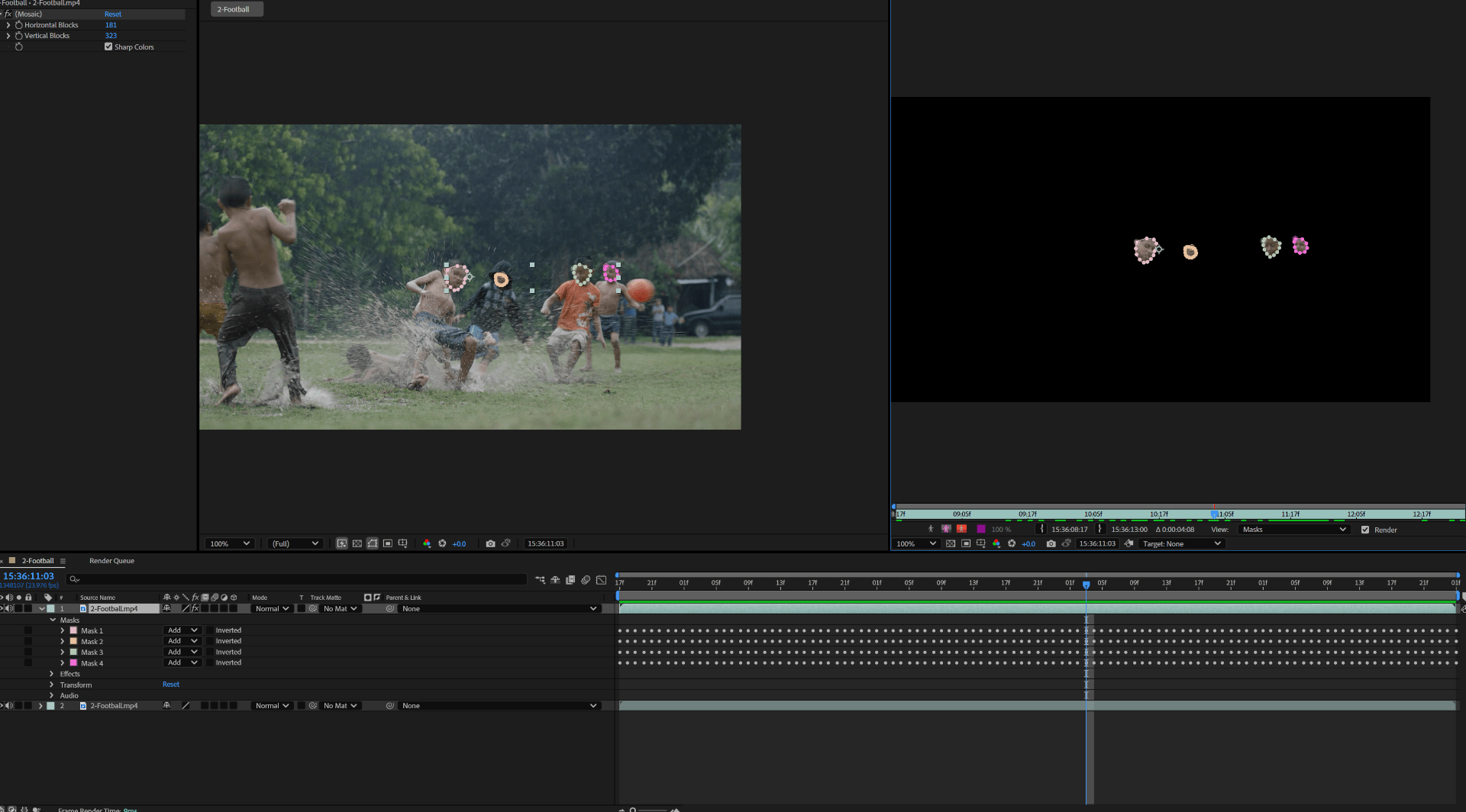
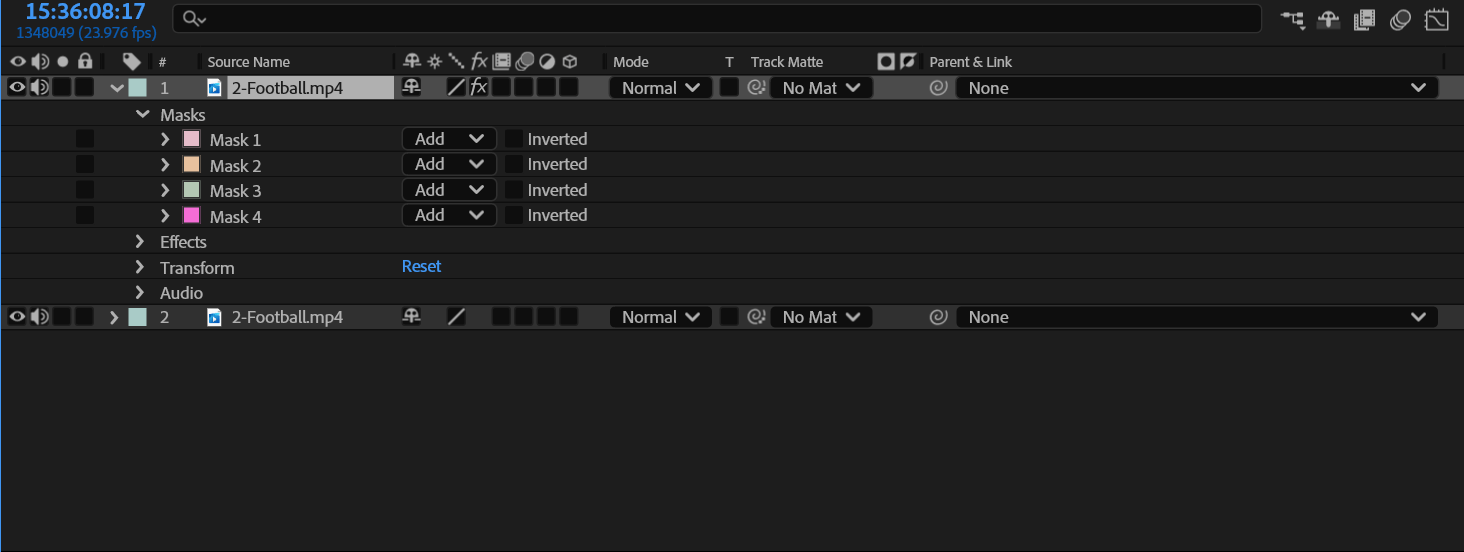
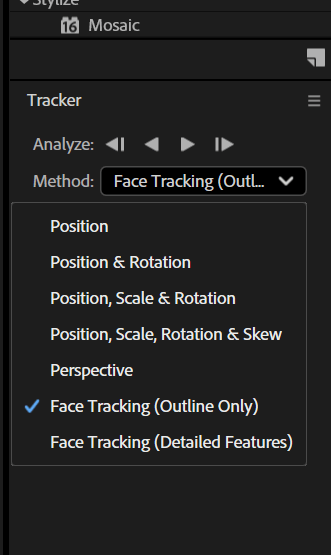
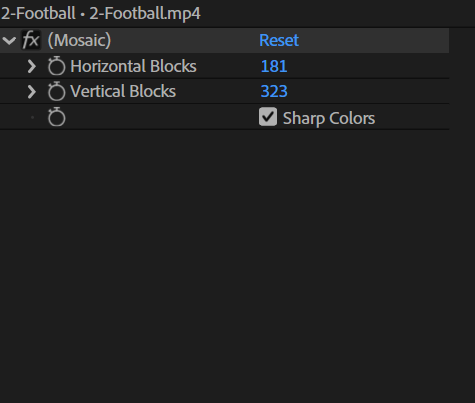
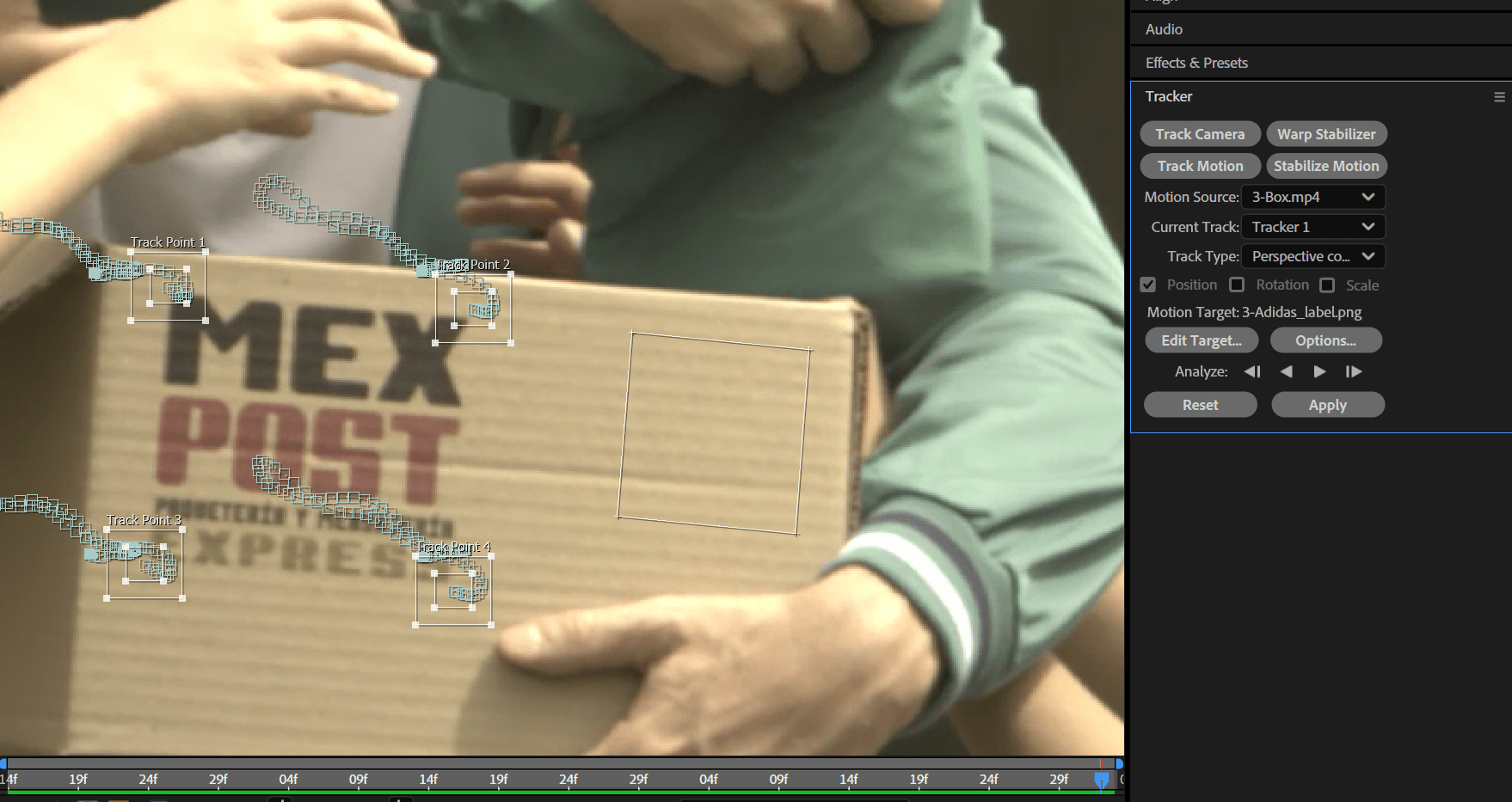
Traking
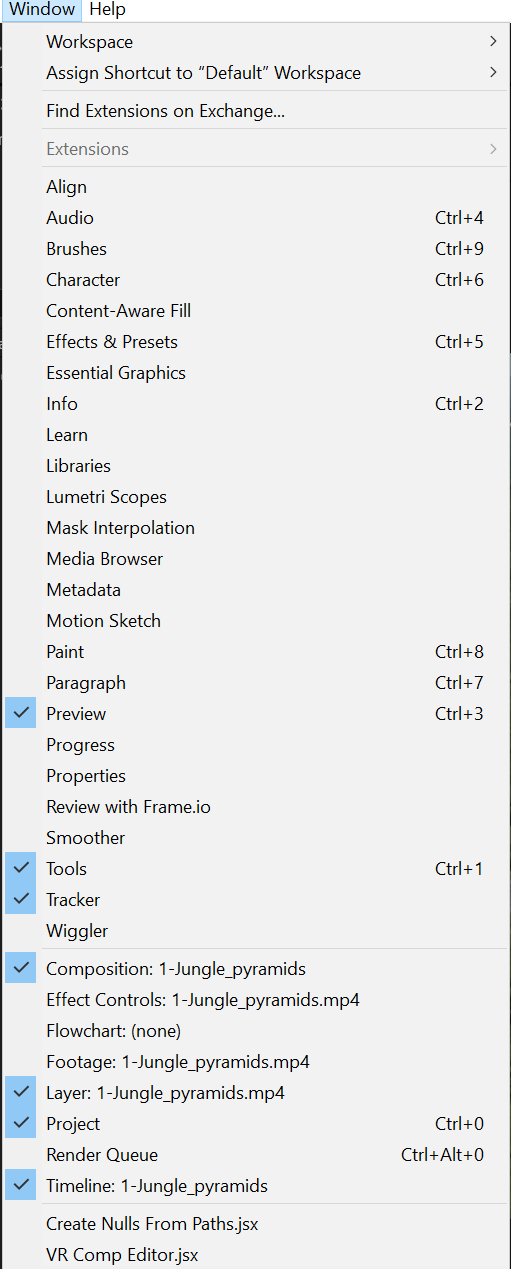
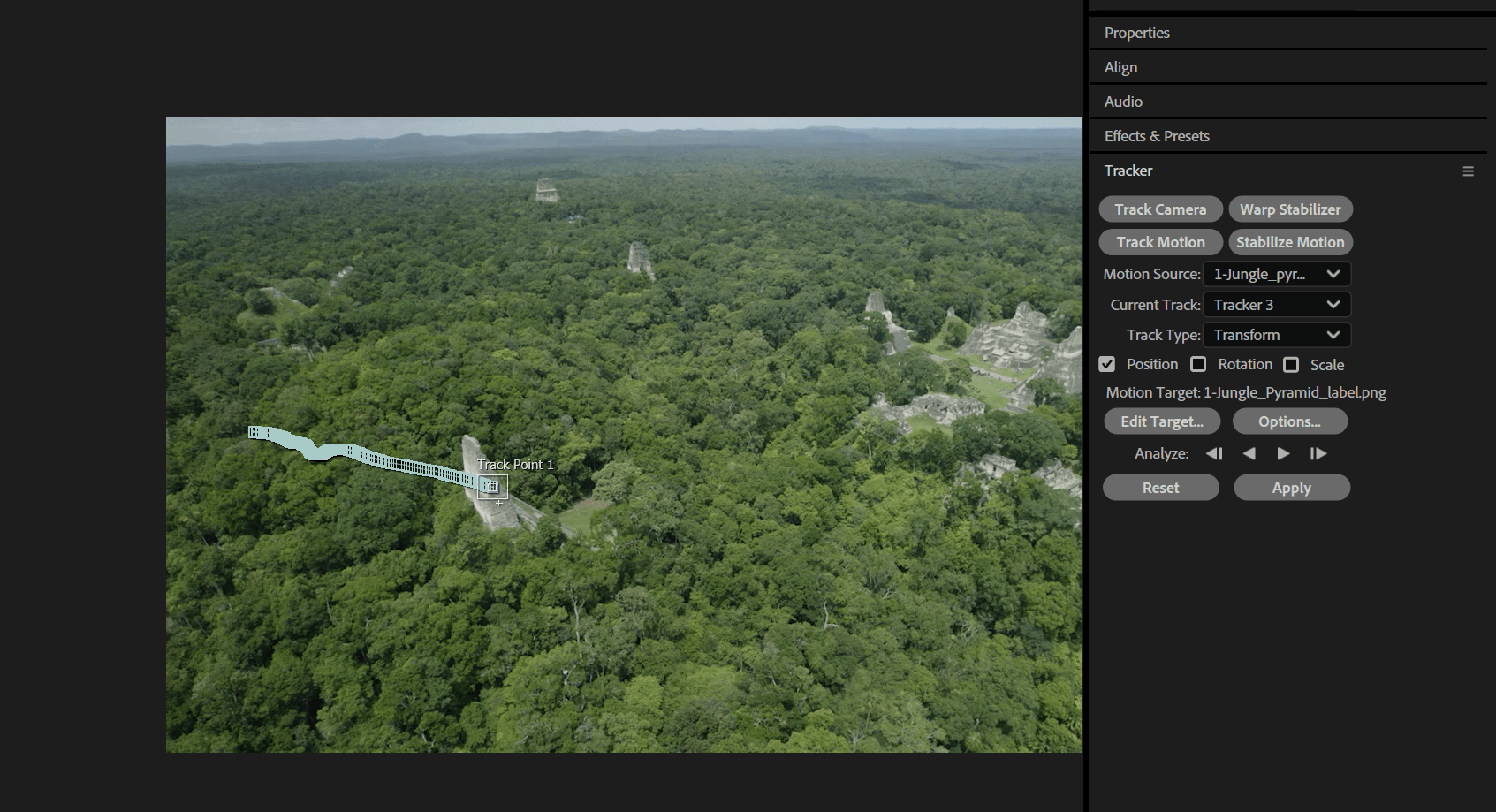
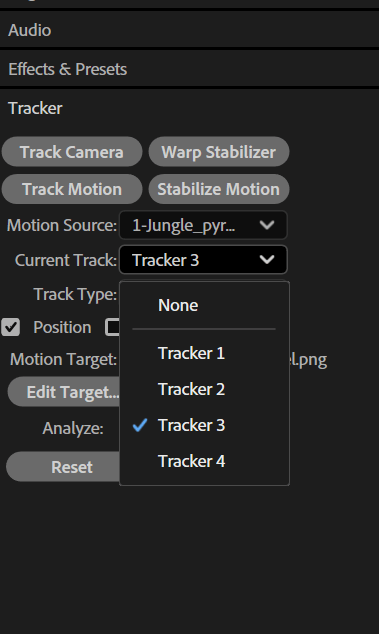
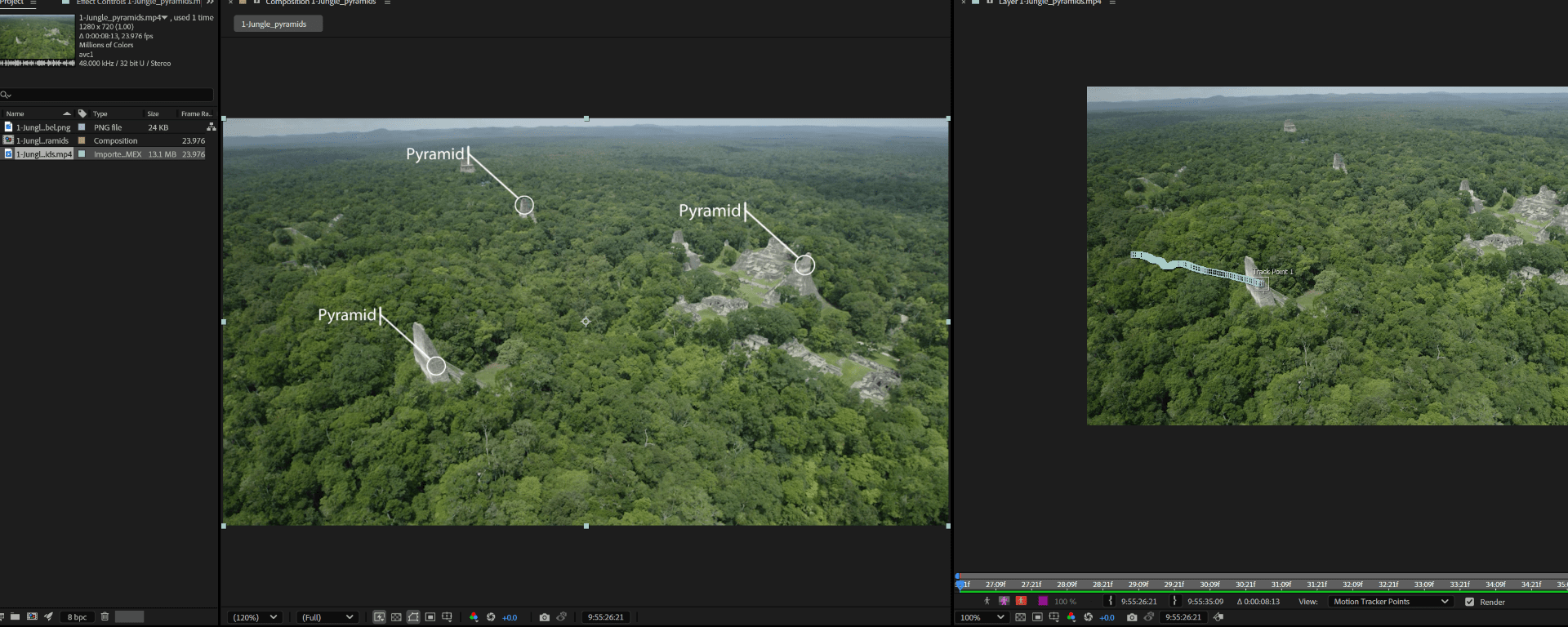
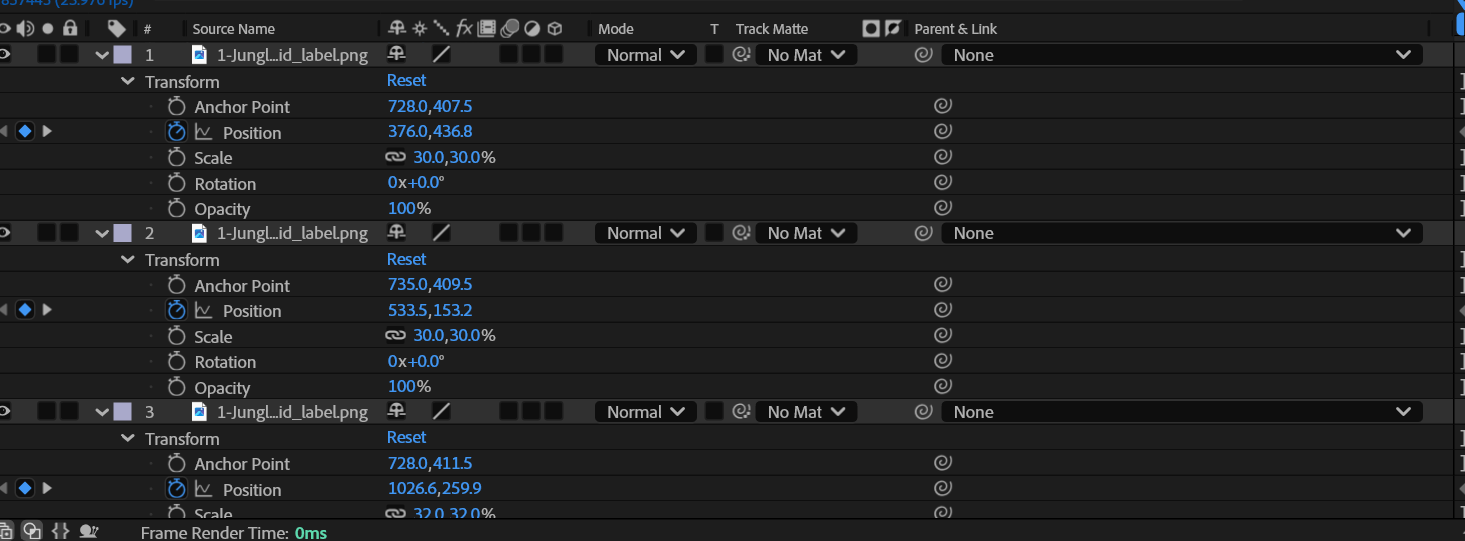
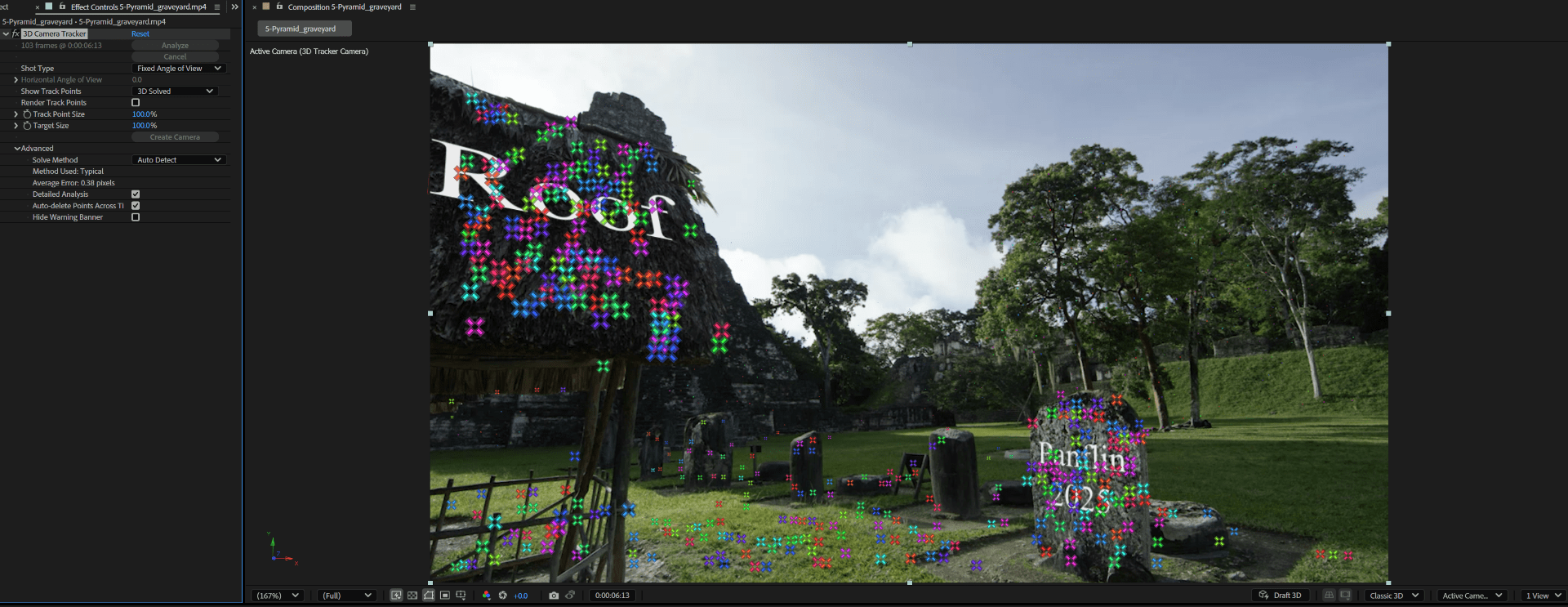
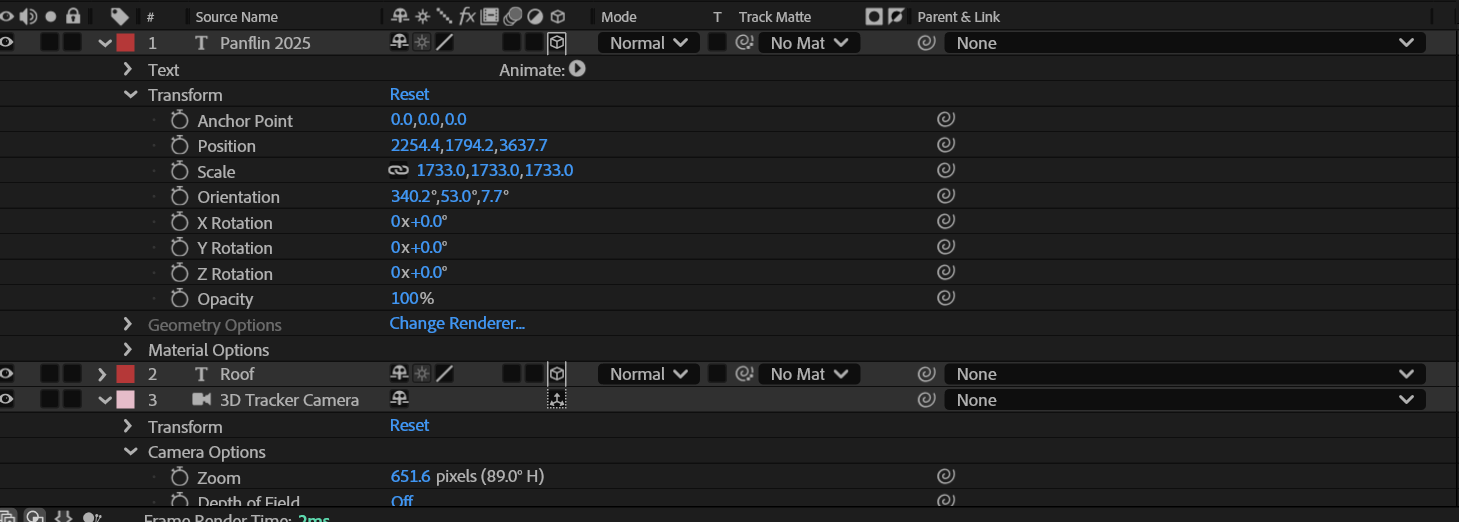
Camera traking
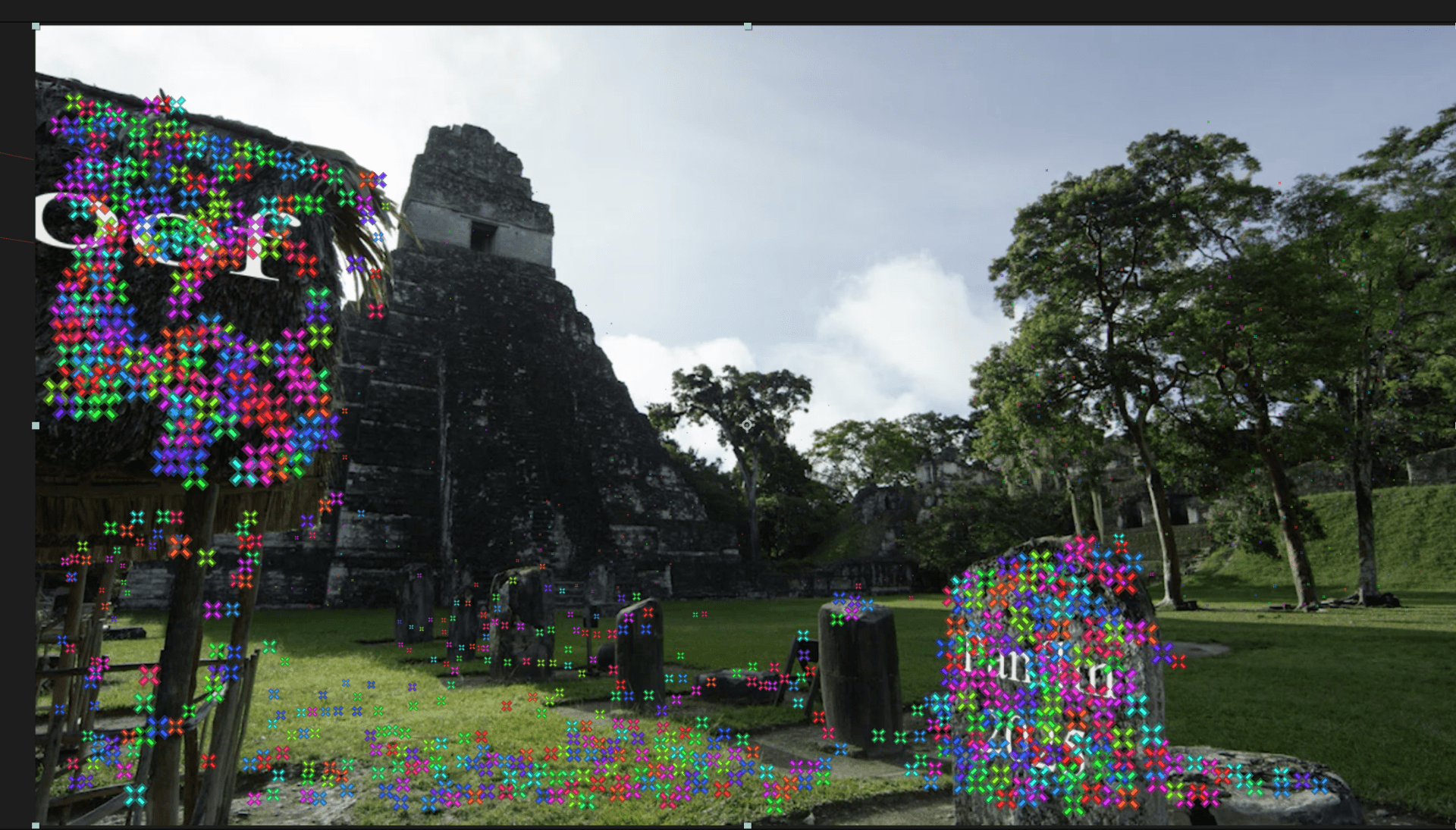
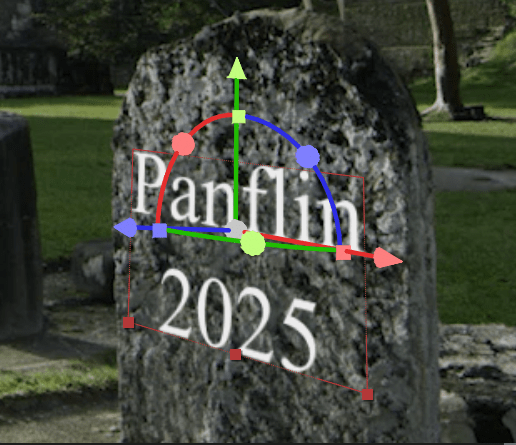
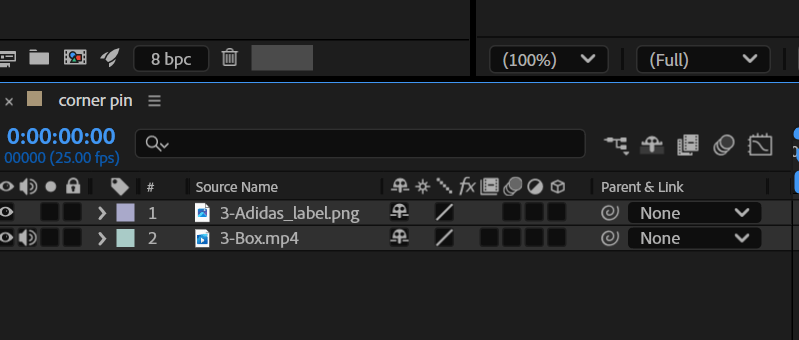
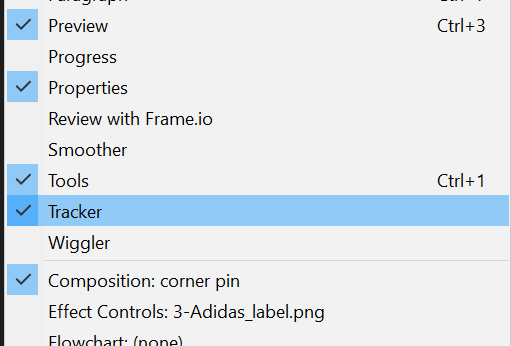
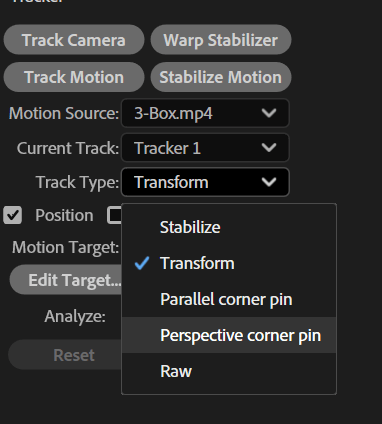
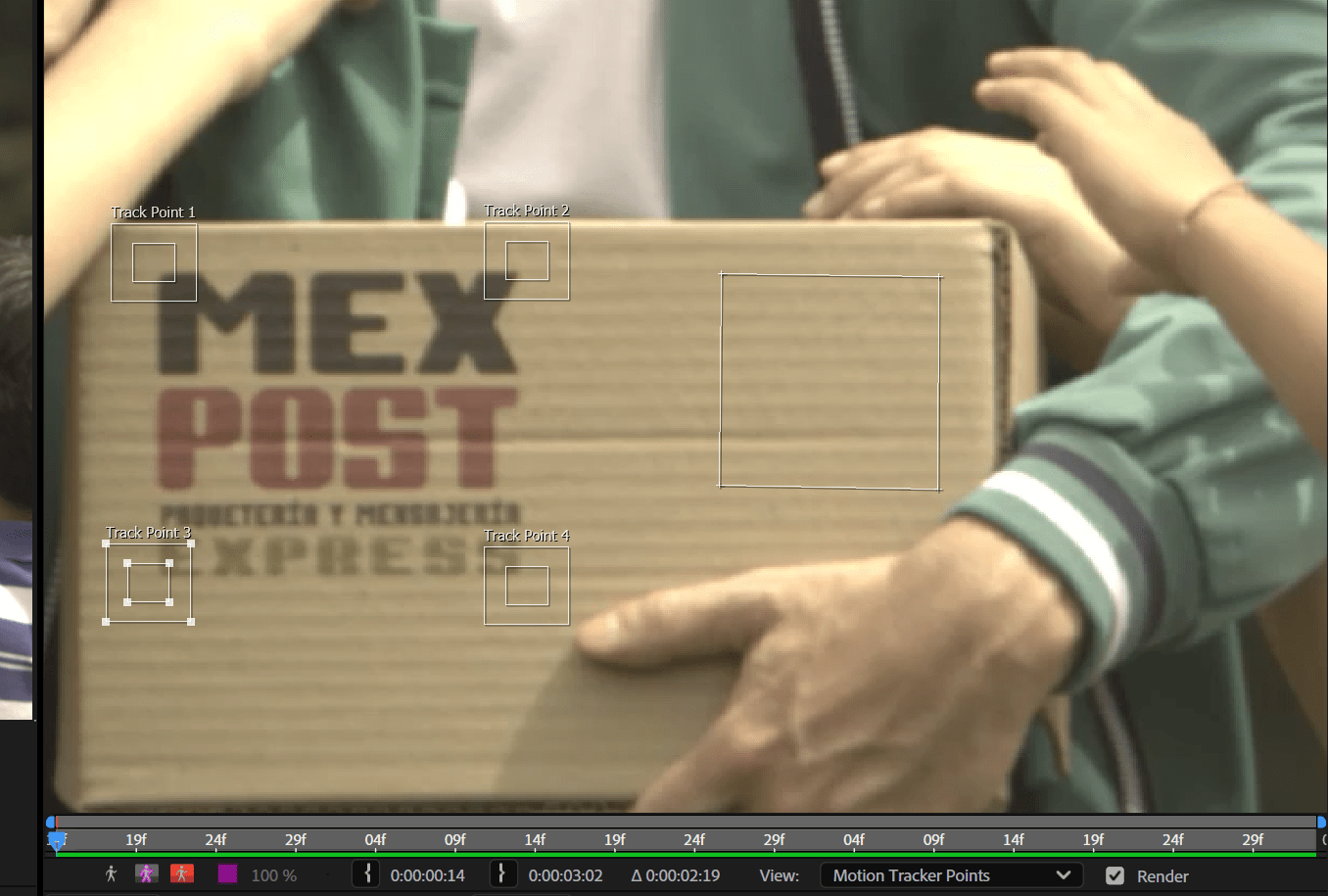
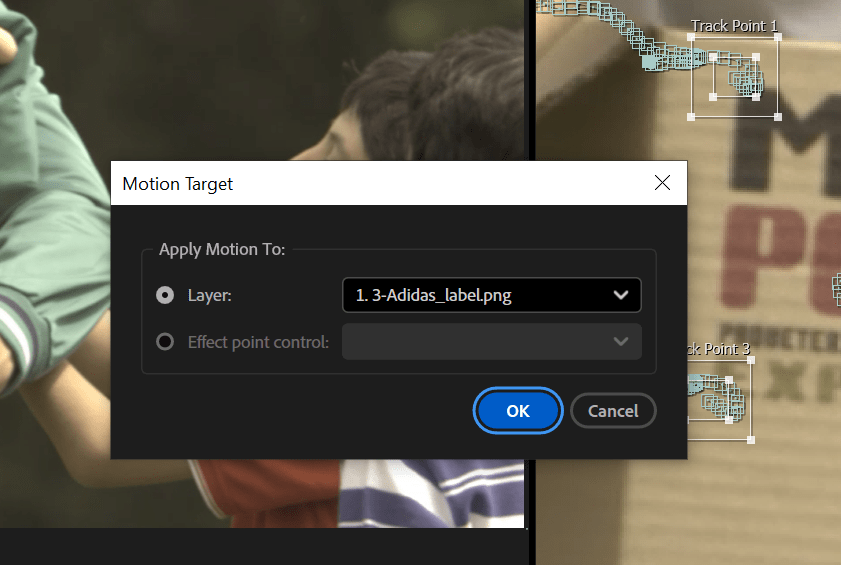
Corner pin
Week 6: 3D space
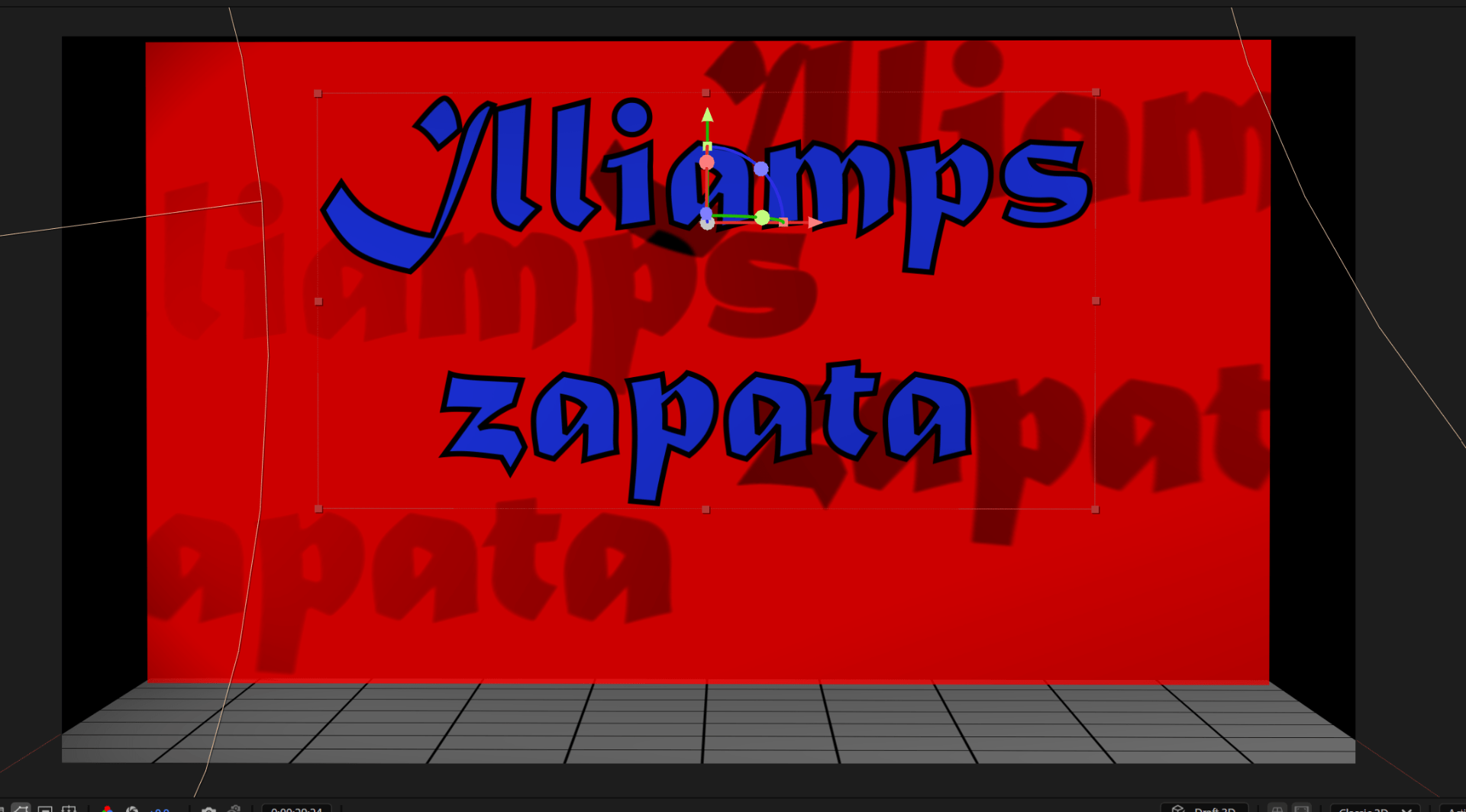
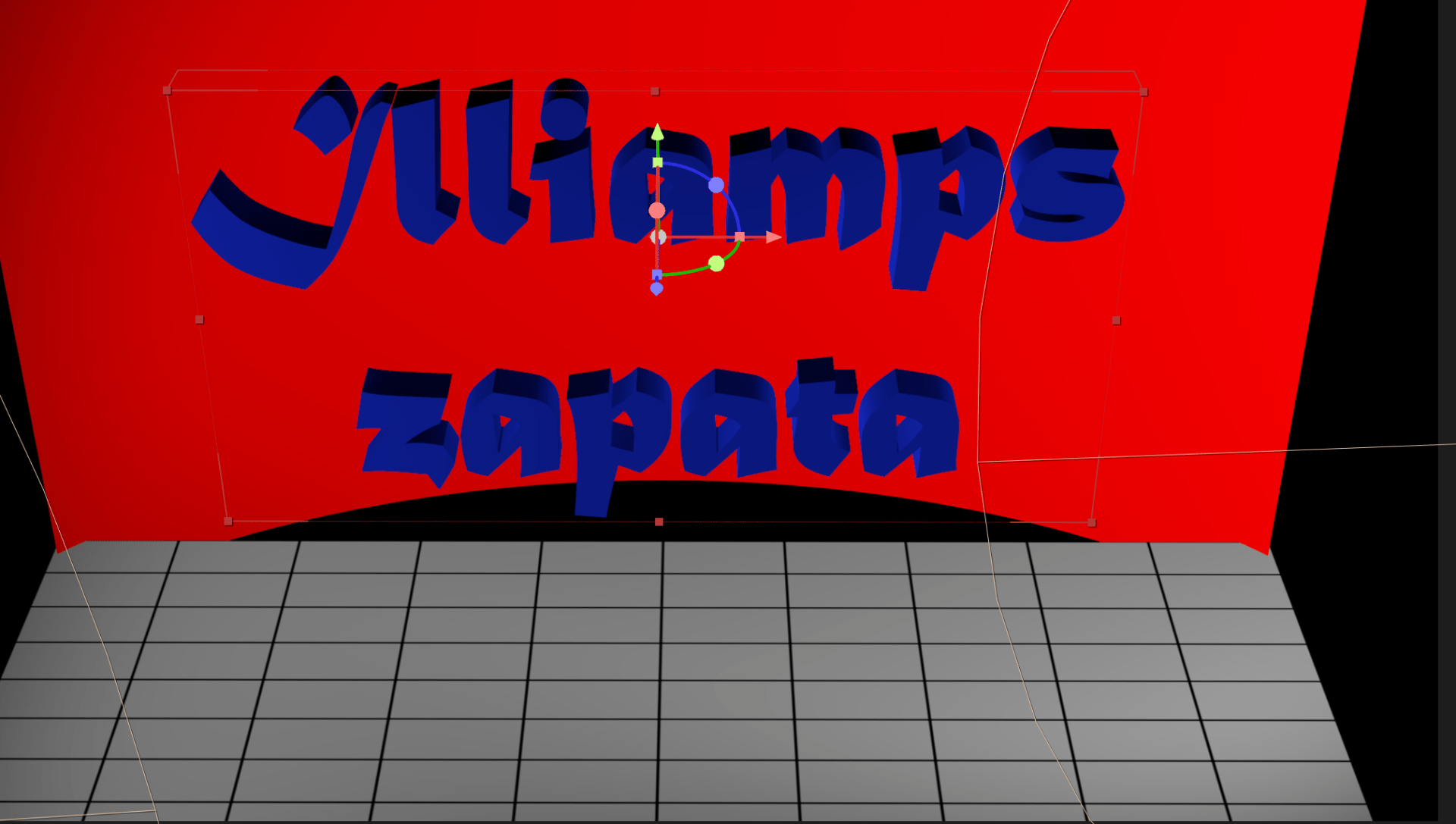
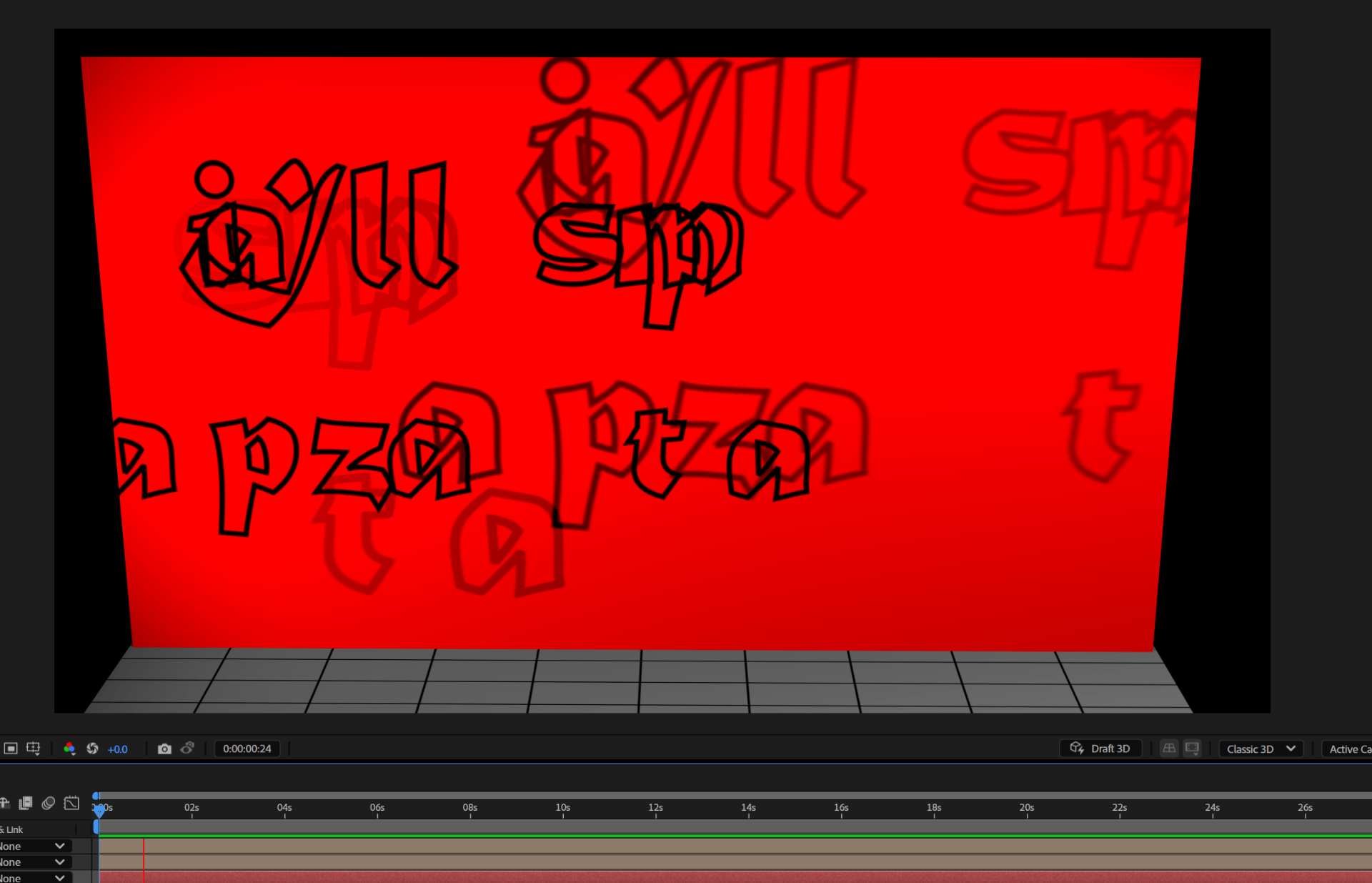
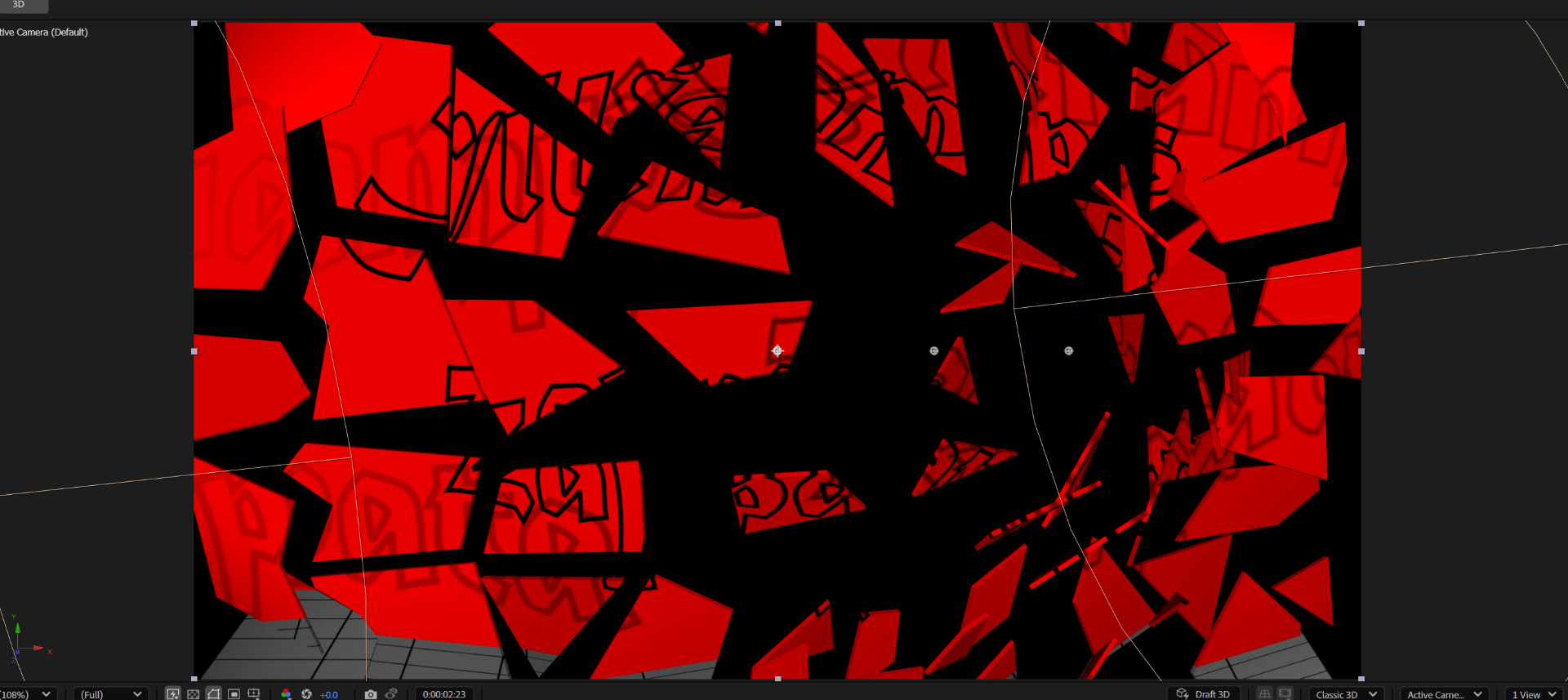
Final task
End of week 6
Week 7
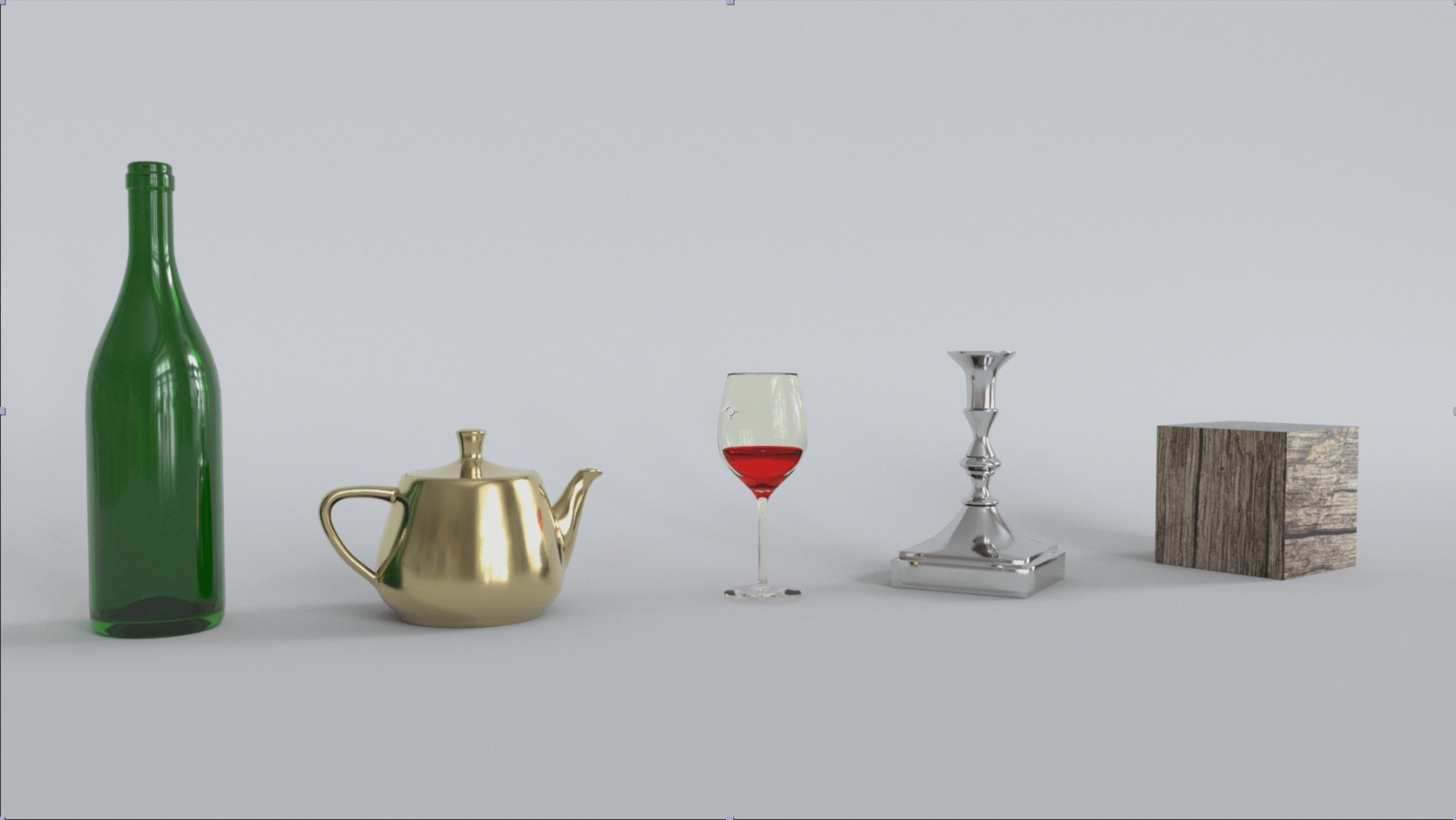
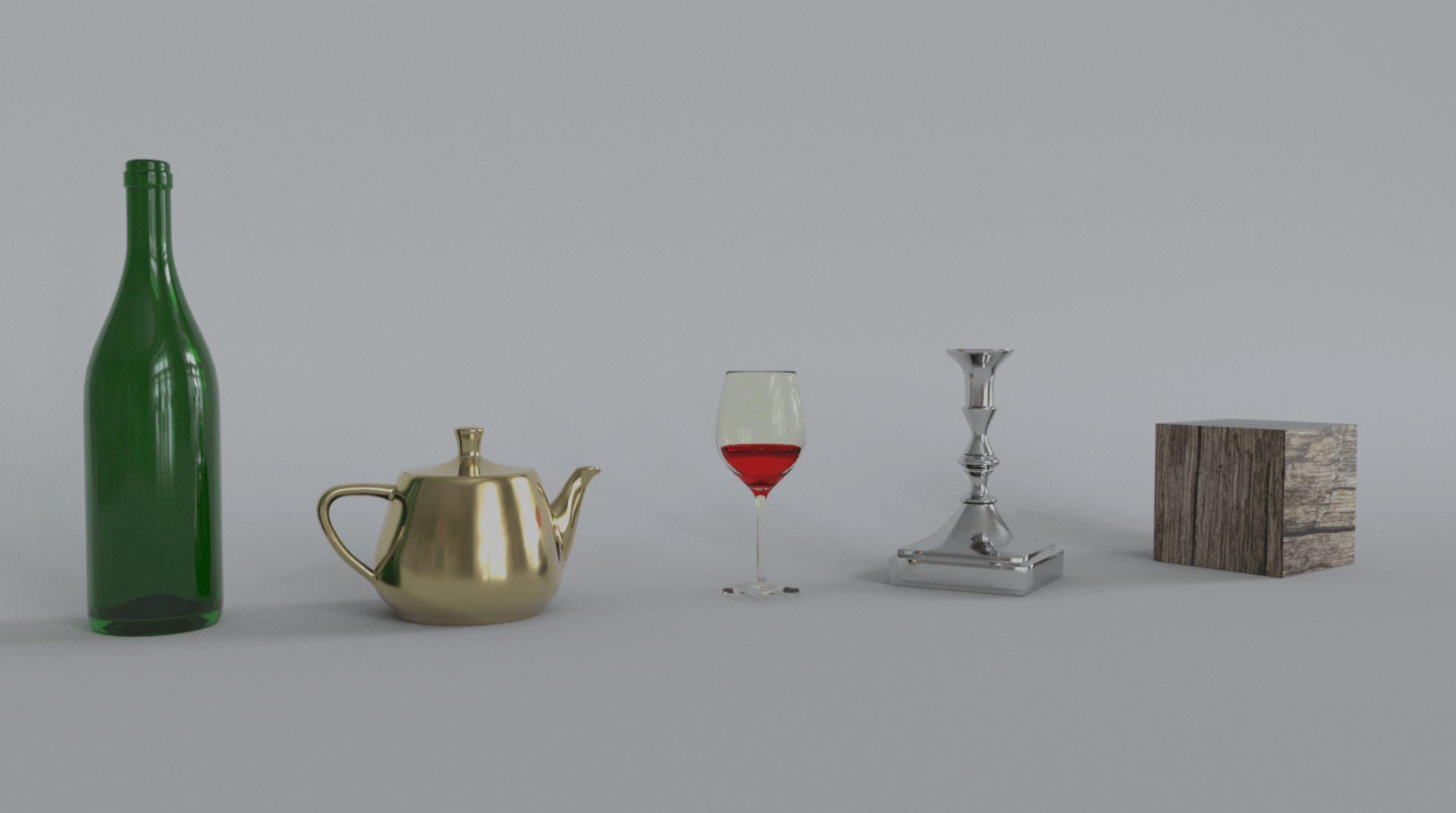
Week 8: Assignment 1 – Show reel
End of week 8
Week 9:Introduction to Dynamic animation in maya
This week we are going to be introduced to Dynamic animations in maya.
- Types of output – cause and effect animation and film
- Cause and Effects Animation with BULLET in Maya
- Setting up simple Dynamics
- Setting up BULLET attributes
- Working through different scenarios
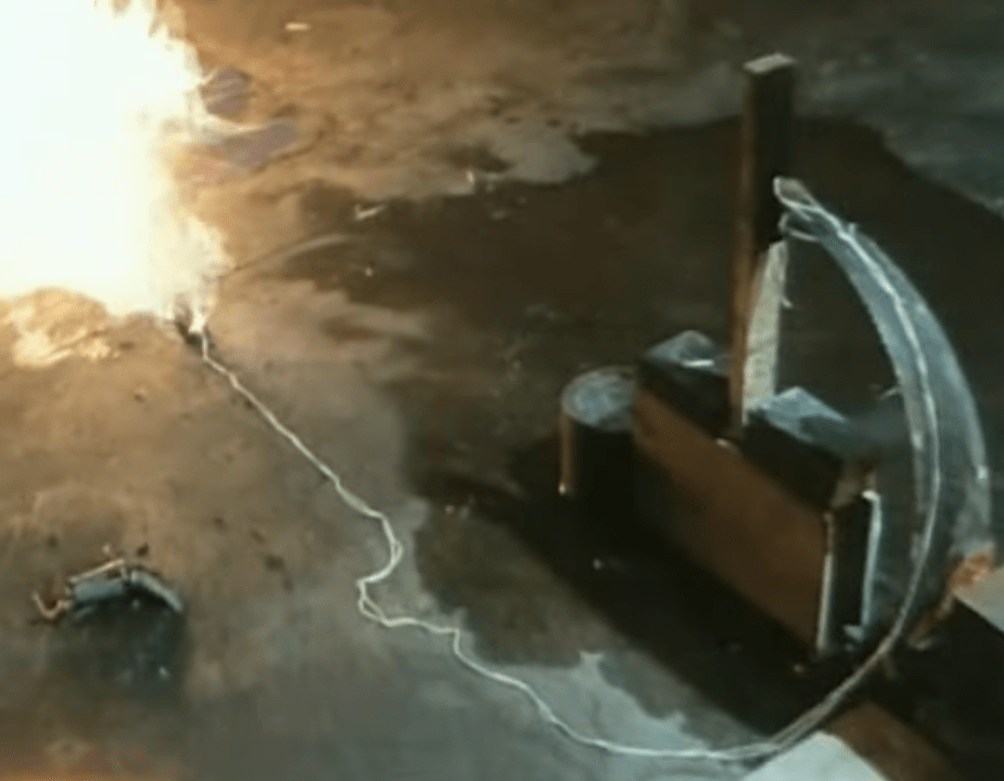
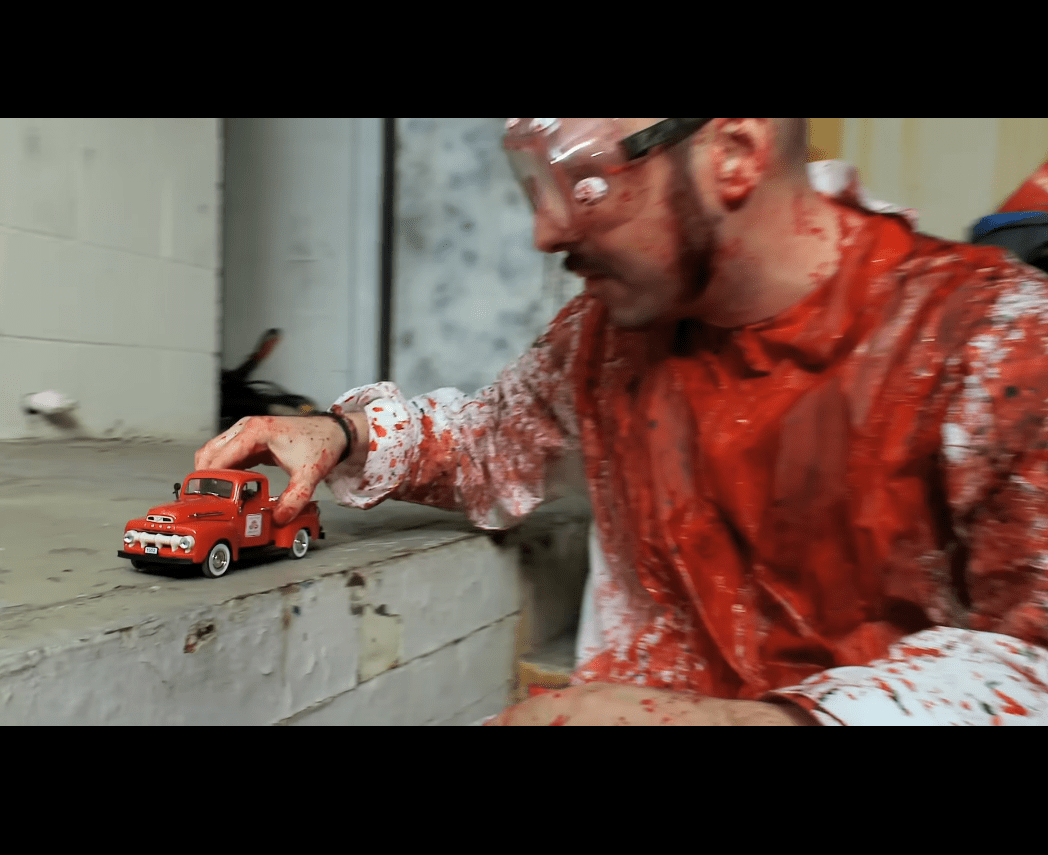
We have seen some YouTube videos as examples of dynamic animation in the real world.
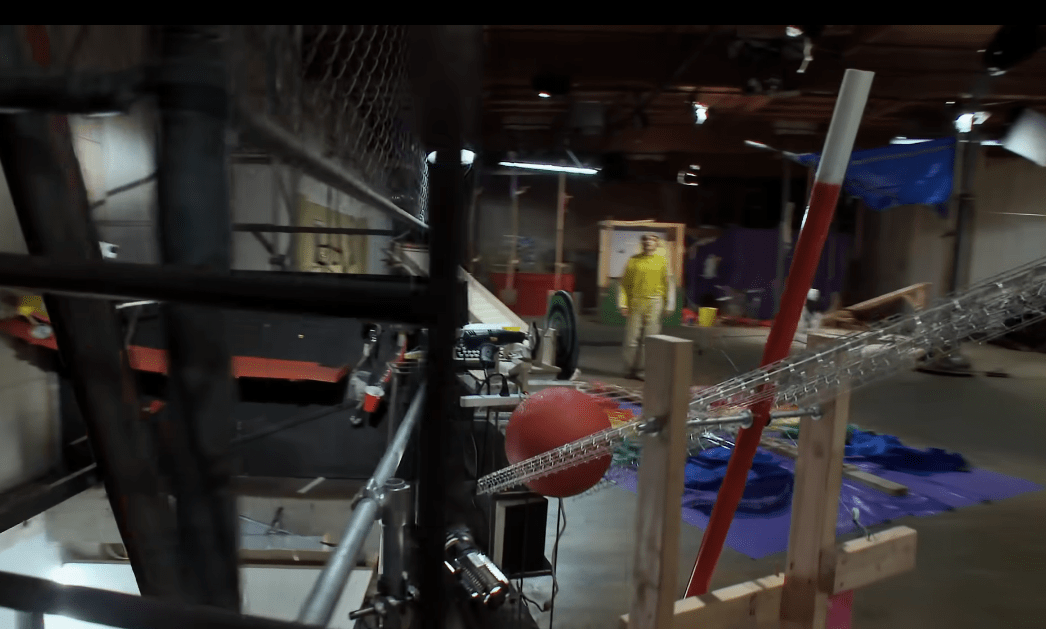
So after having a general idea on the topic we are going to head up to maya and experiment.
We start we a dominos collider.
First we open a new maya project.
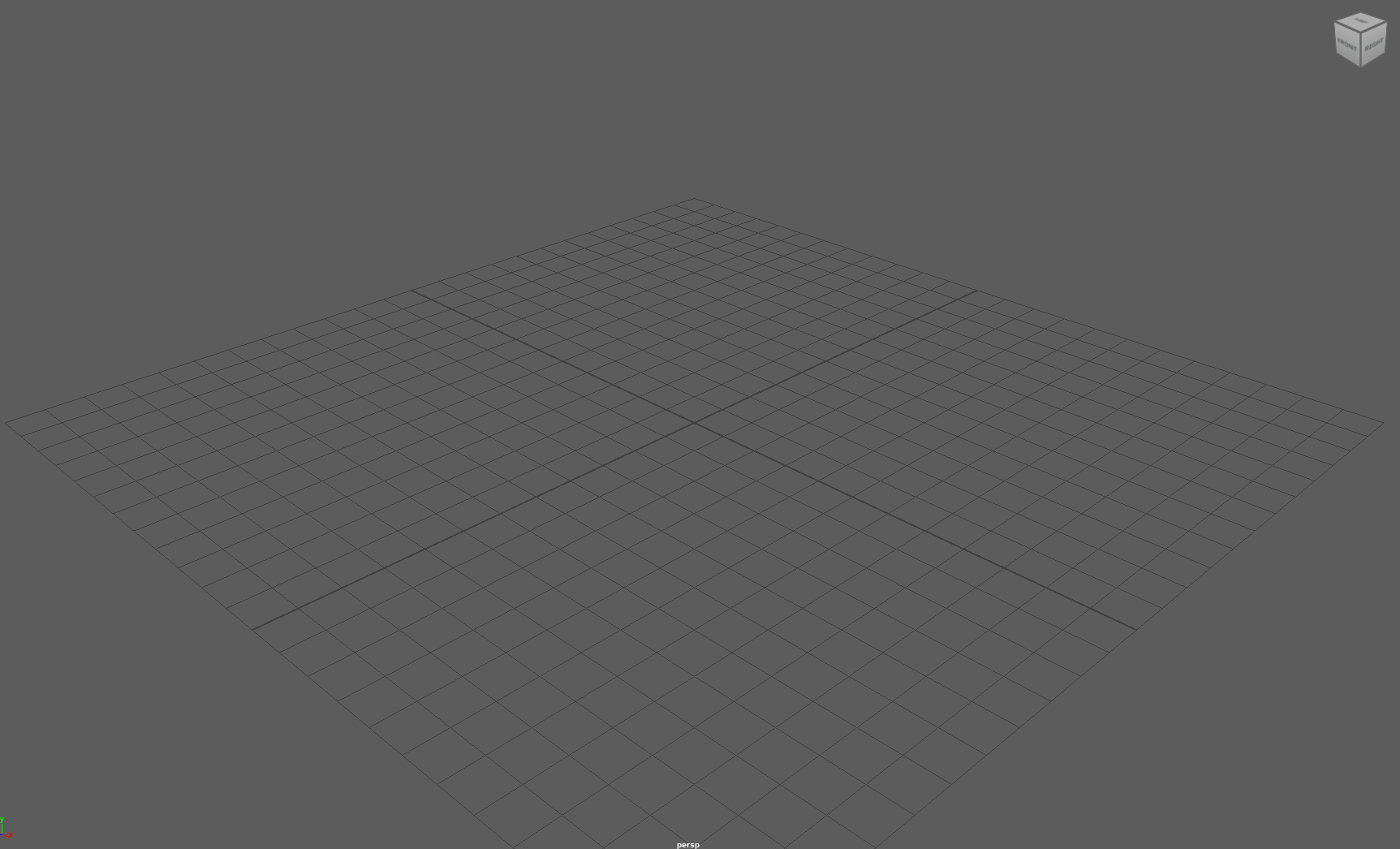
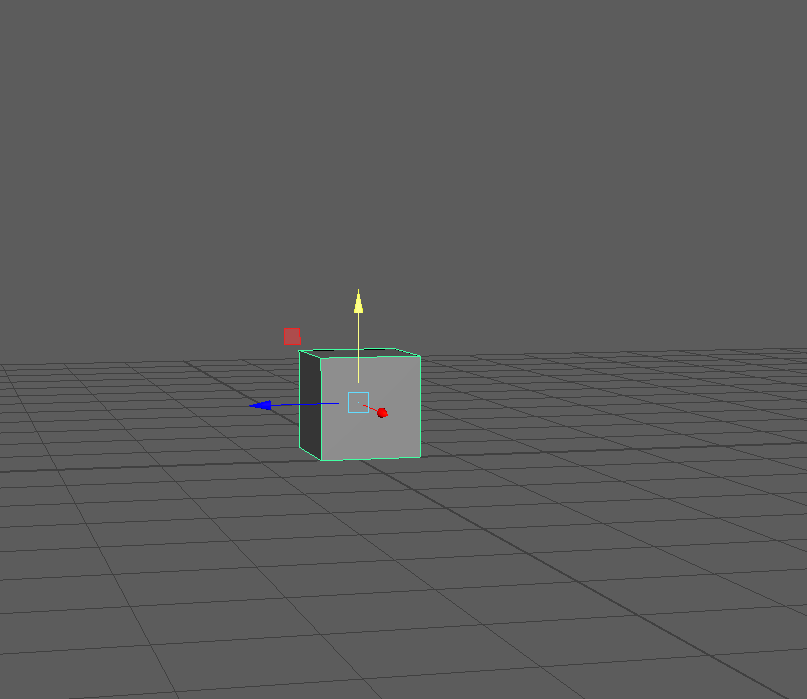
We use a cube to create a domino piece.
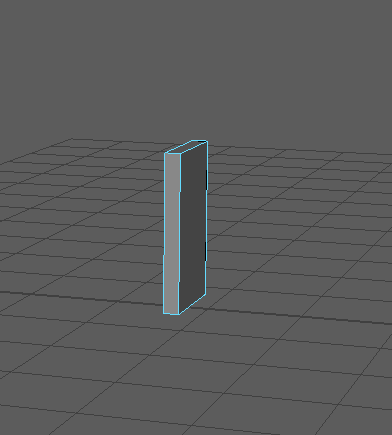
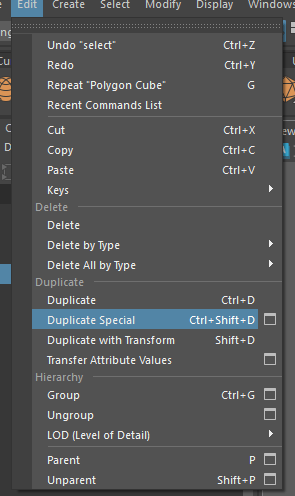
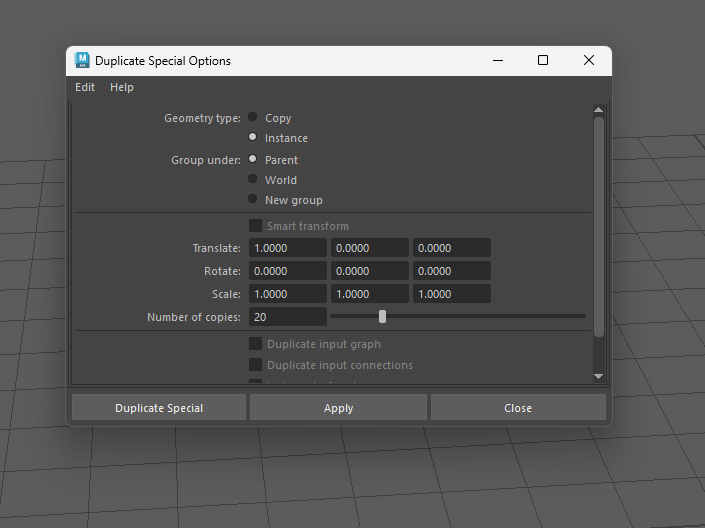
After the piece is created I am going to use the duplicate special tool to create more copies of the piece.
We configure the duplication.
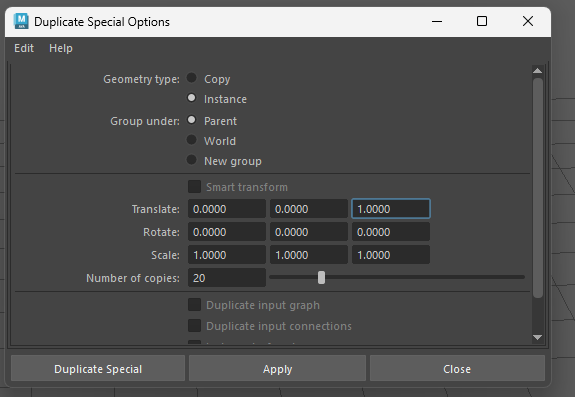
Now we have more than one piece of domino
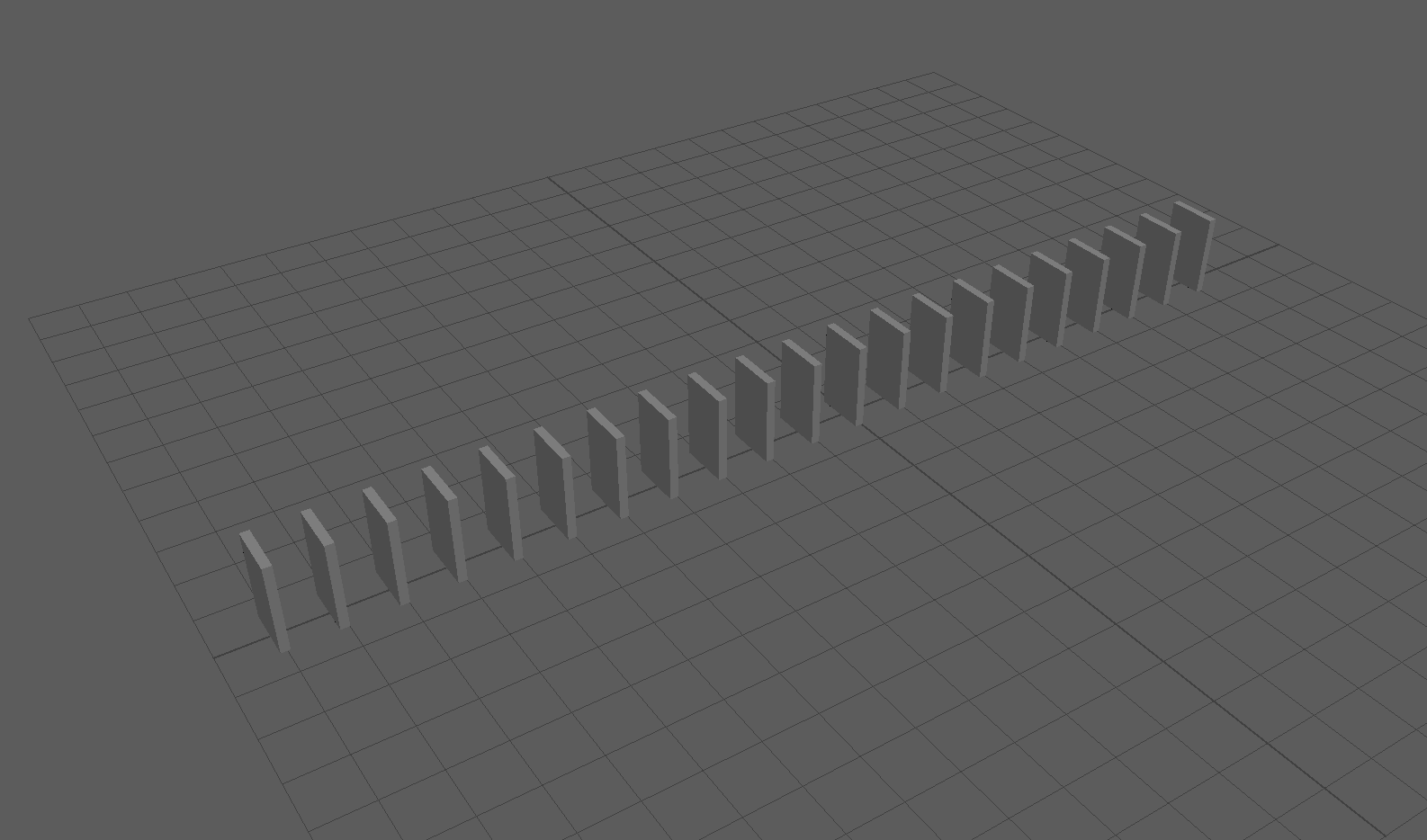
Next I am going to create a plane to use as a passive collider for later.
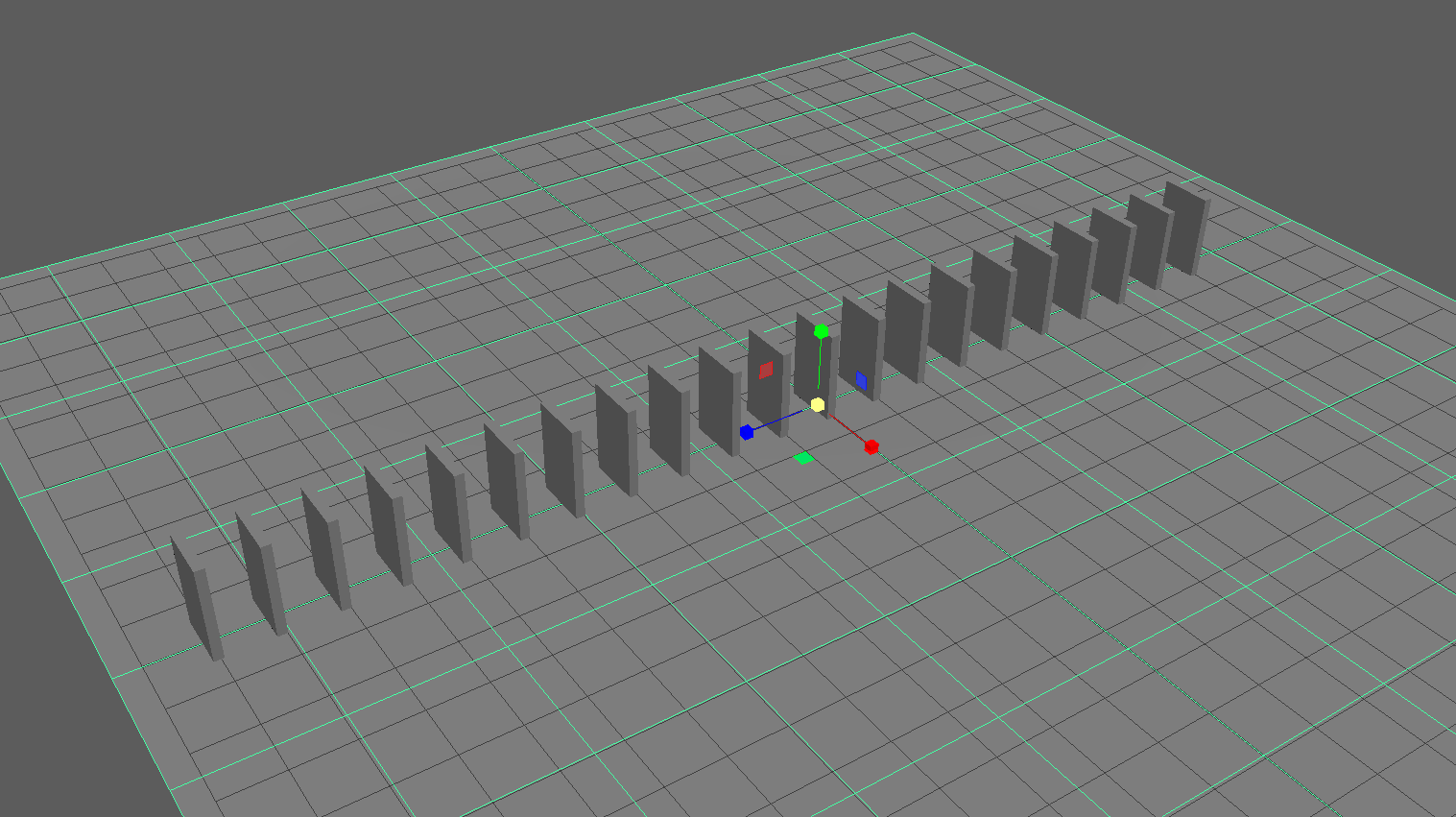 we changeto our FX Tools.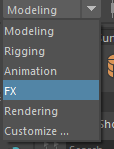
And before anything I am going to search for the plug in manager to enable the bullet pluging.
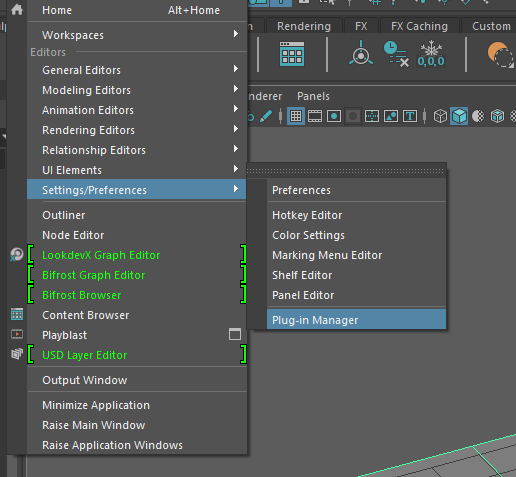
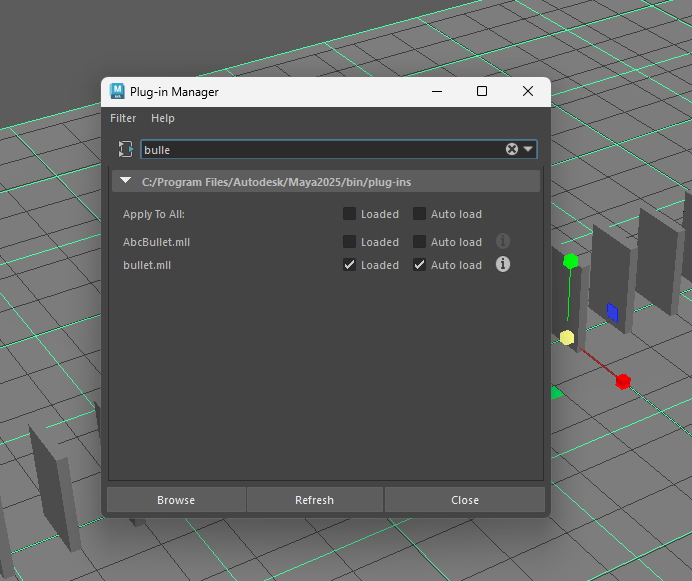
After enabling the plugin we now have access to the bullet option.
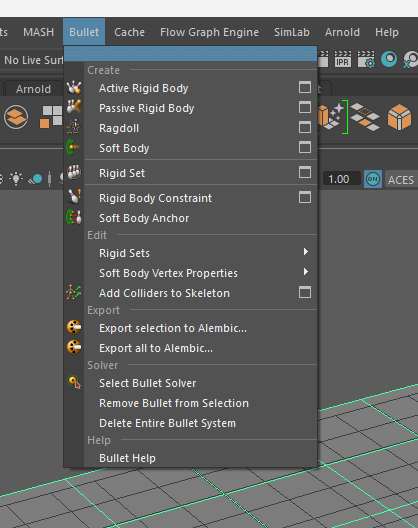
Next we are selecting the plate and go to passive rigid body option.
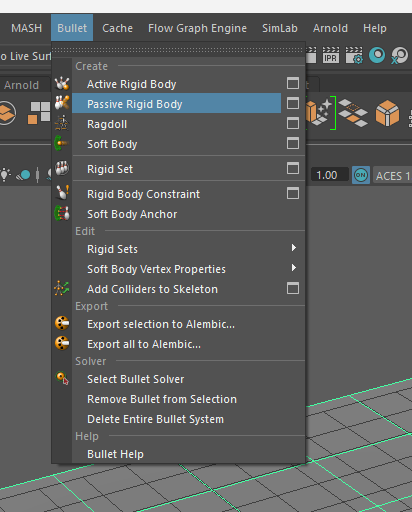
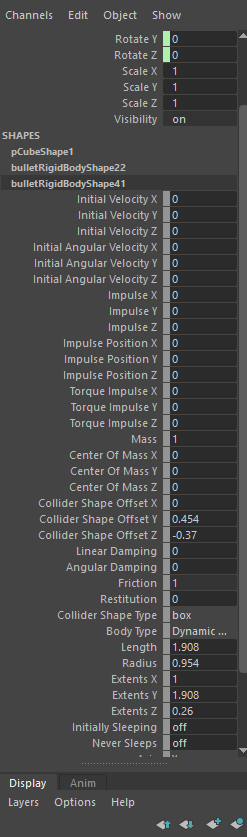
We adjust the setting and press apply.
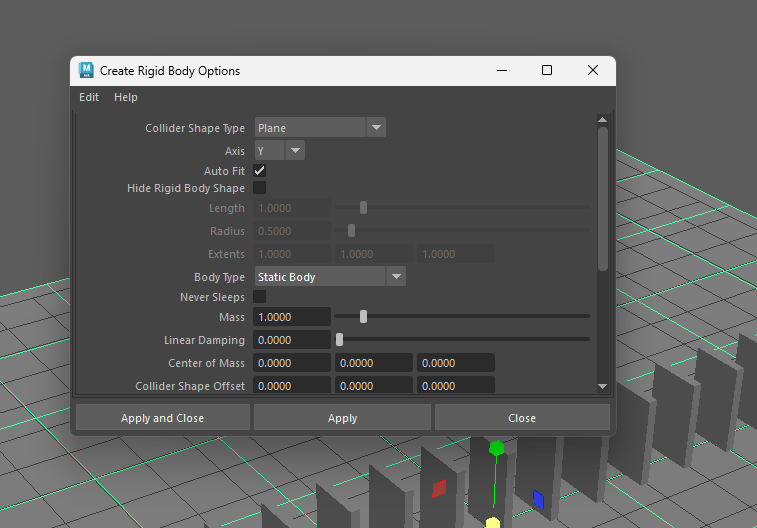
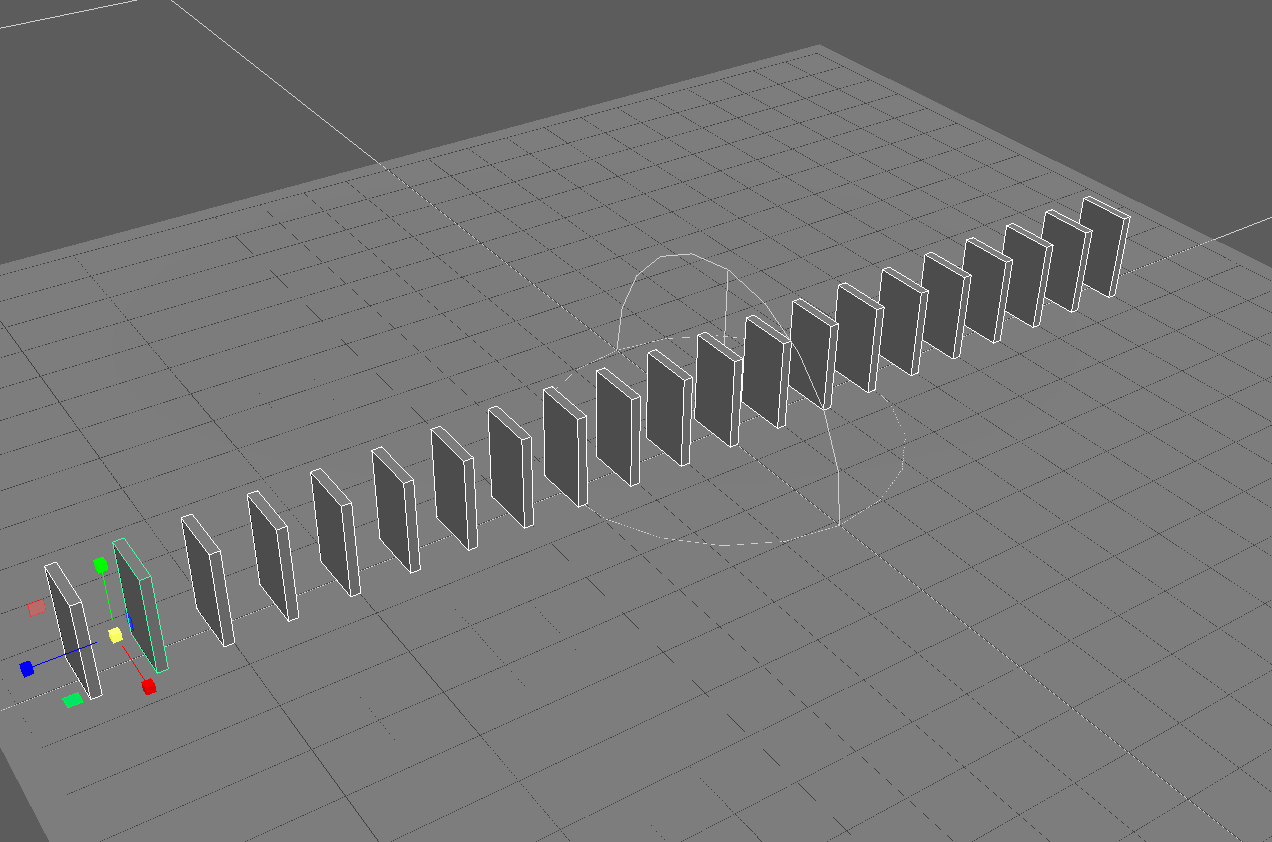
Next we are selecting all of our dominos pieces and head up to the active rigid body option to set all the adjustments to our body.
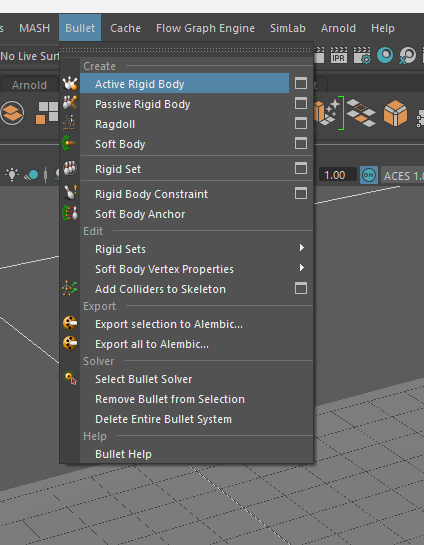
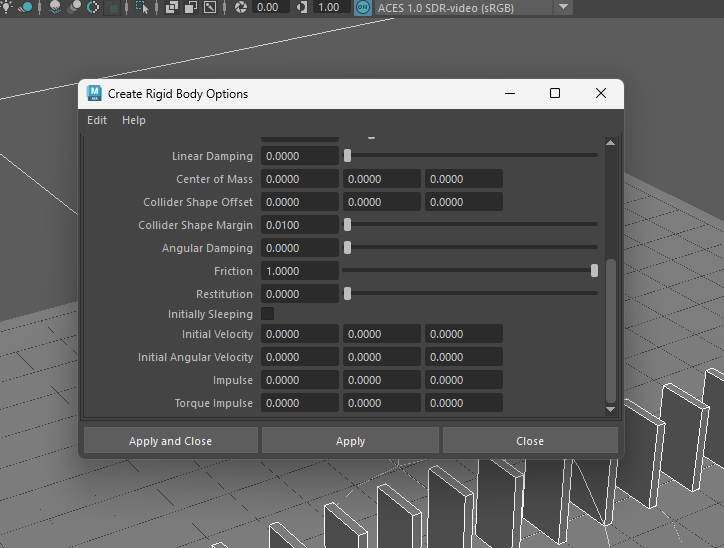
We press apply and now we should have a basic set up.
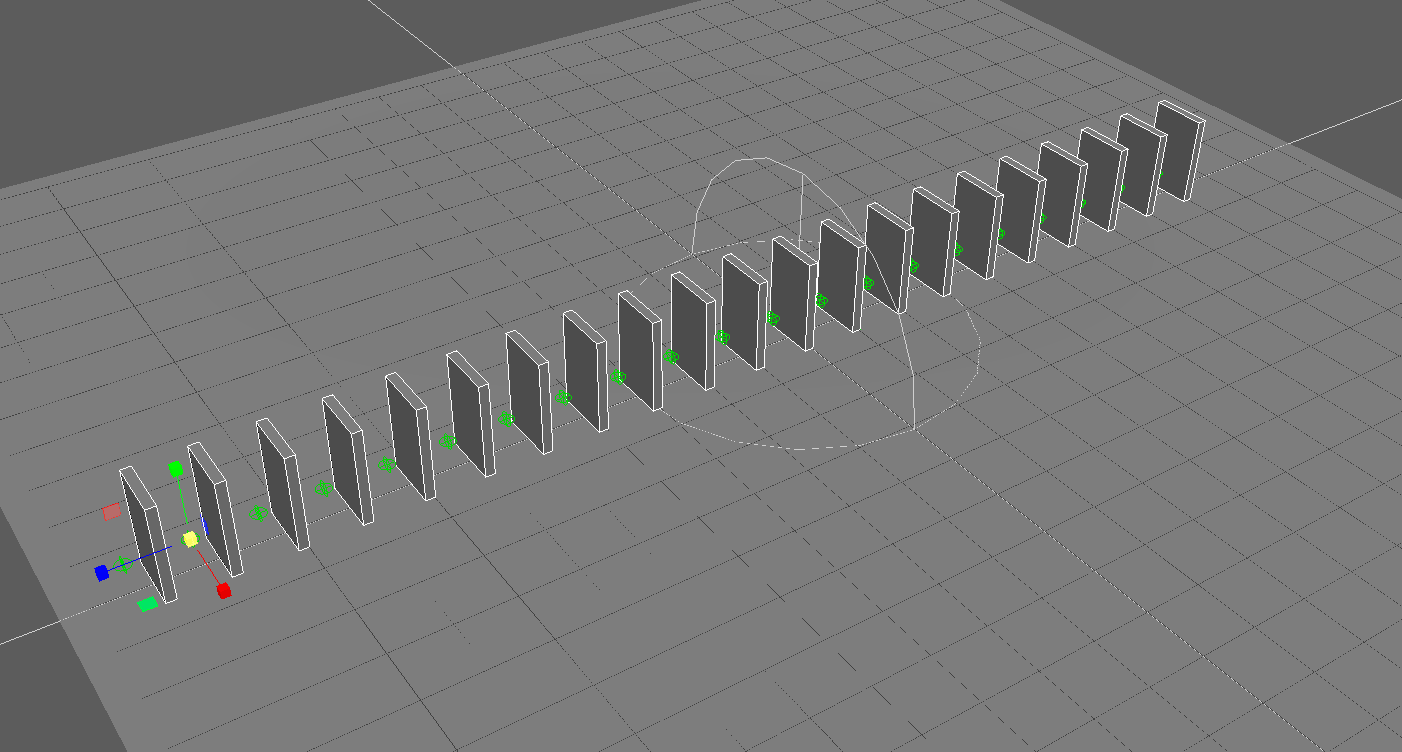
If we play the play button on our playback panel we should have the domino dropping a little on the screen.
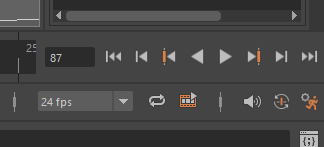
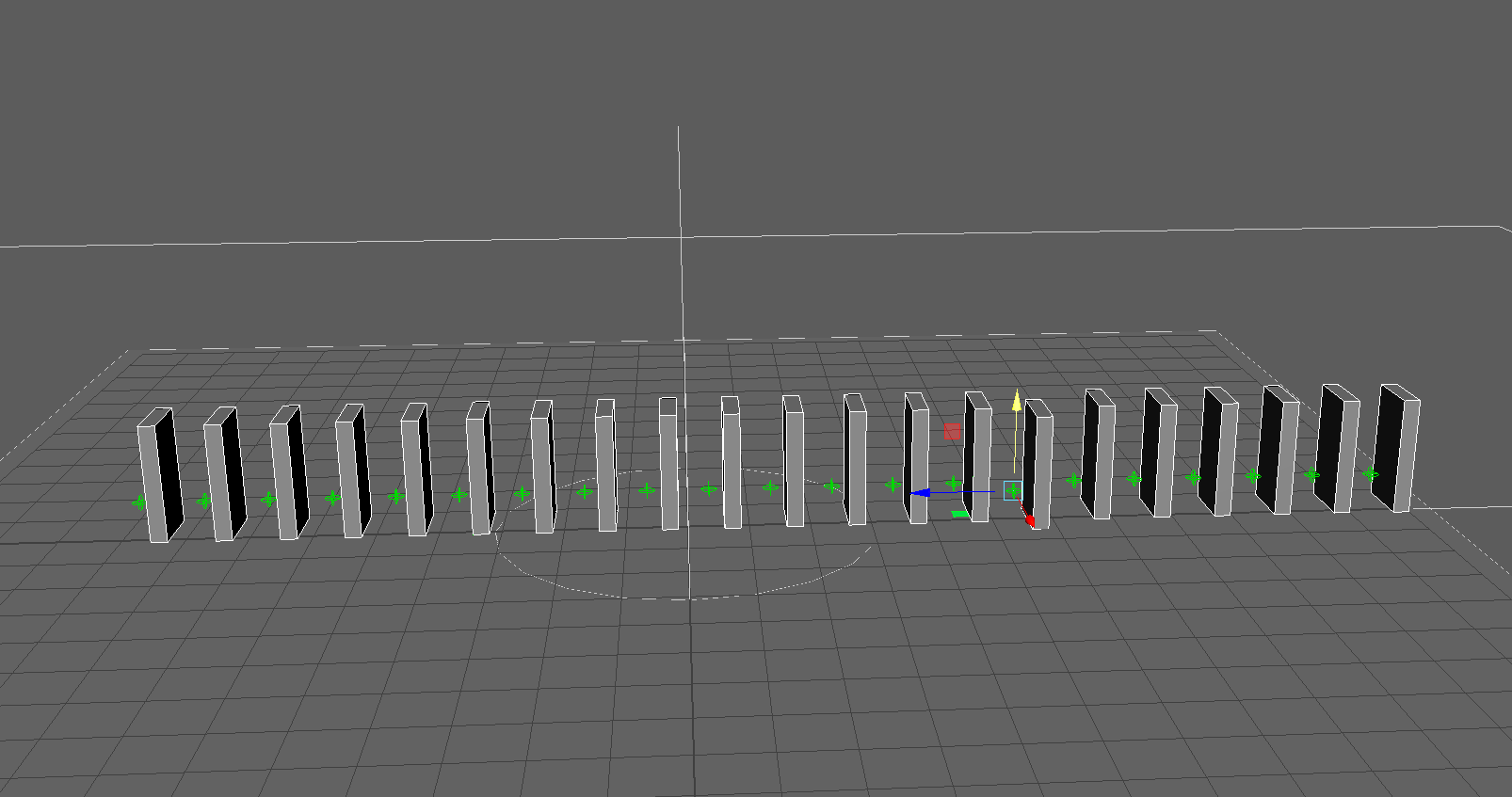
If we play with the settings and adjust in this case the initial velocity of our first piece, we should end up with something like this.
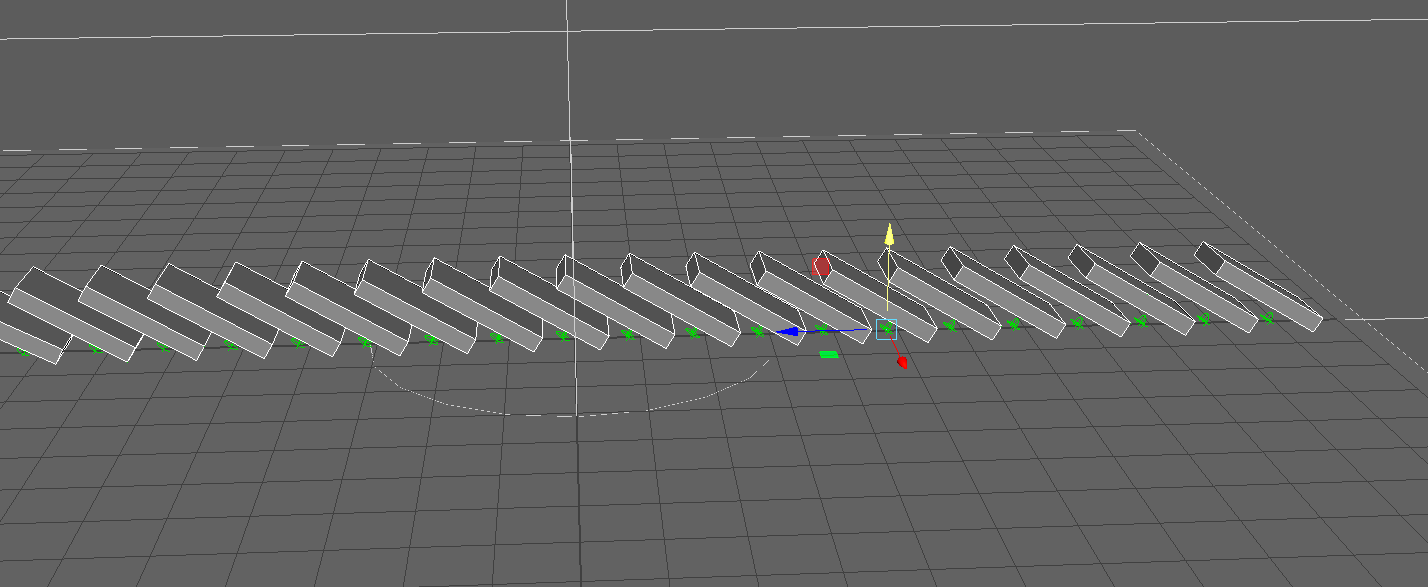

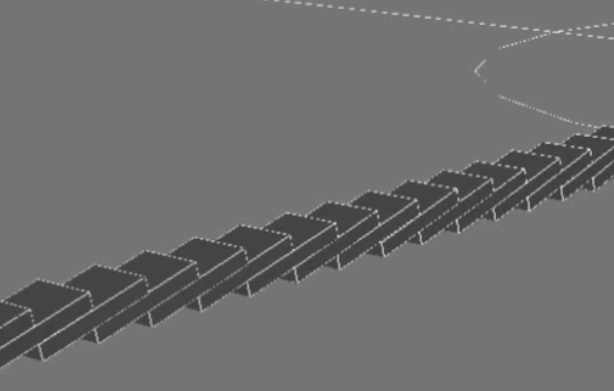
For our next task we are going to make a chain bullet.
We start a new project again.
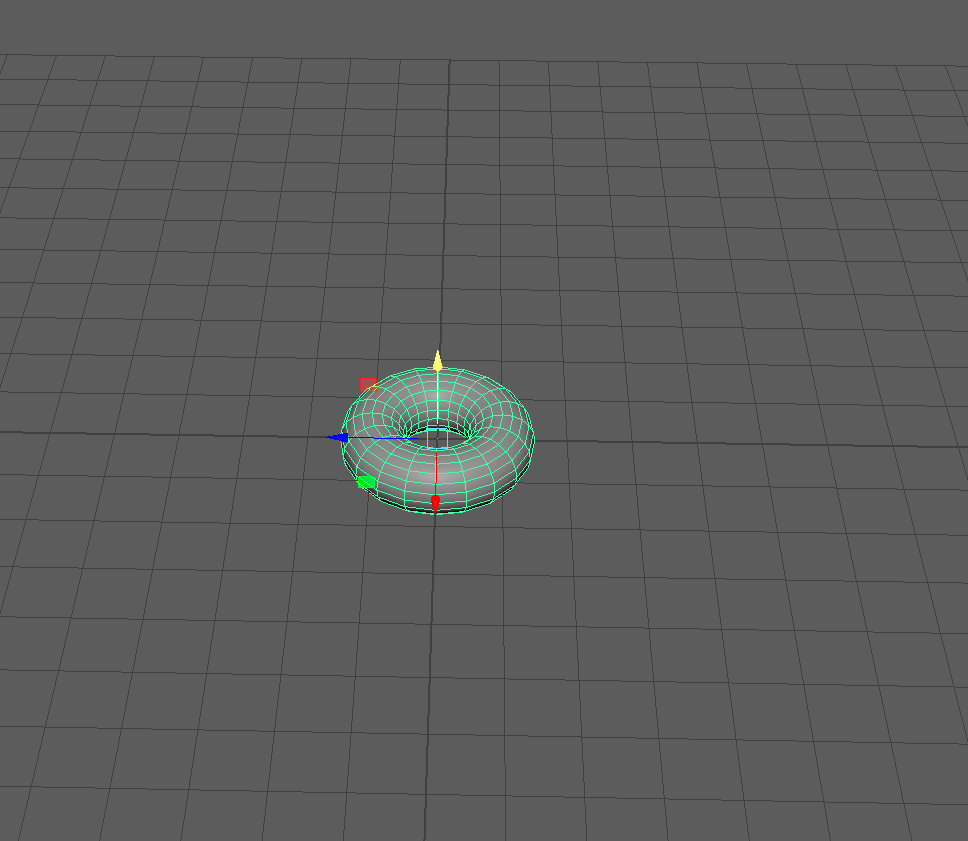
We create a donut shape to start our chain.
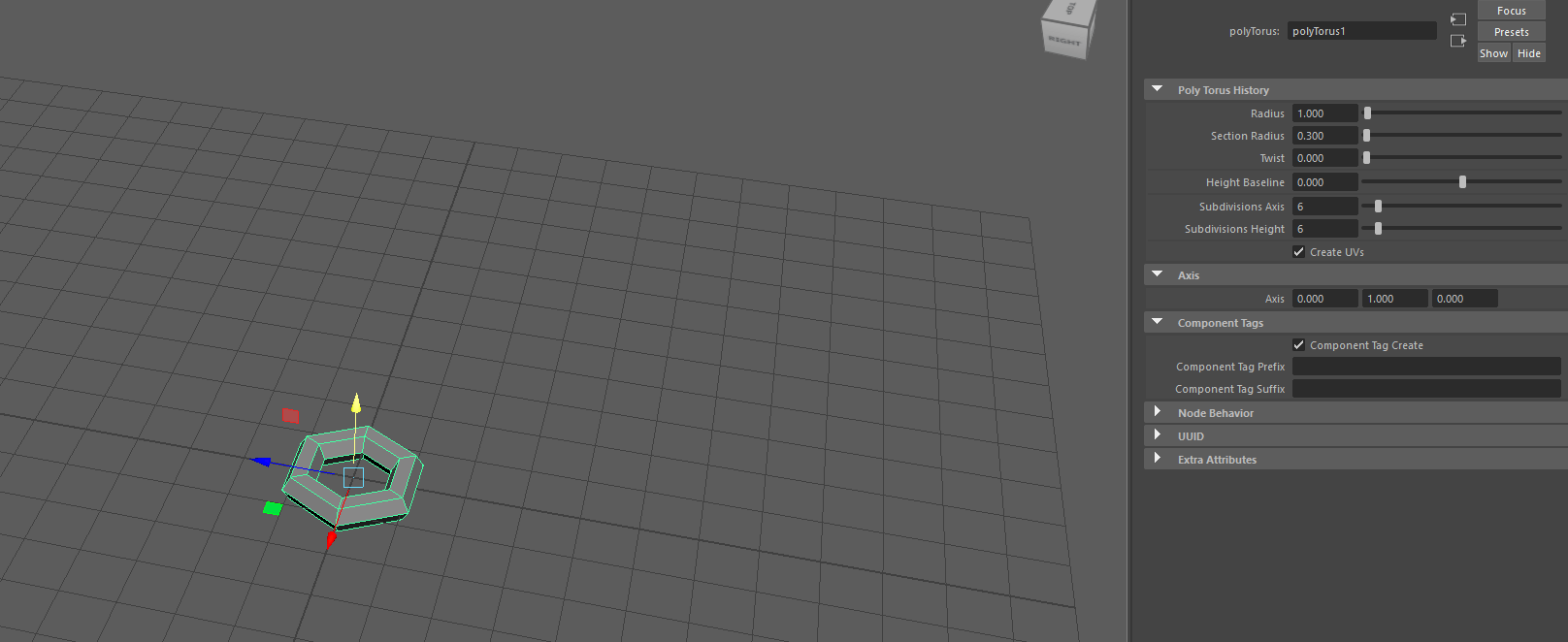
We modify the properties to create the desired shape.
we end up with this
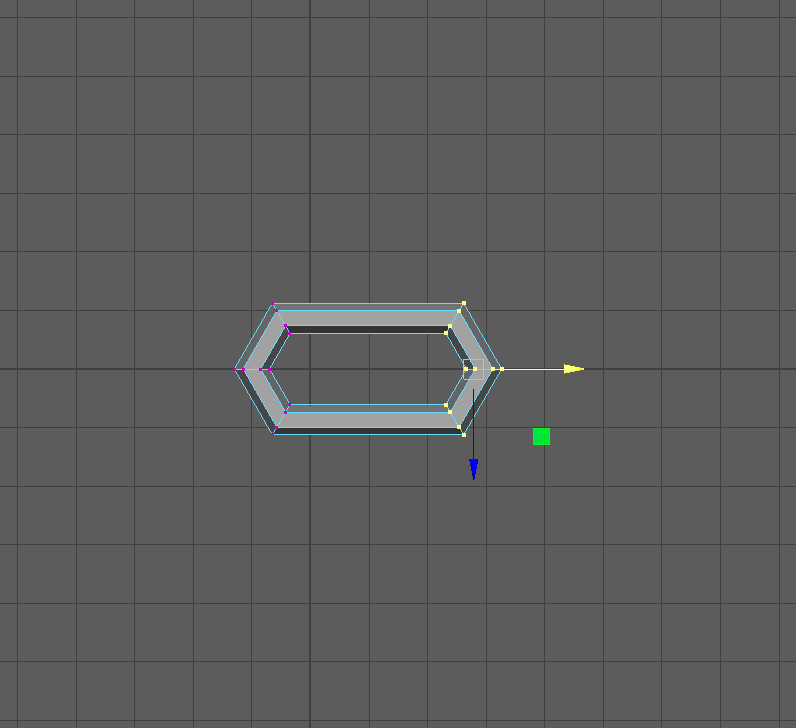
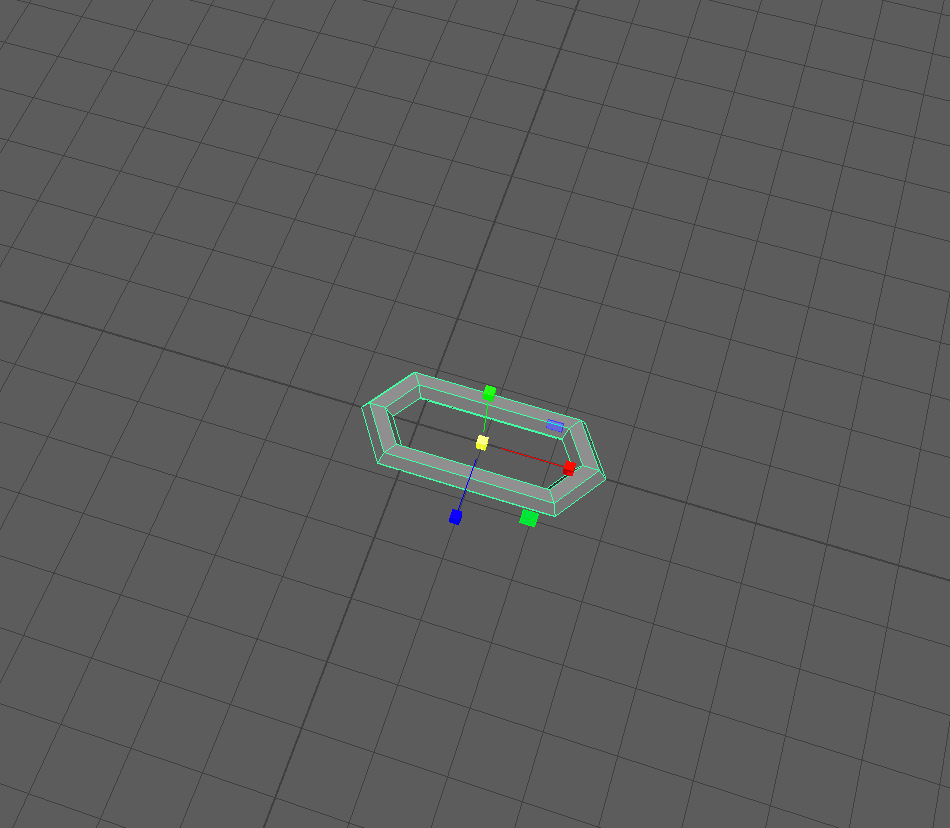
After creating this shape we duplicate it and rotate it 90 grades.
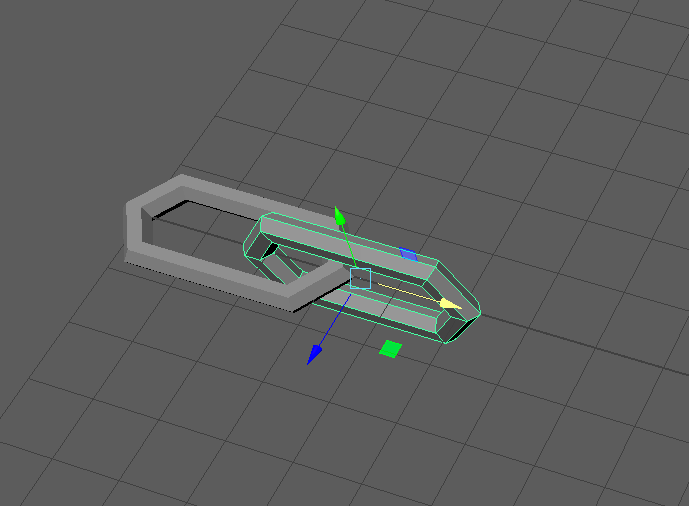
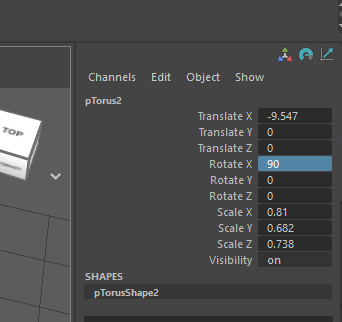
We duplicate again to create a full chain.
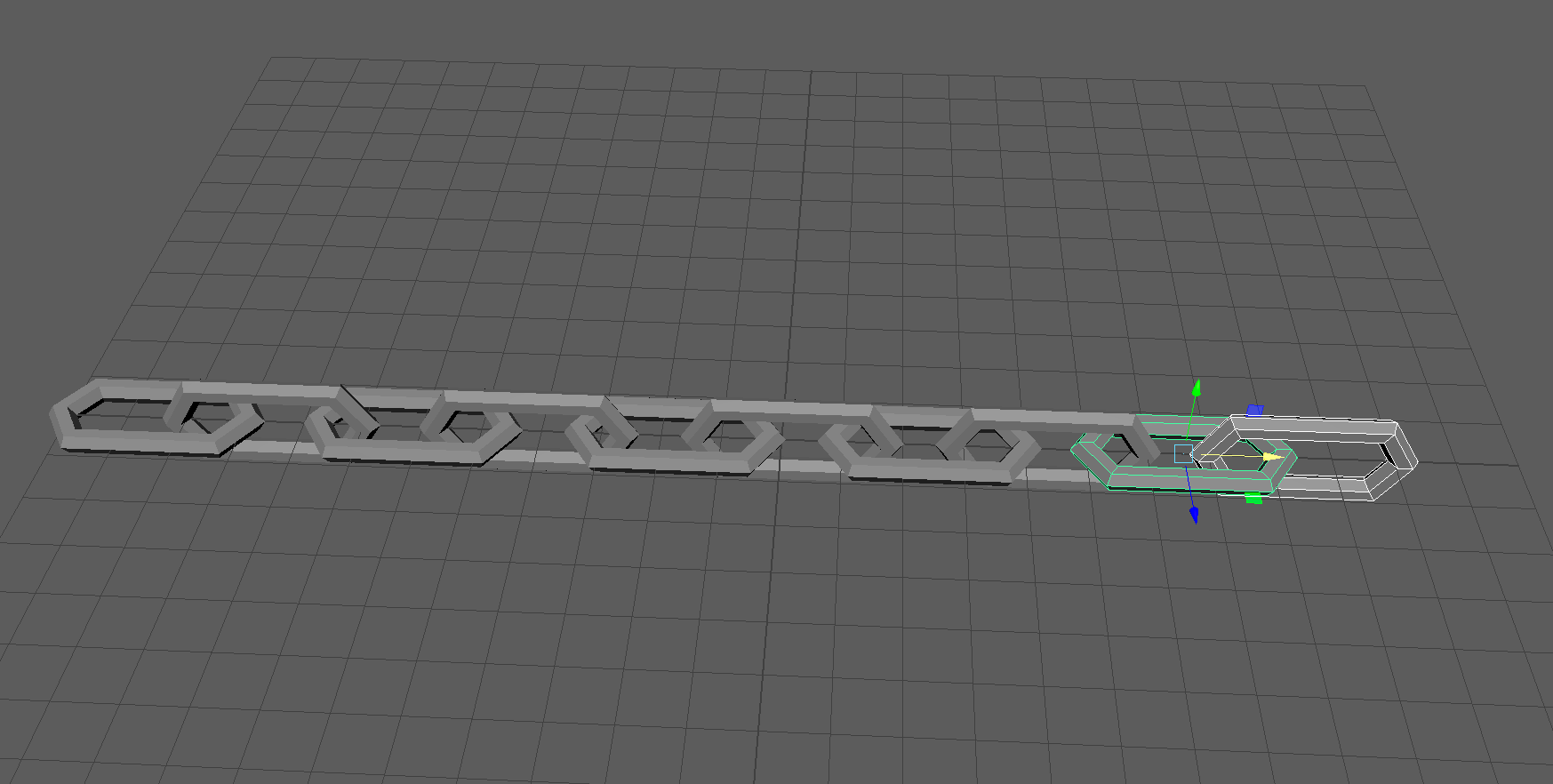
With the tool bar we create a sphere.
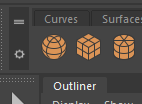
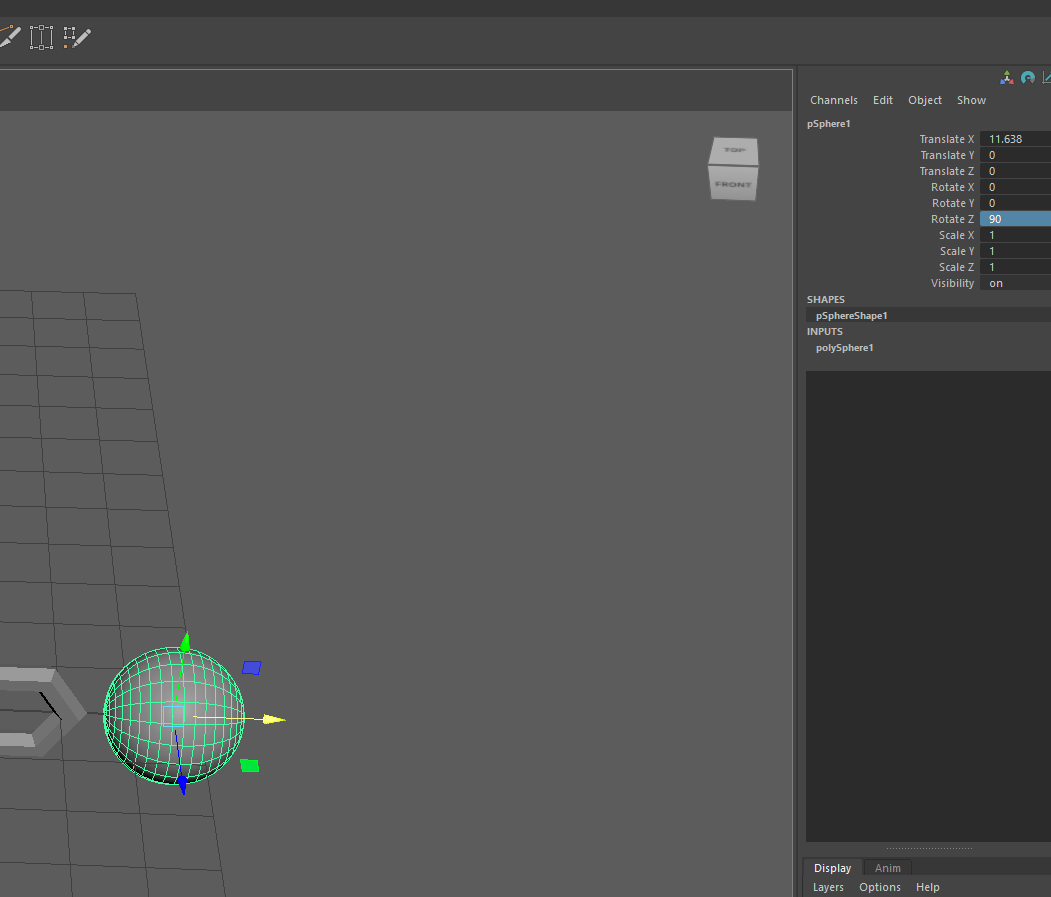
We scale the sphere to the desired size.
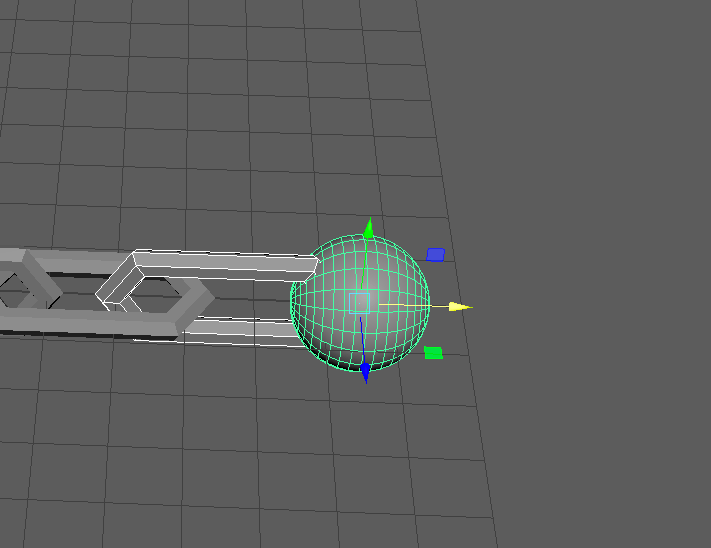
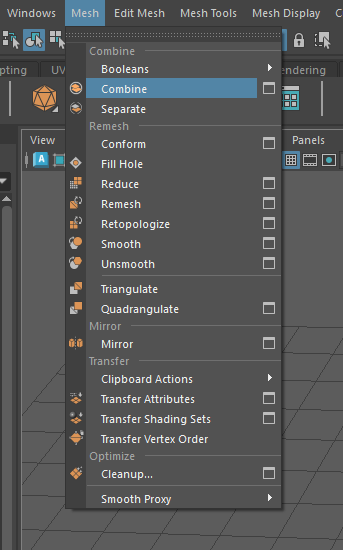
We combine the sphere with one of the chains.
And we group the chain.
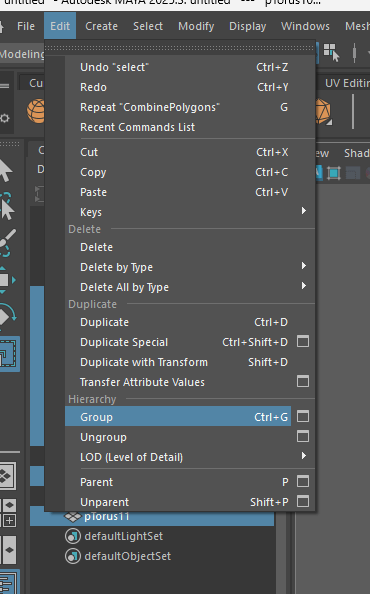
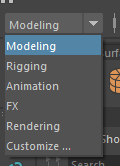
We change to the FX tools to start with the bullet.
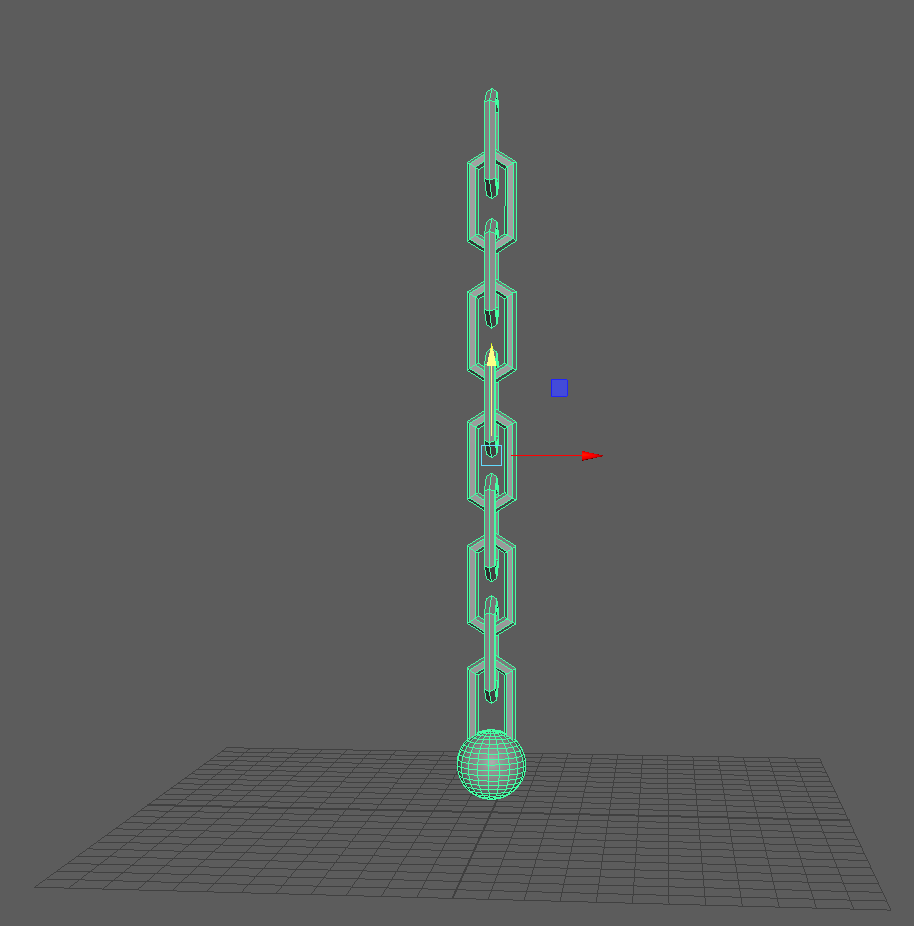
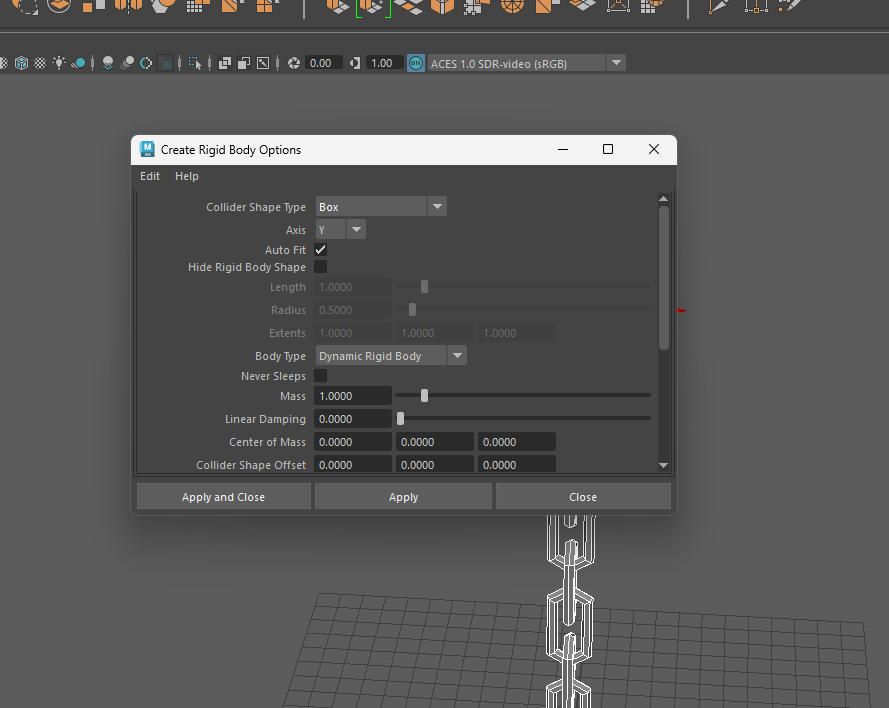
We select the whole body and configure the properties.
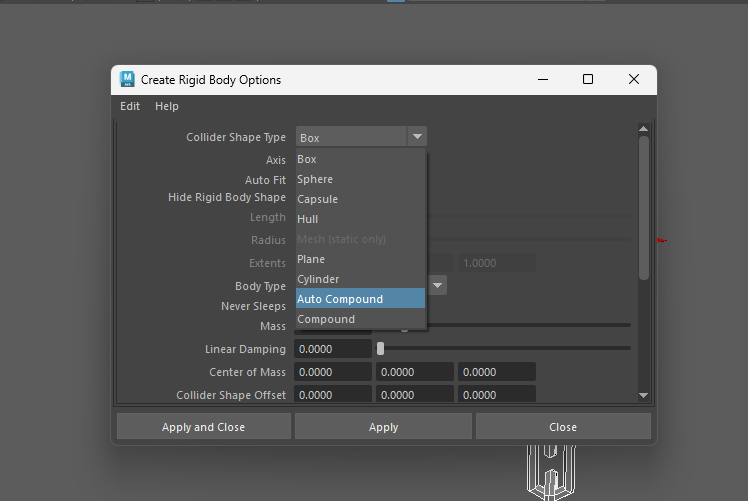
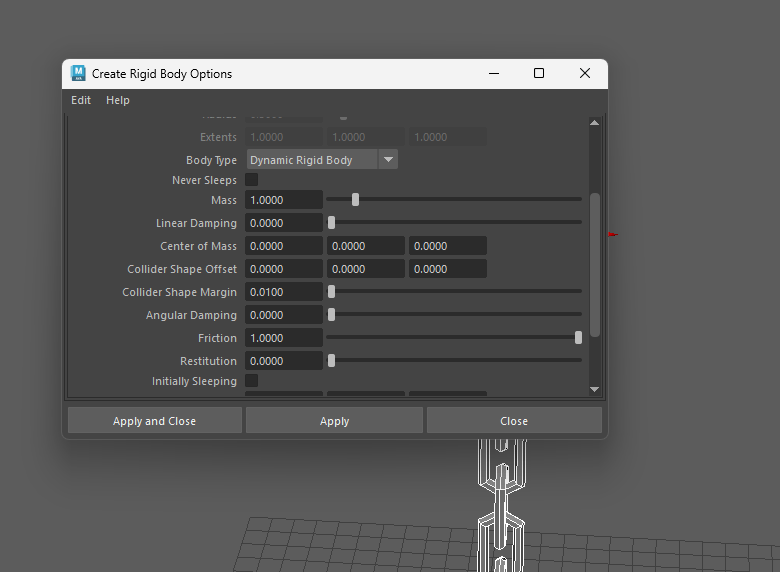
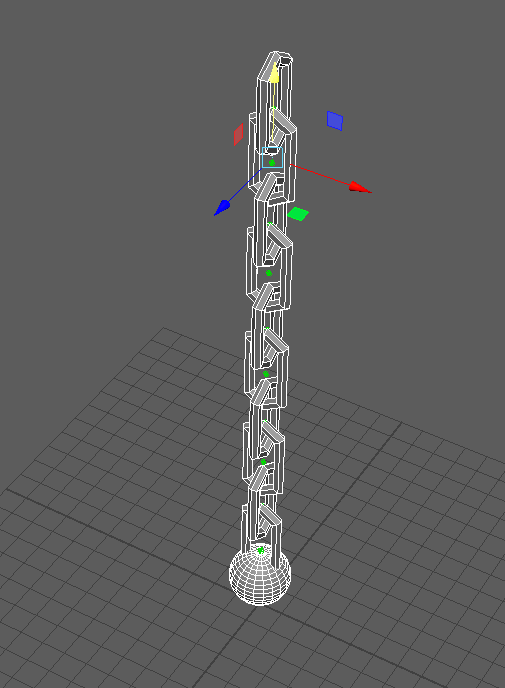
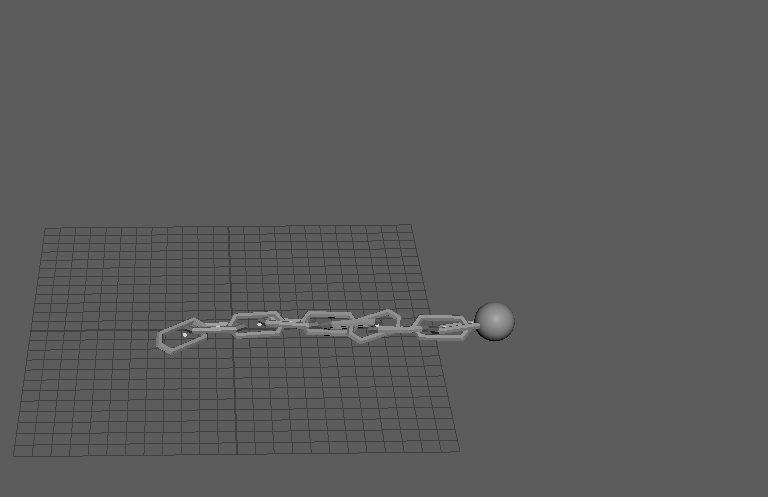
If we press the play button now the chain is going to fall to the void.
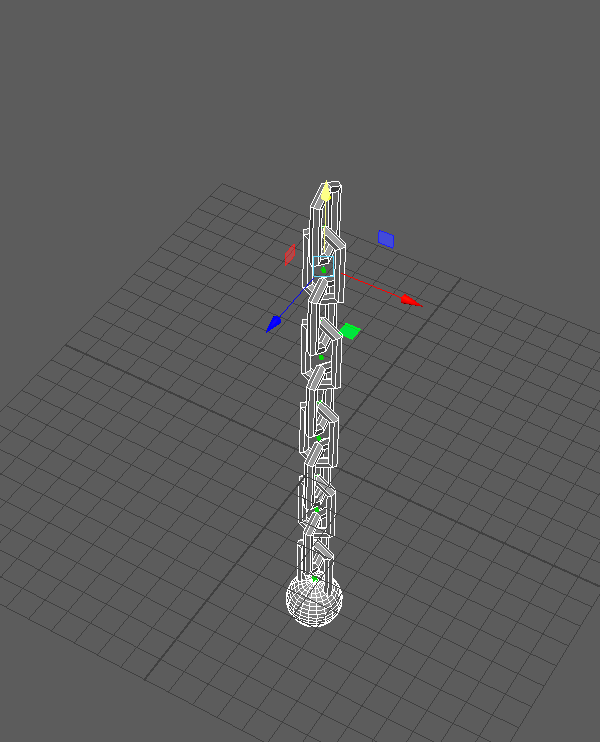
We rotate a little the chain to create a momentum.
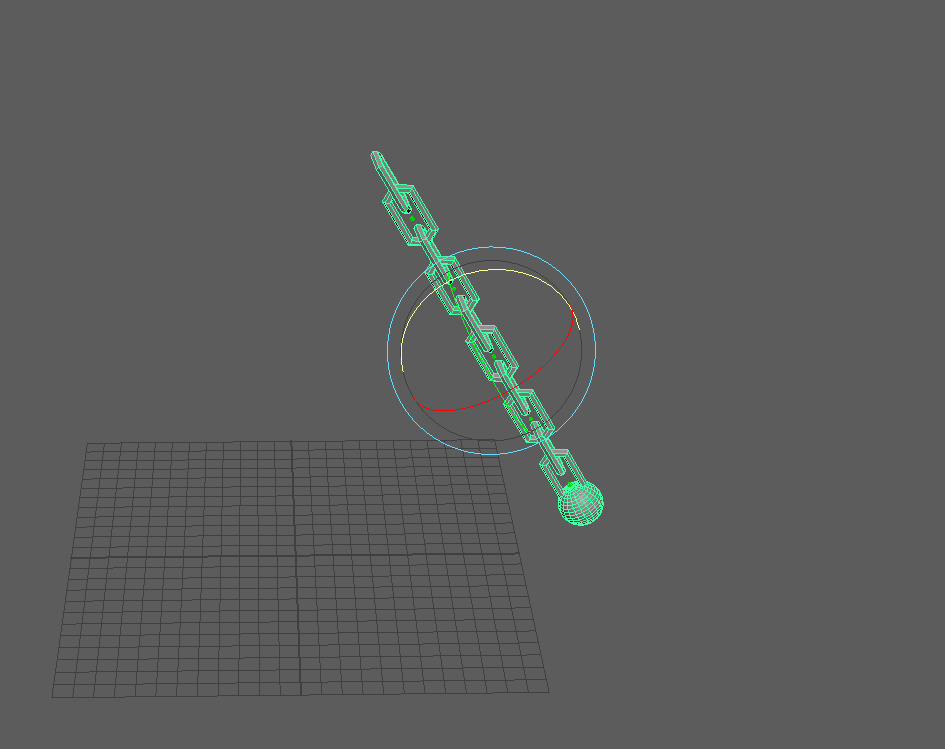
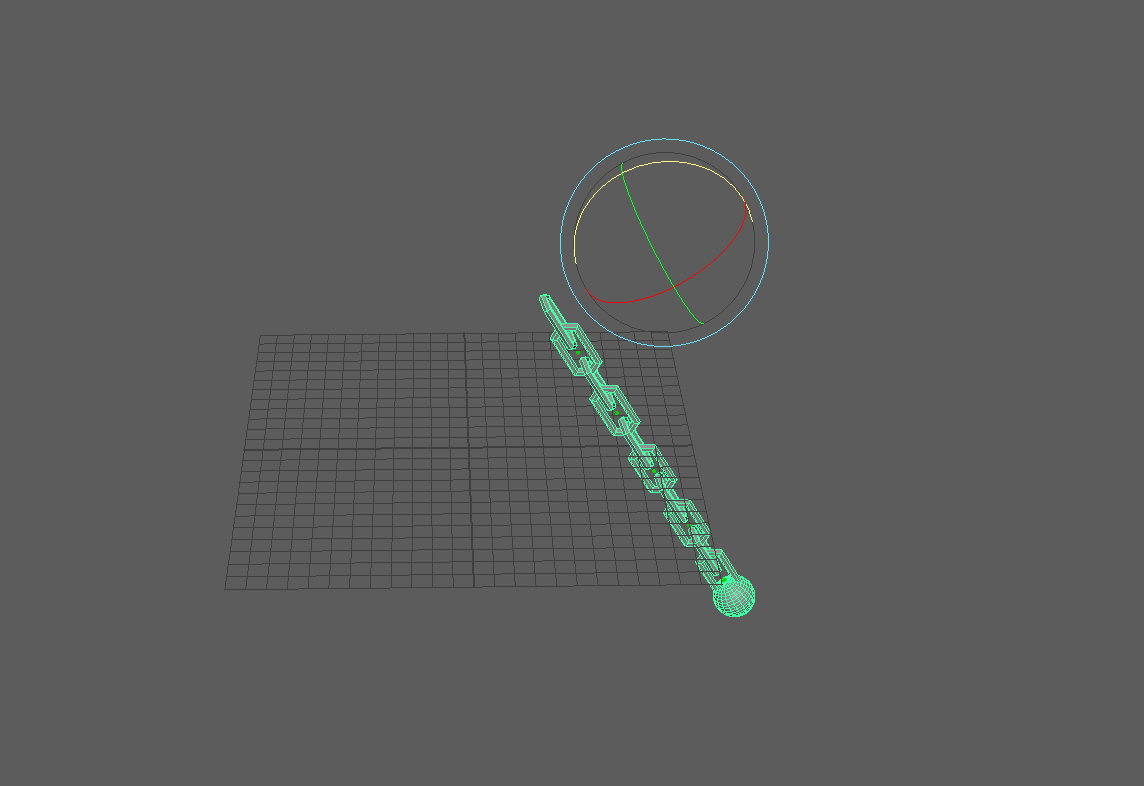
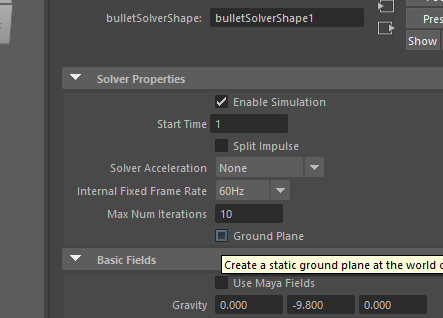
We tick the box that says ground plane so the chain can collide with the floor.
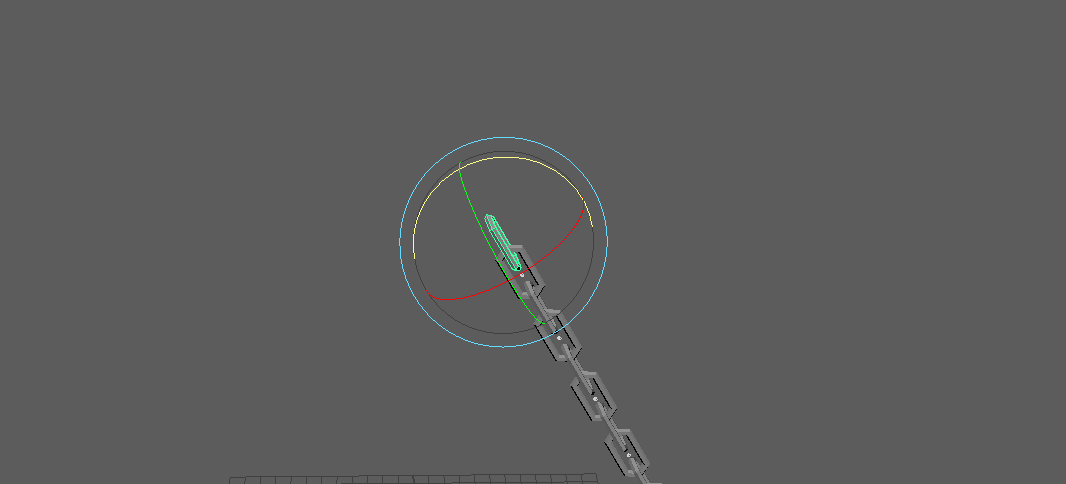
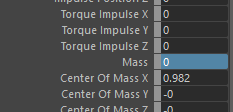
Finally we select one of the chain pieces and change the mass property to 0 so it can float.
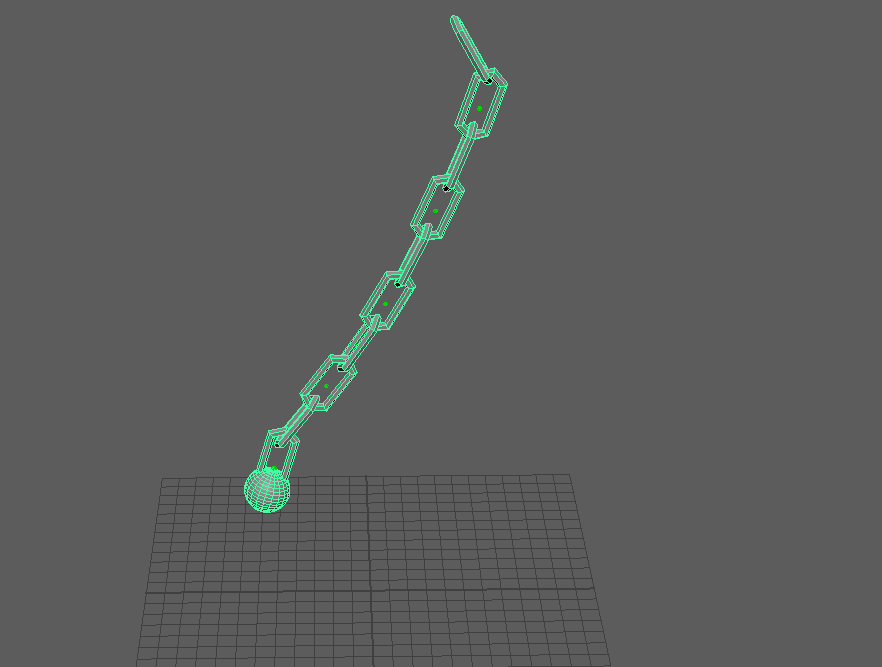
Now the chain ball can swing and if we put a Jenga tower Infront or a wall it will collide whit it.
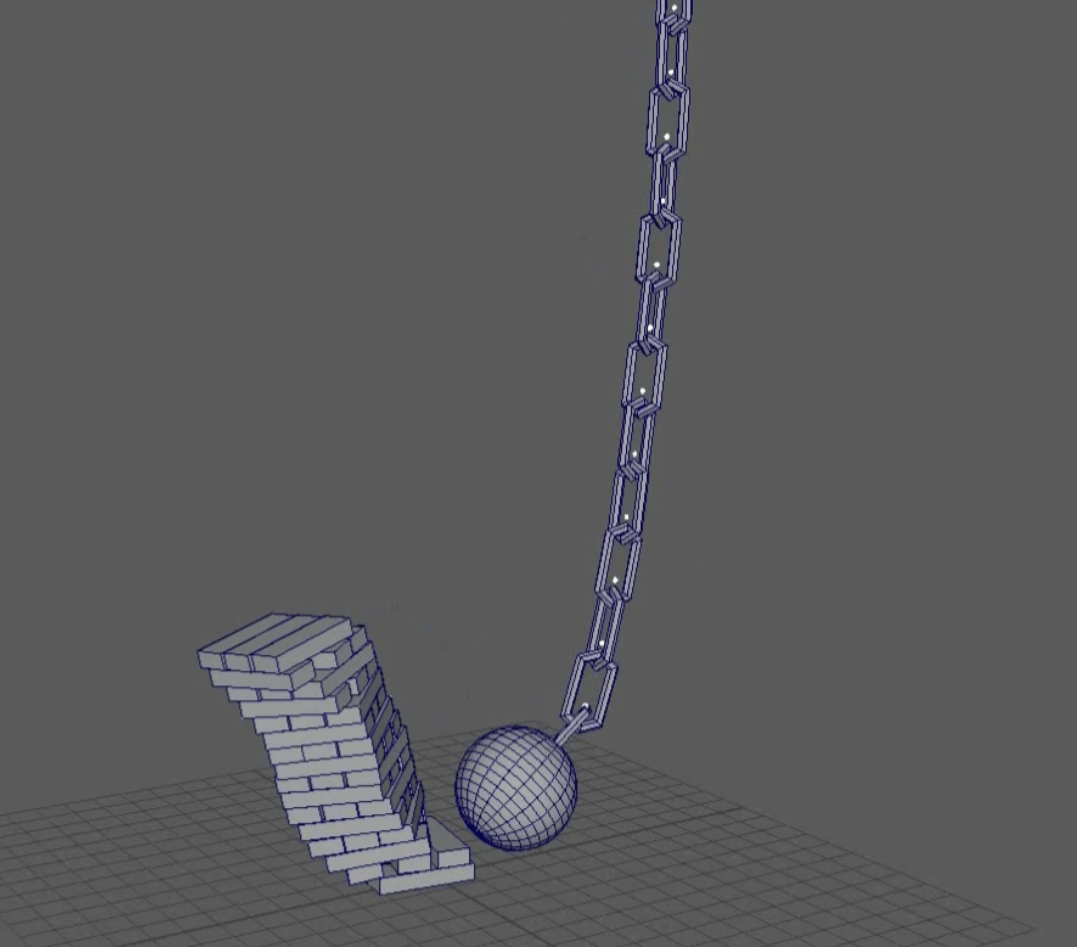
End of week 9
Week 11: Introduction to Nucleus Simulation (nParticles and nCloth)
This week we will be introduced to the Ncloth and particles simulation:
- Simulated cloth and how to set it up in 3D
- Working through the different cloth and particle sim scenarios, including:
- Simple nCloth Setup
- Cloth for modelling
- Cloth with forces (wind and gravity)
- Cloth interaction with particles
- nCloth with a character rig
- Tearing cloth and cloth constraints
To start we are going to learn how to set up the ncloth.
We start from a fresh project.
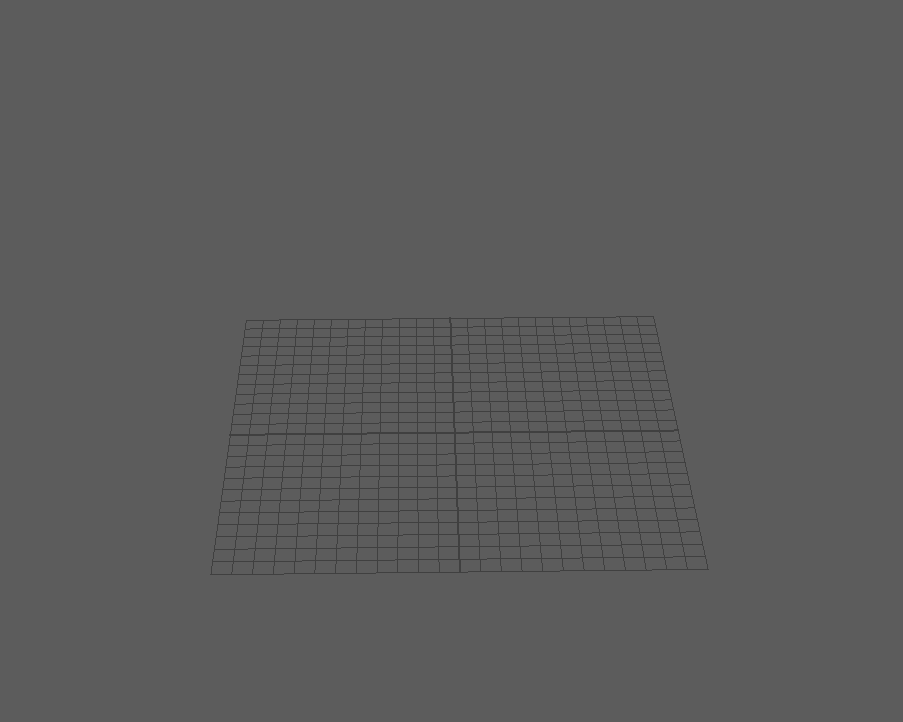
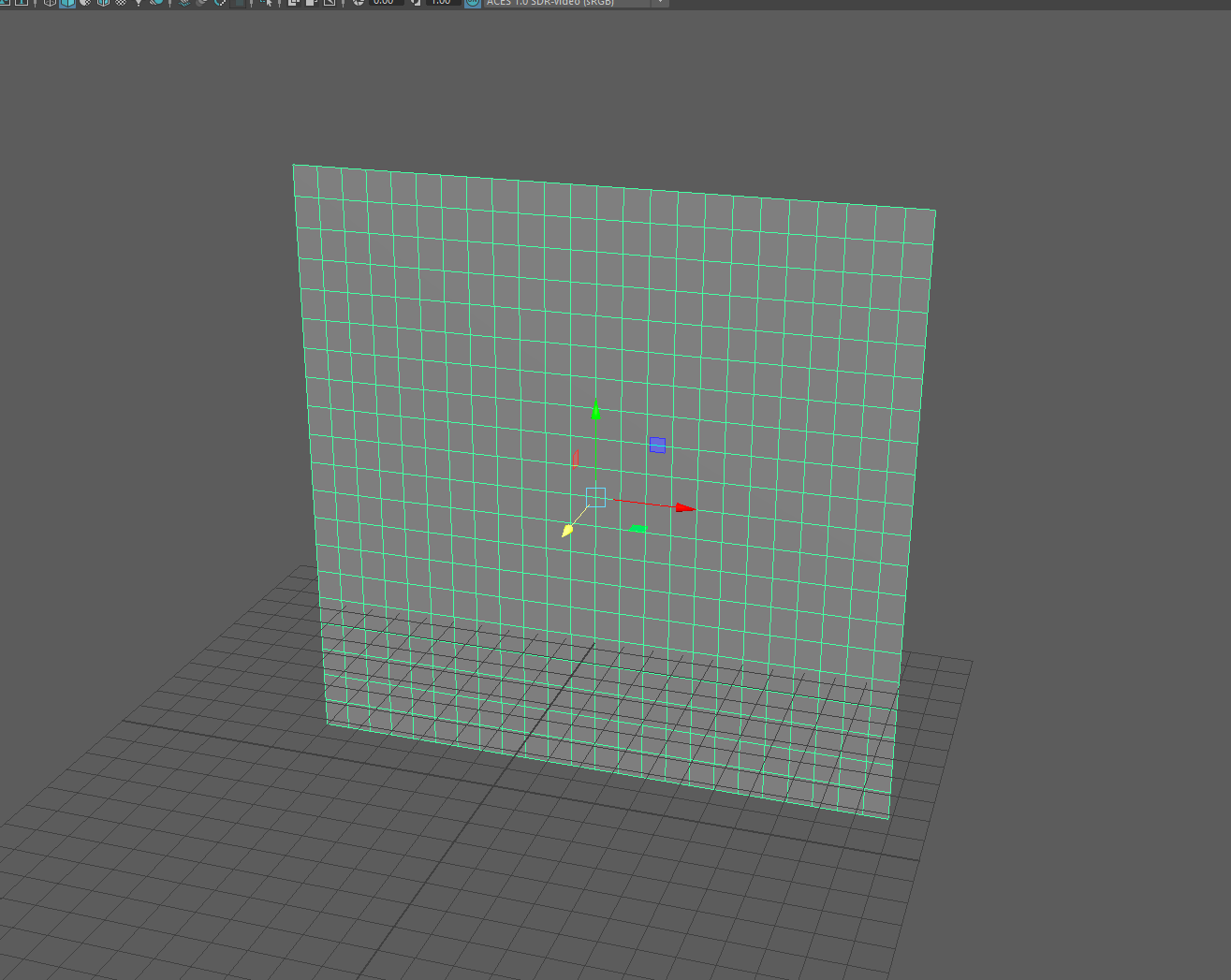
We create the plane that we are going to use to create our ncloth.
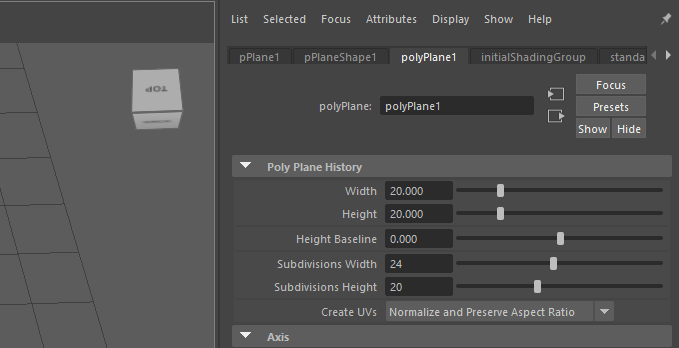
We adjust the parameters of our plane to fit the desired shape.
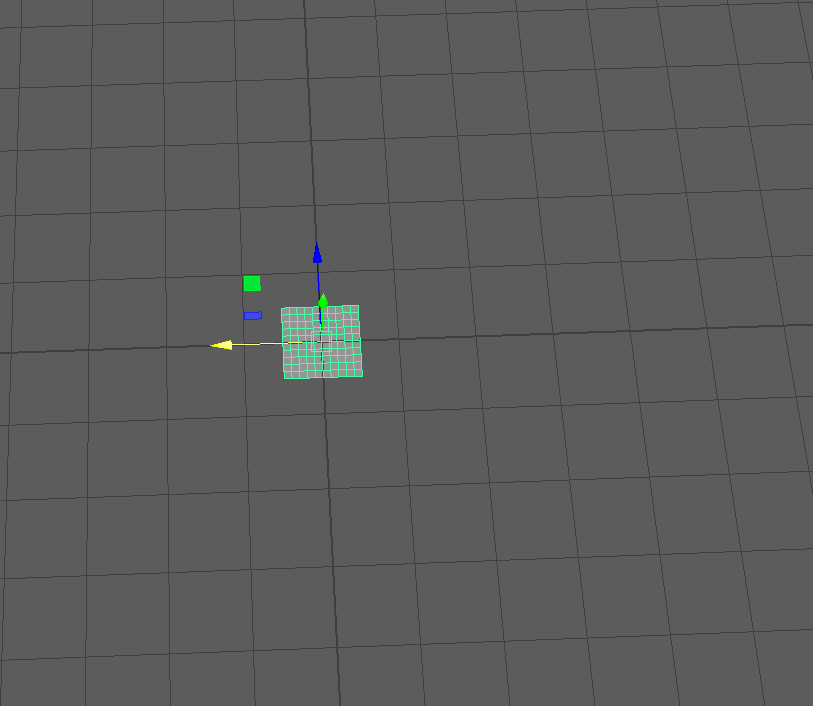
Next we select and rotate our plan so it is more visible.
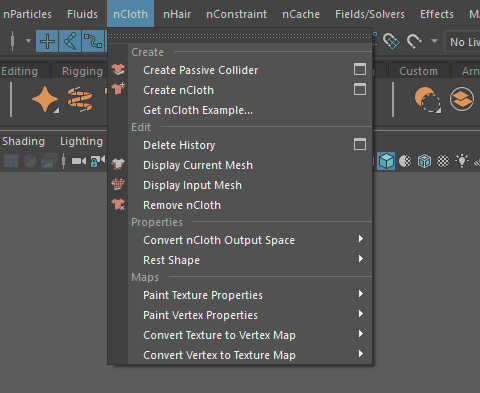
 On the top bar we are going to find a tab that is called Ncloth, with our plane selected we are going to to click on the create Ncloth window
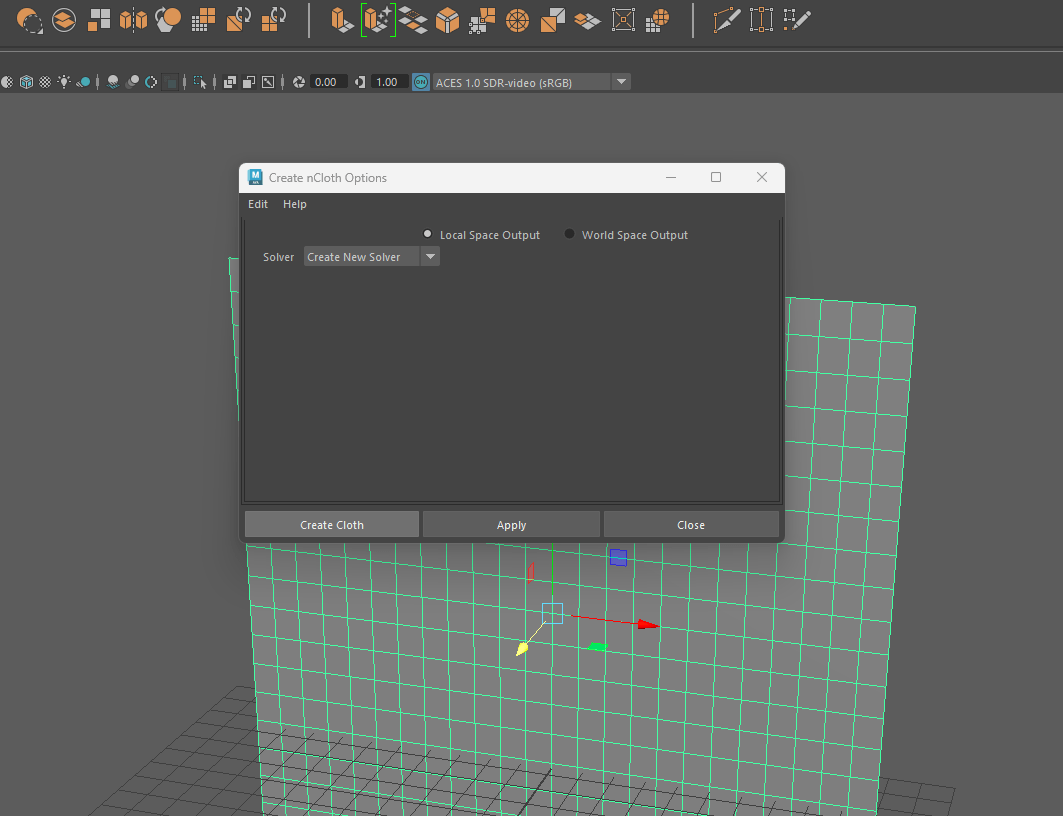
And then we press the “create cloth” button.
If we press the play button on the playback panel our ncloth is going to fall indefinitely.
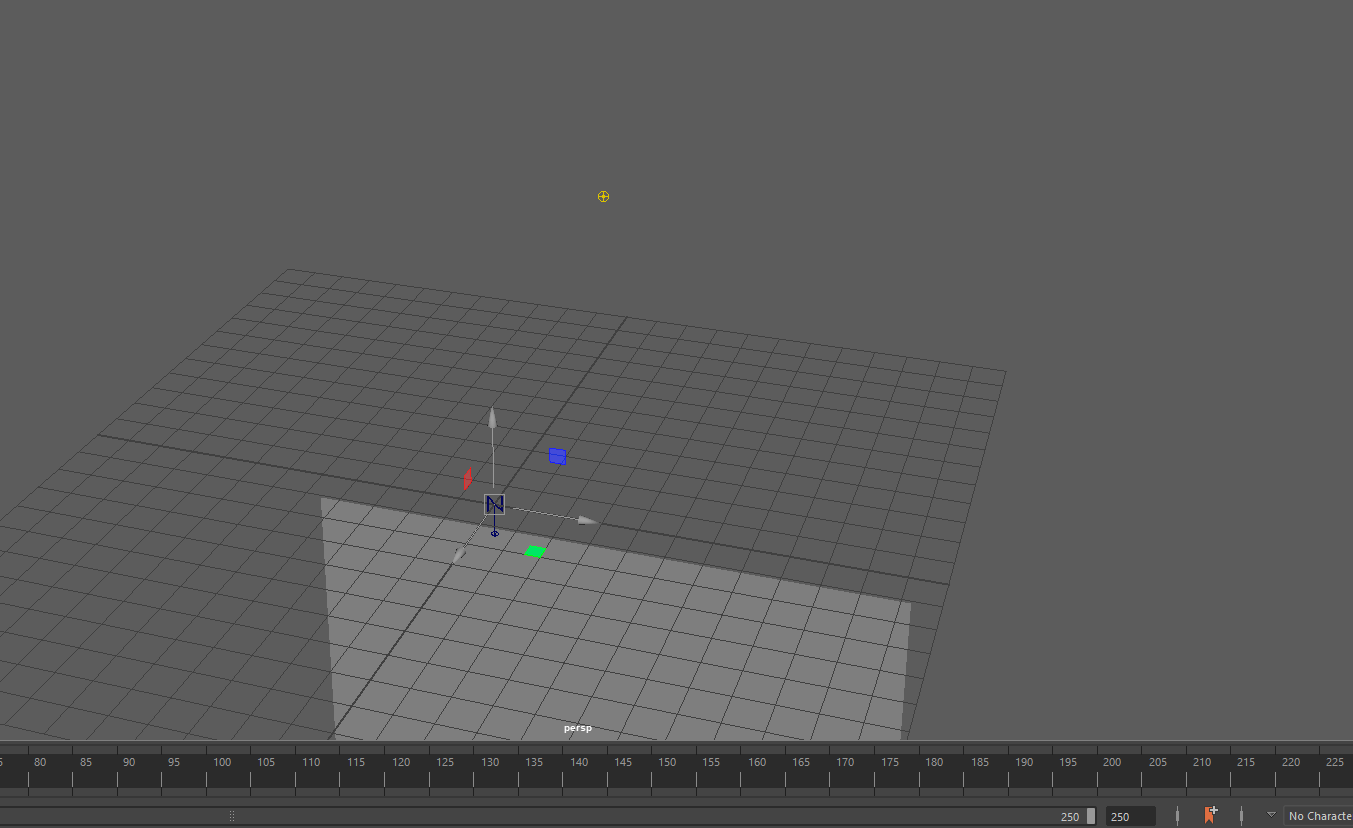
To solve that we go to our outlines and enter to the setting of our nucleus.
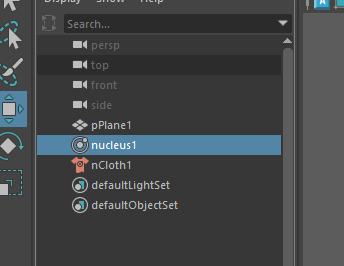
Here we will find different options that we are going to look up after, the most important one right now is the use panel case on the ground plane, this is going to add collision to our floor.
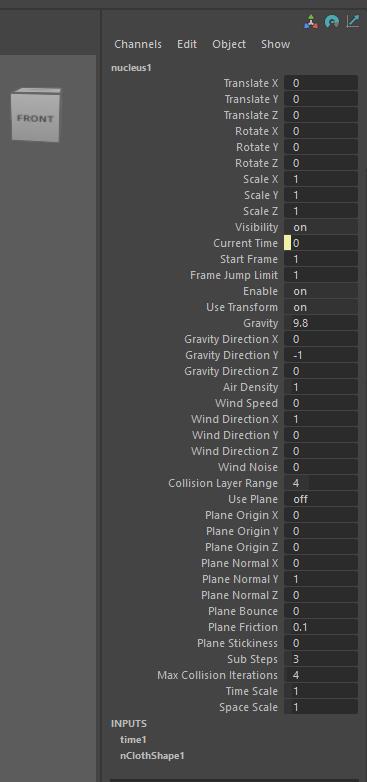
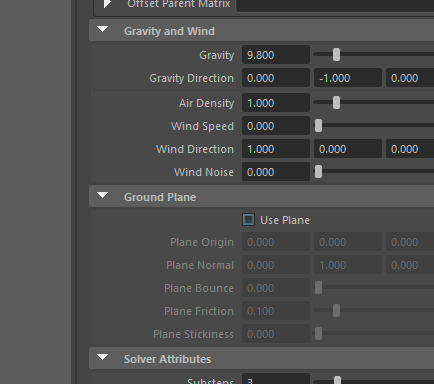
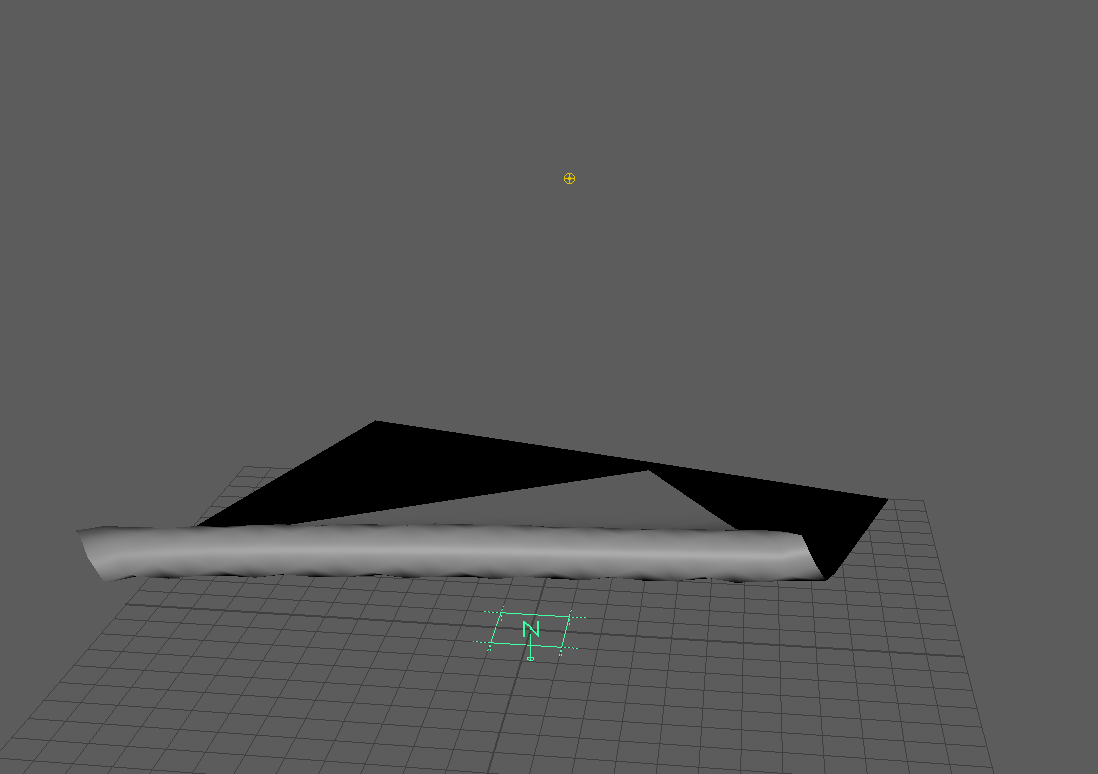
Now our Ncloth collides with the ground.
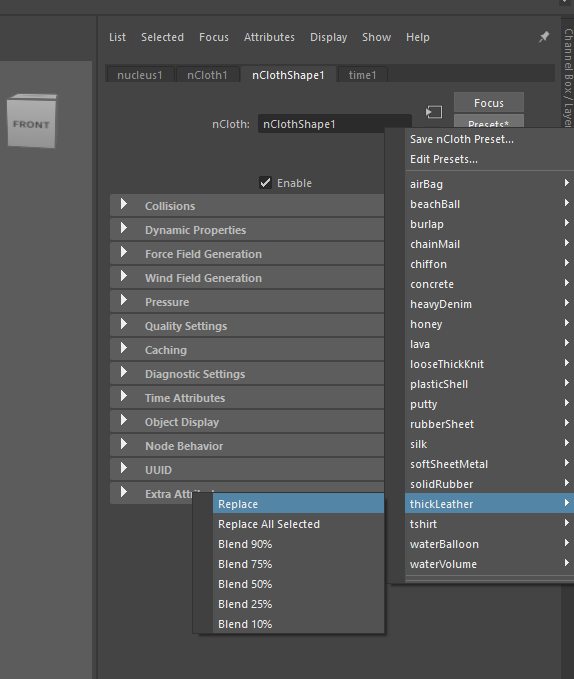
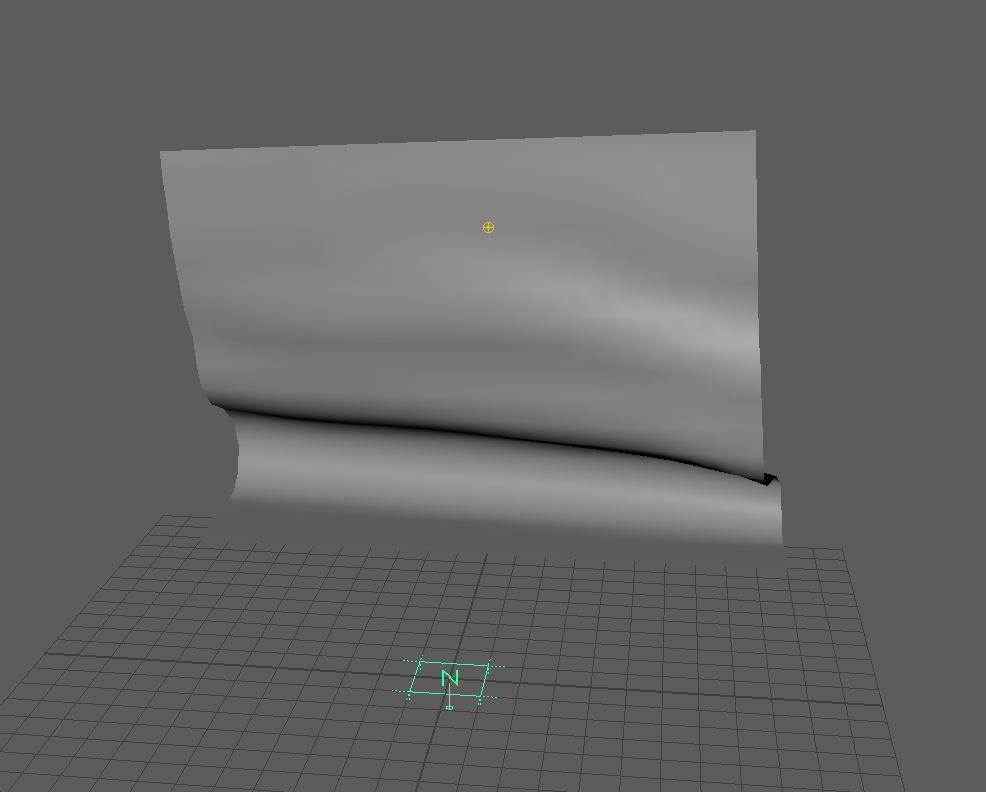
If we enter to the Ncloth properties we will be able to chose between different material pre-sets that will change the behaviour of our cloth. In this case I chose the thick Leather pre-set and here are the results.
For our next task we are going to use the wind to make flag using the Ncloth system.
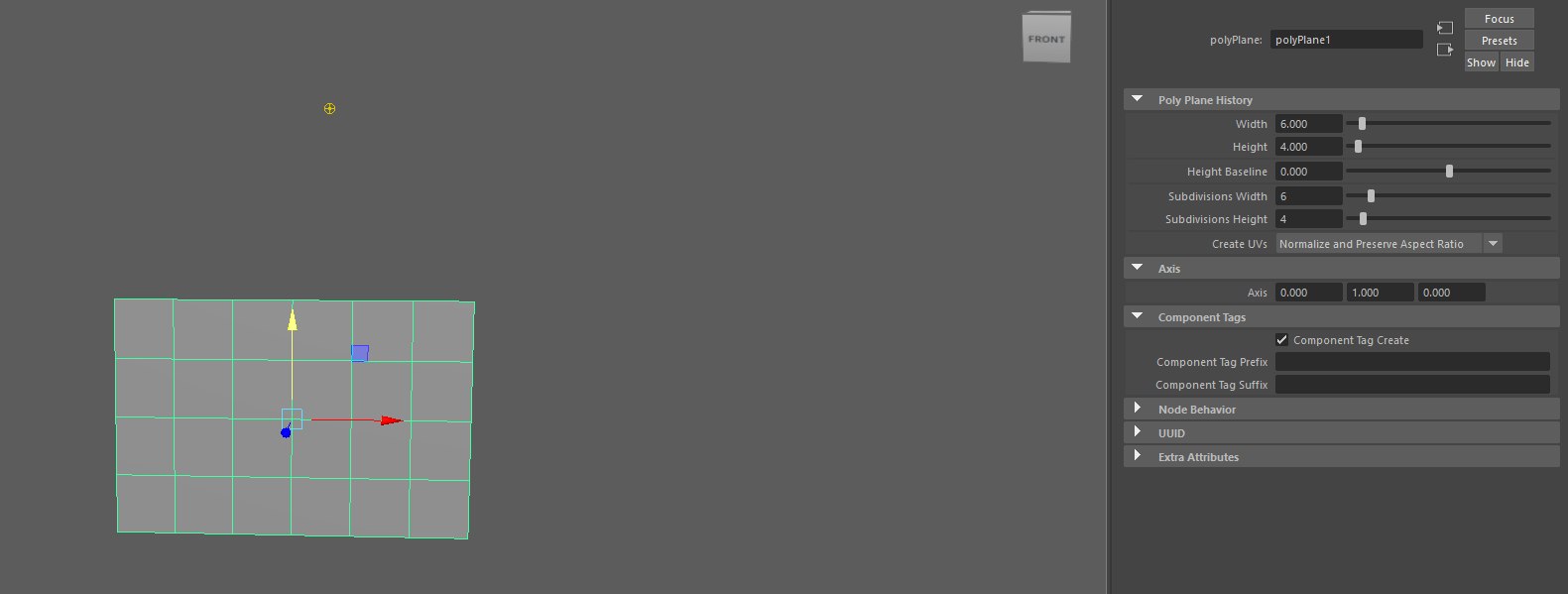
Following the previous exercise we adjust the with of our plane for it to take a more rectangular form.
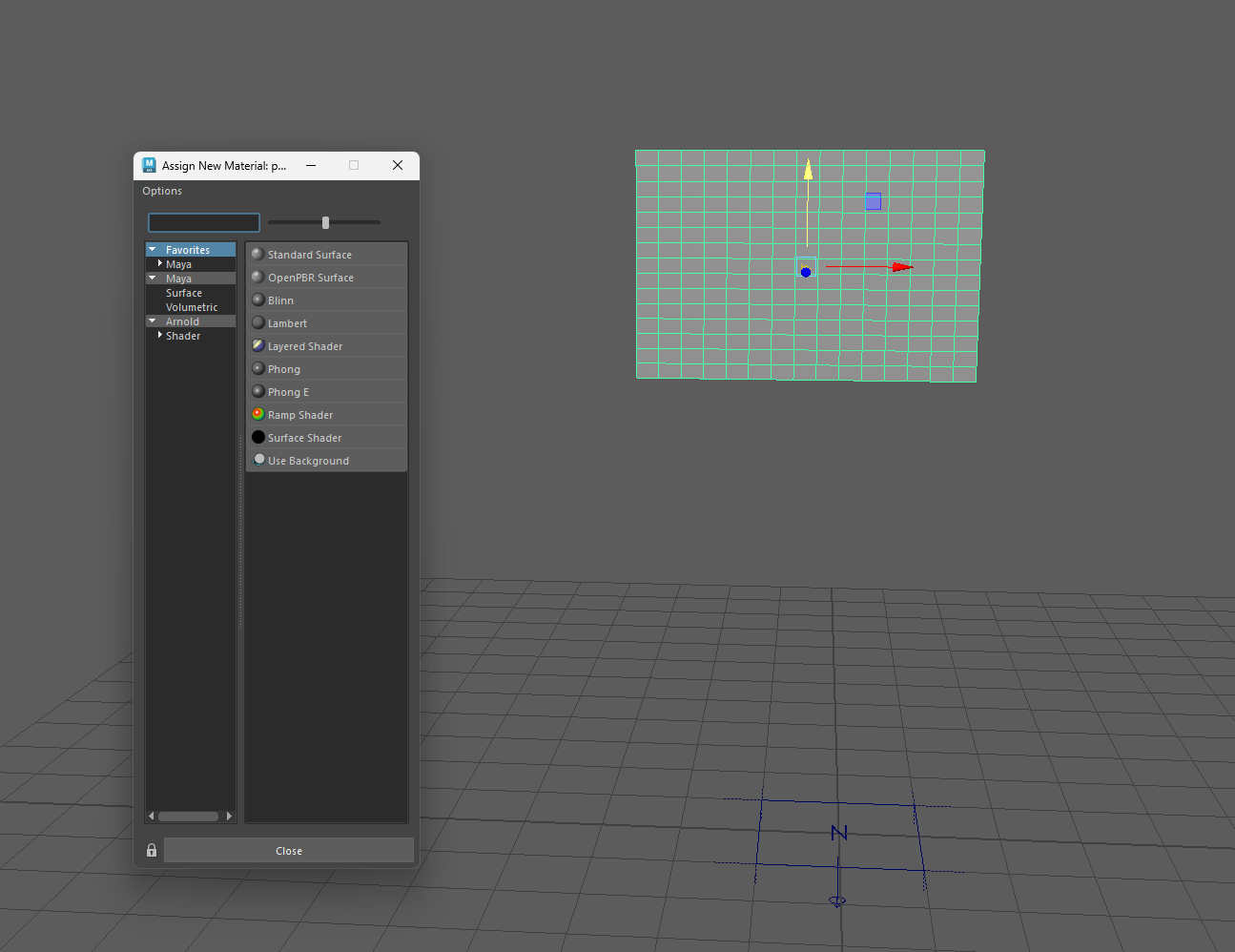
We assign a standard material to our Ncloth so it looks more like a race flag.
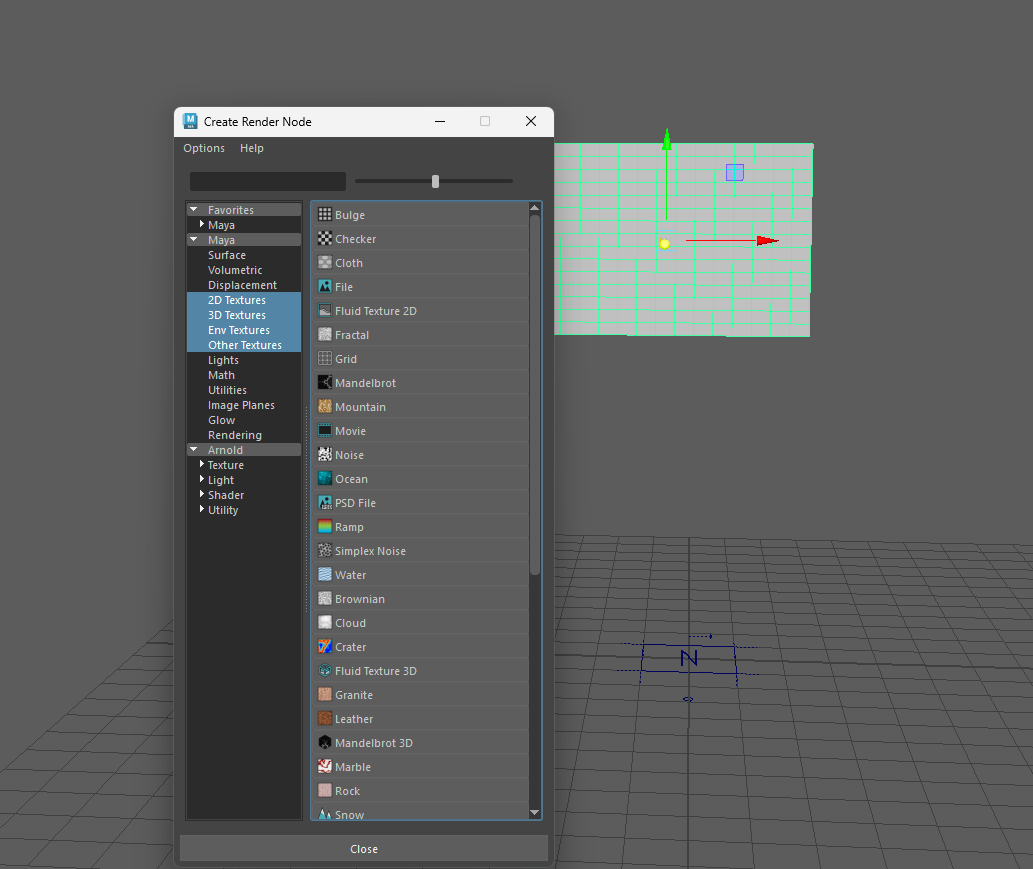
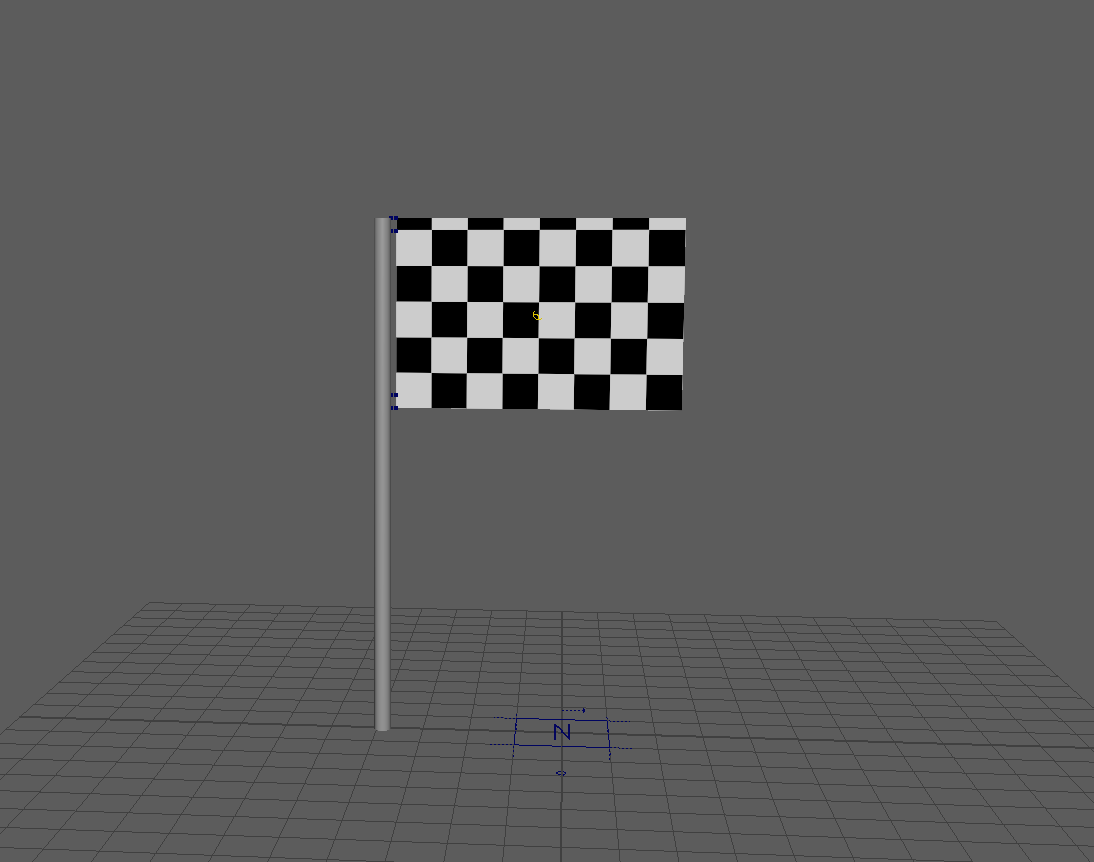
After that we create a cylinder to create a pole for our flag.
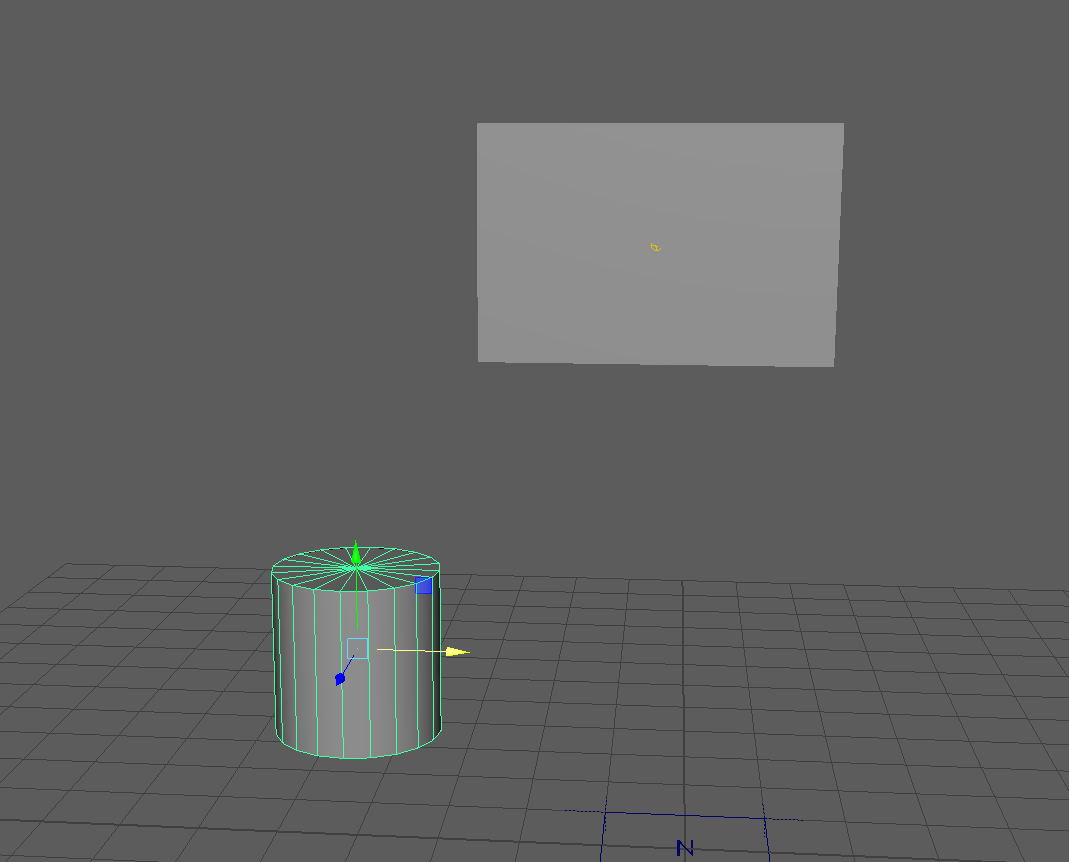 We level our flag and the pole and change to vertex selection.
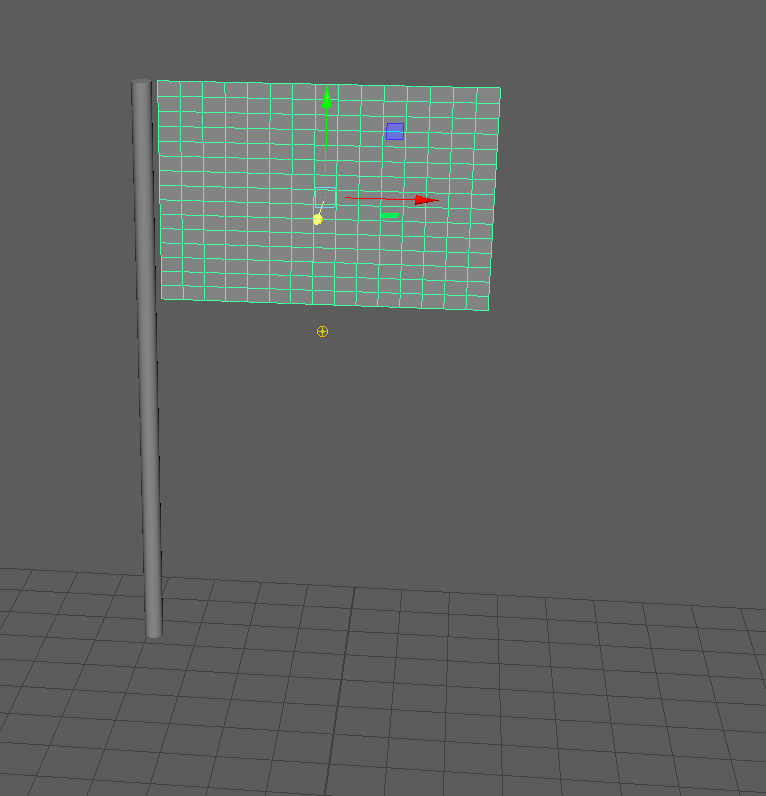
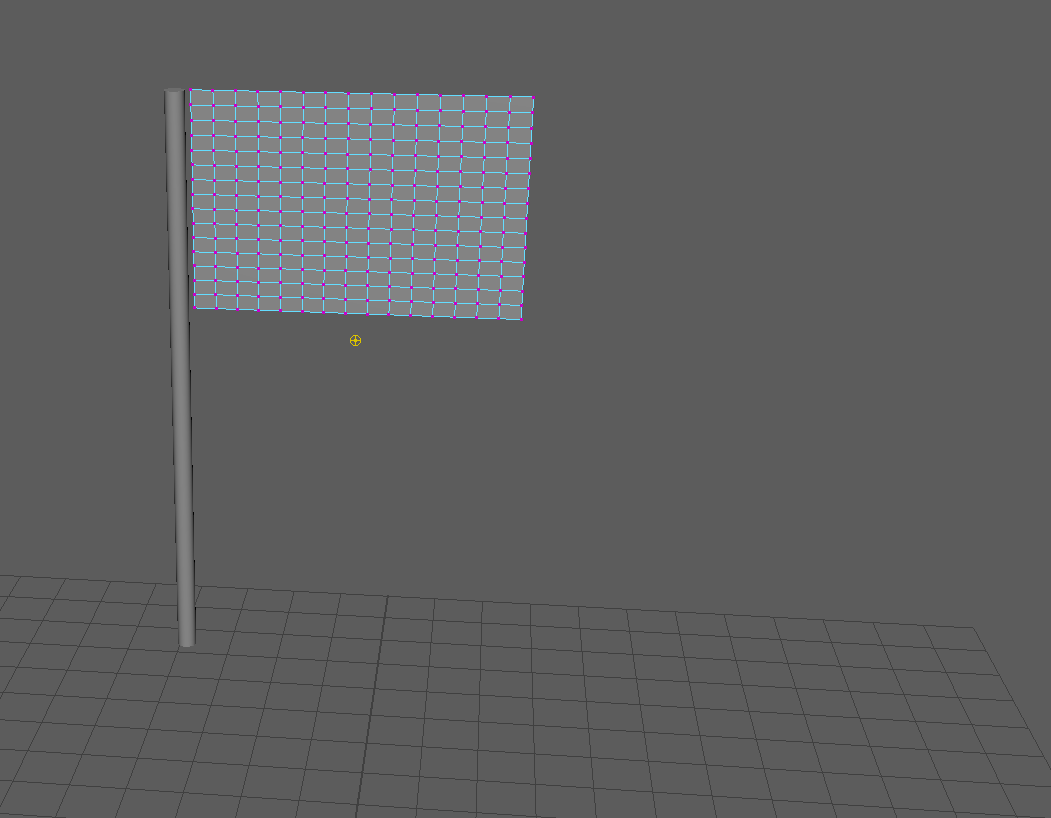
With the vertex selection we are going to select the top vertices of our flag and the pole. the next step is to use nconstraint to unite the two objects.
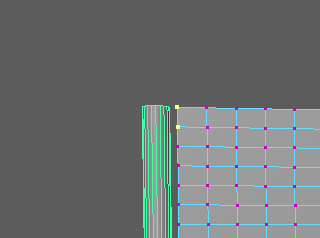
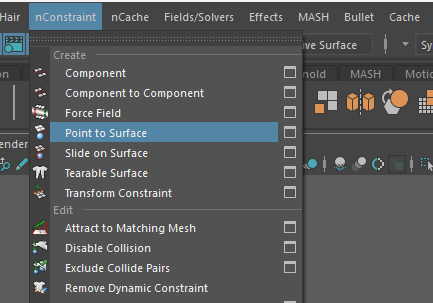
We now have something like this but still the bottom part is lose.
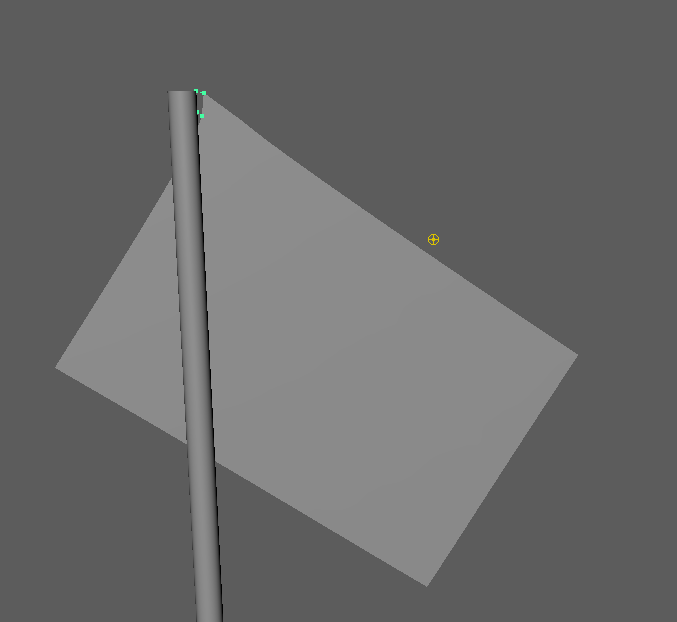
so we repeat the previous steps in the bottom half to achieve this result.
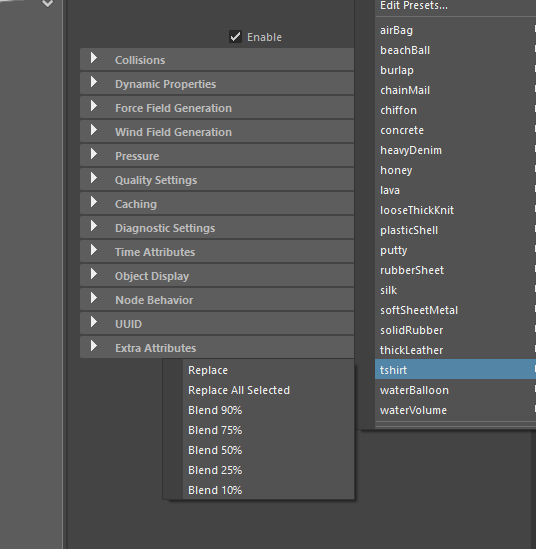
Using the pre-sets we are going to select the T-shirt material so the cloth is more realistic.
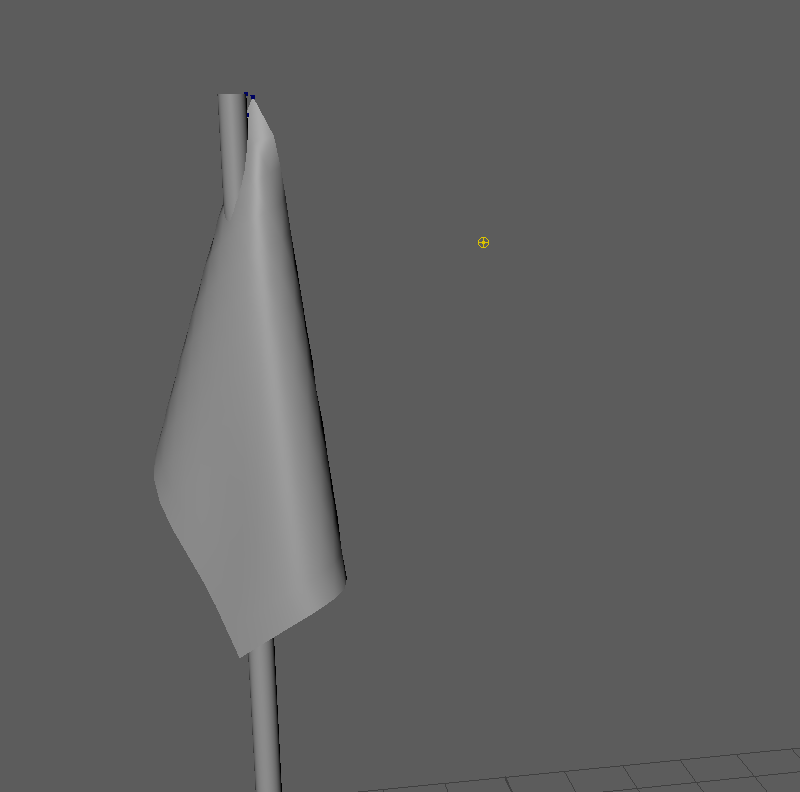
 And now our cloth is smoother.
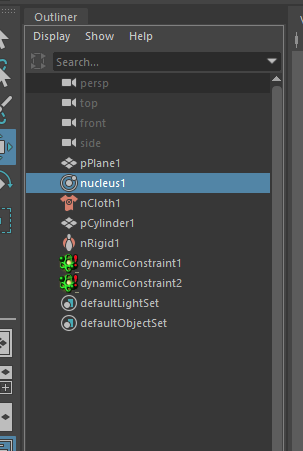
Next we are going to add the wind, for it we are going to enter the nucleus properties and look for the gravity and wind configuration.
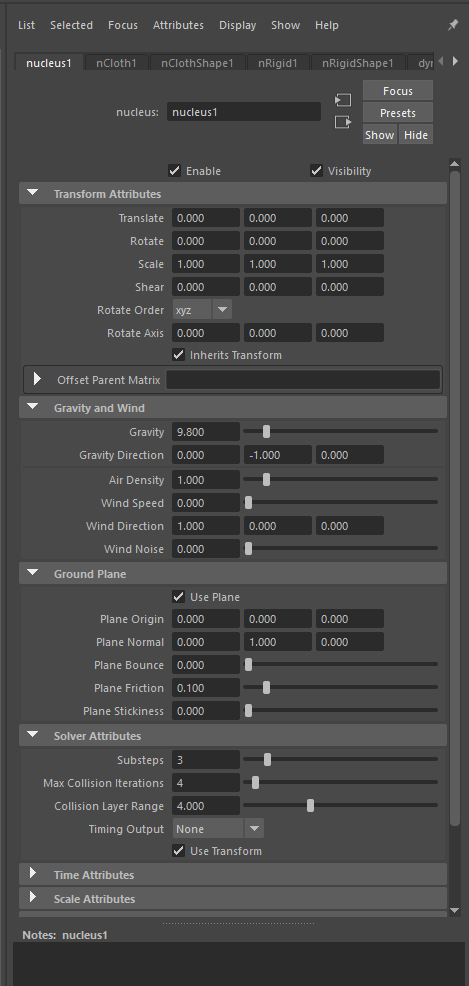
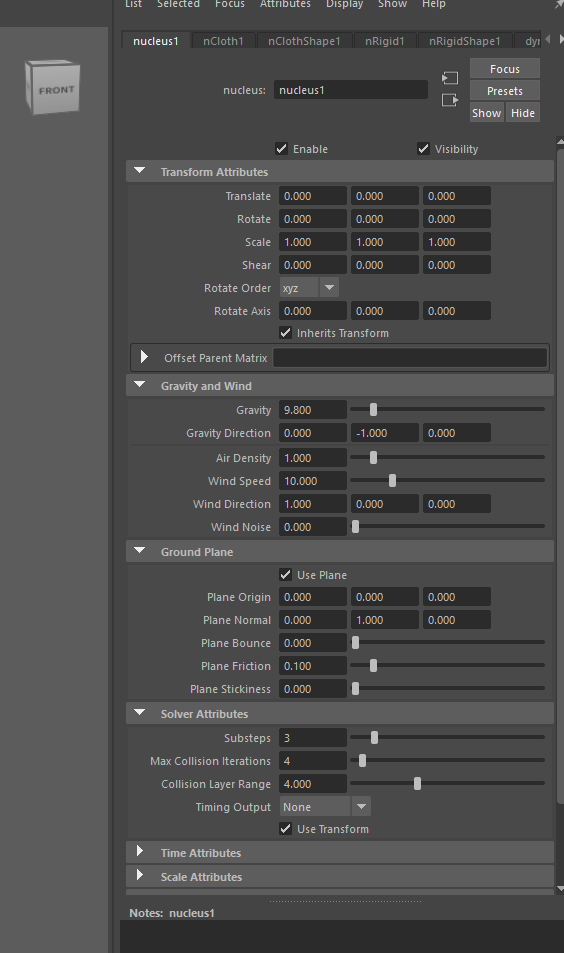
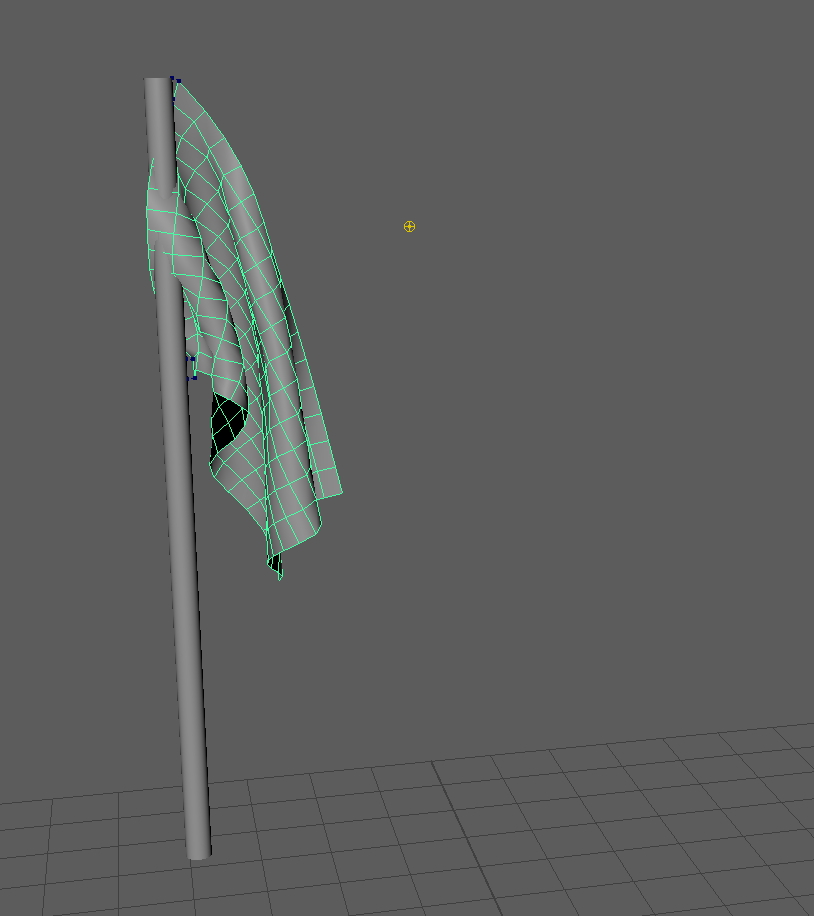
After making some adjustments and we achieve a very realistic flag.
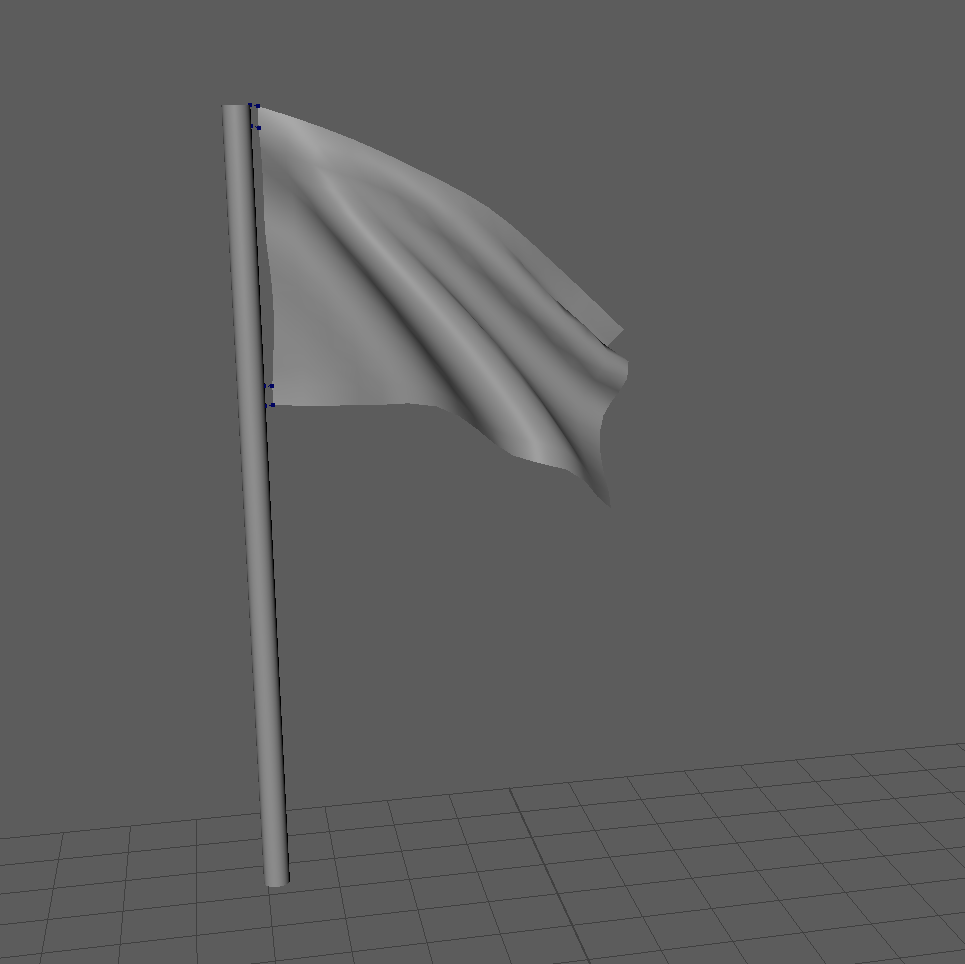
End of week 11
Week 12:Introduction to Particle systems, cloth and Maya Fluids smoke -fire simulation – PART 1
This week we will continue with the particle system and mix it with the Ncloth to create spectacular effects.
First we are going to learn how to set up different particles types.
This is very simple.
As always we start with a fresh project.
We are going to change to our FX tool bar.
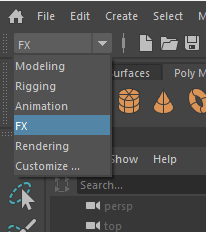
On top we will find the nParticles tab where we will find different options.
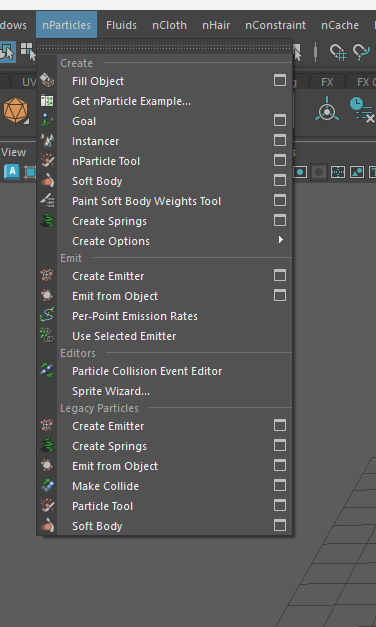
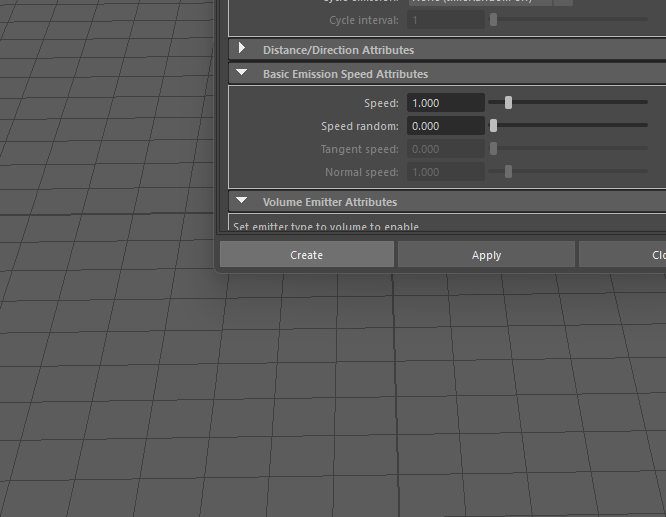
In our case we want to create an emitter to generate the particles.
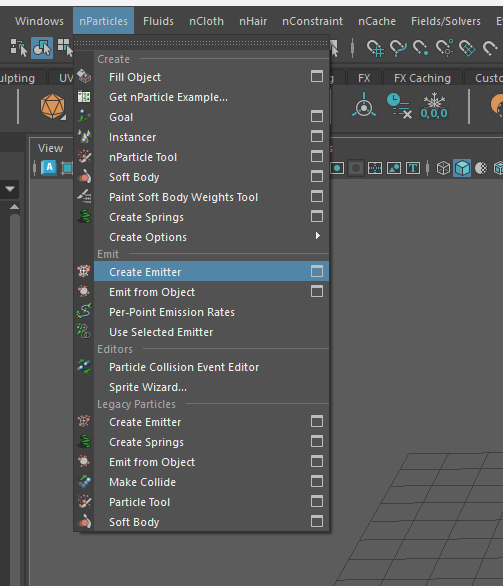
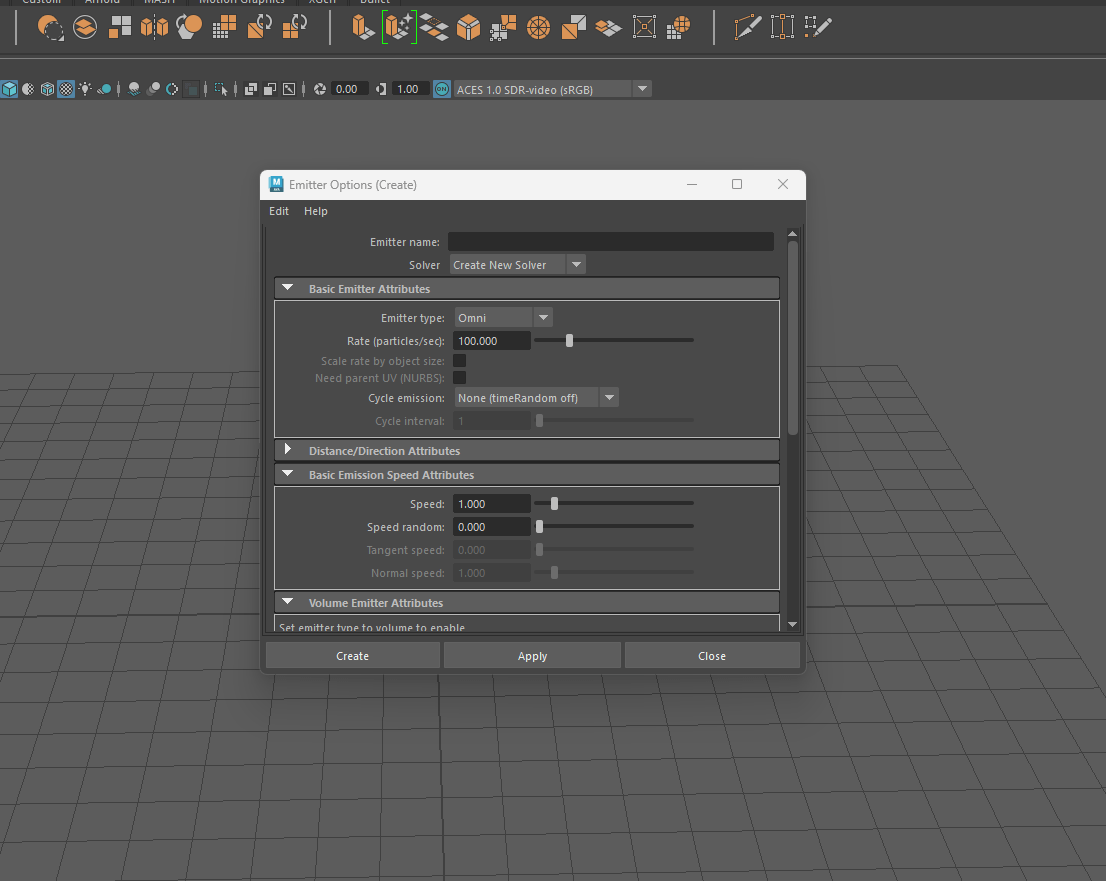
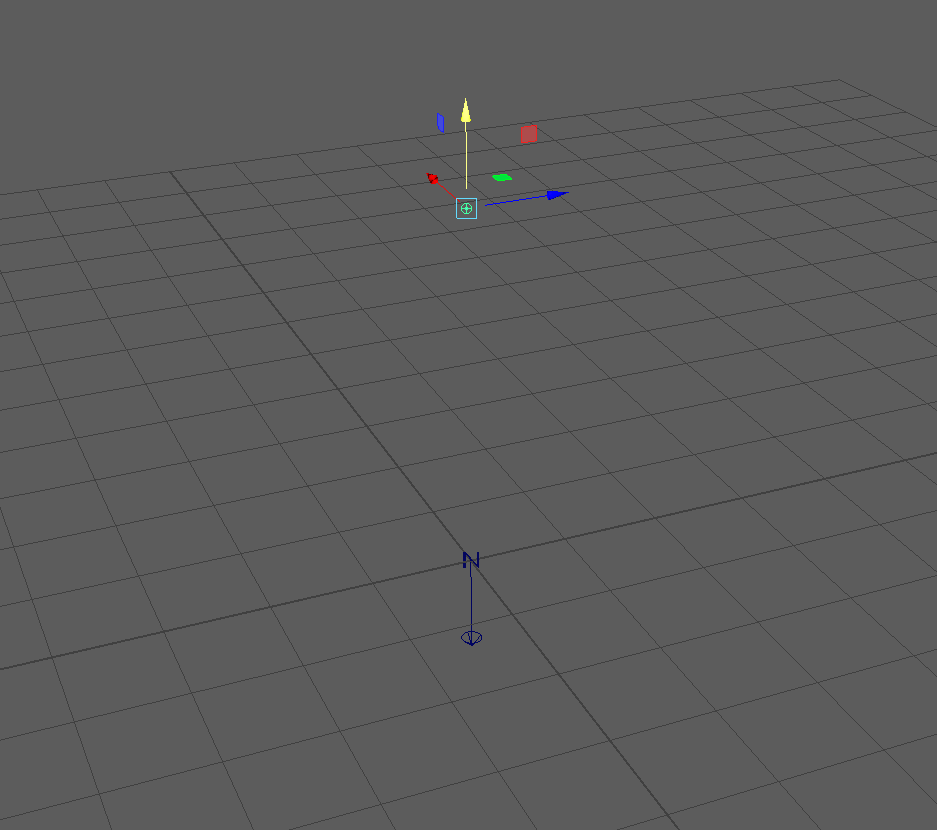
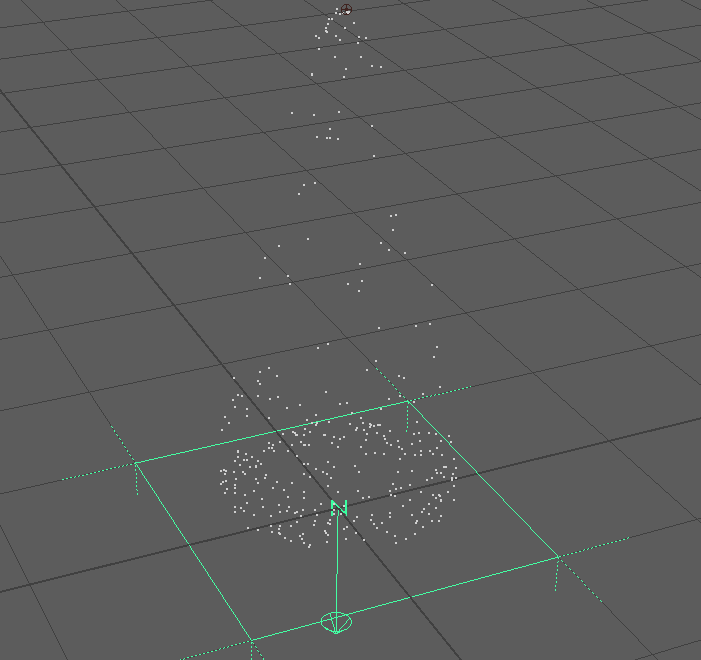
Here we have our emitter we can move it around and if we press the play button on the playback tab the emitter will start to generate particles.
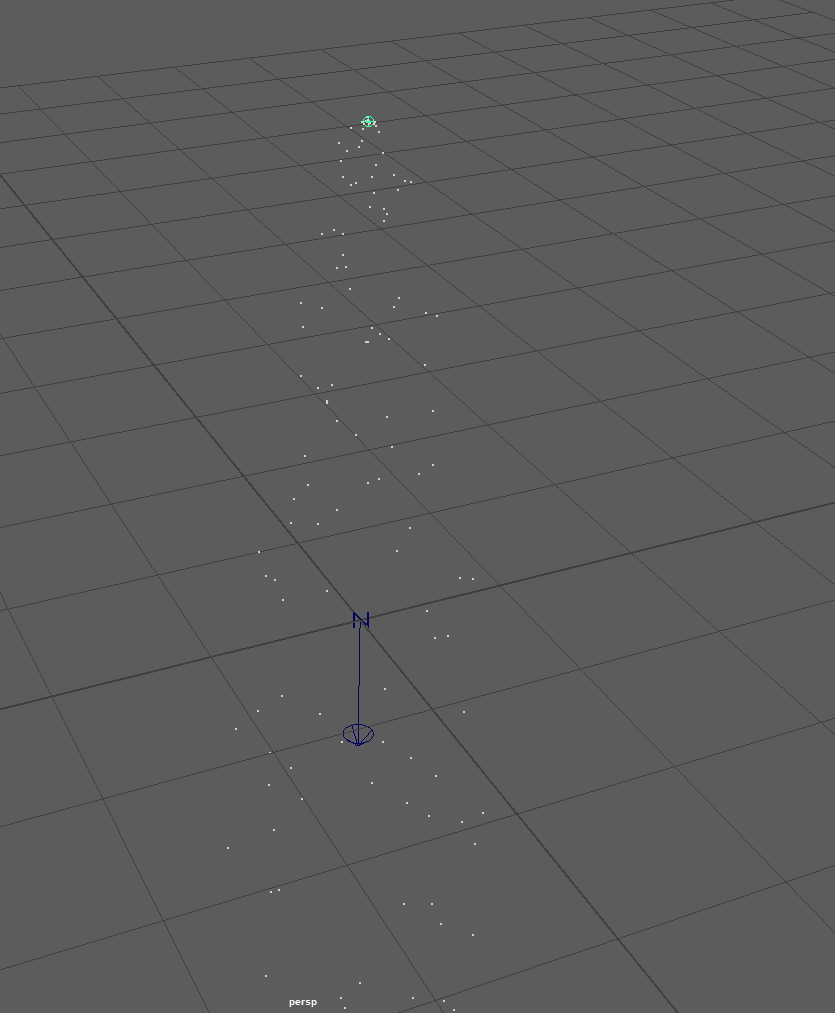
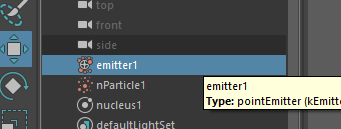
If we click into the outliner tab, we find different properties to play around to modify the behaviour of our particles.
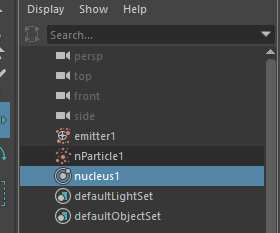
In this case we are activating the use plane case.
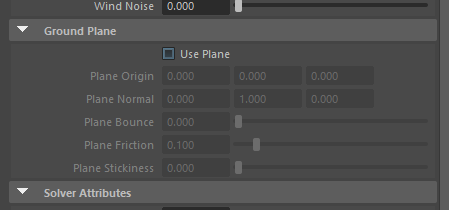
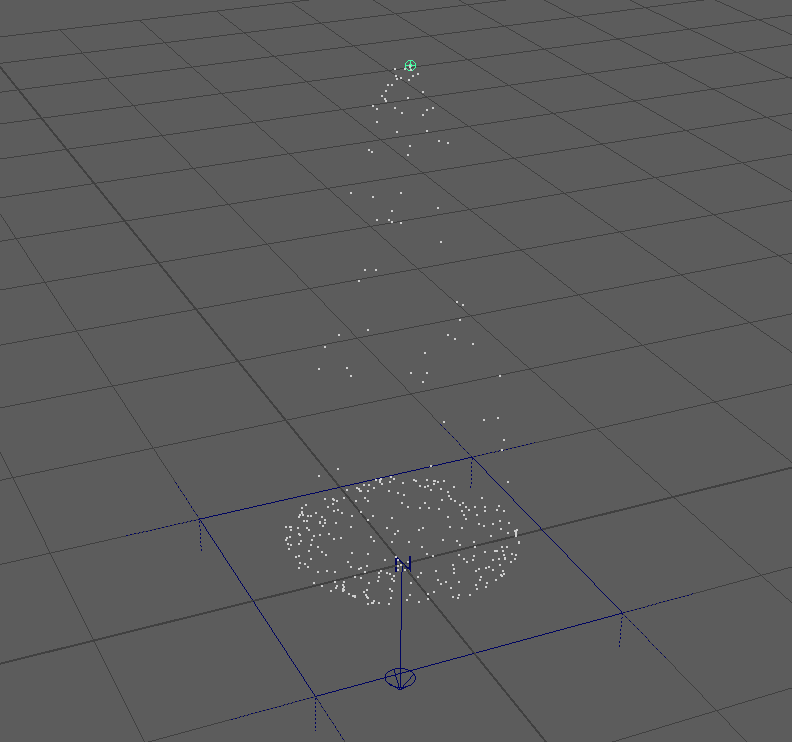
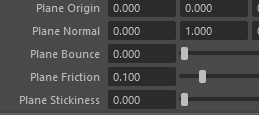
Additionally we can change some settings of the plane in this example the “plane bounce” as we can se bellow the points bounce off the ground.
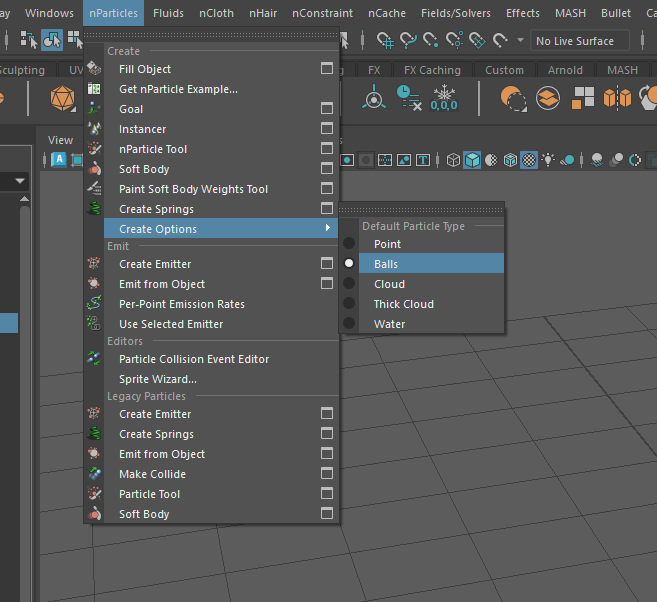
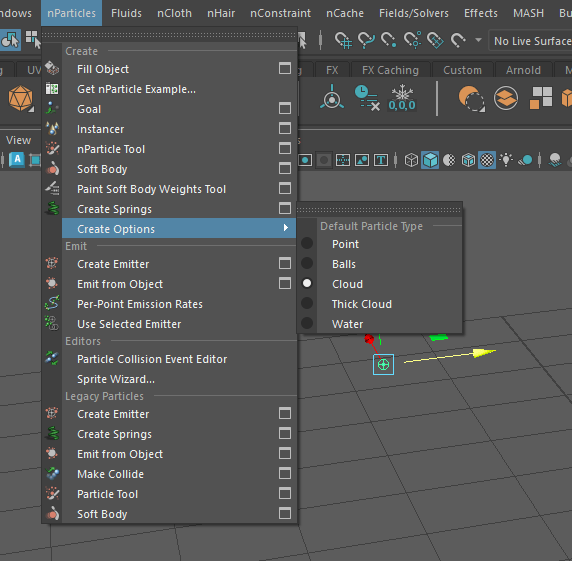
If we get to the nParticles tab there is an option that allows to change the default particle type, where you can change the type of particle the emitter generates.
Here are some examples.
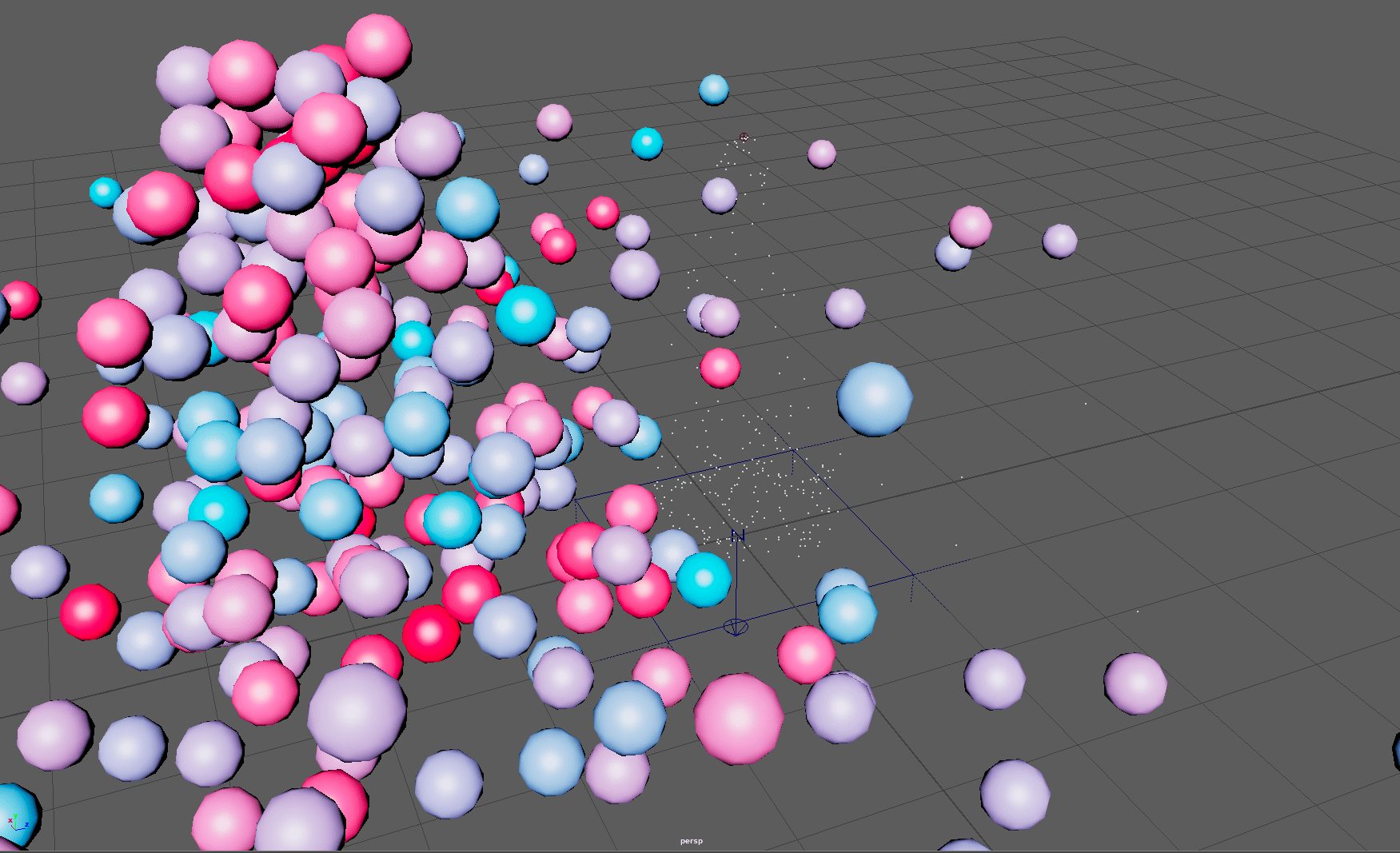
Balls:
Clouds:
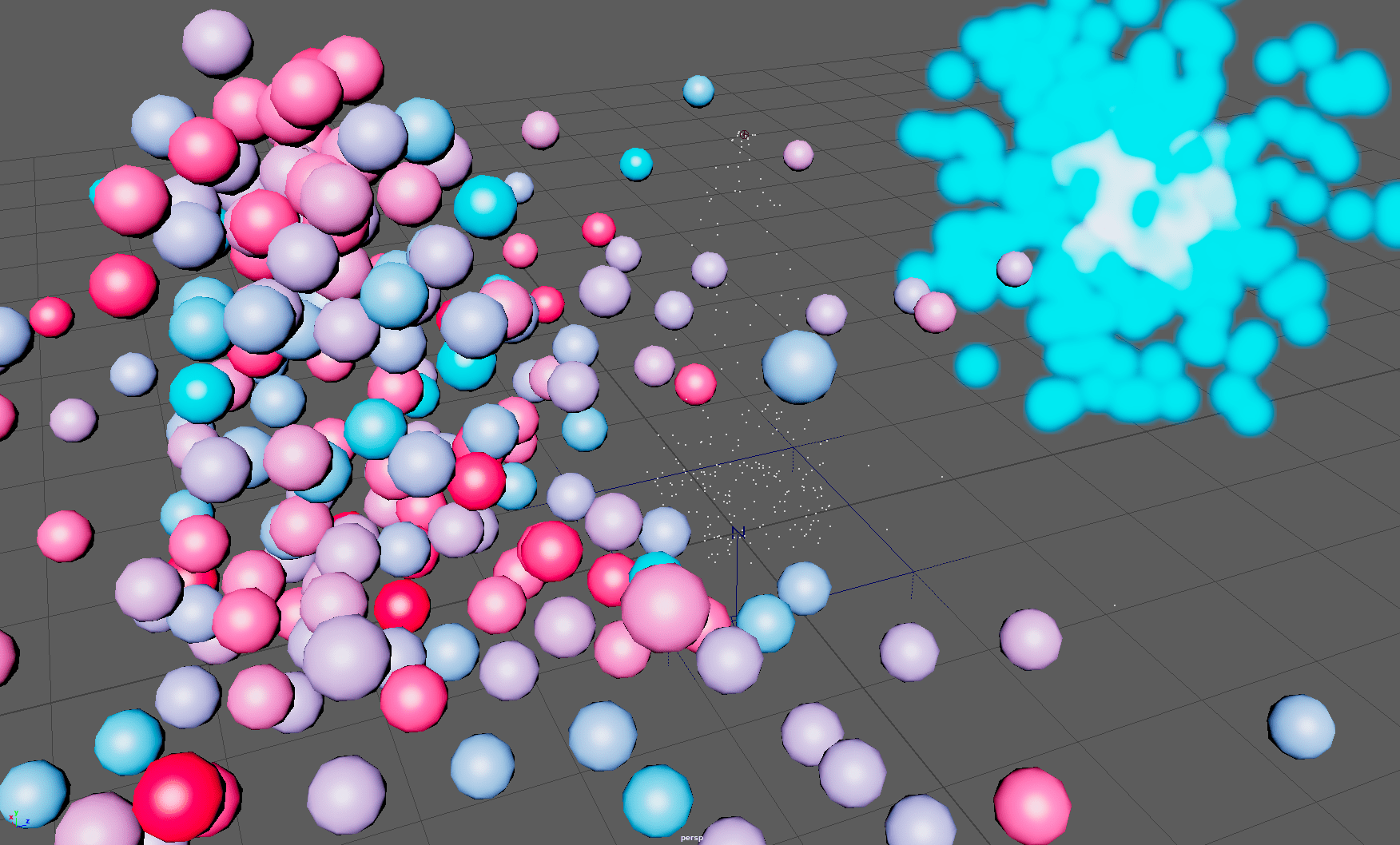
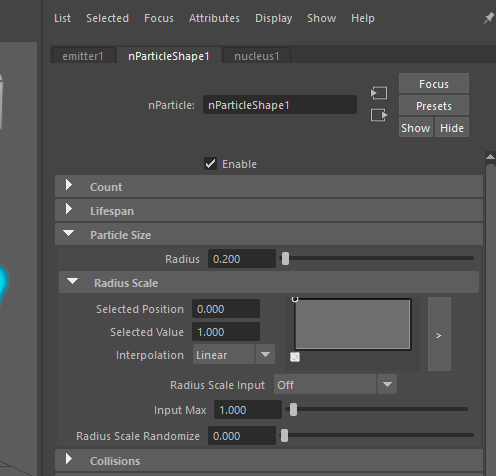
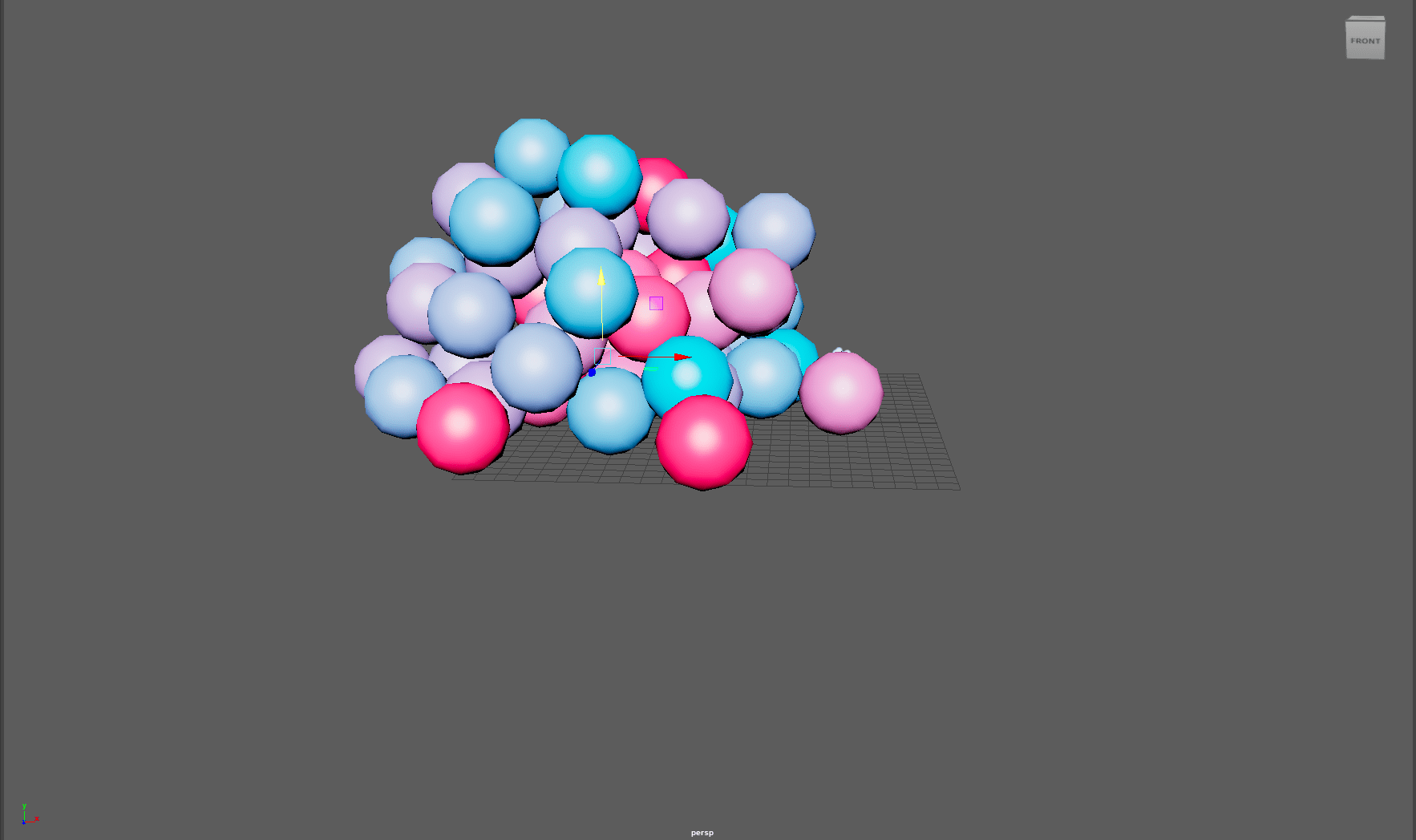
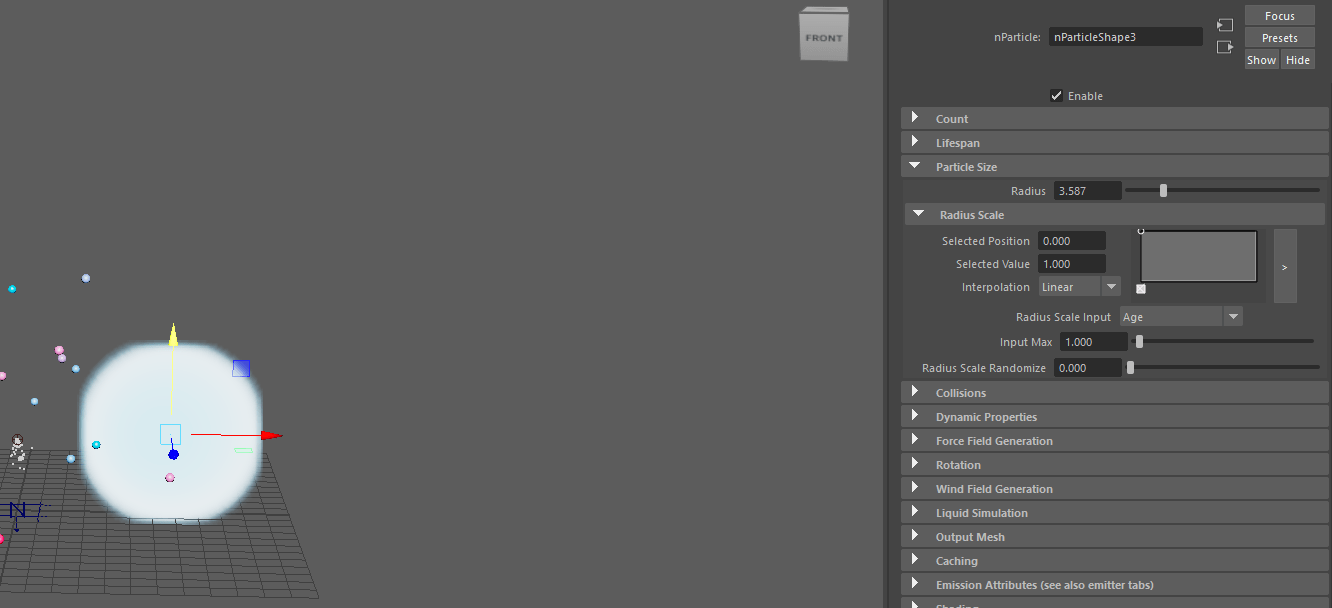
This particles as I mentioned before can be modified, in this case I change the radius.
Here we find some examples.
Finally these are some cool effects we can achieve mixing the nParticles simulation and the nCloth.
Trampoline tear:
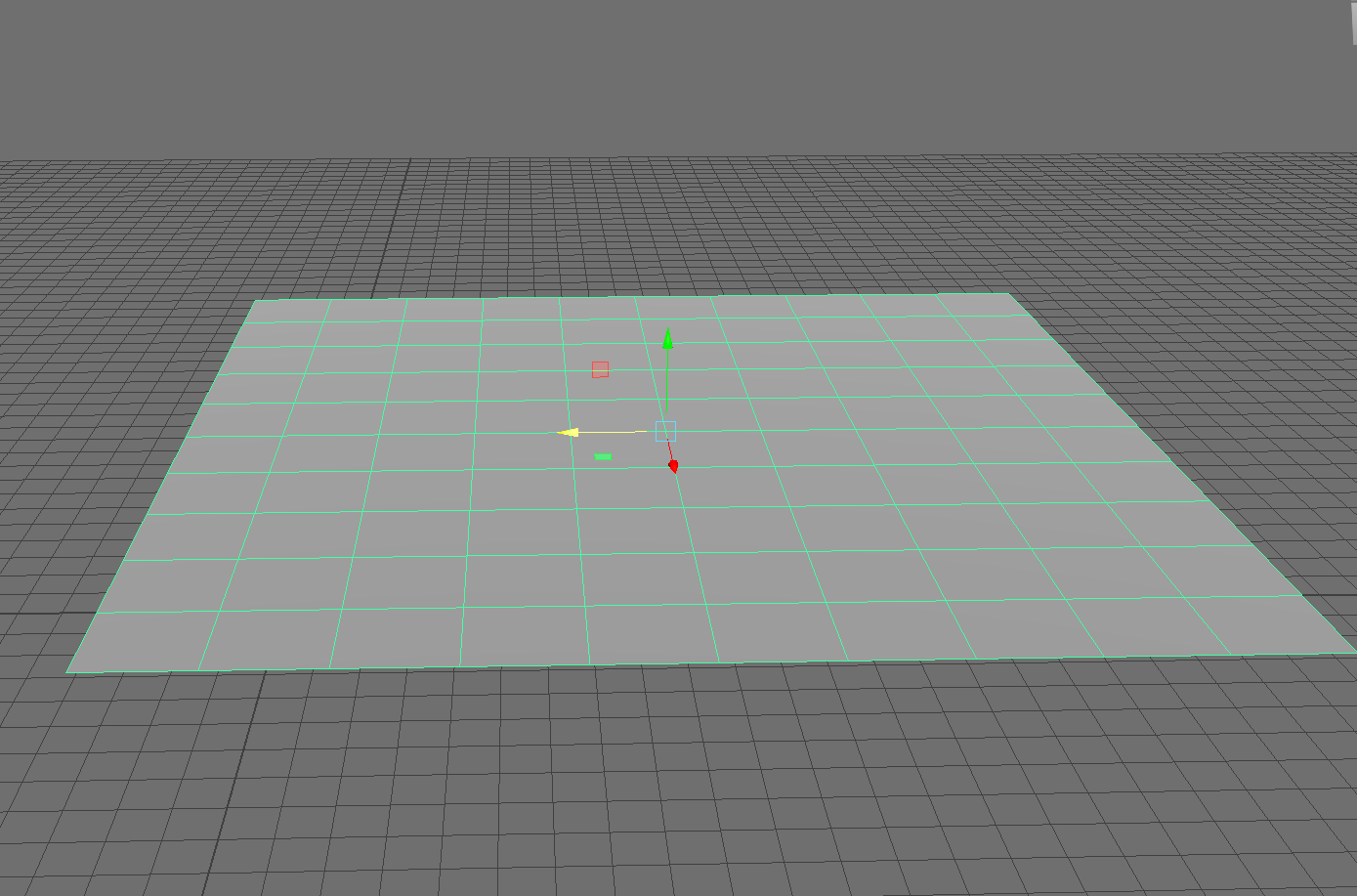
We create a plane that we are going to use as nCcloth.
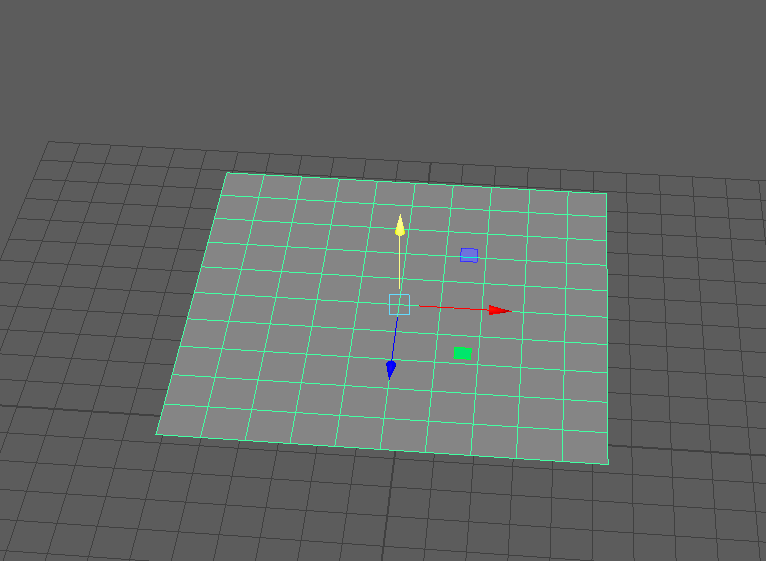
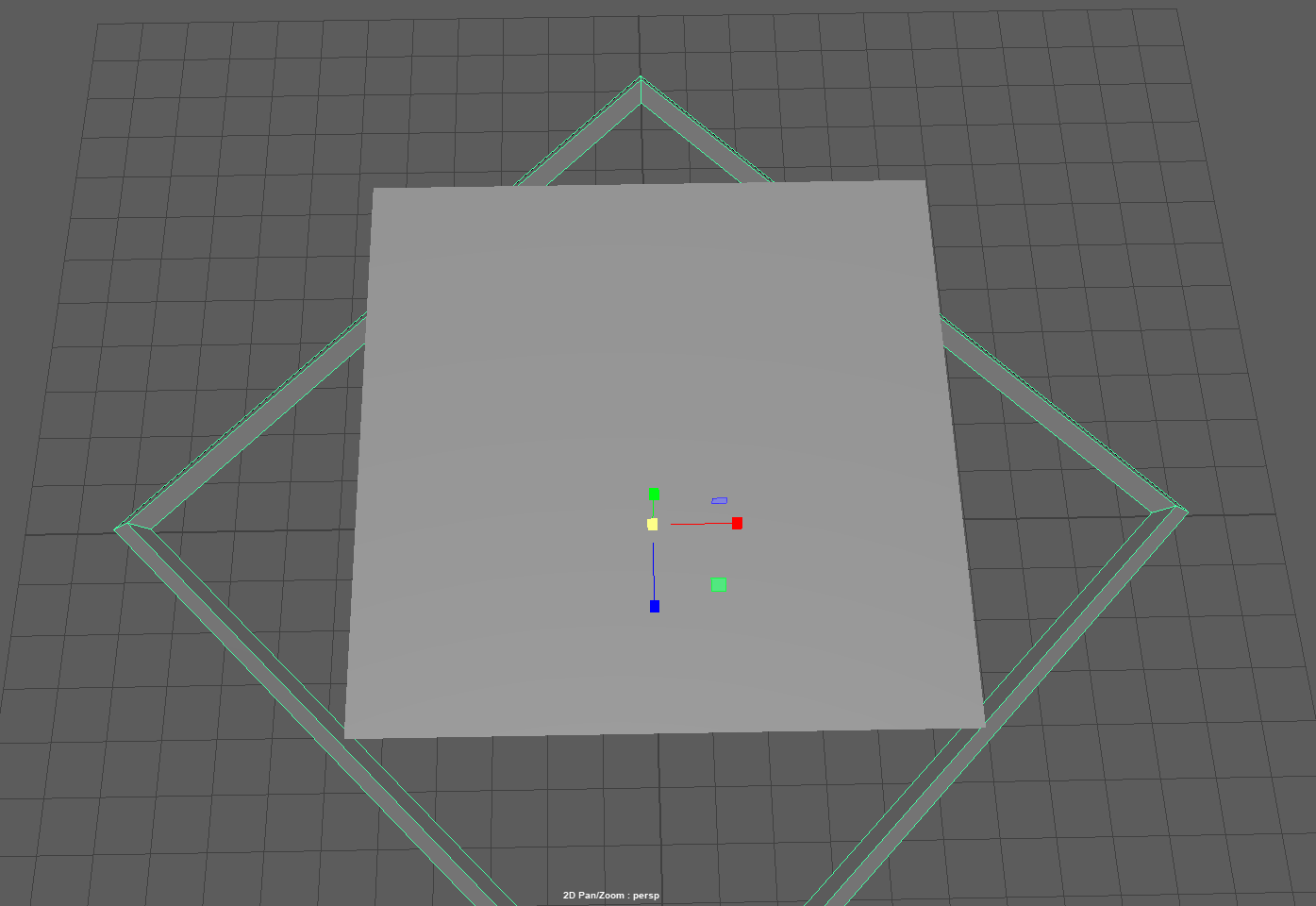
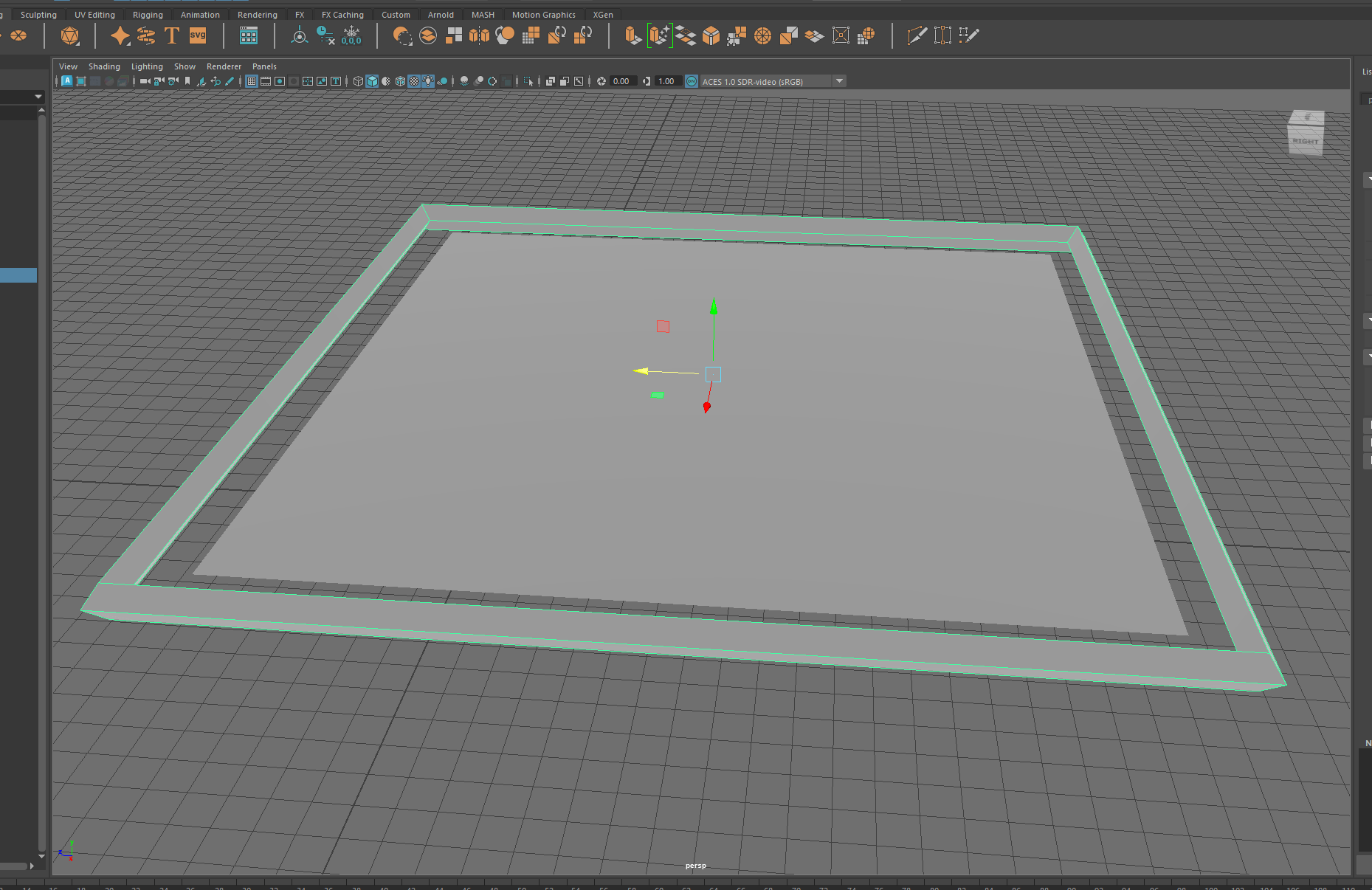
After we model a frame to match the plane
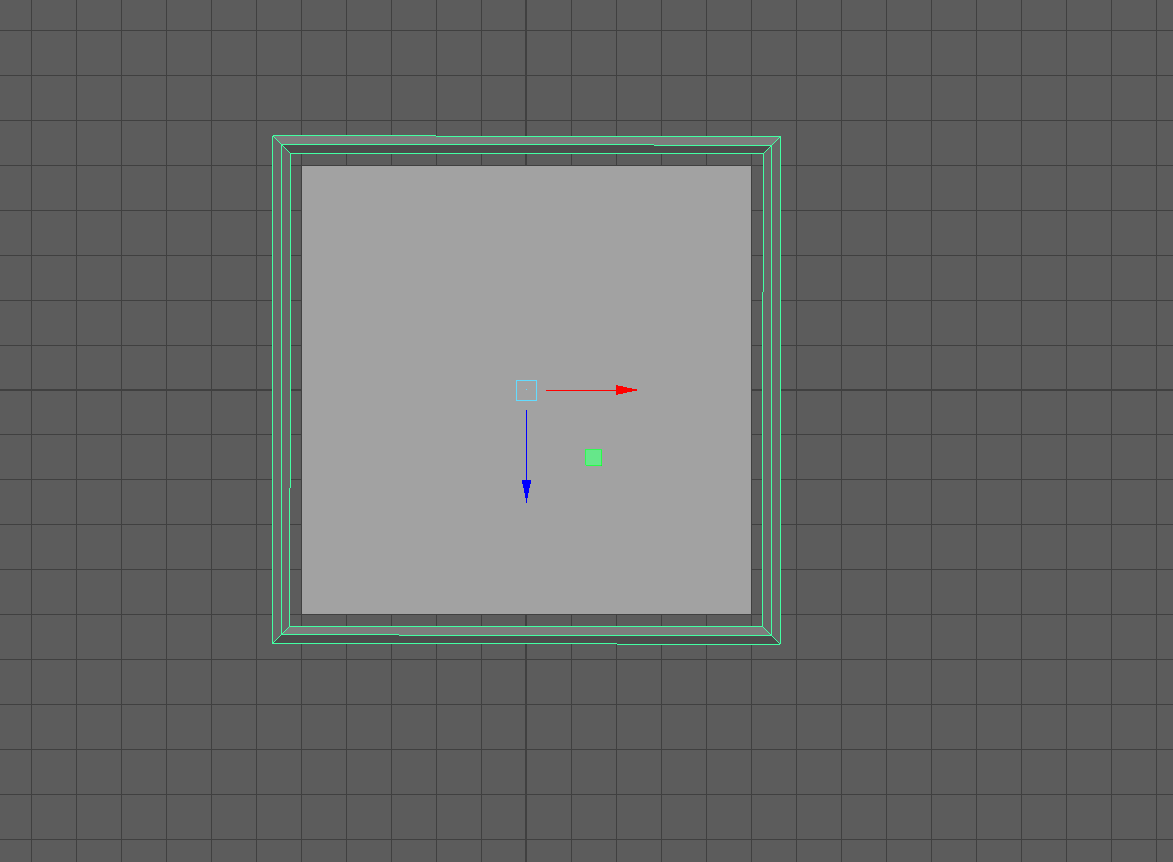
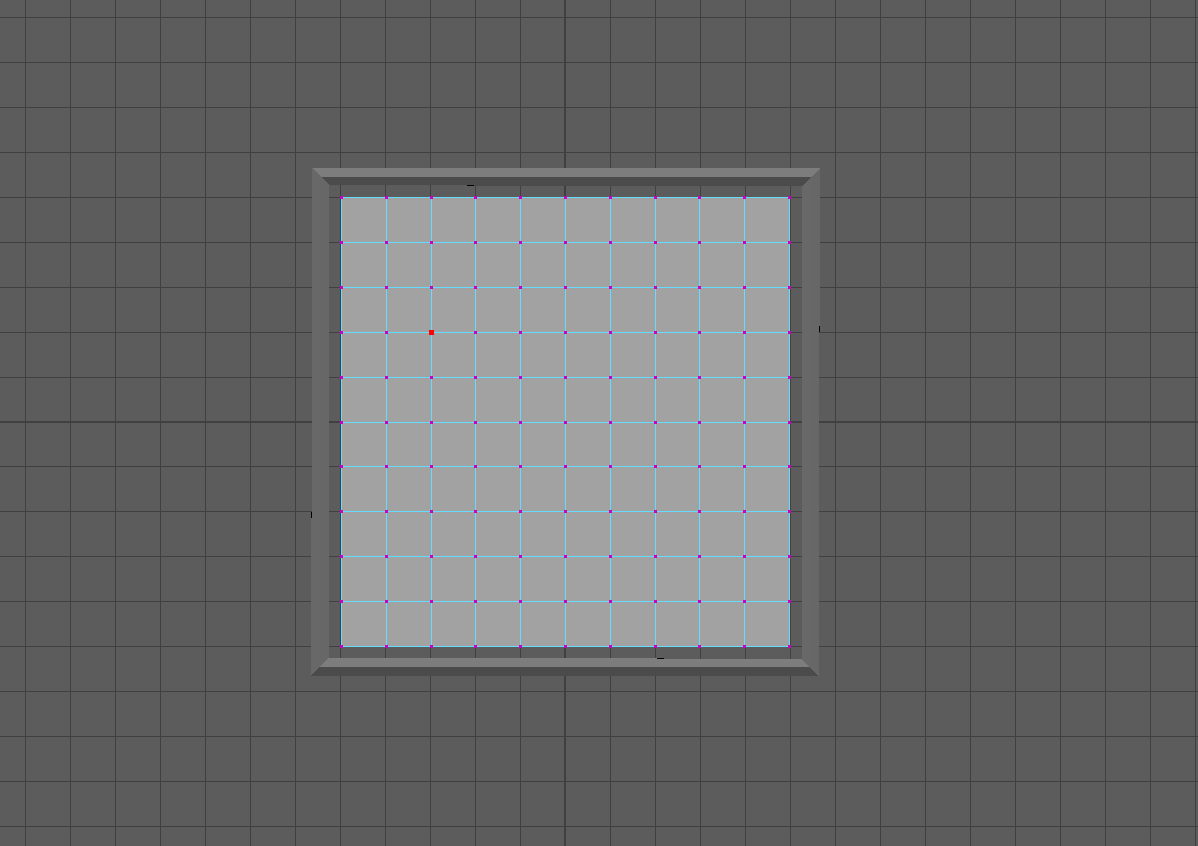
When we are finished with the frame we select vertices around and we use the point to surface
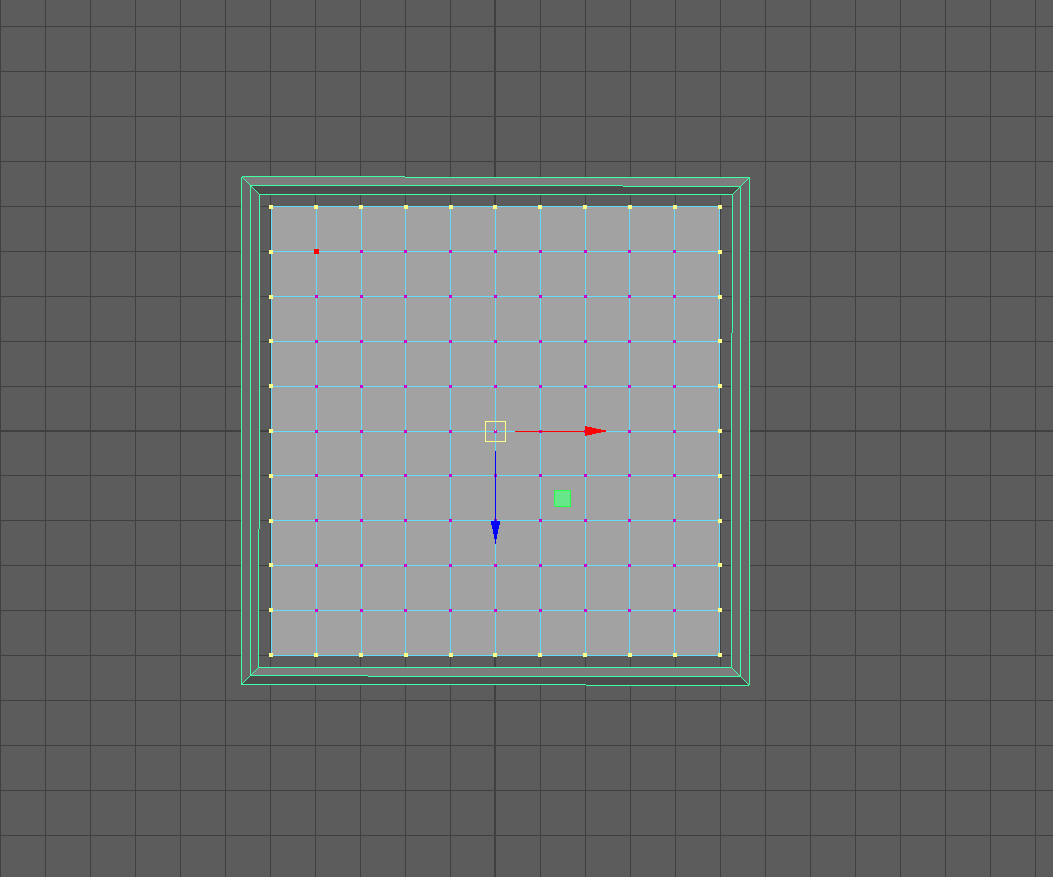
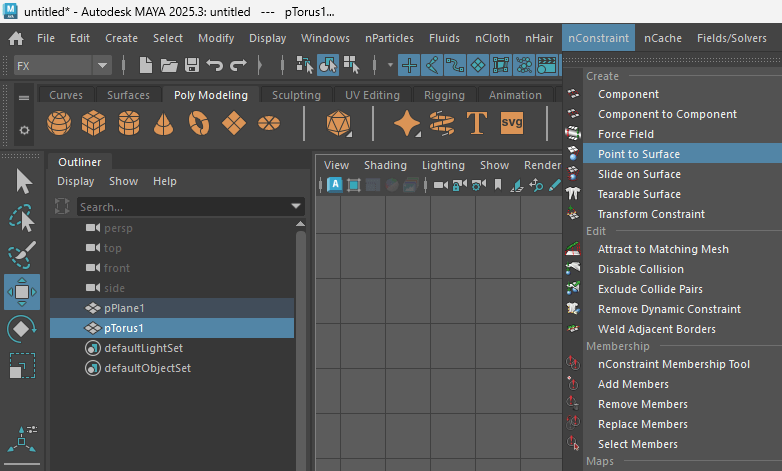
Now if we click the play button on our playback panel we should have something like this
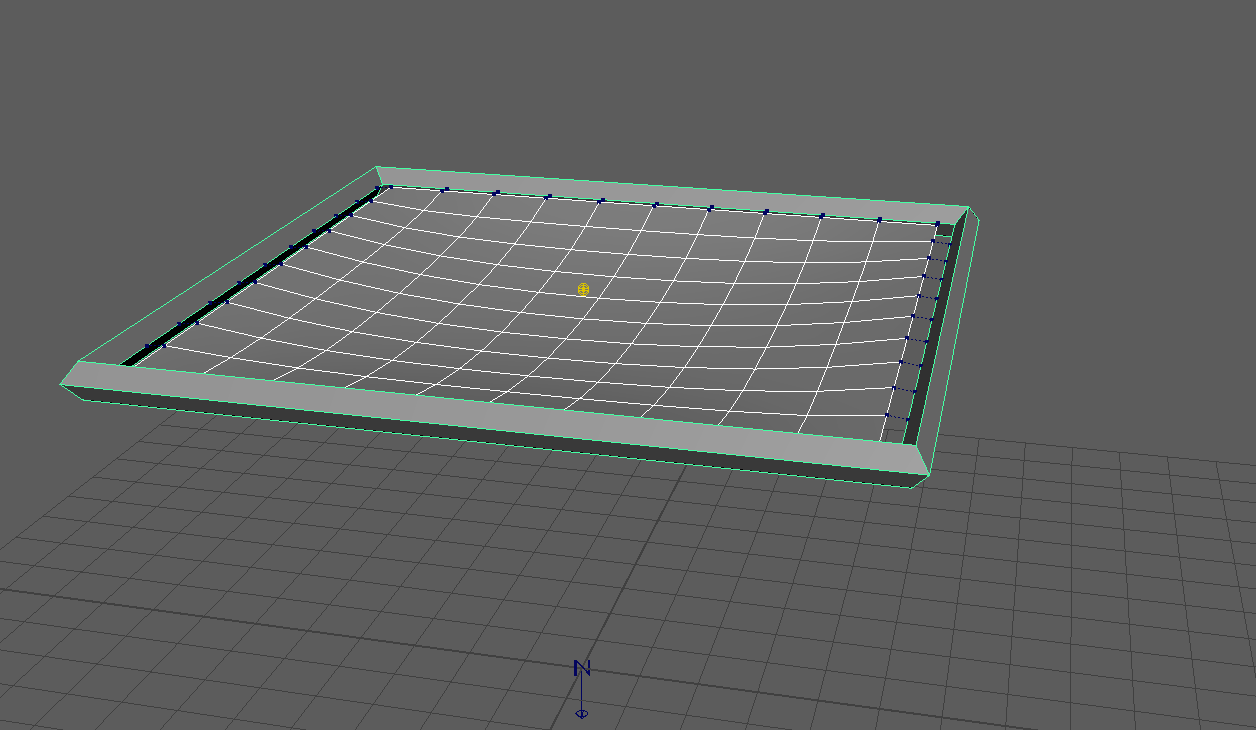
Next we are going to create an emitter as we learn before.
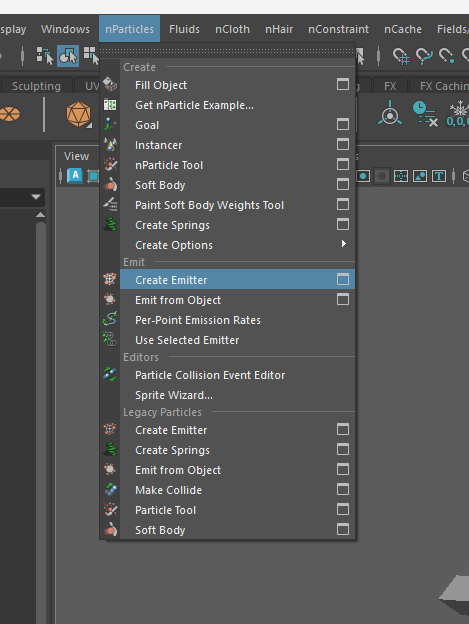
We set-up the settings
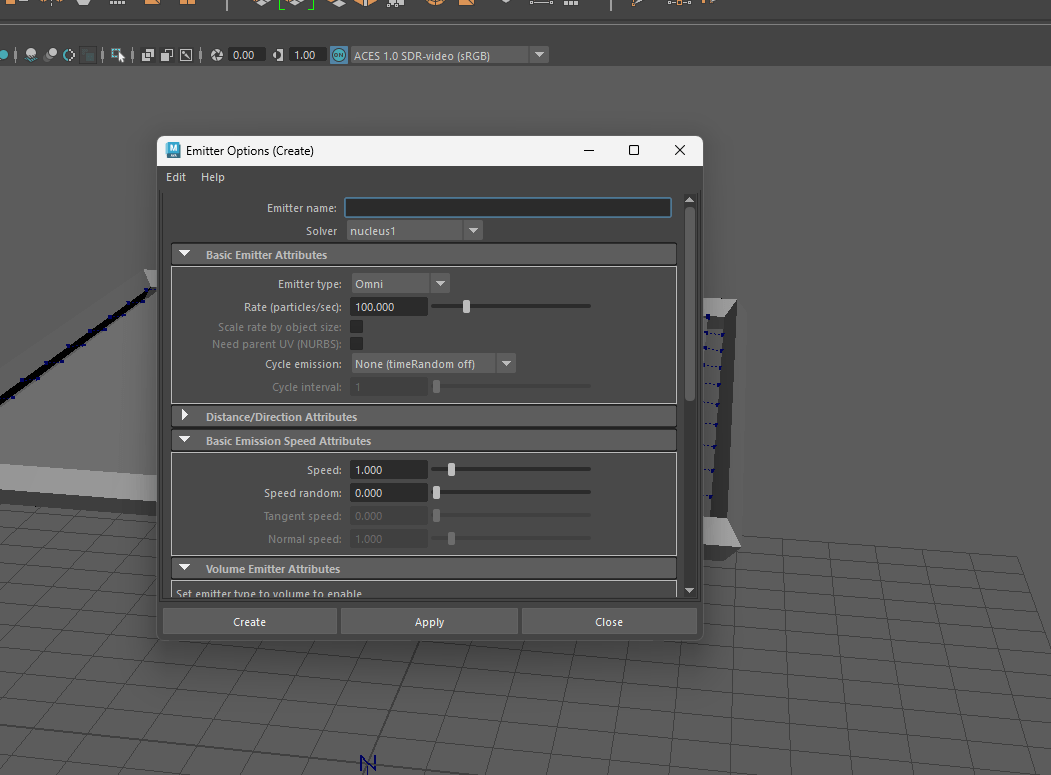
And now we have our emitter and the trampoline.
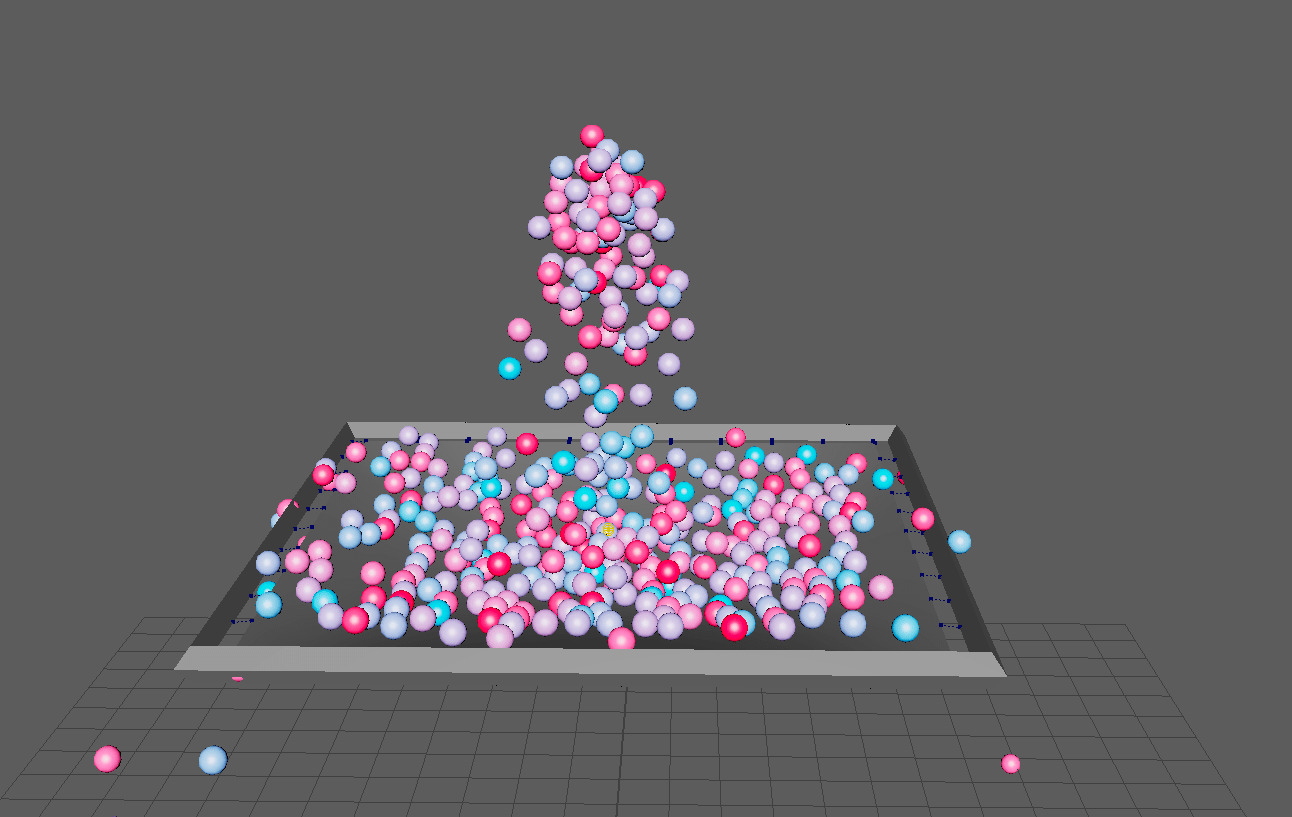
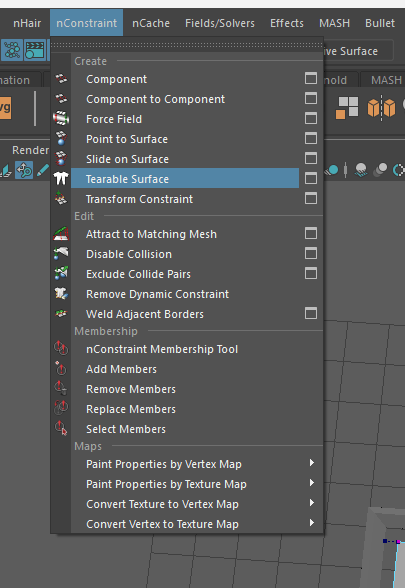
But we are going further using the tearable surface option, we start by selecting the some vertices on the middle of out nCloth.
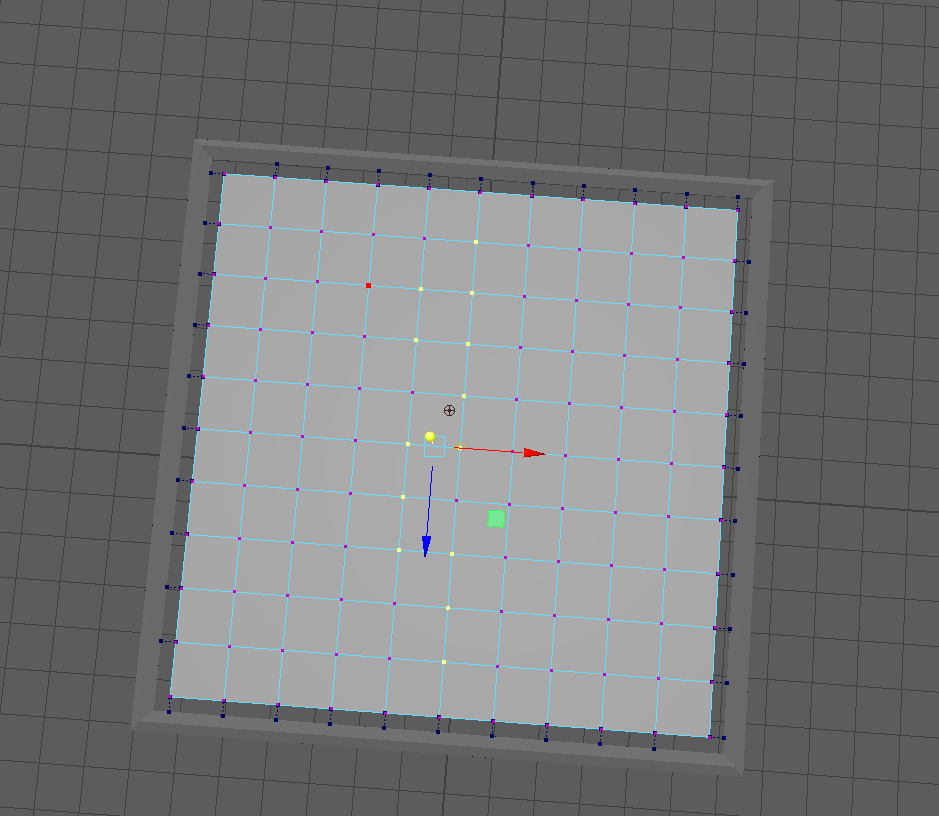
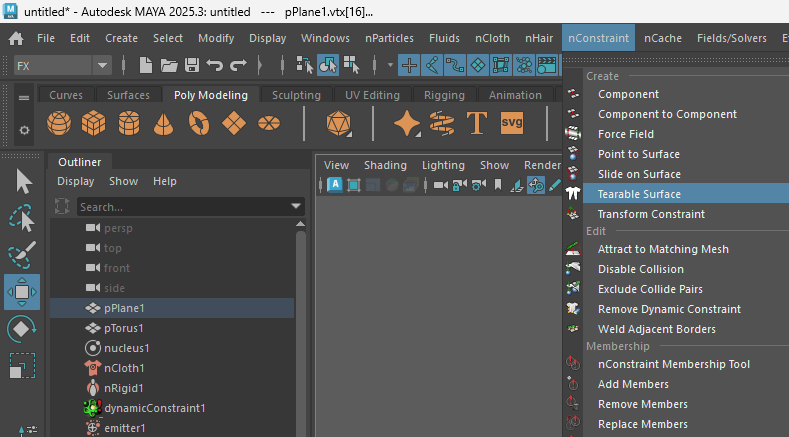
After selecting the desired points we use the tearable function.
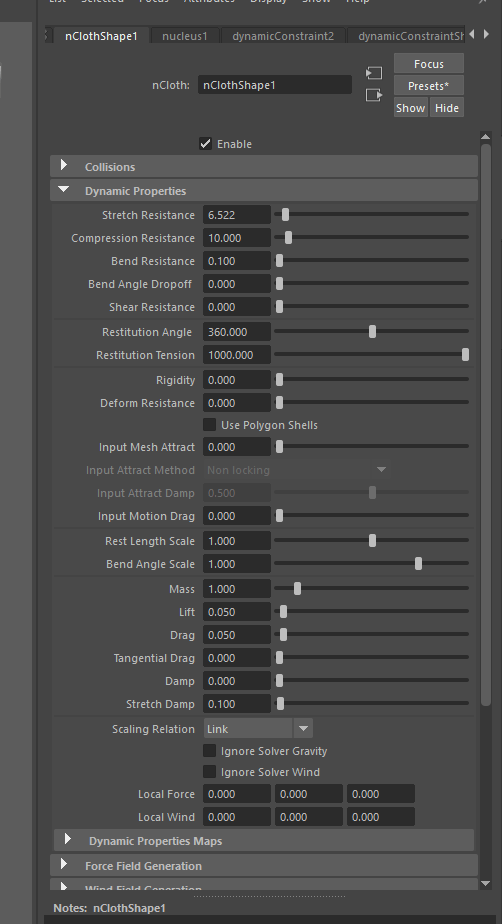
Now change the properties of the nCloth for it to be more elastic.
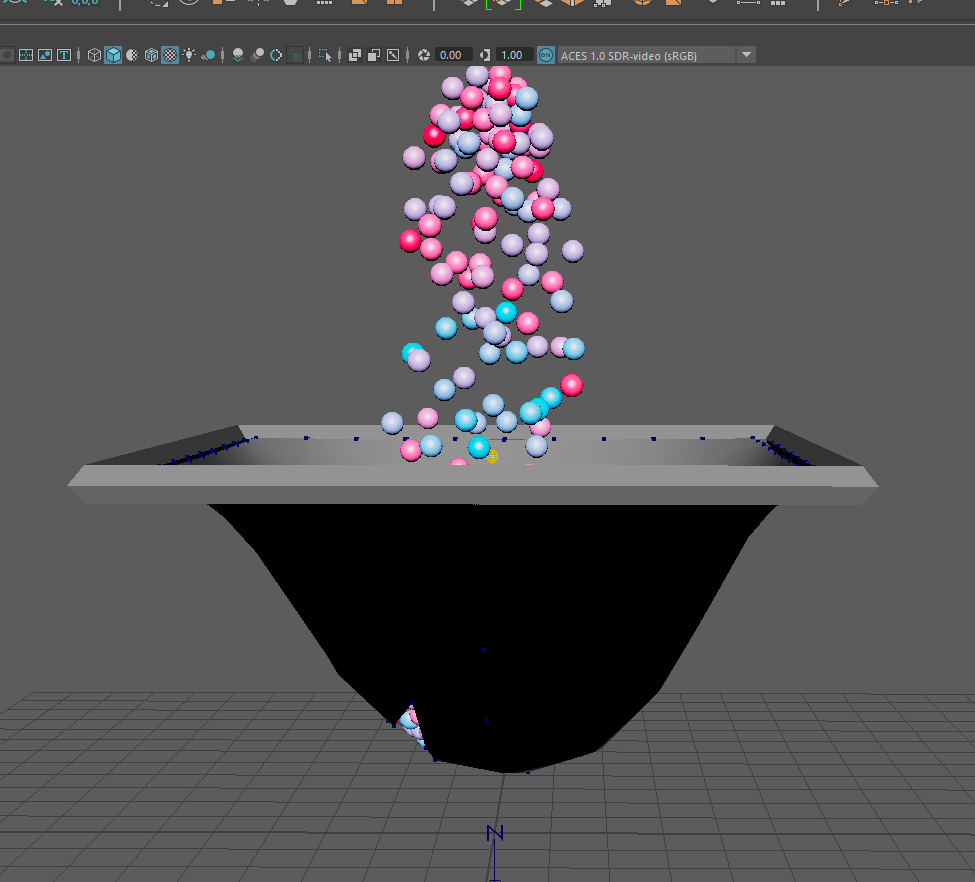
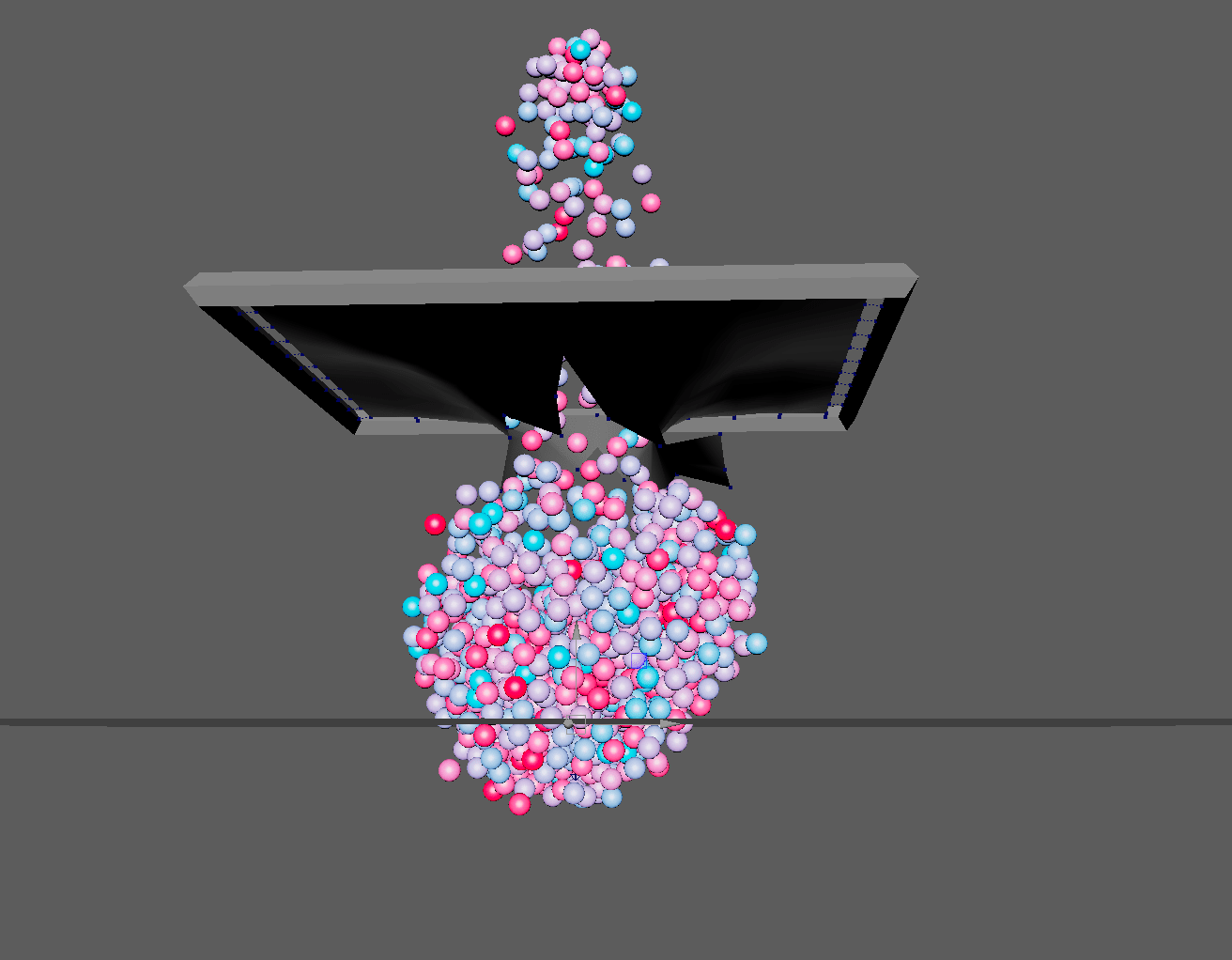
And we end up with this result a teareable trampoline.
End of week 12
Assignment 2: progress
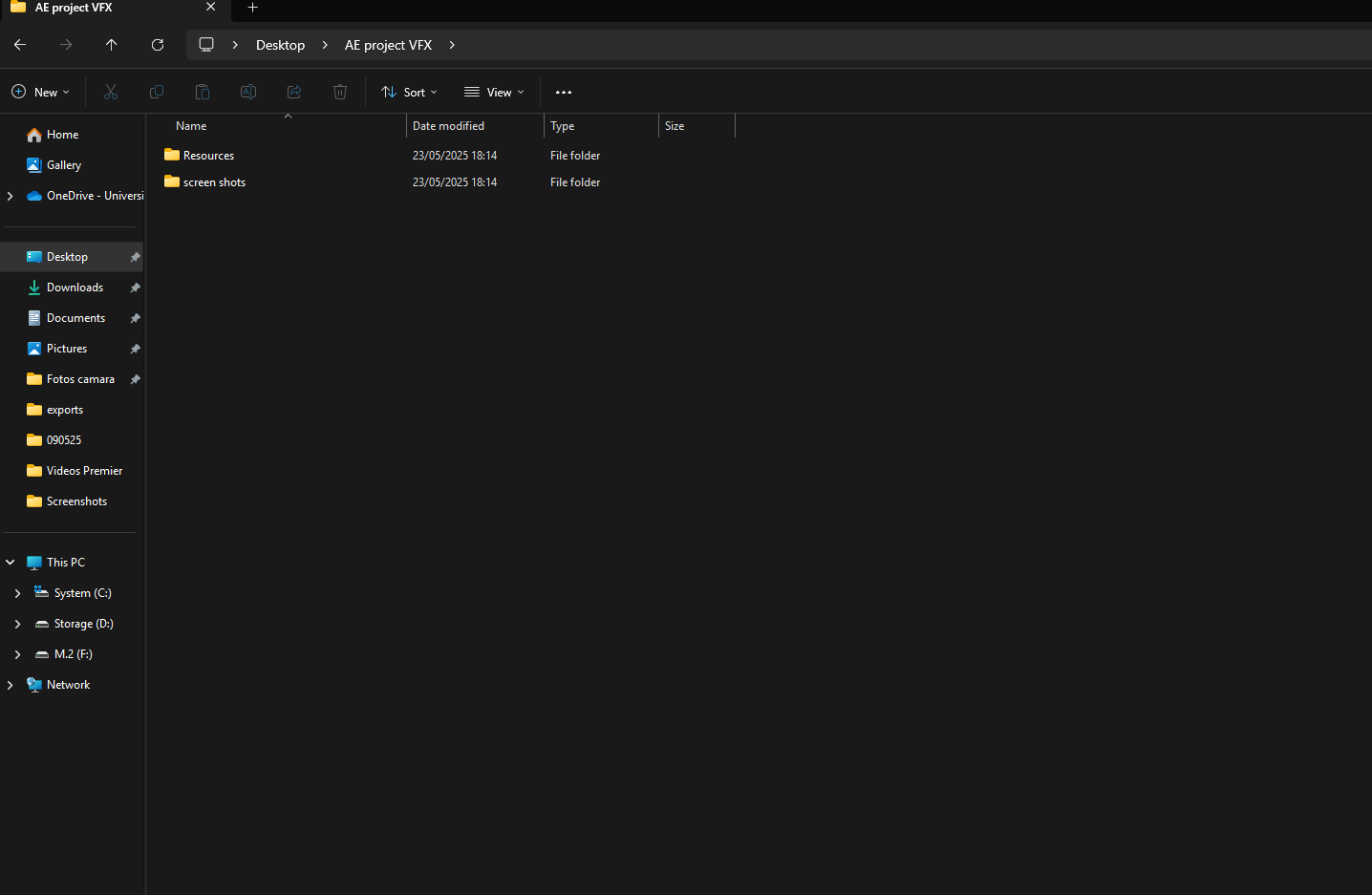
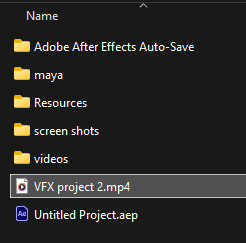
For the start of my project I prepared a folder where I am going to put all the resources such as footage and save all the files that I am going to be creating such as Maya models, renders, autosaves.
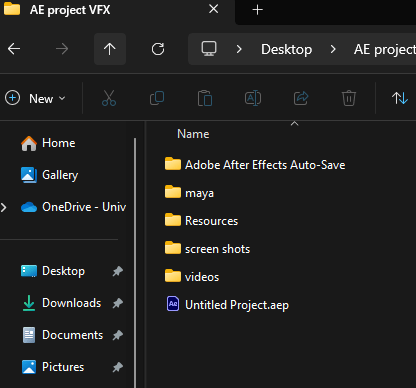
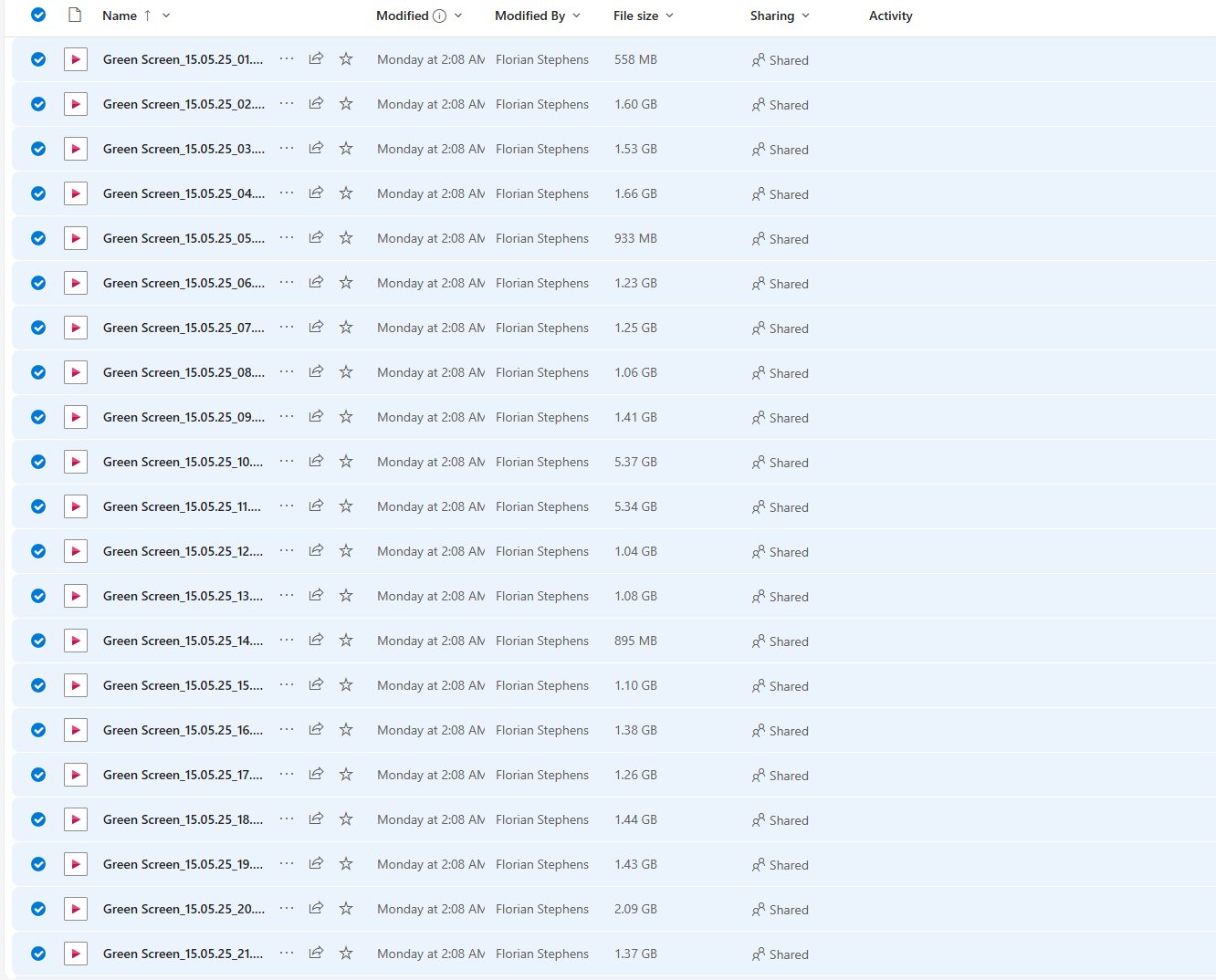
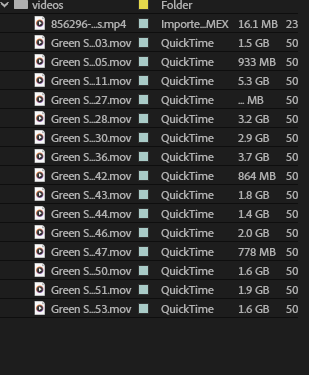
I put all the footage from our last green screen session which I am going to use for my silhouettes into the video folder.
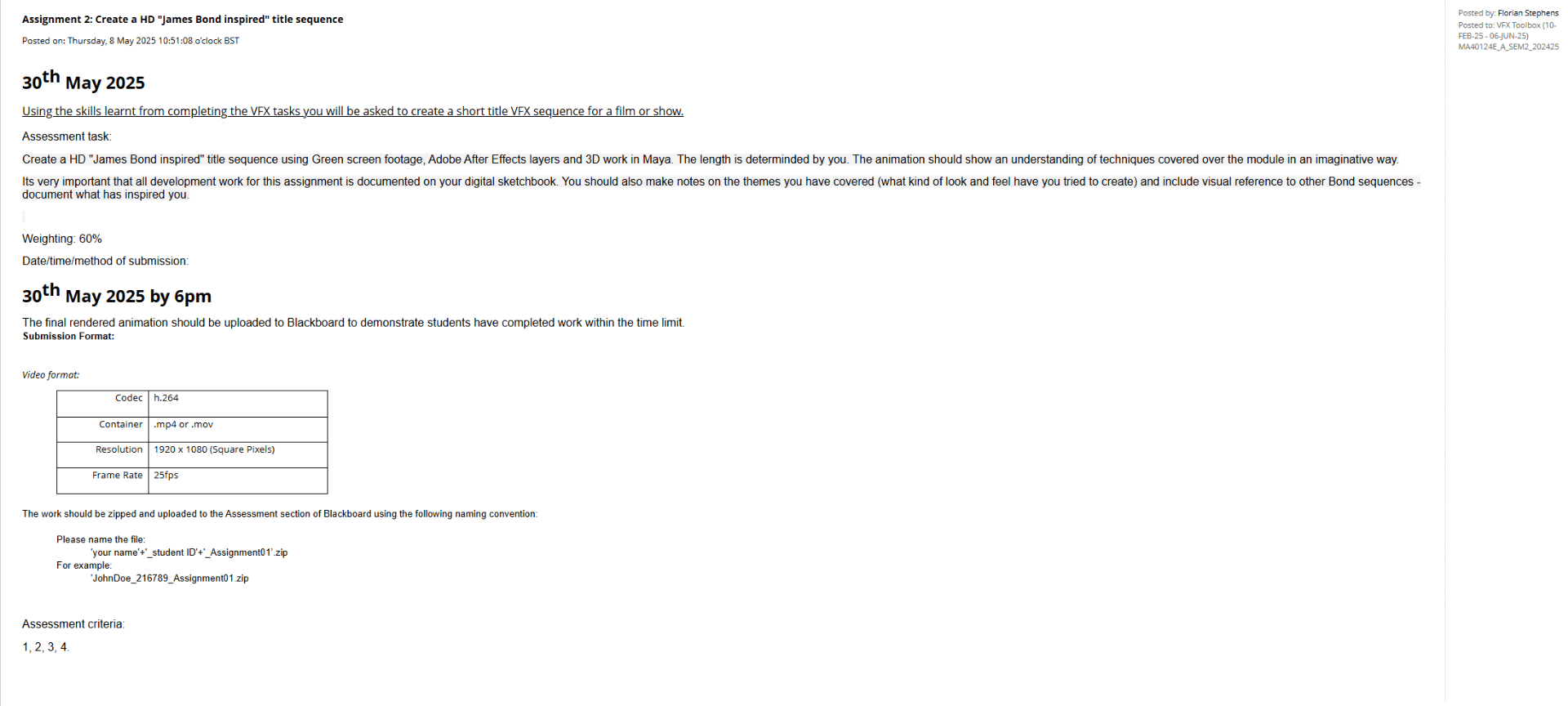
I am also making sure that I understand the assignment brief to achieve the desired result.
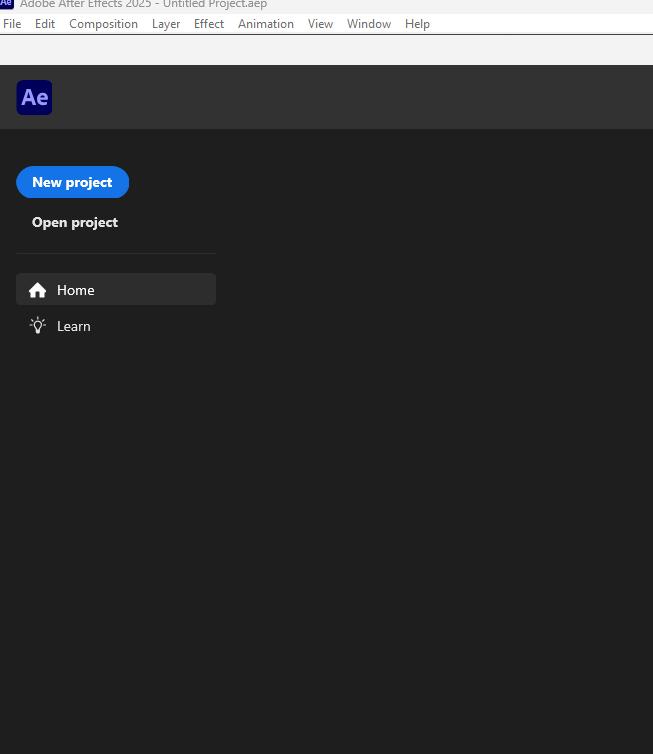
After getting ready, I am going to open adobe After effects and create a new project to work on.
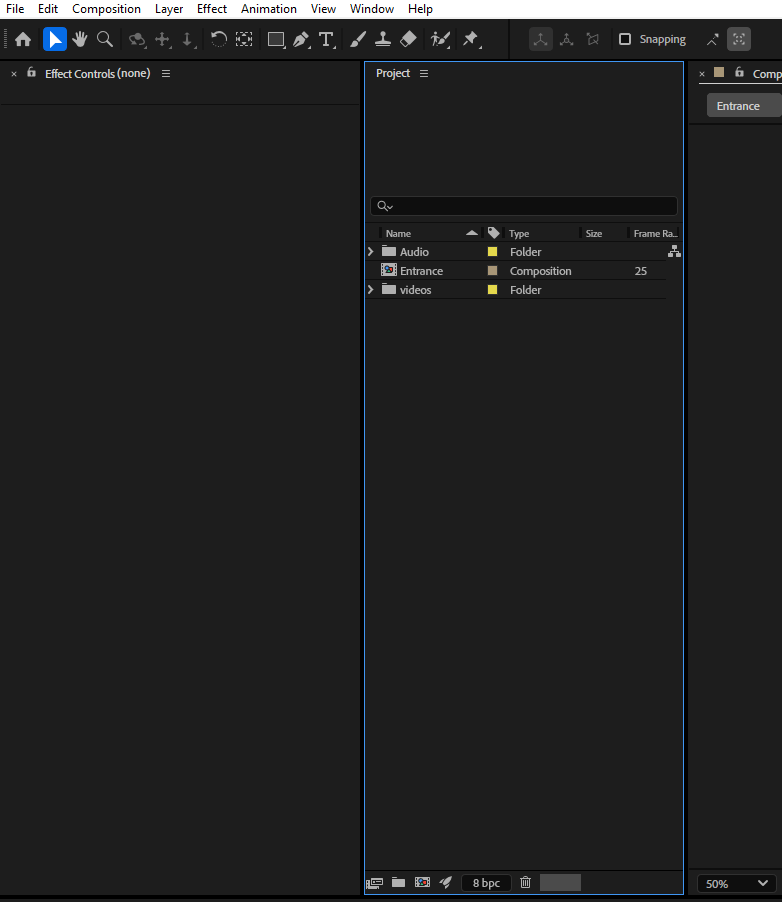
I start by importing all my files to the project so everything is ready for my compositions.
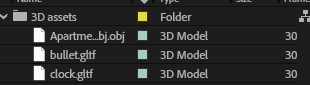
By the other hand I also initialize Maya so I can start working on my 3D models and render animations.
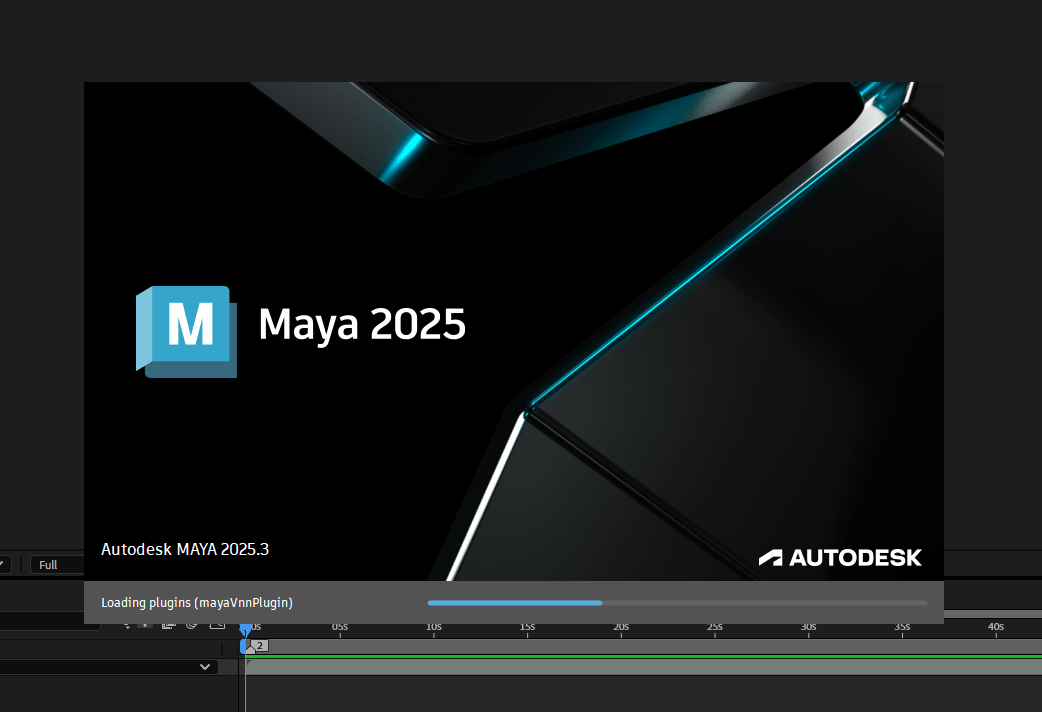
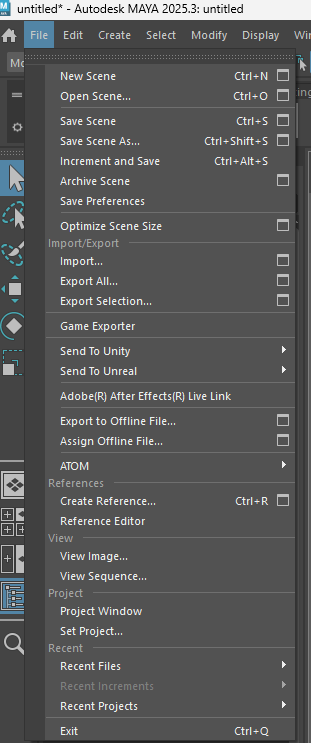
Here I show how did I set up a project in Maya.
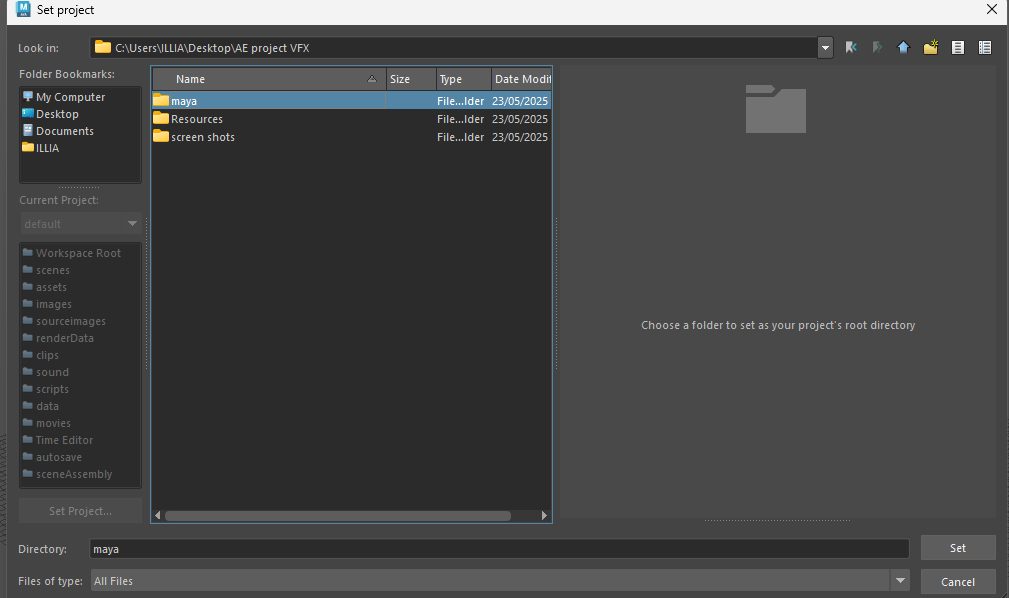
I choose where to put the project in.
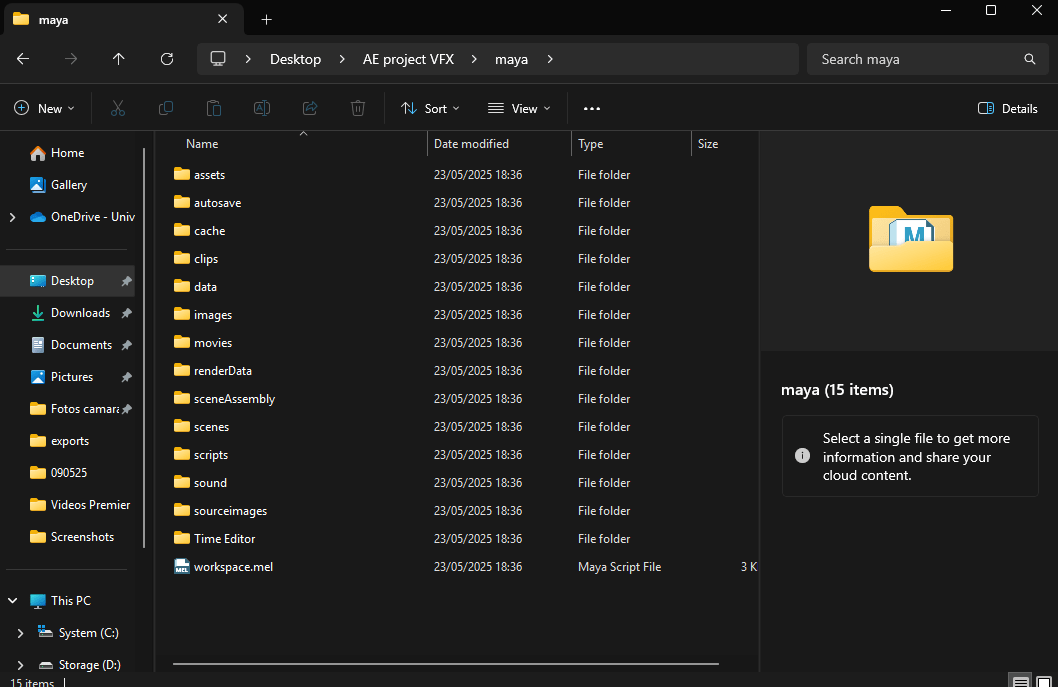
And generate the subfolders.
To begin with I am going to start modelling a clock for my project, so I start from a simple cube and shape it.
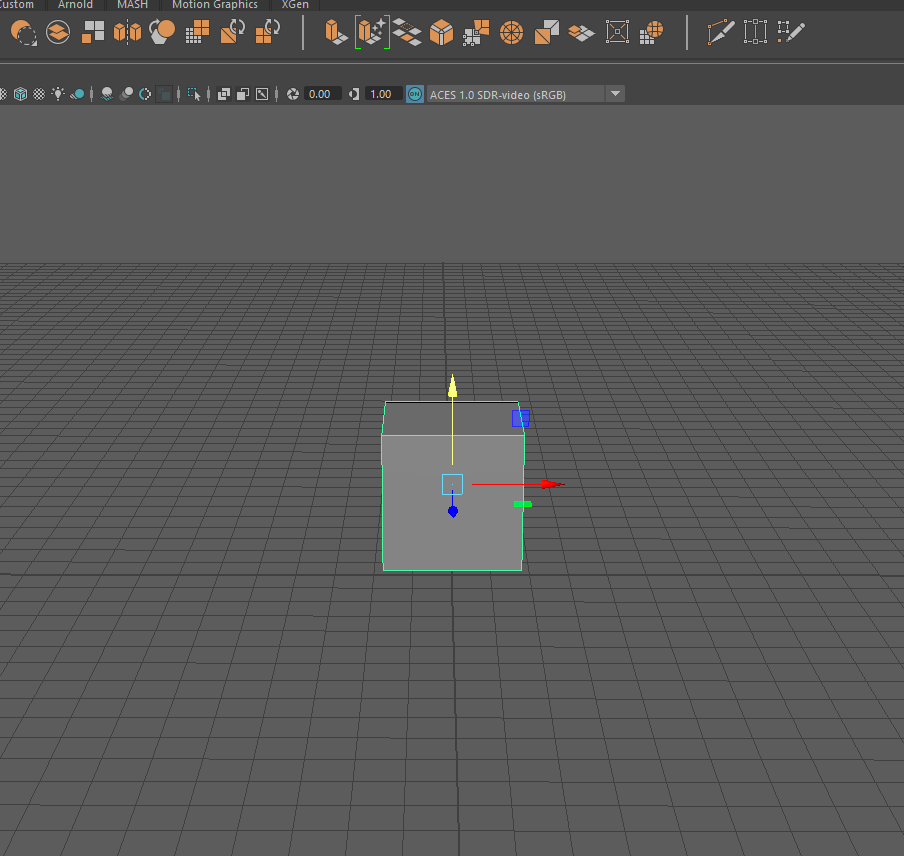
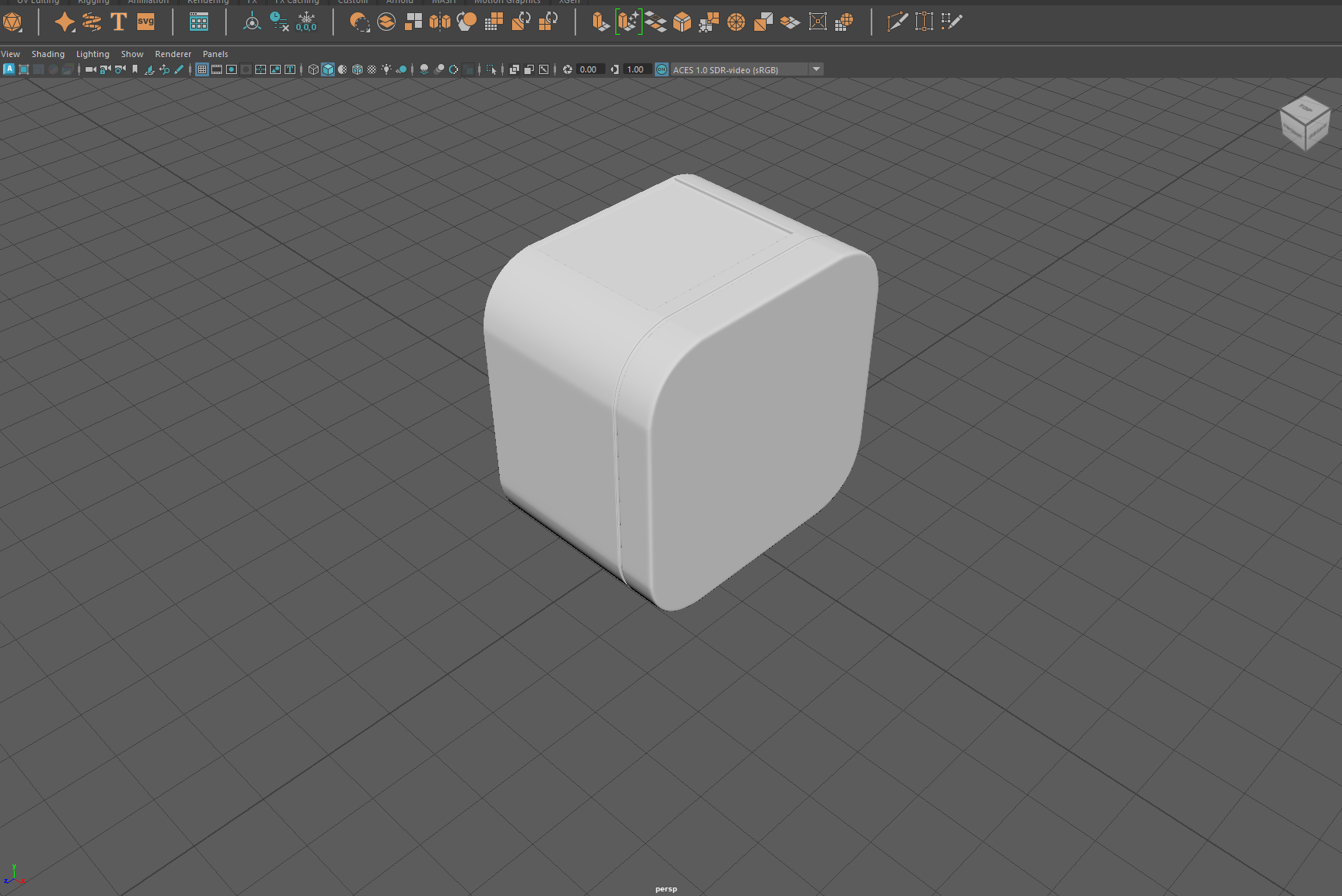
start with the body of the clock.
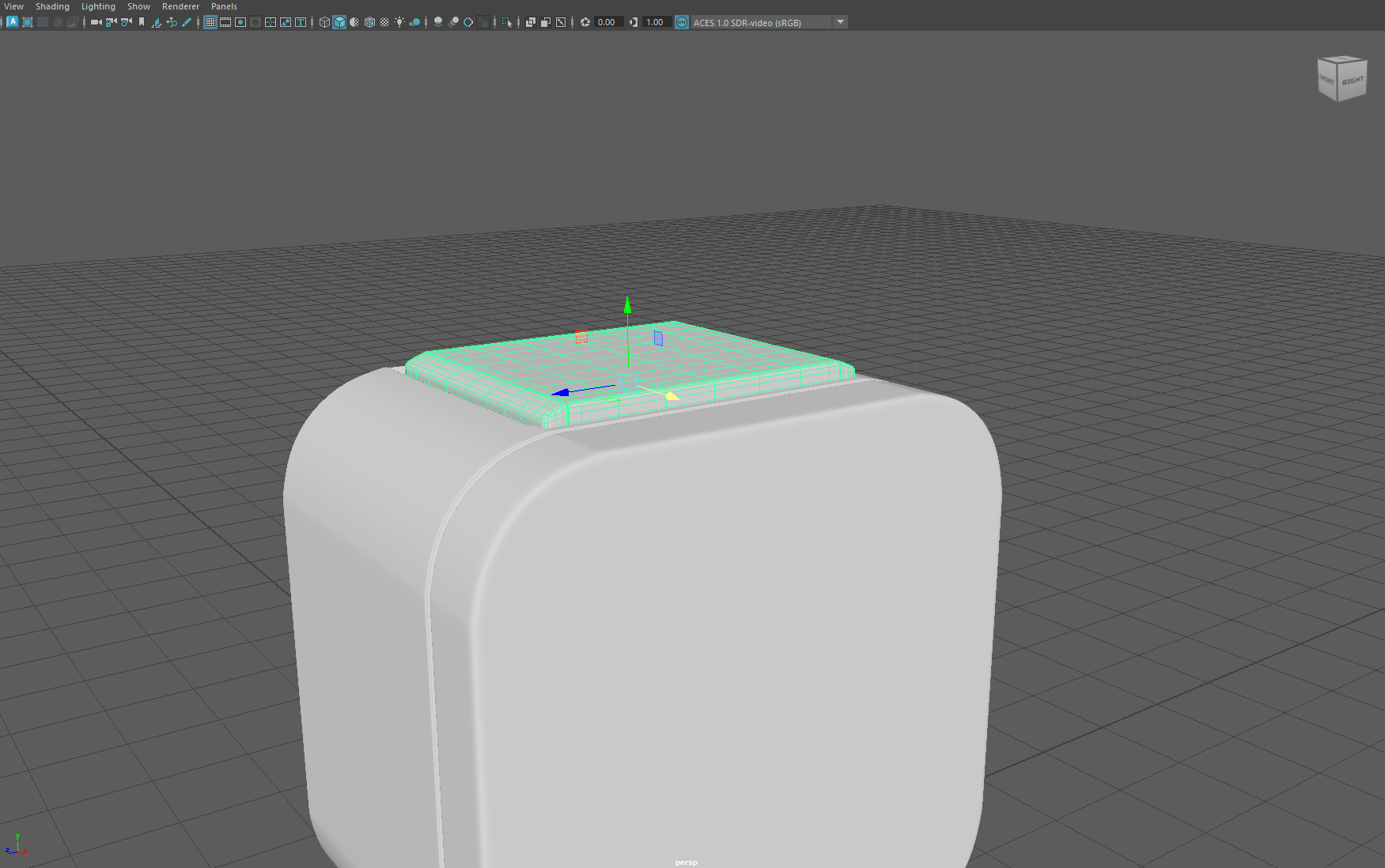
The button to turn off the alarm.
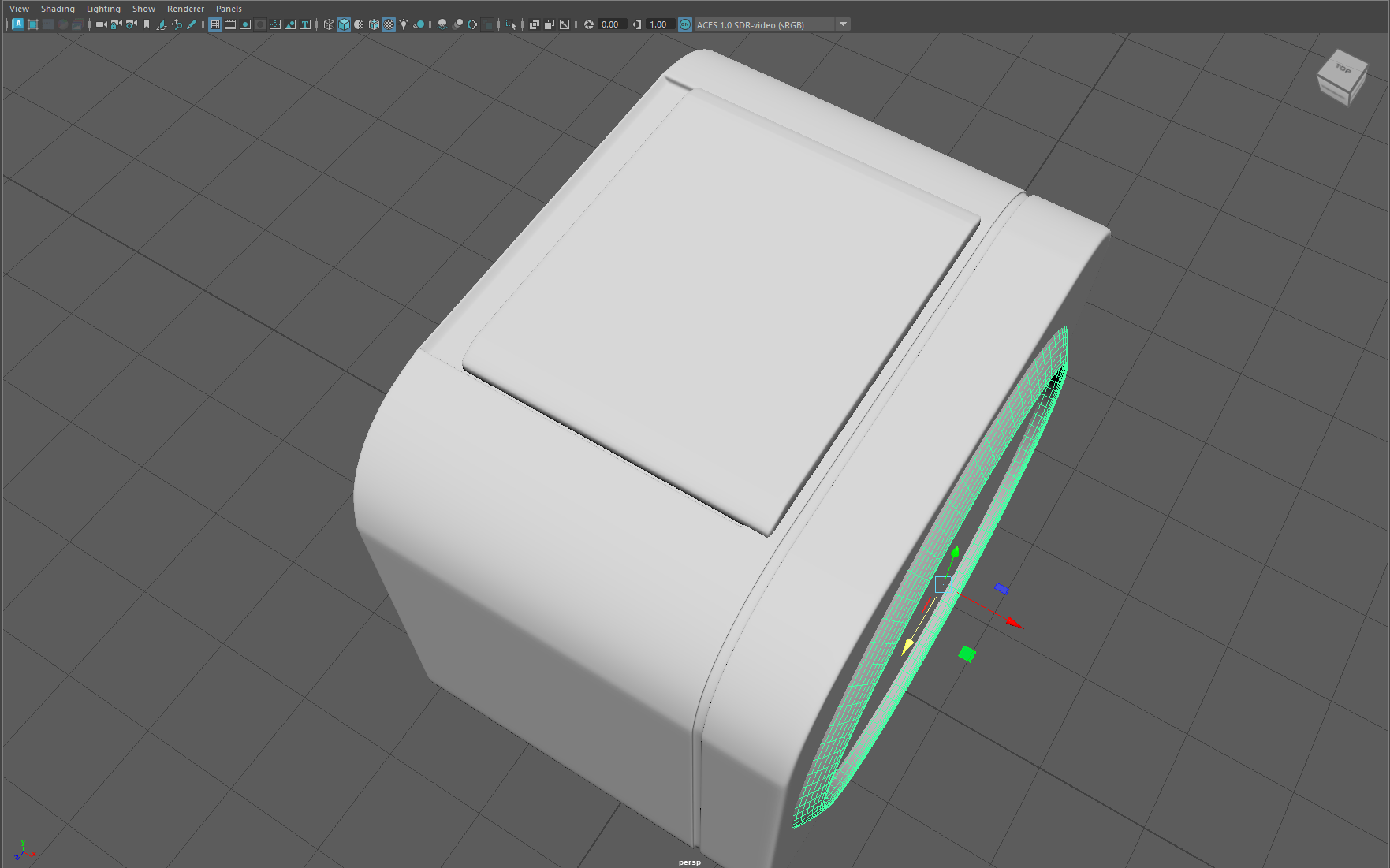
and end up with the clock hands for the final touch.
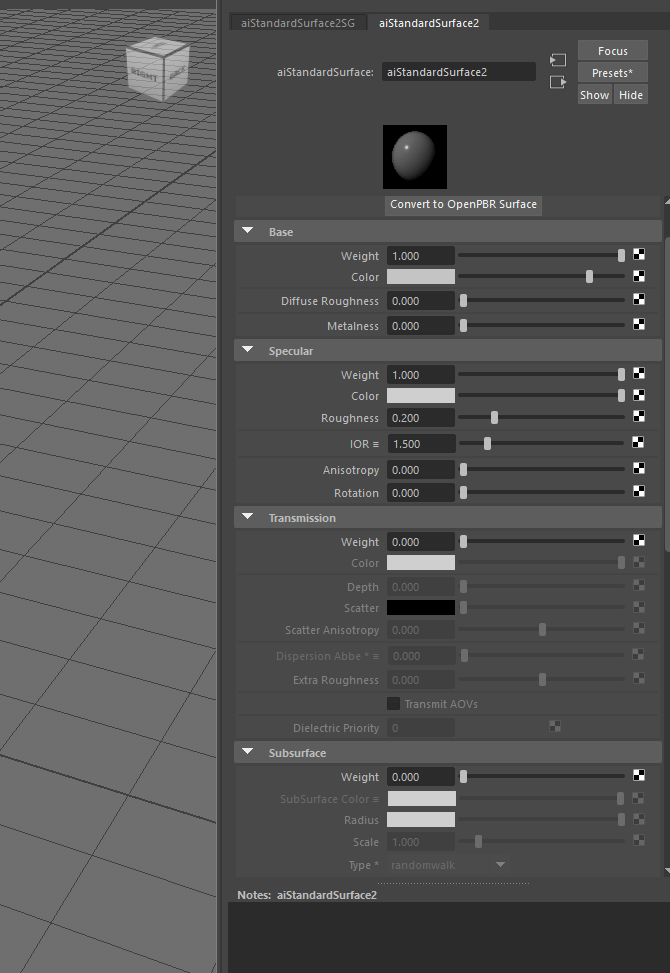
I follow by assigning a material (aistandard material in this case) to the clock so I can modify the behavior of the material in the render.
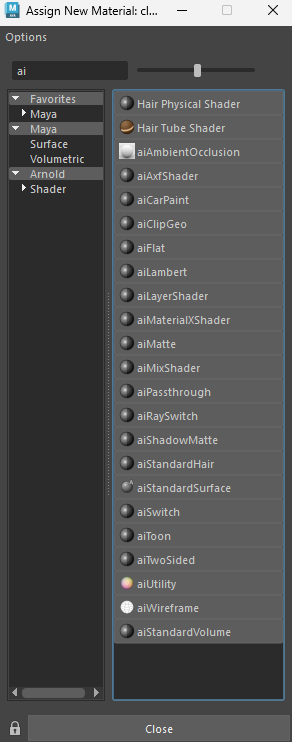
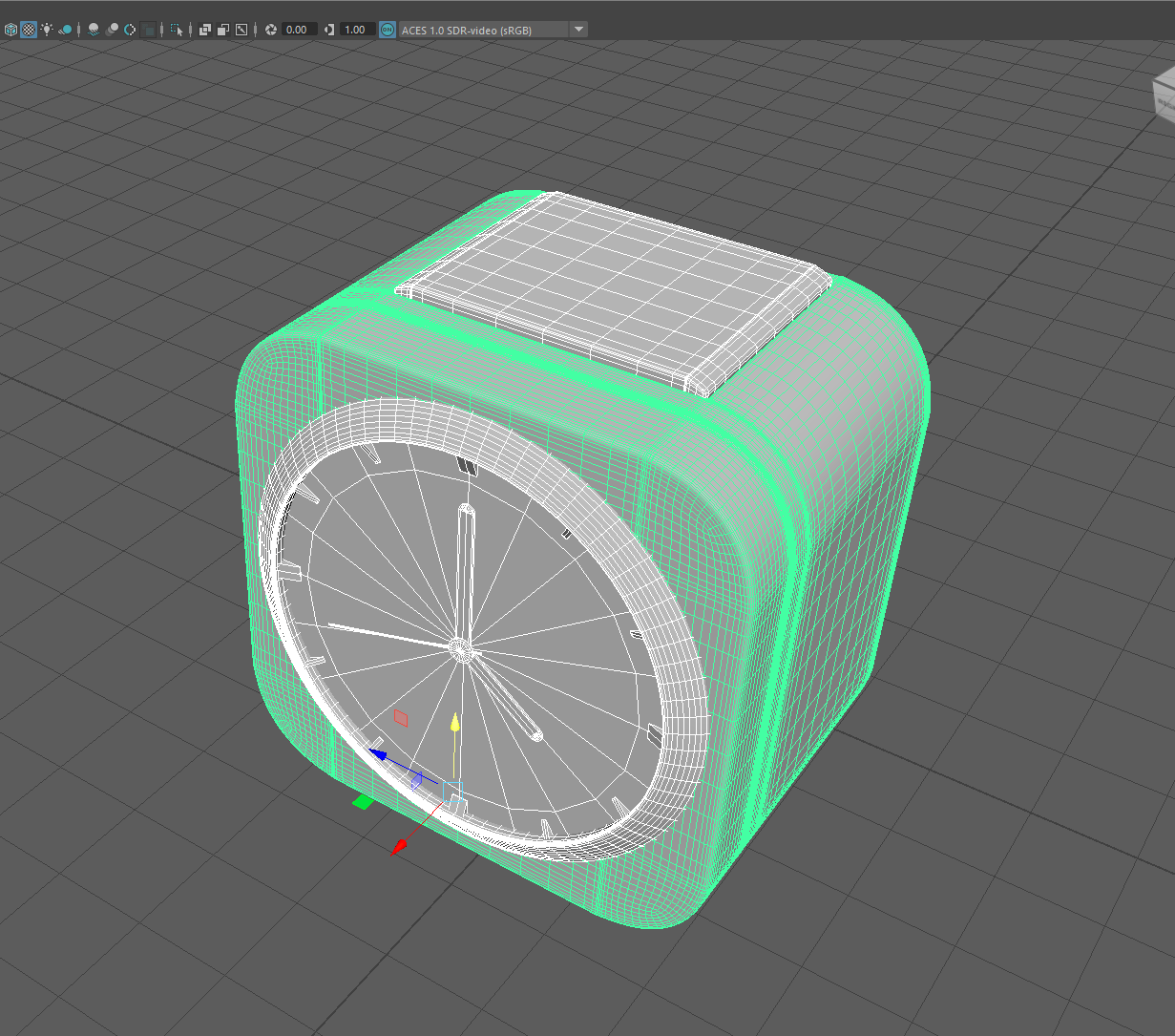
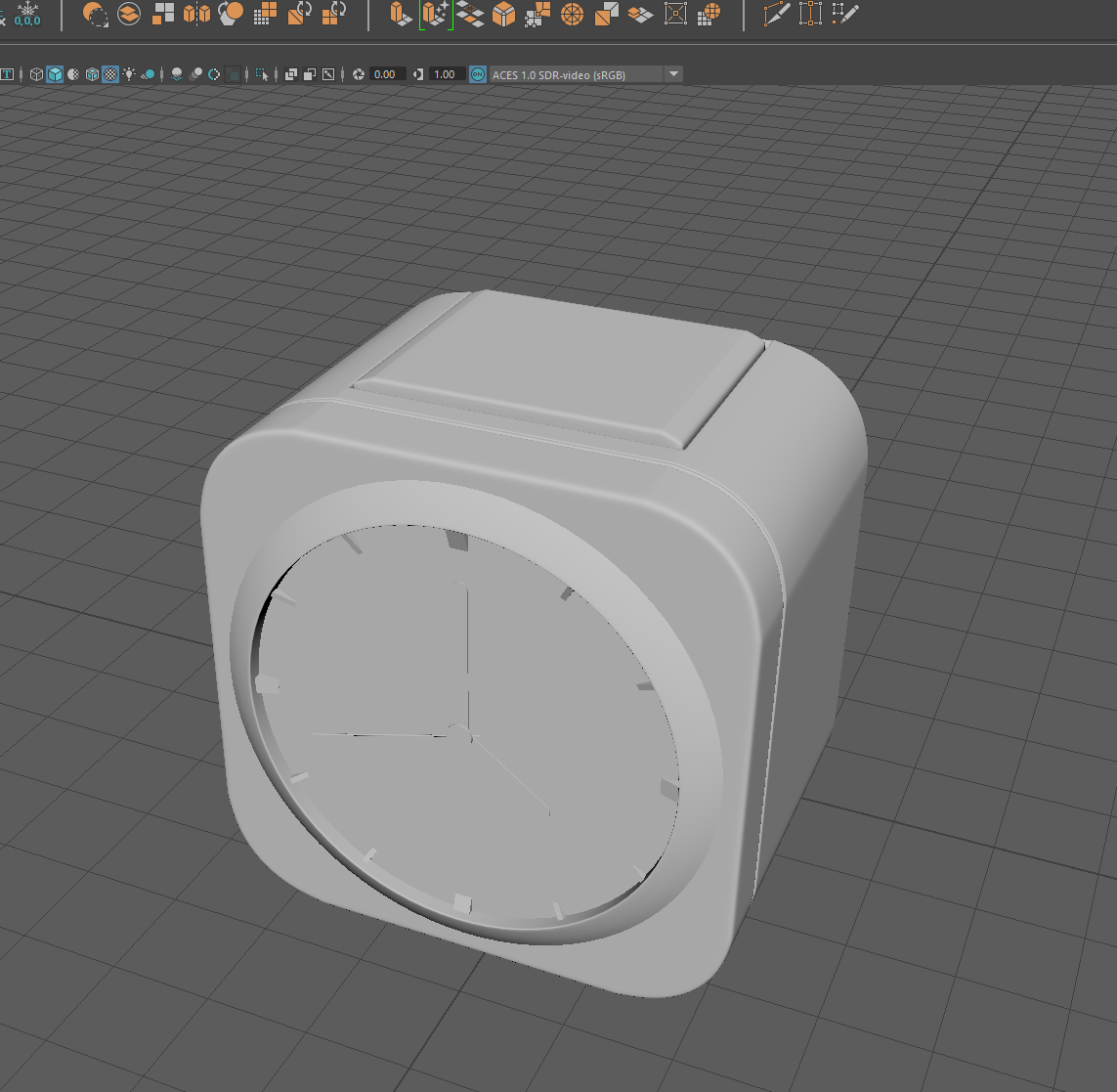
Next I change the properties and colour of the materials.
Here i choose the colour to a blue marine.
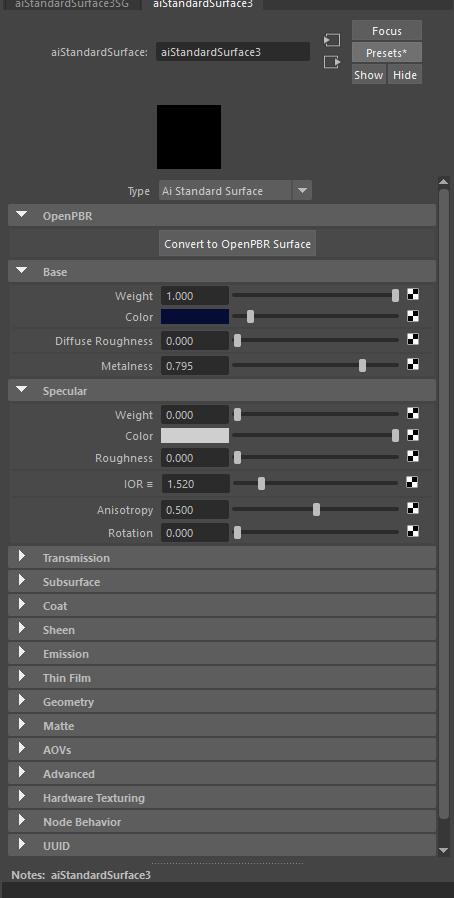
And here I play with the metalness and the transmission to make the material more reflective.
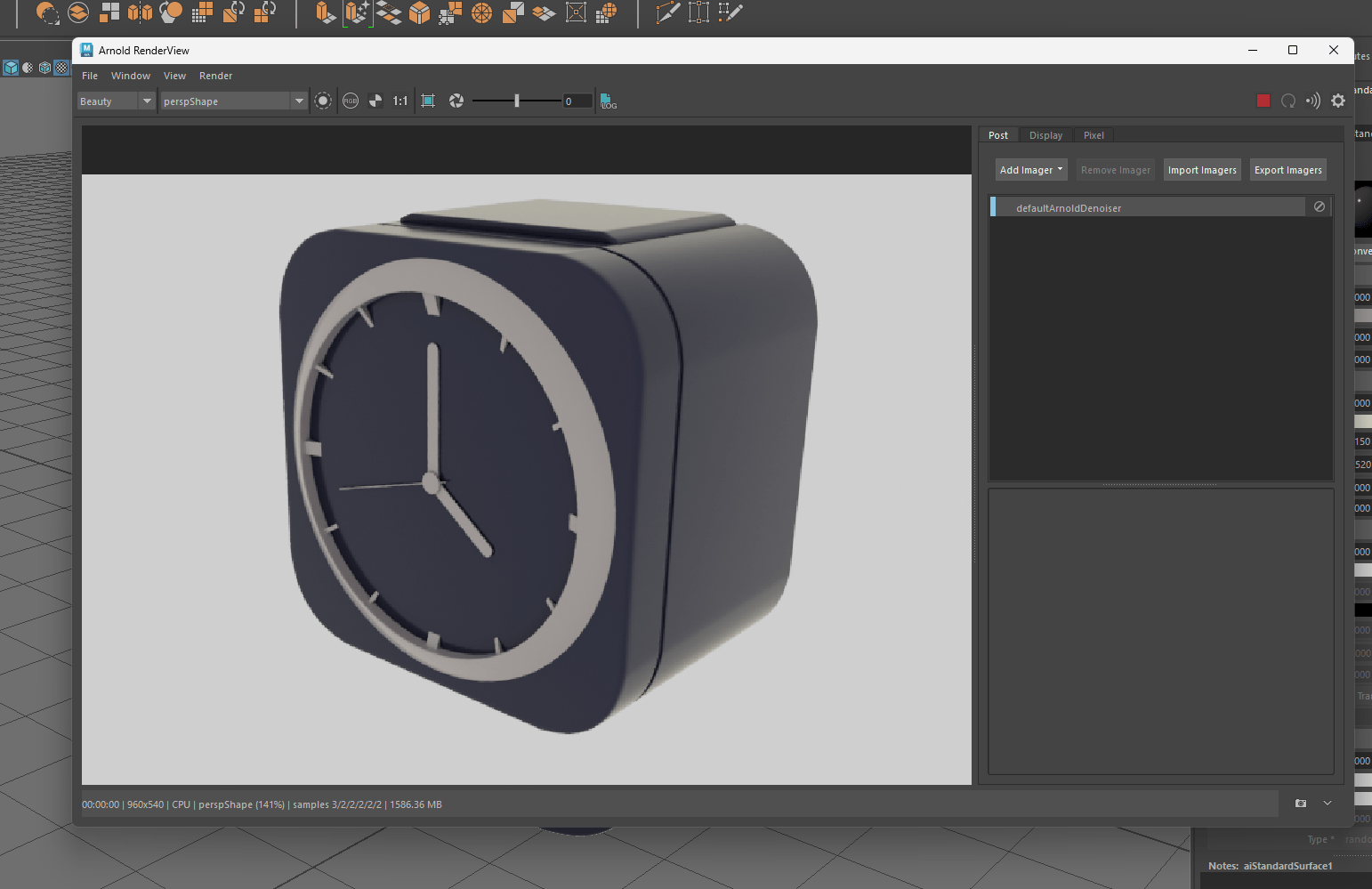
Here is a basic render to see a preview of the clock.
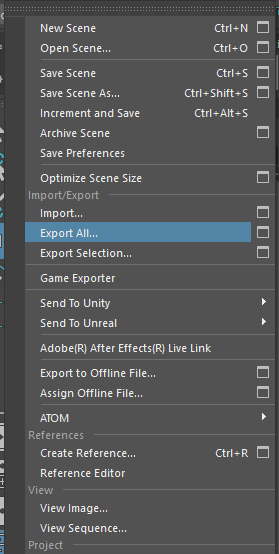
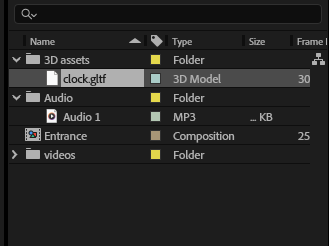
In this case I am going to export the 3D model to try and animated on After effects as a test.
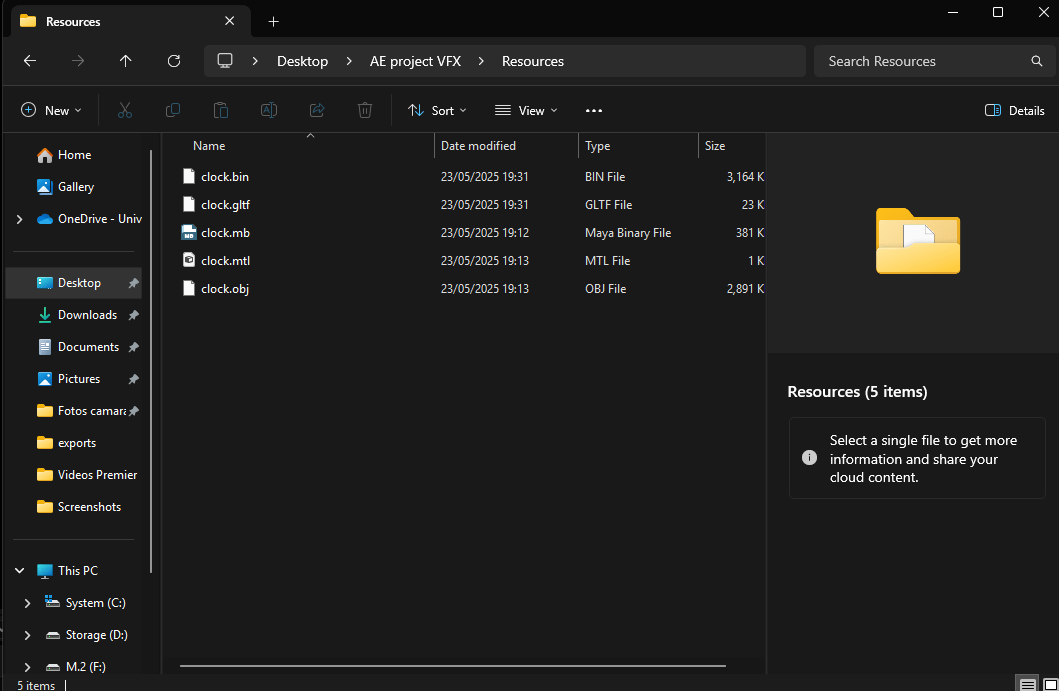
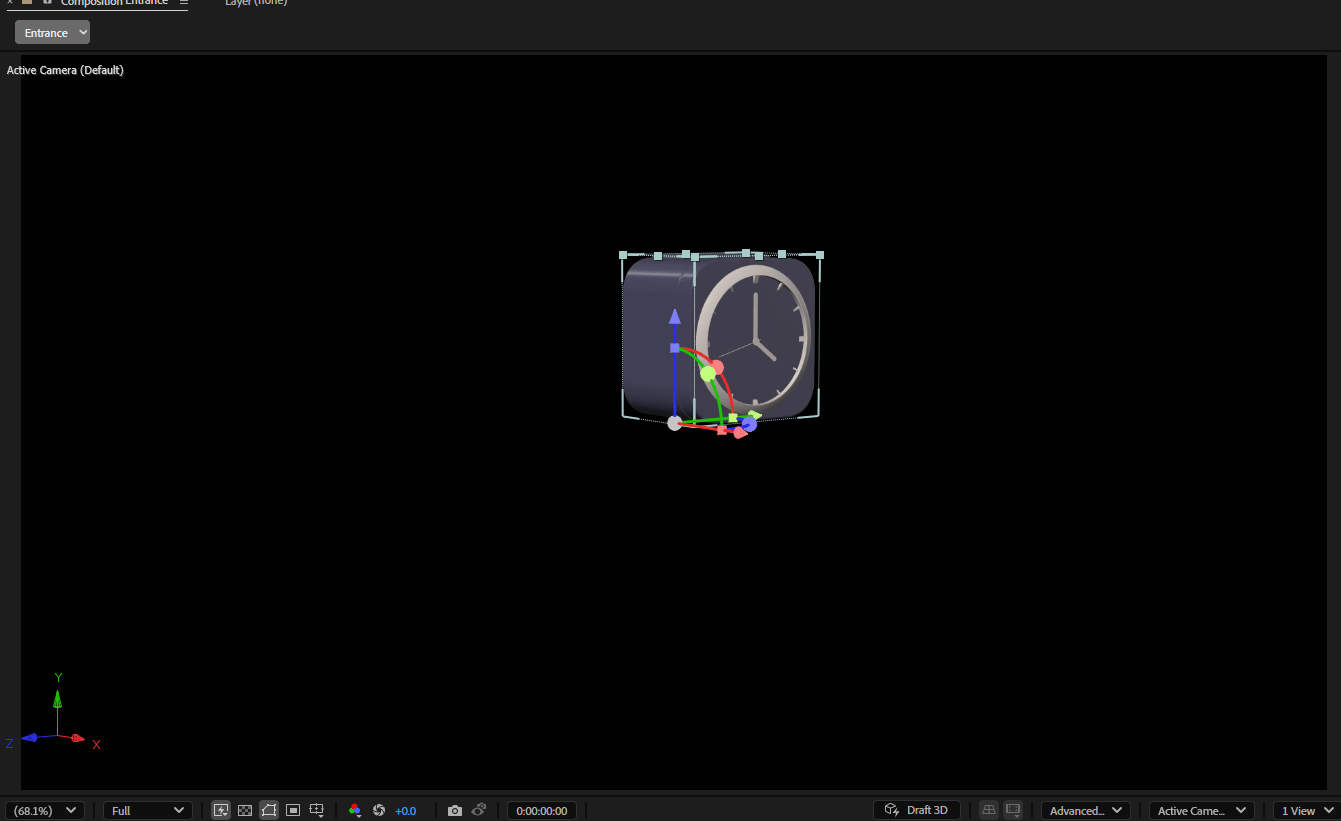
This is the clock put into the sequence without any light.
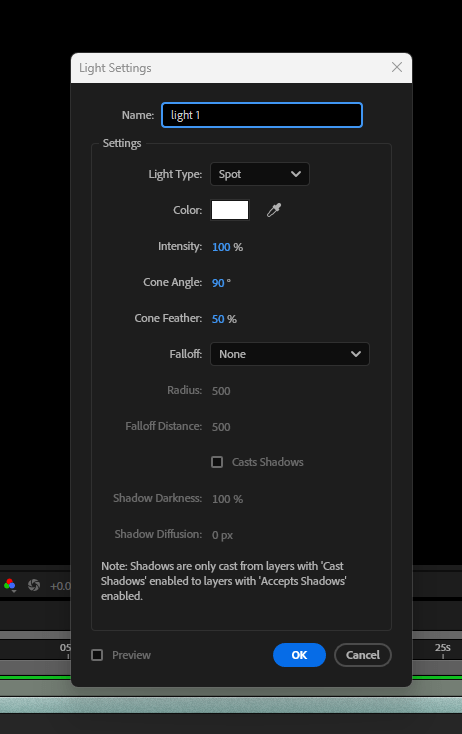
Next we add some light to the scene creating an spotlight into after effects.
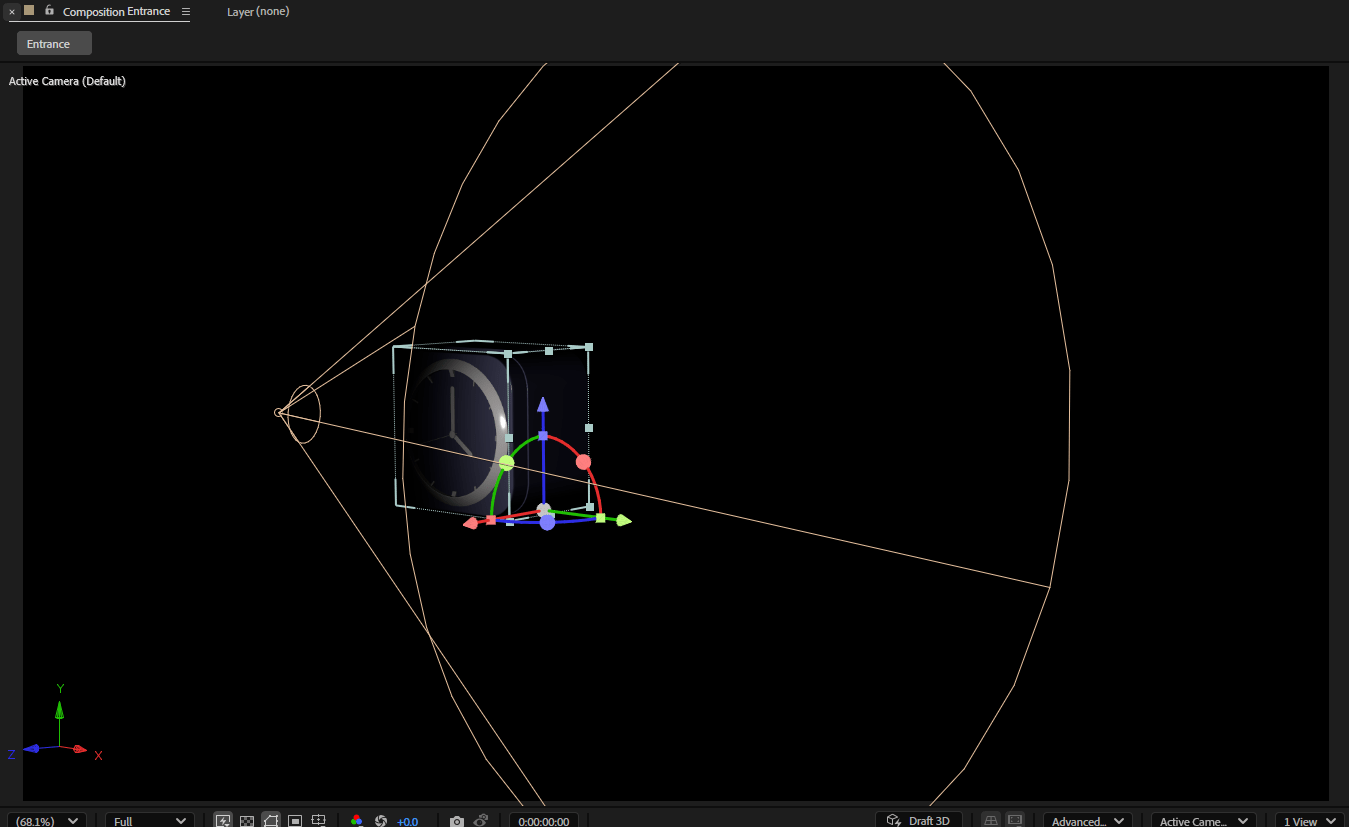
Here I a m experimenting with the light to see how it looks like from different angles.
Now I create a plane floor because by now my clock is floating around.
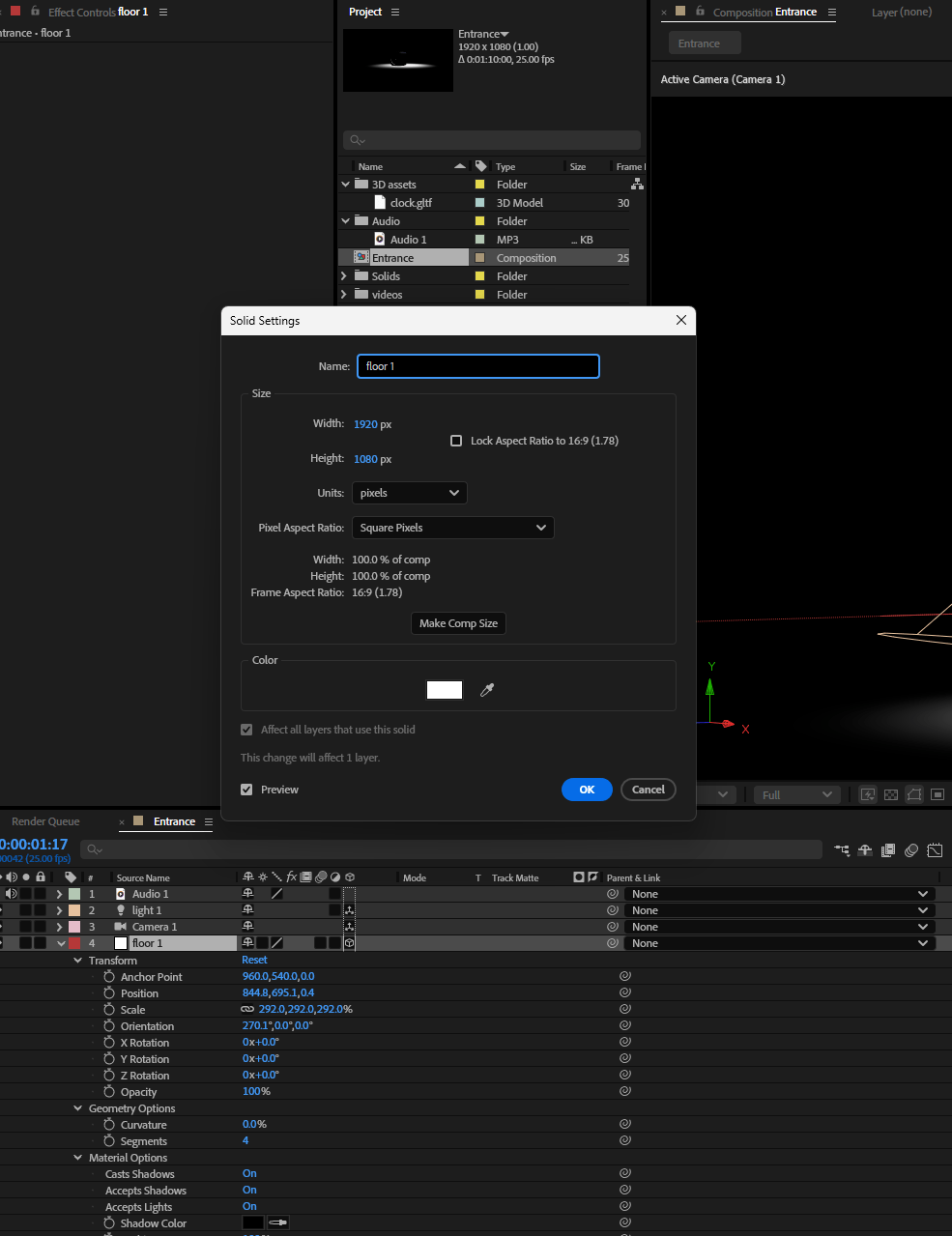
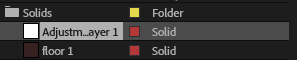
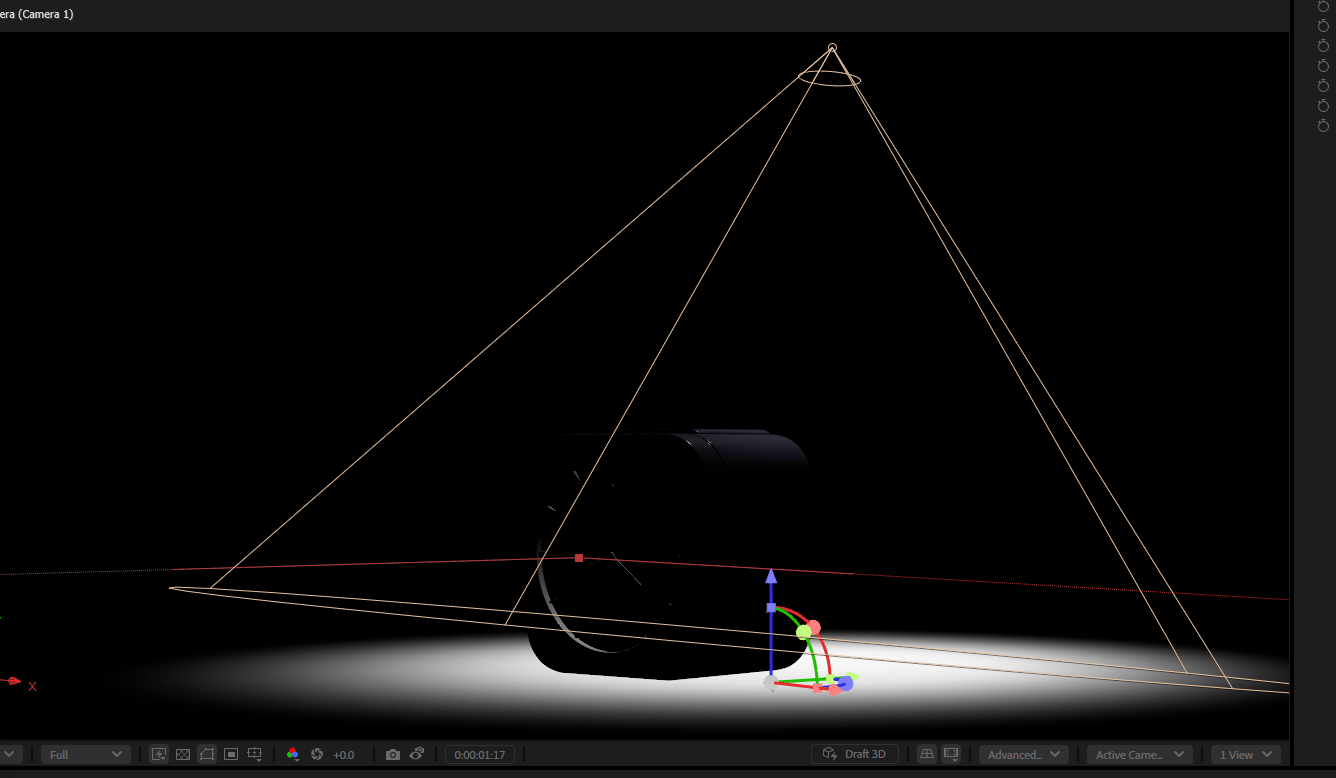
I like this low light scenario of mystery, but probably I will end up rendering the whole thing in Maya to achieve a better look.
I am also starting with some titles.
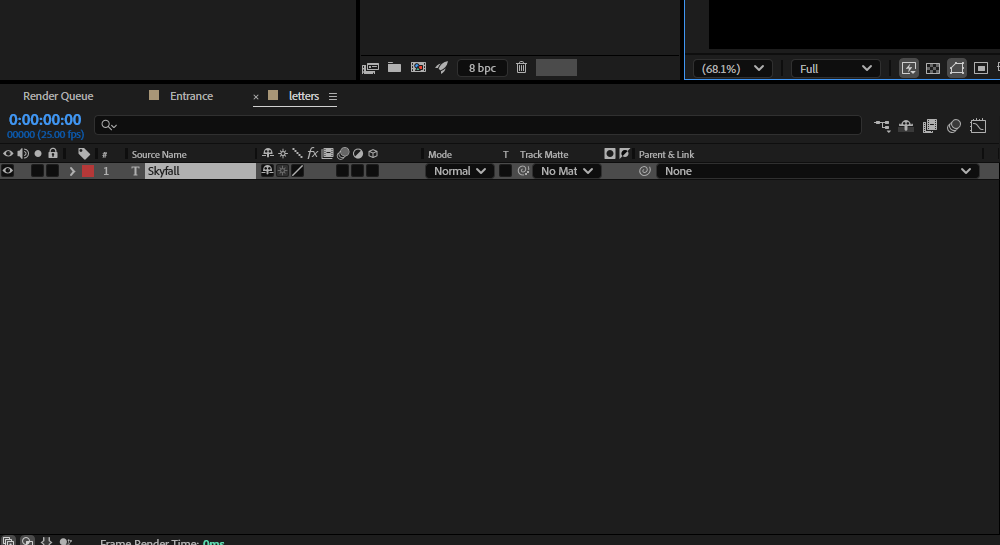
I key-frame the opacity so I can use it as a transition.
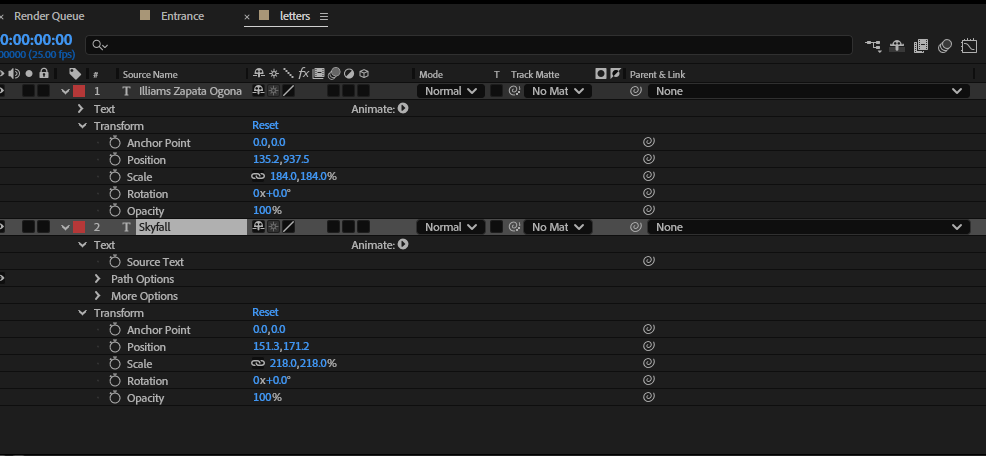
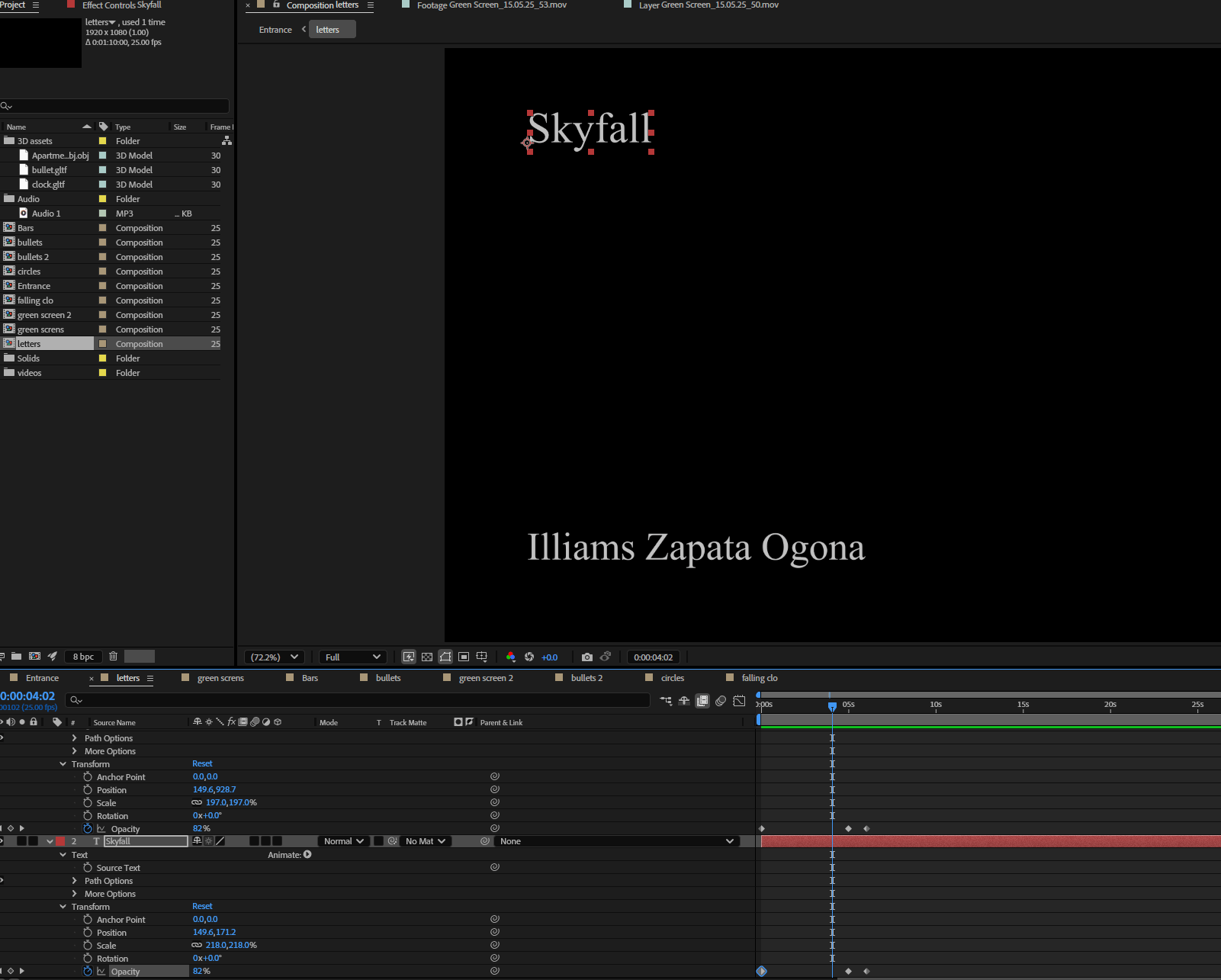
And also play with the position to see if it look better.
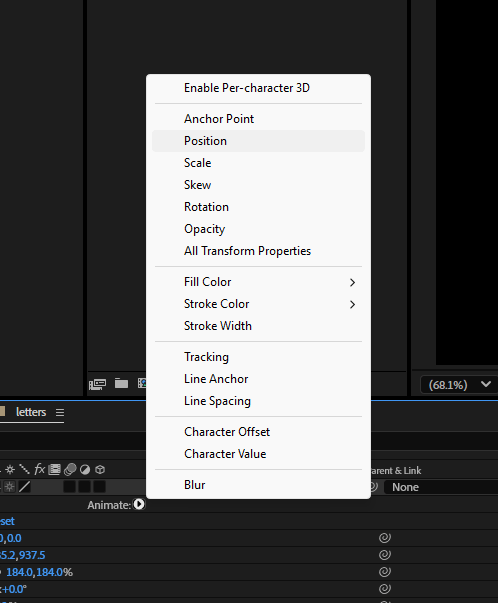
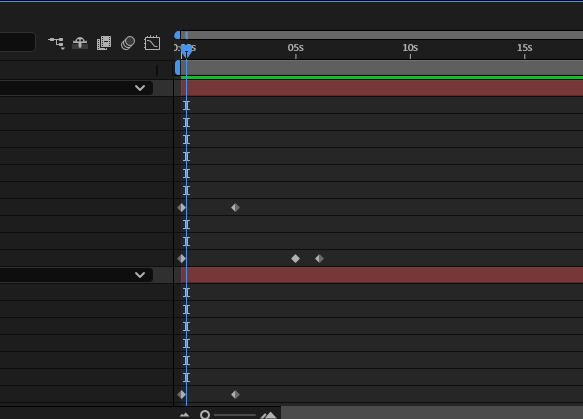
After finishing with the titles I create a new composition with some off the green screen that I am going to key-light.
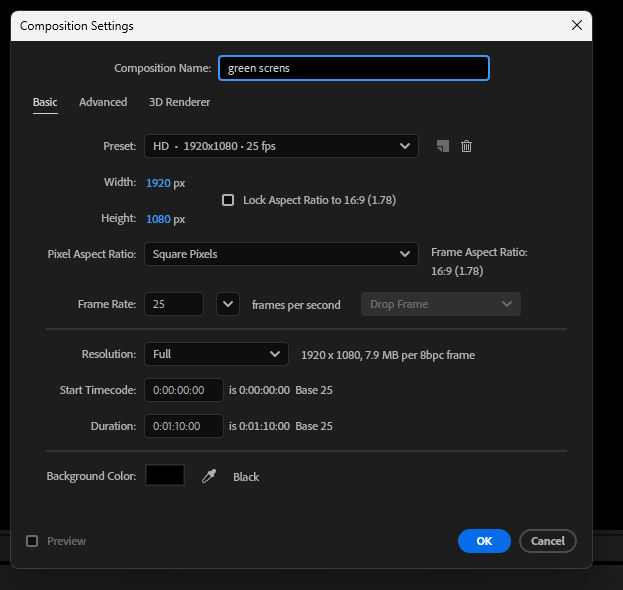
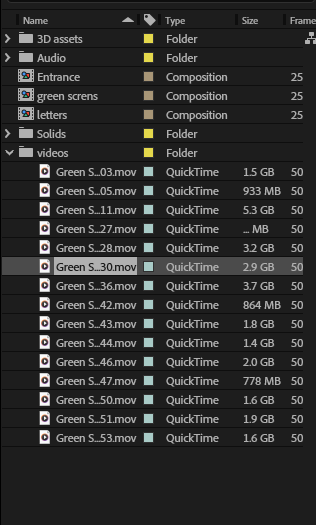
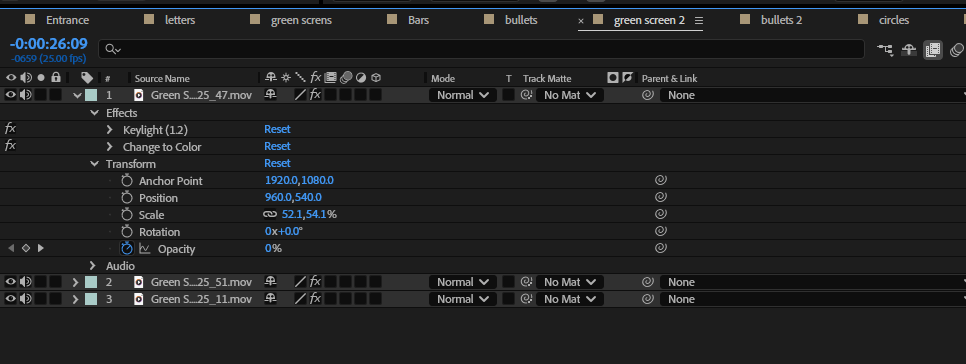
After creating the composition, I add the required footage and in the effects tab I select the Key-light 1.2 which is the effect that is going to allow me to create the silhouettes.
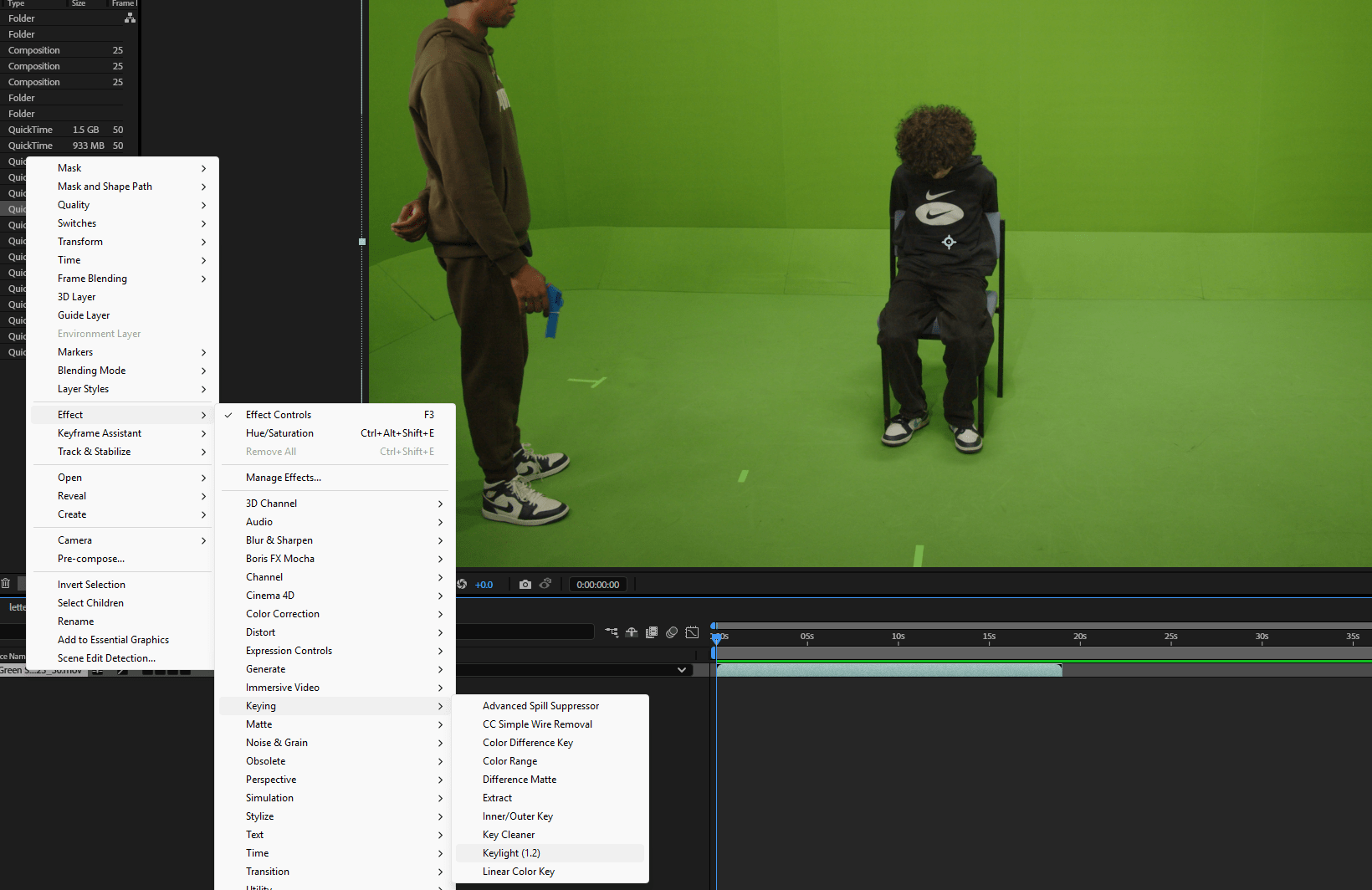
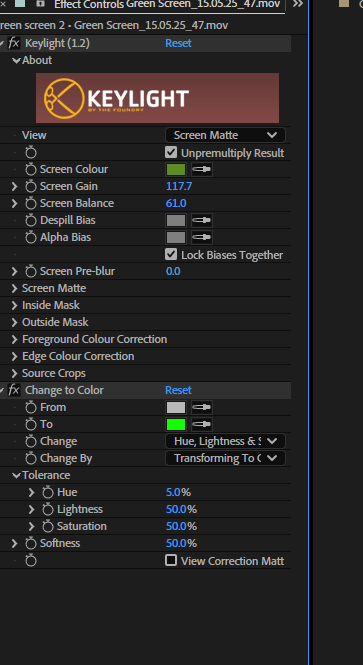
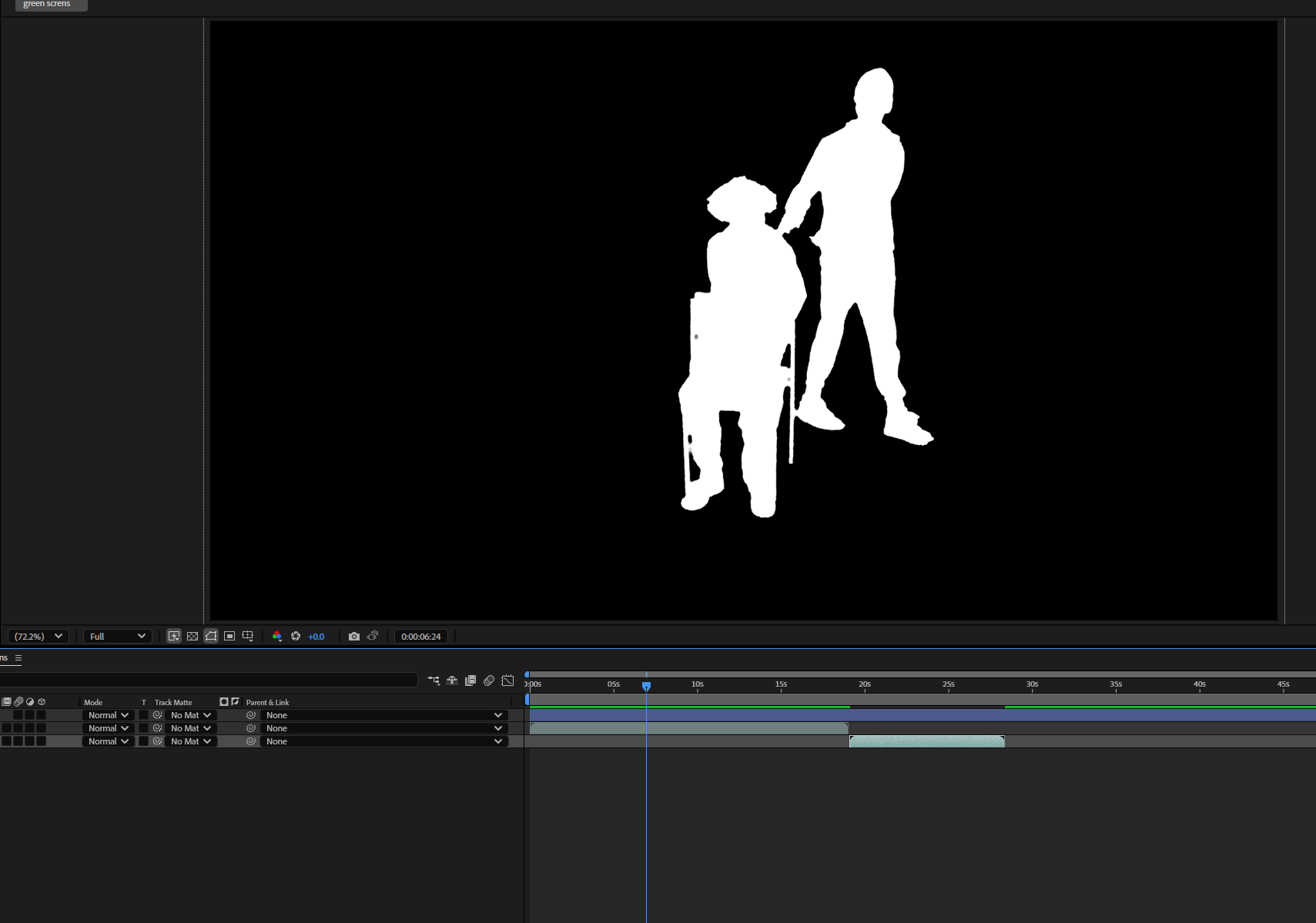
This is the result:
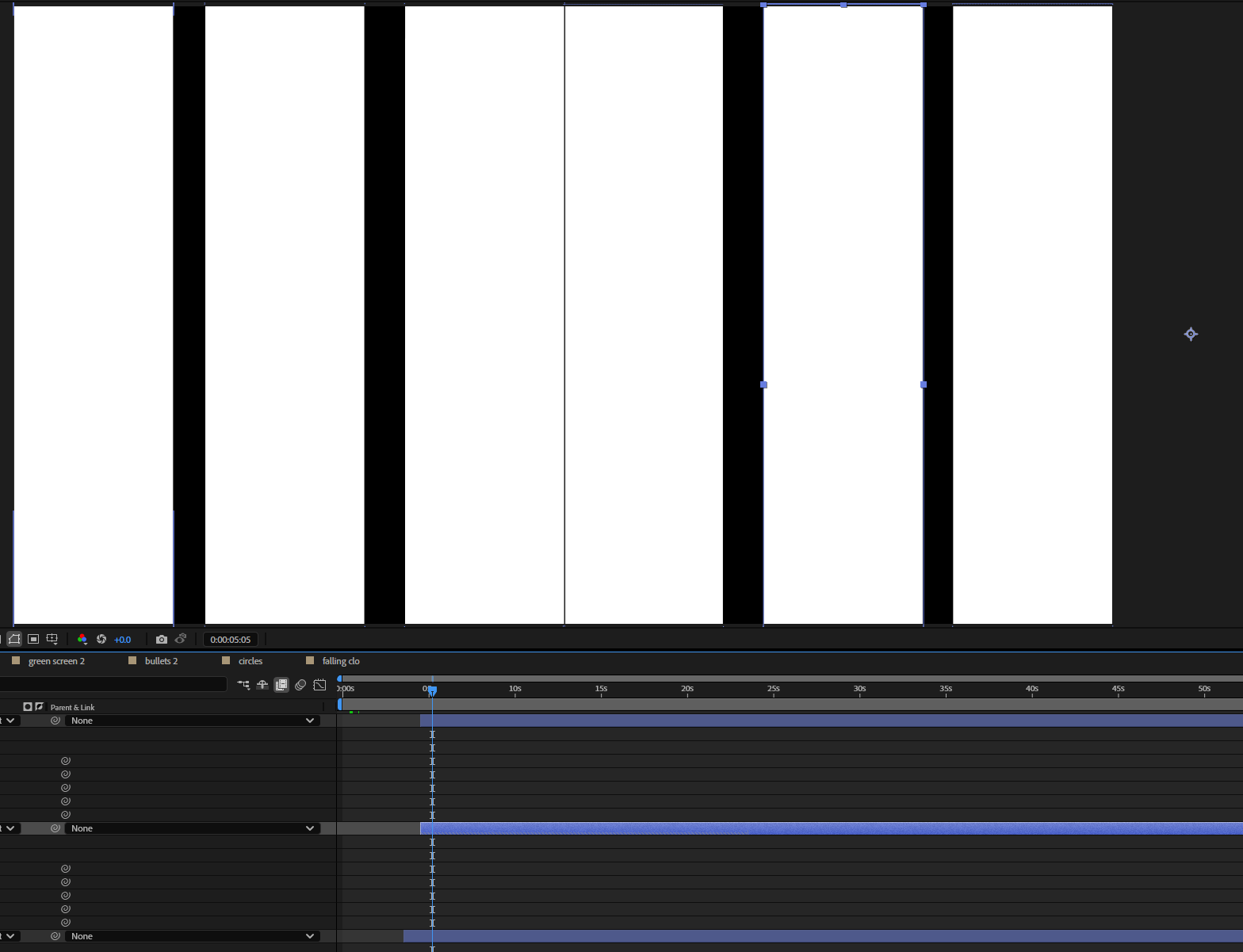
After finishing with my footage I am going to create some animated graphics, which in this case consisted in two bars that move, to create a more dynamic scene.
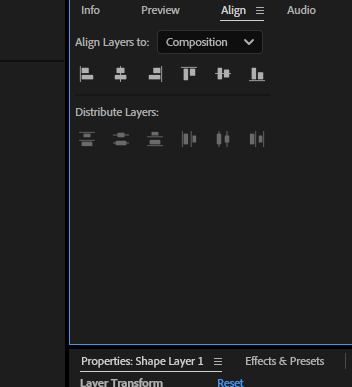
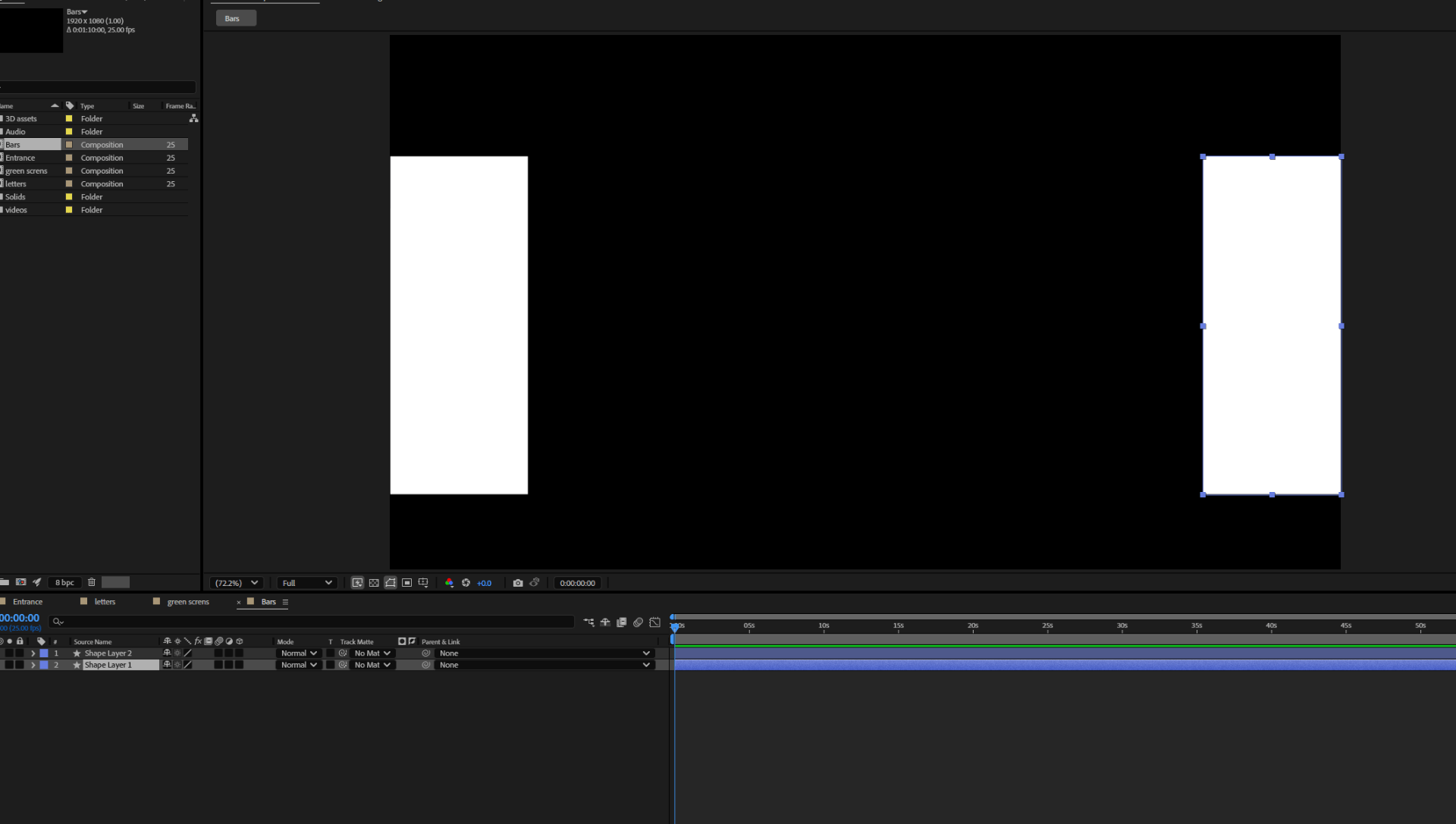 I duplicate the bars and using the align function, I position them properly.
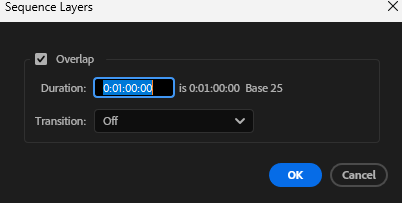
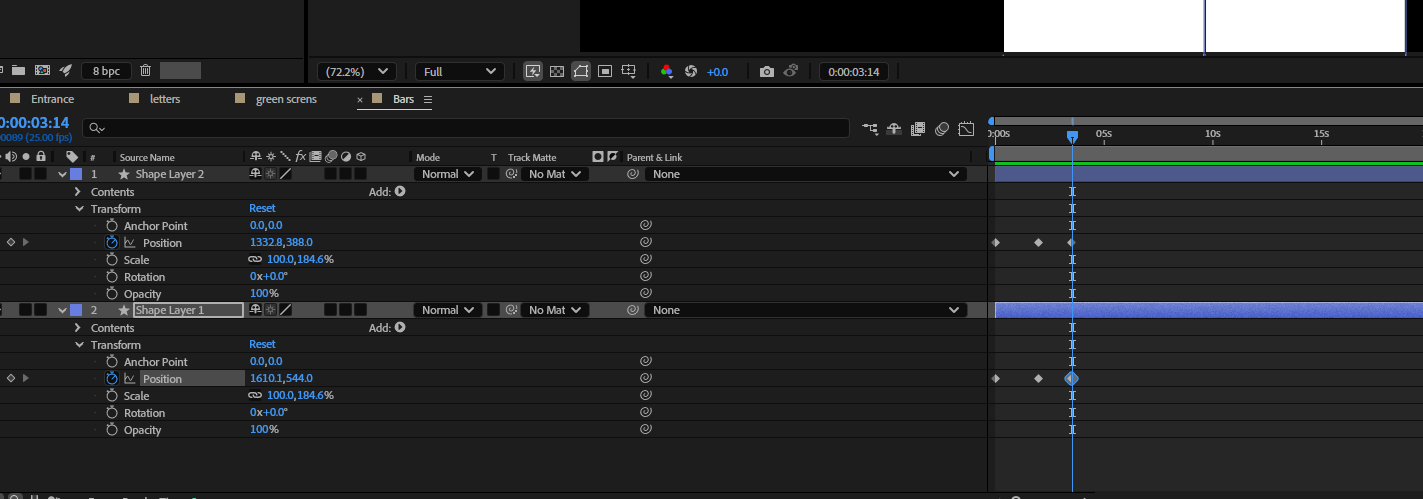
Now using the key-frame assistant I create an animated sequence of the bars.
I wanted my beginning to be more interesting so I used some building models from my past project in Maya to create an interesting scene, which consisted in a panning from the top of the buildings.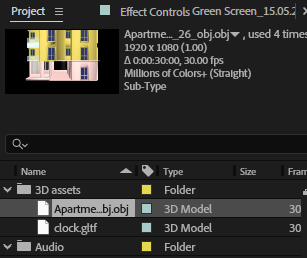
Positioning the buildings without any light.
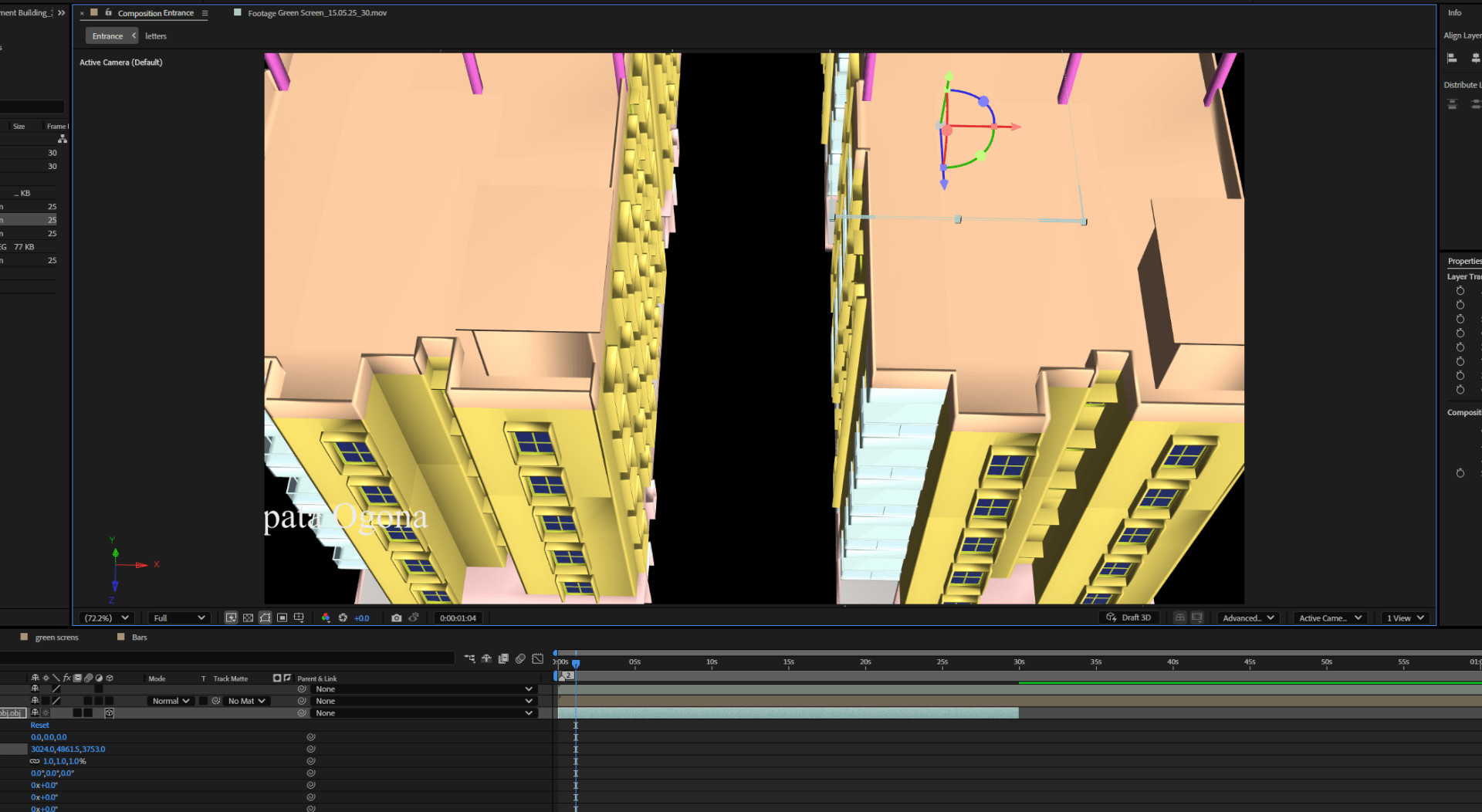
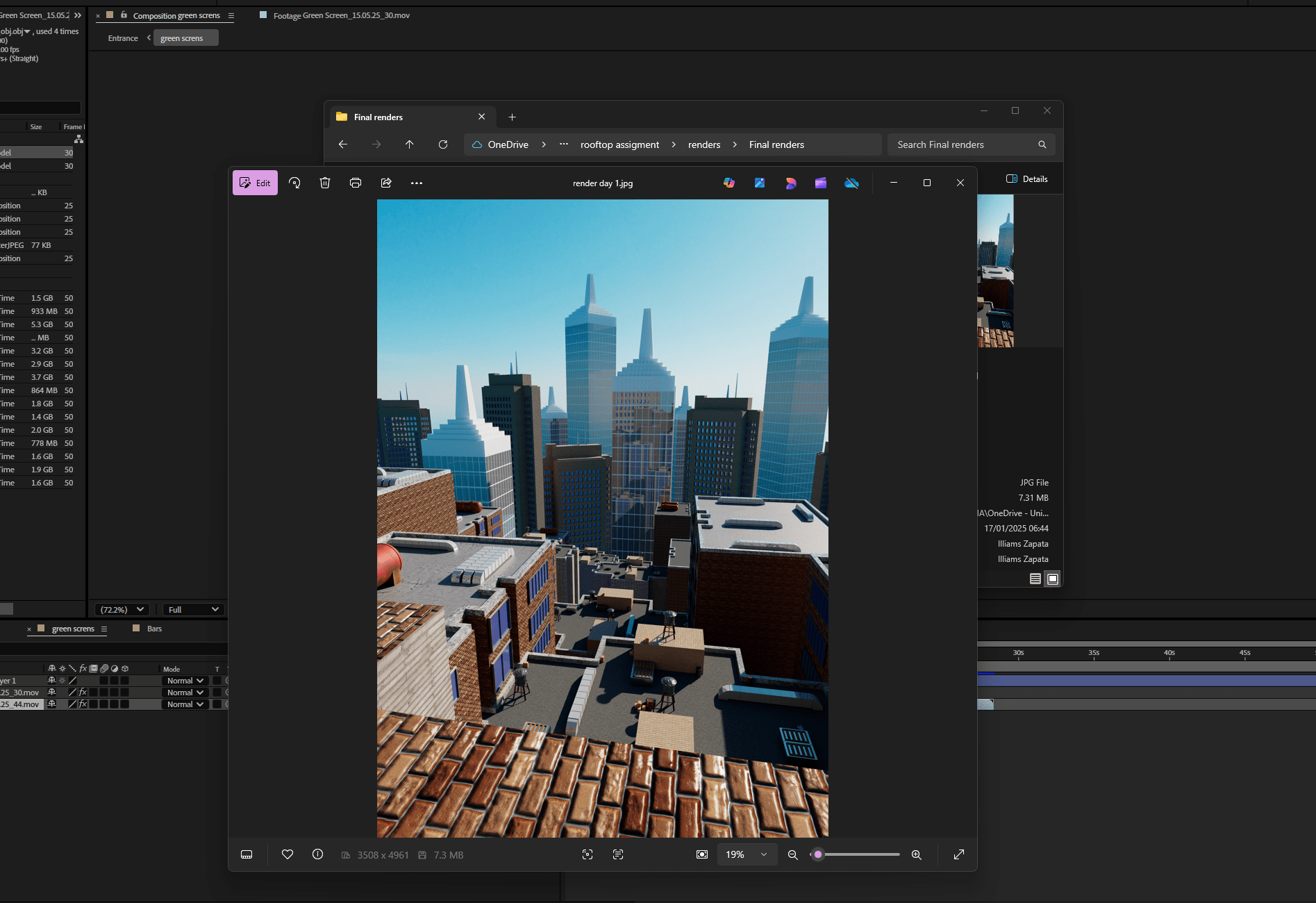
Initially I wanted to use a trampoline created in Maya using the nCloth system and nContraint, together with the nParticles simulation, to recreate a sky falling apart, but It did not end up working too well.
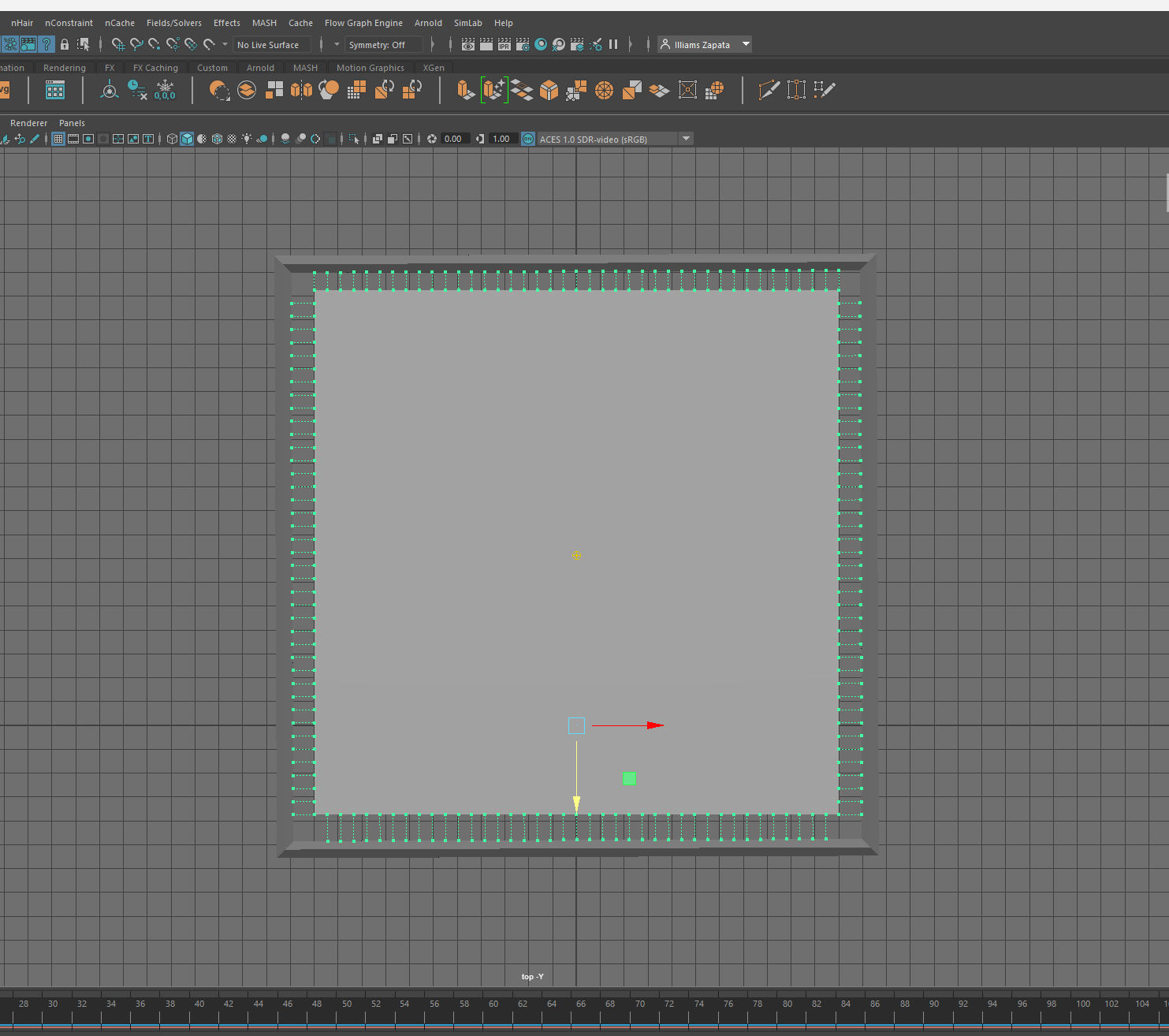
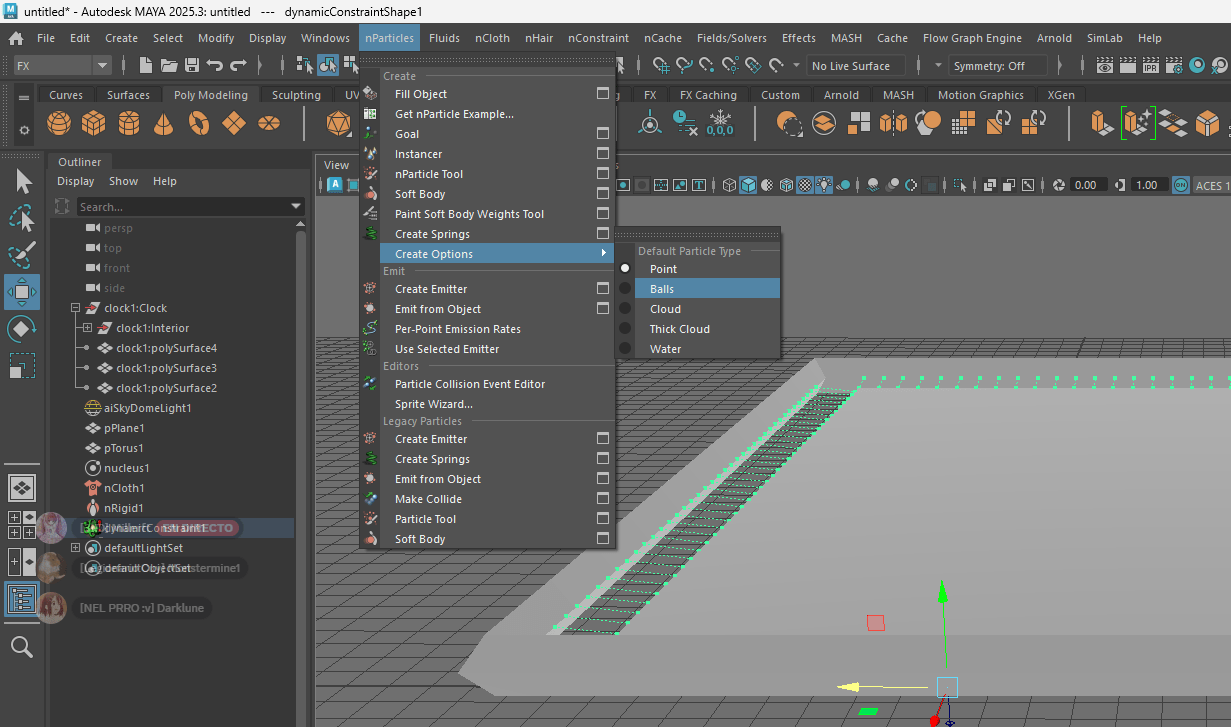
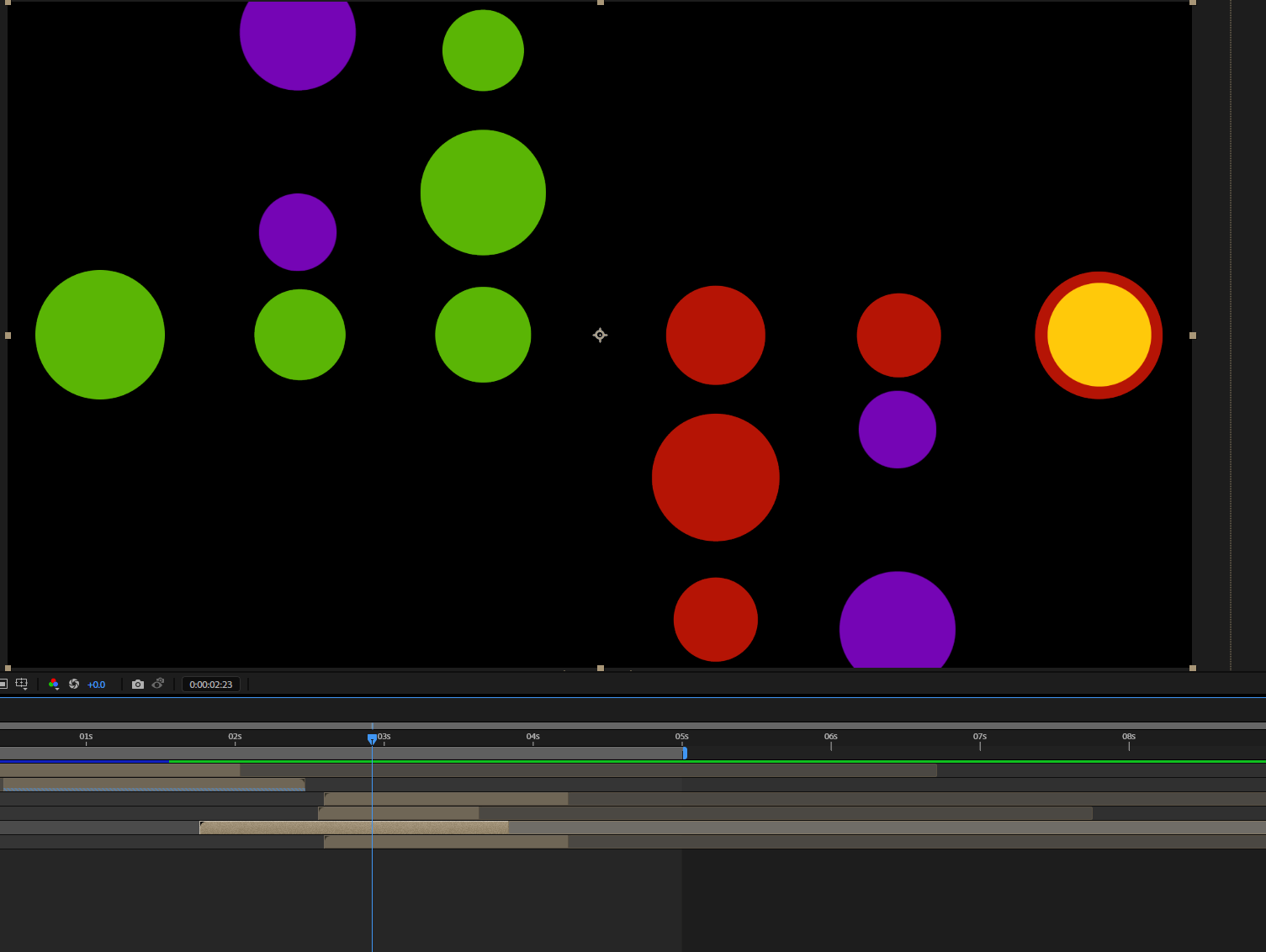
I used another idea related with animated graphics, and created some circles to use together with another part of the green screen videos.
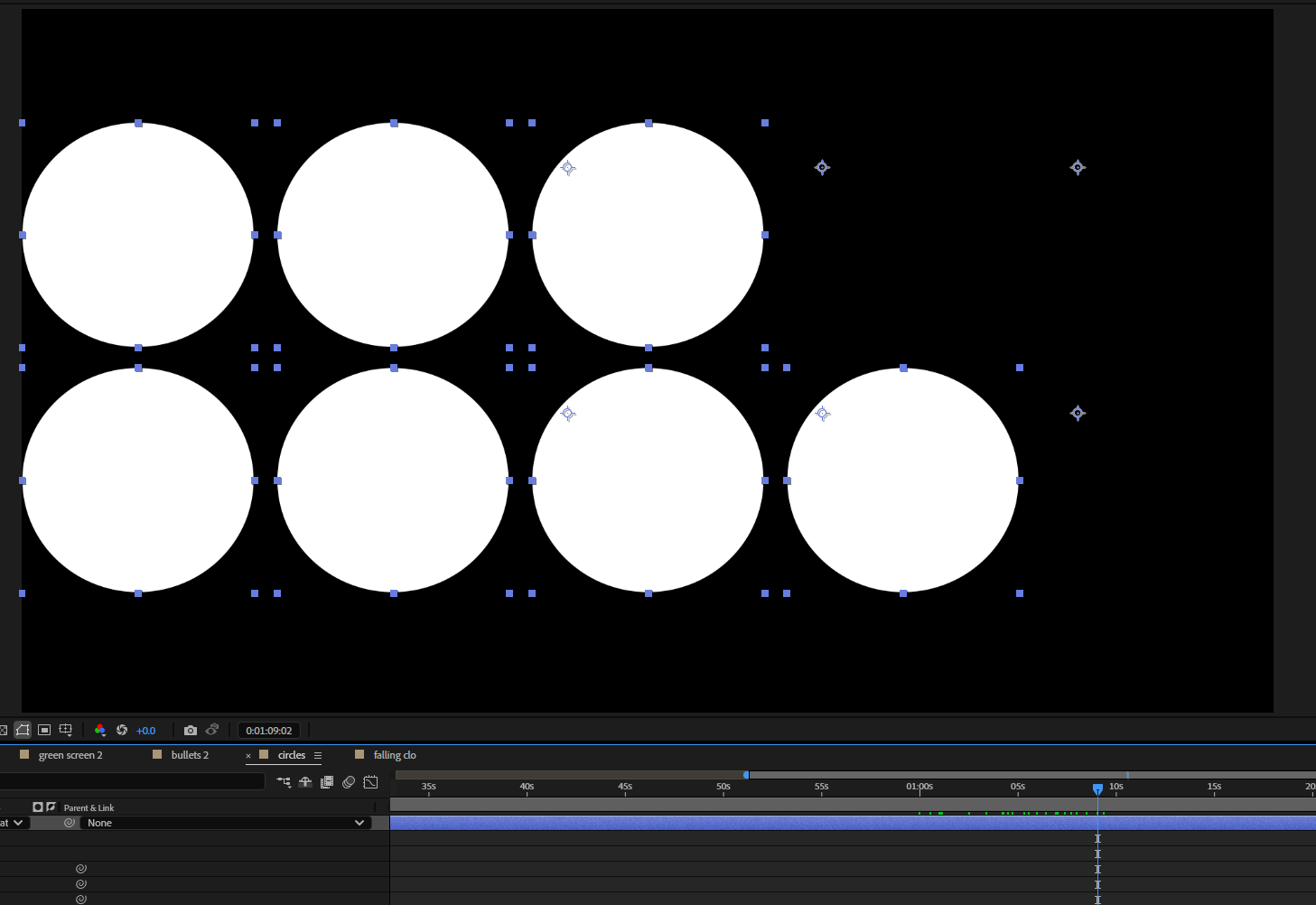
Here they are the shapes together and then using the key-frame assistant
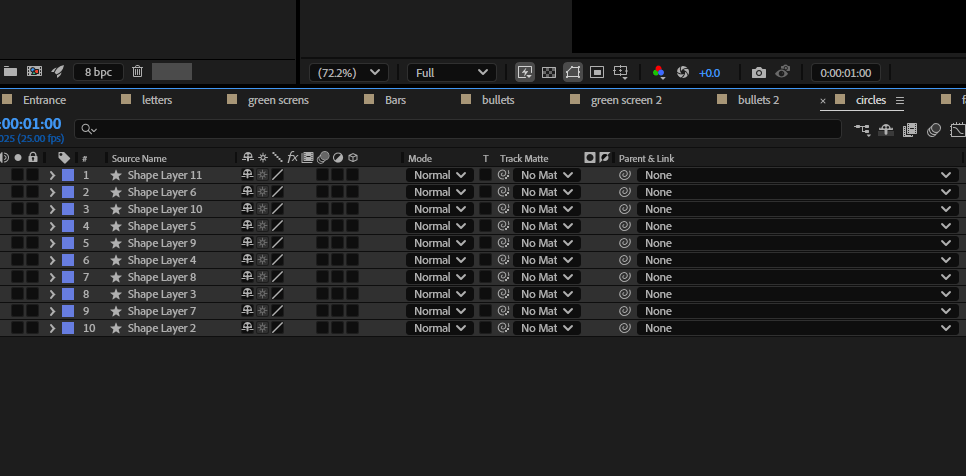
For one of my silhouettes I used a shatter effect, which looked cool and was really easy to apply.
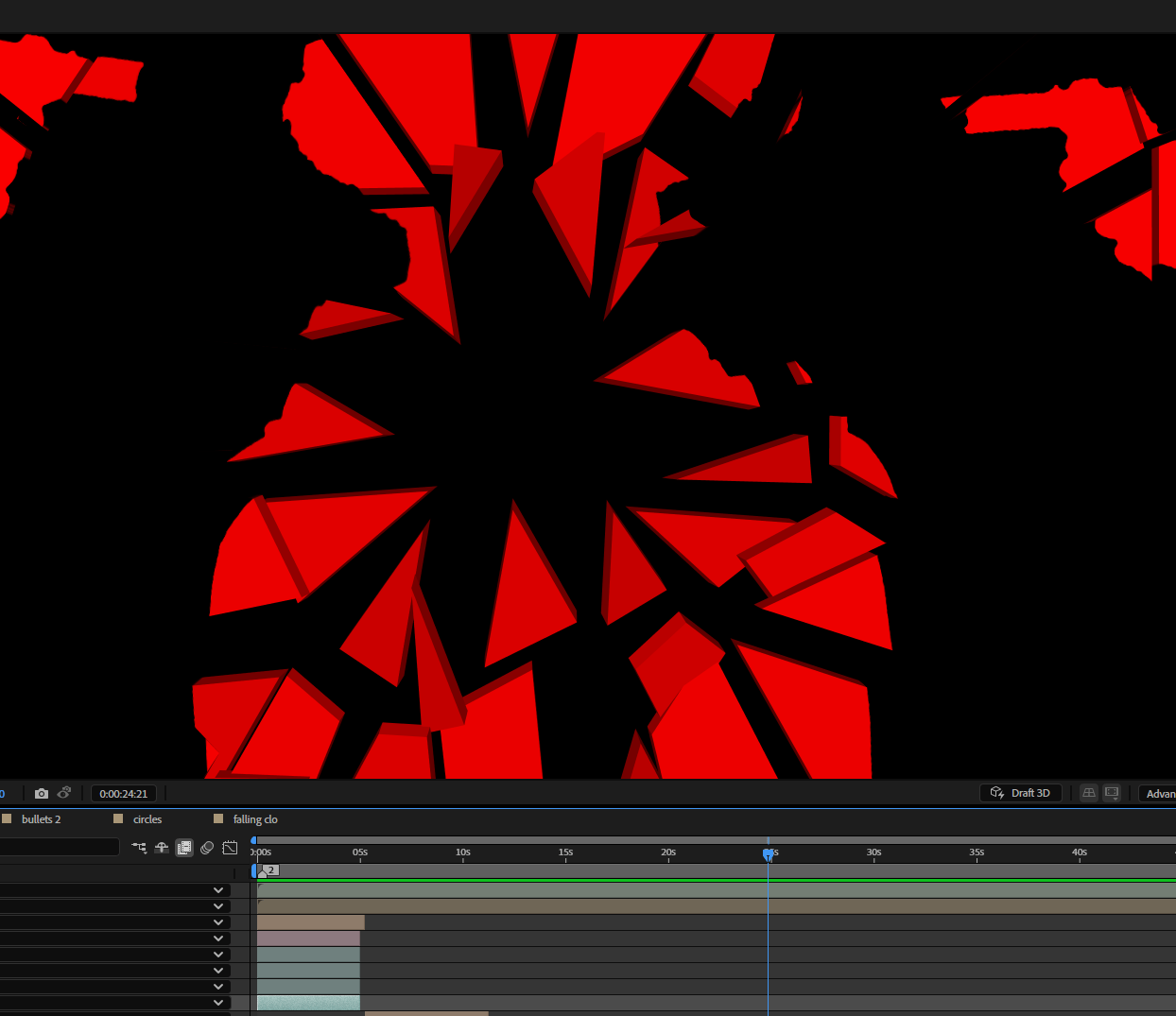
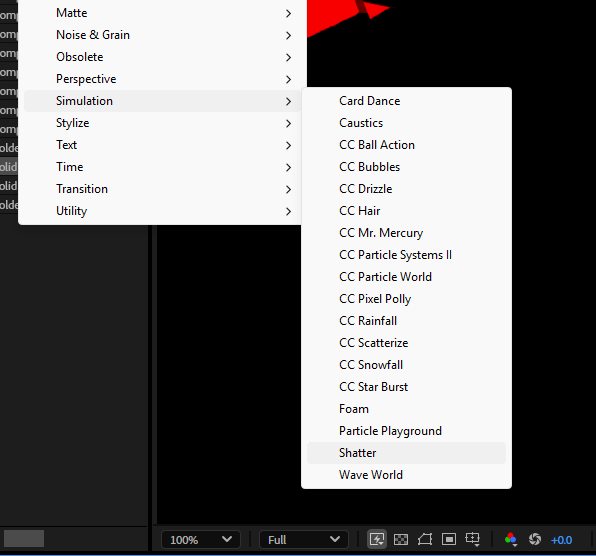
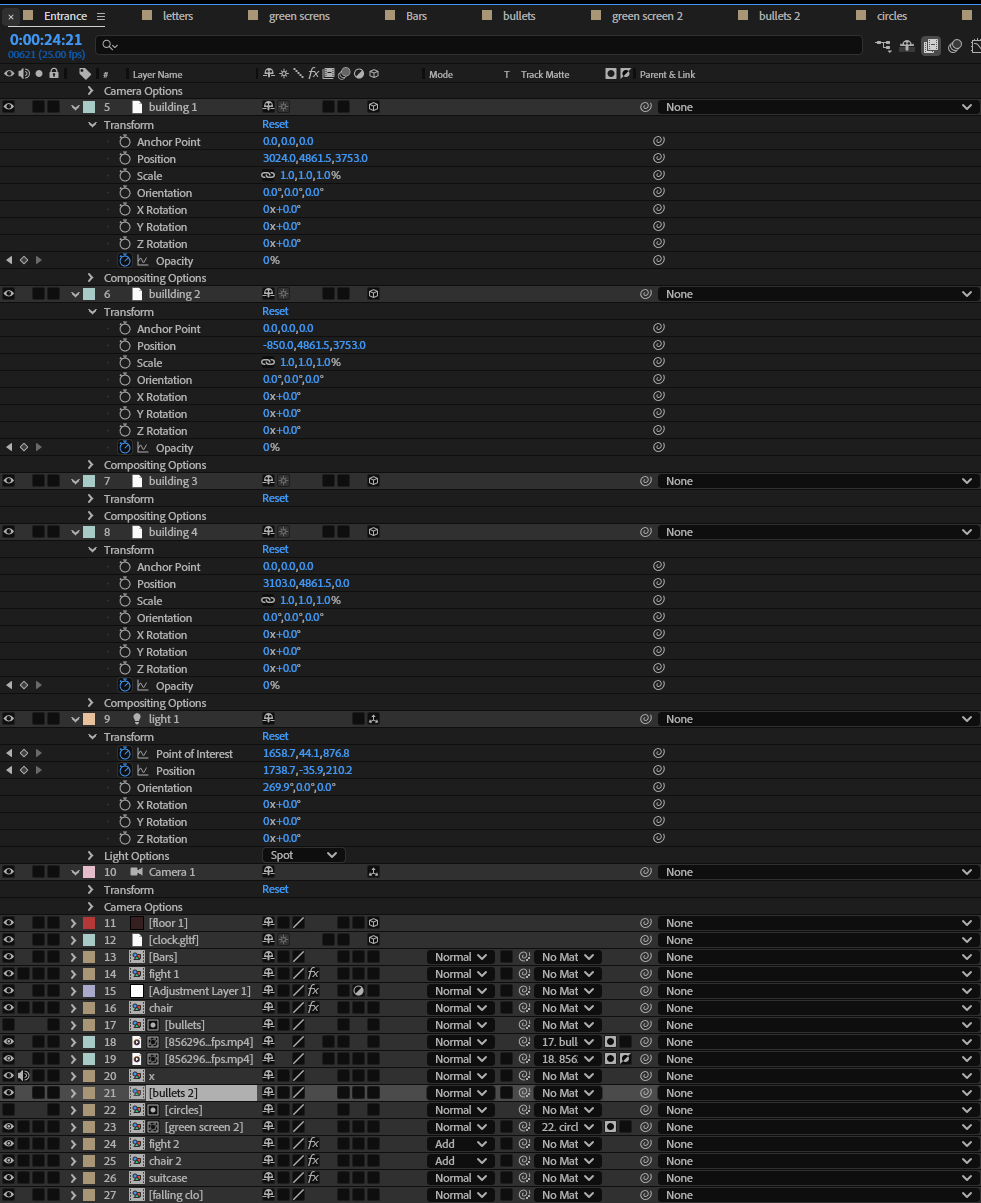
At the end I end up with a loot of different compositions and layers as I show bellow. every single of them has minor adjustments and transitions, such as colur correction, opacity, postion and some minor effects applied to them.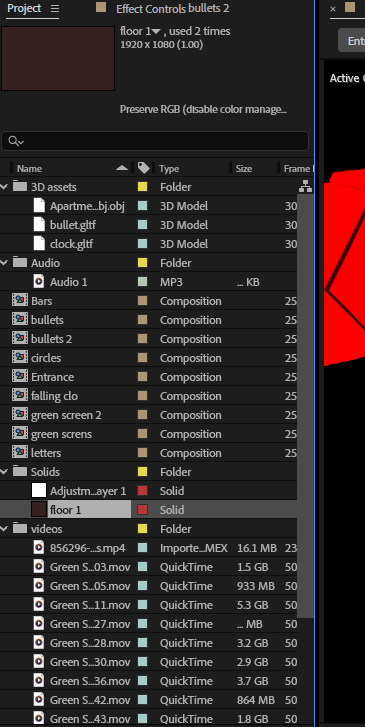
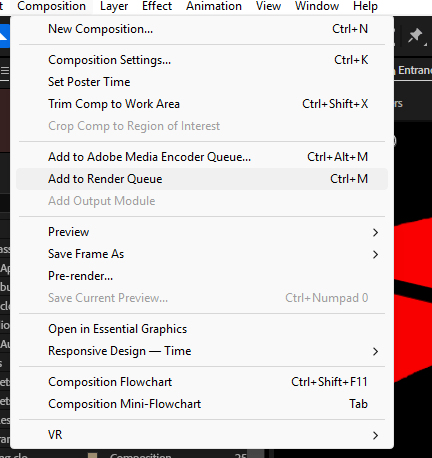
 To finish with the project I check that everything is perfect and add all together to the render queue.
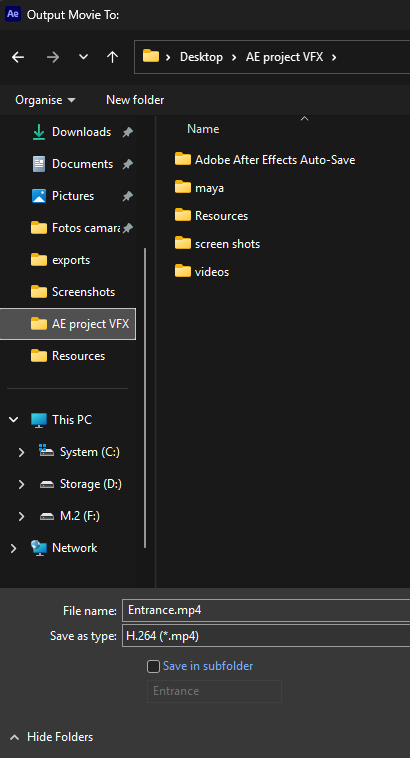
I choose where do I want the video to be saved.
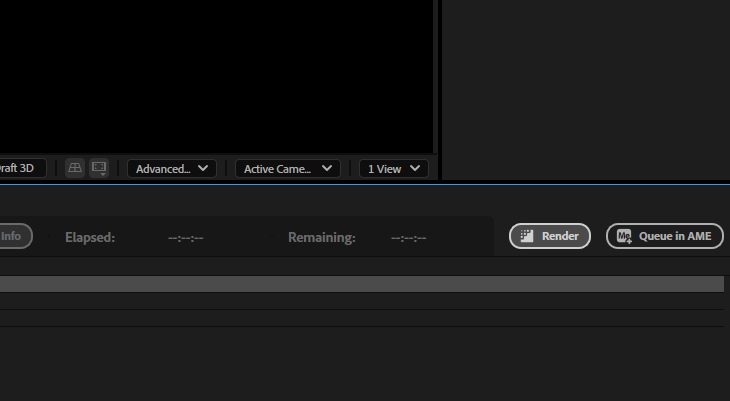
And press the render button.
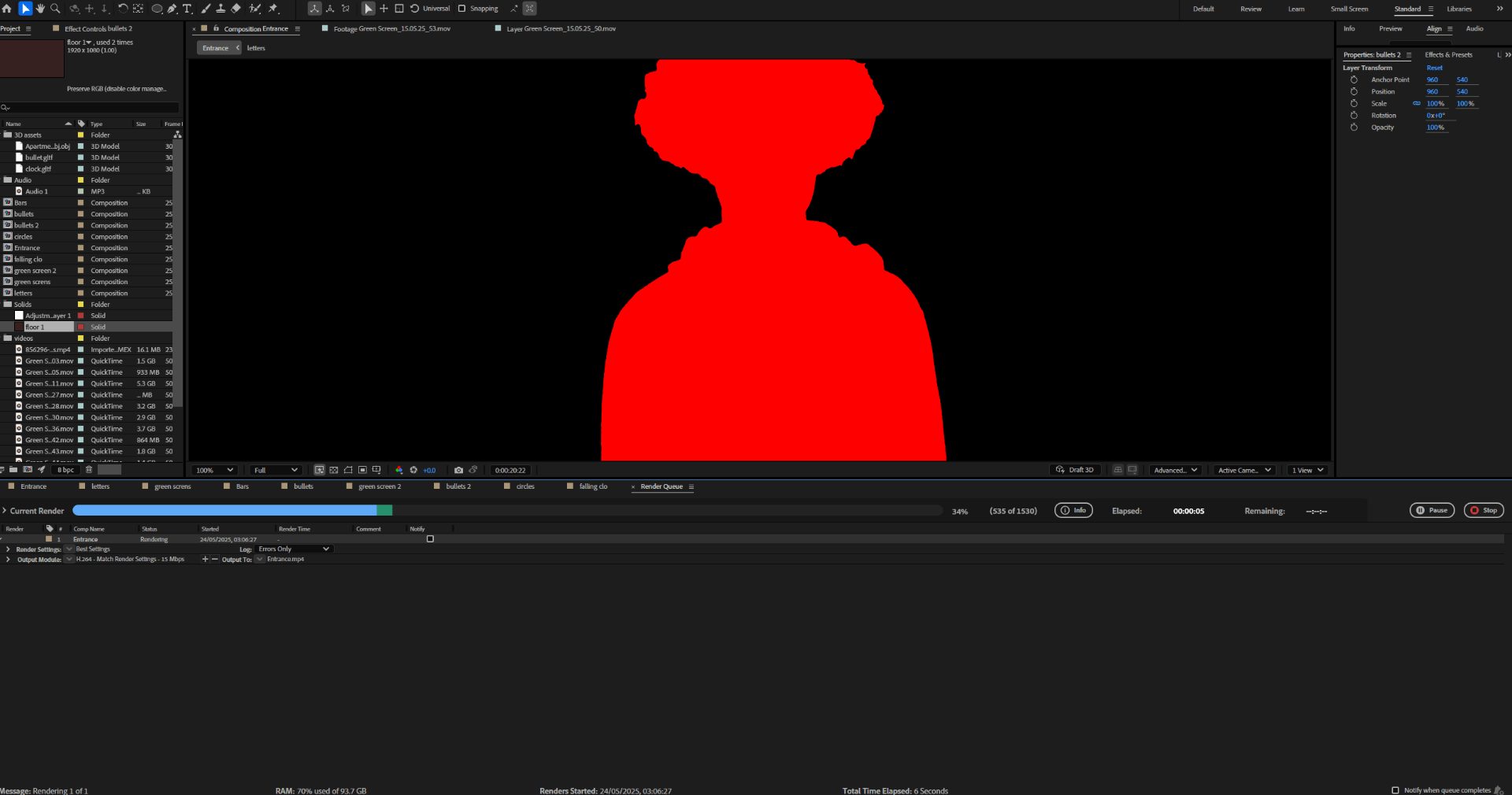
Now I have everything that I needed to complete my project.
Final Result
End of assignment 2

