Week 1: Introduction to 3D Animation, the bouncing ball
“Part of assignment 1”
Todays Task: The Bouncing Ball and Swinging Pendulm
Every animator, 2D or 3D, must learn to animate a bouncing ball well.
Task: Create bouncing ball animations using the timeline, keyframes and the curve editor.
Make effective, believable weight and dynamics by hand with keyframes.
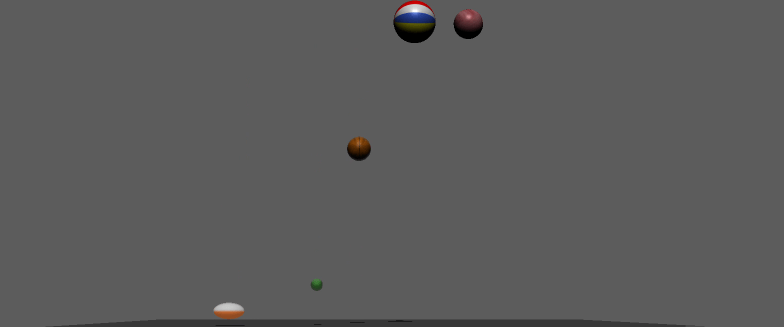
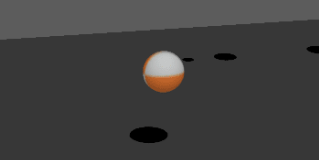
- Start by animating balls of different weights, a football, a balloon, and a bowling ball.
- Followed by animating a bouncing ball through space
We start setting up our project.

We will practice by first creating different size and material balls, to start familiarizing with the animation.
I used this video as reference for the task:

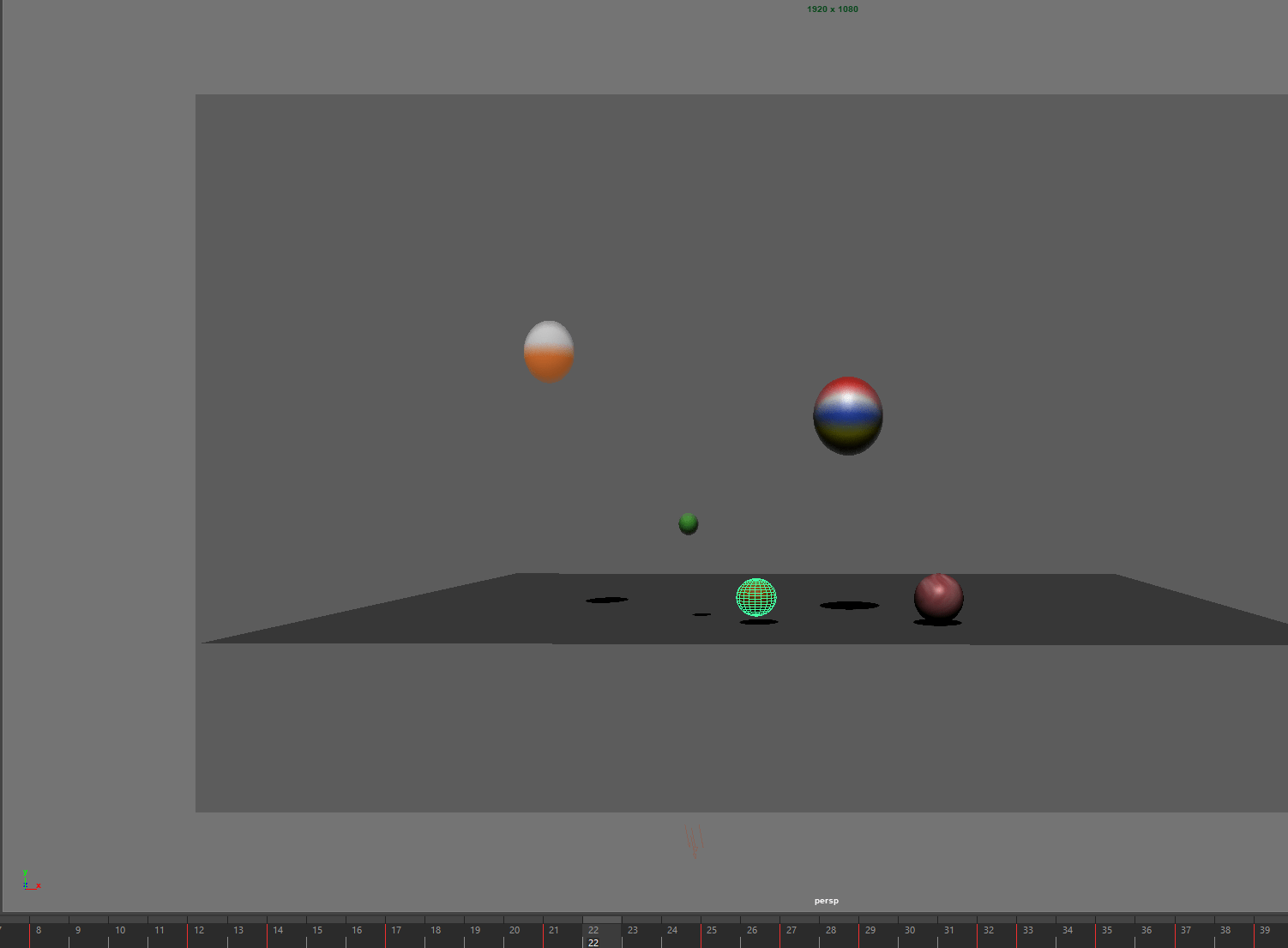
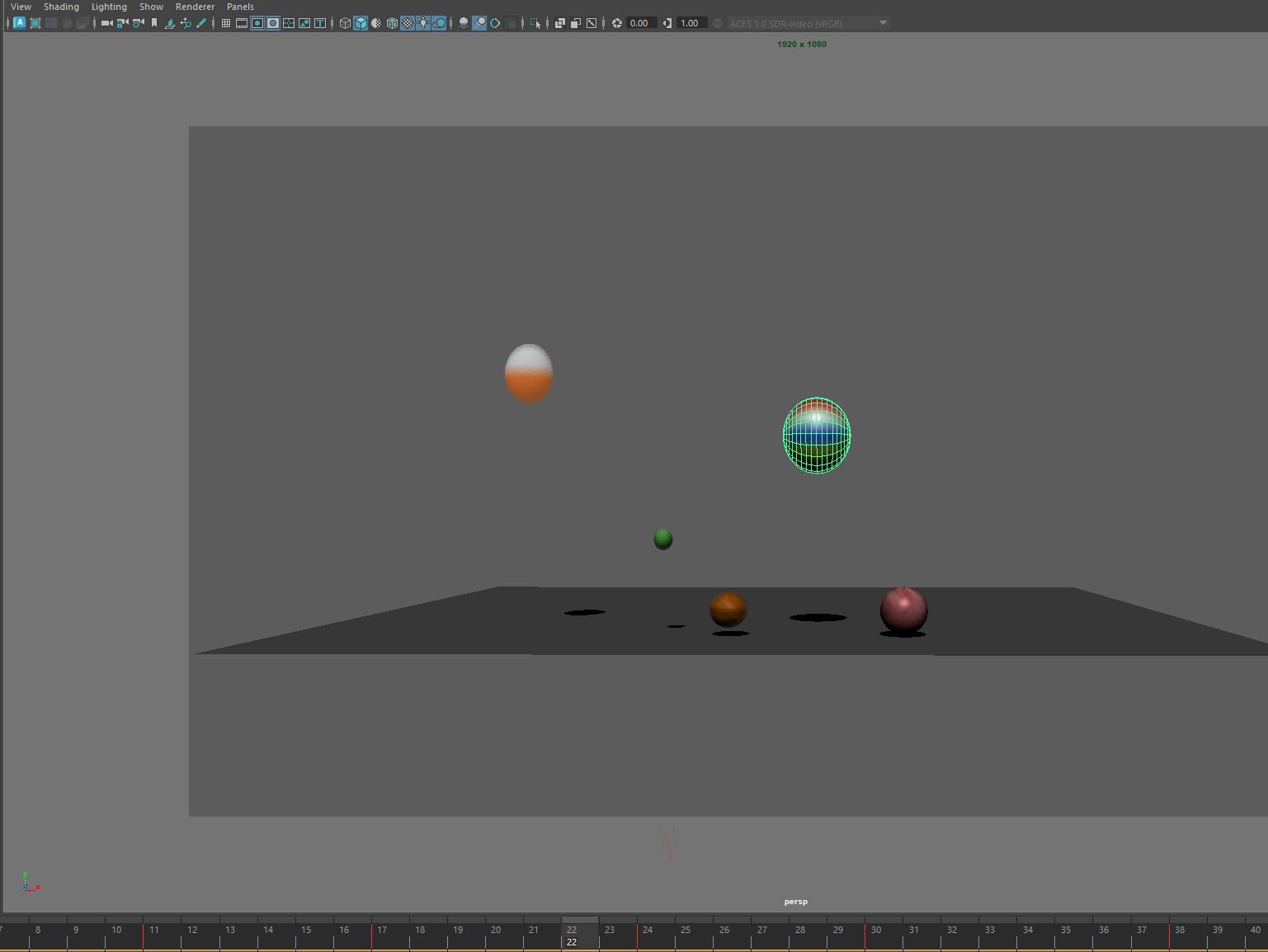
End of task 1
Task 2: Pendulum Swing
Using the animation graph we are going to animate a pendulum.
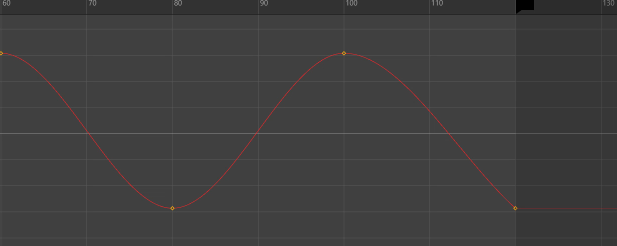
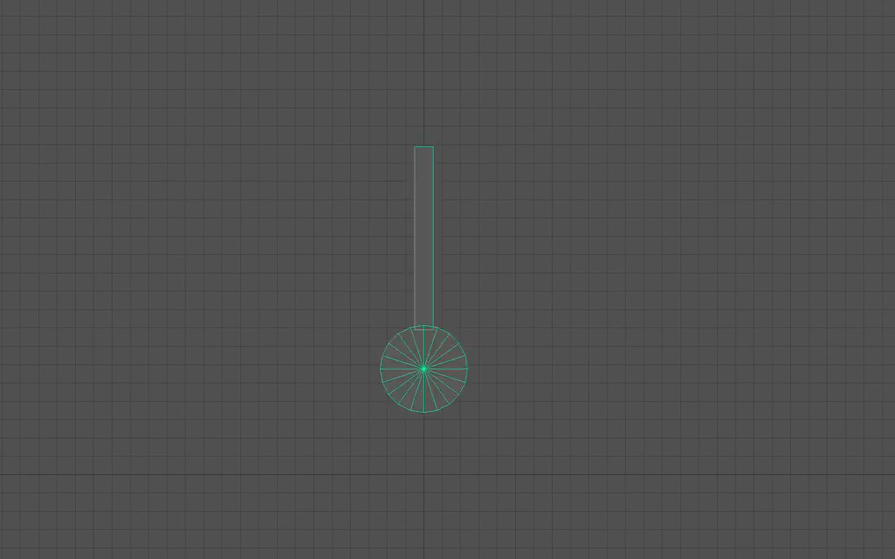
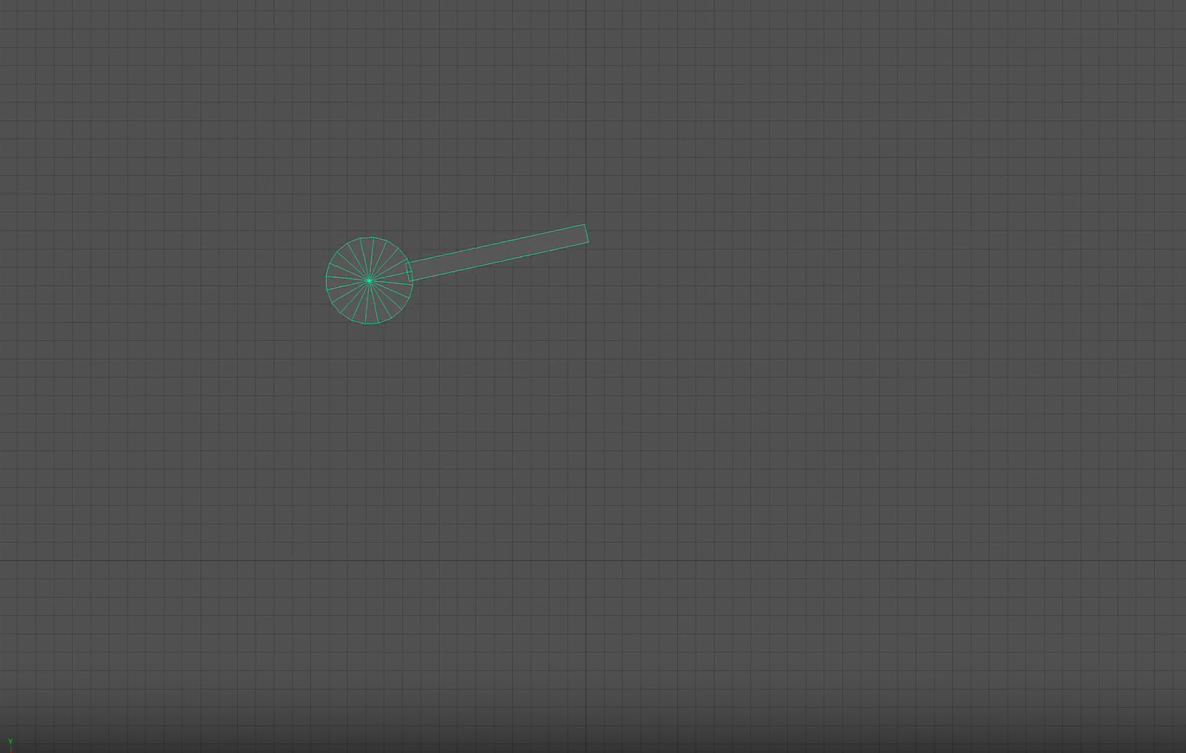
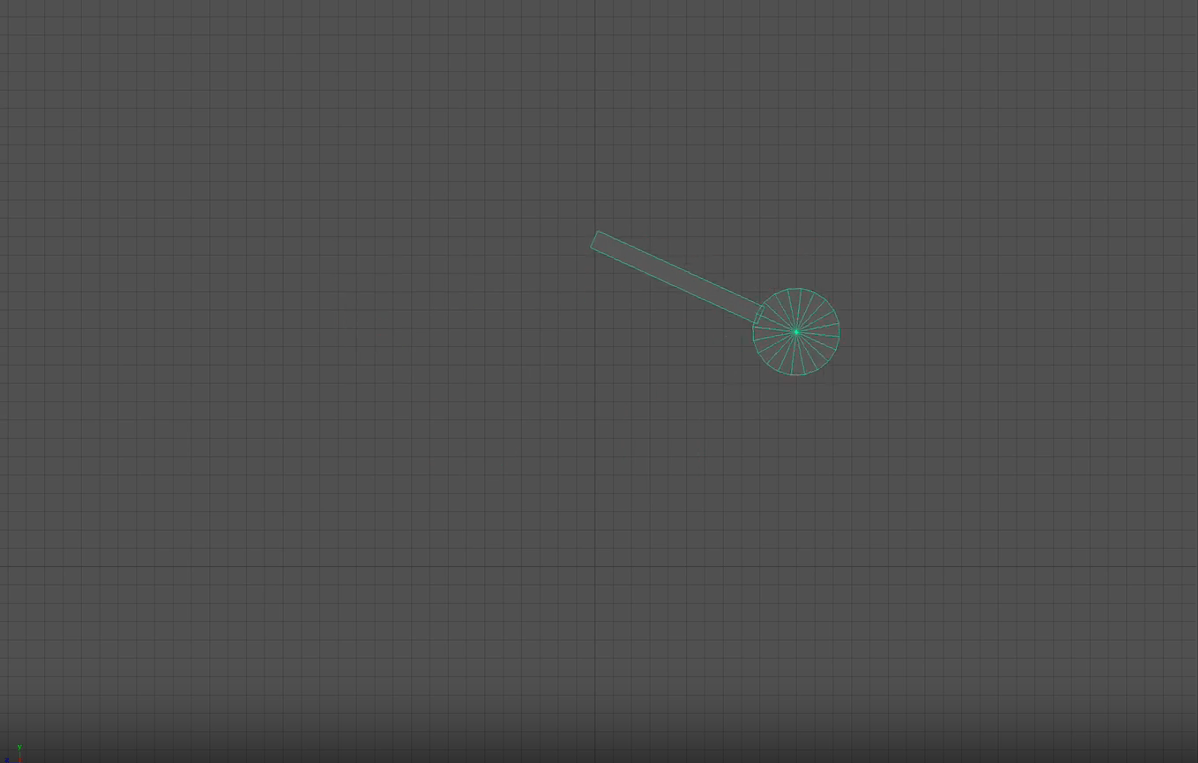
End of task 2
Task 3: Try the Bouncing Ball again
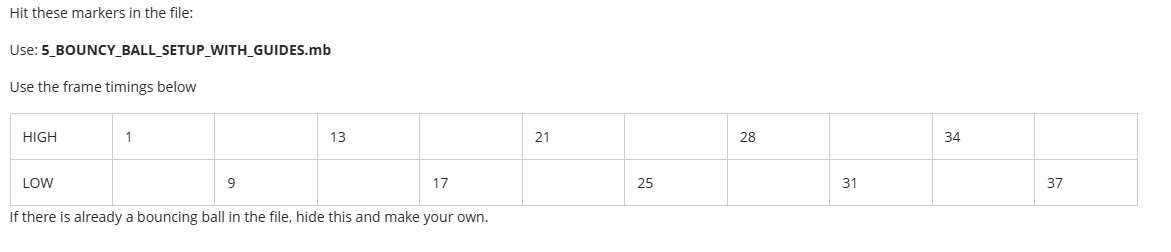
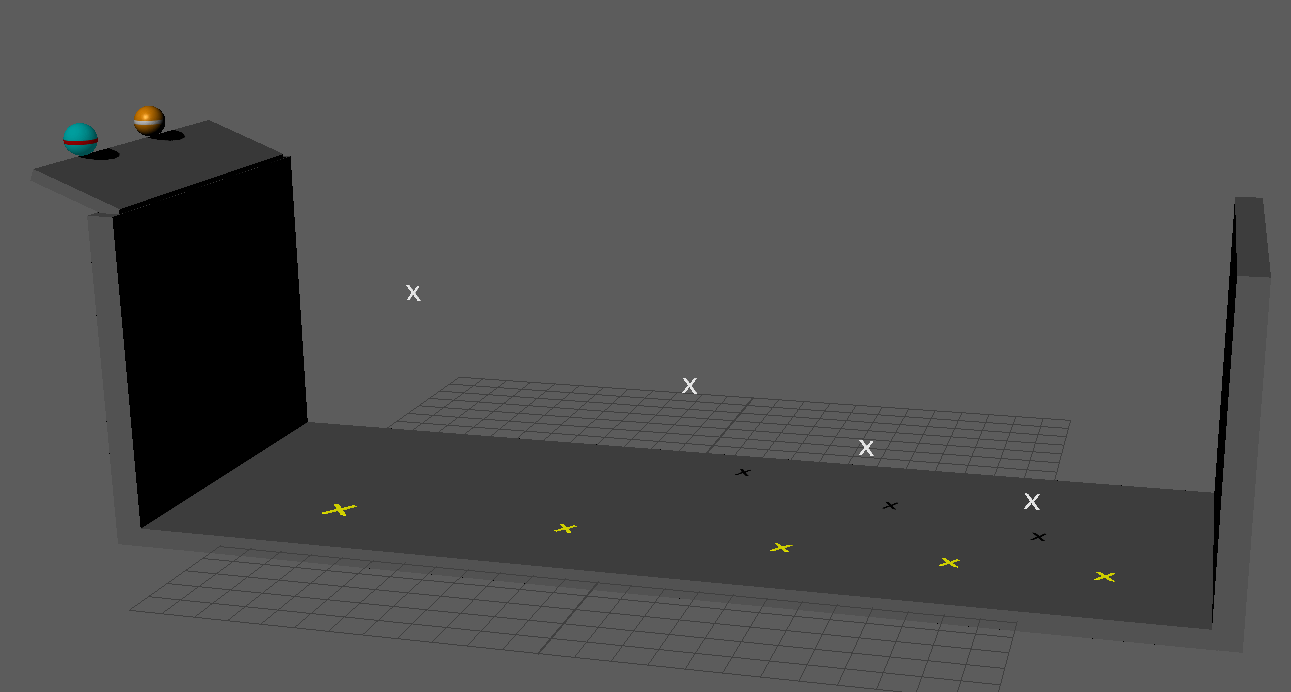
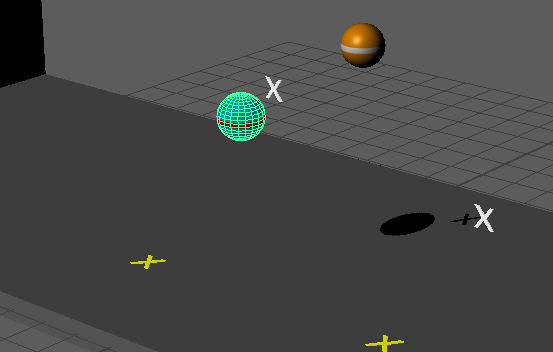
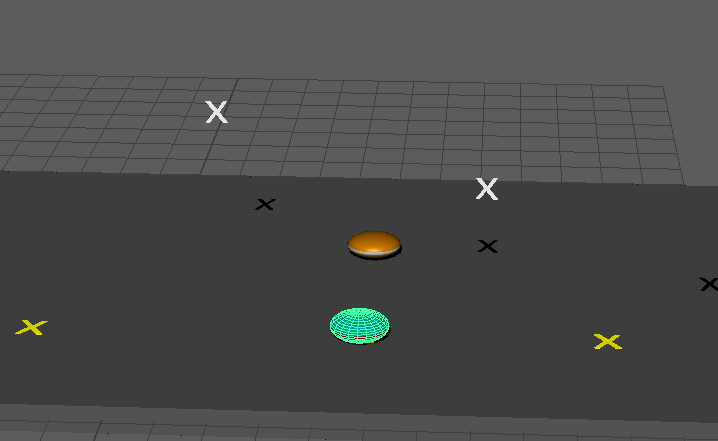
End of week 1
Week 2: Rigs with obstacle course
In this week’s session.
Recap our learning from last week’s session:
- Animation playback controls in Maya.
- Keyframing Tools in Maya to set animation on elements.
- Animating movement through the environment using Maya’s Editable Motion Trail feature.
We will then use ready-made rigs to animate a ball or a cube around an obstacle course and on a springboard.
The point of the rigs is that they give you, as the animator, a lot more control. We will look at how:
- The rigs are user-friendly
- They allow the animator to give the object “life”
- Editing motion on our ball animation rig.
- Strategies to animate our ball’s motion through an environment.
These topics are covered in this week’s slides and videos.
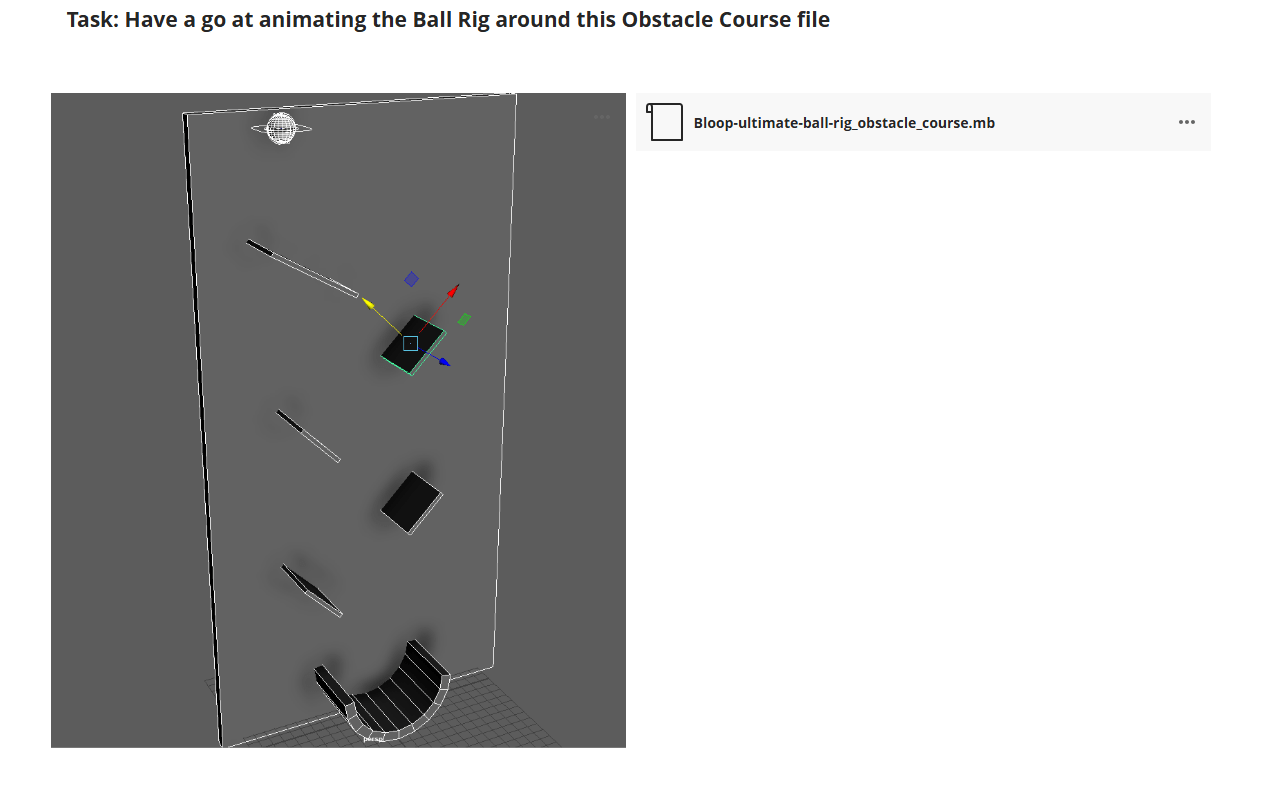
For this exercise they provide the obstacle course file:
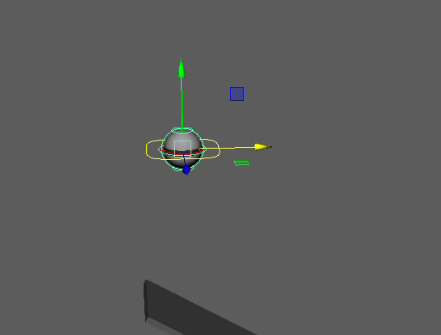
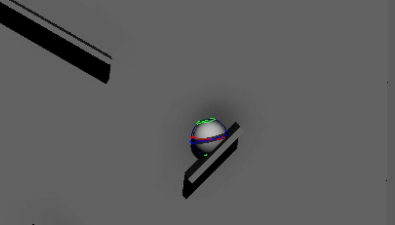
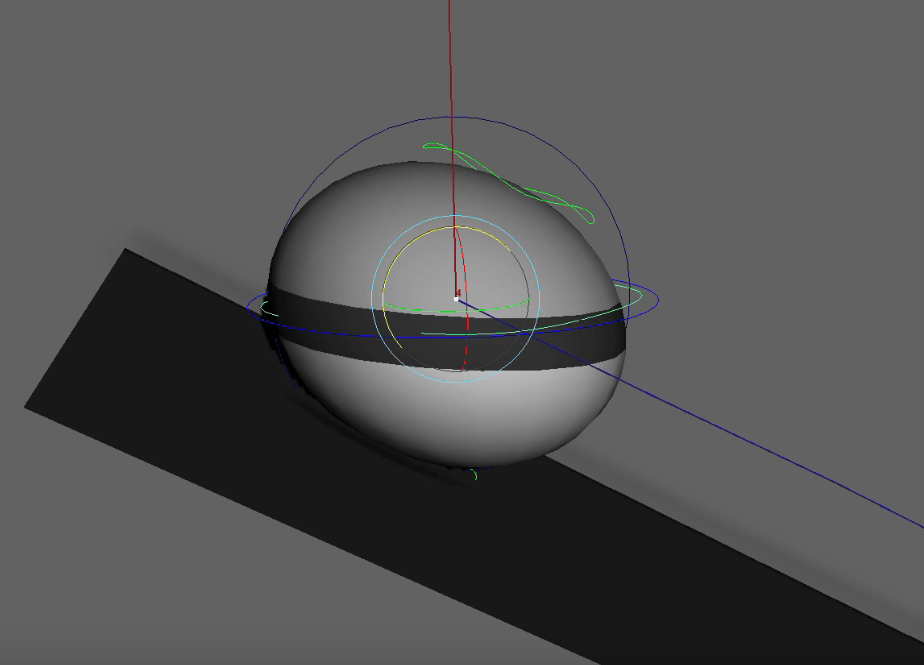
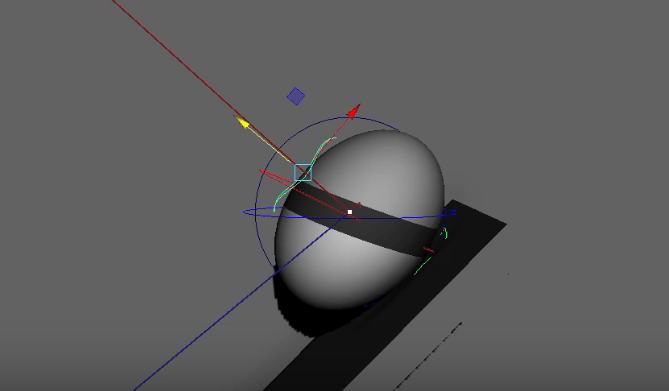
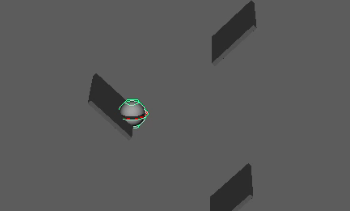
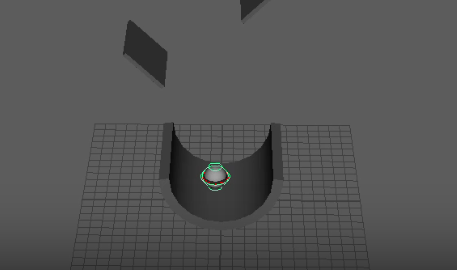
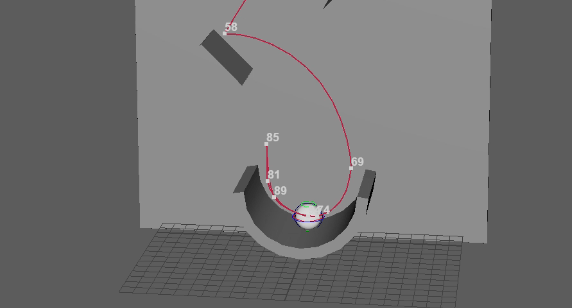
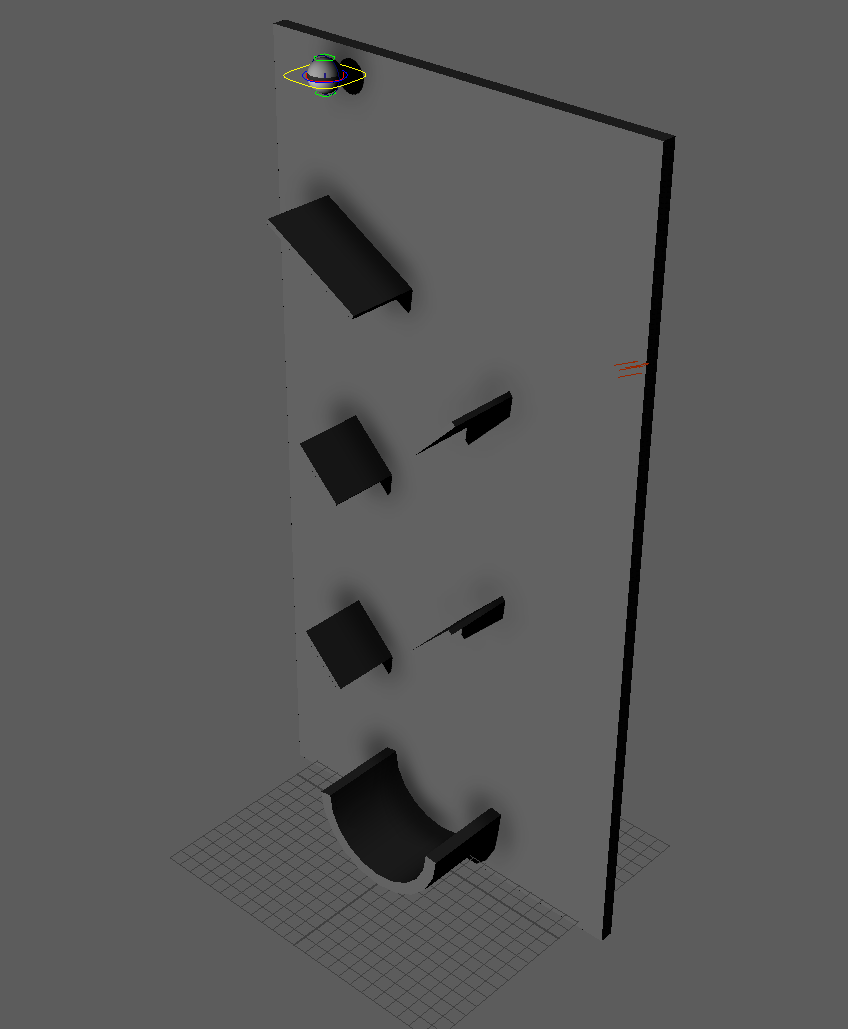
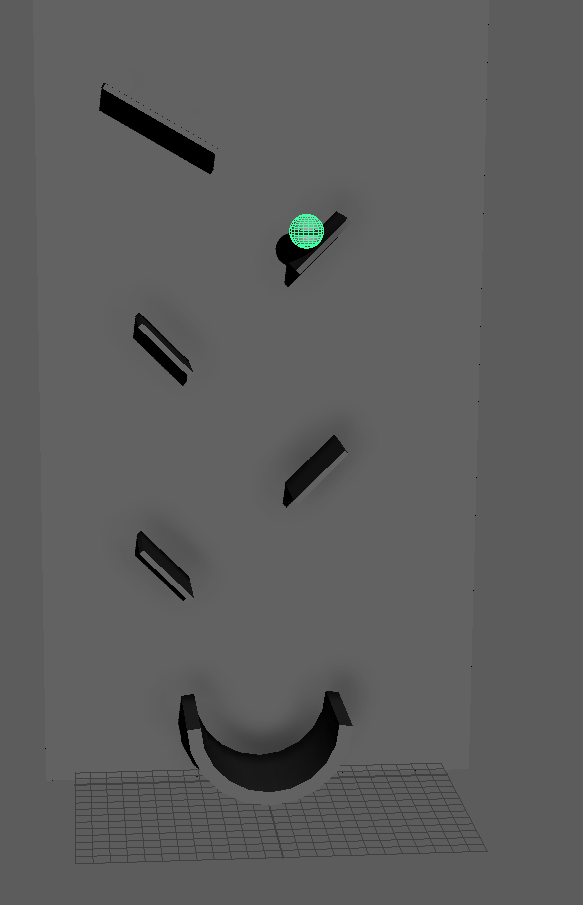
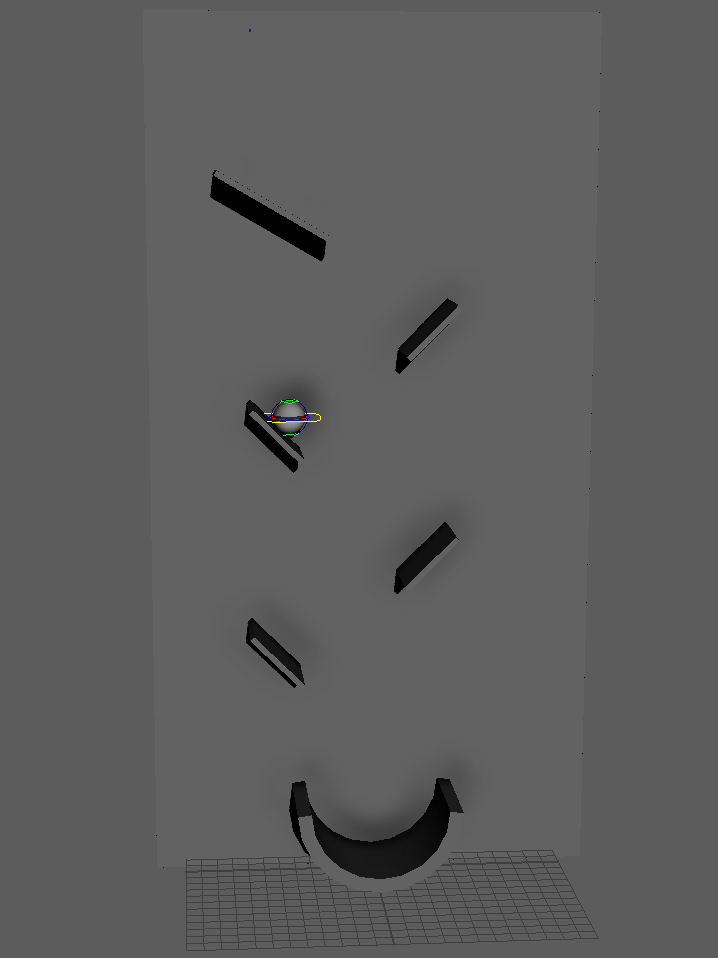
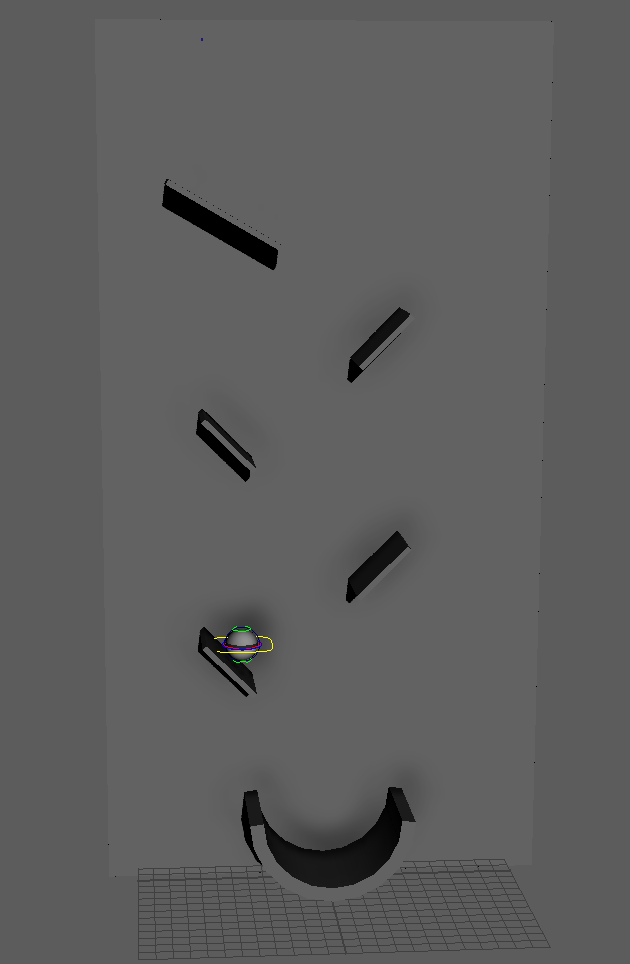
End of task 1
“Part of assignment 1”
Next!
Create your own obstacle course in Maya and animate a ball or cube moving through it. Then add simple lighting and render the final result. This is part of assignment 1.
Your obstacle course must include:
1. A Ramp
- The ball rolls or slides down it.
2. A Springboard
- The ball hits it, compresses, and bounces off with extra force.
3. A Half‑Pipe
- The ball travels through a curved section, slowing as it goes up, speeding as it goes down.
4. A Rotating Element
- Something that spins (e.g., a rotating arm or platform) that the ball interacts with.
What You Need to Deliver
- A short animation showing the ball moving through the entire course.
- Clean motion (good timing and spacing).
- Simple lighting (HDRI skydome or a basic three‑light setup).
- A rendered version side on and optionally with a camera locked to the ball, videos should be an mp4
End of week 2
Week 3: Creating poses for inanimate objects and character rigs
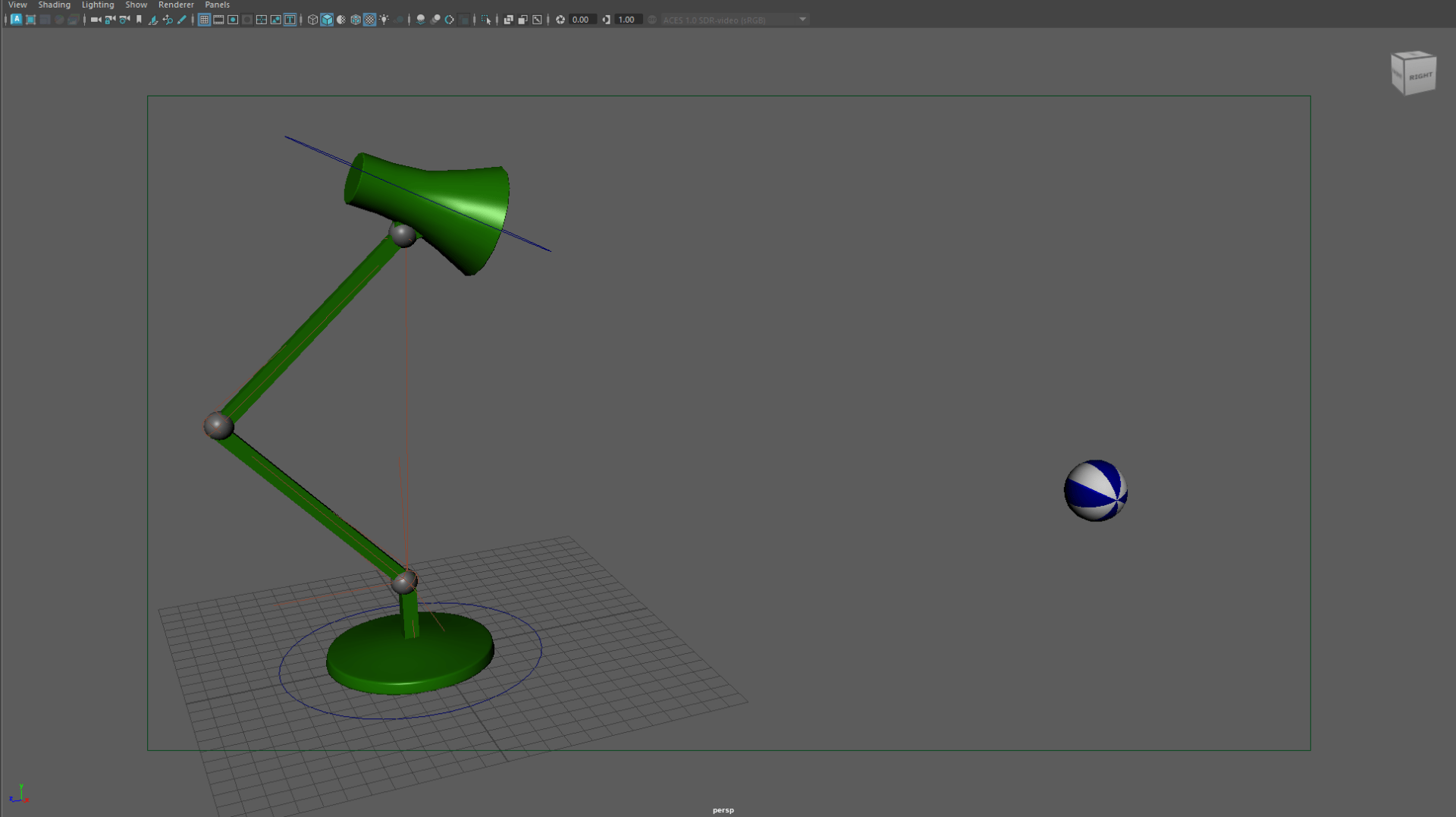
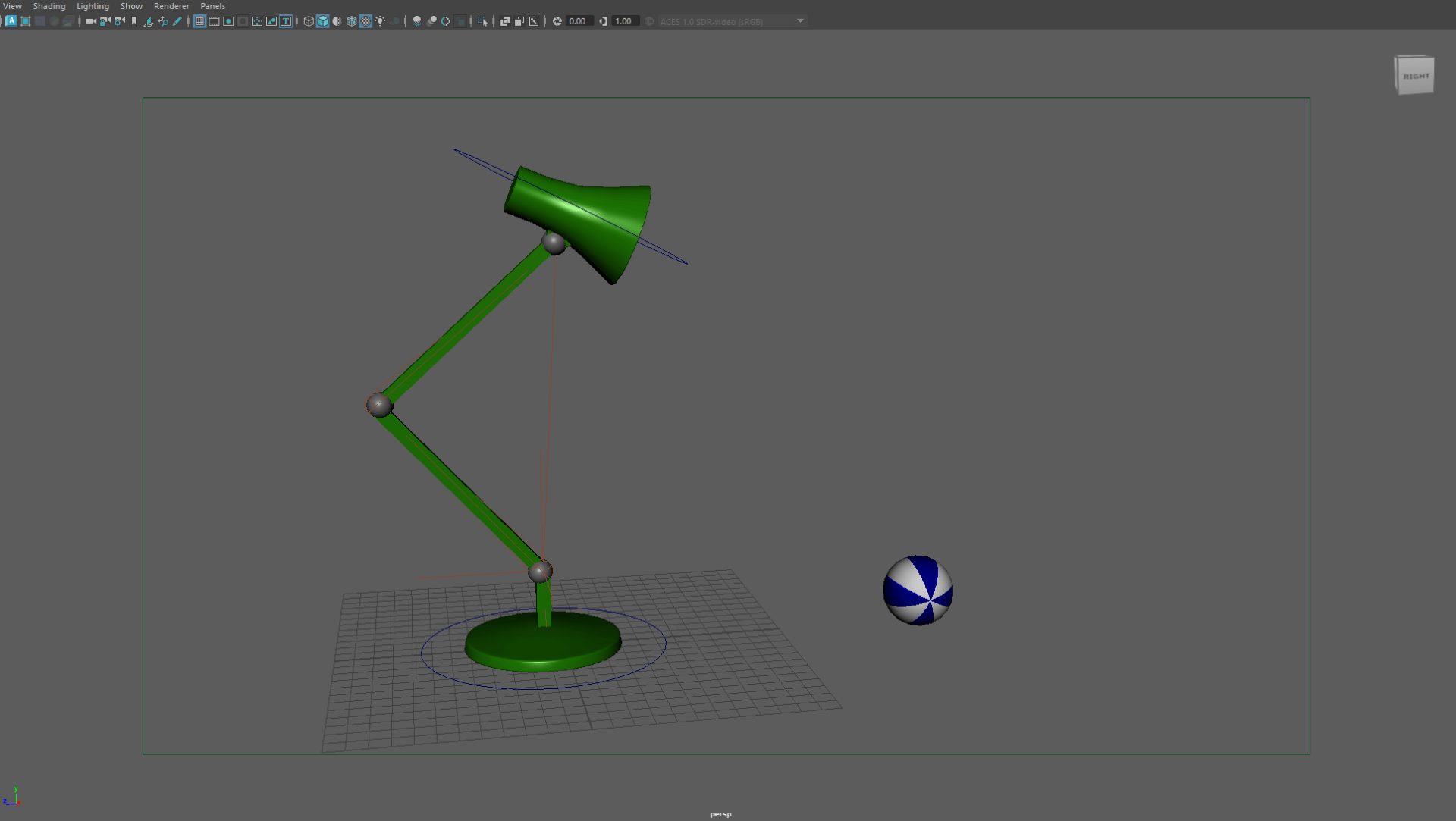
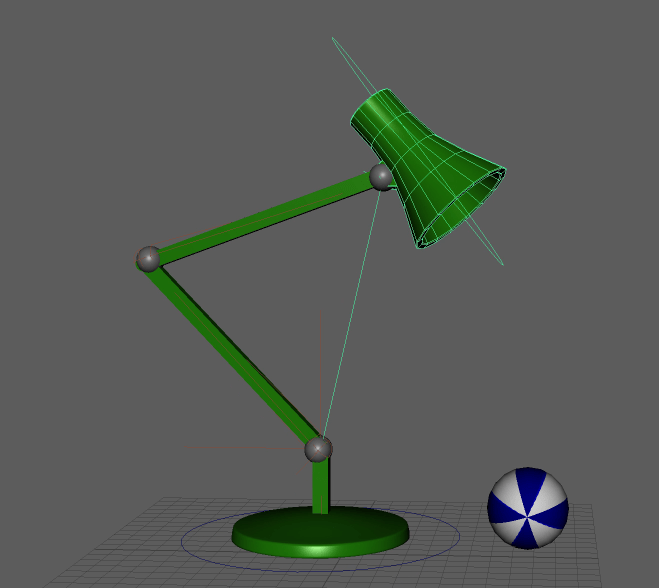
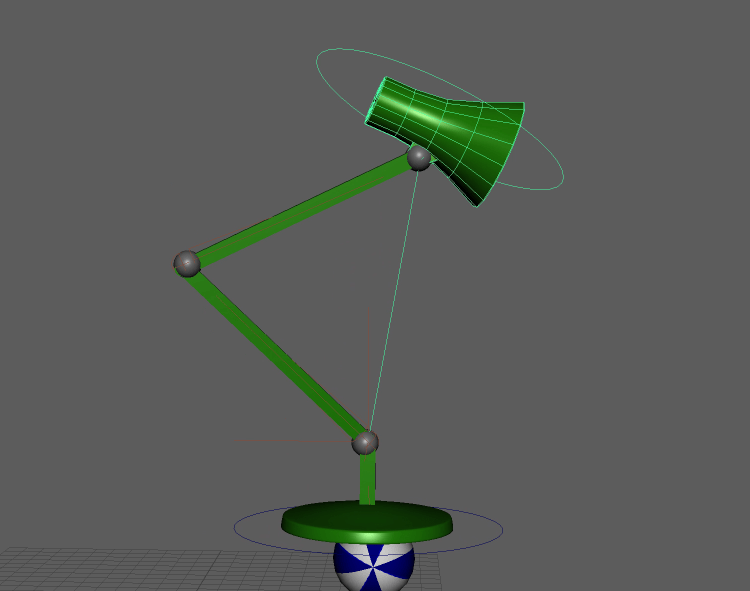
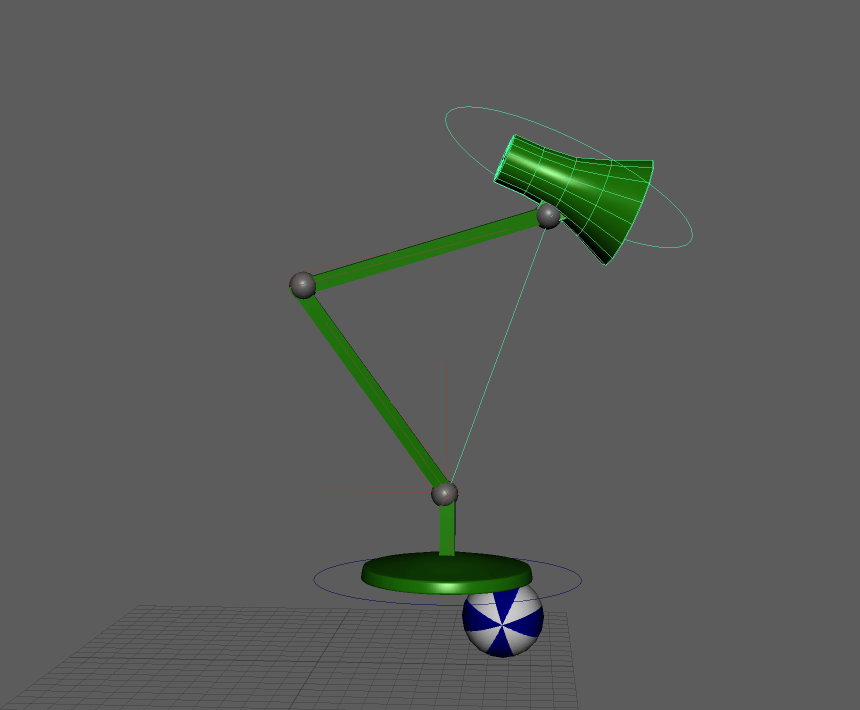
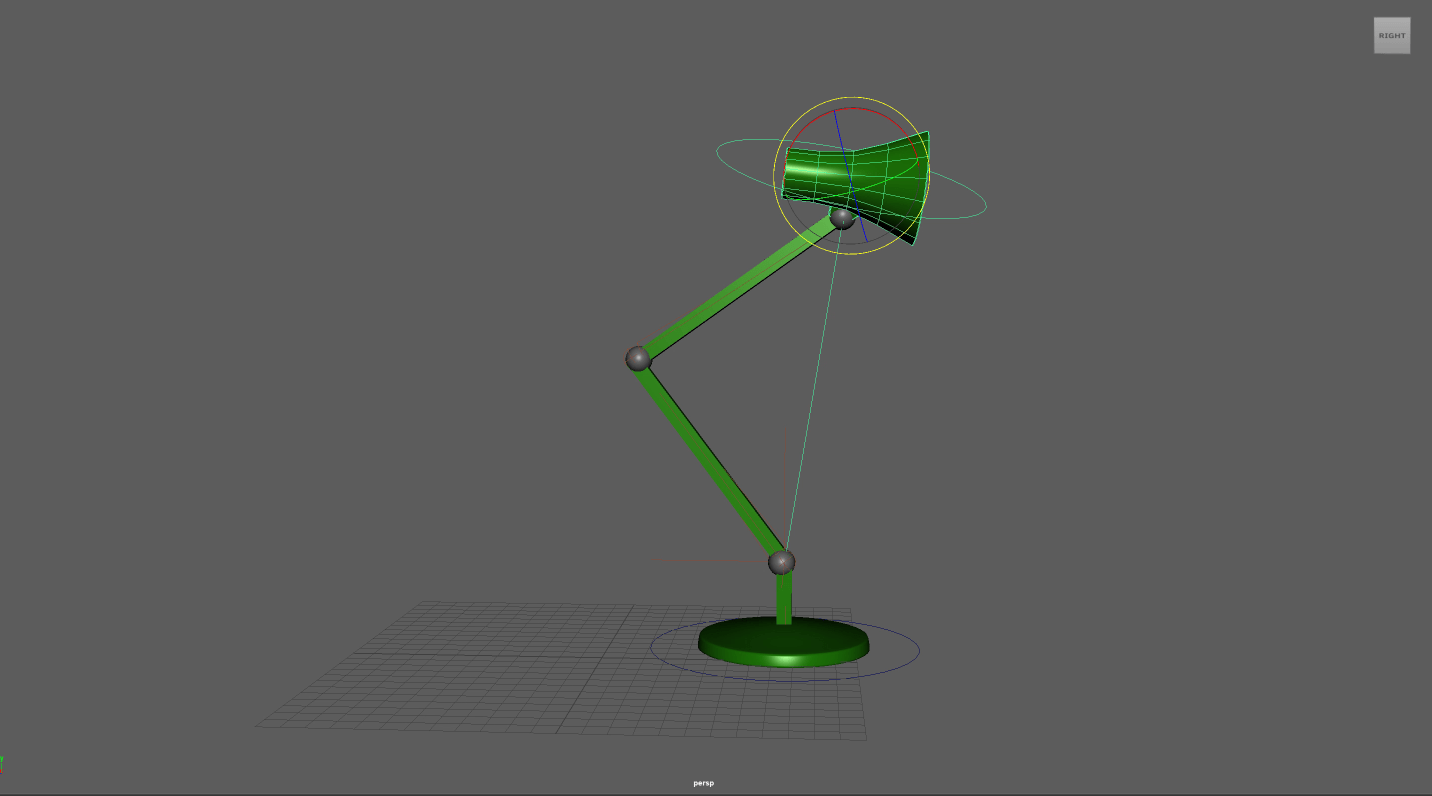
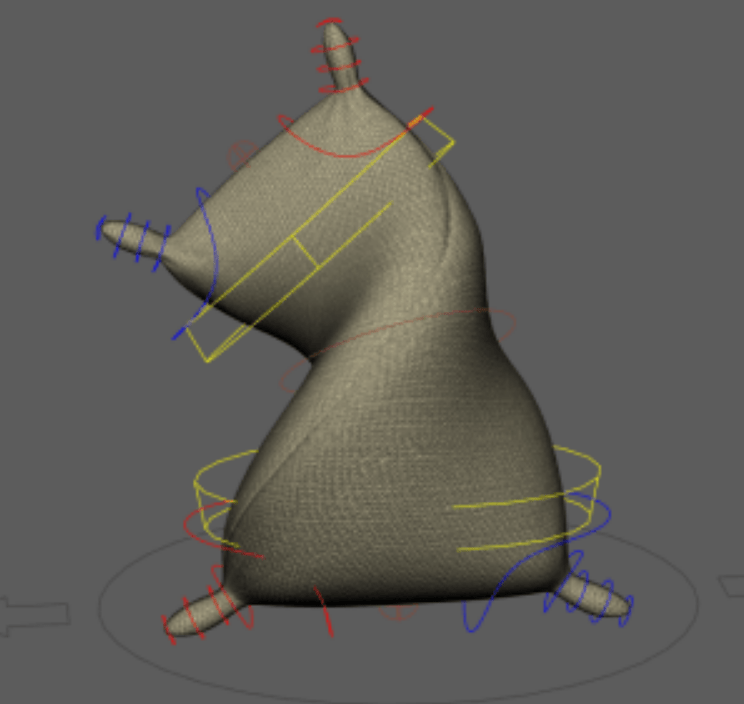
- Rig and pose the Angelpoise lamp model. Can you create a few hops? Follow the drawings before.
Task 1: Lamp
We get the rigged lamp and reference drawings for the animation.
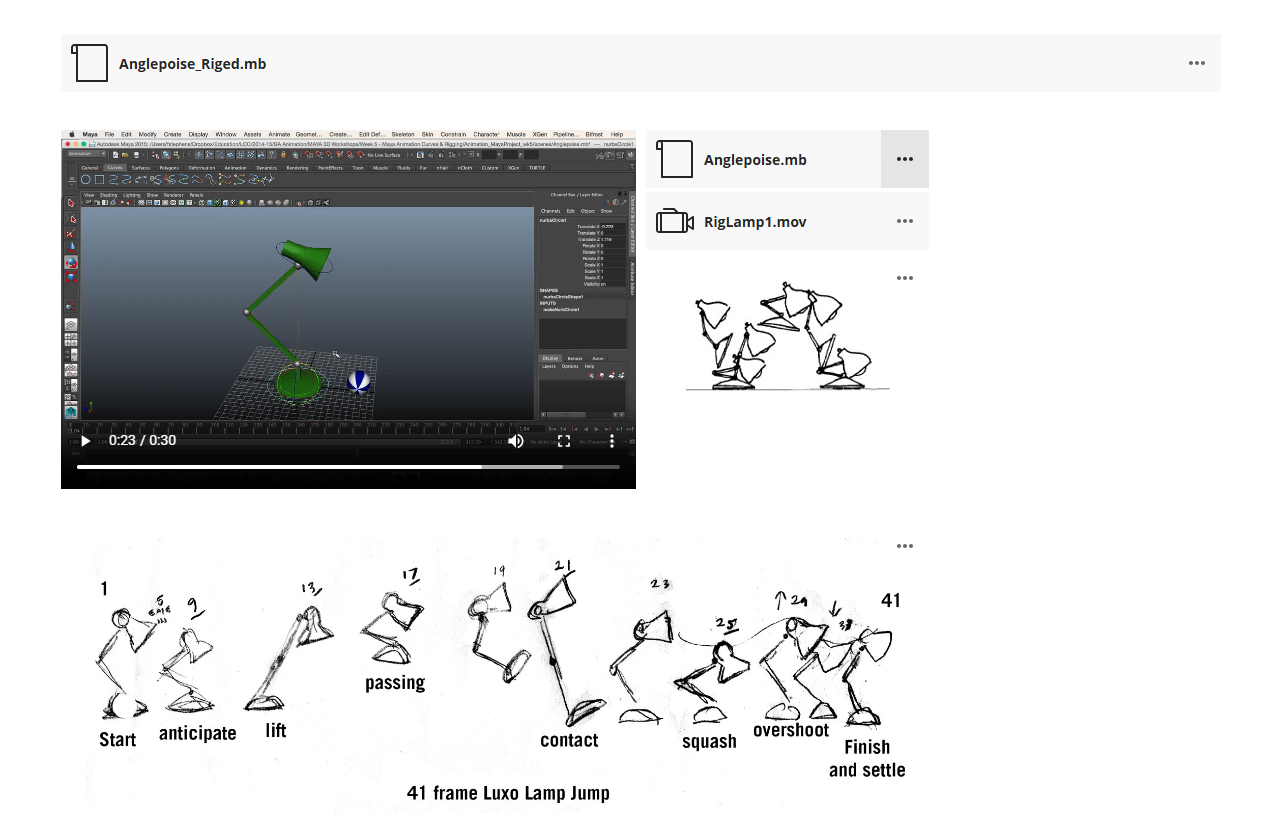
End of task 1
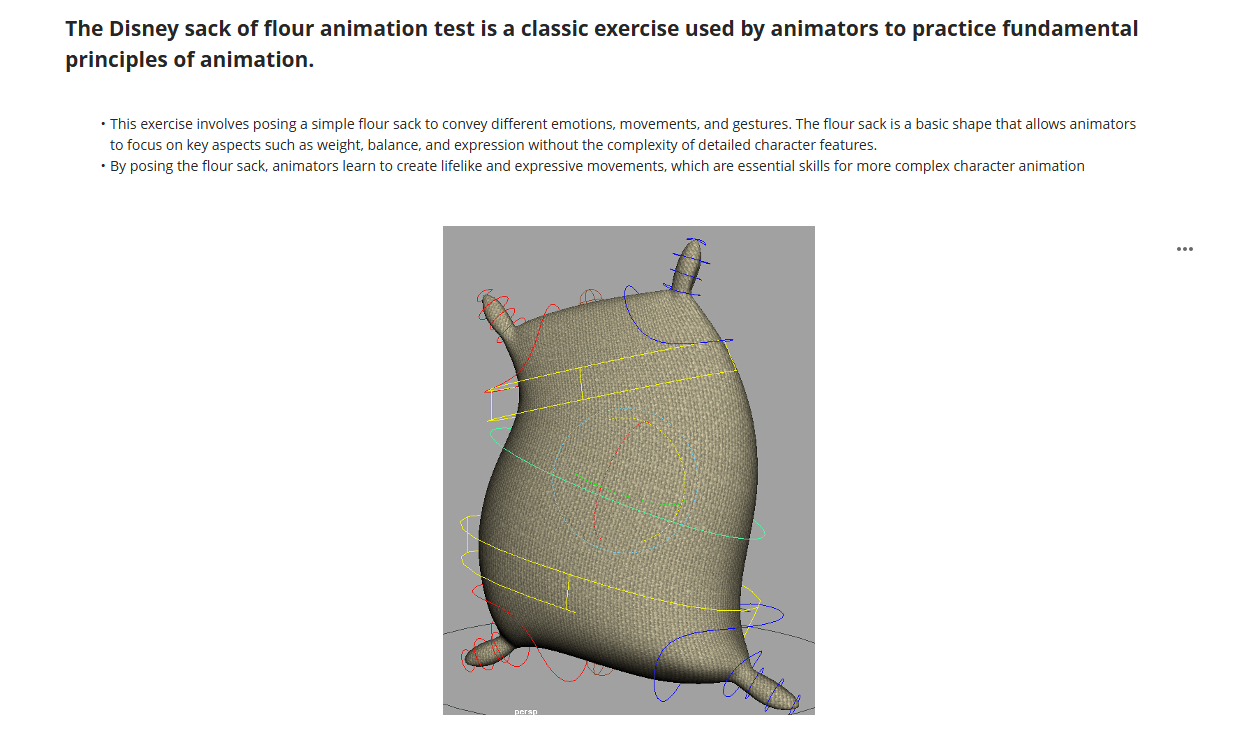
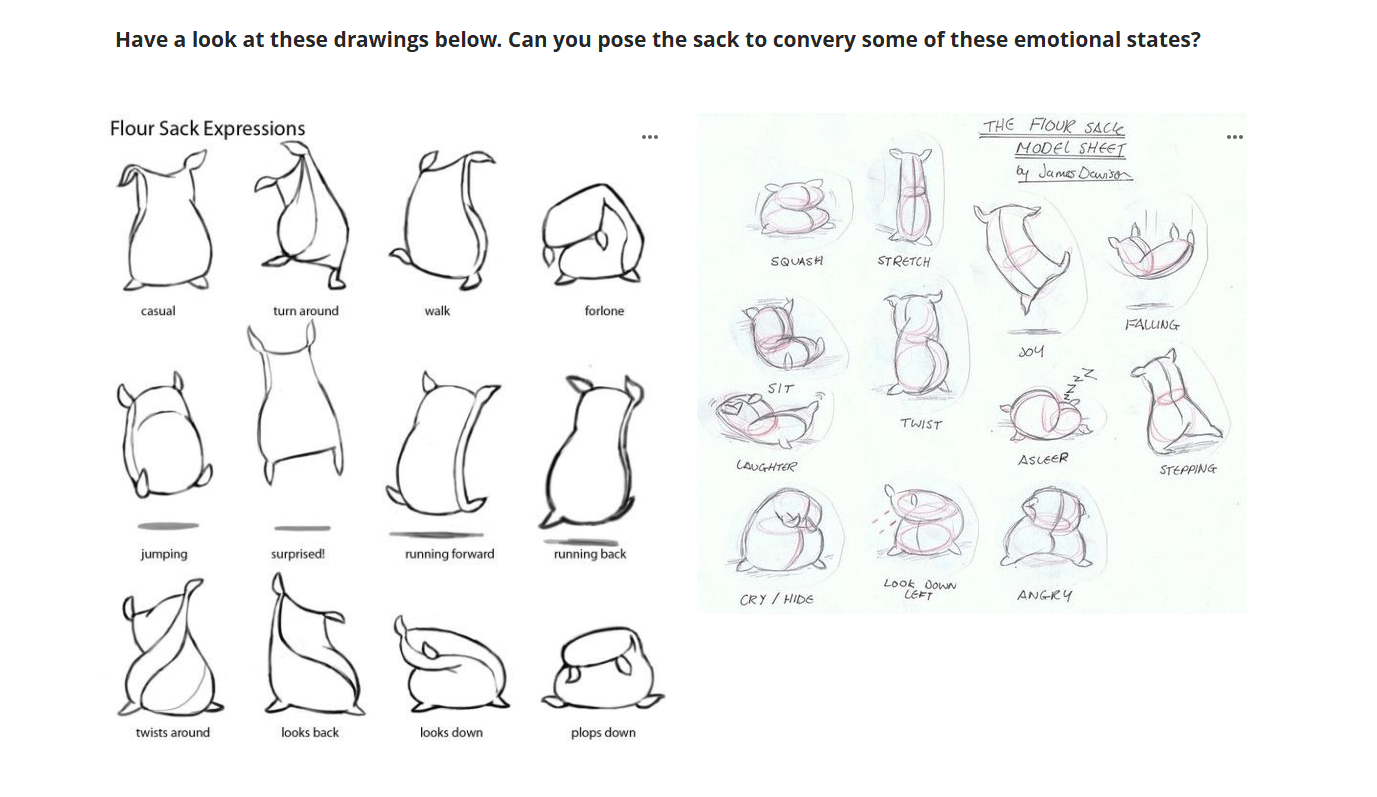
Task 2: Creating the “Illusion of Life”
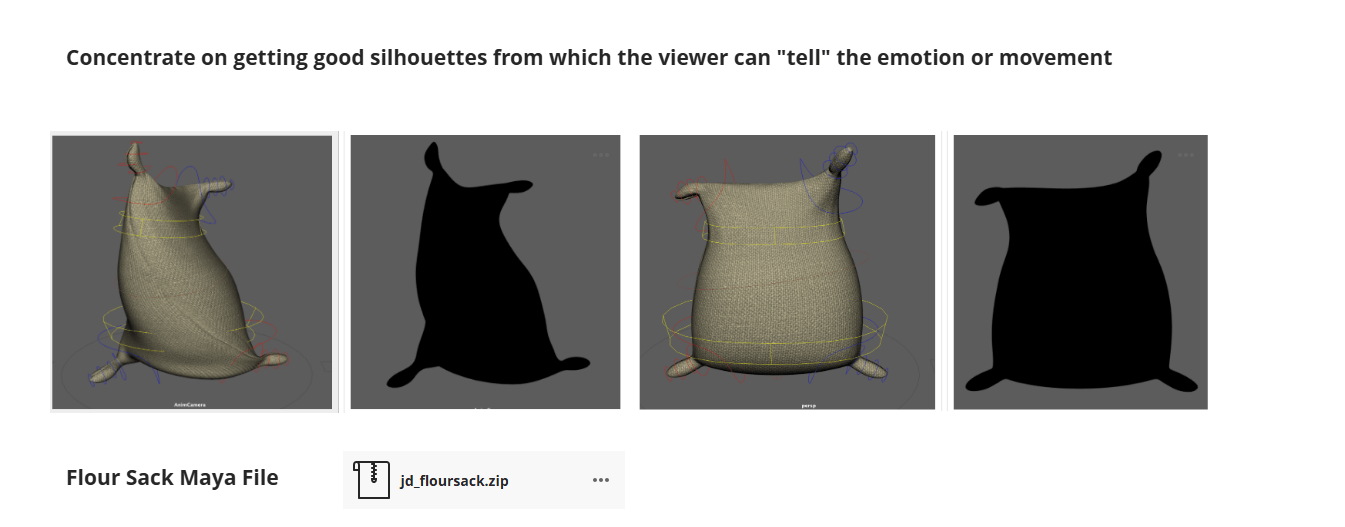
Poses:
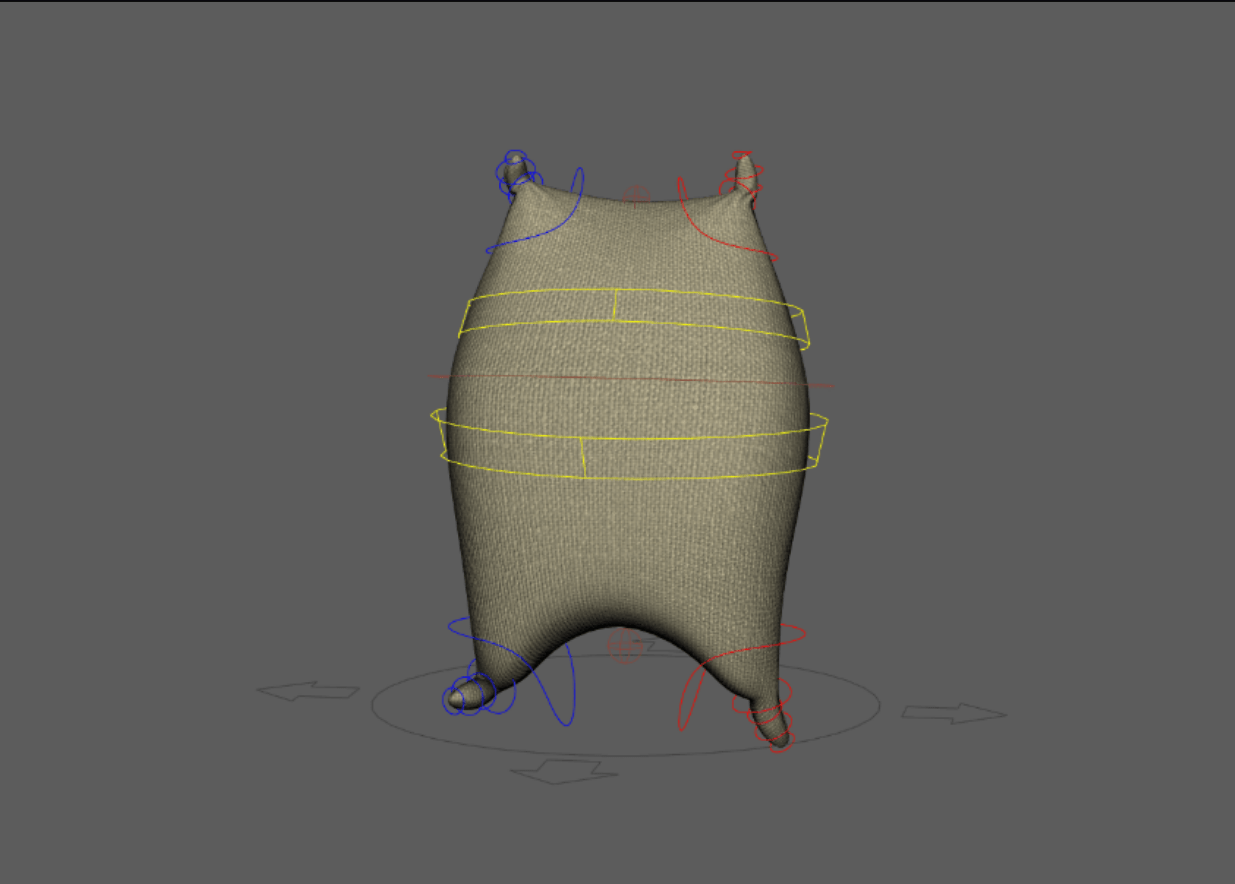
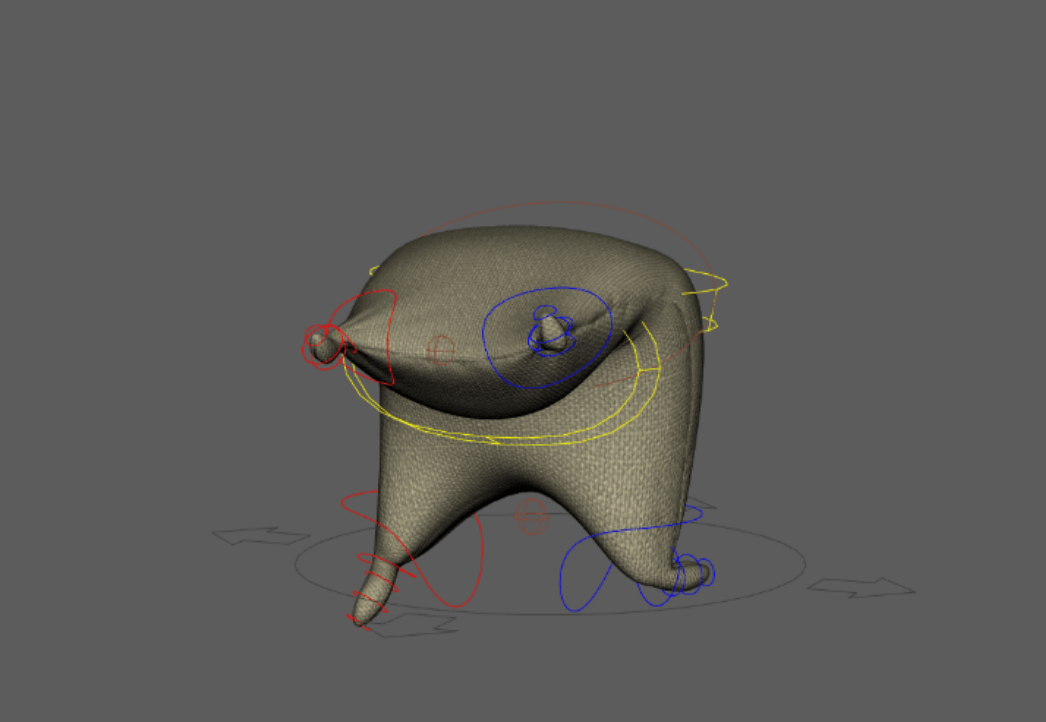
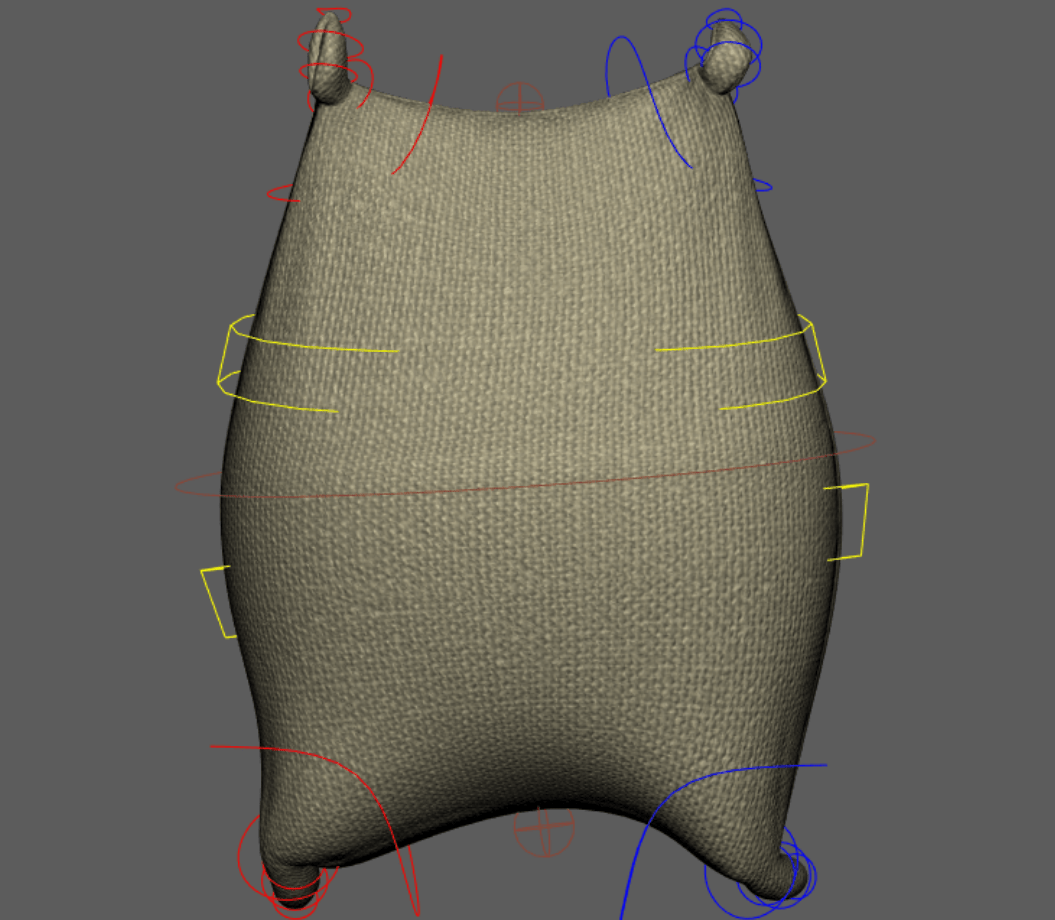
End of week 3
Week 4/5: Catch-up sessions: Finish assignment 1
Assessment 1: Artefact: Animation Principles showreel
- Bouncing Ball animation
- Pendulum swing
- Balls of different weights
- Obstacle Course animation (include the following)
- A ramp
- A springboard
- A half-pipe
- A rotating component
End of week 4
Week 5/6: Character poses, working with Andy rig
Students will be provided with a character rig and given an explanation of how it can be animated. They will explore a range of techniques to develop strong, readable poses, including: Silhouettes, Line of Action, Staging and Composition. Students will also animate a head turn, applying principles such as anticipation and overlapping action.
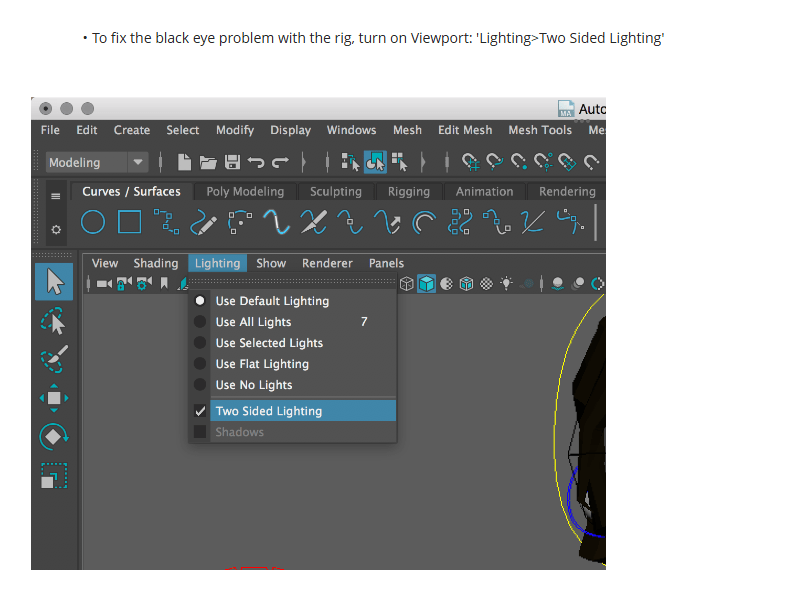
Fixing Black Eye issue
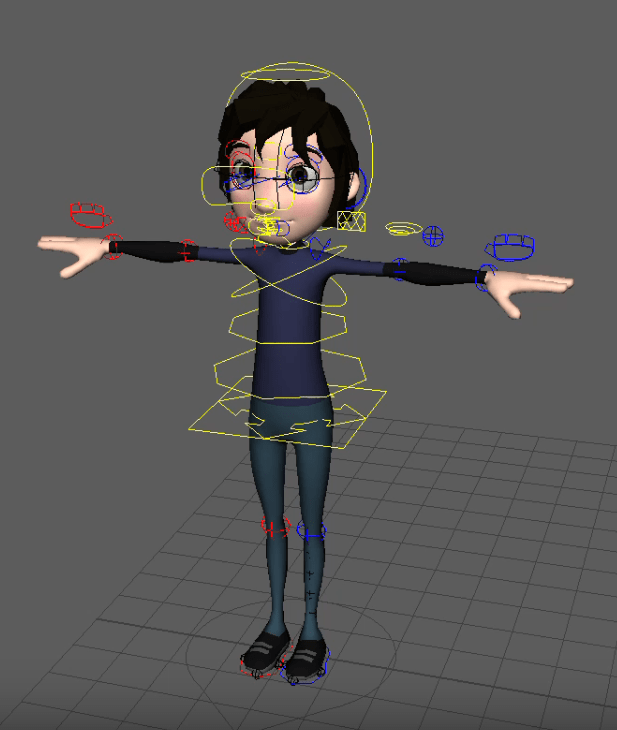
Rig controls
First we will learn how to control the rig, to pose the character following the video provided.
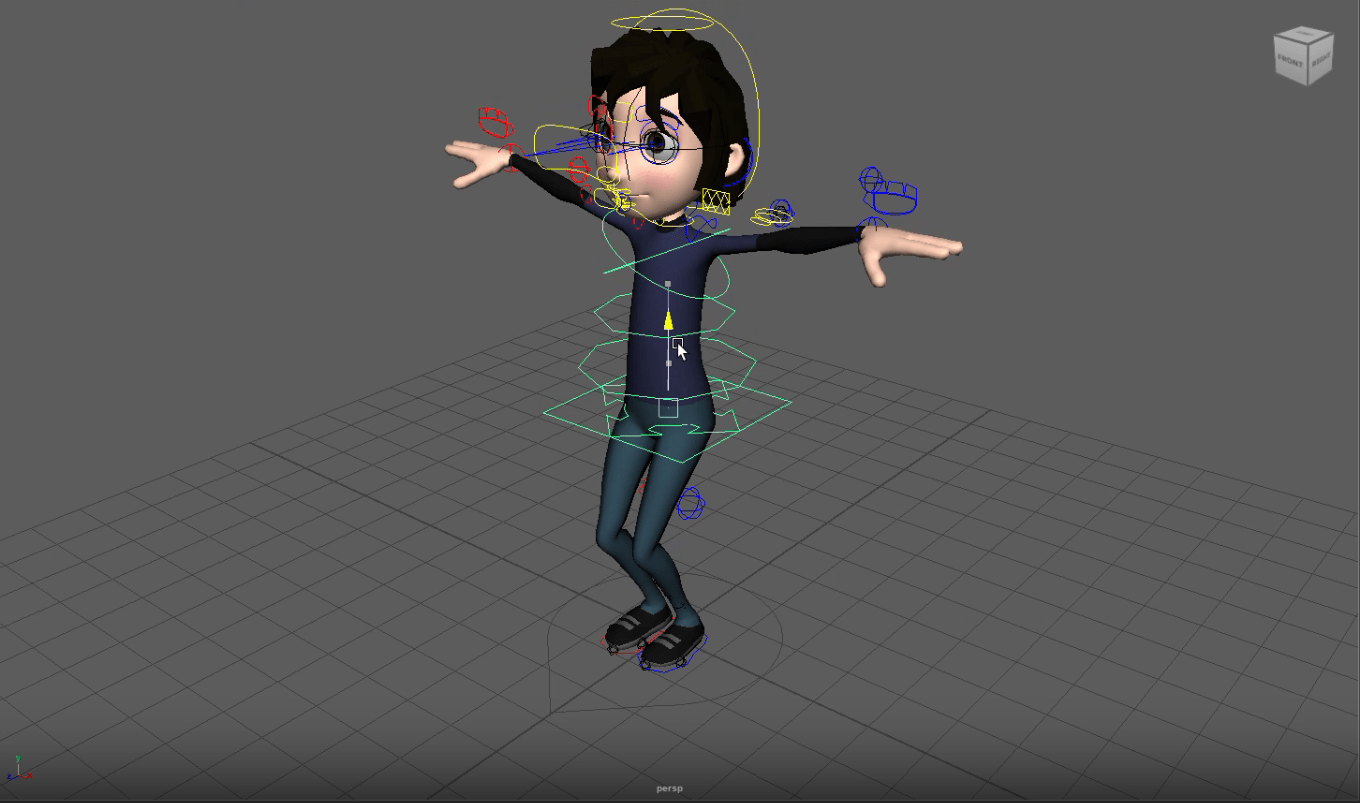
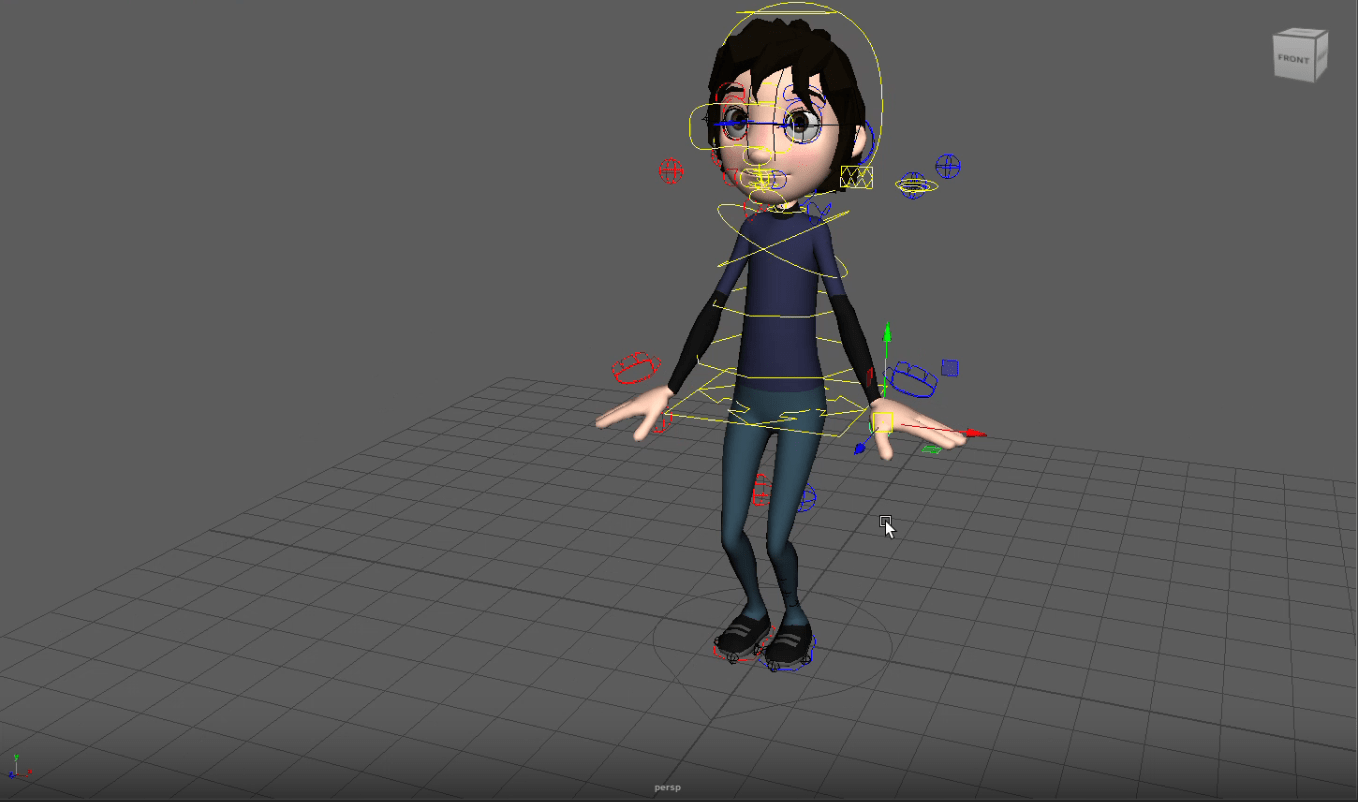
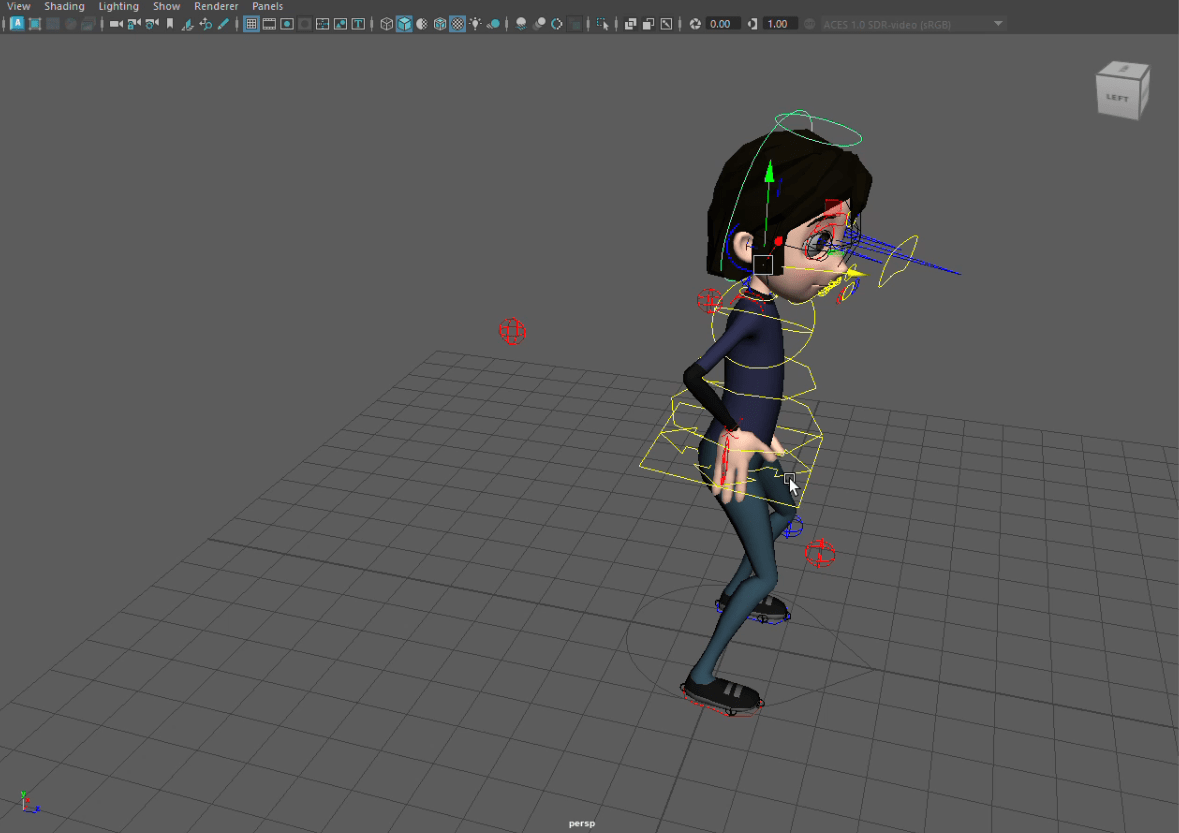
Task 1: posing the Andy
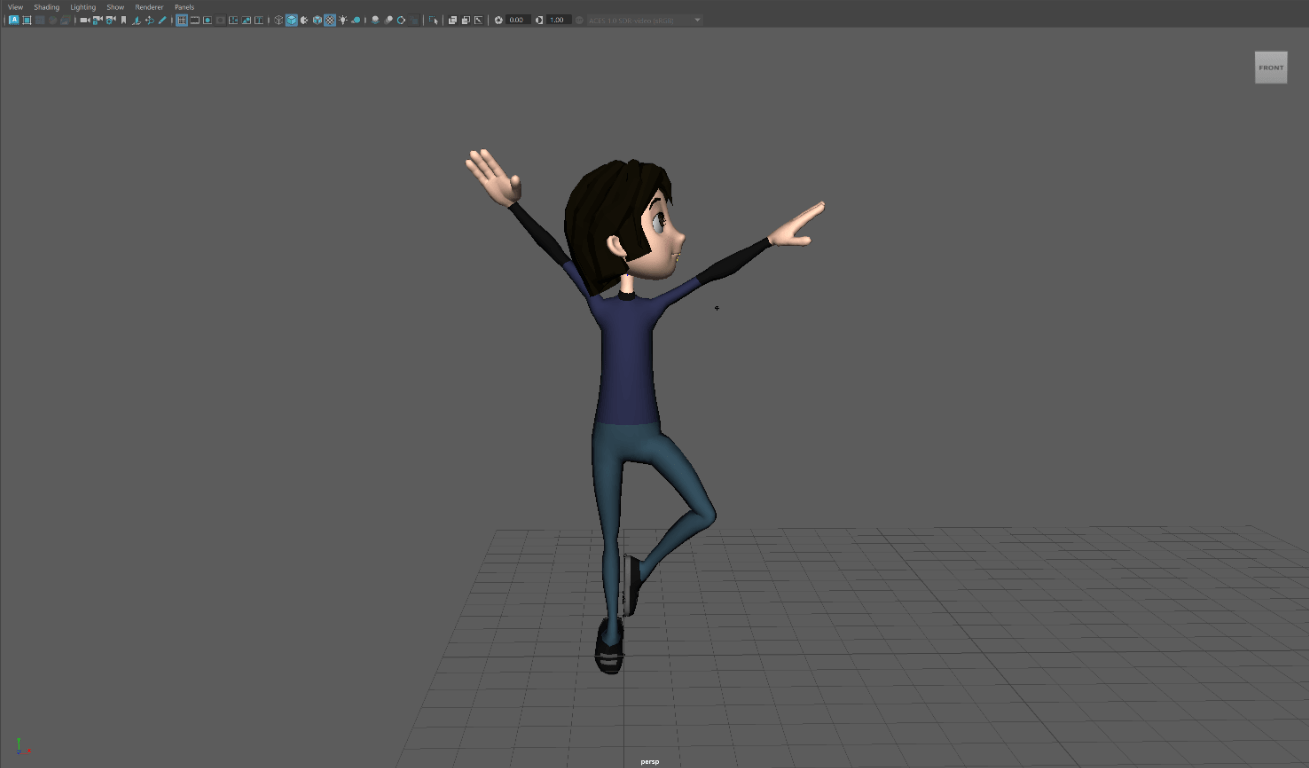
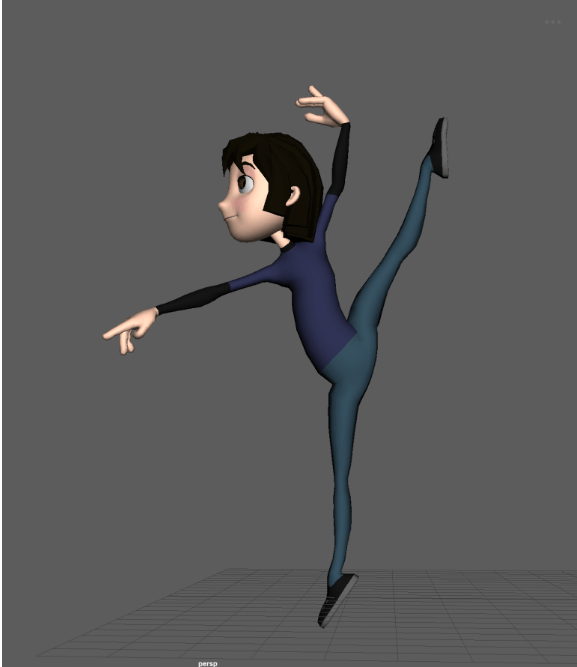
1) Dynamic Posing the Eleven-Rig Character
Objective: To pose the Elven Rig character effectively using reference images and the character controls in Maya.
Use Reference pictures (e.g., dancers) as the poses,
Steps:
- Find Reference Pictures: Search for reference images that clearly show the pose and have well-defined shapes. Dancers are a great choice as their poses are often clear and dynamic.
- Analyse the Pose: Study the reference images carefully, noting the key shapes and lines that define the pose.
- Replicate the Pose: Use the reference images to replicate your character’s pose, ensuring you capture the essence and dynamics of the original pose.
- Use Photoshop for Arcs and Lines of Action:
- Open Photoshop and use the Pen Tool to draw arcs and lines of action. This helps in visualising the flow and movement of the pose.
- Adjust the curves and lines to match the reference image, ensuring smooth and dynamic lines.
Use the Maya Pencil Tool:
- In Maya, use the Blue Pencil tool to draw directly in the viewport. This tool allows you to sketch arcs, lines of action, and other annotations directly on your 3D model
- Access the Blue Pencil tool from the Animation menu set or the Panel toolbar.
View Silhouette in Maya:
- To check the silhouette of your character, press the ‘7’ key in Maya. This switches the viewport to silhouette mode, allowing you to see the character’s outline clearly
- Ensure the silhouette is clear and expressive, making adjustments to the pose as needed.
By following these steps, you will be able to pose your character accurately and effectively, using both traditional reference images and tools in maya.
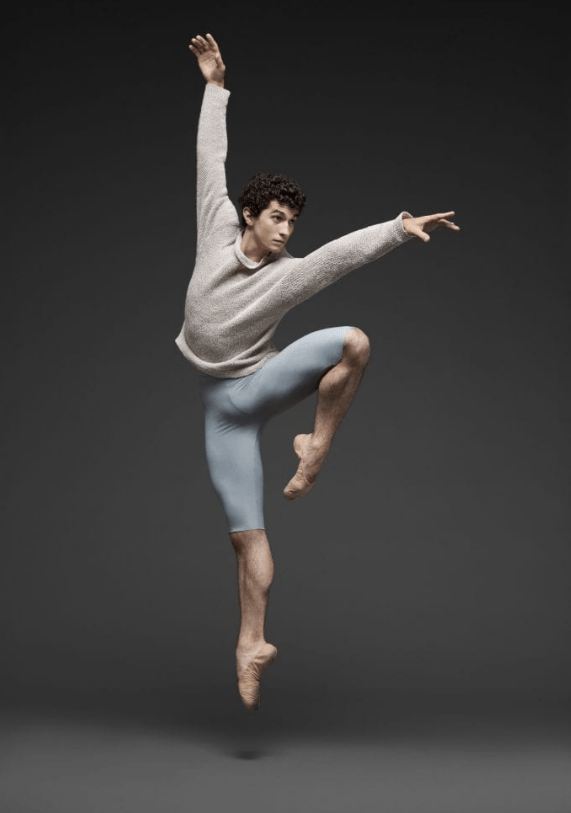
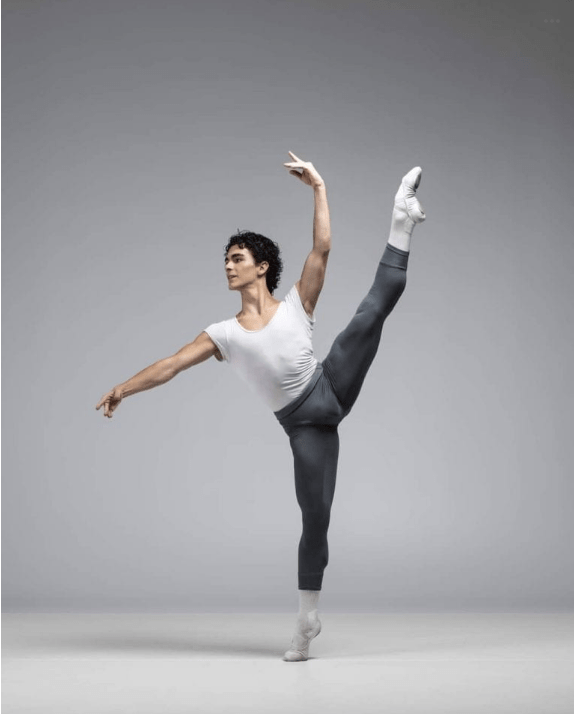
Results:
End of week 5
Week 6/7: Character walk
We start by downloading the updated Andy rig for this week.
Task 1: walk animation
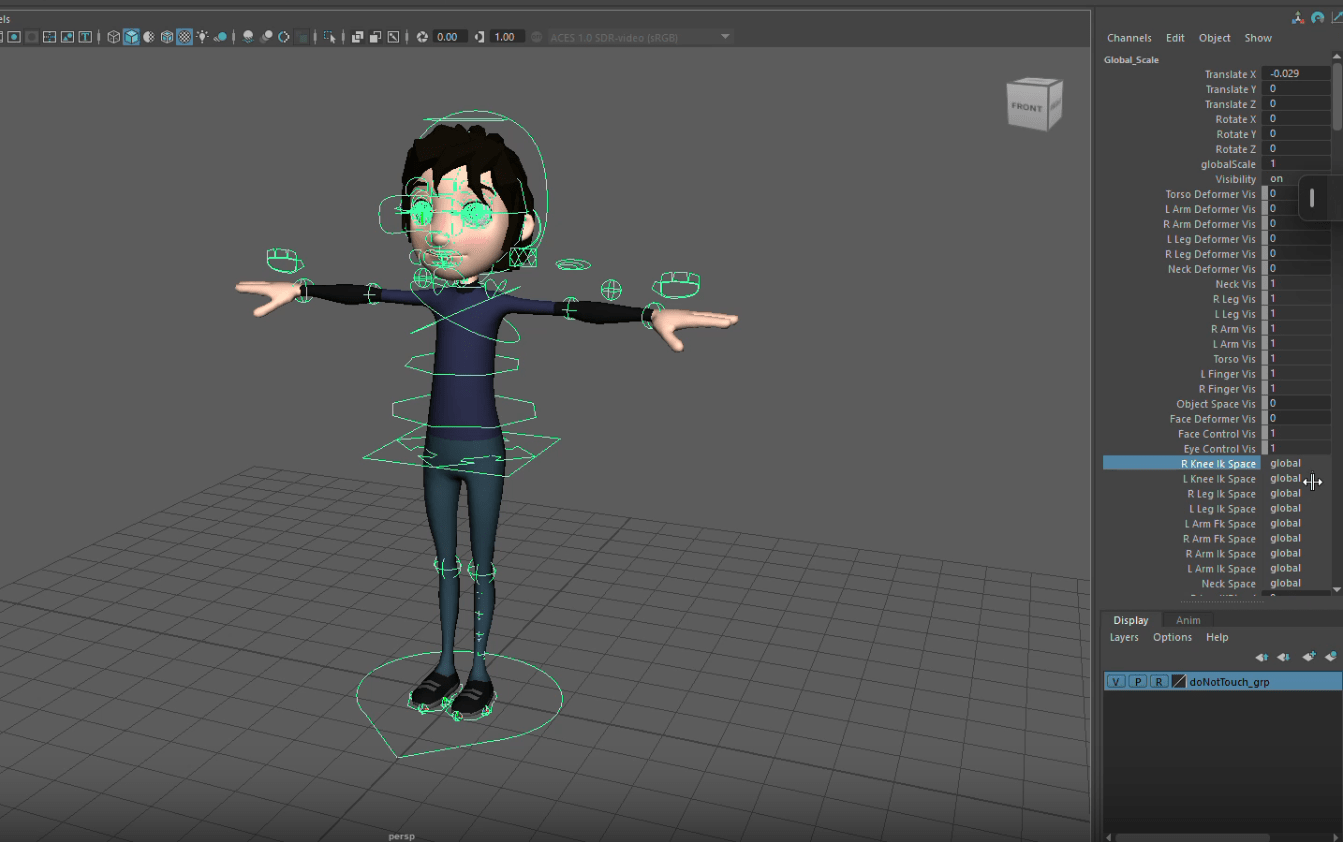
We start by setting up the rig:
Key Points
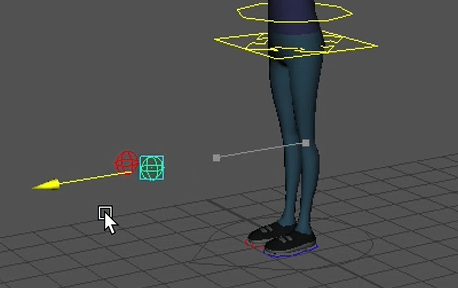
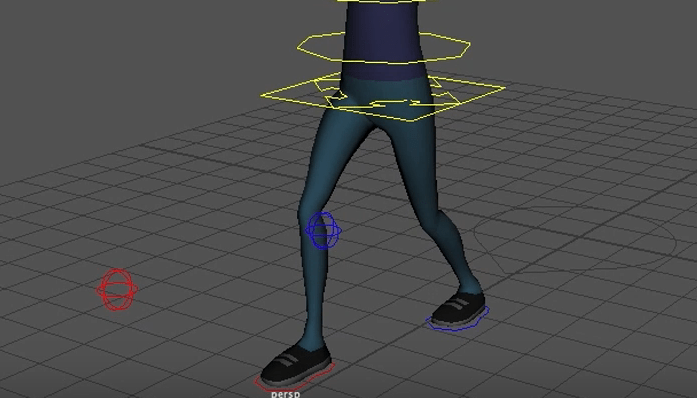
- Adjusting Knee Controls for Proper Leg Movement
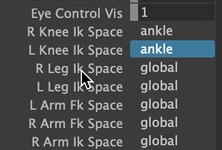
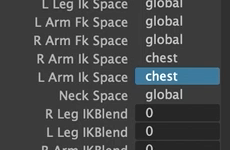
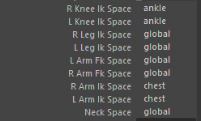
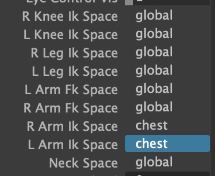
- Configuring IK Space for Arm and Leg Positioning
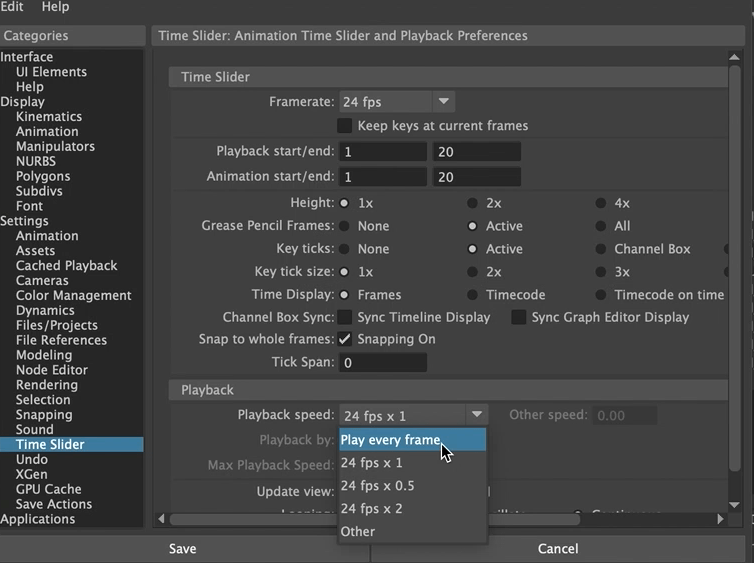
- Setting Animation Frames and Frame Rate
Summary
A brief overview of preparing a character rig for a walk cycle. It includes adjusting the knee controls for proper leg bending, setting the IK space for legs to the ankles and for arms to the chest, defining a 20‑frame walk cycle, and confirming the frame rate is 24 fps. These steps ensure the rig is correctly set up for a smooth, realistic walk.

Now after setting up these setting, we can start doing the walk:
Key Points
- Establishing Initial Pose and Keyframing
- Focusing on Passing Foot Positions
- Incorporating Weight Shifts and Body Lean
Summary
This next video shows the first stage of animating a walk cycle, focusing on the hips and legs. It explains how the hips lead the movement, where to place keyframes in the 20‑frame sequence, and how to lift the feet at passing positions while adding subtle weight shifts and bounce. The goal is to establish natural hip and leg motion before refining the rest of the animation.
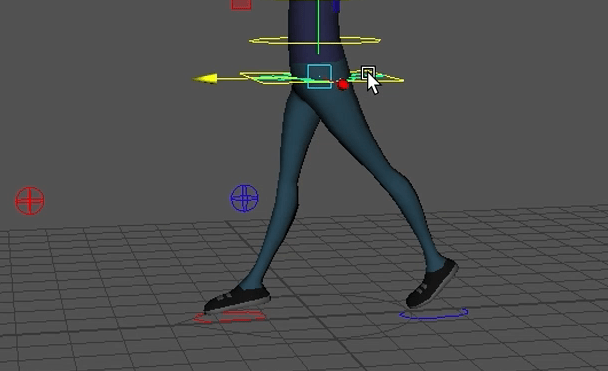
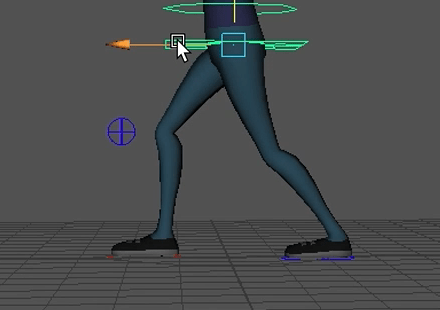
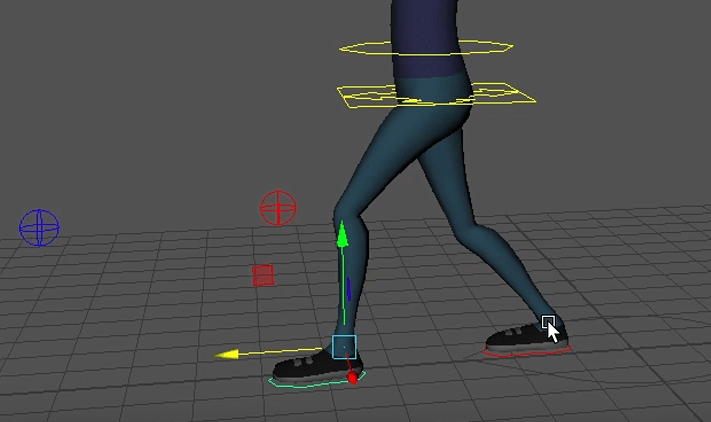
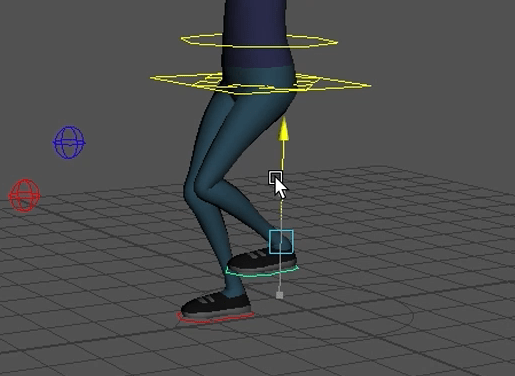
We will continue with the arms and hands
Key Points
- Establishing Initial Pose and Keyframing
- Focusing on Passing Foot Positions
- Incorporating Weight Shifts and Body Lean
Summary
This video shows animating the hips and legs for the first phase of a walk cycle. It explains starting with the hips, then posing the legs, setting keyframes across the 20‑frame sequence, lifting the feet at passing positions, and adding subtle bounce and weight shifts. The aim is to establish natural hip‑led movement before refining the rest of the walk.
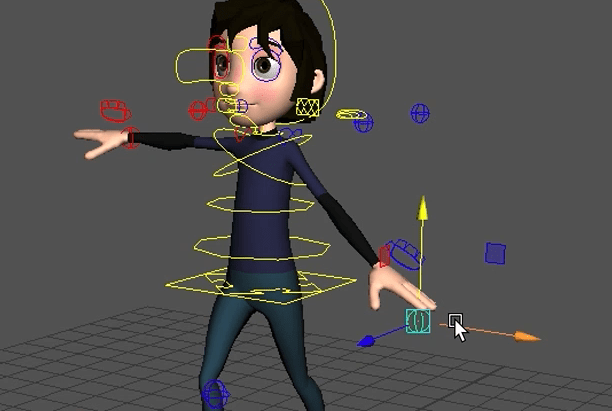
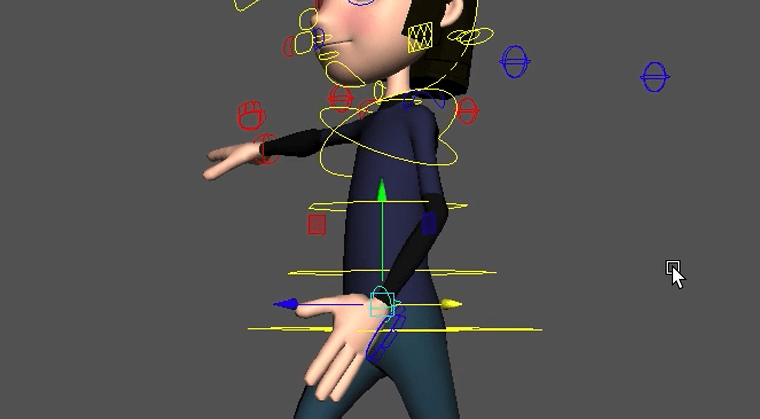
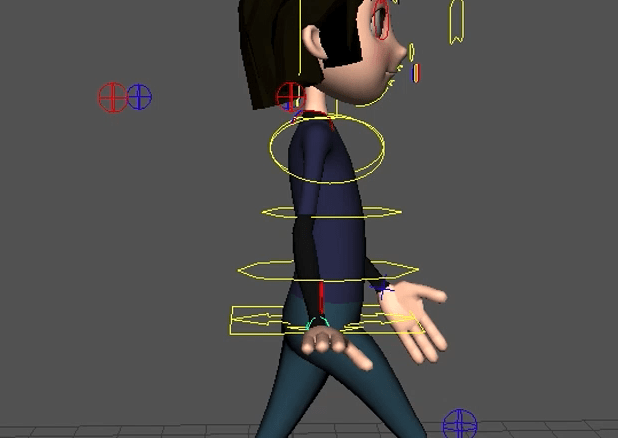
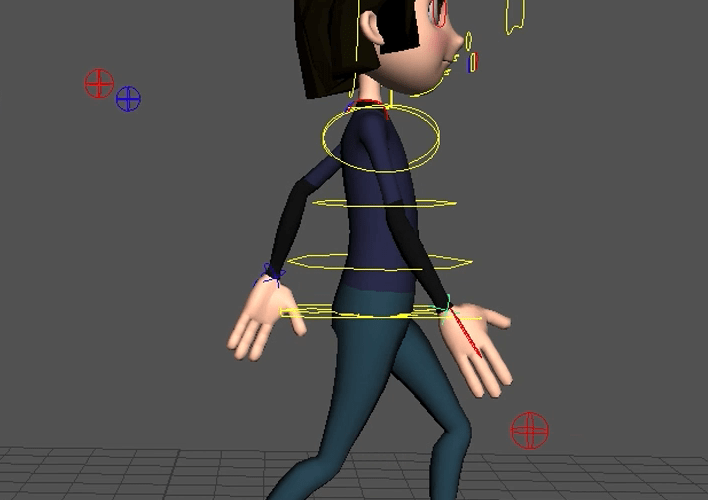
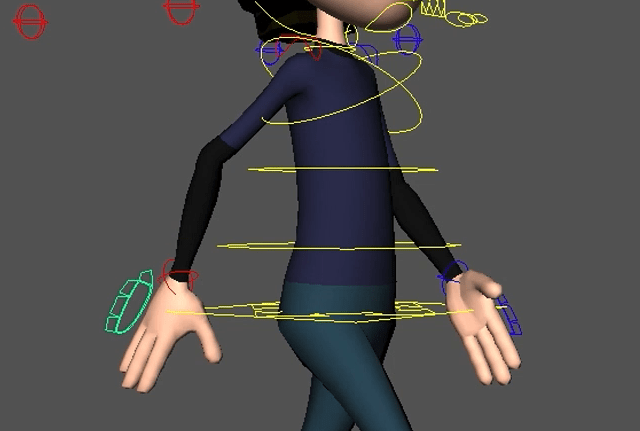
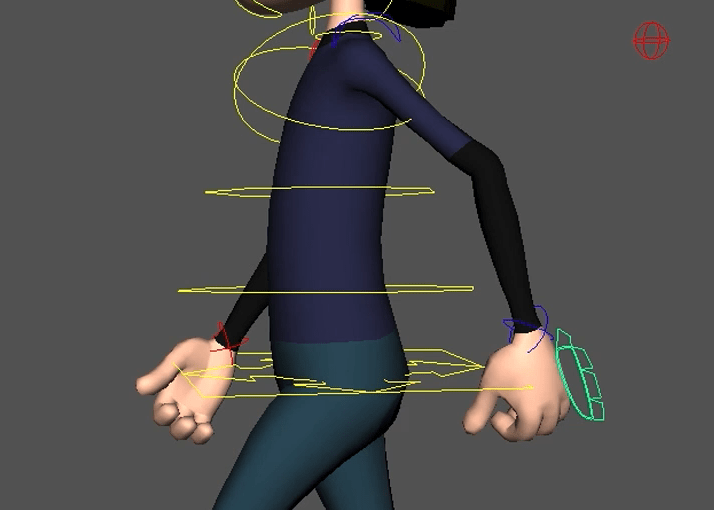
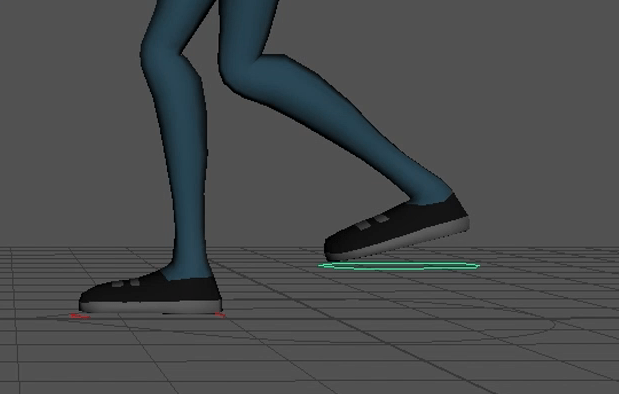
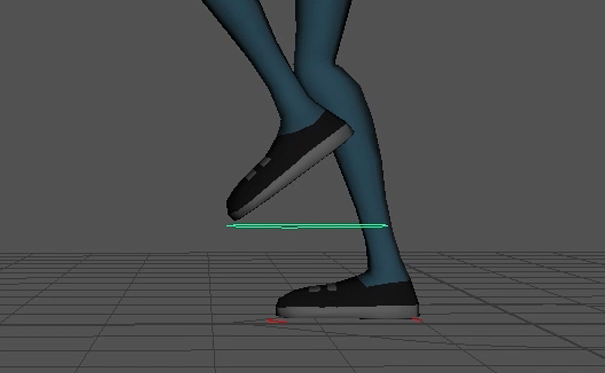
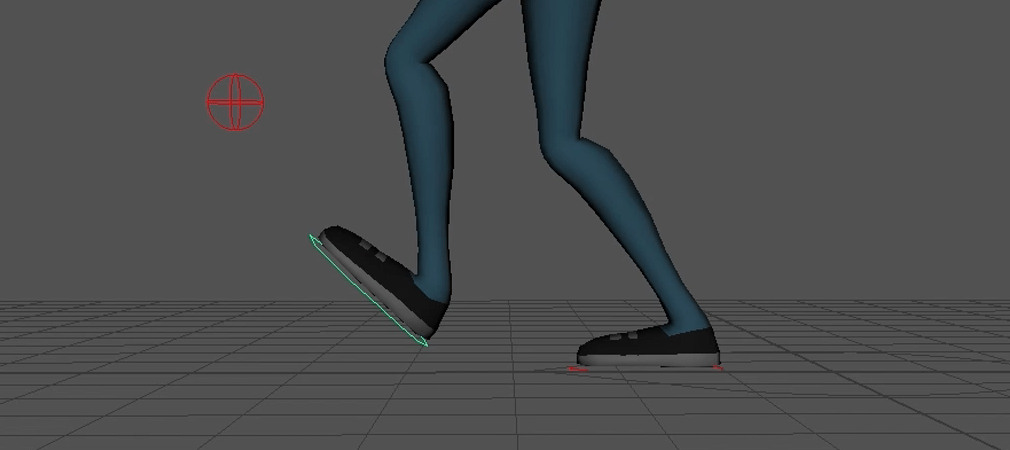
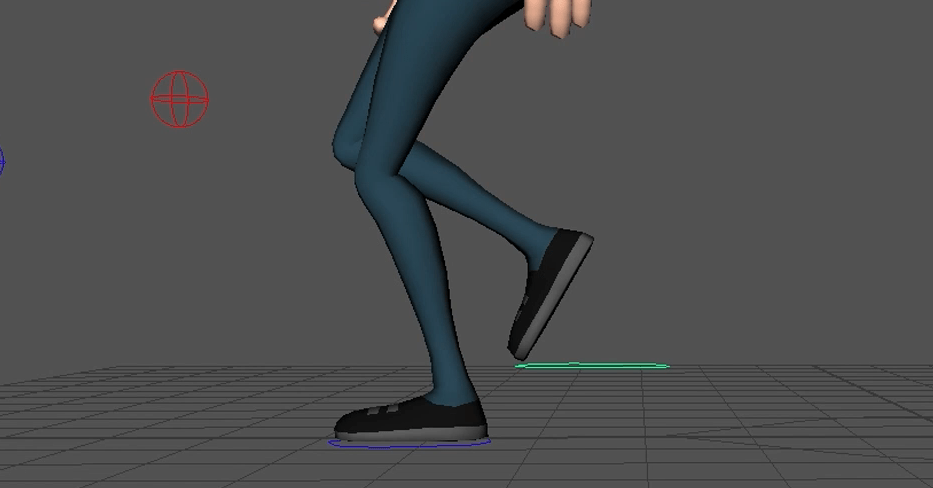
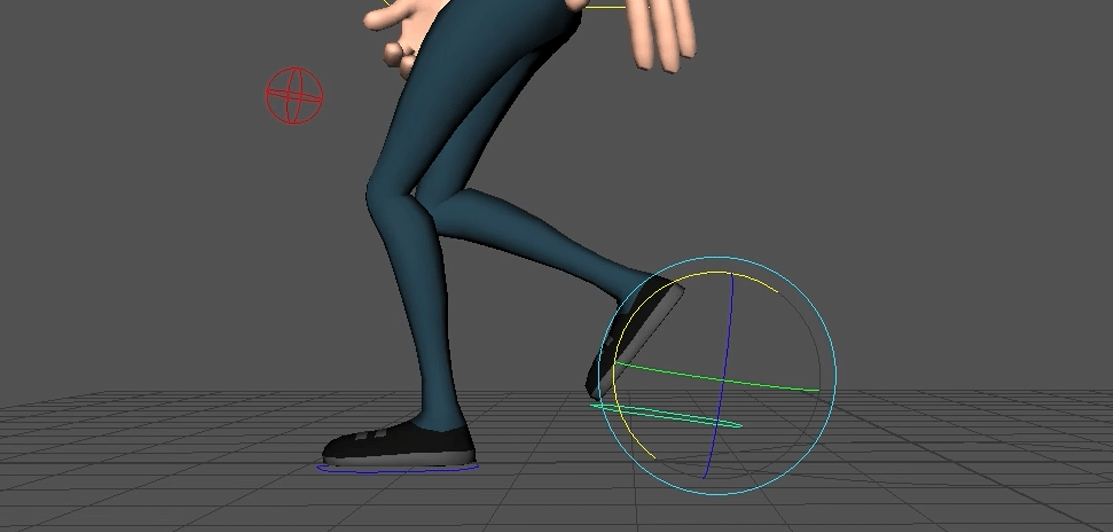
And finally we do the food roll, so the movement looks more natural.
Key Points
- Adjusting Foot Lift and Rotation
- Achieving Naturalistic Foot Movement
- Coordinating Toe Lift and Foot Rotation
The video explains how to animate a character’s feet so they look natural during a walk cycle. It shows how to adjust toe lift and foot rotation, demonstrating where to place keyframes and what values to use to create realistic movement. They highlight common challenges—like making the foot roll appear believable—and emphasise taking time to study real walking to improve the final animation.
End of week 6/7
Week 8: Walk cycle (walk on spot)
A walk cycle in 3D animation is a repeating sequence of poses that creates the illusion of a character walking continuously without the animator having to animate each individual step. It defines the rhythm, weight shift, and body mechanics of a character’s movement, serving as a reusable foundation that can be adapted or layered with additional motions for different scenes or styles.
The Animator’s Survival Kit example walk cycles.
For a 20 frames per second (fps) model, here’s how you can adjust the walk cycle:
- Key Poses: Identify main poses like contact, passing, up, and down.
- Timing: Typically 20 frames per cycle, 10 frames per step.
- Weight Shift: Shift weight naturally between feet.
- Arms and Legs: Move arms and legs in opposition.
- Foot Roll: Roll the foot from heel to toe for realism.
- Follow-Through: Add slight movements like hair or clothing.
- Secondary Motion: Include head bobbing or torso twists.
- Consistency: Ensure the cycle loops seamlessly.
Task 1: Animate a walk cycle using the eleven rig
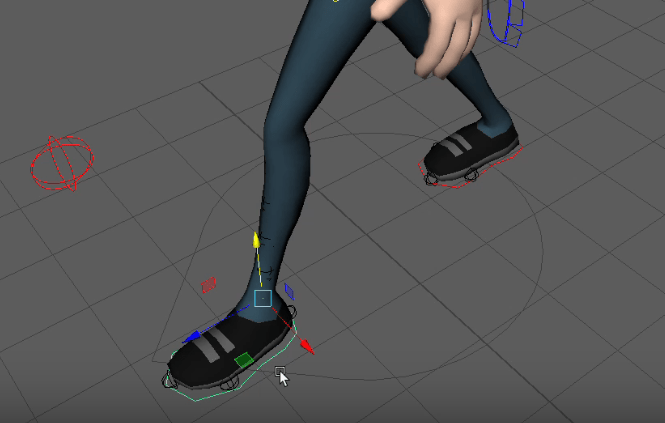
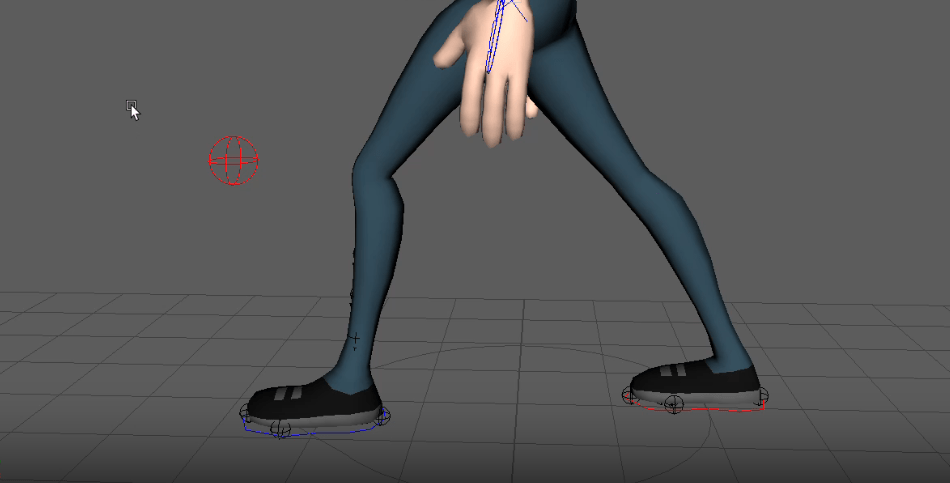
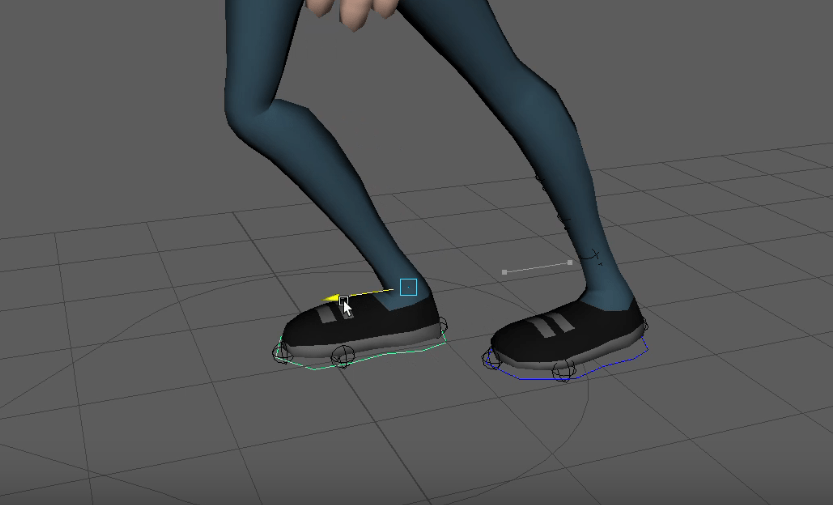
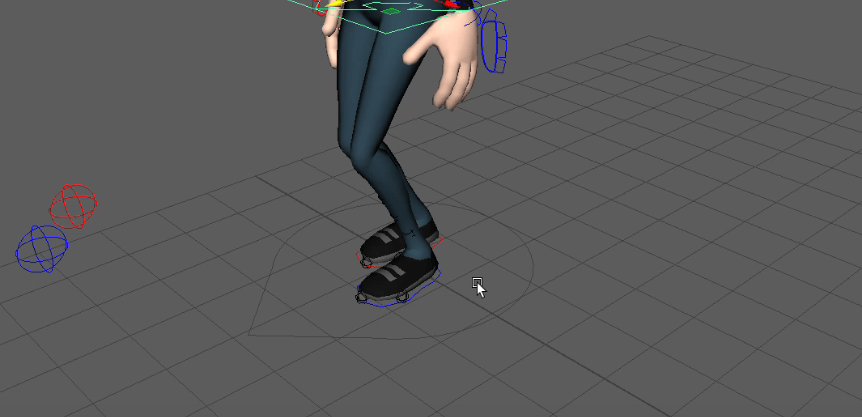
Character walk cycle feet contact poses:
Key Points
- Animating a Walk Cycle
- Setting Up the Main Poses
- Copying and Pasting Keyframes
Summary
An overview of the walk cycle animation process is provided in this video. It explains the key steps involved in creating a repeatable walking animation, starting with setting up the initial poses at frames 1, 10, and 20. It demonstrates how to position the feet, hips, and other body parts to achieve the desired walking motion. It emphasises the importance of copying and pasting the key frames to create a seamless cycle, and mentions that the next step will be to work on the passing poses and foot roll. The summary highlights the technical aspects of the walk cycle animation, providing a clear understanding of the process for creating this type of animation.
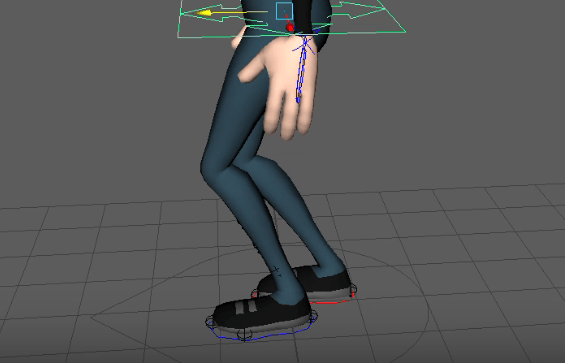
Character walk cycle feet passing poses
Key Points
- Passing Poses and Foot Rotation
- Adjusting Hip and Foot Values
- Foot Holding for Push-Off
Summary
The video discusses the process of creating passing poses for a character’s walking animation. The video explains the key steps involved, such as raising the hips, lifting the foot upward to create the passing motion, and ensuring proper rotation of the feet. The importance of carefully studying the values and adjusting them as needed to achieve the desired effect. It also mentions that the next step will be to have the passing leg foot hold a bit longer to create a push-off from the ground.
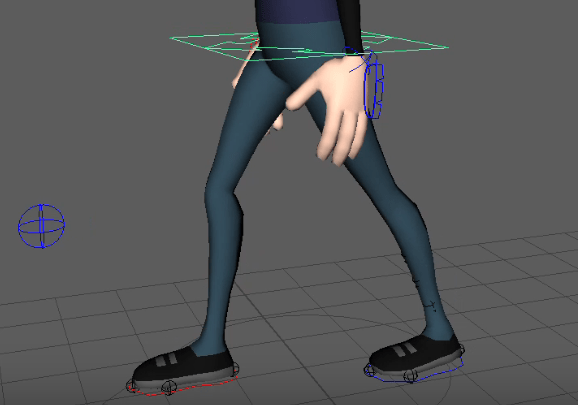
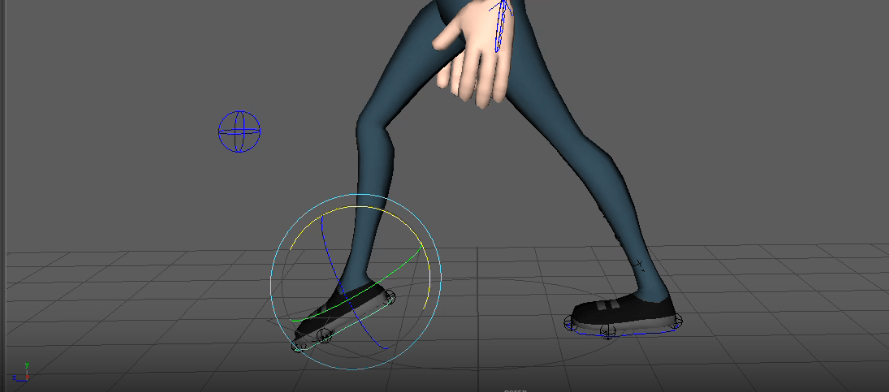
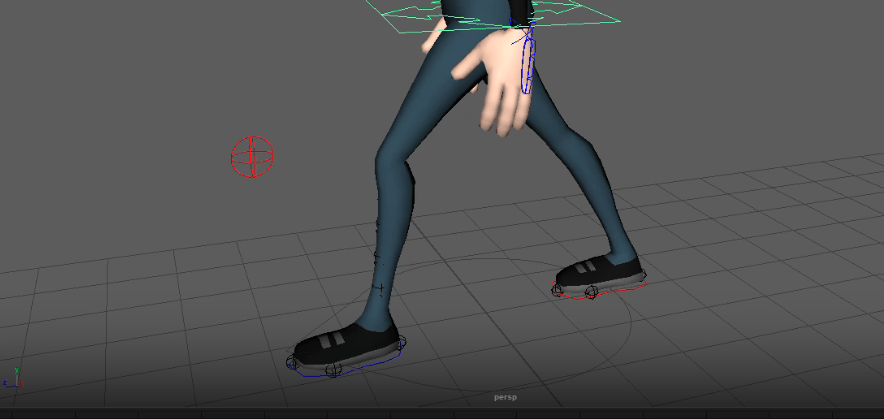
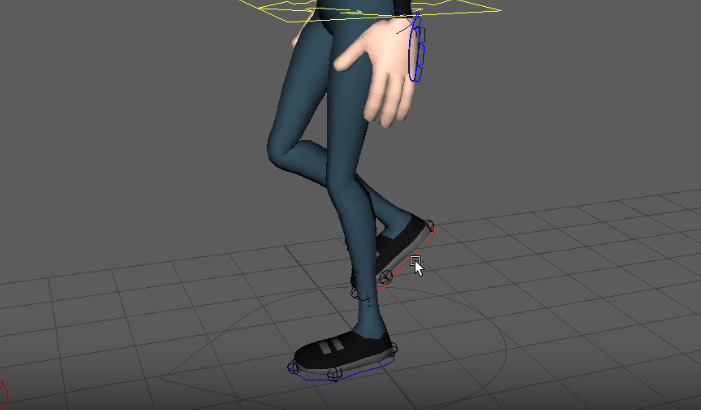
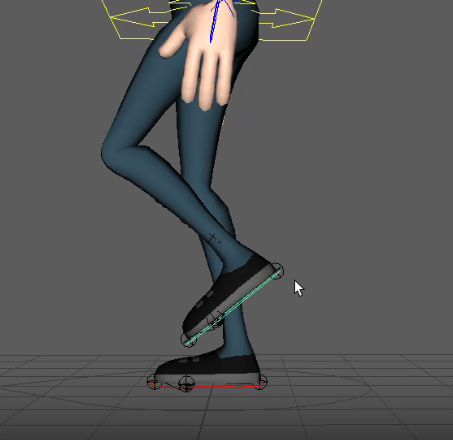
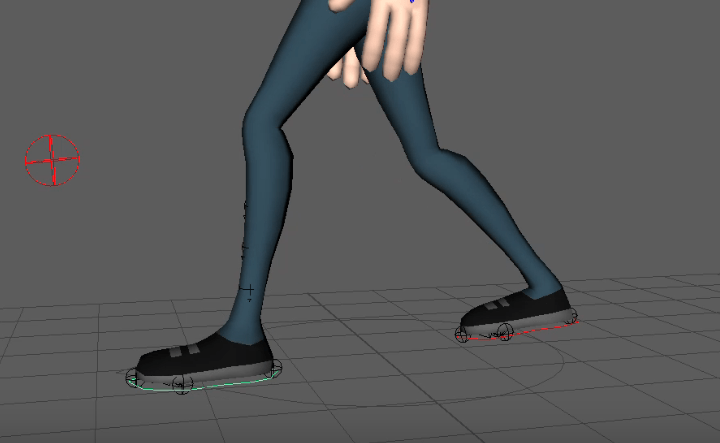
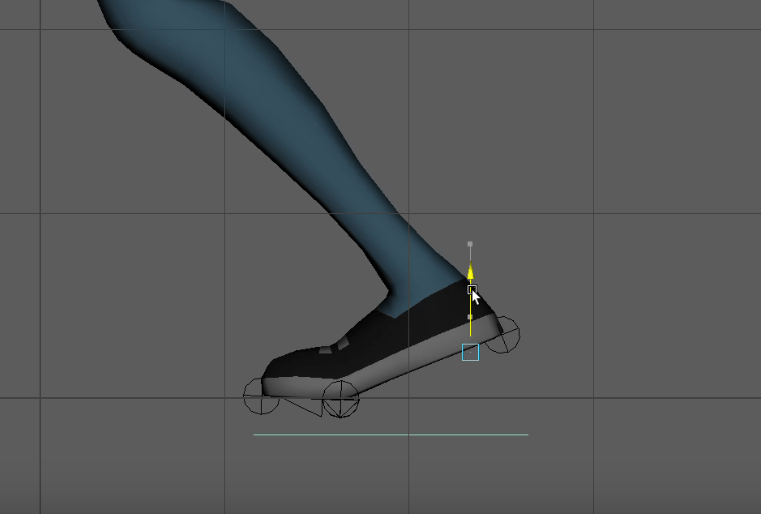
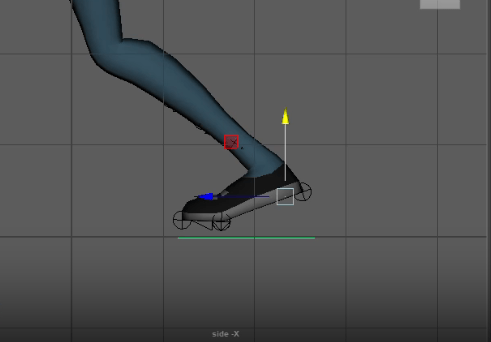
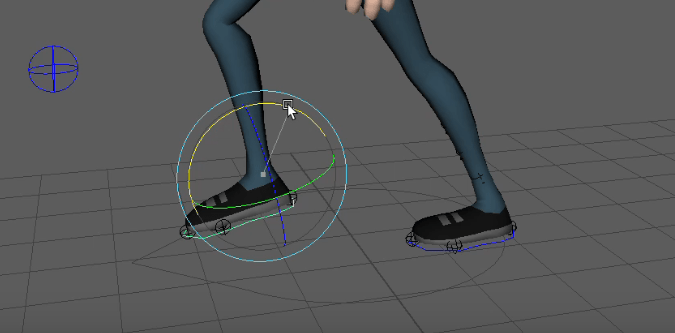
Character walk cycle feet push
Key Points
- Foot Placement and Push-Off
- Adjusting Hip and Leg Movements
- Anticipating and Smoothing Foot Landing
Summary
Animating a character’s leg movement, focusing on the push-off and landing of the feet. The video walks through the process of adjusting the hip and foot controls to create a more natural and fluid leg cycle, addressing challenges such as ensuring the foot lands flat on the ground and replicating the movement on the opposite leg. It highlights the speaker’s step-by-step approach, including experimenting with different values for the toe lift, toe wiggle, and hip rotation to achieve the desired effect. The goal is to create a seamless and realistic leg cycle that avoids any sticking or unnatural movements. It emphasises the importance of paying close attention to the details and taking the time to refine the animation to achieve the desired result.
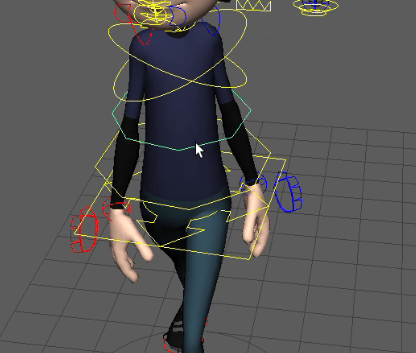
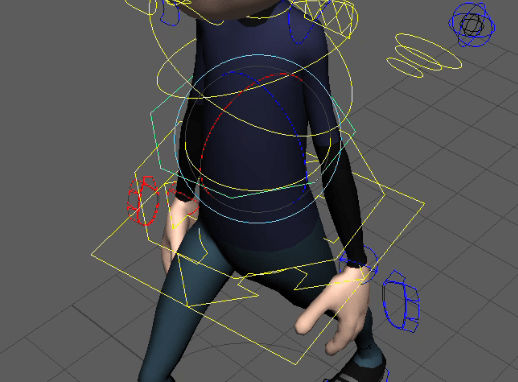
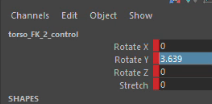
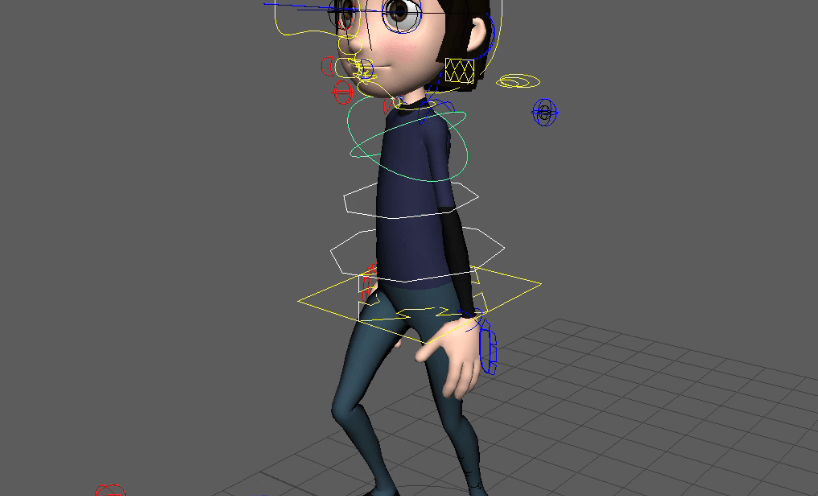
Character walk cycle spine shoulders
Key Points
- Animating Spine and Shoulders
- Rotating Shoulders Opposite Leg
- Mirroring Rotation Values
Summary
The video shows the process of animating the spine and shoulders in a character animation. It explains that the goal is to have the shoulders and upper body move in the opposite direction of the leg movement. It demonstrates this by rotating the shoulders backwards on the first frame, then rotating them back the other way by frame 10. The specific values and controls they are adjusting to achieve this effect, noting that it can be tricky work. Copying the key frames to the other side to create a mirrored animation.
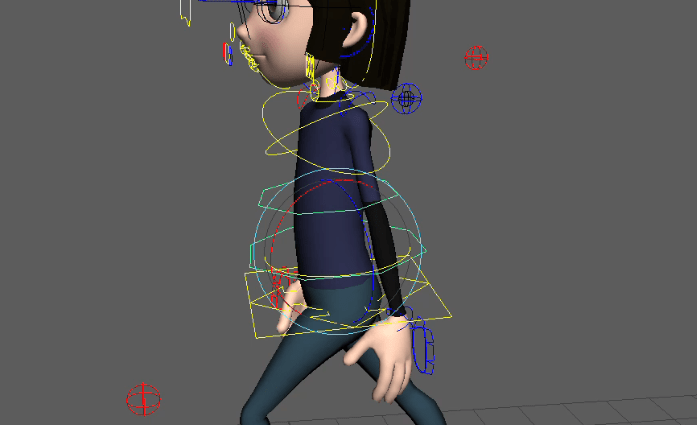
Character walk hip weight shift
Key Points
- Shifting Weight and Hip Movement
- Compensating Spine Rotation
- Achieving Balanced Character Walk
Summary
The process of animating a character’s walking motion, focusing on the weight shift and rotation of the hips. The video explains the importance of shifting the character’s weight from side to side, as well as incorporating more rotation in the hips. It demonstrates how to adjust the positional and rotational values to achieve the desired effect, emphasizing the need to balance the movement of the hips and shoulders to create a natural, “drunken walk” appearance. The key steps involved in refining the character’s walking animation include making adjustments to the spine rotation to compensate for the weight shift and achieve a more realistic, fluid motion.
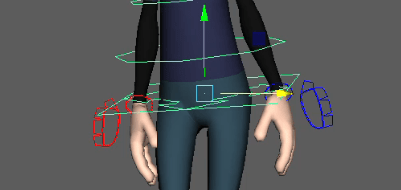
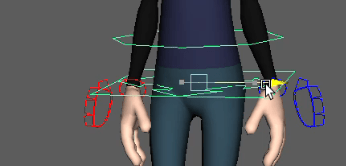
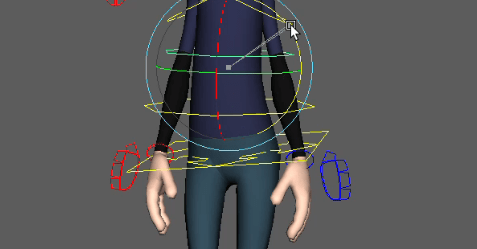
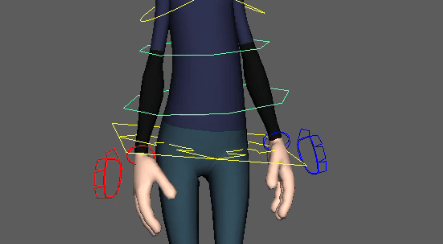
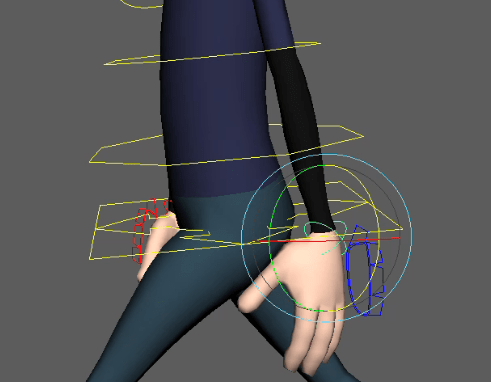
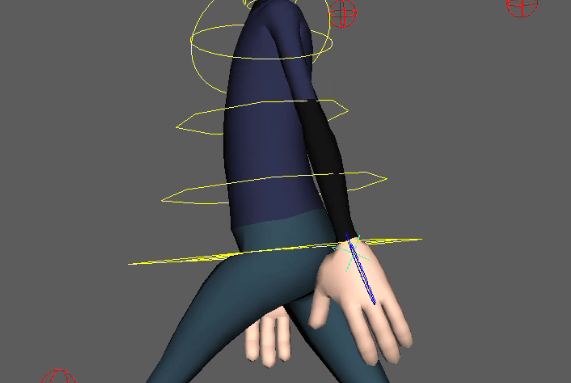
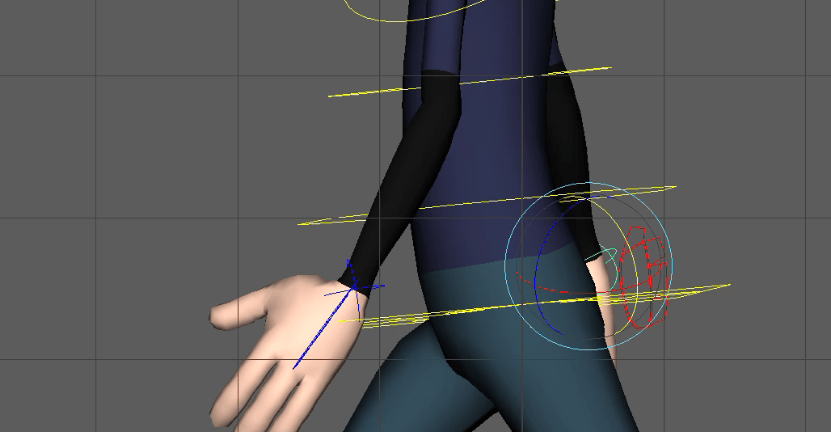
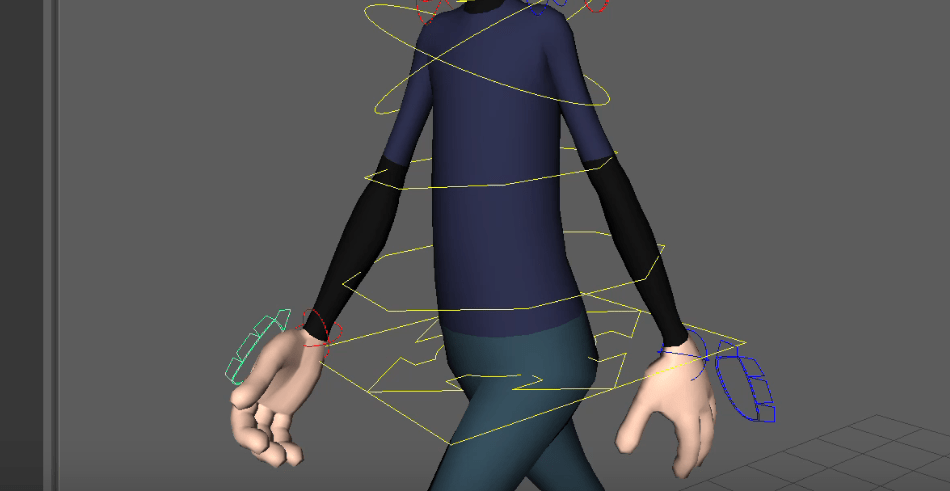
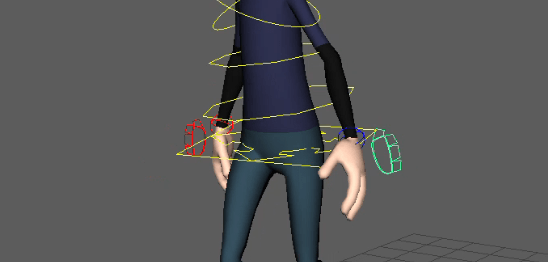
Character walk animating the arms
Key Points
- Arm Movement and Mirroring
- Adjusting Hand and Wrist Positions
- Exploring Head and Chest Movements
Summary
The video shows the technical aspects of animating a character’s arms and head movements. The various adjustments and fine-tuning of the character’s limb positions, hand gestures, and head rotation to achieve a more natural and fluid animation. Mirroring the left and right arm movements, adding drag and bending to the arms, and adjusting the head’s up-and-down and side-to-side motions. The complexity of the process and the need to carefully coordinate the different elements to create a cohesive and realistic animation. Overall, it highlights the meticulous attention to detail and problem-solving required in the animation process to bring a character to life.
End of week 8
Week 9: Lifting weights
This week’s session, we will investigate –
- Animation reference for weight lifts.
- Technical setup in Maya for creating constraints to control object lifting and dropping.
These topics are covered in this week’s Weight Lift slides. Example files and videos are included within the folders below
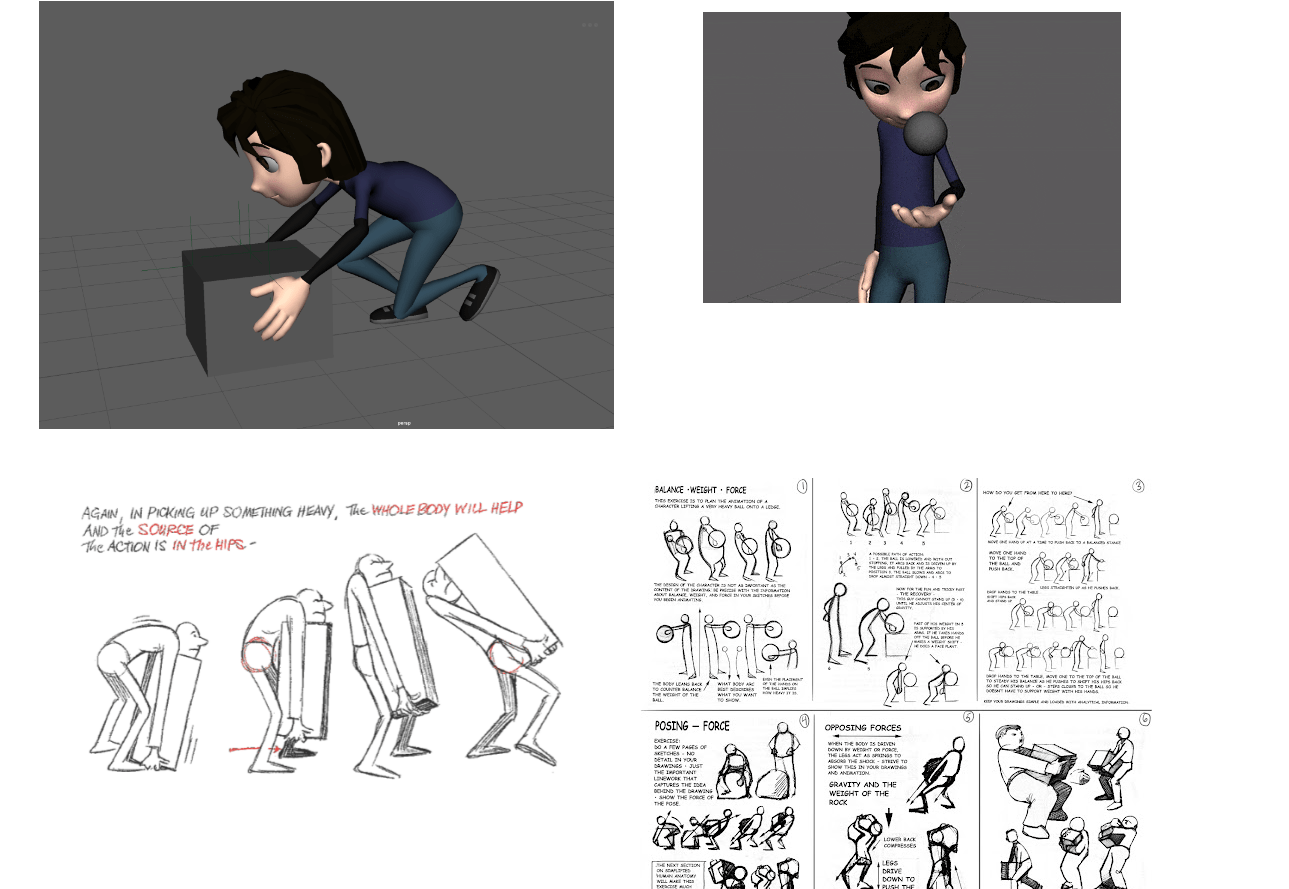
Task 1: Animating lifting weights
This is the material we get to complete the task:
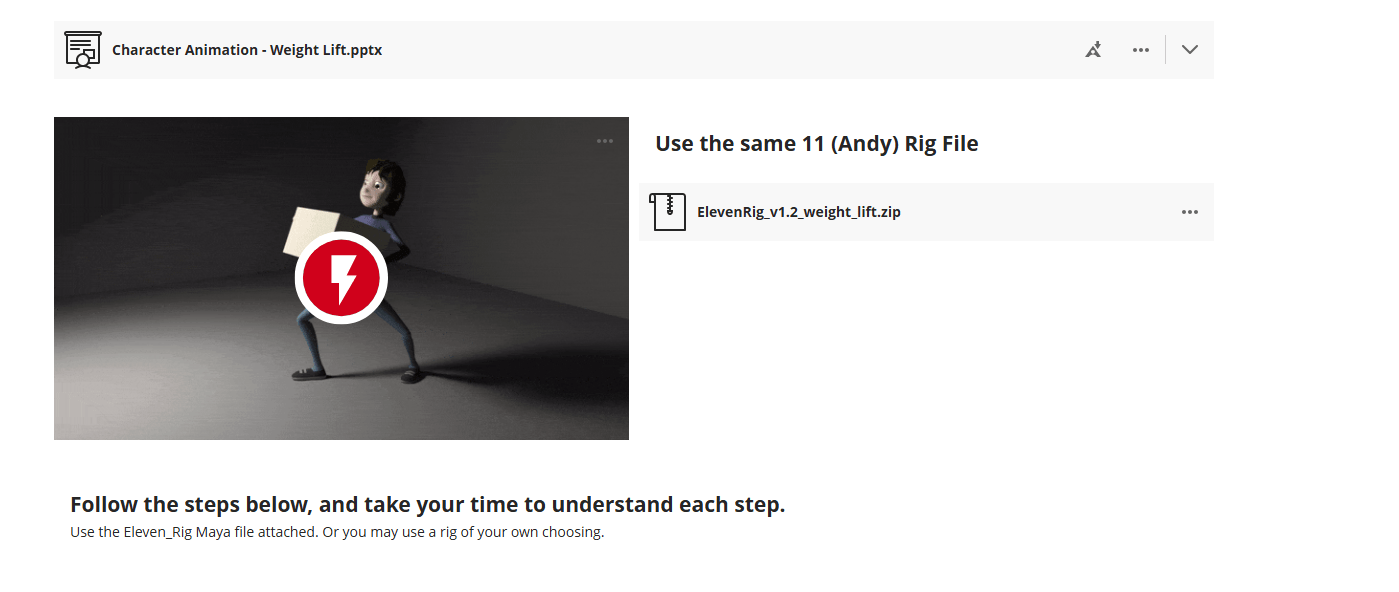
References:
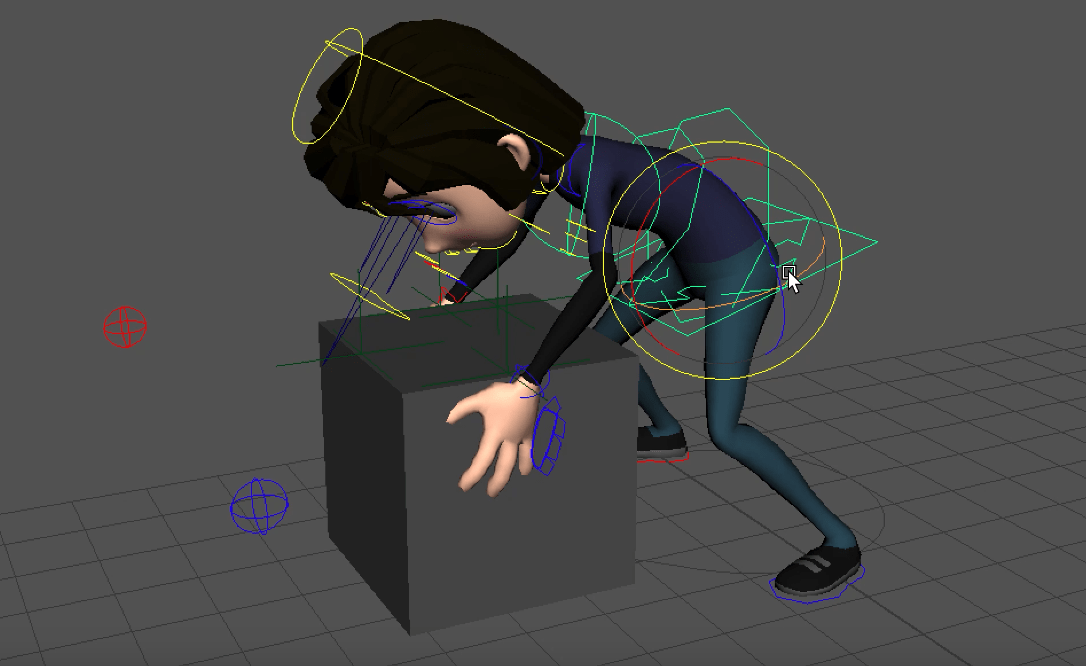
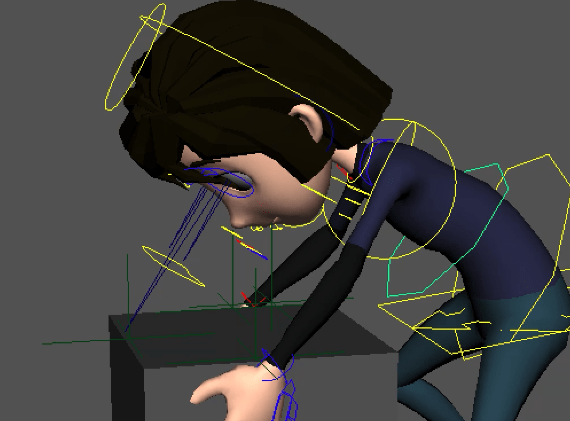
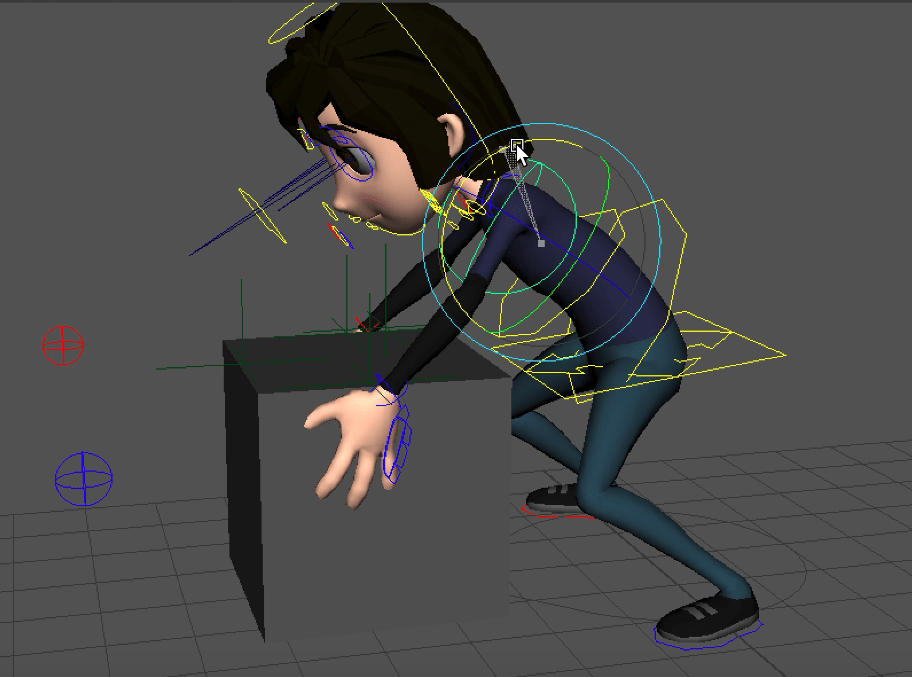
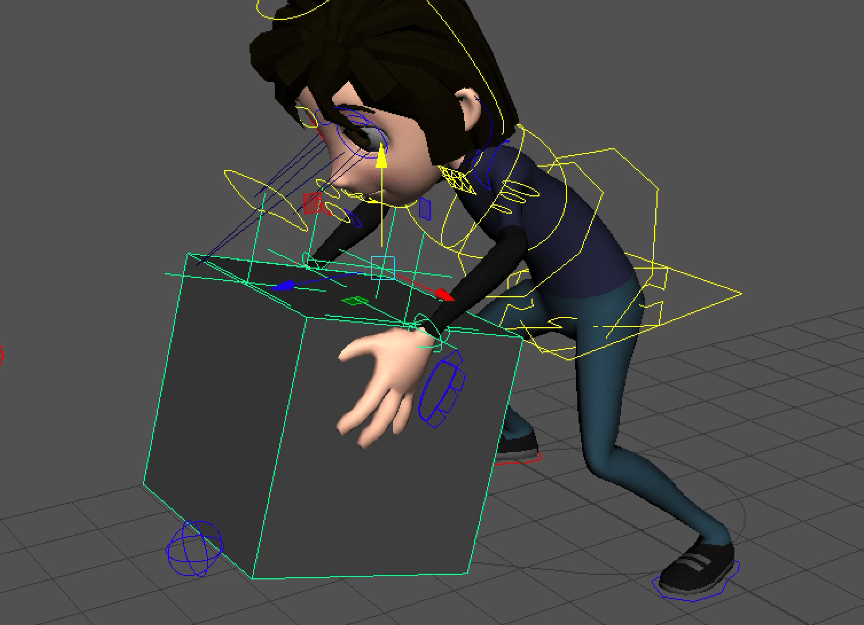
We start by Posing the character for the Box Lift
Key Points
- Posing Character Around Box
- Linking Character Arms to Box
- Picking Up and Lifting Box
Summary
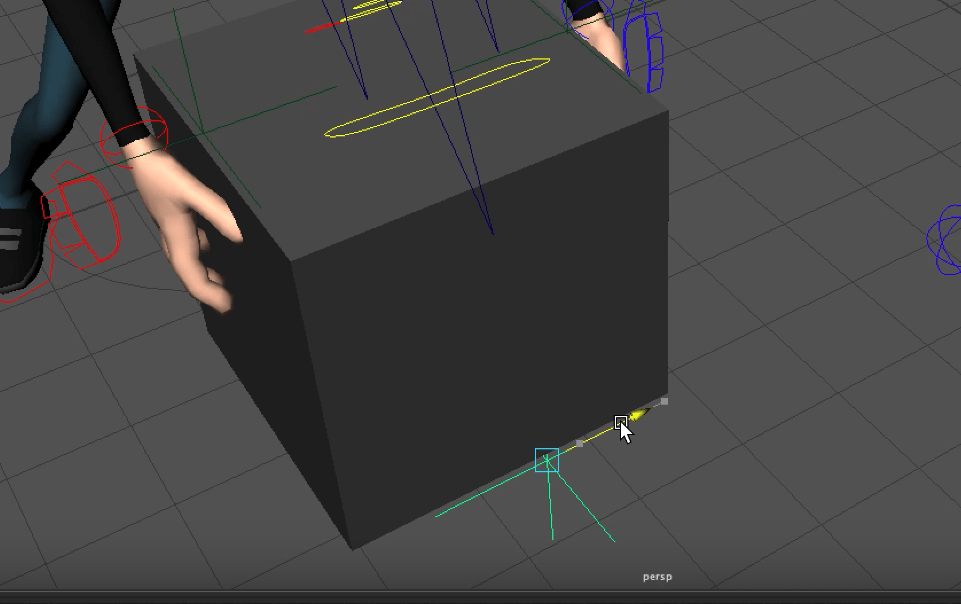
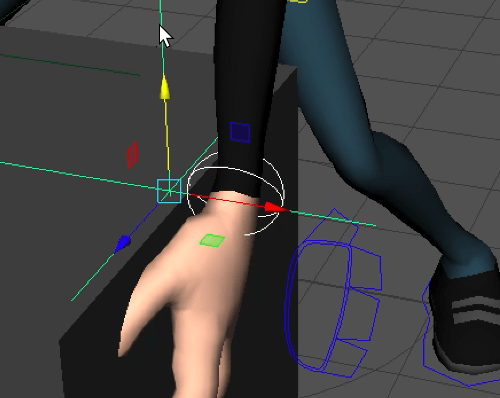
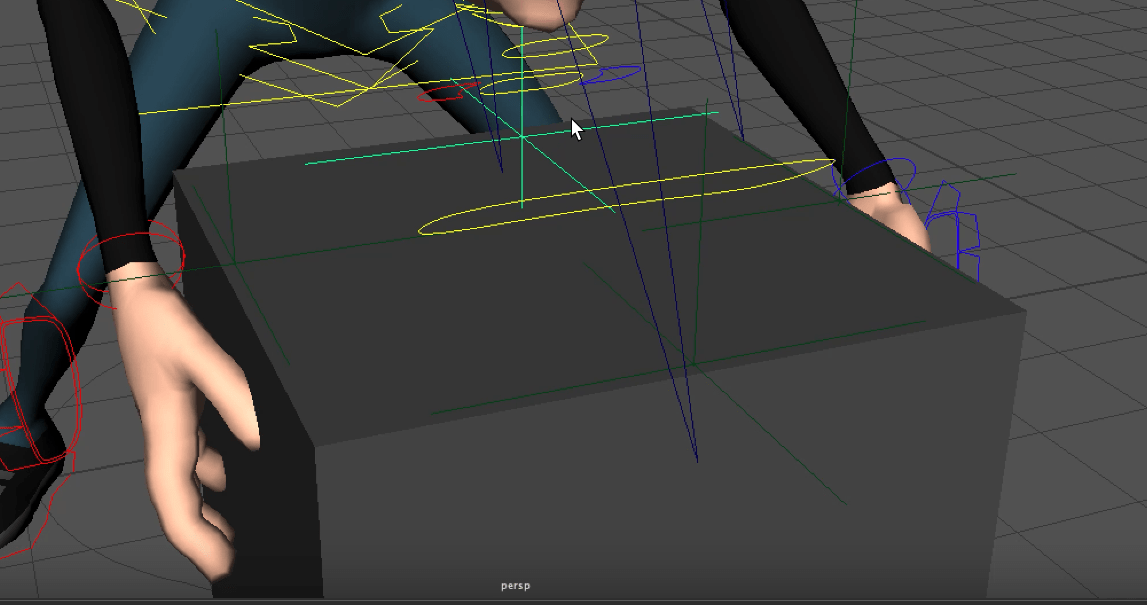
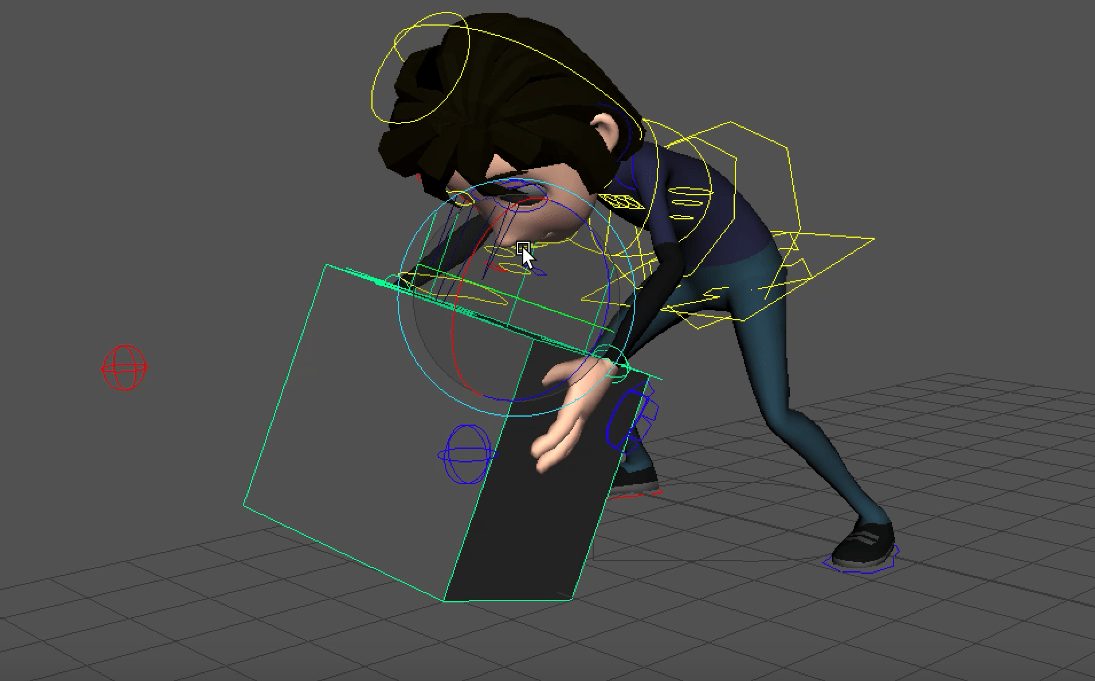
The video discusses the process of animating a character lifting a box. It covers the key steps involved, including posing the character around the box, linking the character’s arms and hands to the box, and adjusting the character’s movements and hand positions to create a natural and convincing lifting motion. The video highlights the technical aspects, such as using IK (Inverse Kinematics) controls to ensure the character’s limbs move realistically, and scaling the box to an appropriate size. The importance of taking the time to refine the character’s pose and hand gestures to achieve the desired effect.
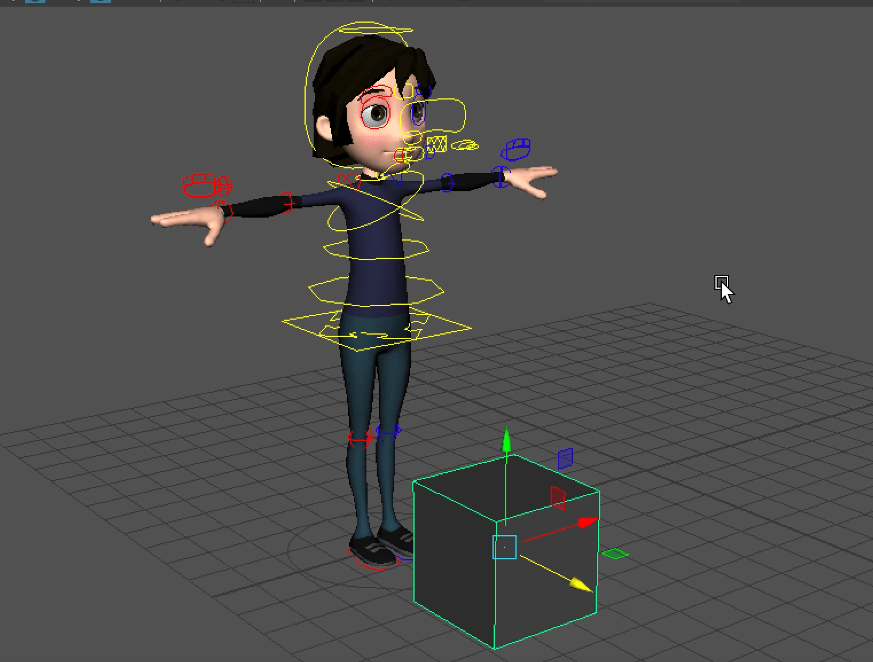
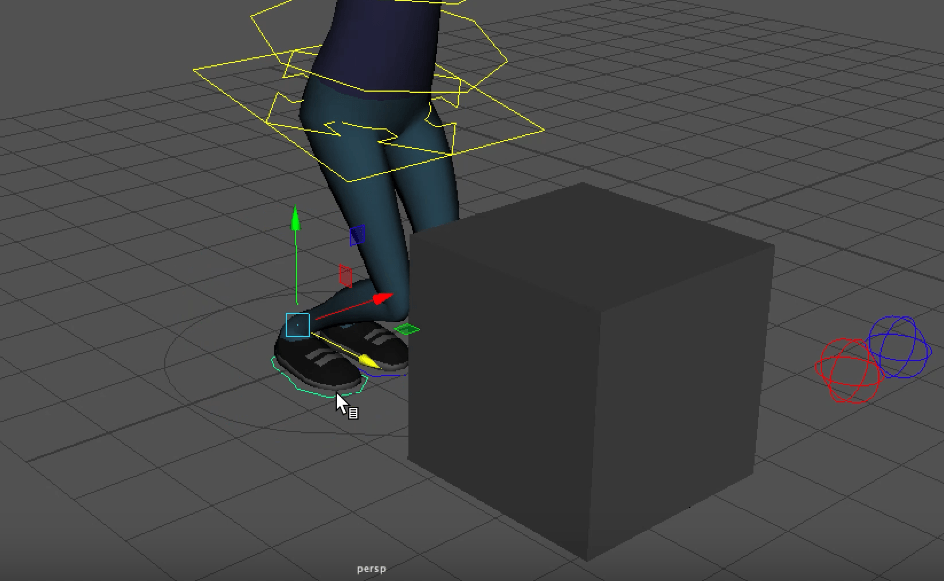
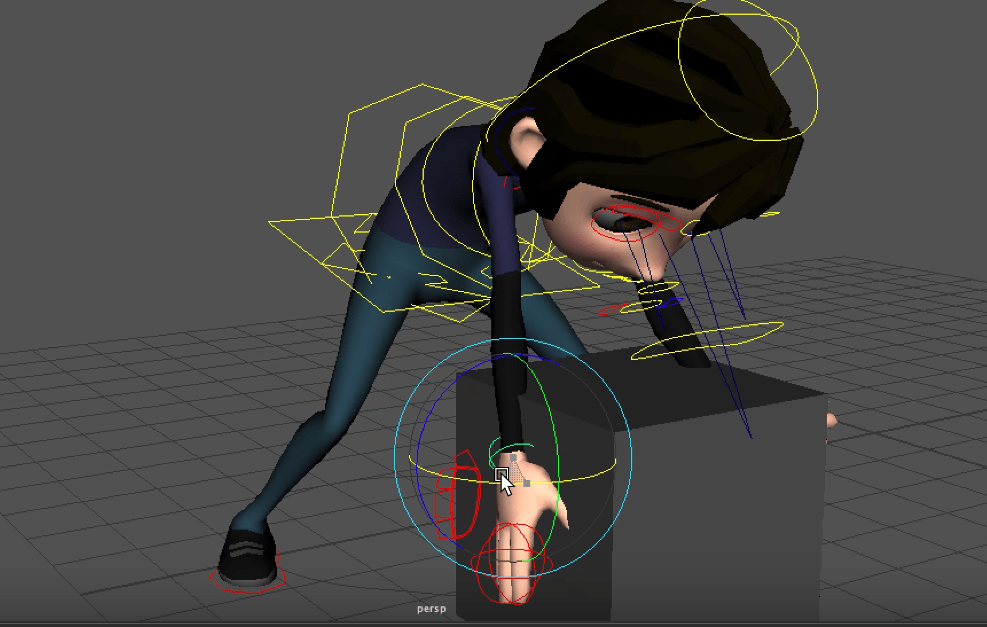
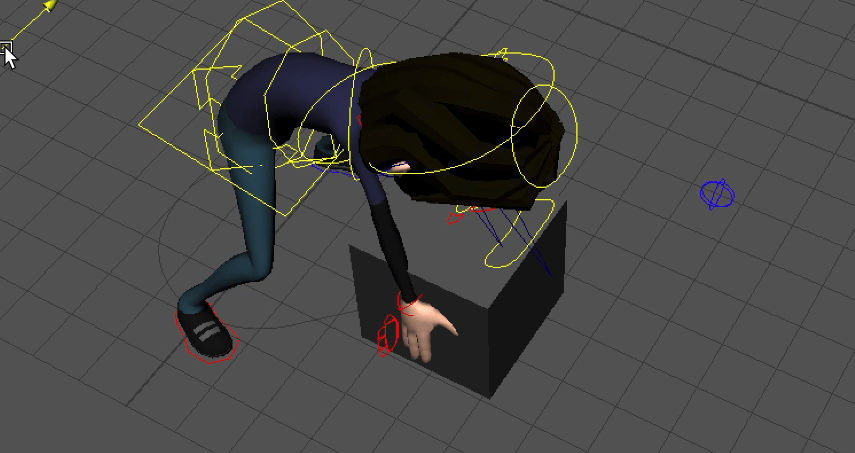
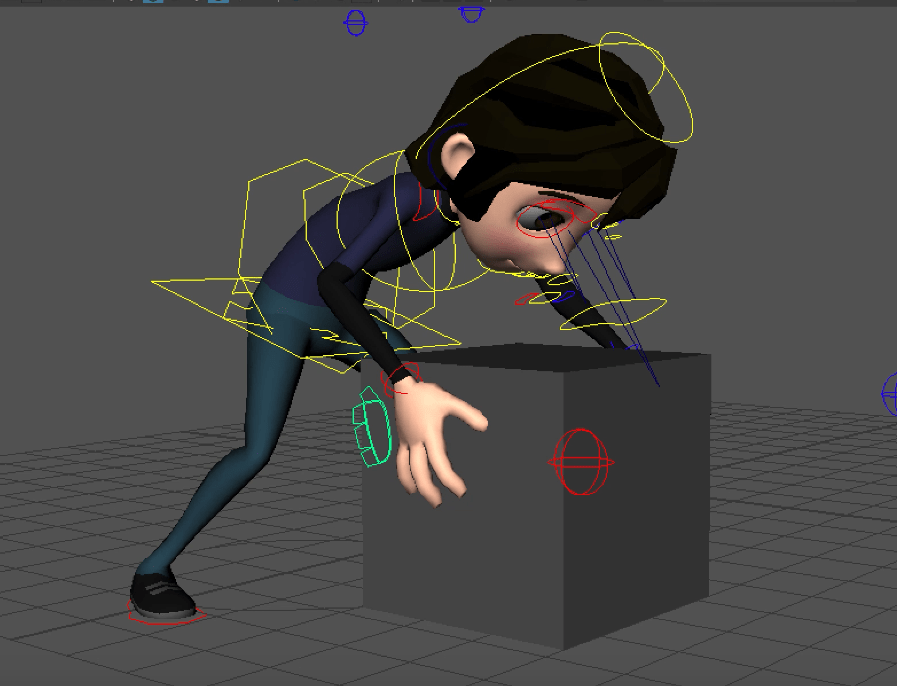
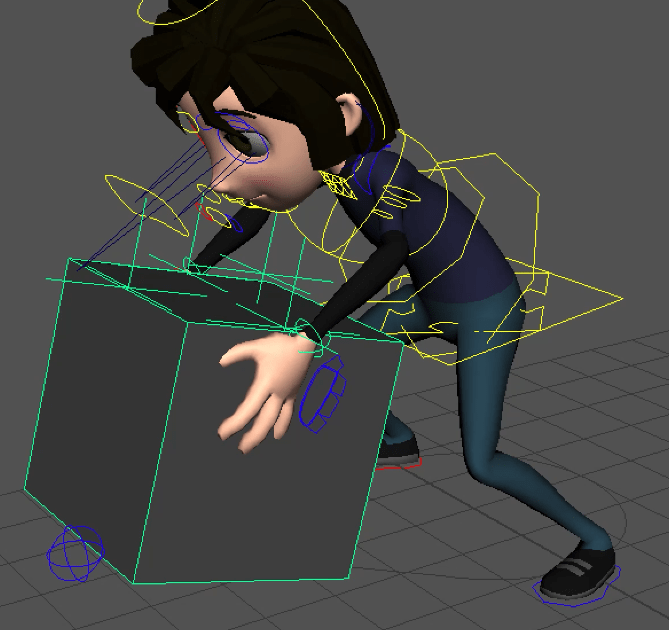
Box Rig using Locators and parent command
Key Points
- Locator Placement and Parenting
- Animating Prop Movement with Locators
- Keyframing Character and Box Interaction
Summary
The video discusses a technique for animating the movement of a box using locators in a 3D animation software. It explains how to create a set of locators around the box and parent them to a main control locator. This allows the box to be moved and animated more naturally, as the locators will move with the main control, preventing any slippage or unnatural movement. This method is particularly useful when working with props, such as a character sweeping a floor or lifting a weight. Key steps involve in setting up this rig, including creating the locators, parenting them to the main control, and demonstrating how the box can be moved smoothly using the main locator.
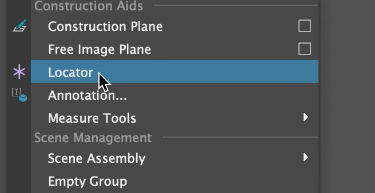
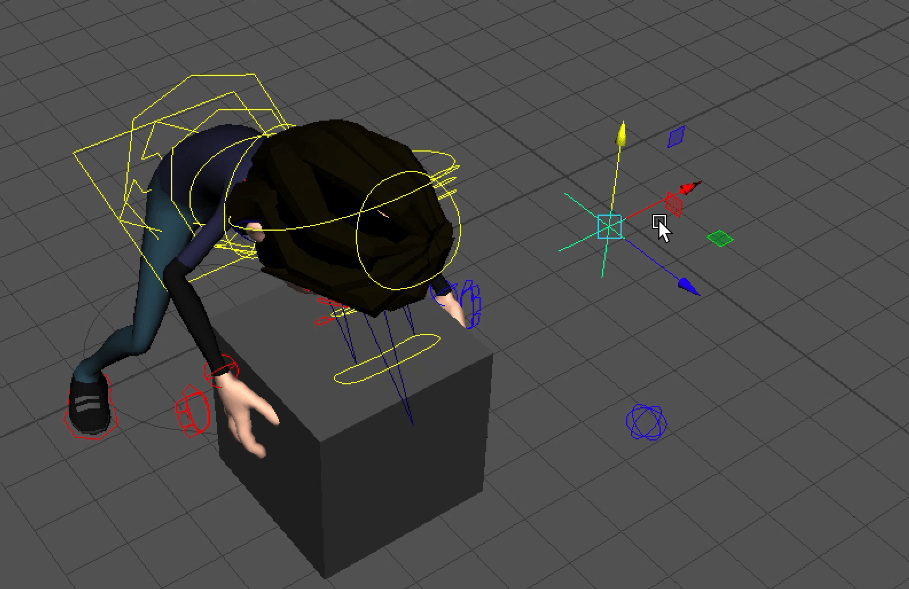
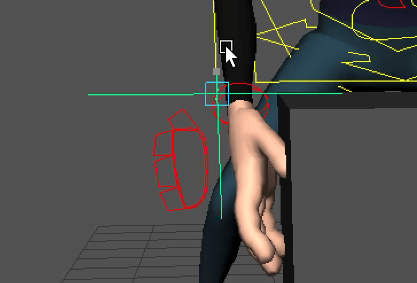
Animate Character Box Lift
Key Points
- Animating Character Lifting Box
- Adjusting Timing and Posing
- Achieving Natural Movement
Summary
The video shows the process of animating a character lifting a box using locators and keyframing techniques. The animator starts by setting up the initial position of the character and the box, then gradually animates the character’s movements to show them preparing to lift the box, straining to lift it, and finally raising it off the ground. The animator emphasises the importance of carefully considering the timing and anticipation of the character’s movements to make the animation appear more natural and realistic. The video suggests that this is a good exercise for practising character animation and observing real-life movements to replicate them effectively in the animation.
End of task 1
Task 2: Heavy weight lifting
End of week 8
Week 10: Using Rotoscope Character Animation
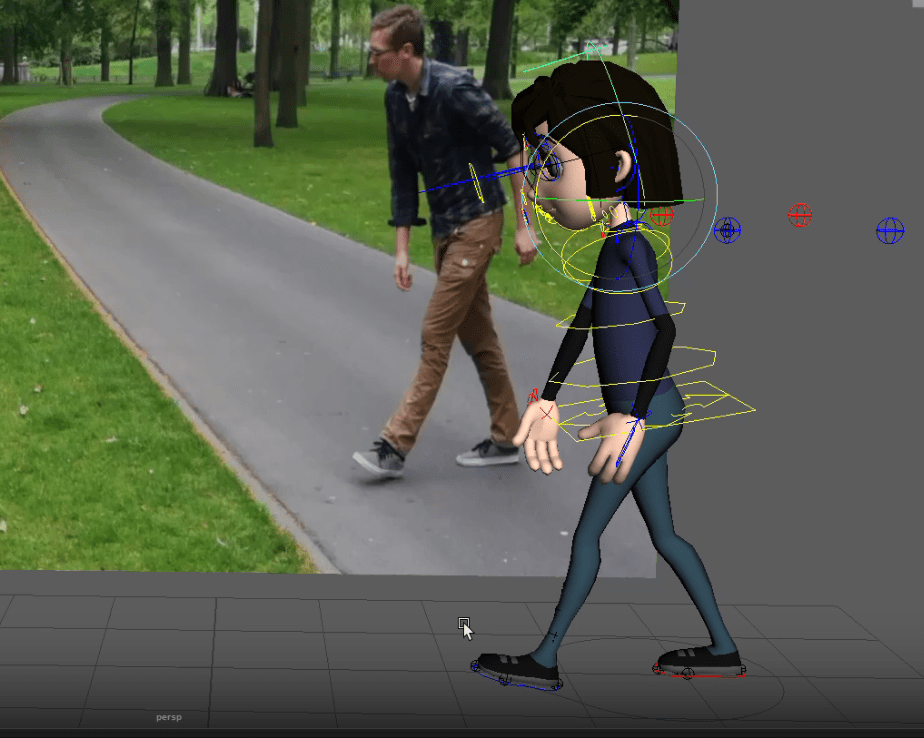
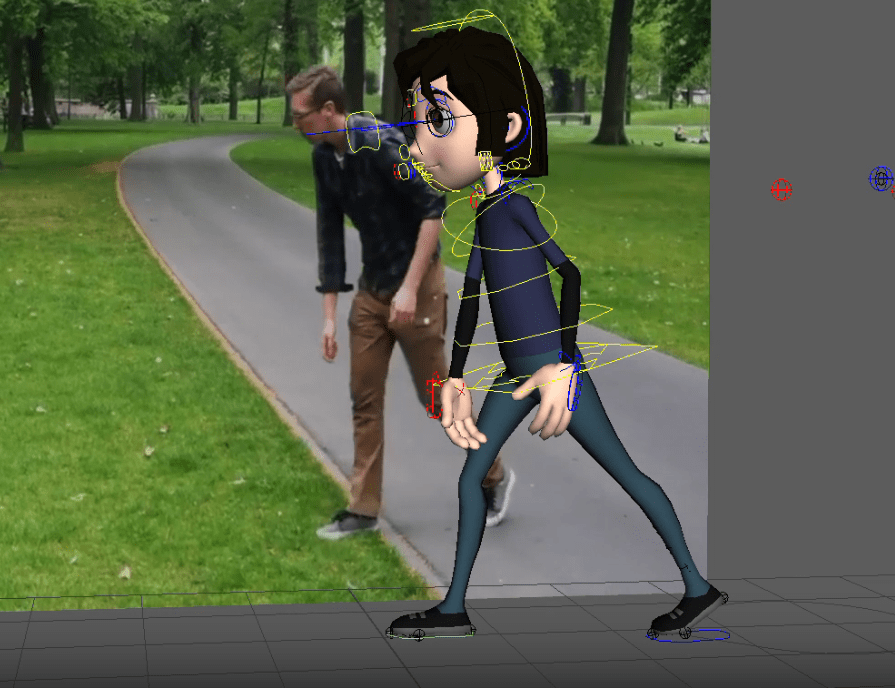
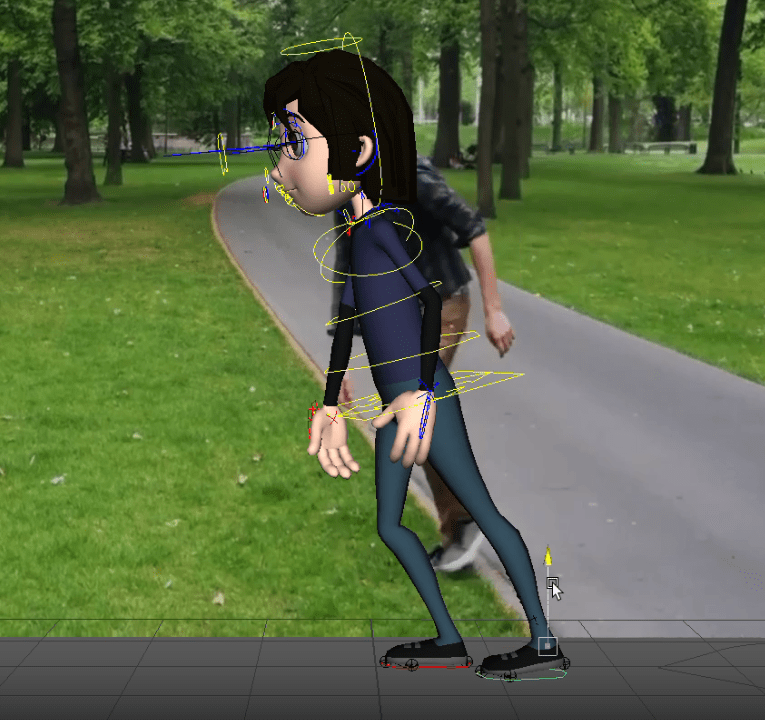
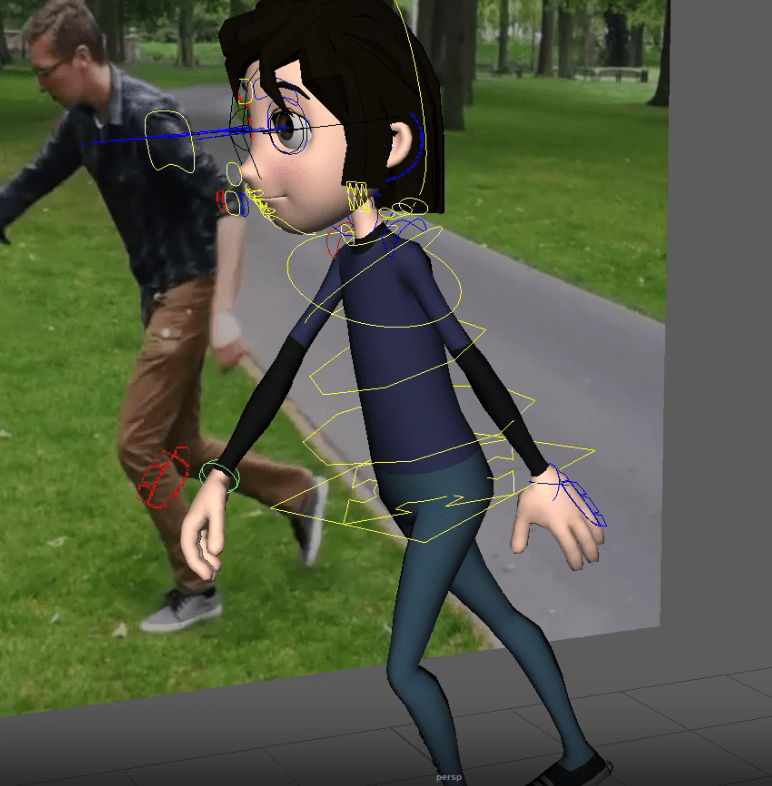
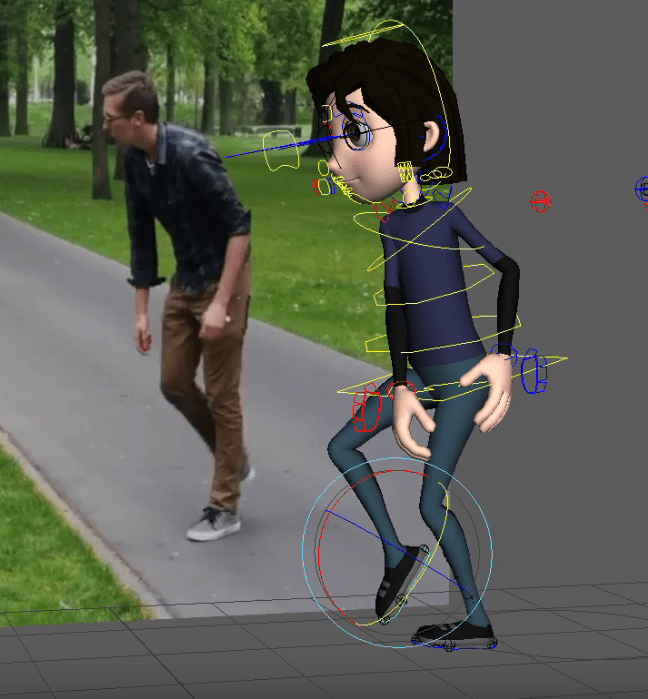
This week we will Investigate traditional animation principles including photographic reference and 2D rotoscoping. We will also consider how to utilize animation reference videos in Maya to block our and refine our animation using a Ball Kick and Box Lift animation as examples-
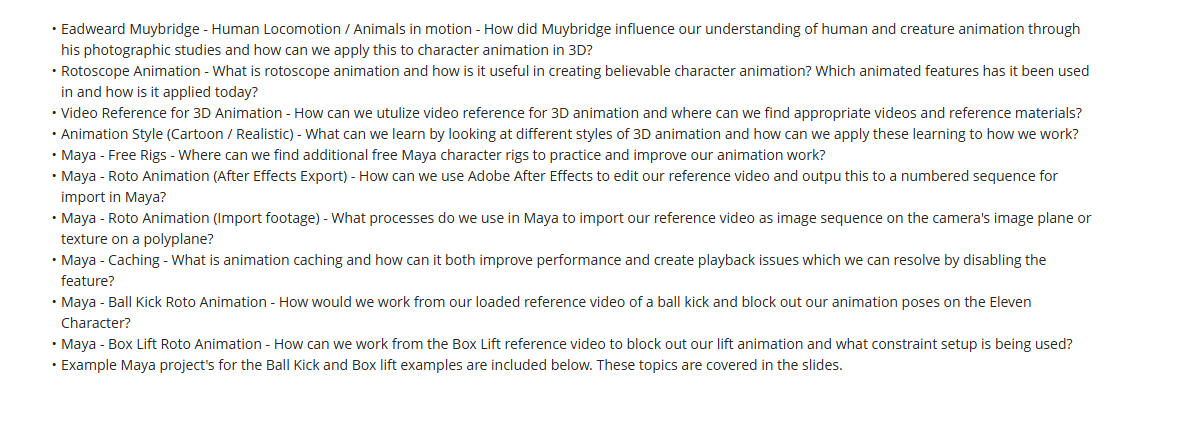
Task 1 : Animate a KICK using a sequence as reference in Maya
- Use the kick reference video
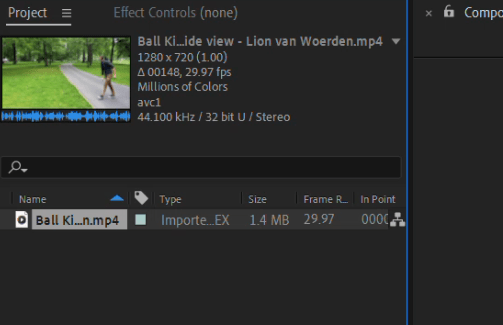
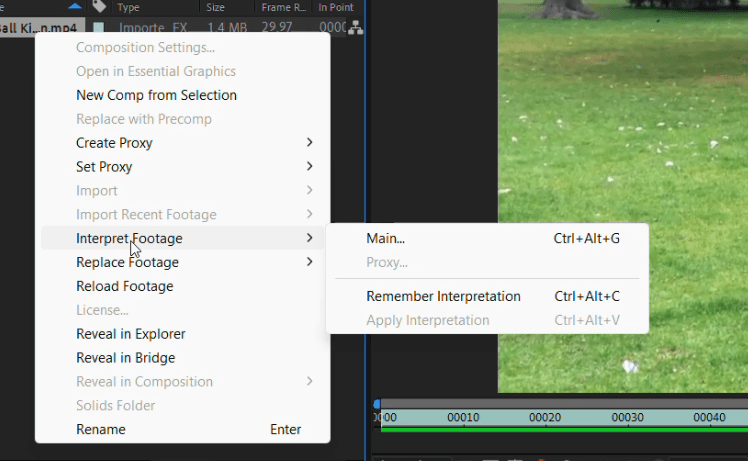
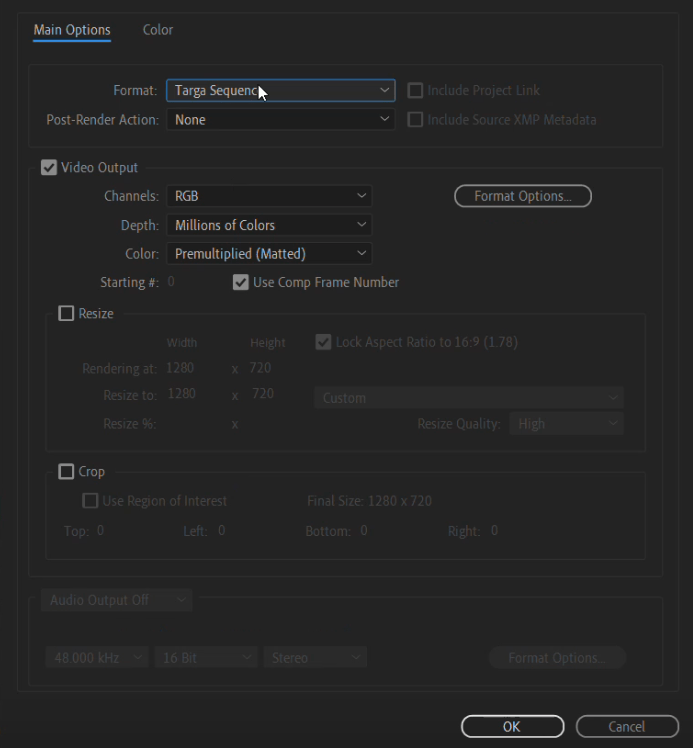
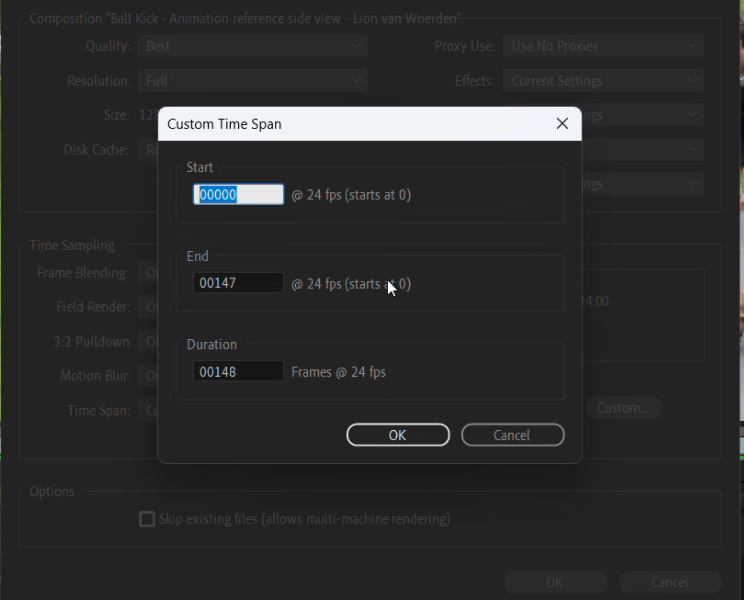
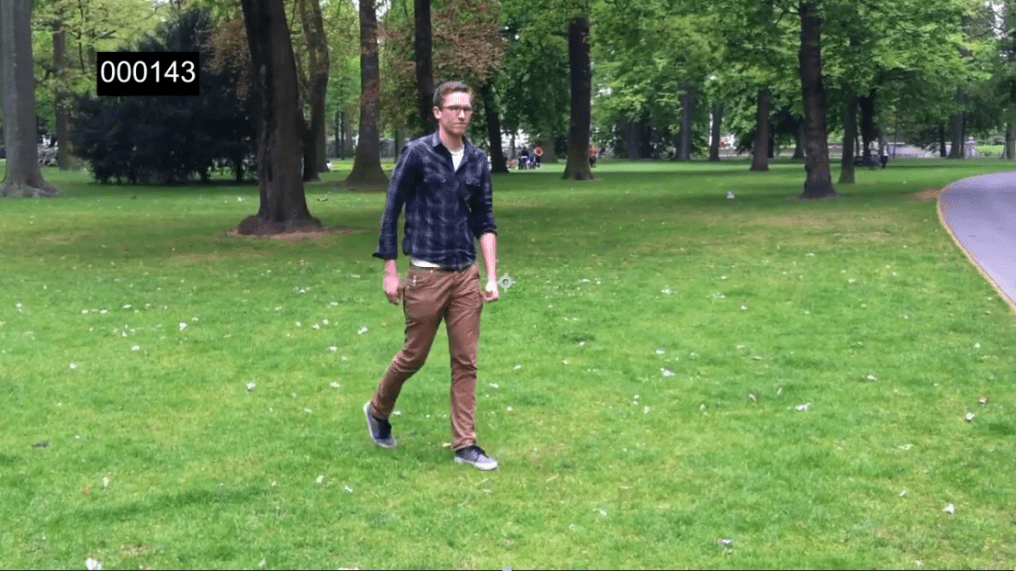
- Prepare the sequence in after effects, adjust the fps to 24 and add a timecode
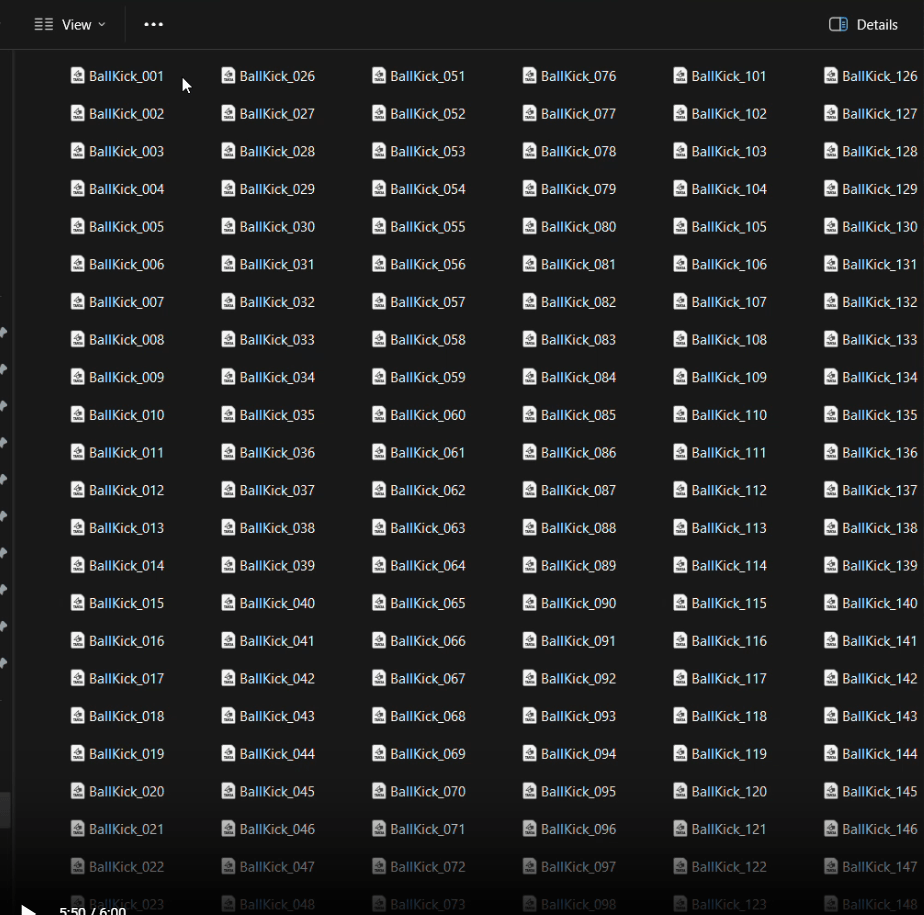
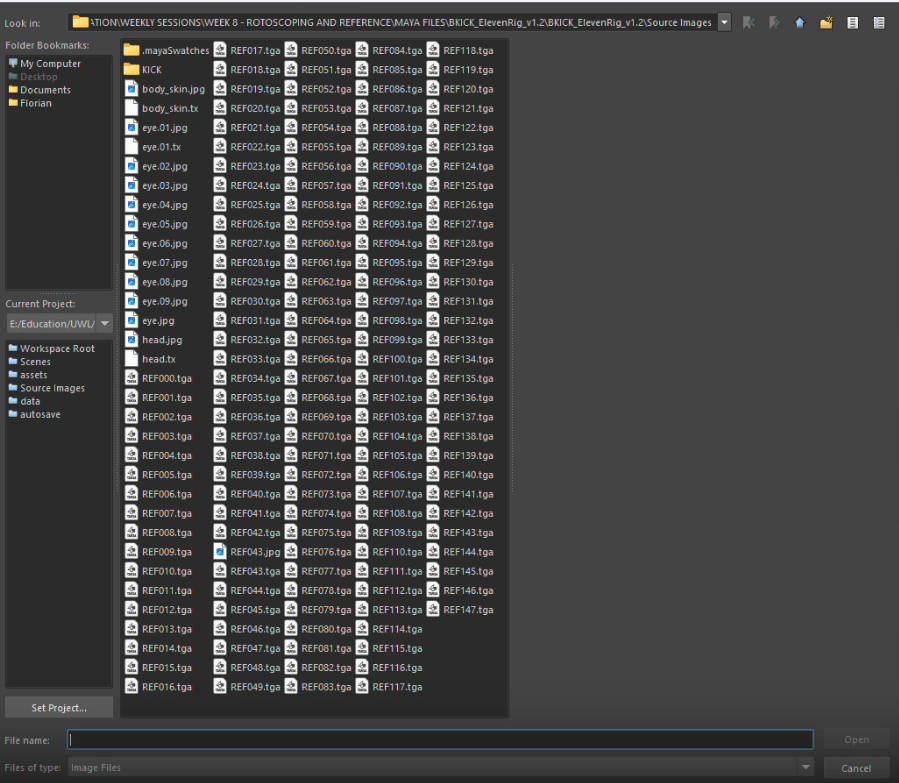
- Export to a sequence of Targa files
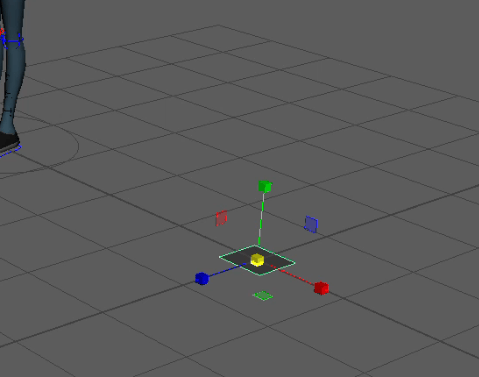
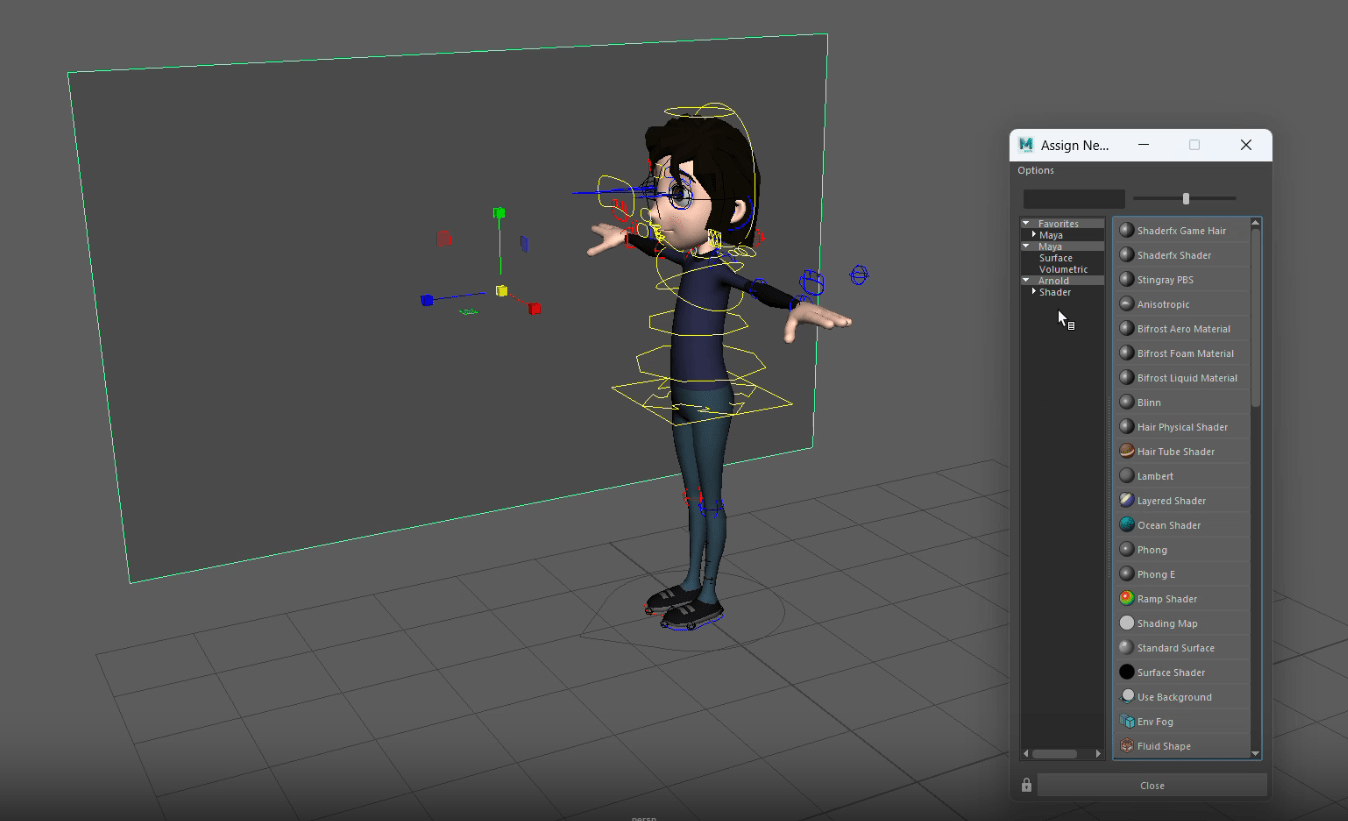
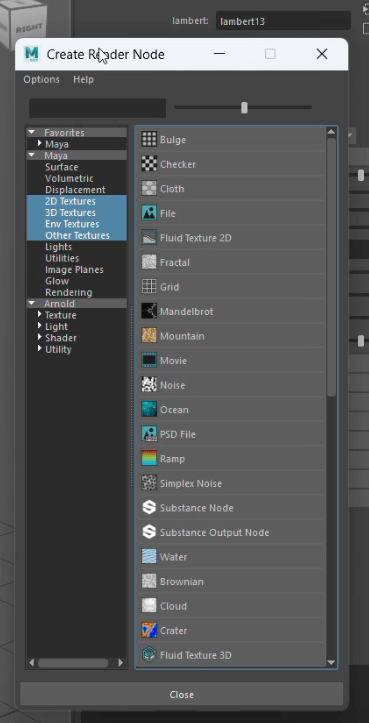
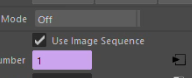
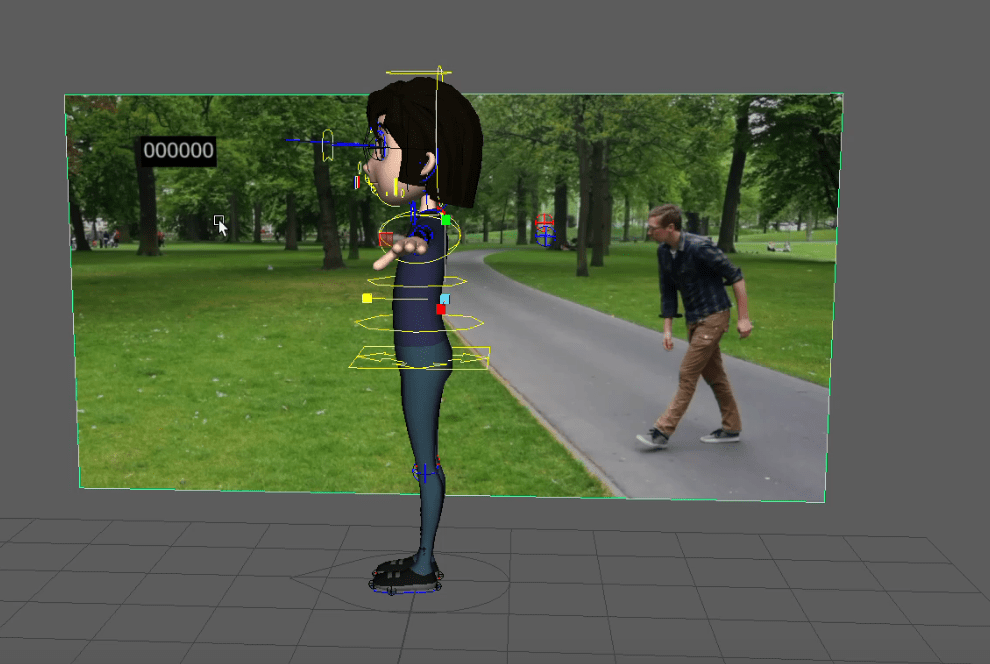
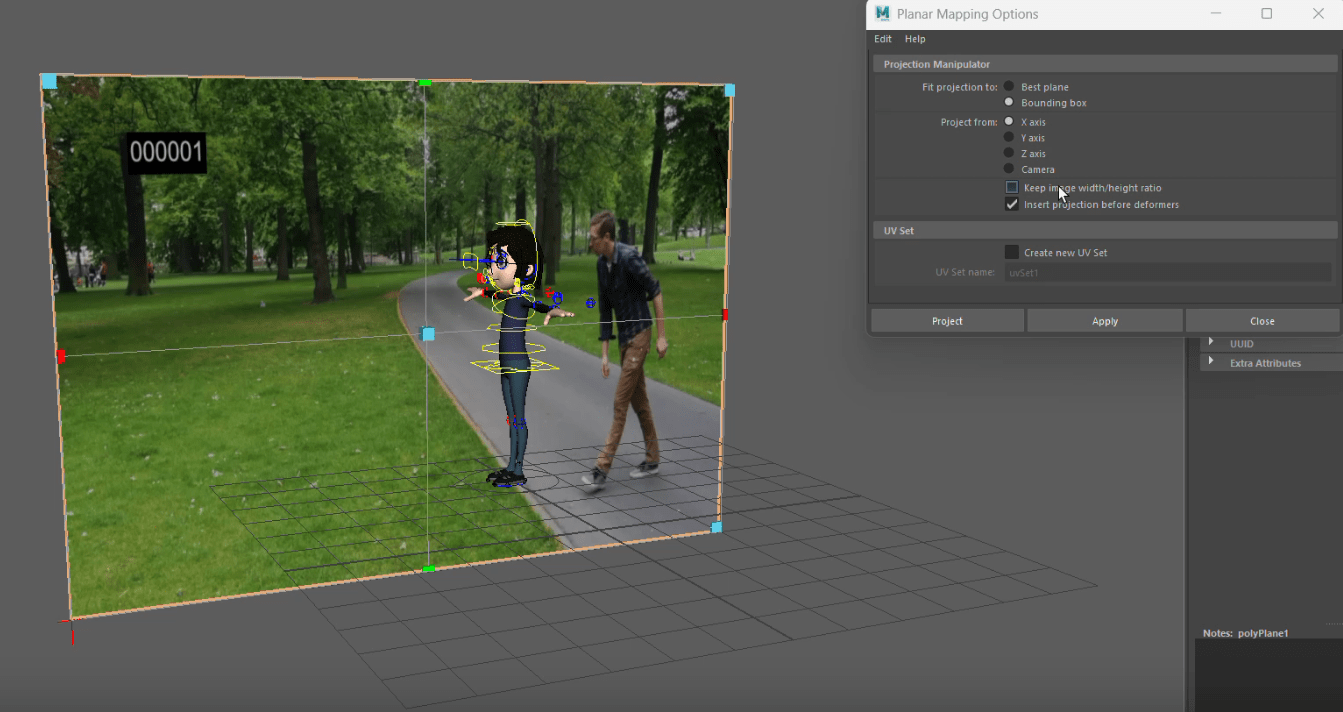
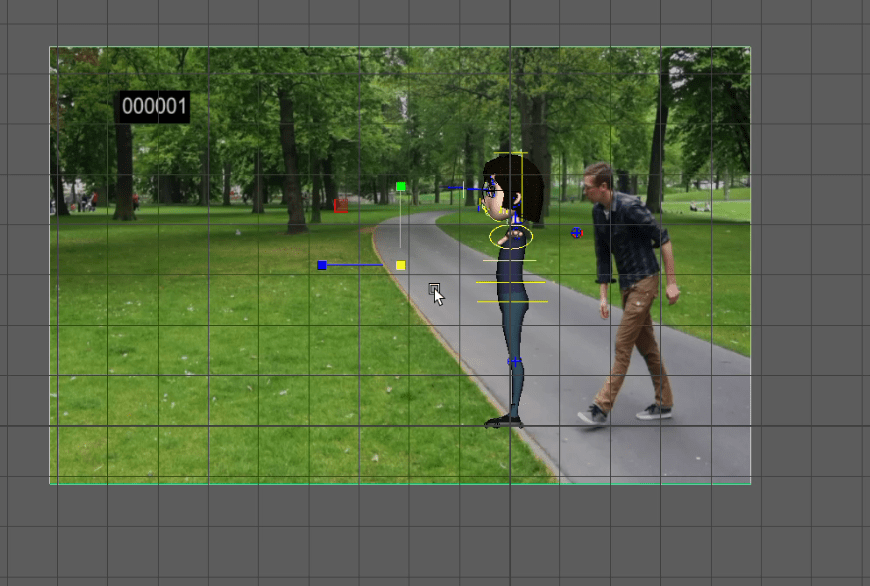
- Setup the image plane (using the Kick sequence) in reference in maya
- Block out the animation using Contact and Passing poses
- Add secondary movement
- Check the weight shift, curves, follow through and overlap
Video reference:
We will begin by adding the timecode in After Effects
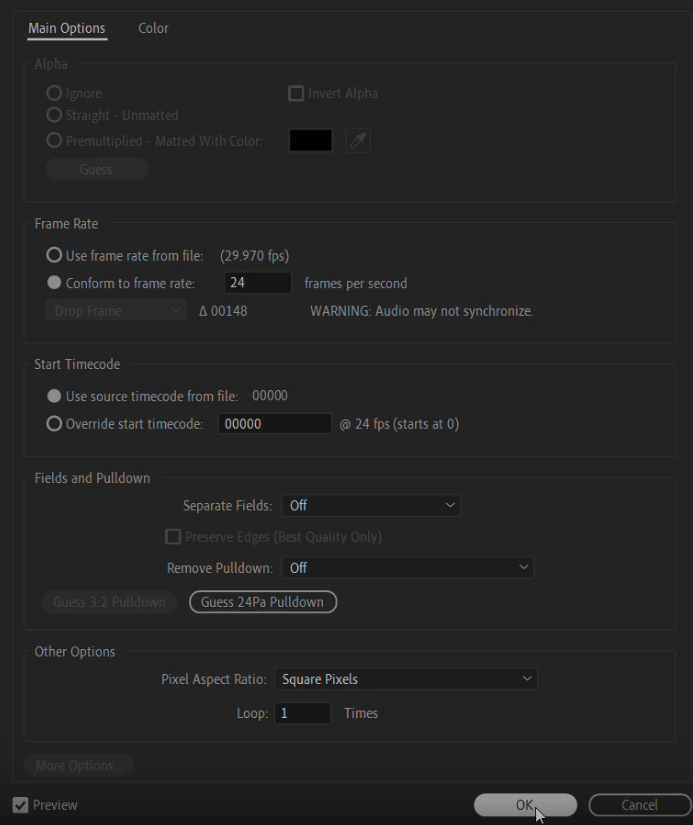
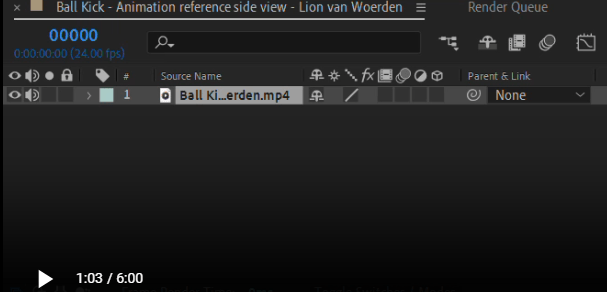
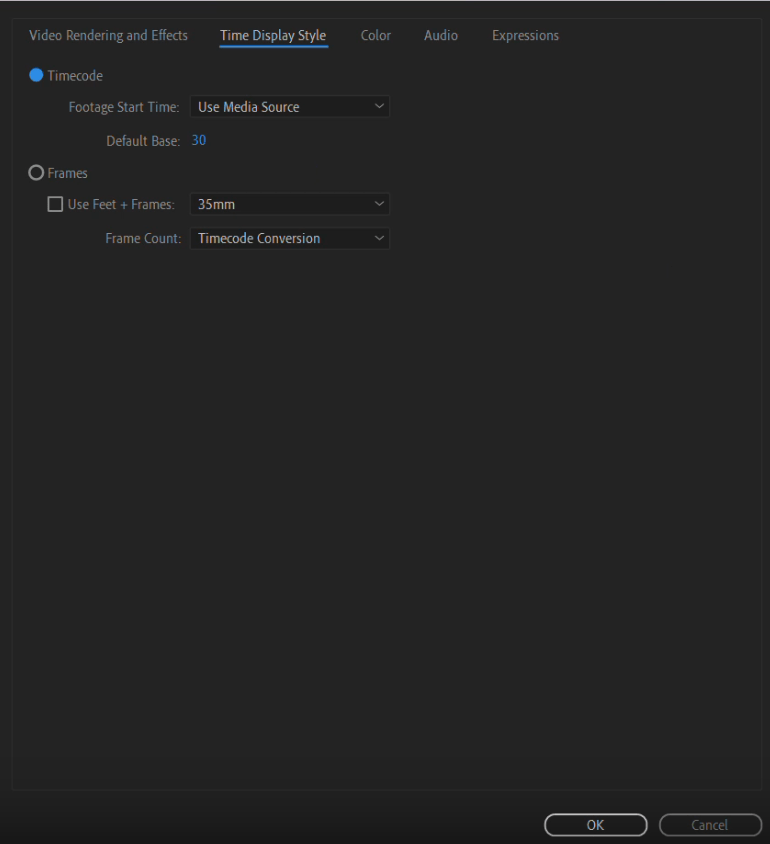
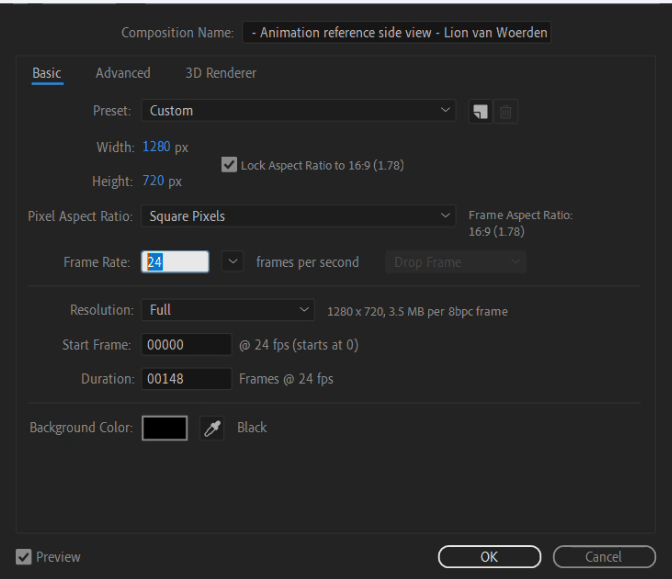
Next we are opening maya and set up the image plane in maya:
Finally we keyframe to the reference video:
End of week 10
Assignment 1
Assignment 2
Assignment 3
End

