Week 1 – Introduction to Nuke
this week will be an Introduction to the concepts of compositing in Nuke.
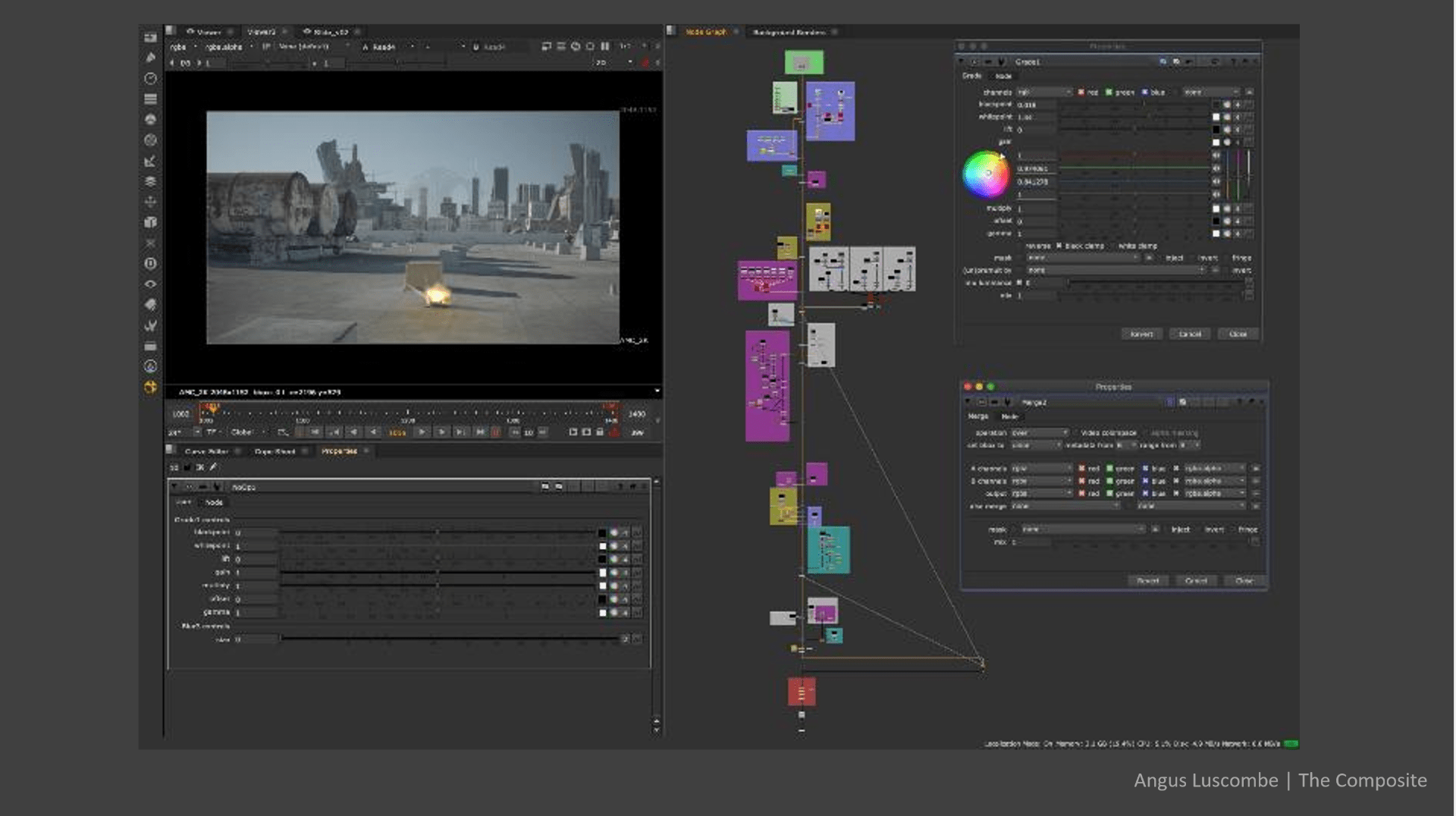
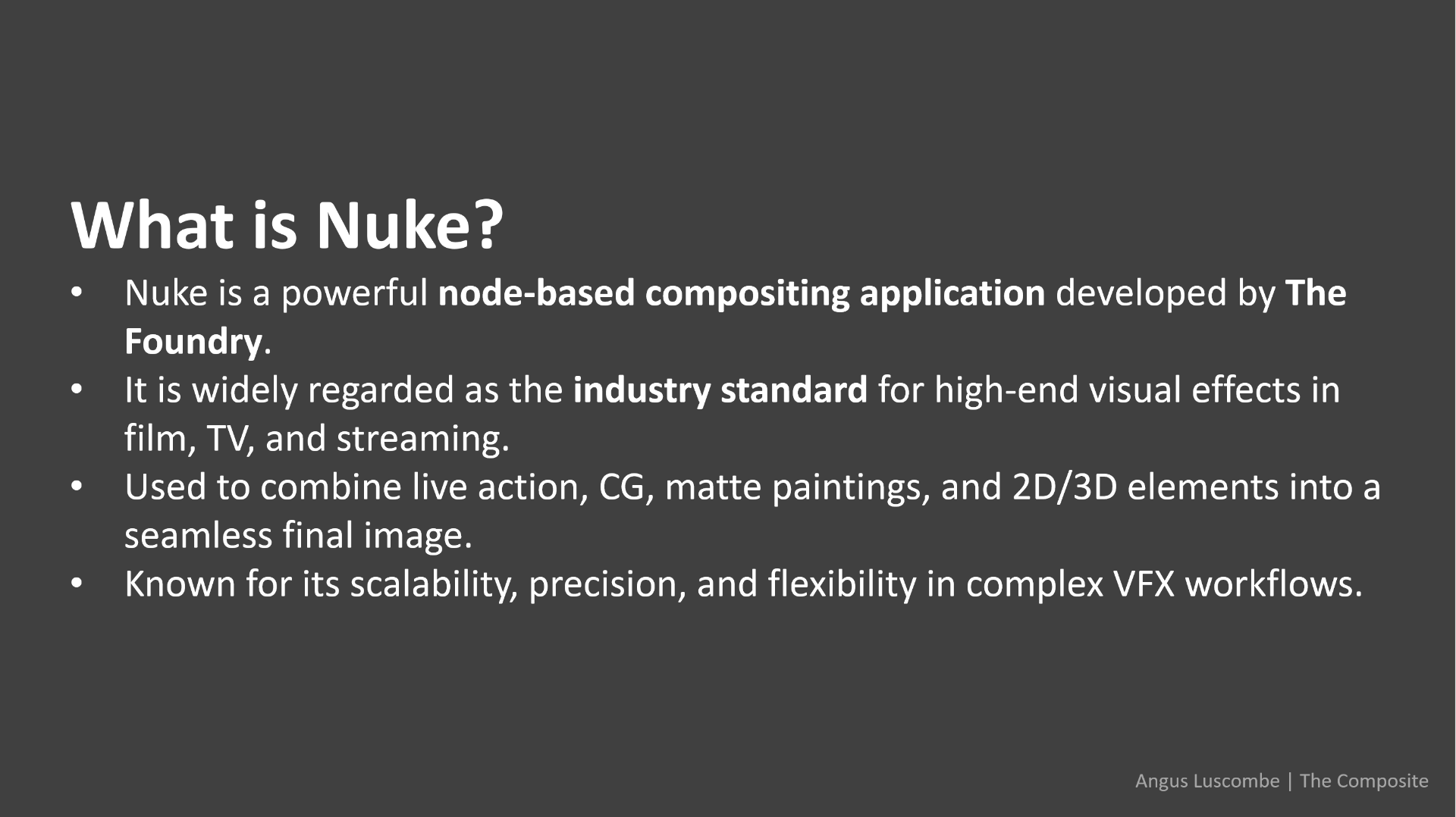
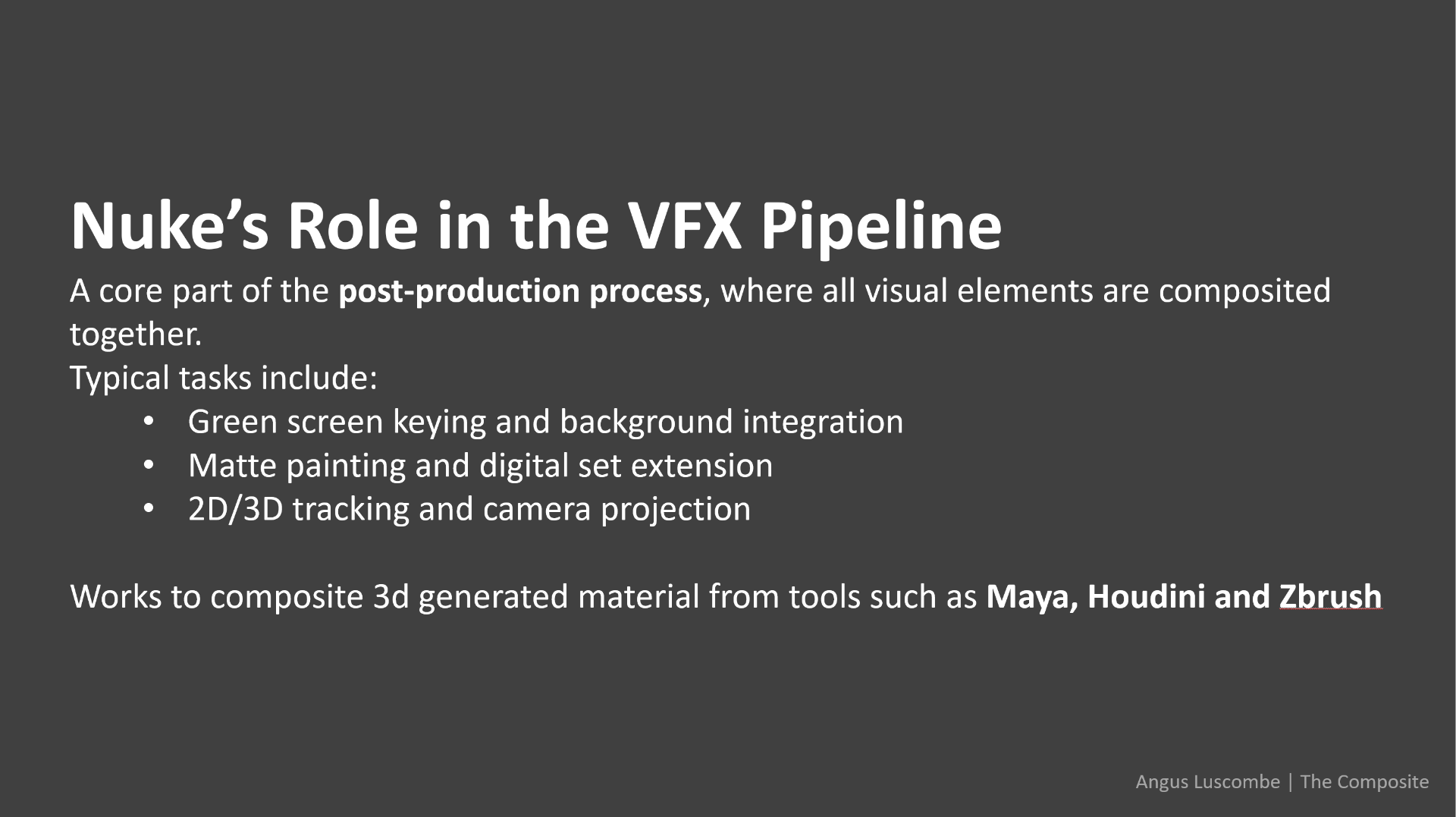
First I am referring to the PowerPoint we have seen in class about the advantages and uses of nuke in the industry.
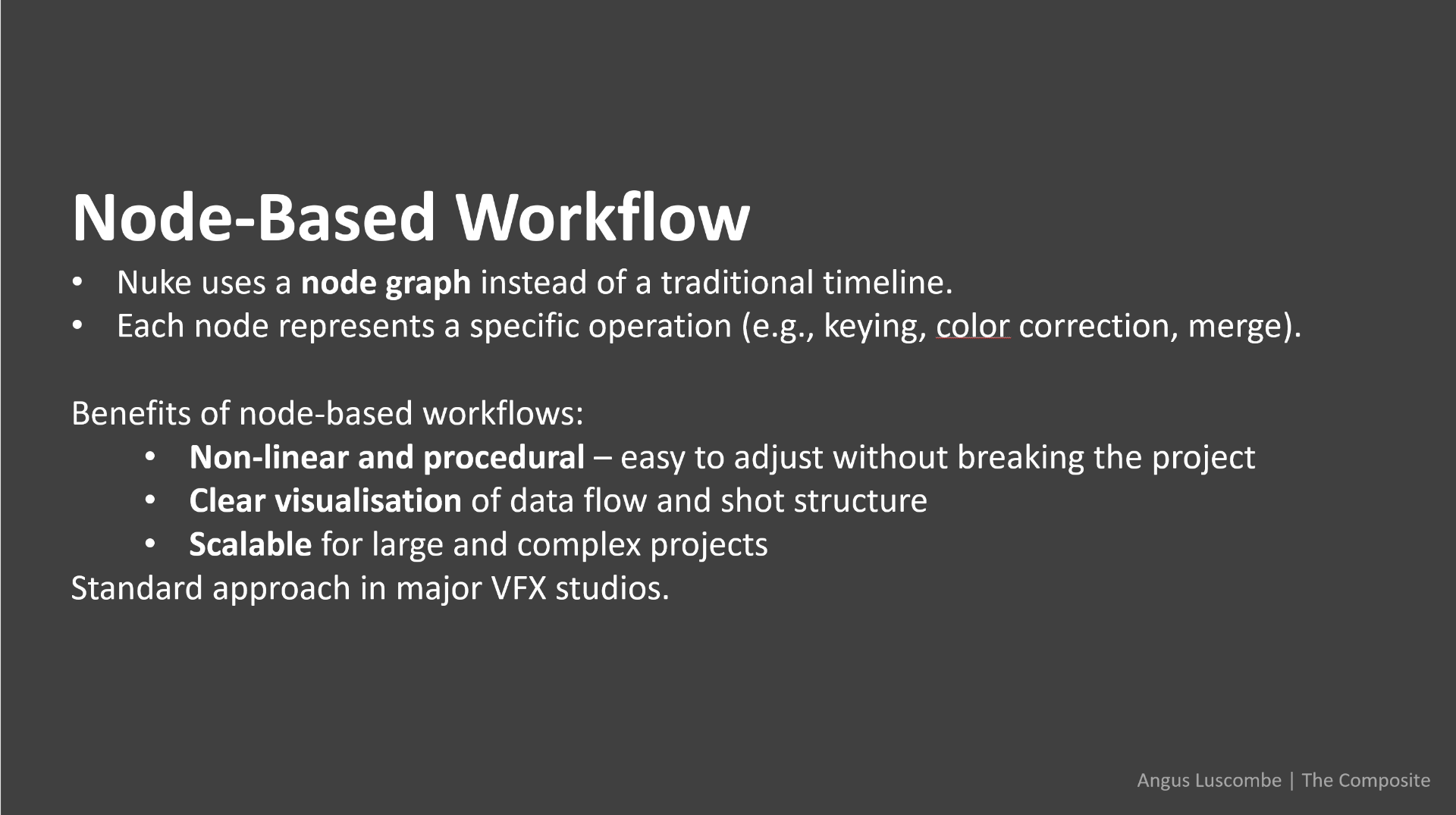
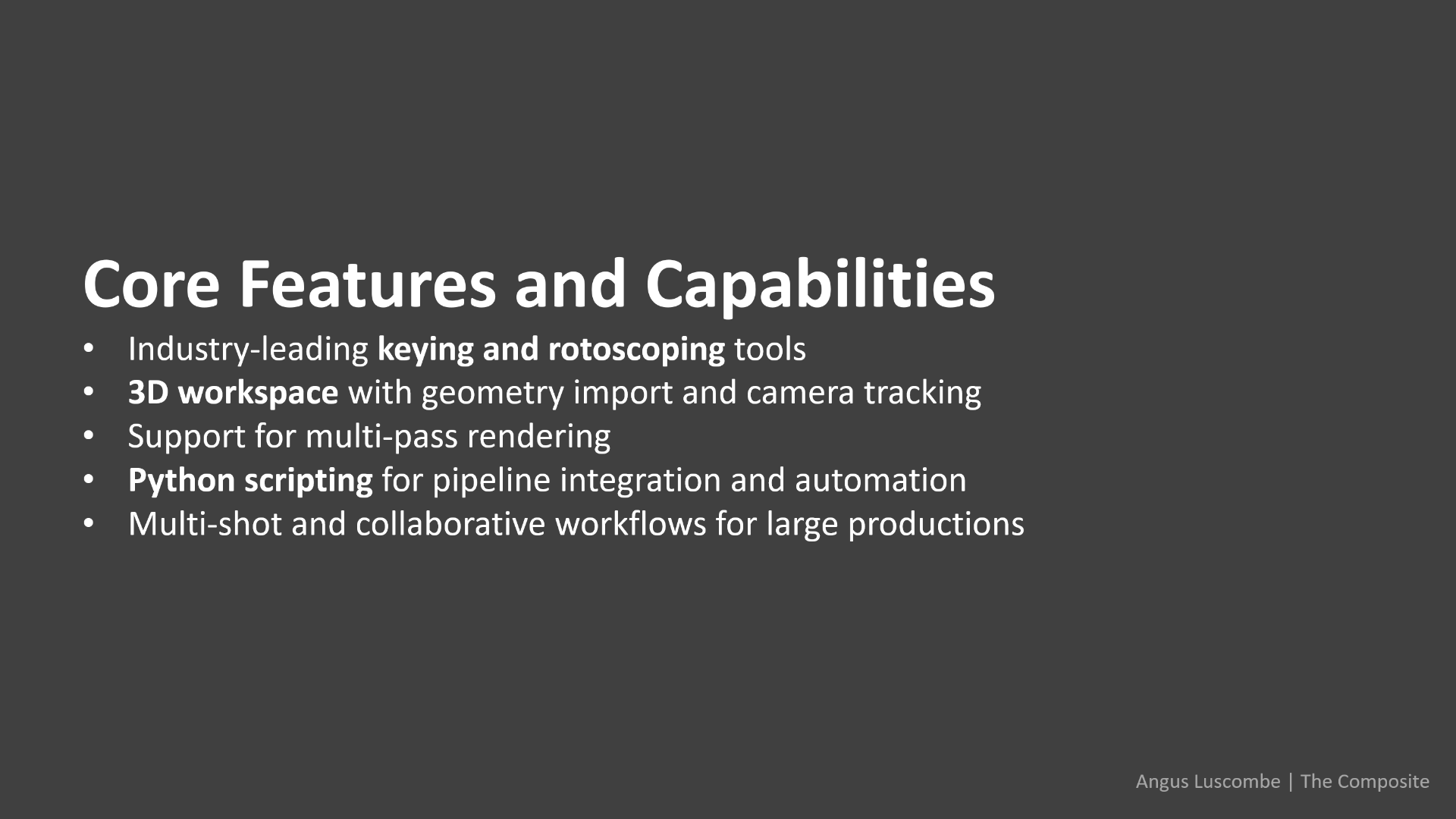
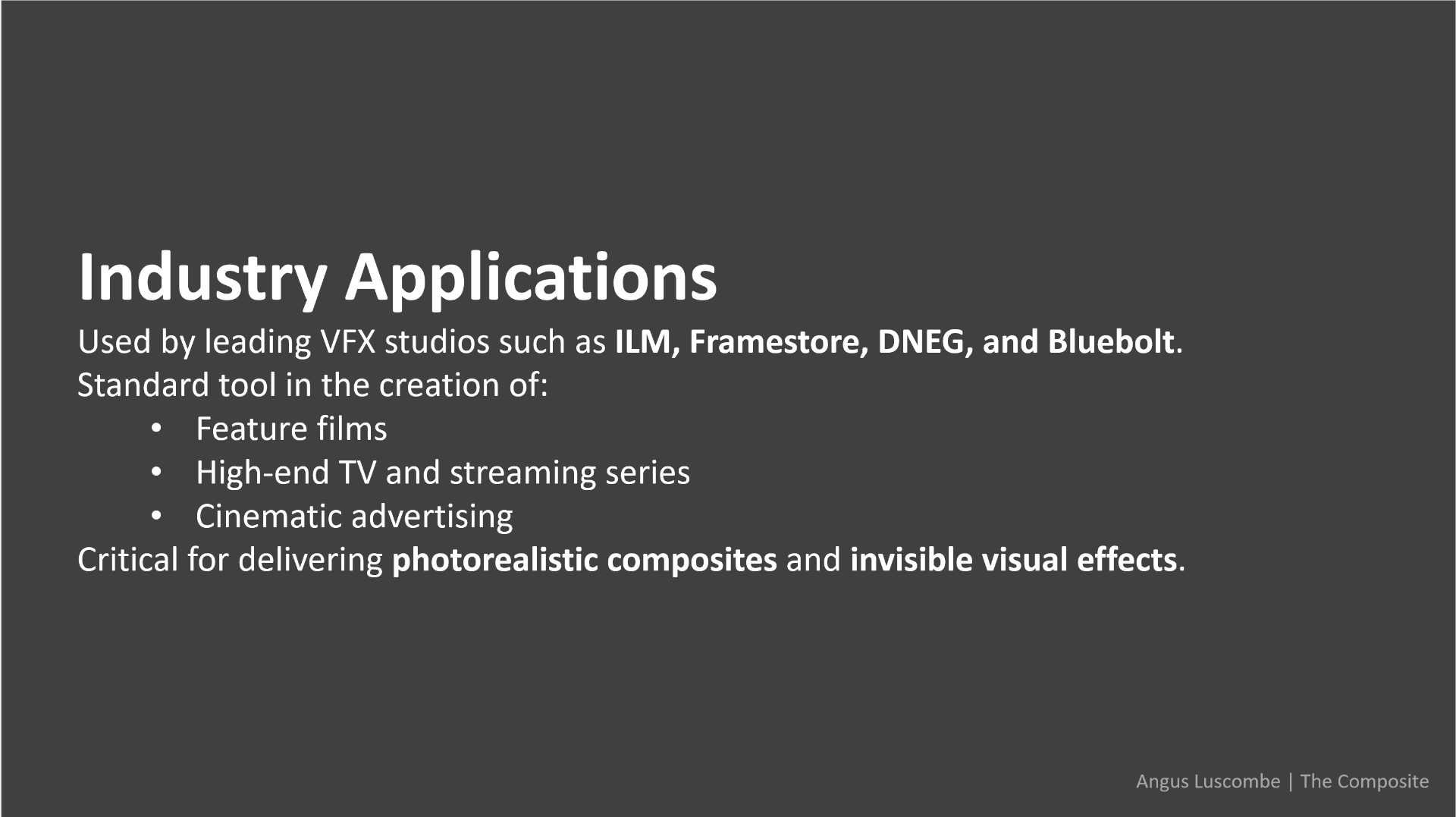
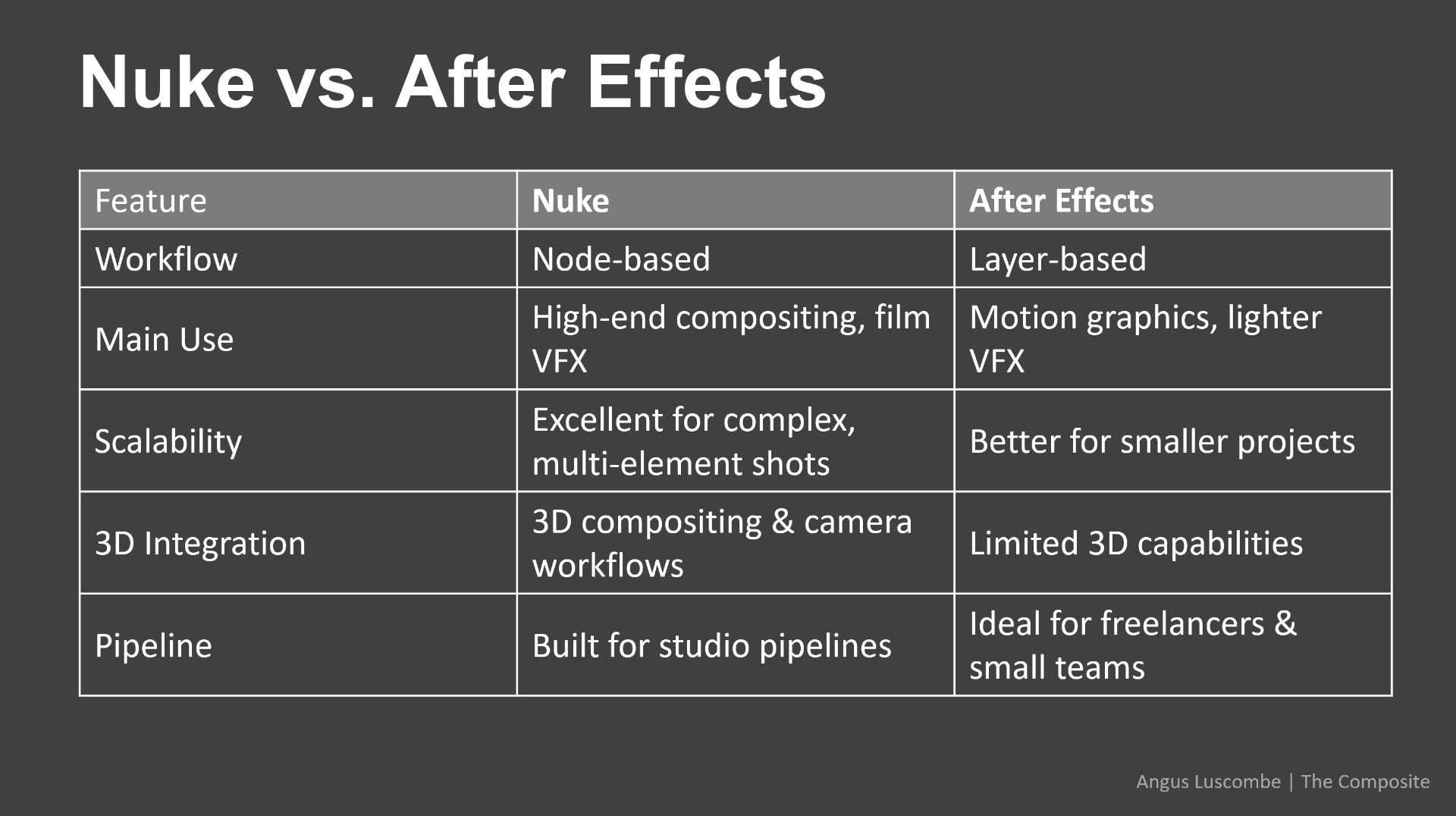
After looking at the slides we are going to put some hands on education testing by ourselves nuke.
so firstly of all we open nuke for the first time.
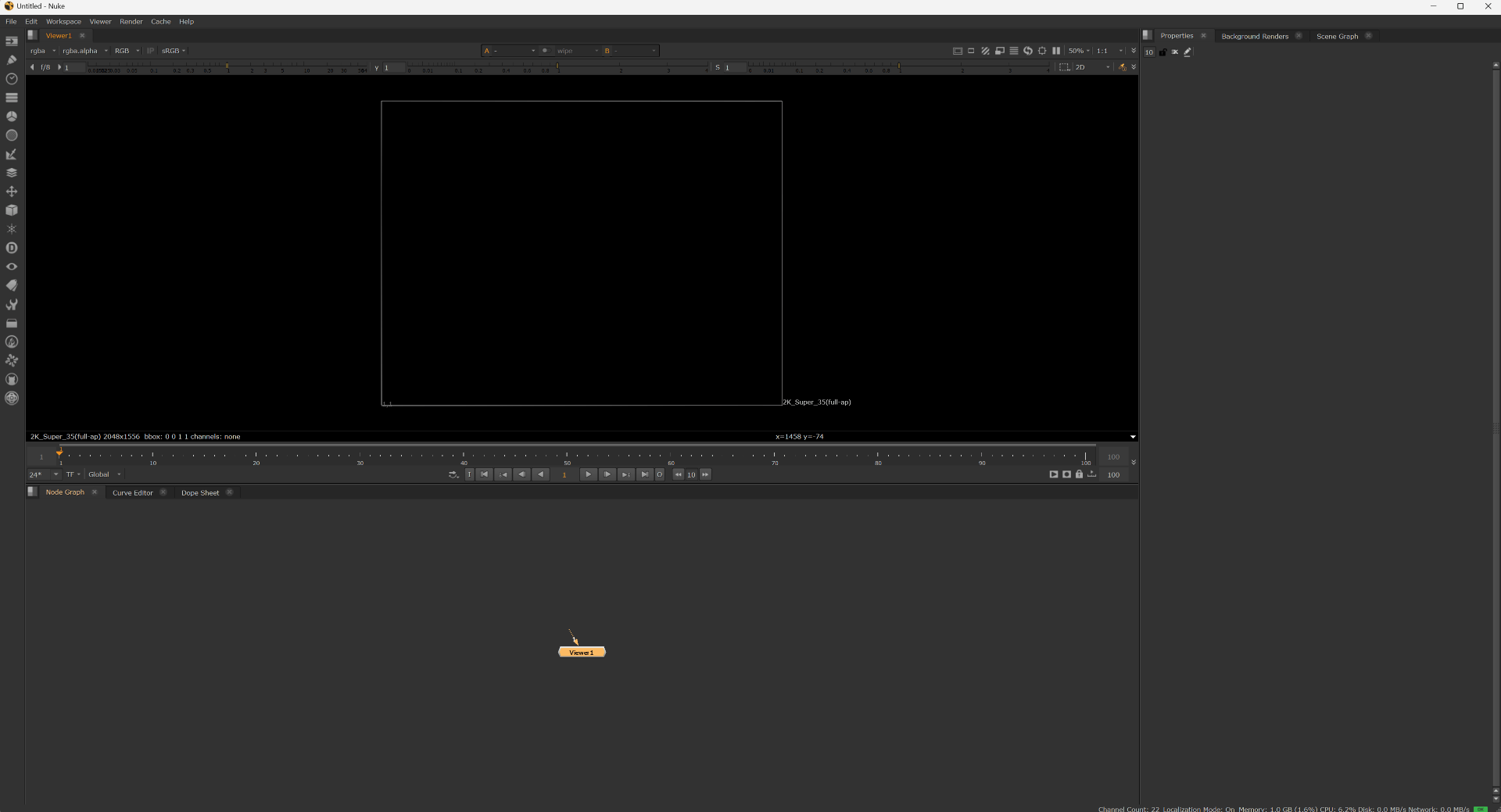
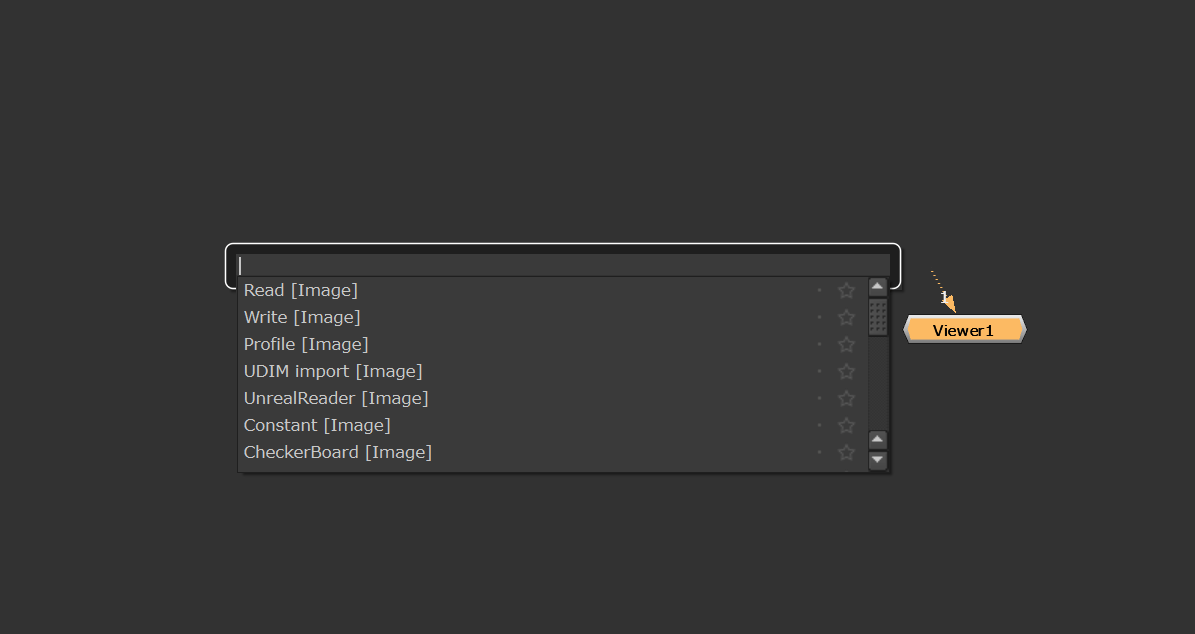
if we have the cursor on top of the node tab and we press the “TAB” key we get this little window where we are able to search for different types of nodes.
We can also access these nodes on the top left tab.

To begin with we set the properties for the project on the right window.
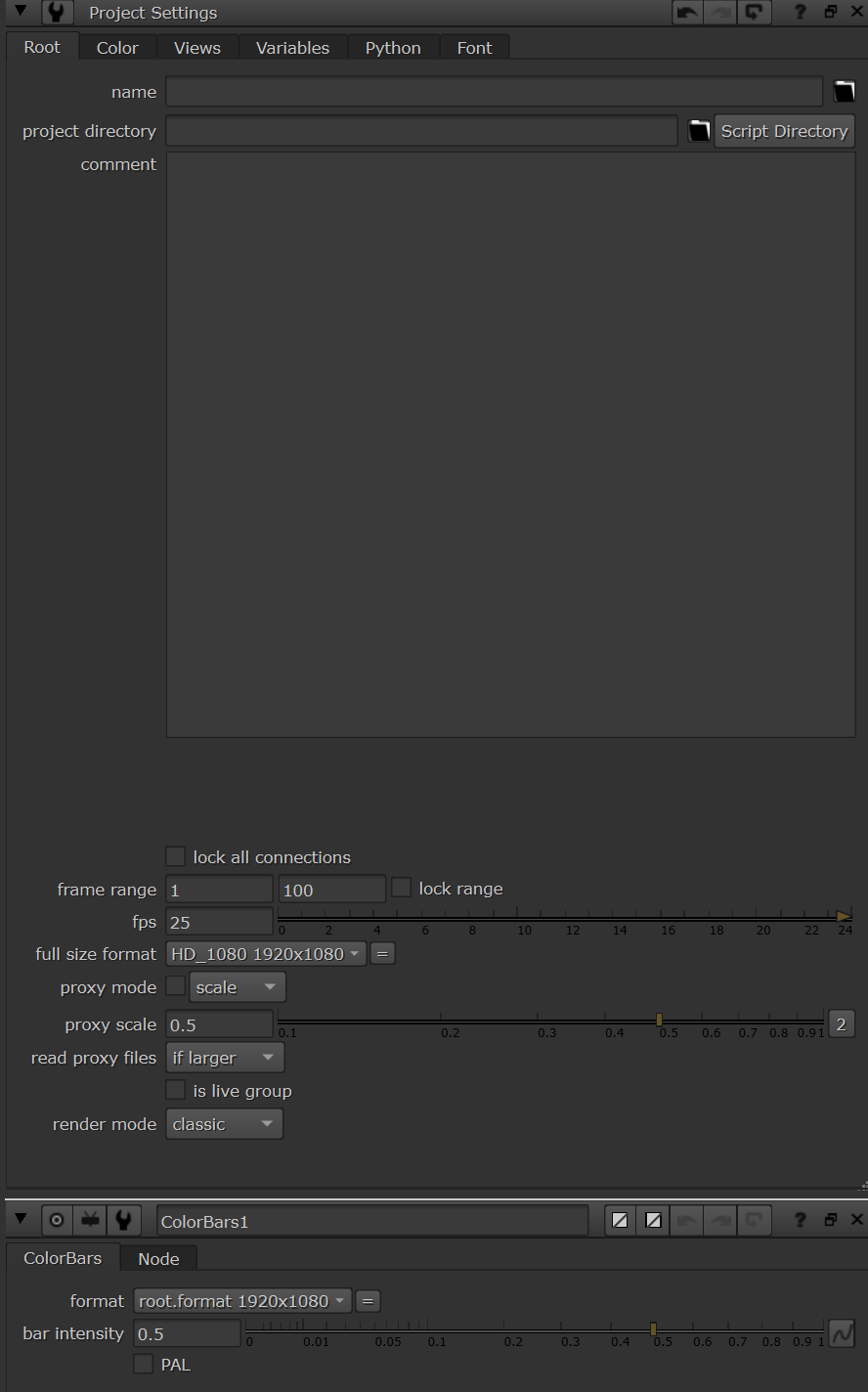
and now we bring in a color bars node.
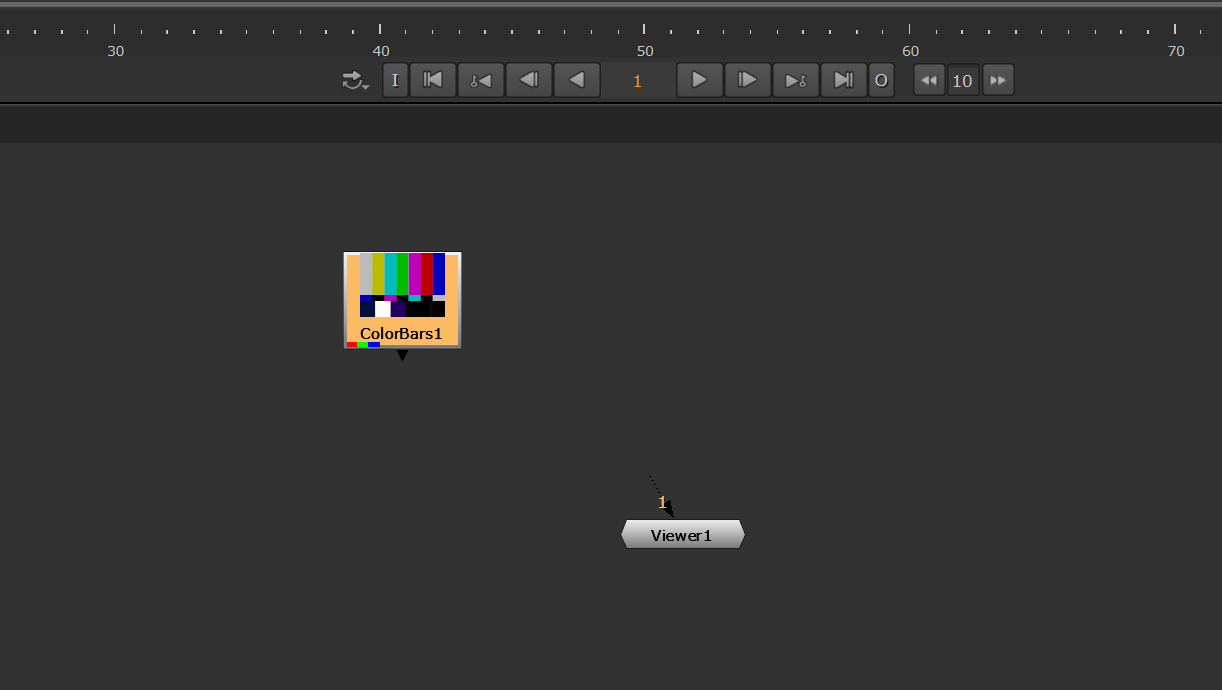
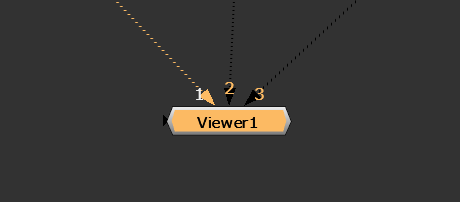
But we couldn’t see anything on the viewer that is because we did not bind the bars to the viewer yet. to do this we should select the color bars and assign a number in this case I assigned the number 1.
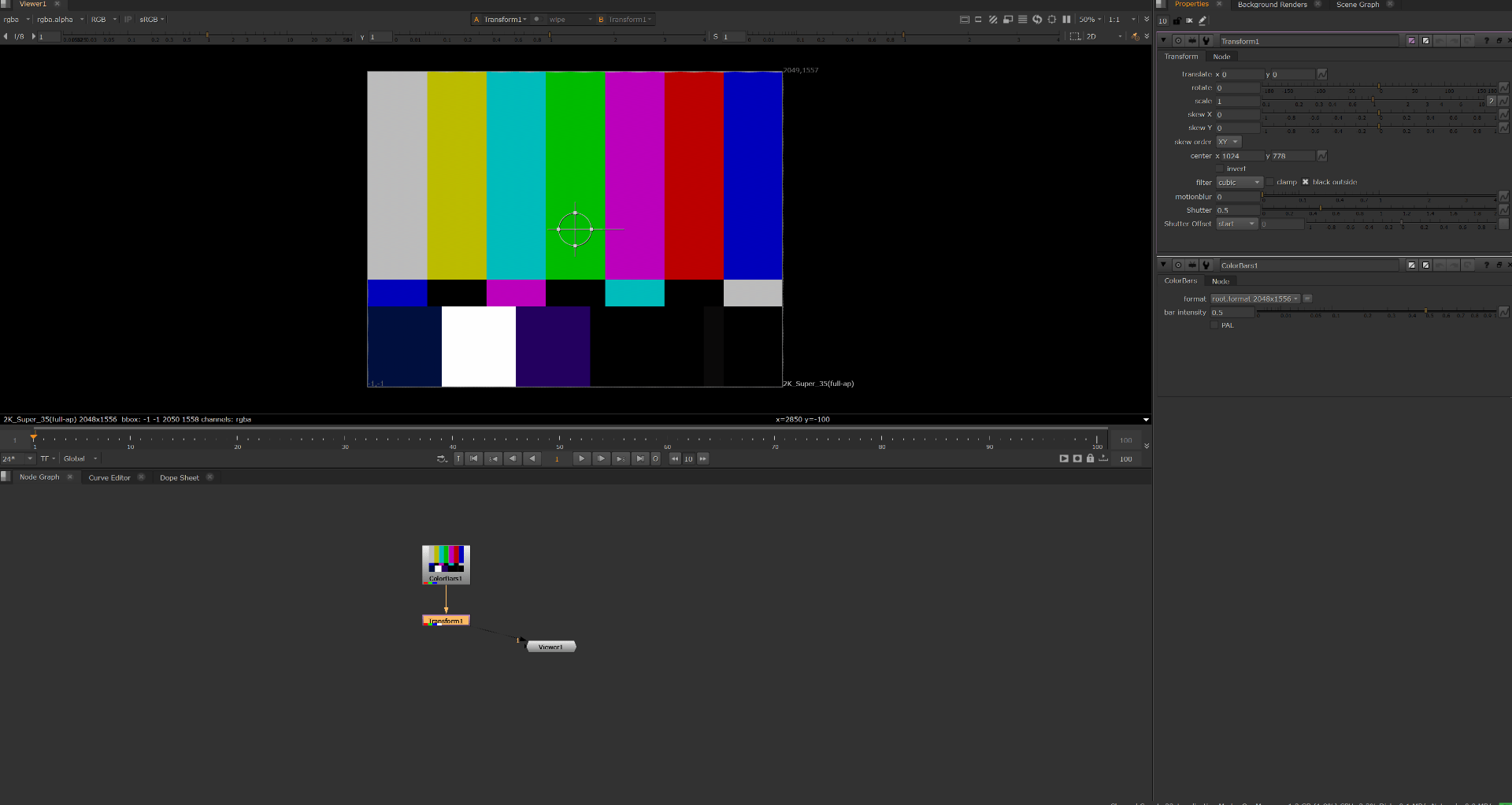
After I added a transform node connected to the color bars.
as we did with the color bars we can bring other nodes.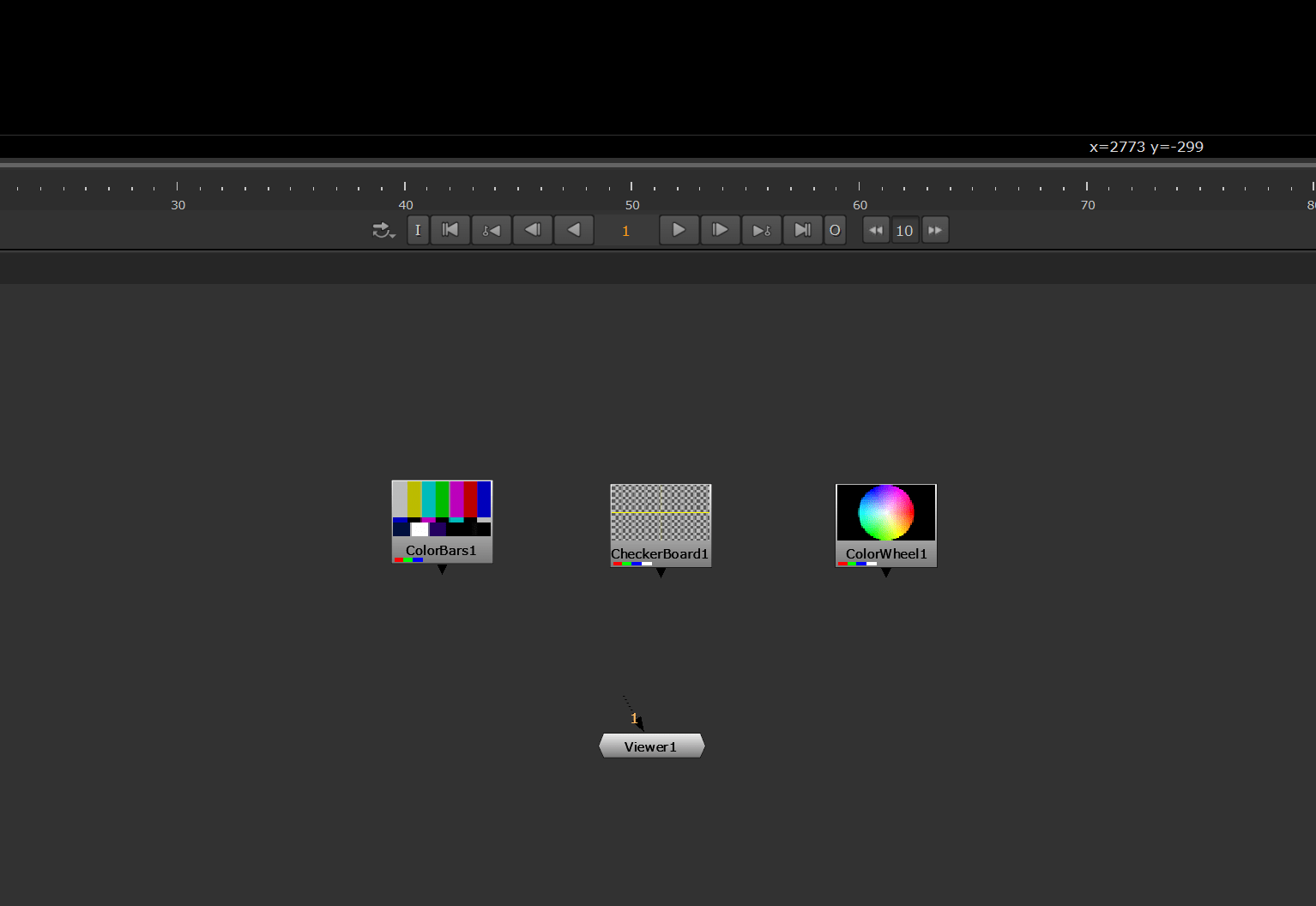
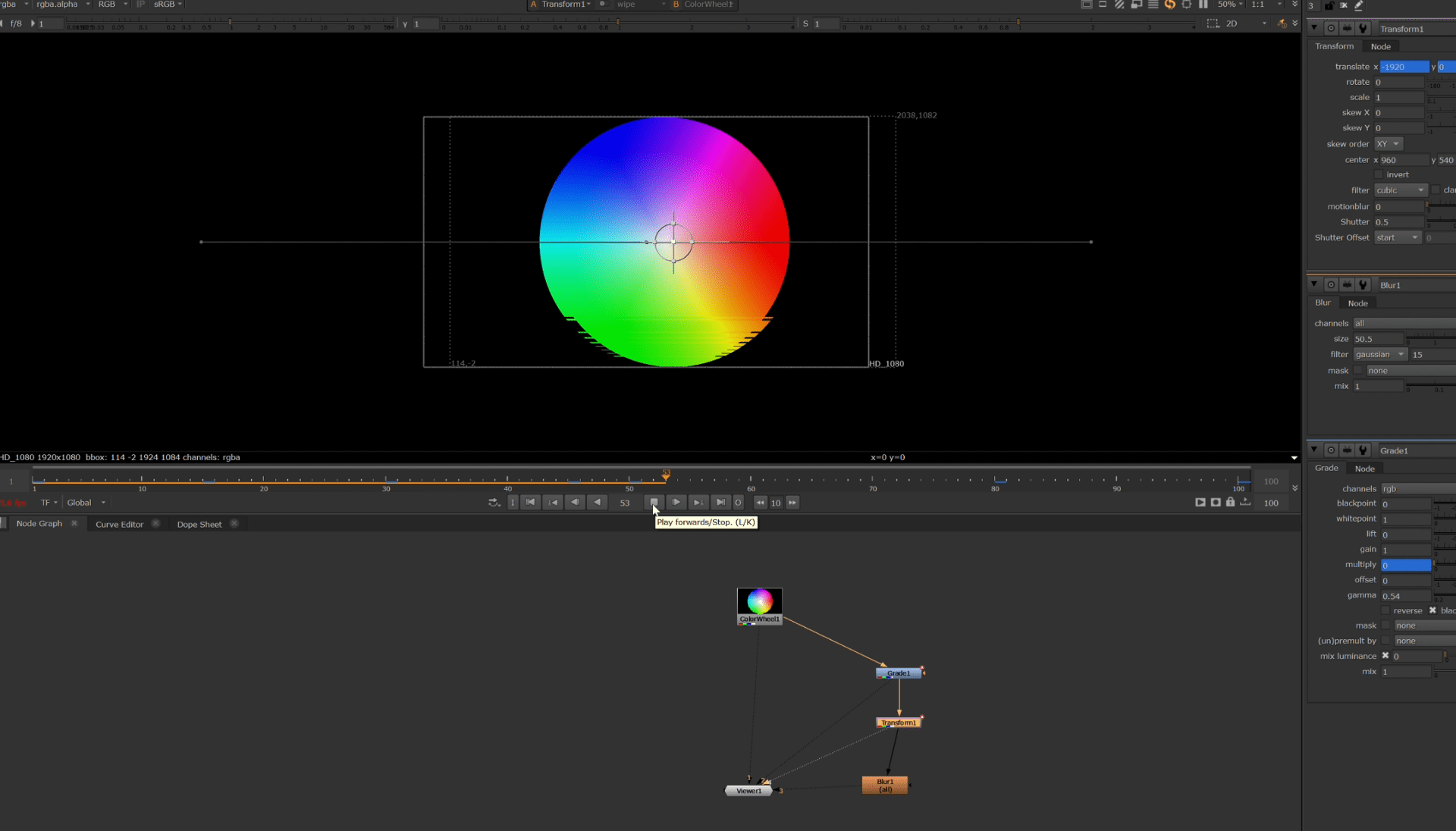
Now we are going to play with some nodes, so first we bring a color wheel.
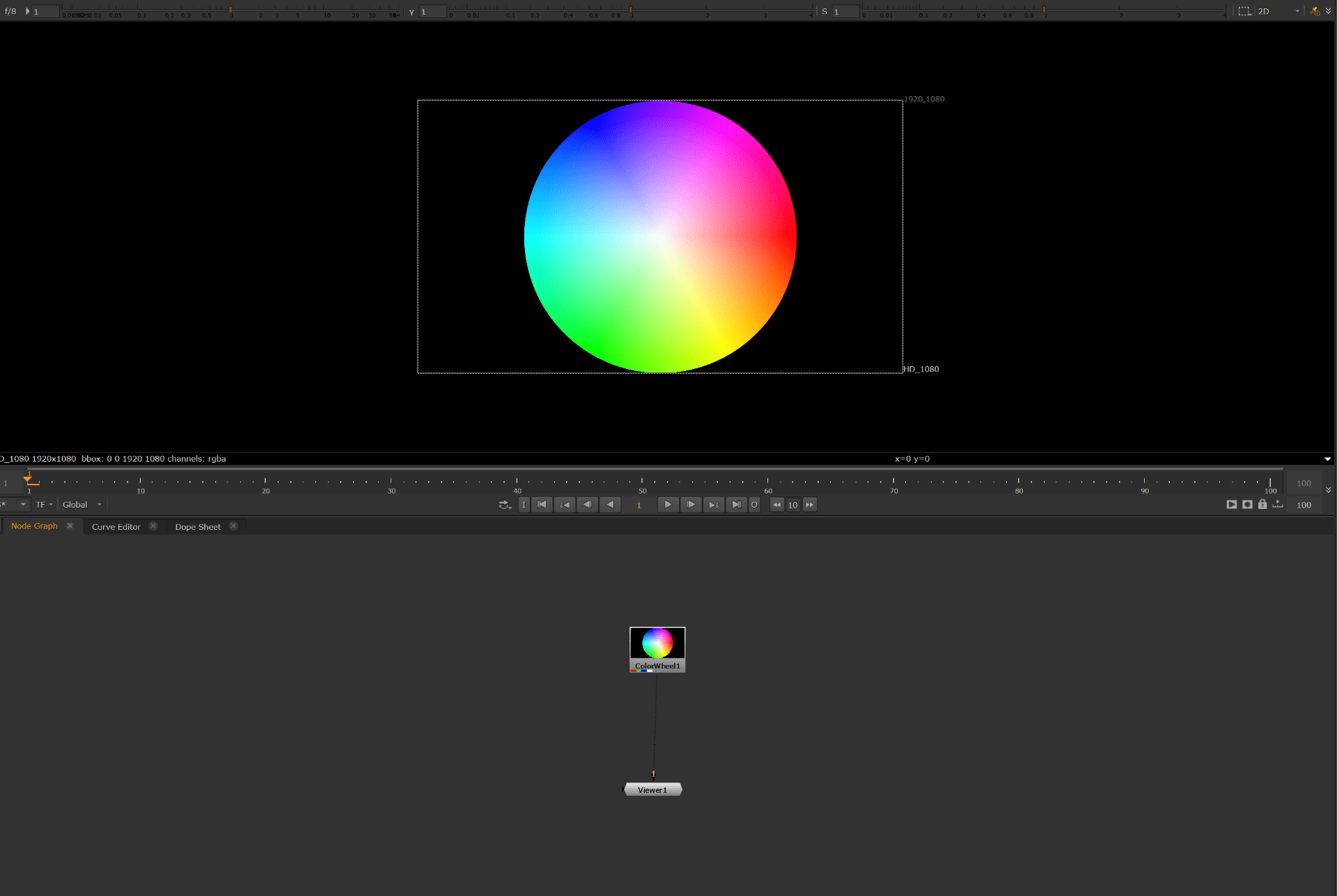
we apply a grade node.
and in the properties window we change some settings.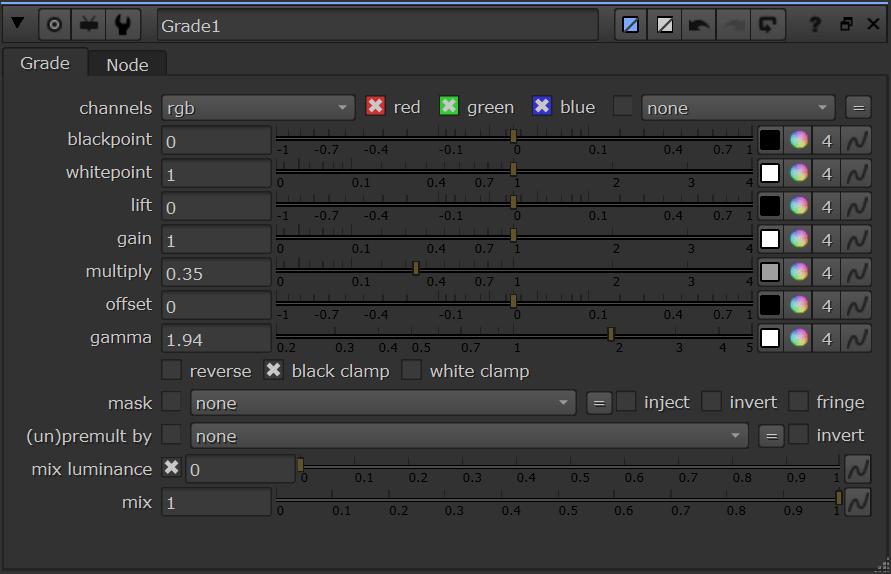
this is the result.
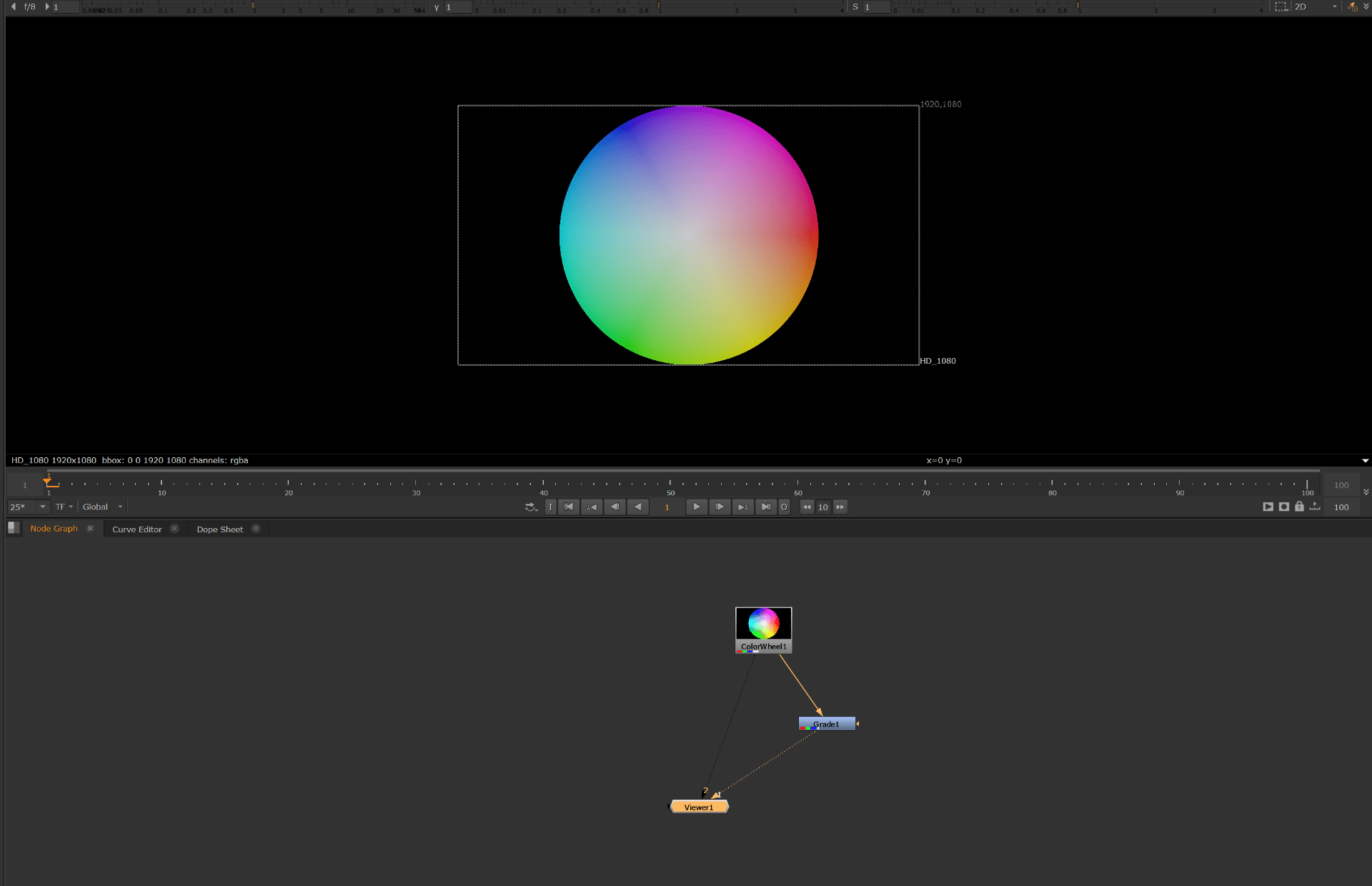 Next we apply a blur node.
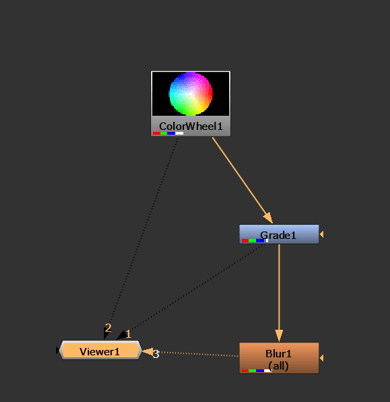
And change its properties.
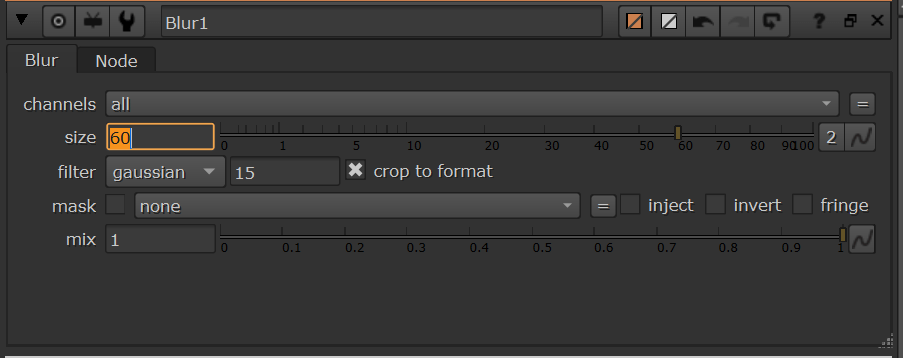
this is the result.
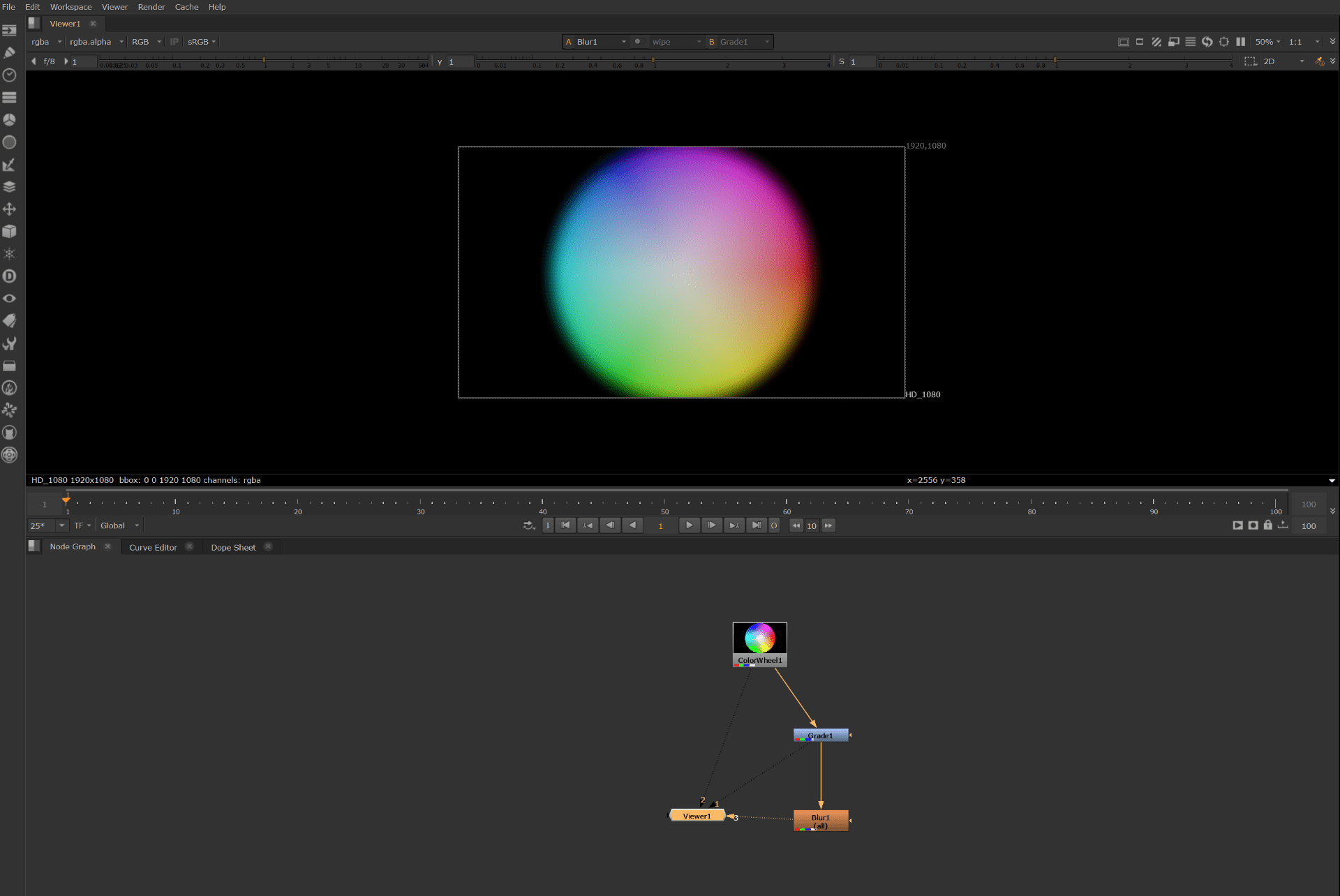
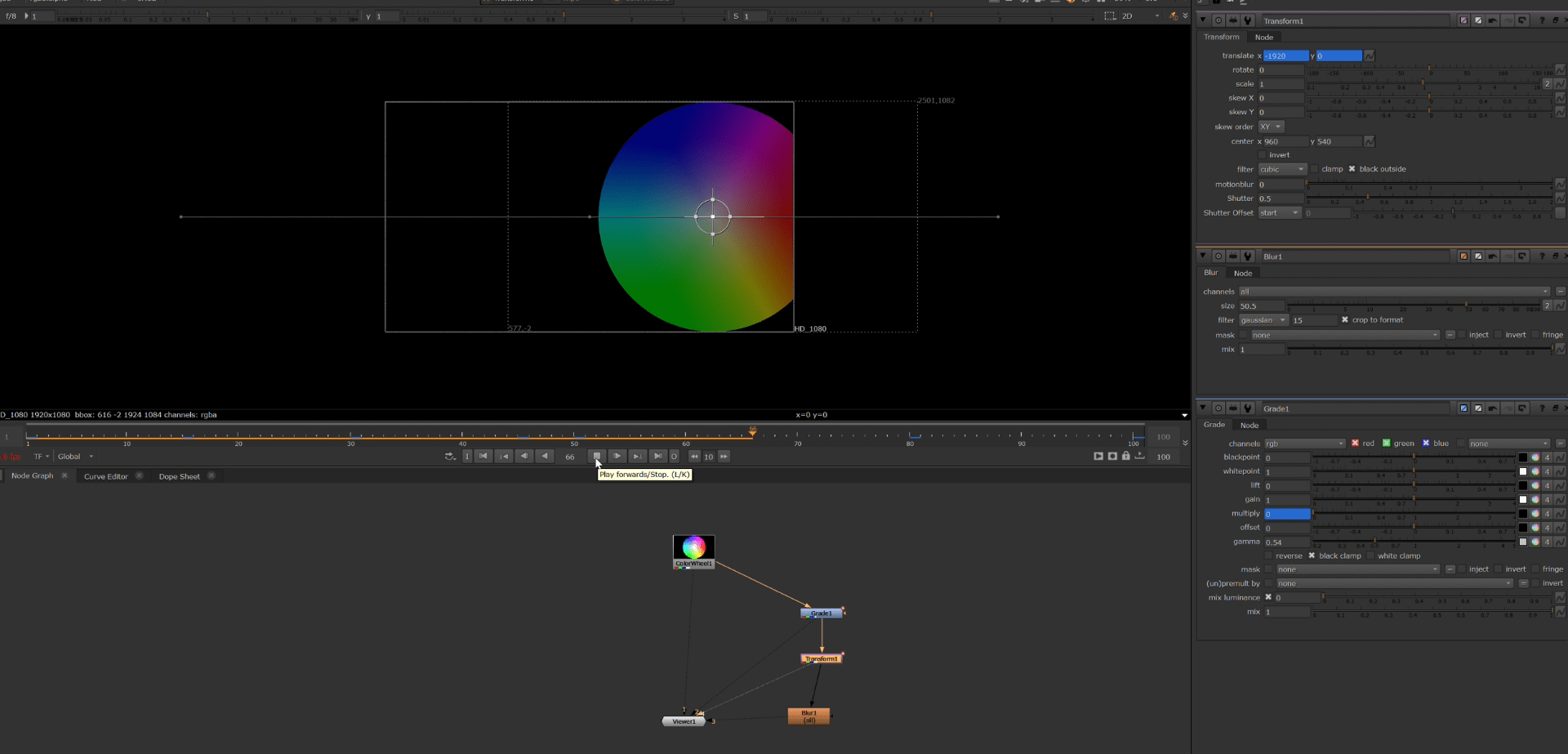
After doing this little changes to the images, now I am going to try and apply some keyframes we can find the frame timeline under the viewer.

and now we can add a key frame for our nodes on the properties window.
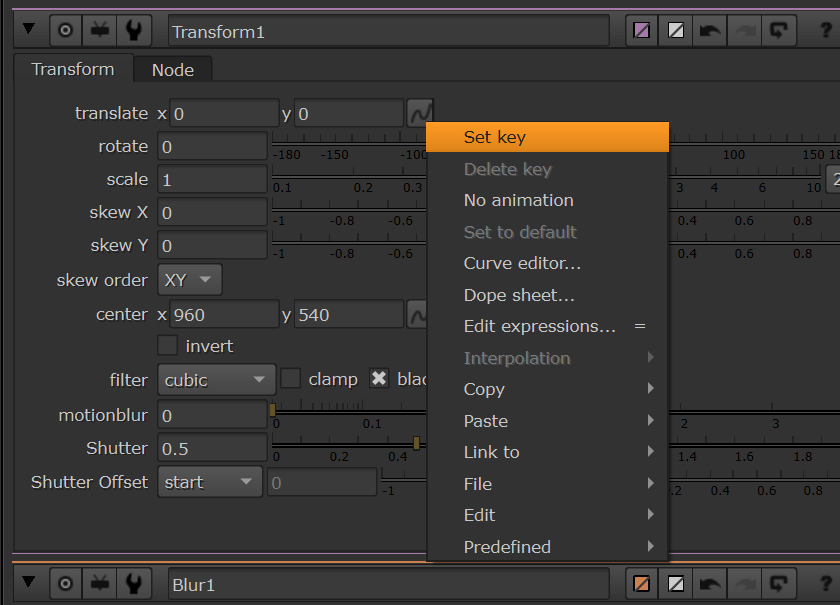
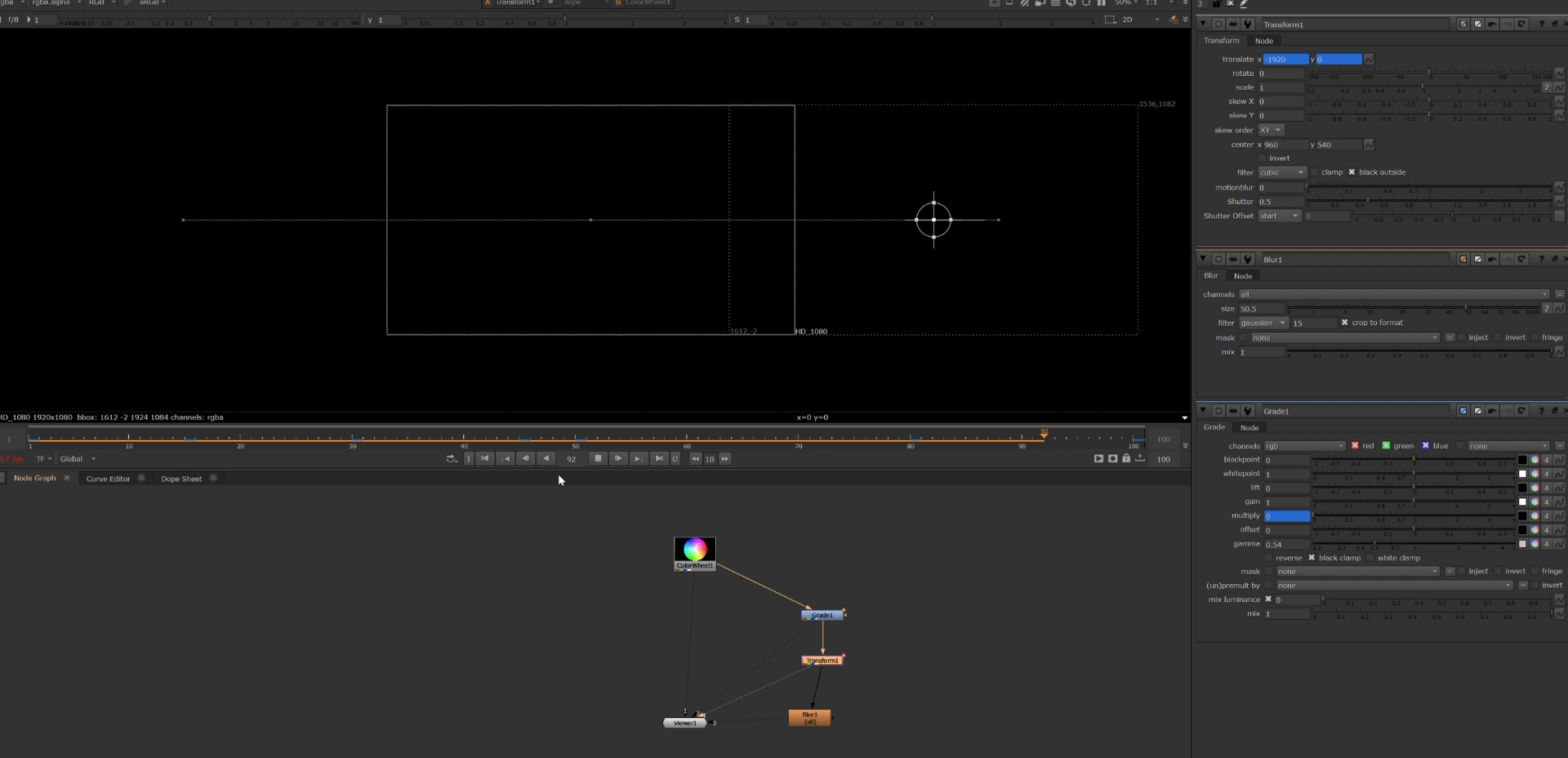
and in this case I am going to set up some keyframes into the transform node.
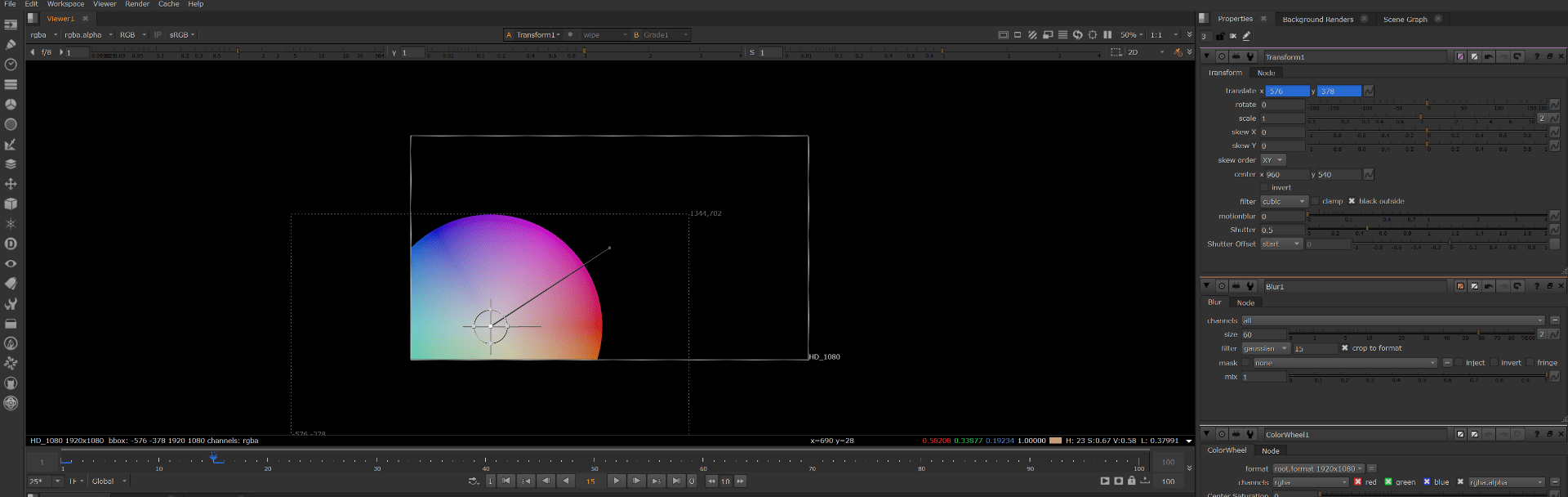
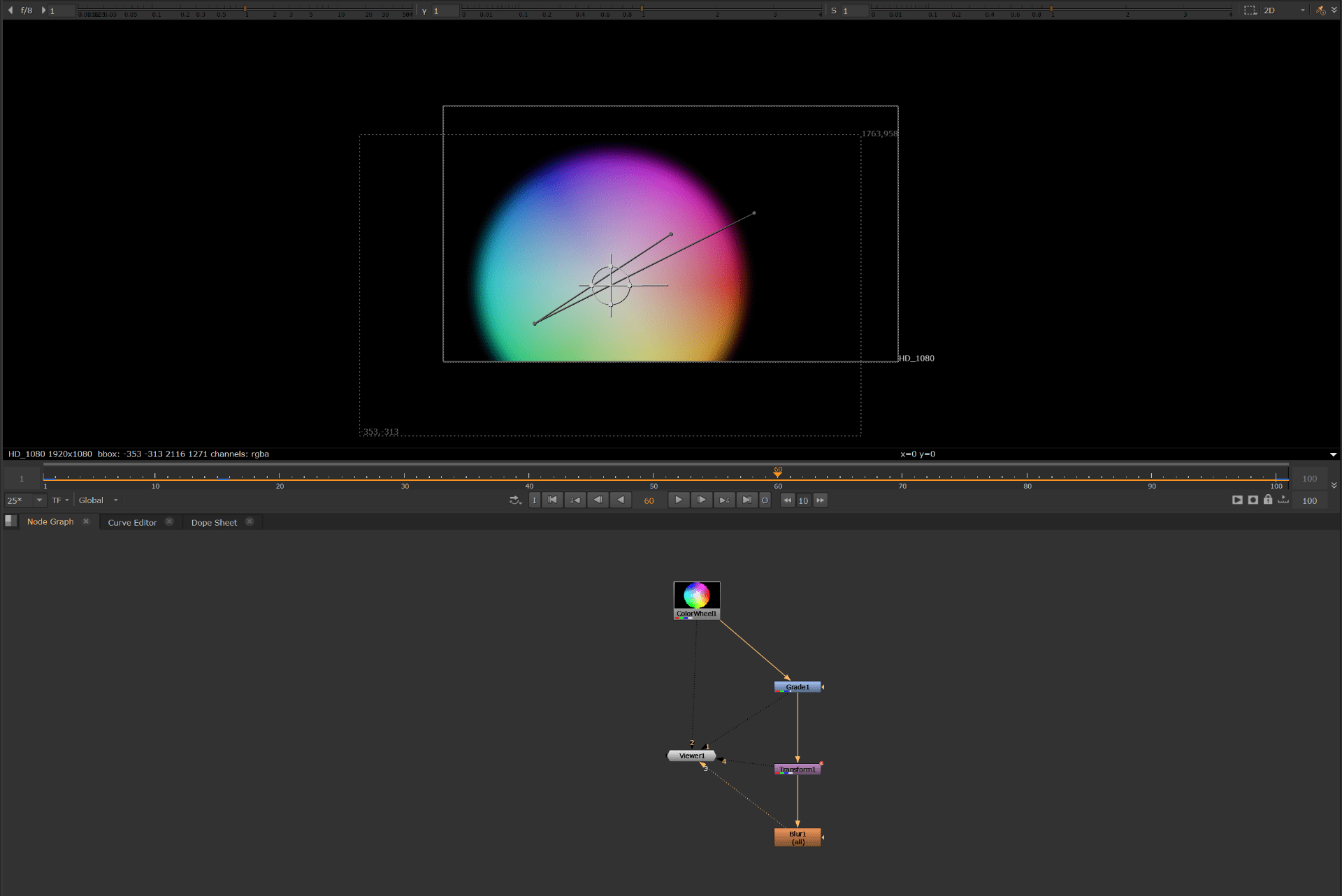
Now this is my personal approach result.
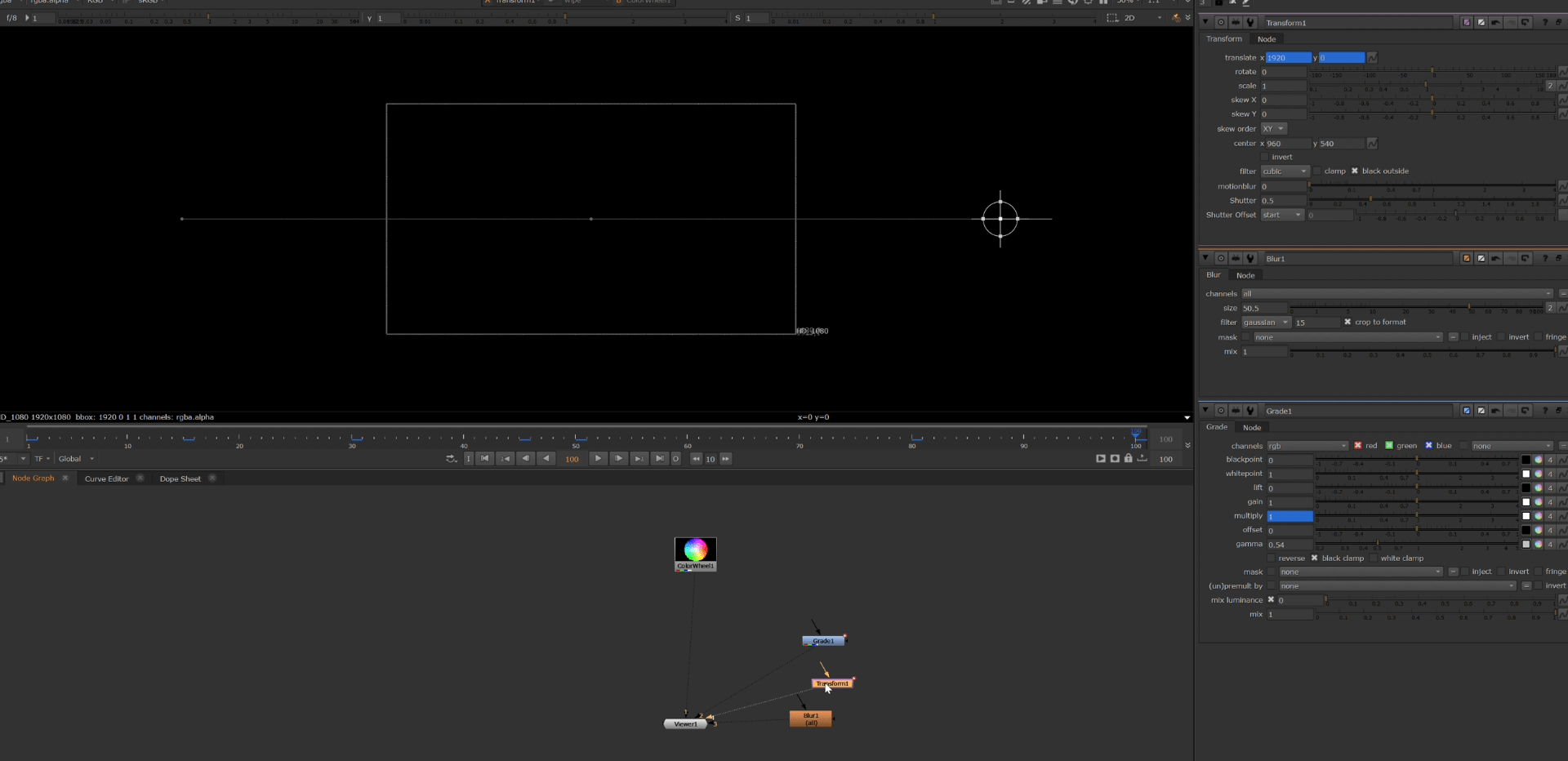
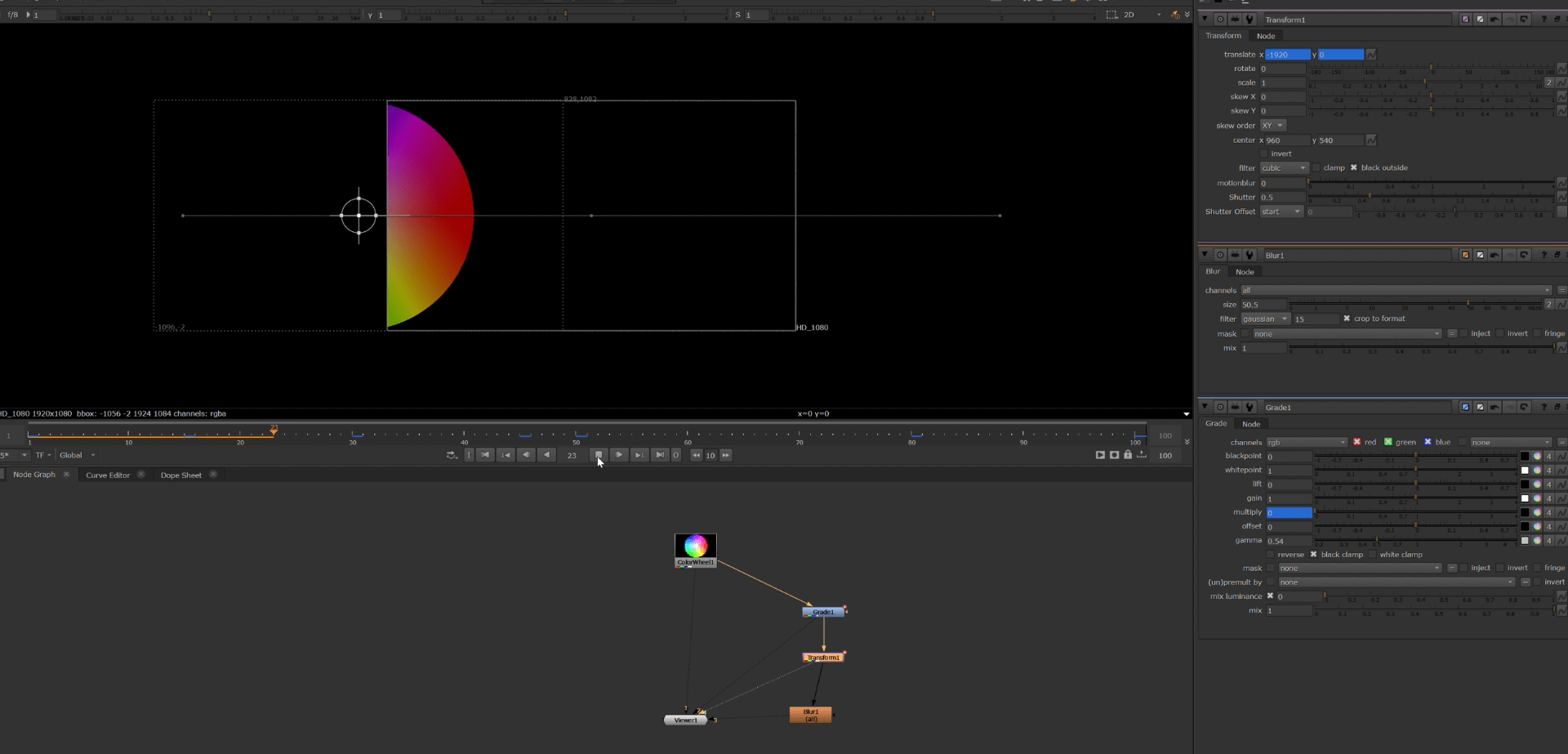
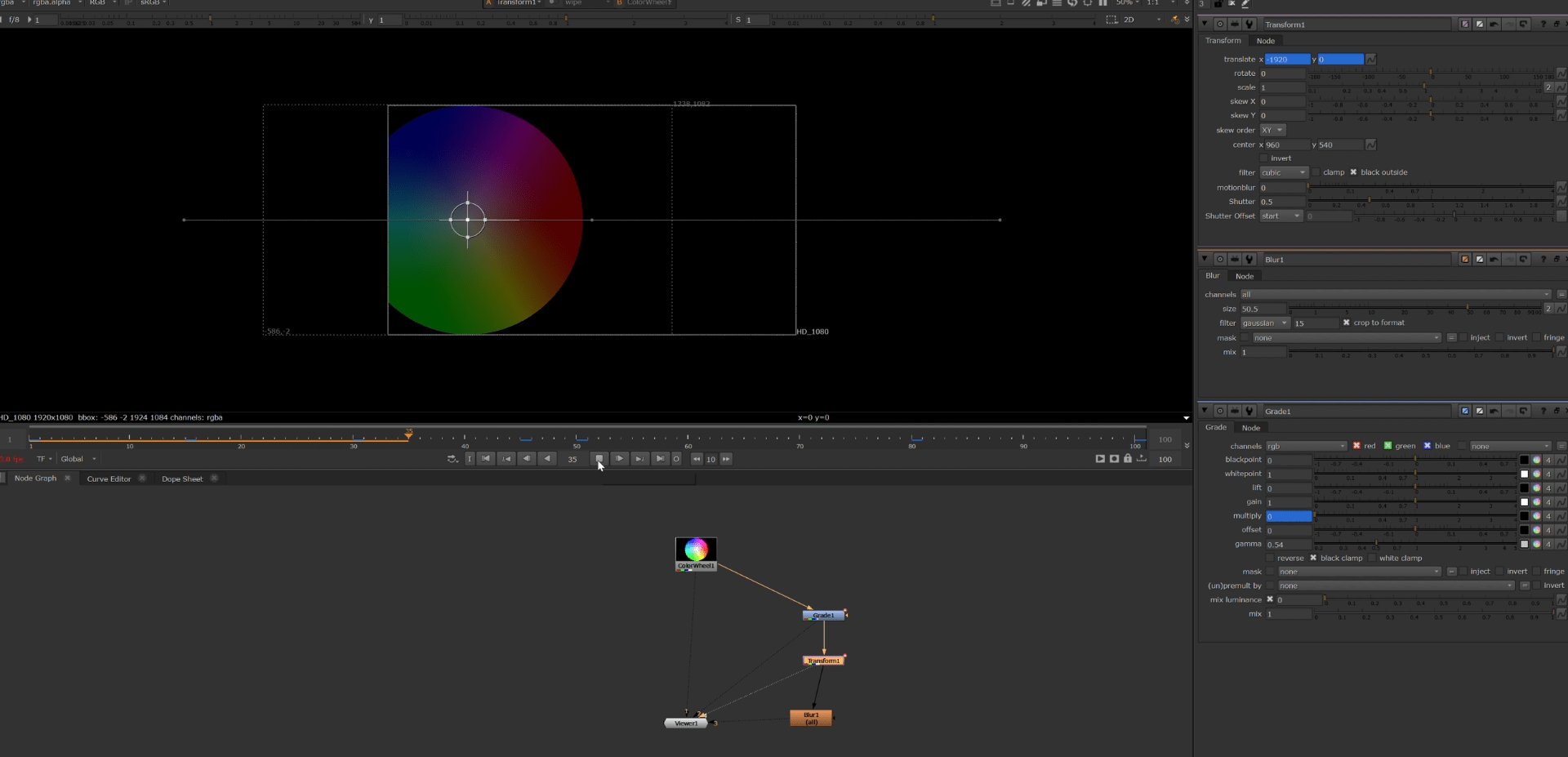
End of nuke first approach
after learning the basic I am going to set up the test project to begin with the first three tasks.
After opening the project we do a test putting a background our character with the merge node and also playing a bit with the RGB and Alpha channels.
Now after learning how to use the merge node we proceed with the exercises 1,2 and 3.
Exercise 1
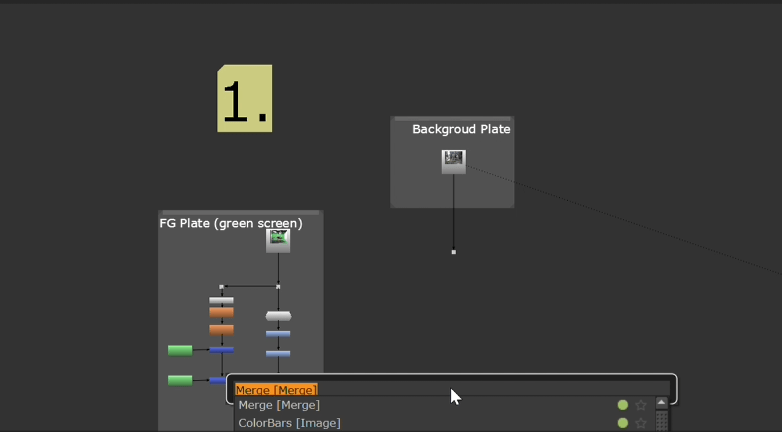
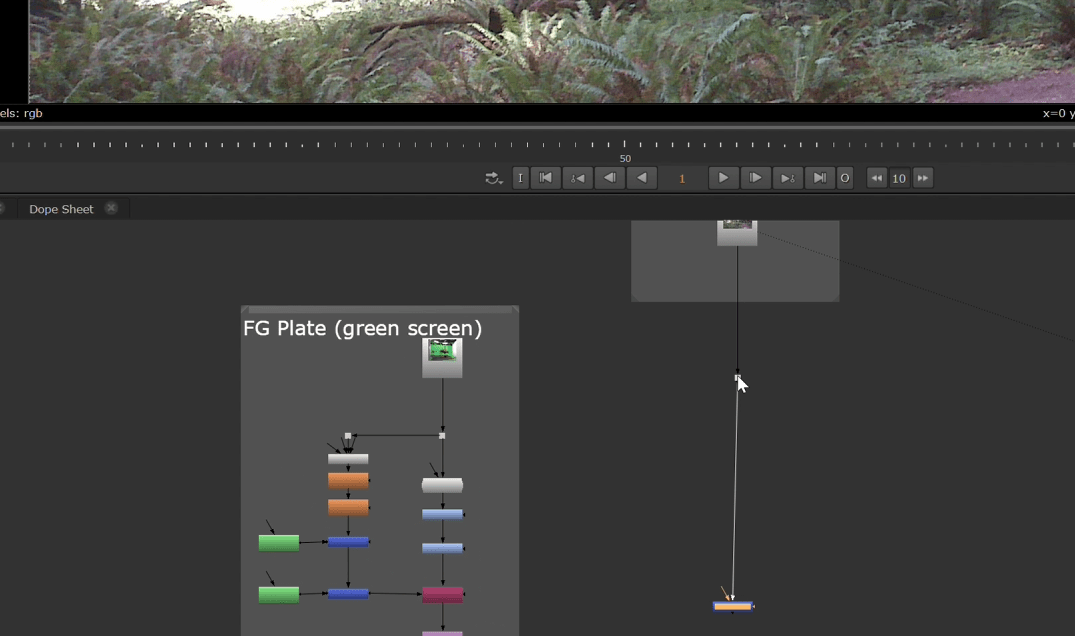
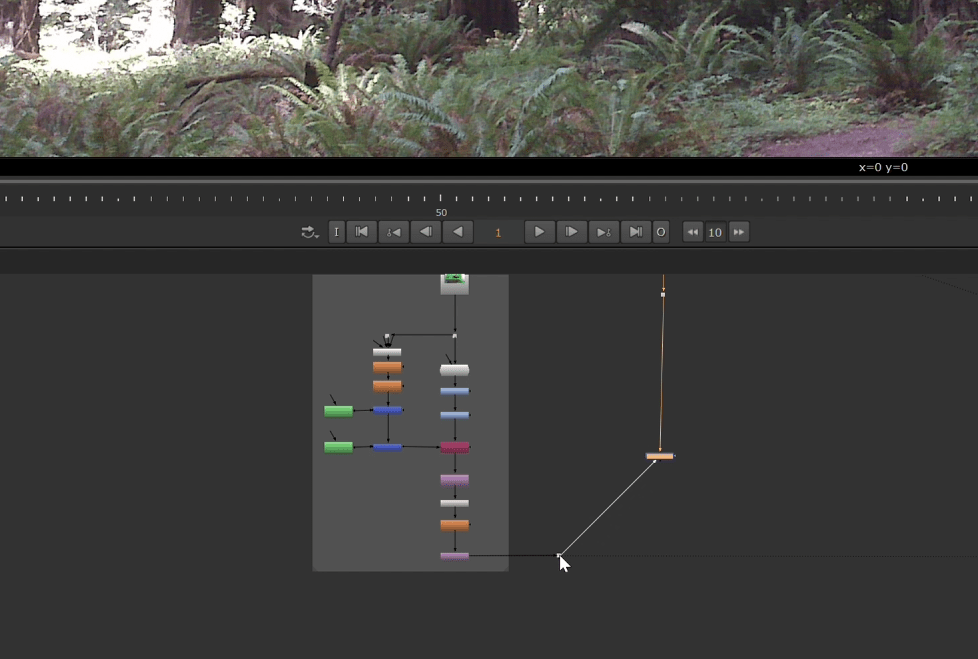
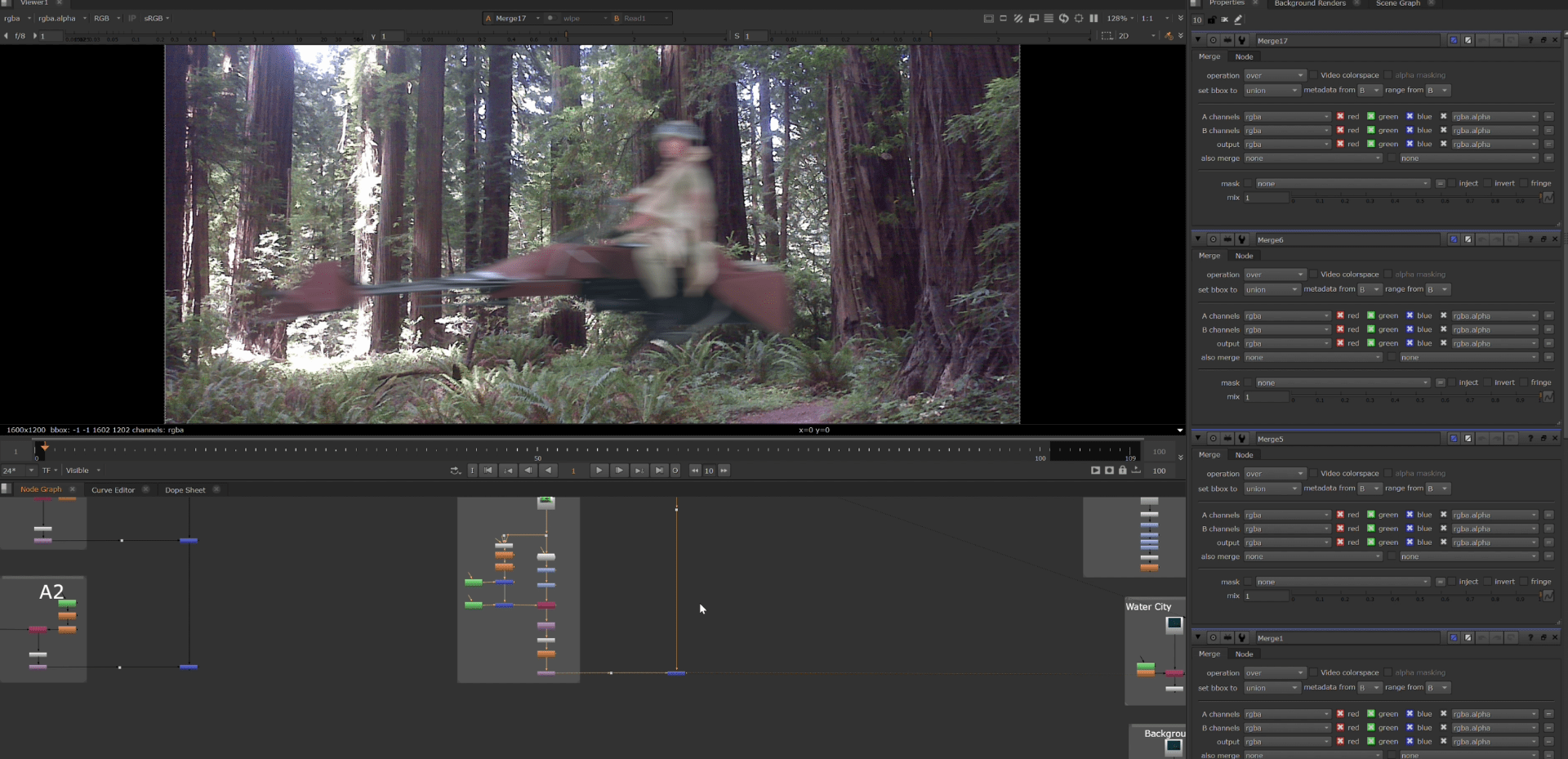
For this task we only had to merge the background with the character provided to us. so for this exercise we simply put a merge node and connect the background with the green screen group.
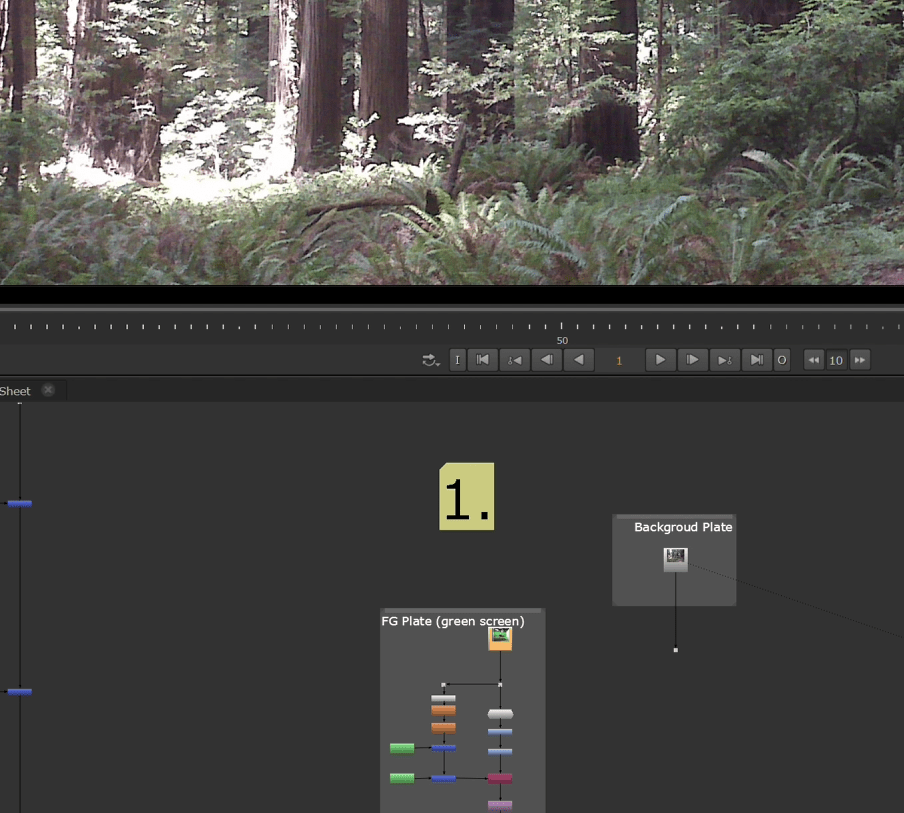
 Final result:
Exercise 2
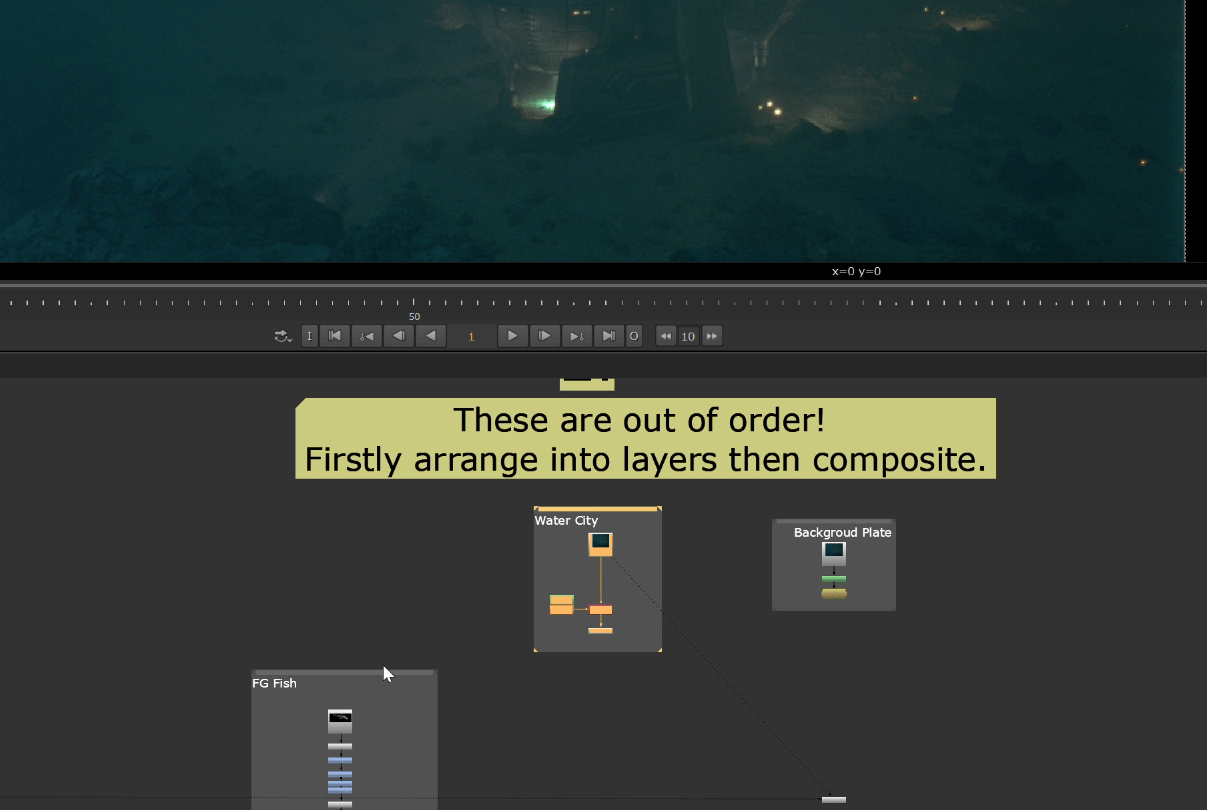
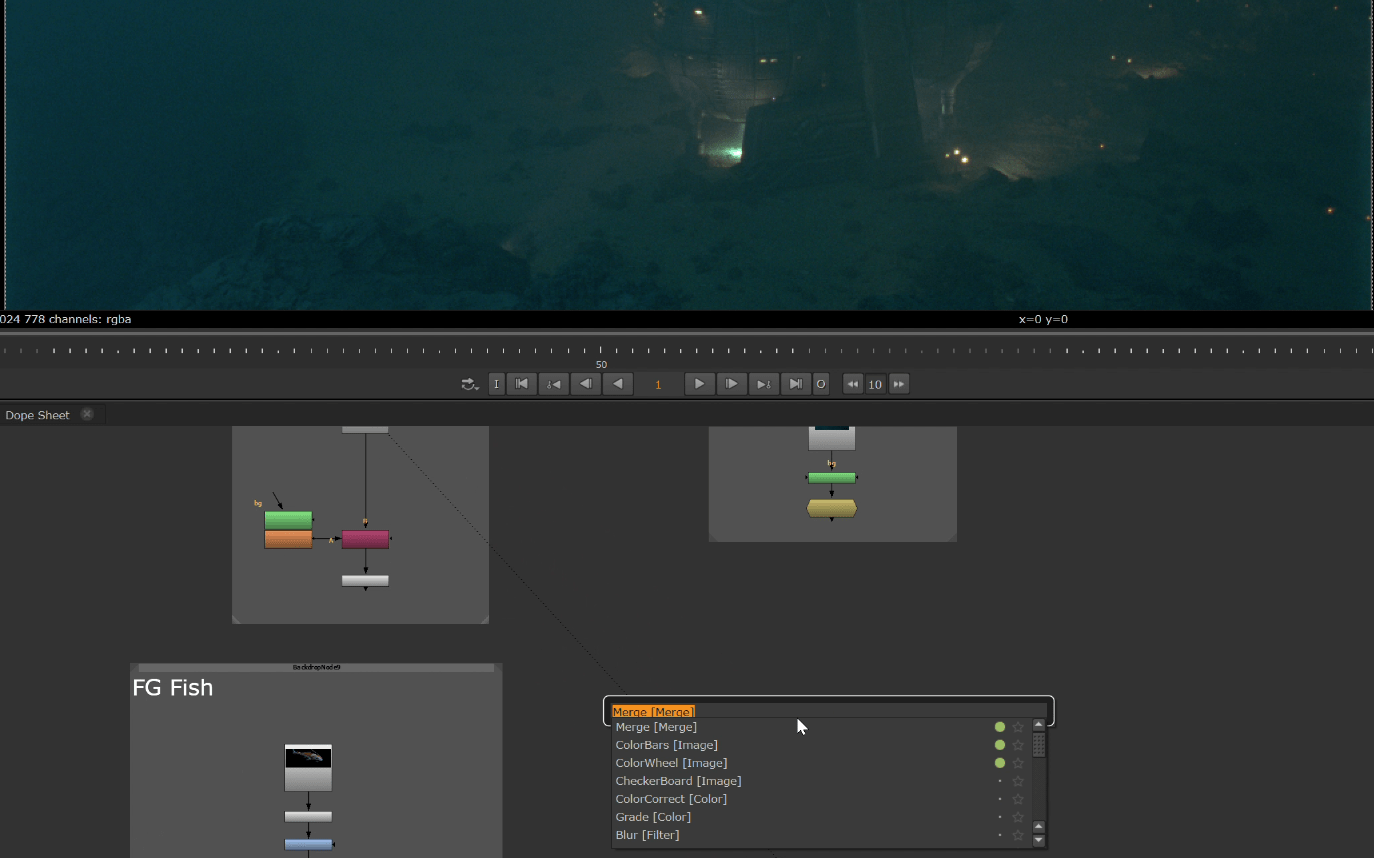
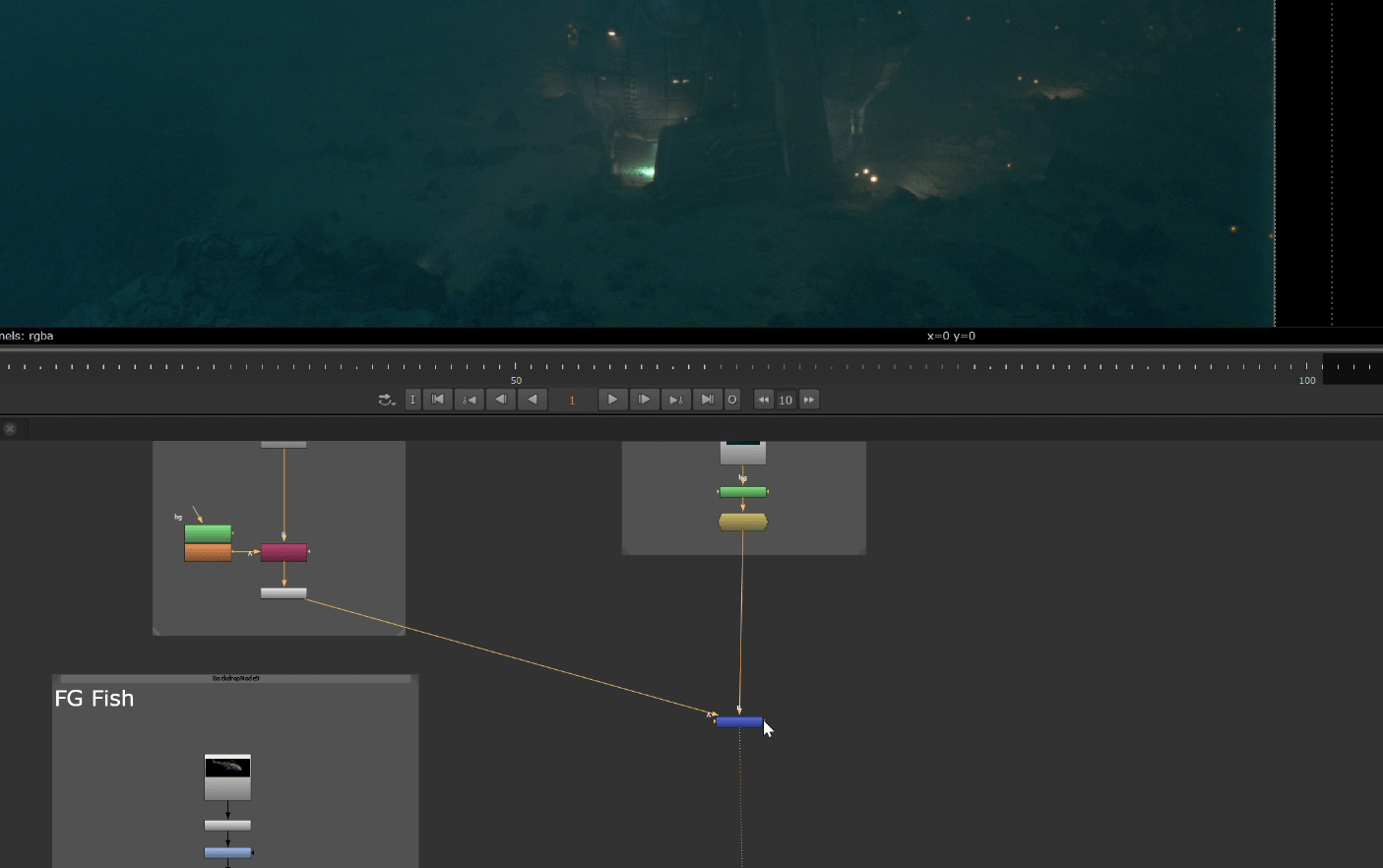
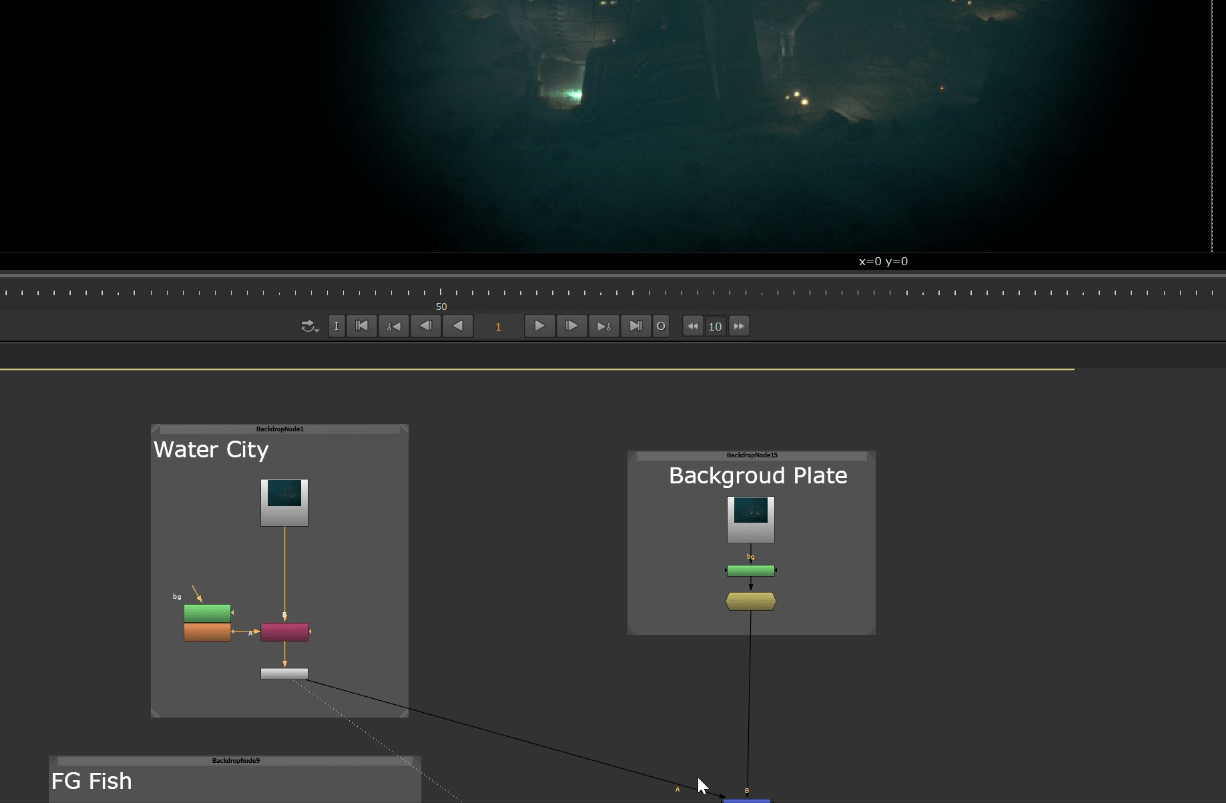
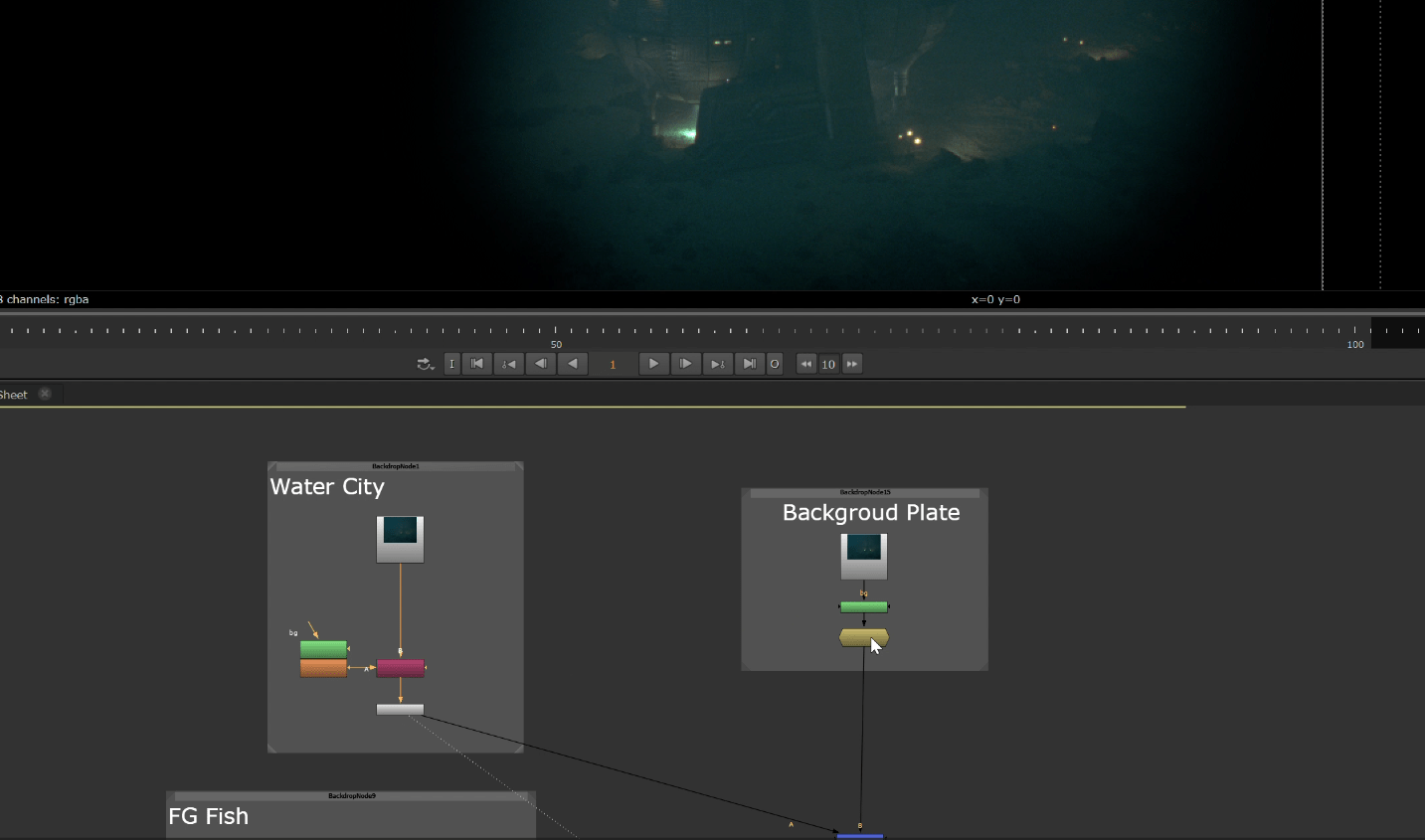
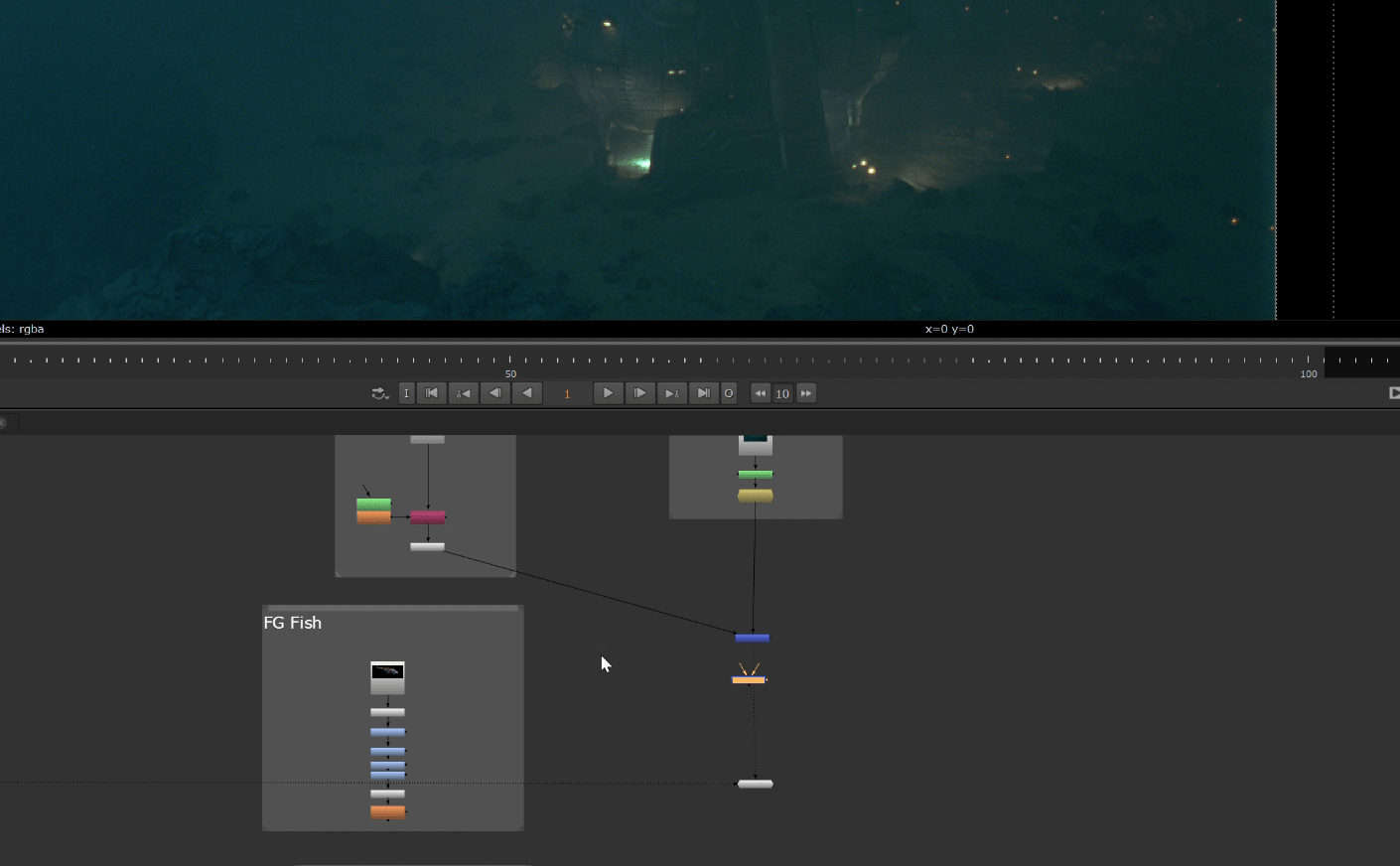
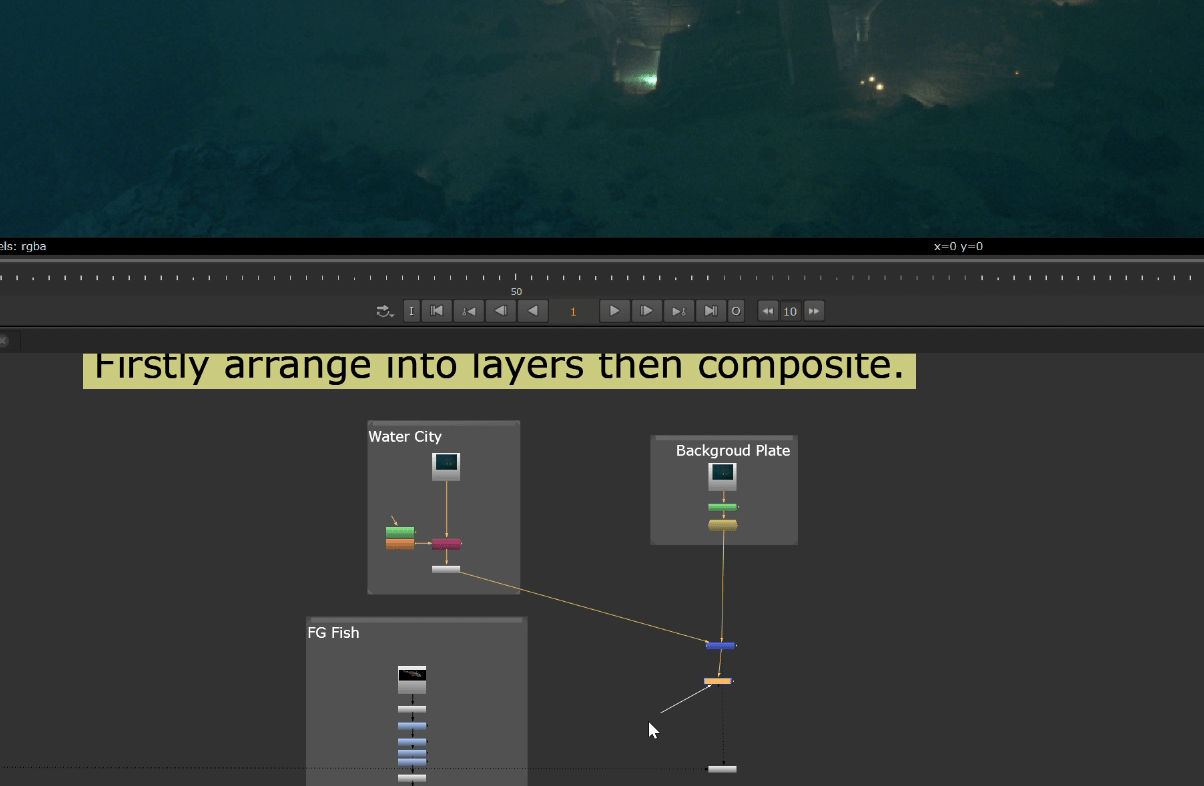
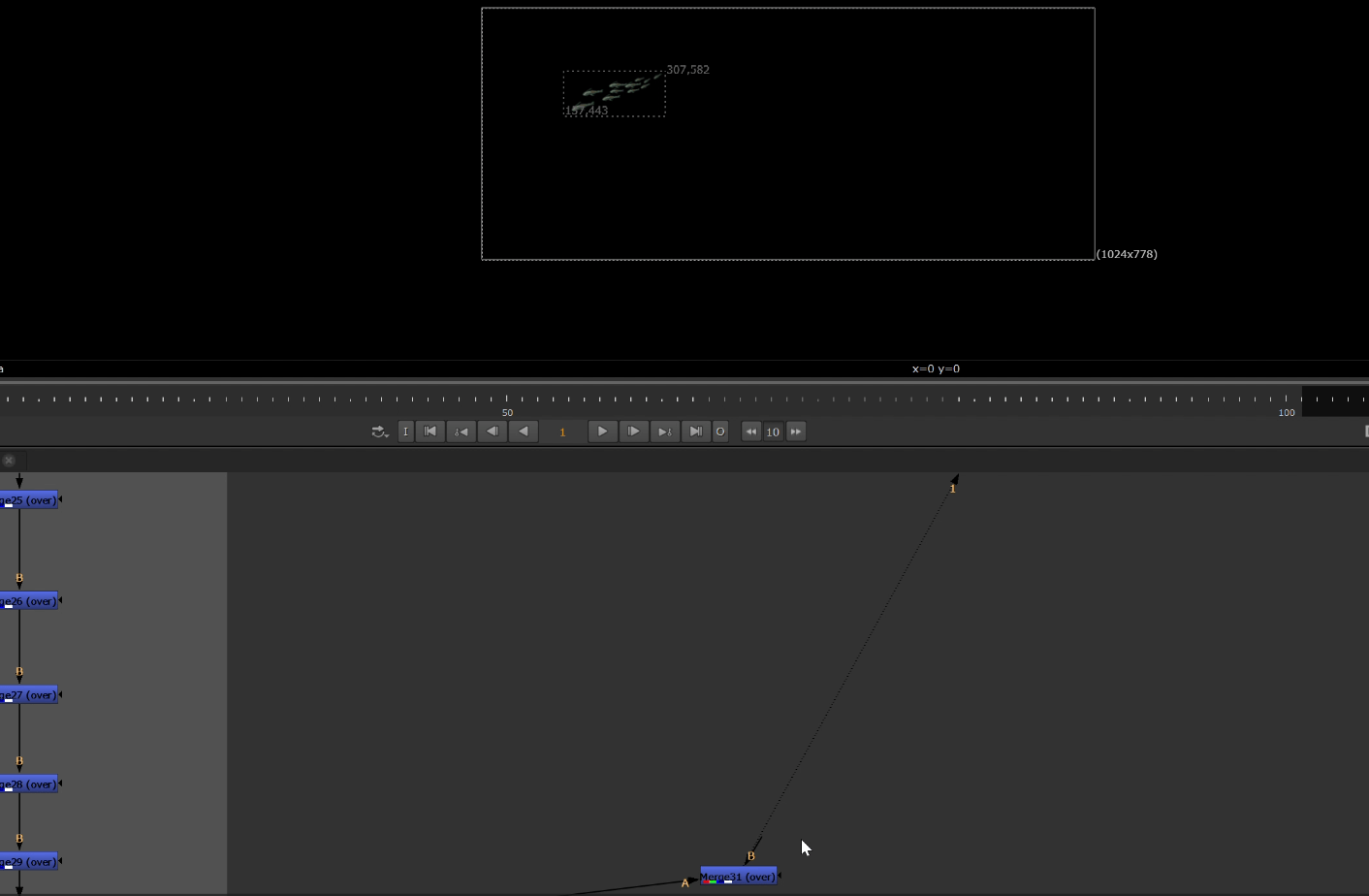
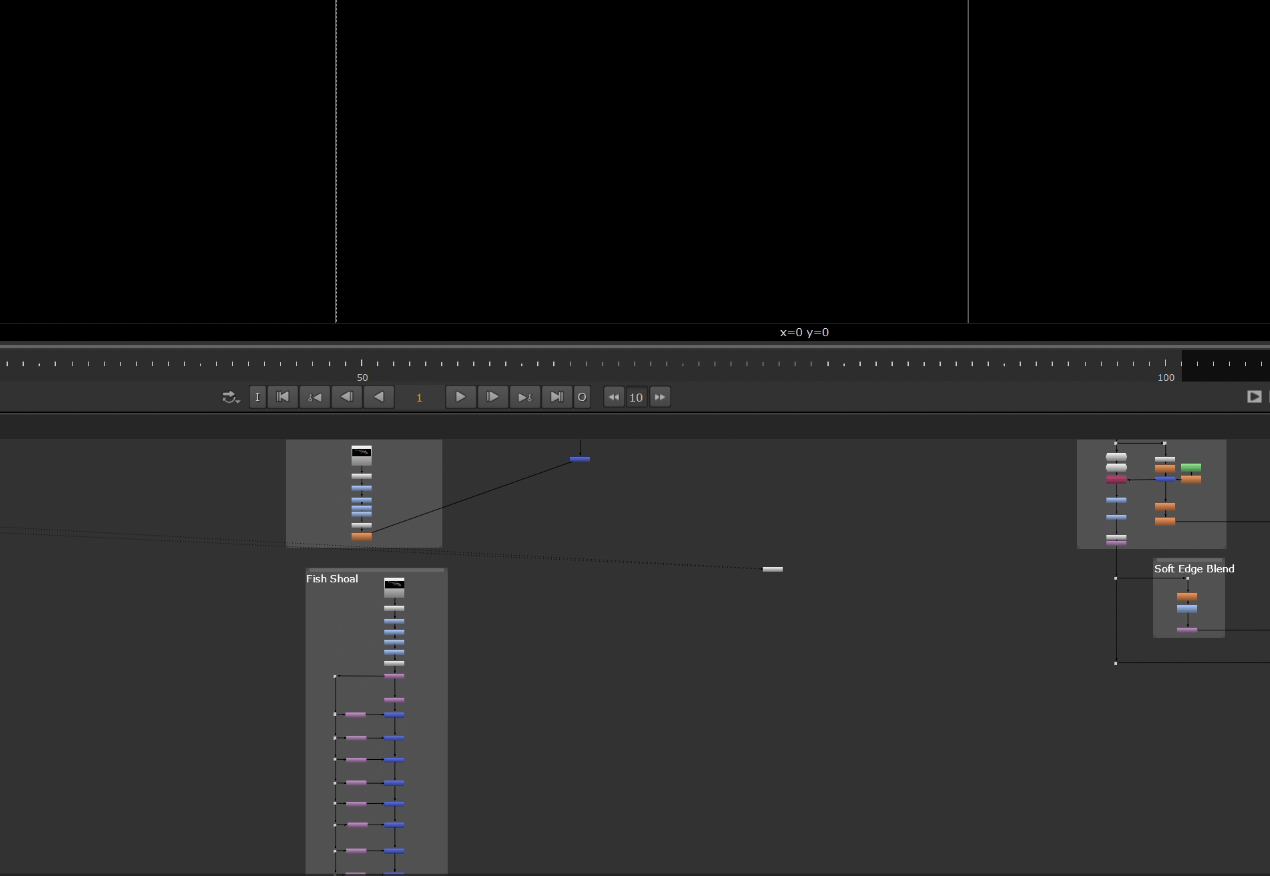
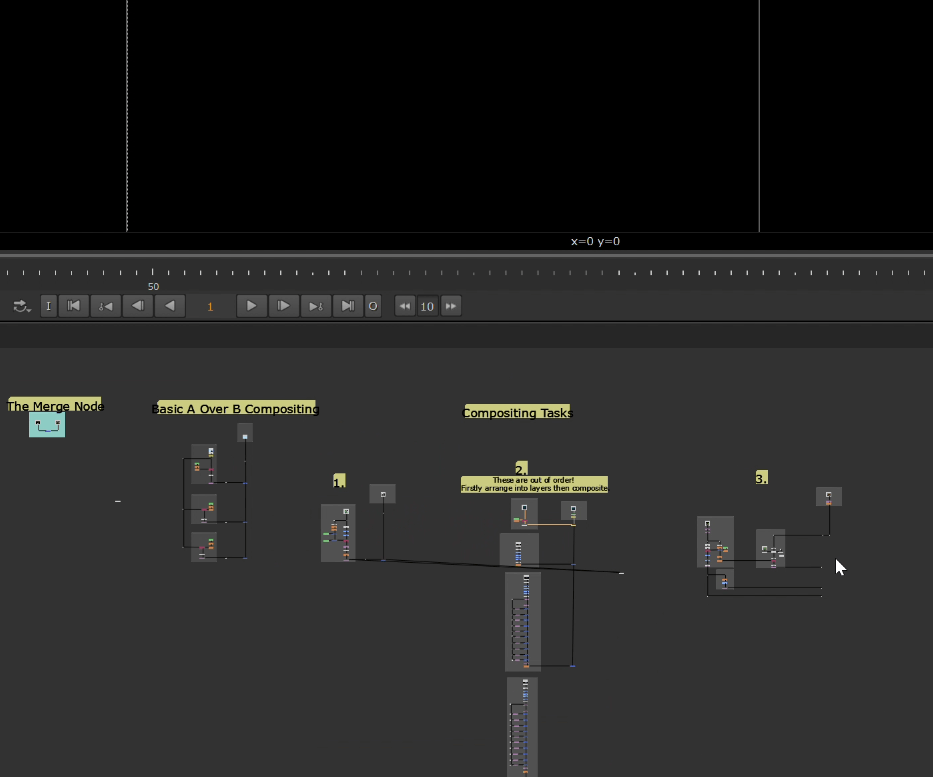
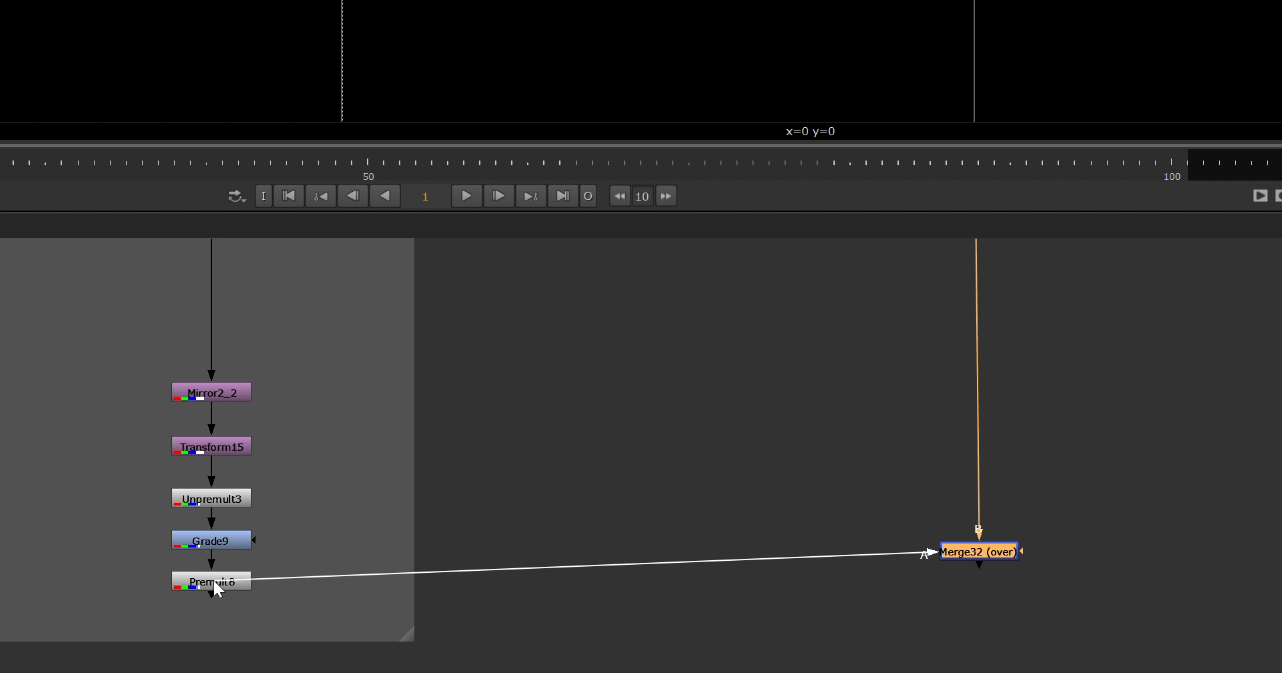
For this task we had to merge the background with the elements provided but first we have to arrange the layers.
Here is the progress
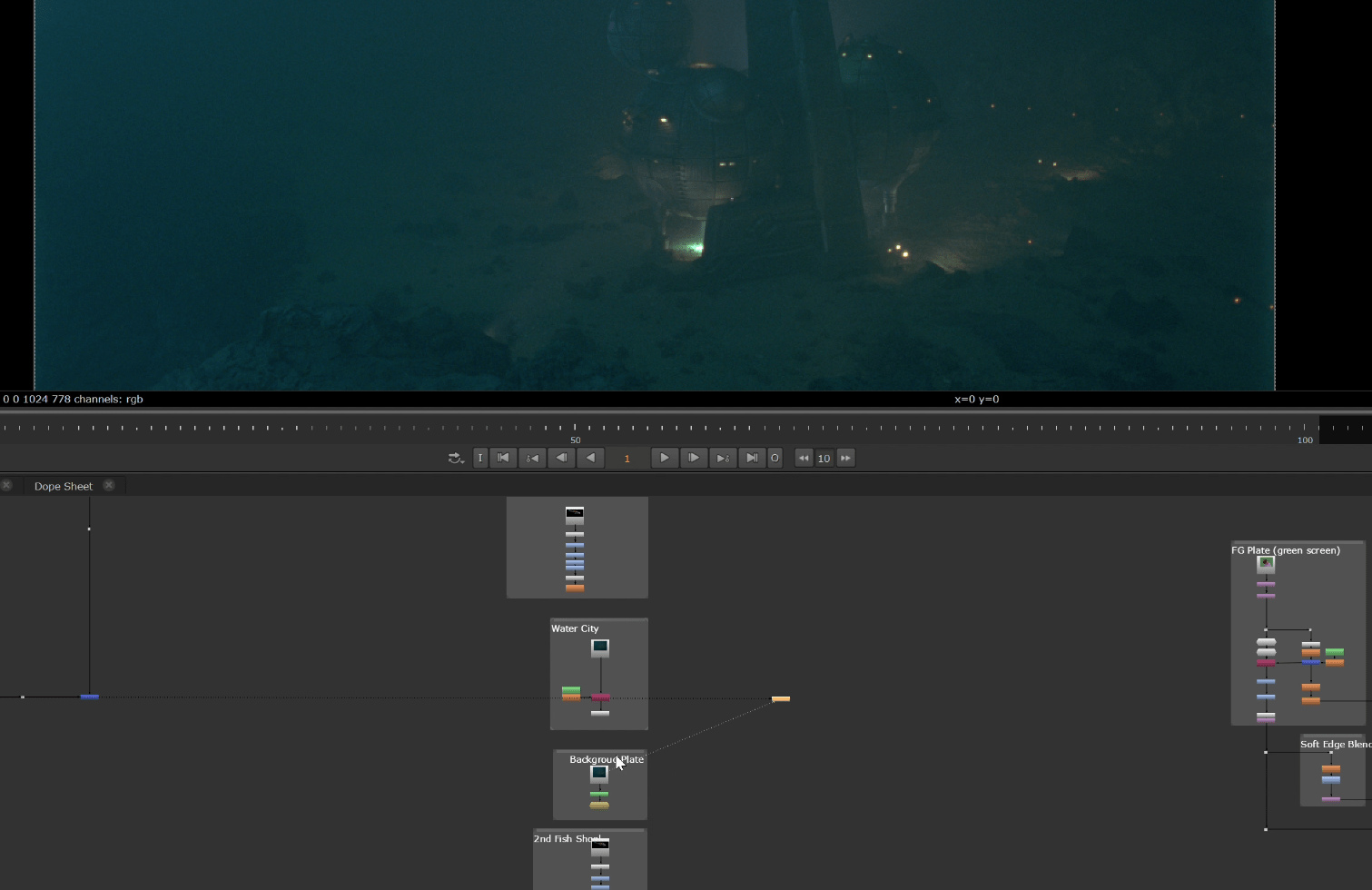
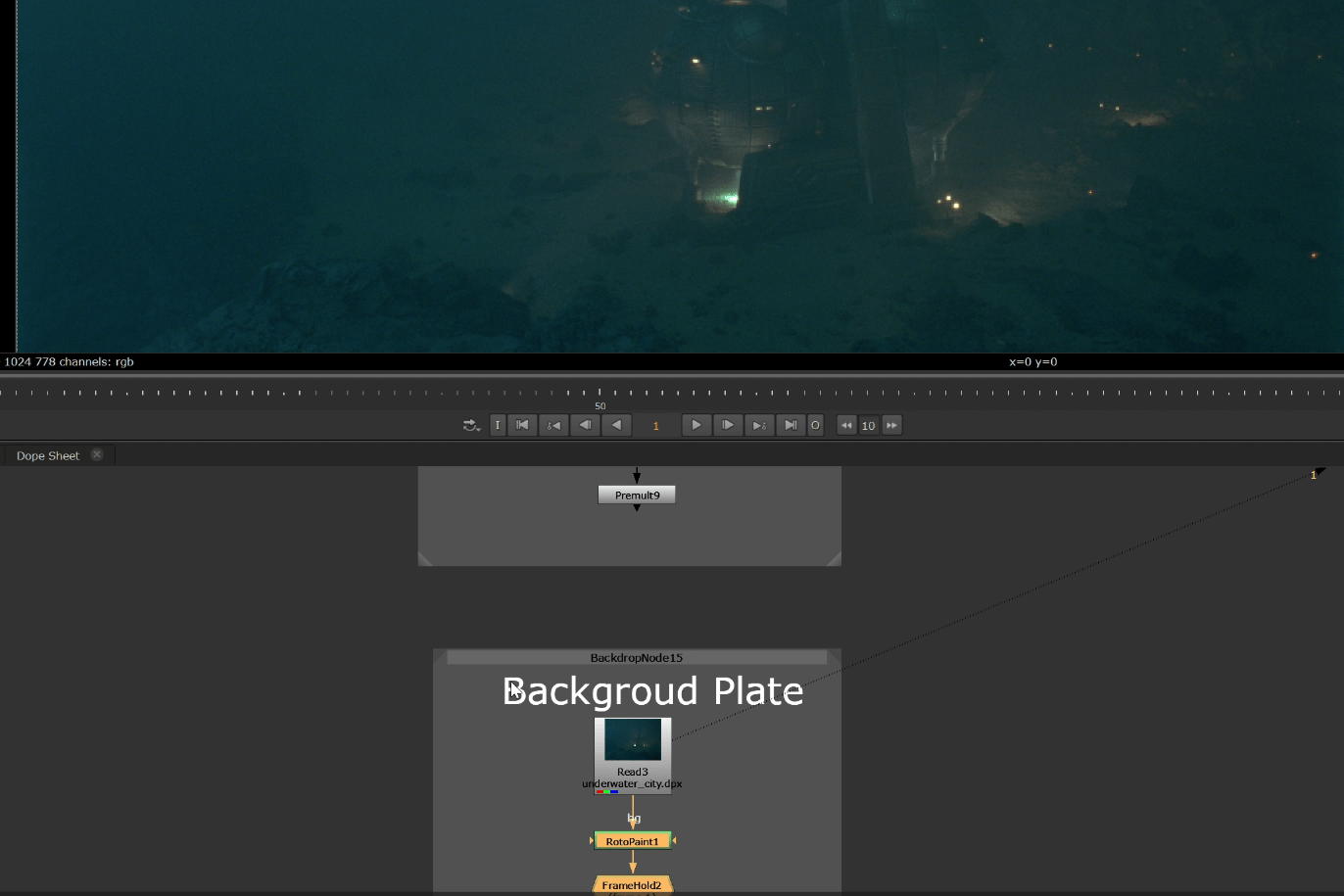
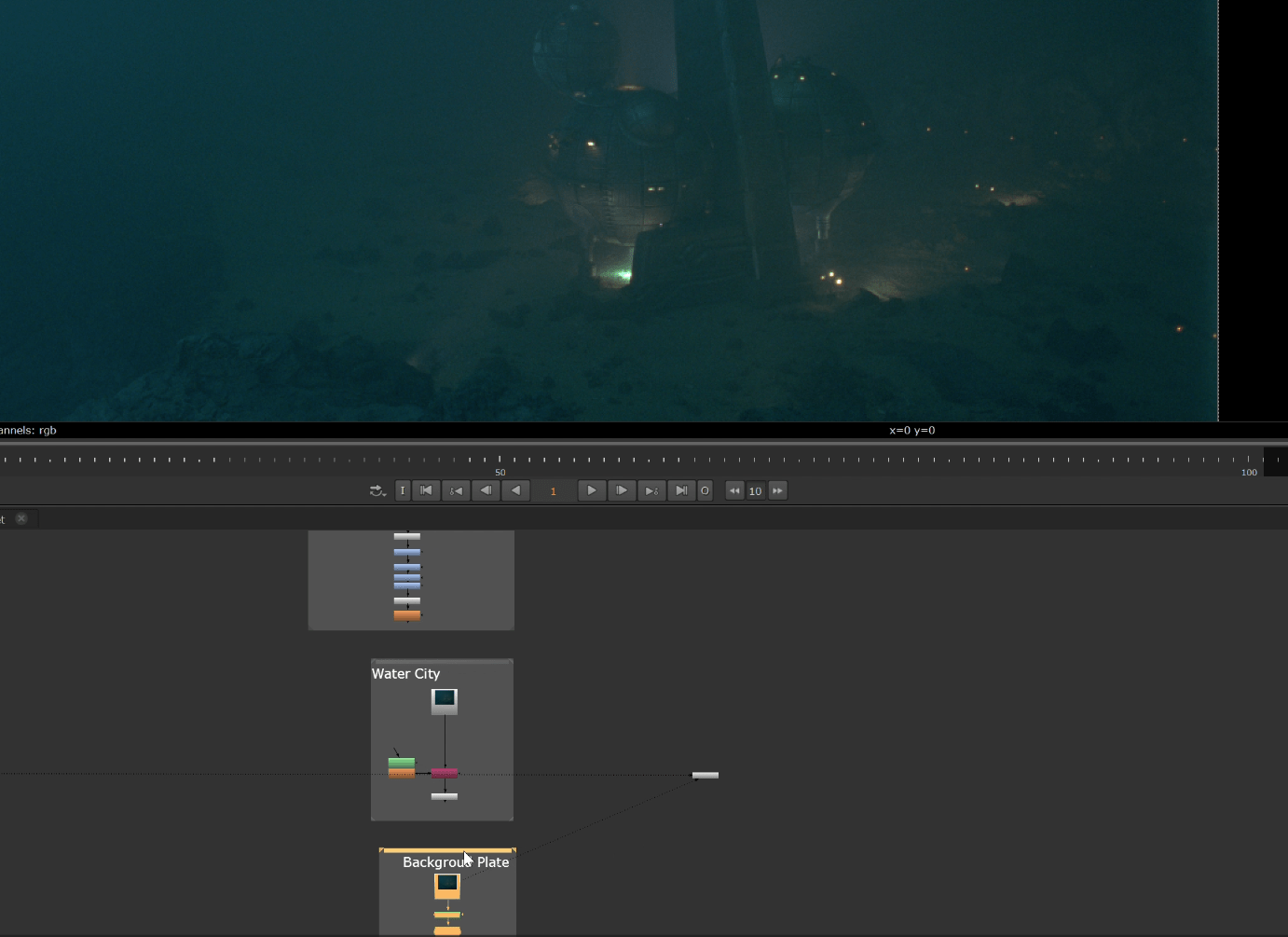
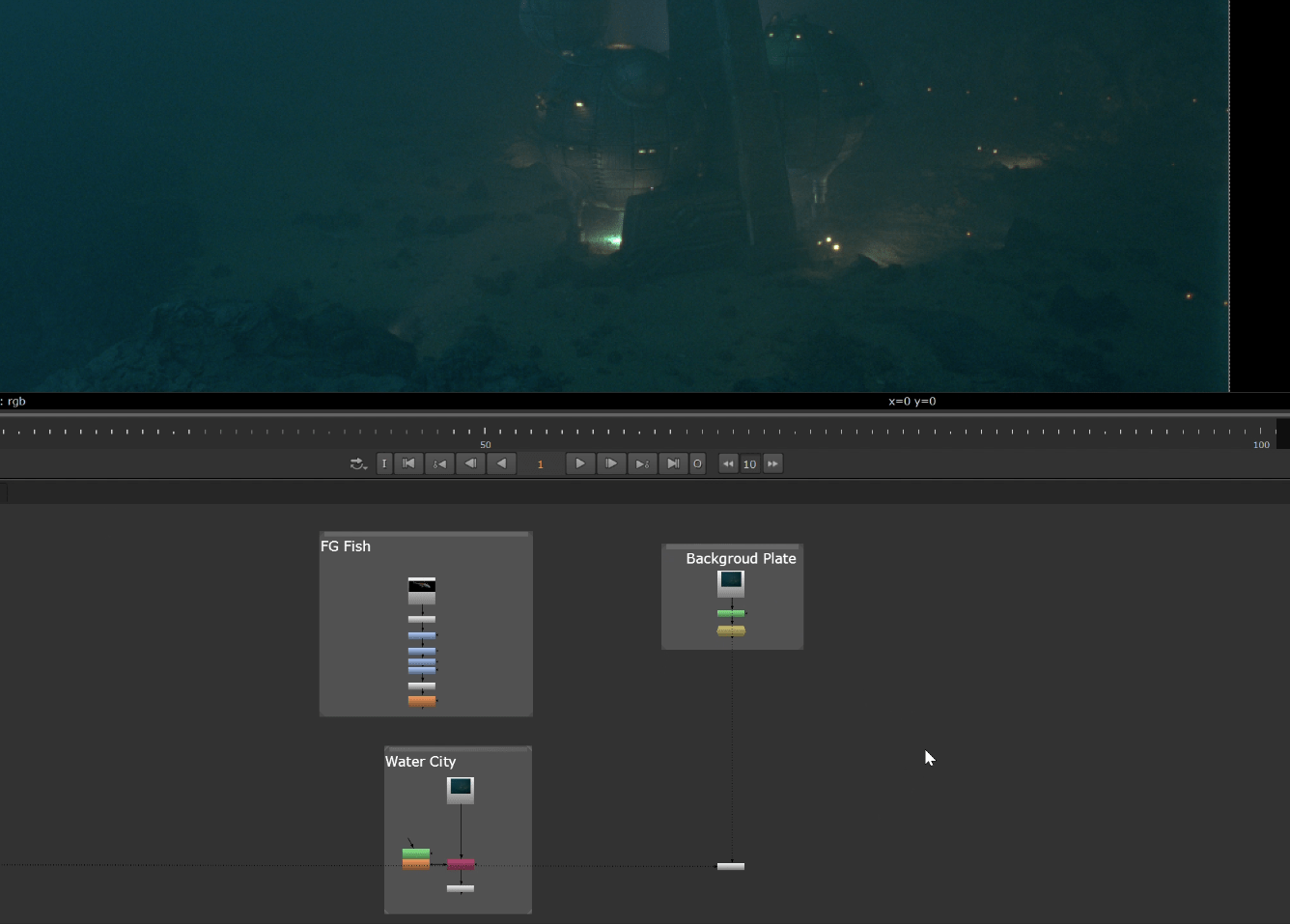
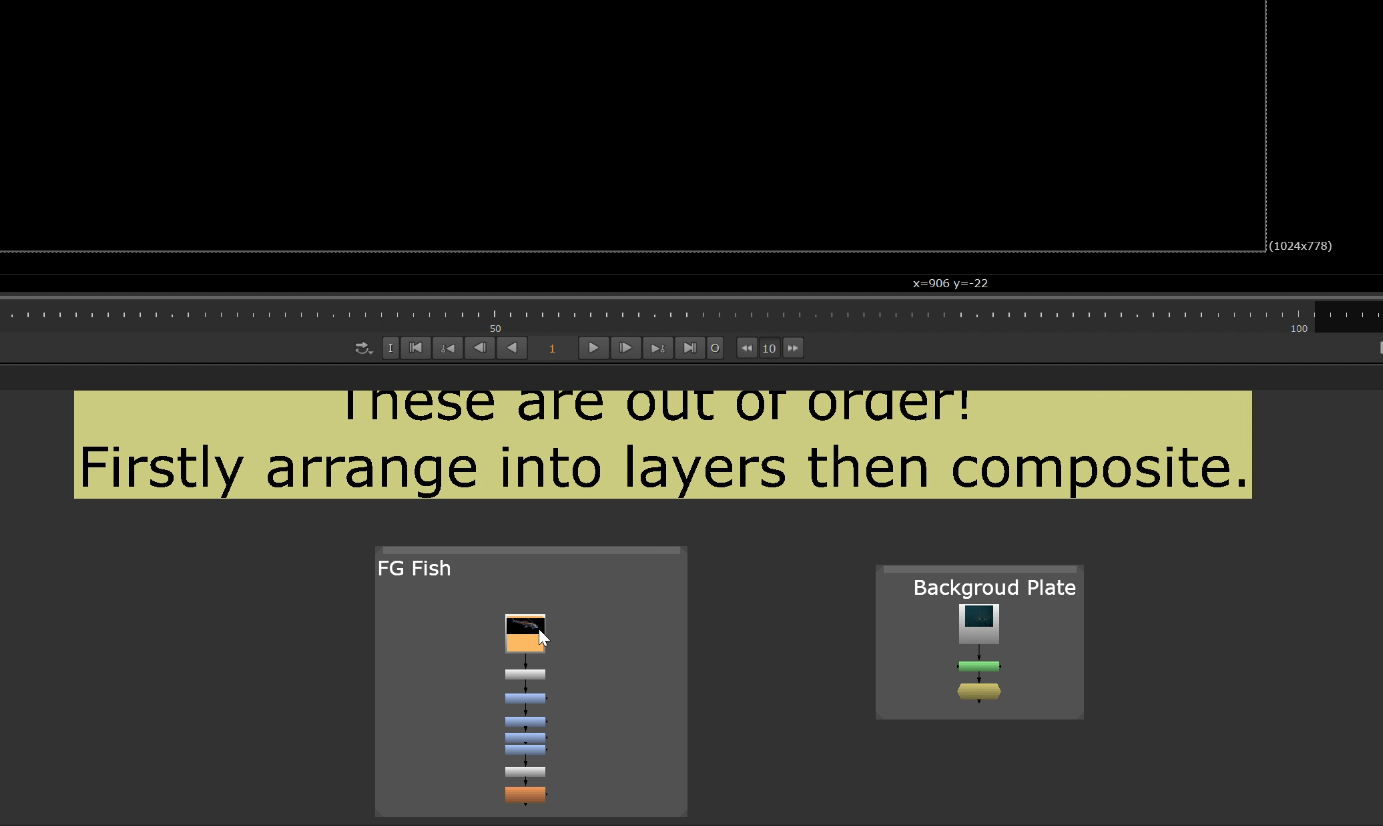
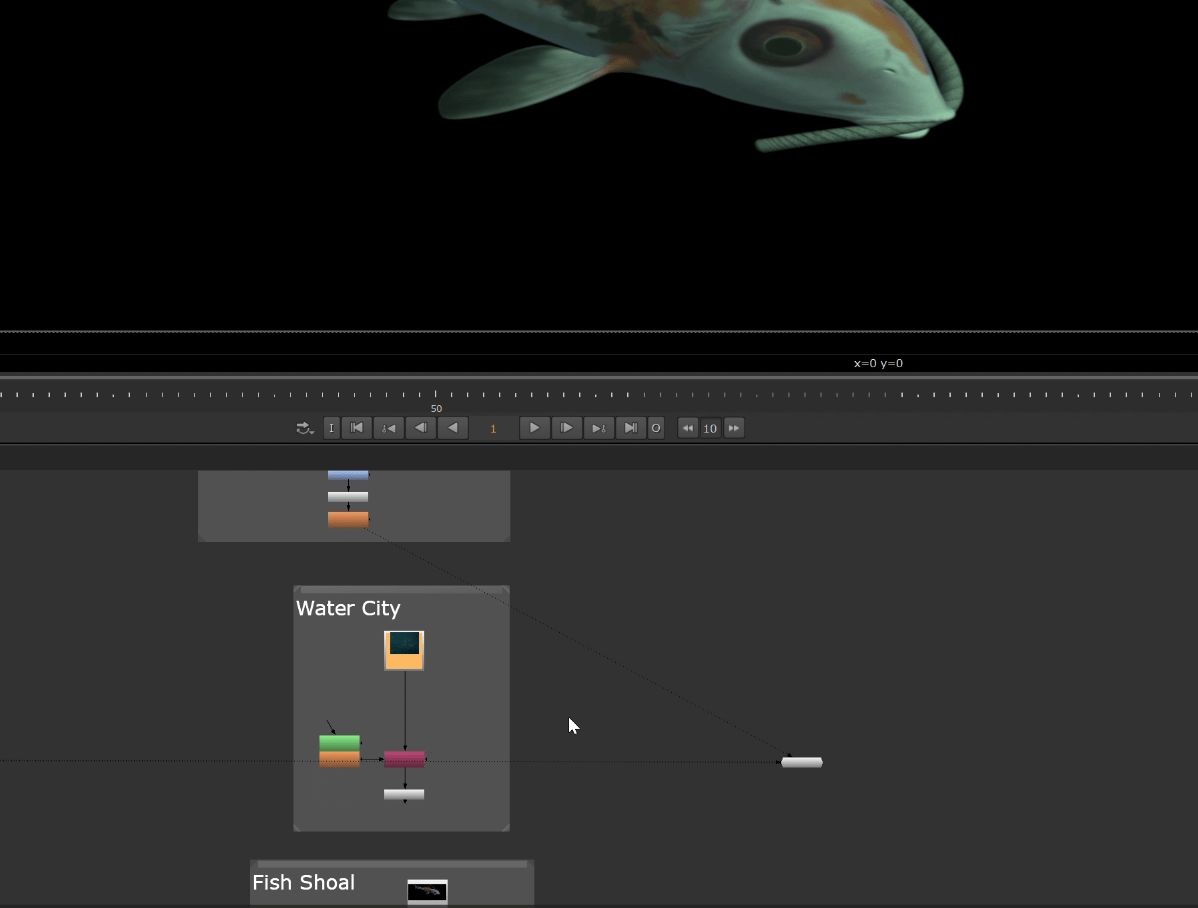
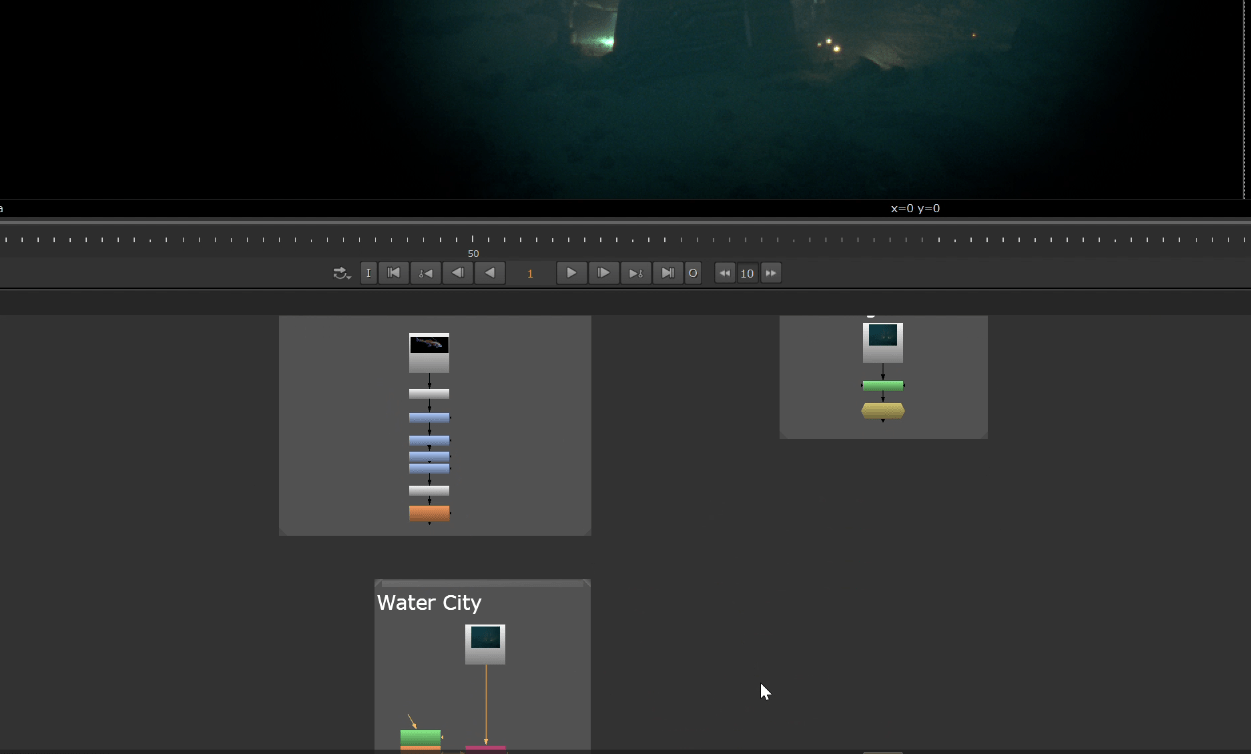
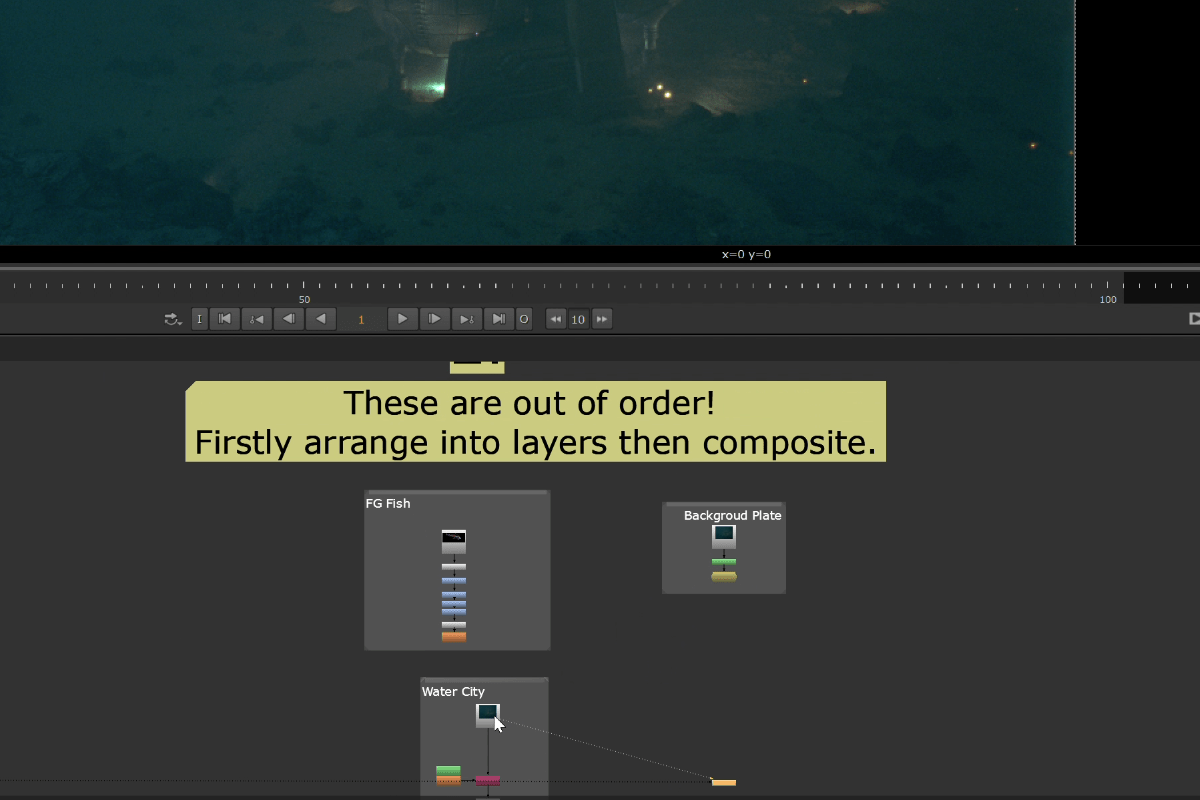
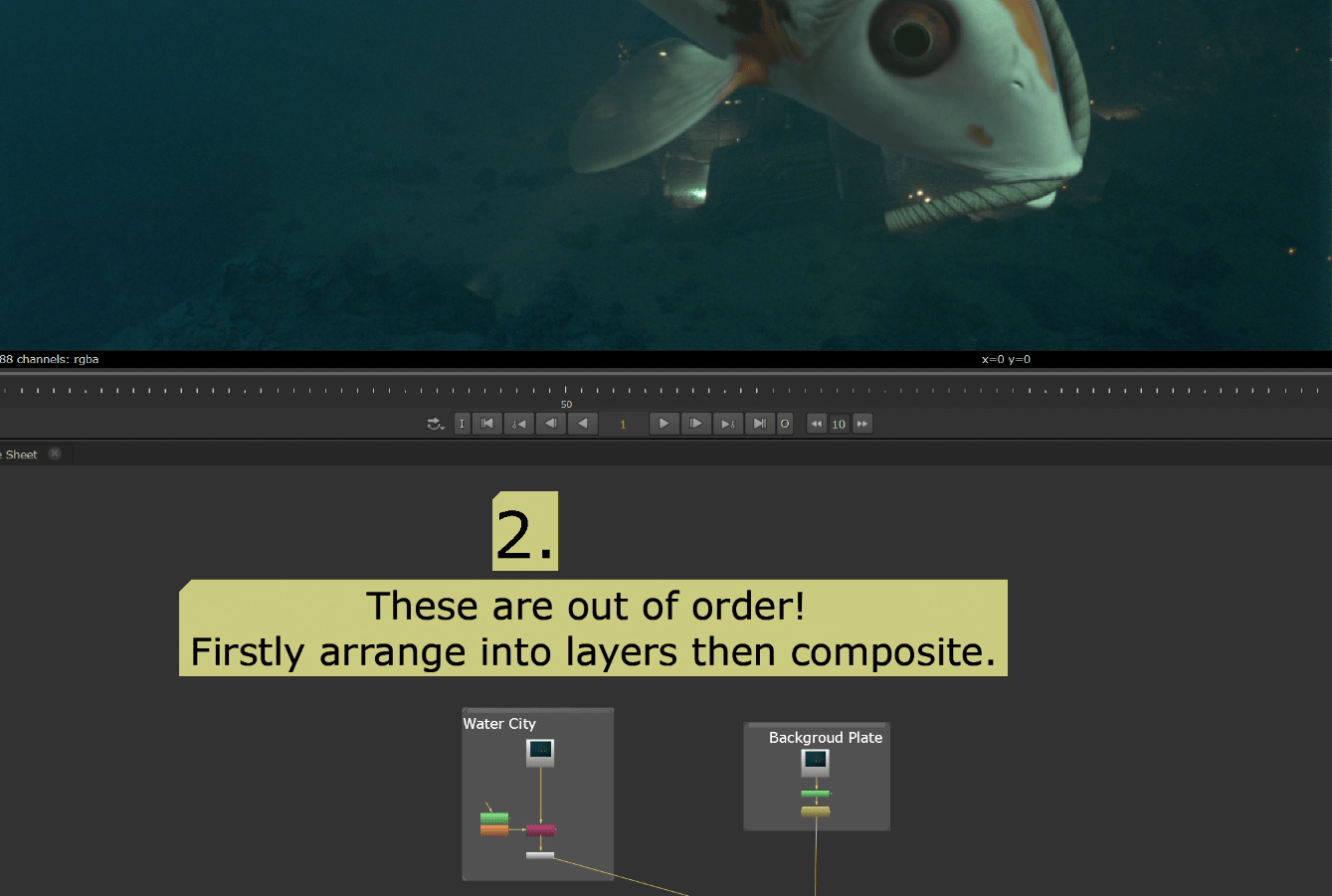
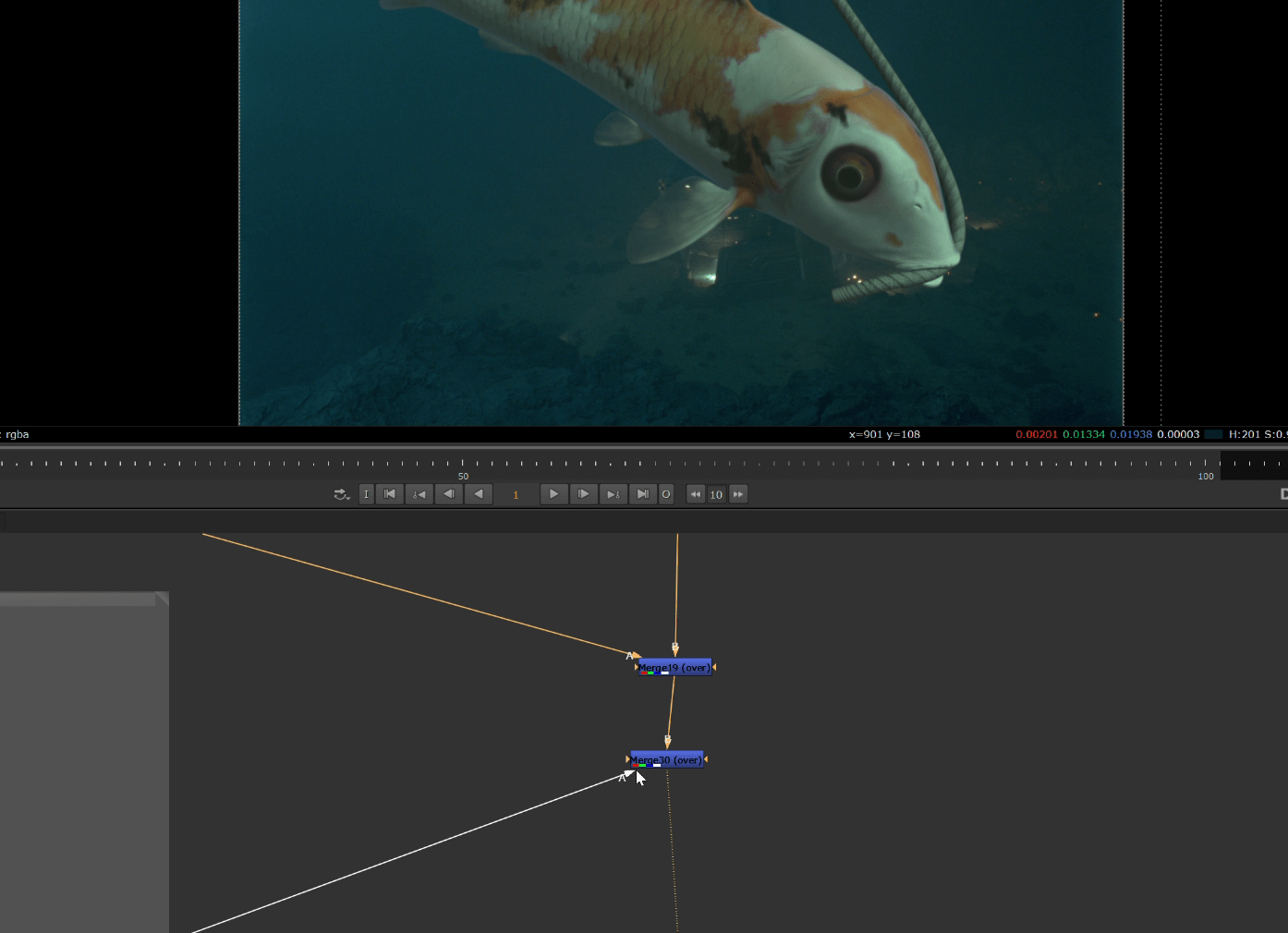
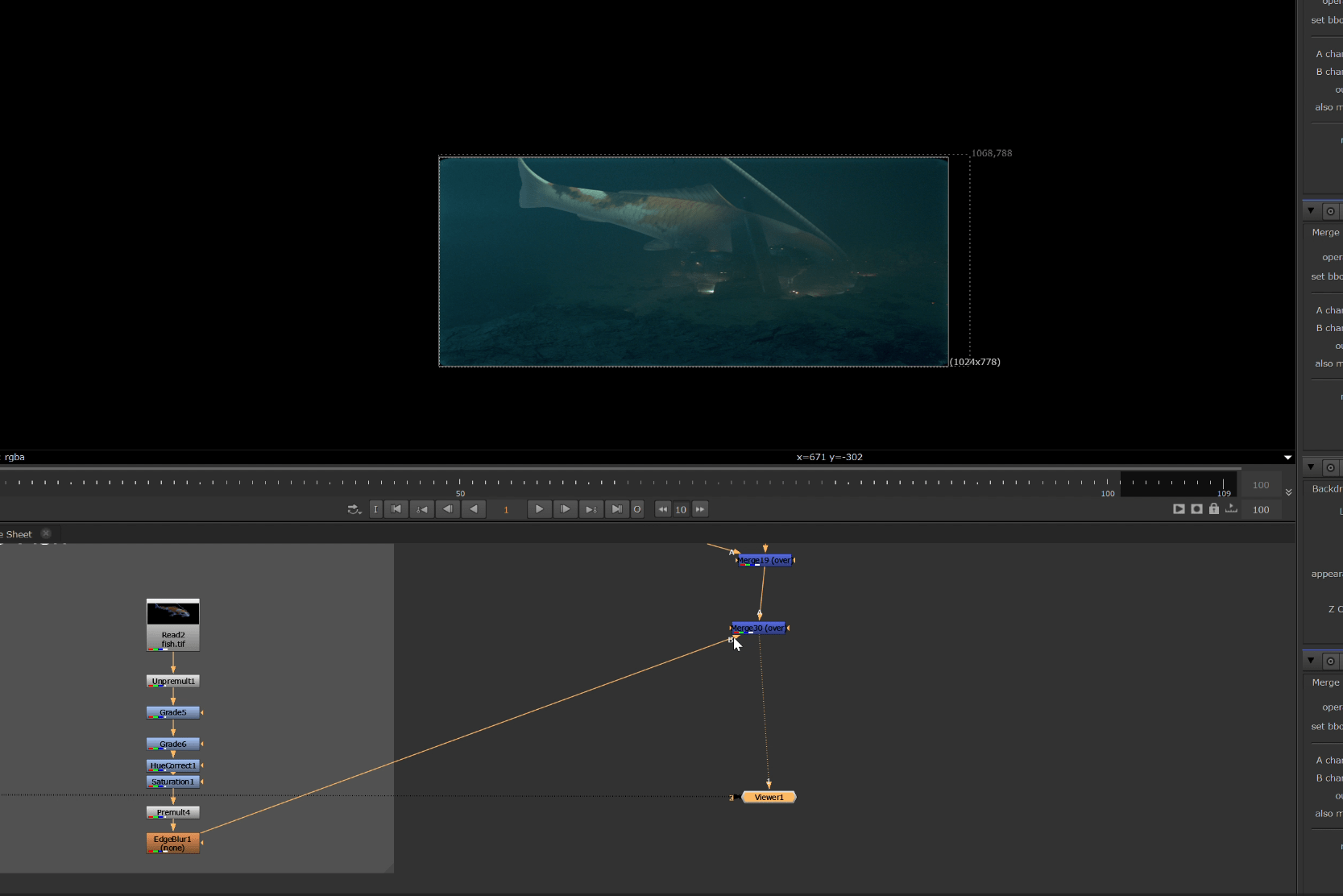
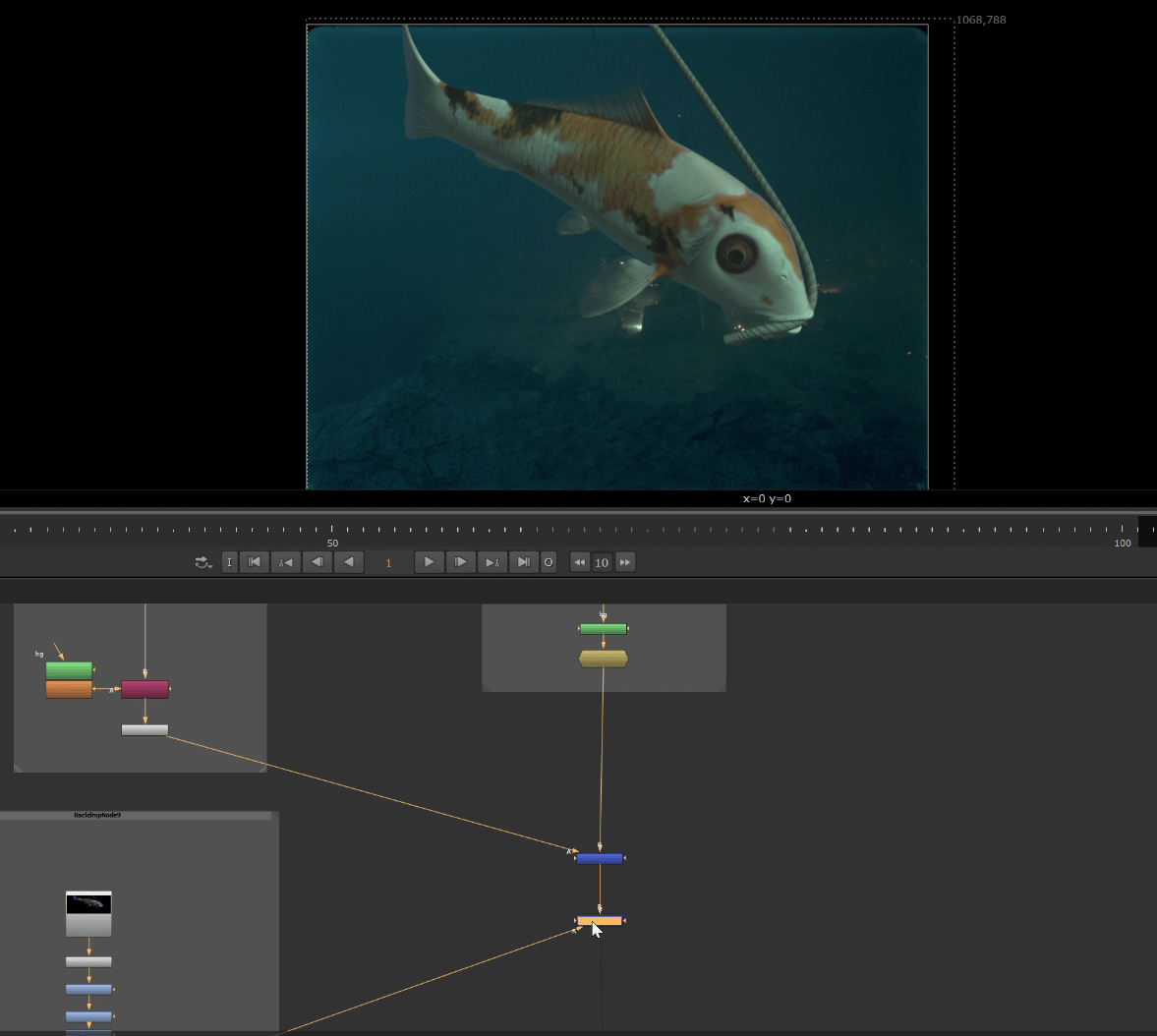
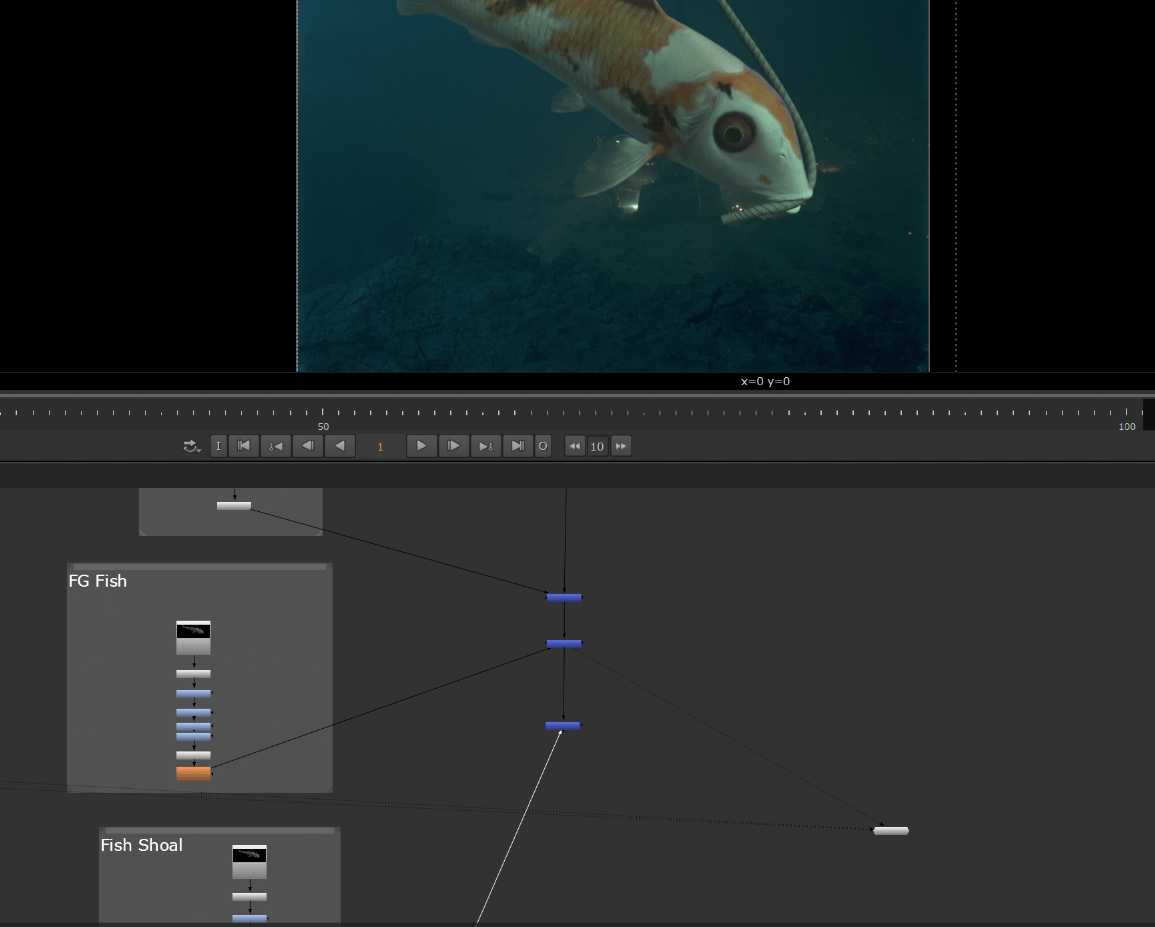
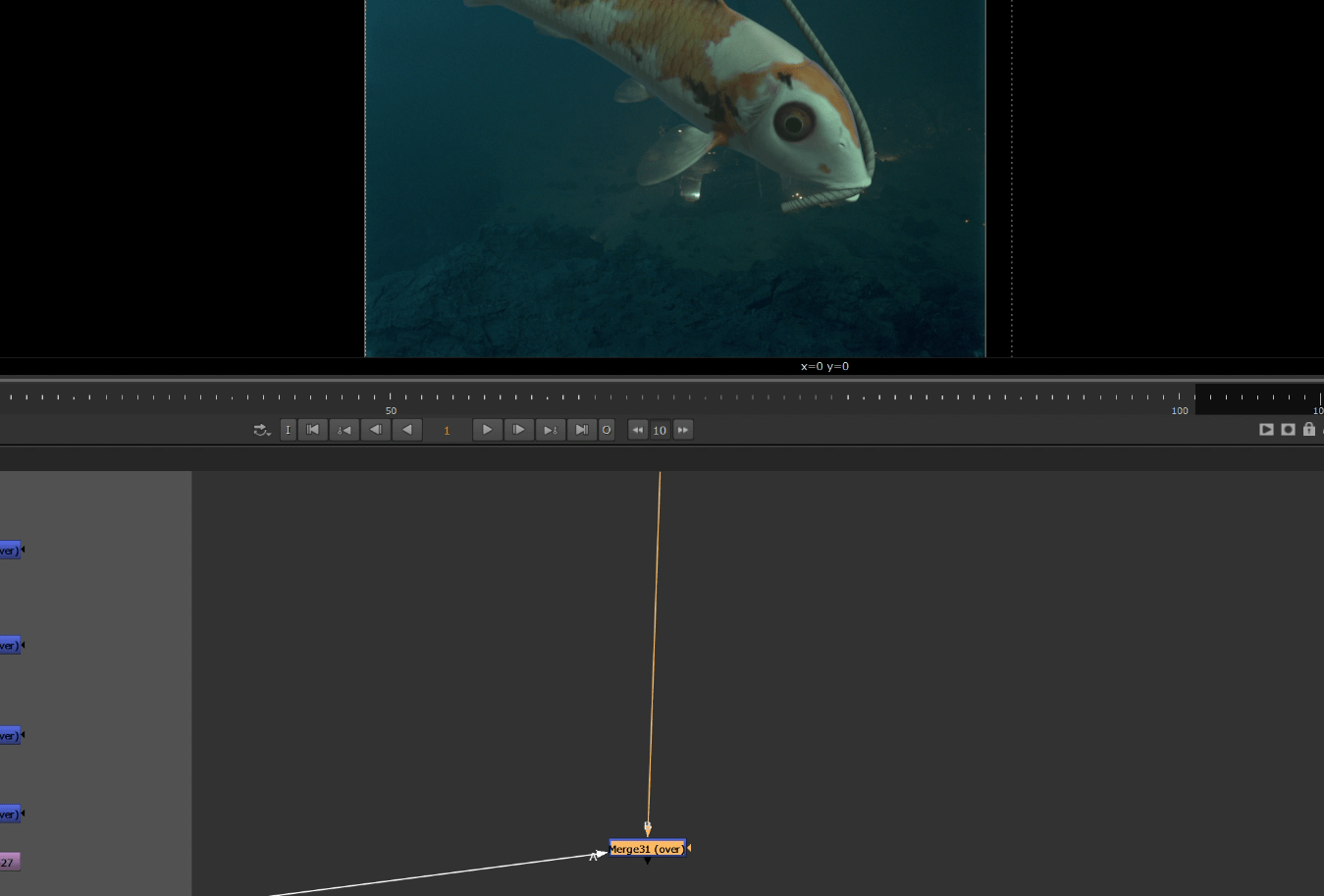
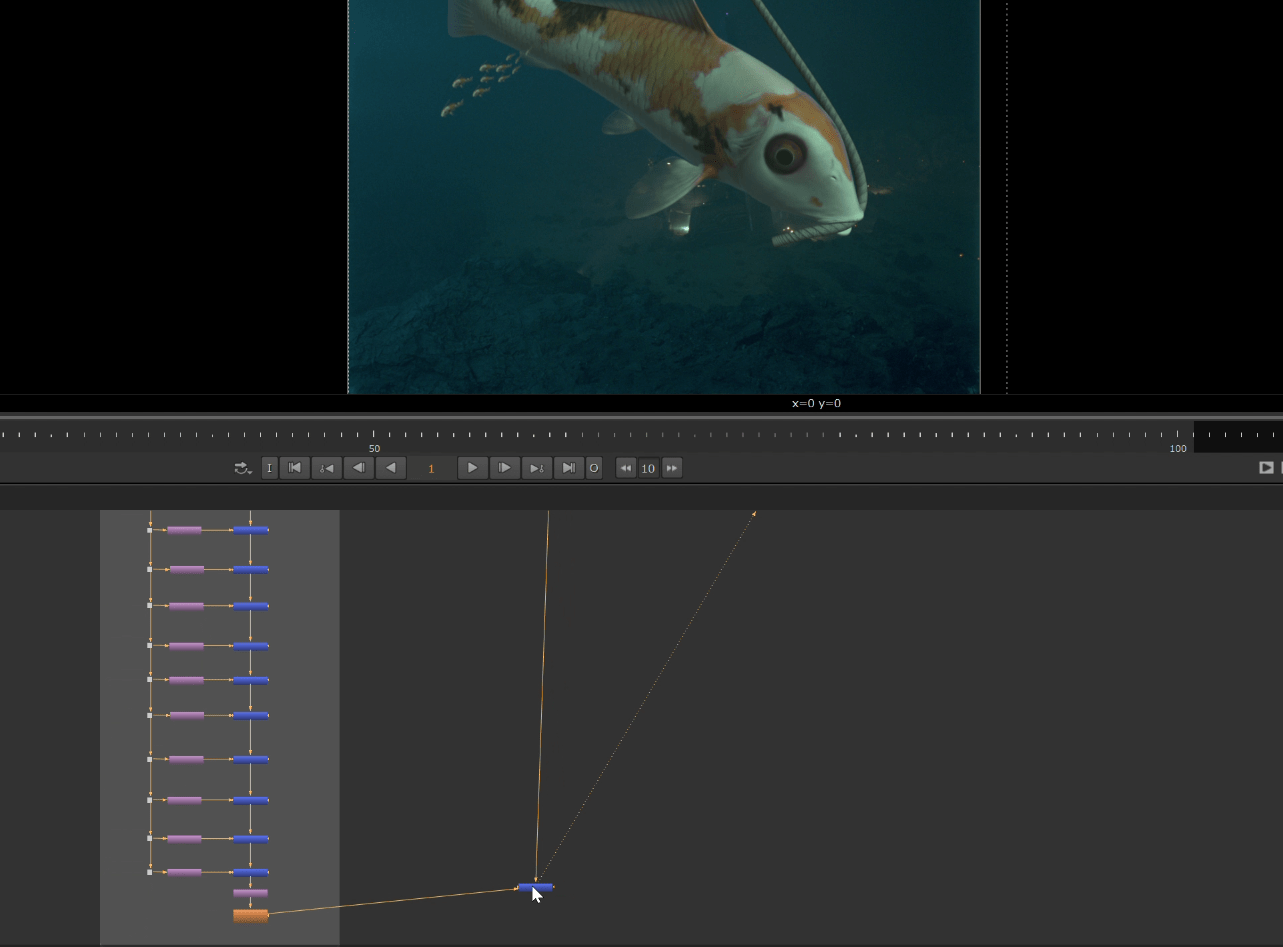
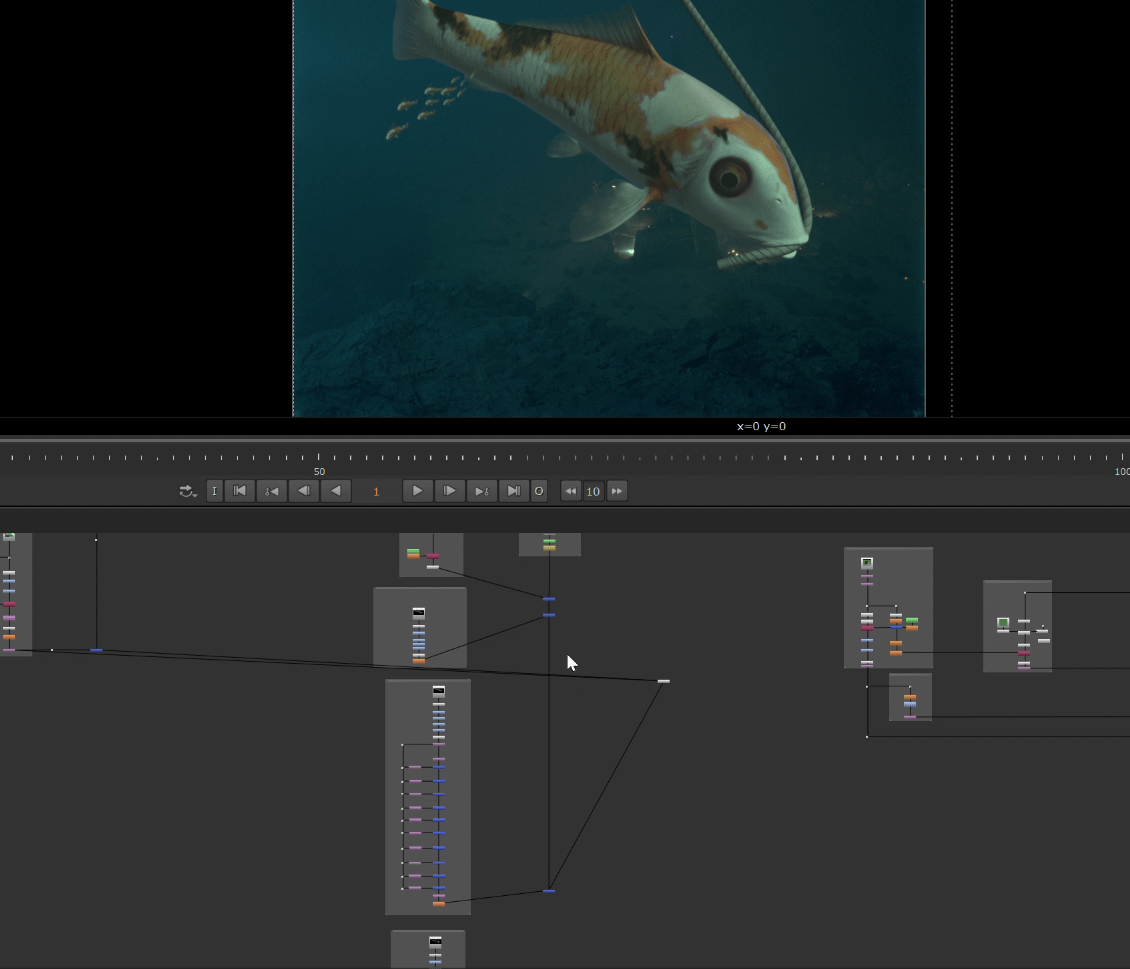
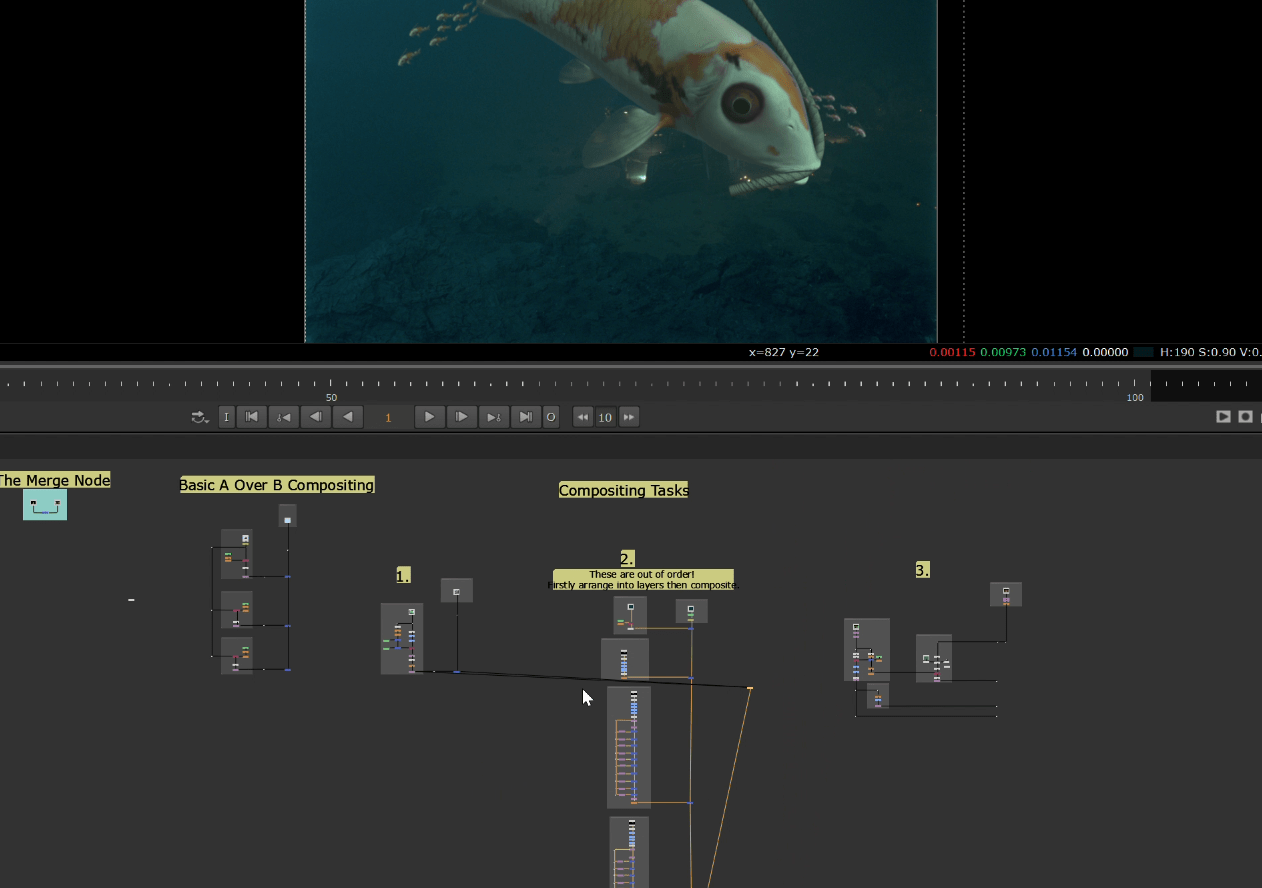
This is the final result:
Exercise 3
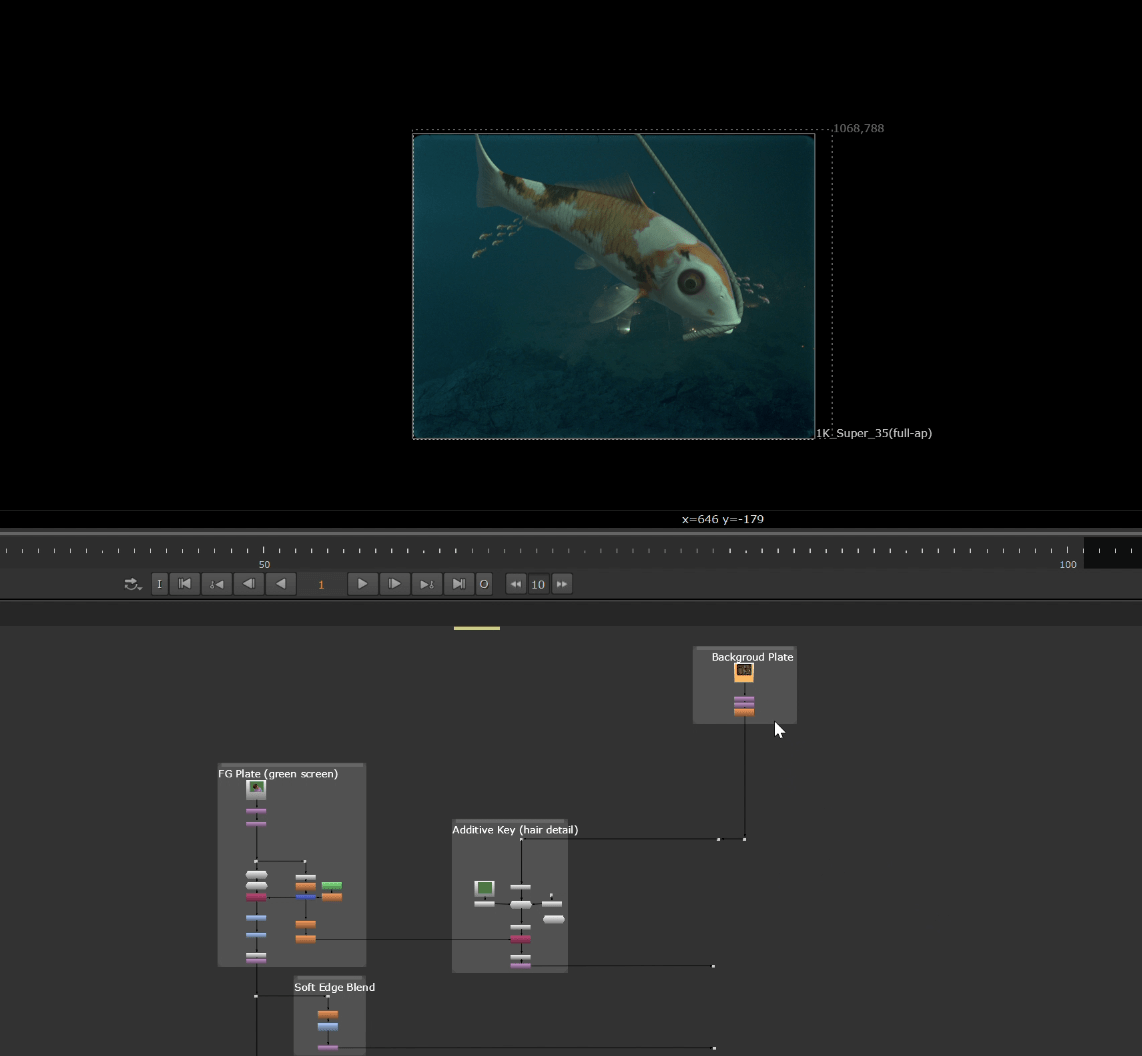
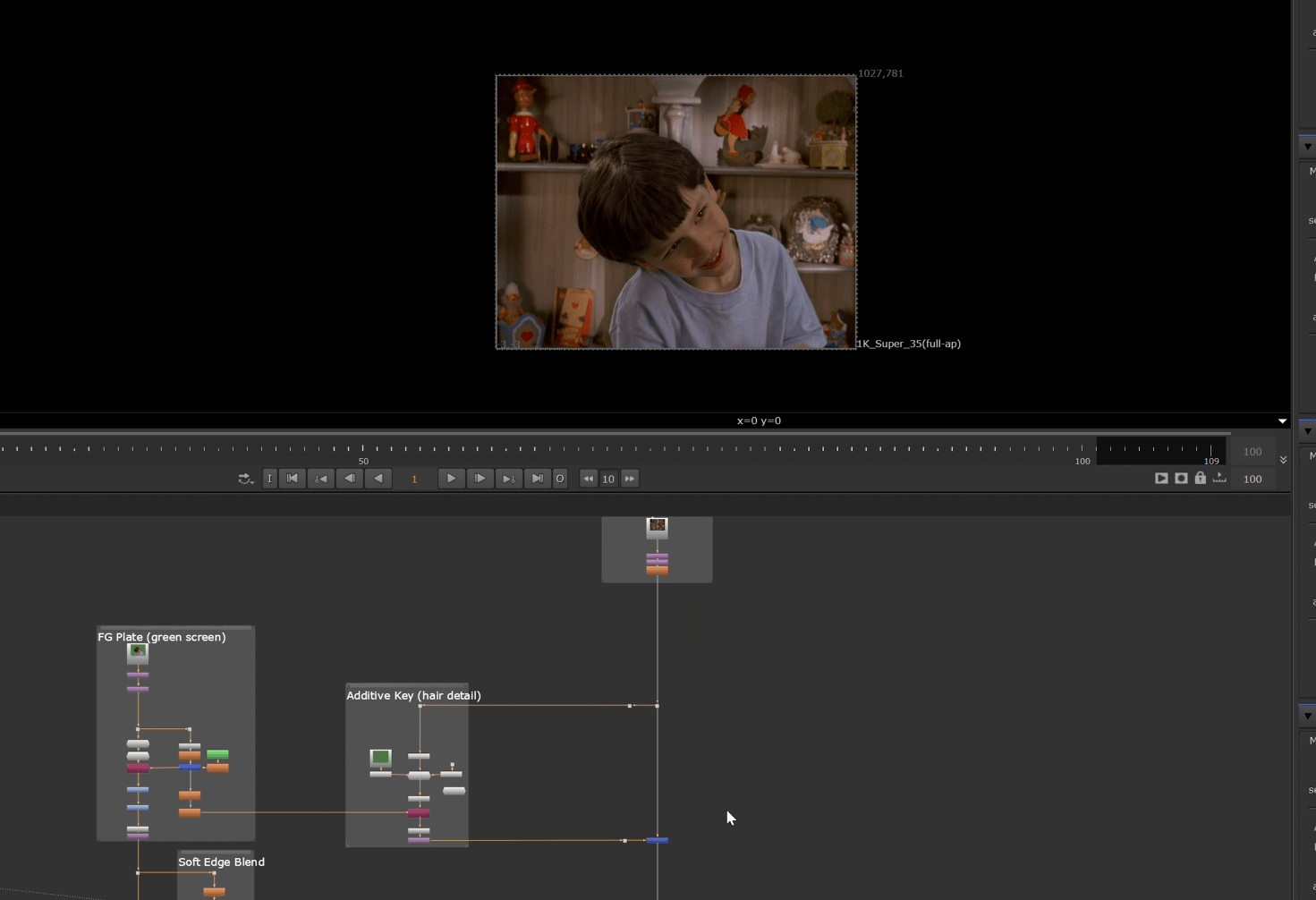
for this final exercise we had to merge the background with the character and some effects.
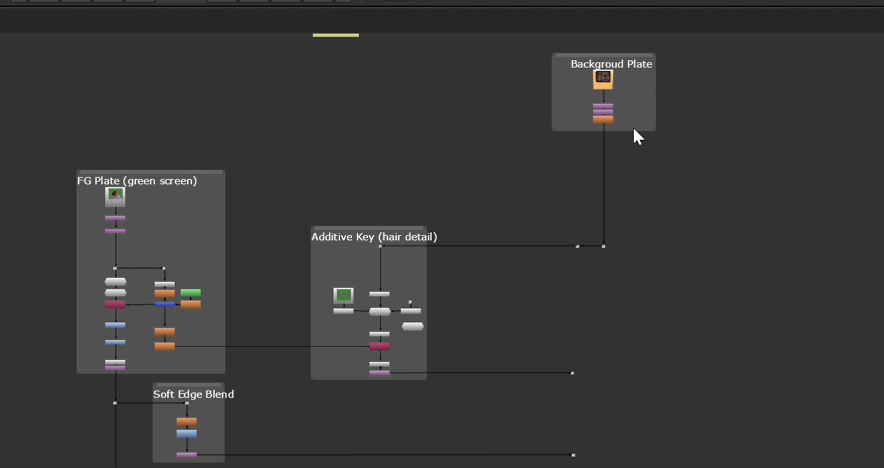
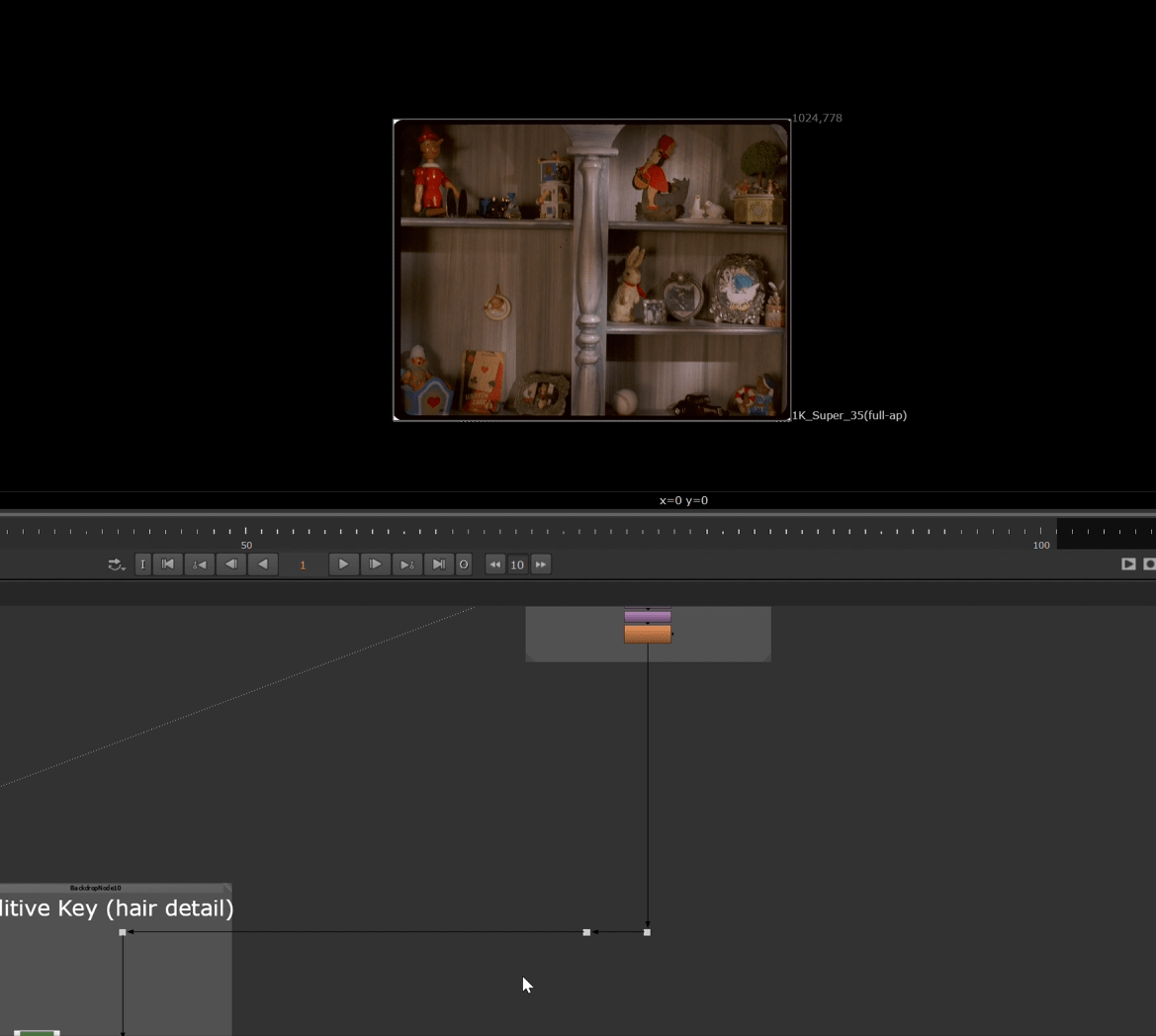
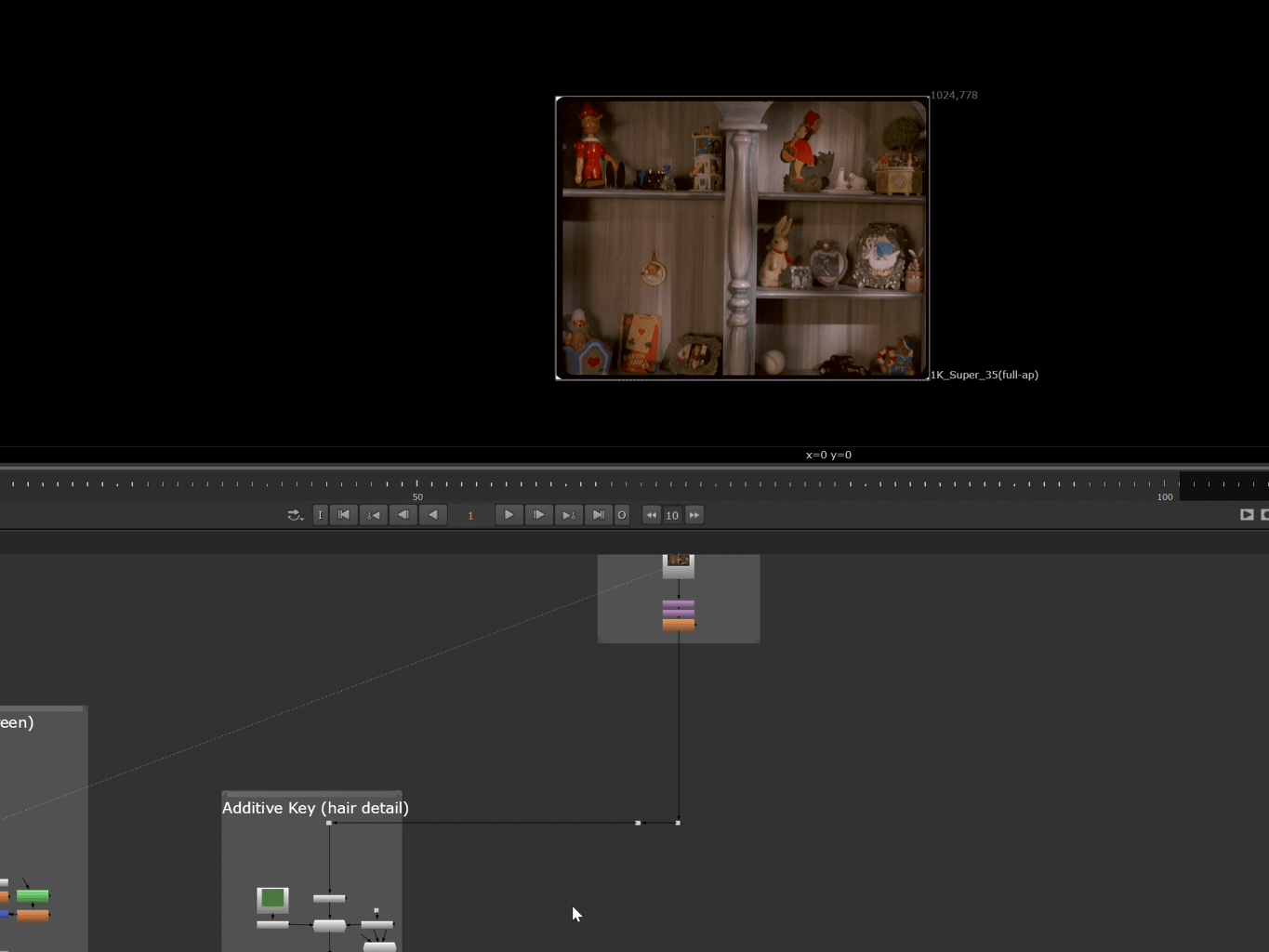
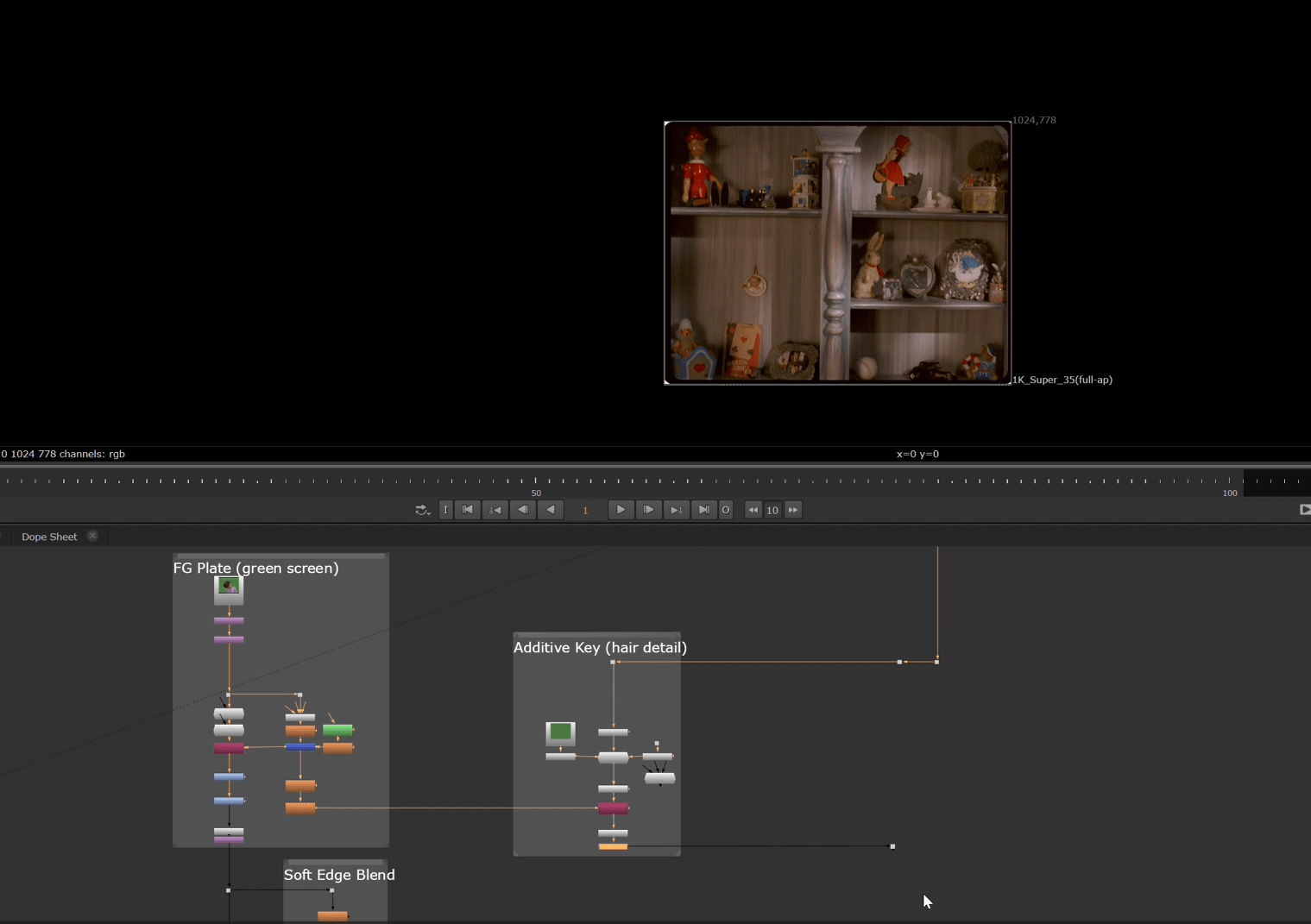
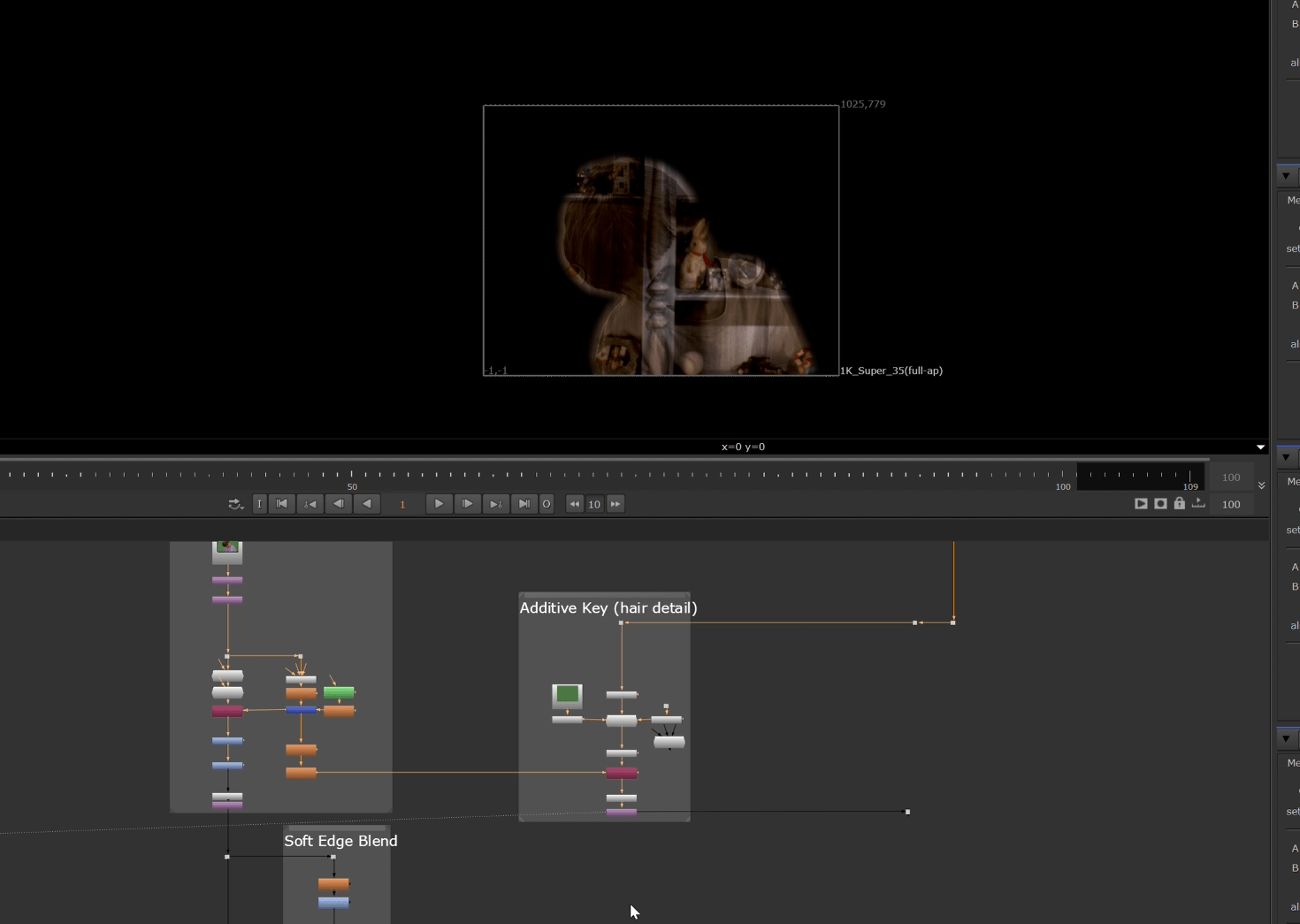
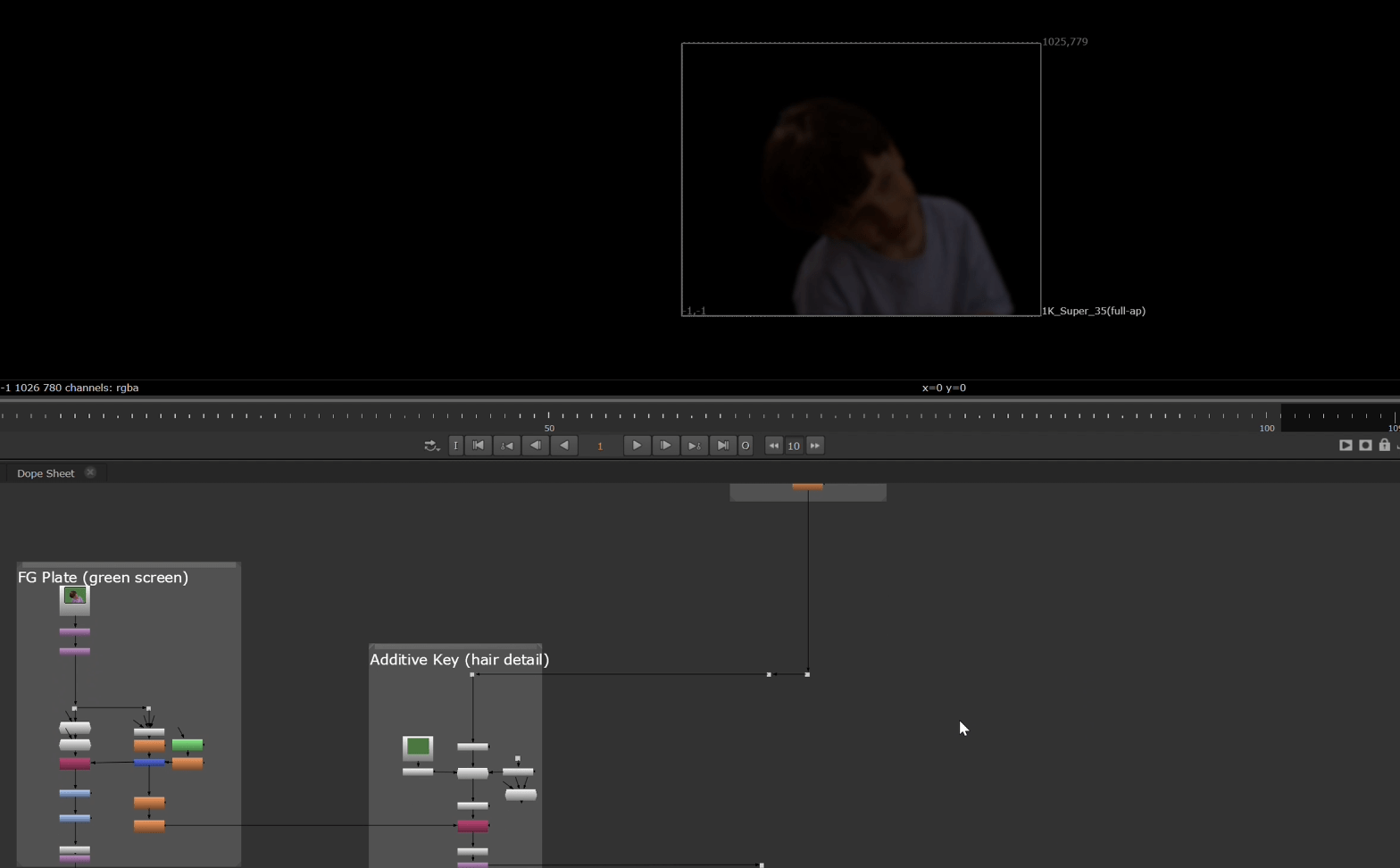
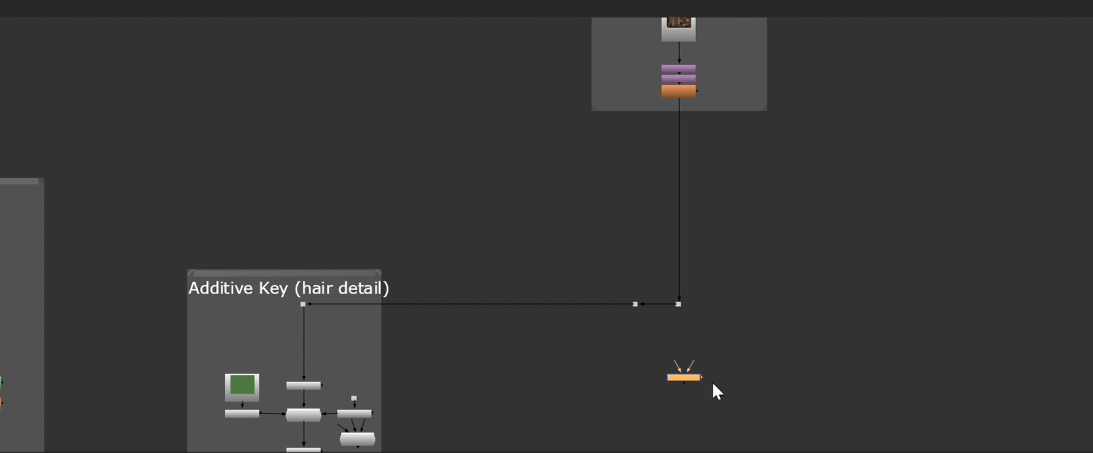
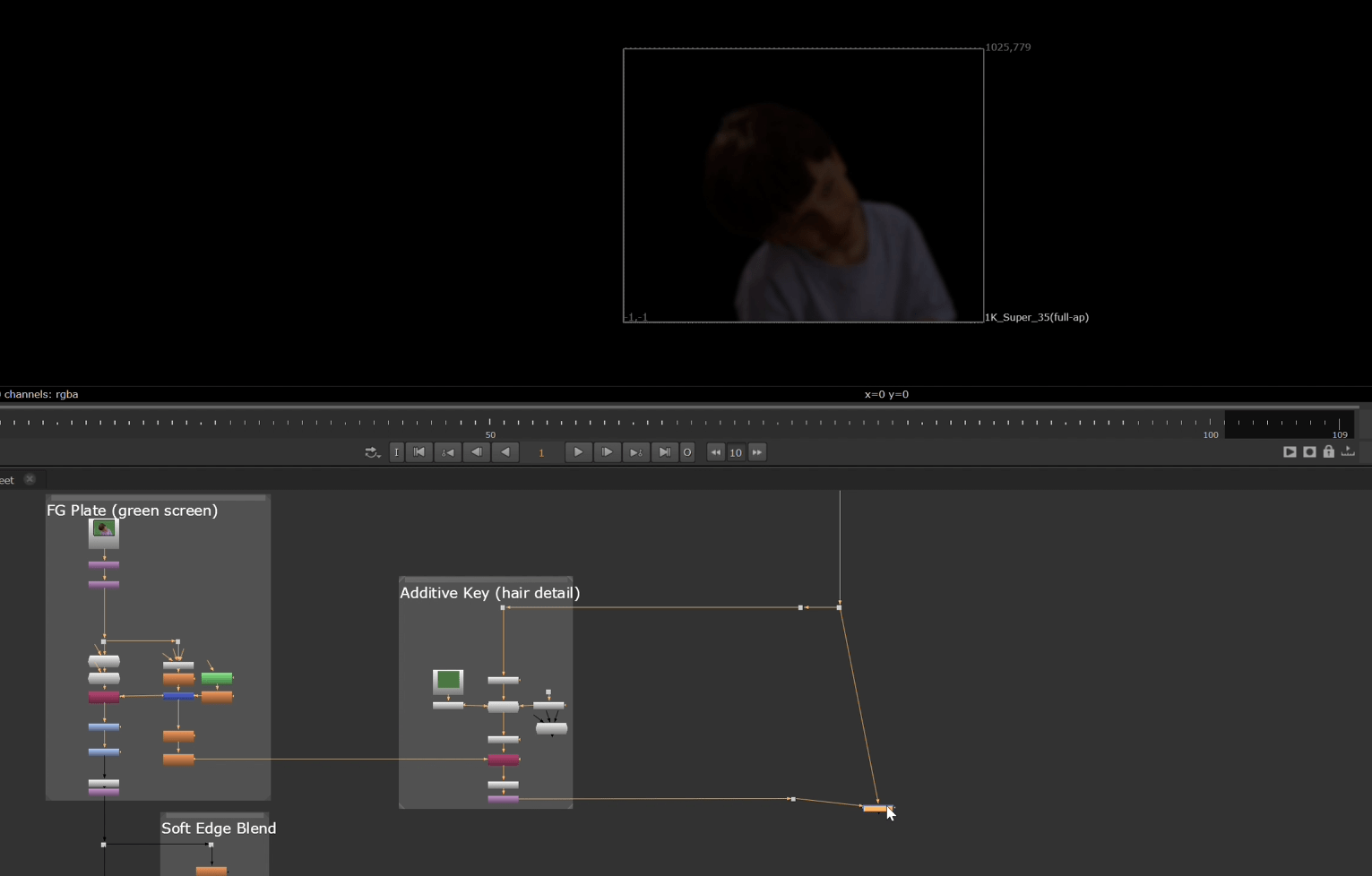
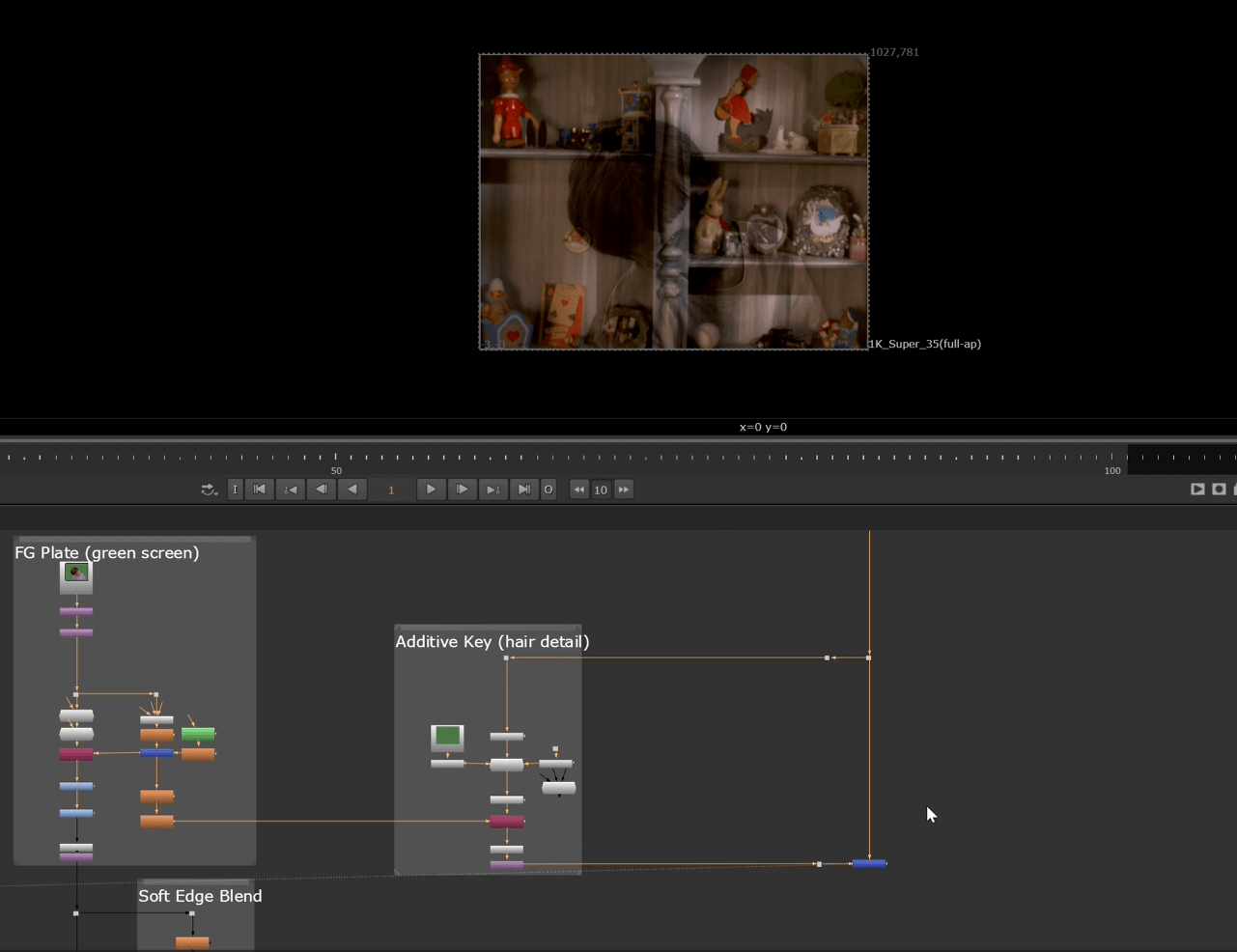
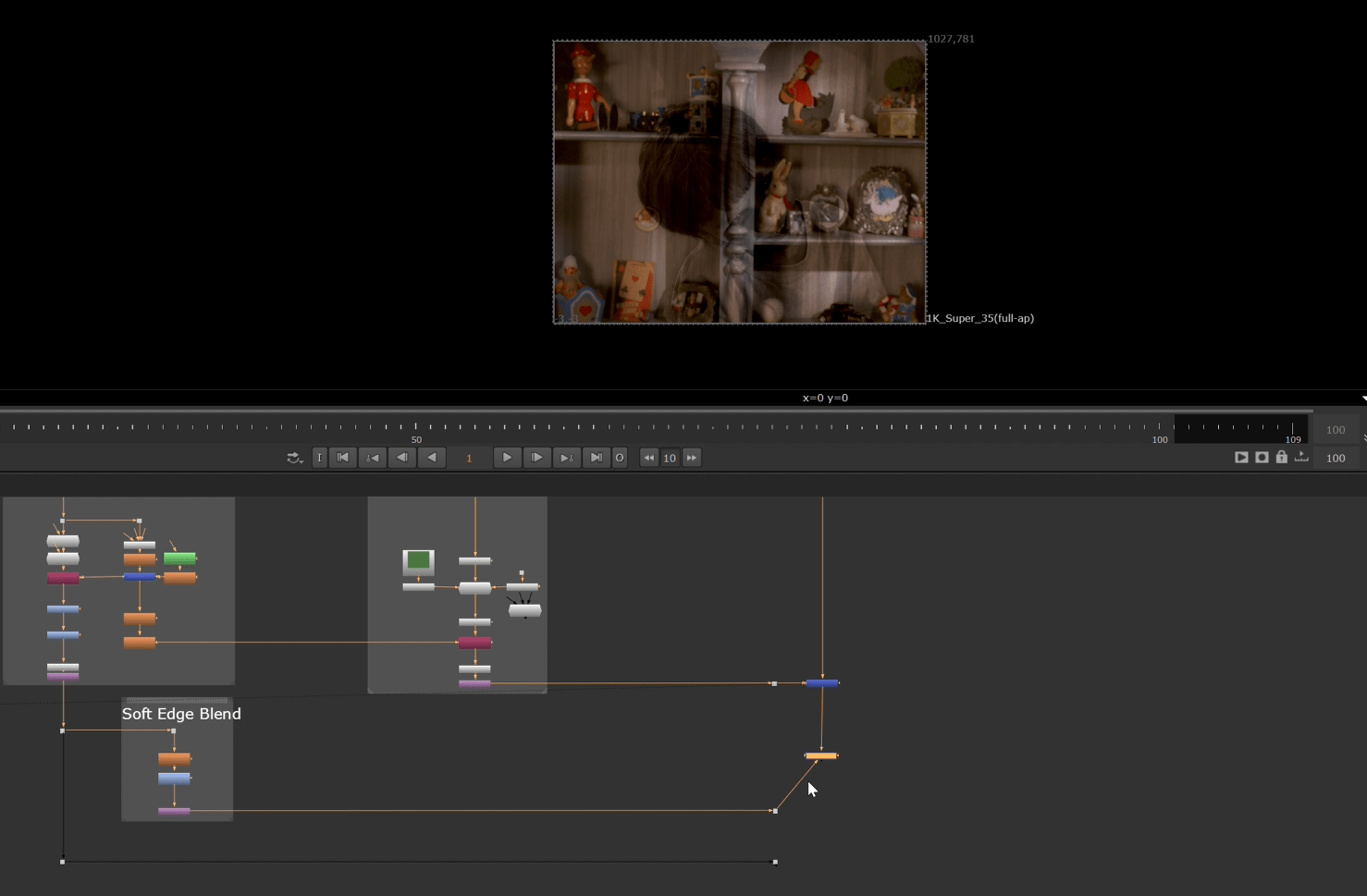
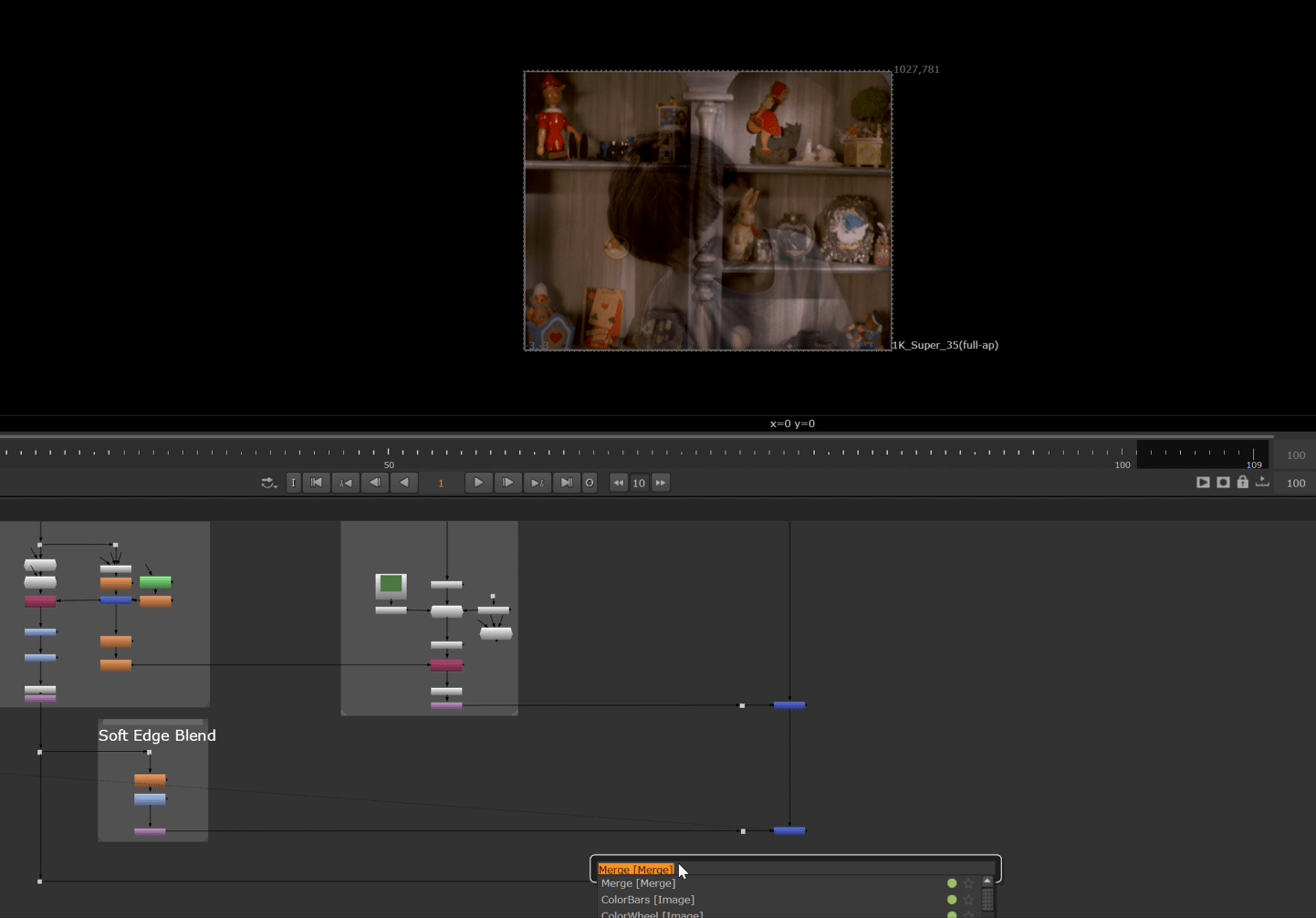
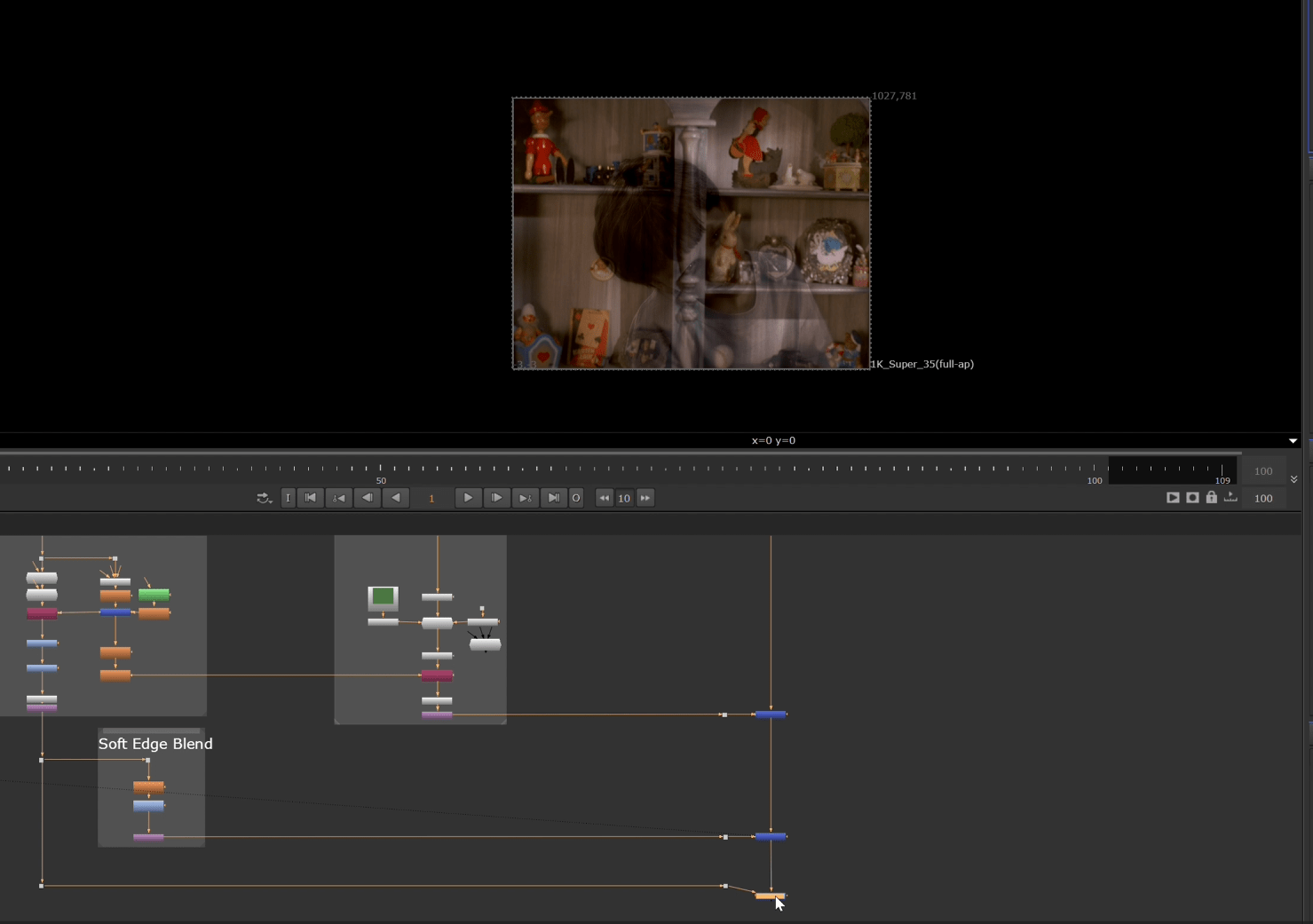 The final result.
End of week 1
Week 2: Organization and roto
This week we will do roto in Nuke.
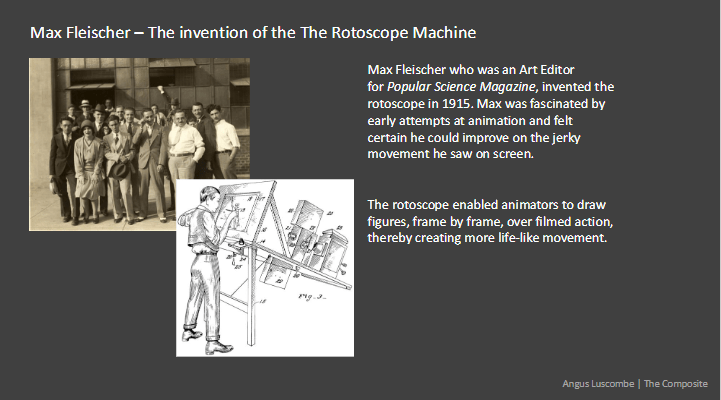
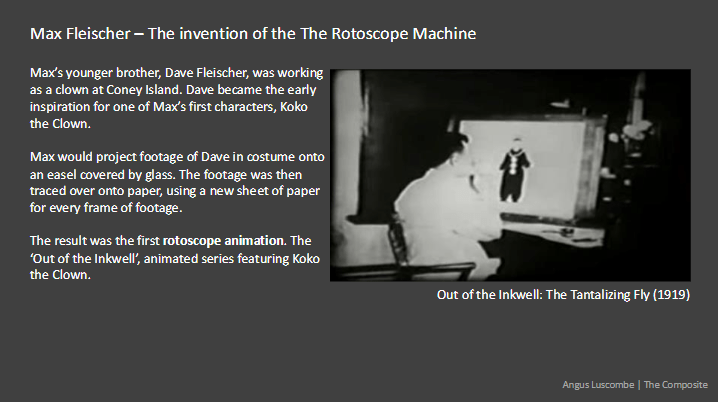
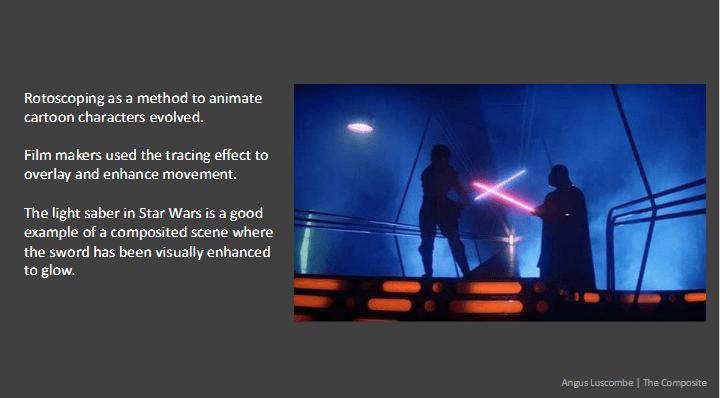
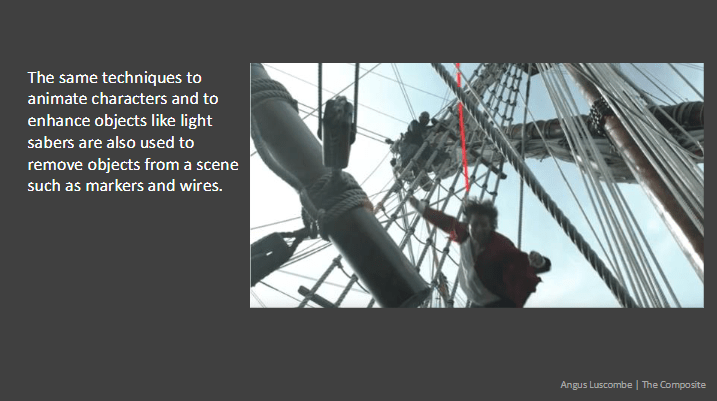
To begin with we are going to look at some PowerPoint slides from class so we have a better understanding of the rotoscope technique.
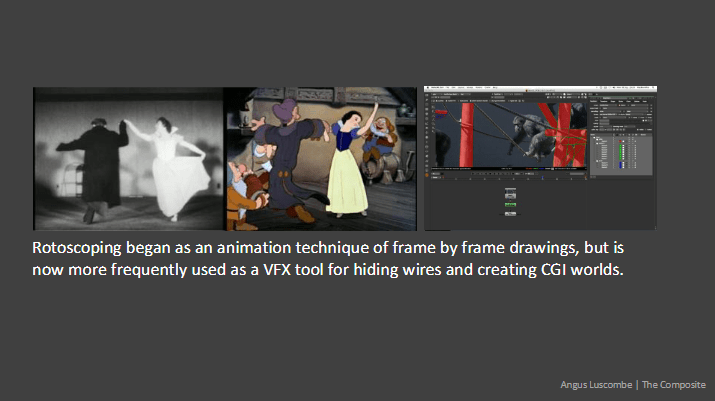
after looking at this slides now we can start putting some work into nuke.
Exercise 1
Before we start we open up nuke and set our project directory.
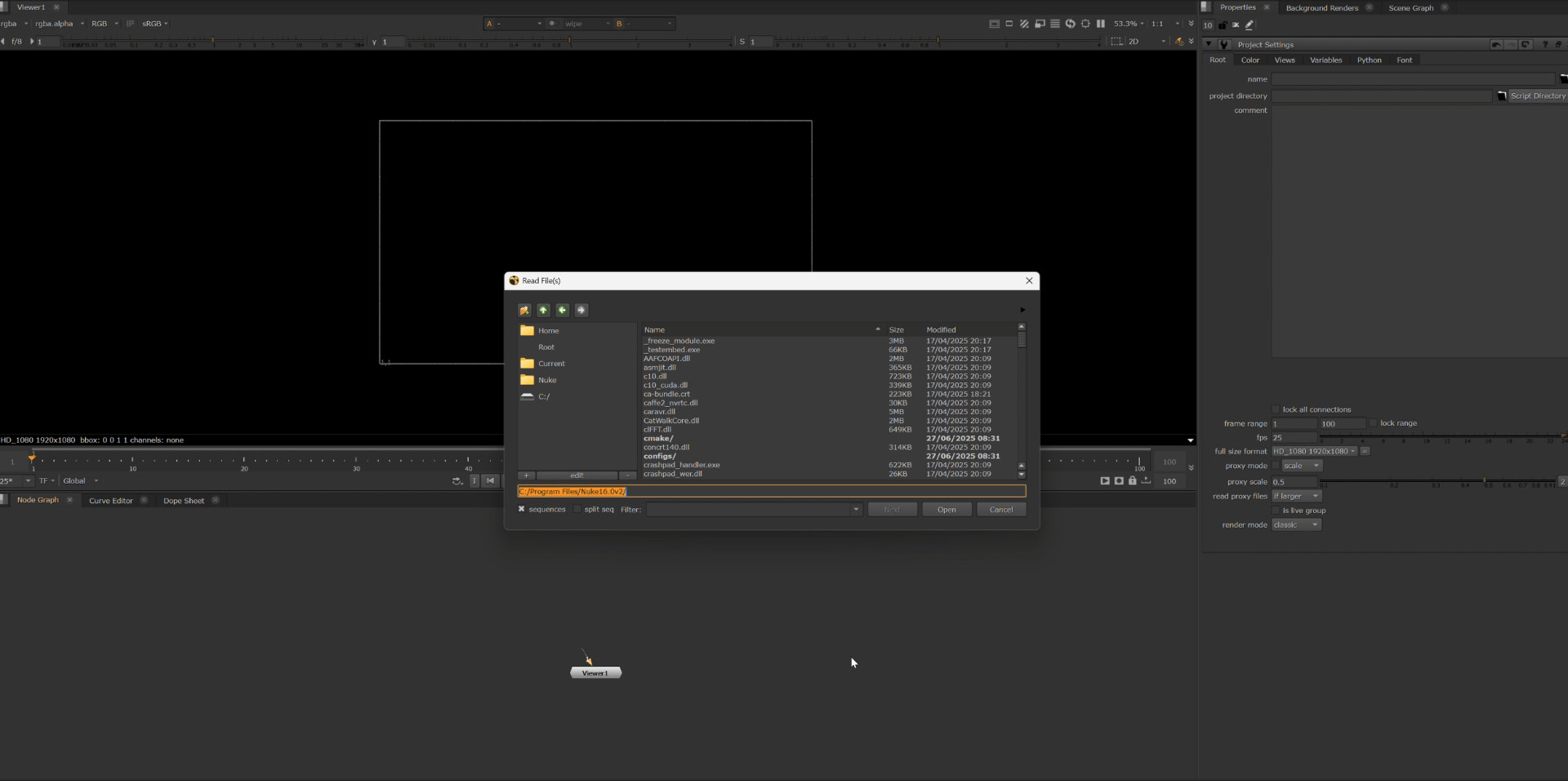
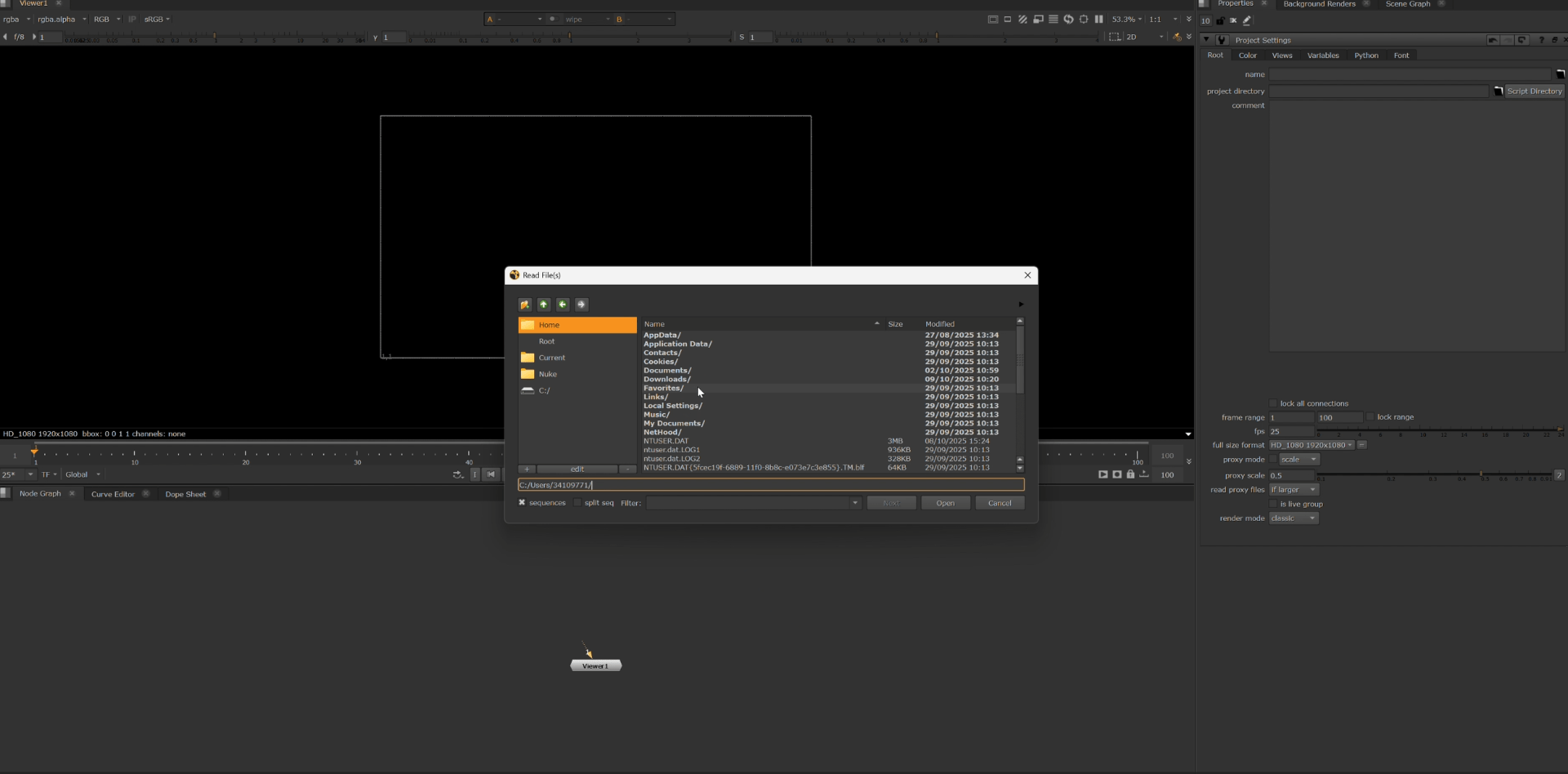
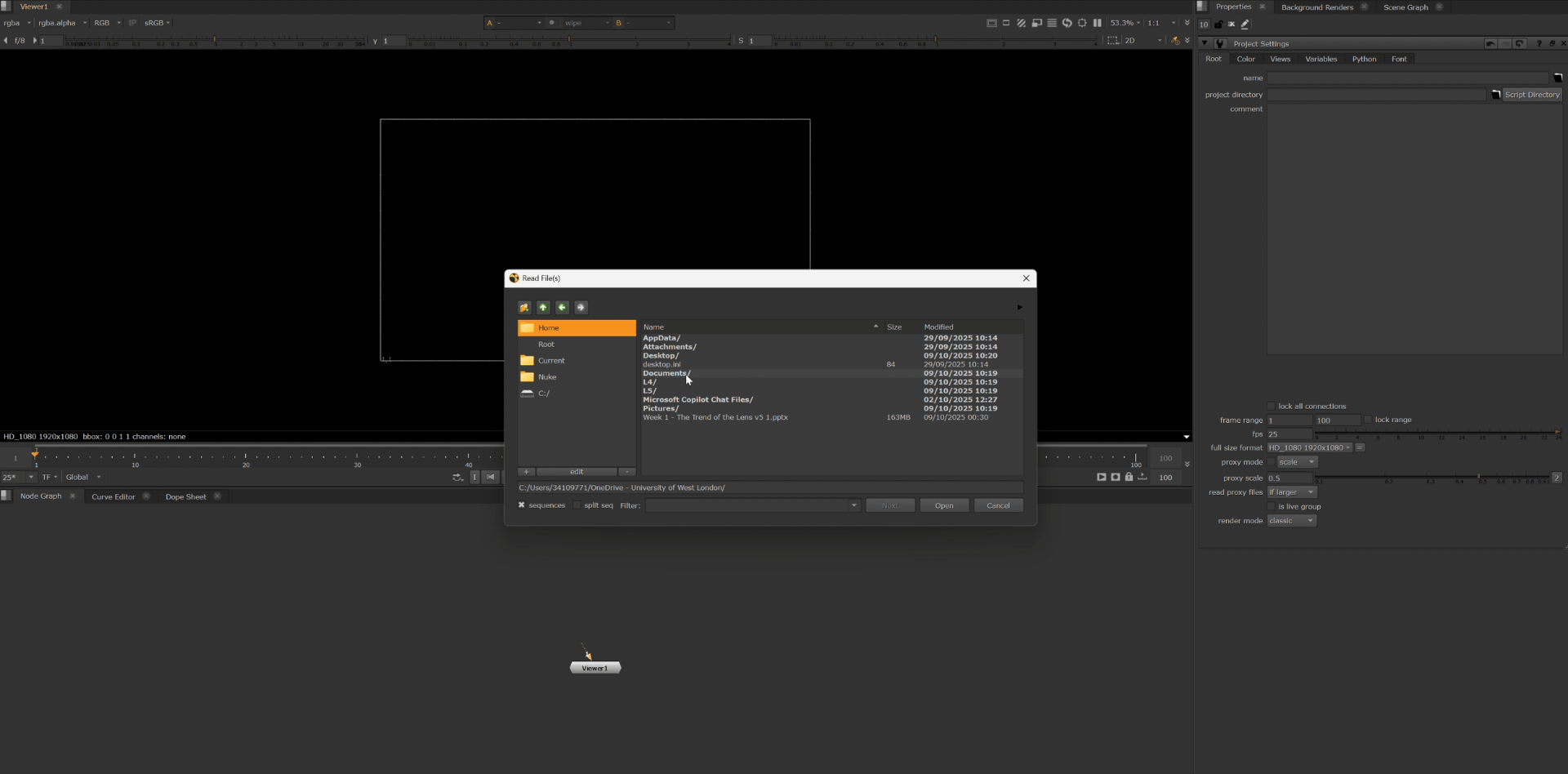
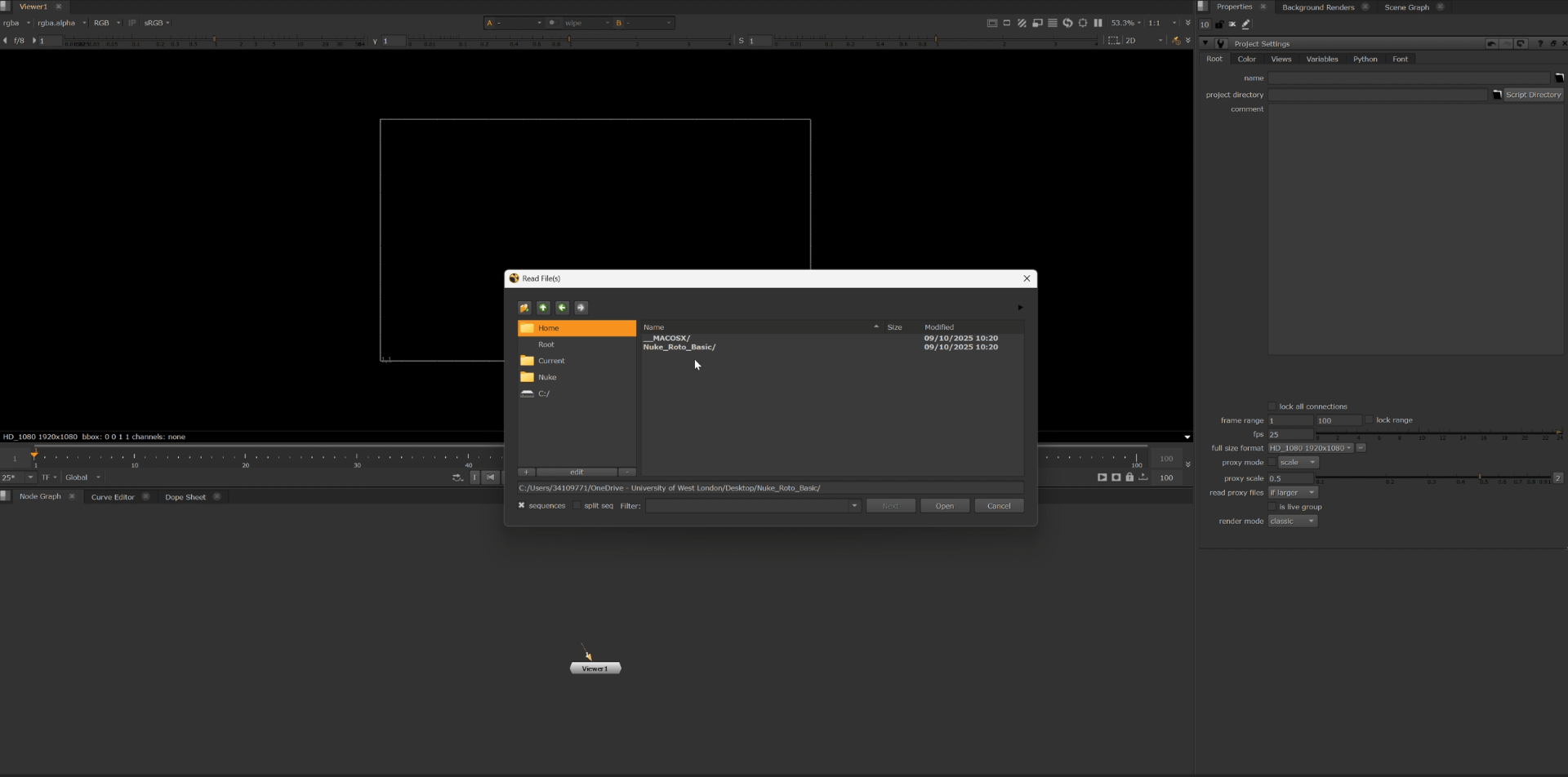
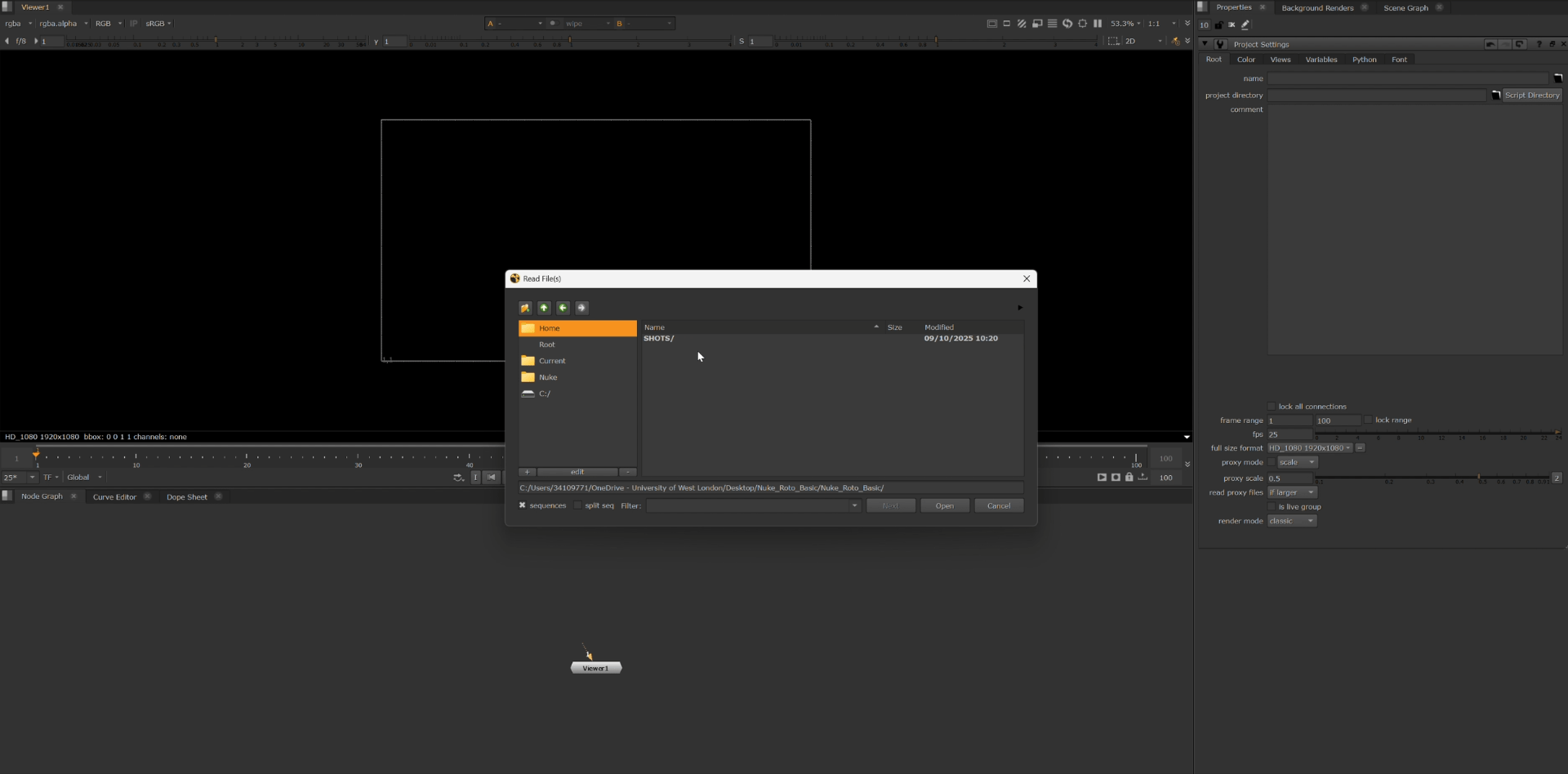
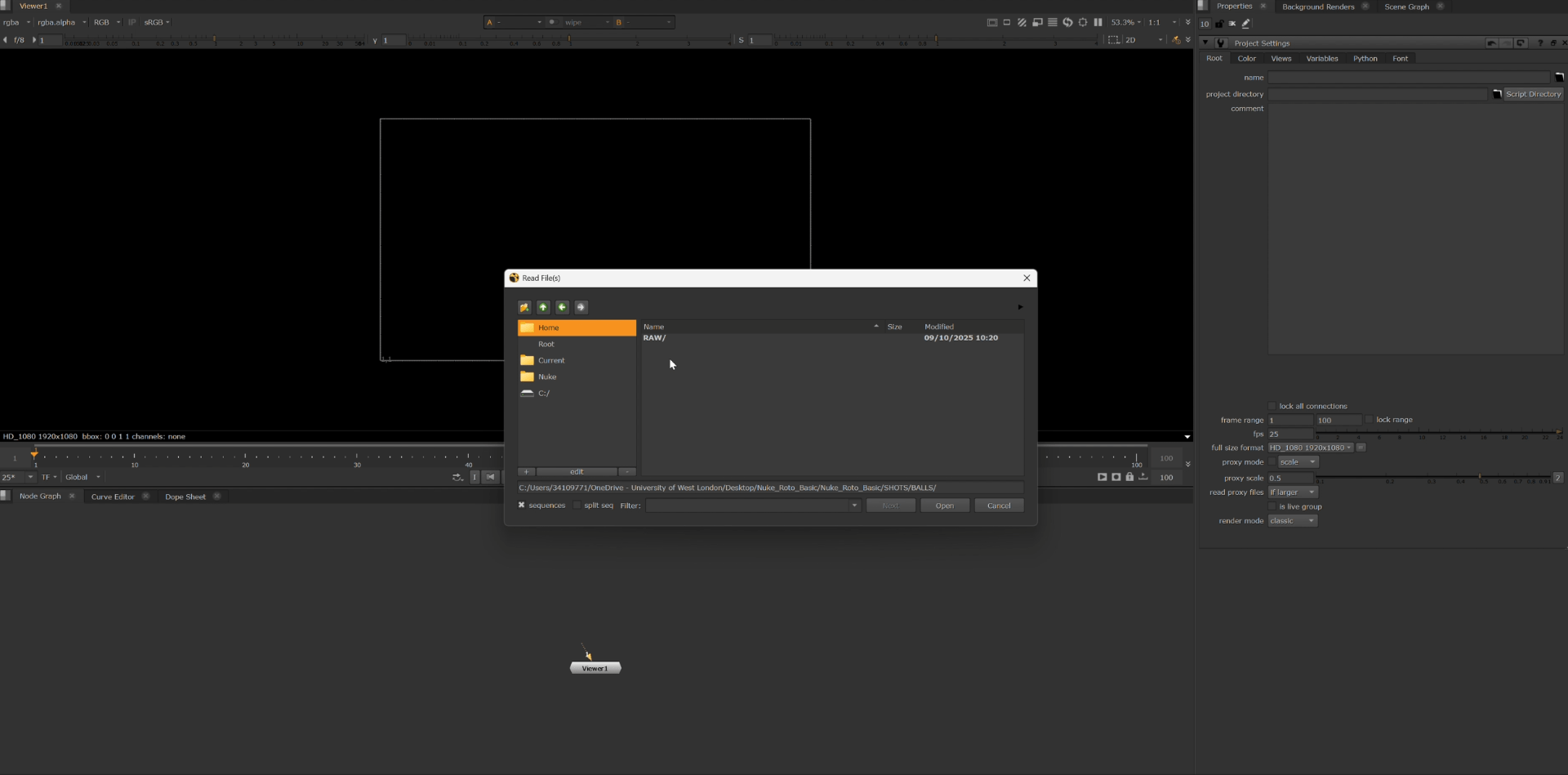
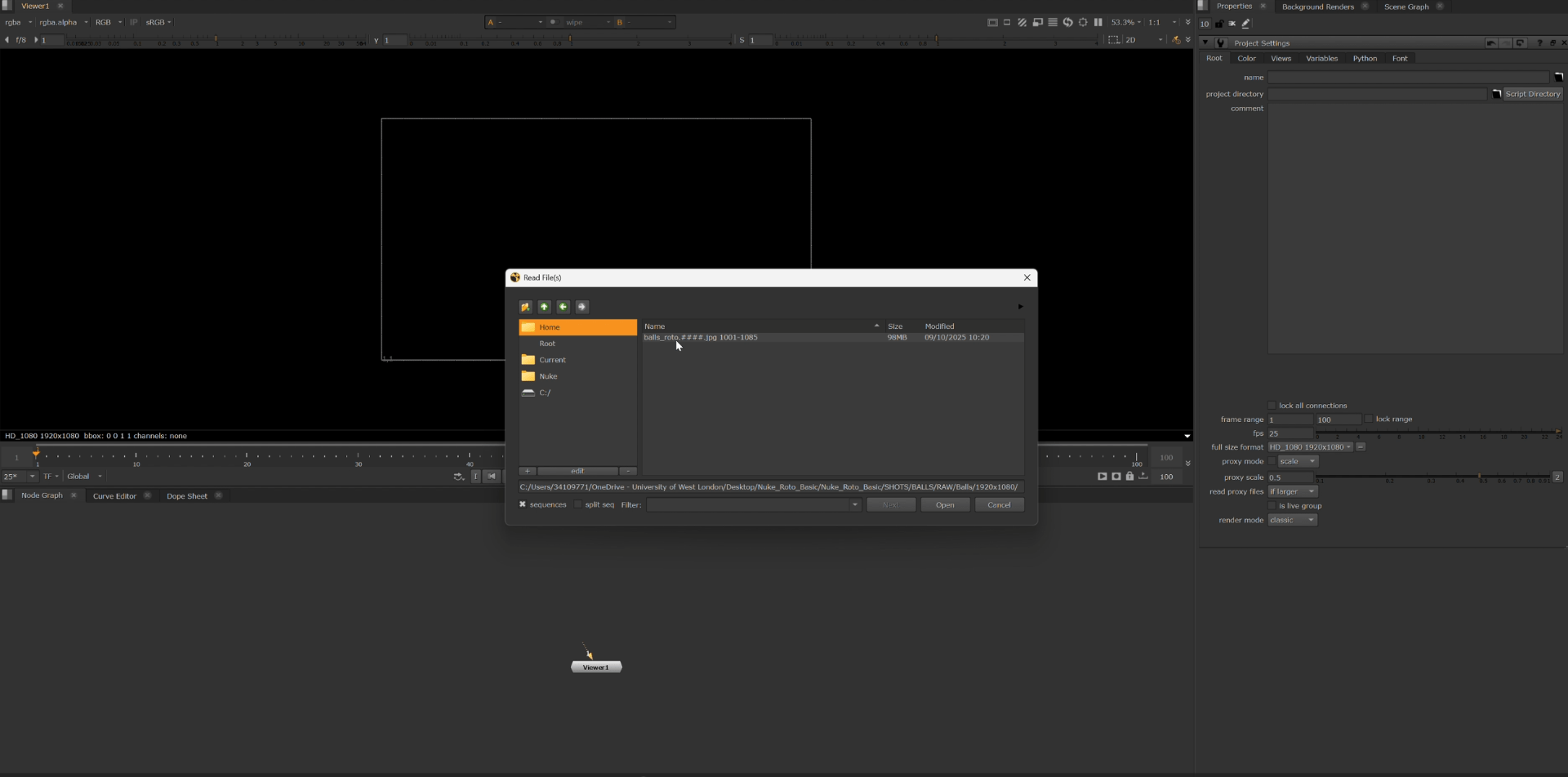
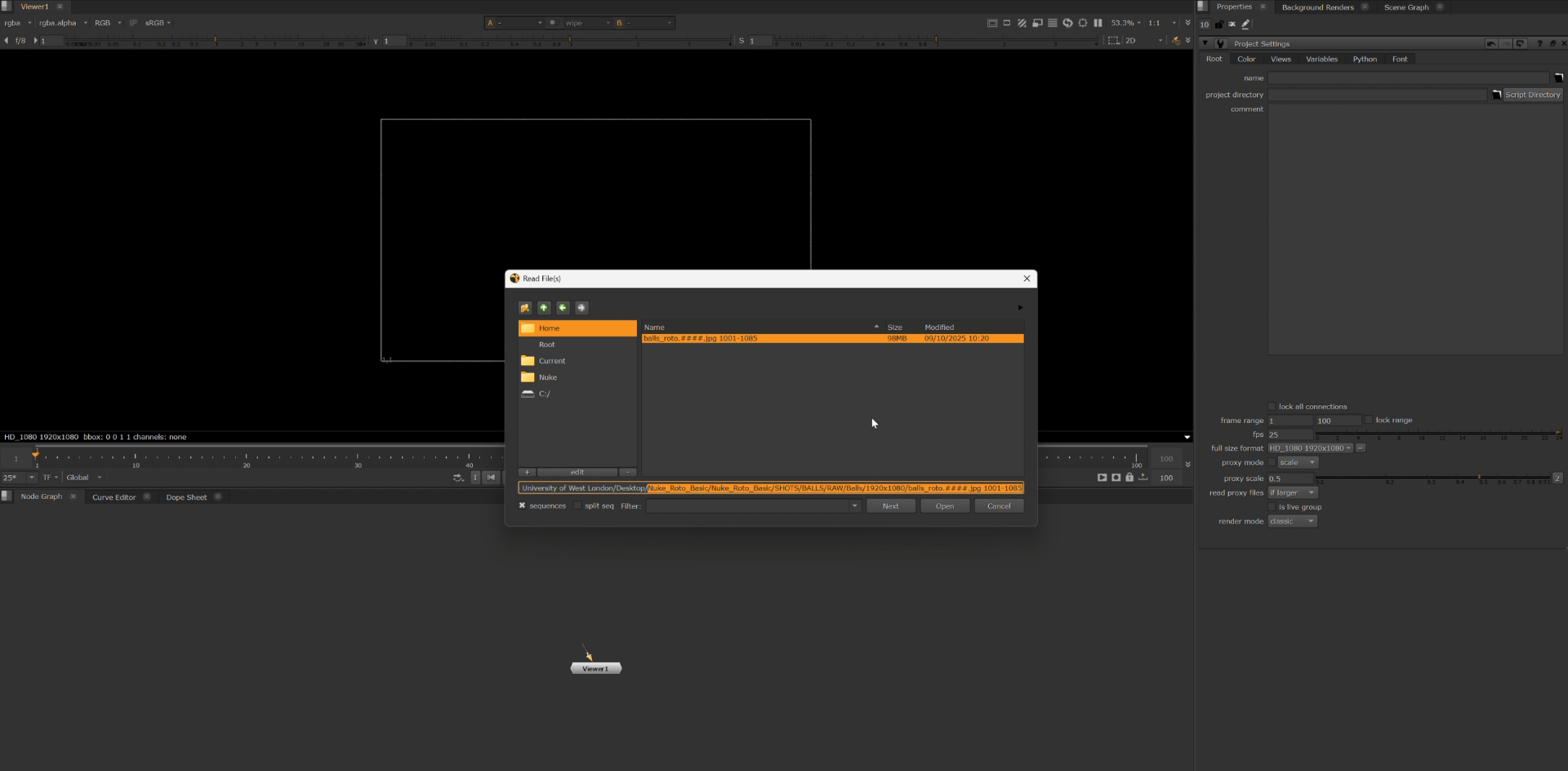
we can have a look at the preview.
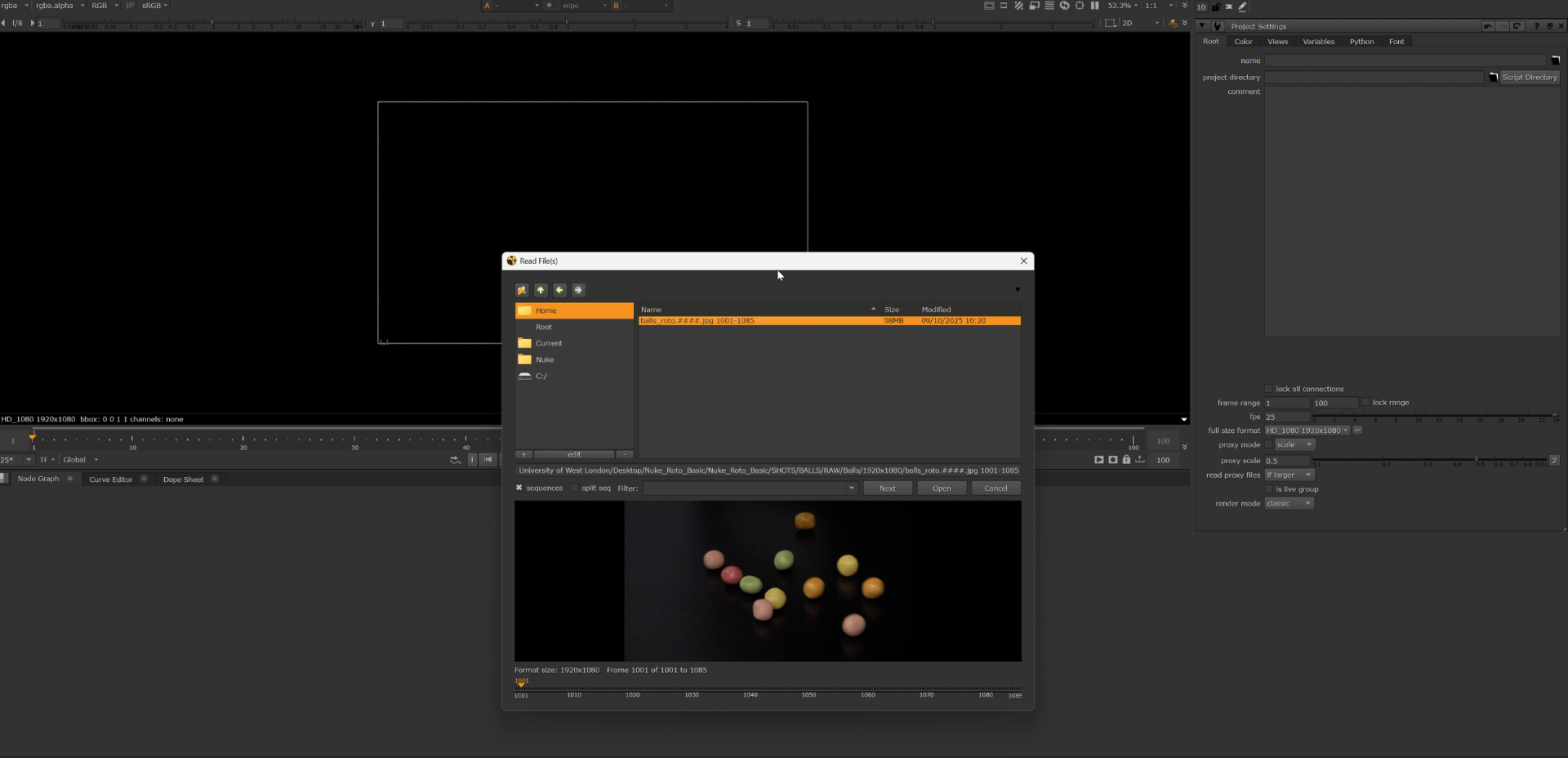
we will end up with this if everything is done correctly.
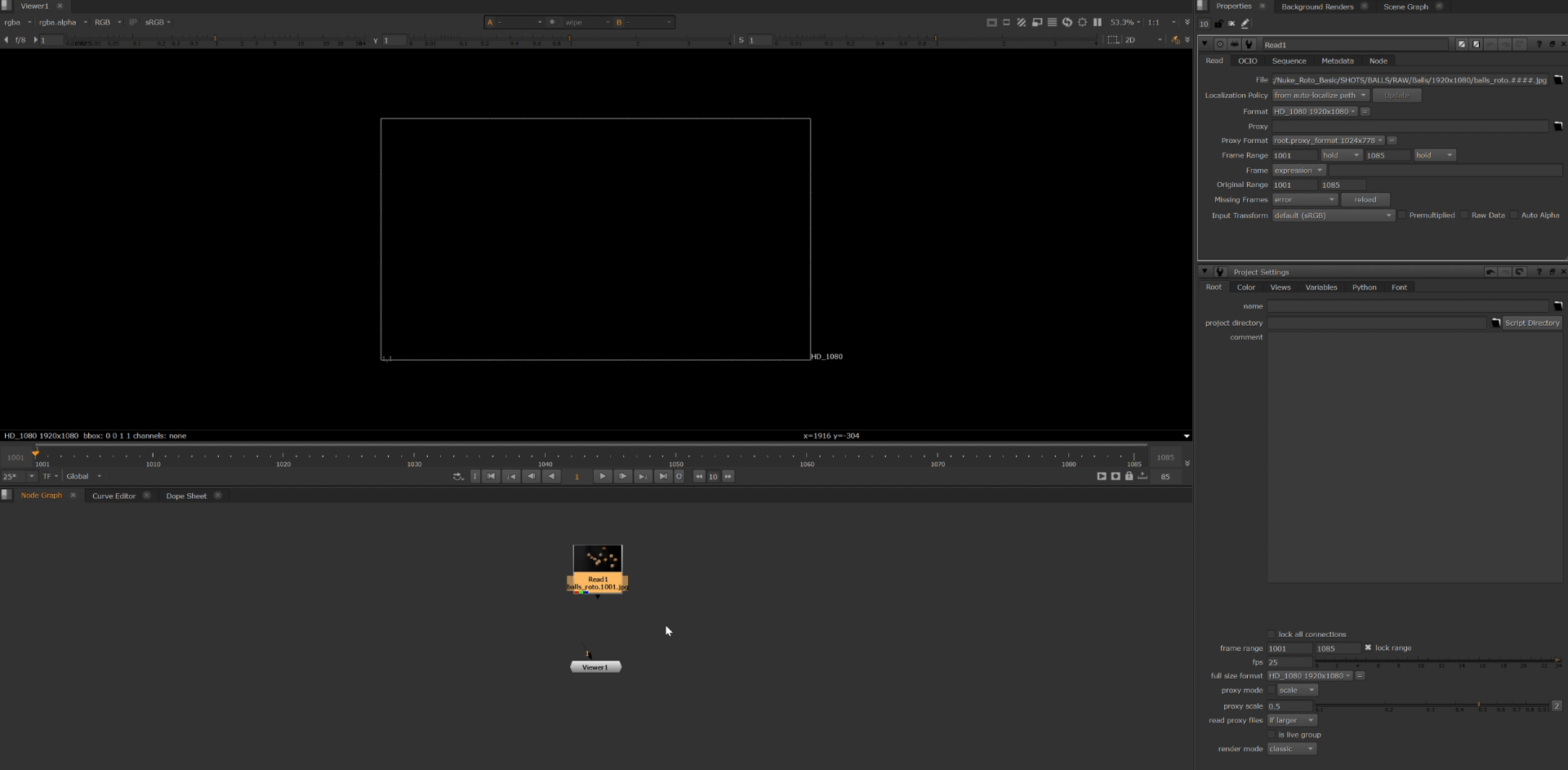
after this we are going to set up the setting for our project. In this case is going to be 25 fps and 1080p.
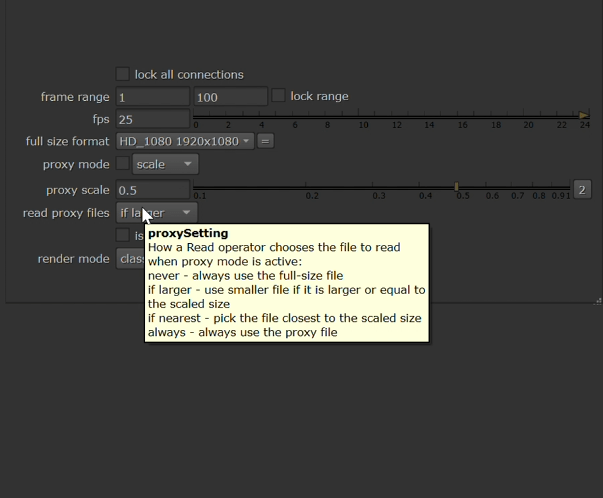
we are going to also set up the start of our sequence so we can properly look up the animation when we put the keyframes later on.
next we are going to bring out a roto node.
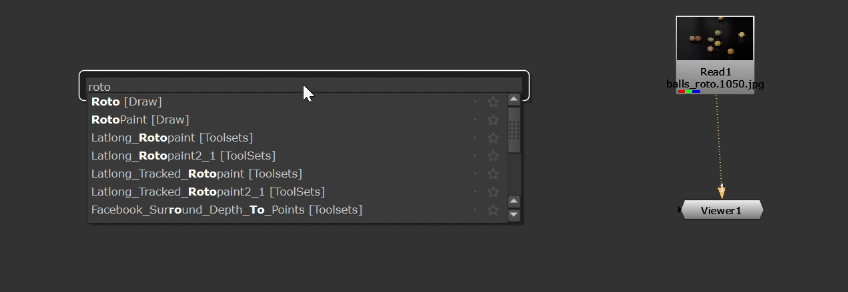
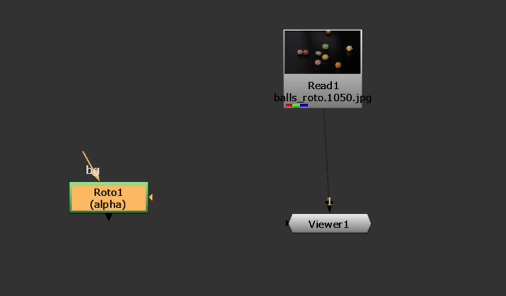
and now we can play a little with it so we get an idea of what this node does.
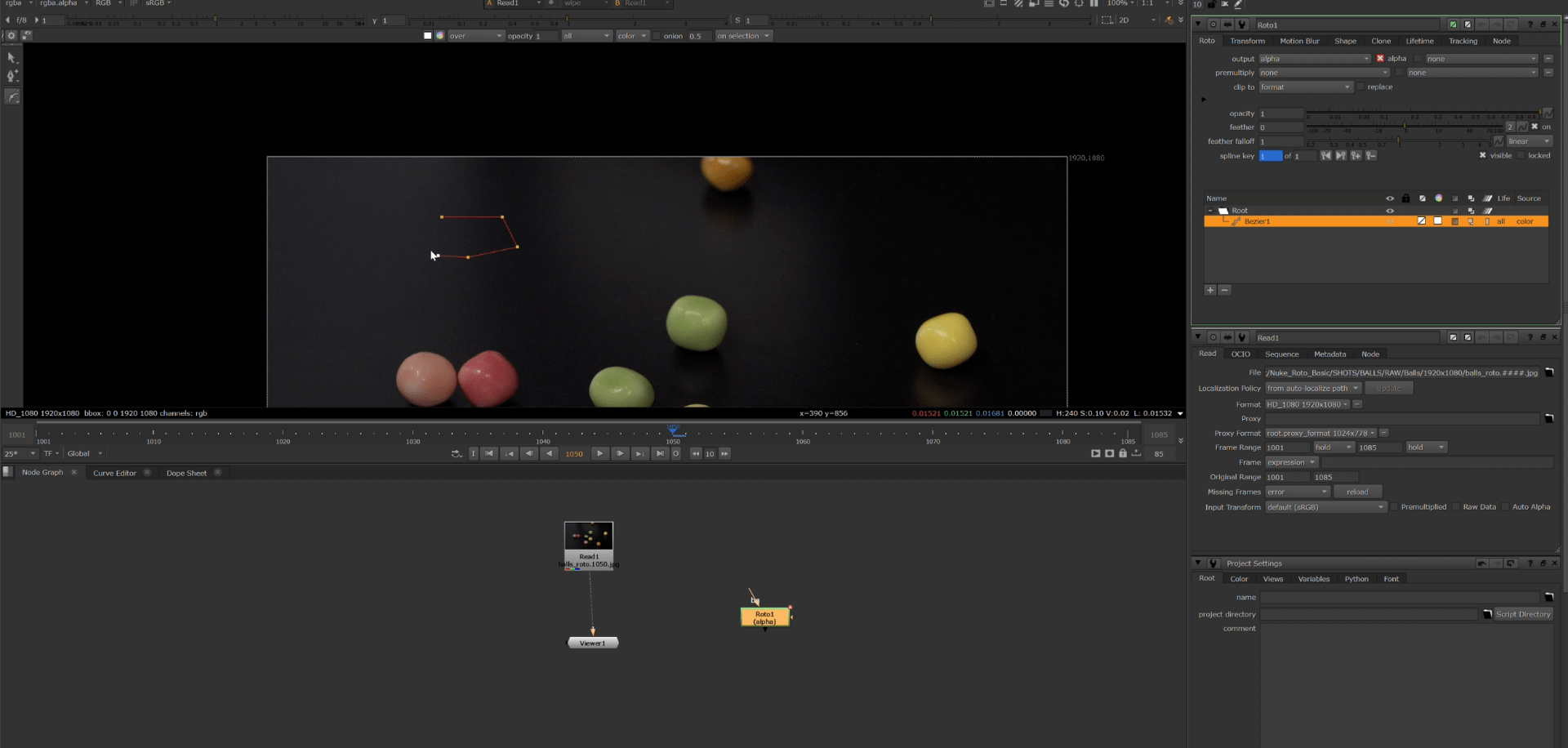
we can use different types of tools to do different forms.
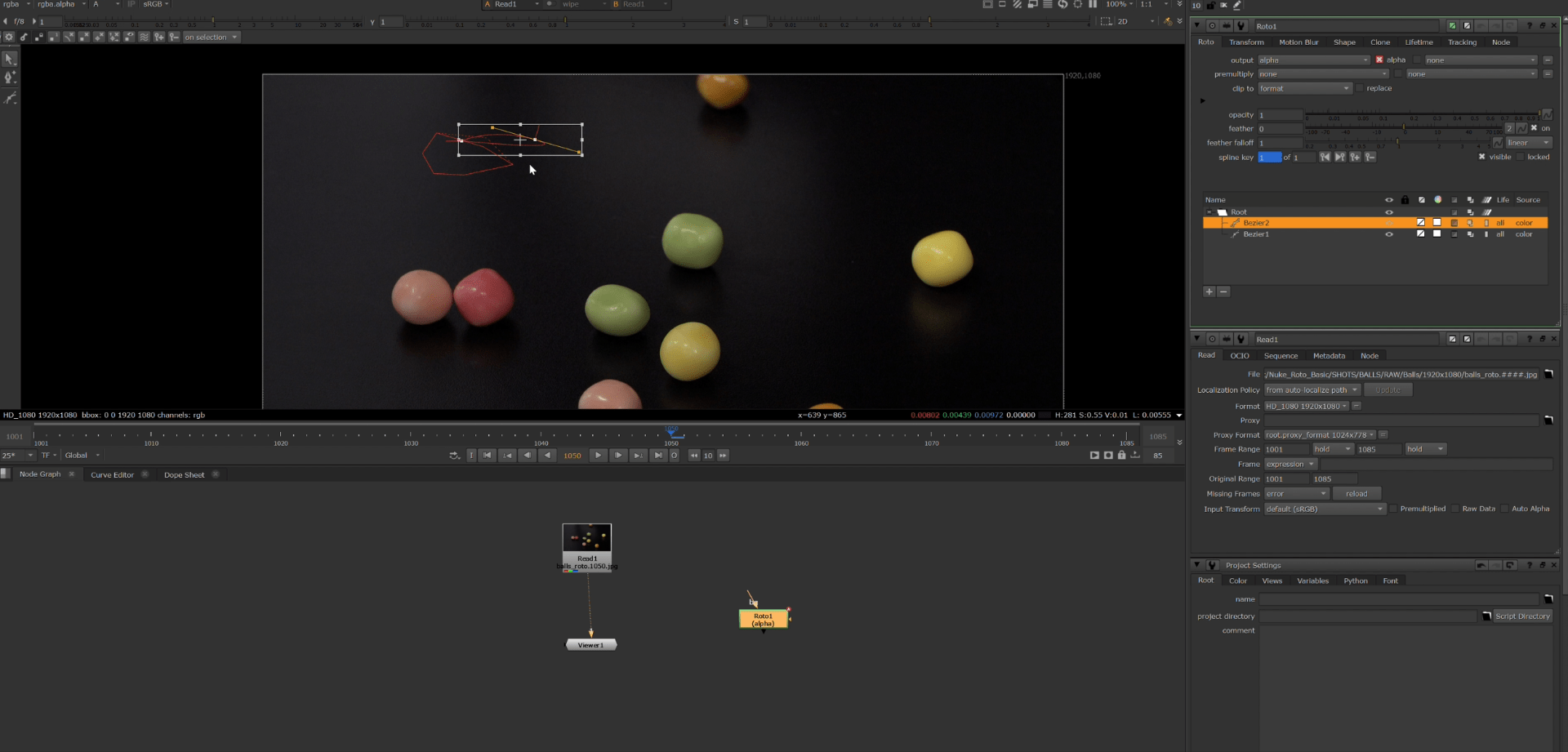
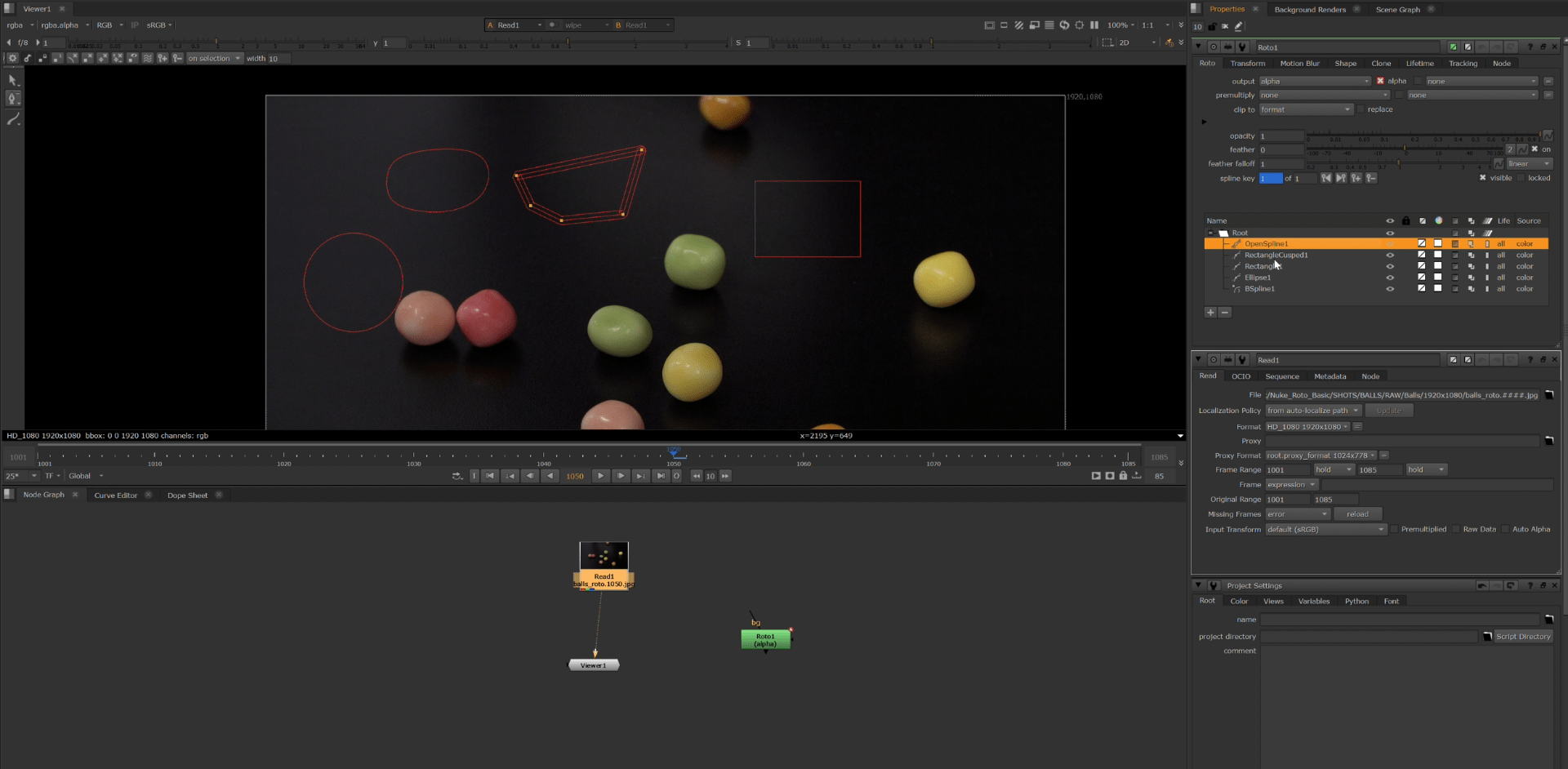
but all of these changes are done into the alpha channel.
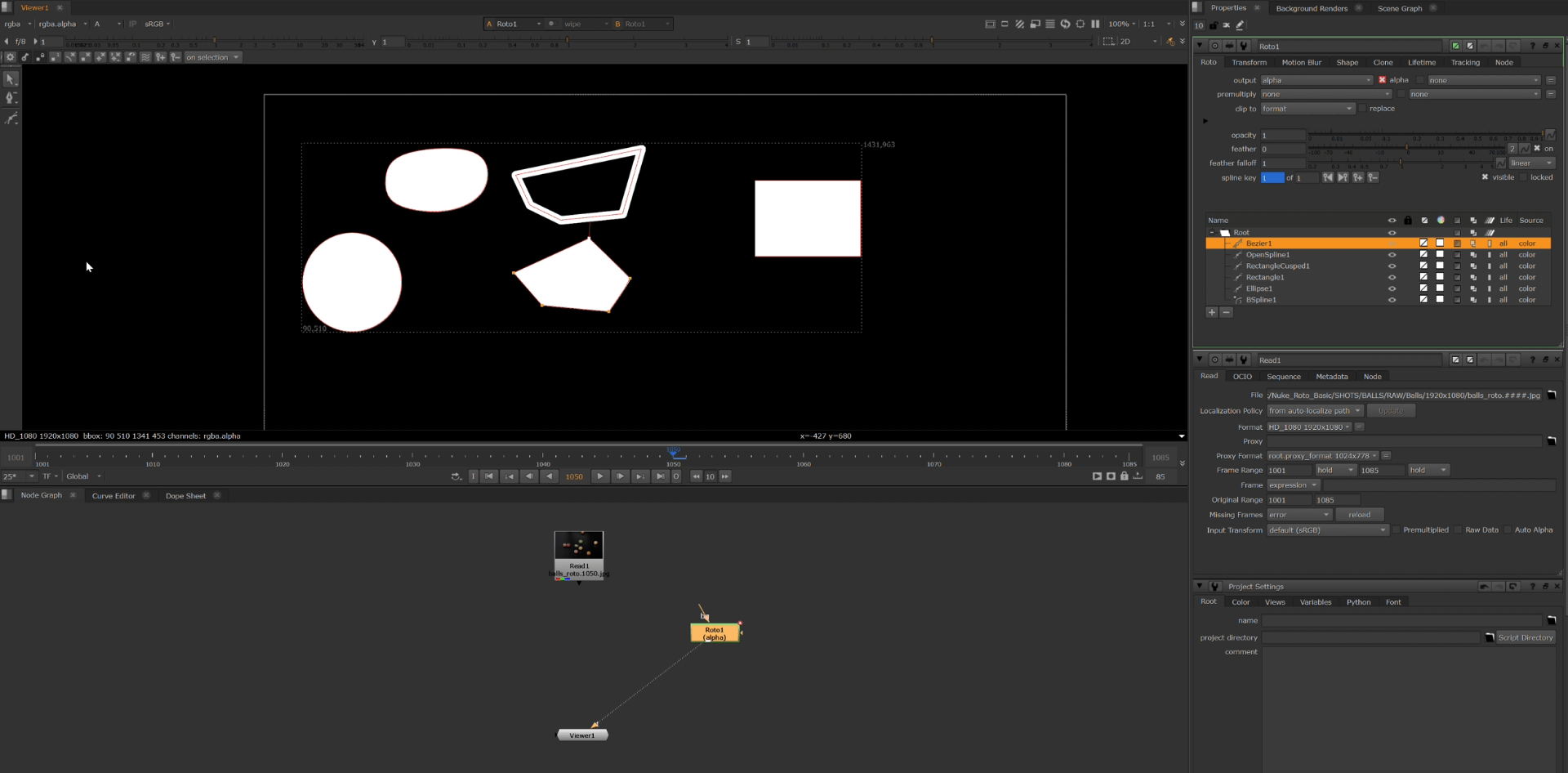
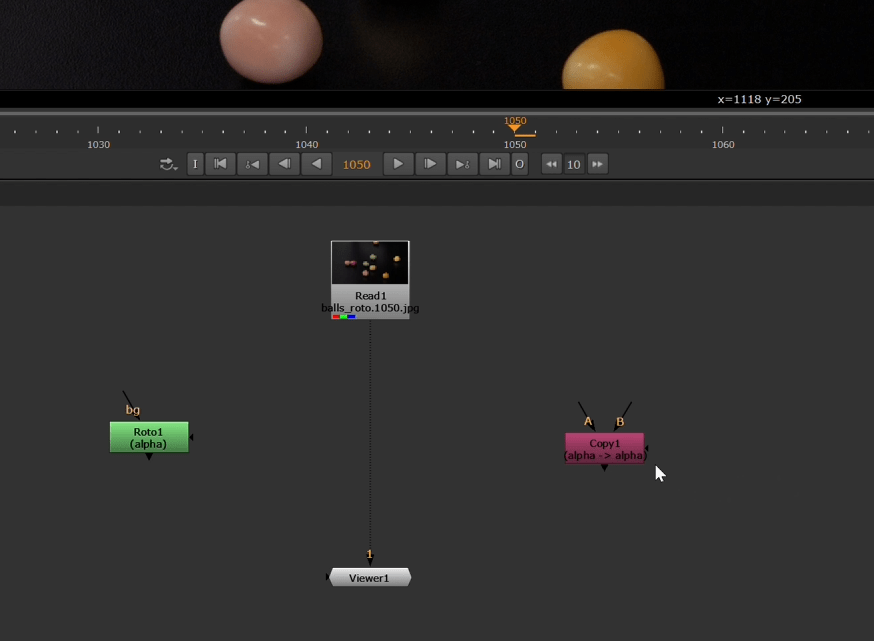
so nest we are going to bring a copy node to combine the alpha channel to the RGB channel of our footage.
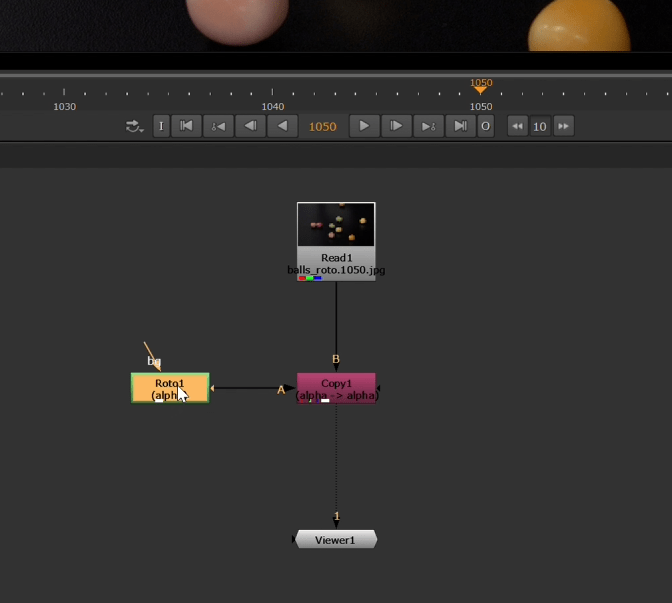
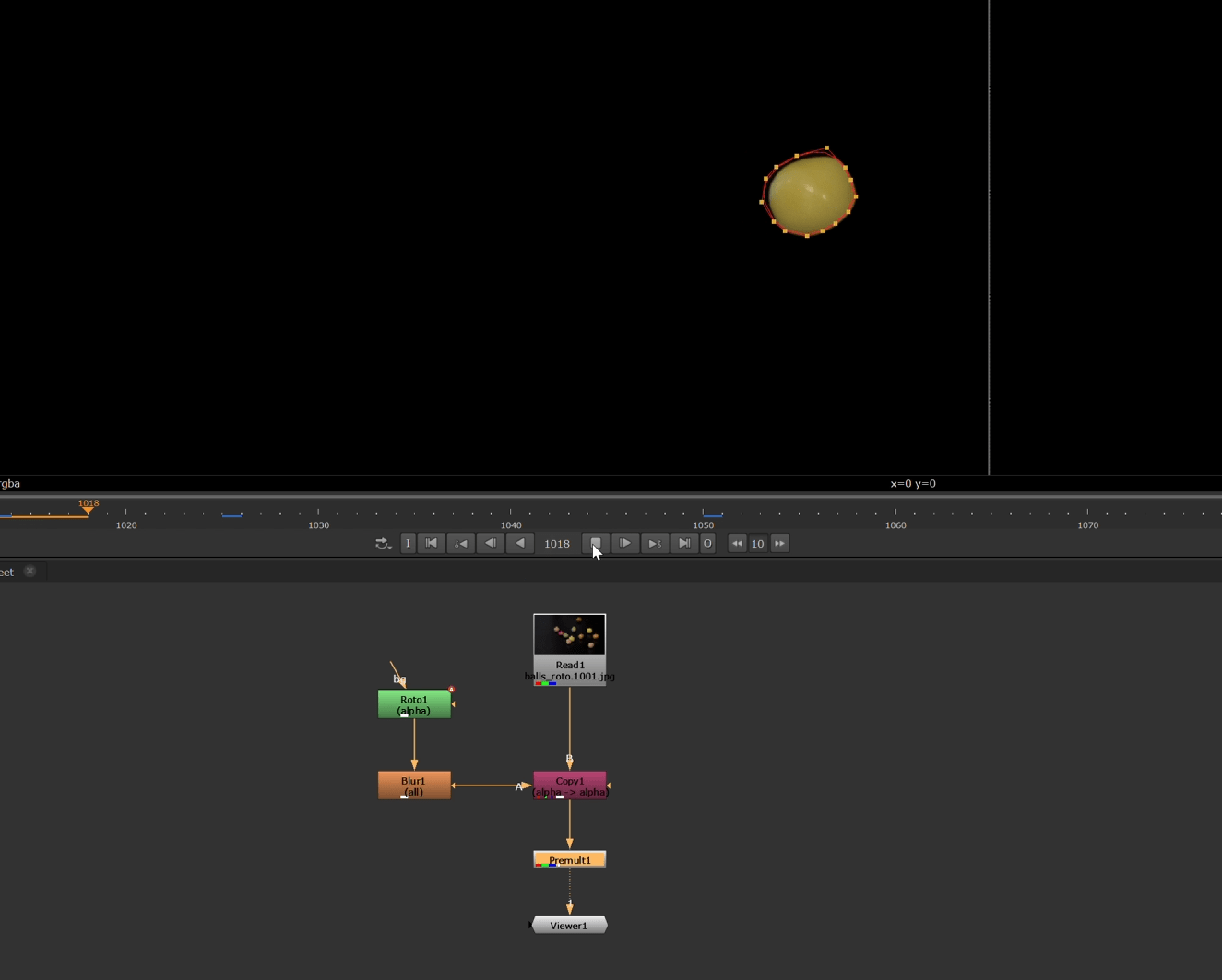
now using the stencils we select the balls we want to start rotoscoping and we start to draw around it.
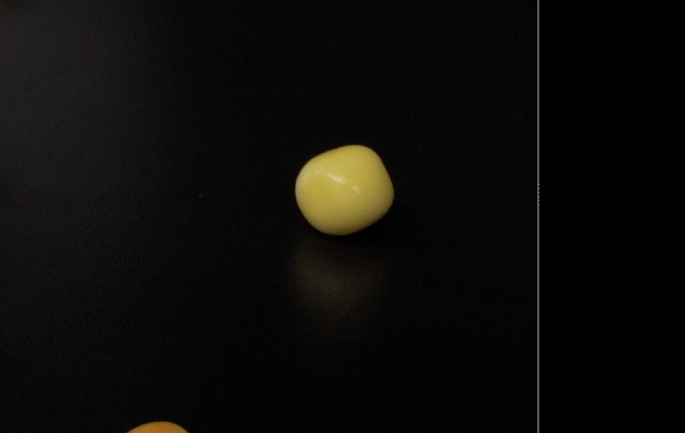
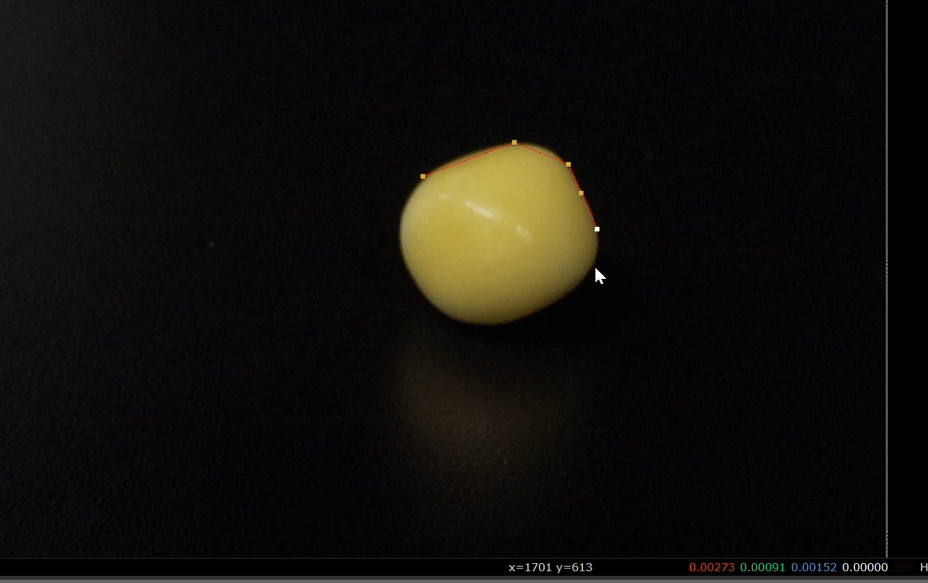
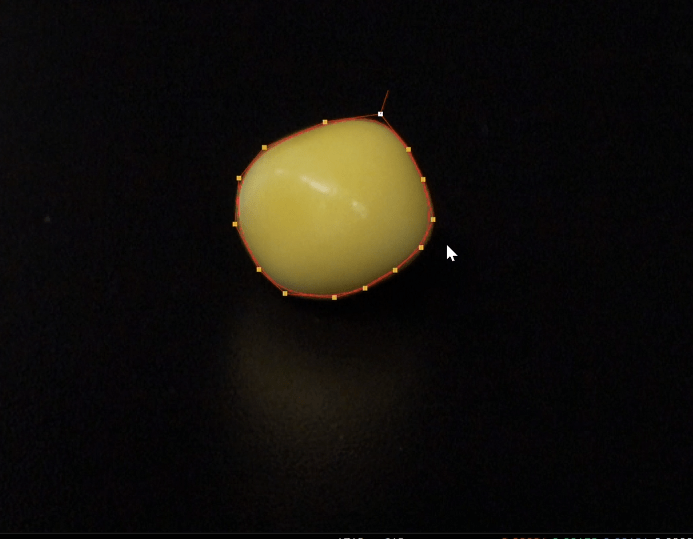
now this will be our hero frame, the frame with the less motion blur, that we will use to begin our keyframing.
now since we don’t want to key frame every frame on the sequence we are going to look through the sequence and keyframe key movement.
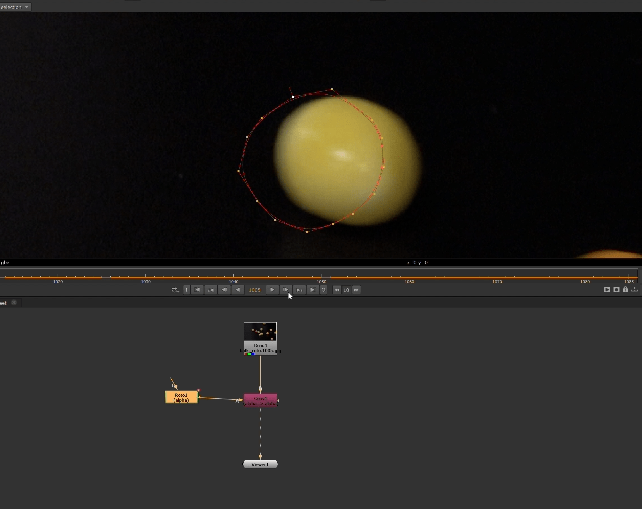
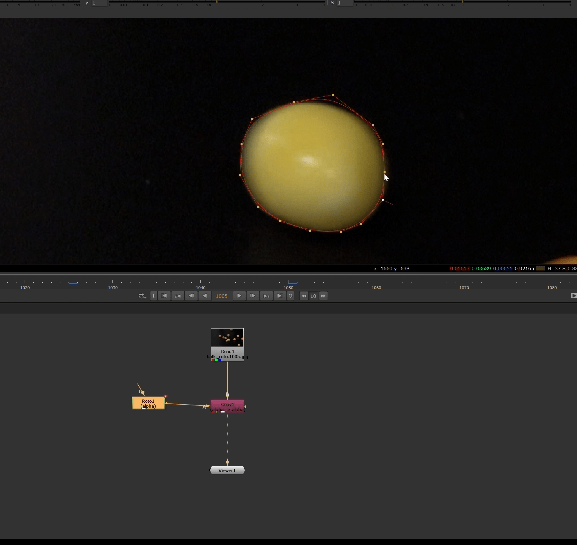
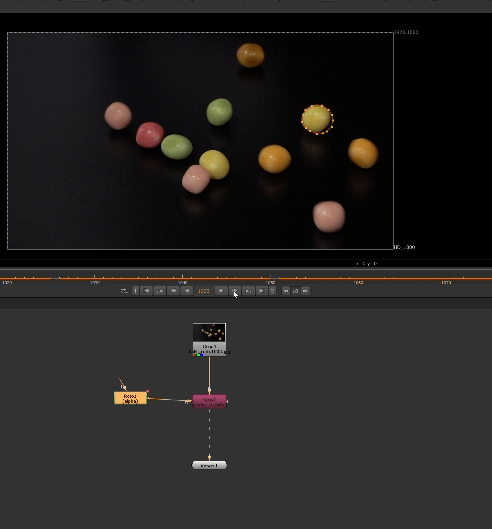
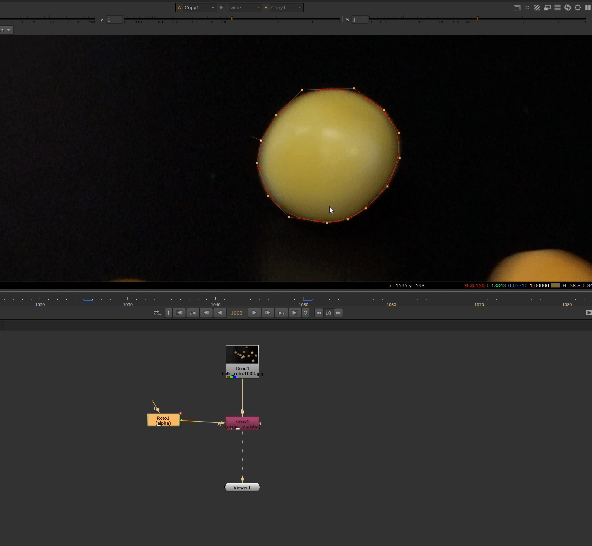
we are also adding some blur to the roto.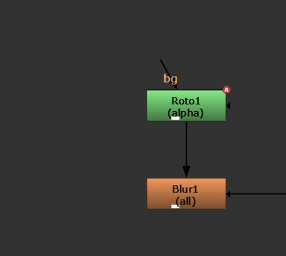
and finally we add the premult node so we can see our rotoscope.
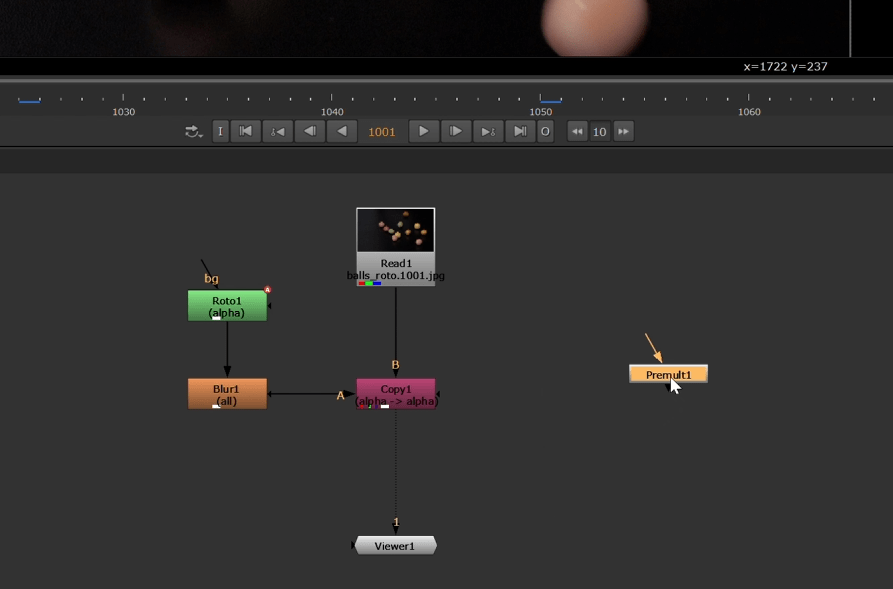
so we end up with something like this.
End of exercise 1
Exercise 2
For the second exercise we start setting our project directory again.
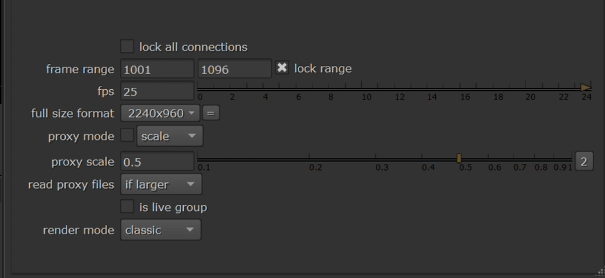
after that we set up the project settings.
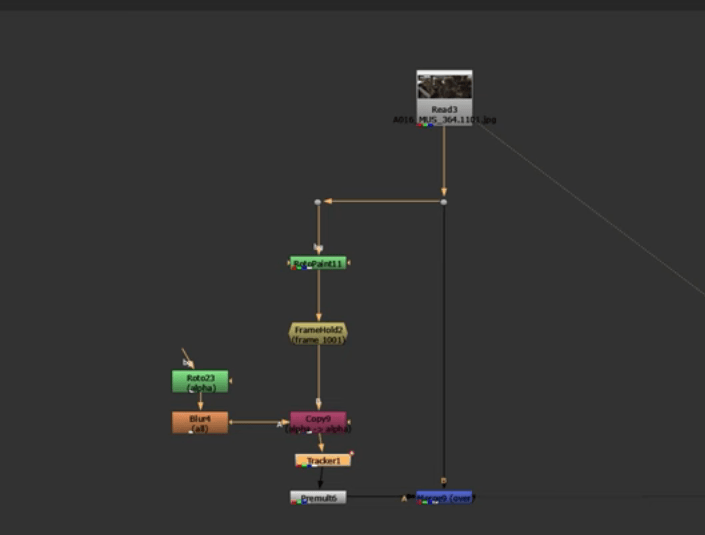
In this case we are going to rotoscope this roof.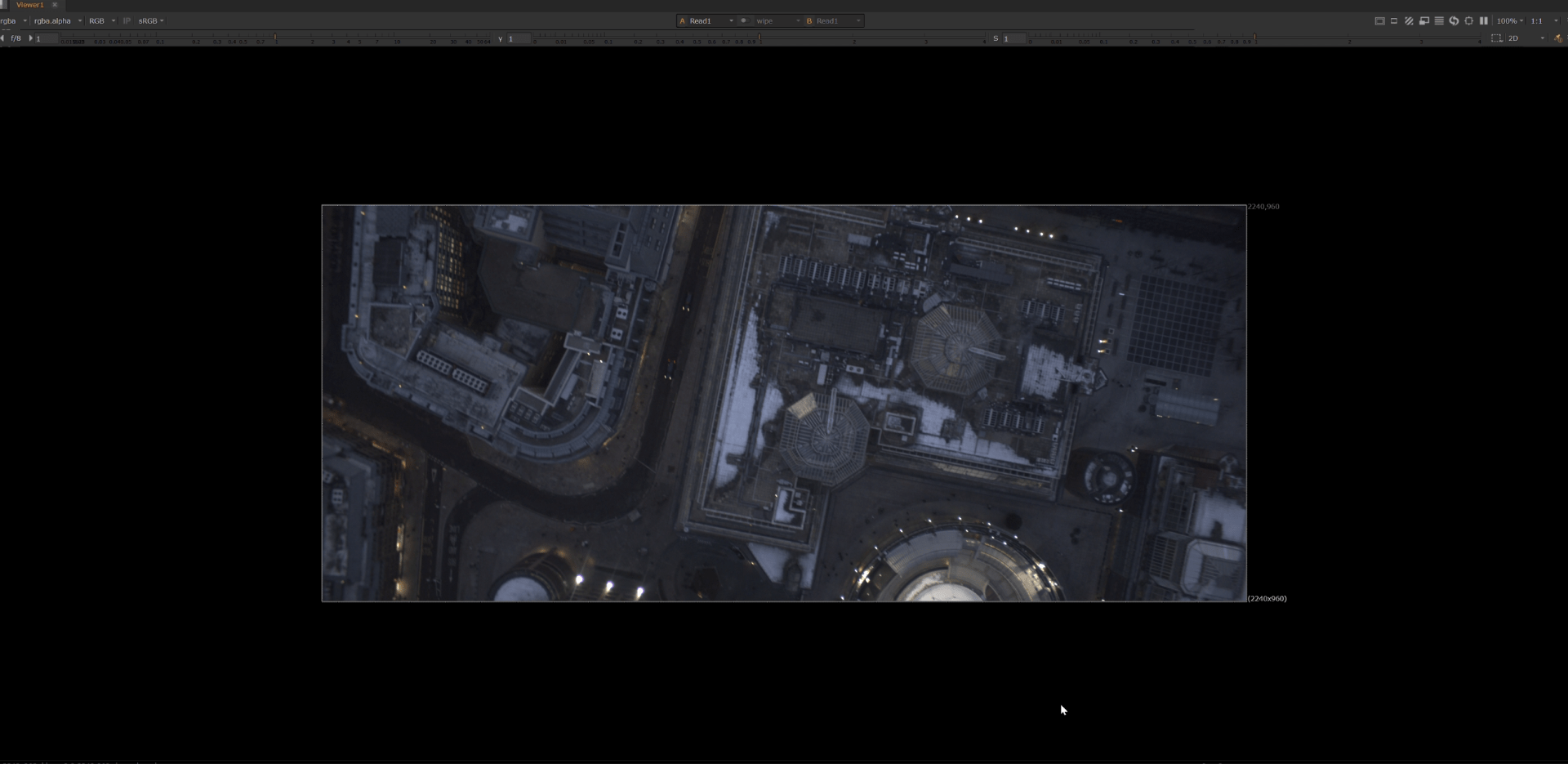
so as we learn before we are going to put a roto and copy node.
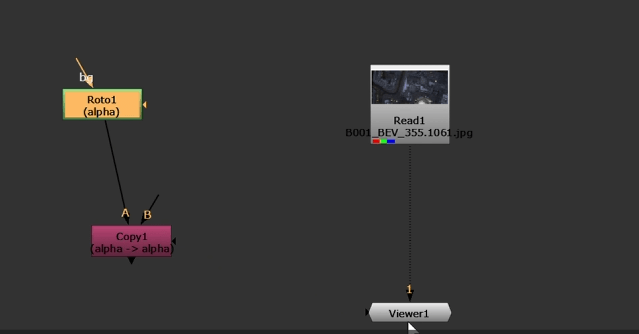
and then connect all together.
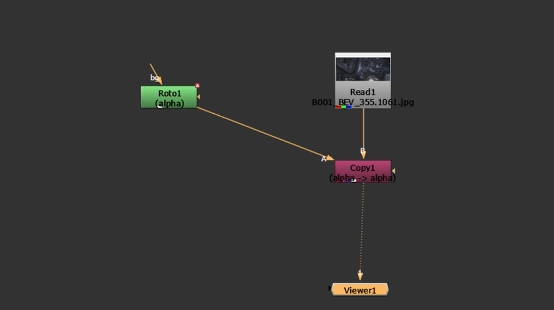
after that we will start drawing the roto with the stencil.
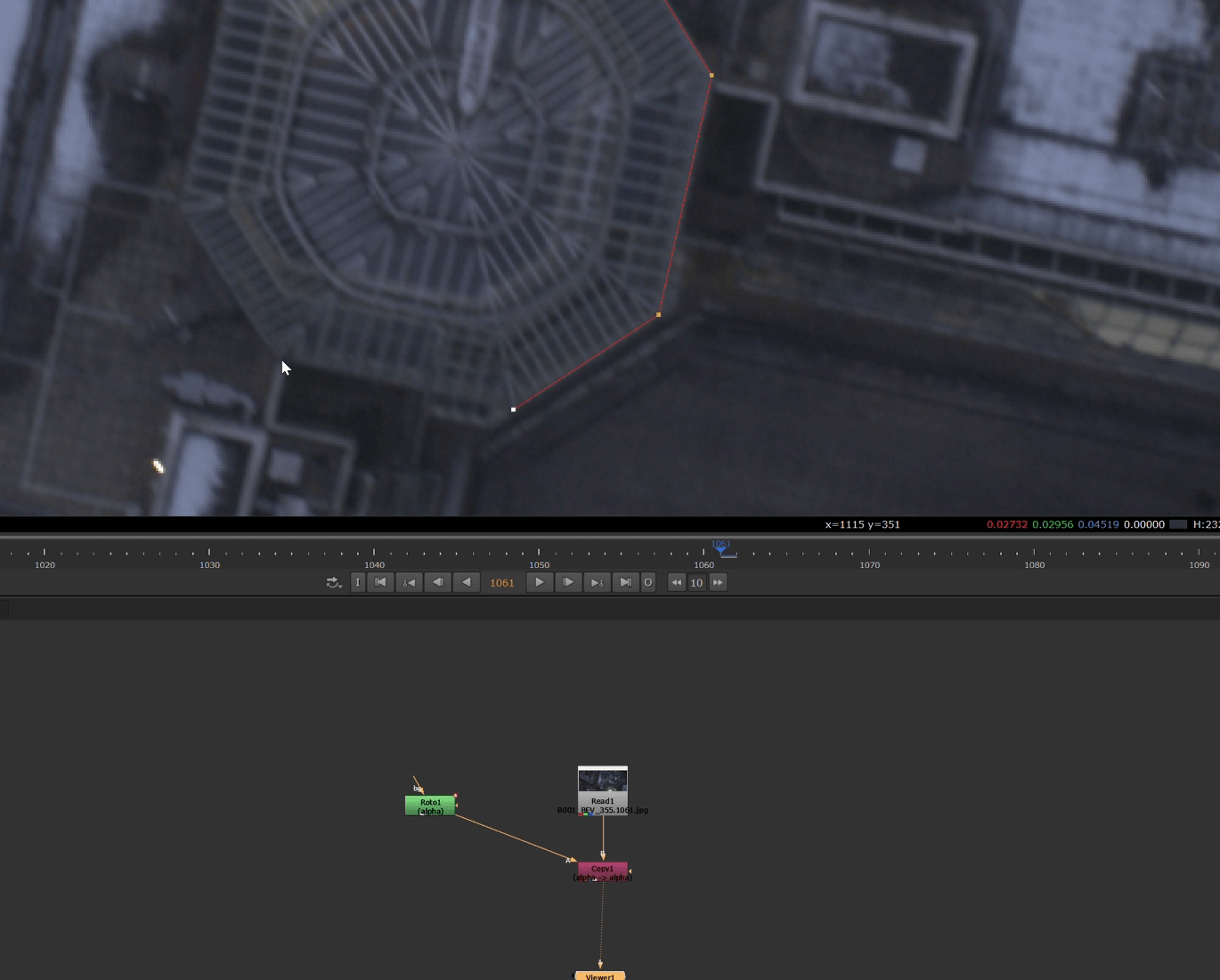
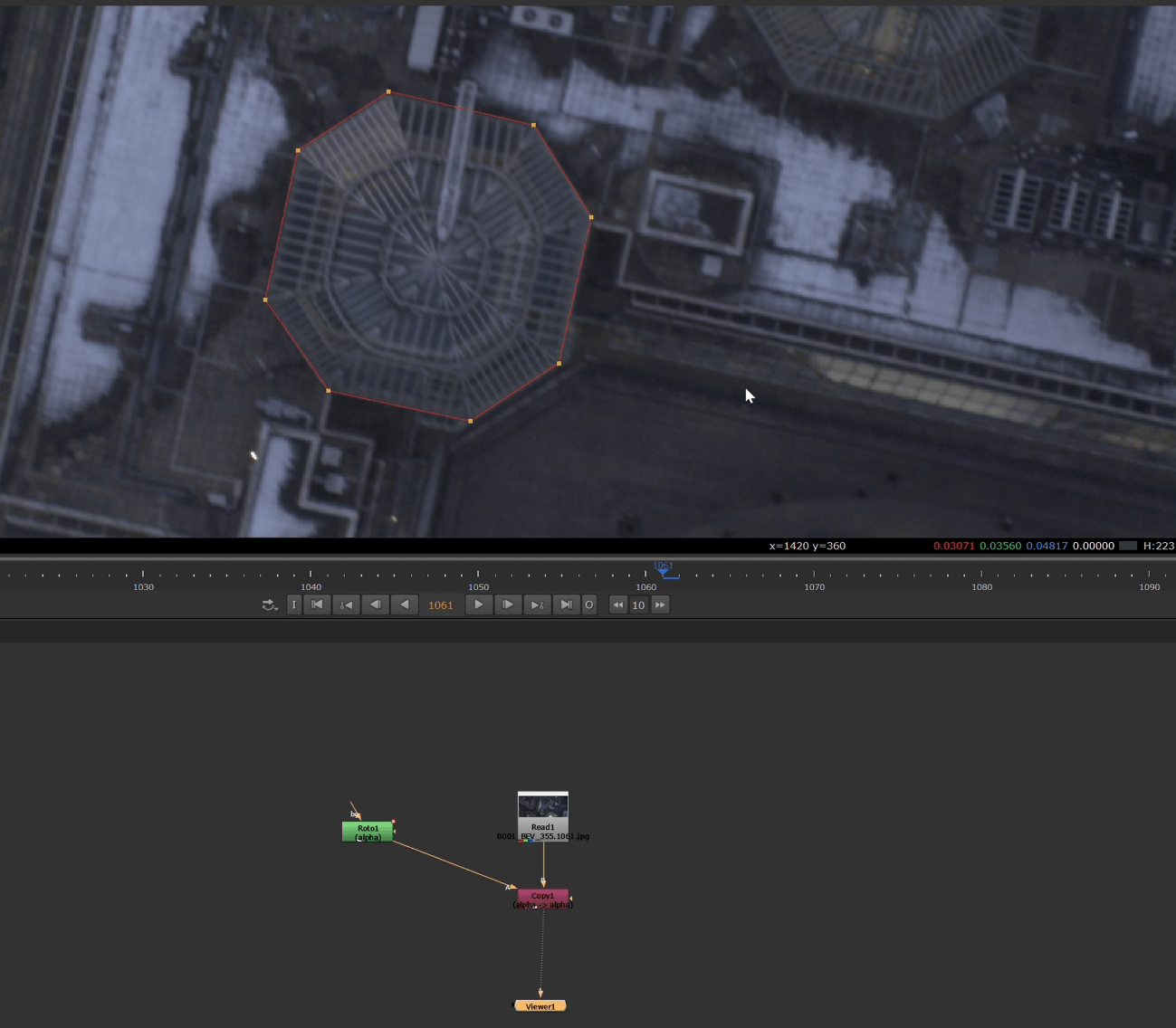
and we will keyframe trough the footage.
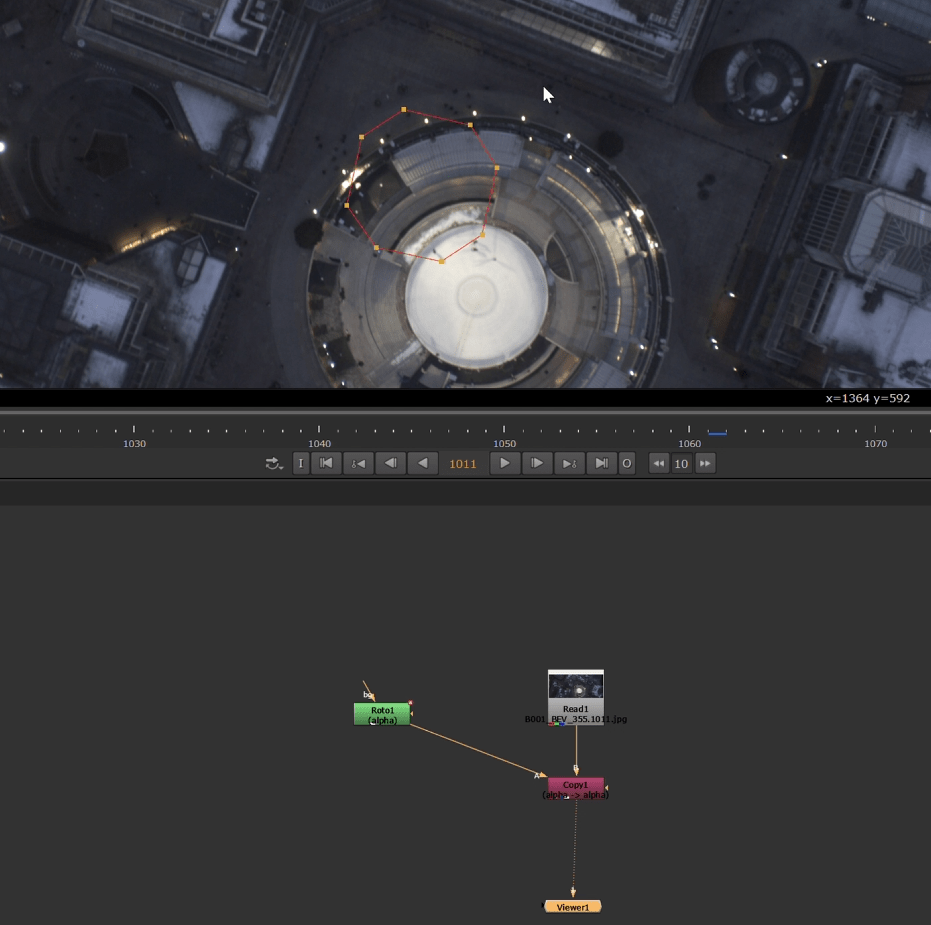
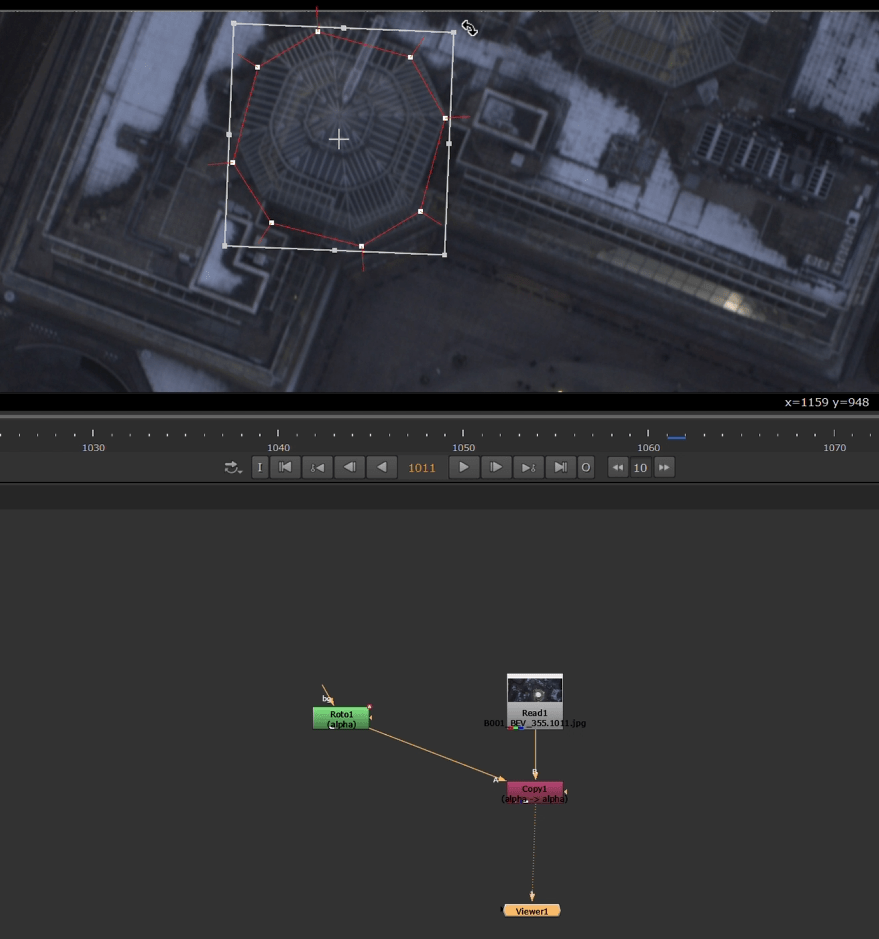
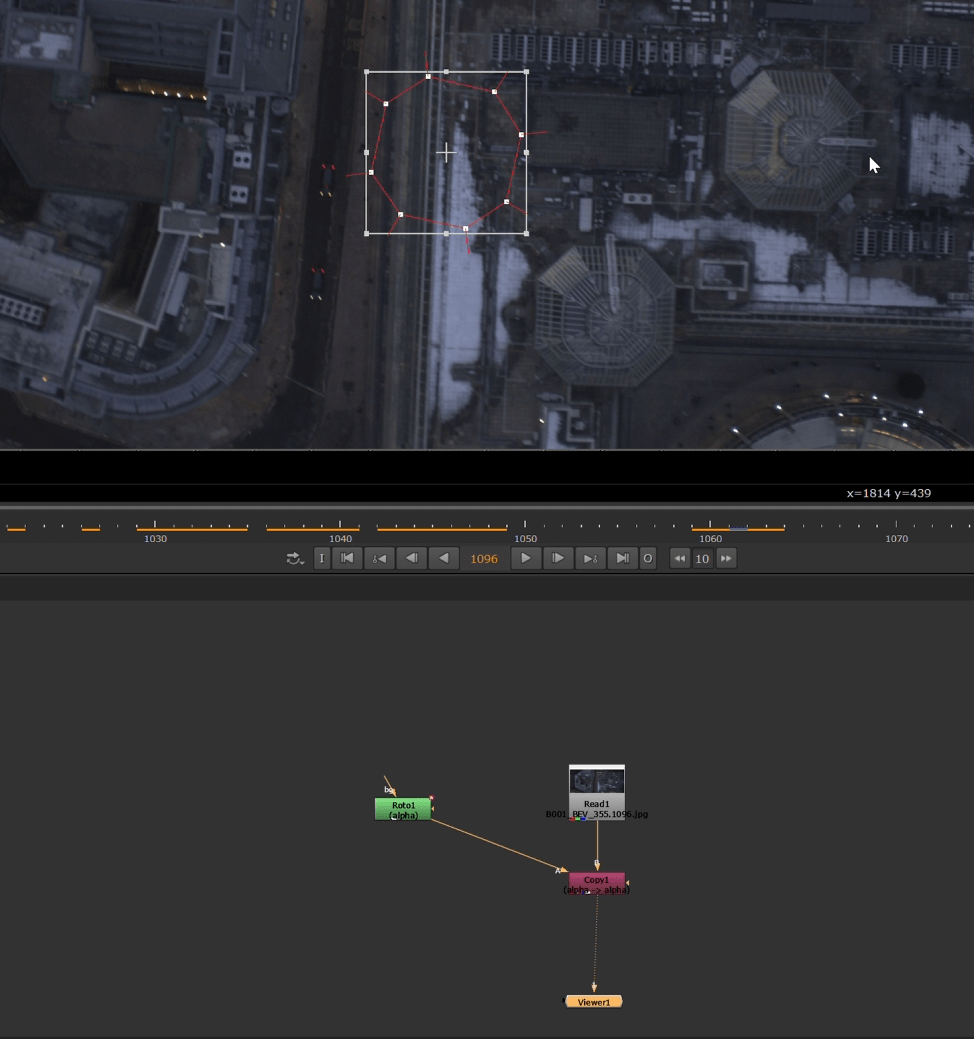
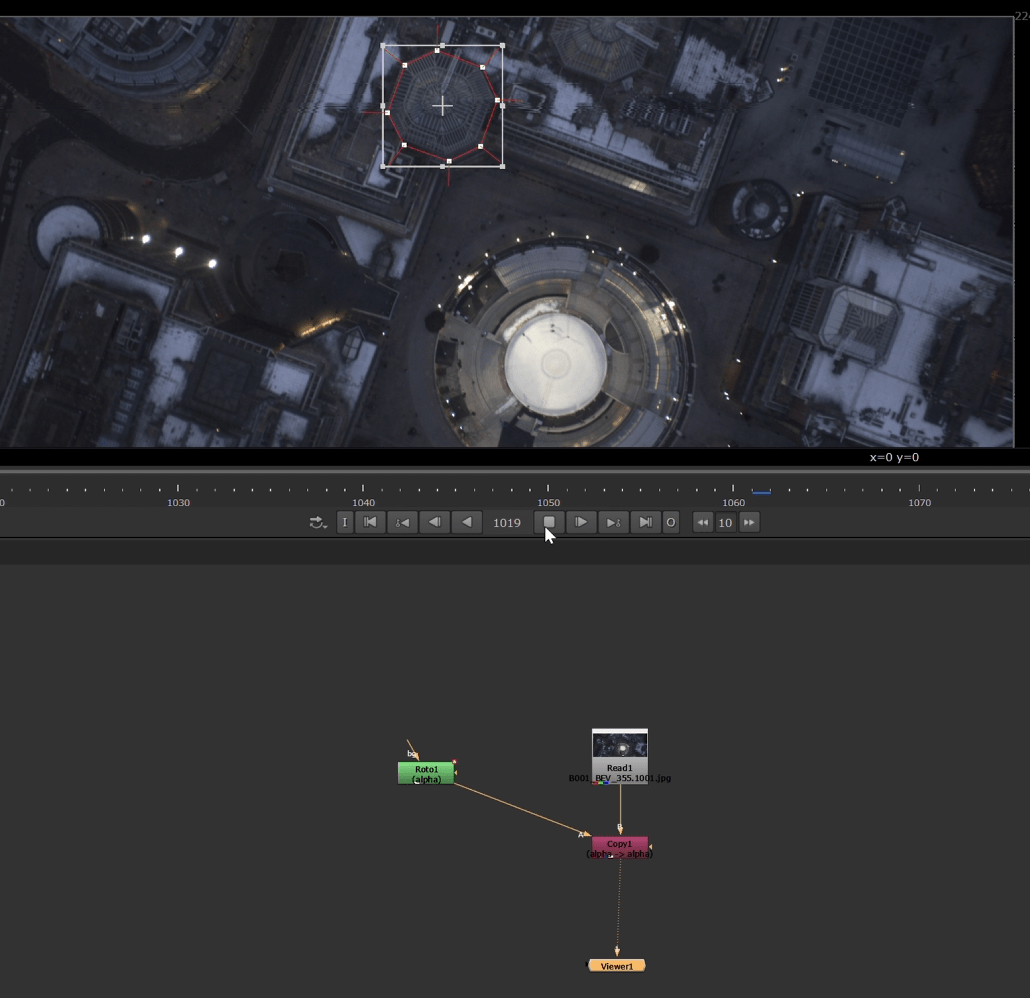
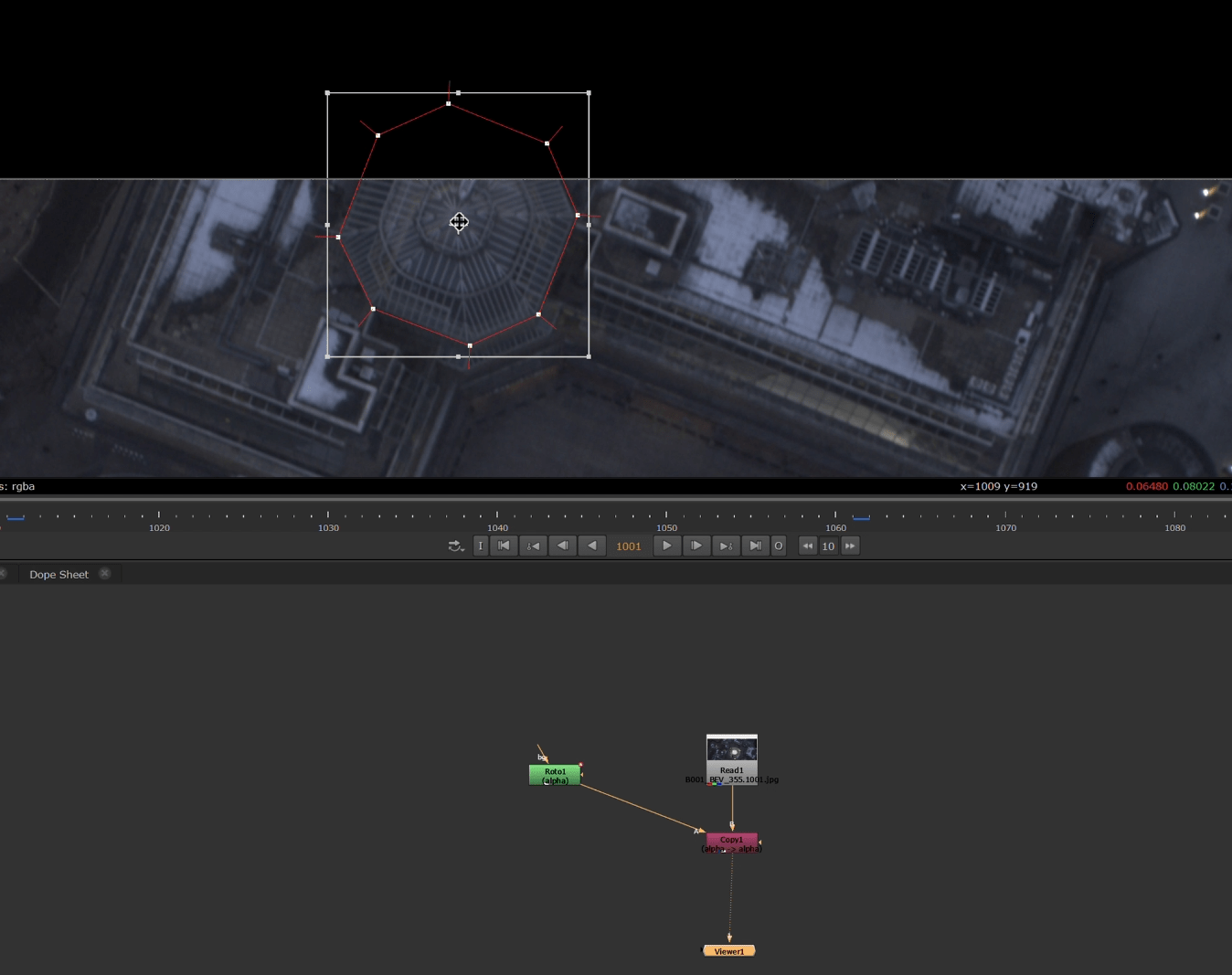
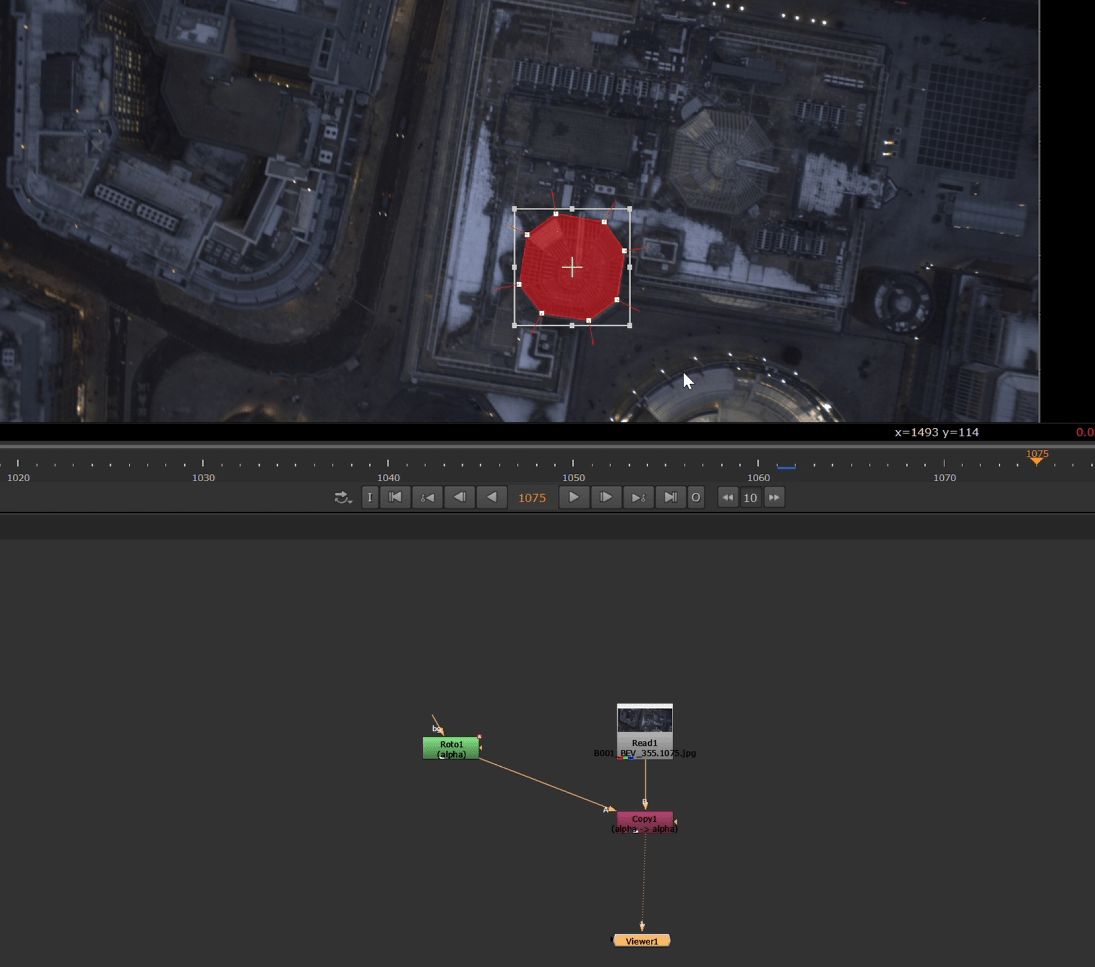
after we finish the roto, this time we will add the premult again but we are also adding a constant and a merge node to have the roto with a colour background.
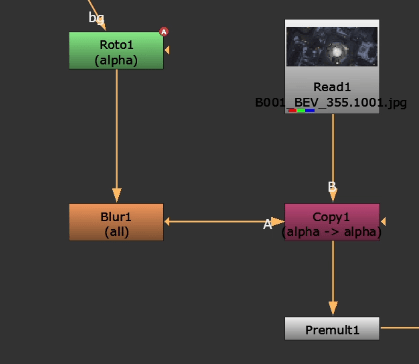
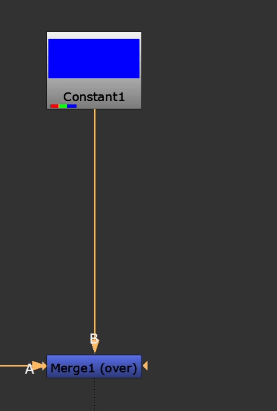
ending up with this.
End of week 2
Week 4: Basic Keying
This week will be an Introduction to the concept of basic keying in Nuke.
Keying is the process of isolating a subject by removing part of an image. Chroma key uses a specific colour (in this case green), while luma key uses brightness values.
Exercise 1
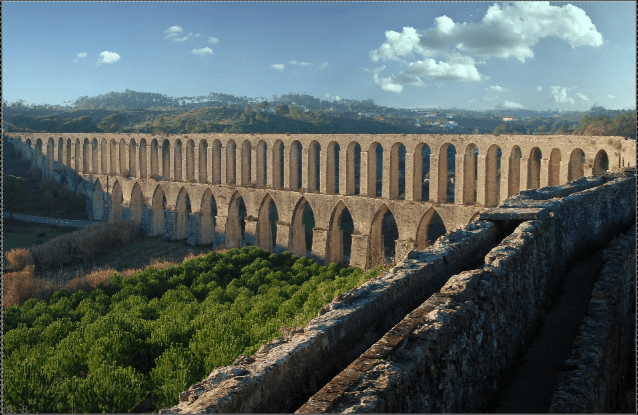
For this task we are going to use the luma key, to substitute the sky in the image provided.
We start importing our background and the sky we want to substitute.
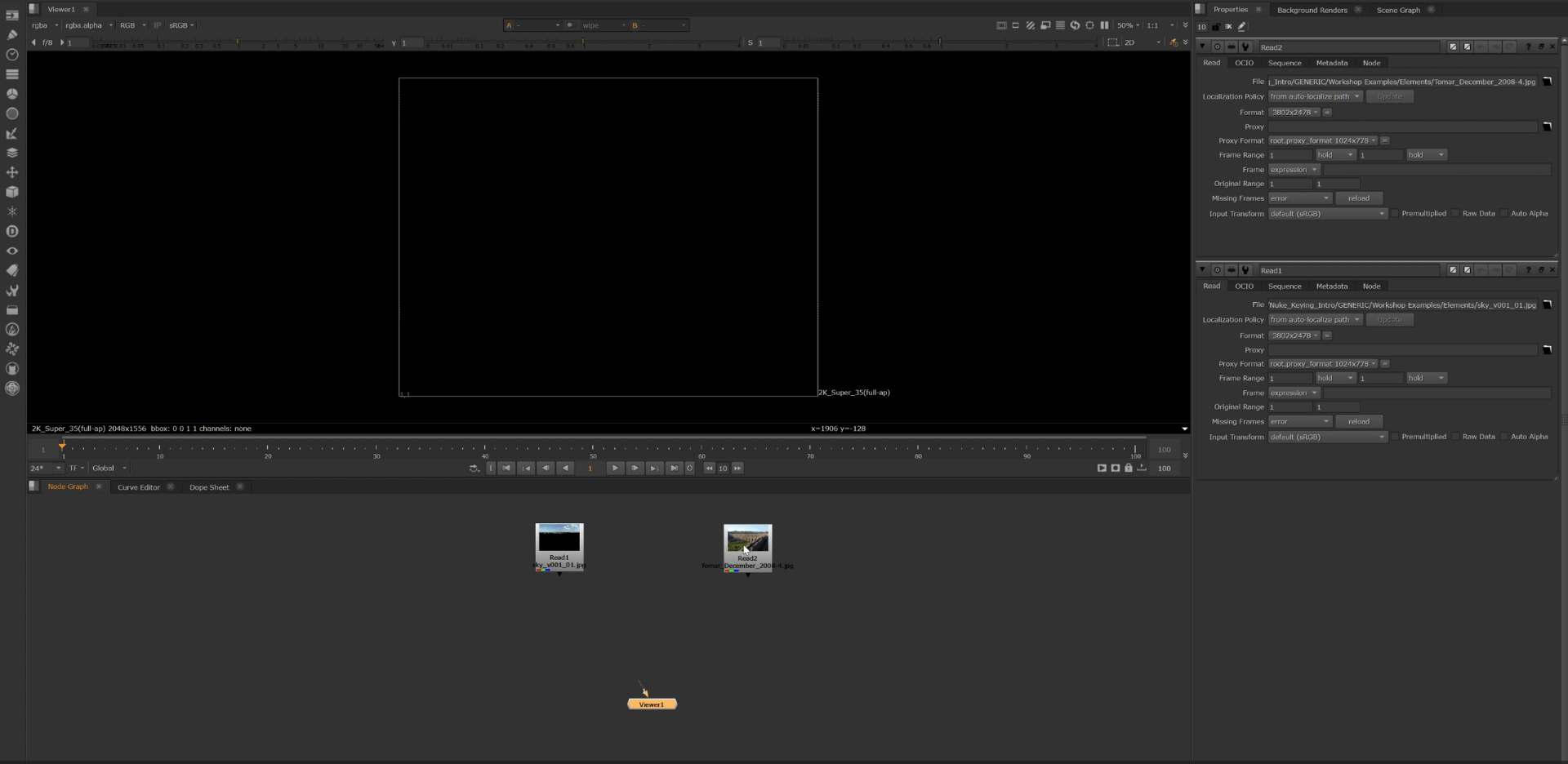
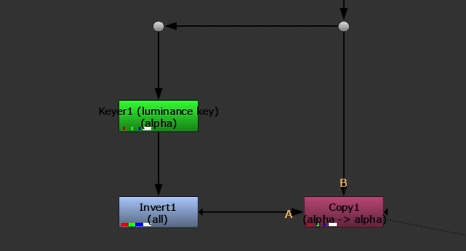
We use a luminance key node and a copy node.
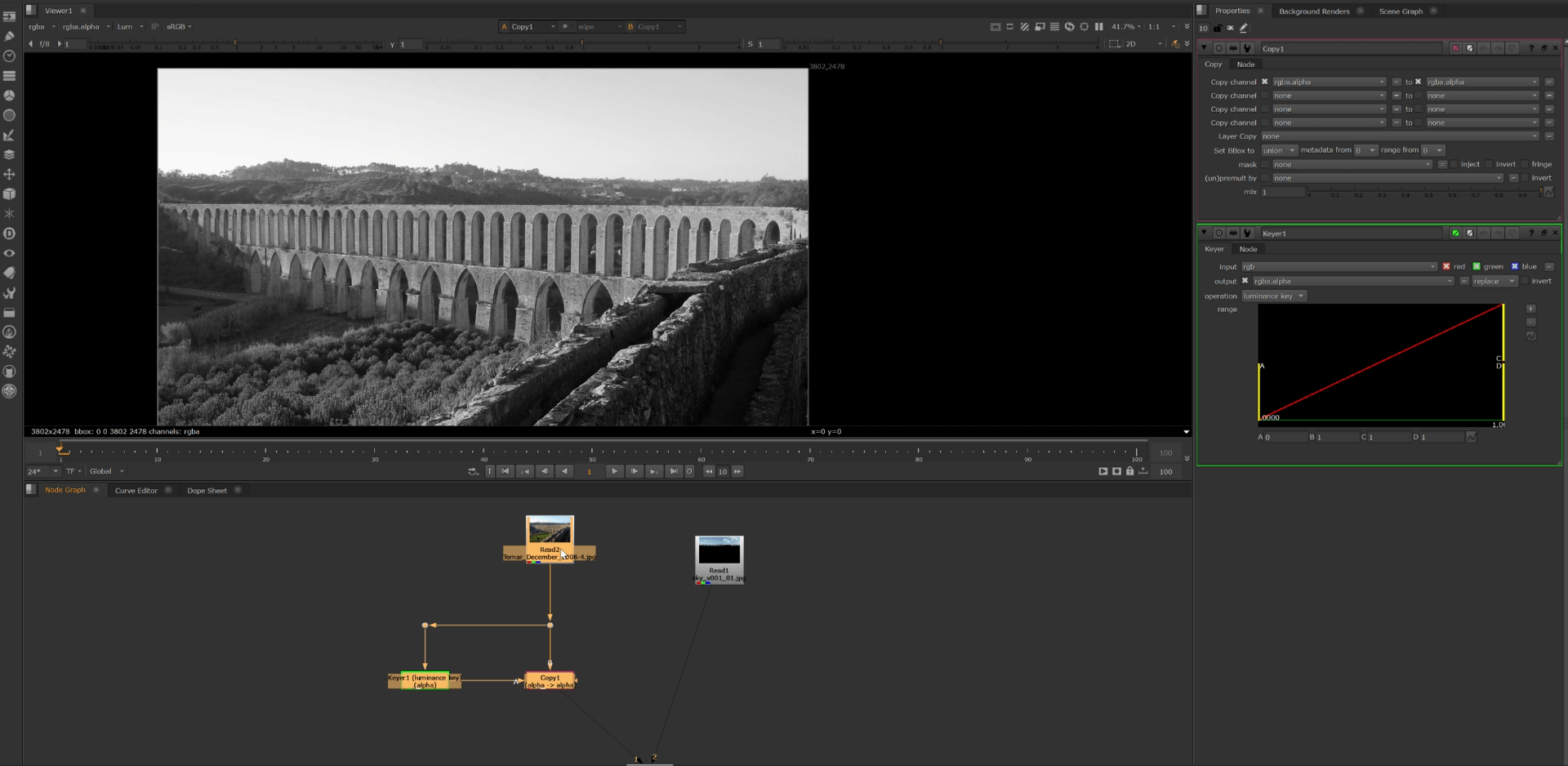
We also add an invert node to the composite so we keep the part of the image that is inside the luma key.
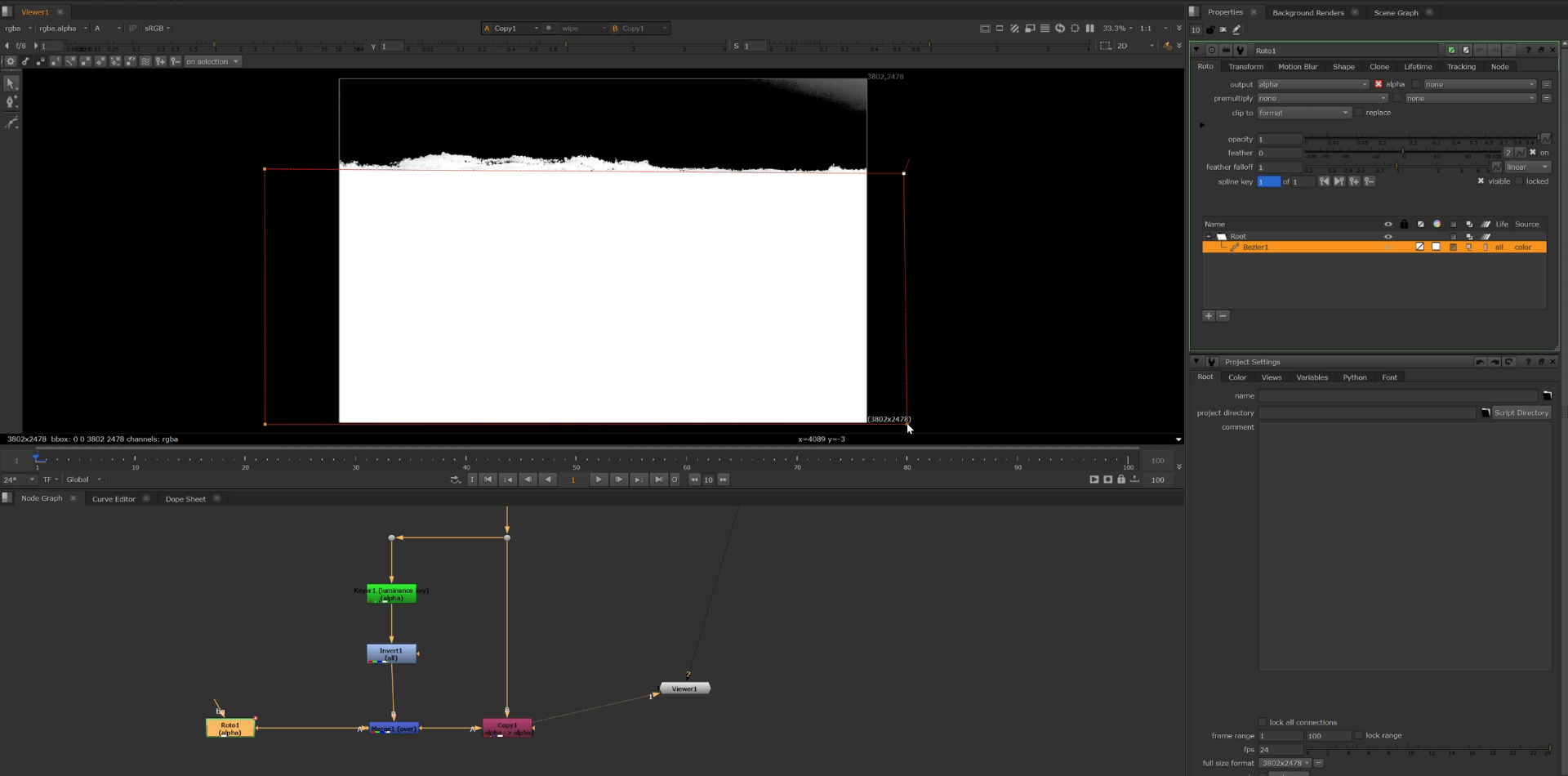
And then add a roto to extract the rest of the image we wanted to keep and merge it together.
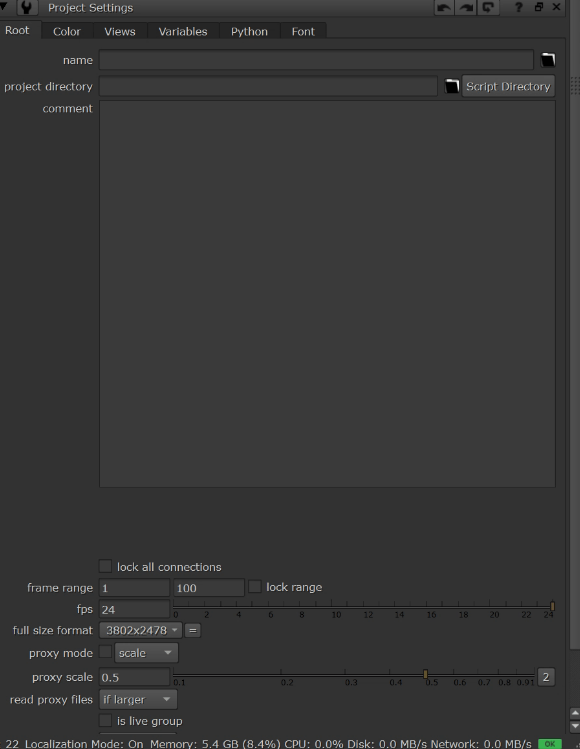
always check that the setting of the project are right so the proportions mach.
After using the roto and the luma key we still have some residual footage at the corners that we want to make rid of, so we are going to keep adding rotos to try and get rid of them.
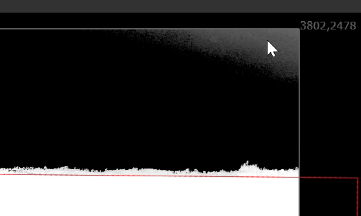
This is the roto we are using.
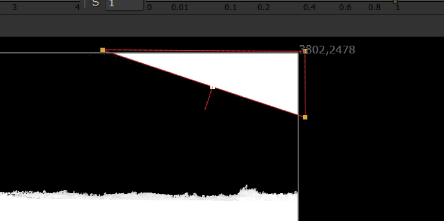
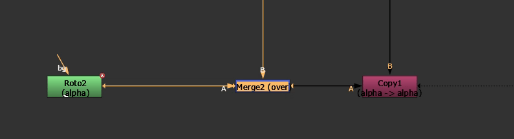
we are adding this roto as a stencil on the copy node so it disappears.
To visualize the result we add a pre-mult node and we merge it to the sky image , and this is the result.
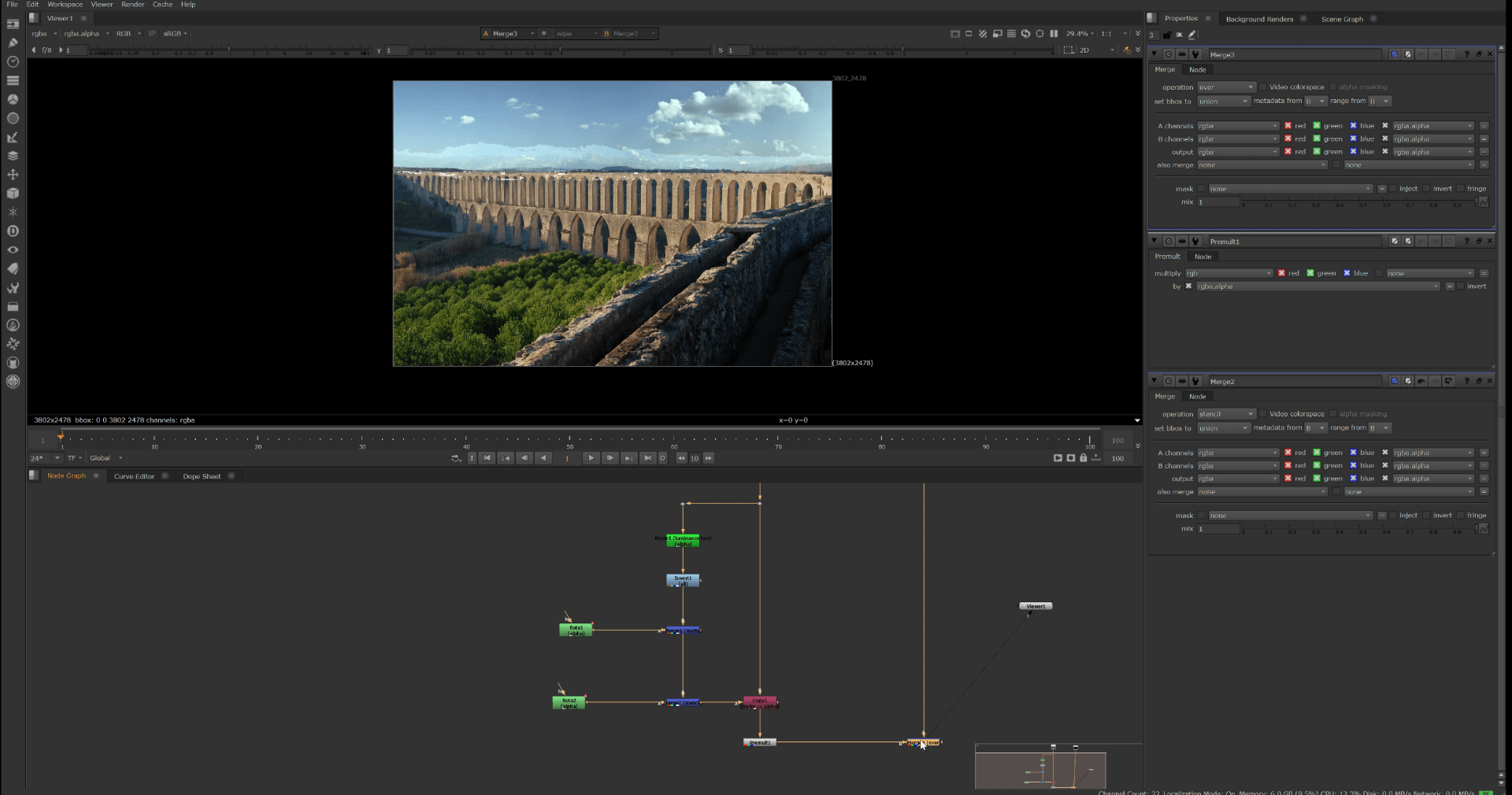
At this point the basic keying is complete, but we are going to add some extra nodes, like the light wrap node and some colour dilation.
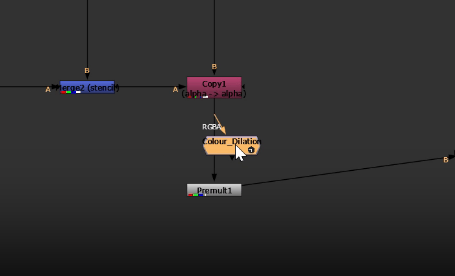
this node will do a better colour science for our image.
and finally we add a light wrap so the image blends a little better.
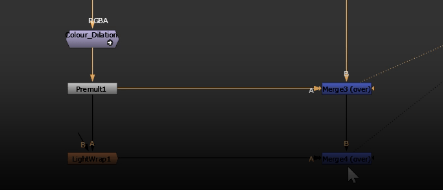
without wrap node
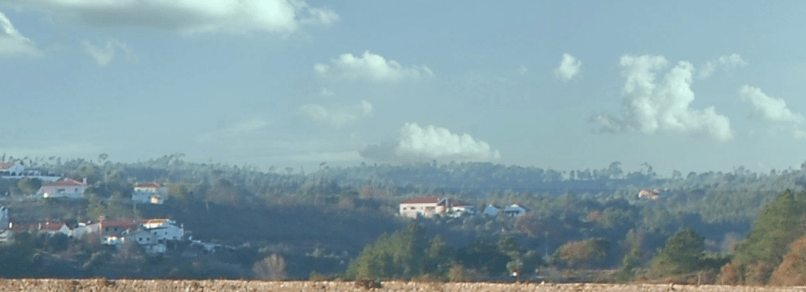
with wrap node.
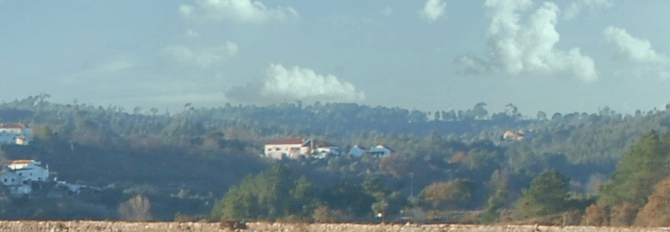
This is the final result.
End of exercise 1
Exercise 2
For this exercise where are going to use the chroma keying to change the background of a video footage.
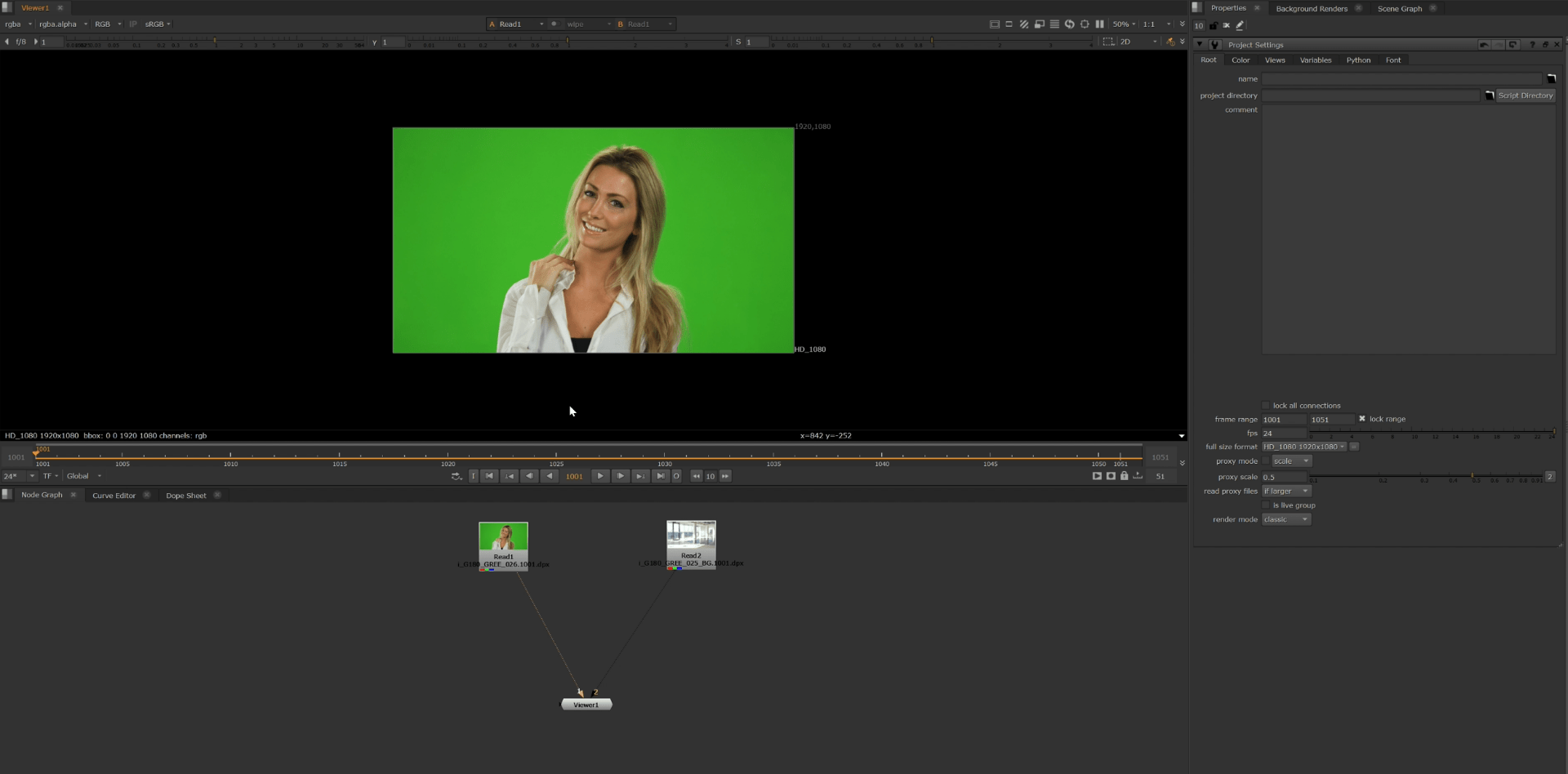
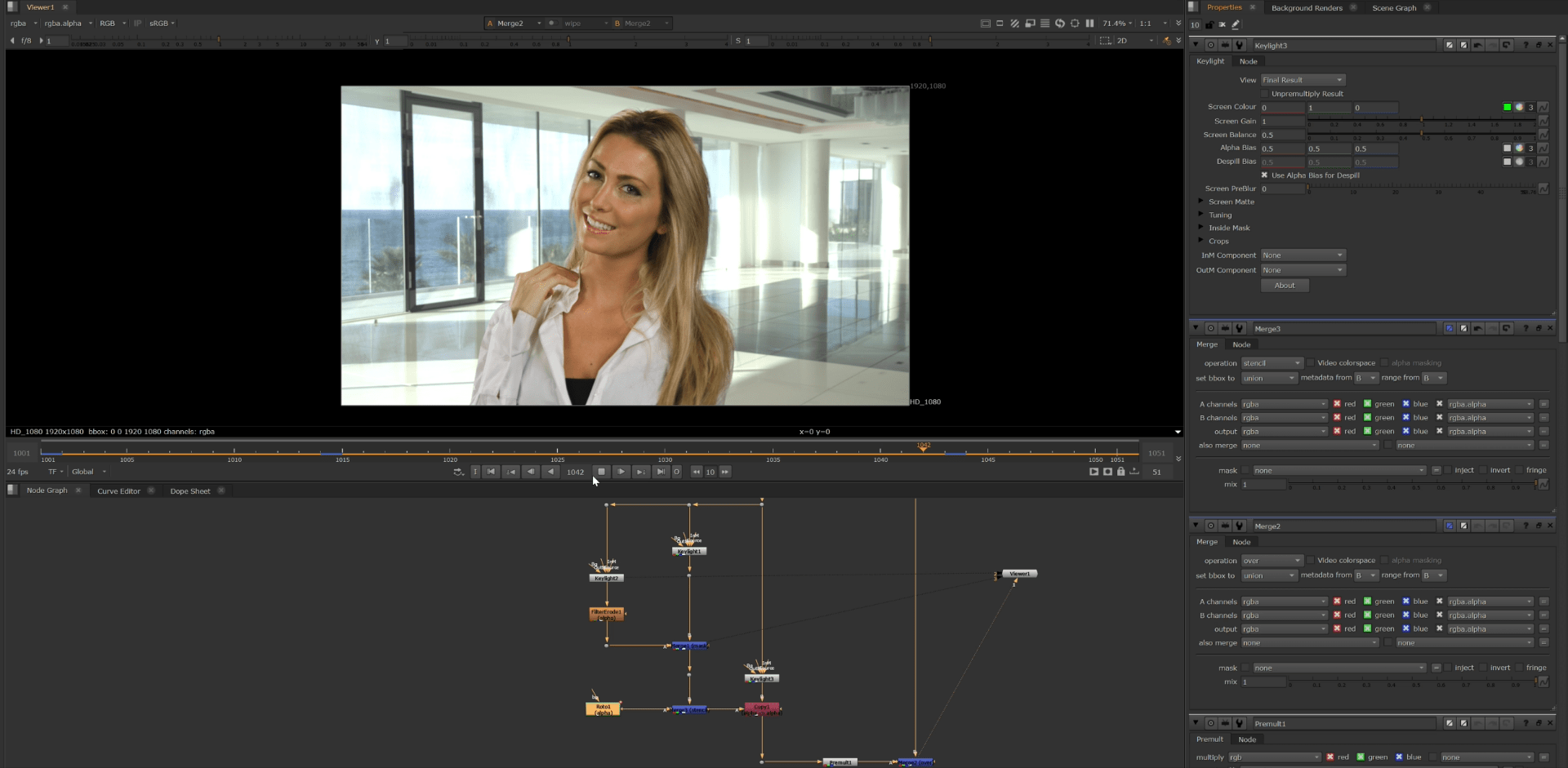
To begin with we start bringing out a key light node with a copy node to multiply the alpha channel into our RGB.
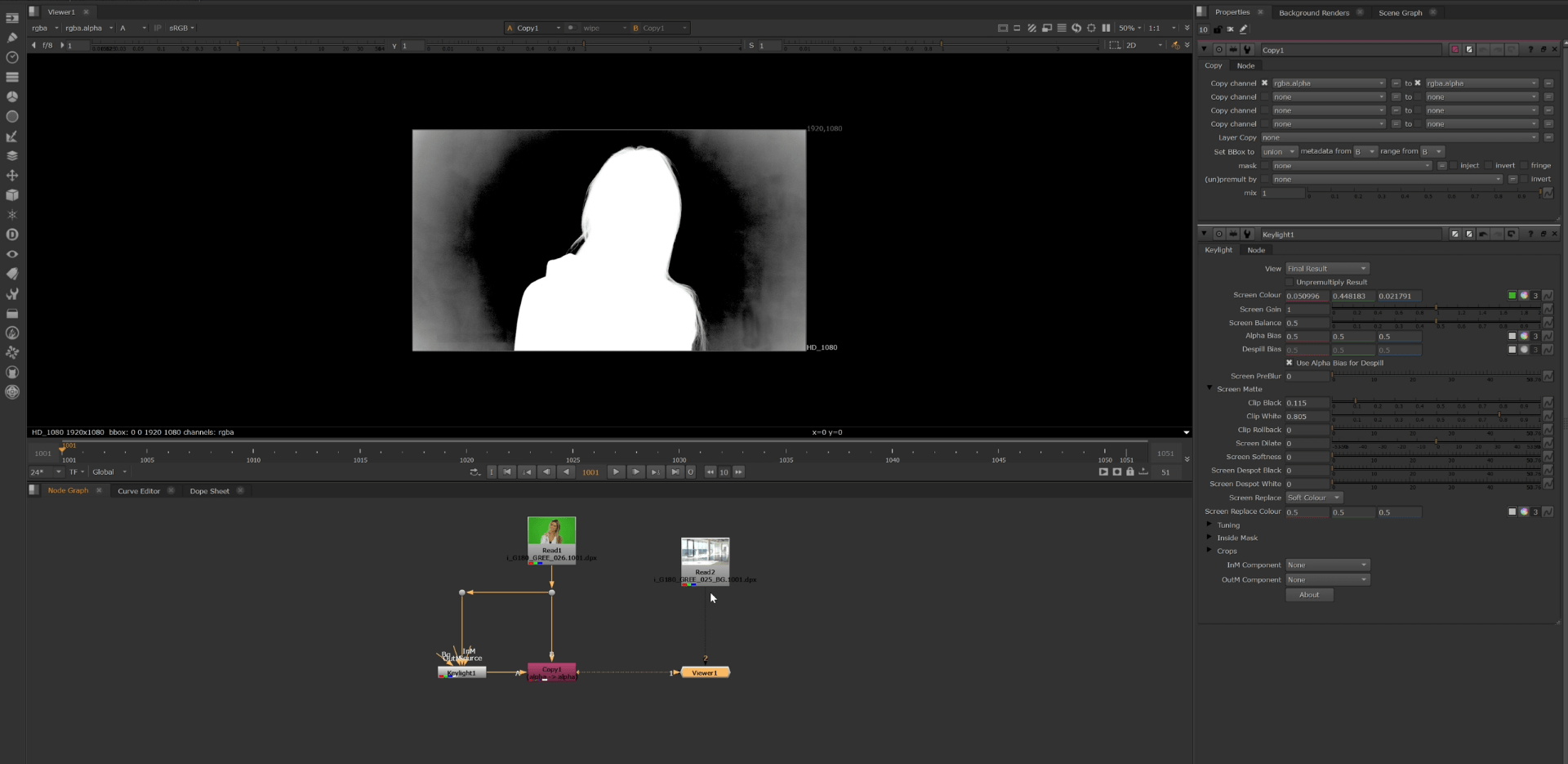
we select the screen colour to green
in the alpha channel looks like this.
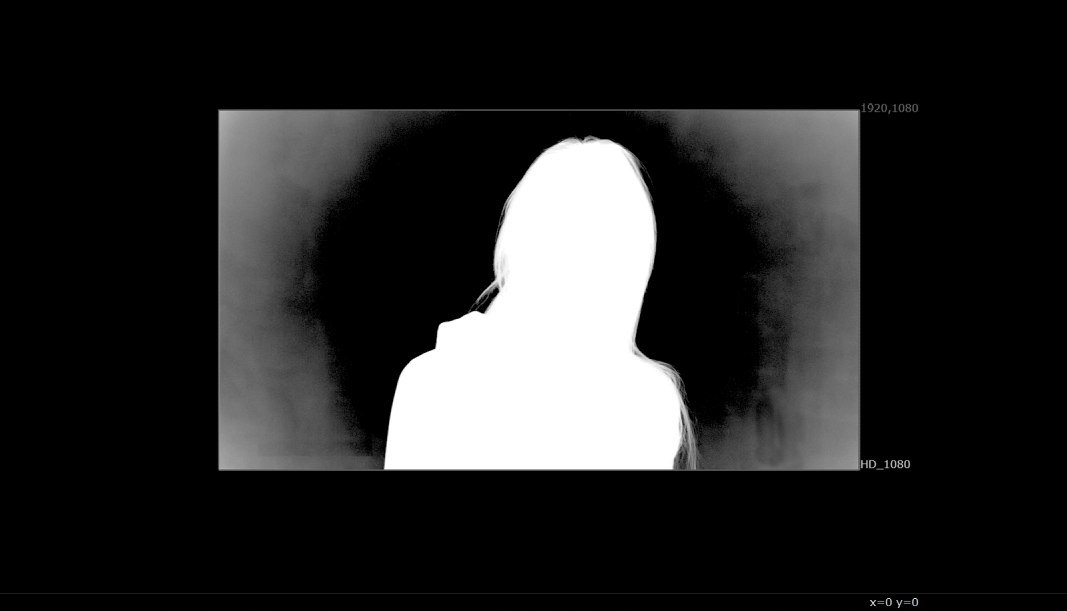
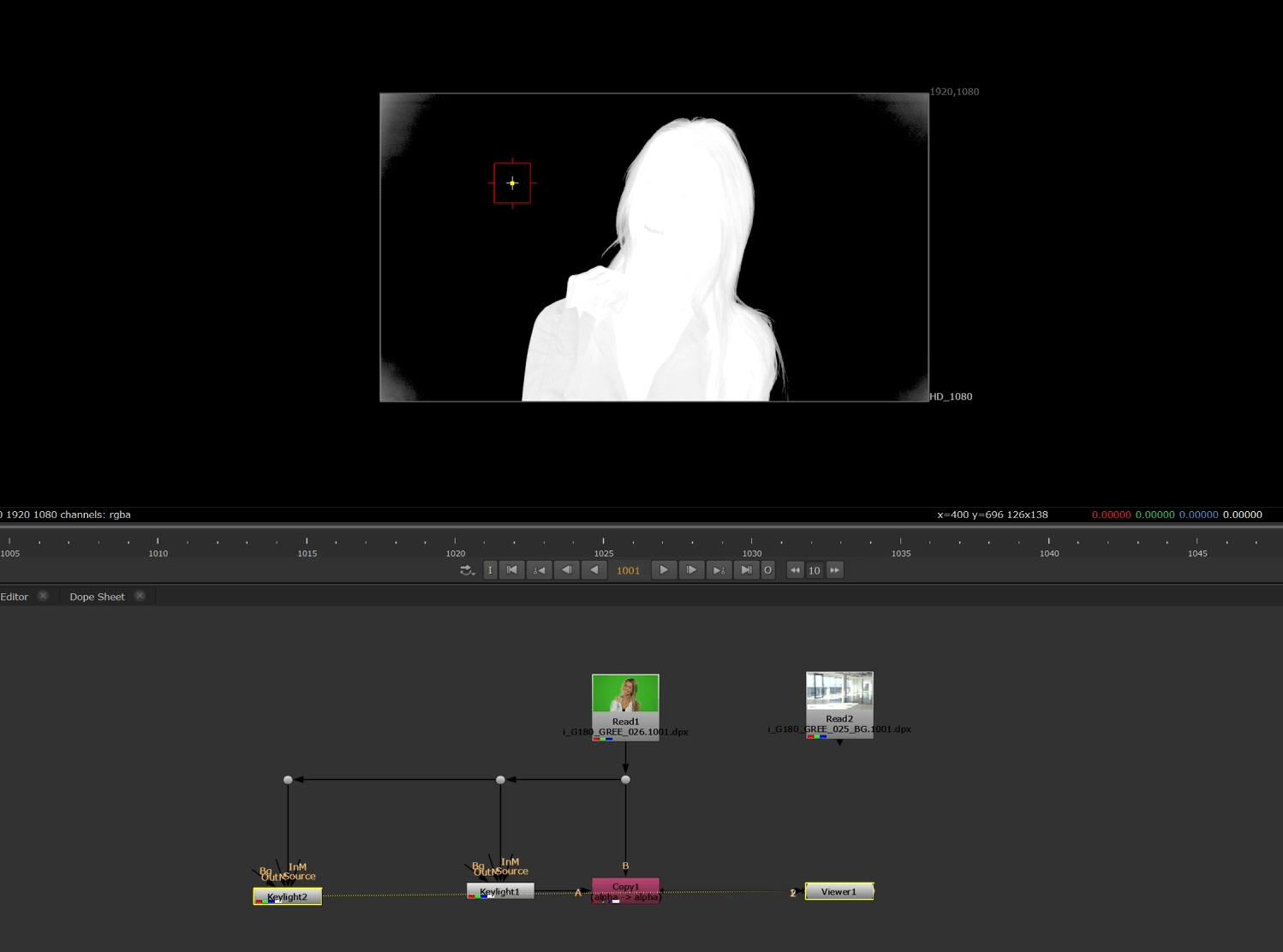
After doing the first keying, we are going to repeat the steps to refine the keying.
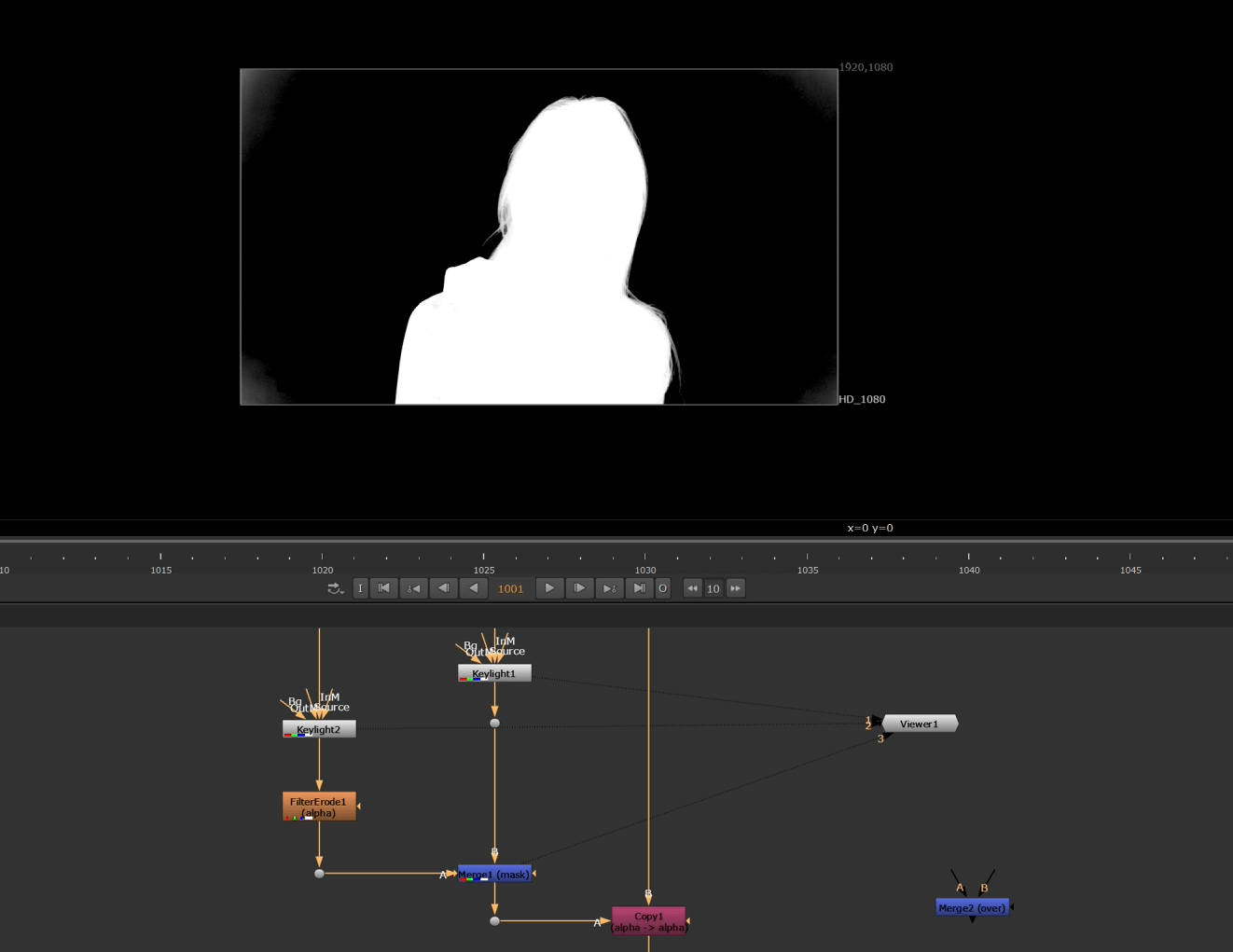
We also add a filter erode node to the image and merge all together.
we finally add a roto node to insolate the person on the footage and delete all the residual green on the scene.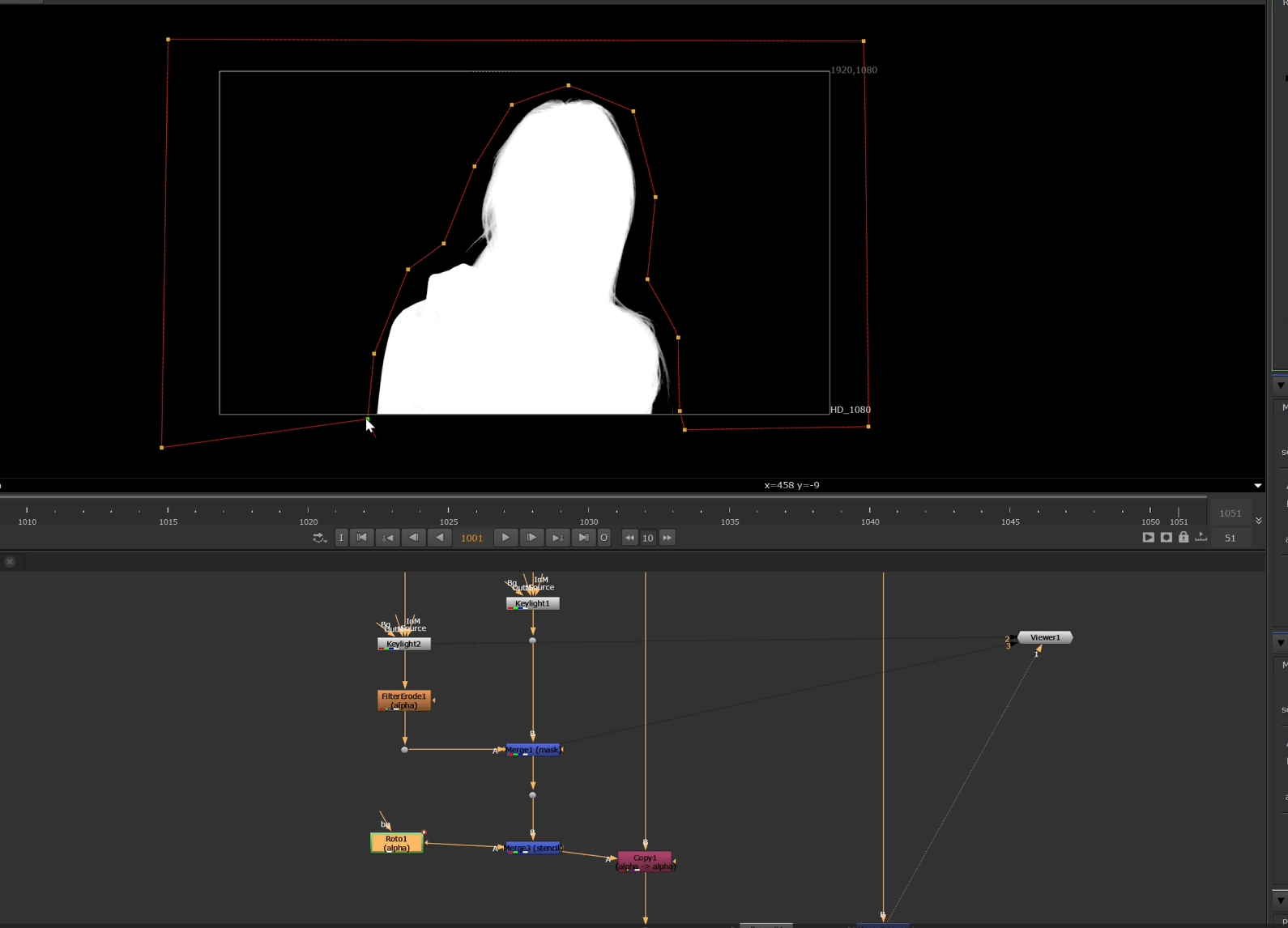
and we keyframe the roto to match on the whole footage without cutting out our person.
End of exercise 2
Here is the VOD of the whole session I did in class.
End of week 4
Week 5: Colour and Grading
This week will be an Introduction to the concept of colour and grading in Nuke.
In VFX, colour grading is the artistic process of manipulating colours in post-production to create a specific mood, style, or atmosphere for a visual piece.
Exercise 1
For this task we are going to use the grading nodes, to match our image to the background.
following last week session we have our subject a new background but the colour grading does not match, so today we are going to fix that.
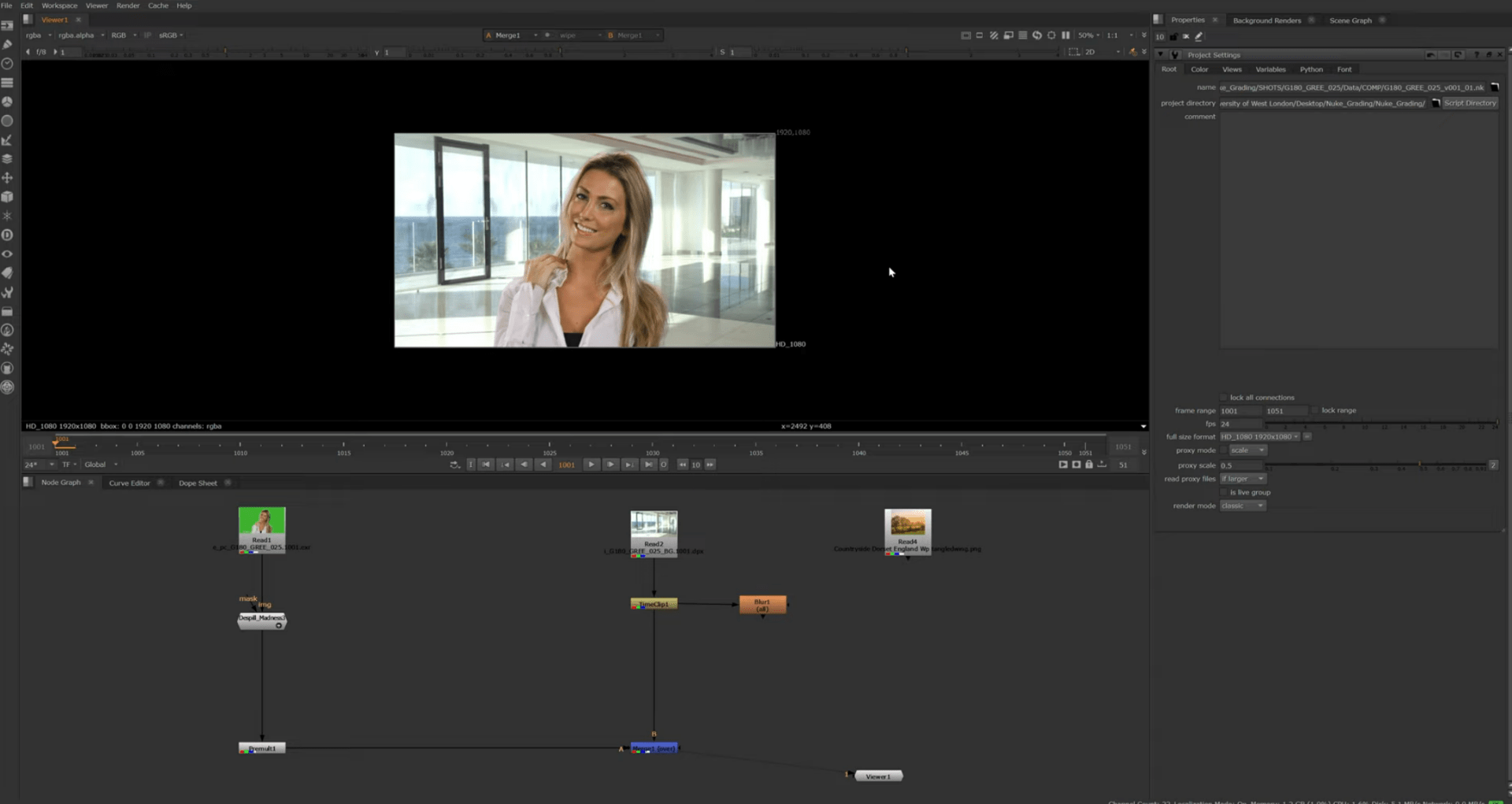
To start with we are going to check the luma levels.
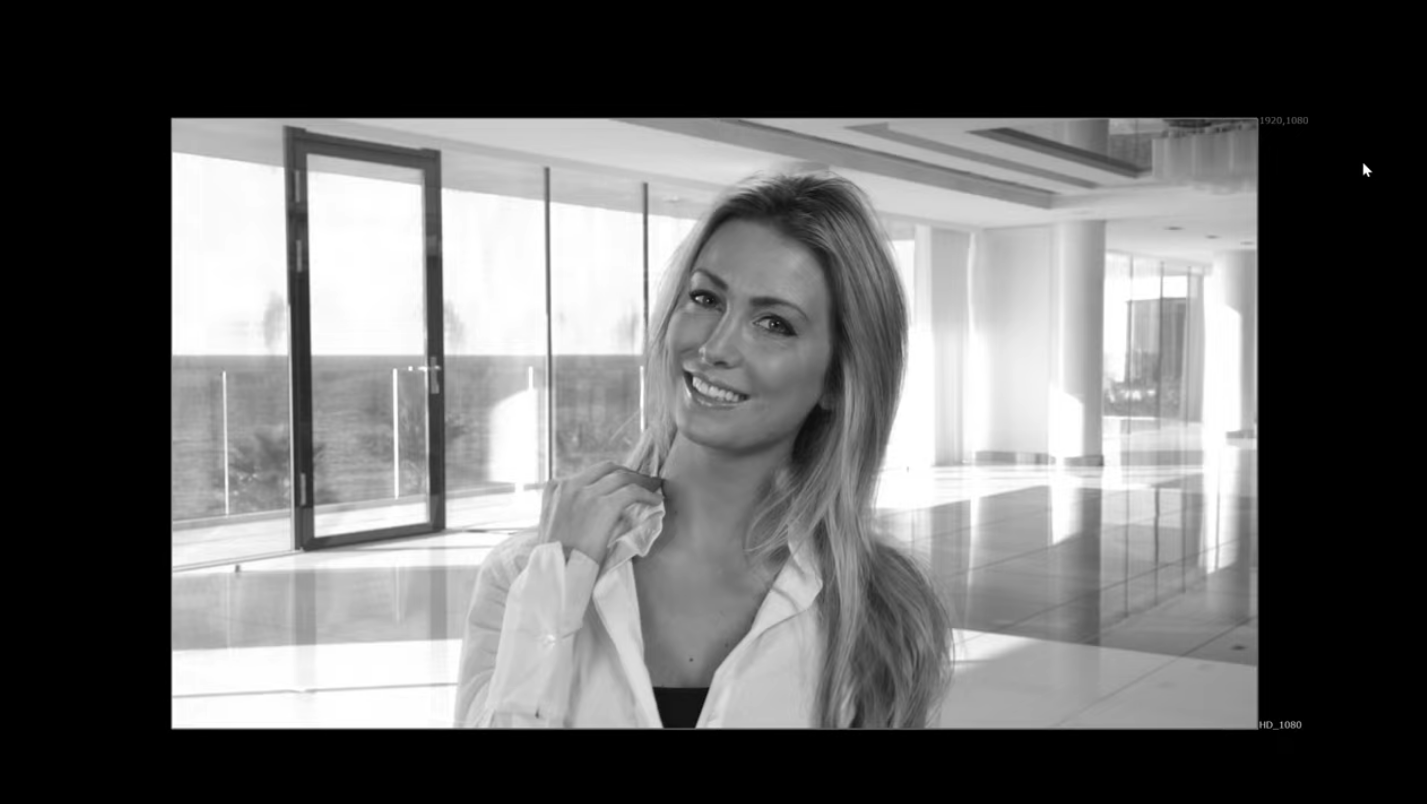
for that we are going to push the brightness to the max to see the dark spots.
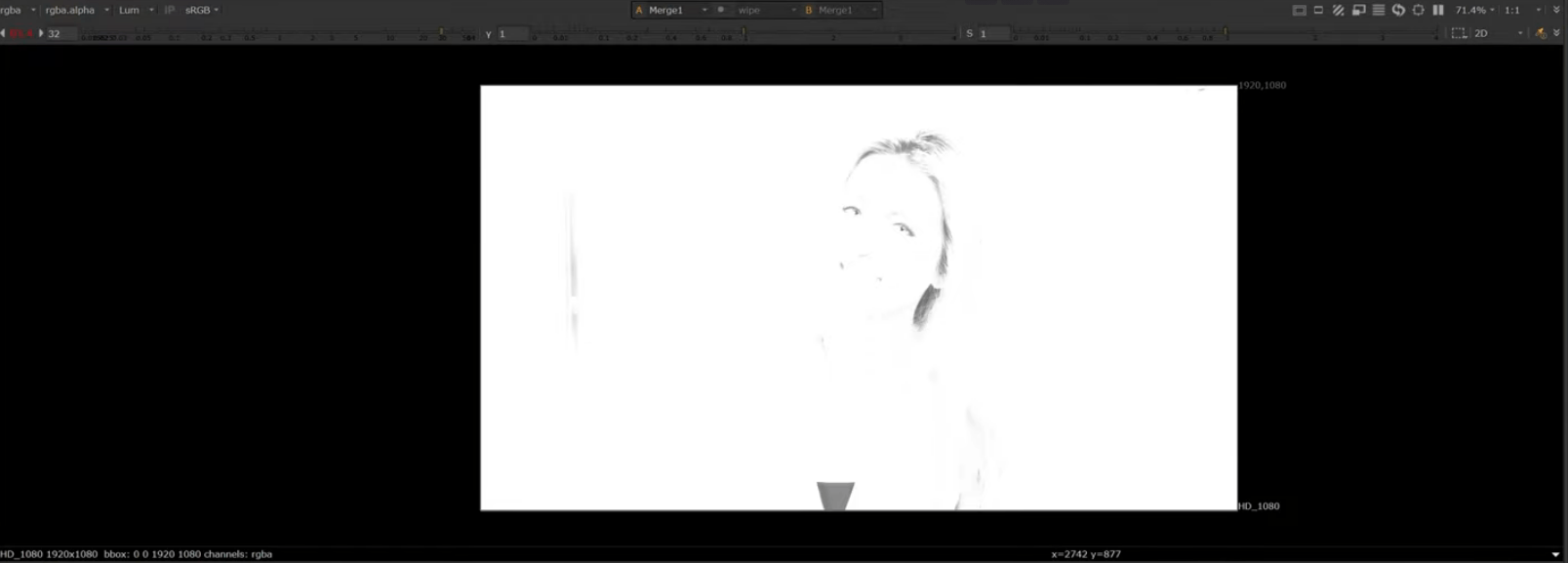
And match them with the background.
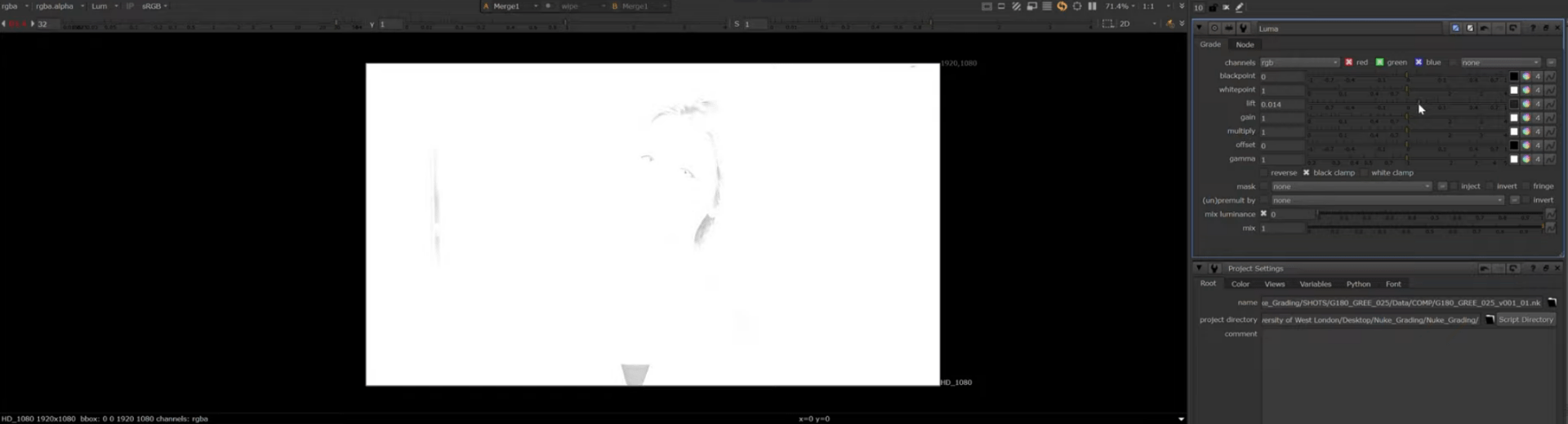
Now we have a balanced brightness level across the whole footage.
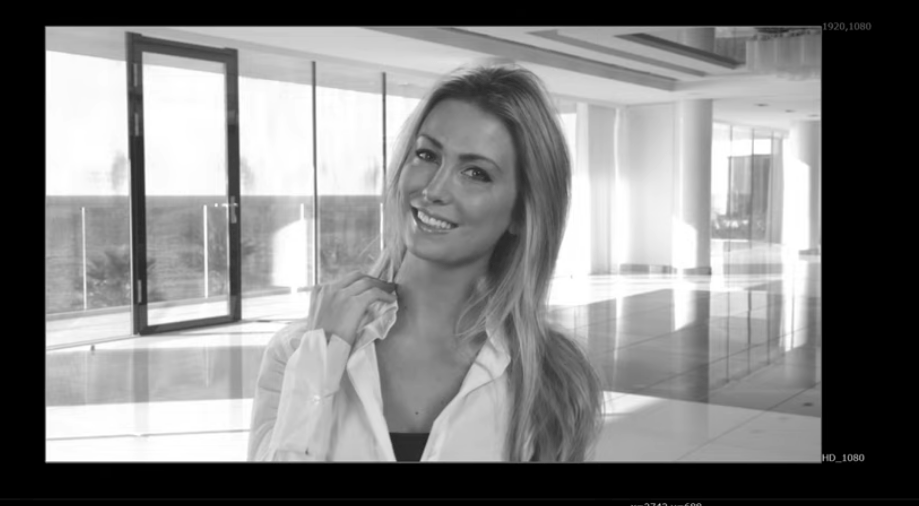
next we are matching the ambience colour adding another grading node.
as we can see the subject it is too warm compared to the background so we are going to change it to be a little bit cooler.
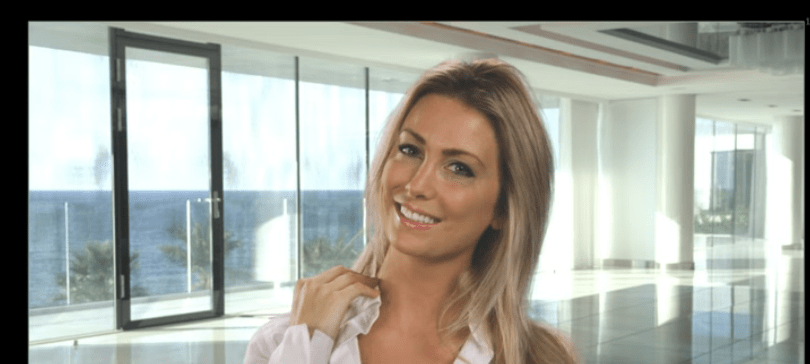
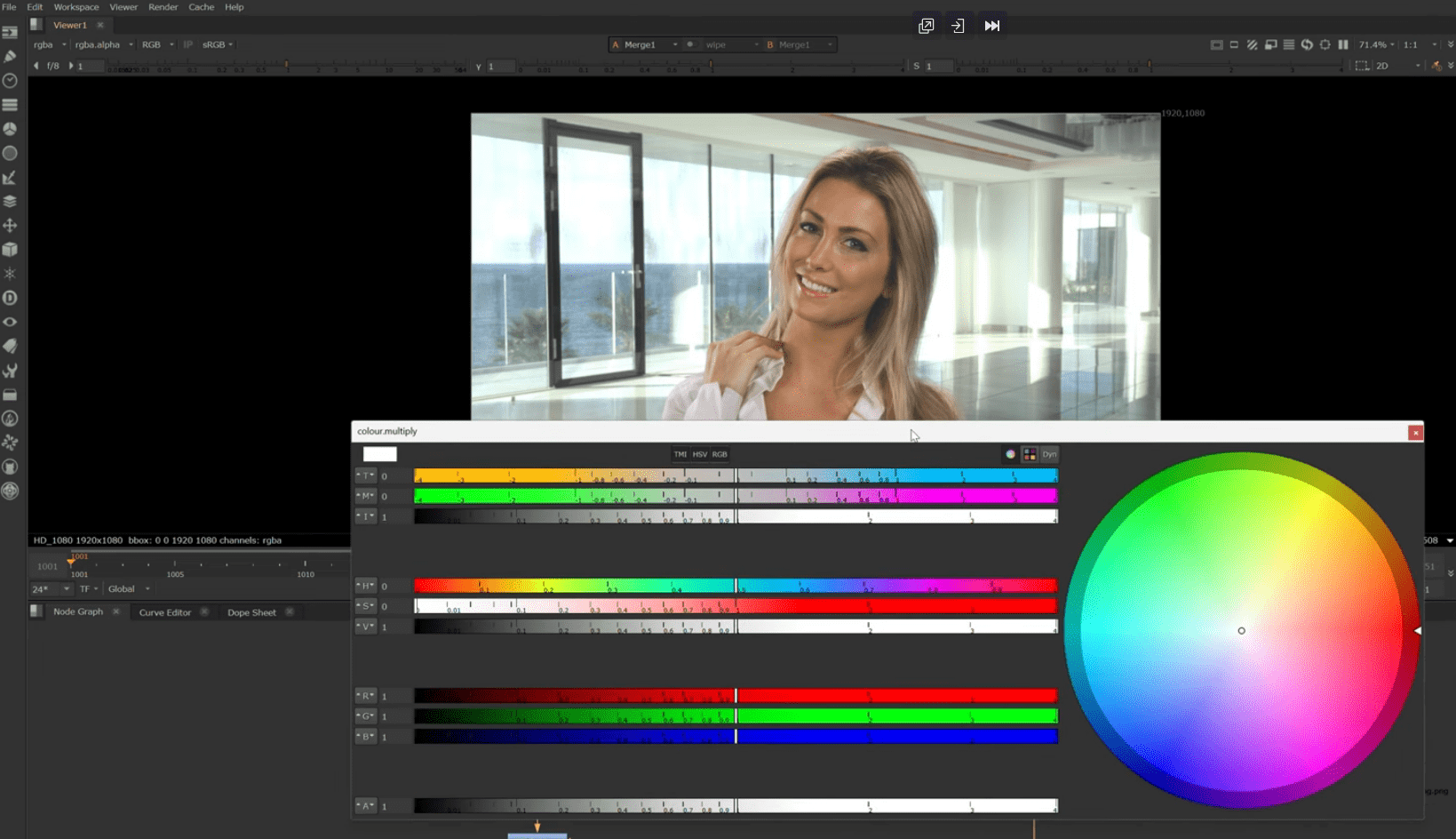
After we change the grading we end up with something like this, now the colours match a bit better.
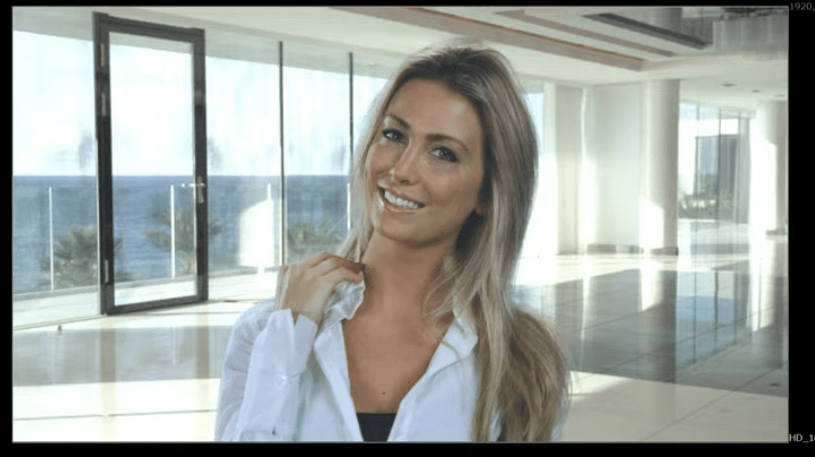
Now even if the temperature and brightness looks alright, we see a bit of over saturation from our subject so we are going to correct that adding a saturation node to desaturate the colour.
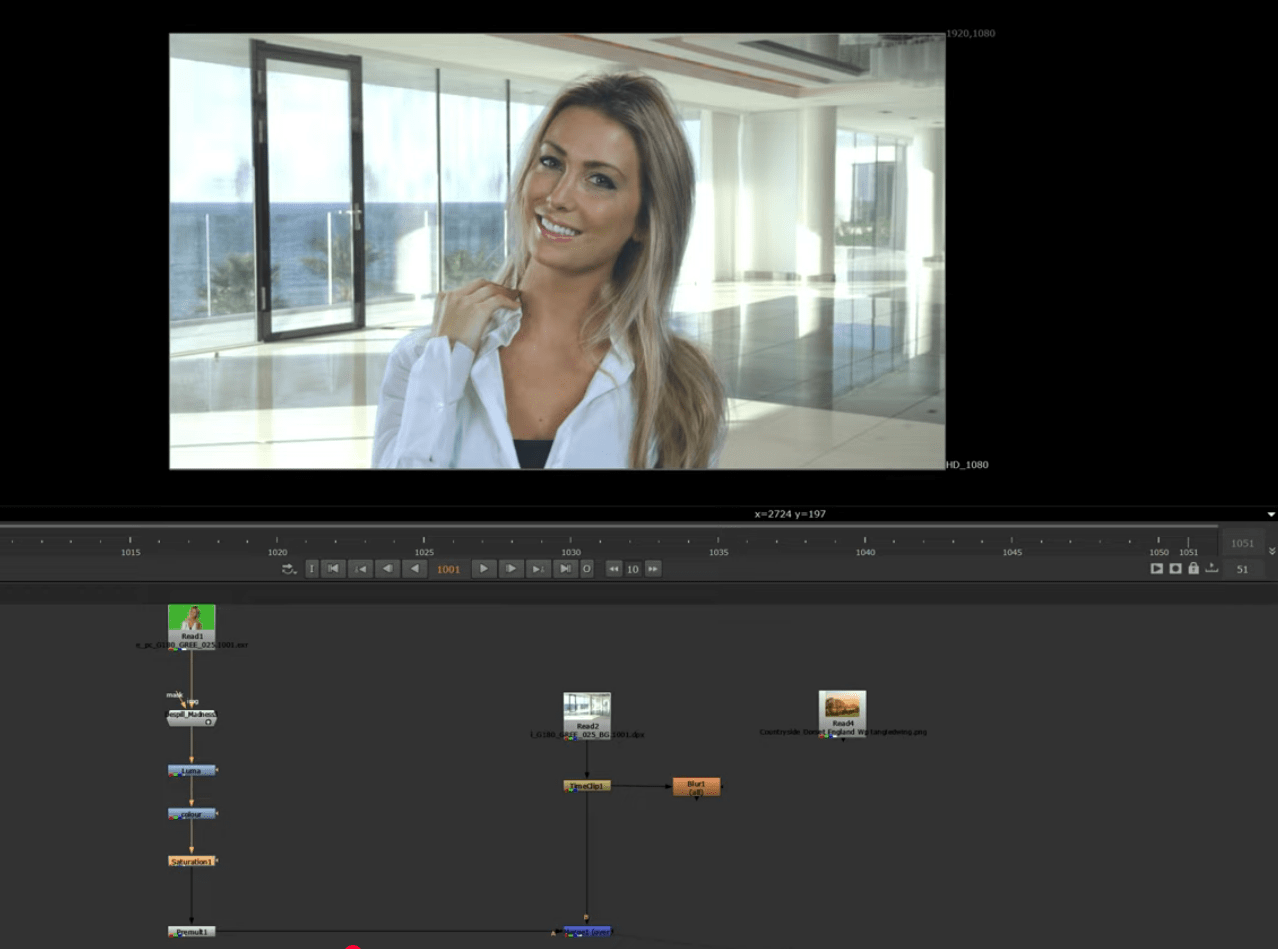
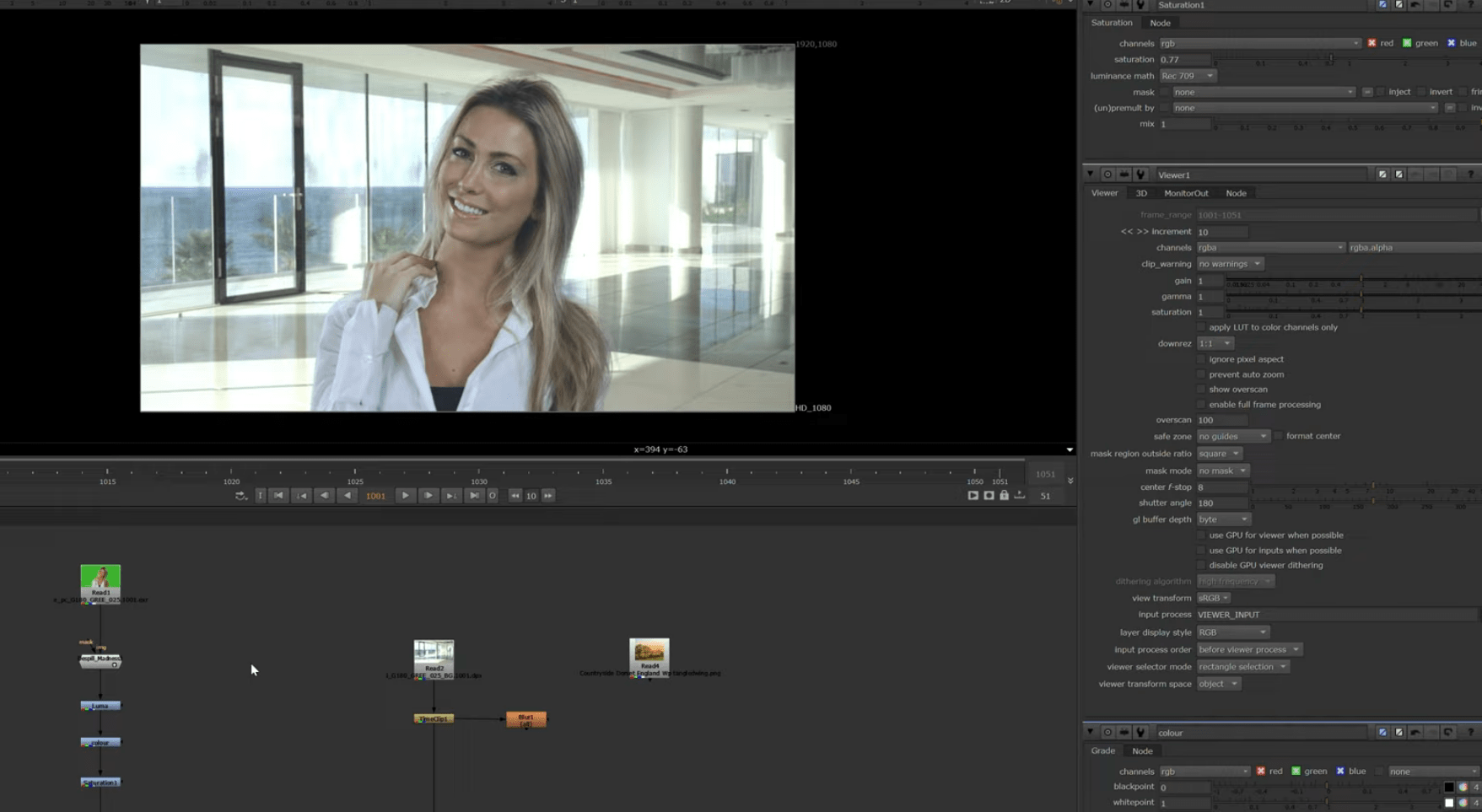
after desaturation:
Finally we use a roto and a grade node to match the light entering from the left in the footage to our subject.
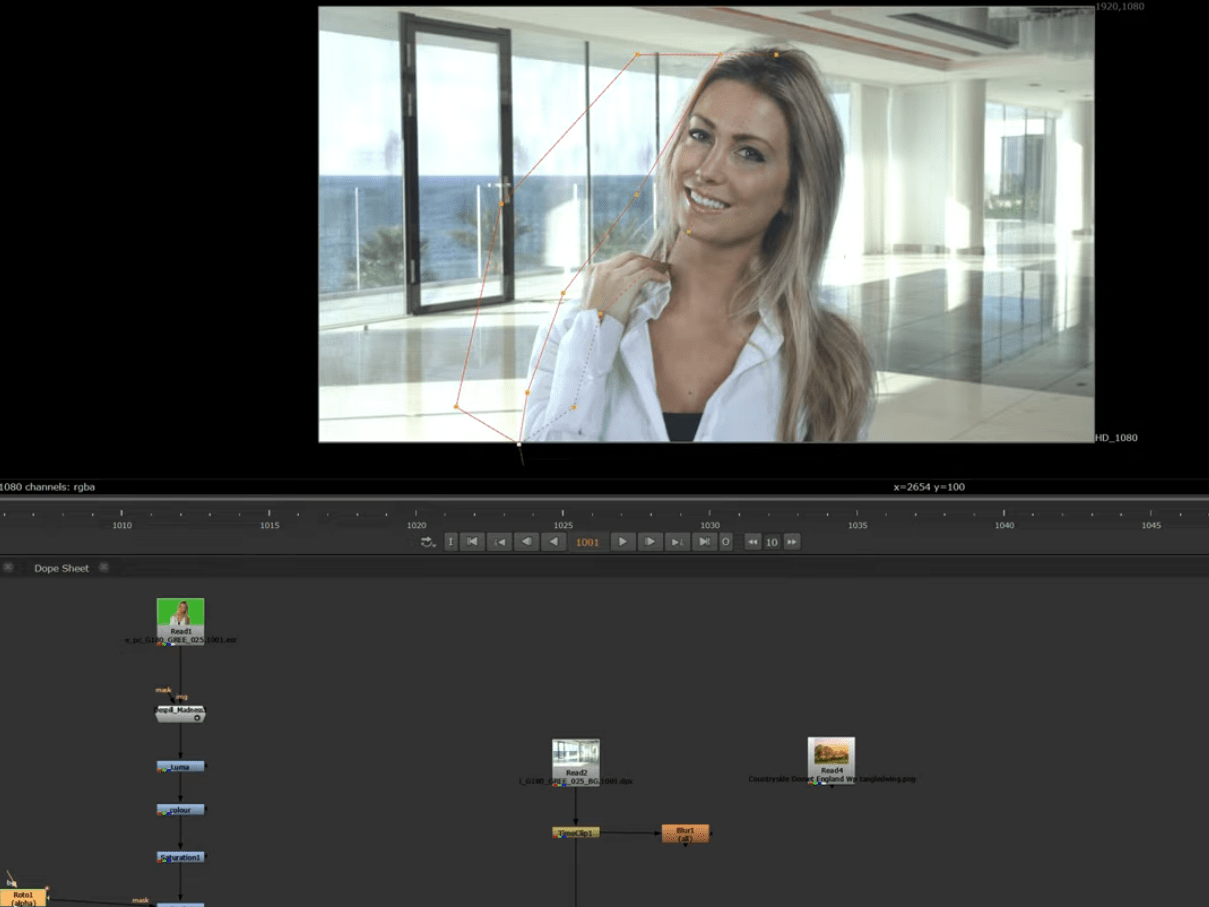
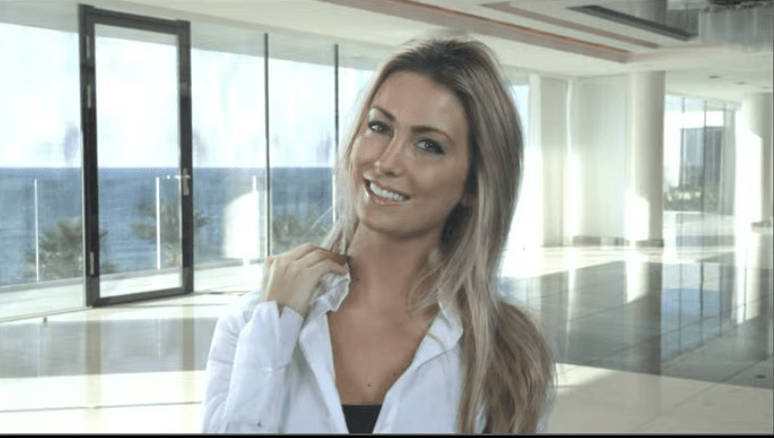
This is the final result:
End of exercise 1
Here is the VOD of the whole session I did in class.
End of week 5
Week 6: Tracking in Nuke
This week will be an Introduction to the concept of Tracking in Nuke.
Tracking in Nuke is the process of automatically following visual features (points, patches, or the camera) across frames so that you can attach, stabilize, or match move elements consistently to live-action footage. In Nuke this includes 2D point tracking, planar tracking, and 3D camera tracking / solve.
Exercise 1
For this task we are going to use a patch to censor a brand on this piece of footage.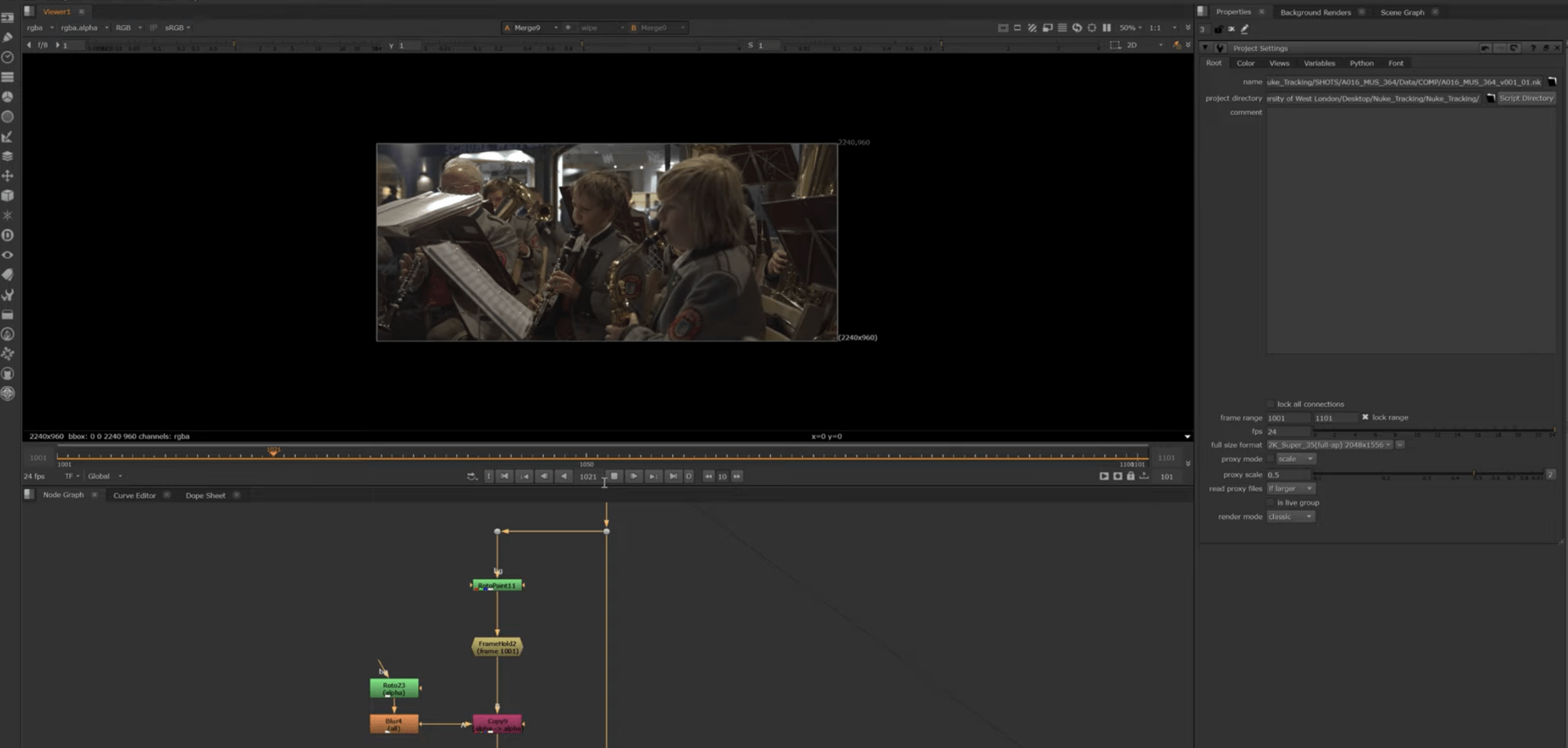
we are going to start by adding a tracker node.
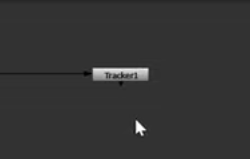
this node will allow us to track a pattern on the footage that can be followed. to start with we are adding a track.
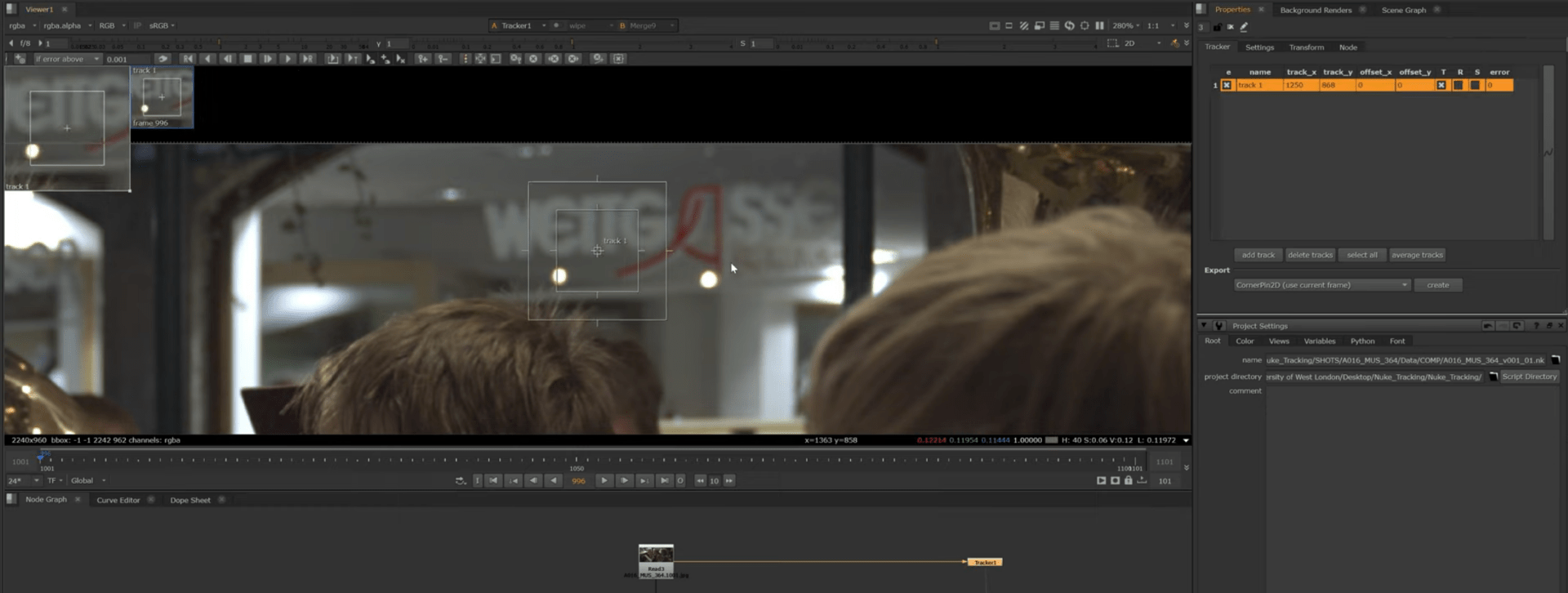
after selecting our hero frame where there is minimal motion blur , we choose to track the red symbol on the brand.
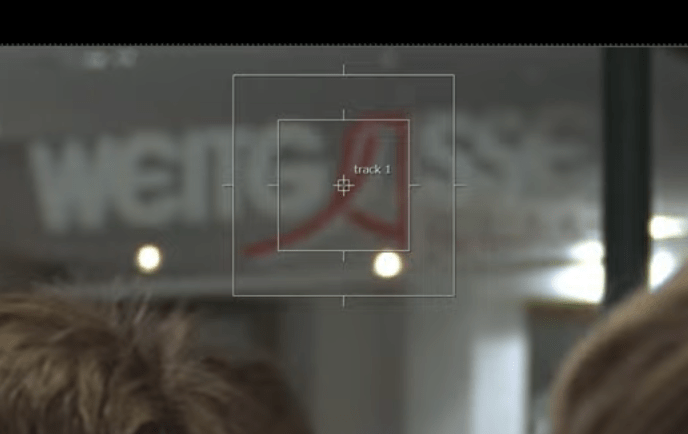
we are now going to generate the tracking by clicking the track to end button.
this is the result for the tracking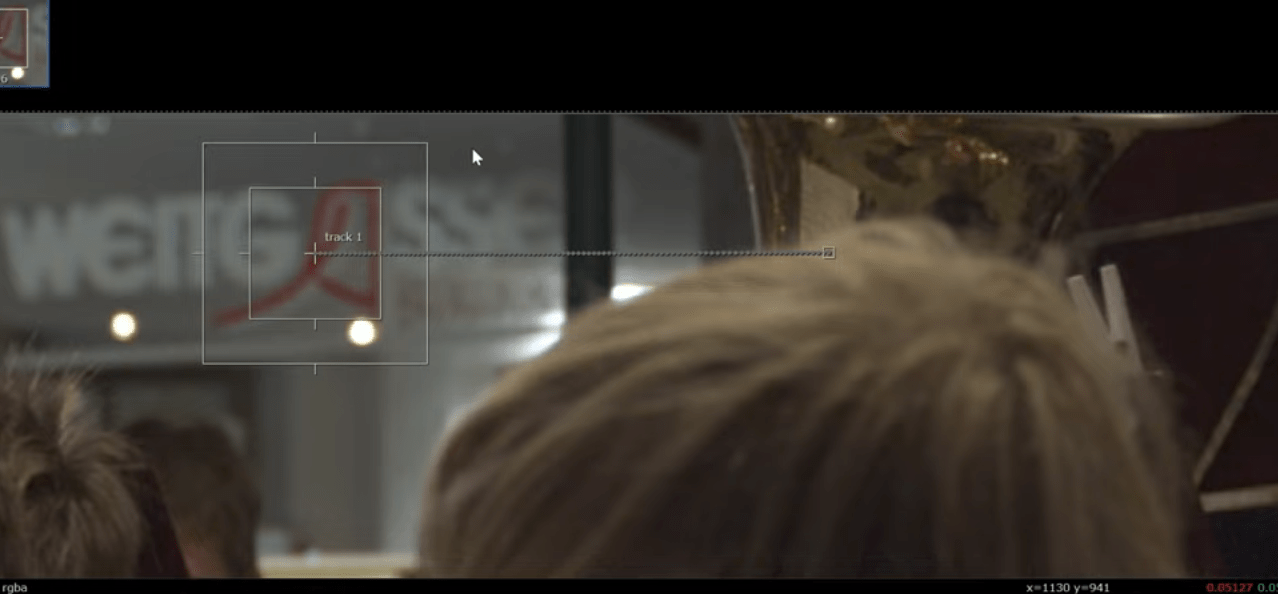 To check if the tracking is smooth we are going to use the show error on track button.
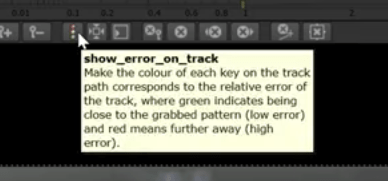
as we can see most of the tracking is good but at the end is no stable, because is shown in red.
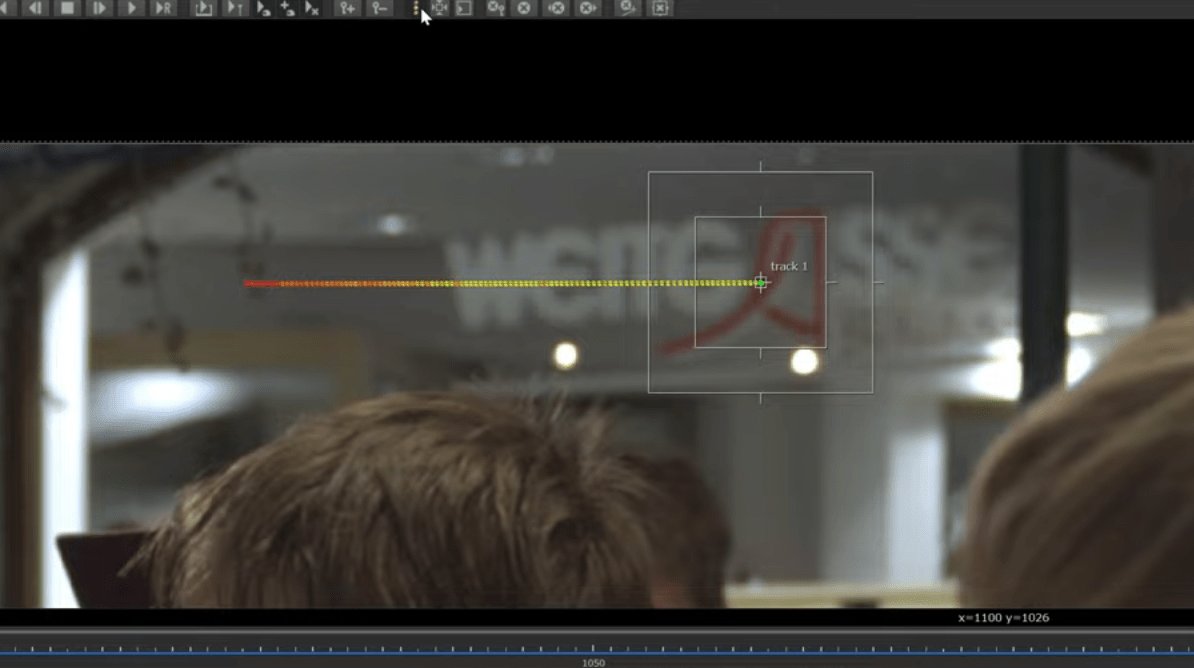
to solve this we are going to navigate through the time line where the track starts to be instable and delete that part of the track using the clear fwd button.
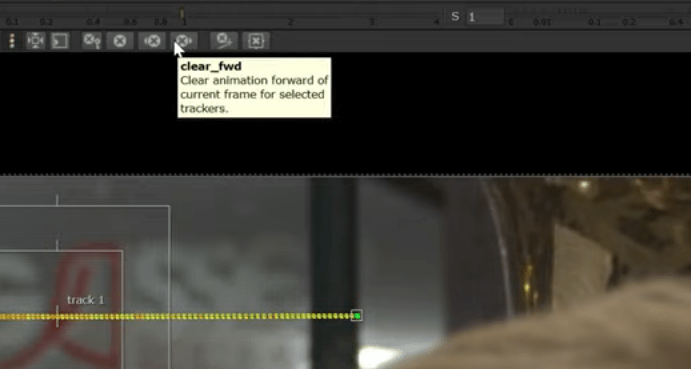
and now we are going to re-do the tracking from that point.
now our track looks better.
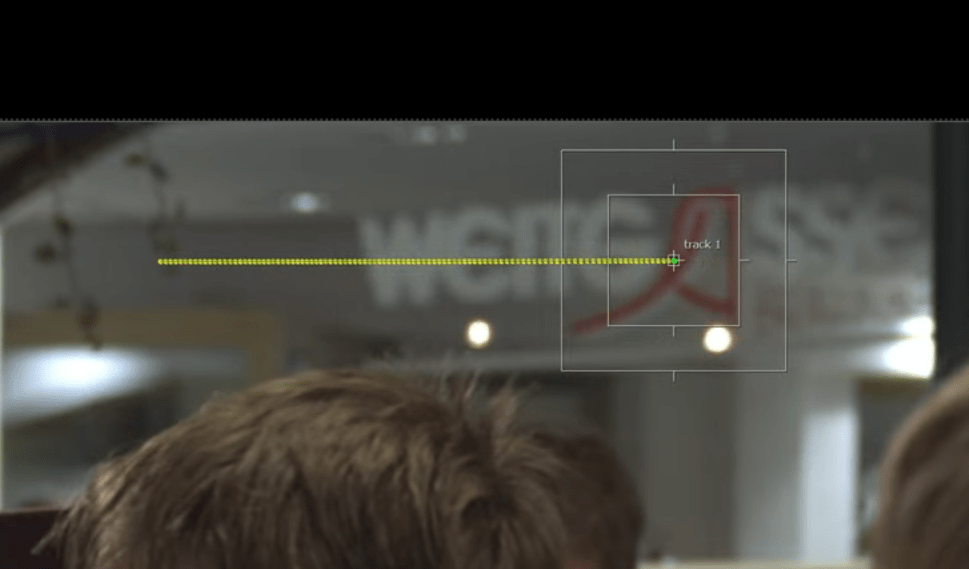
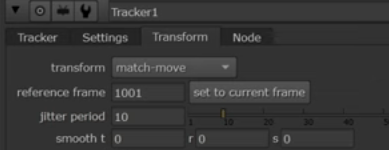
now e change the transform option to match-move and set the reference frame.
This is the final result.
End of exercise 1
Exercise 2
For this next exercise we are going to use two tracking points instead of one and use a roto to follow the tracking. but the basics are the same.
we start by drawing our roto to our hero frame.
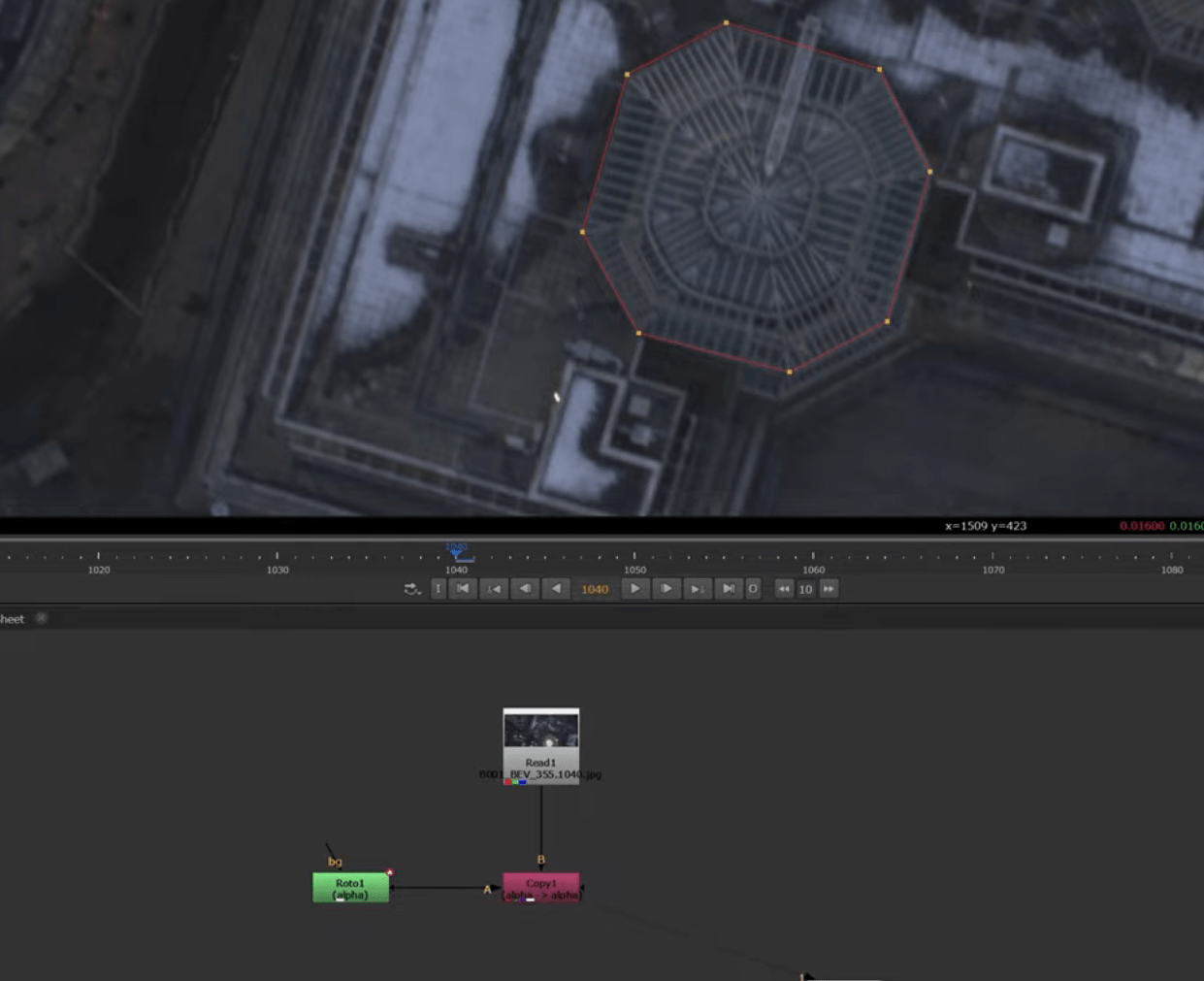
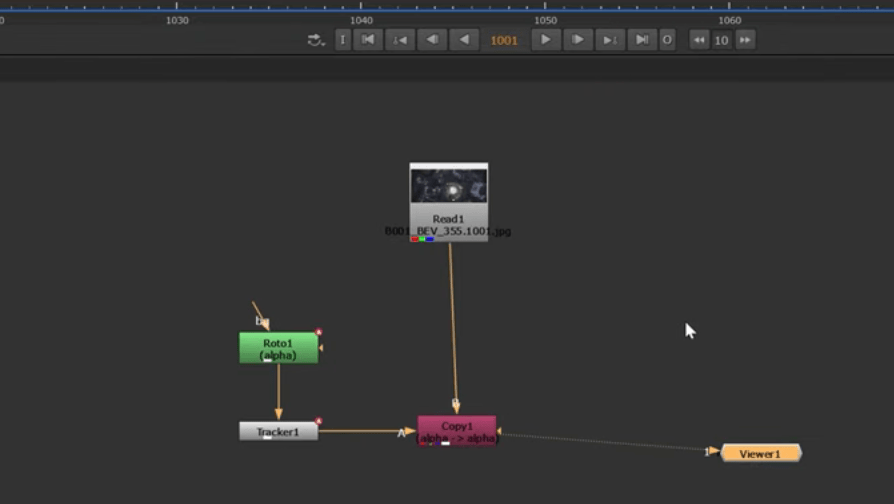
once we have our roto, we add a tracker node.
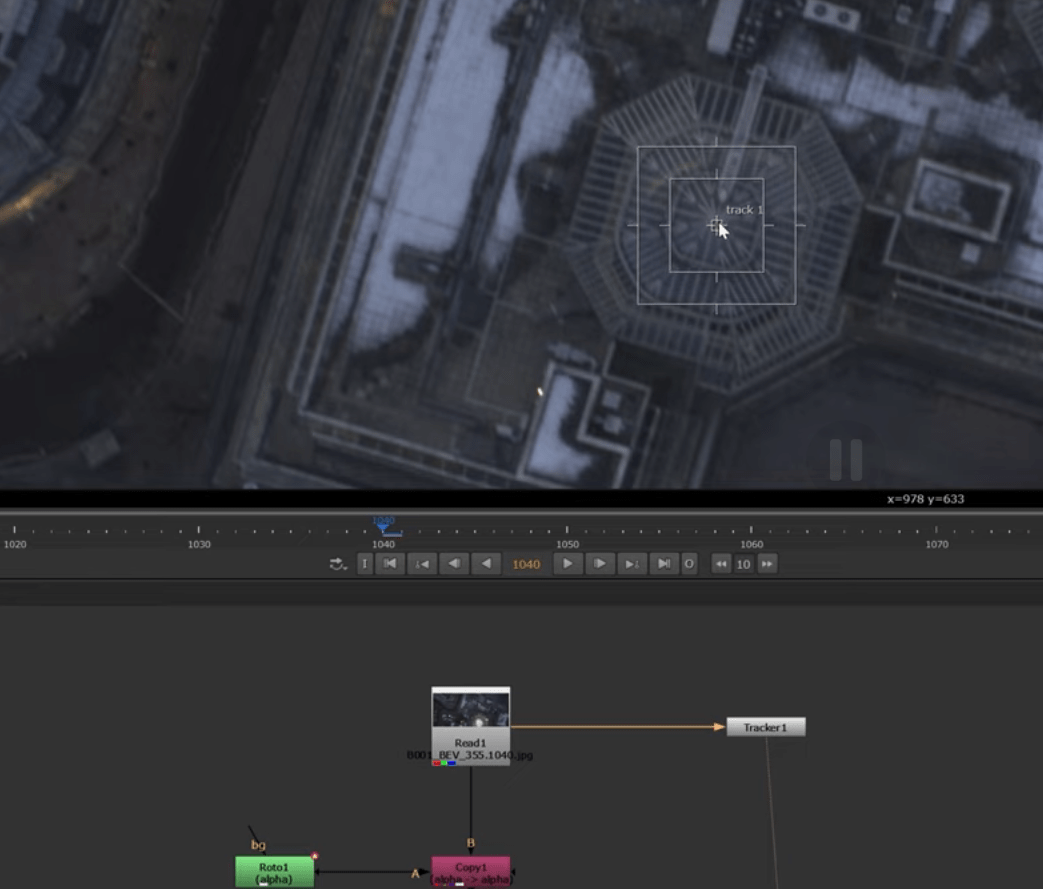
and we are going to add a second tracker to our tracker node.
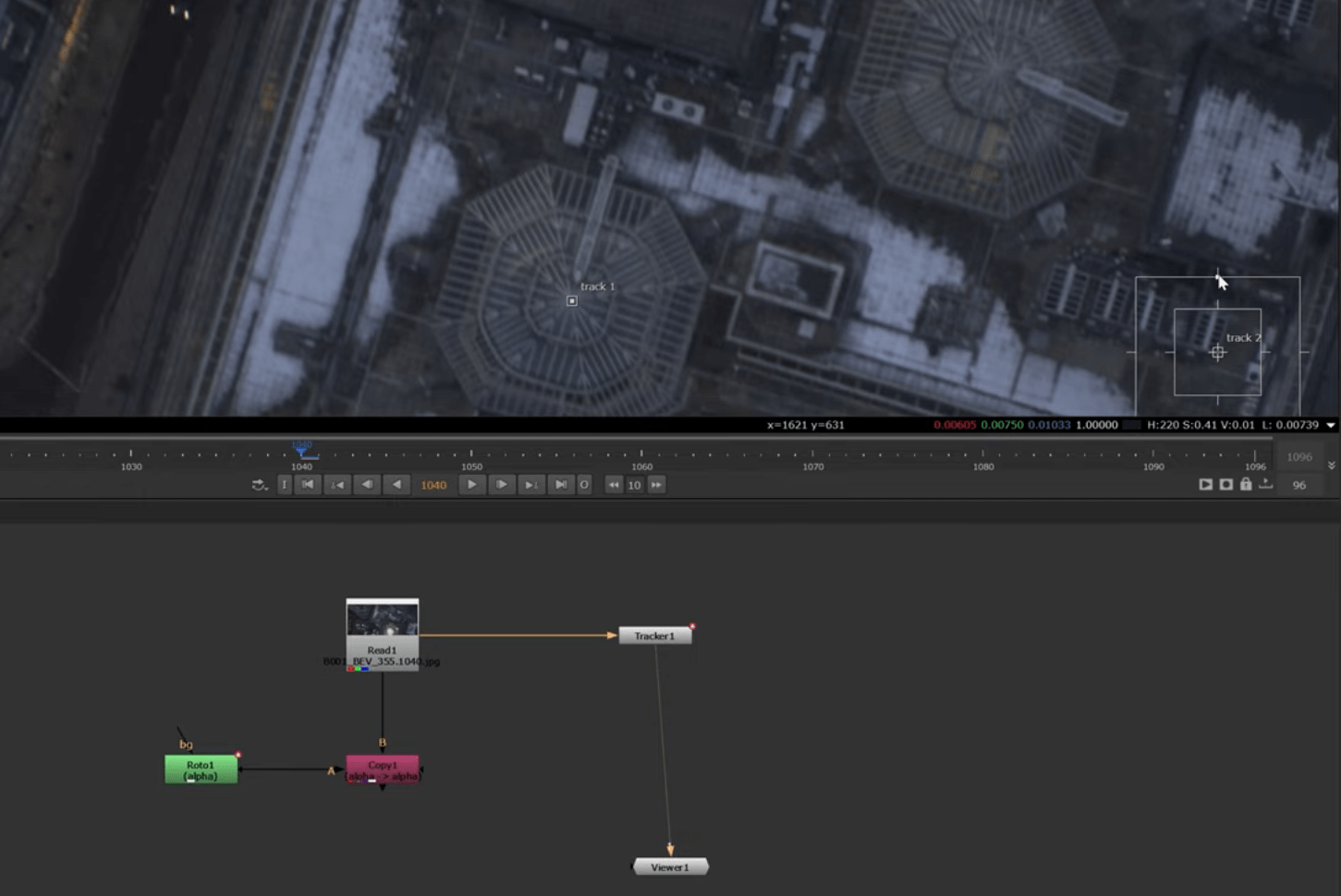
we then generate our track. 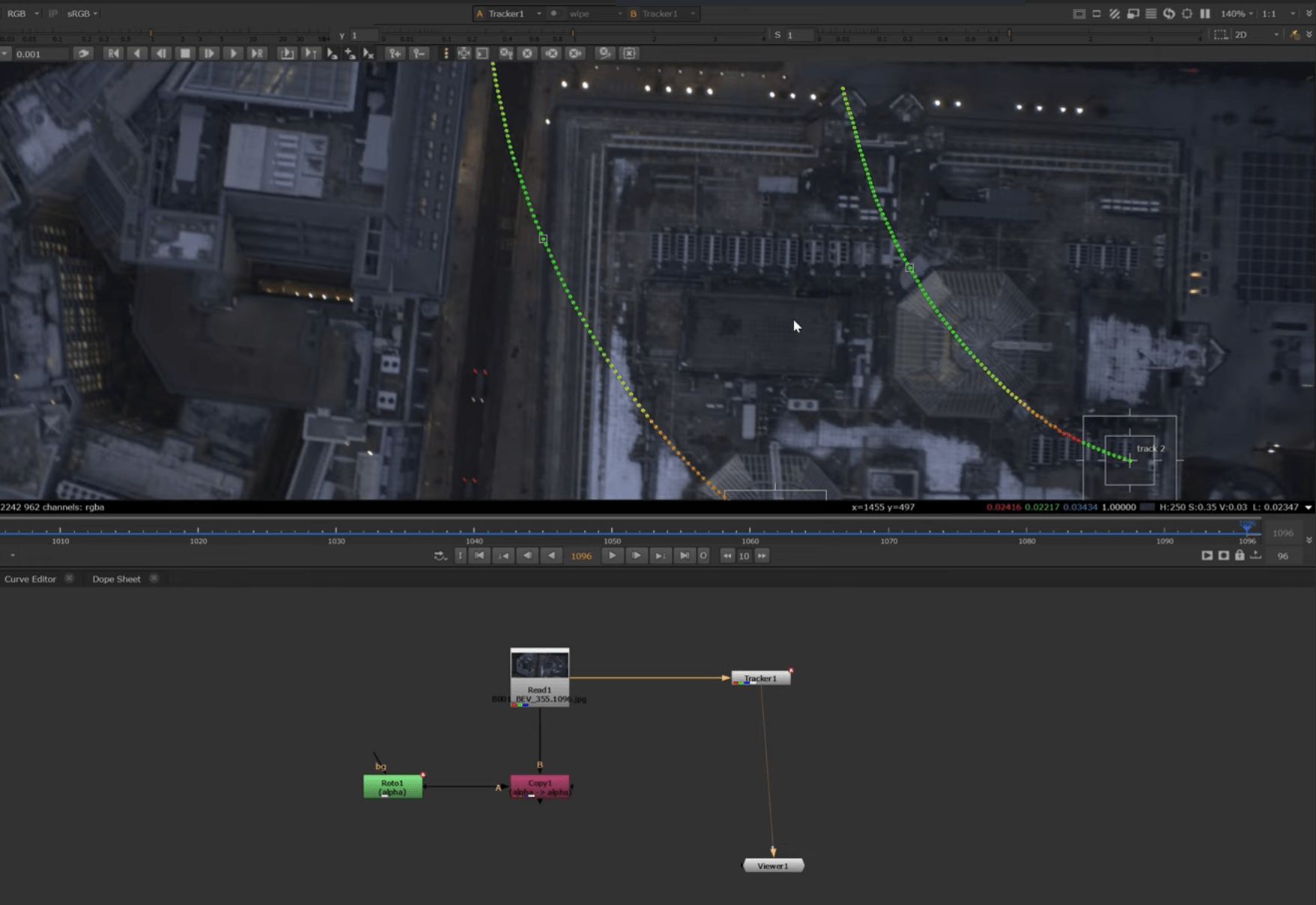 And fix the red tracks.
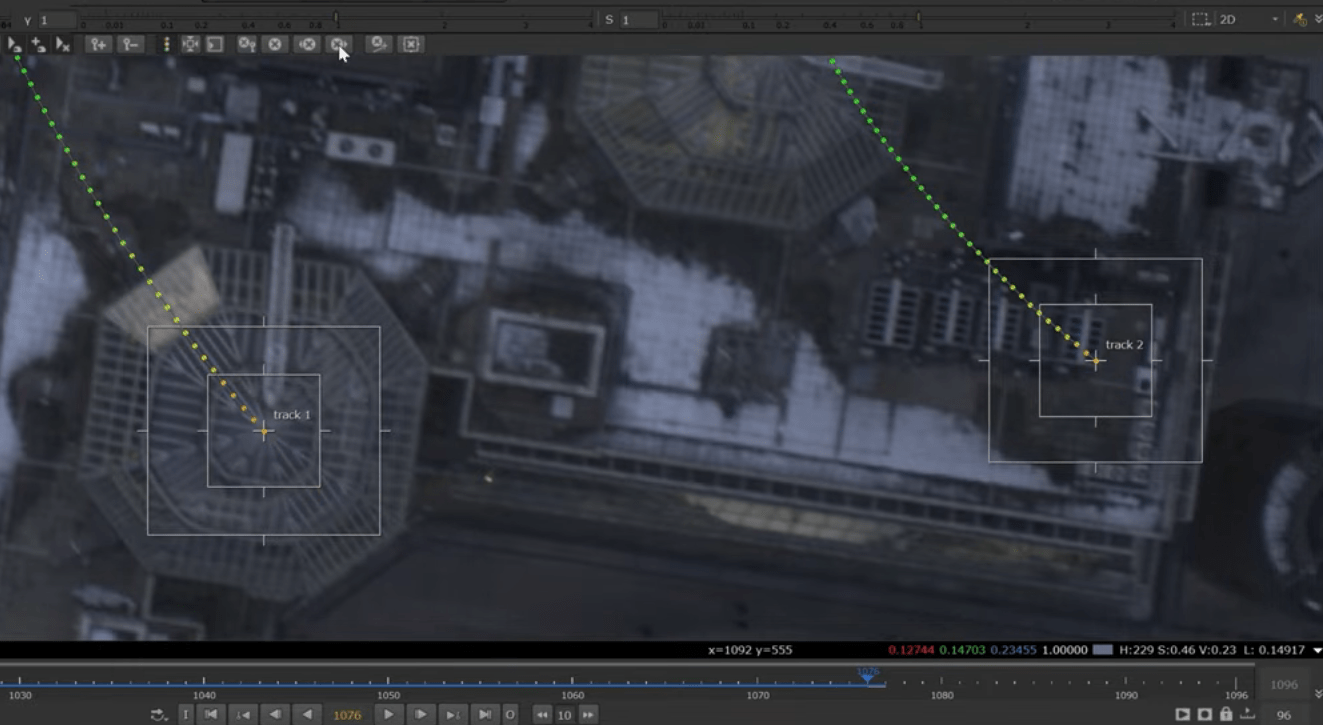
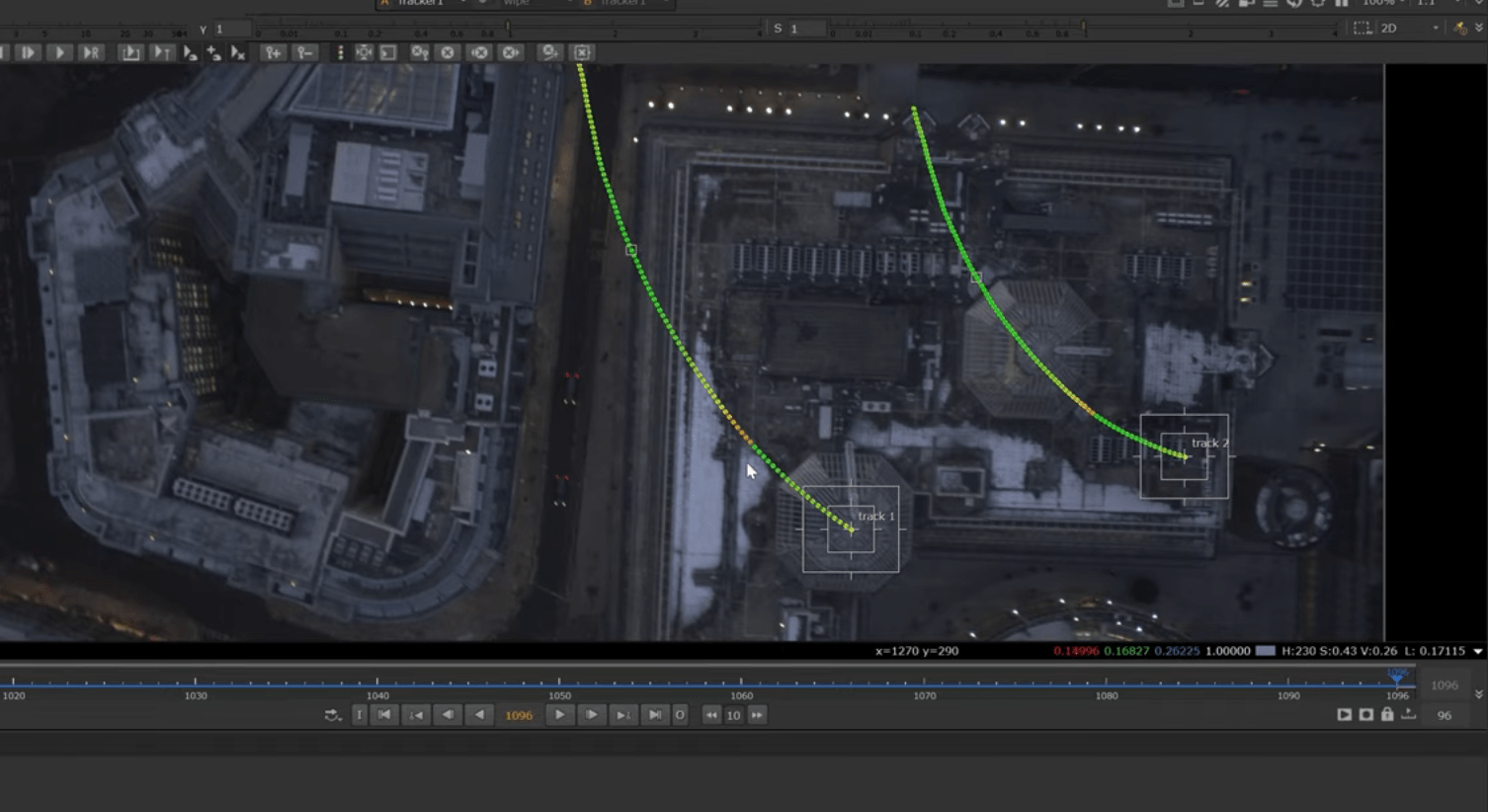
In this case we also what the rotation active so we activate them.
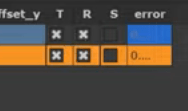
And finally we connect the tracker to the roto.
This is the result.
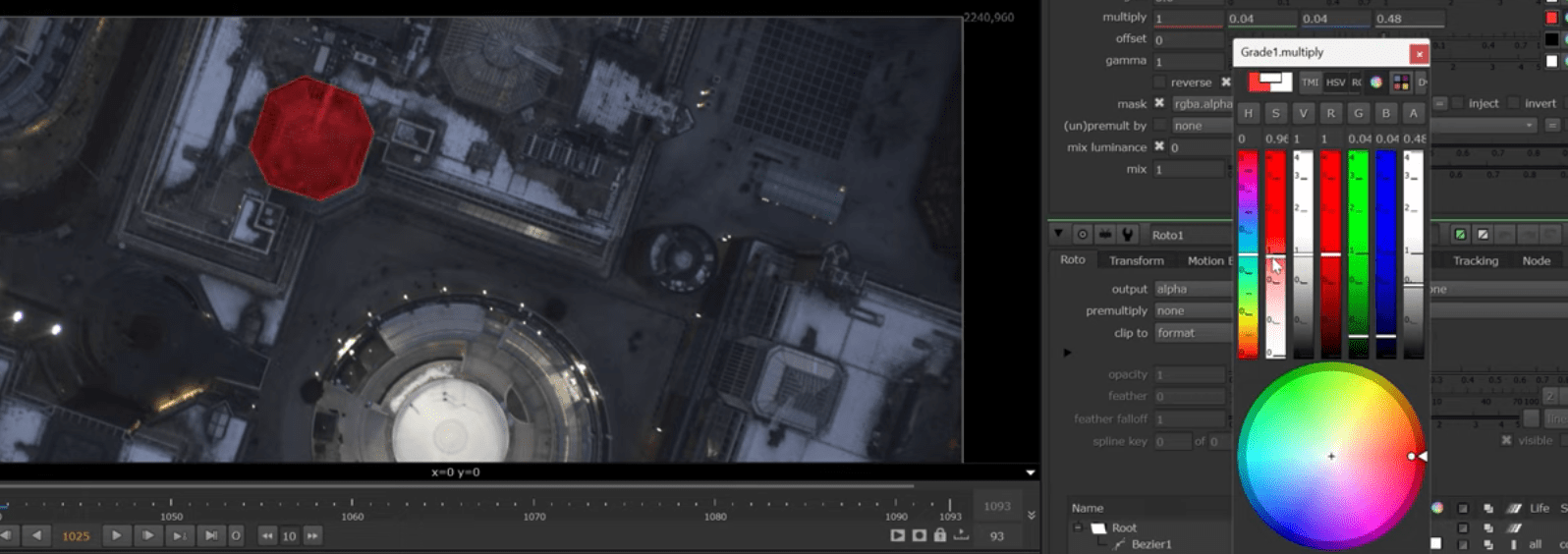
If we want to we can grade our roto to change its colour and it will follow the path.
End of exercise 2
Exercise 3
In this task we are going to use a roto to create a pinpoint and track our scene.
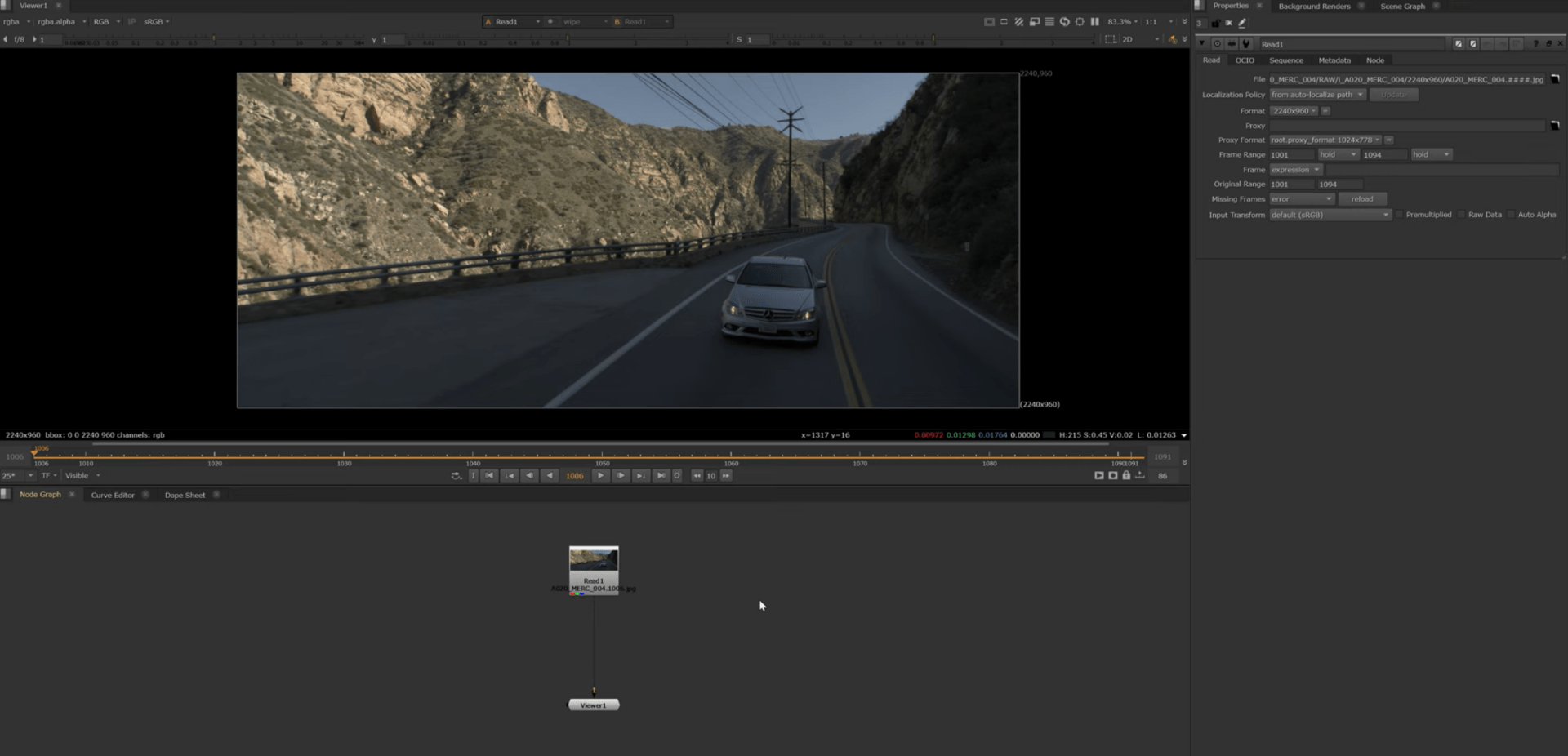
we start by creating a roto of the windshield.
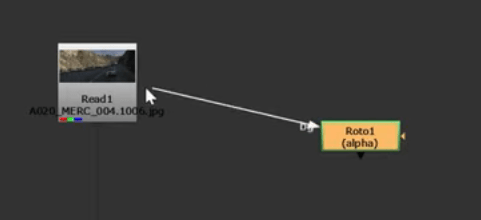
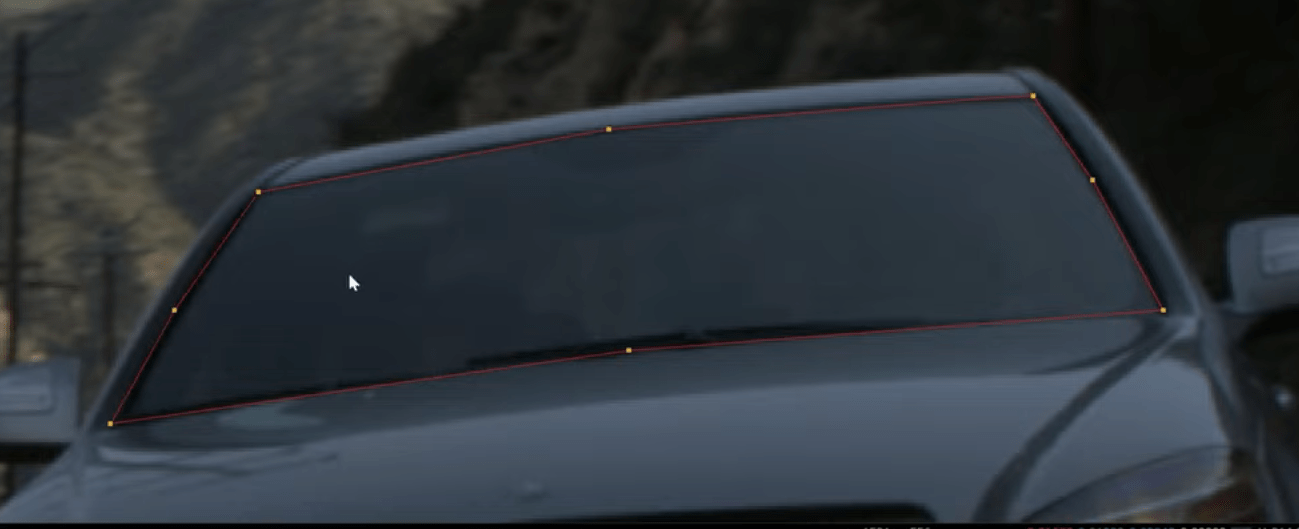
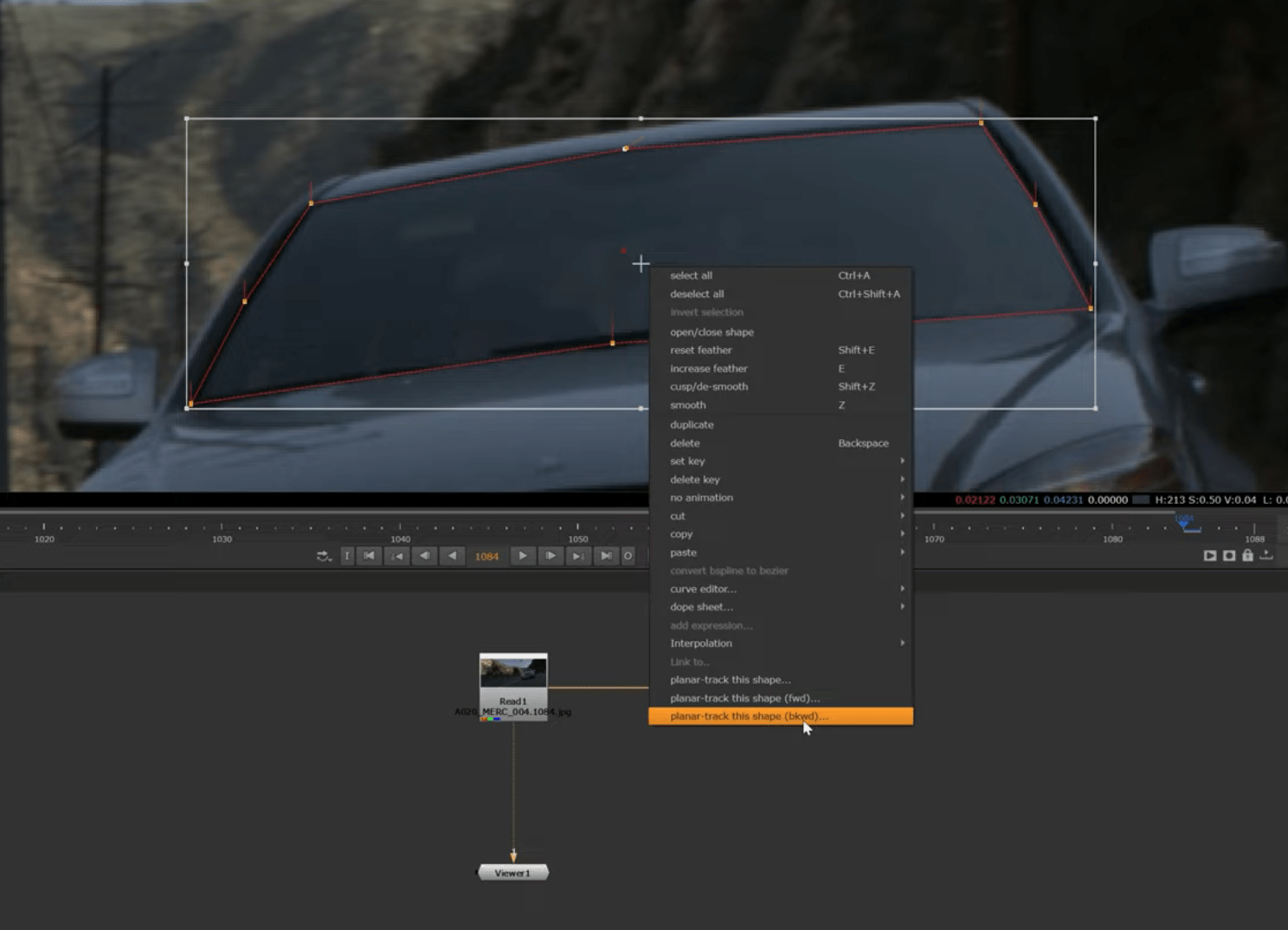
after creating the roto we drag select it and right click to pop up the menu in this menu we choose the planar-track this shape option to start tracking our windshield.
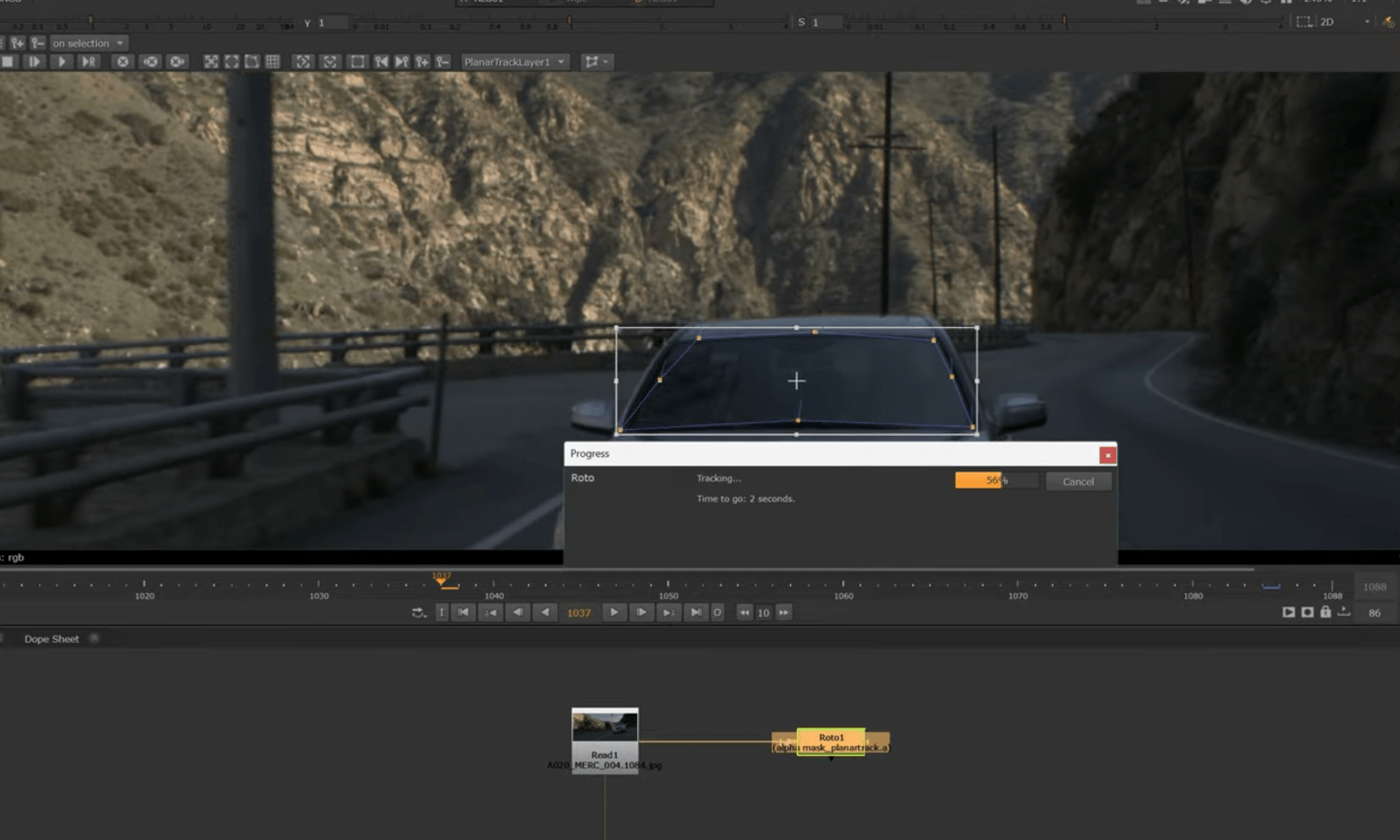
It will start tracking.
once the tracking is complete we are going to create a corner Pin .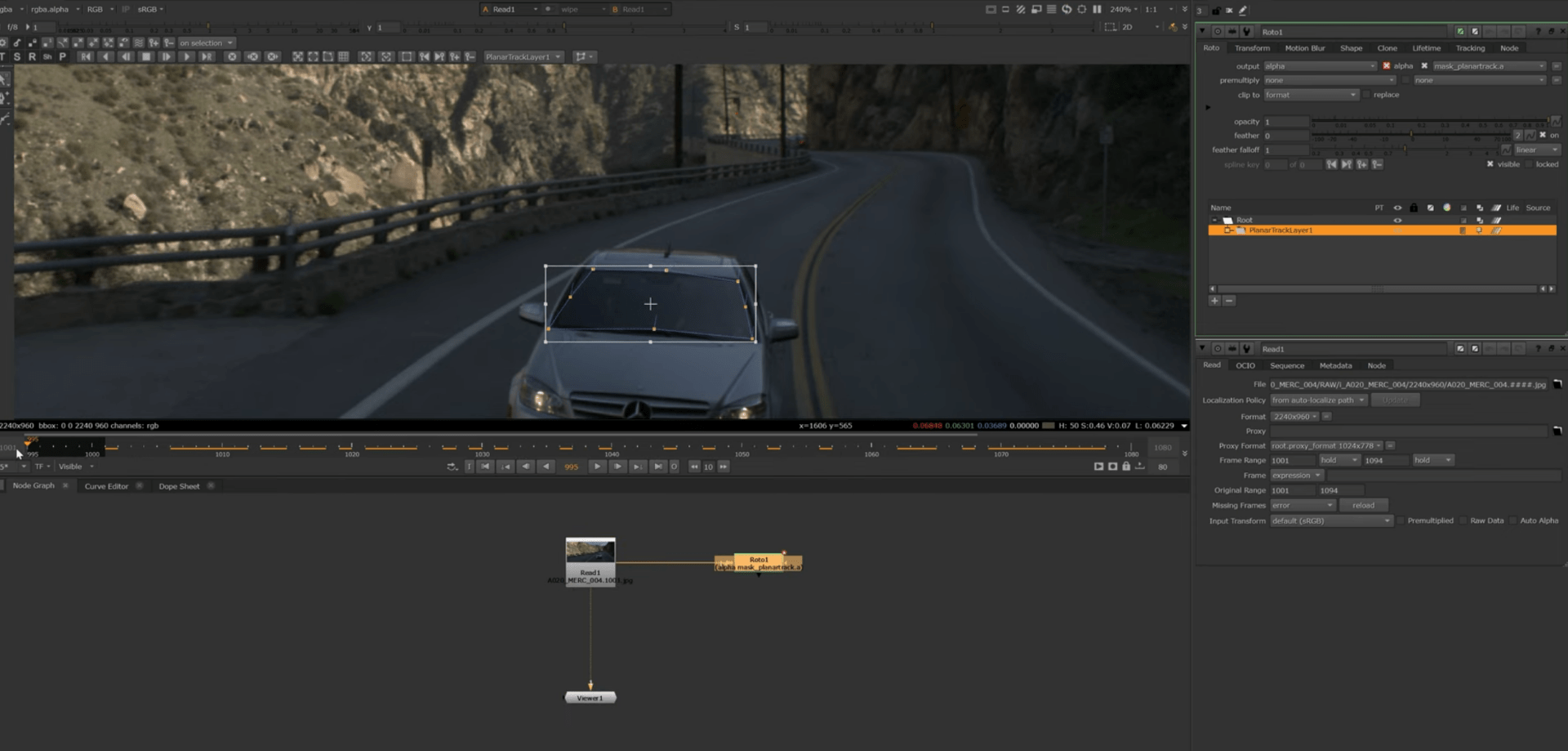
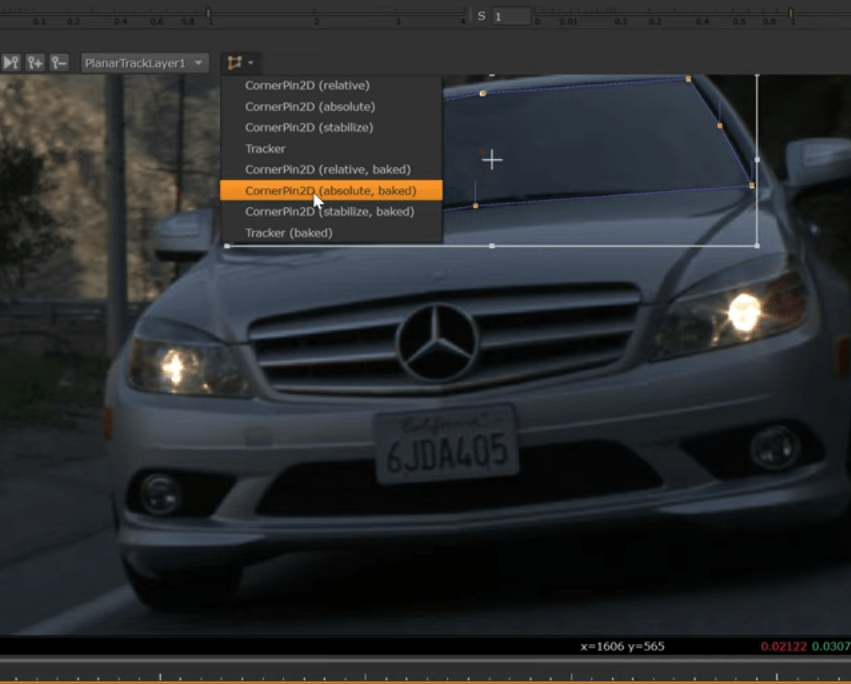
we will get something like this.
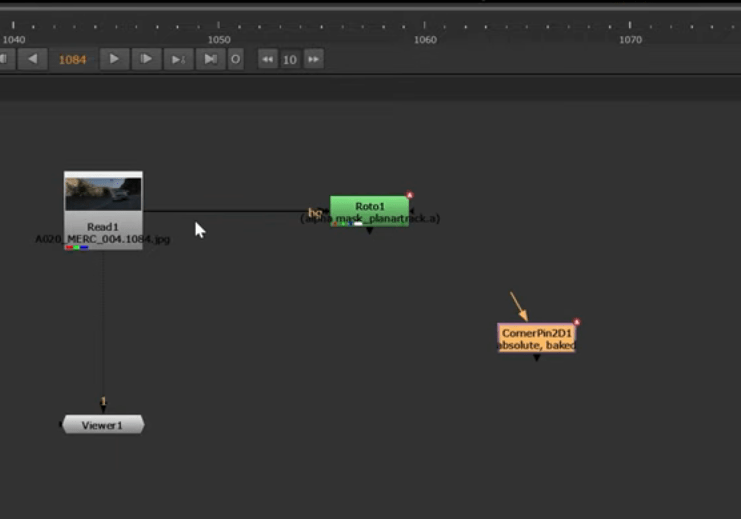
now that we have our corner Pin we will create new roto of the wind shield.
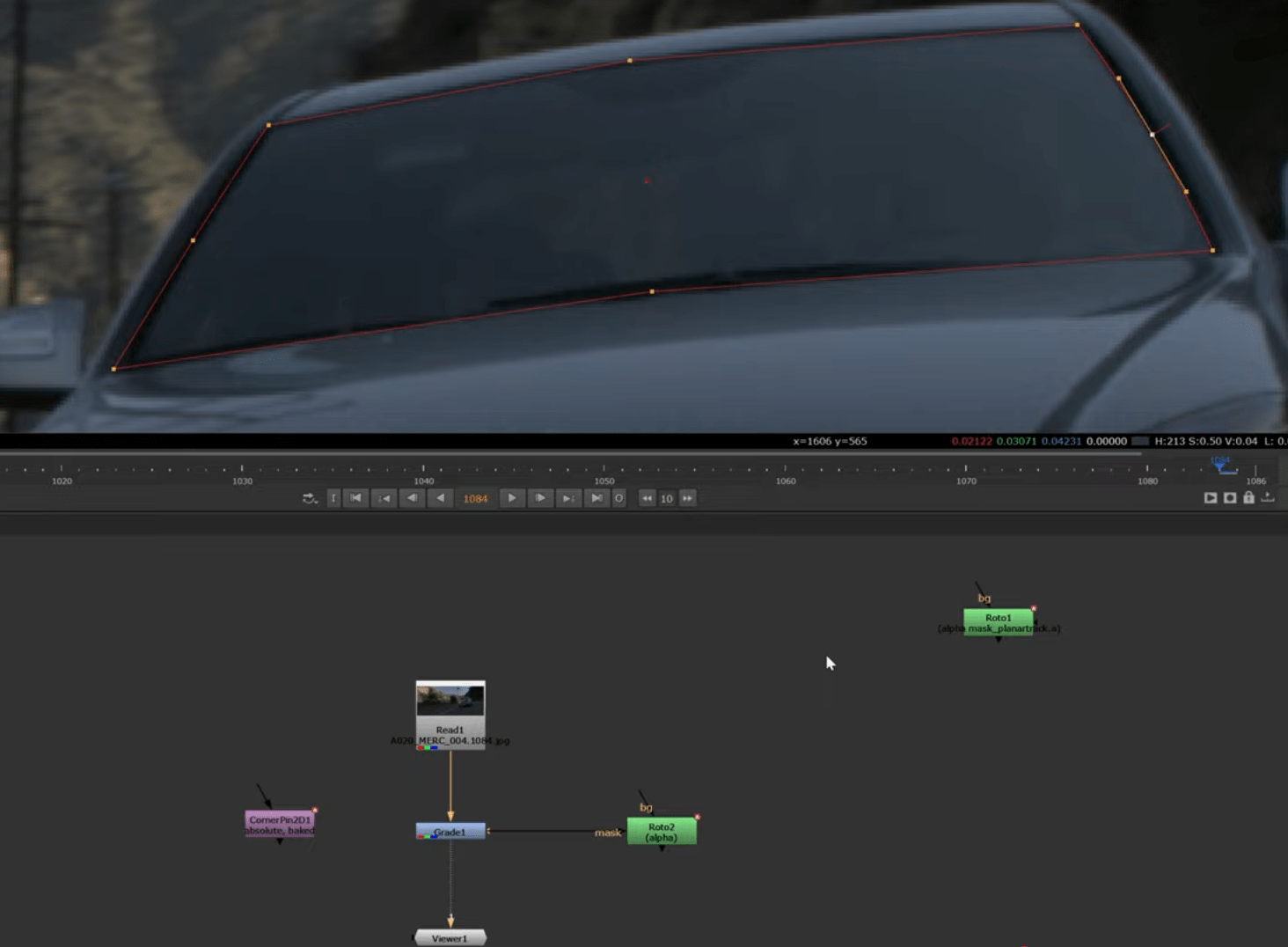
once our roto is crated we are going to set the hero frame for our corner Pin and delete all the animations.
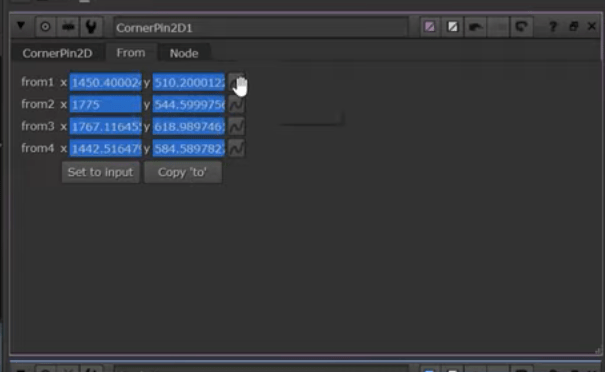
Once that is done we are now connecting the corner Pin to our roto.
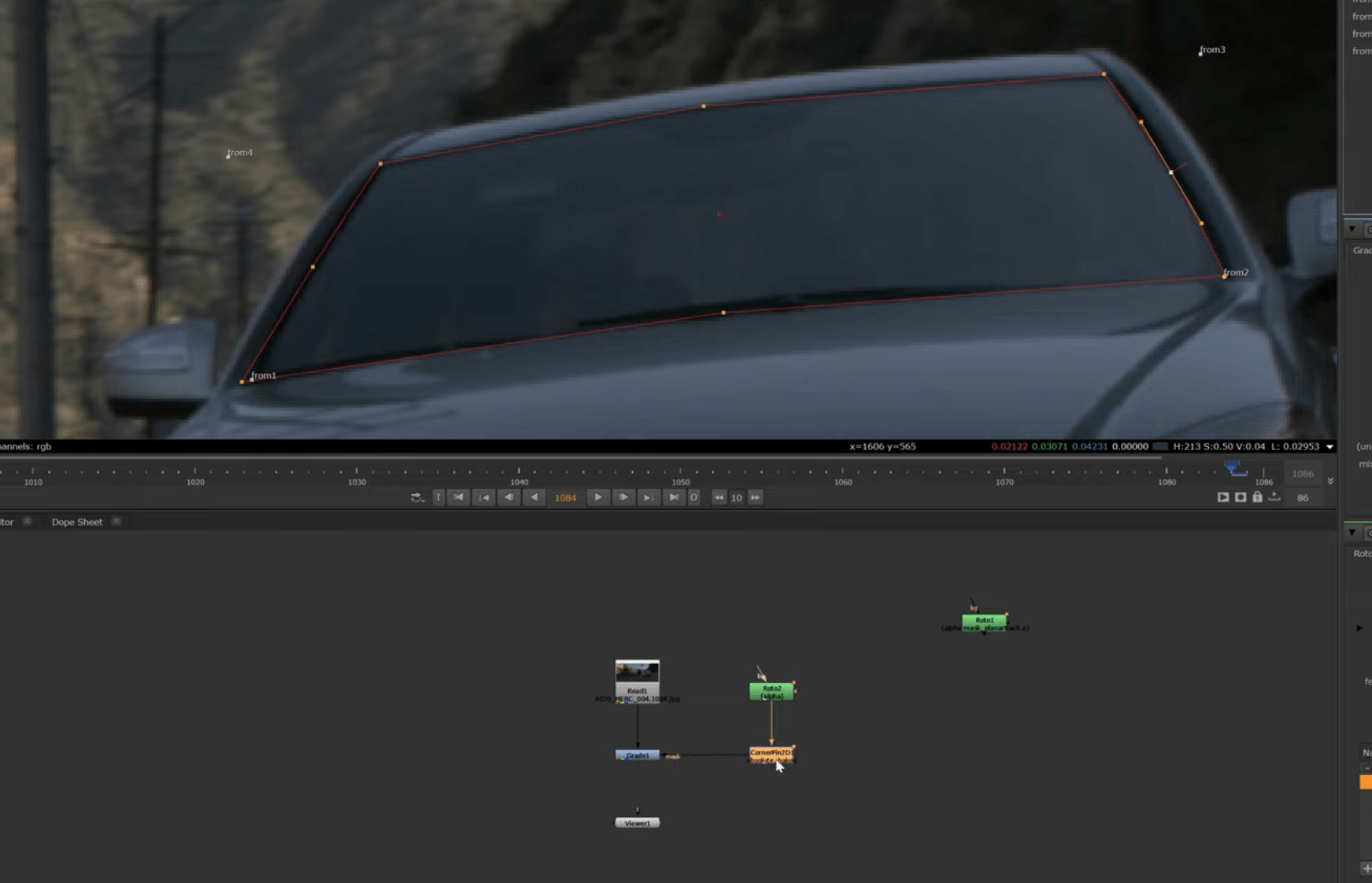
we can grade it now so it looks obscure.
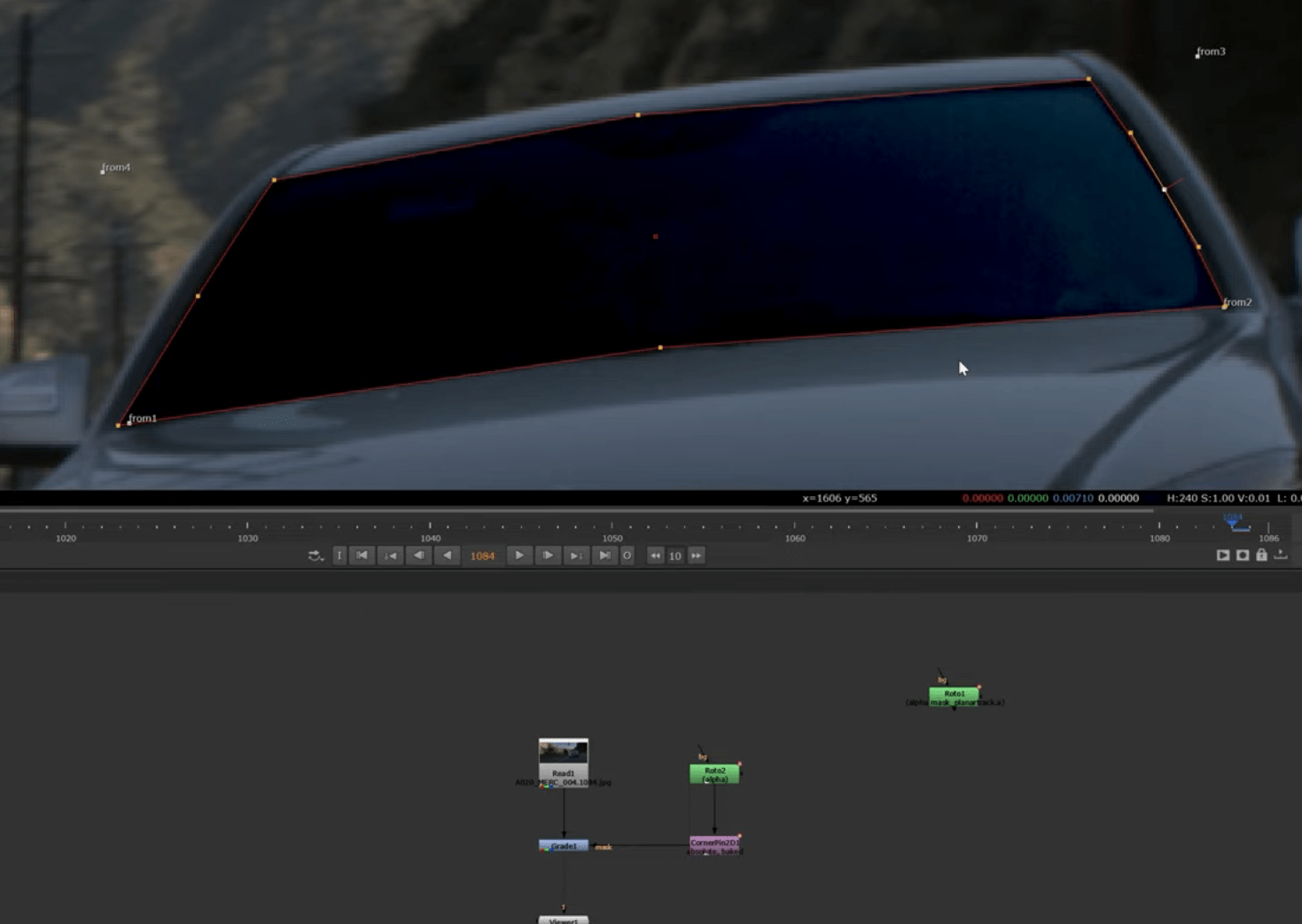
finally we are going to check that the roto properly follows the wind shield and adjust with keyframes where is need it.
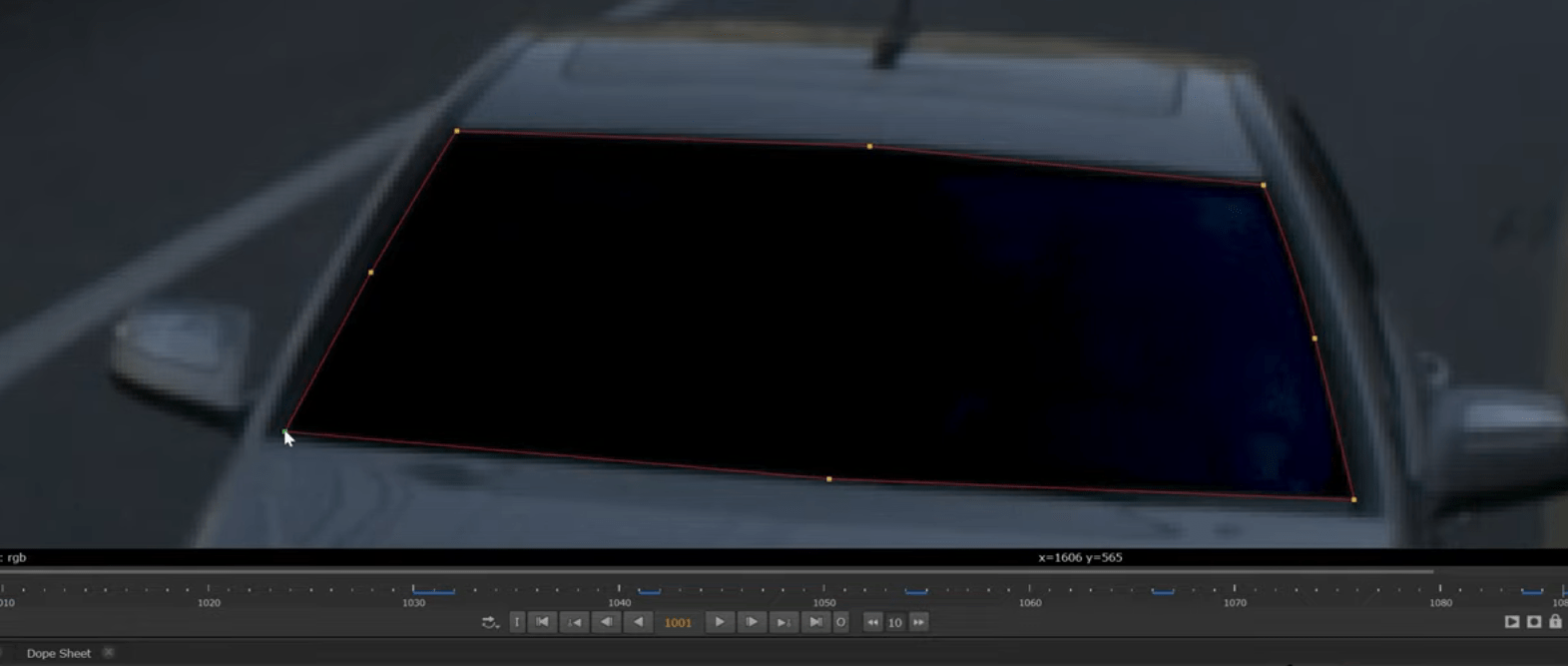
this is the final result.
End of exercise 3
Here is the VOD of the whole session I did in class.
End of week 6
Week 7: Clean up and patch repair
This week will be an Introduction to cleaning up and patching in Nuke.
In VFX, Clean up is removing unwanted elements from footage, creating a perfect background called a “clean plate” Patching involves using cloning, painting, or digital tools to fill gaps, reconstruct areas, or blend new elements seamlessly onto that clean plate, ensuring the final shot looks natural and flawless.
Exercise 1
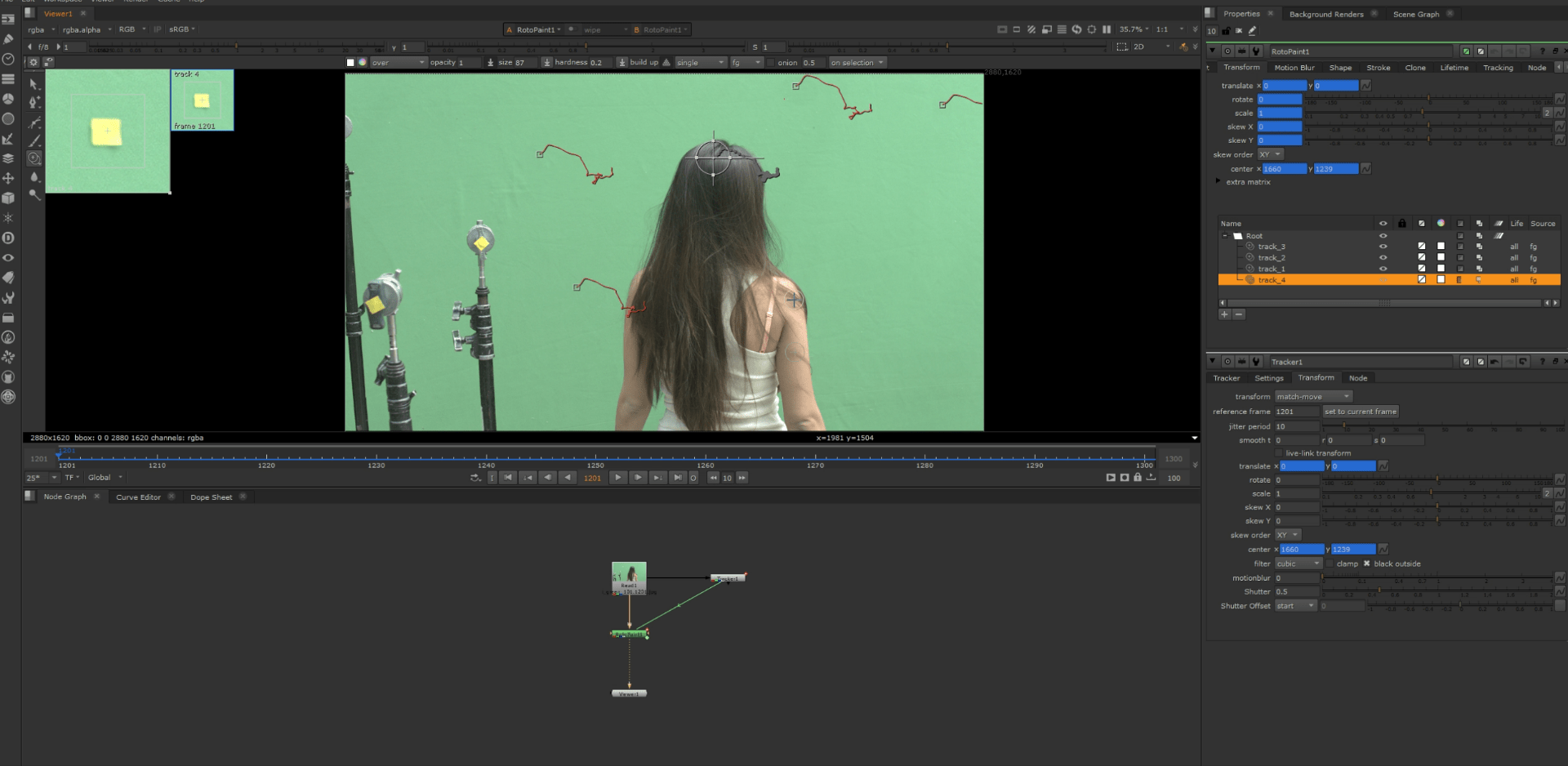
For this exercise we are going to clean up the trackers on the wall.
This is our original footage.
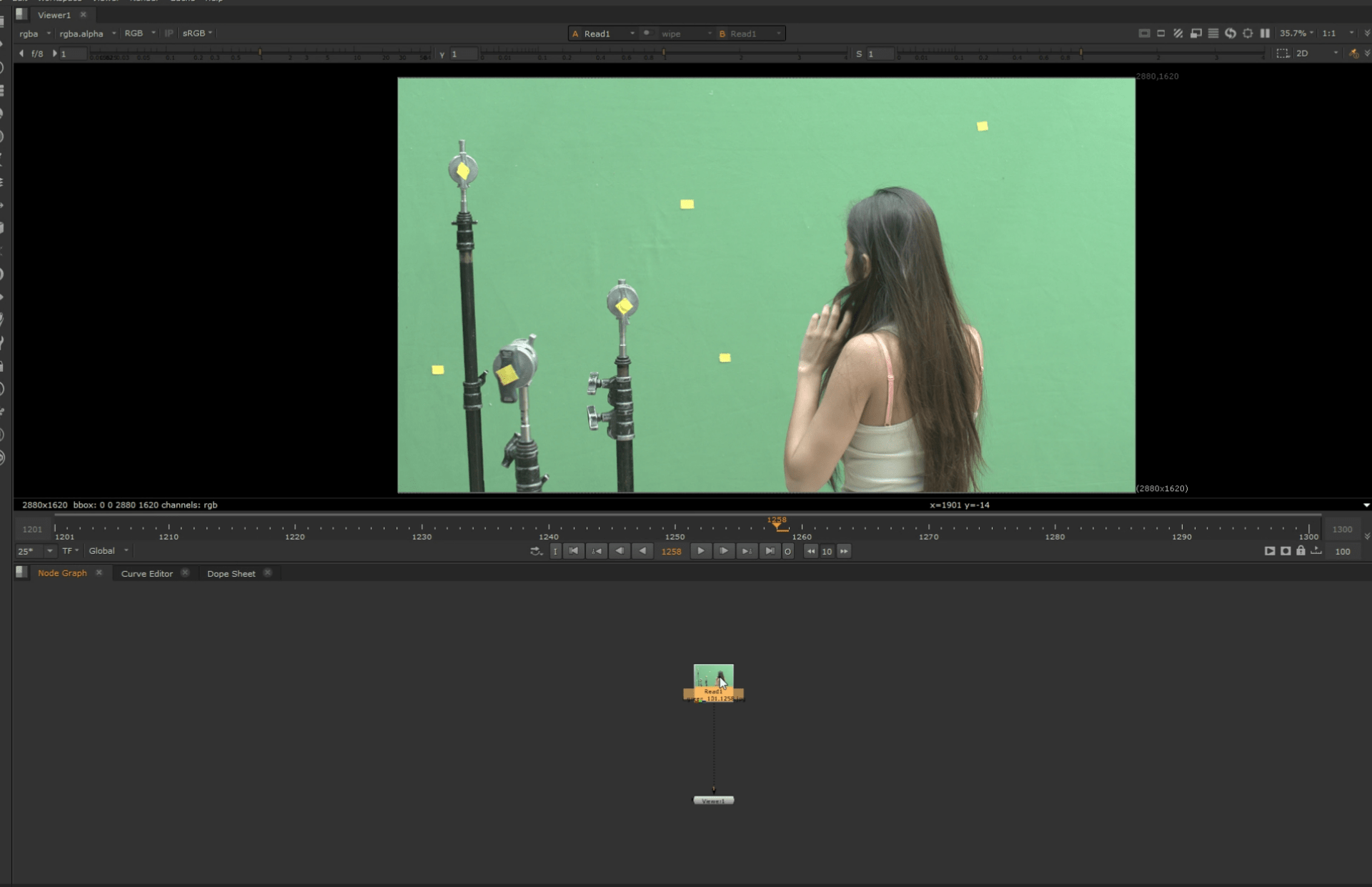
we will start by adding a tracker since is a moving image.
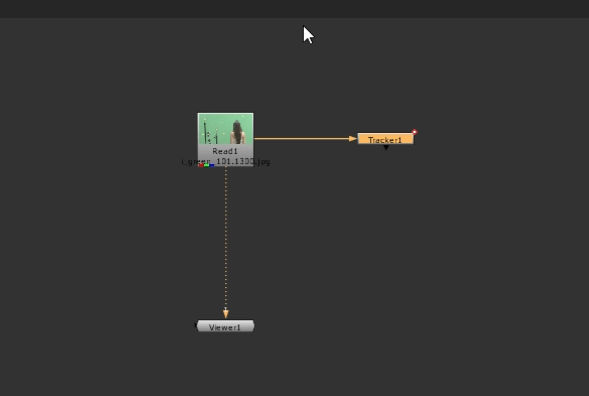
we are going to track each yellow dot in the wall,
for that we add a tracker for each one.
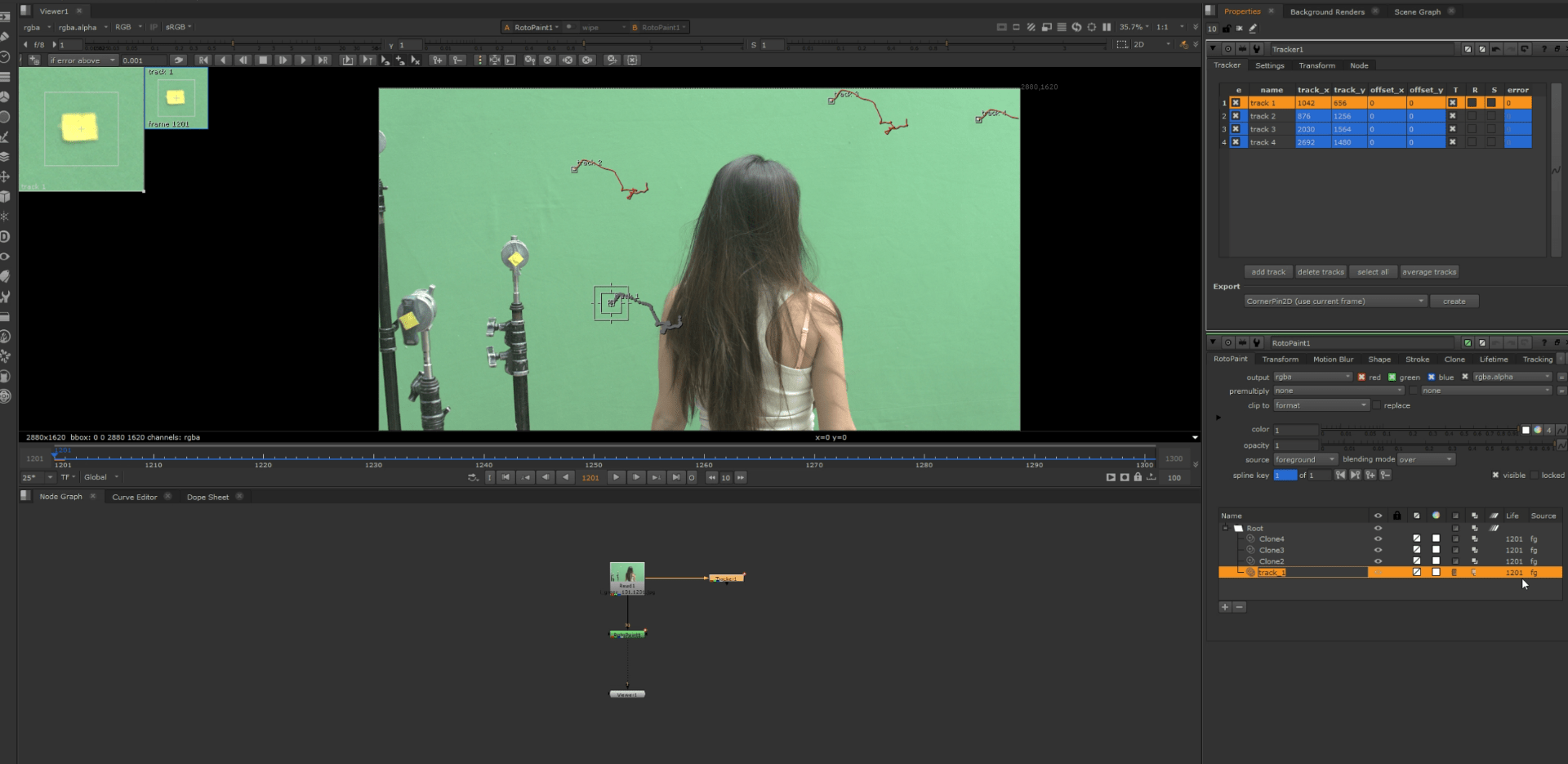
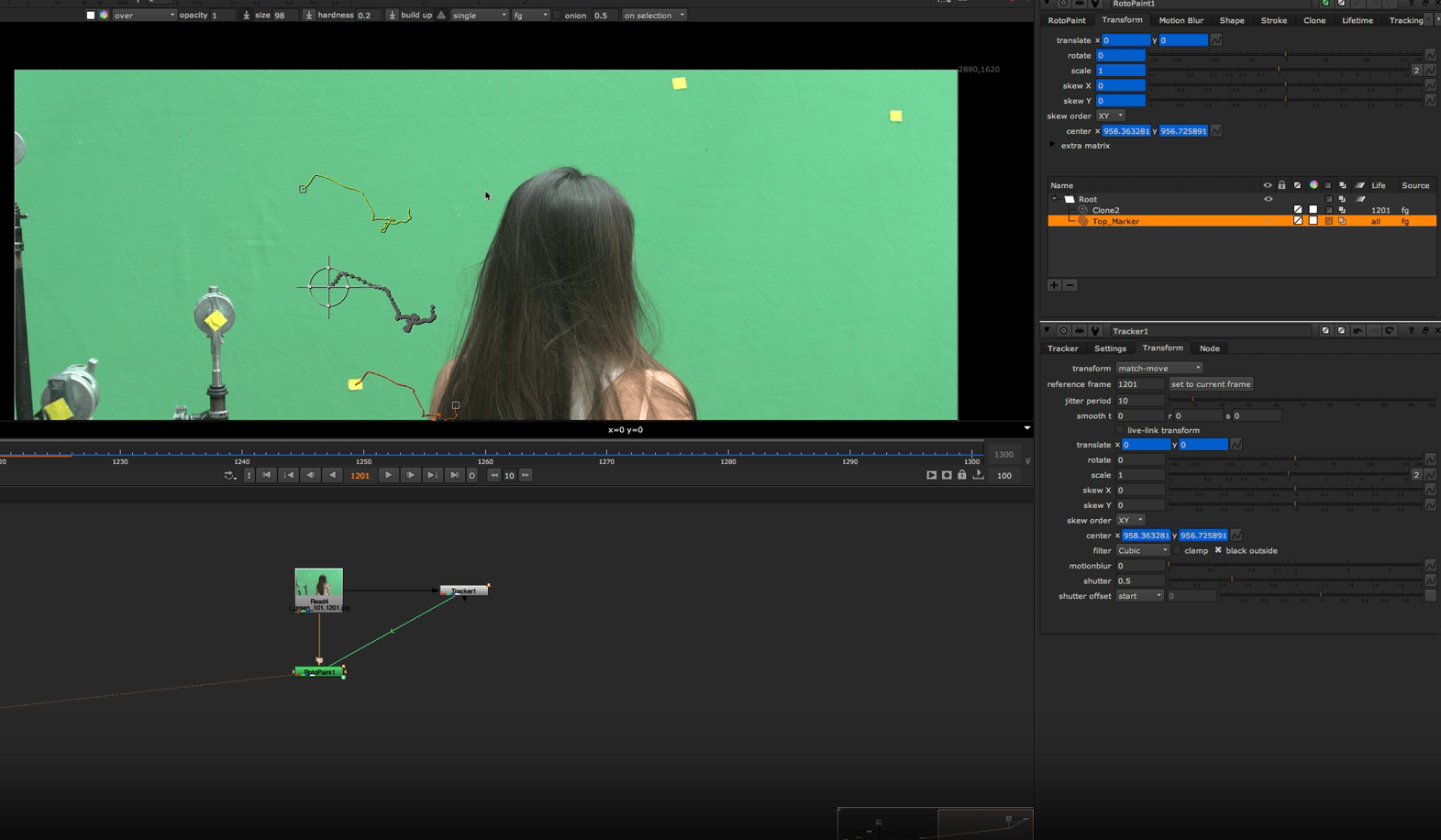
after successfully tracking all the dots we are going to add a roto paint to start painting in our footage and clean those trackers.
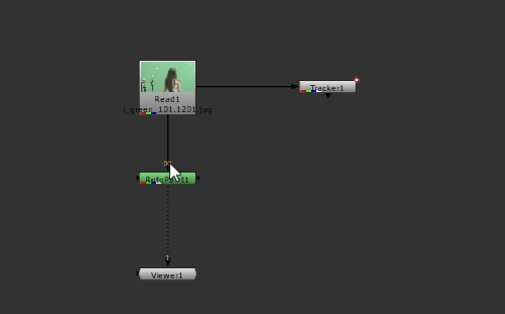
And again we are making a mask for one of each yellow dot.
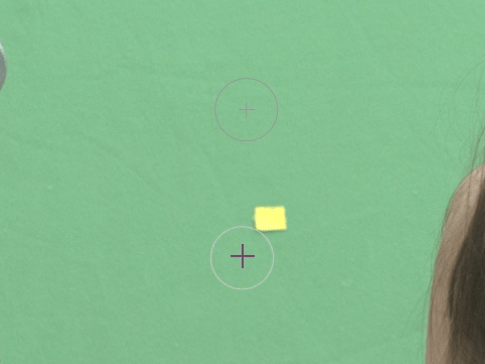
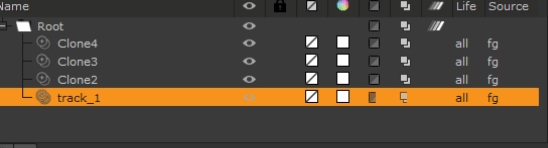
After painting all of our dots we are setting up the life of our roto paint for all the frames in the footage so it doesn’t disappear.
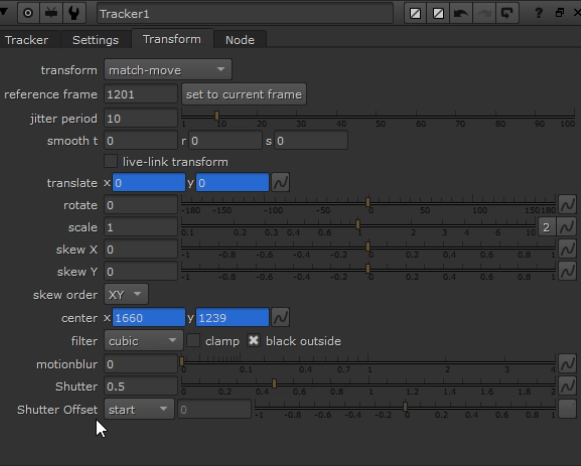
finally we are going to set our hero frame for the tracker and link each of the roto paint to their specific tracker.
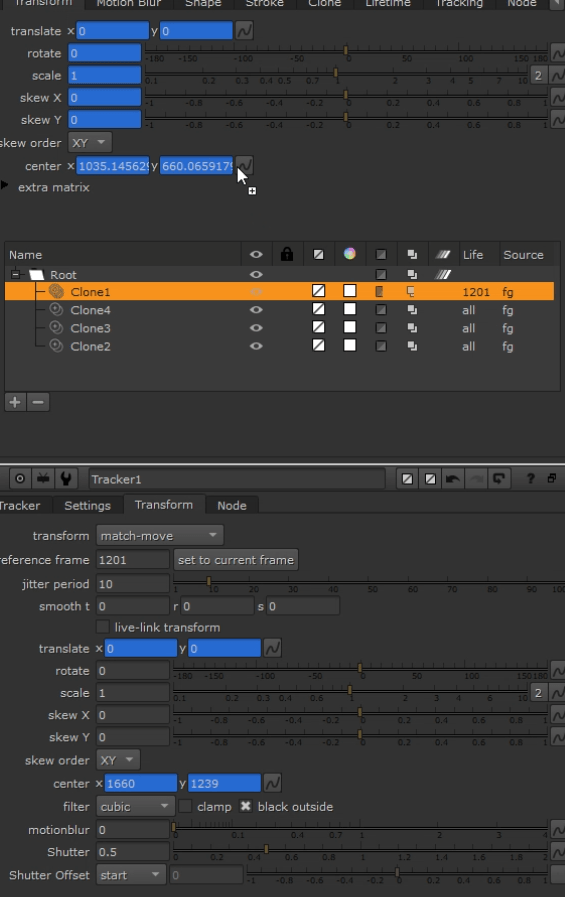
we drag the coordinates of our tracker into the roto paints so they match.
and this is our final result.
Exercise 2
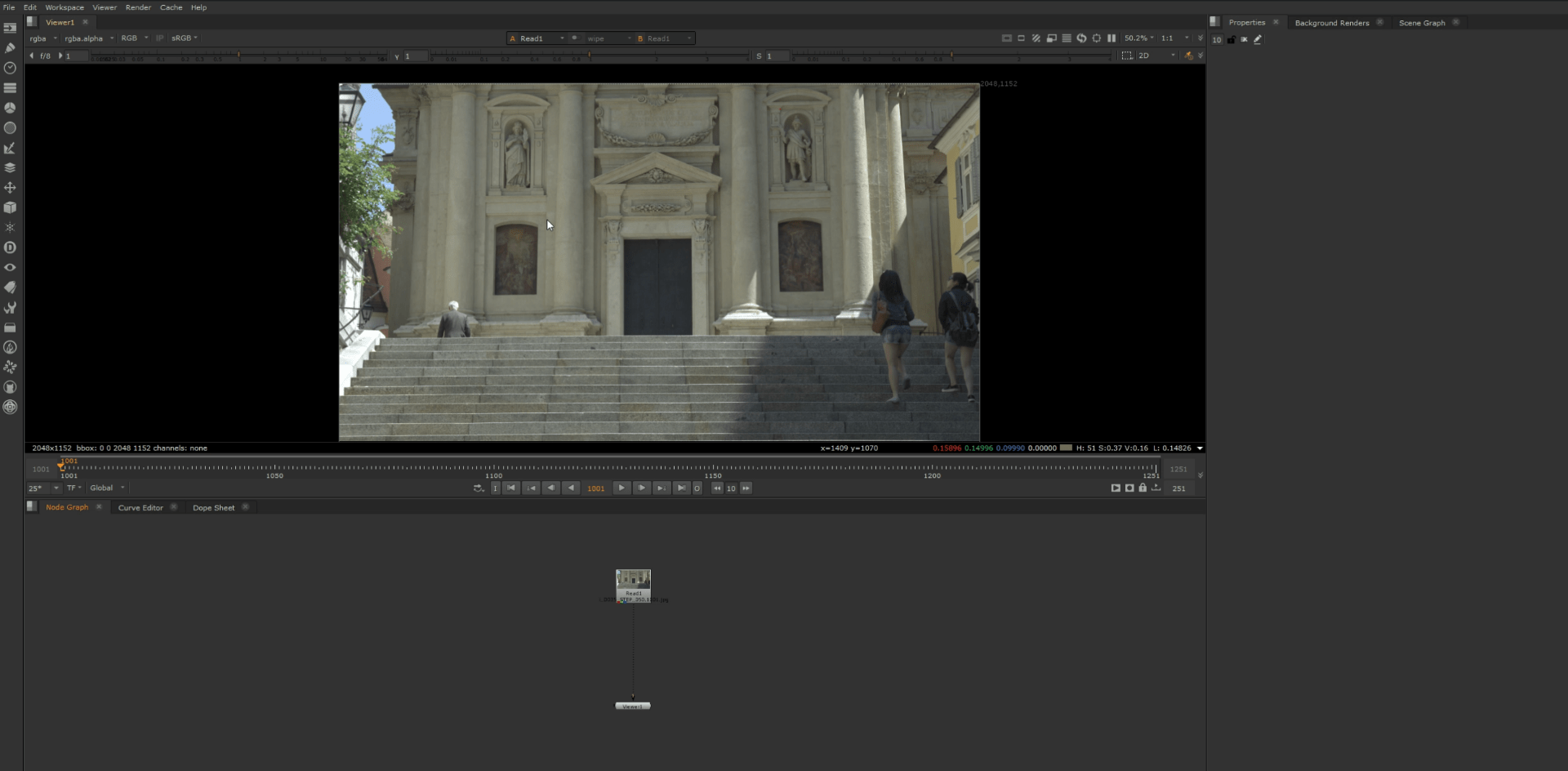
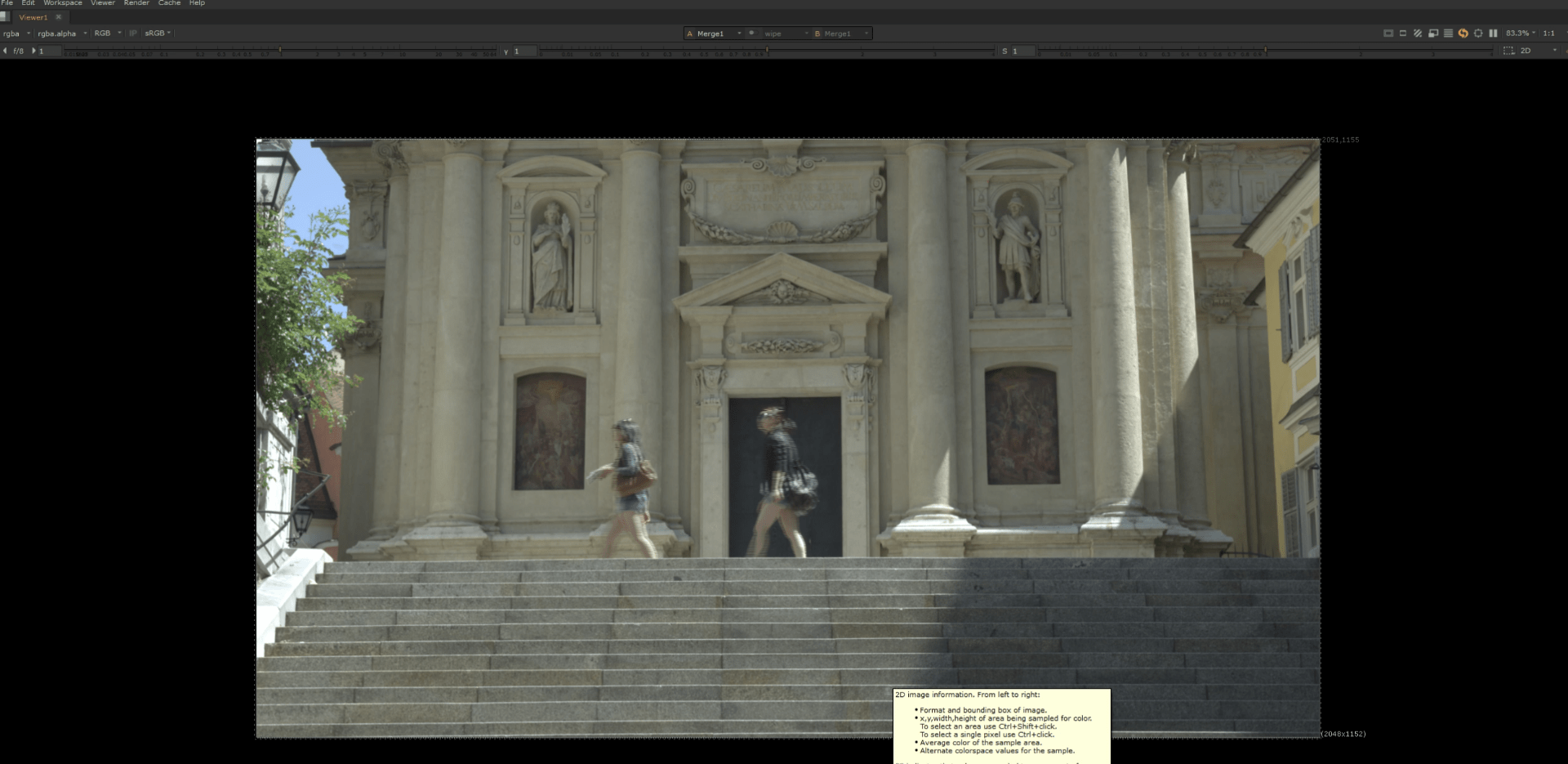
For this exercise we are going to remove the man in the left side of the footage.
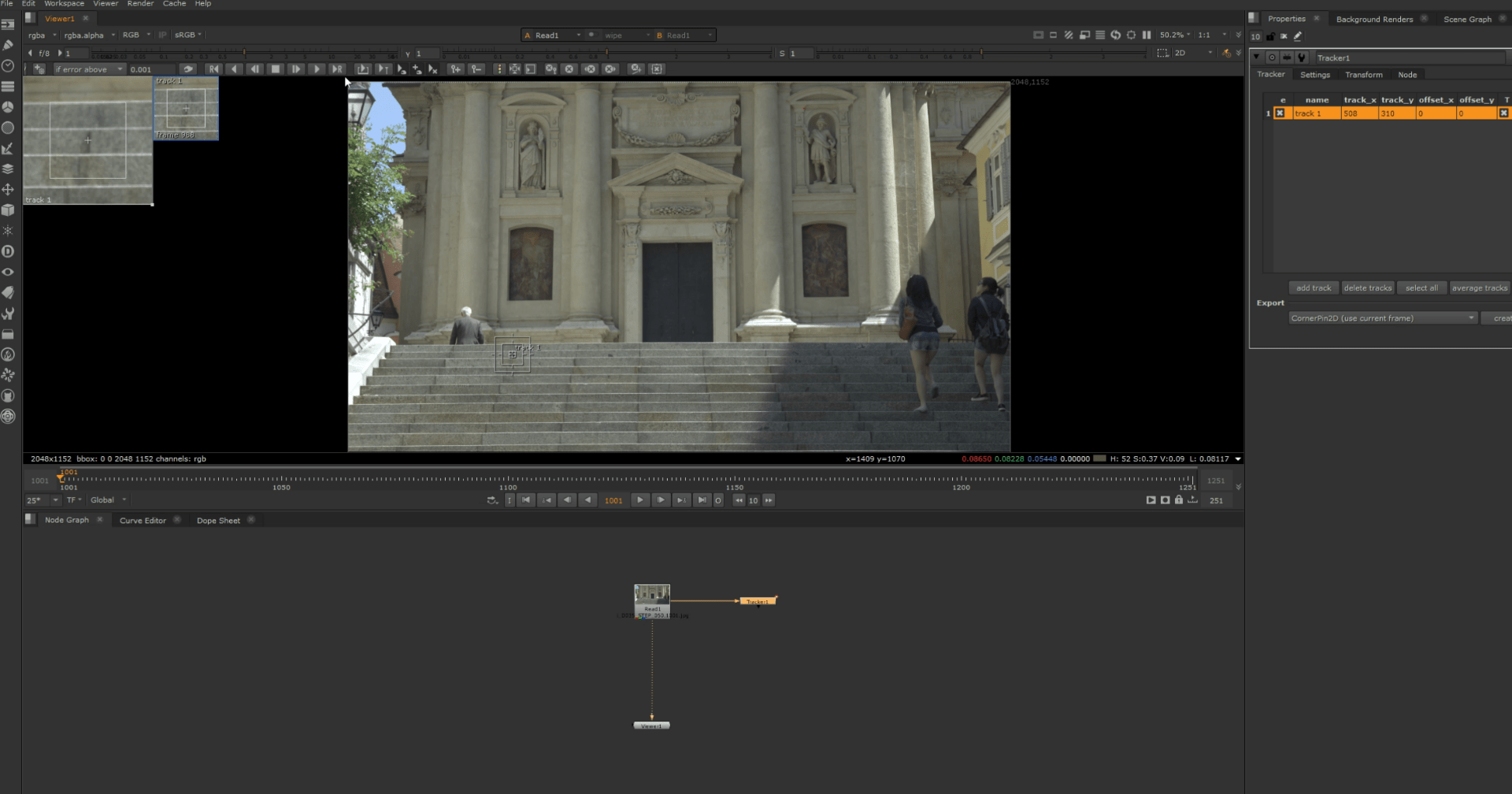
To begin with we are going to track the movement of the scene by tracking the stairs.
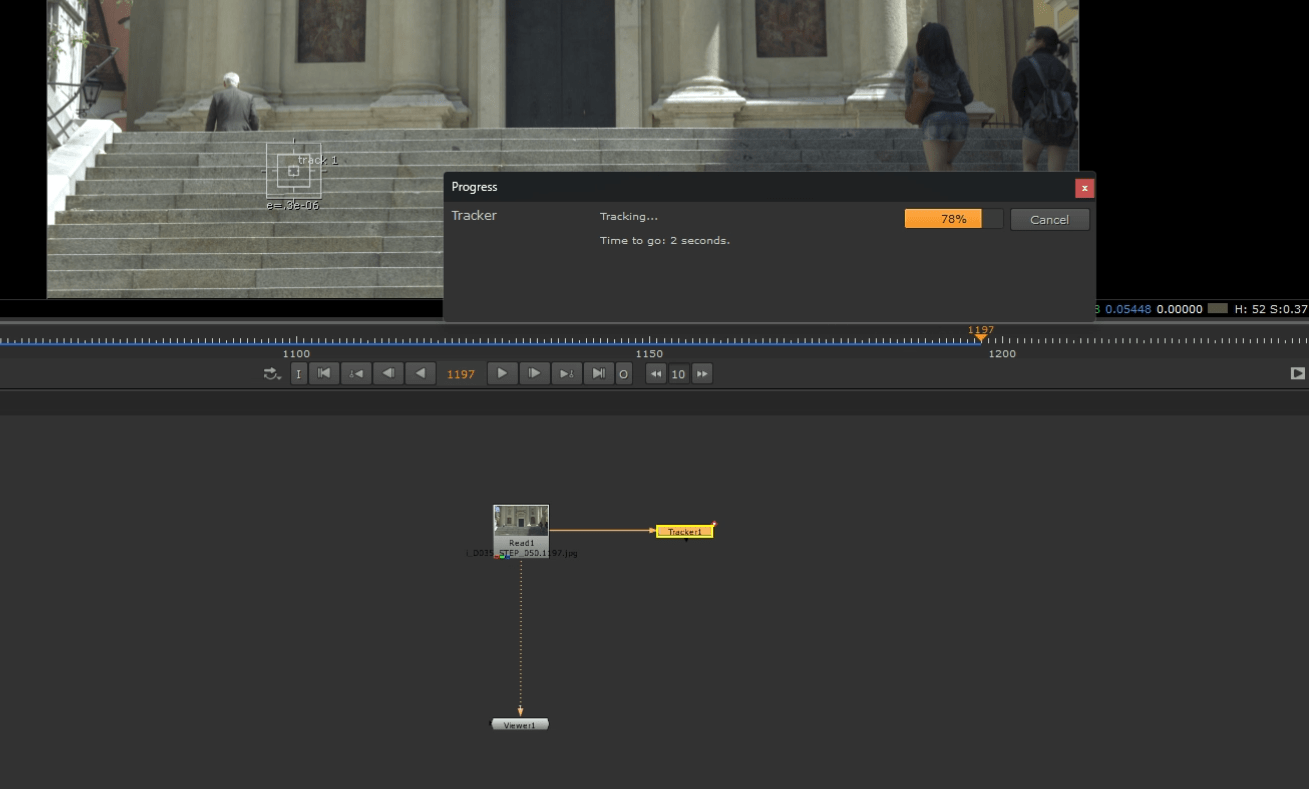
This is the process.
To remove the subject we start by adding a frame hold node, so we can add a roto later and subtract the piece of footage we want.
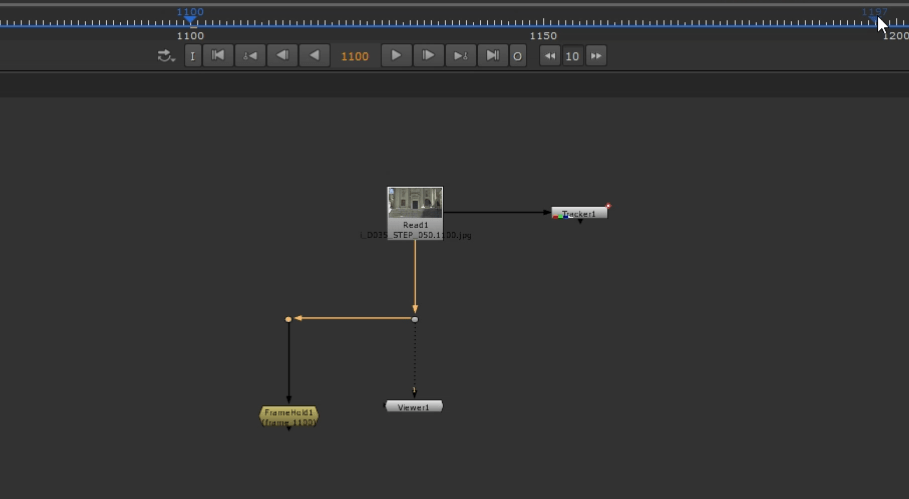
So after adding the frame hold we add a copy node to copy the alpha channel and add a roto to begin with our work.
We then select the desired part of the scene we want to keep the hold on.
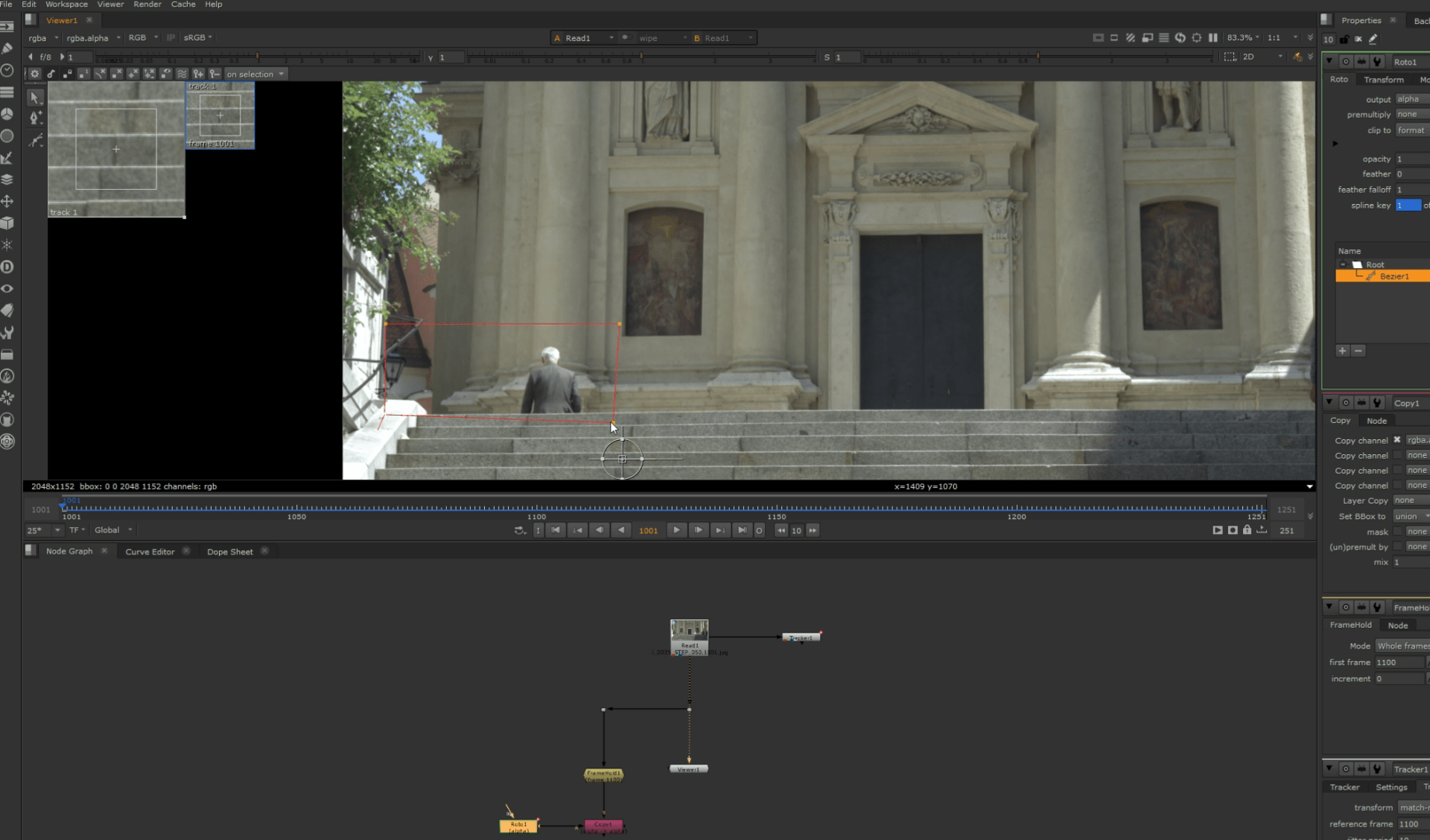
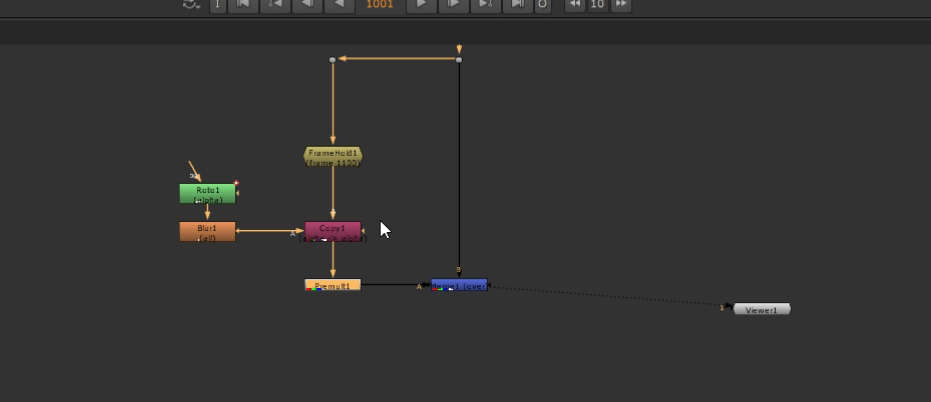
Now we add a premult node to subtract our alpha
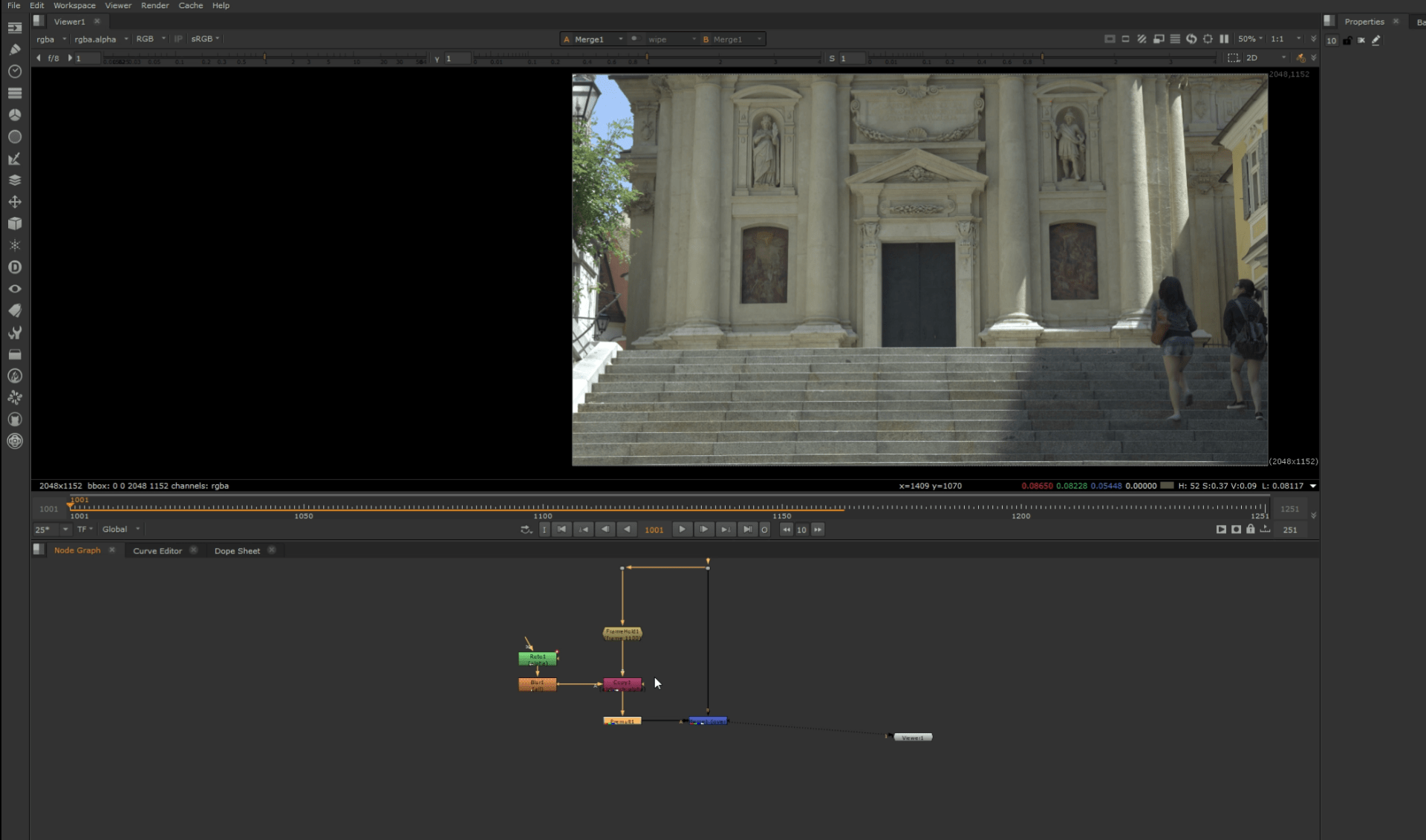
Now we have our frame hold scene, but with a little problem, when the girls pass in front of the frame hold, the hold stills there, to fix this we are adding a multiply node and key frame it so when the girls pass in front of the frame it disappears.
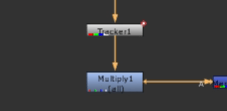
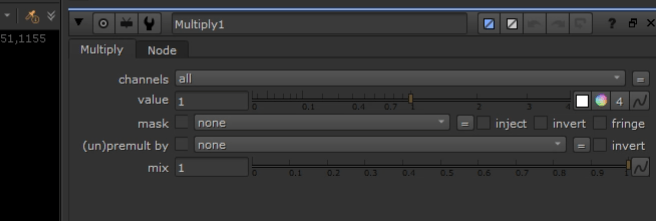
We set a key frame just before the girl pass trough.
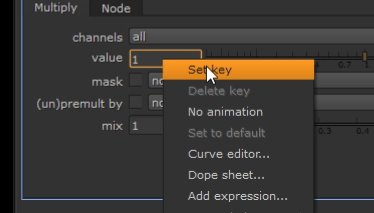
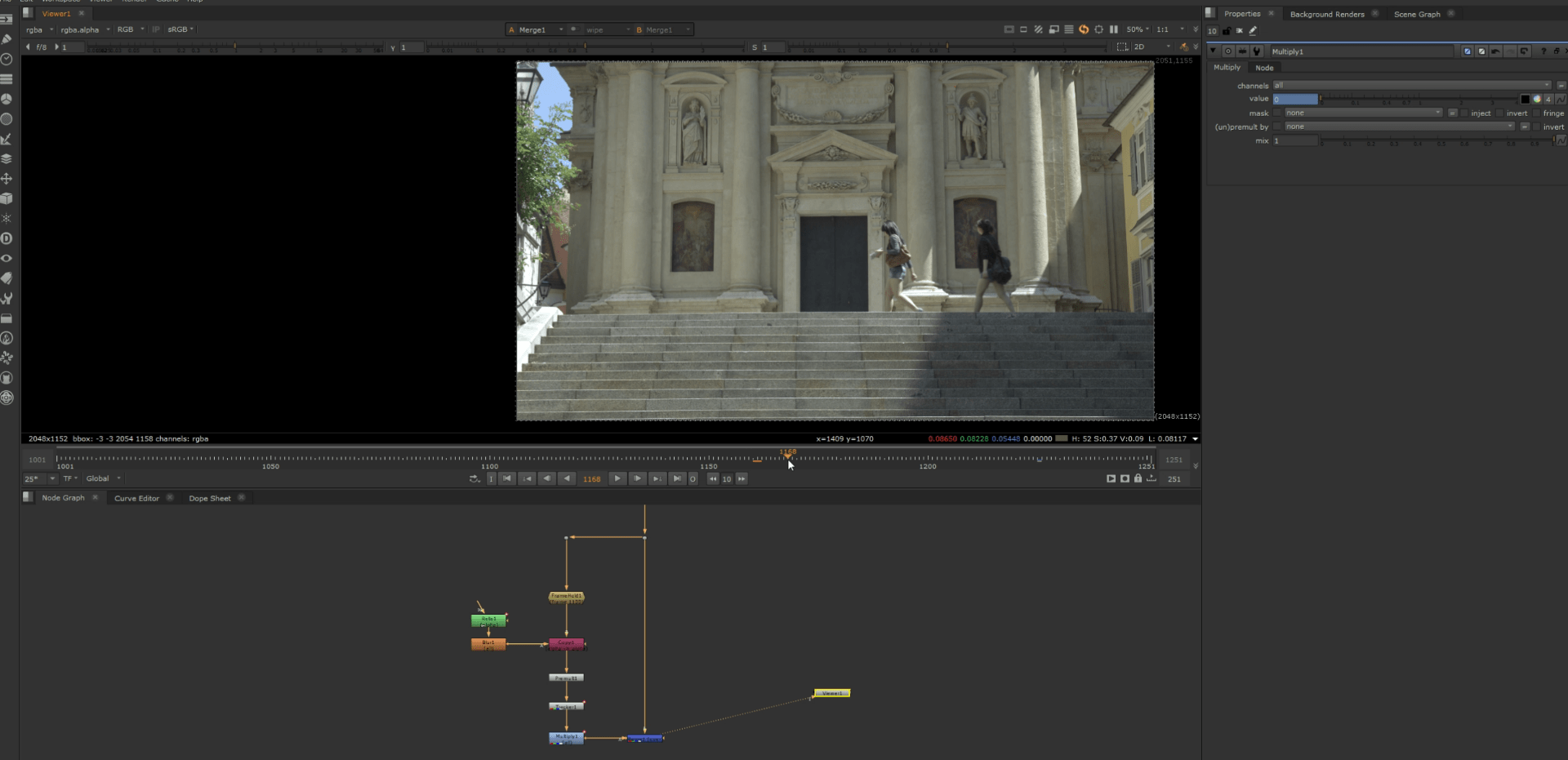
And this is our final result.
Here is the VOD on how did I achieve these results.
End of week 7
Week 8: Complex clean up
Last week we looked up at basic clean up and patching, this week we are going to learn more complex ways to apply patches.
Exercise 1
For this first exercise we are going to clear the crowd on the bottom left of the footage.
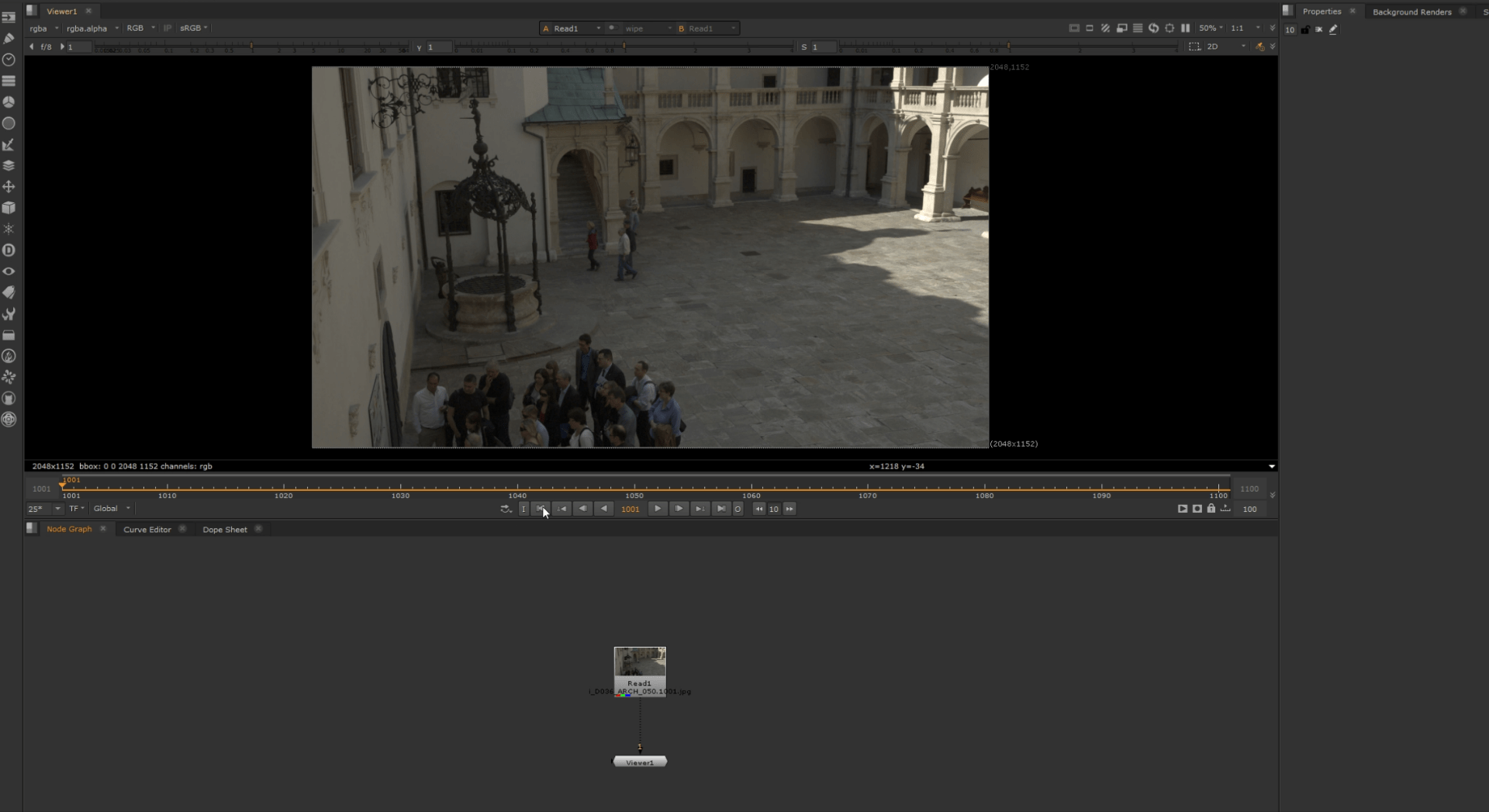
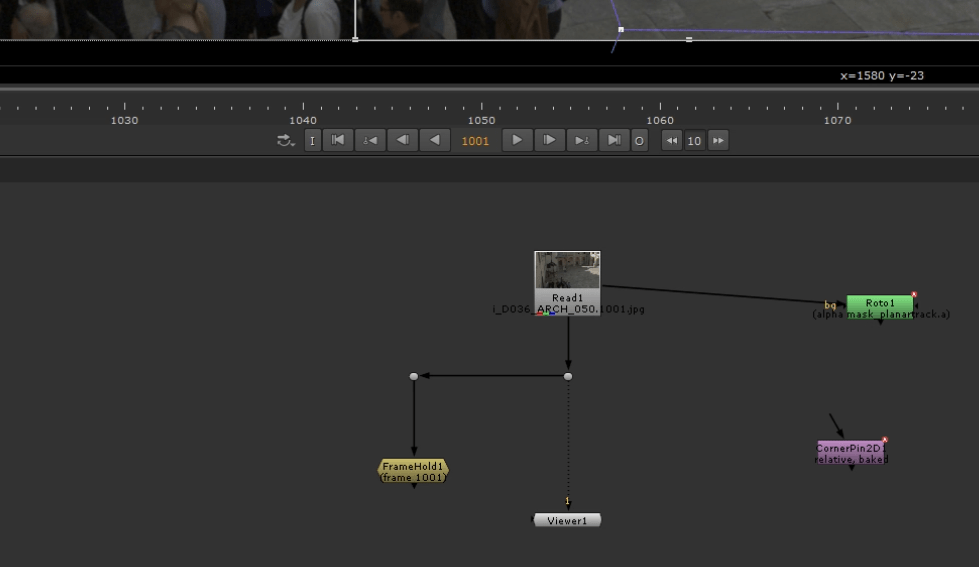
We initiate by adding a roto that is going to be used a a planar tracking to capture the movement of the scene.
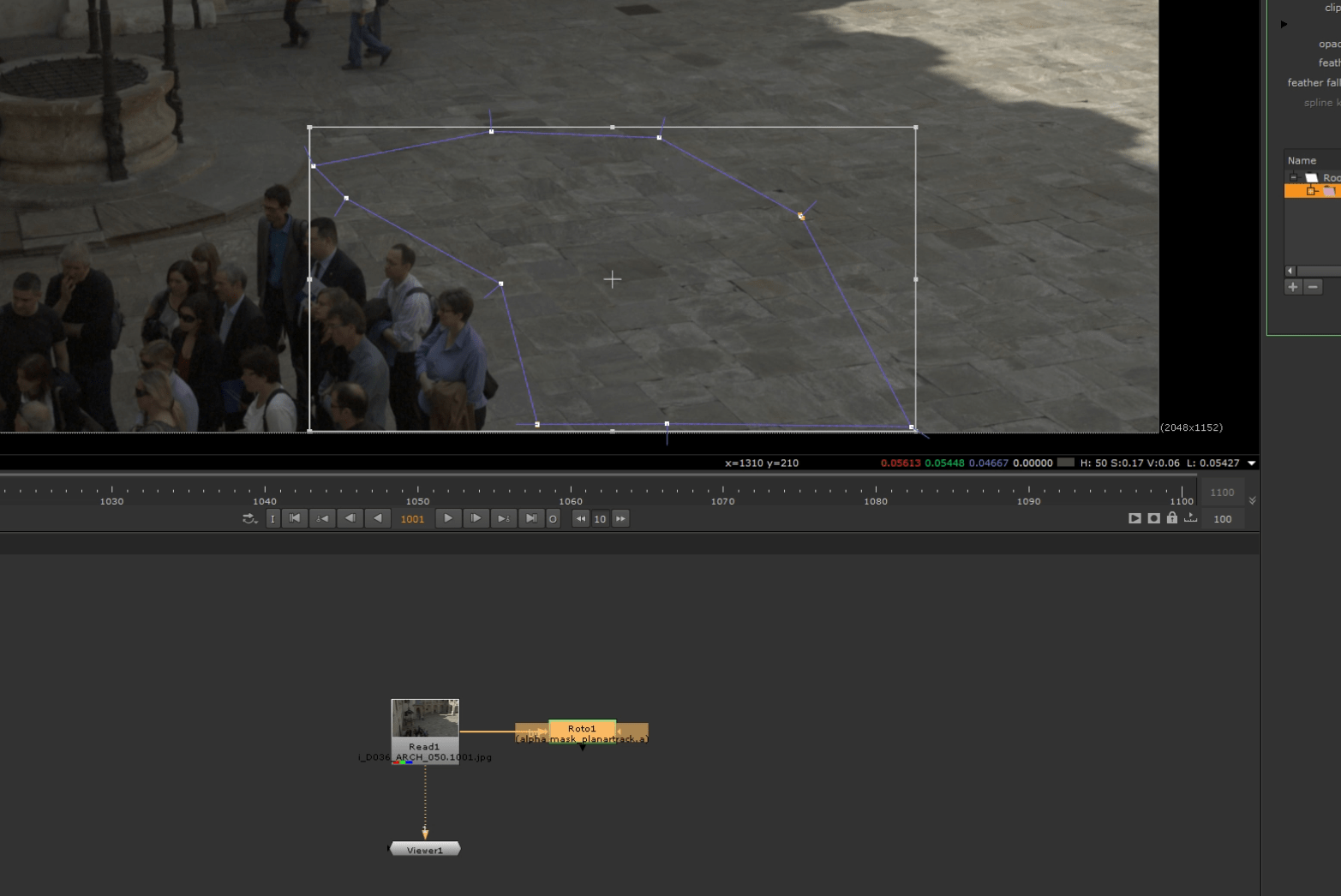

Creating by this way a corner pin.
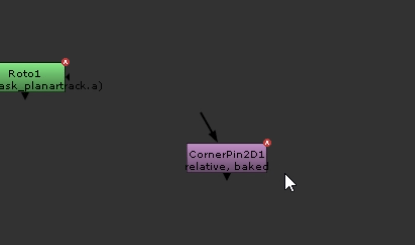
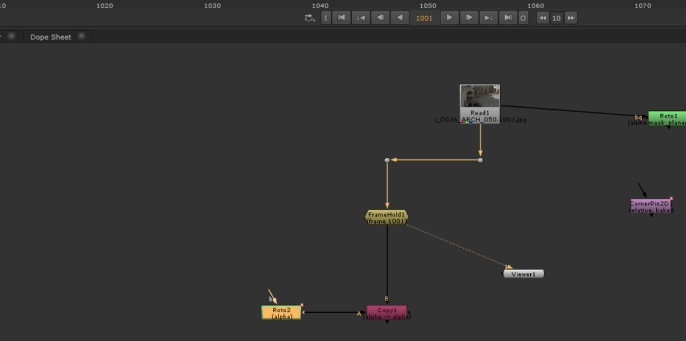
Now as we did in the basic clean up we create a frame hold on the place we want to manipulate later.
Since we are going to make a roto to select the specific part of the scene we a dd also a copy node to transfer the alpha information.
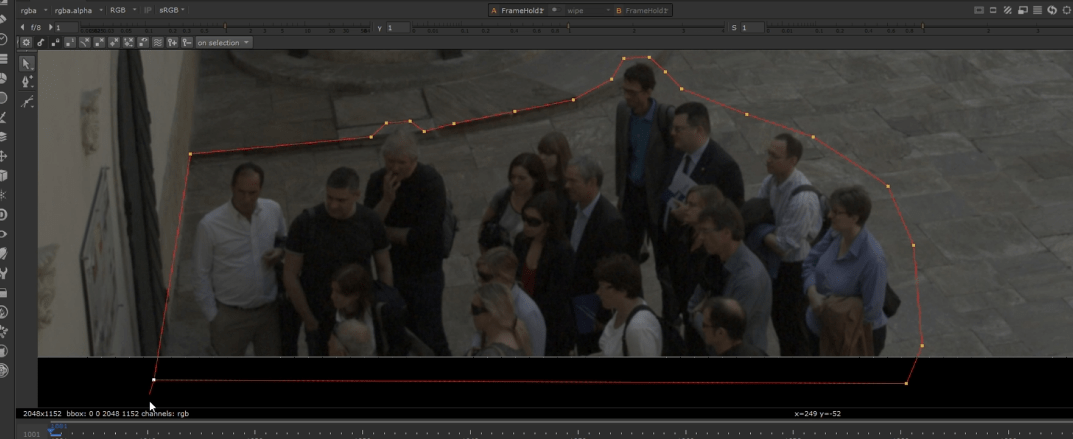
We now select the area with the crowd so we can paint on top of it later.
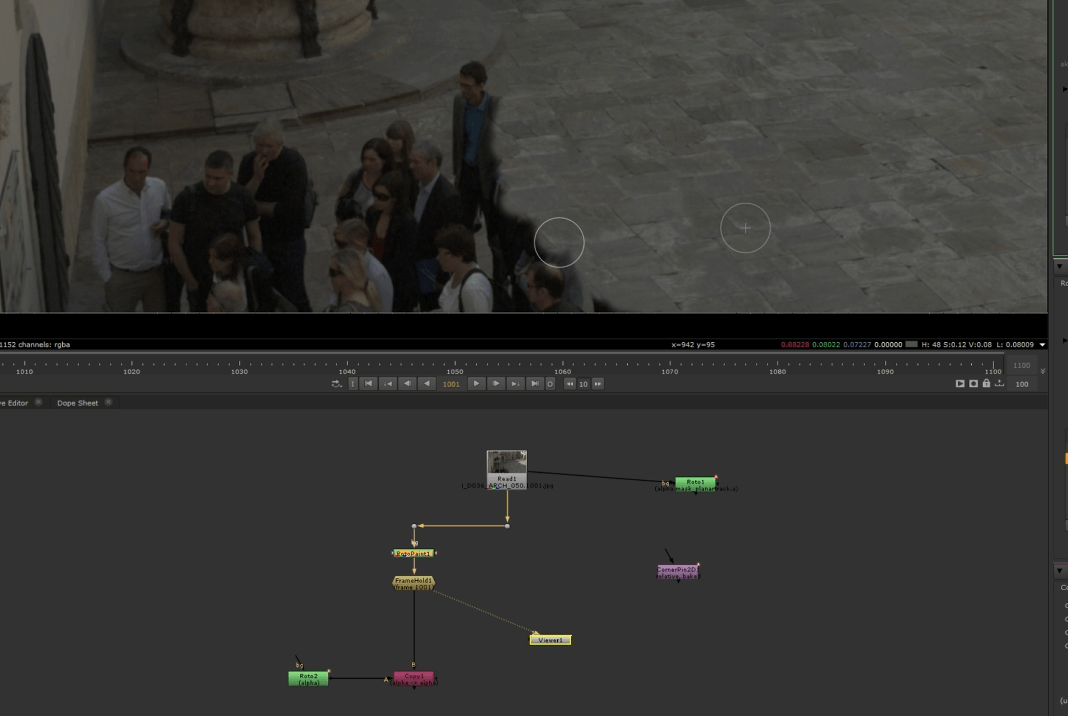
We now add the roto paint and start cloning a different part of the scene for our floor.
Here I am putting some detail.
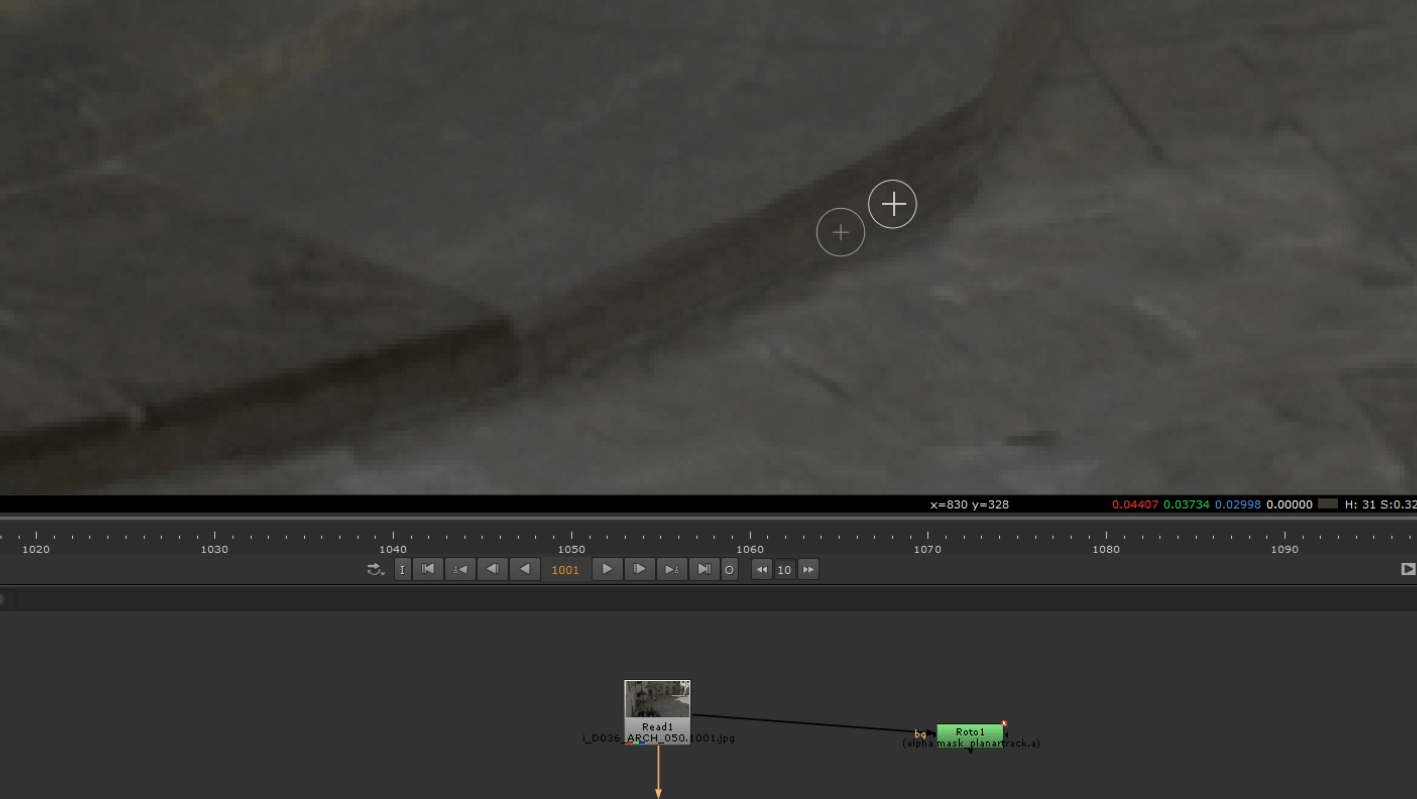
This is the result below.
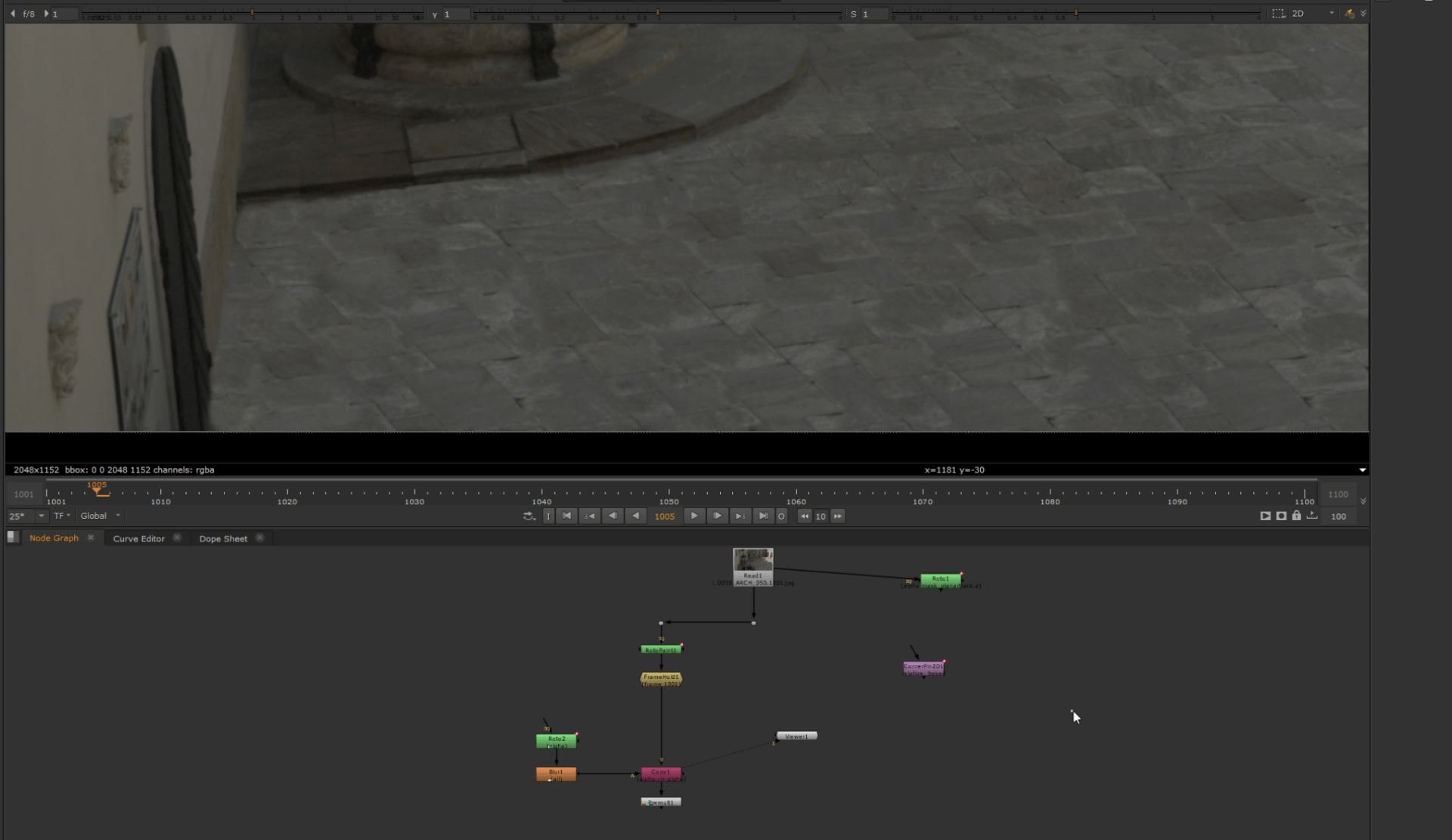
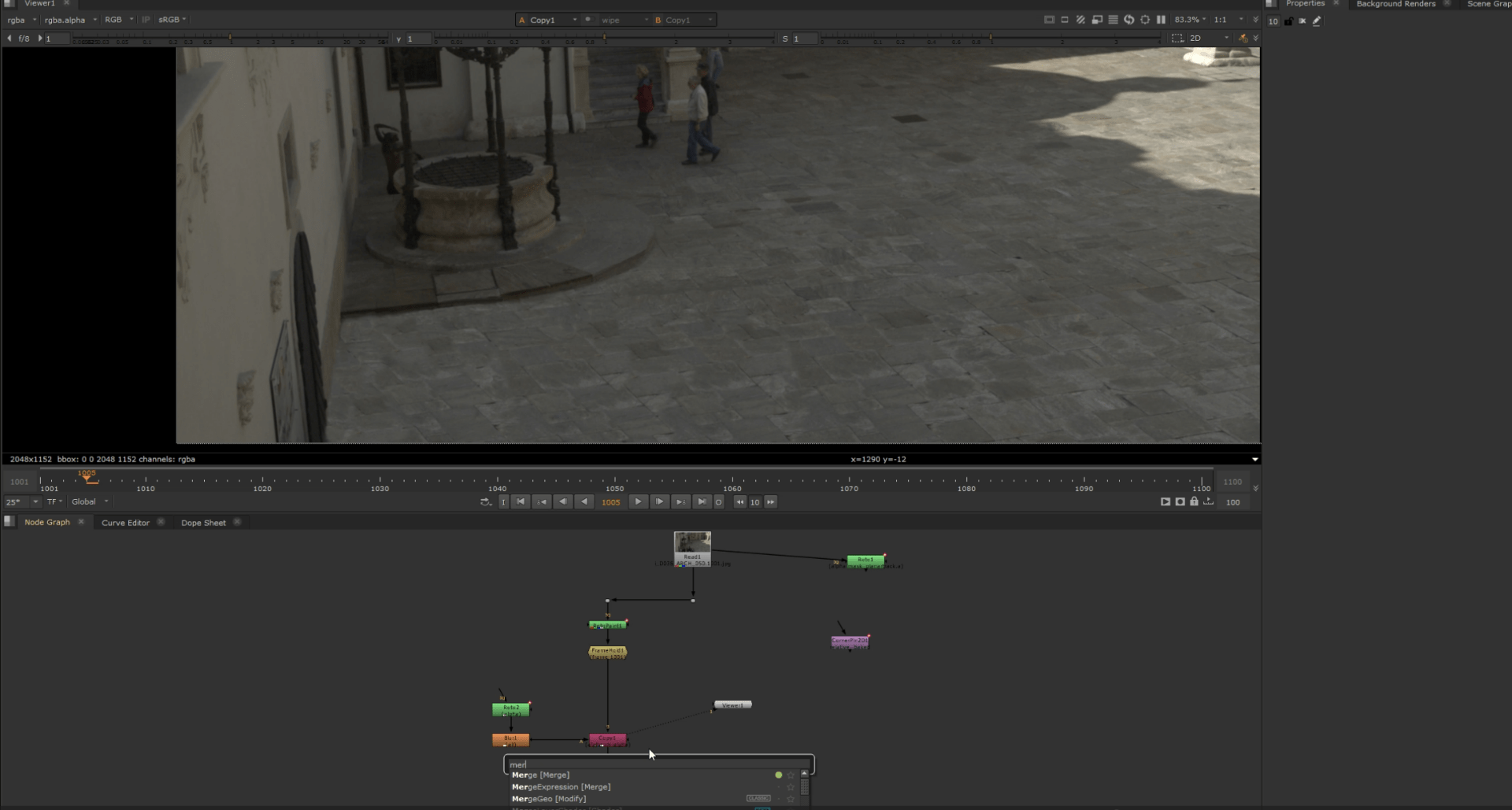
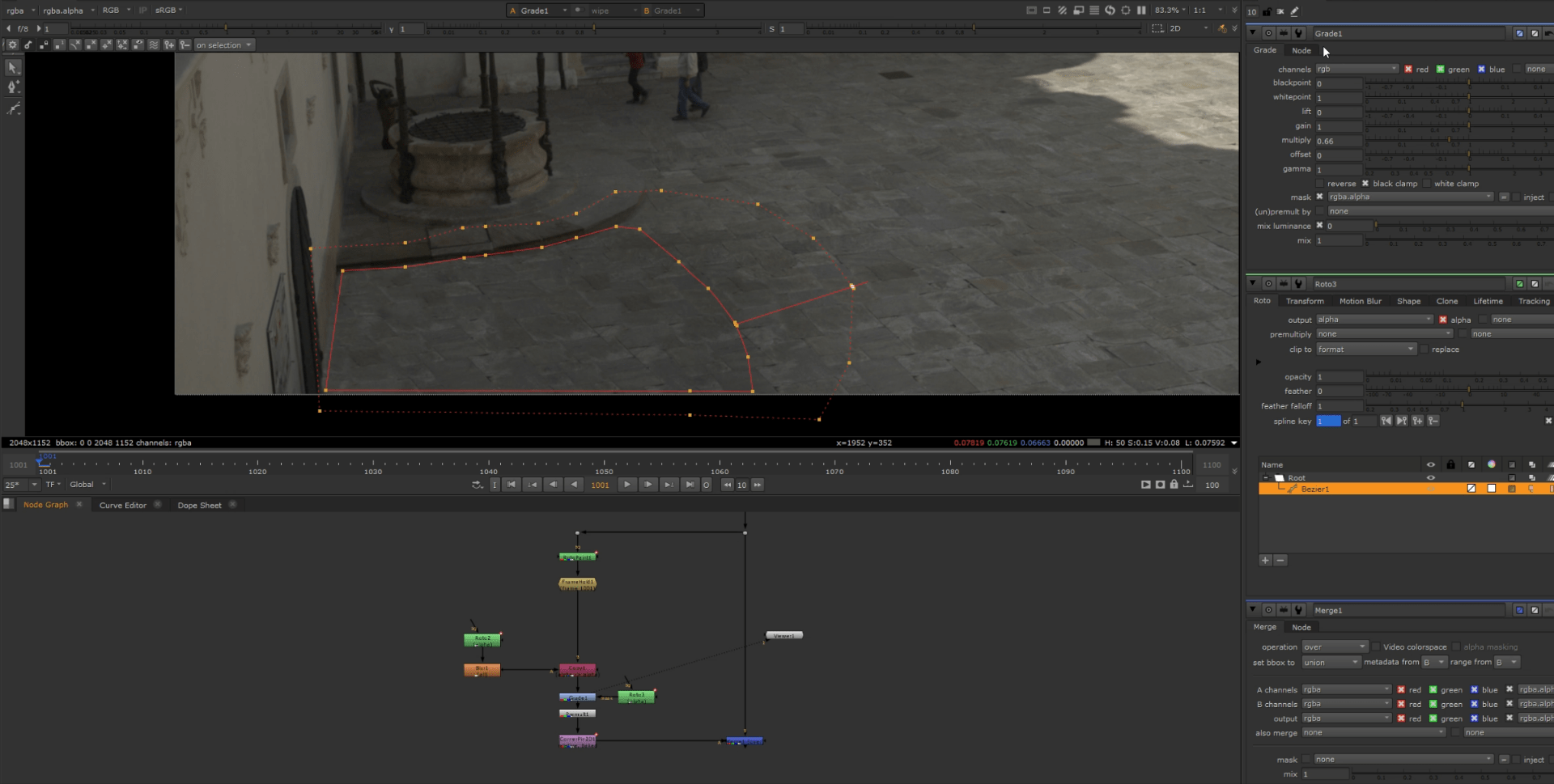
To finish with we a dd a final roto to grade the specific area that we cleaned up before so it matches a little better with the lighting on the scene.
Exercise 2
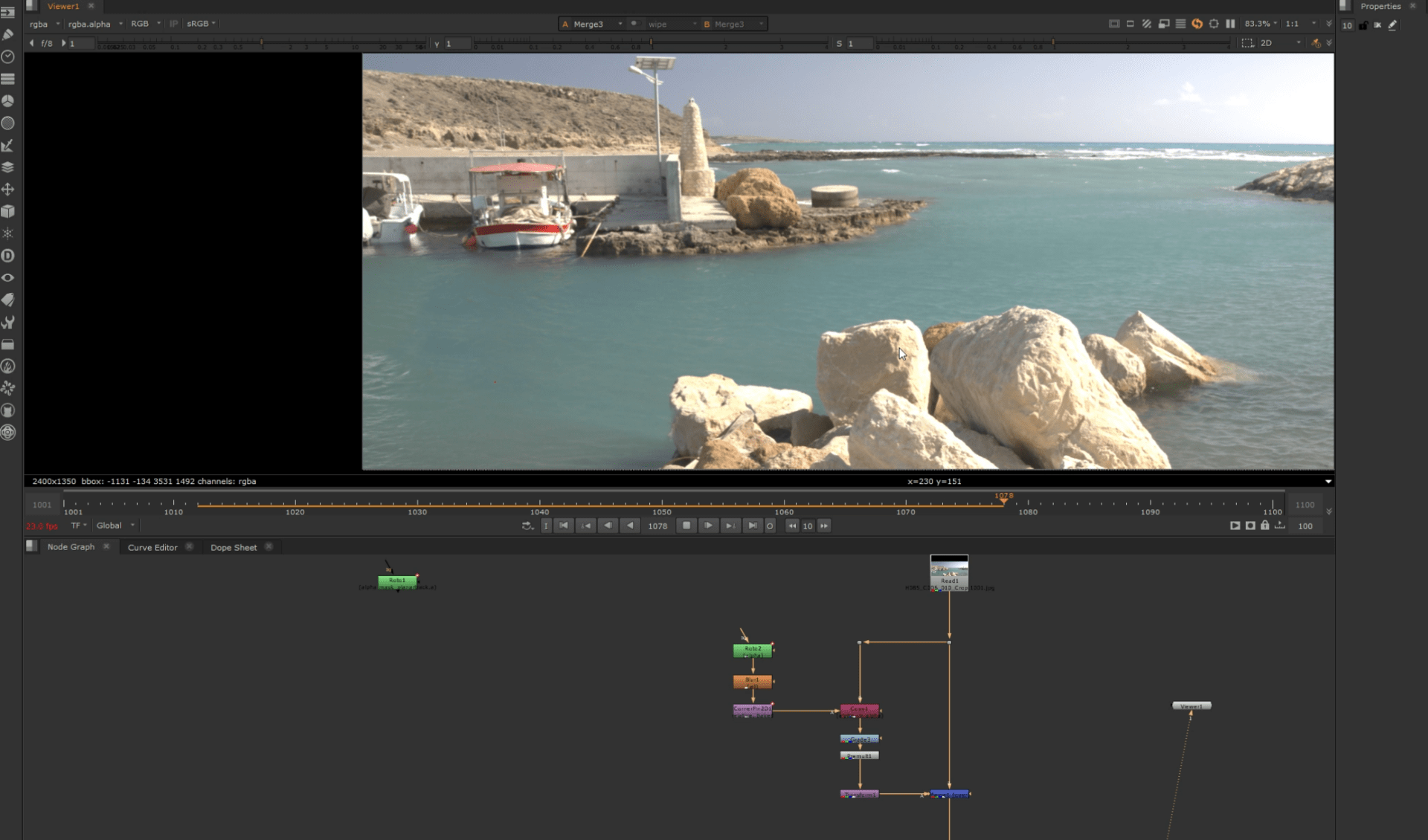
This second exercise is going to be a a little different since until now we have been patching with frame holds (static image), but now we want to patch a boat in the water so for this exercise we are going to be creating individual moving patches for the clean up.
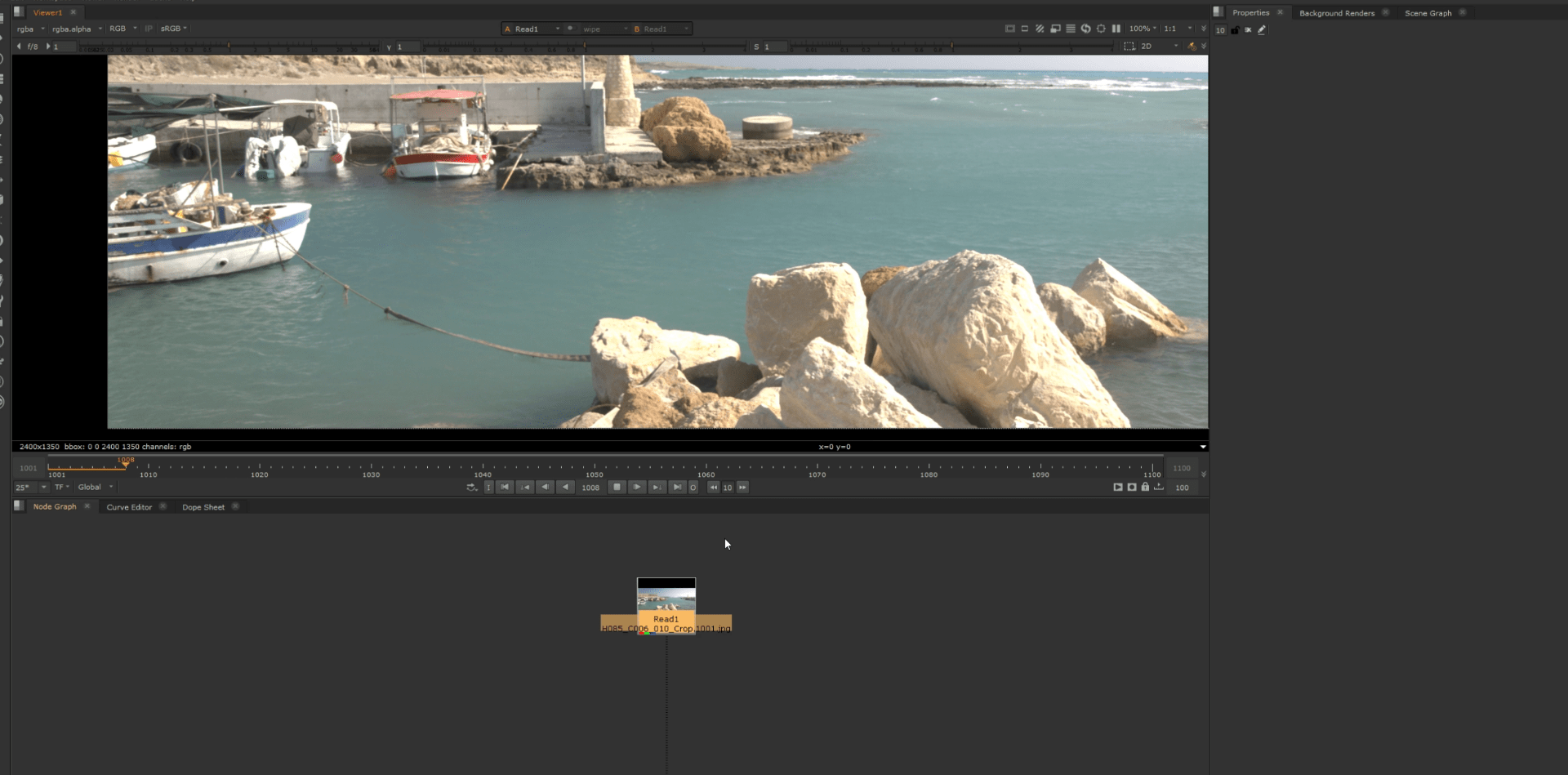
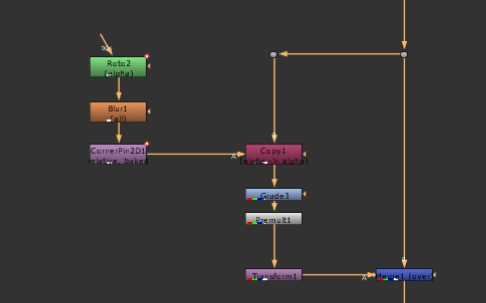
We start making a roto to once again track the movement on the scene by creating a corner pin.
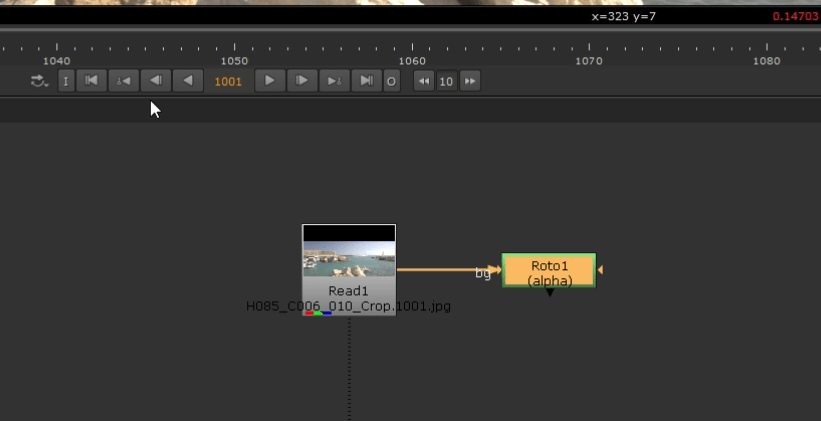
So we are going to use the background as a reference.
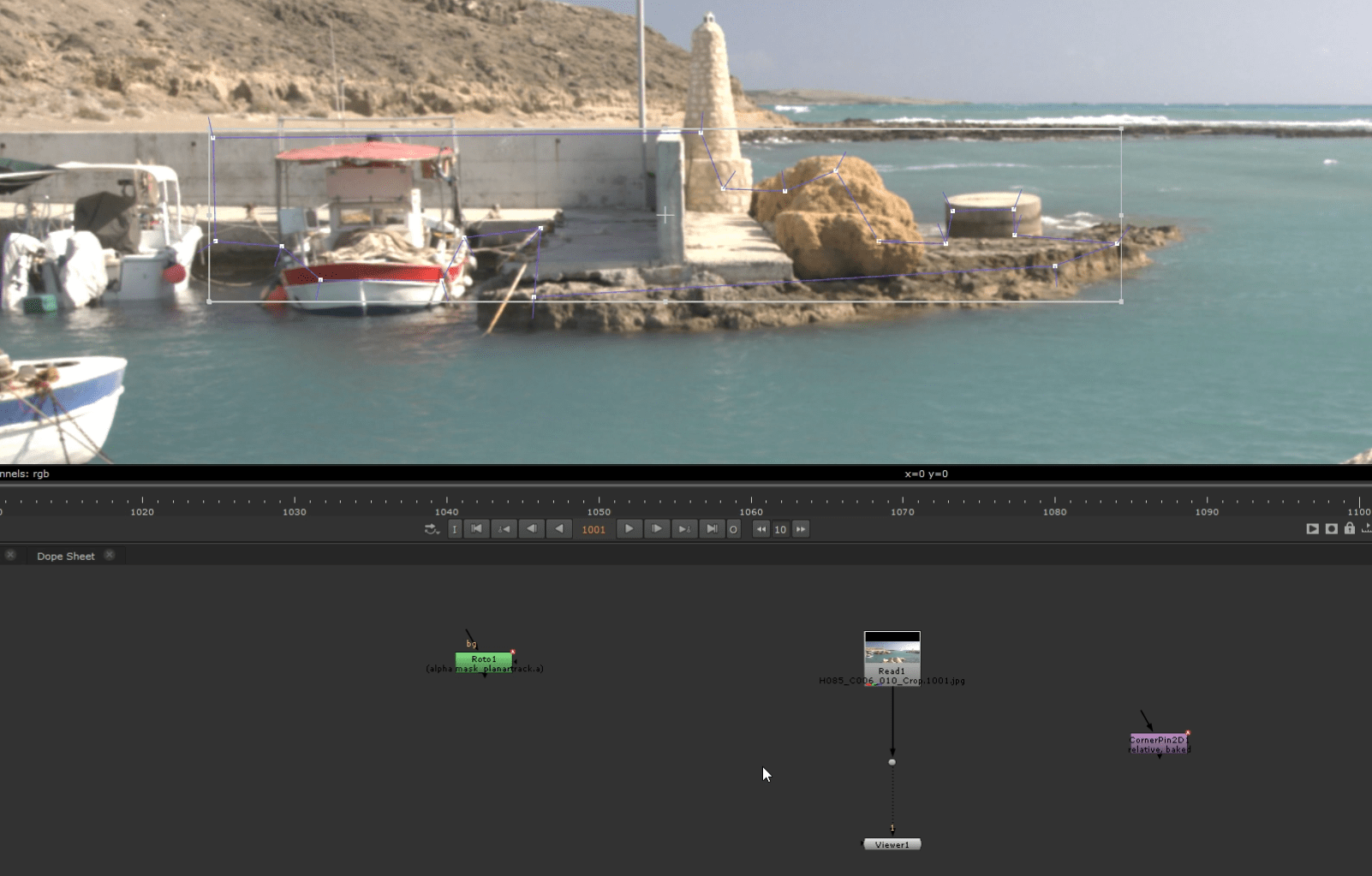
After creating our corner pin we add a roto to create our first patch, never forgetting the copy node to copy the alpha channel information.
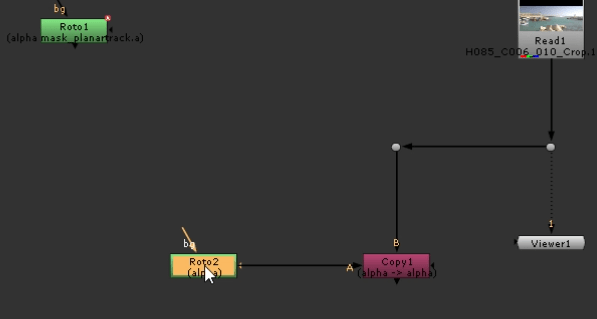
We create a patch to cover the boat.
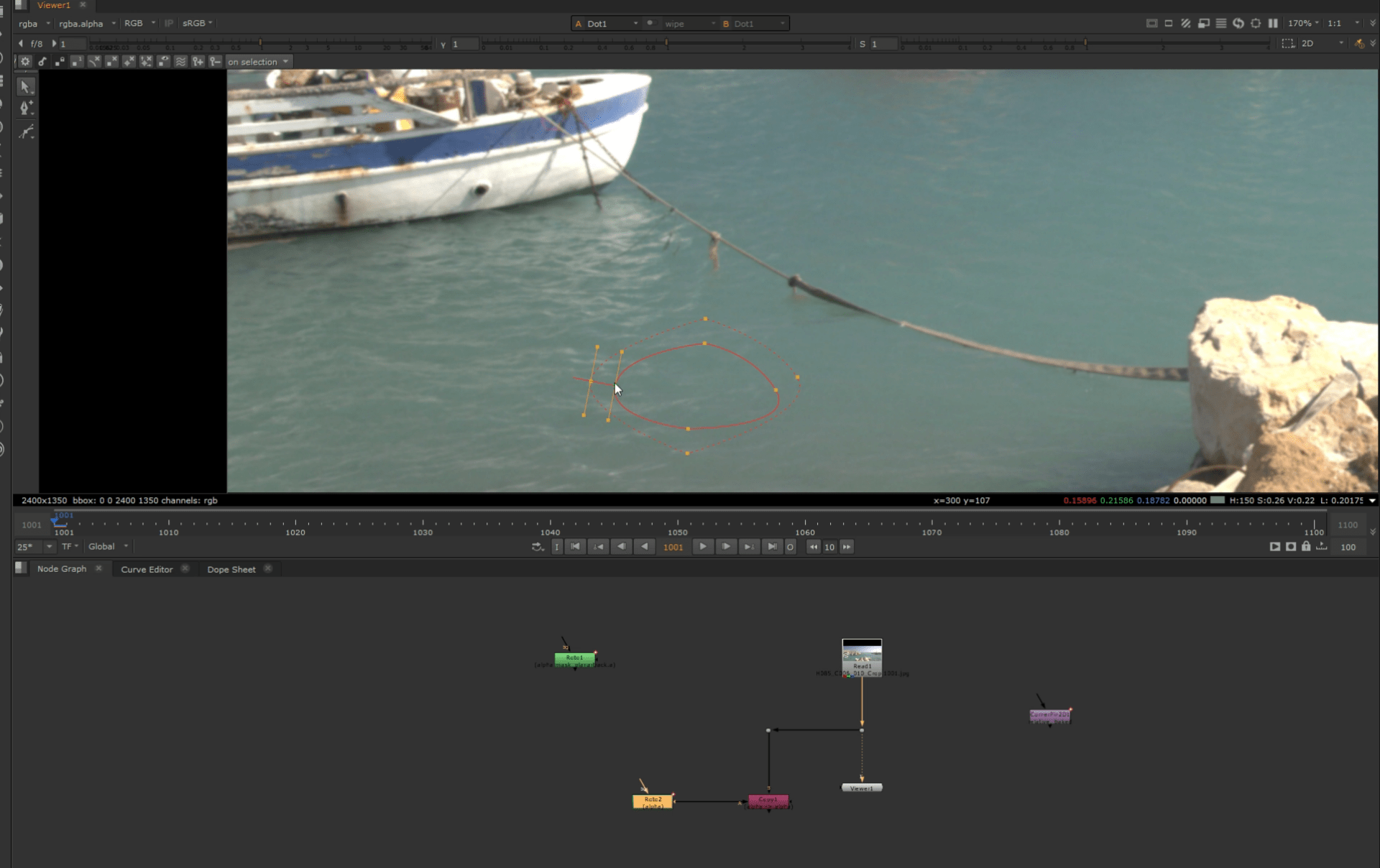
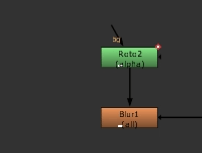
We also make sure to add some blur so it fits better.
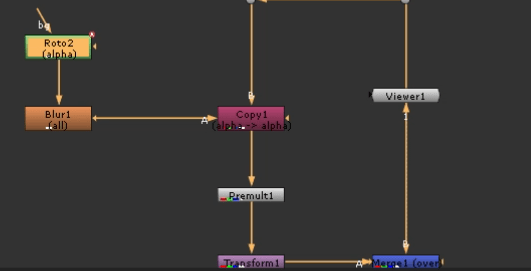
And then a transform node so we can move our patch whenever we want.
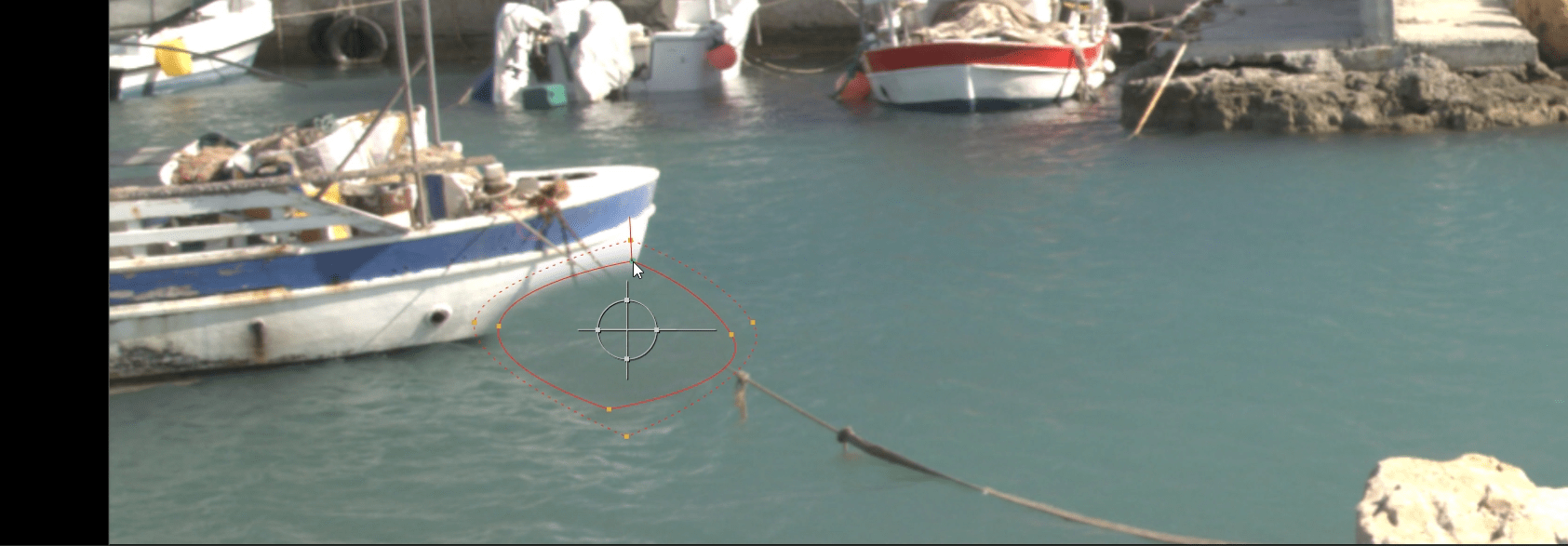
We put the patch at the desired position.
We are now repeating the process but making a different shaped patch for the rope.
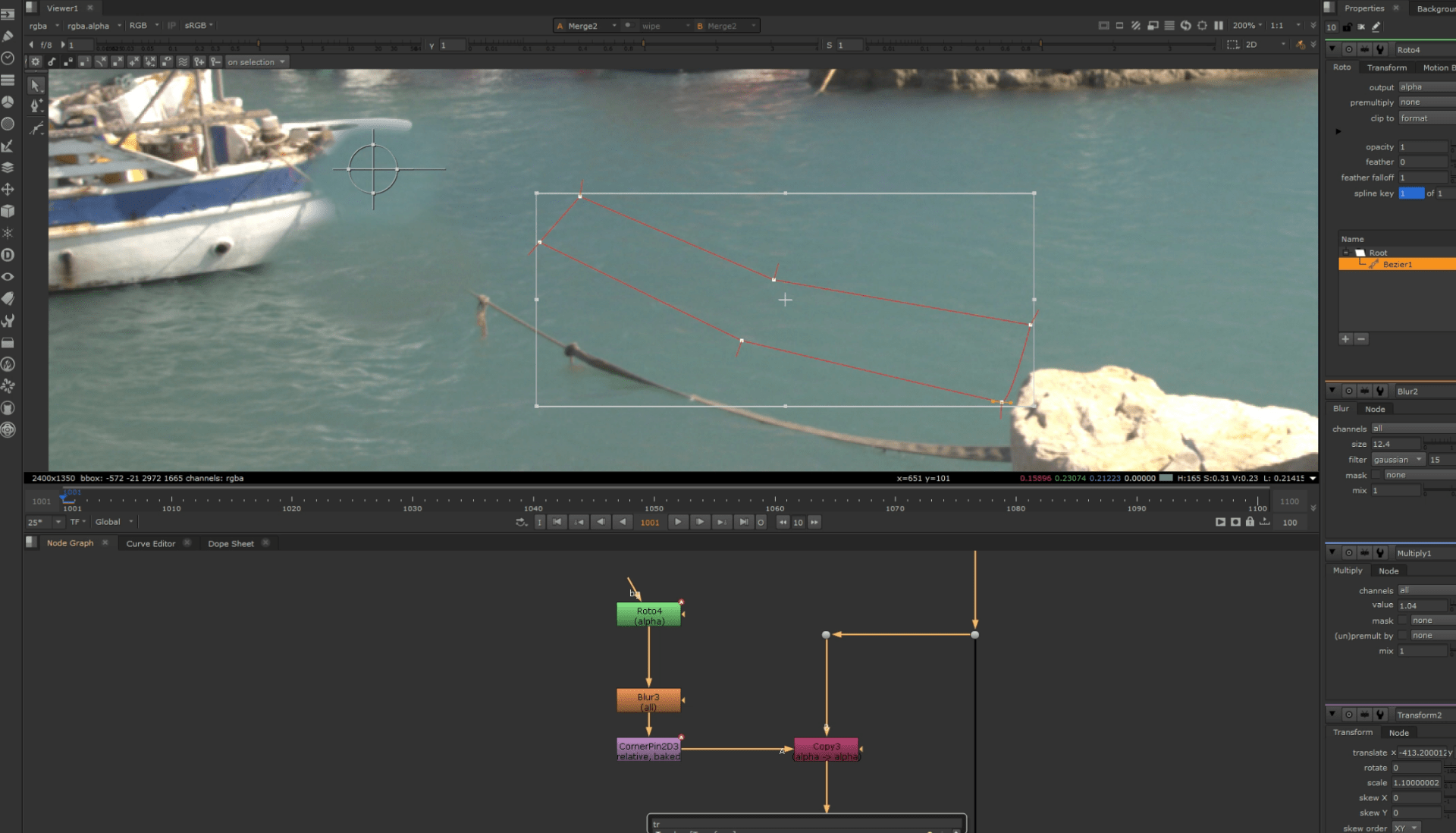
We will see that when we put the patch sometime cover something that we do not want to cover in the scene, in these cases we create a different roto to use as stencil for our objects.
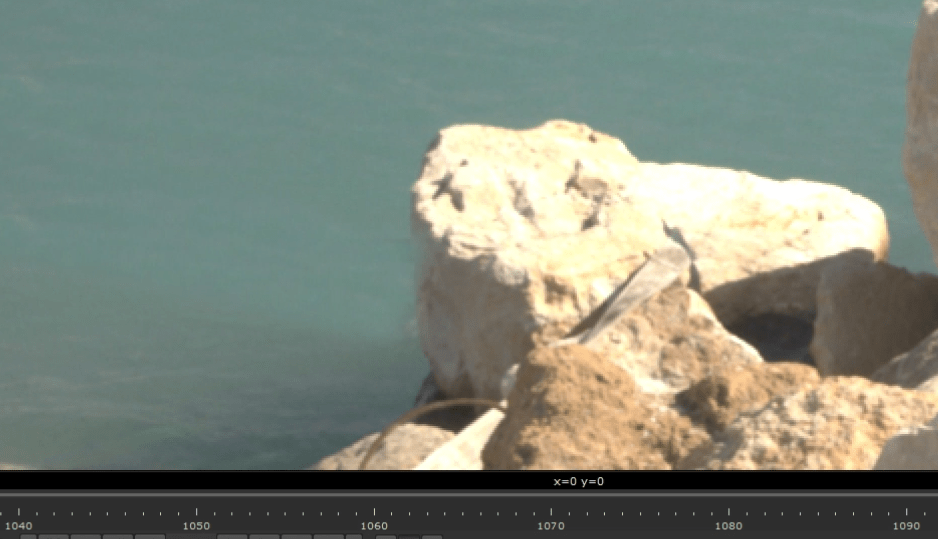
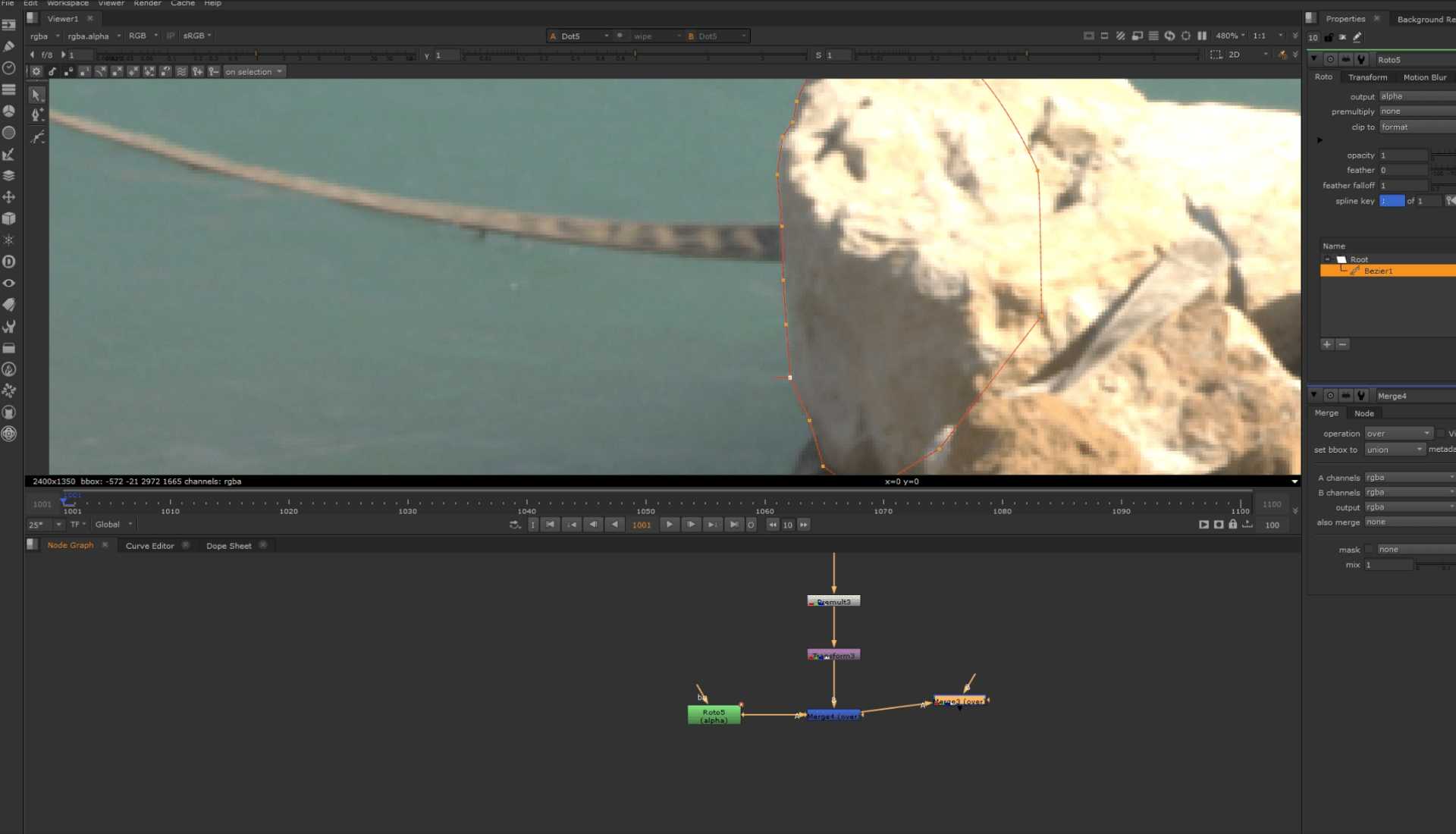
So after creating our roto we can exclude the desired object.
After we patched all the zone we can also grade the patch and add a multiply node so it blends better.
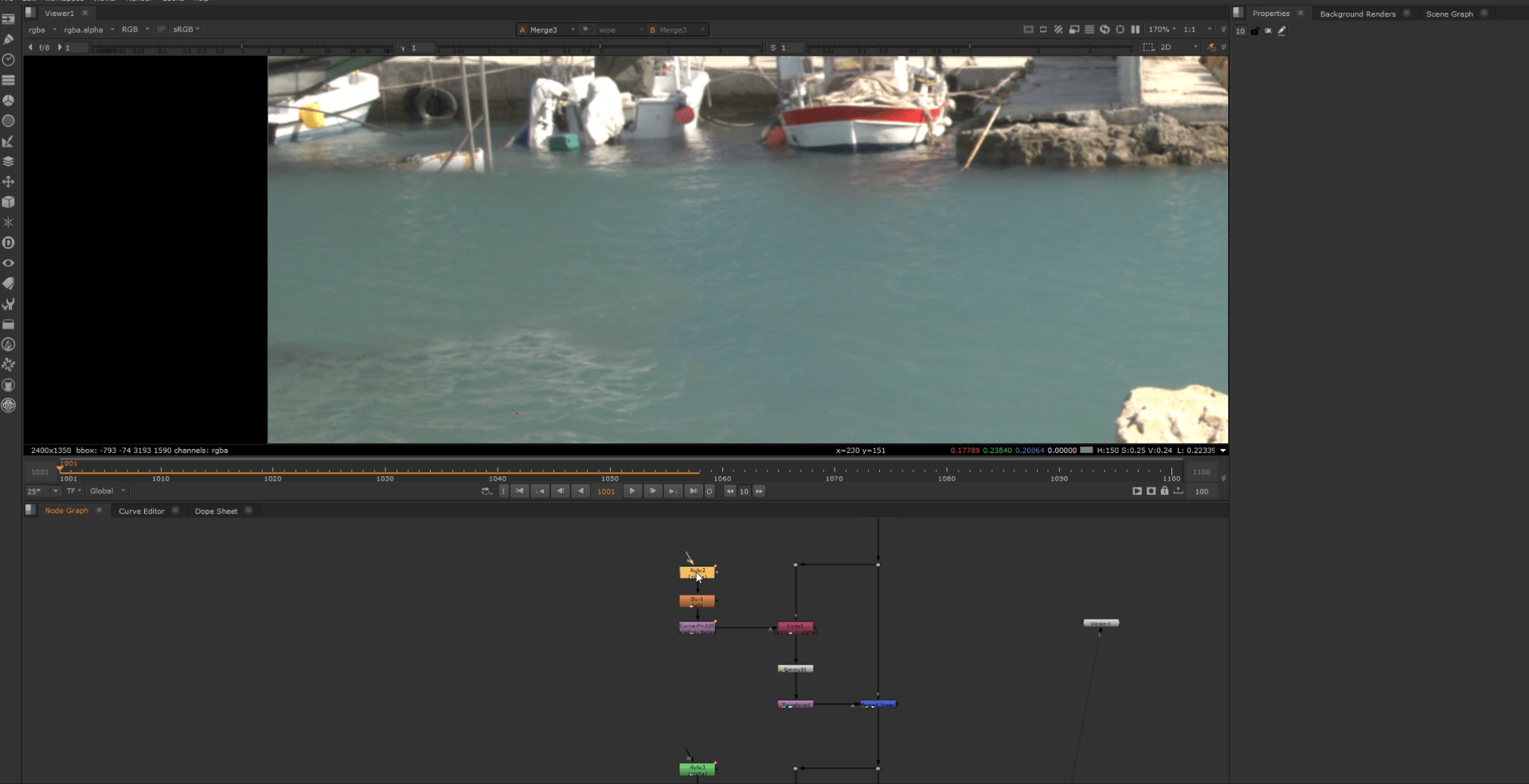
This is our final result.
Here is the VOD on how did I achieve these results.
End of week 8
Week 9: Nuke Key skills recap
We will use this week to refresh some memories on past key techniques in nuke such as keying, tracking, cleaning up and so on. all this techniques will be very important for the completion of our first assignment.
Exercise 1
For this first recap we are substituting the logo on the box for another on the next scene.
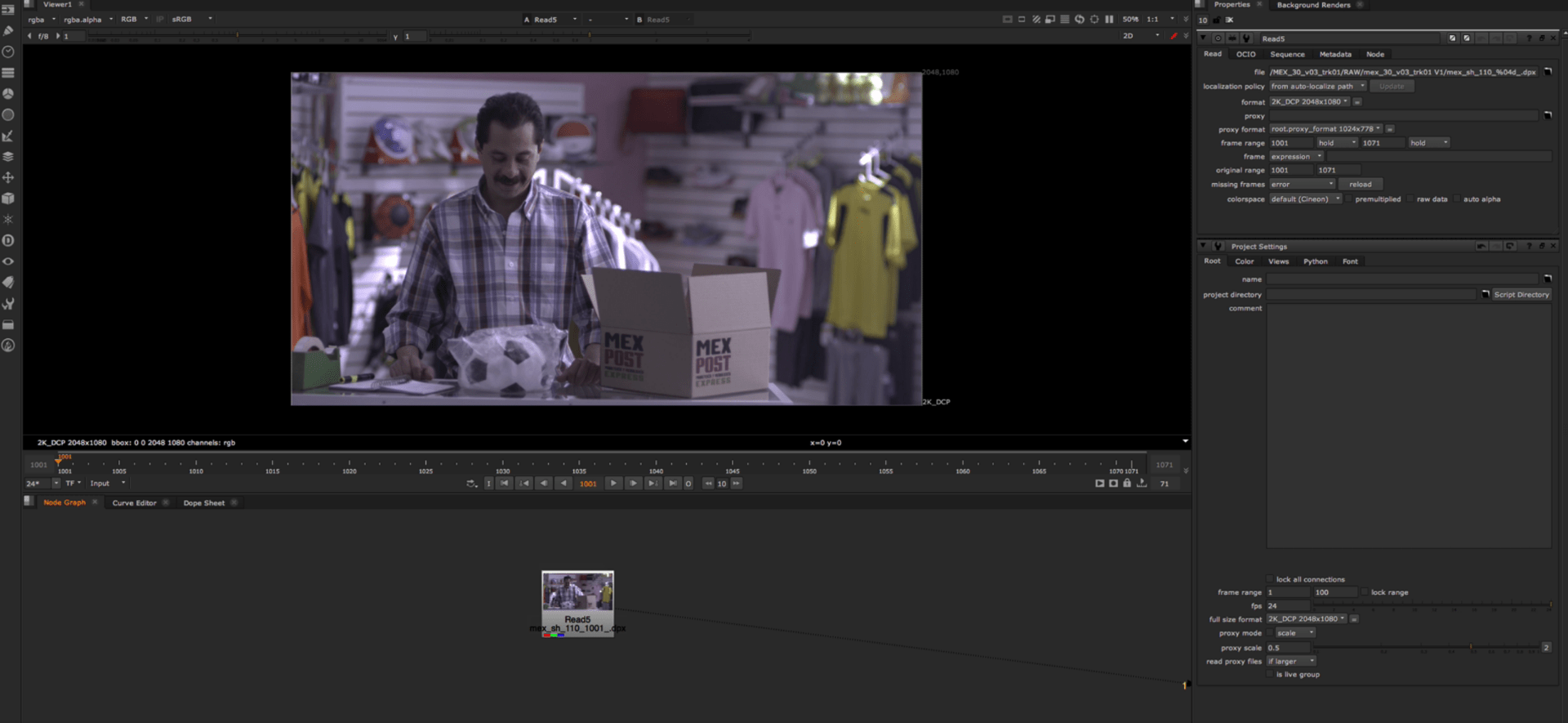
We start by making a planar track of the logo so we can easily patch it later.
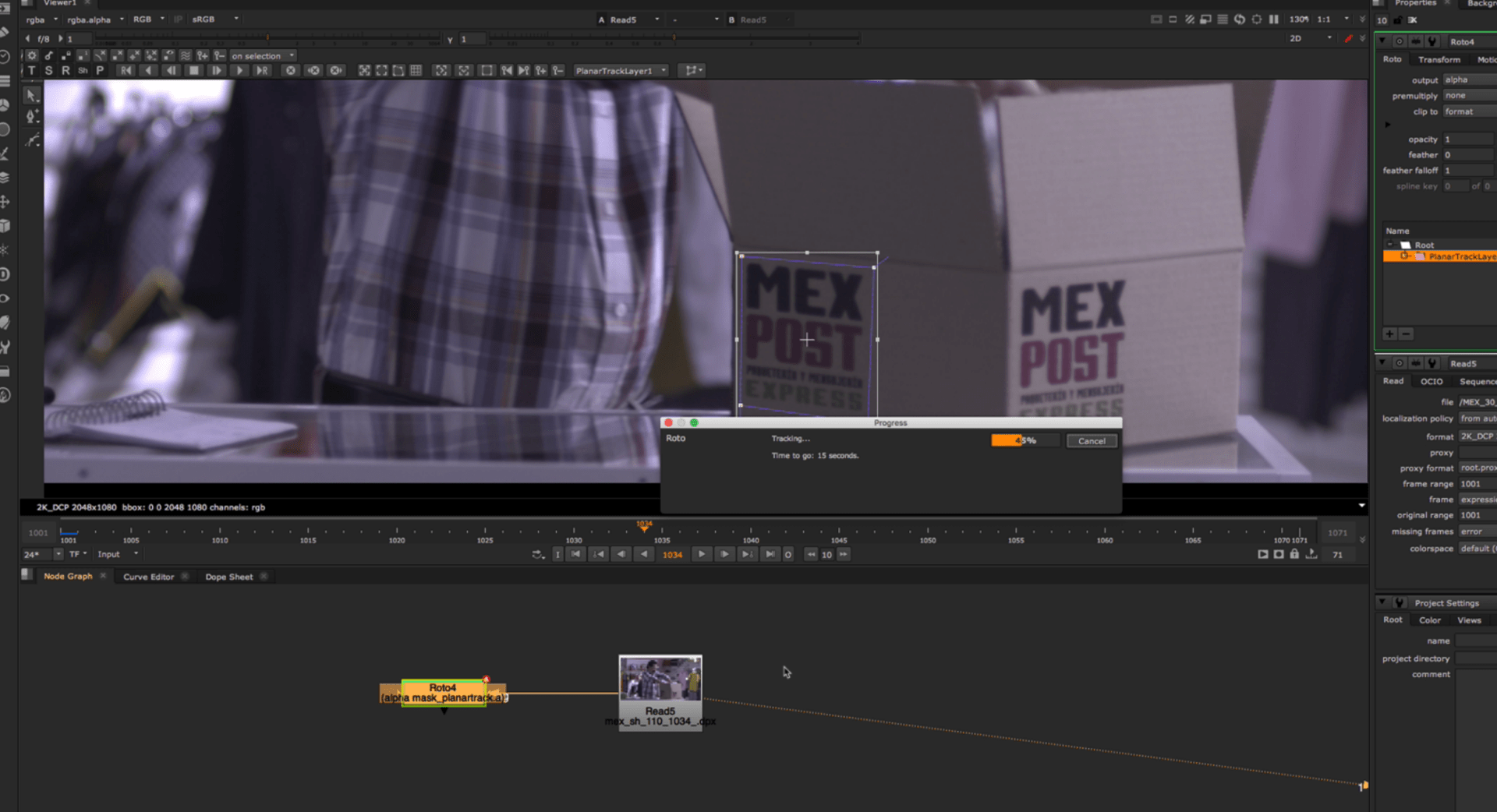
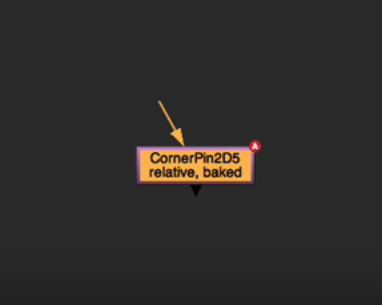
after the track is done we can obtain the corner pin for the movement.
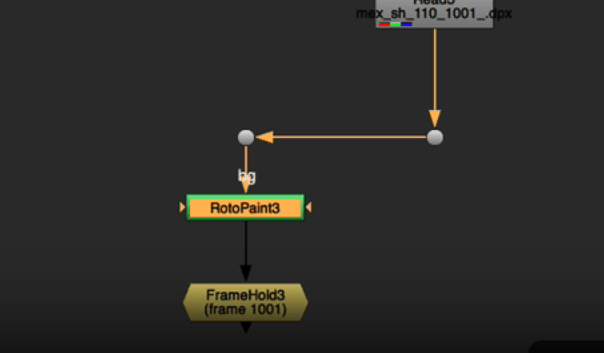
Now we add a frame hold as all the other clean ups so we can later paint over with a roto paint.
And now we start painting over the logo.
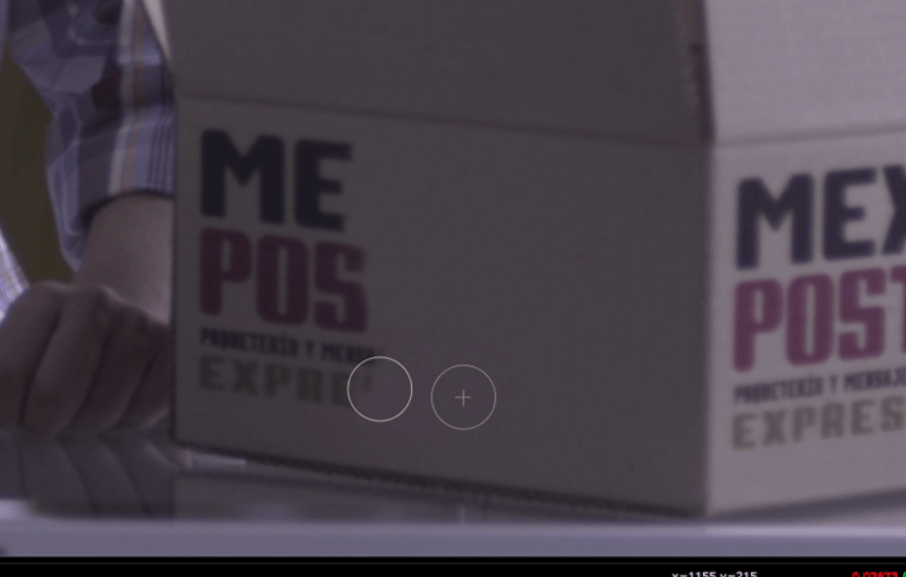
This is the result of the painting.
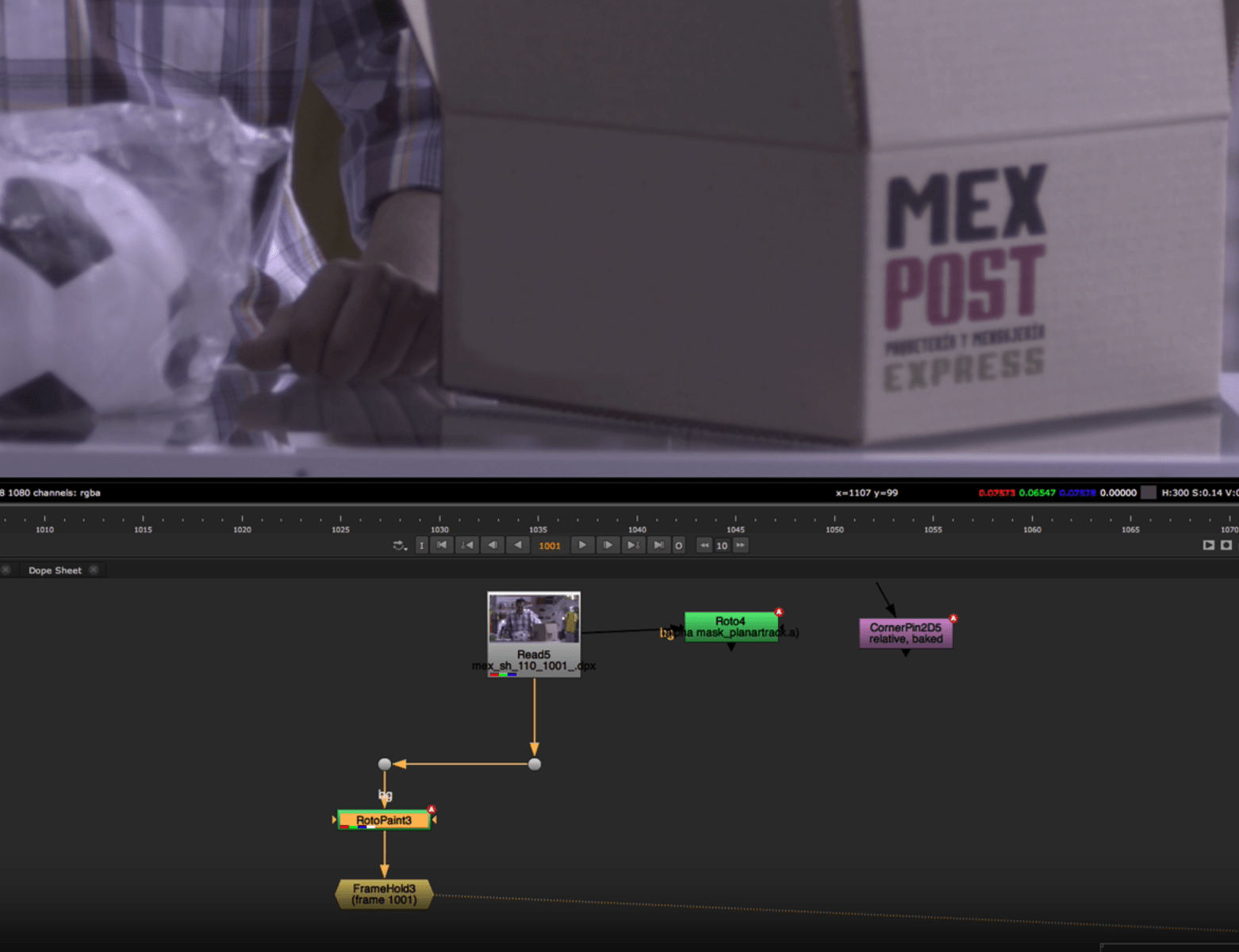
After these we add a roto to designate where do we want the patch to be and blend it.
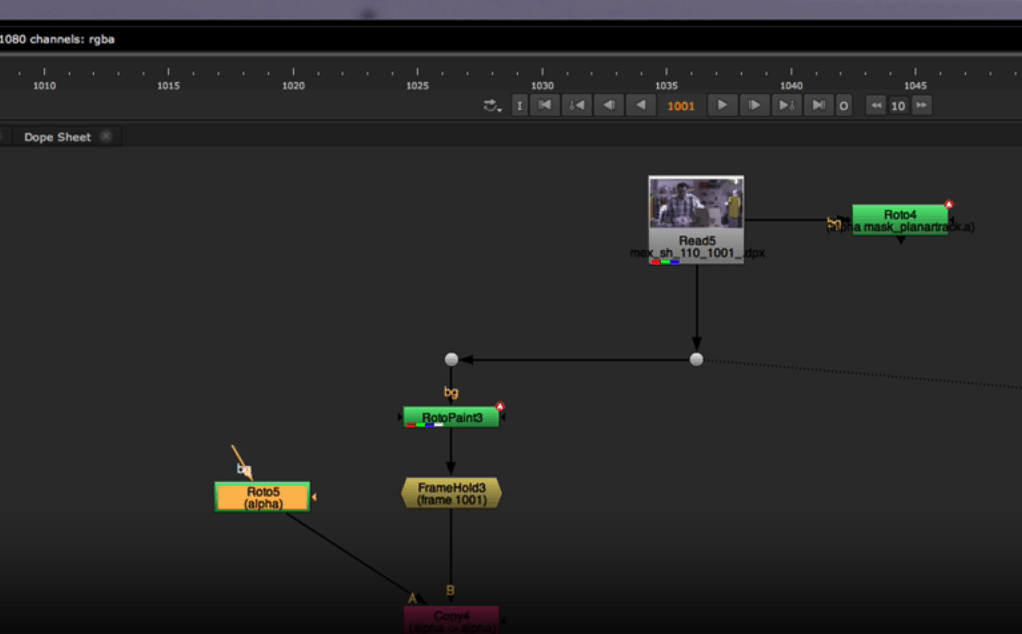
We premult it and merge it together with the original footage.
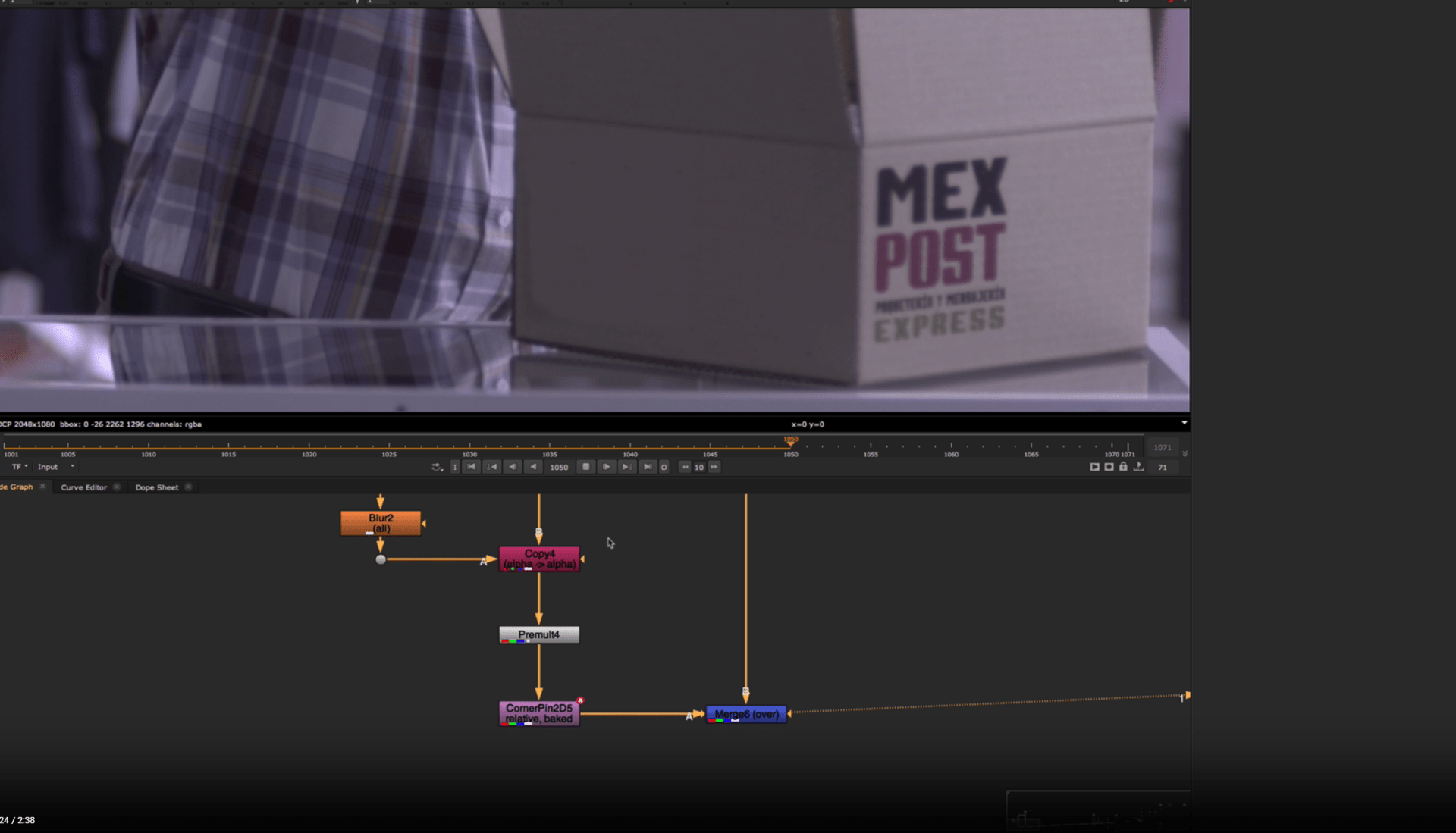
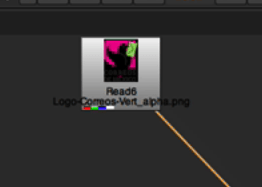
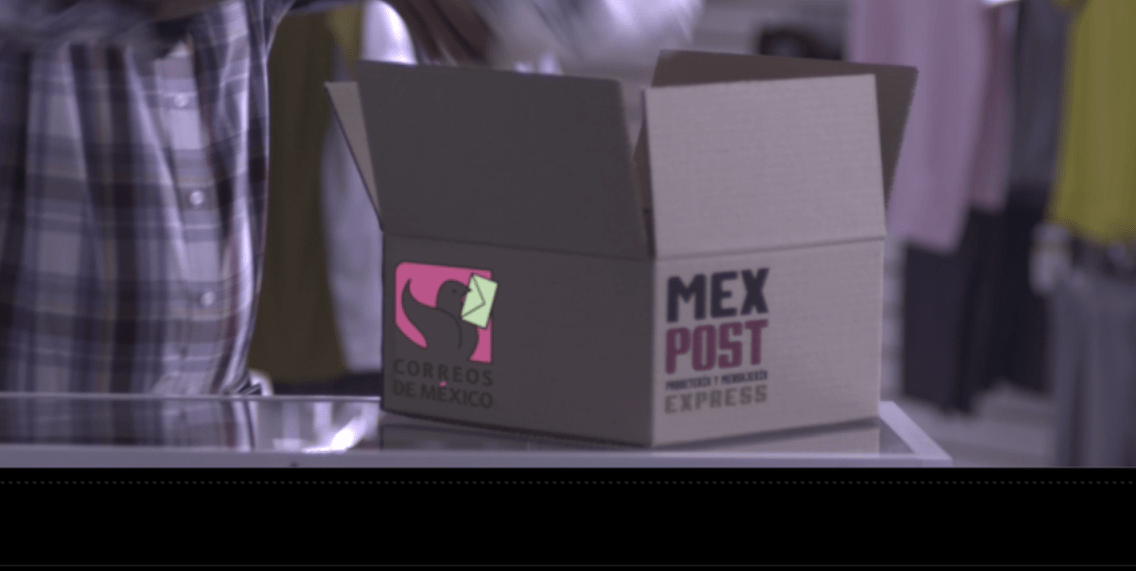
For now we have patched the logo, but now we want to add our own logo to the scene.
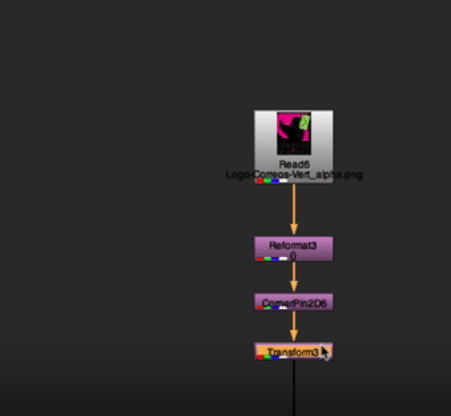
So we are going to take our image and merge it.
before merging the image we are going to to add a a reformat node so it matches the format with our scene, we also add the corner pin information and a transform node so we can manipulate our image .
For the image to match better we later add different grade nodes and defocus.
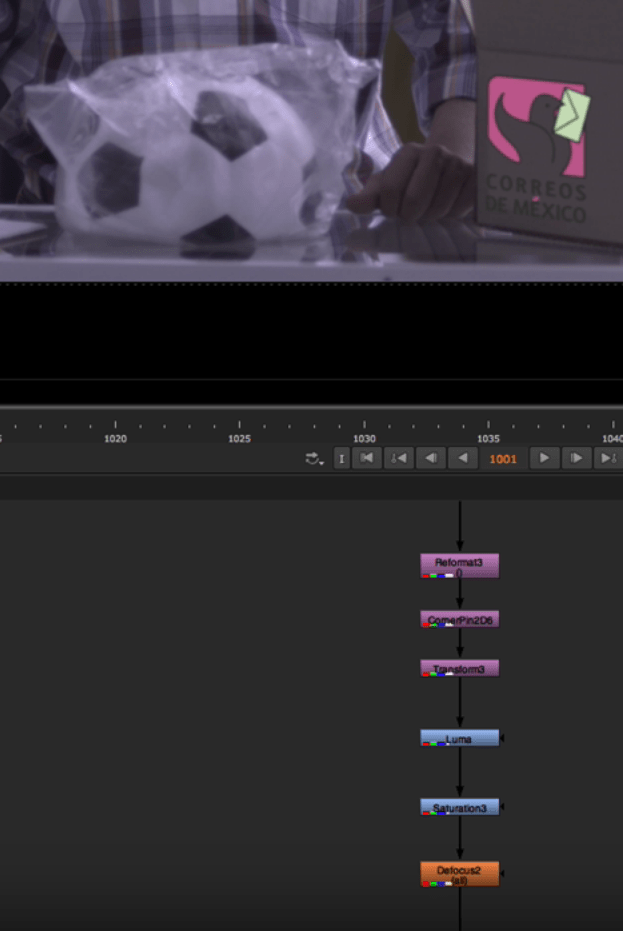
This is our result:
Exercise 2
For our second exercise wee are going to make some basic keying.
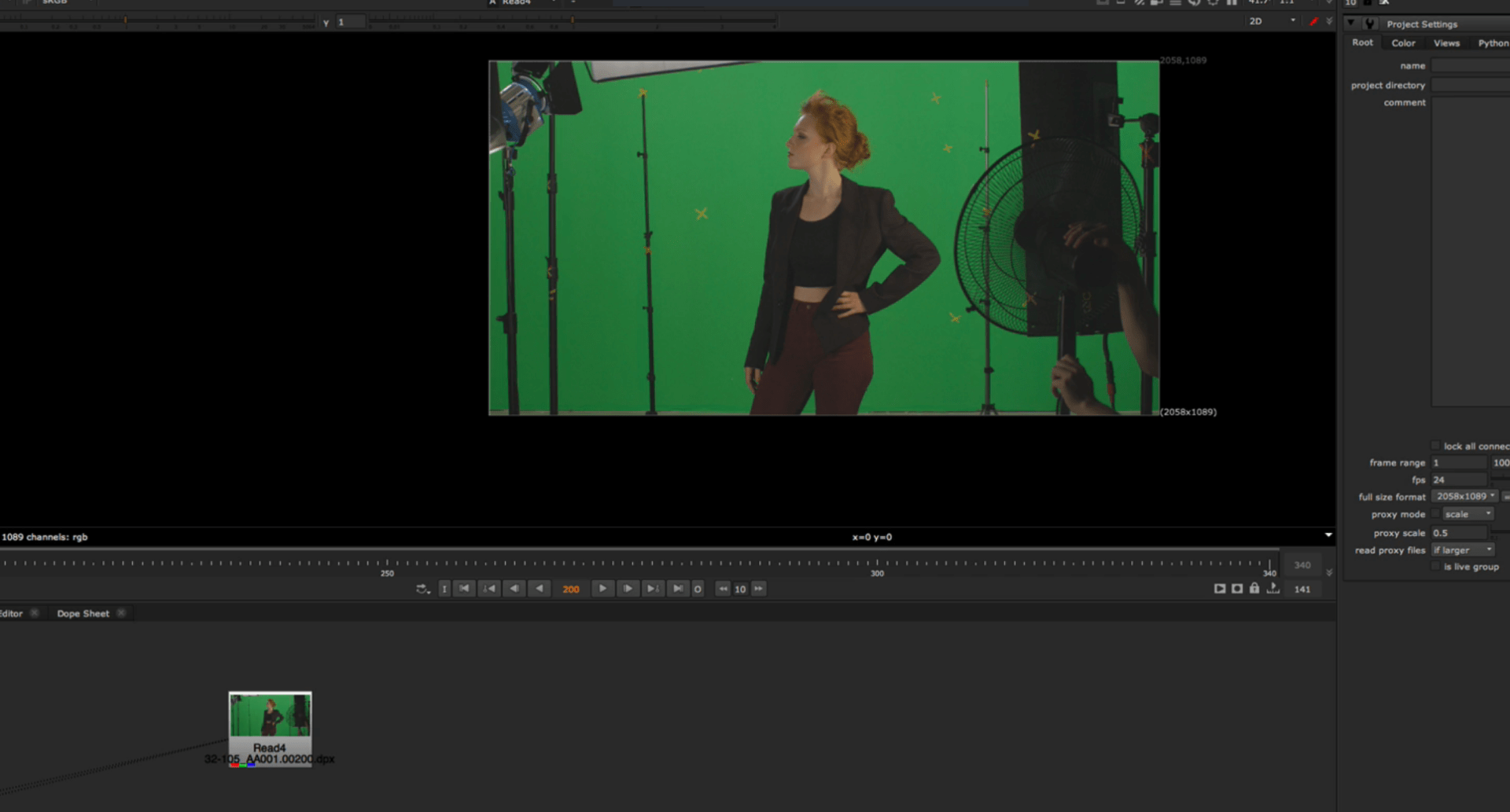
Our objective is to substitute the background for a blue constant.
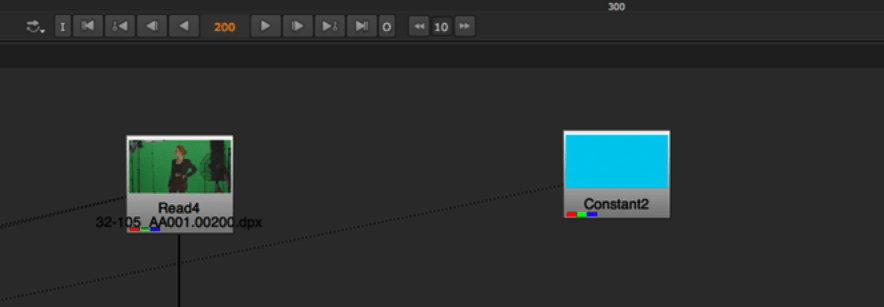
So we start by creating our key light nodes. and with our selector we select our first shade of green.
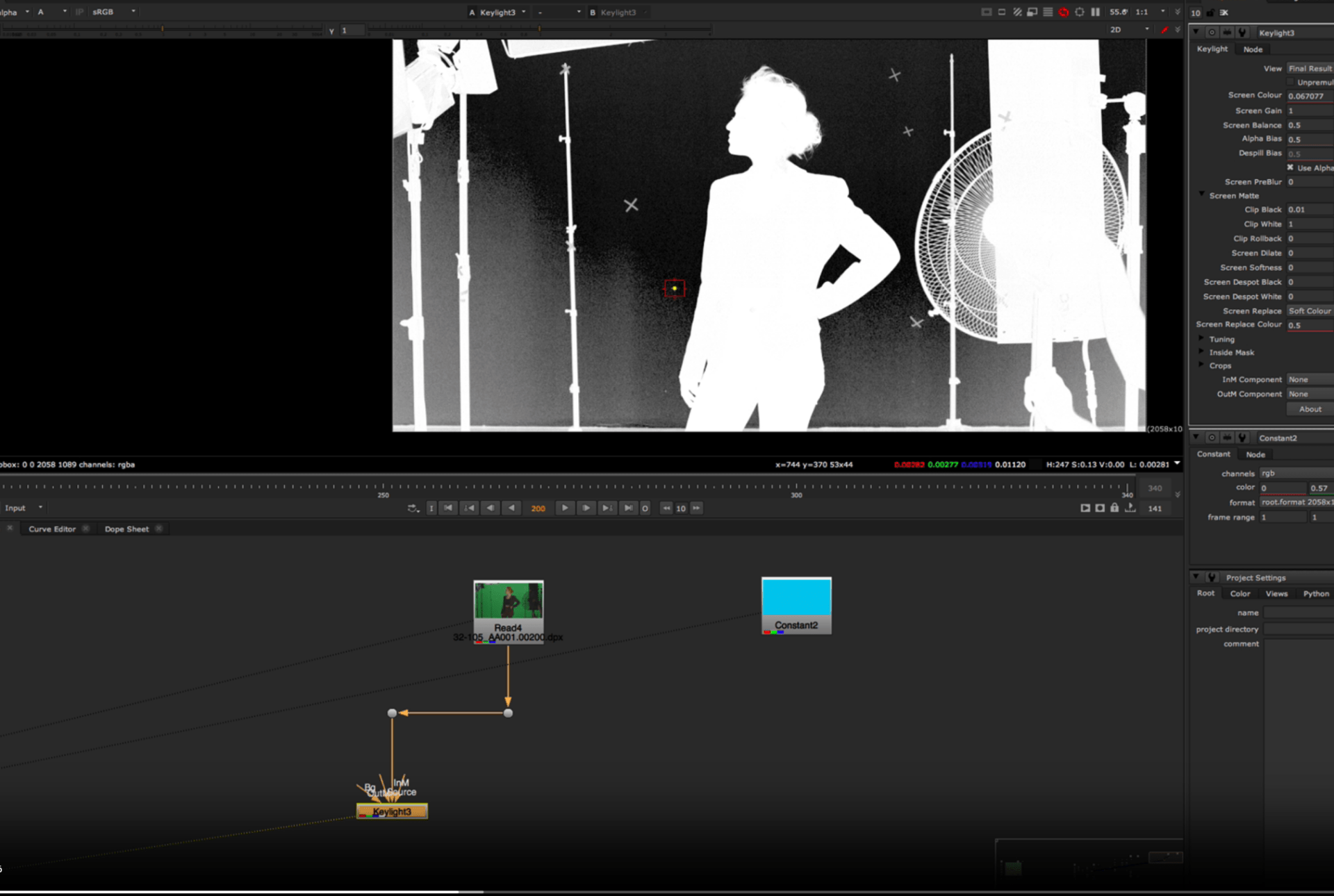
if we merge this with our constant we will get now a blue background, but we also want to eliminate the resto of the scene except our subject.
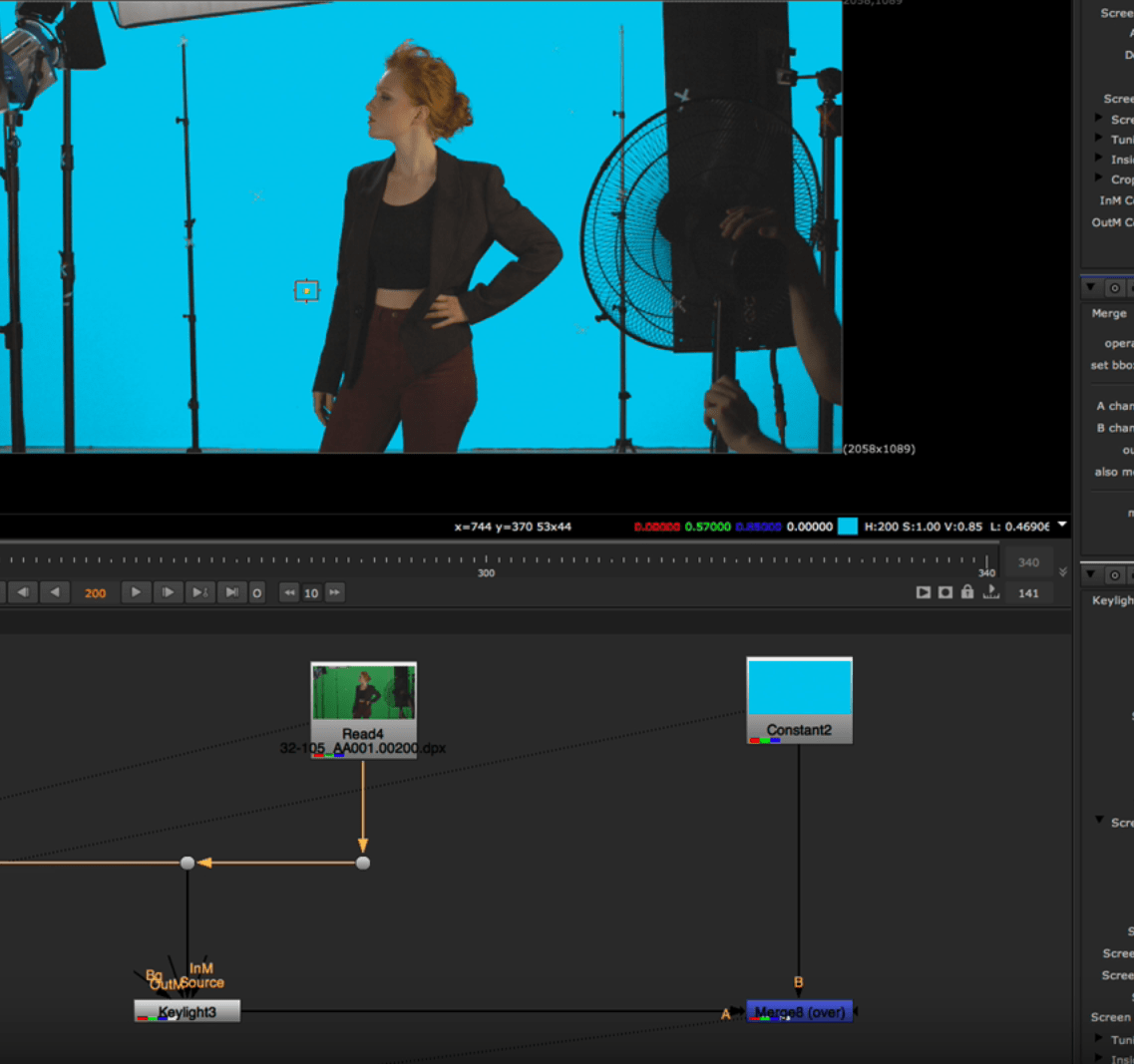
To continue with our key light , we are doing a second key light so we can add some more hair information to our keying and then fade the two key lights together.
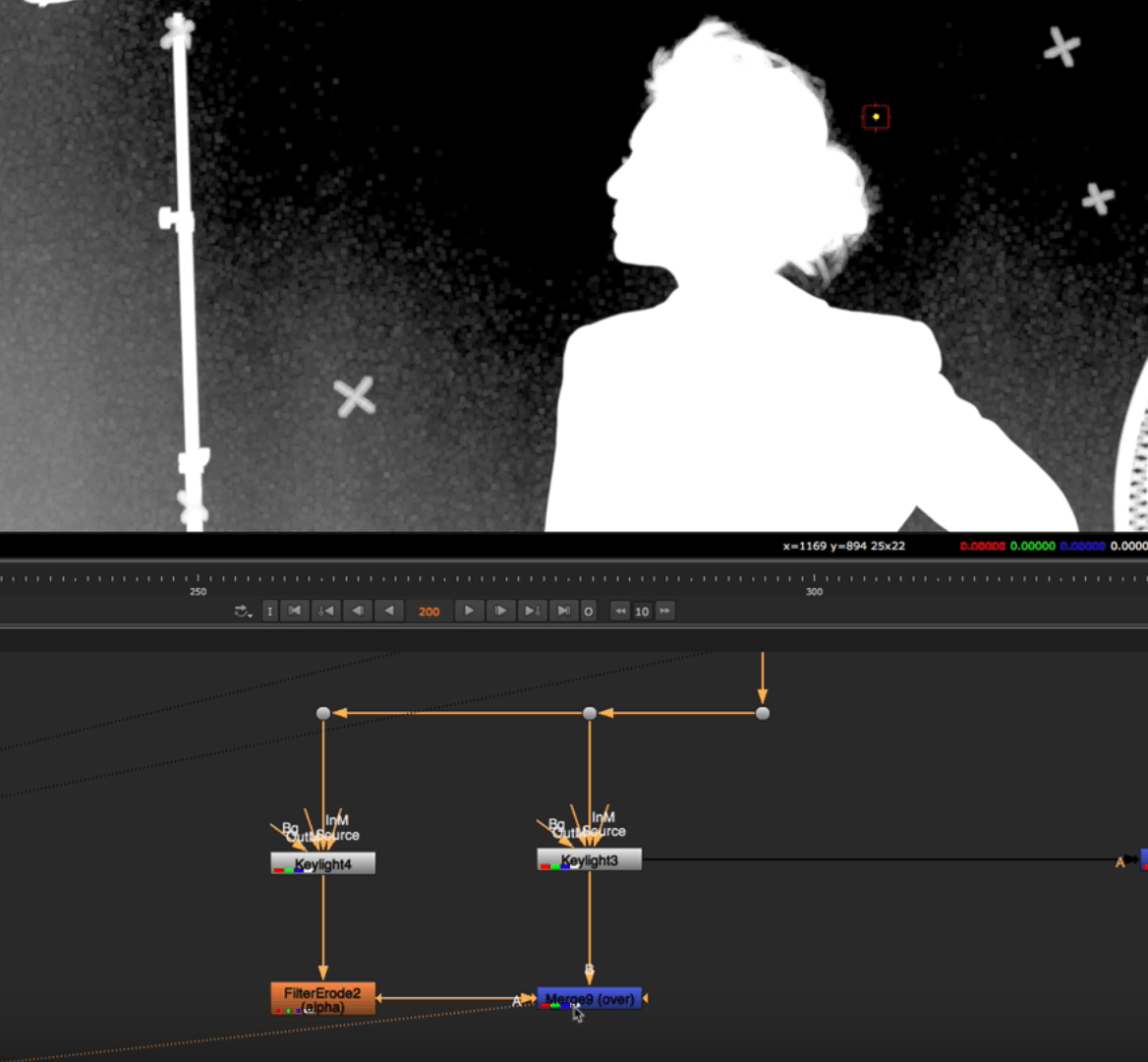
Now we have kept more detail.
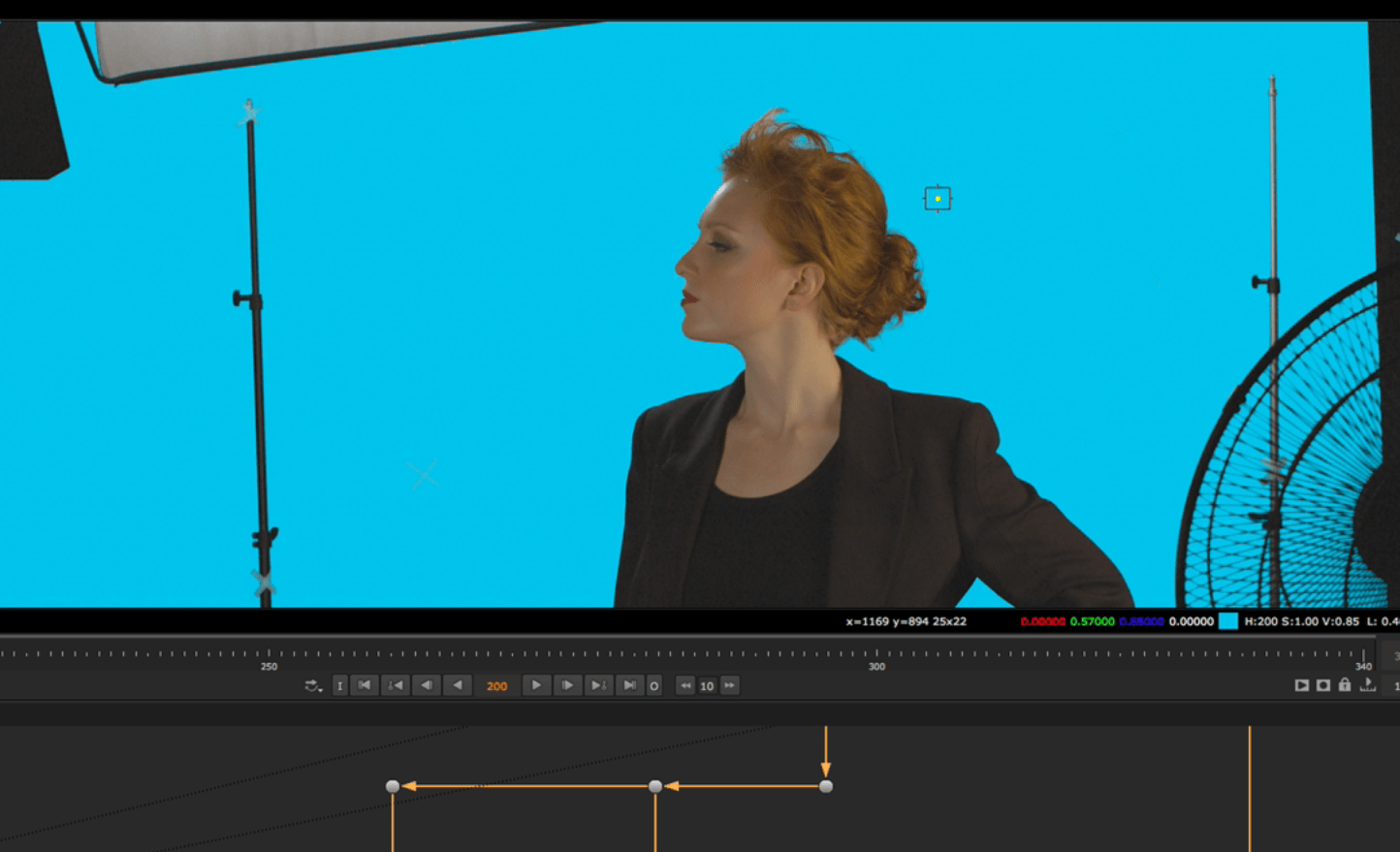
Finally we are going to make a roto to make the rest of the objects on the background disappear and insolate our subject.
We start by adding some tracker and capture the movement of the scene.
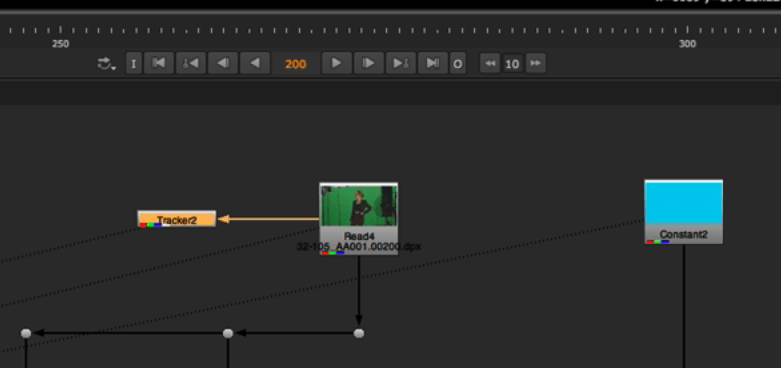
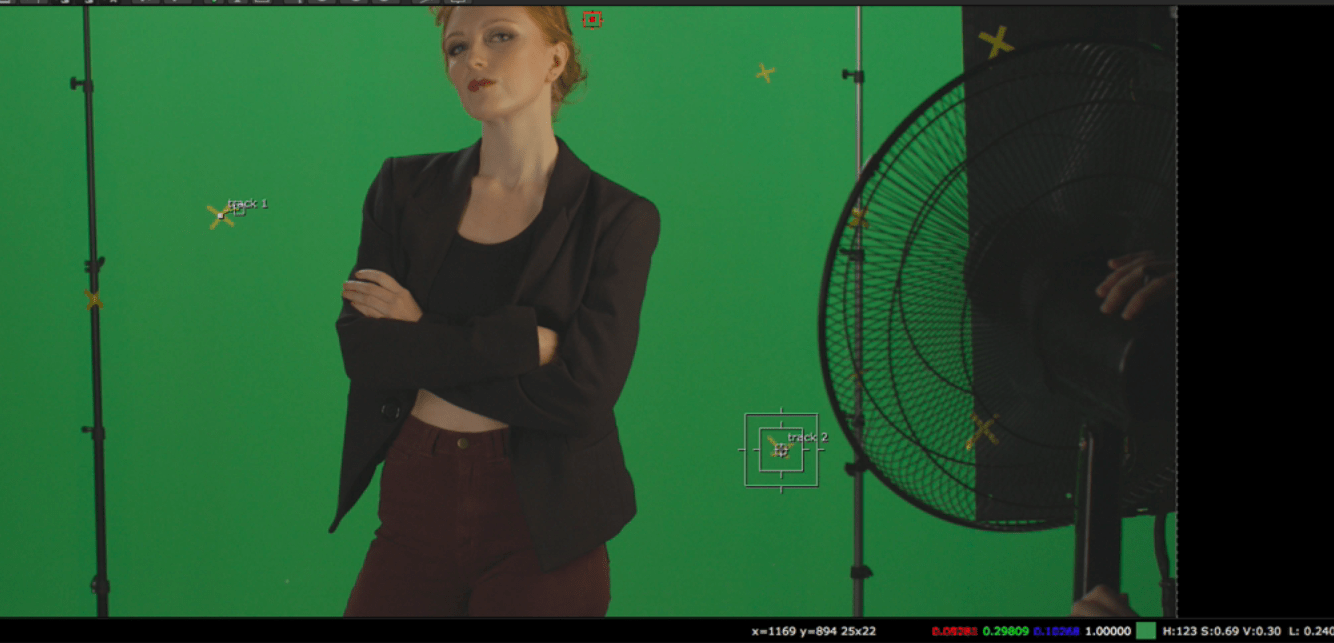
After the tracking is done we can add our roto paint node and start cleaning up the marks in the wall.
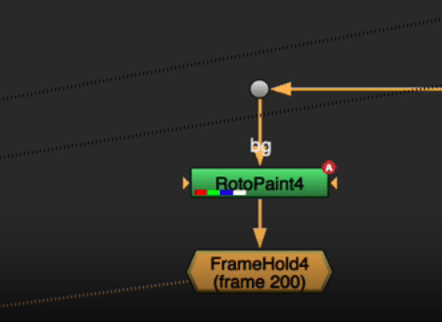
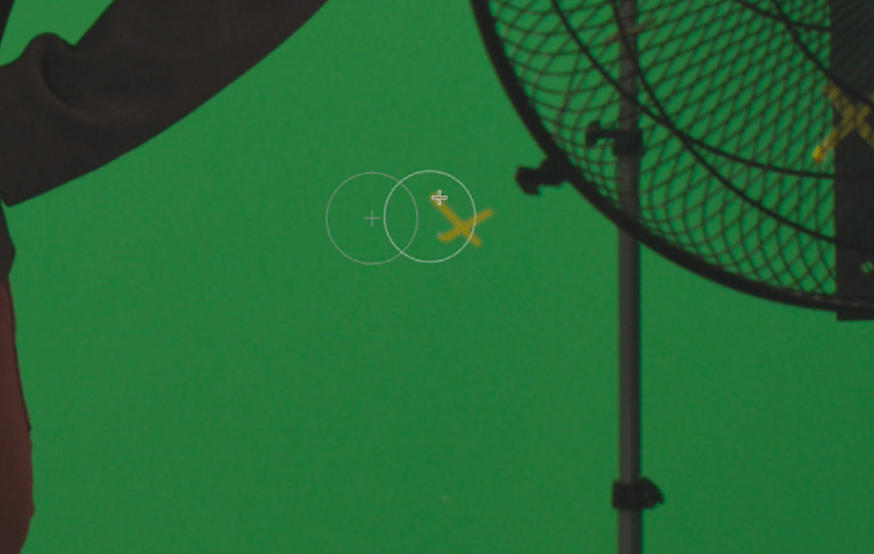
We finally add a roto to insolate our subject.
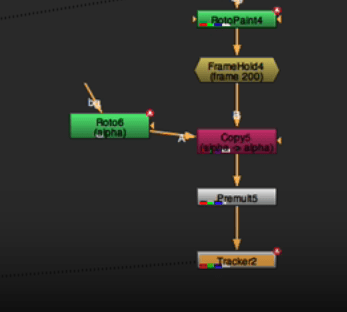
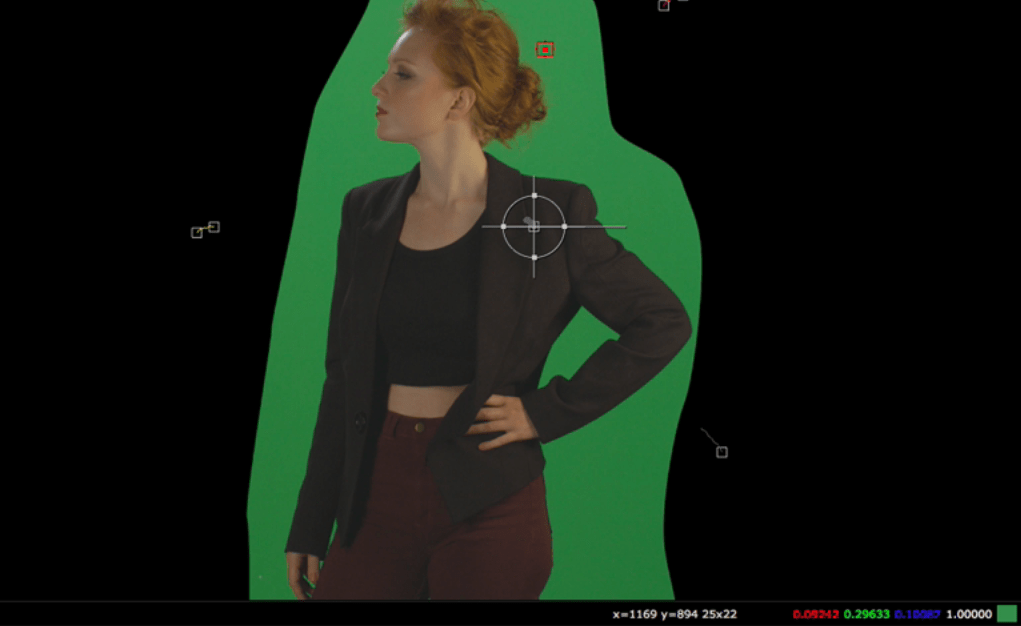
This is our roto for the subject.
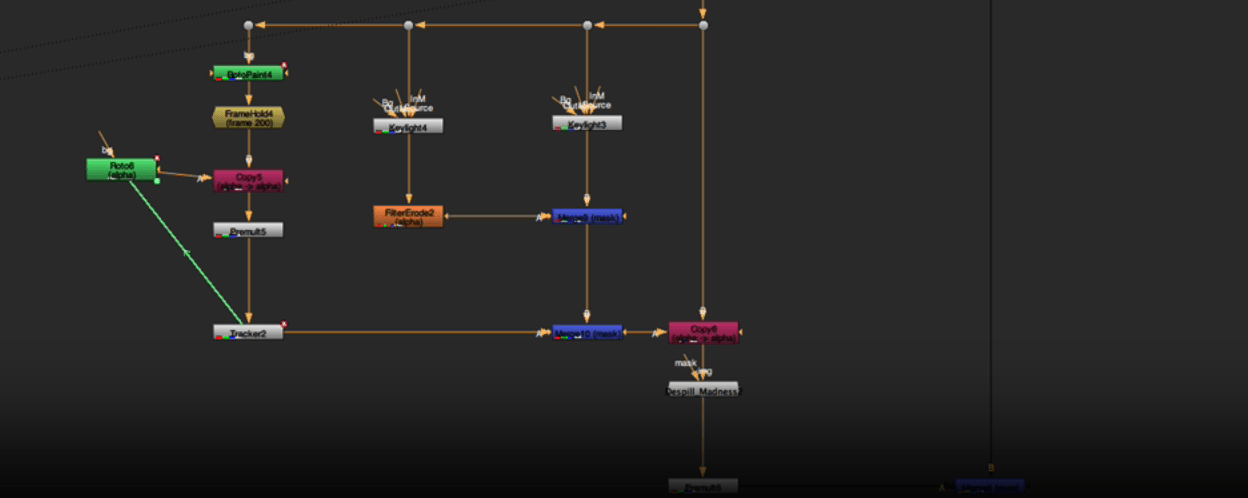
Do not forget to link the position of the roto to the tracker so it matches in movement.
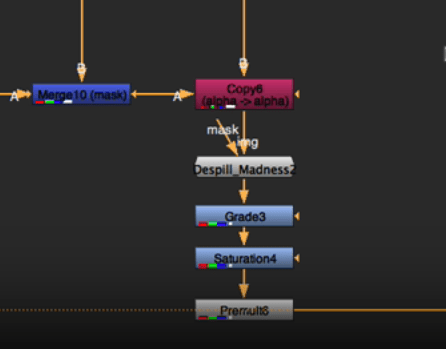
As a final touch we add some colour grading so everything matches together properly.
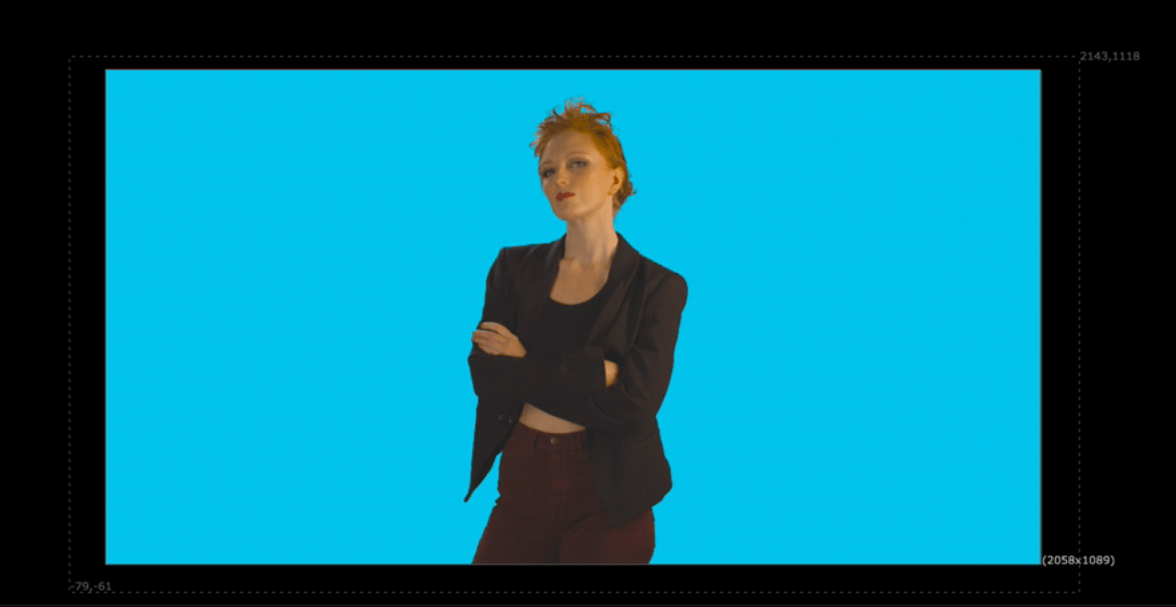
This is the final result:
End of week 9
Week 10: Advanced key
This week we will learn about advanced key.
Exercise 1:
For this first exercise we will lean about additive key.
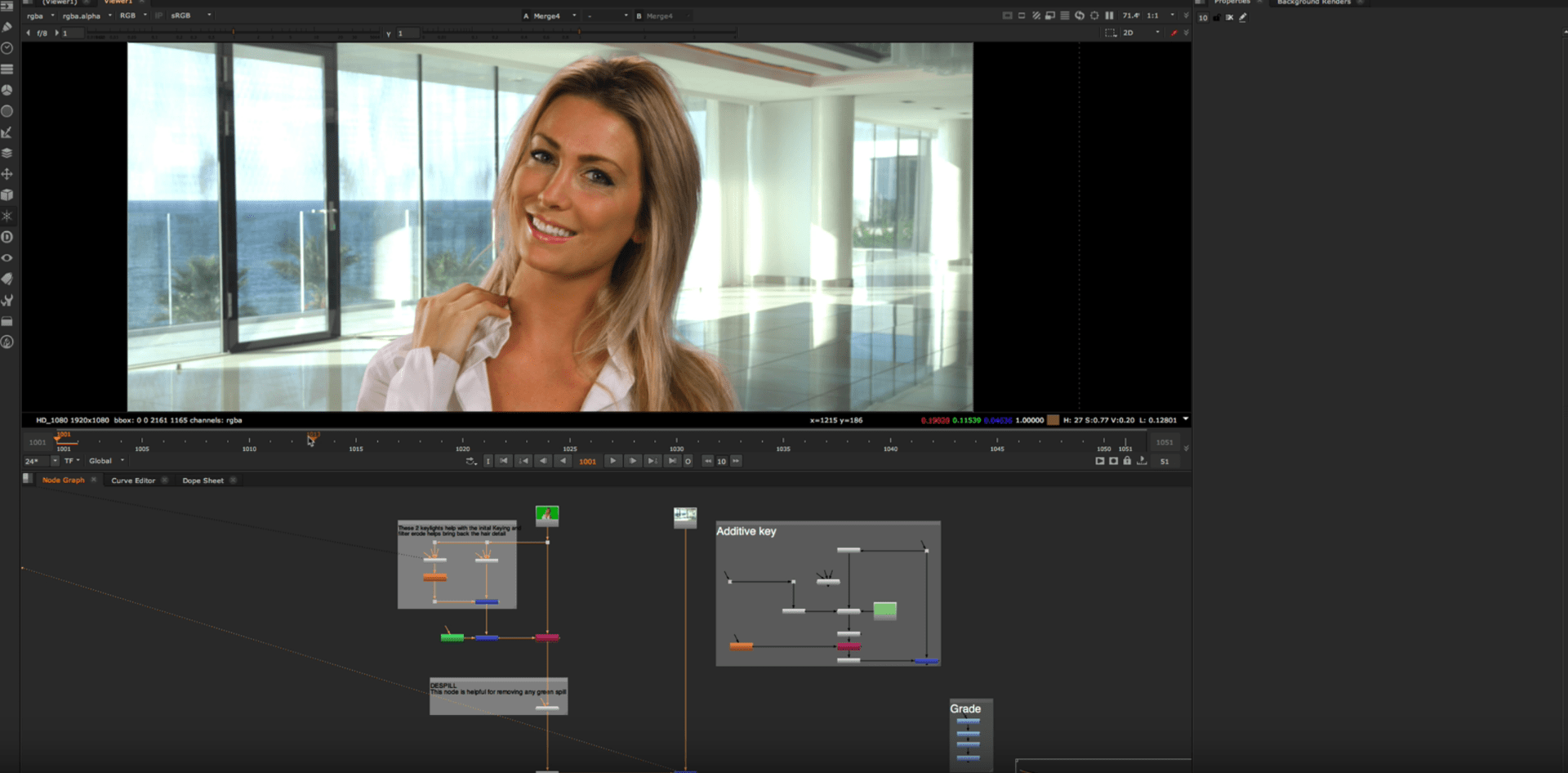
which is meant to be used to take the values from the background and the foreground to bring some details that we lose during the keying process.
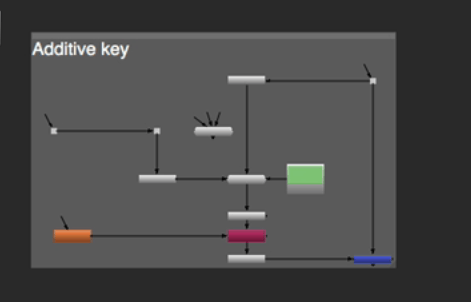
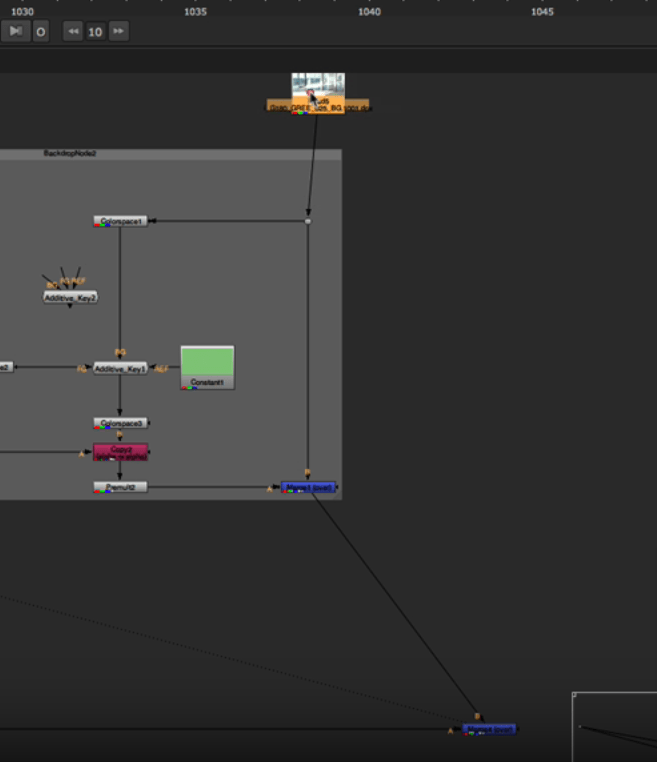
So we use this node and connect it to the stream .
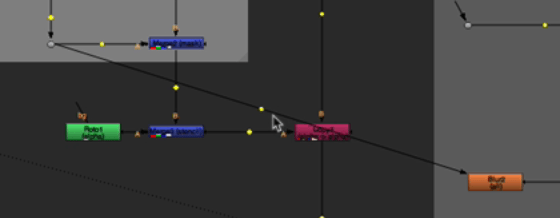
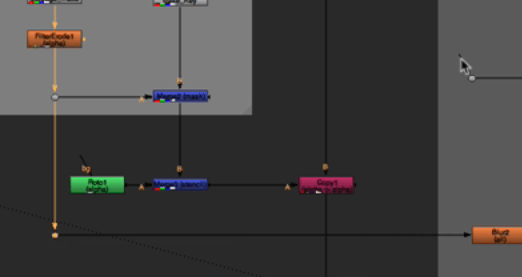
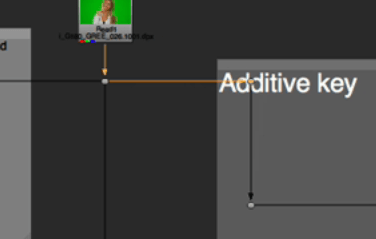
After connecting the foreground and merging the background we get this result.
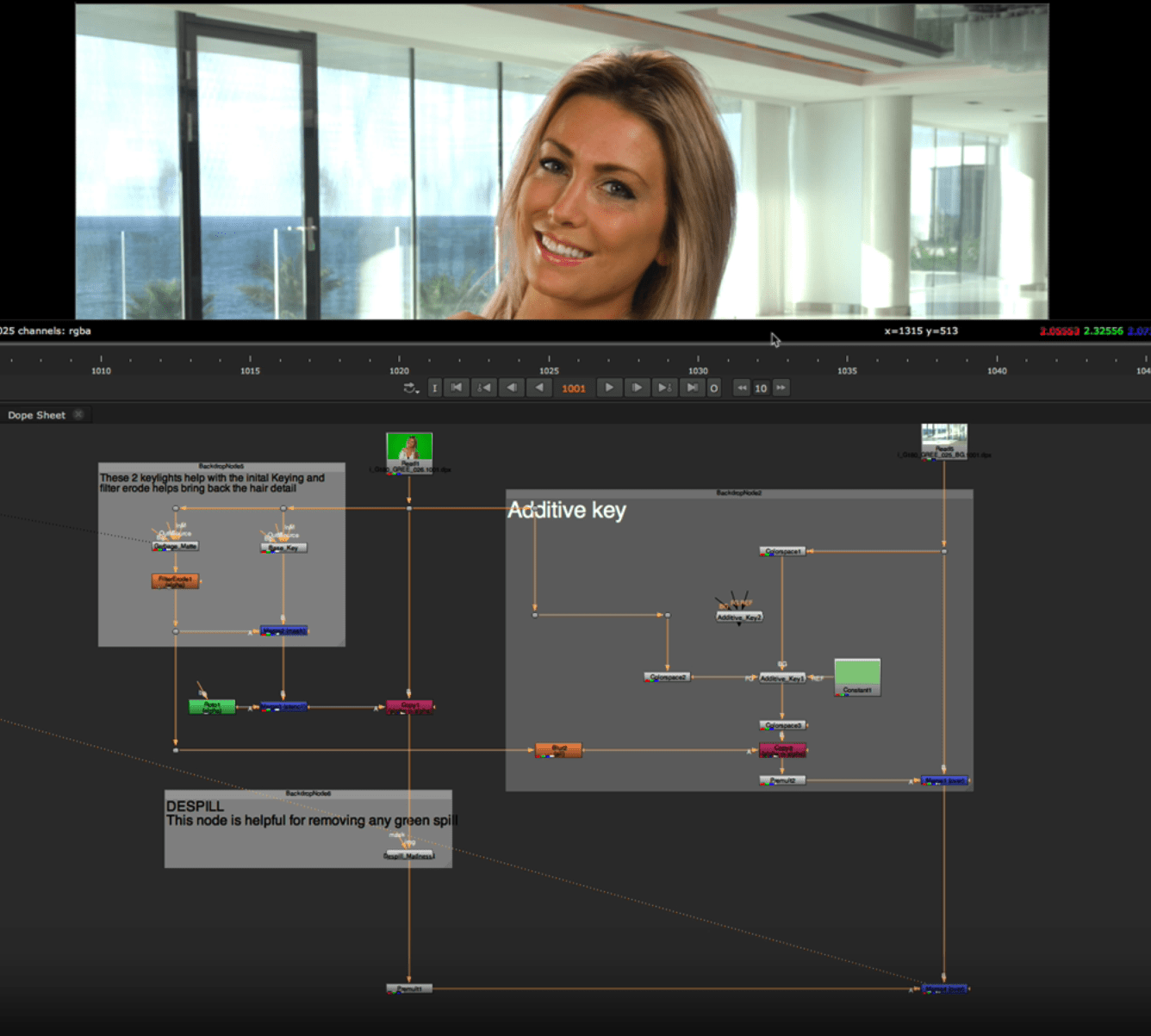
with additive: 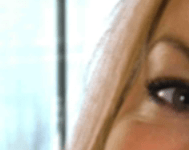
Without additive:
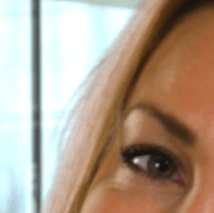
Exercise 2:
for the next technique we are going to be looking at how to deal with multiple shades of green.
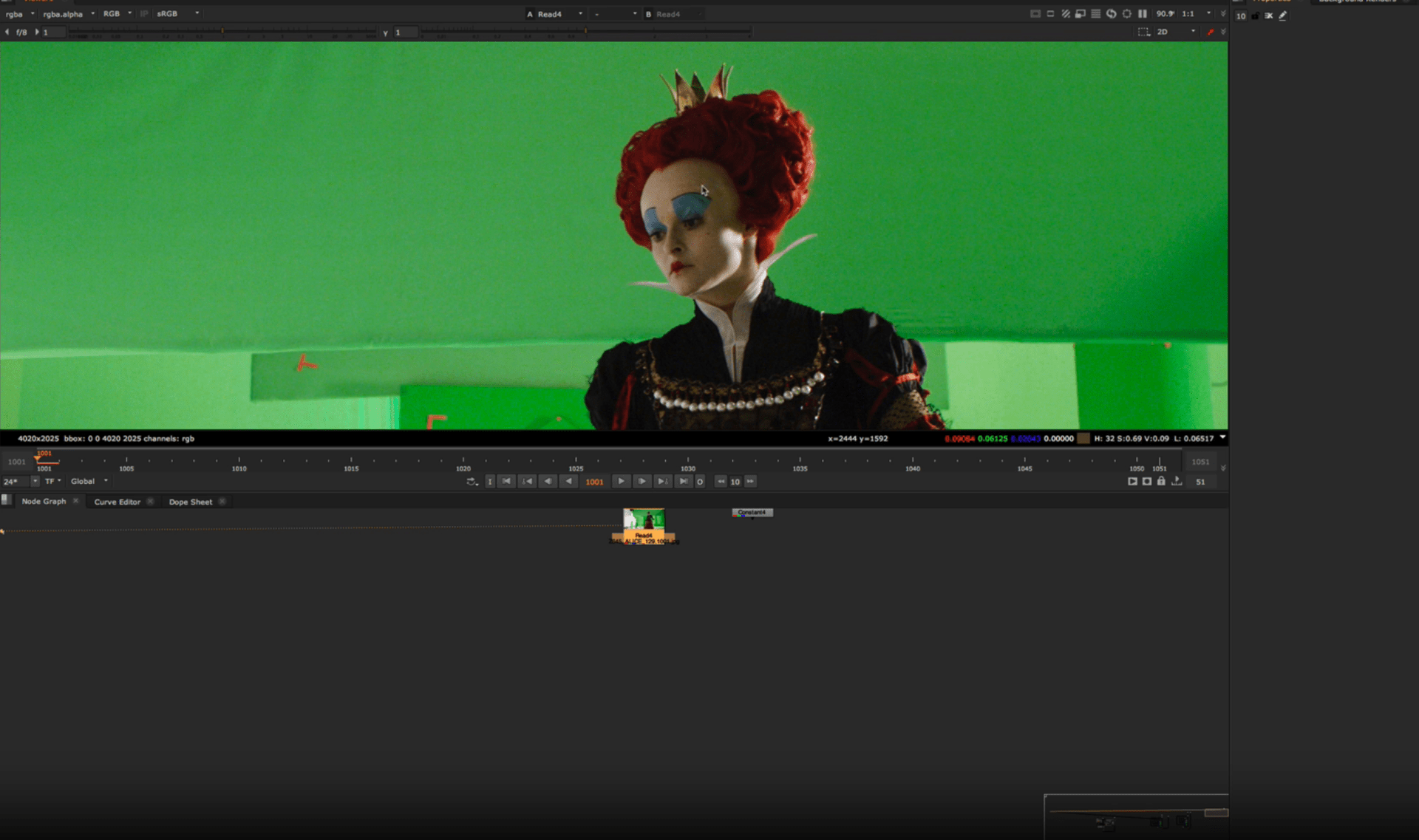
We are going to start adding a denoise node.
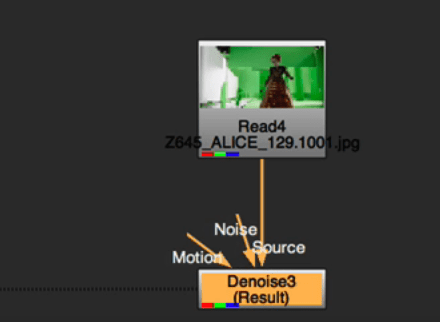
So we select a sample to denoise.
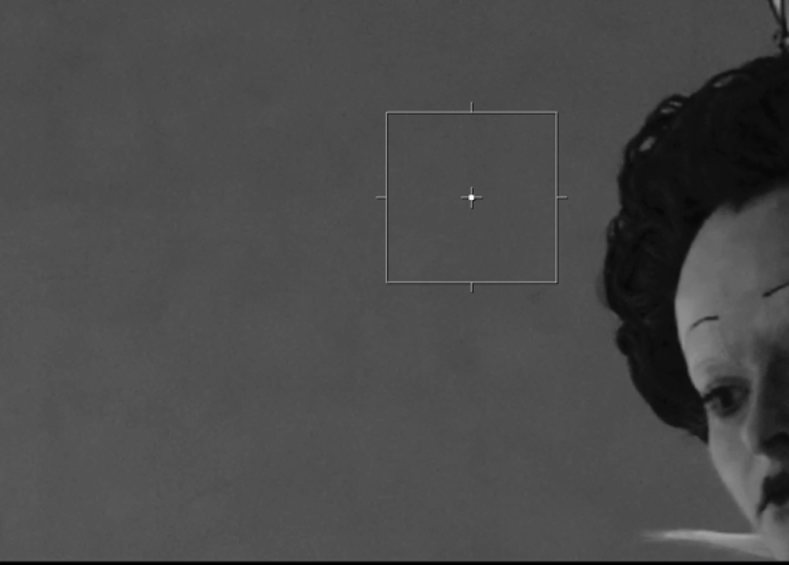
After the denoise we can start to work in our key light.
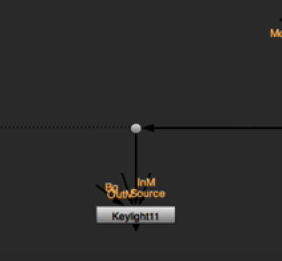
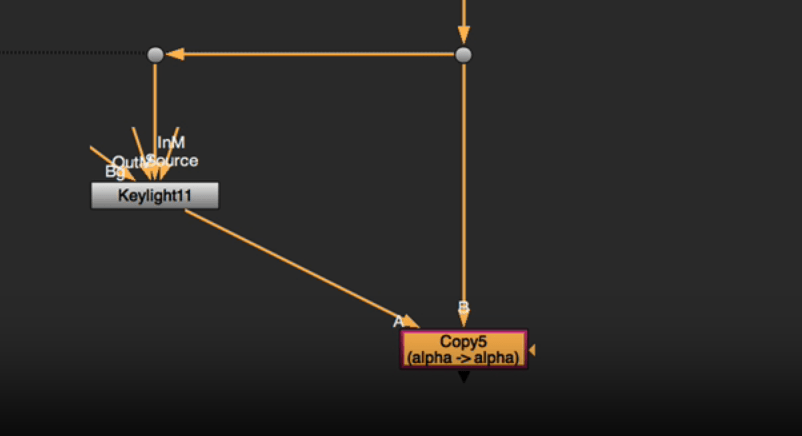
We are also adding a copy node to copy that alpha channel information.
So we start selection our first shadow of green and then change the properties to fit the range a little better.
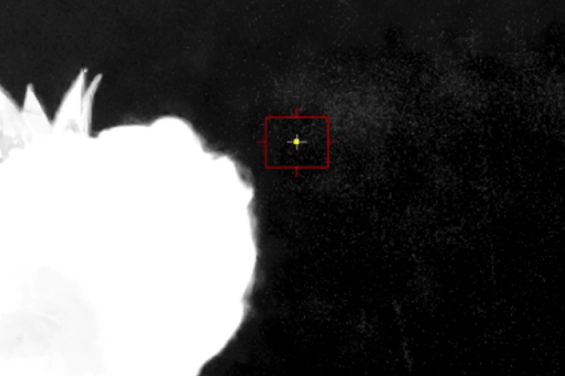
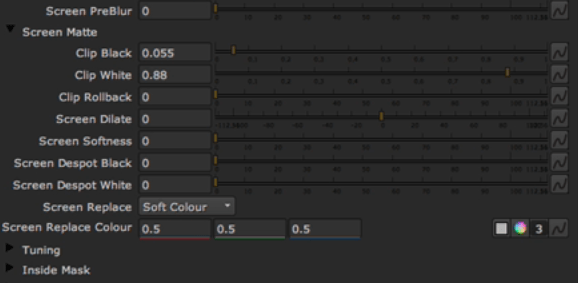
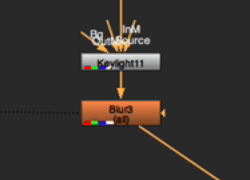
we are also adding a blur for the keylight so it blends better.
We are now adding a new keylight in the composition and take a sample out of it.
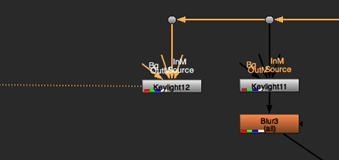
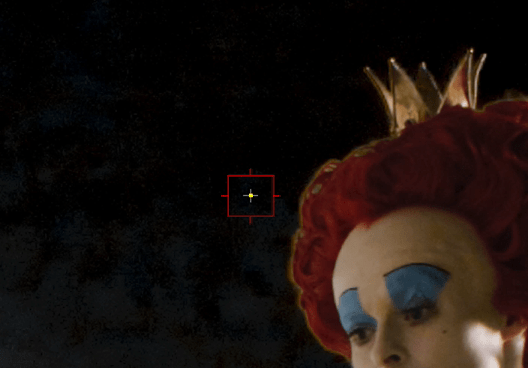
And adjust the parameters.
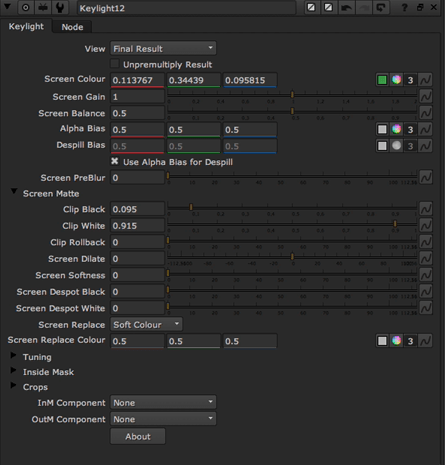
Next we are adding a key mix node
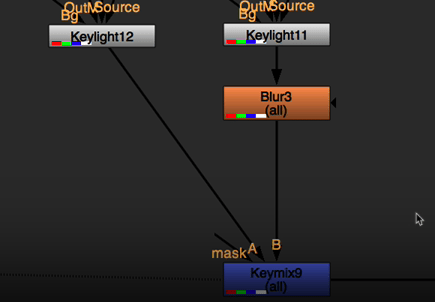
The Keymix node in will allow us to layers two images using a mask, but uniquely, it blends the alpha channels of both inputs along with their colors, making it ideal for combining keys.
We now use a roto to insolate a specific part of the image in this case the head are to conserve detail.
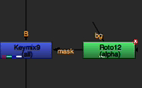
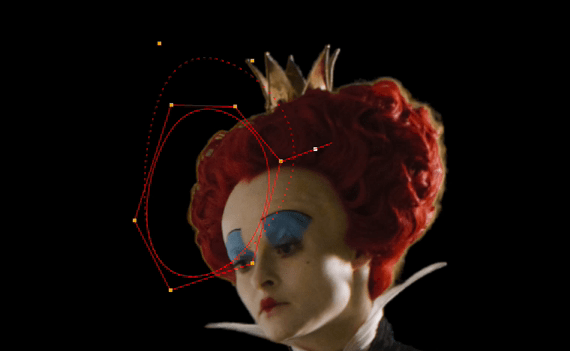
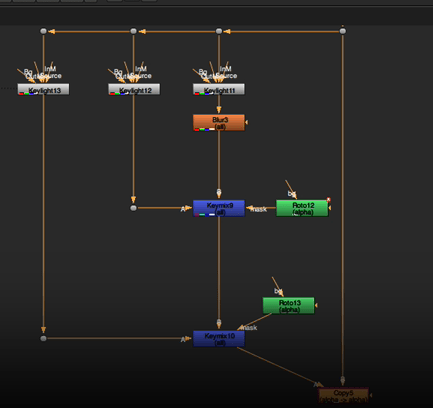
We are finished with the head lets move on to the body, to do that we add another keylight and blend it using another keymix node.
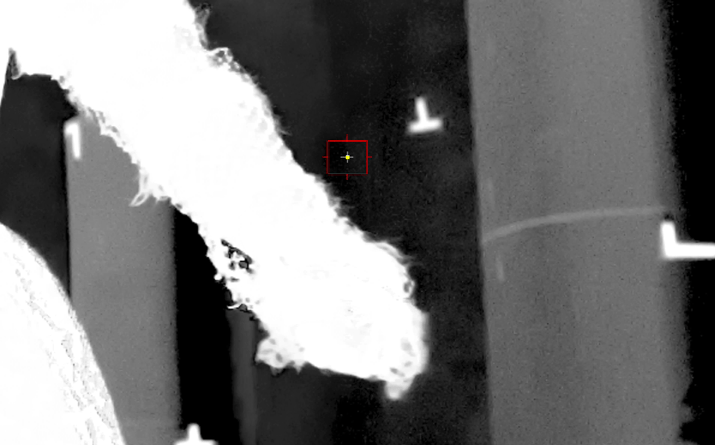
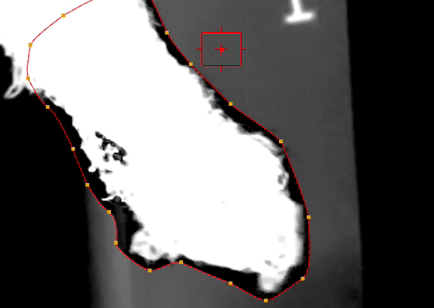
we also add a roto here to insolate the details.
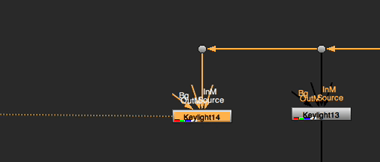
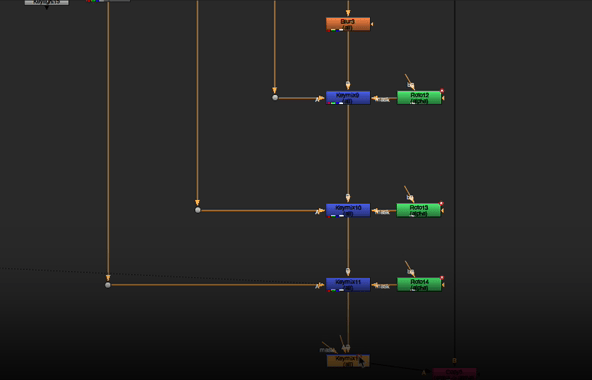
We will continue to add keylights to different part of the footage.
This is how our script is looking.
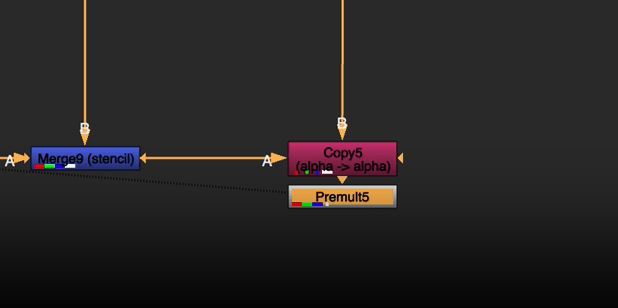
We finally add a premult to the comp.
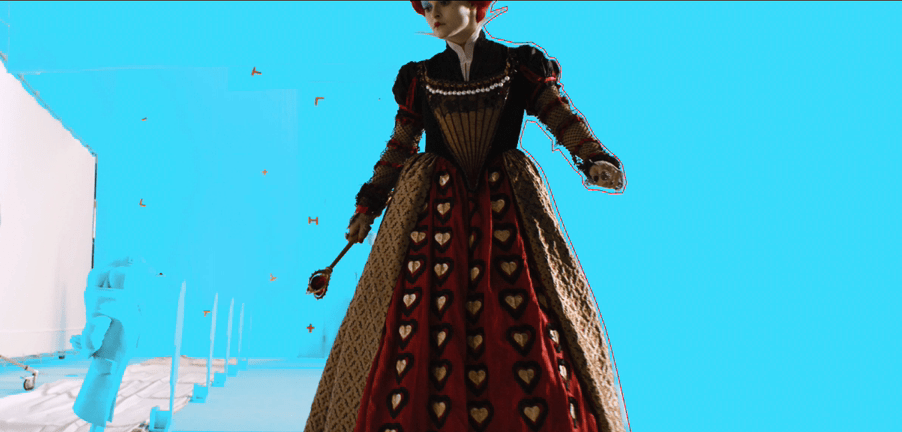
And use a constant as a background.
End of week 10
Week 11
Assignment 1: industry methods
For this assignment we are going to apply all we have learn in class to clean up the footage and change the background.
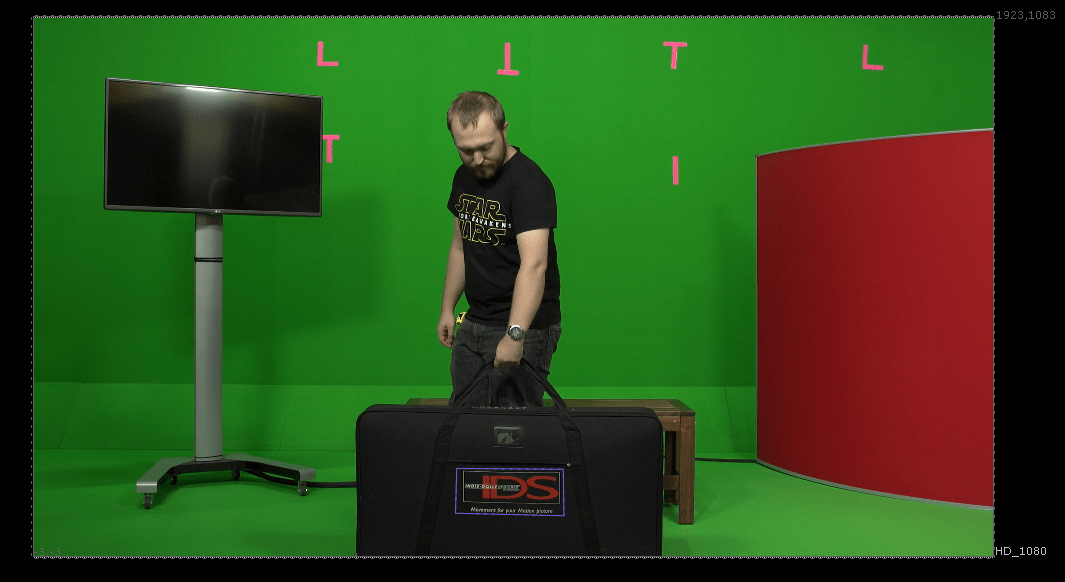
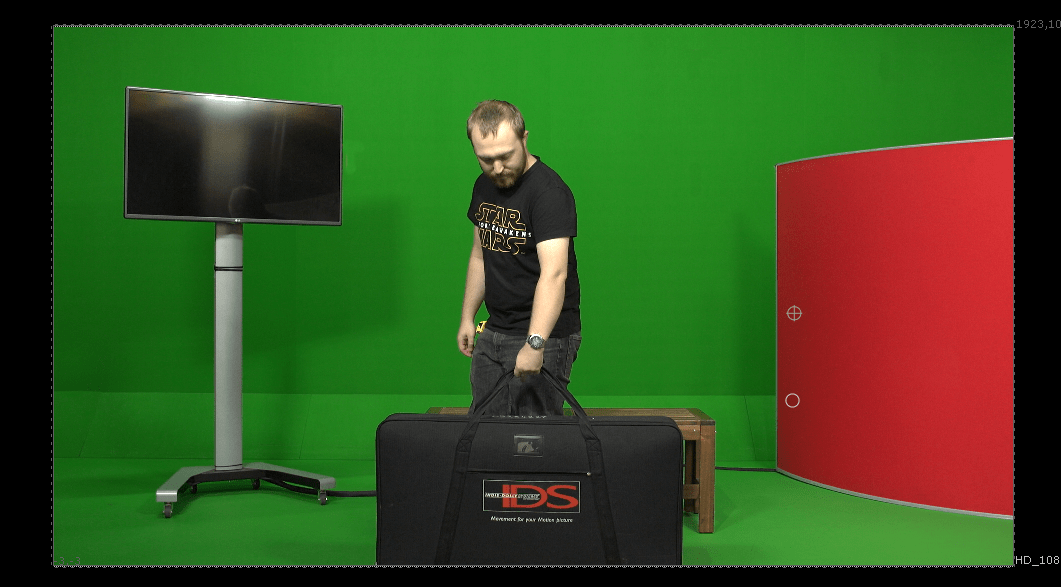
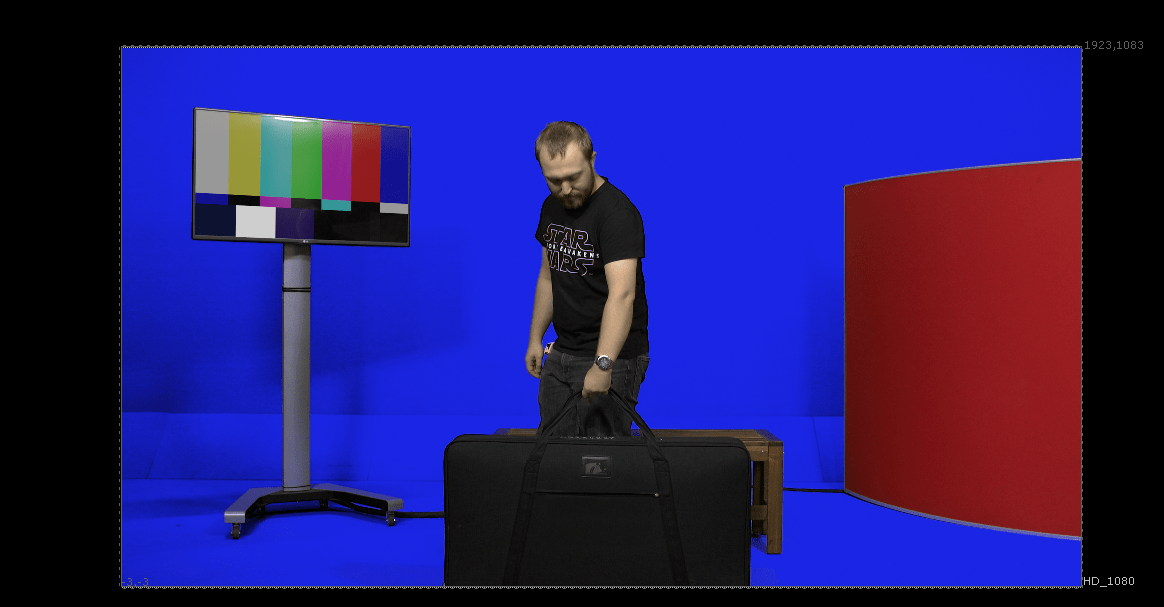
This is our initial footage.
So we start by setting the project settings on the project tab.
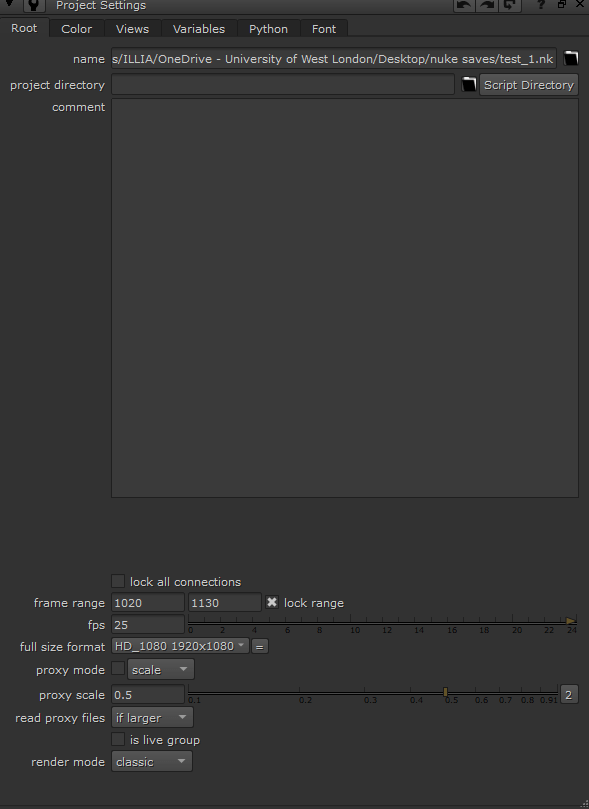
These are the project settings.
We are starting by cleaning up the marks on the background with a roto paint.
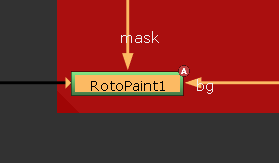
By cloning the walls near by.
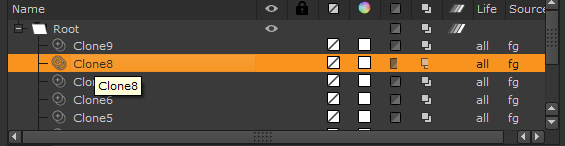
This is the result of the rotopaint.
This is okay for the marks that are not in the path of our subject.
But these two mark are in the way. We will clean them up later.
For the next step we are creating the keylight to remove the green colour on the back.
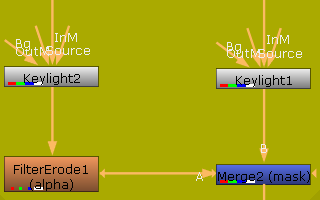
So we are using the colour picker to select two different shades of green an merge them together to conserve better detail.
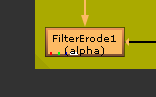
The erode node will help a lot with this.
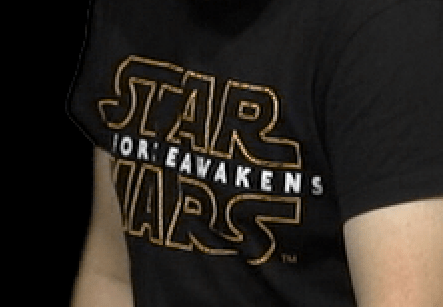
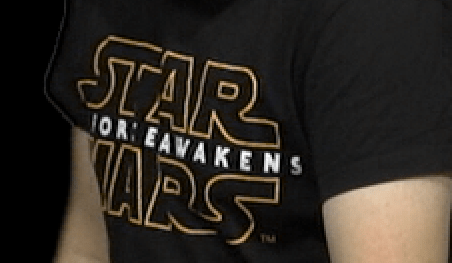
These is the difference.
Without erode:
With erode:
These is the result.
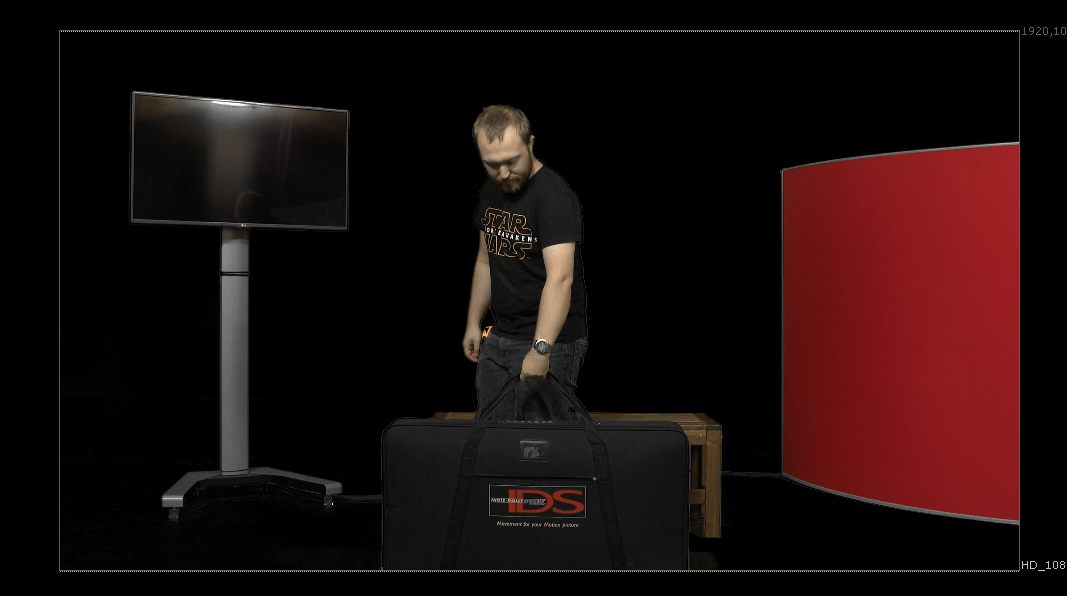
Next we are creating the patch for the logo on the suitcase, to begin with we add a rotopaint.
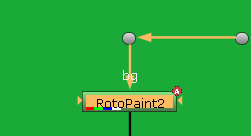
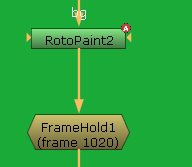
and a frame hold to start painting.
we paint over the logo cloning the surrondings.
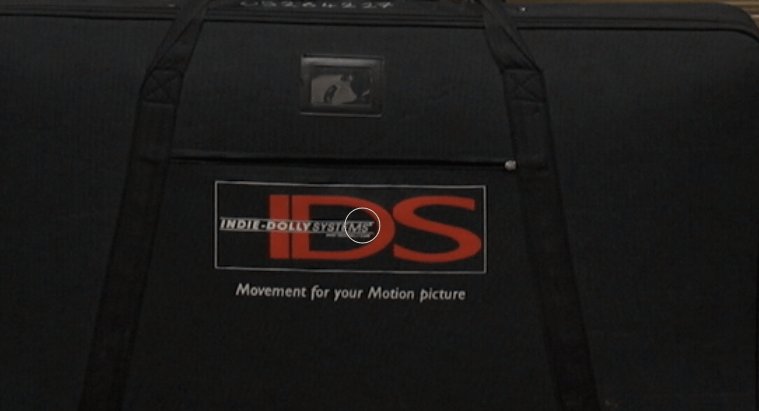
Also do not forget the roto that we are using to make a planar tracking of the logo for later adding the movement to our roto paint.
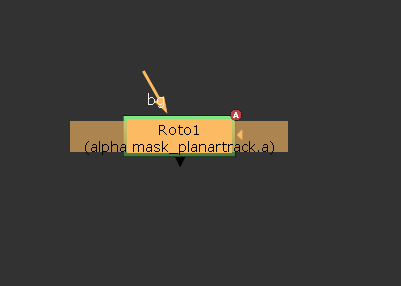
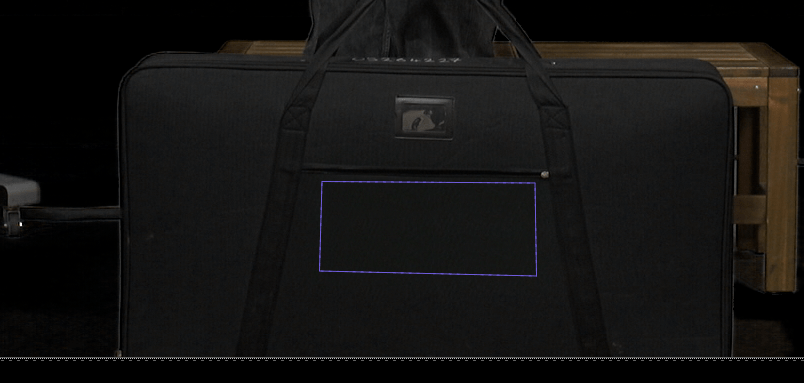
we also a blur node so it blends better into our footage and we end up with this comp and result.
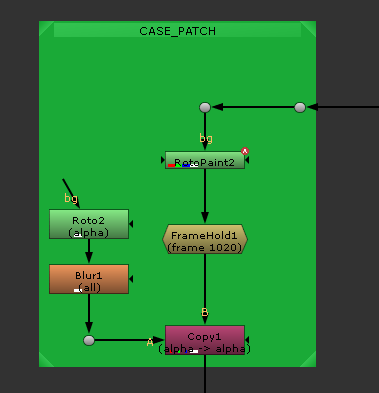
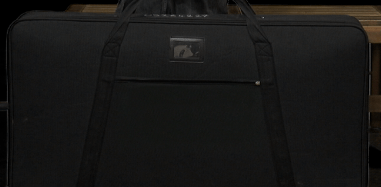
Next we are changing the screen content on the TV.
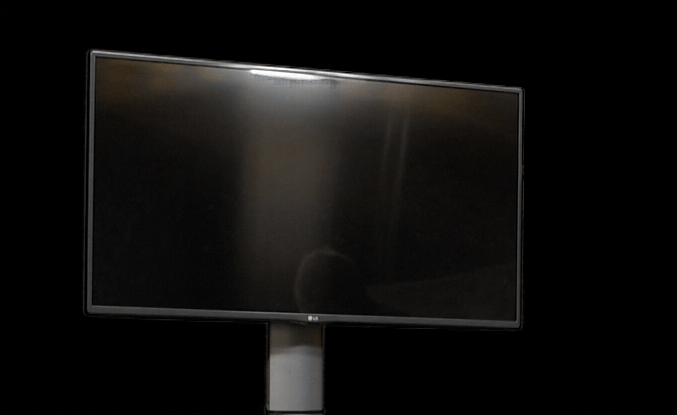
For that we bring in the desired image into the comp in this case we are using the colour bars from nuke.
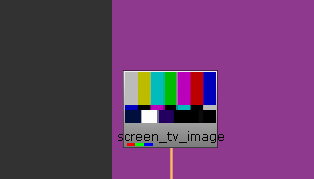
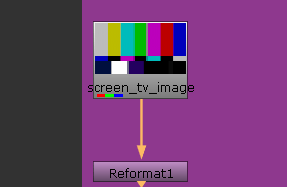
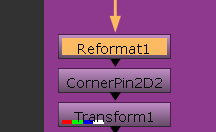
But before we put it in the footage we must reformat this image.
I will use the same format as my original footage.
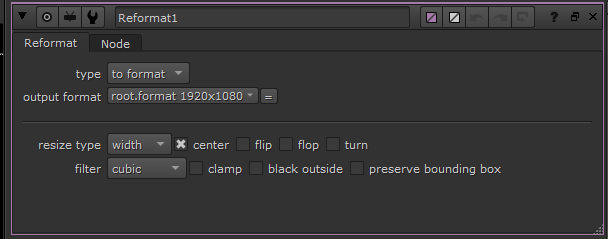
Then we can add a cornerpin node to adjust properly our image and a add transform node to adjust where is the image going to be and its size.
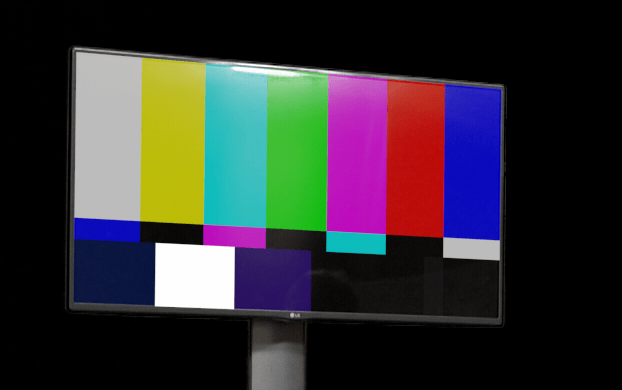
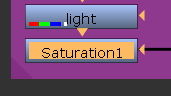
Now we add some grading so the image fit with the rest of the footage in this case I change the brightness and saturation a bit.
This is the result.
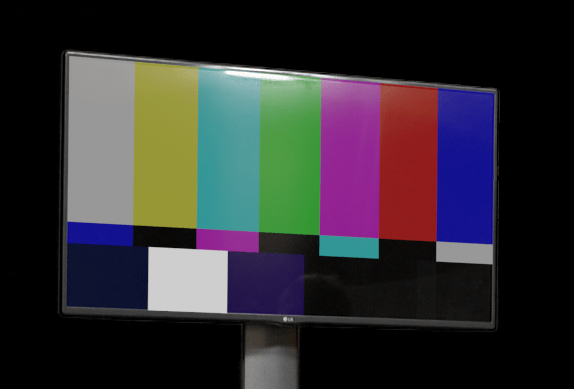
Which looks more natural.
This is our progress for now:
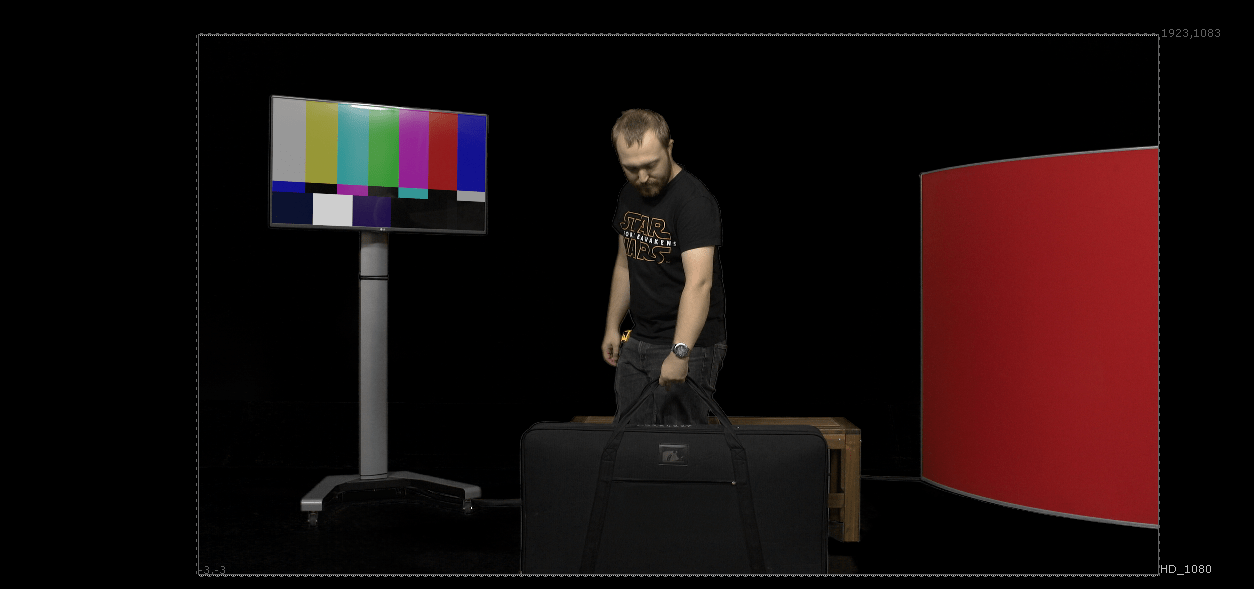
I is looking great in the first frame but it leaks a background, and our subject is under the colour bars we added before.
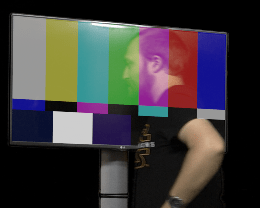
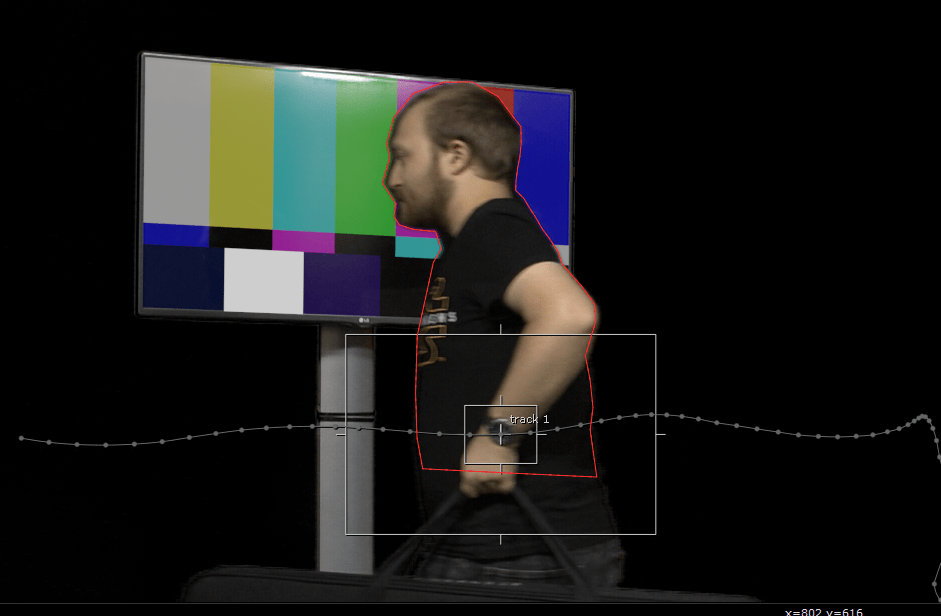
To solve this we are going to create a roto for our image, so whenever the subject passes over it looks like it is in the top.
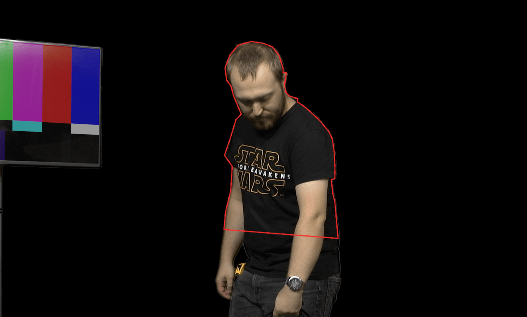
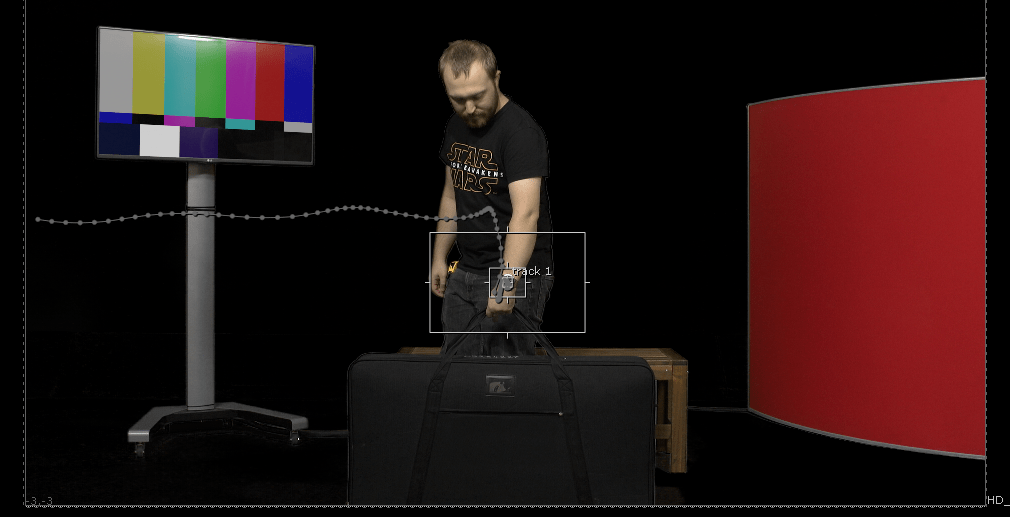
To make our work easier we are going to link the roto to a tracking on the watch of our subject so the roto moves along and we just have to make adjustments:
Now our subject is passing trough the image simulation that the bar colours are present.
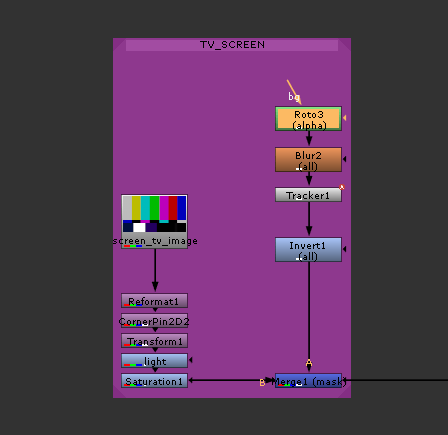
This is our final scrip for the TV screen.
Finally we are adding a constant as our provisional background.
This sis how is it looking now.
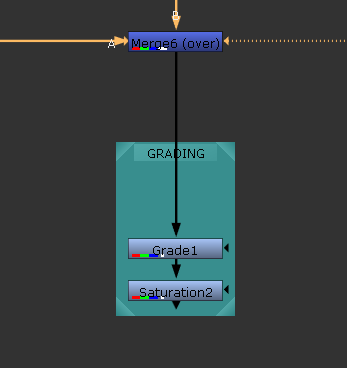
We are merging all together with all the pin corner information to movement information.

And as a final touch we are grading a little the colour to our liking.
This sis our final script:
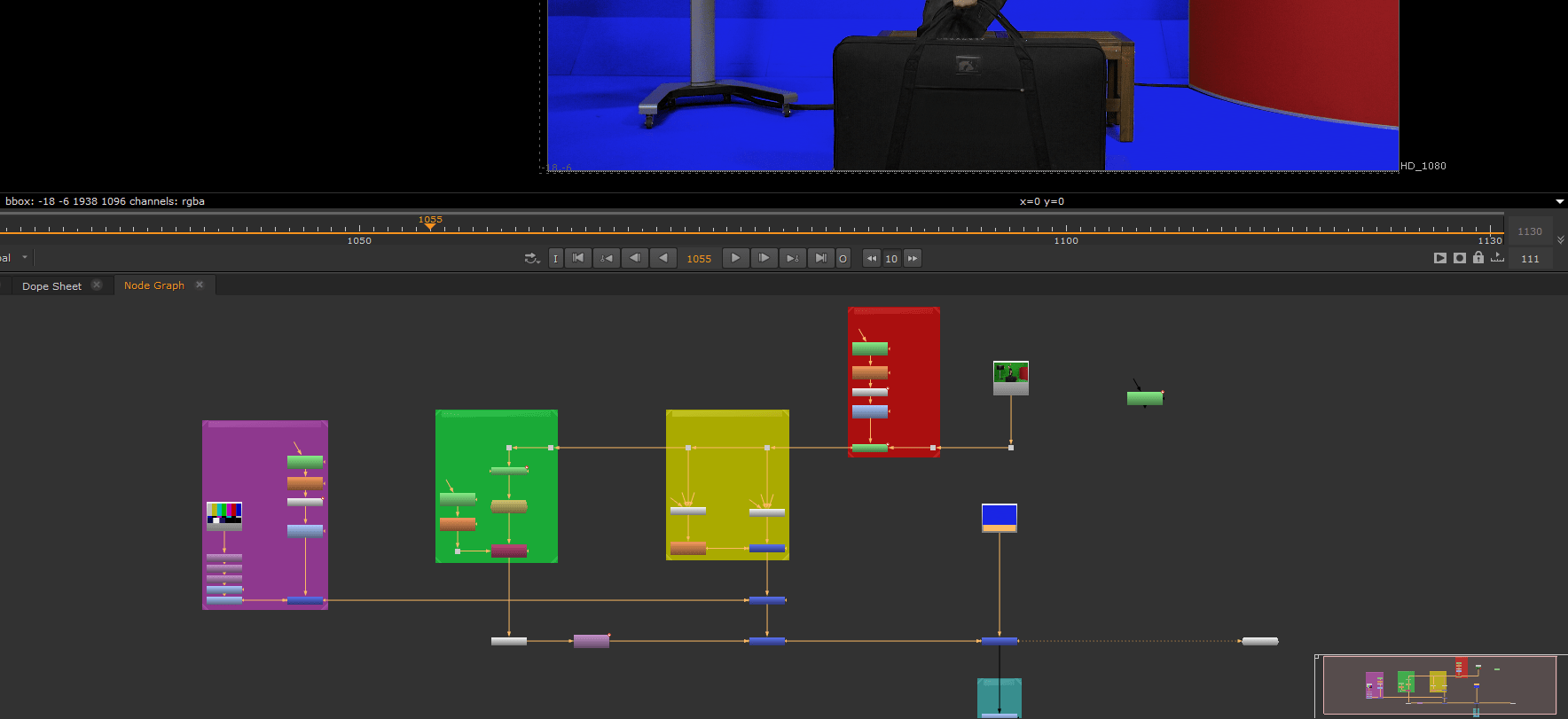
and the export:
End of assignment 1
Assignment 2 : Creative
For this assignment we are going to continue from the assignment 1 footage but adding a little of creativity and create an interesting footage.
To begin with we are going to create a mood board for the assignment.
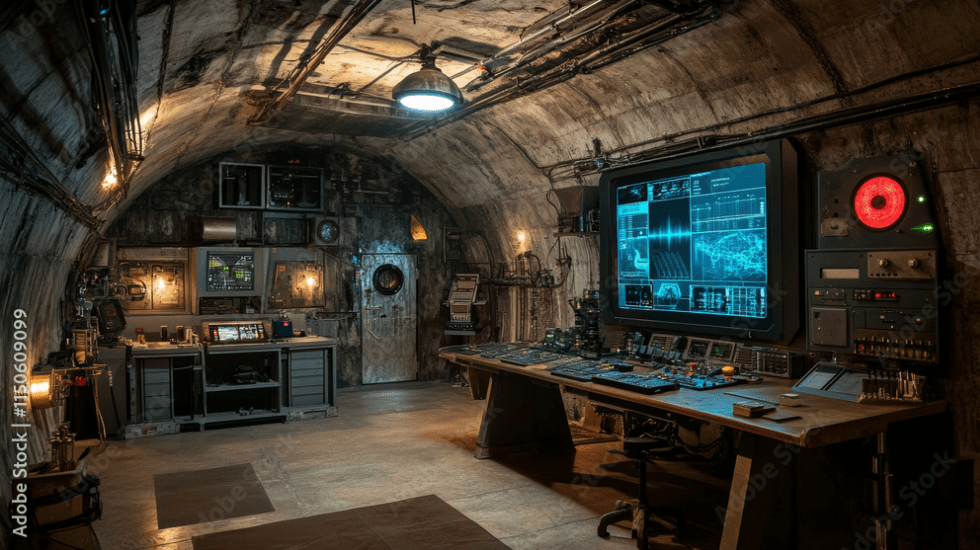
I wanted to give a futuristic vibe, also I want it to be a lie a top secret agent scaping from a base.
So I started my research.
These are different BG I had in mind:
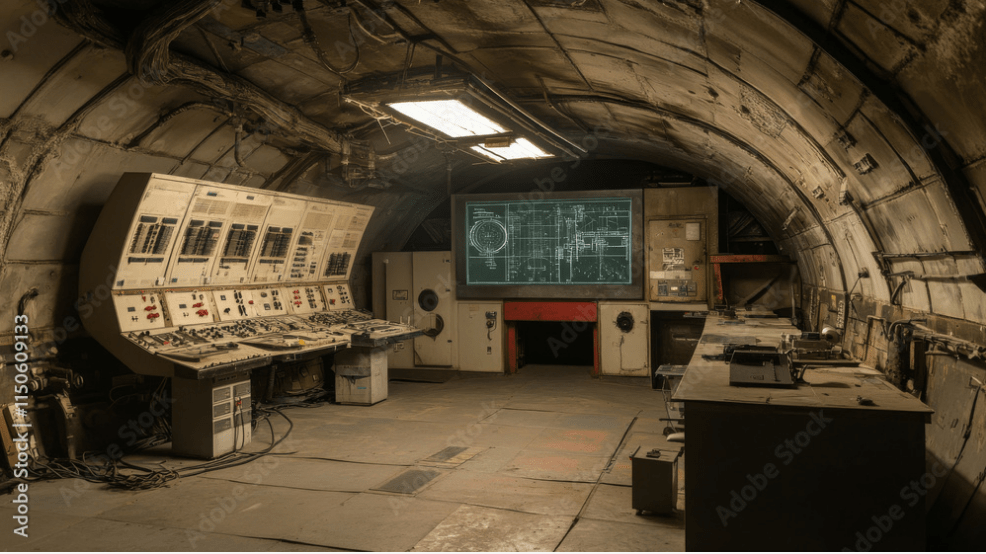

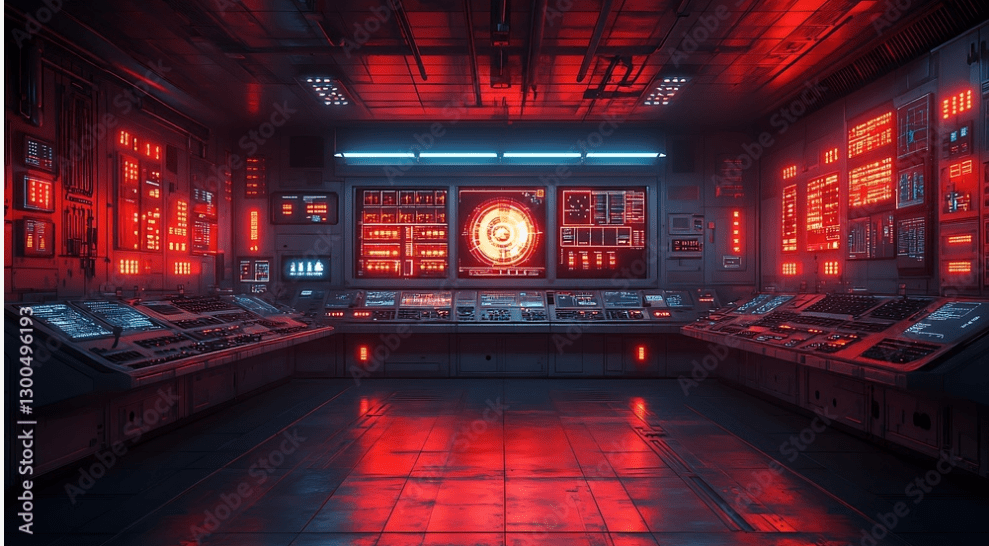
Also I wanted some movement from the screens like “hacker” environment:
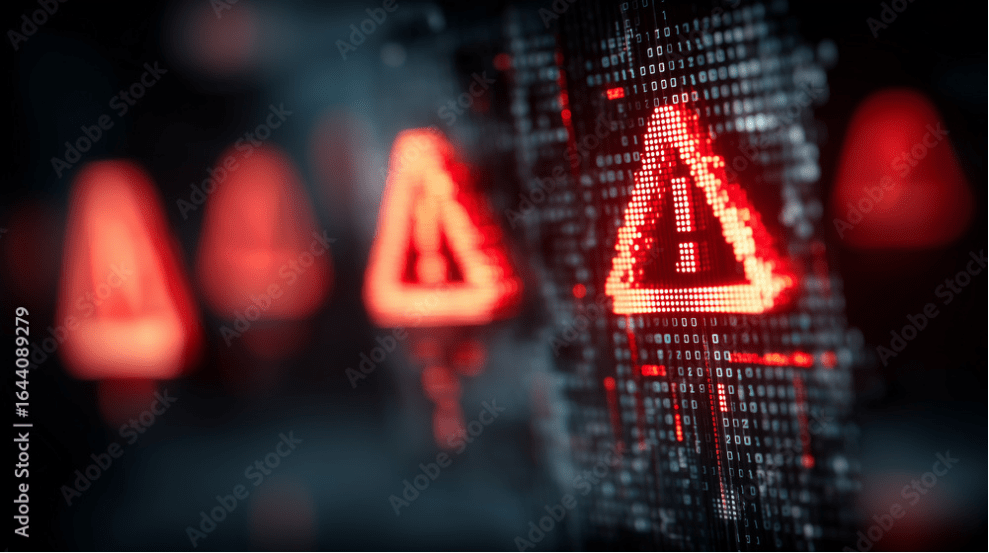
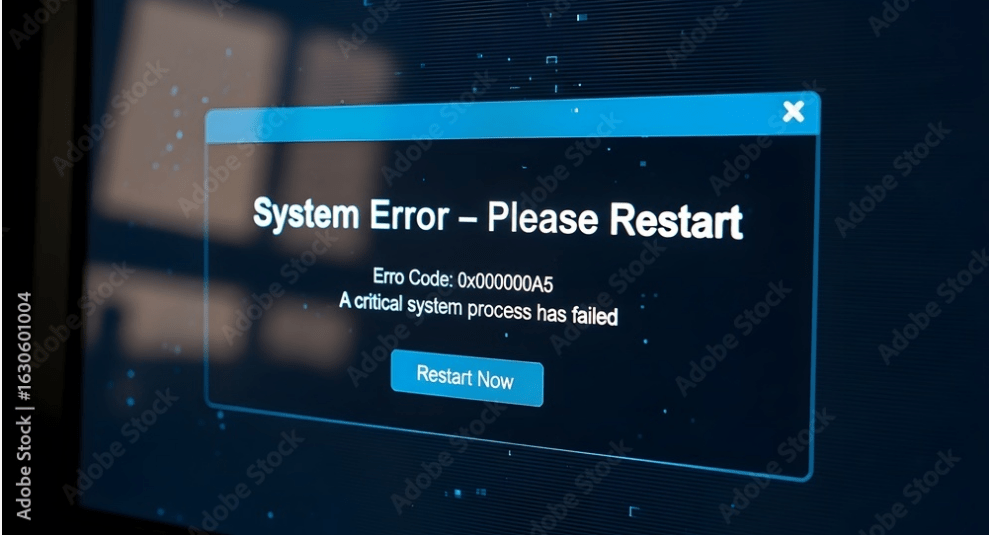
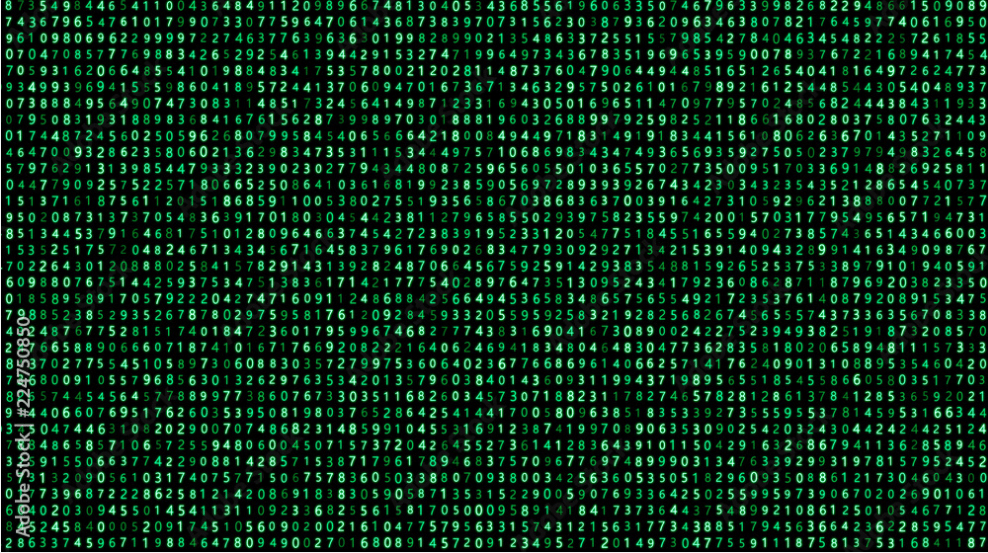



Now that I have enough material I can start my work.
To begin with we add the new BG, with a reformat node because the resolution is different.
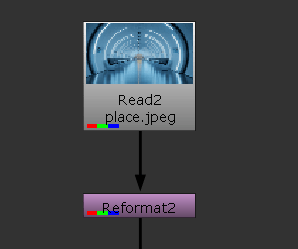
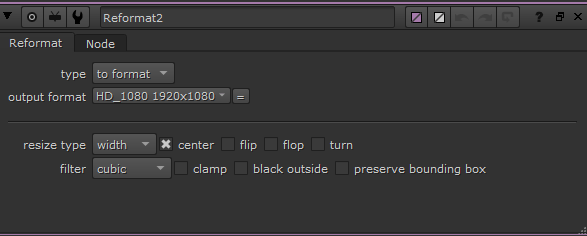
This is the BG now:
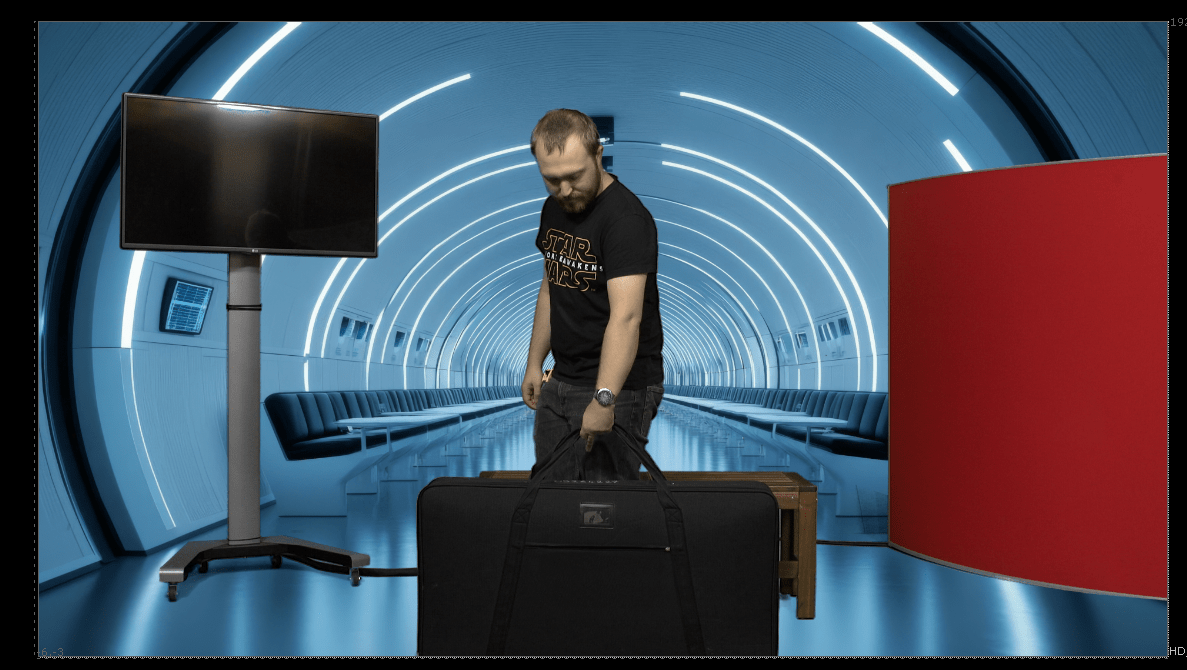
Since we changed the colour of the BG we have to grade our original footage a little so it matches better.
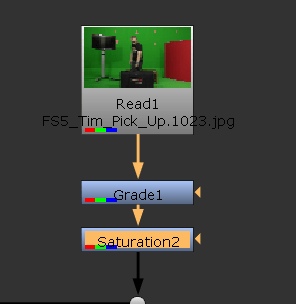
Now looks better.
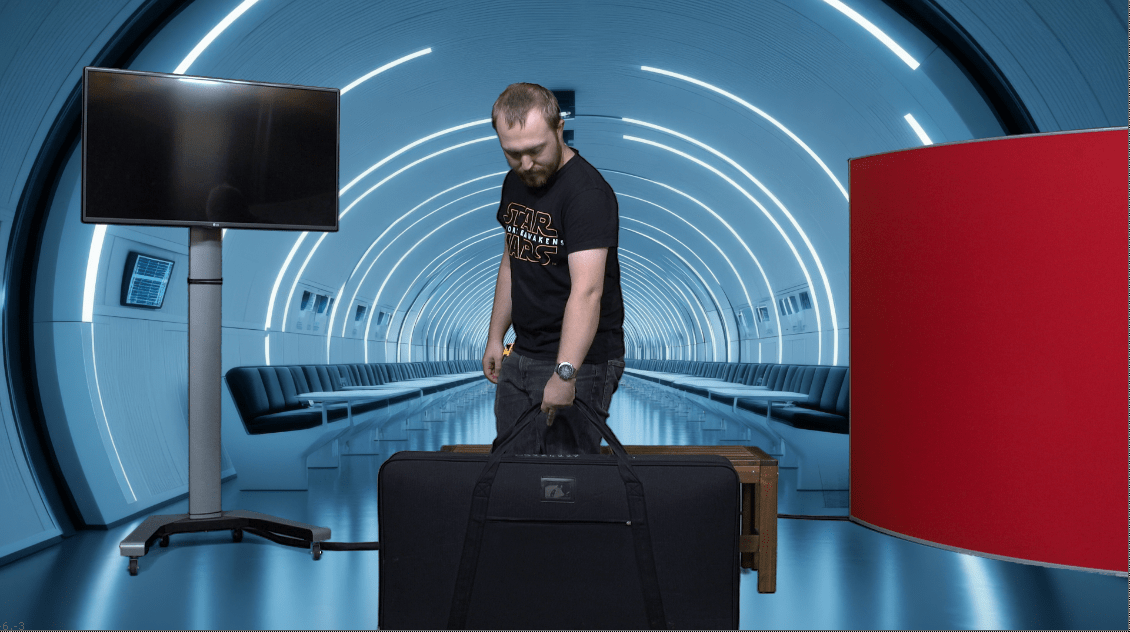
Now we want to add a video on the TV, we add our new footage to the script and reformat it again, but this time I am using the script I had before form my colour bars.
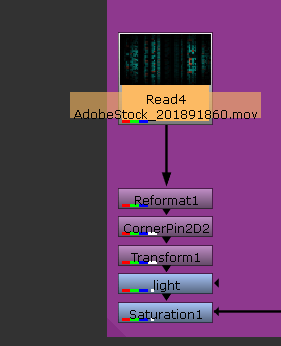 Since I have it labelled I can easily spot where to make a change.
Our footage is looking like this:
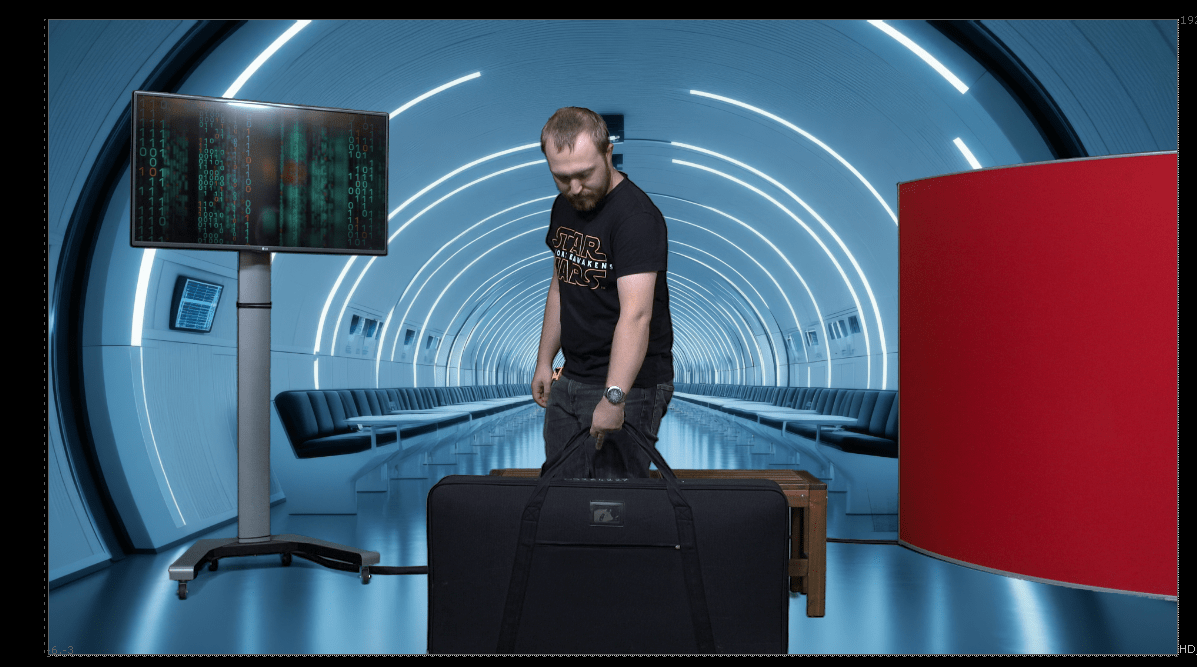
We now want to a add a top secret logo to the case because our subject is taking with him some important information.
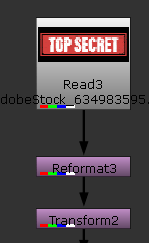
This is the image we are going to use, adding as well a reformat node and a transform node that we are going to use to position our logo.
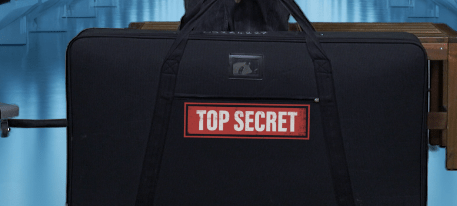
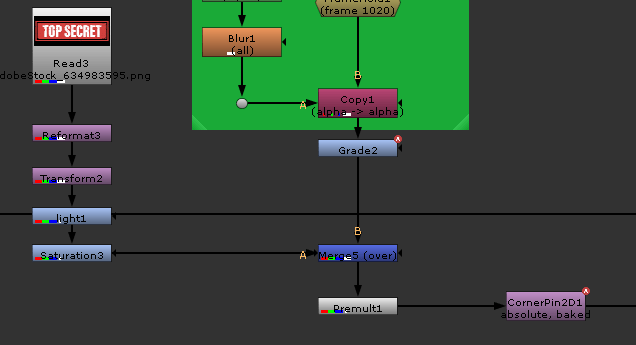
We already have a planar tracker from the previous patch we made to the case, so we are using that same information to keep the logo on top of the patch.
Next we are transforming the red pillar on the right of the footage into something more interesting like a hacked screen.
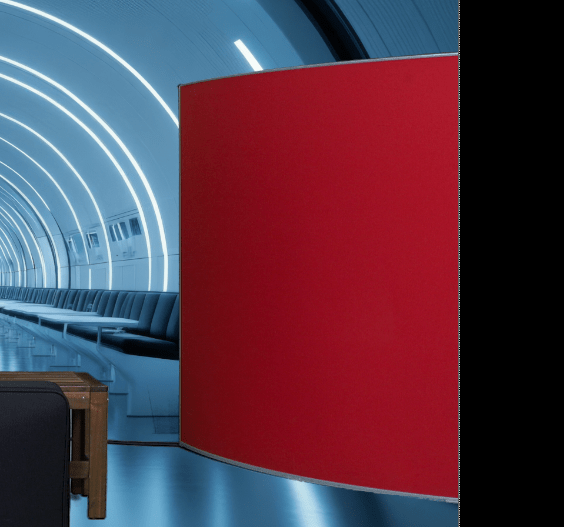
For this we are adding our new footage, and once again we are reformatting it and adding a transformation node with some colour grading.
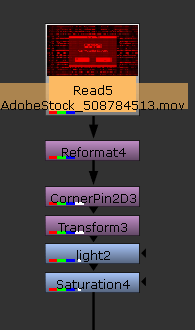
This is the result.
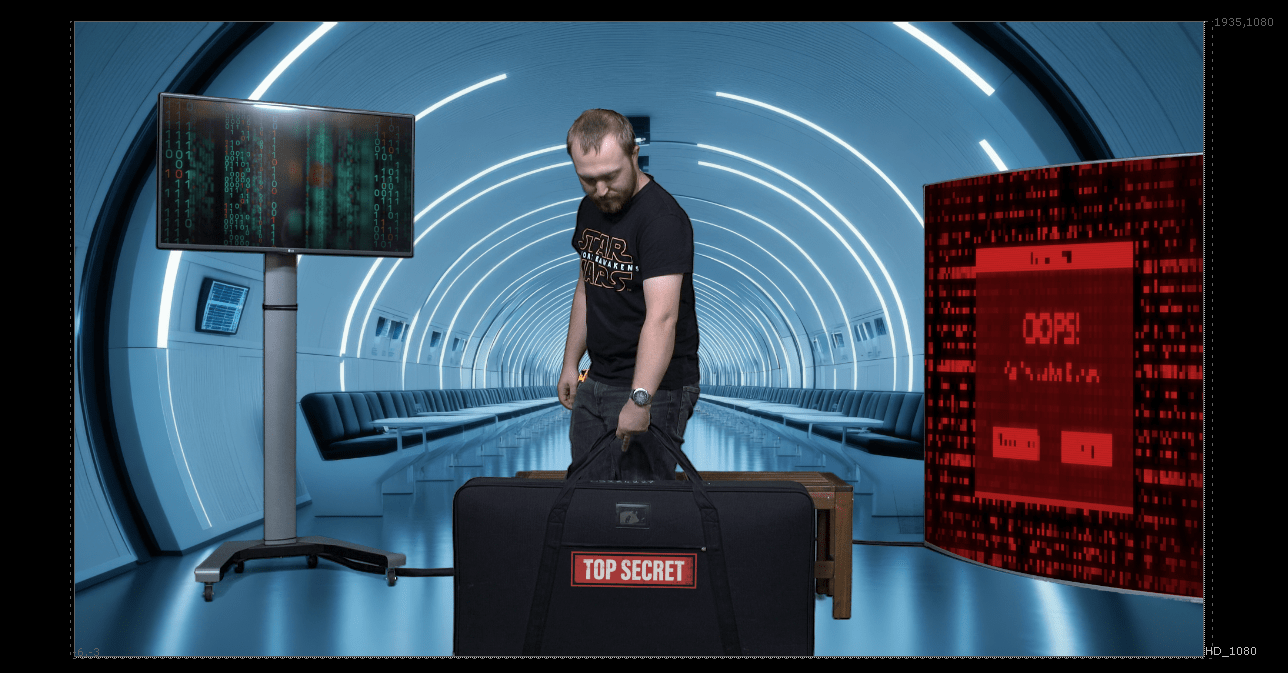
In this second revision I have made a a couple of adjustment on the scrip for a better looking footage.
Like grading the colour, adding some rotos to insolate part of the key light and adding keyframes to the colour grading of the case patch since its brightness shifted due to the brightness on the footage.
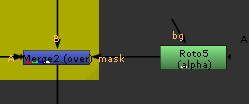
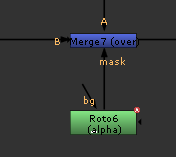
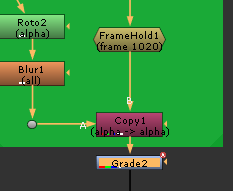
Also added backdrops to all the important parts of the script.
Here is my final script:
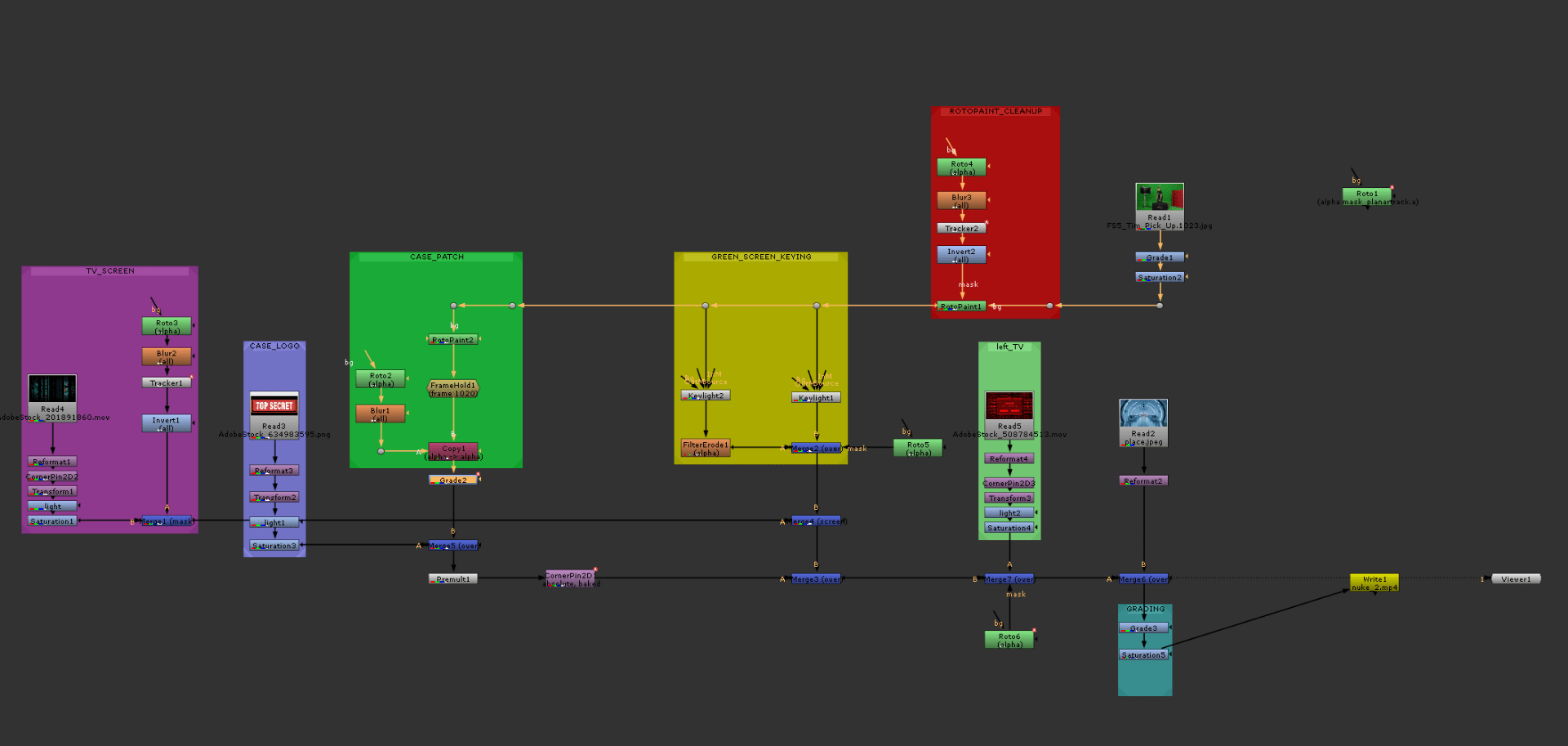
And here is the final result:
End of assignment 2

